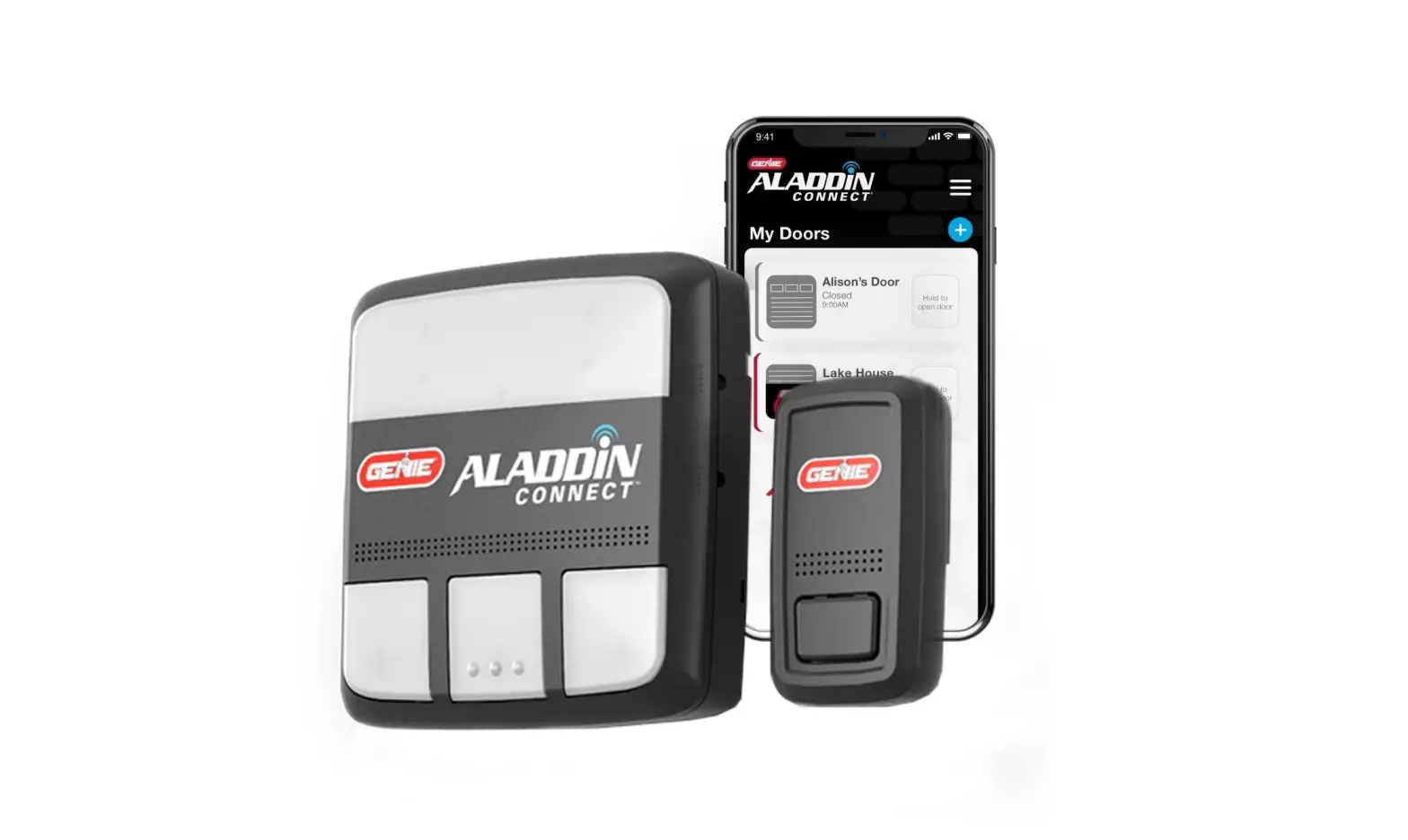
ALADDiN Connect Google Home with The Garage Door
Setting up an Aladdin Connect Device with Google Home
The process to connect Google Home to the garage door for all users is to sign into an account, select a device, and add the devices to a home and then the location within the home. The process to add a device is the same regardless of whether the user has already connected the Aladdin device to Google Assistant or wants to add the device for the first time.
a. Select Home Add Device (pp. 2-3)
b. Link accounts (pp. 4)
c. Device discovery, selecting device (pp. 5)
d. Adding device to home, location within home (pp. 6)
e. Verify Device add to Home (pp. 7)
Frequently Asked Questions
Q. I want to disable the PIN required to open my door using Google Home.
A. Google smart home requires PIN to open the door. PIN cannot be disabled at this time. If a user wants to get around using a PIN, they can use the custom skills, (Google assistant AladdinConnect skills).
Q. Can a user use either a custom command or a smart home command. Can they ask, “Hey Google, ask Aladdin Connect to open my door” and / or say, “Hey Google, open my door.”
A. Yes, customers can use both commands.
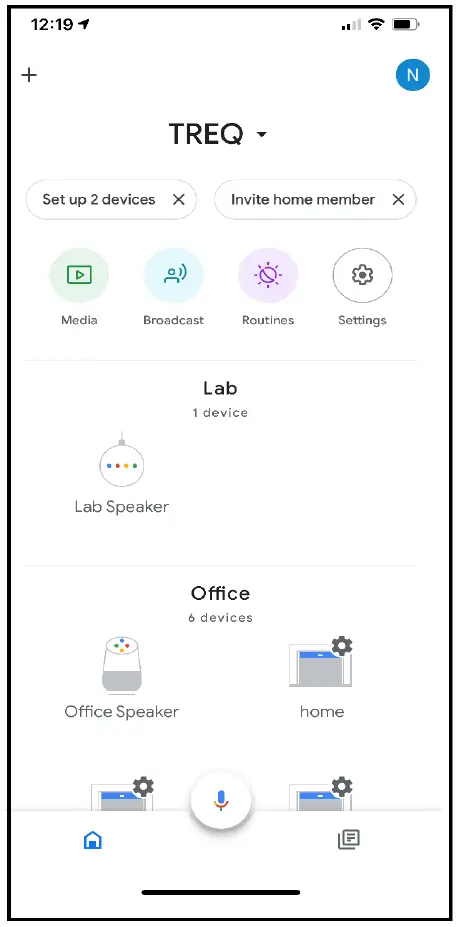
Select Home, Add Device
- Download Google Home and then open Google Home. In the screen below, the home is named TREQ. If the user has multiple homes, they can click on the home name and a drop-down list of homes will appear and the user selects the home. To add a device, click the + sign in the upper left side of the screen.
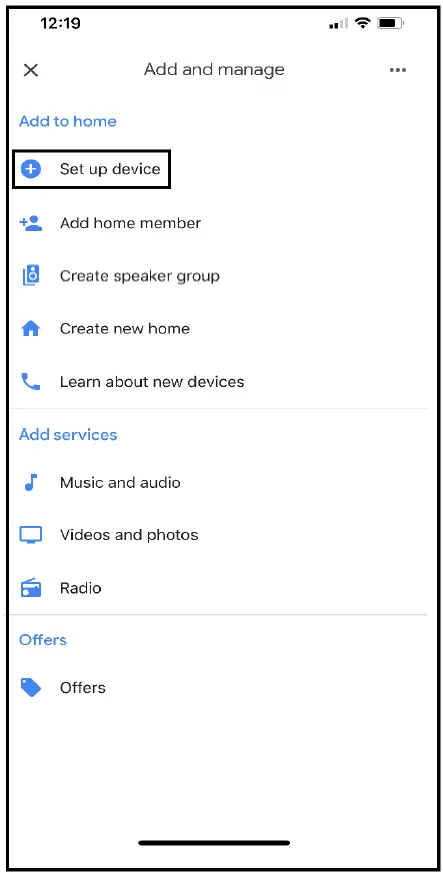
 Set up a d Device
 - Under Add to Home, select set up device
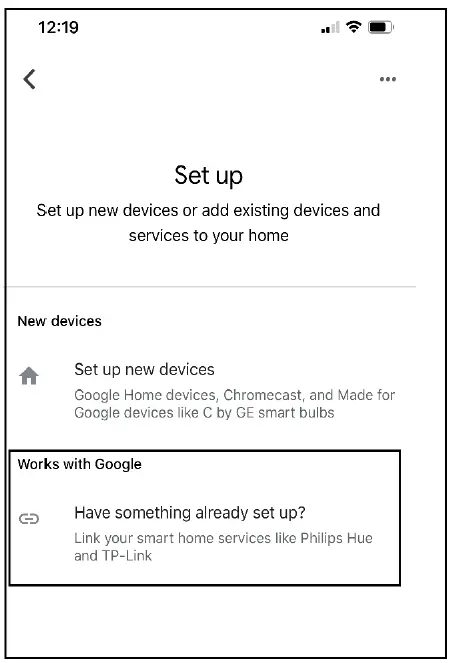
 Setting up a Device that is already Connected to Google Assistant
 - If the user has already linked Aladdin Connect to Google Assistant, the user selects “Have something already set up?”
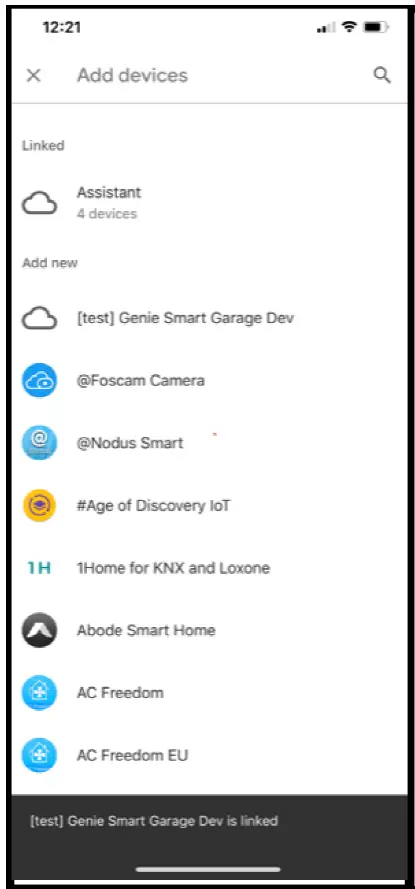
 Find Genie Smart Garage
 - A list of devices that work with Google Assistant will be provided. Tap on Genie Smart Garage
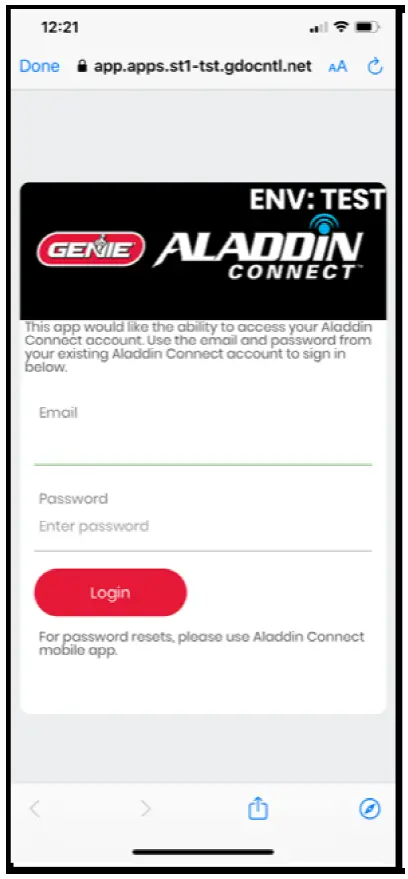
 Log into Aladdin Connect Account
 - The user then enters their Aladdin Connect Username and Password. If they have forgotten their password, they need to open the Aladdin Connect App and reset the password, and then come back to the Google Home app.
 Account Log in Linking Complete
 - After successfully logging in, the Google Homeis updated. At the bottom it says Genie Smart Garage is linked. To exit the screen hit the “x” in the upper left-hand side of the screen.Displaying All Devices
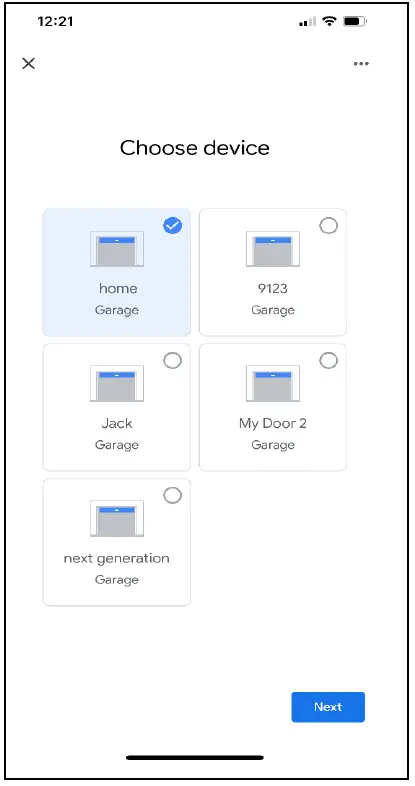
- A listing of all the devices/doors that are attached to your account is displayed. This list should include the devices that are attached to your Aladdin Connect Account.
 Selecting a Device to Add to a Home
 - The user must select a device or devices to add to a home. The first step is simply to select a device and then hit next.
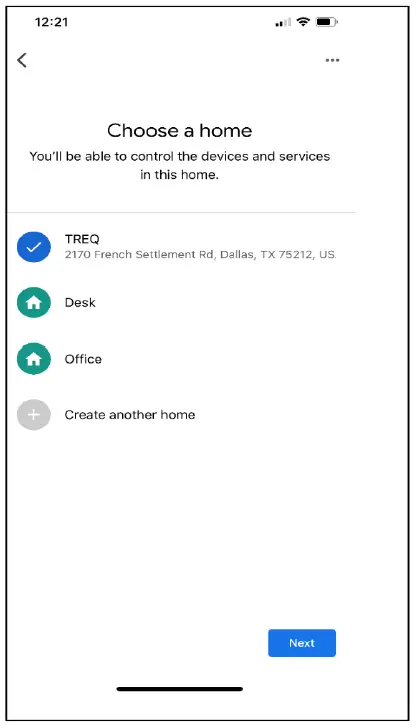
 Adding a Device to a Home
 - If the user has multiple homes, the user selects the home where the device is installed and clicks next.
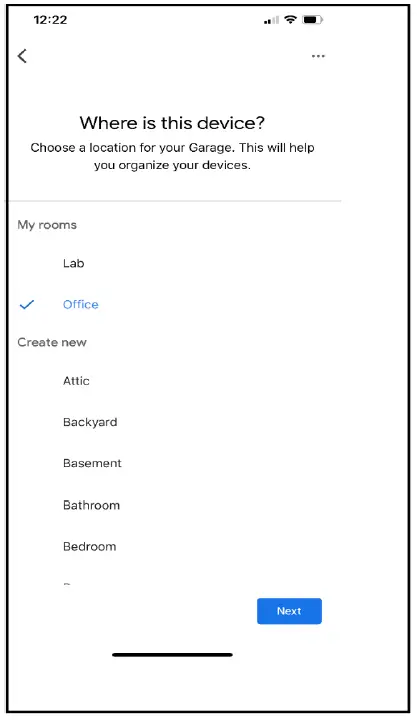
 Selecting the Location within the Home
 - Next the user selects the location of the device within the home and clicks next. If the room has not been created, the user selects the room from the create new list and clicks next.
 Device has been Added to the Home
 - The Google Home screen will now show the devices that are added to your home. In this screen the home called “office” has several doors.
 Set up a d Device
 Setting up a Device that is already Connected to Google Assistant
 Find Genie Smart Garage
 Log into Aladdin Connect Account
 Account Log in Linking Complete
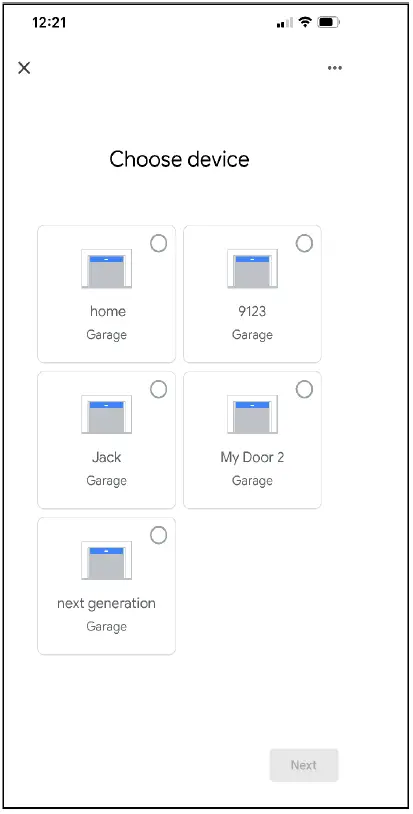 Selecting a Device to Add to a Home
 Adding a Device to a Home
 Selecting the Location within the Home
 Device has been Added to the Home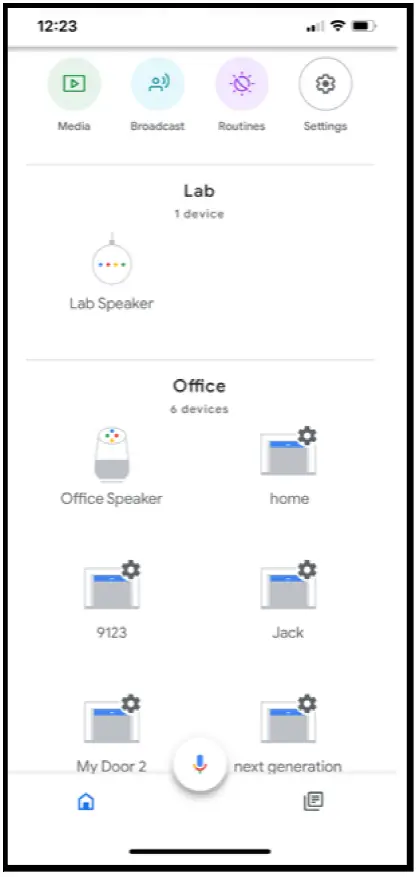
Google Home Use Cases for Opening
| Use Case | User Verbal Command | Google Audio Response | Comments | |
| 1 | User wants to open a specific door | Open <device name/door name> Open <device name/door name> 100% | I need a PIN to open DoorName | |
| 1A | User states correct PIN | <PIN> One, Two, Three, Four | Sure, opening the door | |
| 1B | User states incorrect PIN | <wrong PIN> Four, Three, Two, One | Sorry, the PIN is incorrect | |
| 2 | User wants to open a door when door is already open | Open <device name/door name> | DoorName already open | |
| 3 | User opens a door from App and when opening asks to open the same door | Open <device name/door name> | The door is currently running, and I can’t make any changes | |
| 4 | User wants to open a door when the garage door opener is offline | Open <device name/door name> | Sorry, it looks like <device> is not available right now | |
| 5 | User has only one door and asks to open the door without specifying the door name | Open door / open | Sure, opening the door | |
| 6 | User has more than one door and asks to open the door without specifying the door name | Open door / open | Sorry I am not sure which device you had like to control | |
| 7 | User tries to open a door using an invalid Door Name | Open <incorrect device name/door name> | I don’t understand | |
| 8 | User wants to open all doors when all doors are closed. | Open All my doors/ Open all doors | I need the PIN to open DoorName | One PIN is used for all doors. |
| 8A | User states correct PIN | <PIN>One, Two, Three, Four | Ok, opening # garage doors | |
| 9 | User wants to open all doors when one or more doors is open and one/more closed (Doors in different states) | Open All my door/ Open all door | I need the PIN to open DoorName | One PIN is used for all doors. |
| 9A | User states correct PIN | <PIN>One, Two, Three, Four | Opening # garage doors DoorName already open |
Google Home Use Cases for Closing
| Use Case | User Verbal Command | Google Audio Response | Comments | |
| 1 | User wants to close a specific door | Close <device name/door name> Open <device name/door name> 0% | Sure, closing the door | No PIN required for closing |
| 2 | User wants to close a door when door is already closed | Close <device name/door name> | DoorName already closed | |
| 3 | User closes a door from App and when closed asks to close the same door | Close <device name/door name> | The door is currently running, and I can’t make any changes | |
| 4 | User wants to close a door when the garage door opener is offline | Close <device name/door name> | Sorry, it looks like <device> is not available right now | |
| 5 | User asks to close door that is obstructed – photo eye is blocked. | Close <device name/door name> | DoorName detected an obstruction | |
| 6 | User has only one door and asks to close the door without specifying the door name | Close door / close | Sure, closing the door | |
| 7 | User has more than one door and asks to close the door without specifying the door name | Close door / close | Sorry, I am not sure which device you want to control | |
| 8 | User tries to close a door using an invalid Door Name | Close <incorrect device name/door name> | Sorry, I can’t seem to do that right now | |
| 9 | User wants to close all doors when all doors are open. | Close all my doors/ Close all doors | Ok, closing # garage doors | |
| 10 | User wants to close all doors when one or more doors is closed and one or more is open (Doors in different states) | Close all my doors/ Close all doors | Closing DoorName. DoorName already closed |
Google Home Use Cases for Checking Status
| Use Case | User Verbal Command | Google Audio Response | Comments | |
| 1 | User wants to know if a specific door is open or closed. | Is my <Door name/Device name>Open? Is my <Door name/Device name> closed? | DoorName is open or DoorName is closed | |
| 2 | User with only one door wants to know if a door is opened or closed and does not use DoorName. | Is my door open? Is my door closed? | DoorName is open or DoorName is closed | |
| 3 | User has more than one door and wants to know door status. | Is garage door open? Is garage door open or closed? | Sorry, something went wrong and I’m unable to control your home device. | |
| 4 | User opens door using a wall console or a remote and then asks for door status | Is my <Door name/Device name>Open? | DoorName is open | |
| 5 | User asks for door status when the unit is offline. | Is my <Door name/Device name>Open? | Sorry, it looks like the device is not available right now. | |
| 6 | User wants a list of all the doors attached to Google Home | List all door/List my doors | Sorry, something went wrong and I’m unable to control your home device. | This command is not supported in google smart skill. This is a custom skill command. |
| 7 | User wants to know that status of a garage door. | What is status of my door | Sorry, something went wrong and I’m unable to control your home device. | This command is not supported in google smart skill. This is a custom skill command. |