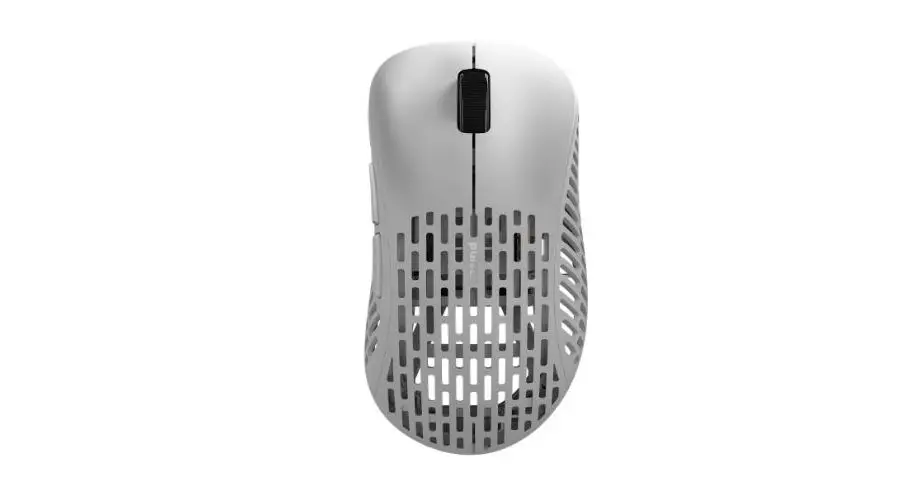
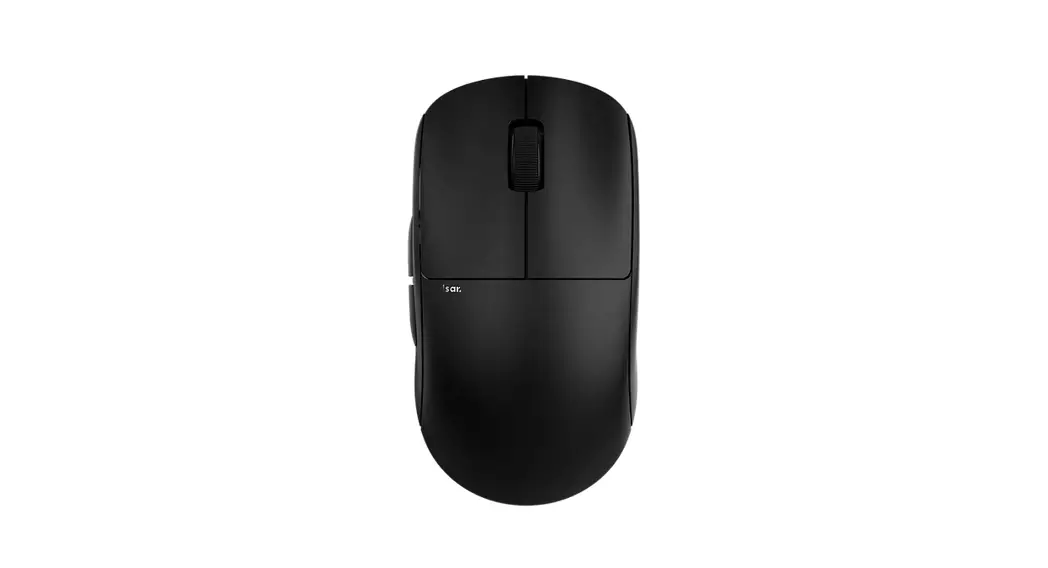
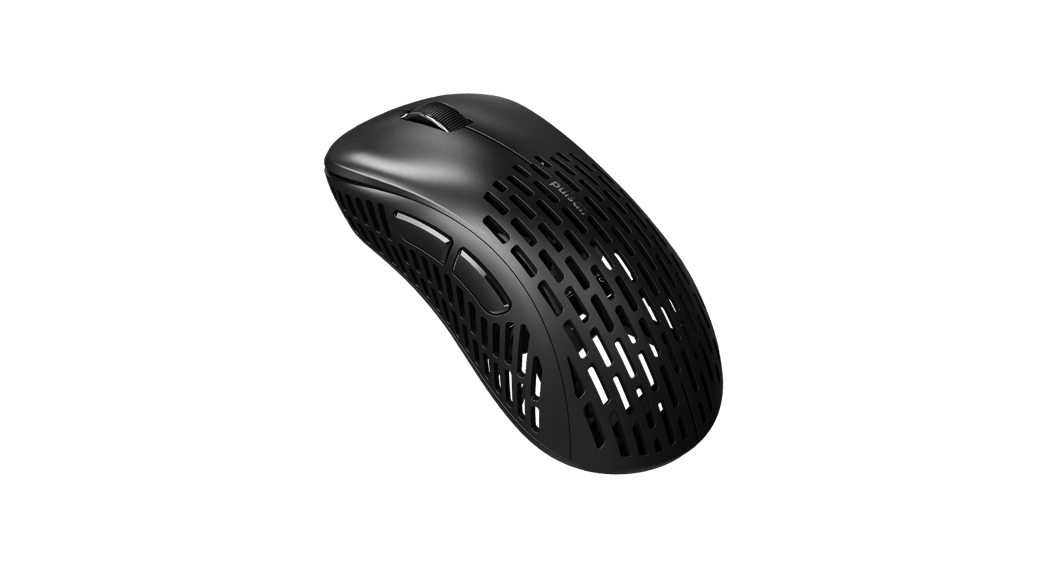
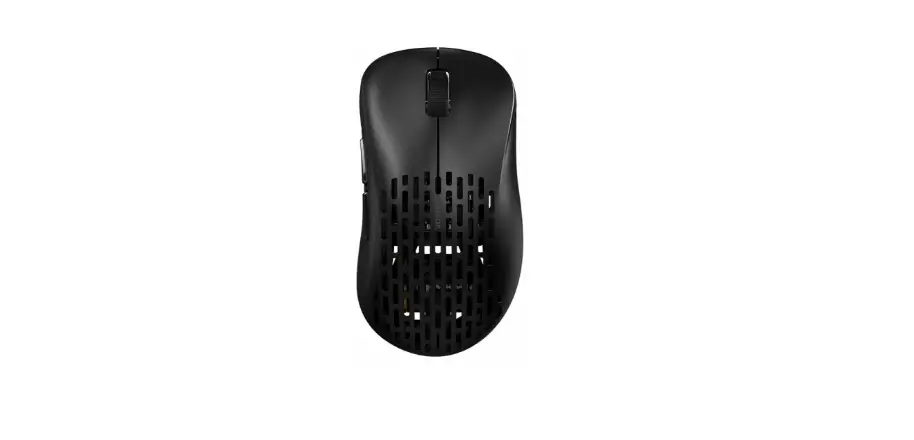
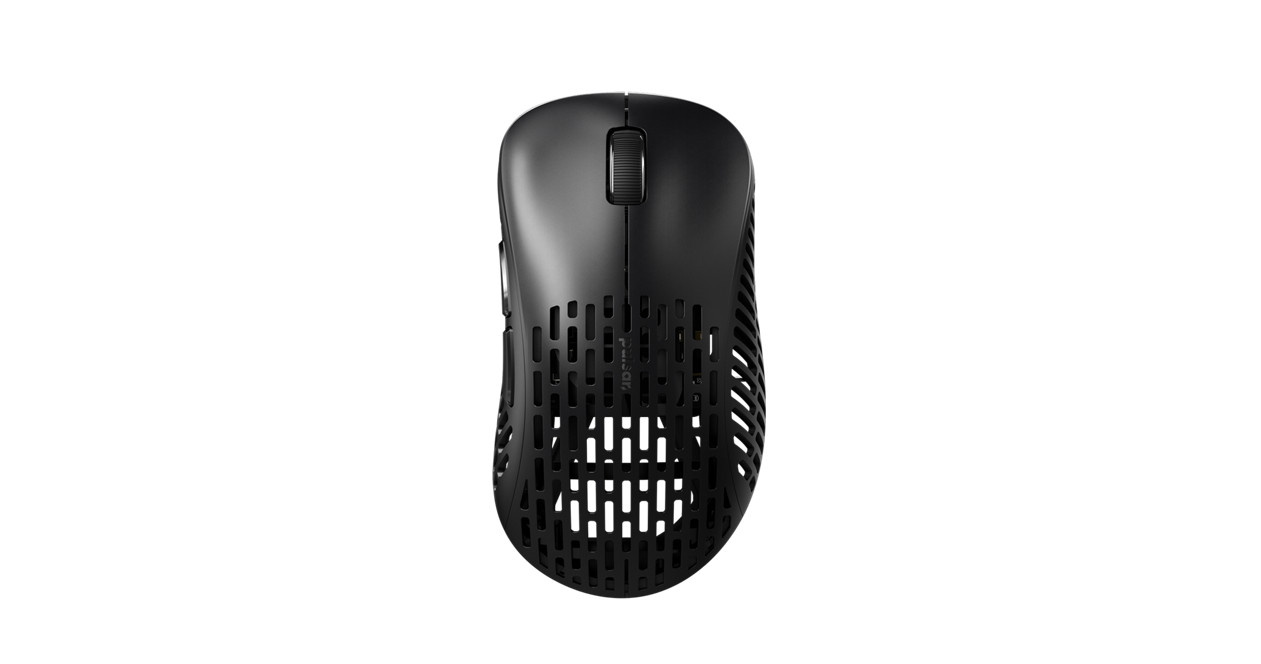
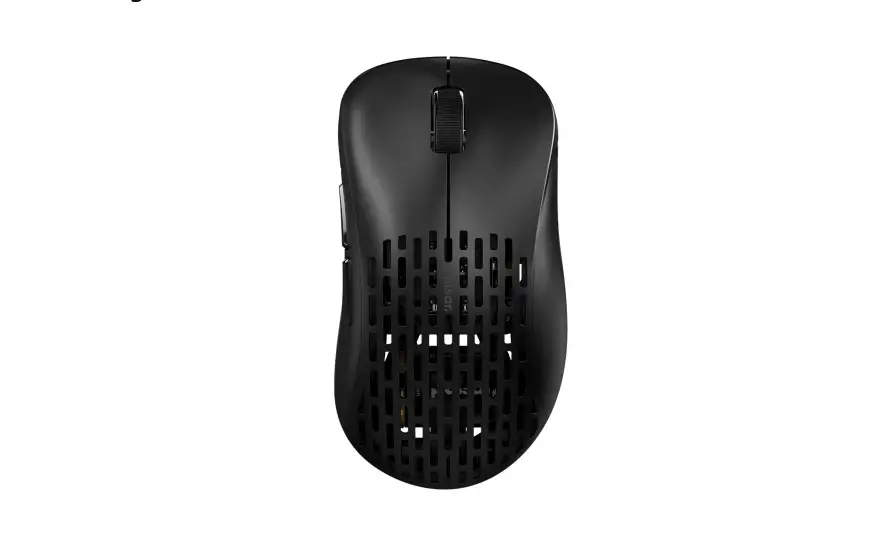
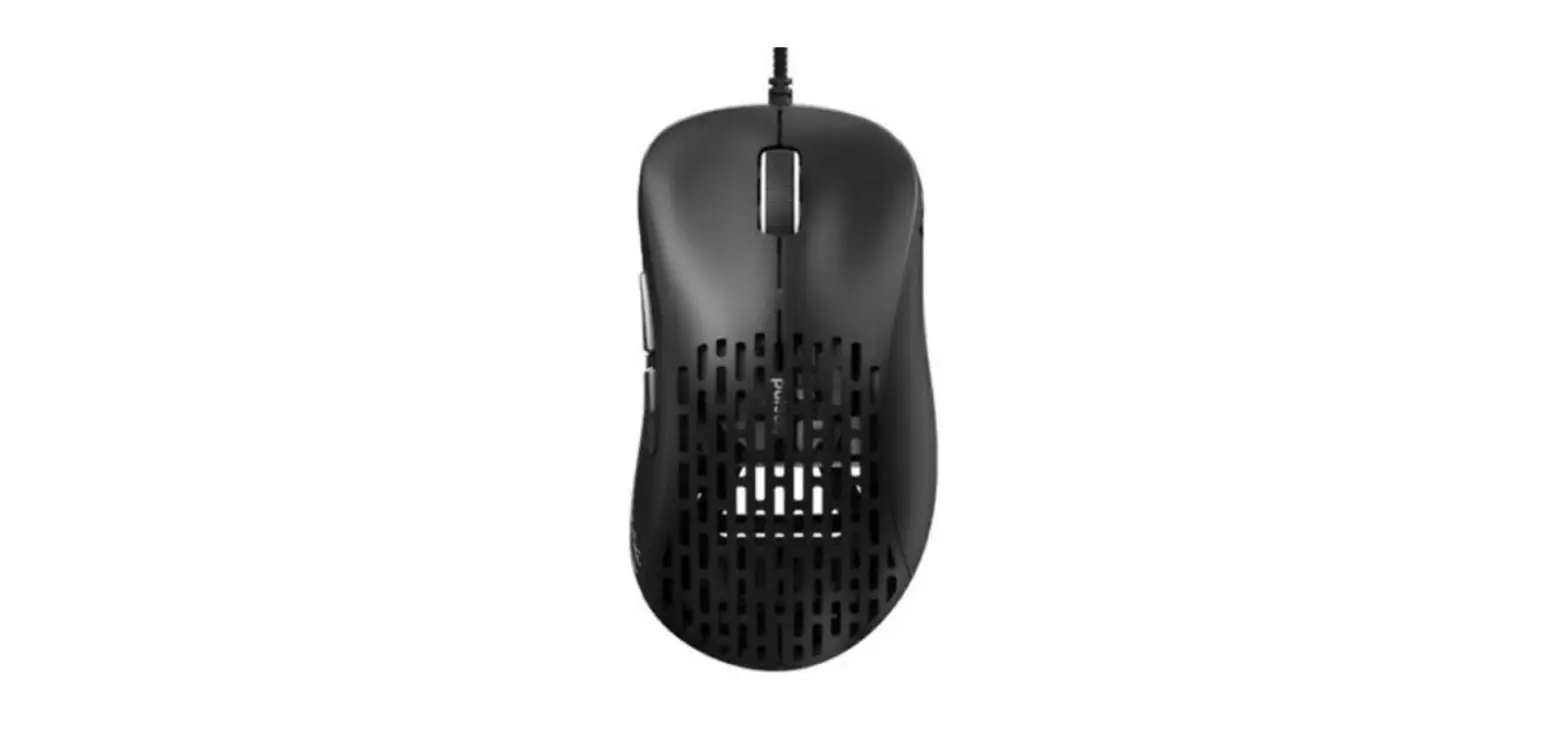
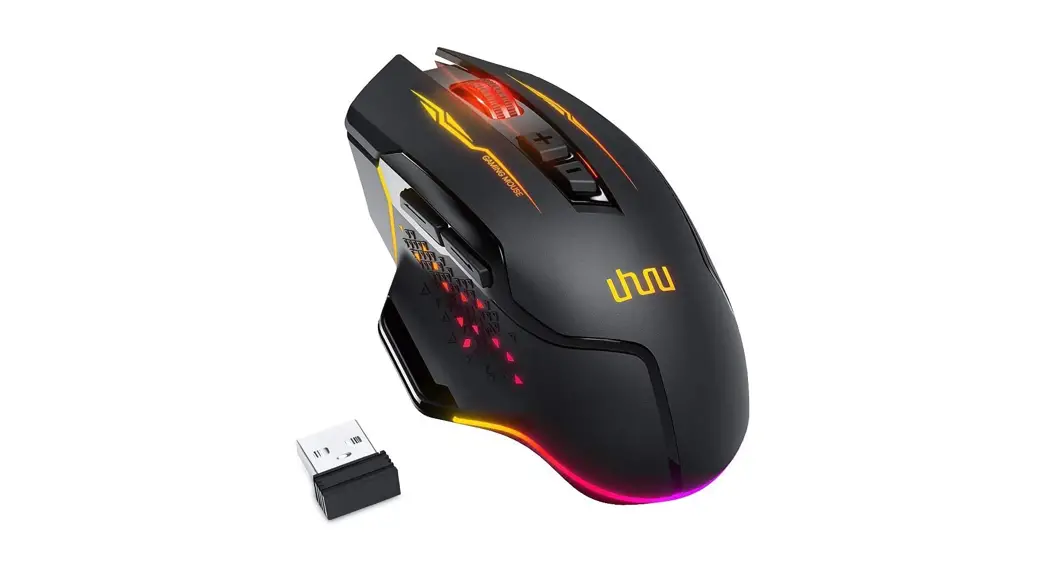
Pulsar PX2A21 X2 Wireless Gaming Mouse
X2 Wireless Gaming Mouse
Model No.: PX2A21
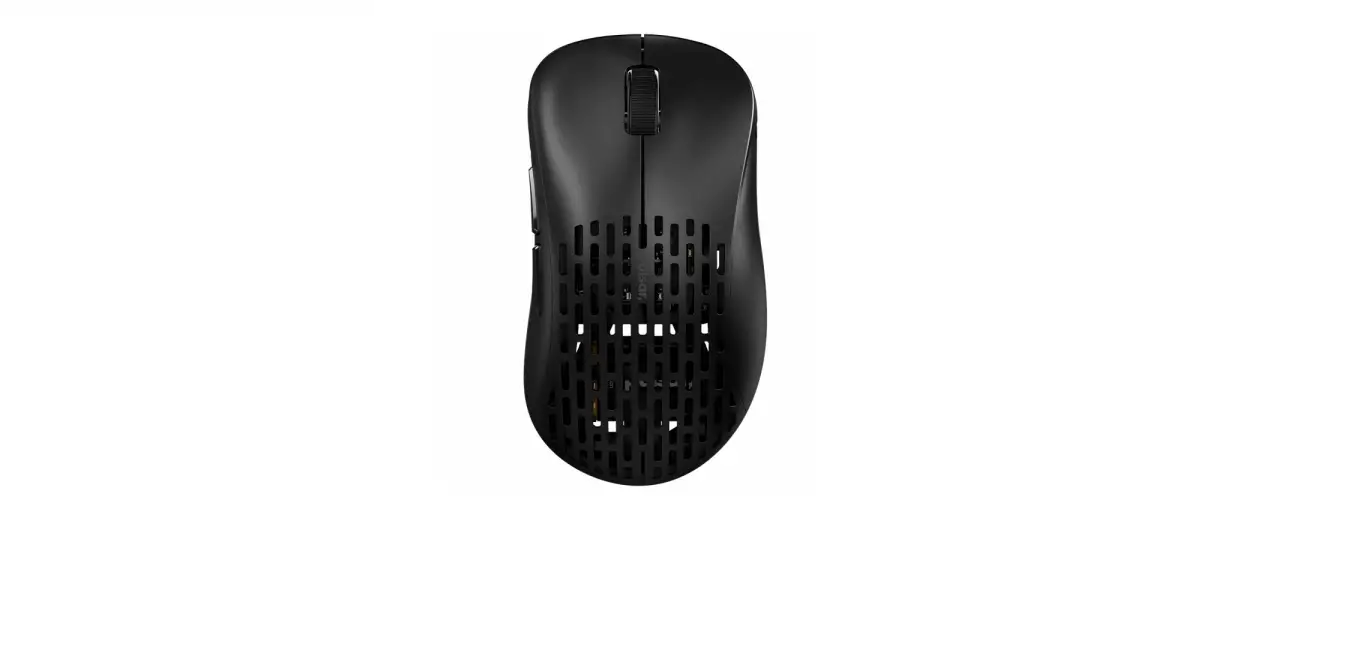
Function Layout
12   6
132
11   7
4    48   9
10
5    5
1    Left click
2    Right click
3    Middle click
4    Forward
5    Backward
6    Scroll up
7    Scroll down
8    Power off
9    Power On
10   DPI button
11   Indicator
12   Type-c connector
Instruction
Mouse instruction:
- Take out the wireless USB Nano receiver from the package.
- Plug the receiver into your computer USB port or use an extension adapter.
- Turn on the mouse power by switching the power switch on the bottom of the mouse.
- Wait for computer installation to finish.
DPI setting and indication:
- DPI level: 400-800-1600-3200, total 4 levels DPI.
- Press DPI button on the bottom to change DPI.
- The indicator color will indicate the DPI level as below:
- 400DPI: cyan color blink.
- 800DPI: blue color.
- 1600DPI: purple color.
- 3200DPI: white color.
Note:
- DPI can be set by software, MAX DPI is 26000dpi.
- DPI led effects can be set by software and the DPI led can be turned off to save power.
Polling rate: 125-250-500-1000Hz can be set by software, default polling rate is 1000Hz.
Wired and wireless function:
- Wired and wireless mode switch automatically when you plug the receiver into the computer without cable connection, it will work as wireless mode.
- If you connect the cable from the computer to the mouse, it will switch to wired mode automatically and work as wired mode.
Low power and charging indication:
- Low power indication: when mouse battery power is low, the indicator led will blink red color, then you need to charge the mouse battery by connecting type-c cable.
- During charging, the yellow color led in the wheel will flash. After the battery charging is full, the indicator will go back to the previous color mode.
Pairing:
- If your mouse loses connection, you need to use the pairing tool to pair the mouse and receiver again.
Note: If you need to customize function, please download the software from the website.
CAUTION
- Keep the battery dry.
- Avoid locating the battery terminals near a metallic object.
- Do not short-circuit and avoid metallic or water coming into contact with the mouse to cause battery short.
- Use computer USB and specified cable to charge the mouse.
Main Specification
| Switch | Sensor | Max DPI | Default DPI | IPS | Acceleration | Polling rate | Interface | Battery type | Battery capacity | Rating |
|---|---|---|---|---|---|---|---|---|---|---|
| Optical switch | PAW3395 | 26000 | 400-800-1600-3200DPI | 650ips | 50g (Max) | 125-250-500-1000Hz | USB 2.0 | Li-ion Polymer Battery | 300mAh |