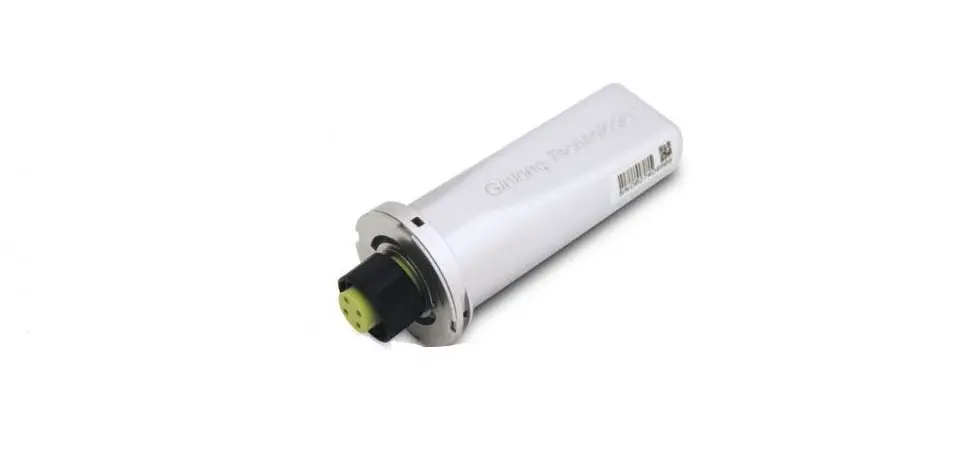
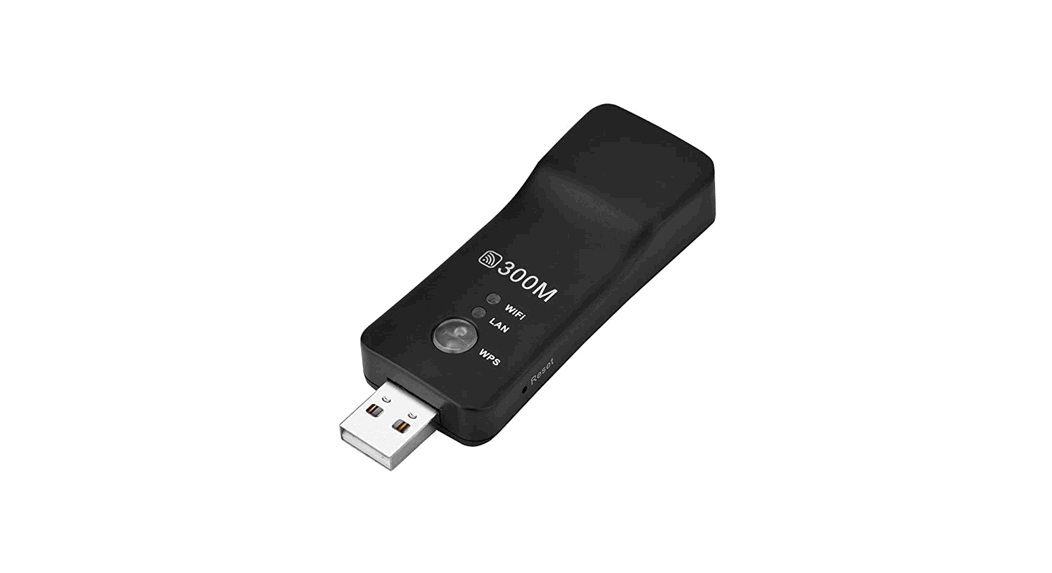
TX-247 WiFi Stick Data Logger
Product Information
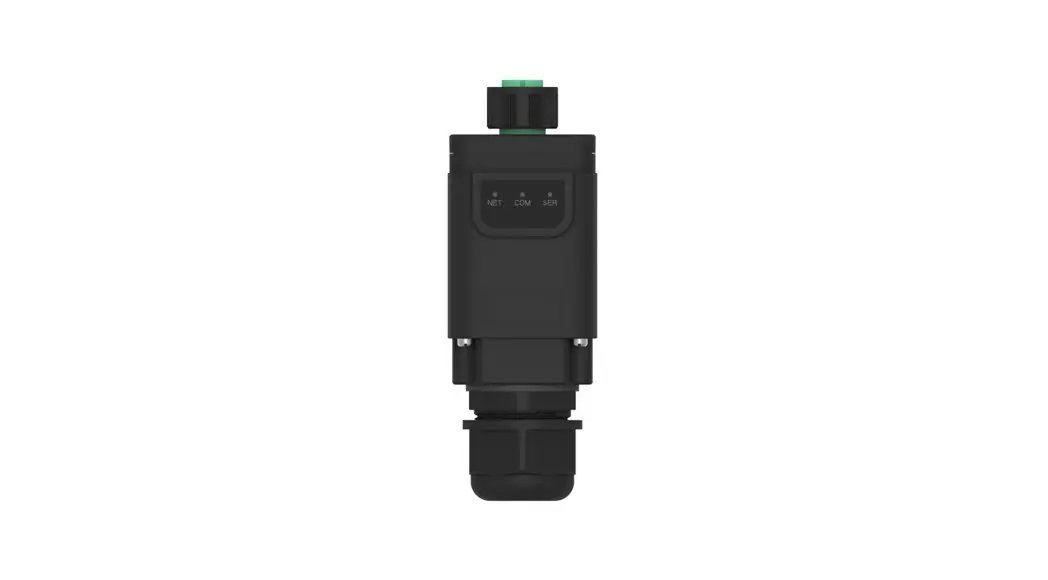
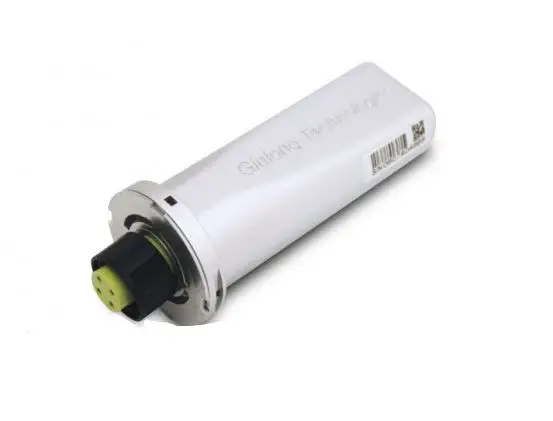
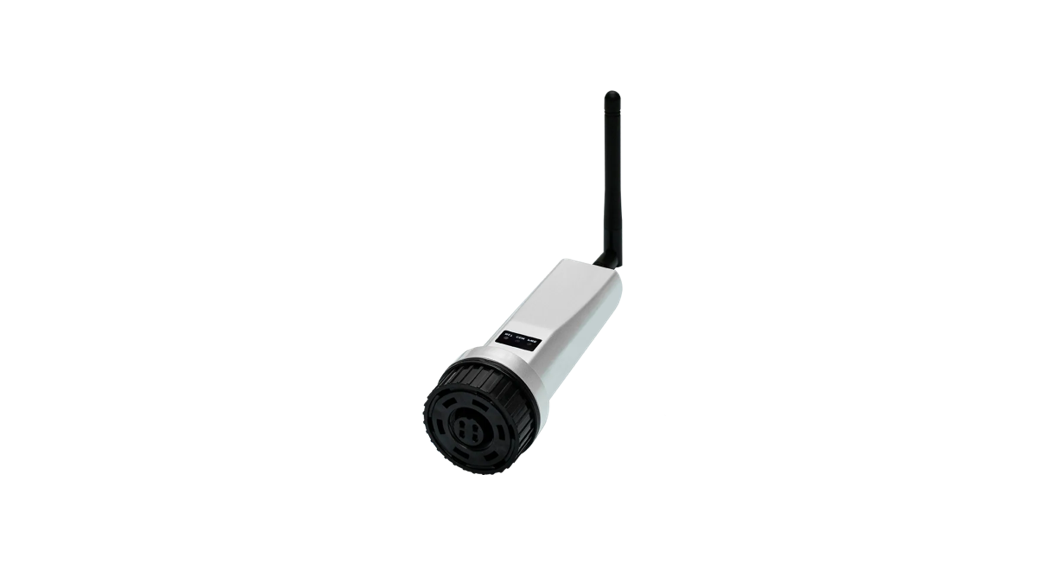
The WiFi Stick TX-247 is a data logger designed for balcony
power plants with Hoymiles inverters. It is used to monitor the
operation and output information of solar panels in a microinverter
system. The stick is equipped with LED indicators and a reset
button for easy operation. Please read the instructions for use and
safety information carefully before using the appliance.
Model: TX-247
Article No.: 5073
Date of Manufacture: March 2023
Product Usage Instructions
Installation
- Prepare for installation by ensuring you have the necessary
equipment. - Download and install the appropriate mobile app for your
device. - Register an account on the app and log in.
- Create a new plant profile by following the instructions
provided in the app. - Connect the WiFi Stick (DTU) to your router using the provided
USB connector.
Viewing Data on Phone App
To view the data from your balcony power plant on your phone
app:
- Open the app and log in to your account.
- Select the plant profile you created during installation.
- The app will display real-time information about the operation
of your solar panels and microinverters.
Delete App Account
If you wish to delete your app account:
- Open the app and log in to your account.
- Go to the account settings or preferences section.
- Select the option to delete your account.
- Follow the on-screen prompts to confirm the deletion.
Troubleshooting
If you encounter any issues with the WiFi Stick or the app,
refer to the troubleshooting section in the user manual for
possible solutions. If the issue persists, contact customer support
for further assistance.
Technical Specifications
The technical specifications of the WiFi Stick TX-247 can be
found in the user manual under the “Technical Specifications”
section. Please refer to the manual for detailed information.
Care and Maintenance
To ensure proper functioning and longevity of the WiFi Stick,
follow these care and maintenance guidelines:
- Do not disassemble, modify, repair, or remove any components
without professional guidance. - Avoid using corrosive or volatile liquids for cleaning.
- Avoid dropping or shaking the device, as it may cause internal
damage. - Keep the device away from children.
- The WiFi Stick is intended for indoor use only and is not
waterproof or dustproof.
Please refer to the user manual for additional information on
disposal, declaration of conformity, and support options.
Technaxx® * User Manual
WiFi Stick TX-247
data logger for balcony power plants with Hoymiles inverter
Before using the appliance for the first time, please read the instructions for use and safety information carefully.
This appliance is not intended for use by persons (including children) with reduced physical, sensory or mental capacities, or by persons lacking in experience or knowledge, unless they are supervised or instructed on the use of this device by a person responsible for their safety. Children should be supervised to ensure they do not play with this device. Keep this user manual for future reference or product sharing carefully. Do the same with the original accessories for this product. In case of warranty, please contact the dealer or the store where you bought this product. Enjoy your product. * Share your experience and opinion on one of
the well-known internet portals. Specifications subject to change without notice – please make sure you are using the latest manual available on the manufacturer’s website.
1
Model: TX-247 Article No. 5073, 03/2023
Table of Contents
Hints ……………………………………. 2 Safety instructions …………………. 2 Warnings ……………………………… 3 Disclaimer…………………………….. 3 Features ………………………………. 4 Product overview…………………… 5 LED status & button description . 5 General about Microinverter System ………………………………… 6
The Microinverter ……………….. 6 The WiFi Stick (DTU) ………….. 6 The S-Miles Cloud (Hoymiles Monitoring Platform) …………… 6 Installation ……………………………. 6 System Capacity………………… 6 Basic Conditions Required ….. 6
Installation procedure …………. 7 Preparation ………………….. 7 Get App……………………….. 8 Registration………………….. 9 Creating a plant ………….. 10 Connect DTU with Router12
View Phone App ………………….. 14 Delete App Account……………… 15 Webpage ……………………………. 15
Reduce feed-in ………………… 15 Troubleshooting…………………… 16 Technical Specifications ……….. 17 Support ………………………………. 18 Care and maintenance …………. 18 Declaration of Conformity ……… 18 Disposal……………………………… 18
Hints
Only use the product for purposes due to its intended function Do not damage the product. Following cases may damage the product: Incorrect voltage, accidents (including liquid or moisture), misuse or abuse of the product, faulty or improper installation, mains supply problems including power spikes or lightning damage, infestation by insects, tampering or modification of the product by persons other than authorized service personnel, exposure to abnormally corrosive materials, insertion of foreign objects into the unit, used with accessories not preapproved. Refer to and heed all warnings, safety instructions and precautions in the user manual.
Safety instructions
The product is intended for the transmission of data. It is intended for use by private individuals. Never touch the product with wet or damp hands. The product can only be operated with the voltage described on the interior panel. Do not place the product on an unstable surface. The unit could be damaged or persons could be injured. Any attachments should be made only in accordance with the manufacturer’s instructions or obtained from the manufacturer. If you want to pull the plug out of the socket, always pull on the plug.
2
Model: TX-247 Article No. 5073, 03/2023
Do not overload wall outlets, extension cords, or other wiring as this may result in fire or electric shock. Do not insert any objects into the openings of the unit, as current flows in some places and contact may cause fire or electric shock. Unplug from the power outlet for cleaning. Do not use liquid cleaners or cleaning sprays. The product may only be cleaned with a damp cloth. Do not connect any additional devices that are not recommended by the manufacturer. Do not use the product in direct sunlight or places where the temperature may exceed 55°C for a long time.
Warnings
Do not disassemble the product, it may result in short-circuit or damage. Do not modify, repair or remove without professional guidance. Do not use corrosive or volatile liquid for cleaning. Do not drop or shake the device, it may break internal circuit boards or mechanics. Keep the device away from little children. The stick is neither waterproof nor dustproof. It is to be intended to use indoors only.
Disclaimer
In no event shall Technaxx Deutschland be liable for any direct, indirect punitive, incidental, special consequential danger, to property or life, improper storage, whatsoever arising out of or connected with the use or misuse of their products. This device is NOT intended to be used for illegal surveillance purposes and shall not be used in any form as evidence for claim purpose. Error messages may appear depending on the environment it is used in. Technaxx Deutschland is not liable/responsible for non- recording of events, missing files, etc.
3
Model: TX-247 Article No. 5073, 03/2023
Features
· Data logger for balcony power plants with Hoymiles inverters, HM & MI series.
· Module level monitoring, with up to 4 solar modules (including data storage)
· Remote management of the system via the S-Miles Cloud – access via APP (Android + Apple) and web browser
· Real-time data and alarms on the S-Miles APP · Data acquisition of energy production (15 minutes interval) · Plug and Play – easy installation · Maximum distance (open area and depending on installation
environment): up to 150m · Identical to Hoymiles DTU-WLite · Direct connection via USB port (USB power adapter included) · Accessory for TX-212, TX-220, TX-228, TX-241 and TX-203,
TX-204, TX-242
4
Model: TX-247 Article No. 5073, 03/2023
Product overview
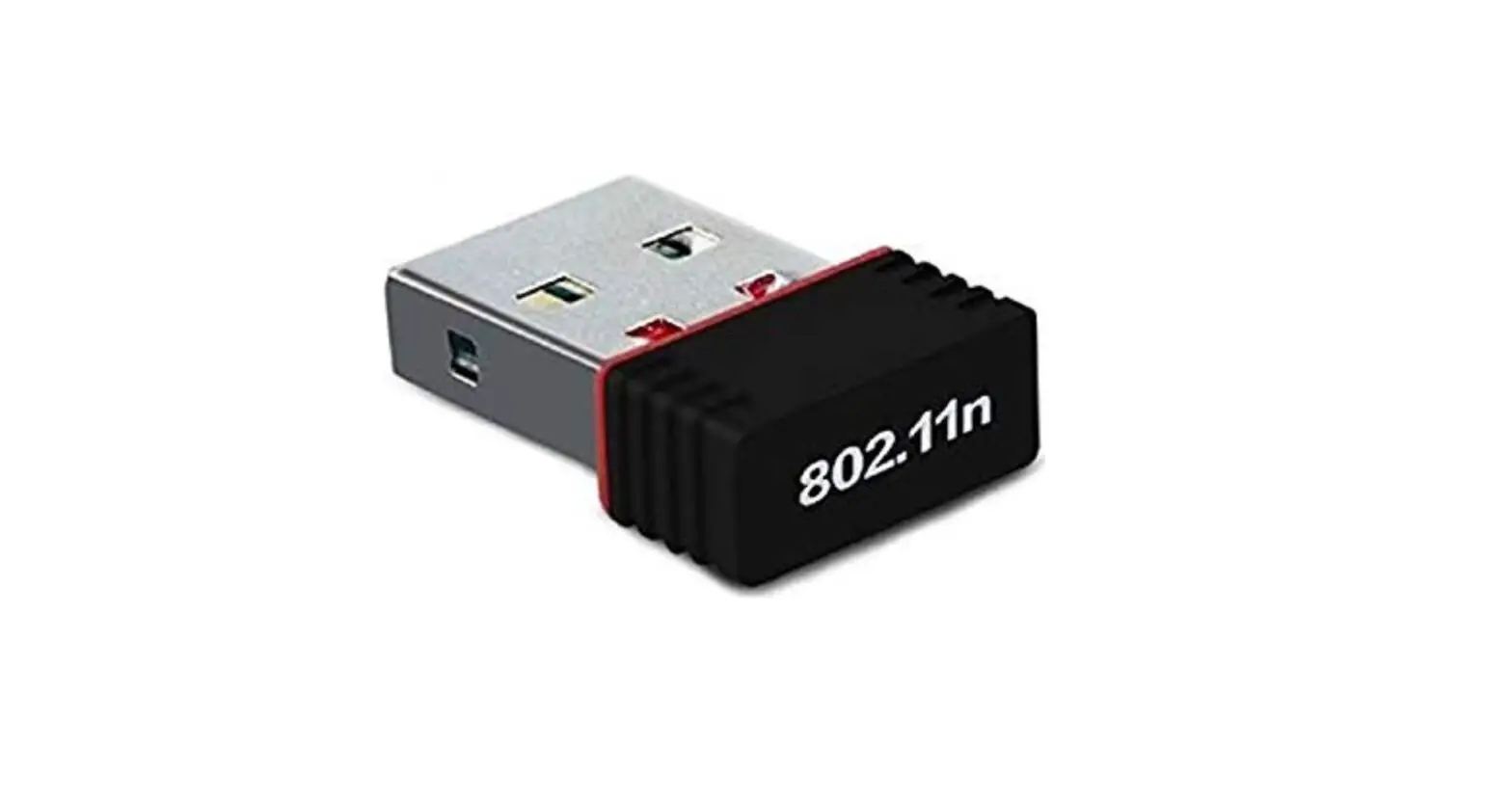
A USB Connector B Status Indicator
C Reset Button
LED status & button description
Red Light
Description
Flashes every 1 second
DTU disconnected from WiFi
Flashes every 0.5 seconds
DTU disconnected from server
Blue Light
Flashes every 1 second
No SN
Flashes every 0.5 seconds
Received data from server
Green Light
Flashes every 0.5 seconds
The search SN is incomplete
Lights up constantly
Normal
Red&Green&Blue
Each color flashes once every 1 Power on
second
Each color flashes twice every 1 Firmware upgrade
second
Button operation Press and hold the reset button for 5seconds
Reset
5
Model: TX-247 Article No. 5073, 03/2023
General about Microinverter System
The Microinverter It converts the DC output of solar panels into grid-compliant AC power. It sends the output information of solar panels and the operation data of the microinverters to the WiFi Stick (DTU), which is the hardware basis of panel-level monitoring.
The WiFi Stick (DTU) The DTU is a key component in the microinverter system. It works as the communication gateway between the Hoymiles microinverters and the S-Miles Cloud (Hoymiles Monitoring Platform). The DTU communicates wirelessly with the microinverters via 2.4 GHz Proprietary RF (Nordic), and collects the operation data of the system. Meanwhile, the DTU connects to the Internet via the router and communicates with the S-Miles Cloud (Hoymiles Monitoring Platform). The microinverter system operation data will be uploaded to the S-Miles Cloud (Hoymiles Monitoring Platform) via DTU.
The S-Miles Cloud (Hoymiles Monitoring Platform) It collects the operation data and status of the microinverters in the system and provides panel-level monitoring for users.
Installation
System Capacity The DTU can monitor up to two micro-inverters with a maximum of four solar modules. If the communication between the DTU and the microinverters suffers interference caused by installation conditions, the number of solar panels that the DTU can monitor may be reduced.
Basic Conditions Required Before installing the DTU, make sure that the site meets the following requirements:
· Install the DTU close to the router. · Stable Internet connection. · The straight distance between the DTU and the microinverter must
be less than 10 meters. · The location should be 1.0 meter above the ground and 0.8 meters
away from corners. Environmental requirements for DTU installation:
· Away from dust, liquid, acids, or corrosive gas. · The temperature should be between -20ºC and 55ºC.
6
Model: TX-247 Article No. 5073, 03/2023
Installation procedure
Preparation
1. Solar panels and Microinverter should be already installed and
connected with the house grid.
2. Find best location for DTU.
The maximum communication distance between DTU and microinverter is
150 m, maximum communication distance between DTU and router is
10m in open space. The walls, roofs, or other obstacles in between will
affect the signal and reduce the communication distance in actual
installations.
The range of signal reduction for possible obstacles at the site is shown
below:
Material
Relative signal range reductions
Wood/Glass
0%-10%
Stone/Pressed cardboard
10%-40%
Reinforced concrete (reduction
10%-90%
increases with the amount of
reinforcement)
Metal
Up to 100%
Therefore, the DTU must be placed as close to the microinverter as
possible at the site to ensure good communication between the DTU and
the microinverter.
3. Connect the DTU to the adapter and plug it into the wall socket, like
below.
7
Model: TX-247 Article No. 5073, 03/2023
If using a power strip, make sure that it is placed at least 1 meter above the ground, and try to install the DTU at a 90 degree angle perpendicular to the ground, like below.
4. Once the DTU powers on, the red, green and blue lights will flash in sequence for one second each for 30 seconds. Get App To download the App S-Miles Installer from the Appstore or the Playstore search for “S-Miles Installer” or scan the QR-code below. [iOS 13.0 or above; Android 10.0 or above (03-2023)]
APP icon
iOS
Android
8
Model: TX-247 Article No. 5073, 03/2023
Registration Open the S-Miles Installer App on your device. Register Account.
1. On the login interface, click on “No Account” to enter registration page. Note: Turn on your GPS, enable the location service for S-Miles Installer App. 2. Click “Register” to go to the registration page. Click “Go to set” and you will be directed to the WiFi page of your Smartphone. Make sure you select the DTU (AP mode) wireless network (DTUL-XXXXXXX). 3. The DTU SN will be automatically filled in after you join the DTU network. Click “Go to set” and you will be automatically disconnected from the DTU. 4. Connect to your home network (or use your traffic data) and fill in the information required.
· Email: Enter your email address you want to bind with the account. Click on Send. Type in the verification code sent to your email and complete the account creation.
· Login Account = Username, needed for login. Freely selectable. · New Password = Enter a password for the account. Length needs
to be 6-20 characters and can include letters, numbers and special characters. · Confirm Password = Repeat the password. Click on Register to finish. Now go to next step to set up your plant.
1
2
3
4
9
Model: TX-247 Article No. 5073, 03/2023
Creating a plant 5. Log into your account that has just been created. 6. Click “+” on the upper left and complete the basic information of your solar balcony power plant.
· Plant Name: Enter a name for the plant. Freely selectable. · Plant Type: Choose Residential Plant for solar balcony power plant · Capacity (kW): Fill in e.g. 300W =0.3kW; 600W=0.6kW;
800W=0.8kW depending on the solar balcony power plant you own. · Time Zone: Select the Time Zone for your Location. Best is to search
for the capitol city of your country. · Address: The Address is chosen by your GPS Location. To correct it
zoom in by clicking on +/- and move the map. · Region: First choose the country. If necessary choose the state and
after that the district. · Upload Photo: Not necessary. You can upload a photo of your solar
balcony power plant if you want. 7. Add the DTU by typing in the DTU SN manually or scan the SN sticker on it. 8. Click on Add Micro to add your microinverter by typing in the microinverter SN manually or scan the SN sticker on it.
5
6
7
8
10
Model: TX-247 Article No. 5073, 03/2023
9. Complete the information of your solar panel array according to the actual installation situation.
· Array Name: Enter a name for the array. Freely selectable. · Azimuth: Enter the angle for the celestial direction of the panel. E.g.:
East = 90°, South = 180°, West = 270° · Inclination: Enter the angle for the inclination of the solar panel. E.g.:
30°, 35°, 40° 45° depending on the location the plant is set up. · Layout Pattern: Select either the solar panel is mounted vertical (V)
or horizontal (H). 10. Click “+” to complete the remaining information. By clicking on “+” you can add further photos of your plant. But it is not necessary. In the last step you need to enter some settings for calculation.
· Plant Name: Was already given in the beginning, but could be changed here.
· Currency: Select the currency. · Electricity Price per Unit: Enter the price you are currently paying for
electricity. This is just for calculating the money the plant is saving you. · Networking: Enable to sync your data with server. 11. Now your solar balcony power plant has been successfully set up. It shows up on the start page in the App under plants.
9
10
11
11
Model: TX-247 Article No. 5073, 03/2023
Connect DTU with Router 12. Connect your Smartphone with the WiFi of the DTU. Go to the WiFi settings of your Smartphone and choose DTU (AP mode) wireless network (DTUL-XXXXXXX). 13. Open the S-Miles Installer App
14. Go to O&M page (bottom middle icon ). Click on Network
configuration and the App connects with DTU. 15. Click on Reconfigure to set the WiFi connection with the router. 16. Click on the WiFi name. Choose your WiFi network from the list and enter the WiFi password, click on Send to DTU.
14
15
16
12
Model: TX-247 Article No. 5073, 03/2023
17. Wait until the connection between DTU and router is successful. 18. After the connection between router and Server is successful, too. Click on Finish. 19. Manually switch back to your home WiFi by opening the WiFi setting of your smartphone. Note: It takes up to 30 minutes until the first values are shown in the App.
17
18
13
Model: TX-247 Article No. 5073, 03/2023
View Phone App
Log in with your account name and password, after which you will be able to view the operating details of your installed solar balcony power plant. 19. Overview of your added plant. 20. Detailed view of the current power, today, month and lifetime produced power. 21. Graph of the daily feed in power. 22. Choose the graph of feed in power for day, week, month, year or total.
19
20
21
22
Connected with Router, Server /
/
Disconnected with Router, Server
Connected microinverter /
/
Disconnected microinverter
Edit Plant: Change plant information, devices, layout design, installation map and settings of the solar balcony power plant. Networking command: Sync your data with server
14
Model: TX-247 Article No. 5073, 03/2023
Delete App Account
To delete your created S-Miles account in the S-Miles Installer App: 1. Go to Me 2. Click on About Us 3. Click on User Agreement 4.The account deletion button is in the top right corner. Click on it to delete your account. 5. Confirm if you really want to delete your S-Miles Installer account.
Webpage
You can view the inverter’s operating details on the computer web page by accessing the S-Miles Cloud (Hoymiles Monitoring Platform) at https://world.hoymiles.com. Therefor use your login which you created via S-Miles Installer App registration.
· Enter Account = Login Account, Username created by App. · Enter password = Password created for App login.
Reduce feed-in It is possible to limit the power fed in via the web page. To do this, click on the tool key in the display image in the overview. Then select “Power Adjustment” and enter the corresponding percentage number. Example: To reduce an 800W micro inverter to 600W enter 75% and click on “Confirm”.
15
Model: TX-247 Article No. 5073, 03/2023
Troubleshooting
Indicator Status
Description Solution
LED flashes DTU without · Check if the distance
red every 1 SN inside between the router and the
second.
and
DTU is out of range (If it is,
disconnected relocate the DTU).
from WiFi. · Check if the distance
between the router and the
DTU is out of range (If it is,
relocate the DTU).
· Double-check if the house
router’s password has been
correctly input during
Red
LED red light DTU with SN configuration. is on without inside but no · Use another device to
flashing.
WiFi
connect with the house
connection.
router and make sure that
there is an effective
reception.
· Try to connect with the hot
spot from the phone to see if
any
data
uploads
successfully.
LED flashes DTU
· Re-do configuration.
red every 0.5 disconnected
seconds.
from server
Light is on DTU has · Complete the site creation
without
WiFi
on the Installer App or
flashing.
connection
S-Miles Cloud (Hoymiles
Blue
but without Monitoring Platform). SN inside. · Complete networking.
LED flashes No SN.
· Complete networking.
blue every 1
second.
LED flashes The search · Relocate the DTU to
Green
green every SN
is
0.5 seconds. incomplete
somewhere close to both the router and the
microinverter.
16
Model: TX-247 Article No. 5073, 03/2023
Technical Specifications
Communication to Microinverter
Communication method
2.4 GHz Proprietary RF (Nordic)
Frequency range
2.403-2.475 GHz
Max. radiated output power
-2.72 dBm/0.53 mW
Modulation Type
GFSK
Maximum distance (open space) 150 m
Maximum number of panels 4 panels
connected
Communication to Cloud (S-Miles)
Wi-Fi communication standard Wi-Fi (802.11b/g/n)
Frequency range
2.412-2.472 GHz
Max. radiated output power
13.99 dBm/25.6 mW
Modulation Type
DSSS, OFDM
Maximum distance (open space) 10 m
Data upload time
Every 15 minutes
Power Supply (Adapter)
Power supply
External adapter with USB port
Adapter input voltage/frequency AC 100 to 240 V/50 or 60 Hz
Adapter output voltage/current 5 V/2 A
Power consumption
1.0 W (typical), 5 W (maximum)
Mechanical Data
Ambient temperature range (°C) -20 to 55
Dimensions (W × H × D mm)
143 × 33 × 12.5
Weight (kg)
0.043
Installation option
Direct plug-in (USB port)
Indicator light
LED
Microinverter Compatibility
Microinverter model
HM series, MI series
Others
Compliance
CE: 2014/53/EU (RE Directive)
iOS 13.0 or above; Android 10.0 or
App “S-Miles Installer”
above / EN, DE, FR, ES, NL, PL, PO
(04-2023) [IT,CZ]
Package contents
WiFi Stick TX-247, 1x USB power adapter, User Manual (short)
17
Model: TX-247 Article No. 5073, 03/2023
Support
Service phone No. for technical support: 01805 012643 (14 cent/minute from German fixed-line and 42 cent/minute from mobile networks). Free Email: [email protected] The support hotline is available Mon-Fri from 9am to 1pm & 2pm to 5pm
If you have technical queries concerning our products, contact your system installer or distributor. If further support is required, contact Hoymiles’ support at this link. www.hoymiles.com Hoymiles Technical Service Center: [email protected]
Care and maintenance
Clean the device only with a dry or slightly damp, lint-free cloth. Do not use abrasive cleaners to clean the device. This device is a high-precision optical instrument, so in order to avoid damage, please avoid the following practice: Use the device in ultra-high or ultra-low temperature. Keep it or use it in moist environment for long. Use it in rainfalls or in water. Deliver or use it in strongly shocking environment.
Declaration of Conformity
The EU Declaration of Conformity can be requested at the following address: www.technaxx.de/ (in the lower bar “Declaration of Conformity”).
Disposal
Disposal of the packaging. Sort packaging materials by type upon disposal.
Dispose of cardboard and paperboard in the waste paper. Foils should be submitted for recyclables collection.
Disposing of old equipment (Applies in the European Union and other European countries with separate collection (collection of recyclable materials) Old equipment must not be disposed of with household waste! Every consumer is required by law to dispose of old devices that can no longer be used separately from household waste, e.g. at a collection point in his or her
18
Model: TX-247 Article No. 5073, 03/2023
municipality or district. This ensures that the old devices are properly recycled and that negative effects on the environment are avoided. For this reason, electrical devices are marked with the symbol shown here.
Made in China Distributed by: Technaxx Deutschland GmbH & Co. KG Konrad-Zuse-Ring 16-18, 61137 Schöneck, Germany WiFi Stick TX-247
19
Model: TX-247 Article No. 5073, 03/2023
 Hoymiles - 杭州禾迈电力电子股份有限公司
 Technaxx Deutschland GmbH & Co. KG
 S-Miles Cloud - Hoymiles Power Electronics Inc.