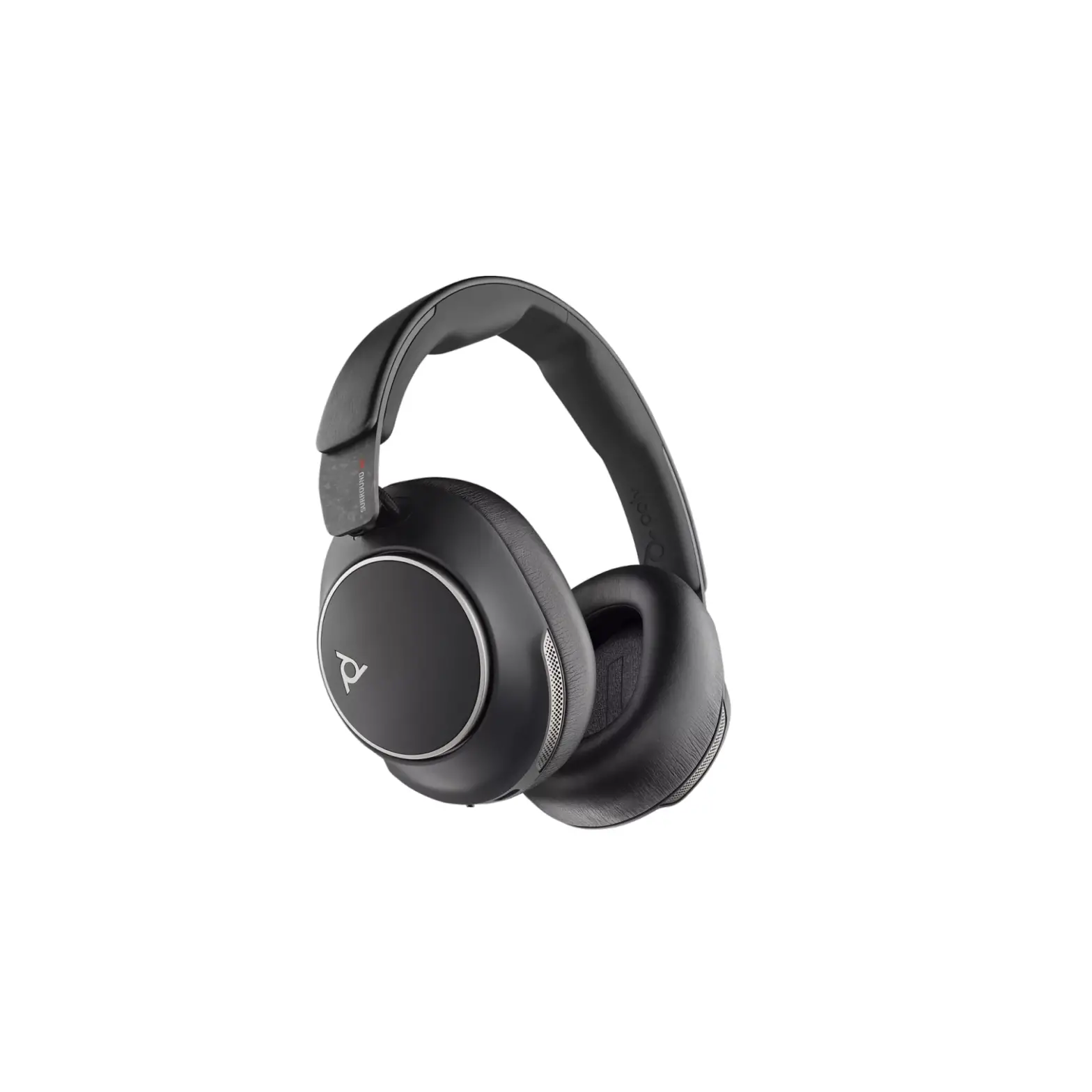
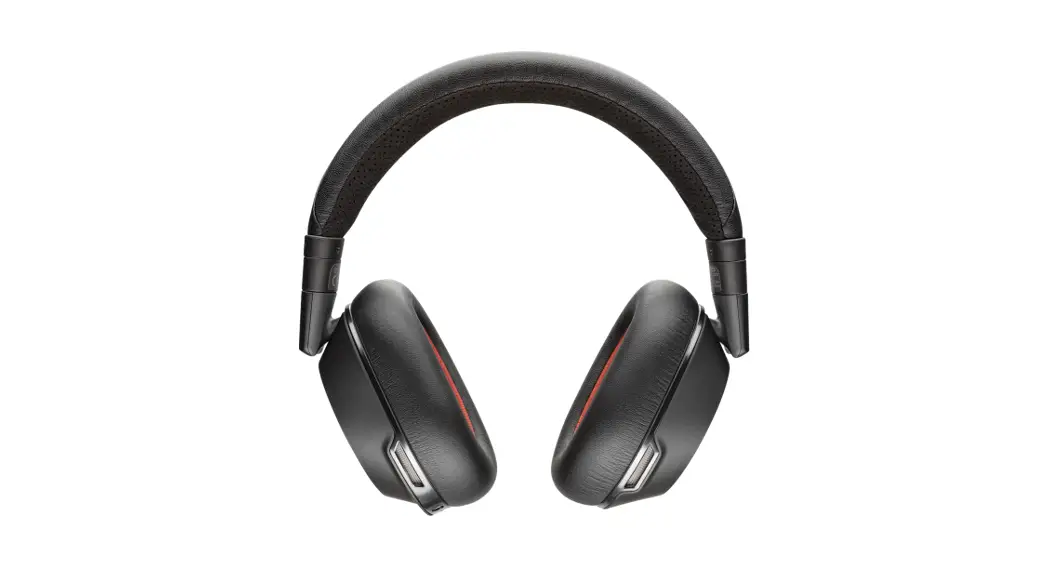
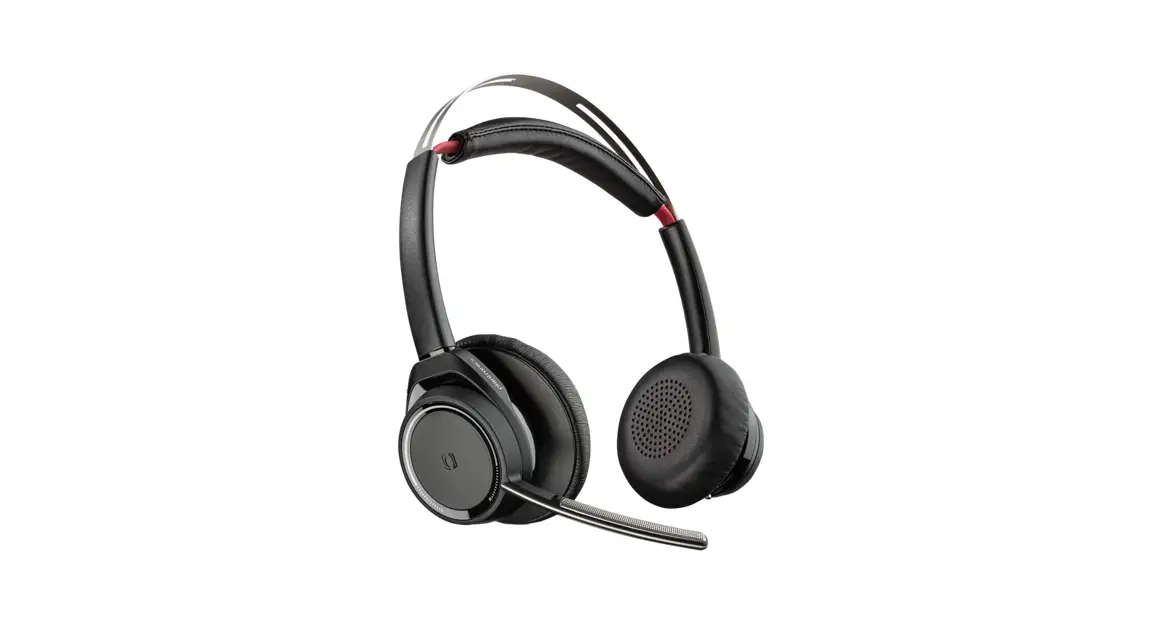
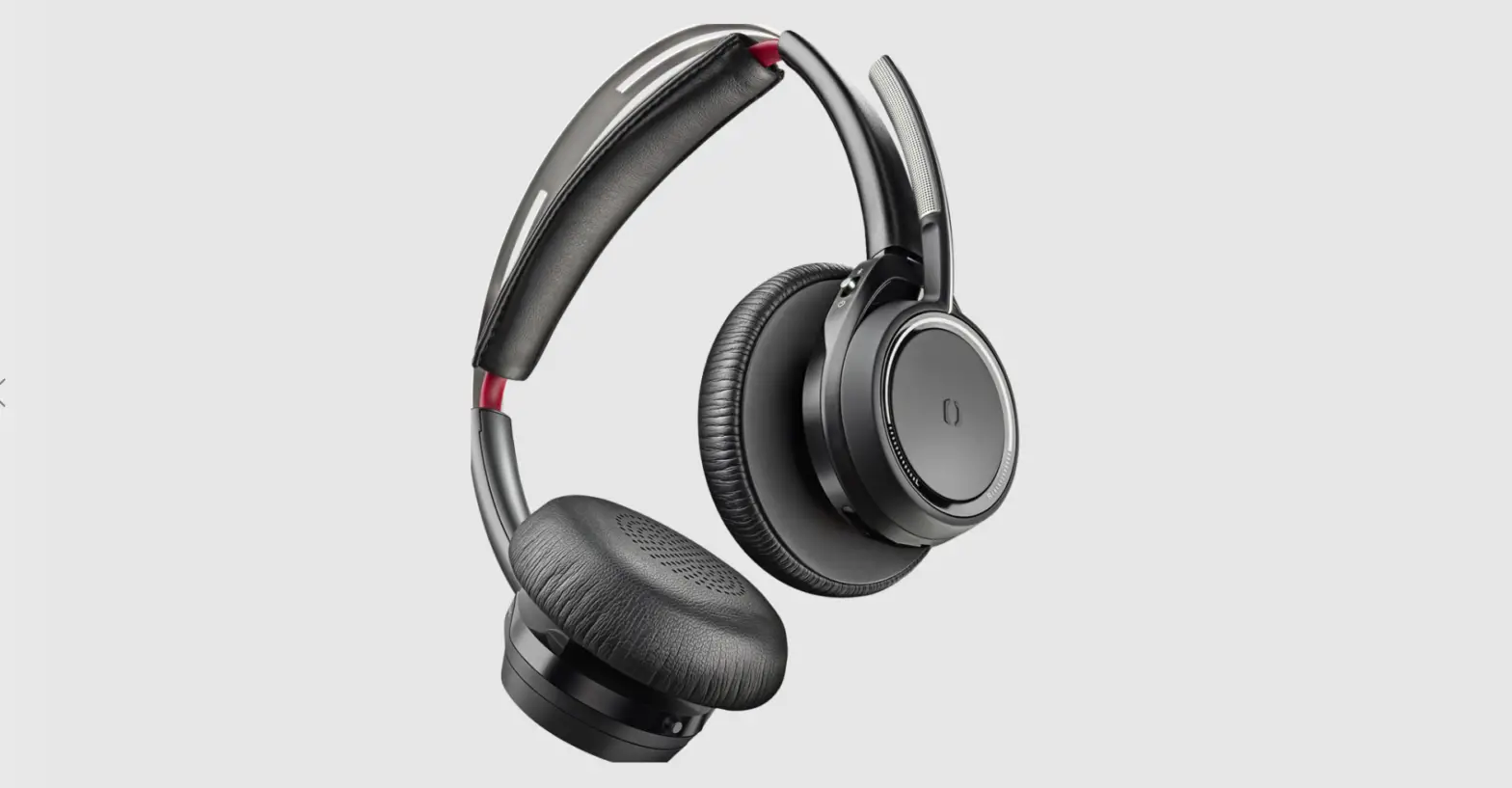
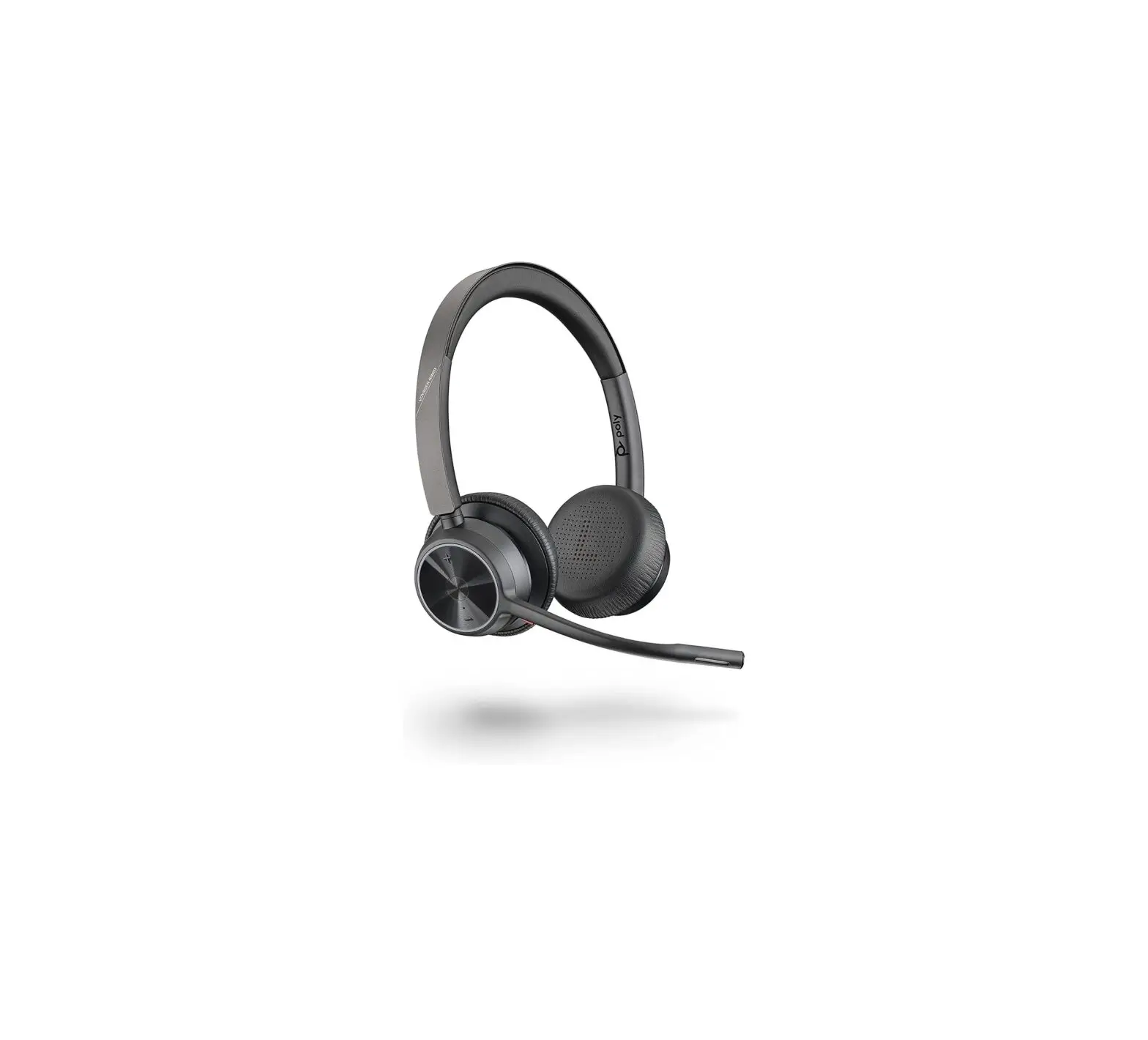
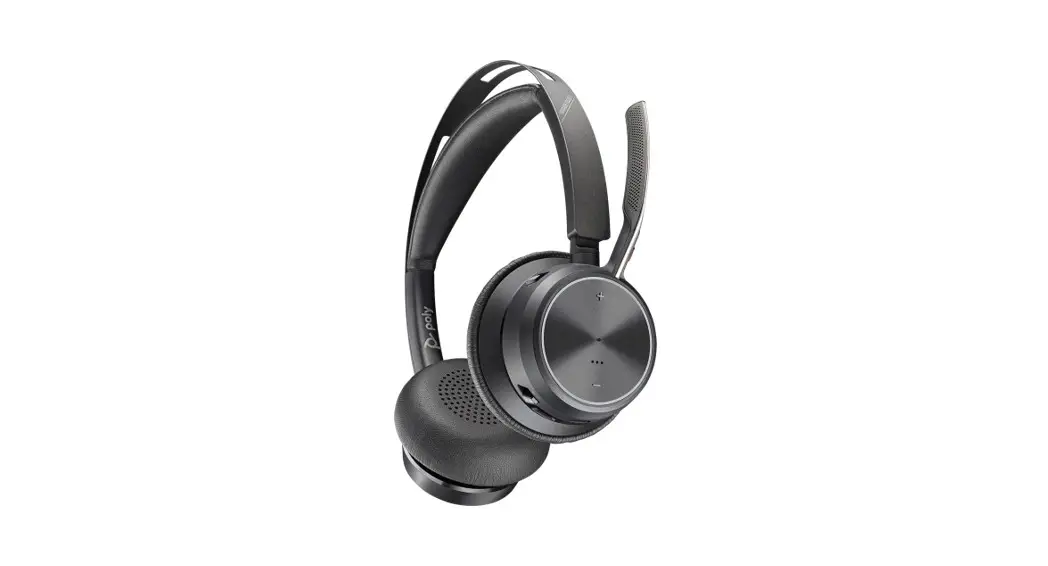
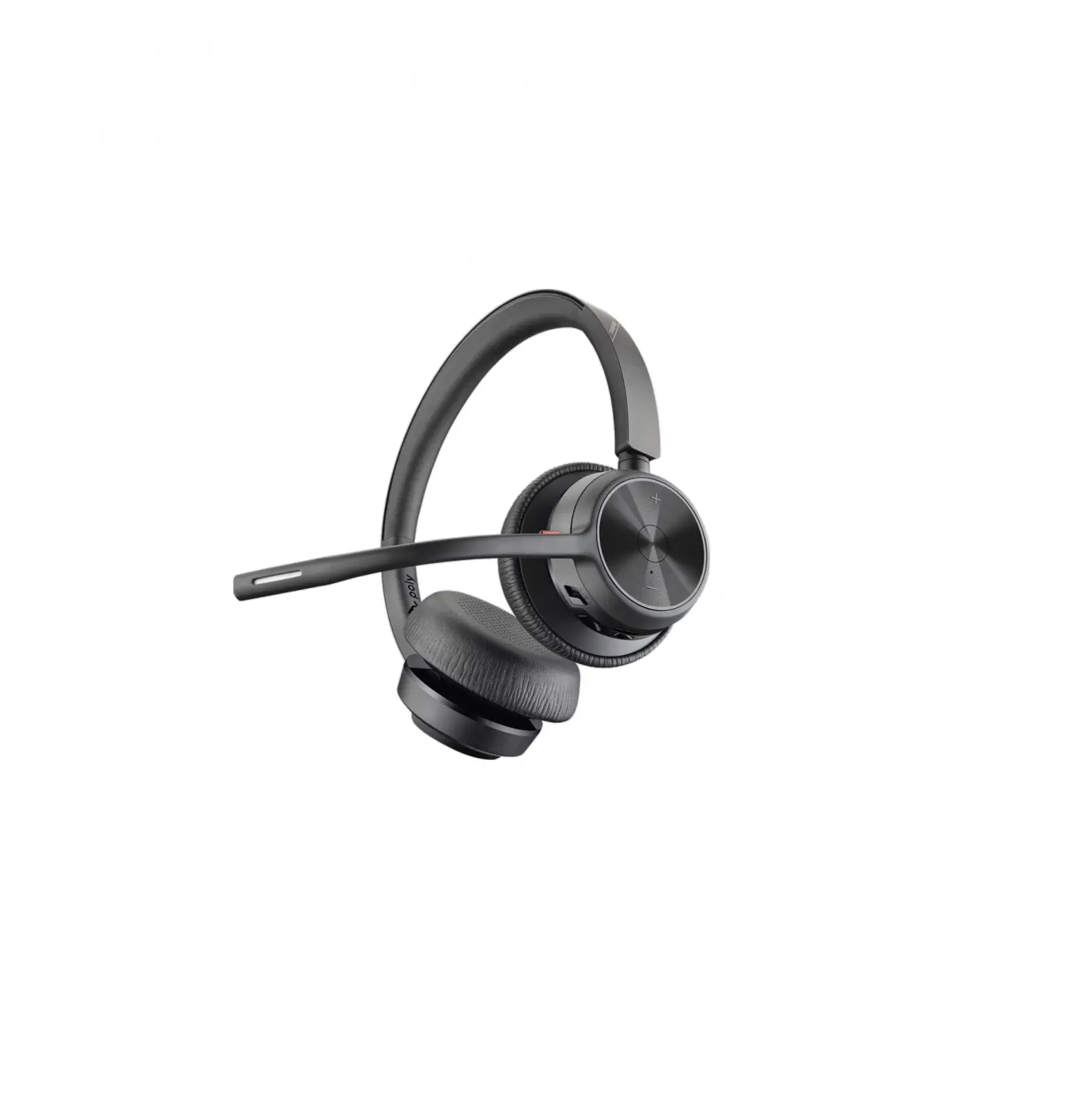
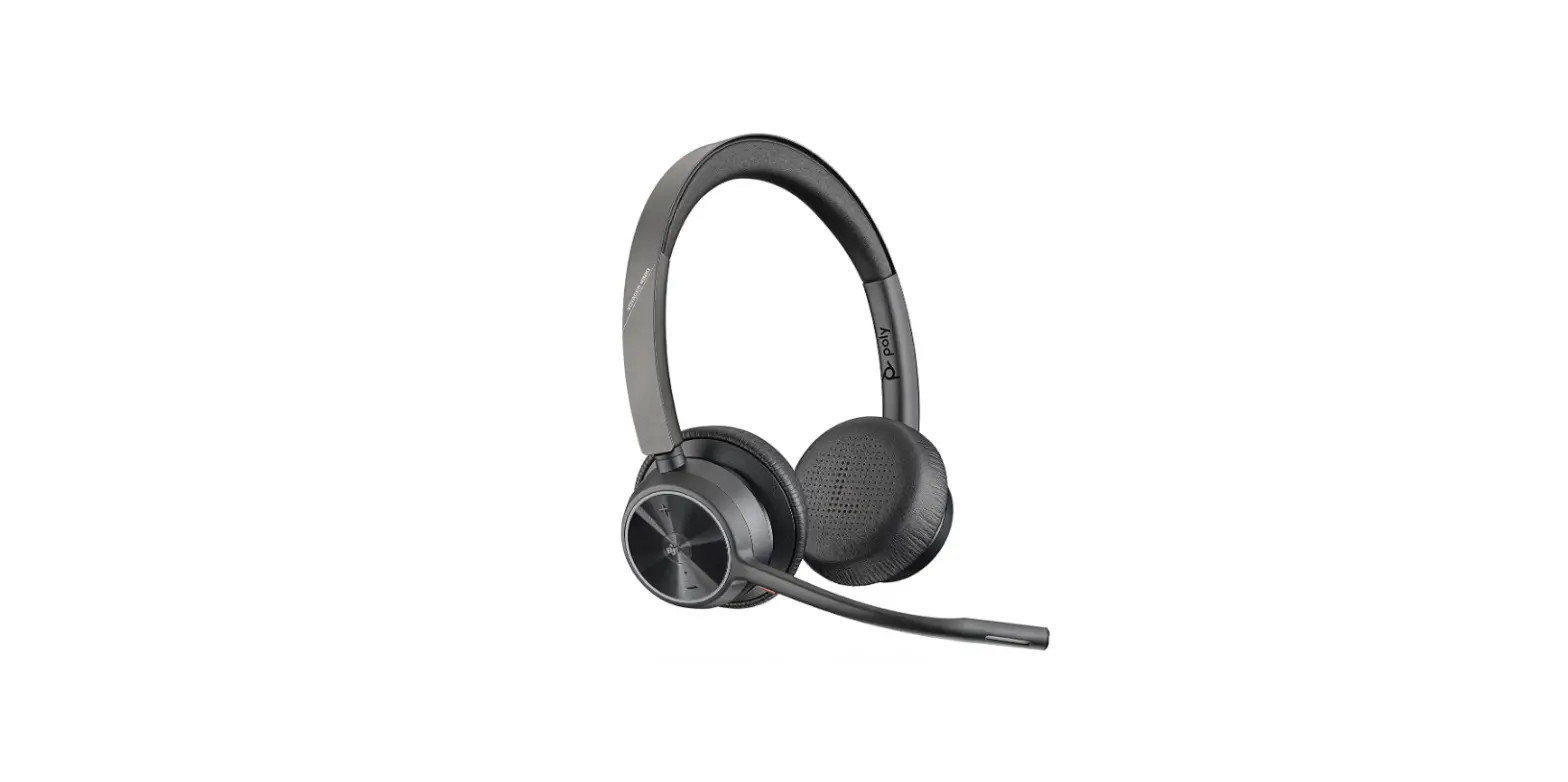
Voyager Surround 80 UC Stereo Bluetooth Headset
Product Information:
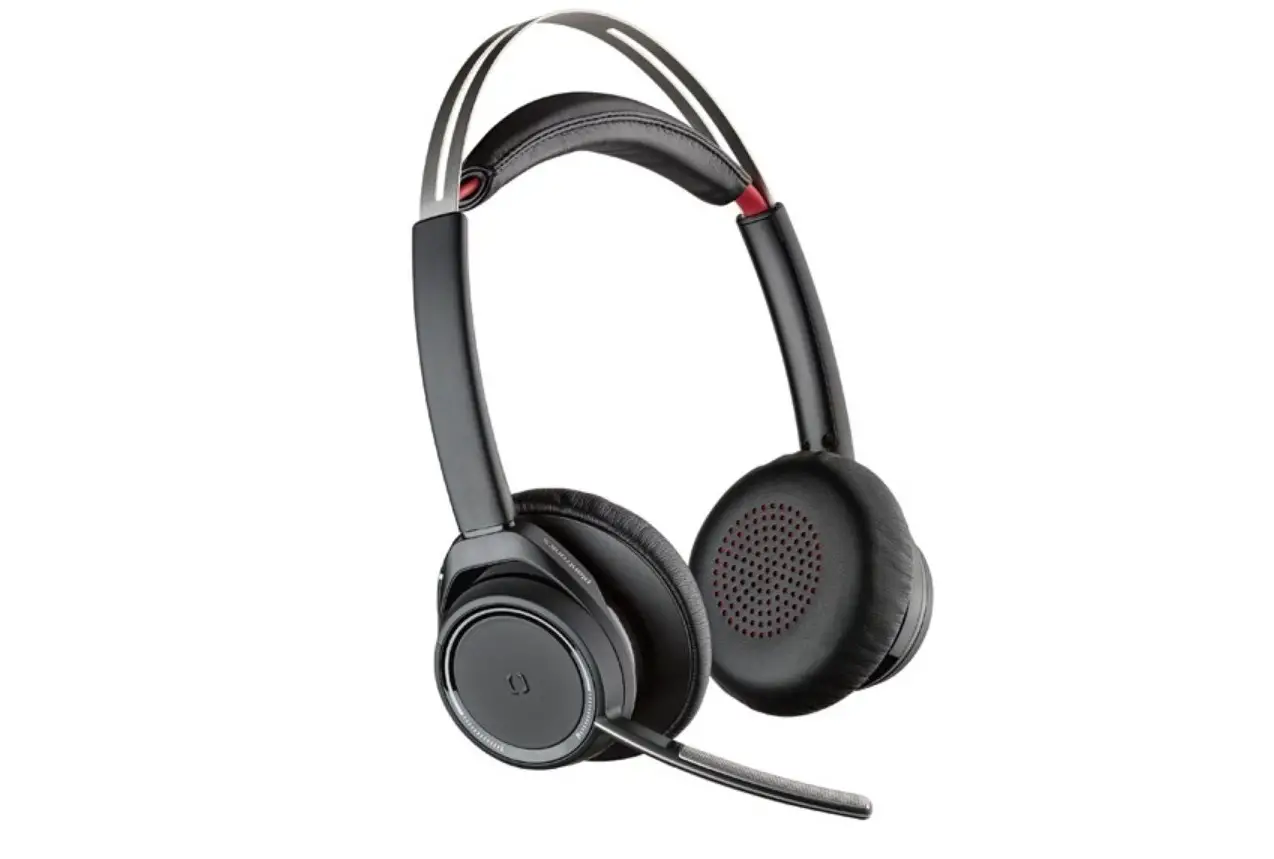
The product is a headset called Voyager Surround 80 UC. It comes
with touch controls on the right side and has ANC (Active Noise
Cancellation) and Transparency modes. The headset has microphones
located on the front of the earcups for optimal call audio quality.
It also includes a BT700 adapter, and the design of the adapter may
vary. The headset can be customized using the Poly Lens App, which
allows you to configure a custom button and check device
status.
Product Usage Instructions:
- Customize Your Headset: To customize your
headset, follow these steps:- Download and install the Poly Lens App from the provided
website: poly.com/lens - Open the Poly Lens App and configure a custom button. You can
choose from ANC/Transparency mode or check device status.
- Download and install the Poly Lens App from the provided
- Wear Headset: To ensure the best call audio
quality, wear the headset correctly by following these guidelines:- The microphones are located on the front of the earcups. Make
sure they are facing towards your mouth.
- The microphones are located on the front of the earcups. Make
- Download App: To get the most out of your
headset, download the Poly Lens App by visiting the following
website: poly.com/lens. The app is
available for both mobile devices and desktop computers. - Quick Start: Follow these steps to start using
your Voyager Surround 80 UC headset:- Make sure you have the ANC/Transparency mode located in the
case or the BT700 adapter (varies by design). - Use the touch controls on the right side of the headset for
various actions like tapping, pressing, or swiping.
- Make sure you have the ANC/Transparency mode located in the
- Pair to Mobile Phone: To pair your headset
with a mobile phone, follow these steps:- Power on your headset.
- Put your mobile phone in pairing mode.
- On your headset, perform the necessary action (e.g., press for
2 seconds) to initiate pairing. - Once pairing is successful, your phone will be connected to the
headset.
- Connect to Computer: To connect your headset
to a computer, follow these steps:- Power on your headset.
- Put your computer in pairing mode.
- On your headset, perform the necessary action (e.g., press for
2 seconds) to initiate pairing. - Once pairing is successful, your computer will be connected to
the headset.
For further assistance or support, visit poly.com/support.
CUSTOMIZE YOUR HEADSET
Configure custom button in Poly Lens App. Choose from ANC/Transparency mode (default), Check device status and more.
R
WEAR HEADSET
Microphones are on the front of your earcups. For best call audio, ensure your headset is worn correctly.
R
:02 2-finger press
L
DOWNLOAD APP
Download Poly Lens App to get the most out of your headset.
· Configure custom button feature · Change settings
poly.com/lens
· Update devices · View user guide
Poly Lens Mobile App Poly Lens Desktop App
©2023 Poly. Bluetooth is a registered trademark of Bluetooth SIG, Inc. All trademarks are the property of their respective owners. RMN (//): VS80T, BT700, BT700C 211720-10 06.23
QUICK START
VOYAGER SURROUND 80 UC
ANC / Transparency Located in case. BT700 adapter design varies.
TOUCH CONTROLS ON RIGHT
Tap/Press
Swipe
· Tap to answer · Press to end
PAIR TO MOBILE PHONE
1.
2.
3.
:02
“Pairing”
Poly VSurround 80
CONNECT TO COMPUTER
1.
2.
“Pairing successful, phone connected”
3.
· Tap to play/pause
poly.com/support
“Power on”
“PC connected”