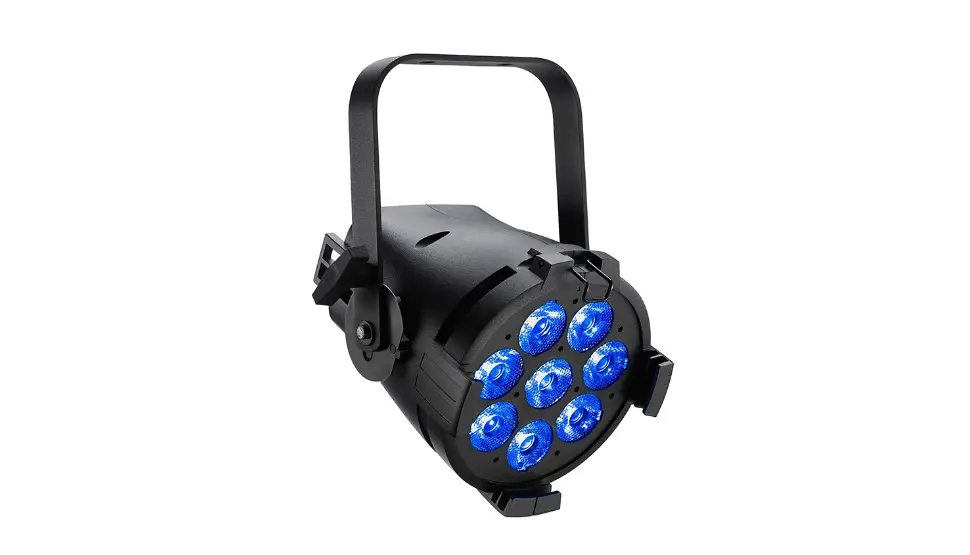
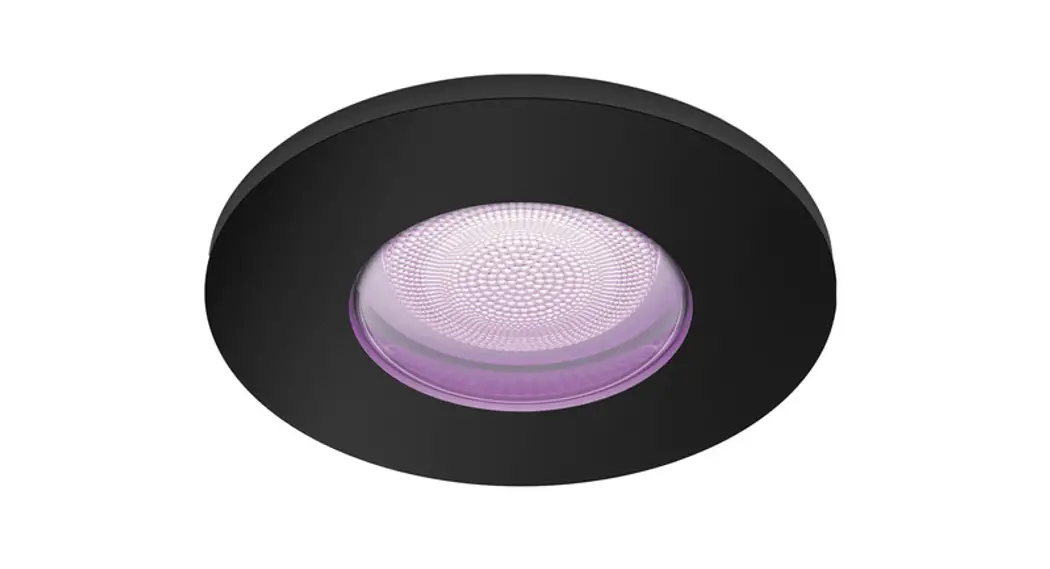
ColorSource Spot Affordable LED Fixture
Product Information:
The ColorSource Spot is a lighting fixture designed for
professional use. It is a Directly Controlled Luminaire suitable
for use in emergency lighting applications when used with an ETC
DMX Emergency Bypass Controller. The fixture must be properly
selected, installed, and maintained to ensure facility conformance.
It is important to read and follow all safety instructions provided
in the user manual.
Important Safety Precautions:
- Ensure that the fixture is mounted with the axis between the
yoke attachment points parallel to the ground to avoid property
damage or bodily injury. - Disconnect the fixture from power and DMX and allow it to cool
before installing accessories or performing any cleaning and
maintenance. - Install the fixture at least 0.1 m (4.0 in) away from all
lighted objects to prevent any risks. - Avoid mounting the fixture on or near flammable surfaces.
- Follow all electrical safety precautions to prevent the risk of
electric shock.
Installation Guide:
To install a shutter barrel on the ColorSource Spot, follow
these steps:
- Align the barrel to the front of the ColorSource Spot and
rotate it one quarter turn counter-clockwise. - Insert the shutter barrel into the front of the light engine
and rotate clockwise until it is fully threaded onto the light
engine. - Insert the barrel screw at the bottom of the light engine and
tighten. - Insert the small screw into the top of the light engine and
tighten using a #2 Phillips screwdriver.
The ColorSource Spot comes with a standard yoke for mounting
with a clamp. Adjust the position of the yoke when necessary for
low-clearance mounting.
ETC Installation Guide
ColorSource Spot v1.7/v3.0 Overview
The ColorSource Spot is an affordable LED fixture that uses the RGB-L (red, green, blue, and lime) color system to provide a rich, bright light. The ColorSource Spot is available in both original and Deep Blue variants. The Deep Blue uses an array that offers richer, more saturated blues and stronger magentas in exchange for the more jewel-toned blues like sky or turquoise. For more information, see the ETC website at etcconnect.com. The ColorSource Spot is UL924 listed as a Directly Controlled Luminaire for use in emergency lighting systems when used with the ETC DMX Emergency Bypass Controller (DEBC). This light engine can be used with standard ETC shutter barrels, lens tubes, fresnel adapters, CYC adapters, and accessories.
Note: Features described in this document require the latest version of software. For information on updating fixture software, see Update the Fixture Software on page 11.
Corpora te He a dqua rte rs n Middleton, WI, USA | +1 608 831 4116 Globa l Offic e s n London, UK | Rome, IT | Holzkirchen, DE | Paris, FR | Hong Kong Dubai, UAE | Singapore | New York, NY | Orlando, FL | Los Angeles, CA | Austin, TX We b etcconnect.com | Support support.etcconnect.com Conta c t etcconnect.com/contactETC | © 2021 Electronic Theatre Controls, Inc. Trademark and patent info: etcconnect.com/ip | Product information and specifications subject to change. ETC intends this document to be provided in its entirety. 7 4 1 3 M 2 1 0 0 -1 .7 Rev E Released 2021-11
ETC Installation Guide
ColorSource Spot v1.7/v3.0
Safety
For professional use only. Read the entire manual before using this equipment.
WARNING:
· Risk of eye injury. Do not stare directly into the light.
· Do not mount the fixture on or near a flammable surface.
·
When the fixture is mounted, the axis between the yoke attachment points must be parallel to the ground. Mounting
the fixture in a non-parallel orientation risks property
damage or bodily injury.
·
Disconnect the fixture from power and DMX and allow it to cool before installing accessories or performing any cleaning
and maintenance.
AVERTISSEMENT :
·
Risque de lésion oculaire. Ne fixez pas directement la lumière.
·
Ne pas installer le projecteur sur ou à côté d’une surface inflammable.
·
Lorsque le luminaire est accroché, l’axe entre les points de fixation de la lyre doit être parallèle au sol. Le montage du
luminaire dans une orientation non parallèle risque de
causer des dommages matériels ou corporels.
·
Débranchez le projecteur de son alimentation et du DMX et laissez-le refroidir avant d’installer des accessoires ou
d’effectuer un nettoyage ou un entretien.
WARNING: The ColorSourceSpot is a Directly Controlled Luminaire suitable for use in emergency lighting applications in accordance with 2017 National Electrical Code section 700.24 when used with an ETC DMX Emergency Bypass Controller. Equipment intended for this purpose must be properly selected, installed, and maintained so that facility conformance can be obtained. Installation and servicing shall be performed by qualified service personnel.
ColorSource Spot
Page 2 of 16
ETC
ETC Installation Guide
ColorSource Spot v1.7/v3.0
WARNING: RISK OF ELECTRIC SHOCK! The light source in this luminaire is not user-replaceable, and must be replaced only by a qualified technician. Contact ETC Customer Support for assistance. AVERTISSEMENT : RISQUE DE DÉCHARGE ÉLÉCTRIQUE! La source lumineuse de ce projecteur n’est pas remplaçable par l’utilisateur et ne doit être remplacée seulement par un technicien qualifié. Contactez le service client ETC pour obtenir de l’assistance.
IMPORTANT SAFEGUARDS
When using electrical equipment, basic safety precautions should always be followed including the following:
READ AND FOLLOW ALL SAFETY
INSTRUCTIONS
· Do not use outdoors. · Do not let power supply cords touch hot
surfaces. · Do not mount near gas or electric heaters. · Equipment should be mounted in locations
and at heights where it will not readily be subjected to tampering by unauthorized personnel.
· The use of accessory equipment not recommended by the manufacturer may cause an unsafe condition.
· Do not use this equipment for other than intended use.
SAVE THESE INSTRUCTIONS
ColorSource Spot
Page 3 of 16
ETC
ETC Installation Guide
ColorSource Spot v1.7/v3.0
The luminaire must be installed at least 0.1 m (4.0 in) away from all lighted objects.
Do not mount the fixture on or near a flammable surface.
Le luminaire doit être installé à au moins 0,1 m (4,0 po) de tout objet éc lair é.
Ne pas installer le projecteur sur ou à côté d’une surface inflammable.
Risk of electric shock
Risque de décharge éléctrique
Do not stare at the operating light Ne pas regarder la source de lumière
so u r c e.
lorsqu’elle fonctionne.
This product should not be discarded as unsorted waste but must be sent to separate collection facilities for recovery and recycling.
Ce produit ne doit pas être jeté avec les déchets ménagers mais doit être déposé dans une collecte de déchets électroniques ou dans un point de c o llec t e.
Protective earth (ground)
Protection Classe I Mise à la terre
Emergency Lighting Considerations
Luminaires that are used in emergency lighting applications must provide a minimum illumination level over the identified means of egress path in accordance with the Life Safety Code®, NFPA 101. A luminaire that is intended to serve this purpose must be mounted at a height where it will not readily be subjected to tampering by unauthorized personnel and where the minimum required illumination level over the egress path can be achieved. The ETC DMX Emergency Bypass Controller that is driving the luminaire upon loss of utility power must be programmed to drive the ColorSource Spot to full illumination.
ColorSource Spot
Page 4 of 16
ETC
ETC Installation Guide
ColorSource Spot v1.7/v3.0
Installation
Install a Shutter Barrel
The ColorSource Spot can be purchased with or without a shutter barrel. To install a shutter barrel you will need a #2 Phillips screwdriver (not provided).
Small screw (included with shutter barrel)
The ColorSource light engine includes a barrel screw. The small screw used to secure the top of the shutter barrel is included with the shutter barrel.
Light engine
1. Align the barrel to the front of the ColorSource Spot and rotate it one quarter turn counter-clockwise.
2. Insert the shutter barrel into the front of the light engine and rotate clockwise until it is fully threaded onto the light engine.
3. Insert the barrel screw at the bottom of the light engine and tighten. 4. Insert the small screw into the top of the light engine and tighten using
the Phillips screwdriver.
Mounting
The ColorSource Spot ships with a standard yoke for mounting with a clamp. You can adjust the position of the yoke when necessary for low-clearance mounting.
Standard yoke position
Low-clearance yoke position
Safety Cable
A safety cable (or other approved safety device) must be attached to the fixture. Attachment loops are on the rear of the fixture. Leave as little slack as possible in the safety cable to avoid catching the yoke of the fixture.
ColorSource Spot
Page 5 of 16
ETC
ETC Installation Guide
ColorSource Spot v1.7/v3.0
Connectors
· Power: Two powerCON® connectors for power in and thru · Data (DMX512/RDM): Two five-pin XLR connectors OR two
RJ45 connectors for data in and thru Conversion cables are available from ETC. Please contact your ETC customer service representative and request part number W6538 for RJ45 to female XLR or part number W6539 for RJ45 to male XLR.
Note: This fixture is not Ethernet/data network compatible.
Note: The ColorSource Spot is not self terminating. You must terminate the last fixture in line with a 120 Ohm resistor. To purchase a terminator, please contact ETC customer service and request part number N4086 (RJ45 terminator) or SGE1507 (XLR terminator).
Set Up the Fixture
1. Plug the power cord into the powerCON In connector on the rear of the fixture.
2. Make any power-thru cable connections prior to applying a power source.
3. Make any DMX connections, and if the fixture is the last in a DMX line, terminate the fixture. See Connectors above.
4. Plug the power cord into the power source.
User interface
Mode Up and Down
Data in
Data thru
Power Power in thru
Safety cable attachment loops
ColorSource Spot
Page 6 of 16
ETC
ETC Installation Guide
ColorSource Spot v1.7/v3.0
Power Up
Press any button to wake the display. The display shows the DMX address. See Set the DMX Address below.
You can press the Mode button to access the Presets/Sequences menu. See Play Presets and Sequences on page 9.
Adjust the Tilt
The fixture can be tilted up and down and rotated (panned) as needed.
1. Loosen, but do not remove the yoke locking knobs. 2. Tilt the fixture to the desired angle. 3. Tighten the yoke locking knobs.
Set the DMX Address
1. Press any button to wake the display. The display shows the DMX address.
2. Use the Up and Down buttons to select the DMX address for the fixture.
You can also use RDM for DMX addressing. See RDM Values on page 14.
Change the DMX Control Mode
You can set the DMX control mode for the fixture to one of four available mode options.
1. Press any button to wake the display. The display shows the DMX address.
2. Press and hold the Mode button for 3 seconds. The display shows the current DMX control mode.
3. Press the Up button or Down button to change the DMX control mode. · 5ch: 5-channel mode (intensity, red, green, blue, and strobe). This is the default mode. · dir: Direct emitter control (intensity, red, green, blue, indigo, lime, and strobe). · 1ch: 1-channel mode controls the intensity of preset 1 (defaults to 3200 K White). · rgb: RGB mode (red, green, and blue).
4. Press the Mode button to confirm your selection.
The display will automatically return to the DMX address after 10 seconds of inactivity, and edits to the DMX control mode will not be saved. This cancels unsaved changes.
ColorSource Spot
Page 7 of 16
ETC
ETC Installation Guide
ColorSource Spot v1.7/v3.0
DMX Control Channels
DMX Channel 1 2 3 4 5 6
5ch
(5 channel) In t en sit y Red G r een Blue St r o b e* *
dir
(Dir ec t ) In t en sit y Red G r een Blue/Indigo* Lime St r o b e* *
1ch
(1 Channel)
In t en sit y
rgb
(RGB) Red G r een Blue
*Original ColorSource Spot fixture uses blue in channel 4; Deep Blue fixture uses indigo in channel 4.
**Use DMX values of 0 or 255 for no strobe. Use values of 1254 to increase the strobe rate from 1 per second up to 33 per second.
Data Loss Behavior
When DMX data is lost, the fixture does one of the following actions: · If you selected a preset or sequence, that preset or sequence automatically plays. · If no preset or sequence is active in the background, the fixture goes dark and the DMX start address flashes on the user interface.
Lock the User Interface
After you have set up the fixture, you can lock the user interface to prevent additional changes.
1. Press and hold the Up button and Down button simultaneously for 3 seconds. The display will show Loc to indicate that the user interface is locked.
2. To unlock the user interface, press and hold the Up button and Down button simultaneously for 3 seconds.
ColorSource Spot
Page 8 of 16
ETC
ETC Installation Guide
ColorSource Spot v1.7/v3.0
Play Presets and Sequences
The fixture has twelve factory-configured presets and five factory-configured sequences. When you play a preset or sequence on a fixture:
· The same preset number or sequence number plays on any connected fixtures that are not receiving DMX.
· If you power down the fixture, the preset or sequence resumes when you power it on again.
You can re-record presets and sequences through an RDM device or manually on the fixture. See Re-record Presets on the next page.
1. Press the Mode button to activate the Presets/Sequences menu. The last active preset or sequence plays automatically. (If DMX data is present, the current preset or sequence plays in the background and DMX data continues to take priority.)
2. Press the Up button or Down button as needed to scroll through the available presets and sequences.
3. To stop the selected preset or sequence, press the Mode button a second time. The display will revert to show the DMX start address.
Pre-configured Presets
Preset Name
1
3200 K White
2
5600 K White
3
Red
4
Green
5
Blue
6
Cyan
Pre-configured Sequences
Preset 7 8 9 10 11 12
Name Magenta Yellow Orange Light Yellow Light Blue Light Pink
Sequence Name
1
Rainbow Fast
2
Rainbow Slow
3
Warm Colors Fast
4
Cool Colors Fast
5
Random
ColorSource Spot
Page 9 of 16
ETC
ETC Installation Guide
ColorSource Spot v1.7/v3.0
Re-record Presets
1. Using DMX, set the desired levels for the new preset. 2. Press the Mode button to access the Presets/Sequences menu. 3. Press the Up button or Down button to navigate to the preset number
that you want to re-record. 4. Press and hold the Mode button for 3 seconds to confirm the preset
selection. The user interface will show a 3-second countdown. The preset number blinks once to confirm that the preset has been recorded.
Note: When the fixture is in Direct mode (dir) or 1-channel mode (1ch), you cannot re-record presets. When you re-record presets with the fixture in RGB mode (rgb), the
intensity is set to full and the strobe is turned off. See Change the DMX Control Mode on page 7.
Adjust the Intensity of Presets
1. Ensure that DMX data is not present. 2. Press the Mode button to access the Presets/Sequences menu, and then
press the Up button or Down button to select the preset that you want to edit. 3. Press and hold the Mode button for 3 seconds. The display shows L: followed by either an intensity level from 0 99 or FL for full. 4. Press the Up button or Down button to change the intensity level of the preset in real time. 5. Press the Mode button to confirm your selection and return to the Presets/Sequences menu.
The display will automatically return to the Presets/Sequences menu after 10 seconds of inactivity, and edits to the preset intensity will not be saved.
ColorSource Spot
Page 10 of 16
ETC
ETC Installation Guide
ColorSource Spot v1.7/v3.0
Troubleshooting
Update the Fixture Software
ETC recommends using UpdaterAtor software to manage software updates. For information on UpdaterAtor, see the UpdaterAtor Software Quick Guide and the UpdaterAtor Software Release Note, which you can download from etcconnect.com. You can push newer software versions from a connected fixture to selected ColorSource fixtures (see table that follows). You can push newer software versions from a connected fixture only on ColorSource fixtures running software v1.3.0 or newer. Use UpdaterAtor to update individual fixtures running versions older than v1.3.0.
Note: If you have other types of fixtures in your DMX run, you do not need to disconnect them before pushing the updated fixture software. The update process will ignore any other fixture types in the DMX run.
Note: Not sure what version of fixture software is installed? The version number appears on the display when the fixture powers up.
This fixture…
…can push software to these fixtures/releases when connected
CYC Linear
PAR
Spot
Spot jr
v1.7 v1.7 v1.7 v3.0 v1.7 v3.0 v2.0
CYC v1.7 or earlier
X
X
X
X
Linear v1.7 or earlier
X
X
X
X
PAR v1.7 or earlier
X
X
X
X
PAR v3.0
X
X
Spot v1.7 or earlier
X
X
X
X
Spot v3.0
X
X
Spot jr v2.0
X
1. Remove power and DMX In from the fixture that is running the software version that you want to push to other fixtures.
2. Press and hold the Up button and Down button simultaneously while restoring power.
3. The display shows Udt rdy to indicate the update mode is selected.
ColorSource Spot
Page 11 of 16
ETC
ETC Installation Guide
ColorSource Spot v1.7/v3.0
4. Press the Mode button to start the update process.
· The display alternates between Udt and the percentage complete while updating.
· The display blinks once to indicate that the update is complete. 5. Reconnect DMX In on the fixture.
Restore Factory Defaults
Press and hold the Mode button, Up button, and Down button simultaneously for 5 seconds. The DMX start address will blink once to confirm that defaults have been restored.
Error Codes
There are three error codes that may be shown on the user interface. · CAL: Screen toggles between CAL and Err to indicate a problem with the color calibration. The fixture will need to be returned to the ETC factory; contact your local dealer to set up a repair. · OtP: Screen toggles between OtP and Err to indicate that the fixture has gone into over-temperature protection mode to avoid damaging the fixture. Once the fixture has self-cooled, the error will automatically clear. · No App: Screen toggles between no and APP to indicate that the upgraded fixtures have a software issue. Reload software to clear the error. If the error persists, contact ETC (visit etcconnect.com/contactETC).
ColorSource Spot
Page 12 of 16
ETC
ETC Installation Guide
ColorSource Spot v1.7/v3.0
Specifications and Reference
For current and complete compliance and specifications, see the ColorSource Spot datasheet at etcconnect.com.
Environment
The ColorSource Spot operates in ambient temperatures of 0°C40°C and comes with a variable-speed fan. The ColorSource Spot is for indoor use only.
· Maximum recommended ambient operating temperature: Ta = 40°C (104°F)
· Maximum anticipated external surface temperature at 40°C ambient: Tmax = 80°C (176°F)
· External temperatures after 5 minutes of full-brightness operation at 25°C (77°F) ambient: 30°C (86°F)
· External Temperature (steady state achieved) at 25°C (77°F): 36°C (97°F)
Electrical
· Operates between 100 V and 240 VAC at a frequency of 50/60 Hz. · Maximum power consumption is 185 W. · Up to 9 luminaires (15 A max) may be linked via power thru connector
(10 luminaires total per circuit) when used with an R20 Relay Module or Unison Echo Relay Panel. Consult breaker trip curves when used with other equipment. Requires power from a non-dimmable source. · Inrush:
– 120 V: 28 A (first half-cycle) – 240 V: 46 A (first half-cycle)
Typical Power Consumption
Idle Direct at Full
100 V Power Current 1.19 W 0.05 A 168 W 1.69 A
120 V Power Current 2.07 W 0.05 A
166 W 1.39 A
230 V Power Current
1.5 W 0.05 A 166 W 0.72 A
ColorSource Spot
Page 13 of 16
ETC
ETC Installation Guide
ColorSource Spot v1.7/v3.0
RDM Values
Par am et er
F ix t u r e
Value Description
Man u f ac t u r er ID
All
0x6574 Electronic Theatre Controls
Model ID
ColorSource Spot
0x0205
ColorSource Spot (v1.7) or ColorSource Spot CPU2 (v3.0)
ColorSource Spot Deep Blue
0x0206
ColorSource Spot Deep Blue (v1.7) or ColorSource Spot Deep Blue CPU2 (v3.0)
DMX Start Ad d r ess
All
0x00F0 Range = 1512
DMX Per so n alit y
All
0x00E0
1 = 5 Channel 2 = Direct 3 = 1 Channel 4 = RGB
Output F r eq u en c y
All
0x8123
0 = Standard (1.2 kHz) 1 = High (25 kHz)
ColorSource Spot
Page 14 of 16
ETC
ETC Installation Guide
ColorSource Spot v1.7/v3.0
FCC Compliance
ColorSource Spot
(For any FCC matters):
Electronic Theatre Controls, Inc. 3031 Pleasant View Road Middleton, WI 53562 +1 (608) 831-4116 etcconnect.com
This device complies with Part 15 of the FCC Rules. Operation is subject to the following two conditions: (1) this device may not cause harmful interference, and (2) this device must accept any interference received; including interference that may cause undesired operation. Visit etcconnect.com/products for current and complete compliance information including FCC compliance.
Note: This equipment has been tested and found to comply with the limits for a Class A digital device, pursuant to Part 15 of the FCC rules. These limits are designed to provide reasonable protection against harmful interference when the equipment is operated in a commercial environment. This equipment generates, uses, and can radiate radio frequency energy and, if not installed and used in accordance with the instructions, may cause harmful interference to radio communications. Any modifications or changes to this product not expressly approved by Electronic Theatre Controls, Inc. could void the user’s authority to operate the product. Operation of this equipment in a residential area is likely to cause harmful interference, in which case the user will be required to correct the interference at their own expense.
ColorSource Spot
Page 15 of 16
ETC
ETC Installation Guide
ColorSource Spot v1.7/v3.0
ColorSource Spot
Page 16 of 16
ETC
References
 ETC - Theatre, Film, Studio and Architectural Lighting
-
Contacting ETC
-
Trademarks
-
Products
 Home - Electronic Theatre Controls Inc
-
ETC - Theatre, Film, Studio and Architectural Lighting
-
Contact Us
-
Trademarks
-
UpdaterAtor Software
-
Home - Electronic Theatre Controls Inc
-
ETC - Theatre, Film, Studio and Architectural Lighting
-
Products
-
ColorSource Spot
-
Entertainment Fixtures | ETC
 ETC - Theatre, Film, Studio and Architectural Lighting
 Home - Electronic Theatre Controls Inc
 ETC - Theatre, Film, Studio and Architectural Lighting