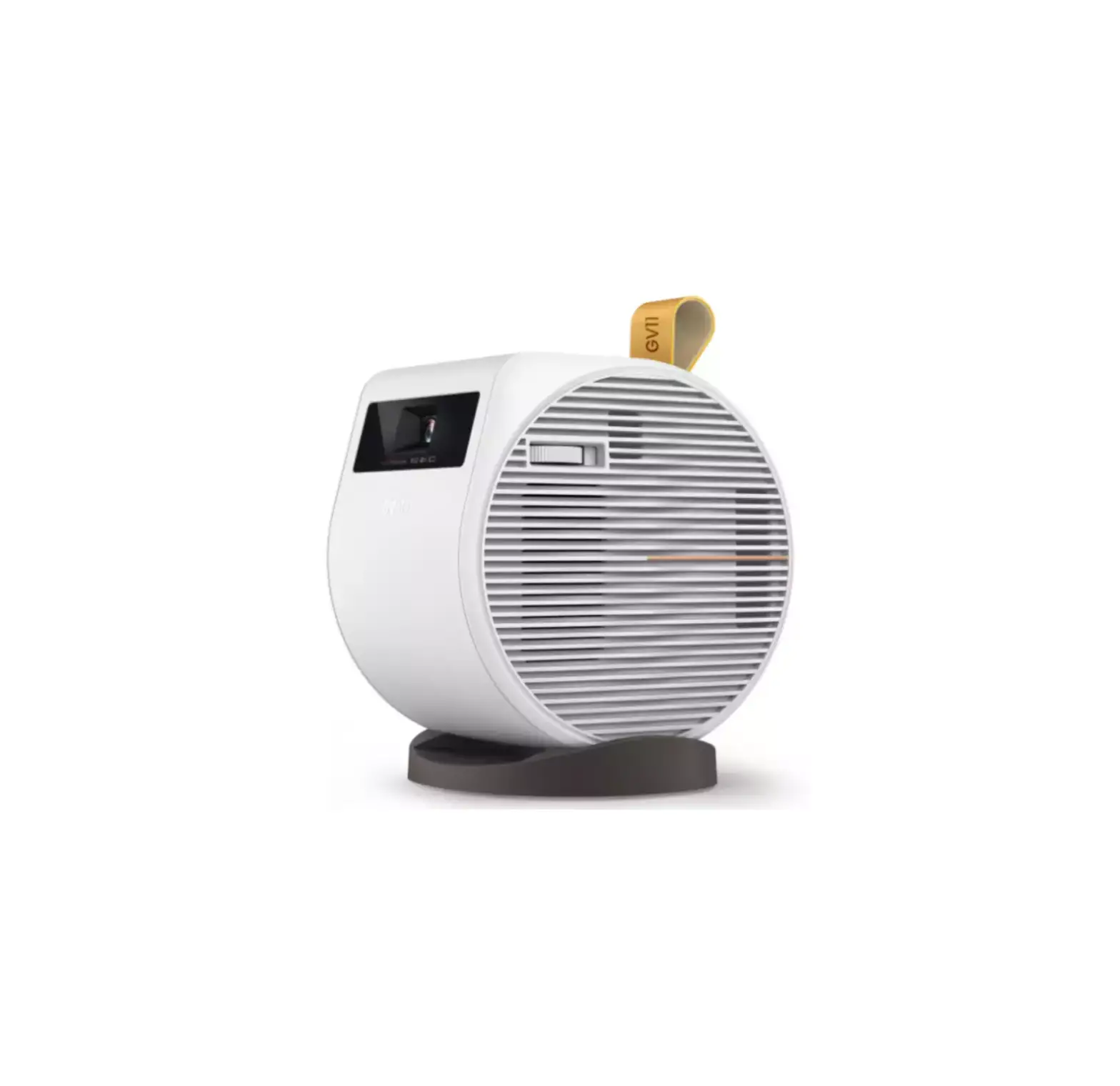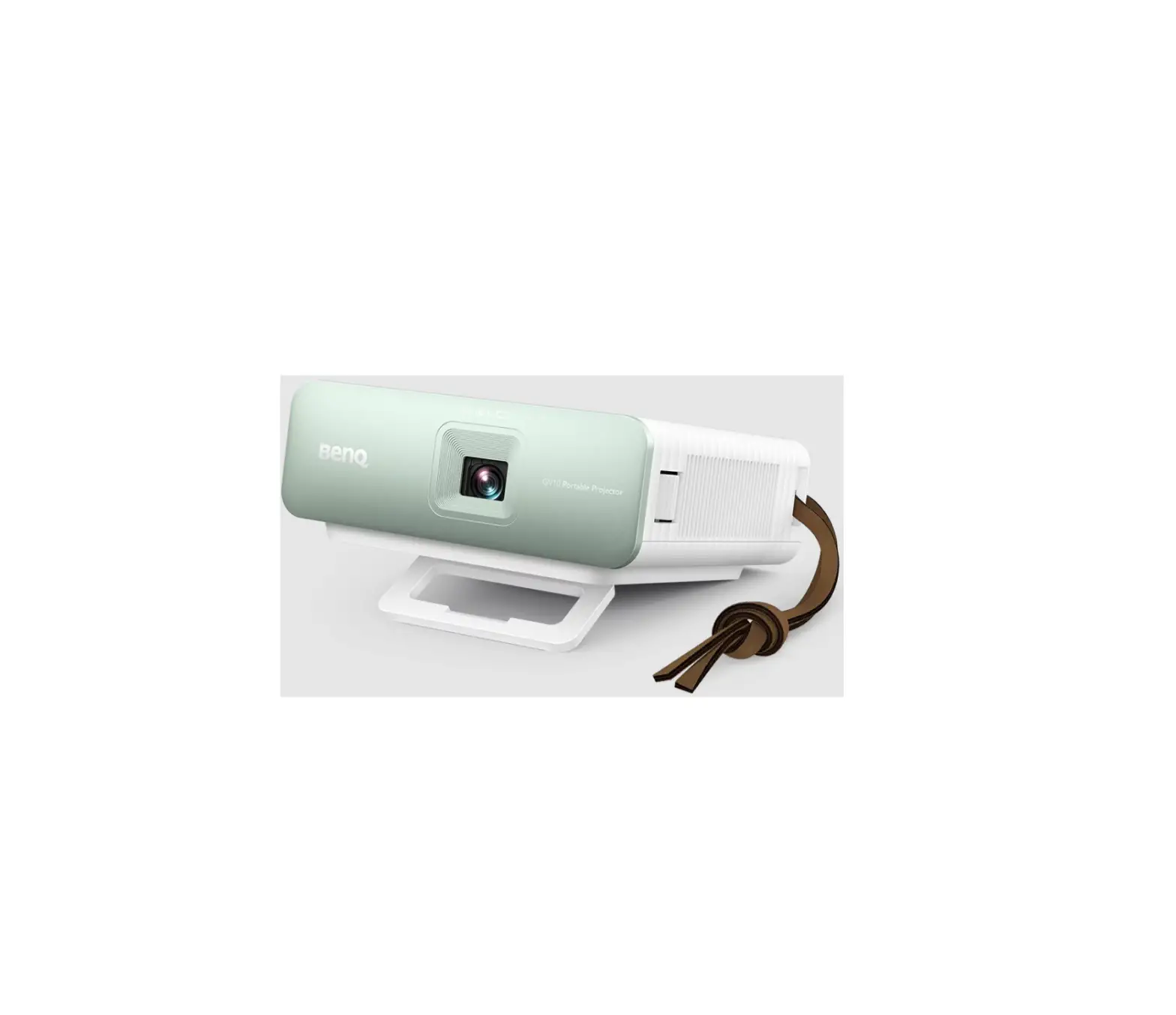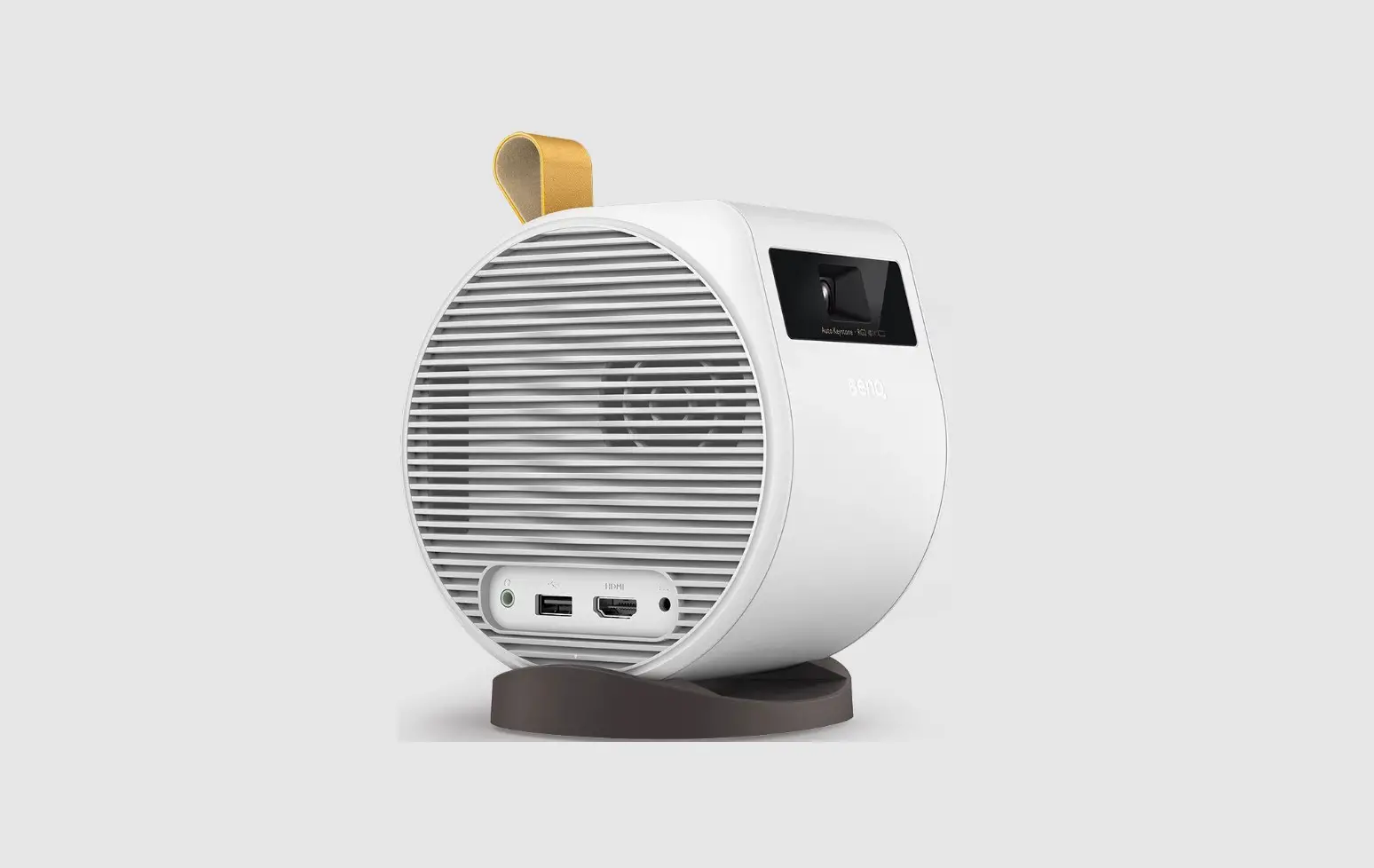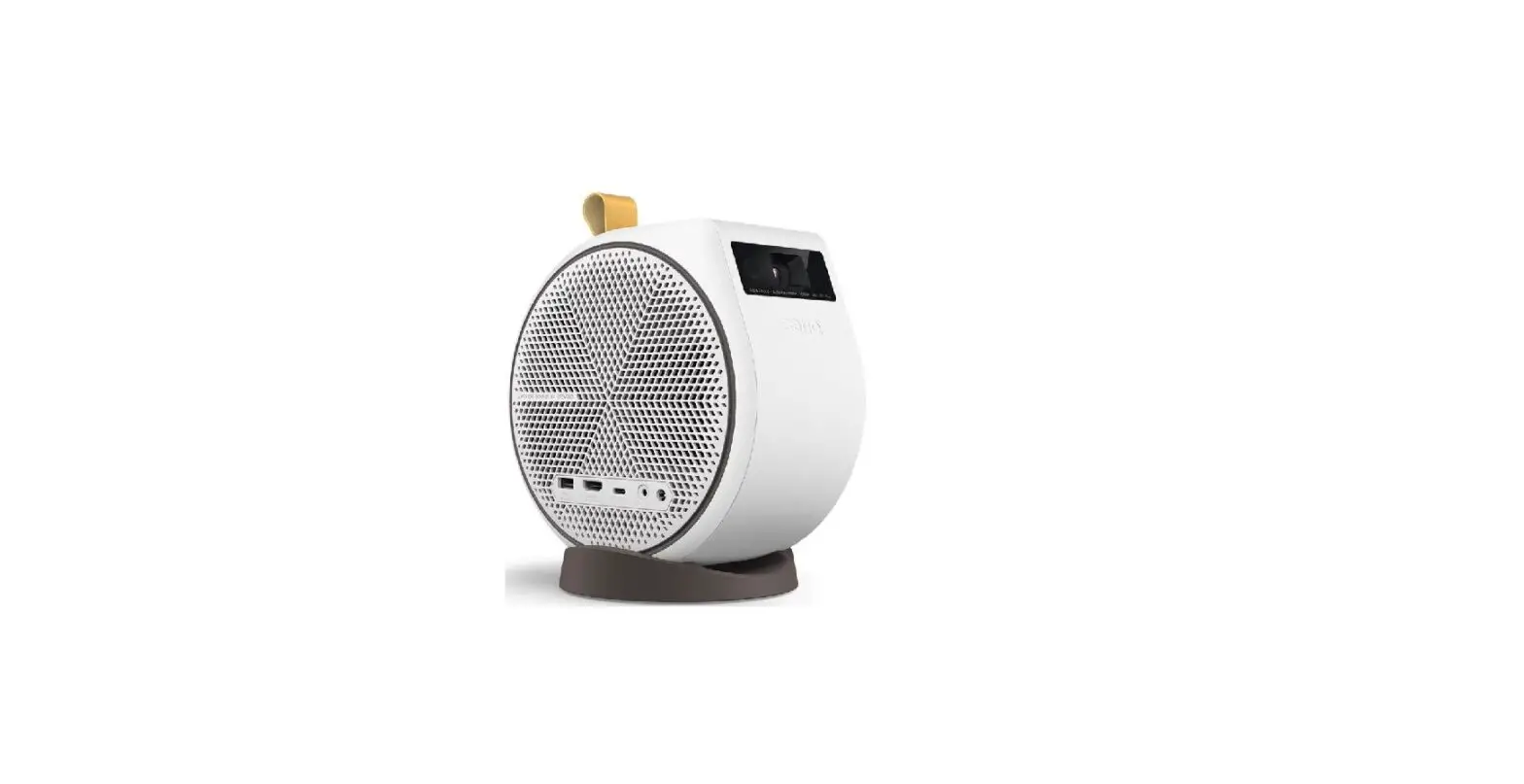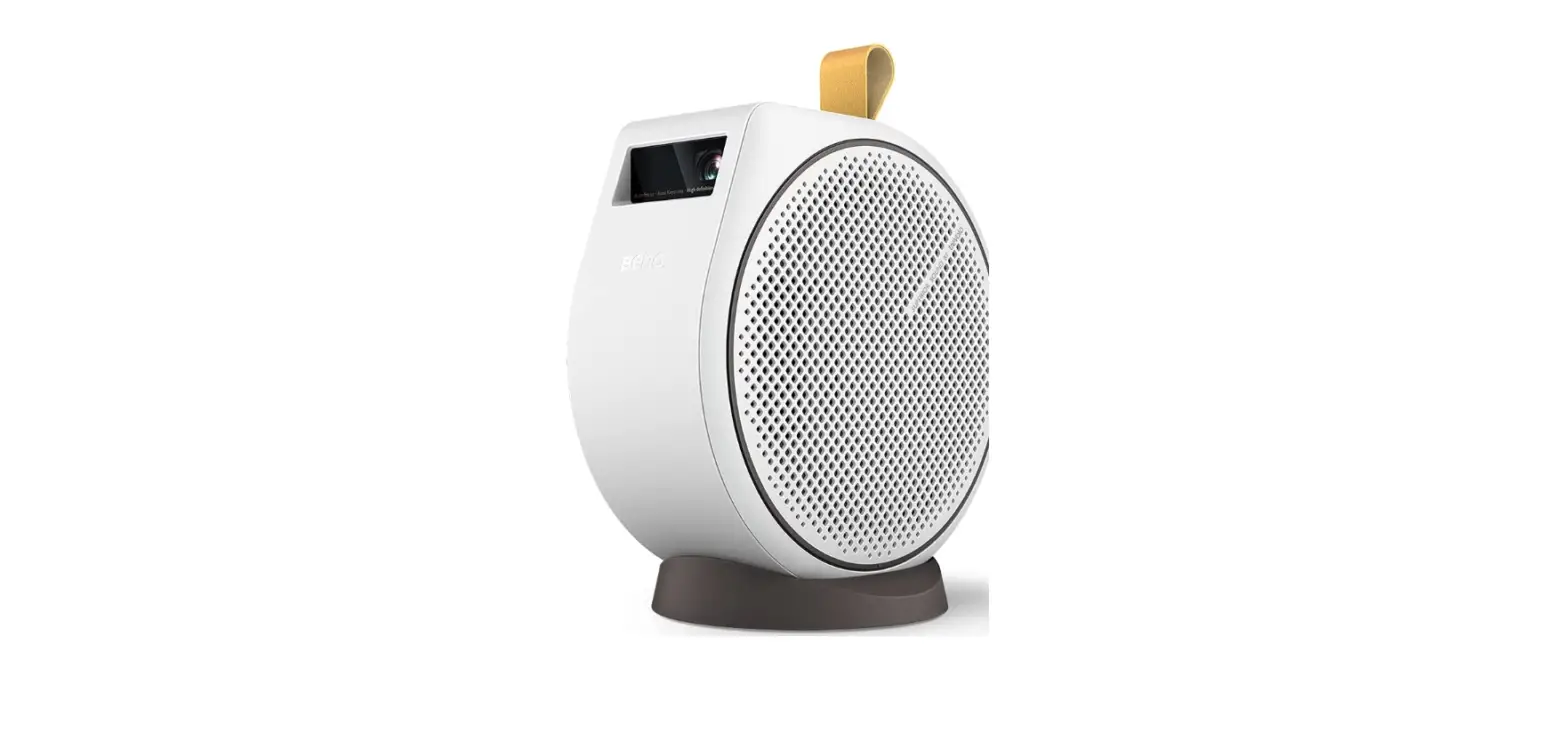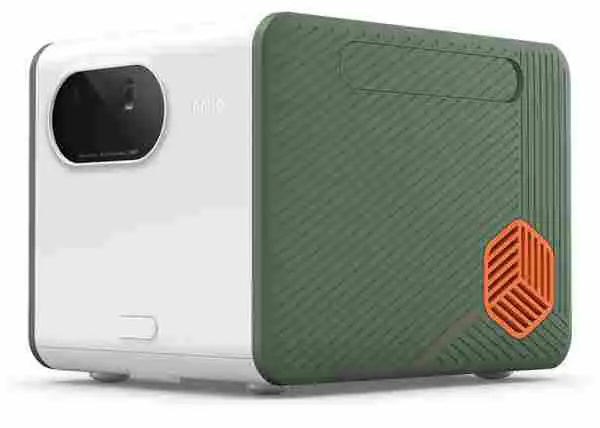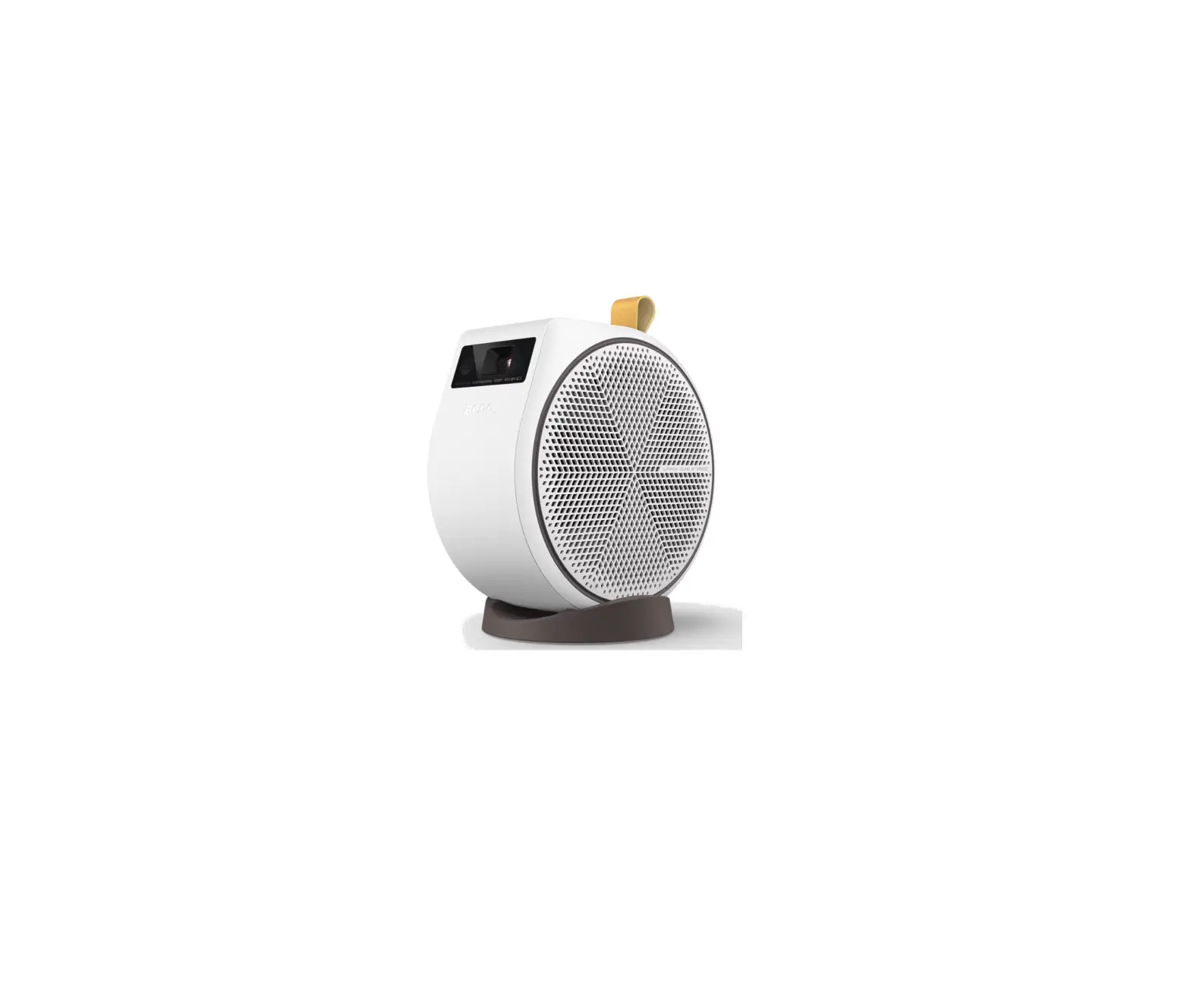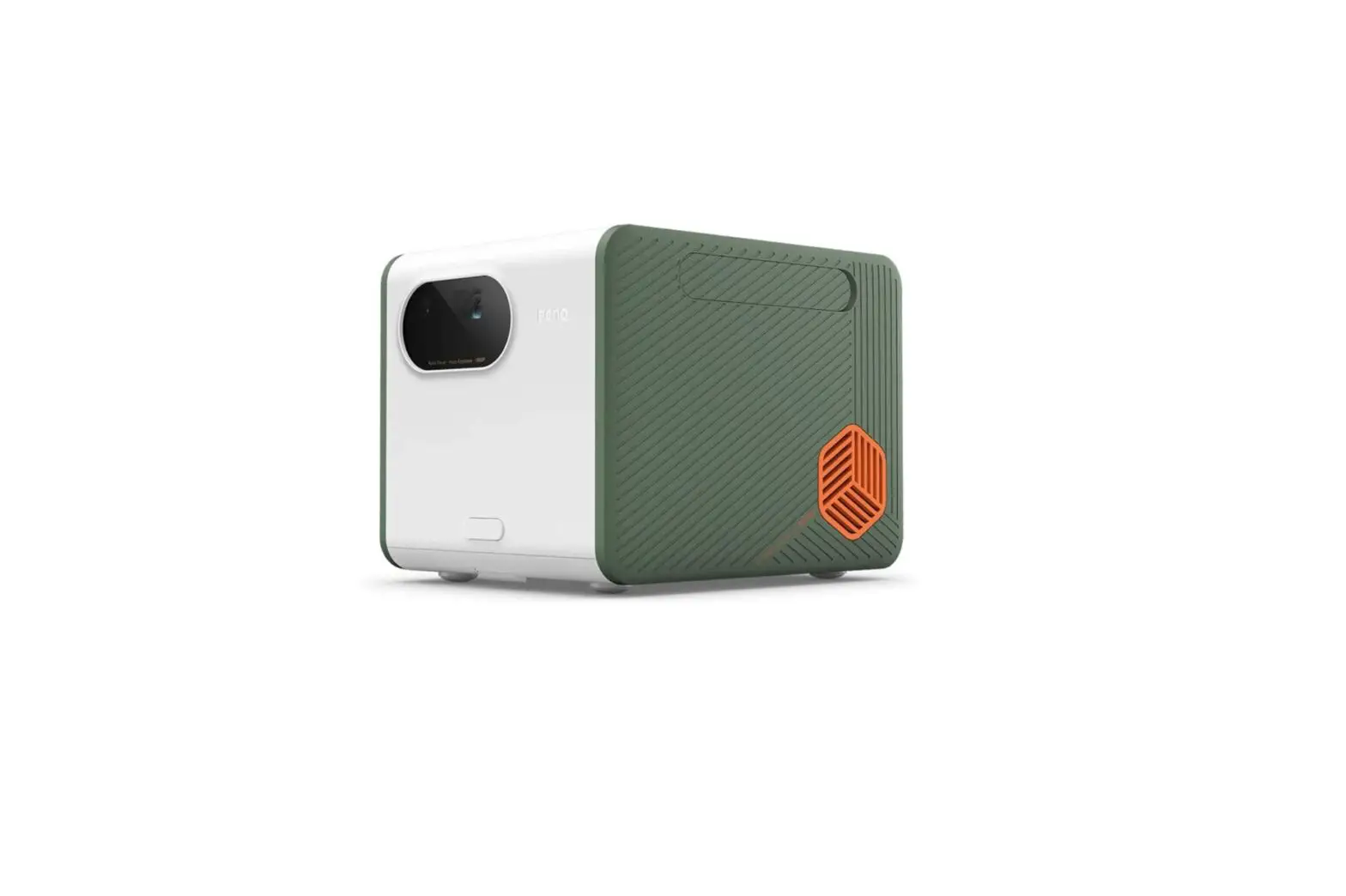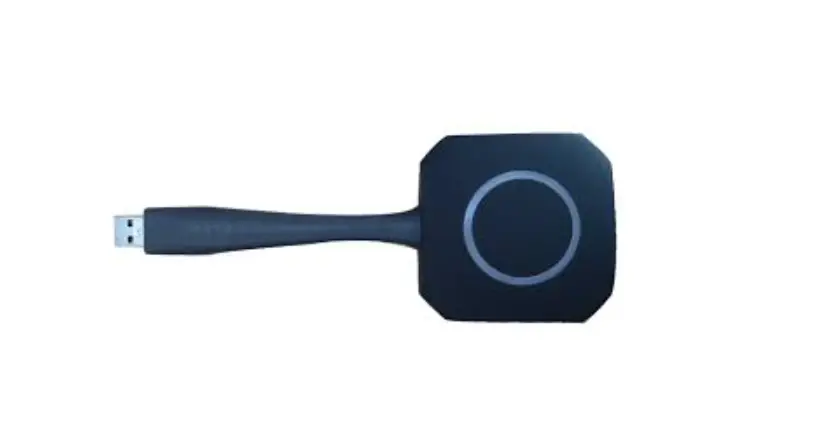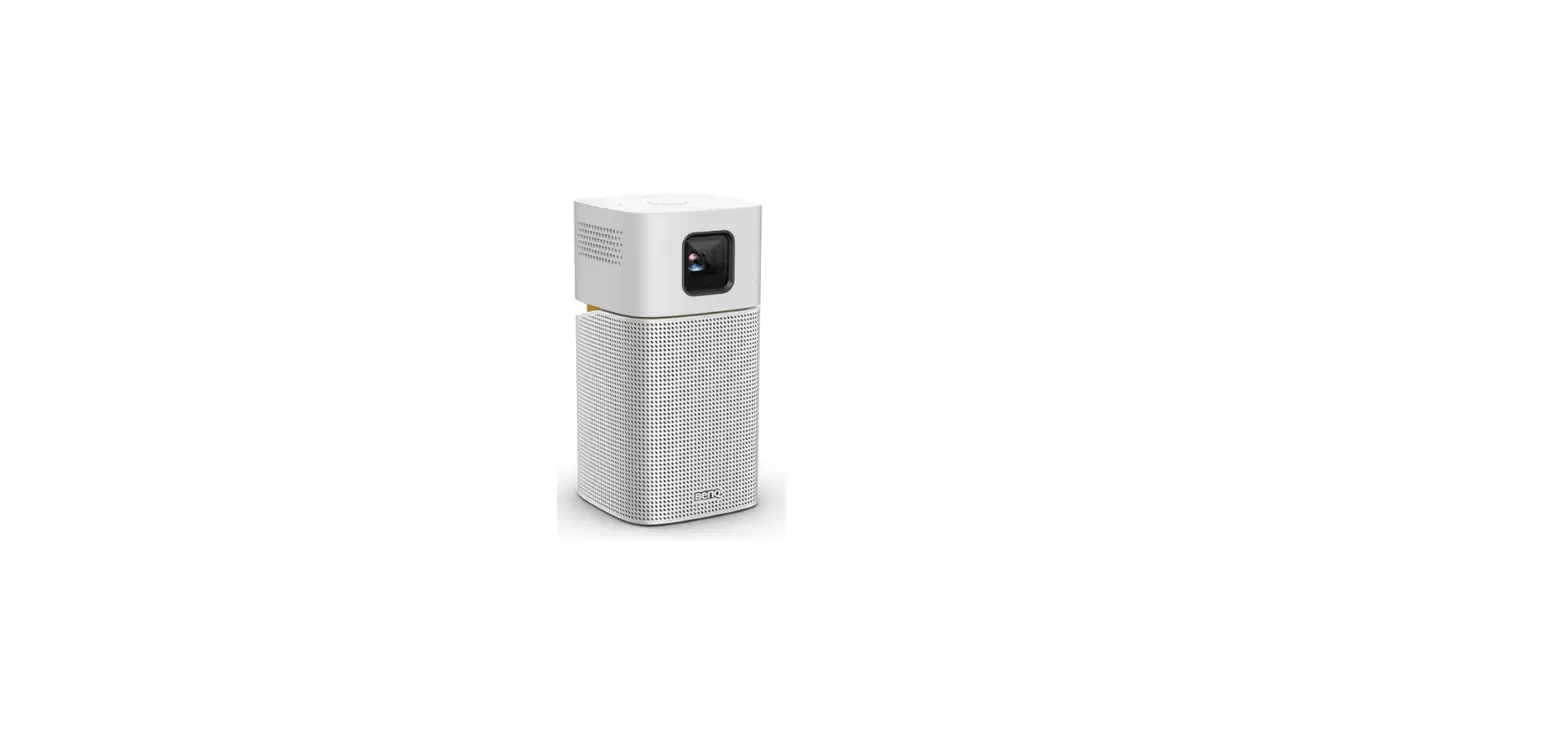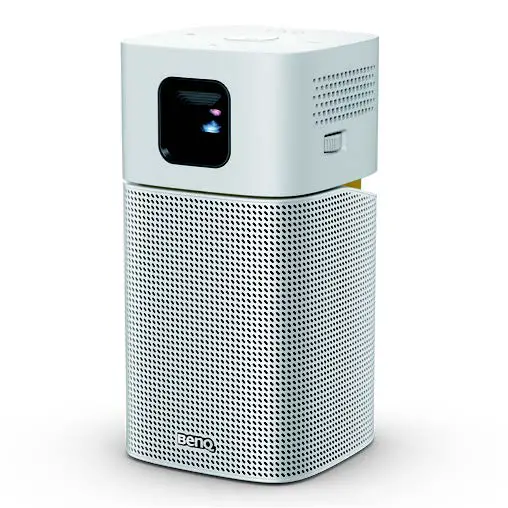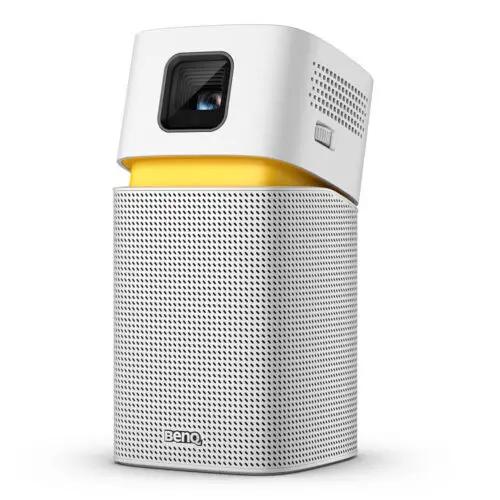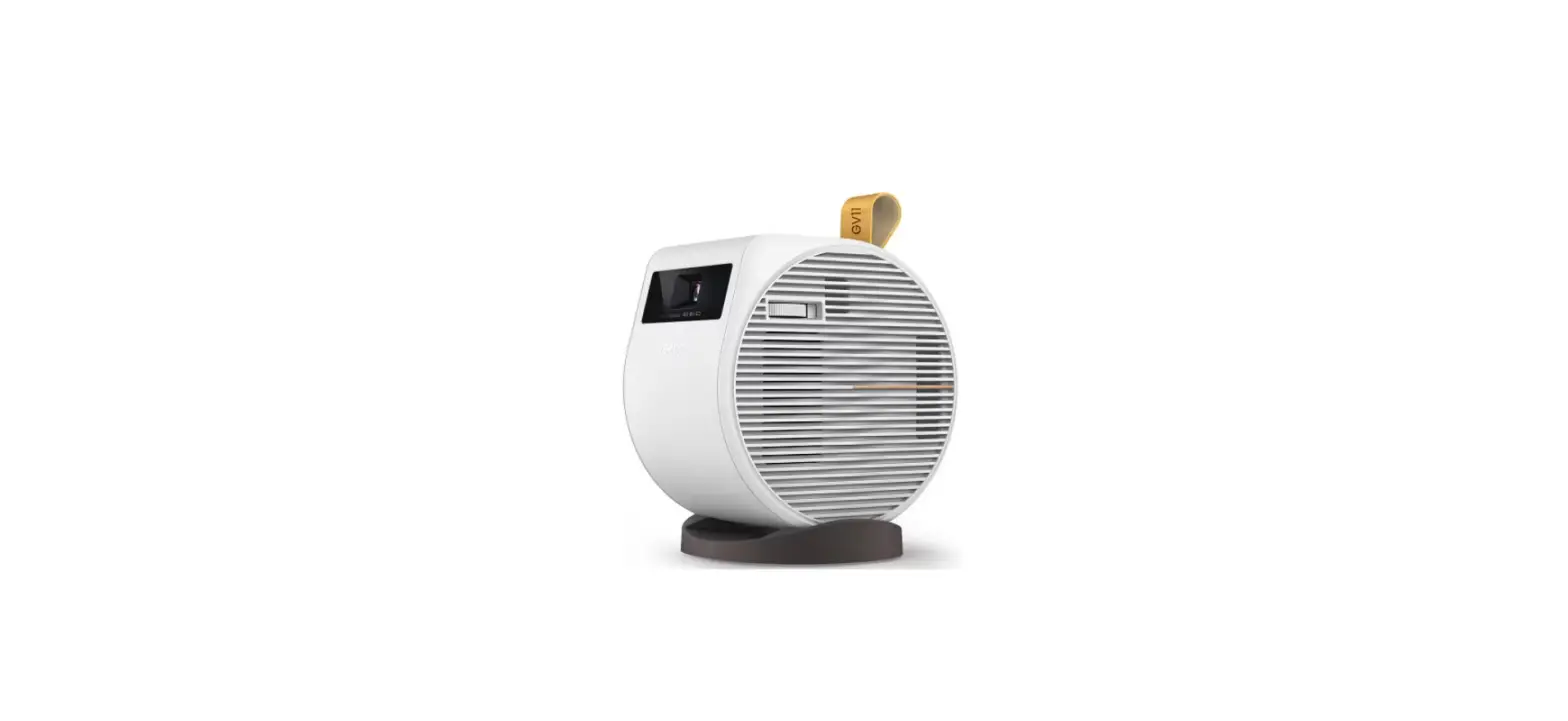
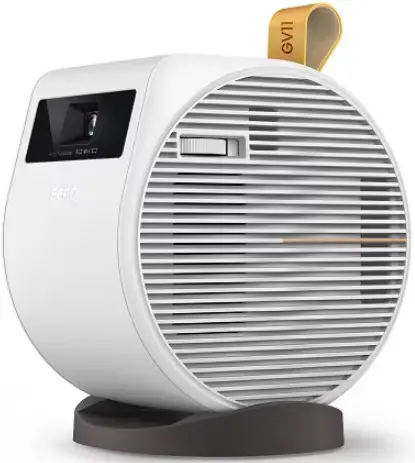
BenQ Android TV 10 Powered GV11 LED Wireless Portable Projector
INTRODUCTION
It is vital and suggested to keep your projector running with up-to-date Android TV system benefits from features, applications, and bug improvement. For more details about system upgrade instructions and improvements, please read through the following:
Before System Upgrade
- Please connect your Android TV system to the Internet to receive up-to-date system firmware • Please make sure to plug in the AC power for a stable power supply
- Please update all your apps before installing new Android TV system
- Please update the Android TV system by following the instruction
Bug and Feature Improvements with v00.02.00.20 (Android 10)
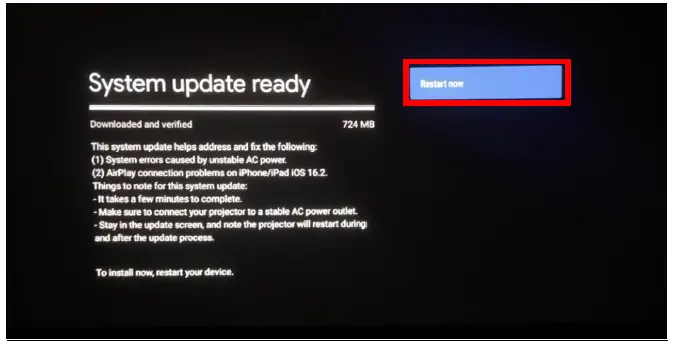
- System errors caused by unstable AC power.
- AirPlay connection problems on iPhone/iPad iOS 16.2.
Things to note for the system update
- It takes a few minutes to complete the install and update.
- Make sure to connect your projector to a stable AC power outlet before beginning the process. Do not use portable power sources or battery power.
- Stay in the update screen and do not change screens while the process is ongoing.
- Your projector will restart during and after the update process until you see the Android TV main screen again.
Download and Upgrade System
- The process to update the software varies. Follow the instructions accordingly.
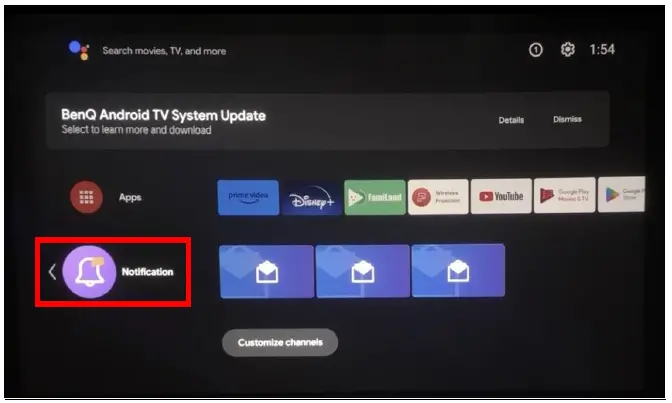
Step1
- Go to “Notification”
Step2
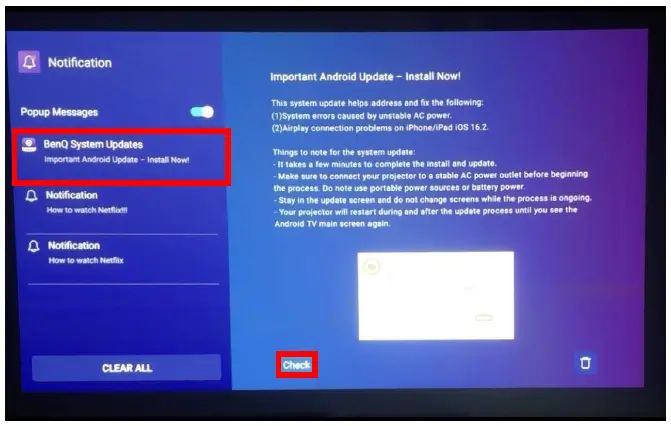
- Select “BenQ System Updates” and click “Check”
Step3
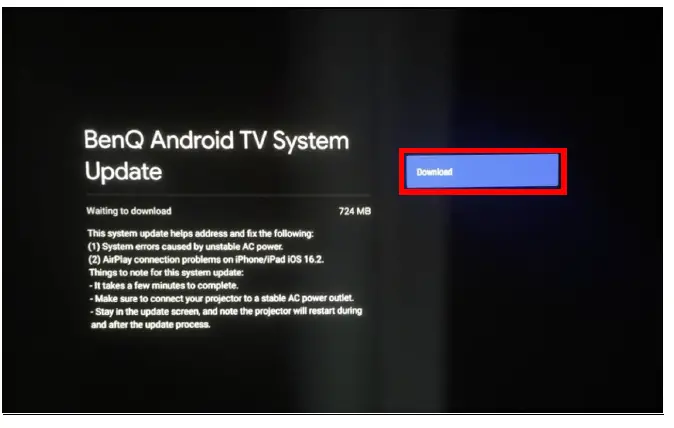
- Click “Download”
 Step4
Step4
- Select “Restart now”
Step5
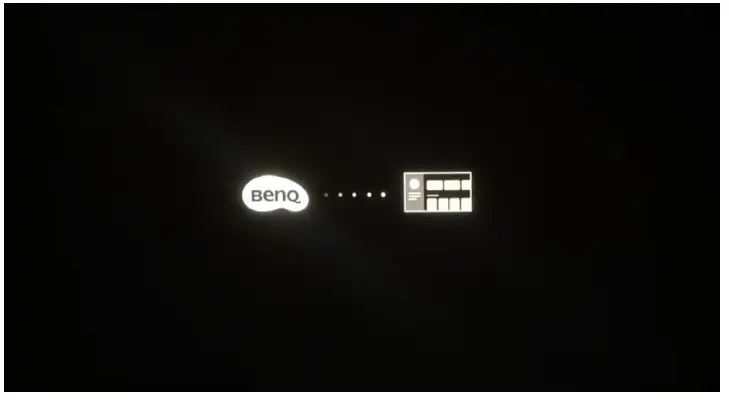
- System restarts
Step6
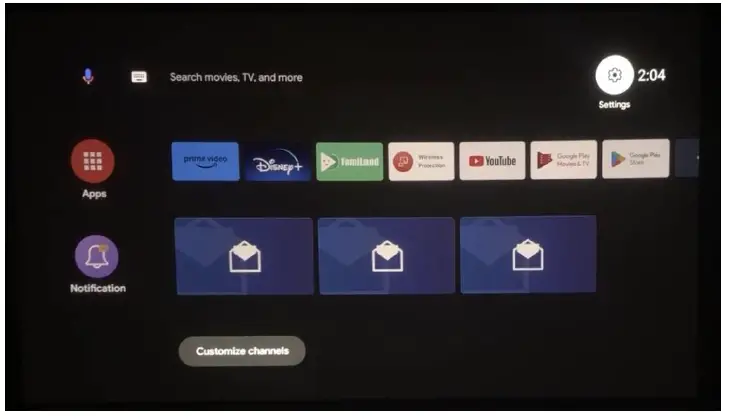
- Update complete
After System Upgrade (Important)
- Reconnection and reactivation could be required for Bluetooth device, remote control pairing, wireless projection, and network after system upgrade.
How to pair and unpair a Bluetooth accessory
https://www.youtube.com/watch?v=S04YEwuhgdE
How to pair BenQ QS01 Android TV stick with its remote
https://www.youtube.com/watch?v=v0_JOMiuQGY
Note
- The screenshots provided here are for reference only. The actual screens might differ slightly according to your country, model or firmware version.
- If the upgrade message doesn’t come up, please restart or try to factory reset the Android TV system.
How to factory reset Android TV dongle
https://www.youtube.com/watch?v=u8VxSEuoYJA
How do I use projector to watch Netflix on BenQ QS01 Android stick
https://www.youtube.com/watch?v=SOHWDAGS70o
How to check version of Android TV and Android TV dongle firmware
https://www.youtube.com/watch?v=PWeSgTge_9E
How to screen mirroring system desktop through Android TV dongle
https://www.youtube.com/watch?v=3d8nOGJfhVI