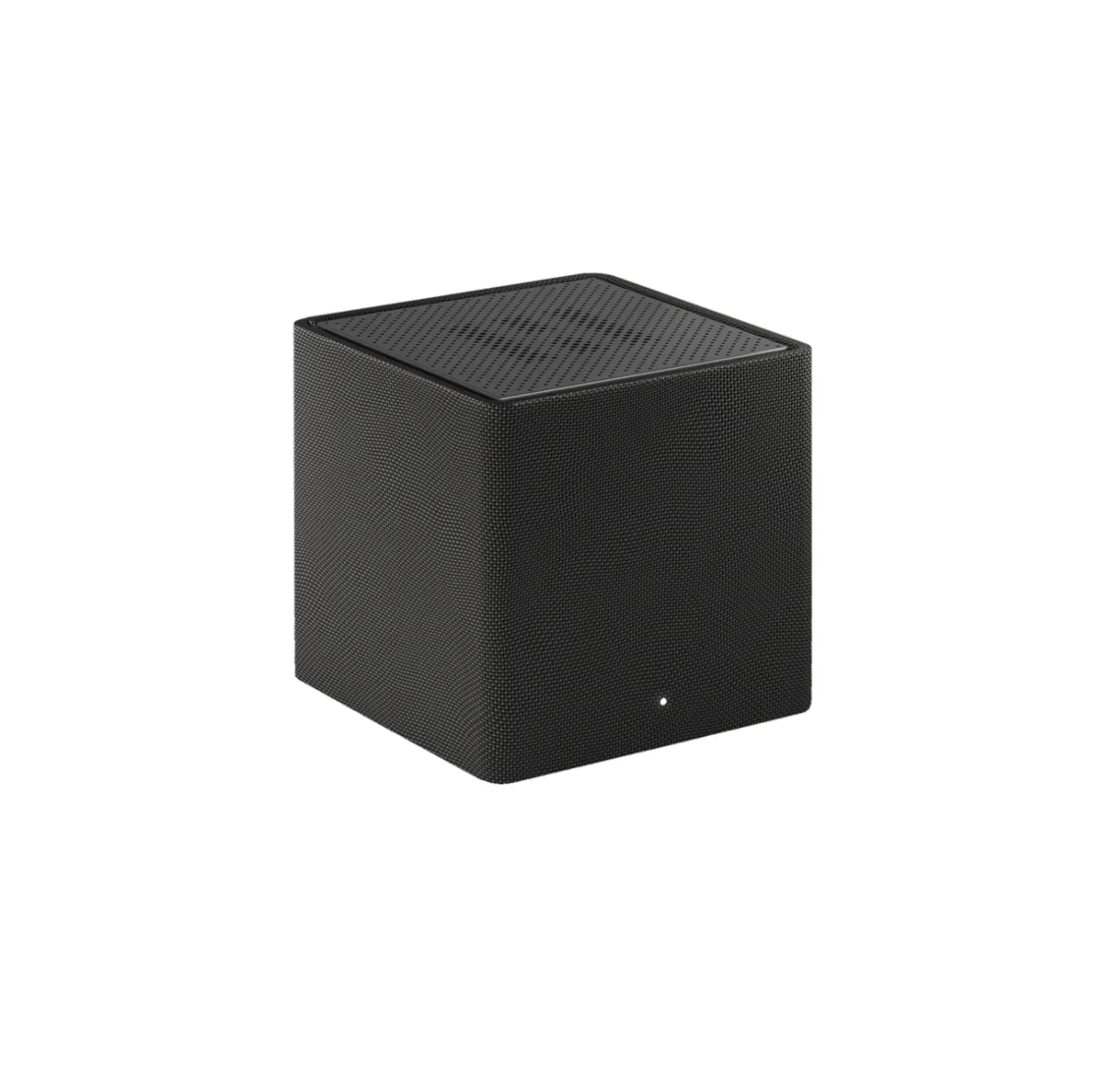
 QSG Smart Mesh Black 1 Pack
User Guide
QSG Smart Mesh Black 1 Pack
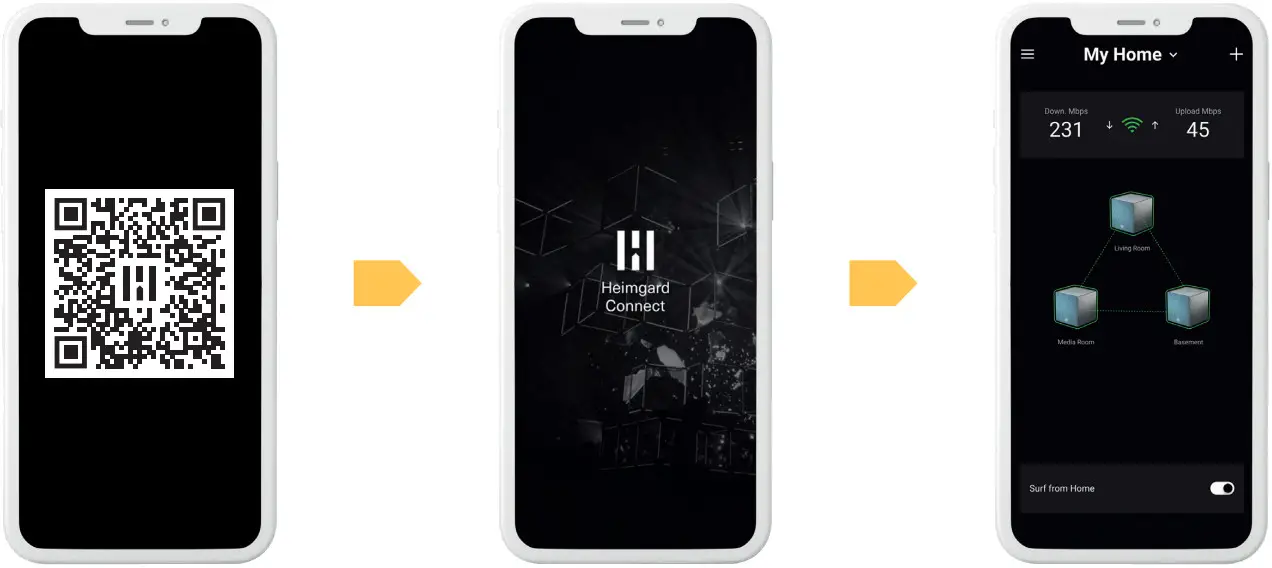 https://qr.heimgardtechnologies.com/connect https://qr.heimgardtechnologies.com/connect | ||
| DOWNLOAD Use your mobile phone to scan the QR code and download the Heimgard Connect app on Google Play or Apple App Store. | INSTALL Install the app and follow the step-by step instructions to set up your Wi-Fi mesh node/system. | ENJOY Explore the app and enjoy seamless high-speed Wi-Fi in your entire home. |
What’s In The Box
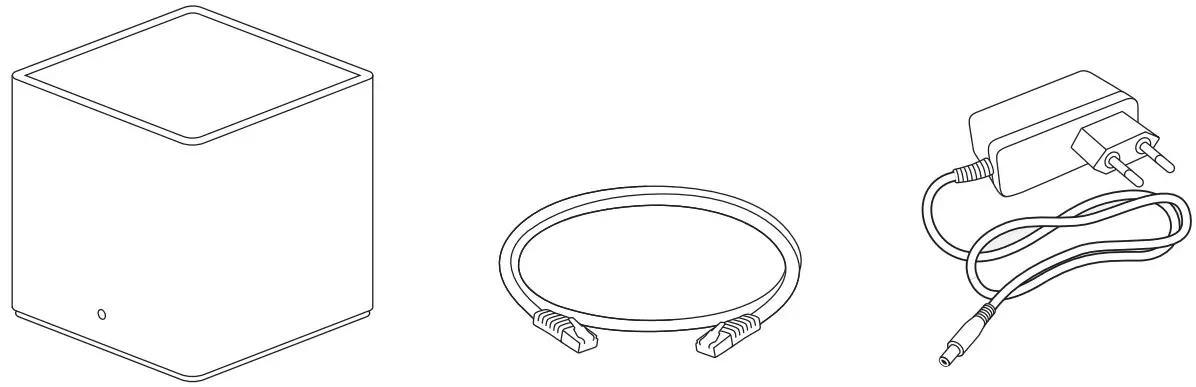 | ||
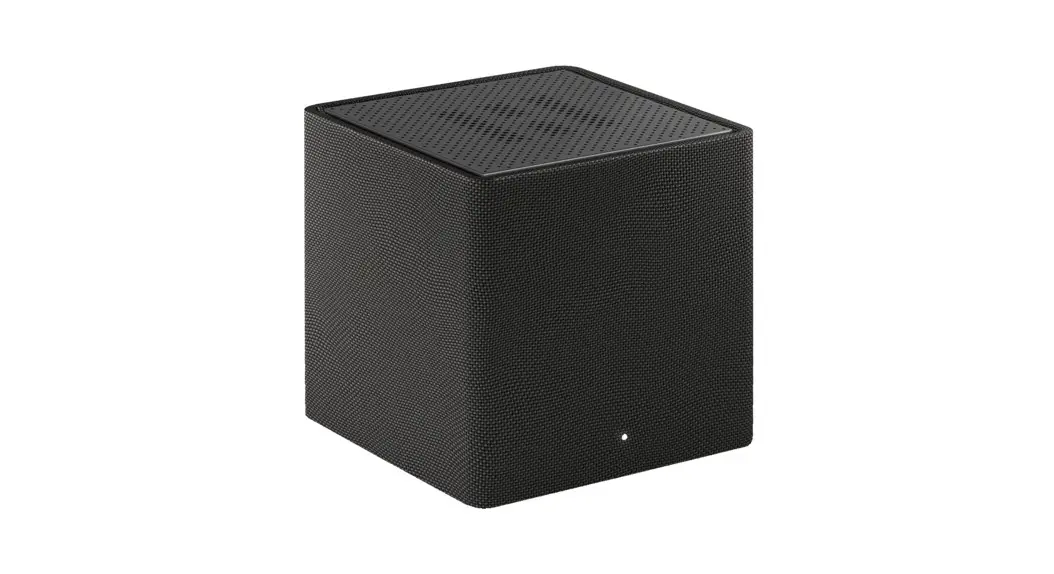
| Wi-Fi mesh node | Ethernet cable | Power adapter |
OVERVIEW
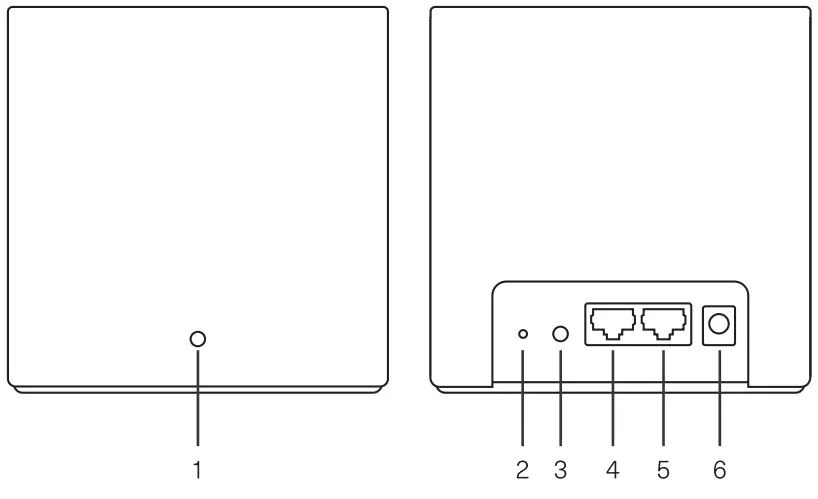
- LED indicator
- Reset button
- Sync button
- WAN/LAN port*
- LAN port
- Power connector
“If the node is used as a primary node, the left LAN port will act as WAN.
For the additional nodes, both ports will act as LAN ports.
LED indication status
 | GREEN SOLID OK. |
 | GREEN FLASHING Booting and connecting to the network. |
 | BLUE SOLID New device is ready to pair. |
 | BLUE FLASHING Pairing or upgrading, please do not turn off during this time. |
 | RED SOLID Device is not connected properly or an error is detected, please see the Heimgard Connect app for more information. |
 | RED FLASHING Device has a weak signal, please place the node closer to another node to ensure optimal performance (see instructions for optimal placement of nodes in the app). |
If adding additional Smart Mesh nodes in your home
- Temporarily, place the new Smart Mesh node near the first Smart Mesh node you set up (at least 1 meter away).
- Connect the new node to a power outlet. Wait a few minutes for the node to boot.
- Either use the Heimgard Connect mobile application and select “add” a new node or Press once the sync button on both your primary node and your new node.
- Your new Smart Mesh node will bind to the network. LED will flash “BLUE” while connecting.
- Wait for the LED on your new Smart Mesh node to become solid “GREEN”.
- You can now disconnect the node from power and move it to its location where you need better Wi-Fi.
- When powering the unit in its final location, check the LED status to confirm the device has a good signal to the primary node.
- If the signal is not ideal (LED is flashing “RED”), please reposition the node for optimal performance.
 Visit heimgard.com/smartmesh for more information and tips.
 Did you know that this Smart Mesh node/system also has a smart home hub built in?
Scan this QR code to download the Heimgard Smart Home app and start connecting all your smart home devices.