Streaming Device for Use with Socket TV
Product Information:
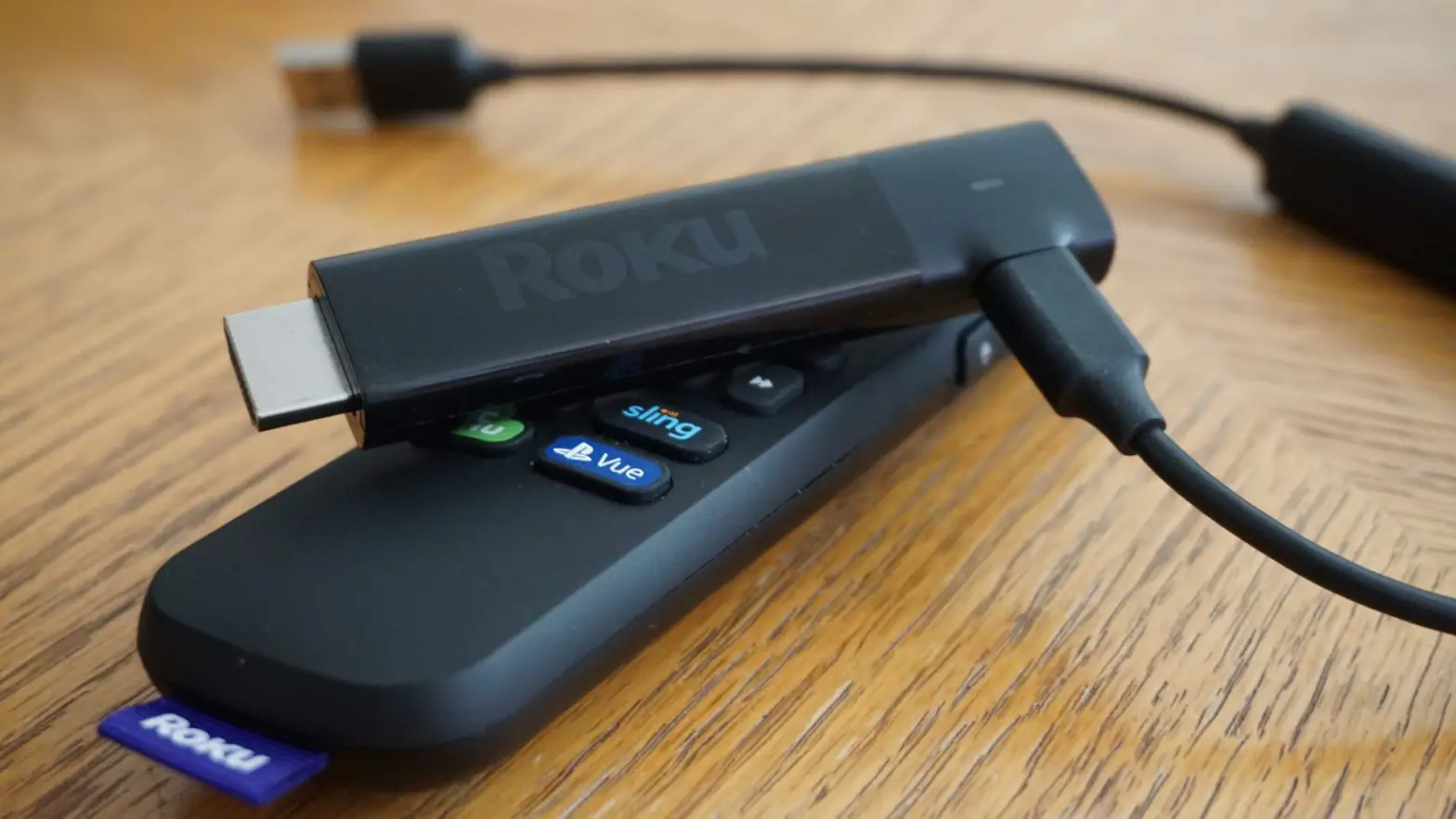
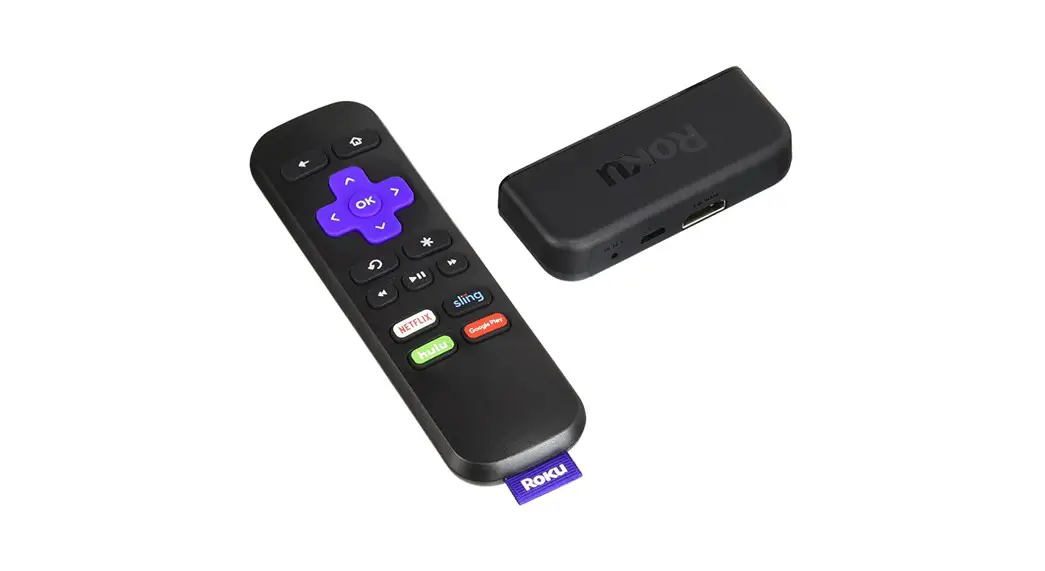
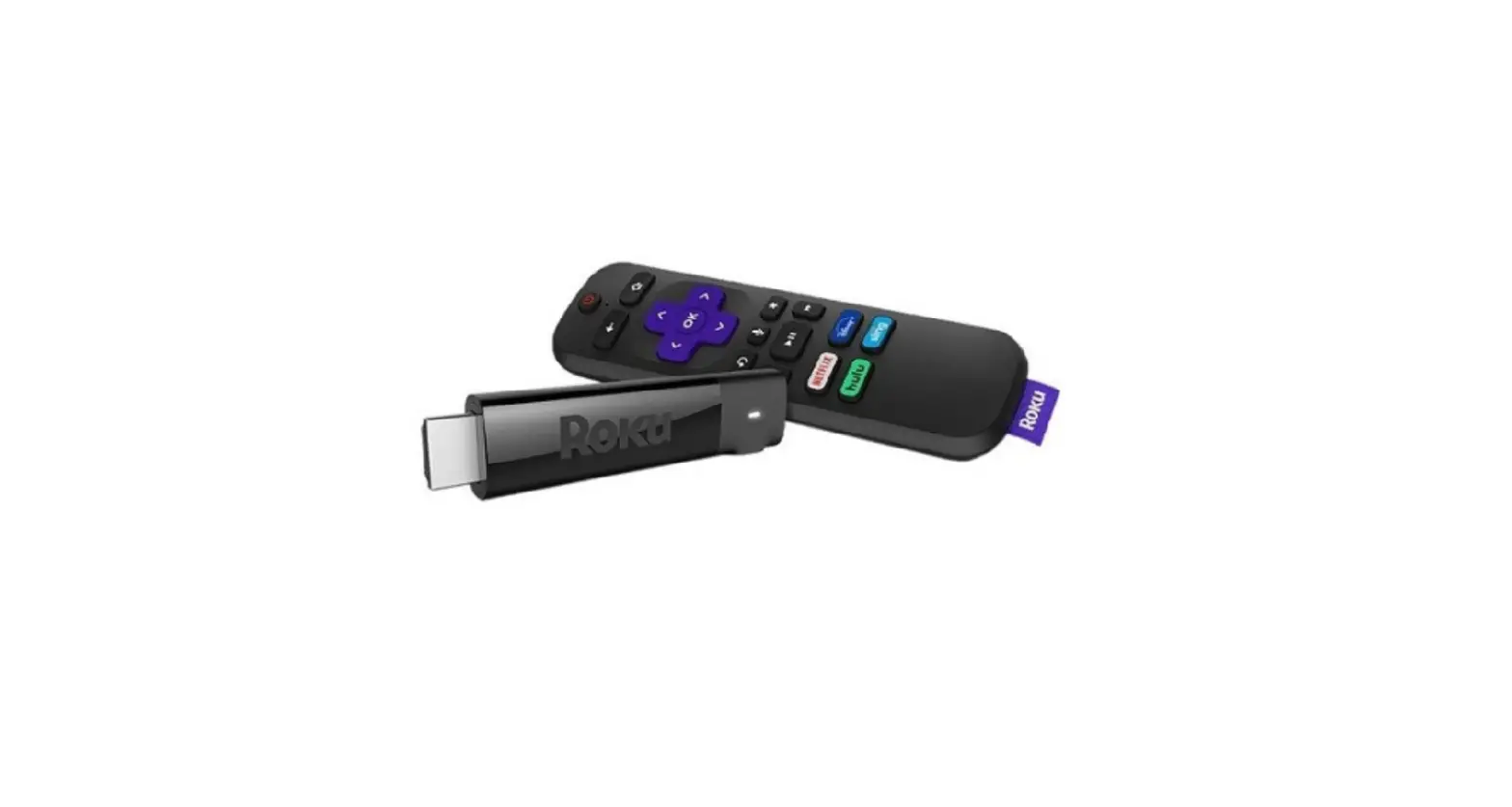
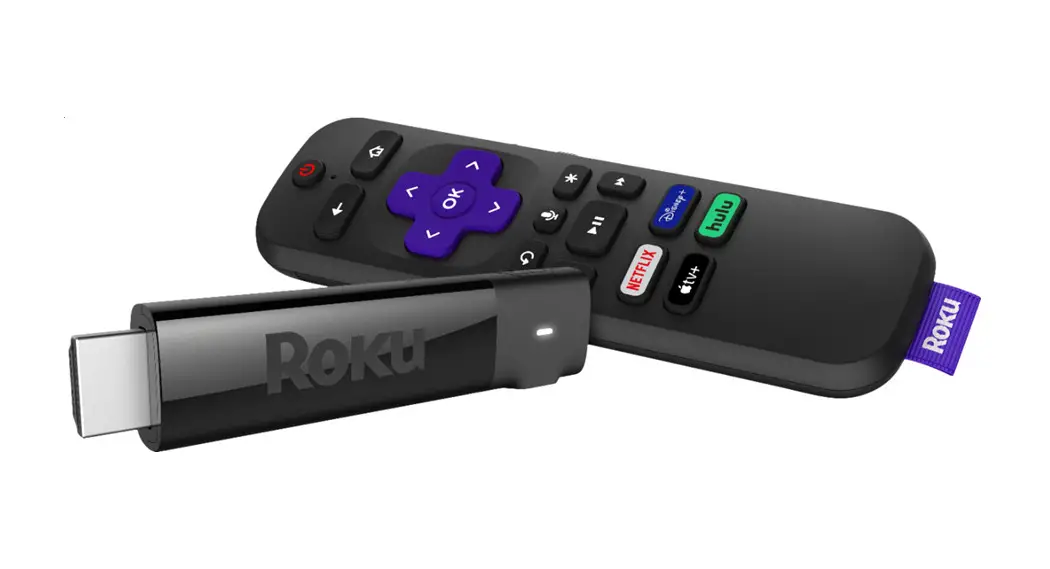
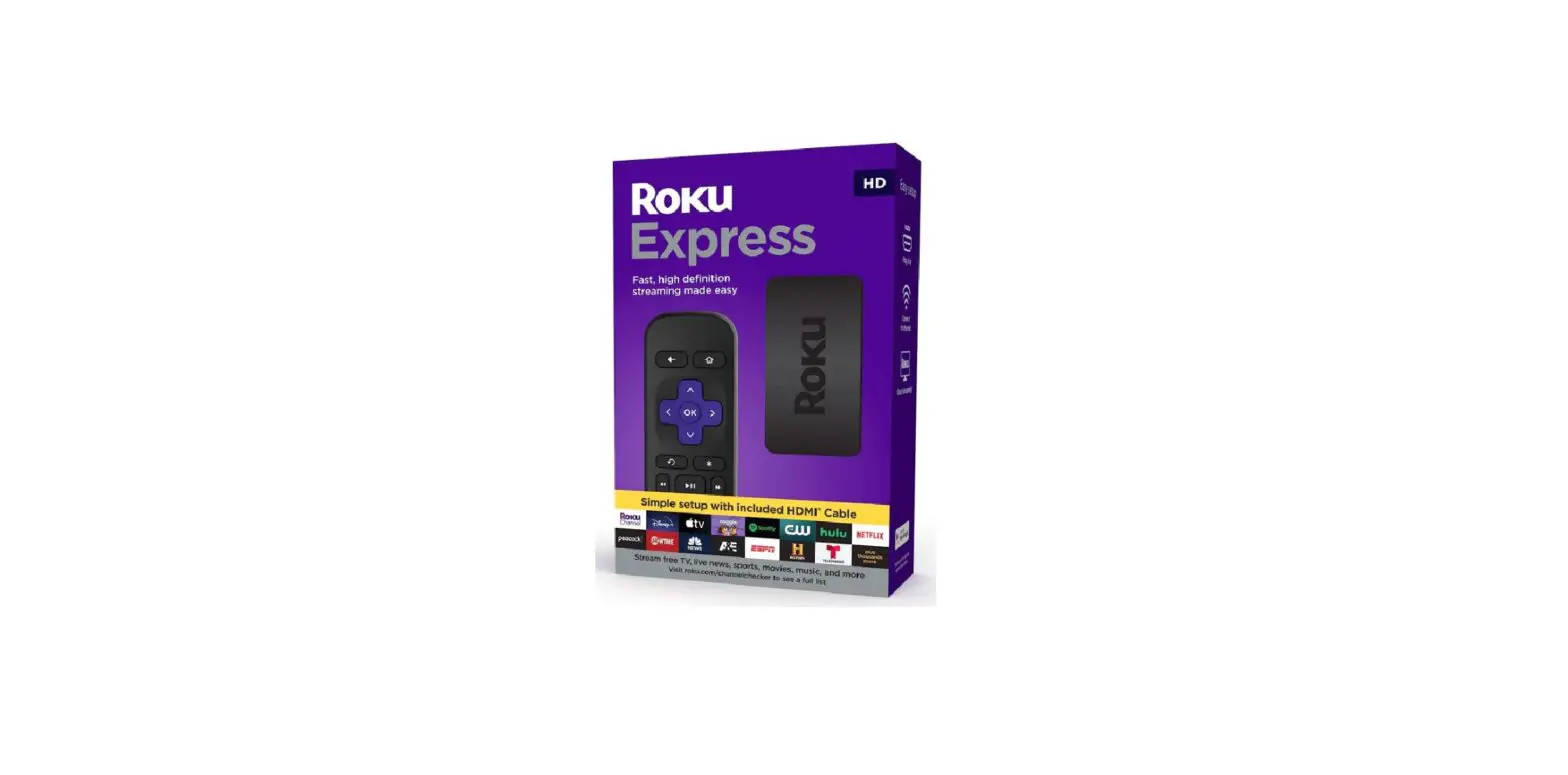
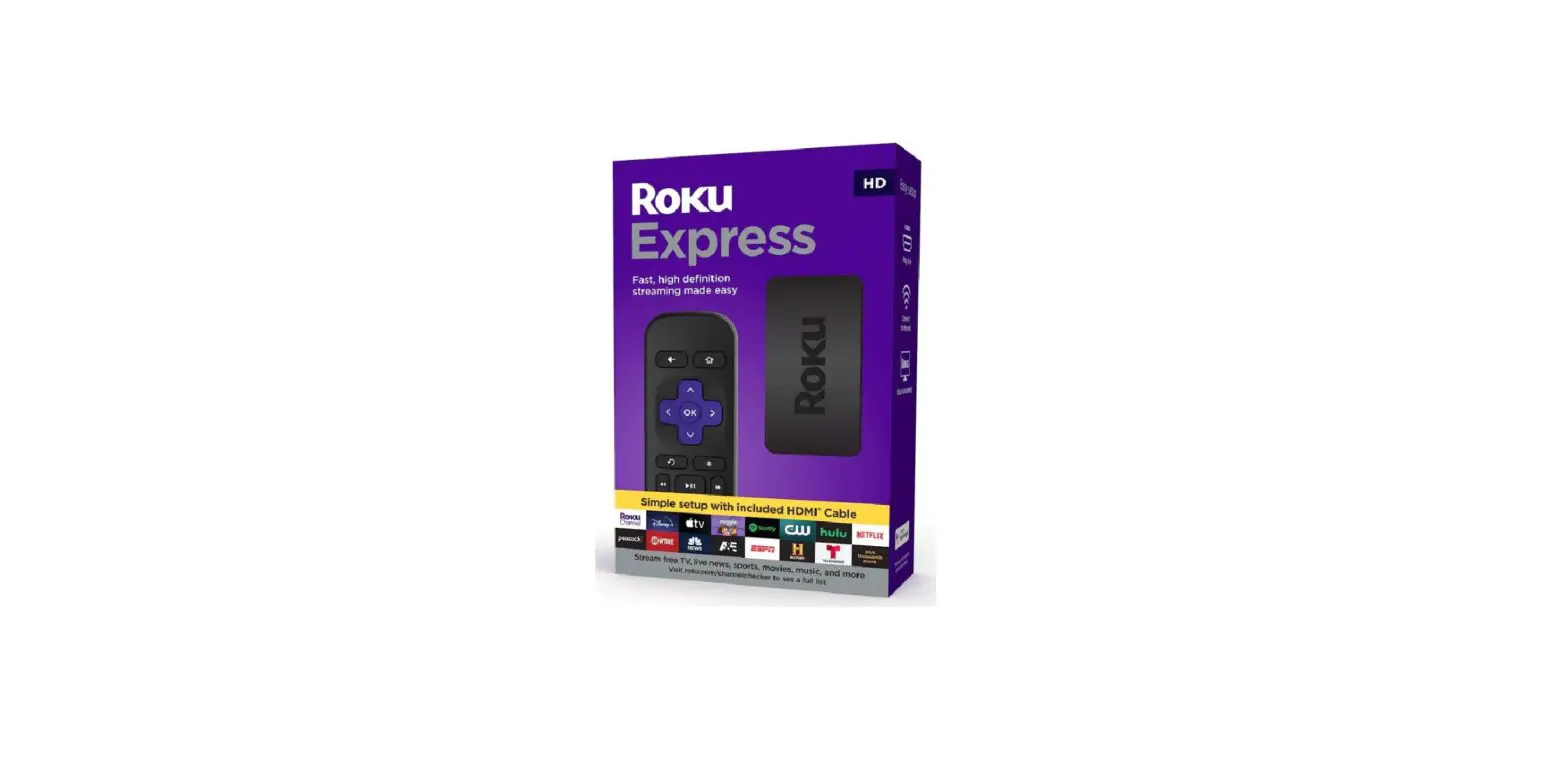
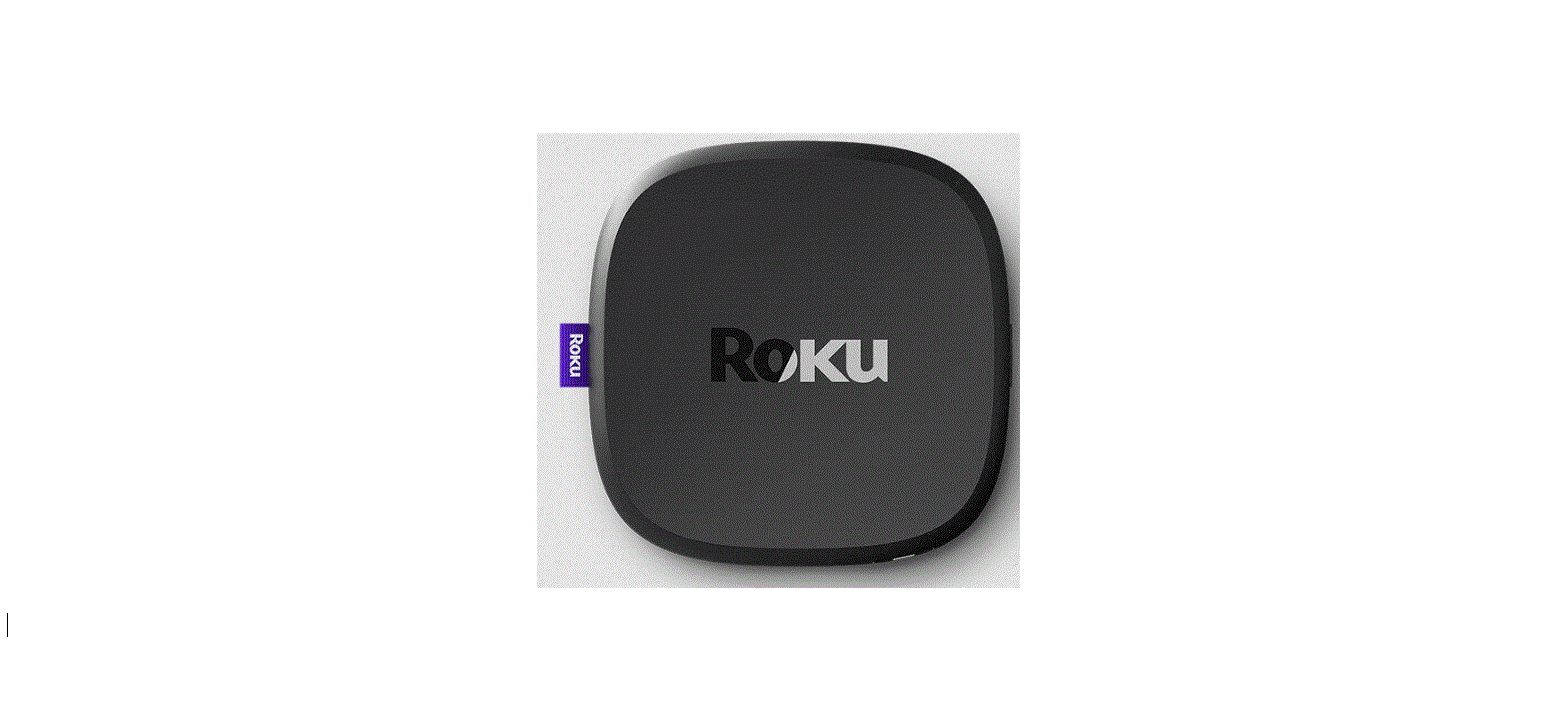
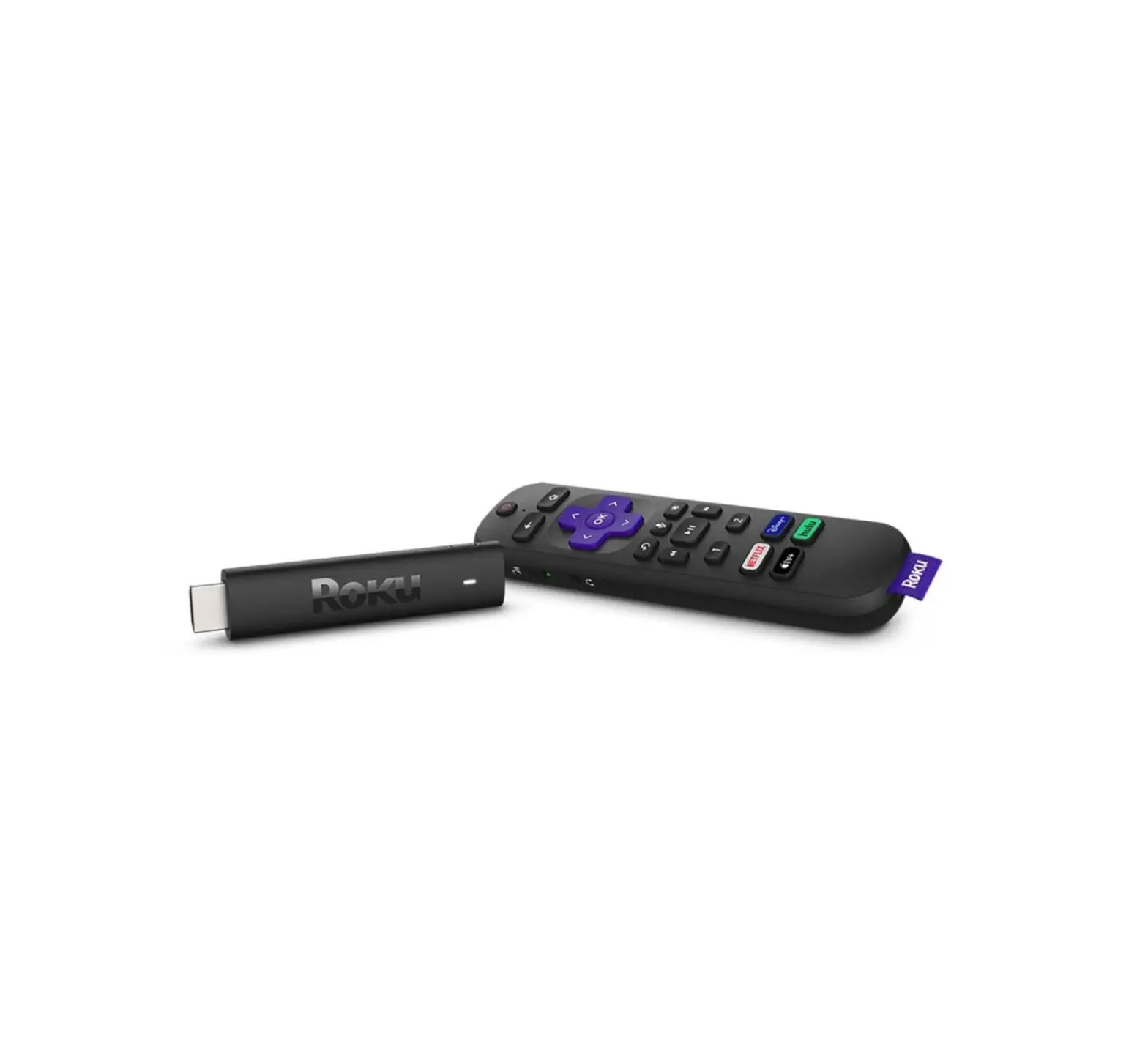
The Roku Streaming Device is a media streaming device that
allows you to stream your favorite movies, TV shows, and other
content directly to your TV. It comes with a remote control, power
adapter, HDMI cable, and batteries included. The device connects to
your TV via HDMI and requires a Wi-Fi network for streaming.
Product Usage Instructions:
Unboxing and Initial Setup:
- Unbox the Roku Streaming Device and check the contents.
- Check box contents.
- Place batteries in the remote control.
- Connect the device to your TV and power.
the cover.
streaming device.
to the HDMI port on the Roku streaming device.
your TV.
Device/TV Setup:
- Tune your TV to the input to which you connected the Roku
device. - Pair the remote control:
- Take off the battery cover on the remote control.
- Press and hold the small button below the batteries until the
remote icon appears on your TV screen. - Release the button and the remote will pair.
- Use the directional buttons on the remote to move up or
down. - Press OK once your language is selected.
- Scroll through the list of networks using the up/down buttons
on the remote. - Press OK to select.
keyboard.
- Use the directional buttons and OK button on the remote to move
through the display setting prompts.
- Using the directional buttons and OK button on the remote,
enter your email and press Continue. - Roku will send an activation email to the email address you
entered.
or mobile device.
device:
- Select the appropriate answers to move through the set-up
prompts. - Name your device and assign it to a room (not pictured).
channel updates are done.
Add Socket TV App:
- Search for the Socket TV app from the home screen:
- Use the down button on the remote to navigate to Search on the
left side of your screen. - Using the directional buttons on the remote, search for Socket
TV, select the app, and press OK.
- Select Add channel and press OK. This will add the Socket TV
app to your home screen.
app:
- Use the directional buttons on the remote to move down and
left-to-right to select the app.
set up guide
Configuring the Roku Streaming Device for use with Socket TV
UNBOXING THE CONTENTS
1
Unbox and check the contents
-Check box contents -Place batteries in remote -Connect device to TV and power
1. Remote control* 2. Power adapter 3. HDMI cable 4. Roku Streaming Device *Batteries included
2 Open back of remote, install batteries and replace cover
1
3 Plug the HDMI cable and power cord into the Roku streaming device
Plug one end of the HDMI cord into the HDMI port on the Roku streaming device.
Plug the small end of the power cord into the port located next to the HDMI port on the Roku streaming device.
4 Connect the power adapter to an outlet
5 Connect the HDMI cord to your TV
Plug the free end of the HDMI cord into an open HDMI port on your TV.
2
DEVICE / TV SET UP
Tune your TV to the input to which you connected the Roku device
6 Pair the remote control
-Pair remote control -Set up Roku device
7 Choose your language
Before beginning set-up, you may need to pair your remote. Take off the battery cover and press and hold the small button below the batteries (circled in yellow on the left). Once the remote icon appears on your TV screen, you may release the button and the remote will pair.
Use the directional buttons on your remote to move up or down, and press “OK” once your language is selected.
3
8 Select your home Wi-Fi network from the list
Scroll through the list of networks using the up/down buttons, and press “OK” to select.
9 Using the on-screen keyboard, enter the password for your Wi-Fi network
10 Roku will detect display type and settings
Use the directional buttons and “OK” button to move through the display setting prompts.
4
11 Enter your email address to activate your device
Using the directional buttons and “OK” button, enter your email and press “Continue.” Roku will send an activation email to the email address you entered.
To continue with set-up, check the email that you entered in Step 11 via your computer or mobile device.
12 Click the “Activate Device” button in the email from Roku
5
13 Move through the prompts on your computer or mobile device
Select the appropriate answers to move through the set-up prompts. Not pictured: You will be asked to name your device and assign it to a room.
To continue with set-up, return to your TV.
14 The device will update channels automatically
6
15 Watch the short tutorial video
Once the channel updates are done, Roku will show a short tutorial video.
Device set-up is now complete. To add Socket TV to your Roku channels, continue to Step 16.
7
ADD SOCKET TV APP
– Search for Socket TV app – Add app to your channels
16 Search for the Socket TV app
From the home screen, use the down button to navigate to “Search” on the left side of your screen.
Using the directional buttons, search for “Socket TV,” select the app, and press “OK.”
17 Install the Socket TV app
Select “Add channel” and press “OK.” This will add the Socket TV app to your home screen.
8
18 From the home screen, scroll down until you see the Socket TV app
The Socket TV app will be at the bottom of your app library. Use the directional buttons to move down and left-to-right to select the app.
Tip: You can return to the home screen anytime by pressing the house icon button on your remote.
19 Open and sign in to the Socket TV app
Open the Socket TV app by pressing “OK” while the app is highlighted in your library.
Using the on-screen keyboard and the directional buttons, sign in to Socket TV with your subscriber name and password. The app will also ask you to name your device. If you don’t know or have forgotten your subscriber name and password, we’re happy to help you! Please call us at 1-800-SOCKET-3.
You are now ready to watch Socket TV!
9