
Express Streaming Device
Product Information:
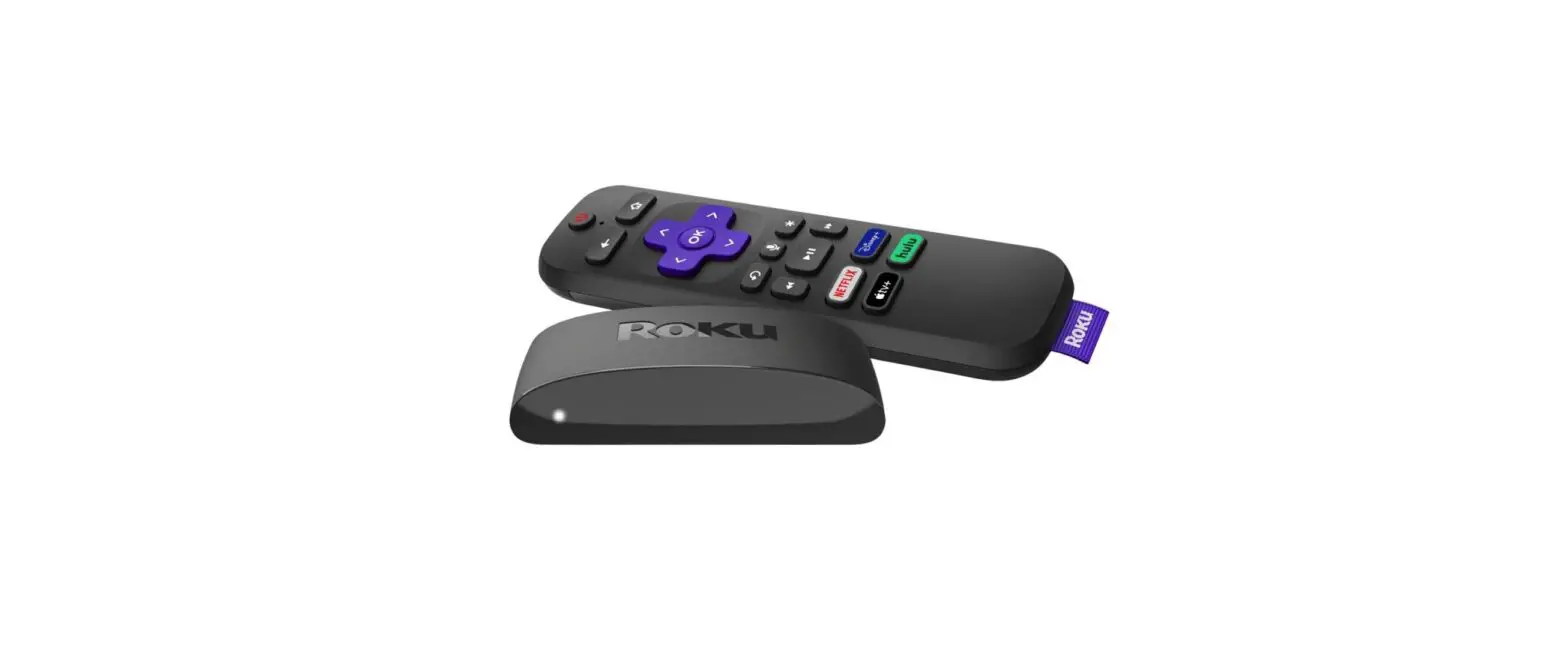
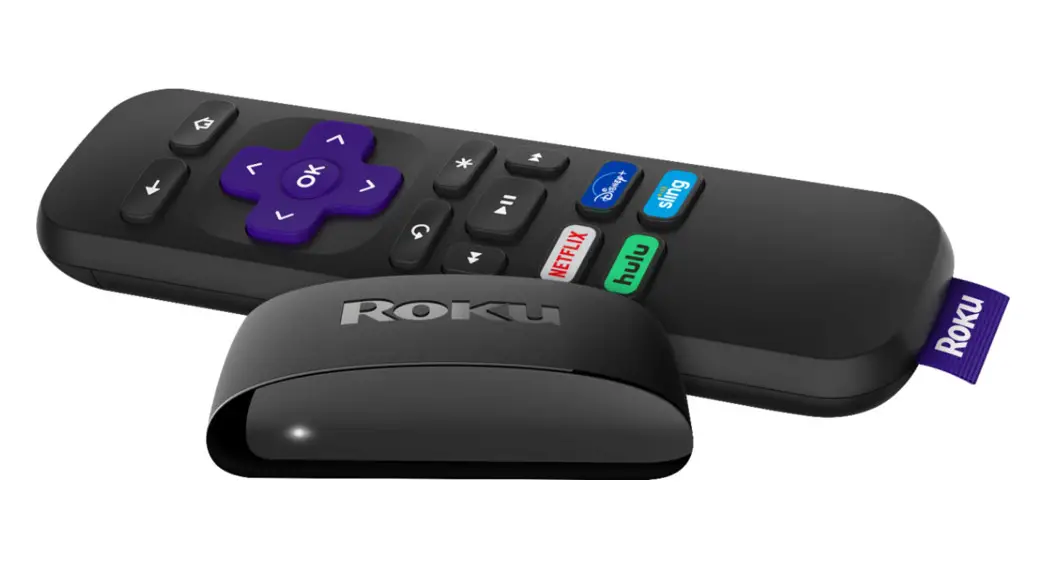
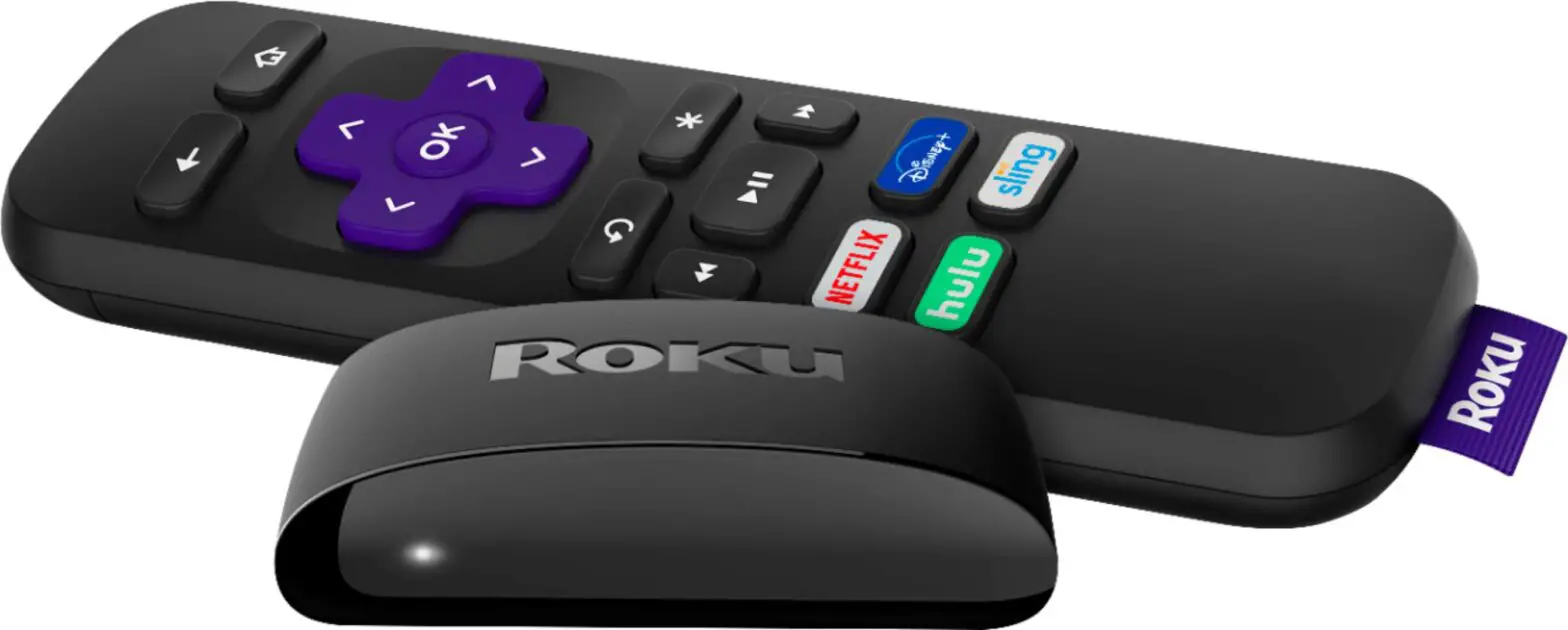
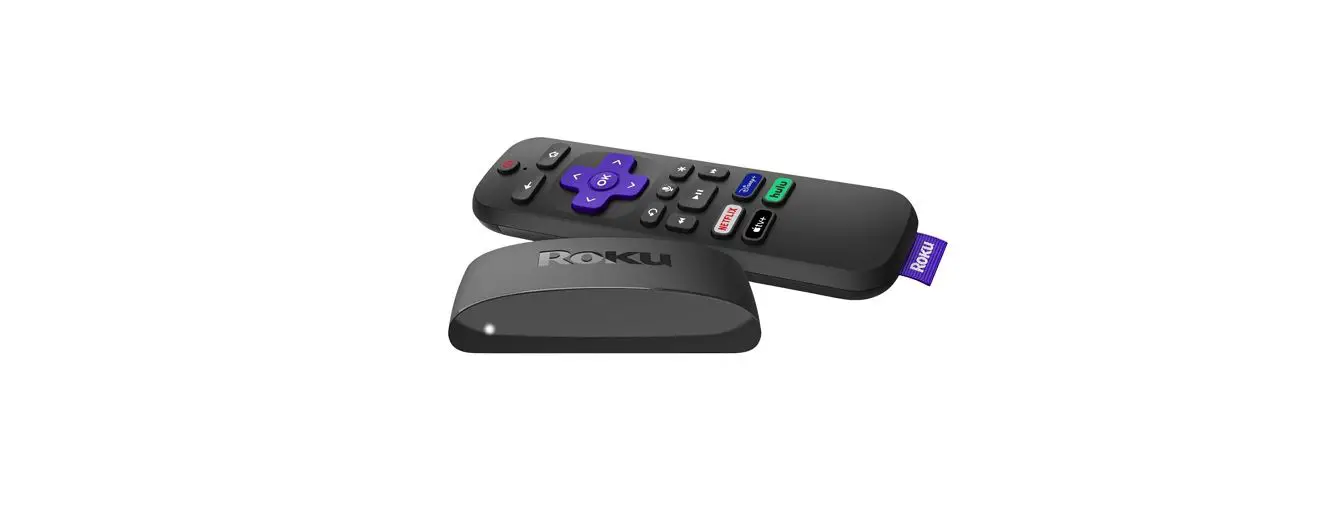
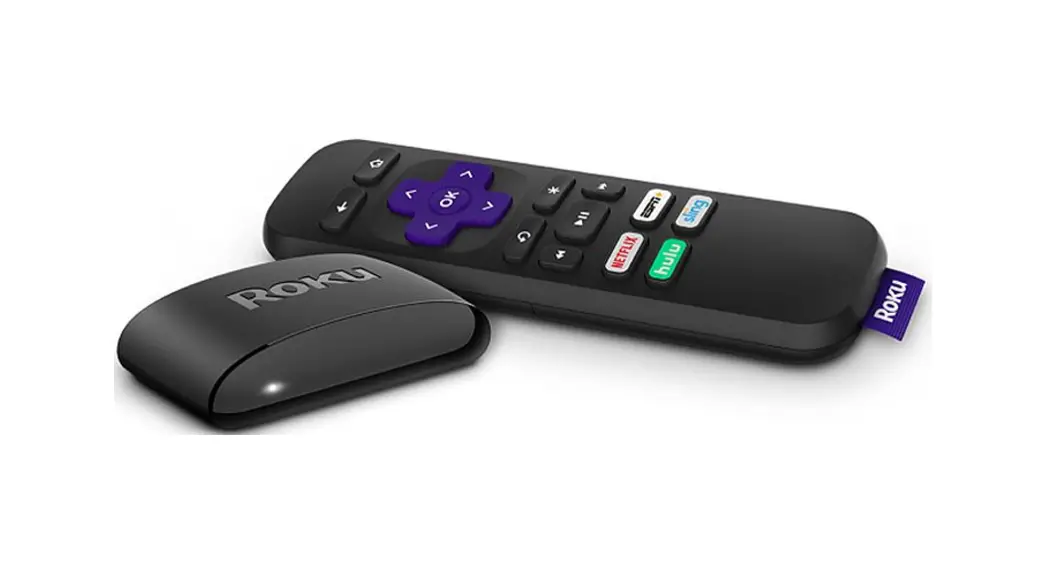
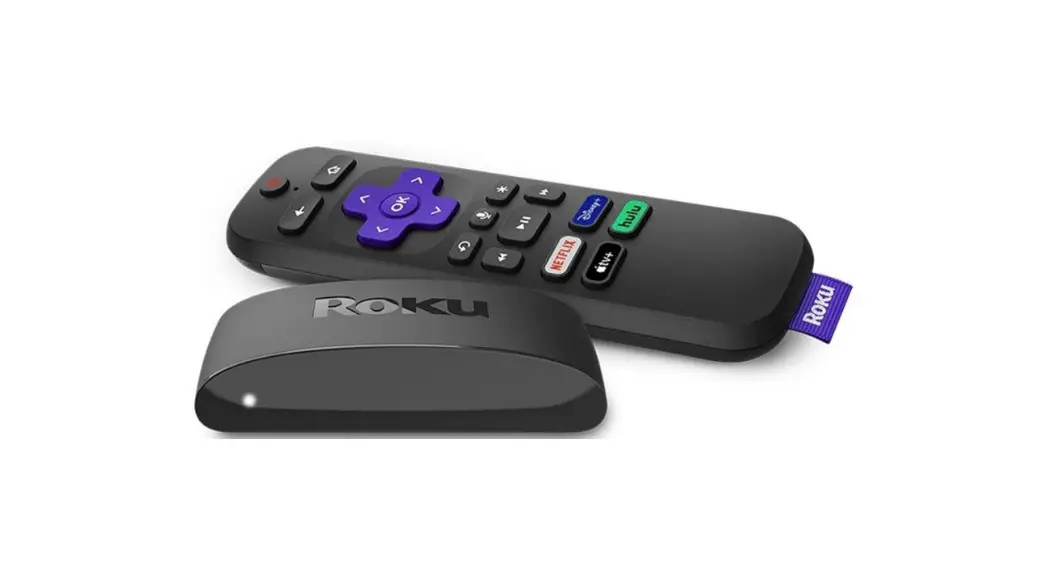
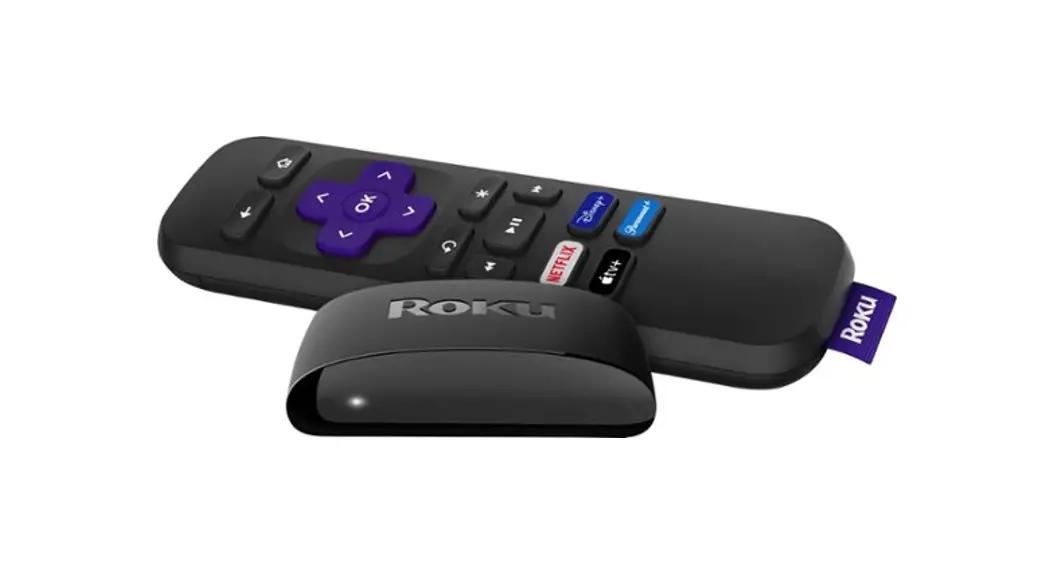
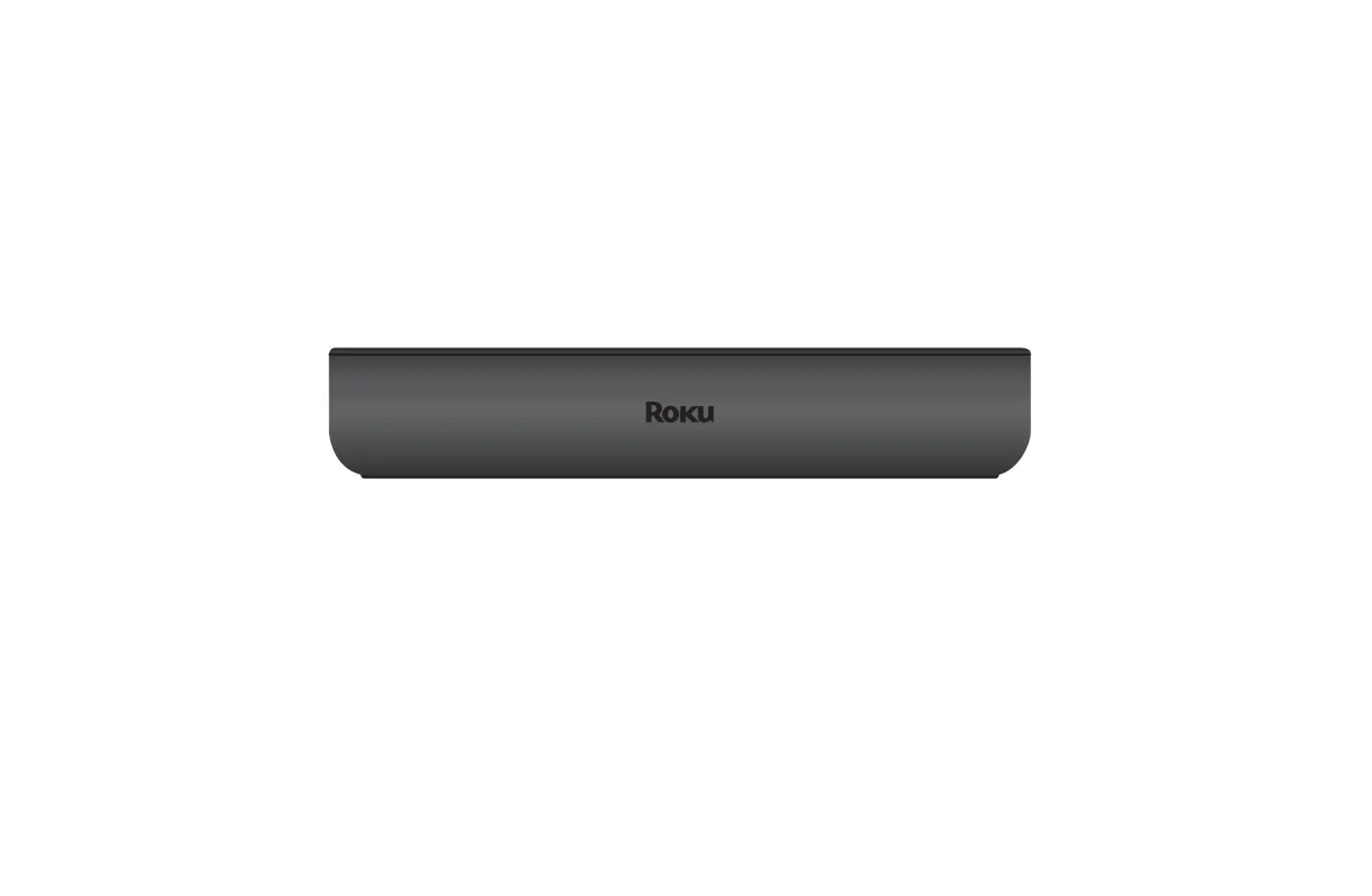
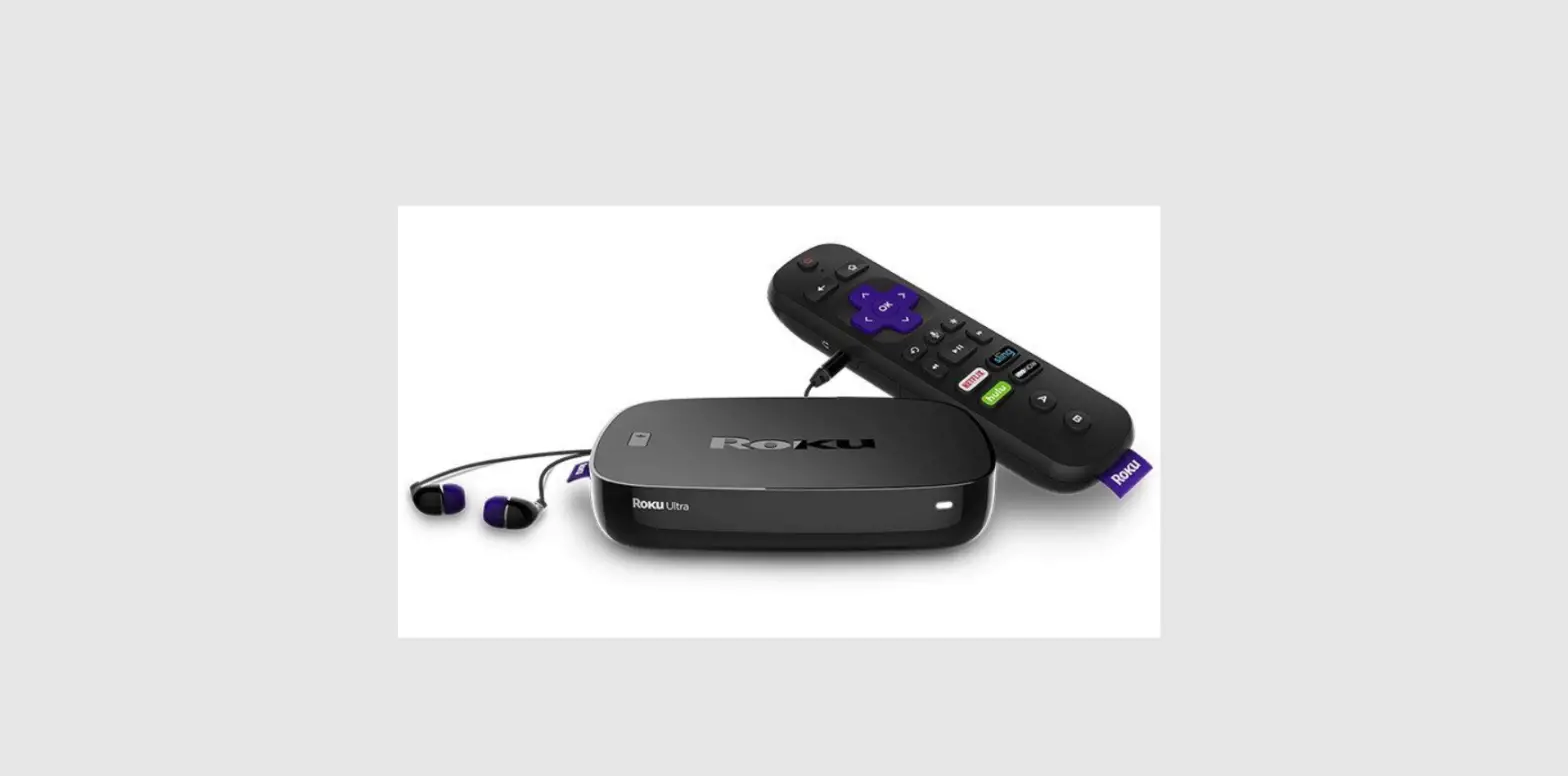
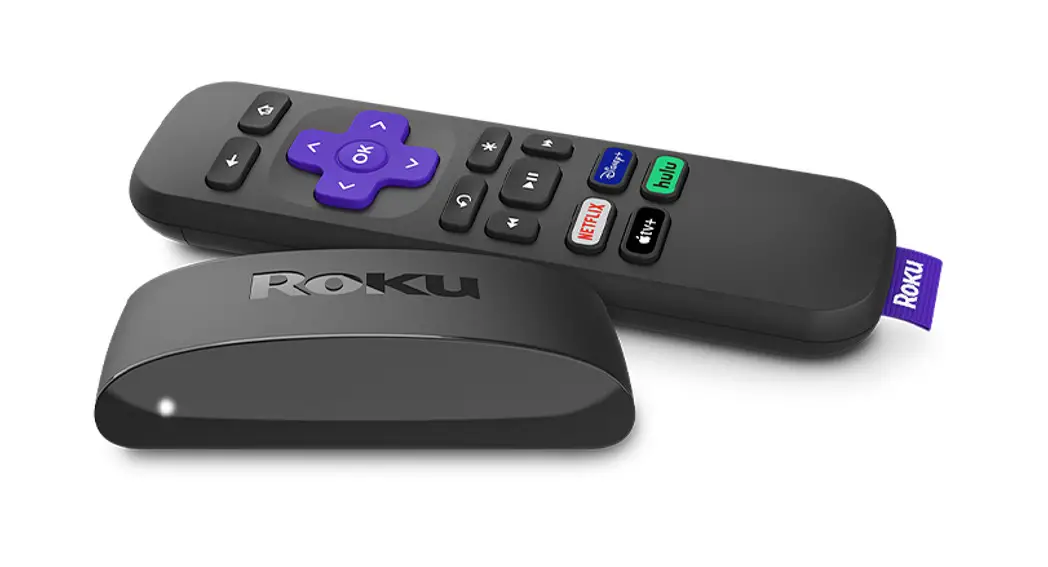
The Roku Express streaming player is a device that allows you to
stream content from various streaming services to your TV. It comes
with a remote control, USB power cable, HDMI cable, removable
adhesive strip, and two AAA batteries.
The streaming player has a RESET button, HDMI port, and USB port
for connectivity. It also has a red light indicator that signals
when the USB port on your TV is not providing enough power.
Product Usage Instructions:
Follow these steps to set up and use your Roku Express streaming
player:
Step 1: Connect to TV
Connect your streaming player to an HDMI port on the back of
your TV using the included HDMI cable.
TIP: For detailed setup assistance, visit go.roku.com/express.
Step 2: Connect to Power
To ensure your streaming player is always on and ready to
stream, connect it to a wall outlet using the included power cable
and a standard USB adaptor. Alternatively, you can use the power
cable to connect your streaming player to the USB port on your
TV.
NOTE: If you see a red light on your streaming player, it means
the USB port on your TV is not providing enough power. In this
case, use a USB power adaptor instead.
Step 3: Position Streaming Player
Place your streaming player near your TV or attach it with the
included removable adhesive strip. Do not place it behind the TV or
inside a closed TV cabinet to avoid overheating.
Make sure the front of your streaming player has a direct line
of sight to your remote control.
Step 4: Select Input
Use your TV remote to power on your TV and select the input
(source) you used to connect your streaming player.
Step 5: Insert Batteries
Slide open the cover on the back of your remote and insert the
included AAA batteries.
Step 6: Follow On-Screen Setup
Follow the instructions displayed on your TV screen to complete
the setup process. Activate your streaming player by using your
computer or smartphone to link a Roku account. Remember that Roku
never charges for activation support.
Common Questions:
Why do I need to create a Roku account?
You’ll need a Roku account to stream content, add channels,
manage subscriptions, rent movies, and more.
Why do I need to enter a credit card?
Entering a credit card allows for easy rental or purchase of
movies, subscription to popular channels, and starting free trials
with just a click. No charges will be made without your
authorization.
Additional Resources:
For more information, visit go.roku.com/express.
If you need further assistance, visit support.roku.com for FAQs and video
tutorials.
Discover how to cut cable and save money while streaming big at
streamandsave.com.
Explore free TV and live TV options, along with streaming tips
and more.
Quick Start Guide
What’s included
Roku Express streaming player
Back Instant replay
Removable adhesive strip
Home
Options Channel shortcuts
Two AAA batteries
Remote
USB power cable
High Speed HDMI® Cable
Details
RESET
HDMI USB Reset power
Let’s get started
1
USB HDMI
High Speed HDMI® Cable
RESET
STEP 1: Connect to TV Connect your streaming player to an HDMI port on the back of your TV with the included cable.
TIP: For help setting up your device, visit go.roku.com/express
2
RESET
Not included
OR
USB HDMI
RESET
STEP 2: Connect to power
To ensure your player is always on and ready to stream, connect it to a wall outlet using the included power cable and a standard USB adaptor (like your phone charger).
Or, use the power cable to connect your streaming player to the USB port on your TV.
NOTE: See a red light on your streaming player? That means the USB port on your TV is not providing enough power. Use a USB power adaptor instead.
3
STEP 3: Position streaming player
Place your streaming player near your TV or attach it with the included removable adhesive strip.
DO NOT place your streaming player behind the TV or inside a closed TV cabinet. Doing so may cause overheating.
Top view
DO
Make sure that the front of your streaming player has direct line of sight to your remote control.
OPTIONAL
To attach your streaming player to your TV, see the adhesive strip instructions on the back page of this guide.
4
Input Antenna A/V 1 HDMI 1 HDMI 2
STEP 4: Select input Use your TV remote to power on your TV and select the input (source) you used to connect your streaming player.
5
STEP 5: Insert batteries Slide open the cover on the back of your remote and insert the included batteries.
6
12:40 pm | Options
Let’s get started
English Deutsch Español Français
STEP 6: Follow on-screen setup Follow the instructions on your TV screen. Activate your streaming player by using your computer or smartphone to link a Roku account.
IMPORTANT: Roku never charges for activation support.
Common questions
Why do I need to create a Roku account? You’ll need a Roku account to stream, add channels, easily manage subscriptions, rent movies, and more.
Why do I need to enter a credit card? Saving a payment method makes it easy to rent or buy movies, subscribe to popular channels, and start free trials in just a click. No charges will be made without your authorization.
What should I do if my streaming player is not connecting to my Wi-Fi® network? Double check the network you selected and that you entered your password correctly. If you have other devices connected to this network, your streaming player should connect.
Visit go.roku.com/express for more information
Adhesive strip instructions
Use this removable strip if you want to attach your streaming player to your TV. Keep in mind that this strip can only be used once and your streaming player requires a direct line of sight to your remote control.
To apply adhesive strip
1
2
3
Choose a flat, clean surface in line of sight to your remote.
Bottom
Remove striped liner and press adhesive to the bottom of your player.
30 seconds
Remove other liner and hold your player in position for 30 seconds.
To remove adhesive strip
1
2
Gently pull the adhesive strip sideways.
Do not pull the adhesive strip towards you.
Stretch the strip slowly to release.
Need more help?
support.roku.com
Video tutorials
Wi-Fi® help
Cut cable. Save money. Stream big.
streamandsave.com
Free TV
Live TV
See what’s streaming for free,
tips, and more
roku.com/blog
Follow us
© 2022 Roku, Inc. All rights reserved. Roku and the Roku logo are the registered trademarks of Roku, Inc. All other logos and trademarks herein not owned by Roku, Inc. are the property of their respective owners.
4100000811_02
 Getting to know your Roku Express|Learn about Express
 Roku
Roku Roku
Roku Roku
Roku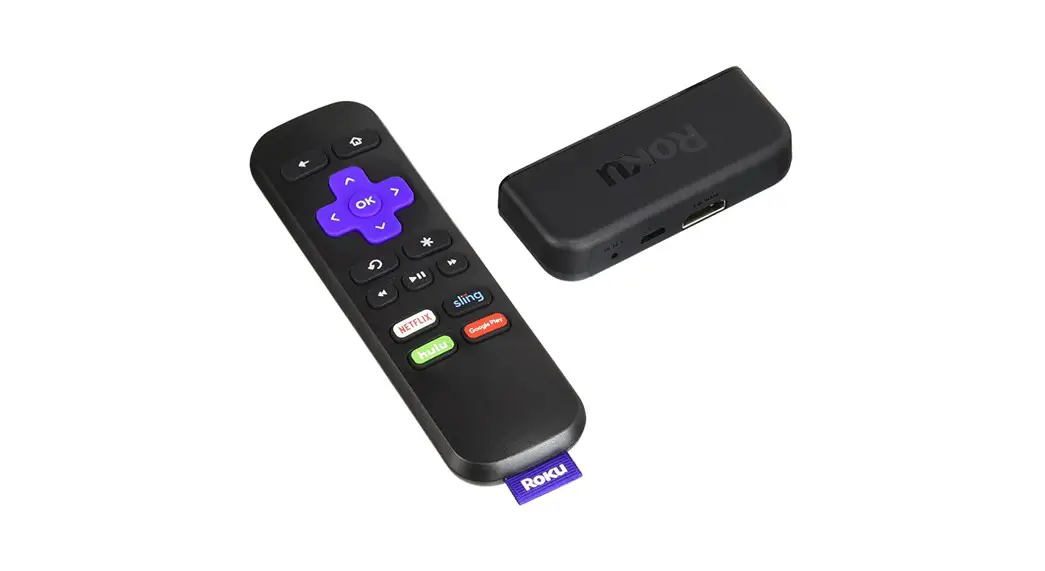
![Roku Express User Guide [r1012]](https://static-data1.manualsee.com/1/img/269/2790/2018/09/Roku-Express-User-Guide-R1012-featured.jpg "Roku Express User Guide [r1012]")