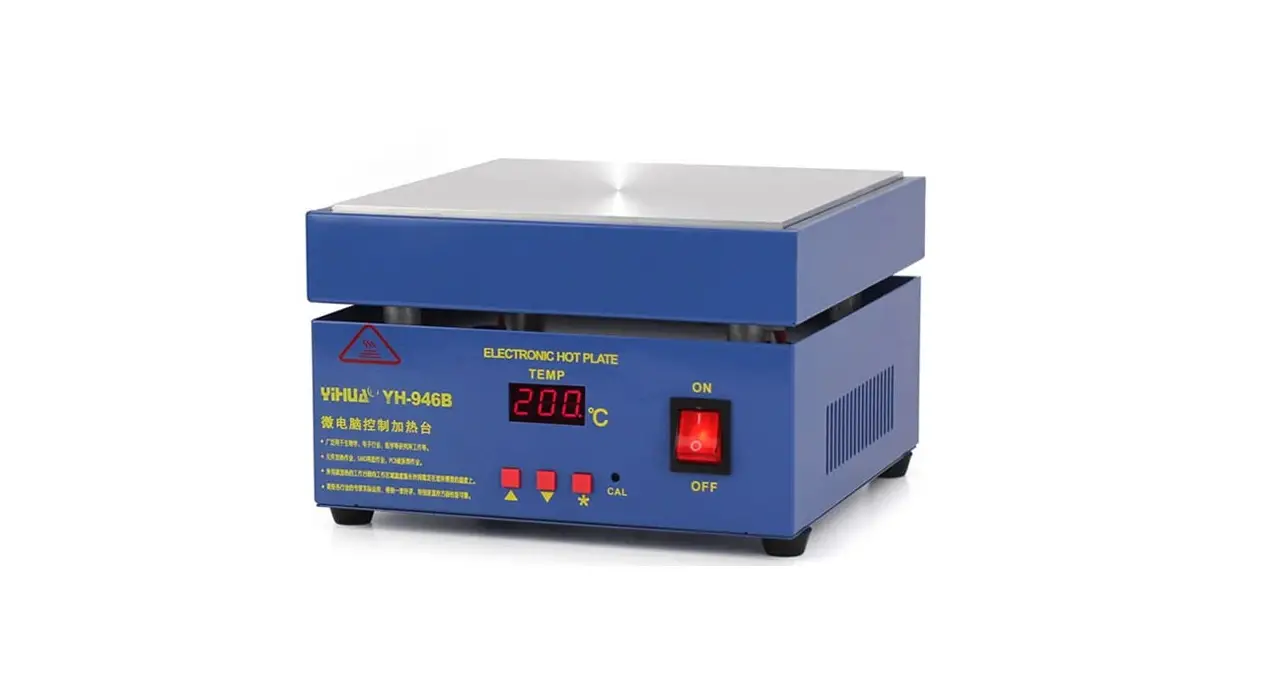
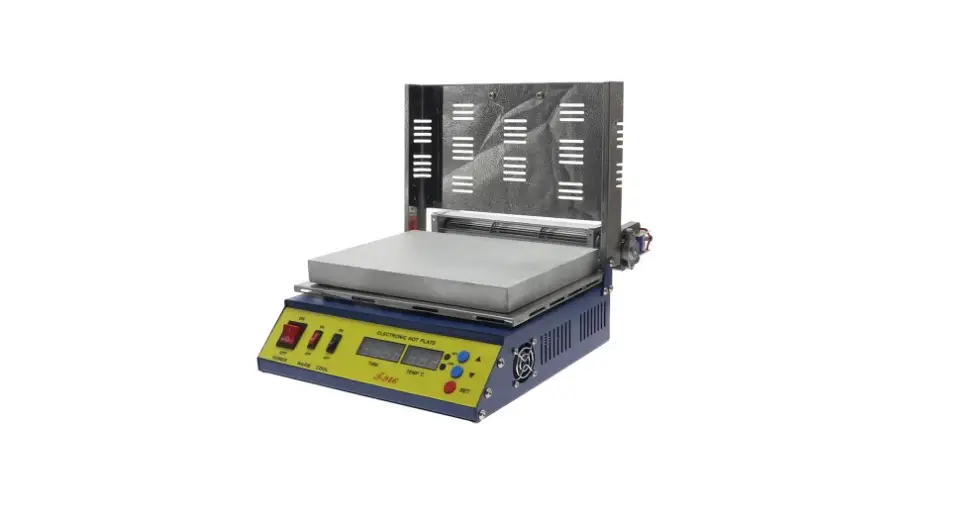
870D Hot Plate
Product Information
Product Name: QUICK 870D Hot Plate
Model: 870D
Power Consumption: 800W
Heating Zone Area: 180mmx200mm
Heater Material: Aluminum plate
Temperature Sensor: K-Type Thermocouple
Preheat Temperature Range: Room temperature to
600°C
Temperature Stability: Not specified
Voltage: AC 220V
Dimensions (L*W*H): Not specified
Weight: Not specified
Product Usage Instructions
- Safety Instructions:
- During the installation and use of this product, all electrical
safety regulations of the country and regions must be strictly
observed. - The power supply must be disconnected when disassembling the
product. Do not operate with power on. - If the product does not work properly, please contact the
supplier or our company, and do not disassemble or change the
product in any way. We are not responsible for any problems caused
by unauthorized maintenance or modification. - The product should be used away from places where there is
magnetic interference. - Don’t install the product in a place where the surface is easy
to shake or be impacted, as it may damage the product. - When the hot plate is in use, the surrounding temperature is
extremely high, so be careful not to burn yourself. - Don’t install the product in places where it may be exposed to
rain or moisture. - Don’t use in flammable and explosive environments.
- Please place the hot plate on a table covered with
fire-resistant and heat-resistant rubber mats to avoid fire.
This hot plate adopts resistance heater and aluminum
heat-conducting plate with high heat conduction efficiency. It is
widely used in electronic manufacturing, machining, experiment,
scientific research, education and other industries. If the hot
plate is applied to the auxiliary preheating of electronic circuits
with large heat capacity, and then solder the circuits with a
soldering station, it can make up for the lack of heat of the
soldering station.
- Three-channel temperature design, fast temperature
switching. - The temperature distribution of aluminum plate is uniform.
- External K-type sensor interface, convenient to test the actual
temperature of the heating product. - Sensor closed loop PID control, TFT liquid crystal display,
accurate temperature and sectional preheating temperature
setting. - Digital temperature calibration, convenient and fast.
- Data communication interface, automatic linkage control.
QUICK 870D Hot Plate Instruction Manual
Thank you for purchasing our products. Please keep the instruction manual properly for future reference.
Contents
1. Safety Instructions……………………………………………………………………………………… 1 2. Overview……………………………………………………………………………………………………..2 3. Product Characteristics……………………………………………………………………………… 2 4. Product Specifications……………………………………………………………………………….. 3 5. Product Specifications……………………………………………………………………………….. 4
5.1. Dimensions……………………………………………………………………………………….4 5.2. Part Descriptions……………………………………………………………………………… 5 5.3. Key Descriptions……………………………………………………………………………… 6 5.4. Function Descriptions of the Main Interface……………………………………..7 6. Operation Methods……………………………………………………………………………………..8 7. Menu Setting……………………………………………………………………………………………….8 7.1. Temperature Setting………………………………………………………………………… 8 7.2. Parameter Setting……………………………………………………………………………. 8
7.2.1. Channel Settings……………………………………………………………….. 9 7.2.2. Address Setting…………………………………………………………………11 7.2.3. Key Tone Setting……………………………………………………………….11 7.2.4. Language Setting…………………………………………………………….. 12 7.2.5. Password Setting………………………………………………………………13 7.2.6. Linkage Setting………………………………………………………………… 13 8. Temperature Calibration…………………………………………………………………………… 15 9. Accessory Descriptions……………………………………………………………………………. 16
1.Safety Instructions
CAUTION During the installation and use of this product, all electrical safety regulations of
the country and regions must be strictly observed. The power supply must be disconnected when disassembling the product. Do not
operate with power on. If the product does not work properly, please contact the supplier or our company,
and do not disassemble or change the product in any way. We are not responsible for any problems caused by unauthorized maintenance or modification.
WARNING The product should be used away from places where there is magnetic
interference. Don’t install the product in a place where the surface is easy to shake or be
impacted, as it may damage the product. When the hot plate is in use, the surrounding temperature is extremely high, so be
careful not to burn yourself. Don’t install the product in places where it may be exposed to rain or moisture. Don’t use in flammable and explosive environments. Please place the hot plate on a table covered with fire-resistant and heat-resistant
rubber mats to avoid fire.
1
2.Overview
This hot plate adopts resistance heater and aluminum heat-conducting plate with high heat conduction efficiency. It is widely used in electronic manufacturing, machining, experiment, scientific research, education and other industries. If the hot plate is applied to the auxiliary preheating of electronic circuits with large heat capacity, and then solder the circuits with an soldering station, it can make up for the lack of heat of the soldering station.
3.Product Characteristics
Three-channel temperature design, fast temperature switching. The temperature distribution of aluminum plate is uniform. External K-type sensor interface, convenient to test the actual temperature of the
heating product. Sensor closed loop PID control, TFT liquid crystal display, accurate temperature
and sectional preheating temperature setting. Digital temperature calibration, convenient and fast. Data communication interface, automatic linkage control.
2
4.Product Specifications
Model Power Consumption Heating Zone Area
Heater Material Temperature Sensor Preheat Temperature Range Temperature Stability
Voltage Thermometer Measuring Range
Thermometer Accuracy Ambient Temperature Dimensions(L*W*H)
Weight
870D 800W
180mmx200mm Aluminum plate K-Type Thermocouple
50350 ±1
AC 220V Room temperature 600
±5 040 293*357*66.5mm About 5.1kg
3
5.Product Specifications 5.1. Dimensions
Unitmm 4
5.2. Part Descriptions
NO.
Part Descriptions
1
Power Switch
2
Preheating Area
3
Display
4
Key
5
Externally Connected K-type Test Sensor
6
RS485 Communication Interface
5
5.3. Key Descriptions
Key
Function Descriptions
1. Click on the main interface to switch between CH1, CH2 and CH3 2. Other interfaces, return / cancel
1. Press on the main interface, Switch 2. Other interfaces, Forward / Confirm 3. Long press 2S on the main interface to enter the setting interface
and key Enter the temperature calibration interface
1.In the main interface, the parameter value increases
2.Setting interface, Page up
1.In the main interface, the parameter value decreases
2.Setting interface, Page down
6
5.4. Function Descriptions of the Main Interface
Symbols
Descriptions
Symbols
Descriptions
Display channel
Buzzer off
Long red light indicates the heating state;
The red and black lights flash alternately, indicating that the set temperature is reached;
The blue light indicates the cooling state.
Current temperature setting value
Buzzer on
Press
to turn off
temperature control
Display the test value of the external temperature sensor
T1/T2
Temperature zone 1 and temperature zone 2
No external temperature sensor connected
Count down
7
6.Operation Methods
Insert the power plug into the power socket consistent with the label value. Turn on the power switch and the hot plate will start to heat up. To change the set temperature, adjust the keys on the panel. After a few minutes, the temperature will reach the set value and stabilizes at the
set value. After work, please turn off the power supply. The preheating plate will no longer
be heated, and its temperature will slowly drop to room temperature.
7.Menu Setting
7.1. Temperature Setting
The default temporary channel at startup is CH0. Click
to switch to CH1, and
click
successively to switch to CH2 or CH3. The temperatures of CH1-CH3 are
200 300 and temperature zone. To change the set temperature and display the
set temperature value
, + or – key can be used to change the temperature value.
The temperature range is 50 – 500 .
Temperature Rise
Short press + key, the temperature will rise by 1 . Long press + key, the
temperature will rise rapidly. When the required temperature is reached, release + key.
Temperature Drop
Short press – key, the temperature will drop by 1 . Long press – key, the
temperature will drop rapidly. When the required temperature is reached, release key.
7.2. Parameter Setting
Long press
key to enter the setting interface. 8
7.2.1. Channel Settings
1) Press key to select the channel bar, and continue to press parameter bar.
key to select the
2) Press + or – key in the channel bar to select CH1; In the parameter bar, set the
temperature and press
key to save.
3) In CH3, select the temperature zone and press
key to enter the temperature
zone setting interface to realize the function of segmented temperature control. Two
temperature ranges can be set, in which the temperature and time can be adjusted.
The range of temperature 1 is 50 – 200 , the range of temperature 2 is 200 –
350 , and the range of time 1 and 2 is 000 – 600 seconds.
When temperature 1 reaches the set temperature, the countdown starts (time 1 is set according to requirements). When the countdown ends, it will enter temperature 2. When temperature 2 reaches the set temperature, the countdown starts (time 2 is set according to requirements). When the countdown ends, it will return to temperature 1
and remains there. If you want to continue the above functions, press main interface to turn off and turn on again.
key in the
4)Press
key to go back level by level until you return to the main interface.
9
10
7.2.2. Address Setting
1) Press + or – in the main menu bar to switch to “Address”.
2) Press
key to select the parameter and the parameter will turn blue; press + or
– key to set the communication address, and the communication address range is 001
to 255.
3) Press
key to save and return to the main menu.
7.2.3. Key Tone Setting
1) Press + or – on the main menu bar to switch to “Key Tone”.
2) Press
key to select the parameter, and the parameter will turn blue; press + or
– key to turn the key tone ON or OFF.
3) Press
key to save and return to the main menu.
11
7.2.4.Language Setting
1) Press + or key on the main menu bar to switch to “Language”.
2) Press
key to select the parameter, and the parameter will turn blue; press + or
– key to select “Chinese” or “English”.
3) Press
key to save and return to the main menu.
12
7.2.5.Password Setting
1) Press + or – key in the main menu bar to switch to “Password”.
2) Press
key to input the old password (Default 000000) and then enter the new
password input interface. Press + or – key to change the value and press confirm each value entered.
key to
3) After the new password is input successfully, the setting interface will display “Set Successfully”, and then directly go back to the channel menu.
4) The new password takes effect after shutdown and restart or back to the main interface.
7.2.6. Linkage Setting
1) Press + or – key on the main menu bar to switch to “Linkage”.
2) Double press
key to select “M1” (Mode 1) and M1 will turn blue. Then press
key to confirm.
13
M1: No linkage mode.
3) Press – key to select “M2” (Mode 2), and press
key to turn M2 blue. Then
press
key to confirm.
M2: External equipment can control the hot plate.
4) Continue to press – key to select “M3” (Mode 3). Press
key, and the value of
mode 3 will turn blue. Select the appropriate temperature through pressing +/- key.
M3: The hot plate can control external equipment. The temperature range is 50-
350.
5)Press to return to the main interface.
14
8.Temperature Calibration
Note: 1) Only when the displayed temperature is consistent with the set temperature can the temperature calibration be performed. 2) Long press + and – key for 2S to enter the temperature calibration interface. Example: a) The product needs to be preheated at 100, so we set the temperature to 100.
b) Due to the material of the hot plate and environmental factors, when the temperature is set to 100, the temperature above the hot plate is measured to 95 with a thermometer. In the temperature measurement calibration interface, enter the value 95, and press to exit.
15
9.Accessory Descriptions
Parts
Characteristics
Special-sh aped Support
1) Height adjustable;
2) Easy to use.
Descriptions
1)Place the special-shaped support above the preheating plate. 2)Rotate the column base of the special-shaped support to adjust the height of the special-shaped support. 3)Loosen the positioning knob on the PCB fixing bracket, and move the fixing bracket. Then tighten the positioning knob after fixing the PCB.
Simple Support
Reflow Hood
1)Small
and
flexible;
2)Take up no space;
3)Easy to use;
Strong magnet attraction;
Securely fastened.
1) According to the size of PCB, select the appropriate placement position, and directly place the simple support on the hot plate.
2)Place the PCB at the adjustment spring of the simple support and clamp it to fix the PCB.
1)Economical and practical;
2)Energy saving, consumption reduction;
3)Stable performance.
Directly placing the reflux hood on the preheating plate can be used as a small reflow oven
16
Warranty Card
The warranty period of this product is calculated from the date of purchase.D uring the warranty period, if the produc t breaks down during normal use, show the original warranty card and enjoy fr ee service in the authorized repair com pany (or our company). Please keep th e purchase certificate and this warrant y card and show it before maintenance. During the warranty period, the followi ng repairs need to be paid: a.Unable to offer valid warranty card or certificate; b.The purchase date, sales company a nd other items are not completely filled in or the warranty card is altered; c.Damage caused by failure to follow t he use methods and precautions in the manual; d.Damage caused by disassembly, rep air and modification of products without authorization of the manufacturer; e.Replacement of vulnerable and cons umable parts. All items of the warranty card shall be completely filled in by the agent or use r to obtain a 12-month warranty period. Please keep this warranty card proper ly. It will not be re-offered after.
Warranty Card Type: Model No.: Serial No.: Delivery Date:
Warranty File Card
QUICK INTELLIGENT EQUIPMENT CO., LTD.
ADD: NO.11, FengXiang Road, Wujin High-Tech Industrial Development Zone, Jiangsu, China
TEL: 86-519-86225678
FAX: 86-519-86558599
POSTCODE: 213167
WEBSITE: www.quick-global.com
Type: Model No.: Serial No.: Delivery Date: Address : Postcode: Telephone: Contact Person:
QUICK INTELLIGENT EQUIPMENT CO., LTD. ADD: NO.11, FengXiang Road, Wujin High-Tech Industrial
Development Zone, Jiangsu, China TEL: 86-519-86225678 FAX: 86-519-86558599 POSTCODE: 213167
WEBSITE: www.quick-global.com
 快克智能装备股份有限公司