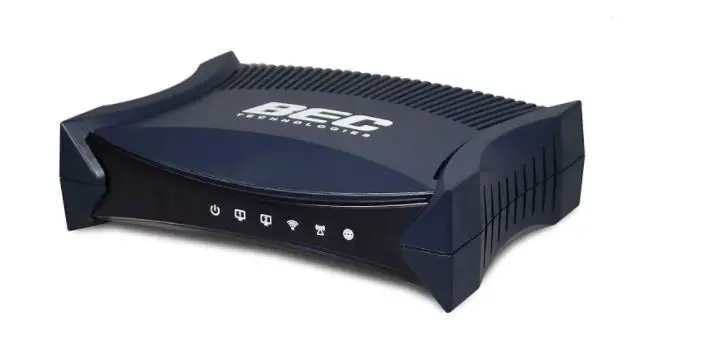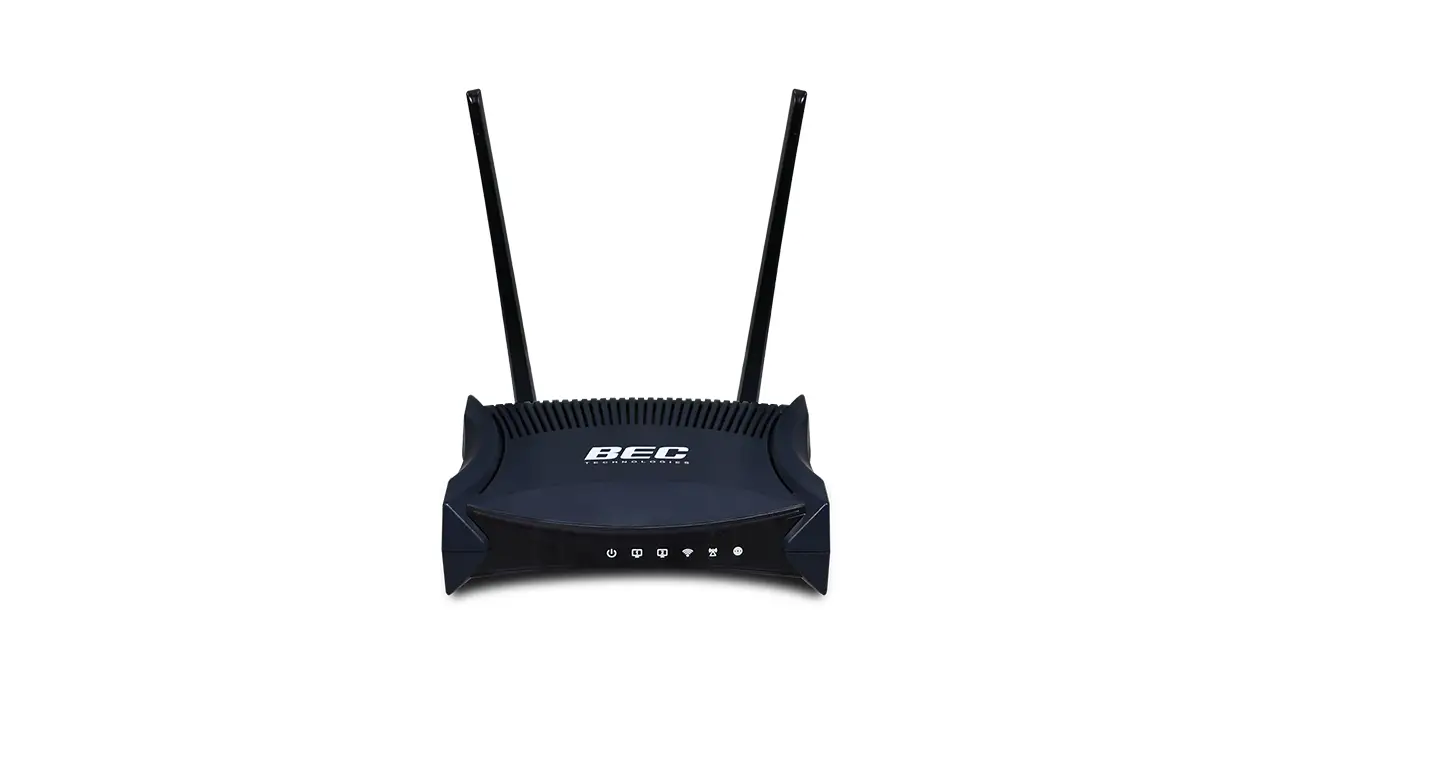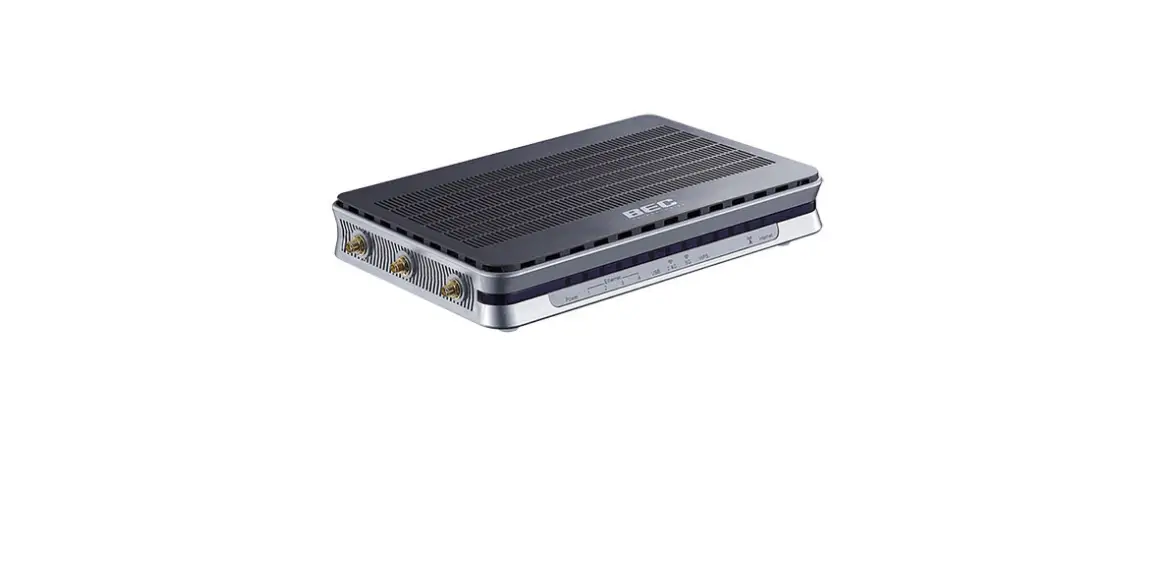

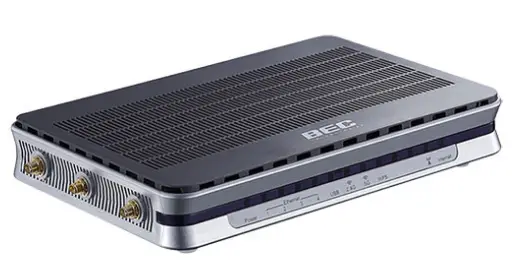
BEC 6600AEL Gigabit LTE Multi-Service Router 
Package Contents
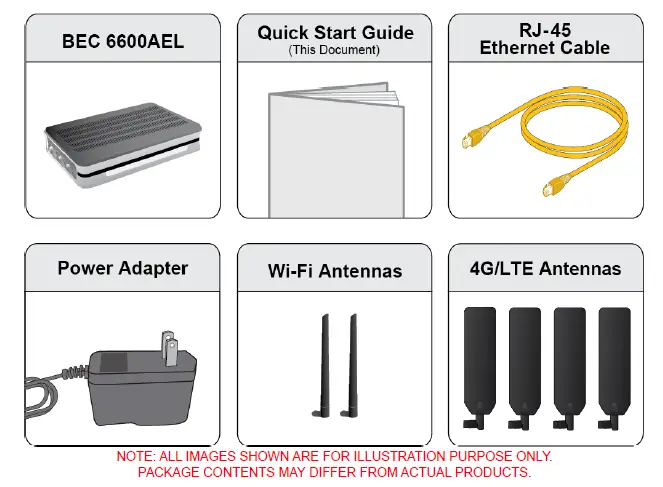
- BEC 6600AEL Gigabit LTE Multi-Service Router x 1
- This Quick Start Guide x 1
- RJ-45 Ethernet Cable x 1
- DC Power Adapter x 1
- Wi-Fi Antenna x 2
- LTE Antenna x 4

- Do not use the router in high humidity or at high temperature.
- Do not use the same power source for the router as other equipment.
- Do not open or repair the case yourself. If the router is too hot, turn off the power immediately and have it repaired at a qualified service center.
- Avoid using this product and all accessories outdoors.
- Place the router on a stable surface.
- Only use the power adapter that comes with the package. Using a different voltage rating power adapter may damage the router.
Front Panel – LEDs / LTE Connectors 
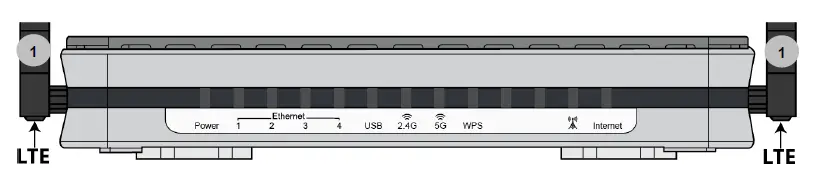
| PORT | MEANING | |
| 1 | LTE Antenna Connectors | Screw the supplied LTE antennas onto the antenna connectors on both sides. |
| LED | STATUS | DESCRIPTION |
| Power | Green | System is up and ready |
| Red | Boot failure | |
| Ethernet Port LAN 1 – 4 | Green | Transmission speed is at Gigabit speed (1000Mbps) |
| Orange | Transmission speed is at 10/100Mbps | |
| Blinking | Data being transmitted/received | |
| USB | Green | Connecting to hard drive for storage or file sharing, etc. |
| Wi-Fi 2.4GHz / 5GHz | Green | Wireless connection to 2.4GHz or 5GHz network is established |
| Blinking | Data being transmitted / received | |
| WPS | Green | Wireless device(s) being connected successfully via WPS mode |
| Blinking | WPS is enabled and trying to establish a WPS connection | |
|
LTE (Received Signal Strength Indicator) | Green | RSSI greater than -69 dBm. Excellent signal condition |
| Green Flashing Quickly | RSSI from -81 to -69 dBm. Good signal condition | |
| Orange Flashing Quickly | RSSI from -99 to -81 dBm. Fair signal condition | |
| Orange Flashing Slowly | RSSI less than -99 dBm. Poor signal condition | |
| Orange | No signal and the 4G_LTE module is in service | |
| Off | No LTE module or LTE module fails | |
| Internet | Green | WAN IP is received, and traffic is passing thru the device |
| Red | Cannot get a WAN/public IP address | |
| Off | The device is either in bridged mode or WAN connection not ready. |
Rear Panel – Ports / Connectors 
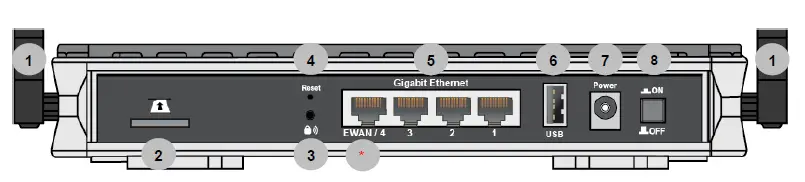
| PORT | MEANING | |
|
1 | Wi-Fi Antenna Connectors | Screw the supplied Wi-Fi antennas onto the antenna connectors on both sides |
| LTE Antenna Connectors | Screw the supplied LTE antennas onto the antenna connectors on both sides | |
| 2
|
SIM Card Slot | Insert the mini SIM card (2FF) with the gold contact facing down Push the mini SIM card (2FF) inwards to eject it |
| 3
|
WPS & Wireless On/Off | By controlling the pressing time, users can achieve two different effects: (1) WPS*: Press &hold the button for less than 6 seconds to trigger WPS function. (2) Wireless ON/OFF button: Press & hold the button for more than 6 seconds to enable or disable the wireless. * Refer to the WPS section in the User Manual for more details. |
| 4 | Reset | After the device is powered on, press it 6 seconds or above: to restore to factory default settings (this is used when you cannot login to the router, e.g. forgot your password) |
|
5 |
Gigabit LAN Ethernet (1 – 4) | Connect a UTP Ethernet cable (Cat-5 or Cat-5e) to one of the four LAN ports when connecting to a PC or an office/home network of 10Mbps /100Mbps /1000Mbps * Ethernet WAN/4 Connect to Fiber/ Cable/ xDSL Modem with a RJ-45 cable, for broadband connectivity Note: LAN 4 automatically becomes an ethernet WAN port when the ETH WAN internet interface is being selected in the GUI |
| 6 | USB | Mainly for storage and file sharing |
| 7 | DC Power Jack | Connect the supplied Power Adapter to this jack |
| 8 | Power ON/OFF | Power ON/OFF switch |
Hardware Connection
Back Panel Ports & Connectors 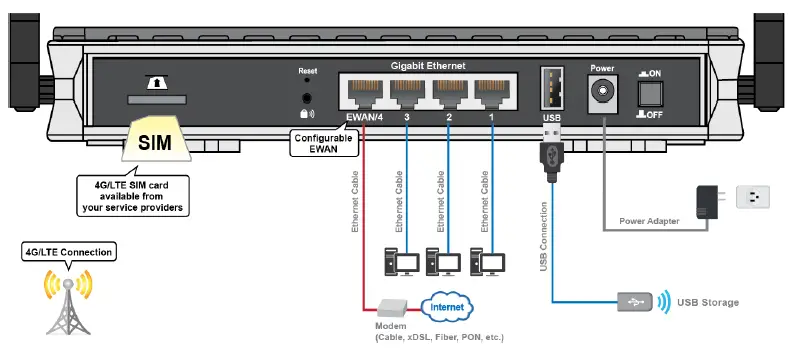
Wi-Fi & LTE Antenna Setup 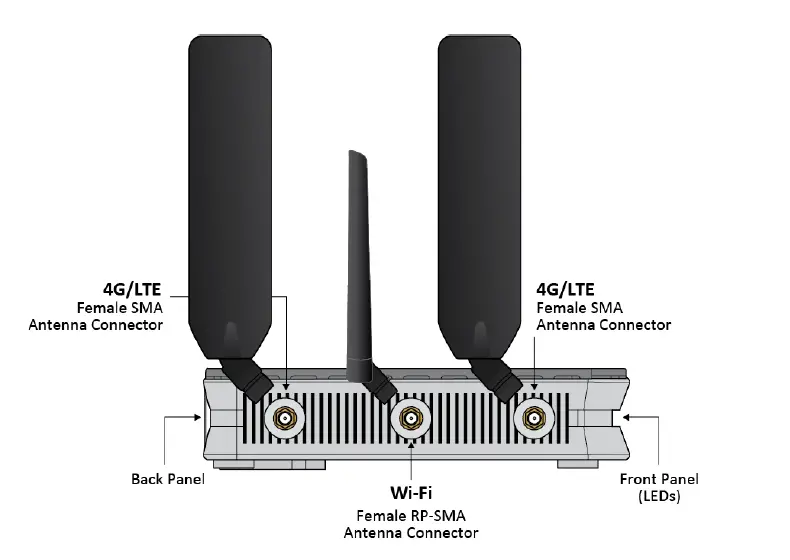
Hardware Installation
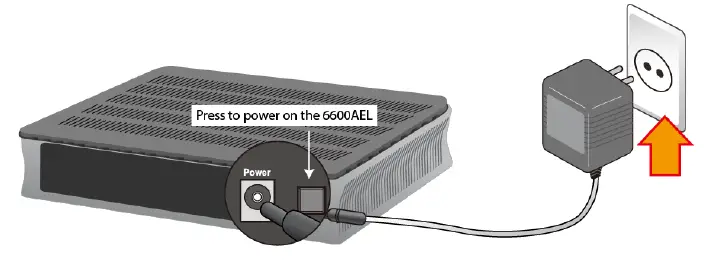
- Power Connection
Plug in the supplied power adapter to the wall jack and the other side to the device. Power ON the 6600AEL by pressing the Power On/Off button.
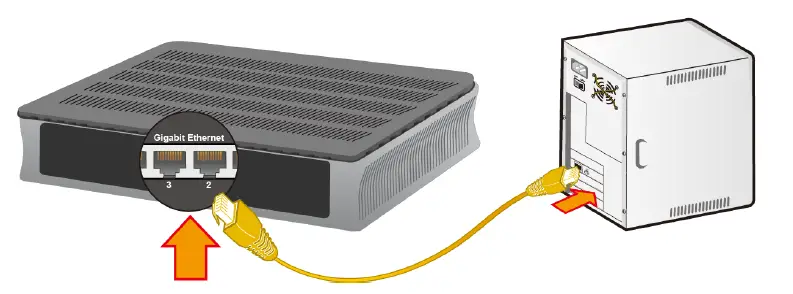
- LAN Connection
Connect the supplied RJ-45 Ethernet cable to one of the Ethernet ports and the other side to an Ethernet device.
- WAN Link Interface and Connection
BEC 6600AEL offers WAN failover and failback between multiple WAN interfaces. <Refer to the User Manual for detailed setup>
4G/LTE Connection
Slide the SIM card into the card slot of the device with the gold contact facing down. Make sure that the SIM card is slid into the bottom of the slot with a click. When removing the SIM card, press the SIM card again to eject from the card slot. 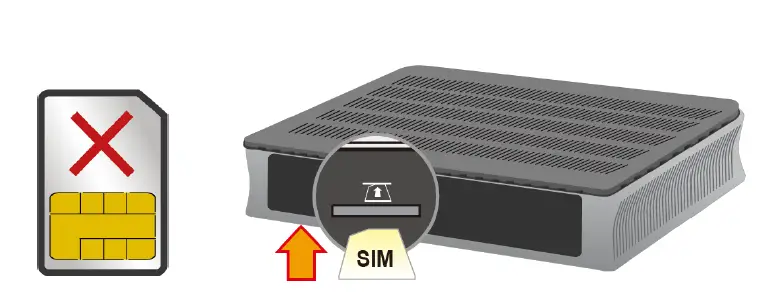
WARNING: Please power off the device before inserting or removing the SIM
Ethernet WAN Connection Connect RJ-45 Ethernet cable to the EWAN port, and connect the other side to another alternative broadband device, such as Cable Modem, VDSL, Fiber Modem or PON optic lines. 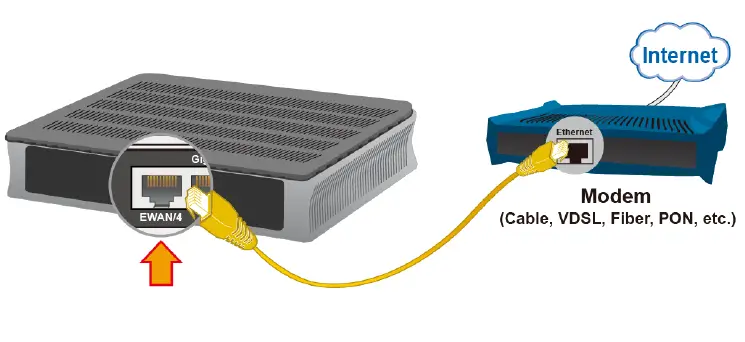
USB for Network File Sharing
BEC 6600AEL has built-in FTP and Samba Servers, simply plug in an external USB HD then follow the instruction setup in the User Guide.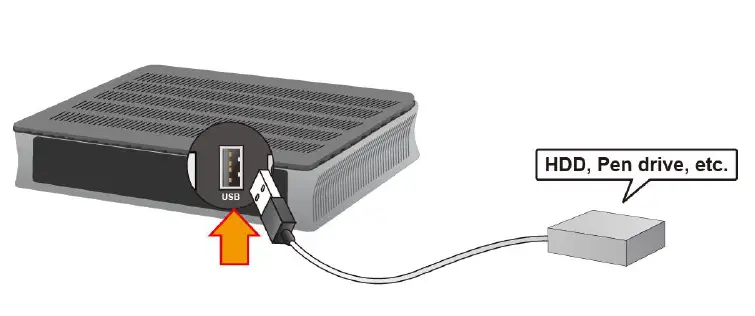
Quick Setup Your Router
Wired Broadband Connection – Before start configuring the 6600AEL, make sure you have the Ethernet WAN connected with your Internet box or fiber line.
The default IP of modem is 192.168.1.254 with subnet 255.255.255.0. Make sure the attached PC to this router is in the same subnet and has an IP address in the range between 192.168.1.1 ~ 192.168.1.253. Open a web browser and type http://192.168.1.254 in the URL address bar.
The login prompt will appear. Input the default username (admin) and password (admin) for Account type, Administrator. *This username / password may vary by different Internet Service Providers.
- Step 1: Click Quick Start from left navigation Use the Quick Start for quick connection setup.
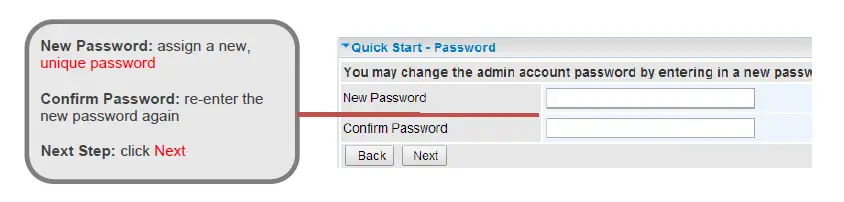
- Step 2: Change administration password
- Setup a new password for “admin” account for device management. The default password is “admin”. Click Continue to go on to the next step. *The password may vary by different Internet Service Providers.

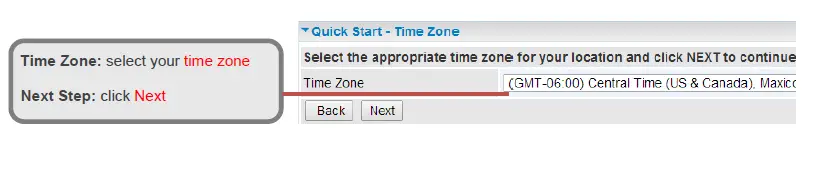
- Step 3: Time Zone configuration Enable and select your Time Zone then click Continue to go on to the next step.
 Step 4: Setup Wireless Connection
- Step 5: WAN / Internet Connection Setup
Select the appropriate WAN protocol then fill out the information provided by your ISP in all relevant parameters. Example: WAN Interface in Ethernet WAN (EWAN) mode.  Step 6: Save Confirmation Settings
Click “Next” to save and complete the Quick Setup. You should now be able to access to the Internet. Please see the relevant sections of User Manual for detailed information.
 Step 4: Setup Wireless Connection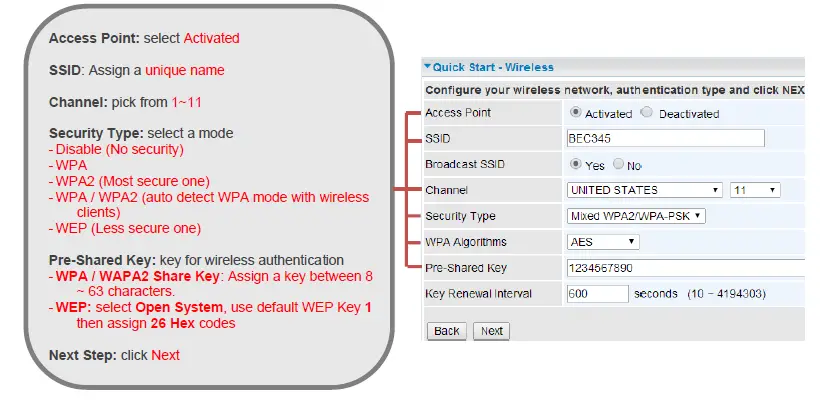
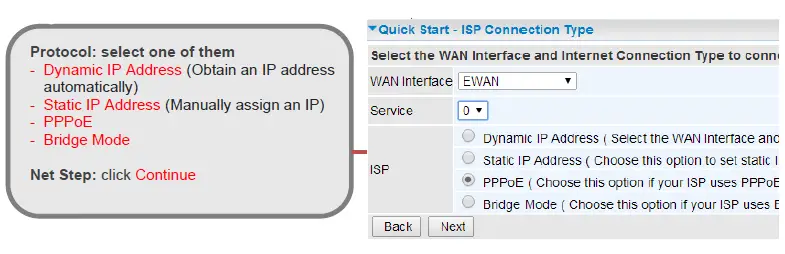 Step 6: Save Confirmation Settings
Troubleshooting
- None of the LEDs are on when you turn on the router. Check the connection between the adapter and the router. If the error persists, you may have a hardware problem. In this case you should contact technical support.
- You have forgotten your router login and/or password. Try the default login and password, please refer to User Manual. If this fails, you can restore your router to its factory settings by holding the Reset button on the back of your router for 6 seconds or more.
- Cannot ping any PCs on the LAN.Check the Ethernet LEDs on the front panel. The LED should be on for a port that has a PC connected. If it is off, check the cables between your router and the PC. Make sure you have uninstalled any software firewall for troubleshooting. Verify that the IP address and the subnet mask are consistent between the router and the workstations.
Product Support and Contact Information
Most problems can be solved by referring to the Troubleshooting section in the User Manual. If you have other inquiries or need further technical support, please contact with your Internet Service Provider or visit us at
FCC Statement
This equipment has been tested and found to comply with the limits for a Class B digital device, pursuant to Part 15 of the FCC Rules. These limits are designed to provide reasonable protection against harmful interference in a residential installation. This equipment generates, uses, and can radiate radio frequency energy and, if not installed and used in accordance with the instructions, may cause harmful interference to radio communications. However, there is no guarantee that interference will not occur in a particular installation. If this equipment does cause harmful interference to radio or television reception, which can be determined by turning the equipment off and on, the user is encouraged to try to correct the interference by one or more of the following measures:
- Reorient or relocate the receiving antenna.
- Increase the separation between the equipment and receiver.
- Connect the equipment into an outlet on a circuit different from that to which the receiver is connected.
- Consult the dealer or an experienced radio/TV technician for help.
FCC Caution:
This device complies with Part 15 of the FCC Rules. Operation is subject to the following two conditions:
- This device may not cause harmful interference
- This device must accept any interference received, including interference that may cause undesired operation.
- Any changes or modifications not expressly approved by the party responsible for compliance could void the user’s authority to operate this equipment. This device and its antenna(s) must not be co-located or operating in conjunction with any other antenna or transmitter.
RF exposure warning
This equipment must be installed and operated in accordance with provided instructions and the antenna(s) used for this transmitter must be installed to provide a separation distance of at least 20 cm from all persons and must not be co-located or operating in conjunction with any other antenna or transmitter. End-users and installers must be provide with antenna installation instructions and transmitter operating conditions for satisfying RF exposure compliance.
 Home - BEC Technologies, Inc.