 MULTITRACK GUIDELINES | PRO TOOLS | MAC
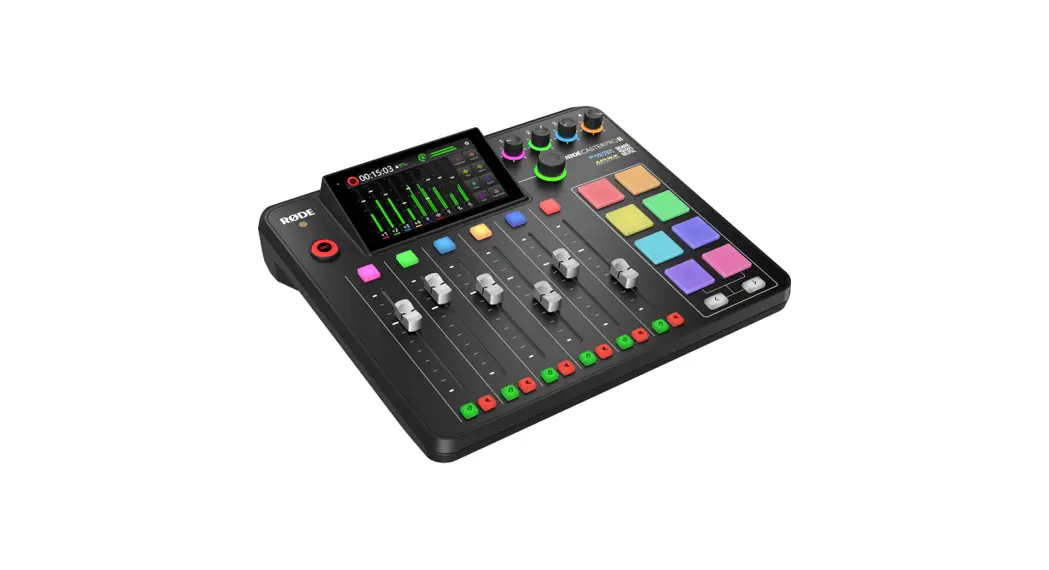
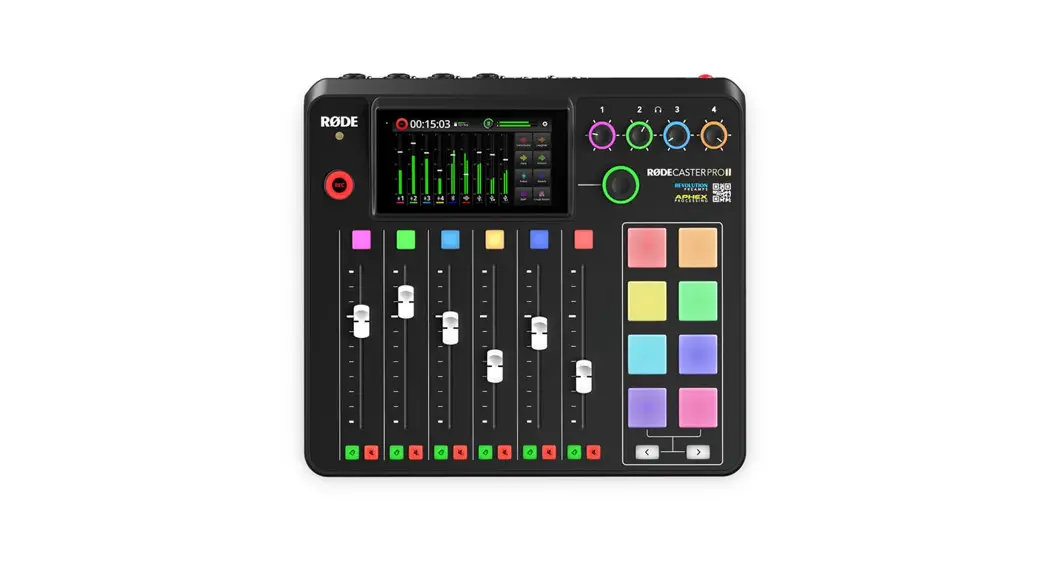
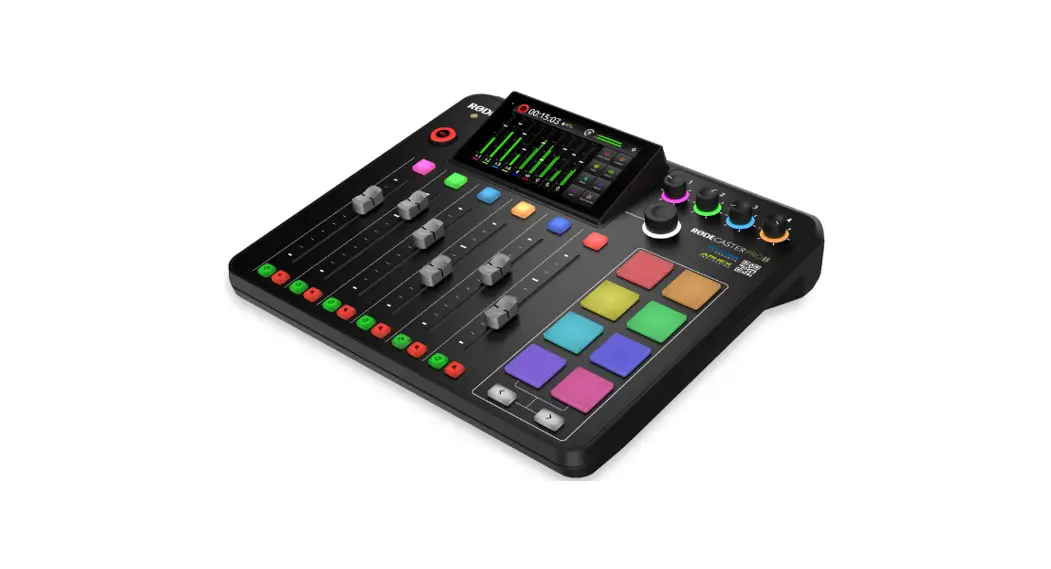
RCP II Caster Pro II Integrated Audio Production Studio
STEP 1
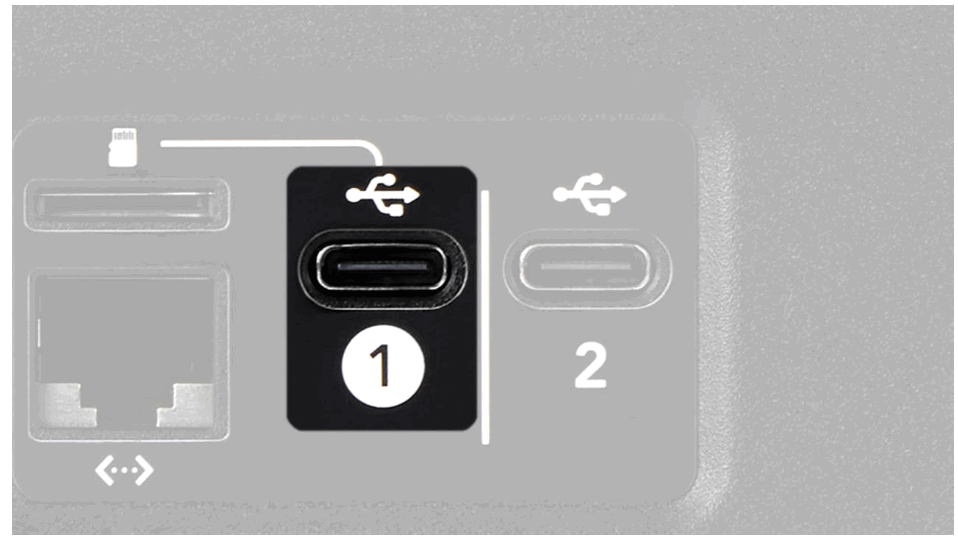
Connect your RØDECaster Pro II to a computer via the USB 1 port on the back of the unit. You will need to use either the supplied USB-C to USB-C cable or if your computer only has USB-A inputs, an RØDE SC18 cable. NOTE: The USB 2 port does not support multitrack recording. Ensure you use USB 1.
STEP 2
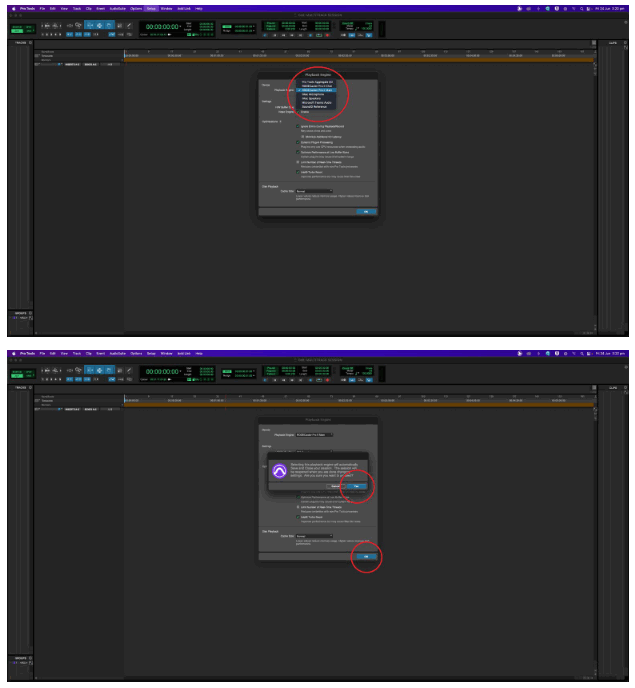
Open Pro Tools and create a new session. From the ‘Setup’ menu, select ‘Playback Engine’ and then ‘RØDECaster Pro II Main’ as your Device. Click OK. You will be prompted o proceed with closing and re-opening the session. Click Yes and OK again.
STEP 3
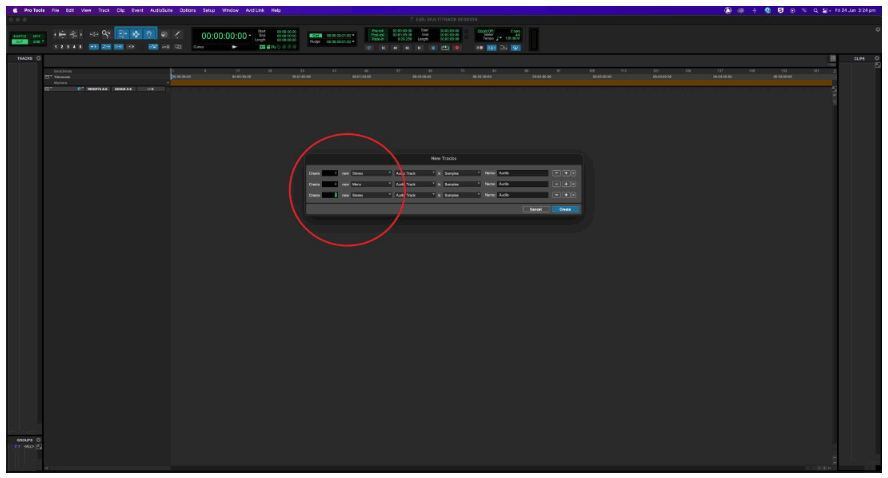
Next, you will need to create new tracks to record.
The RØDECaster Pro II multitrack output has 16 channels in total: stereo (L + R) outputs for the main mix, mono outputs for the four XLR/TRS channels, and stereo outputs for the Bluetooth channel, SMART pad audio, and the three USB channels.
The audio channels on the RØDECaster Pro II are sent to the multitrack output as follows:
| Device | Source |
| 1 | Main Mix Output (L) |
| 2 | Main Mix output (R) |
| 3 | Combo 1 |
| 4 | Combo 2 |
| 5 | Combo 3 |
| 6 | Combo 4 |
| 7 | Bluetooth (L) |
| 8 | Bluetooth (R) |
| 9 | SMART Pads (L) |
| 10 | SMART Pads (R) |
| 11 | USB Main (L) |
| 12 | USB Main (R) |
| 13 | USB Chat (L) |
| 14 | USB Chat (R) |
| 15 | USB 2 (L) |
| 16 | USB 2 (R) |
NOTE: The multitrack output configuration is always the same, regardless of how you have your mixer set up. For example, if you have combo input 2 assigned to fader 6 on our mixer, it will still appear on input 4 in your DAW. Also, if you do not have an audio input allocated to a fader on the mixer, it will not pass through to the multitrack output, o it’s a good idea you have your mixer configured how you will be using it for recording before setting up the session in your DAW. Generally, you should create a single track for each stereo or mono audio input, giving you a total of 10 tracks if you are using all inputs.
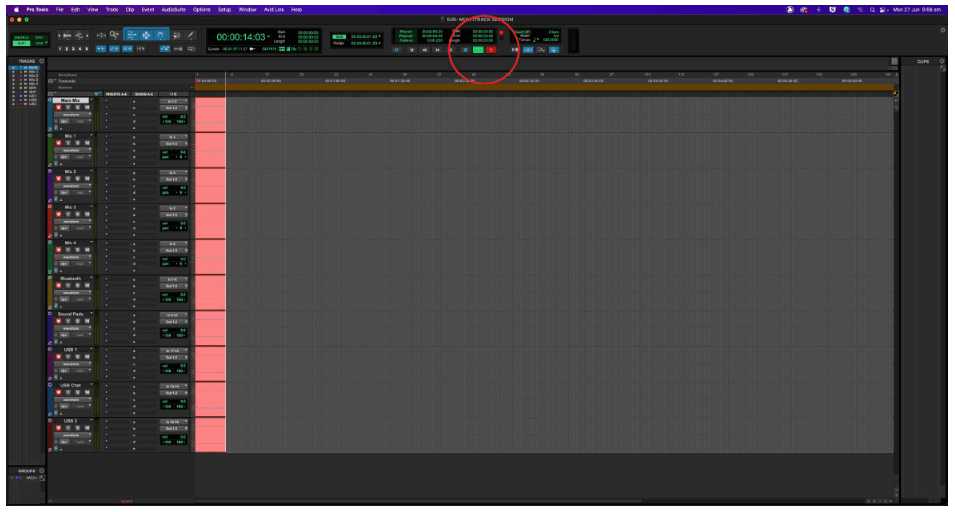
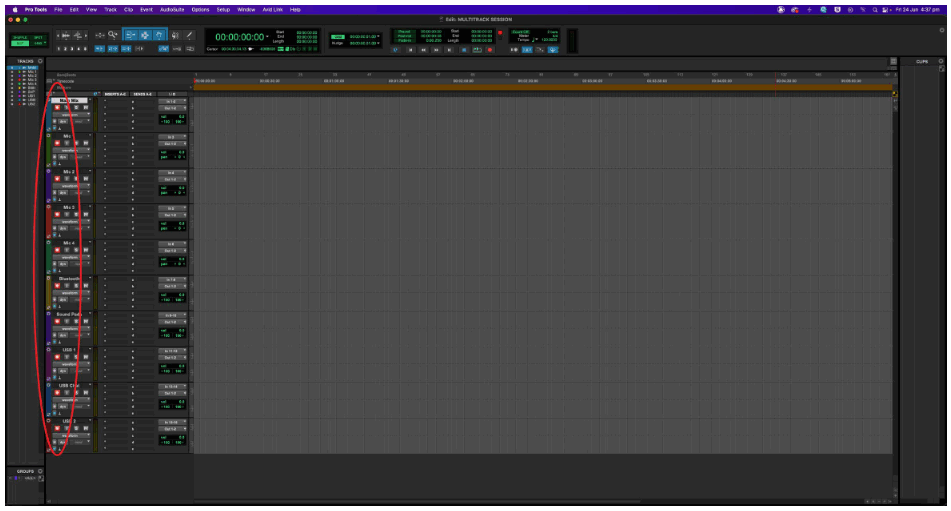
In this walkthrough, the session will include all available channels to demonstrate how to set up each one, but you only need to set up the channels you are using. Create new tracks by selecting ‘New’ in the ‘Tracks’ menu. In this order, create 1 new stereo track followed by 4 new mono tracks and then 5 more stereo tracks.
NOTE: It is important to follow the order above when creating tracks to ensure you are assigning the right type of track to the right input from the RØDECaster Pro II.
STEP 4
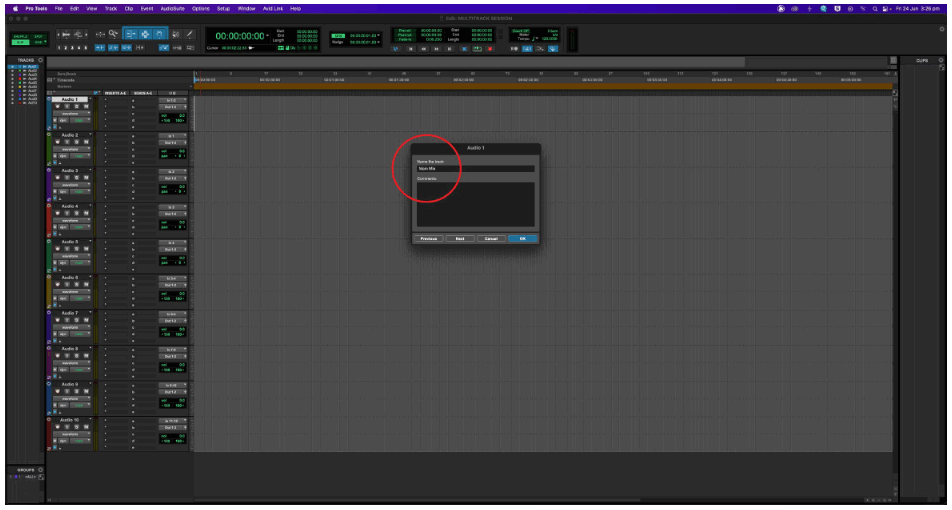
Rename the first track ‘Main Mix’ by double clicking the track name. Ensure that it is a stereo track.
STEP 5
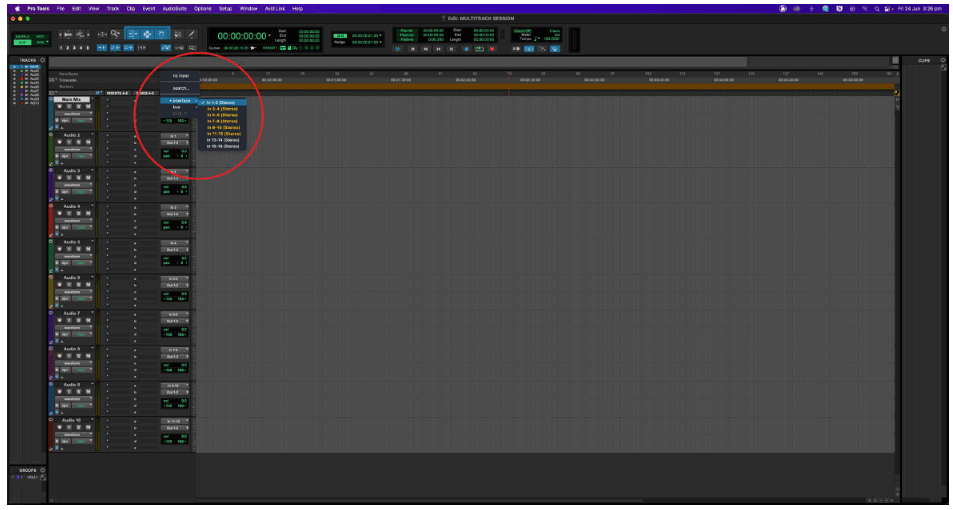
Ensure that the input of the track is set to ‘Input 1-2’ from the input list.
STEP 6
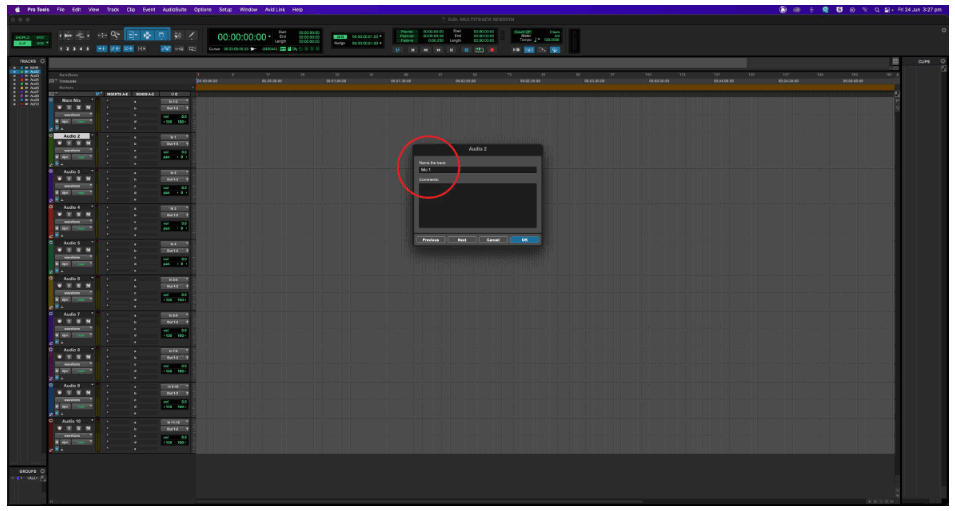
Rename the next track ‘Mic 1. Ensure that it is a mono track.
STEP 7
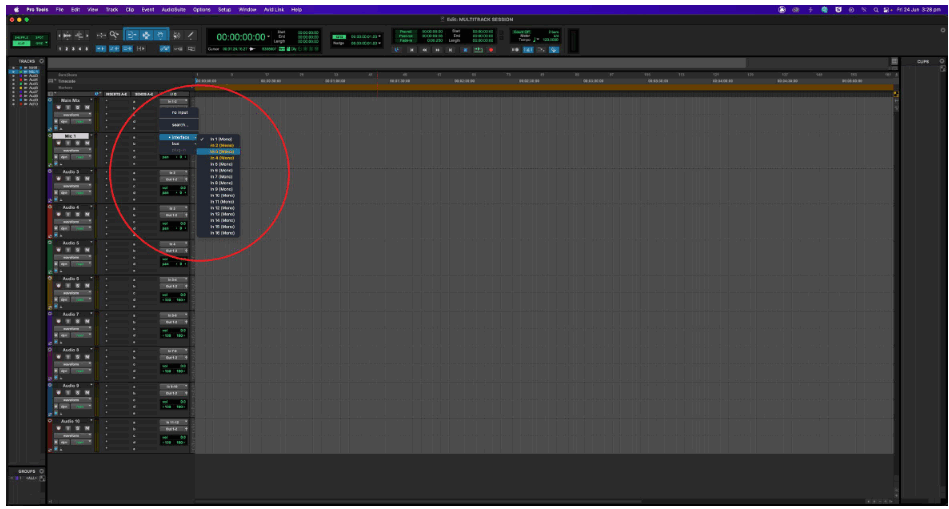
Click the input selector and select ‘Mic 3’ from the list. The audio from combo input 1 will now be routed to this track.
STEP 8
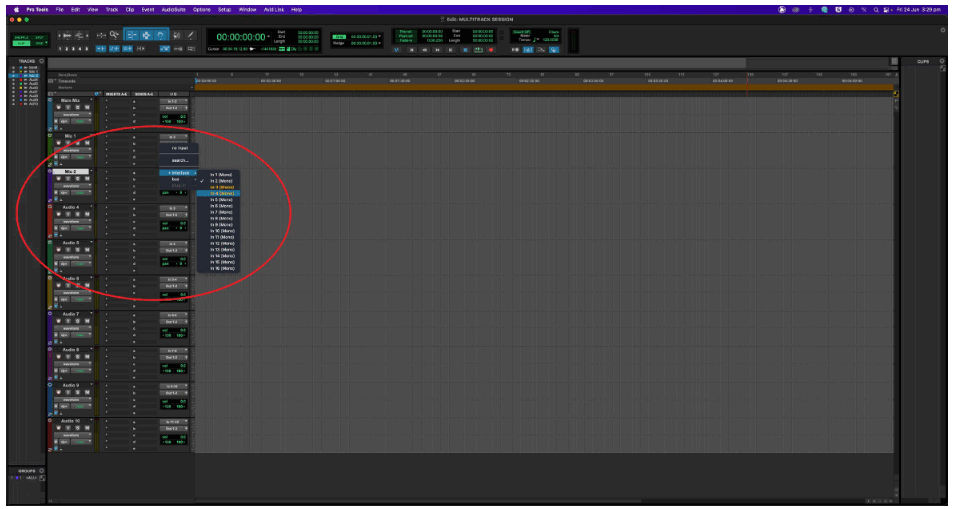
Rename the next track ‘Mic 2’. Ensure that it is a mono track, then select ‘Input 4’ from the input list. The audio from combo input 2 will now be routed to this track.
STEP 9
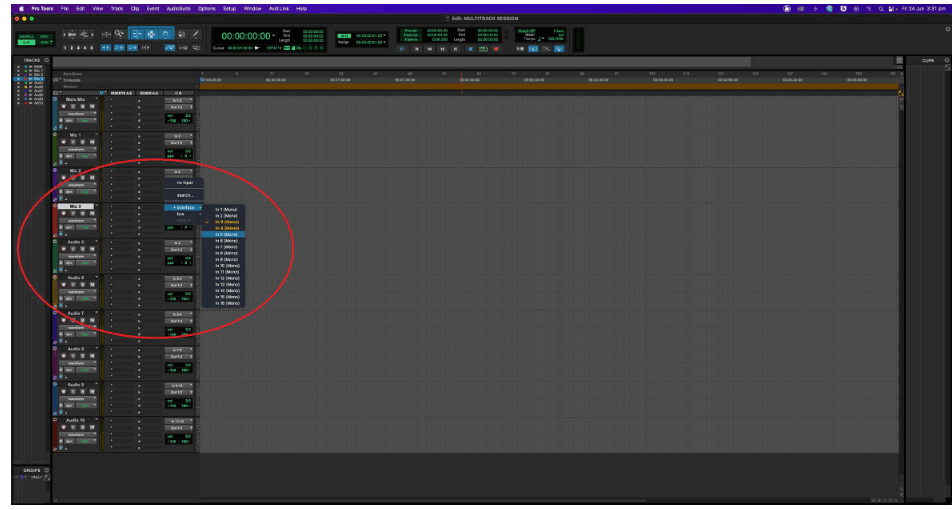
Rename the next track ‘Mic 3’. Ensure that it is a mono track, then select ‘Input 5’ from the input list. The audio from combo input 3 will now be routed to this track.
STEP 10
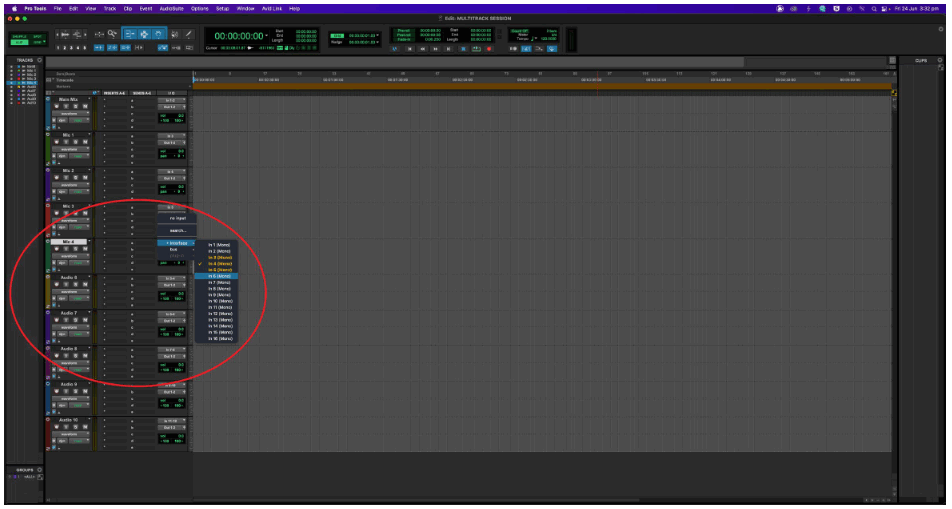
Rename the next track ‘Mic 4’. Ensure that it is a mono track, then select ‘Input 6’ from the input list. The audio from combo input 4 will now be routed to this track.
STEP 11
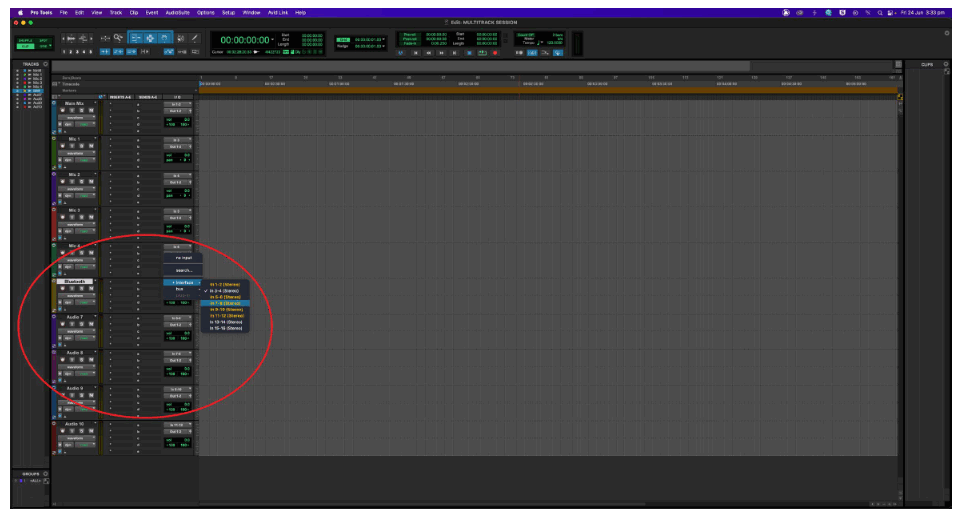
Rename the next track ‘Bluetooth’. Ensure that it is a stereo track, then select ‘Input 7-8’ from the input list. The audio from the Bluetooth channel will now be routed to this track.
STEP 12
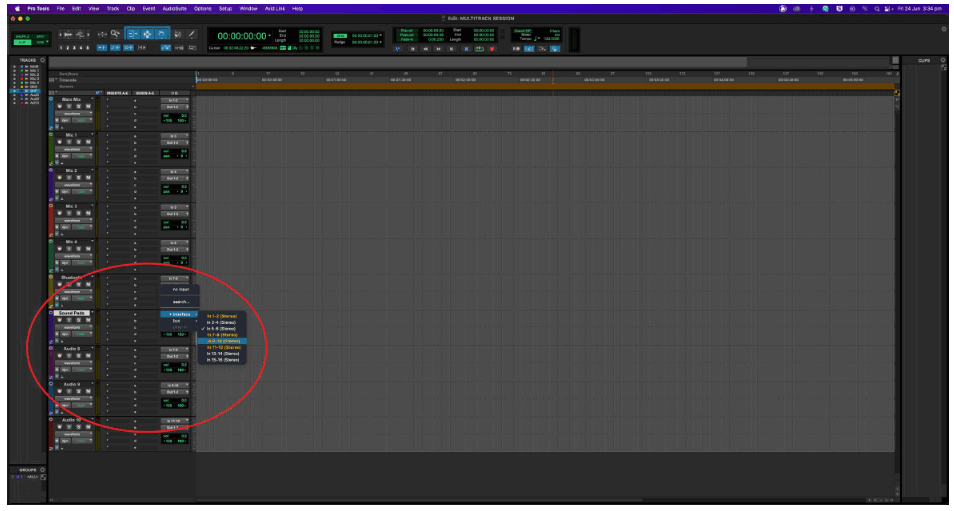
Rename the next track ‘Sound Pads’. Ensure that it is a stereo track, then select ‘Input 9-10’ from the input list. The audio from the SMART pads will now be routed to this track.
STEP 13
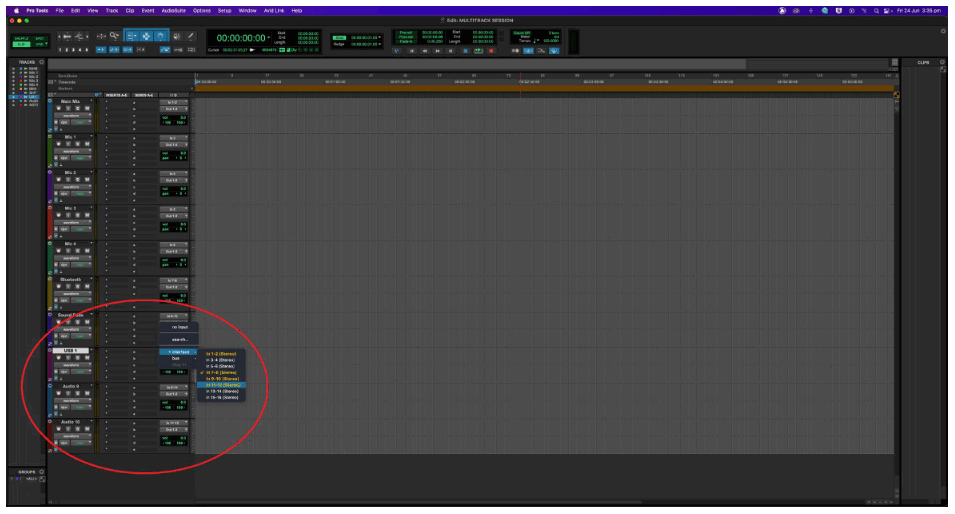
Rename the next track ‘USB 1’. Ensure that it is a stereo track, then select ‘Input 11-12’ from the input list. The audio from USB 1/’RØDECaster Pro Main’ will now be routed to this track.
STEP 14
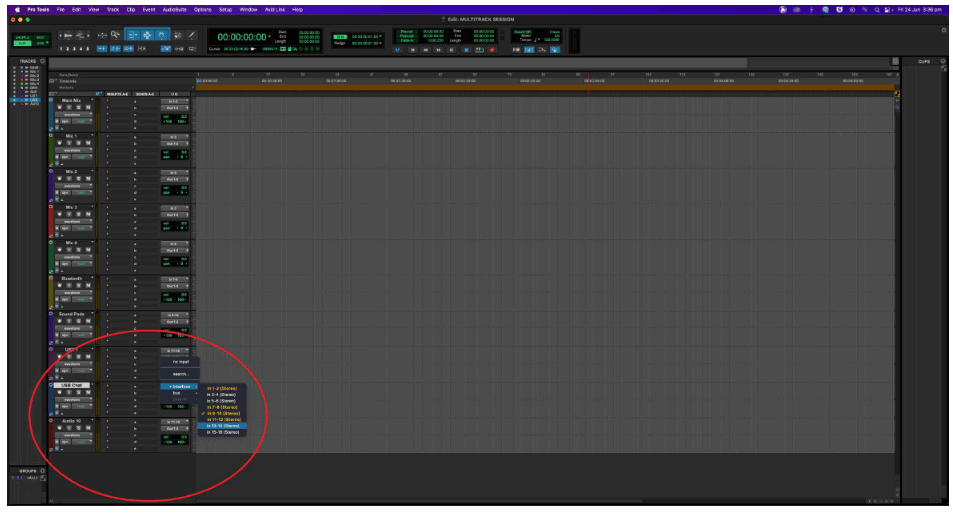
Rename the next track ‘USB Chat’. Ensure that it is a stereo track, then select ‘Input 13-14’ from the input list. The audio from USB Chat/’RØDECaster Pro Chat’ will now be routed to this track.
STEP 15
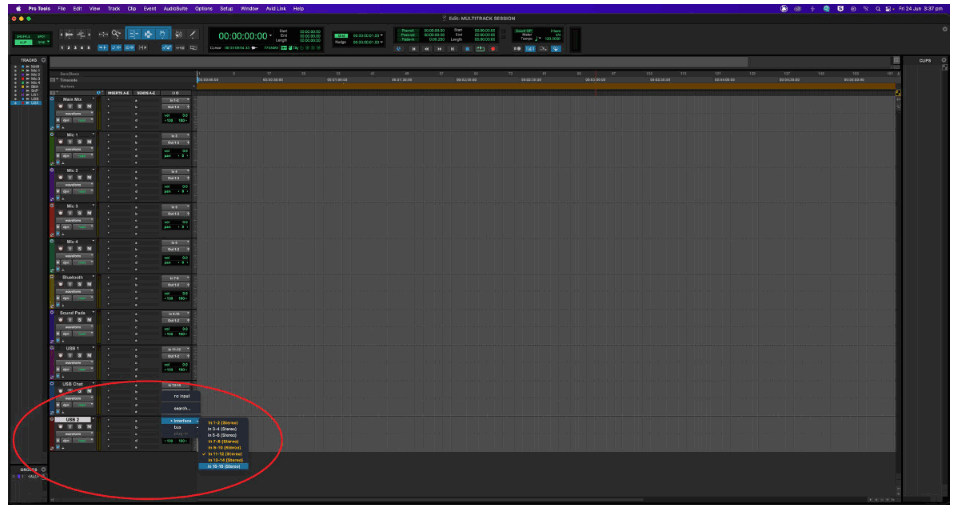
Rename the next track ‘USB 2’. Ensure that it is a stereo track, then select ‘Input 15-16’ from the input list. The audio from USB 2/’RØDECaster Pro Secondary’ will now be routed to this track.
STEP 16
‘Record enable’ all tracks required by clicking the red record button under the track name.
STEP 17
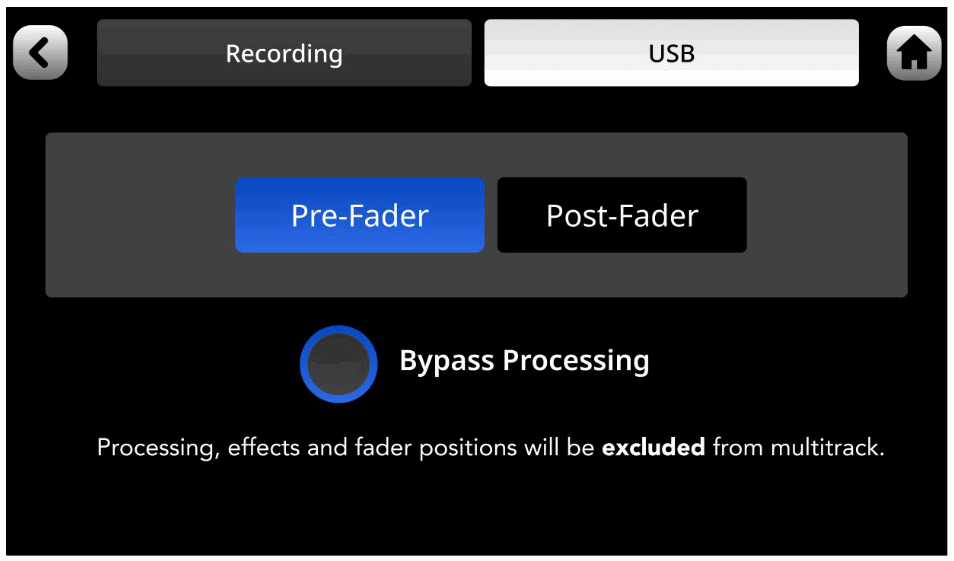
Go to the USB multitrack settings page on your RØDECaster Pro II (settings > ‘Outputs’ > ‘Multitrack’ > ‘USB’) and select either ‘pre-fader’ or ‘post-fader’ mode. In pre-fader ode, all audio sources will be sent to the multitrack output at unity gain, regardless of the fader positions. You can also choose to bypass any processing you have on your channels. This mode is ideal if you want to capture a clean recording for editing in post-production.
In post-fader mode, all processing, channel effects, and fader positions will be included in the multitrack output. This is ideal if you want to do all of your mixing and processing on the RØDECaster Pro II.
NOTE: any effects triggered by the SMART pads will appear on the stereo mix but not on the individual audio channel on the multitrack output.
PRO TIP: When recording in post-fader mode, it’s a good idea to also record a “clean” pre-fader multitrack recording to a microSD card as a backup.
STEP 18
Hit record when you’re ready!