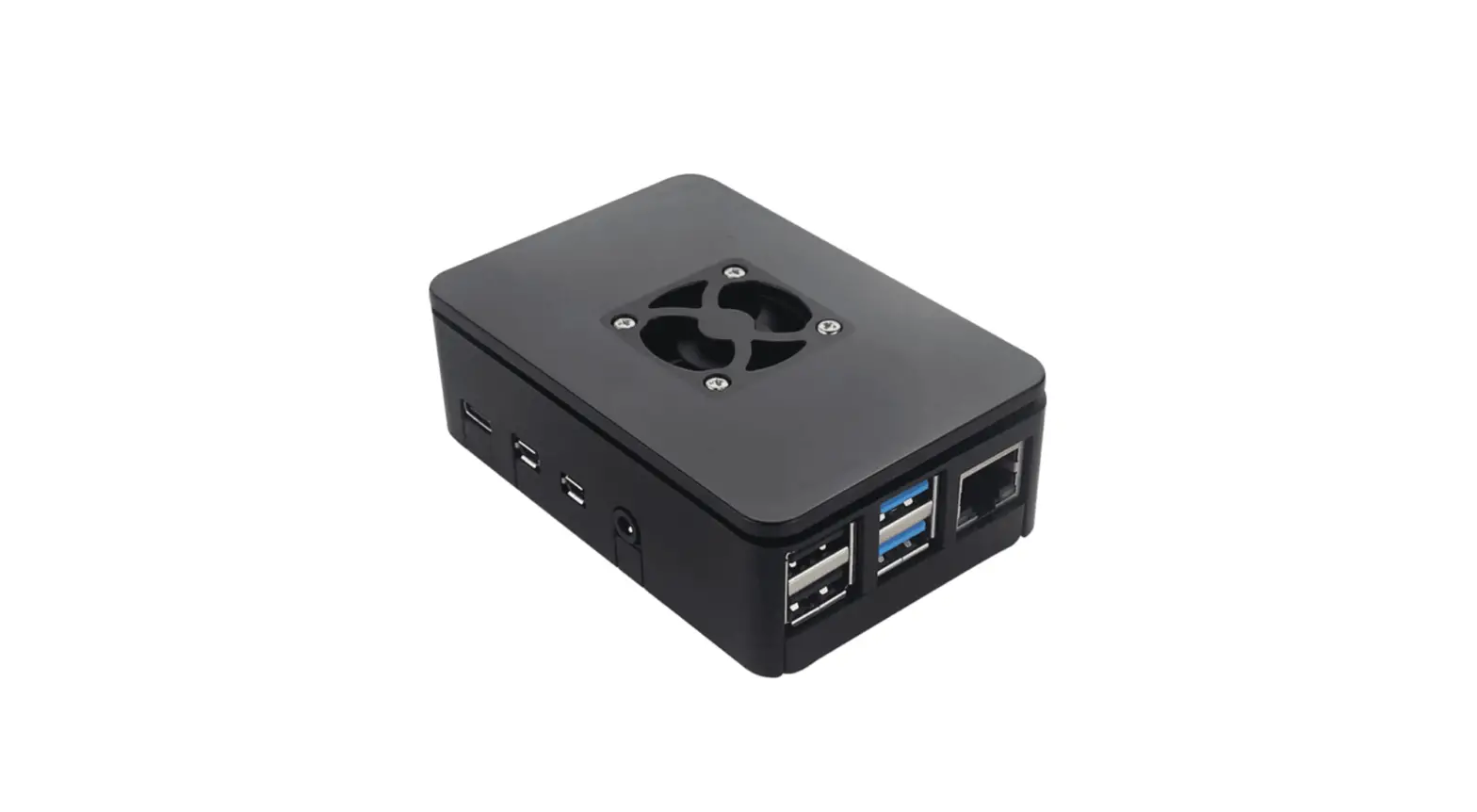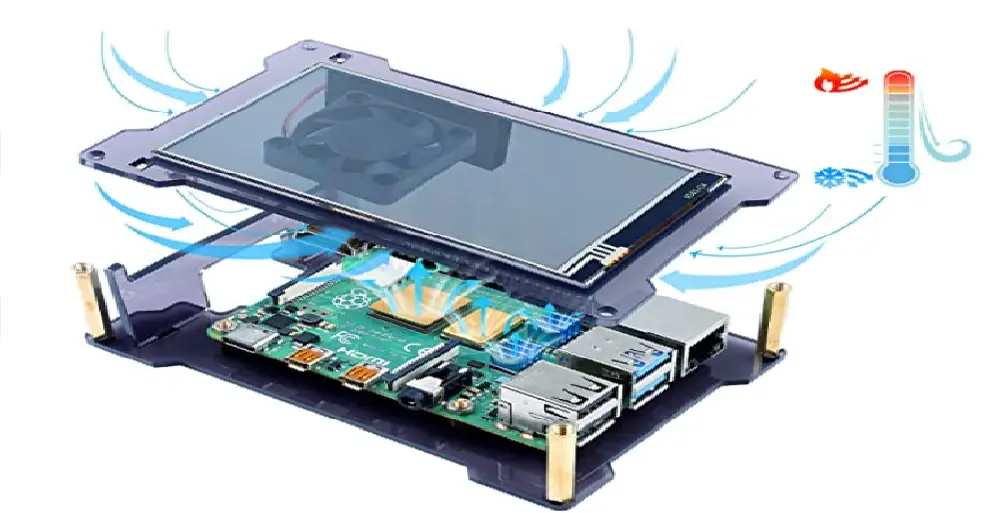

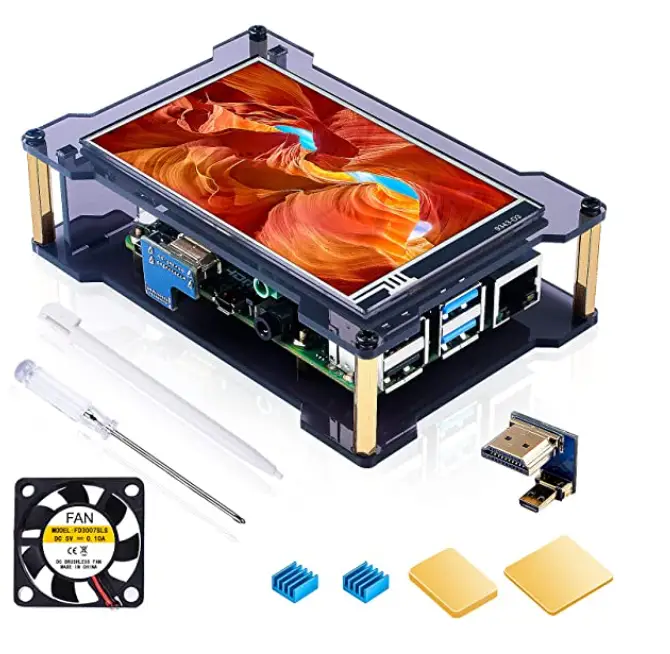
Miuzei MC21-4 Raspberry Pi 4 Touchscreen with Case Fan
 [email protected]
 To learn more about screen, please scan QR code or visit Wiki: http://geekdiywiki.com/4inchscreen
Product Parameters
| Set Up | Parameter |
| Screen Size | 4.0inch |
| LCD type | TFT IPS |
| Module Interface | HDMI |
| Resolution | 800*480 (Pixel) |
| Active Area | 51.84×86.40(mm) |
| Touch Screen Controller | XPT2046 |
| LCD Driver IC | NT35510 |
| Backlight | LED |
| power consumption | 0.16A*5V |
| Working temperature(℃) | -20~60℃ |
| Module PCB Size | 98.60*58.05 (mm) |
| Package Size | 143*134*51 (mm) |
| Rough Weight( Package containing)(g) | 126 (g) |
Hardware Description
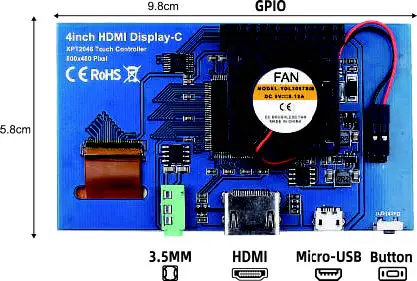
| 3.5mm Headphone Jack | interface | HDMI signal input interface | |
| Micro USB | Get 5V Power from USB, If ⑤-13*2 Pin Socket has been connected, that USB interface can be No Connect. | ||
| Backlight Button | Backlight brightness adjustment button, short press backlight changes by 10%, long press 3 seconds to close backlight. | ||
| GPIO 13*2 Pin Socket | Gets power and return touch from this area when used as a raspberry pie monitor | ||
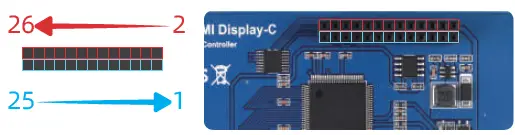
Sequence of 13 * 2-pin socket interface
| Pin | Name | Description |
| 1,17 | 3.3V | Power supply +3.3V |
| 2,4 | 5V | Power supply +5V |
| 3,5,7,8, 10,13,15 16,18,24 | NC | NC |
| 6,9,14 20,25 | GND | GND |
| 19 | TP_SI | SPI data input of touch panel |
| 21 | TP_SO | SPI data output of touch panel |
| 22 | TP_IRQ | Touch the SPI clock signal of the panel |
| 23 | TP_SCK | The touch panel is interrupted and the low level is detected when the touch panel is pressed down |
| 26 | TP_CS | Touch panel select signal, low level select touch panel |
Hardware Installation
Install Video: http://youtu.be/6osaAeiQ24Q
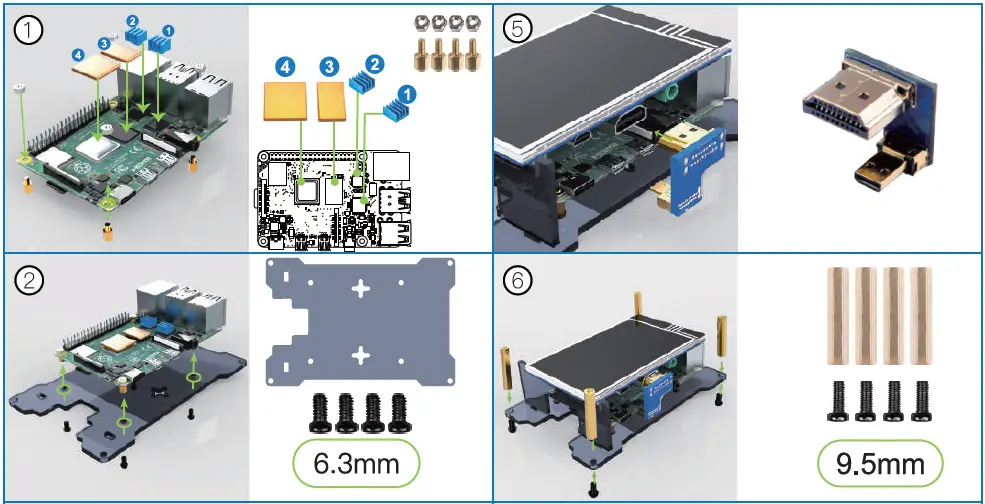
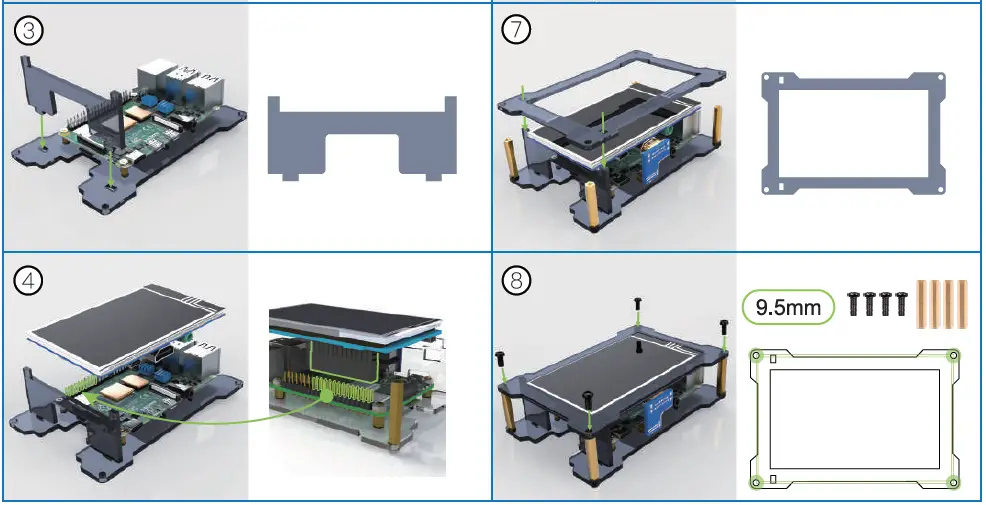
SYSTEM INSTALLATION GUIDE
Please Note: Only Support Raspbian/Kali/Octopi/Ubuntu
- Before use, be sure to install system provided by miuzei (system comes with touch driver)
System Name Download Raspbian https://tinyurl.com/y3xsemve Kali https://tinyurl.com/y3hvzc6p OctoPi https://tinyurl.com/y48ydar9 Ubuntu https://tinyurl.com/y5hh9uqw System Installation: https://youtu.be/d4XzSWDqTGU - If you have installed official Raspbian 32-bit system, Be sure to refer to the following touch driver .
Installation method
- load Raspbian System Click Terminal System.
- Enter following commands
sudo rm-rf LCD-show git clone https://github.com/goodtft/LCD-show.git
chmod -R755 LCD-show
cd LCD-show/sudo./MP14008-show
Using Function Guide
WIKI:
https://geekdiywiki.com/4tutorias
- Control Screen Rotation
- Split Screen
- Control Switch Screen
Frequently Asked Question
Q1: What if there is no signal & blue screen & flashing?( Raspbian/Kali/Octopi/Ubuntu )
A. It may be that screen cannot be displayed & used normally due to incompatibility of system or lack of driver. Reinstall officially adapted touch driver https://geekdiywiki.com/system
Q2: What if there is no touch function? (Just for Raspbian)
A: Through driver installation provided by us https://tinyurl.com/y2oex4tvA
Q3: What should I do if I encounter other problems?
A. You can visit link http://geekdiywiki.com/4inchscreen learn more or contact us
 geekdiywiki.com/4inchscreen
 tinyurl.com/y3hvzc6p