 FT Cloud 3.0 Apps
User Manual
| Reading Tips (Remove the Reading Tips before sending to customers) | |
| Document Name | FT Vision User Manual |
| Application Scenarios | Objective: This document is designed to help the fleet in information management and safety monitoring of vehicles through the FT Vision platform. FT 3.0 Promotion Tips: 1. Recommendation to customers: With limited capacity to develop independently, customers are not demanding in the differentiation of the platform’s functions. Above customers are recommended to use Streamax’s complete video security solution (Hardware + FT cloud). 2. Reasons to recommend the FT platform: Build the complete video-based fleet safety management capacity for customers in a fast and efficient way to improve the competitiveness of their overall solutions, without the need to invest in development resources. Feature high availability and stability (99.9%), expert fleet safety management platform system Enable customers to provide differentiated platform functions for fleets in a flexible and lightweight way 3. Notes: The responsibility for FT cloud servers lies with Streamax. Routine essential maintenance and data ownership rest with Streamax. |
| Version | V1.0 20210818 |
| Prepared by | Liu Yiyang (Josefa) |
| Revision History | V1.0 (first version) prepared in August 2021; Prepared by: Marketing Department; Translated and checked by: Branding Department |
| Confidentiality Level | Low. Allowed to be sent to customers, but necessary to avoid access by competitors |
| Relevant Document | FT Manager User Manual |
Introduction to Function Modules of FT Vision
The brand new 3.0 version of FT Vision provides functions as follows:
- Smooth and random switching between real-time monitoring video and recorded monitoring video in high definition
- Clear, comprehensive, and visualized statistics of operation data
- Sharing of alarm evidence materials through multiple channels
The FT Vision is composed of three modules, and please refer to the table below for their quick introductions.
| Module | Function |
| Basic Data | For the management of data information of fleets, vehicles, and drivers |
| Fleet Tracking | For the real-time monitoring and interference of fleet vehicles, review of fleet operation conditions, and handling of evidence materials |
| AI Safety Center | For the visual statistics and export of alarm events in a fleet |
The modules are separately Basic Data, Fleet Tracking, and AI Safety Center. Next, we will give you a detailed illustration of each module.
Description of Function Modules of FT Manager
Basic Data
This module is applied to the maintenance of basic data, so as to enable quick operation of the entire database.
The Basic Data module is used for the management of the fleets, vehicles, and drivers of the platform. This module is composed of three submodules, including Fleet Management, Vehicle Management, and Driver Management.
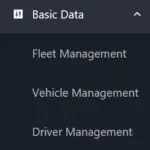
Fleet management
The Fleet Management module is applied to the integration and management of the fleet data. You can add, delete, search, or modify the fleet information by clicking “Fleet management” under the “Basic Data” module.
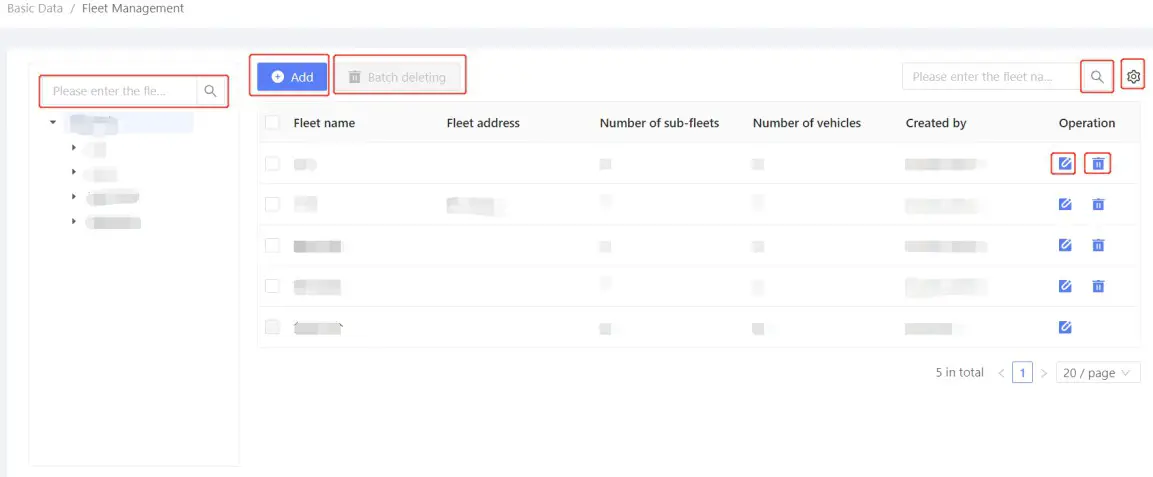
- Fleet catalog and search
(1) You can clearly view the relationships between the superior fleet and the sub-fleets in the fleet catalog on the left.
(2) You can precisely search the fleet name in the search box above the catalog, or in the search box above the fleet list on the right.
(3) Note: The search box on the right is only for the search of sub-fleets for the selected fleet. The words for searching are not case-sensitive. - Addition of fleets
(1) You can edit the fleet name, fleet address, and remarks in the interface of the fleet information list by clicking “Add” and “Save”. (2) Note: Before adding a fleet, you need to select the superior fleet of the new fleet by clicking a fleet in the list on the left side. Once one superior fleet is selected, the other superior fleets cannot be selected in the new fleet information list.
- Modification of fleet information
(1) You can edit the fleet information by clicking the button in the fleet list.
(2) You can modify such information as the fleet name, the fleet address, and remarks. fleet information is updated by clicking “Save”. (3) Note: The superior fleet of a fleet cannot be modified. For such modification, the existing fleet information shall be deleted and edited again.
 - Deletion of fleets
(1) Deletion of an individual fleet: You can delete the fleet information by directly clicking the garbage can button in the fleet list.
(2) Deletion in batches: You can select the fleets to be deleted and click “Delete” above the fleet list.
- The setting of fleet list information
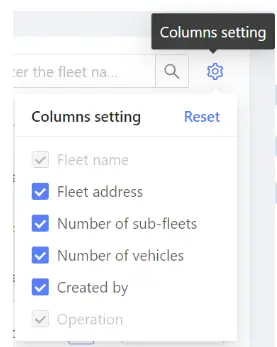
You can select the items in the “Column Setting” on the top right of the fleet list to select the information items to be reviewed. The displayed information of the fleet list ill be adjusted according to your selection. All the following items are selected as default: Fleet name, Fleet address, Number of sub-fleets, Number of vehicles, Created by, and Operation. Furthermore, you cannot deselect the Vehicle name and Operation.
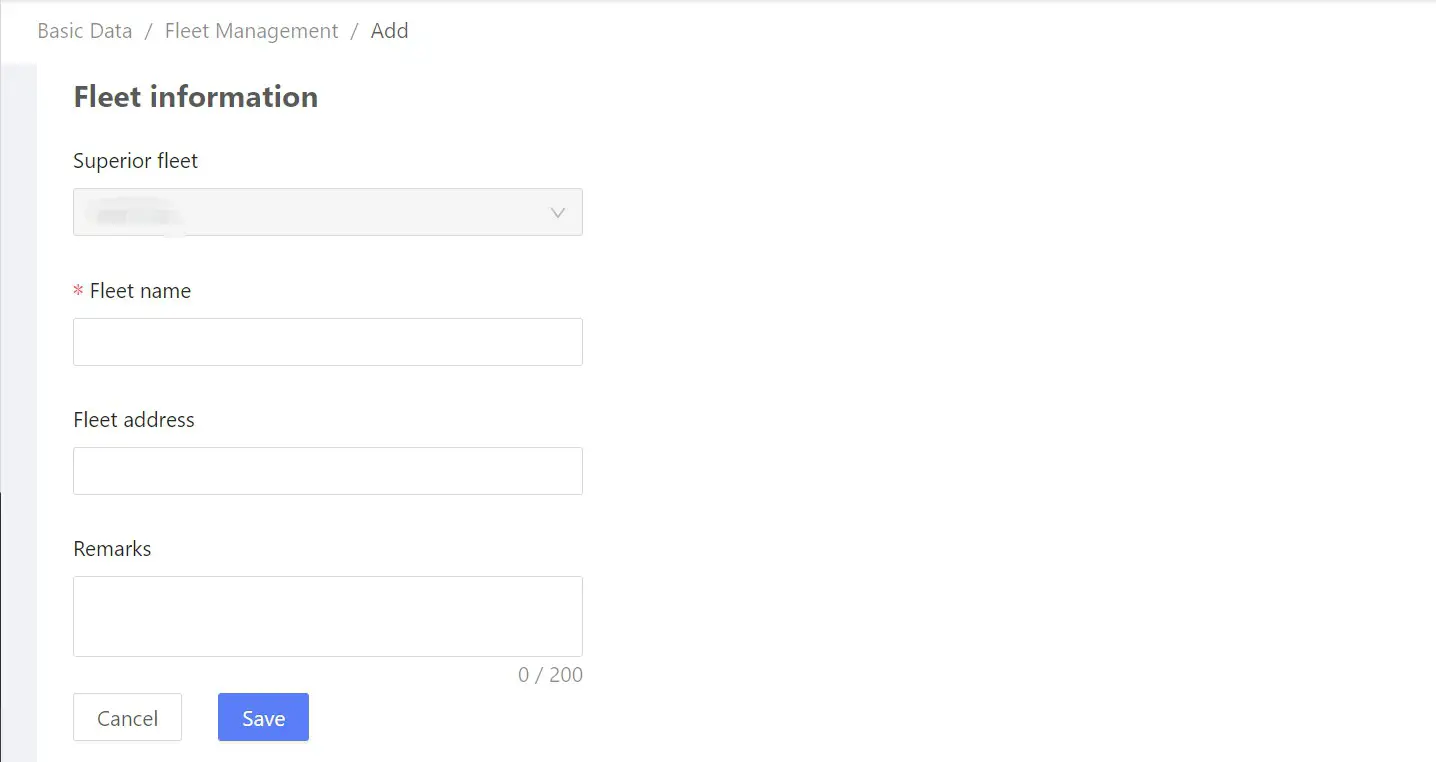 (2) Note: Before adding a fleet, you need to select the superior fleet of the new fleet by clicking a fleet in the list on the left side. Once one superior fleet is selected, the other superior fleets cannot be selected in the new fleet information list.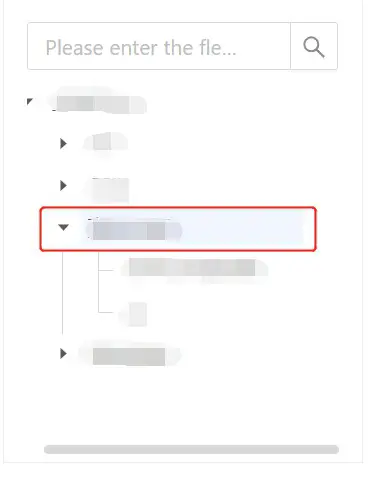
 (3) Note: The superior fleet of a fleet cannot be modified. For such modification, the existing fleet information shall be deleted and edited again.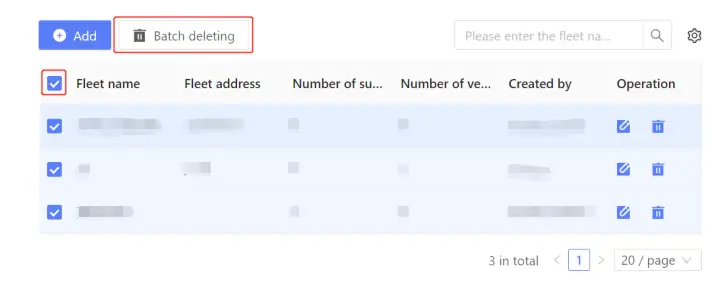
Vehicle management
Through direct management of vehicle information, you can conduct daily maintenance, management, and authorization of vehicle data. You can add, delete, search, or modify the fleet information in the “Vehicle Management” module.
 Vehicle catalog and search
(1) You can click the fleet catalog on the left to view the vehicles in the fleet.
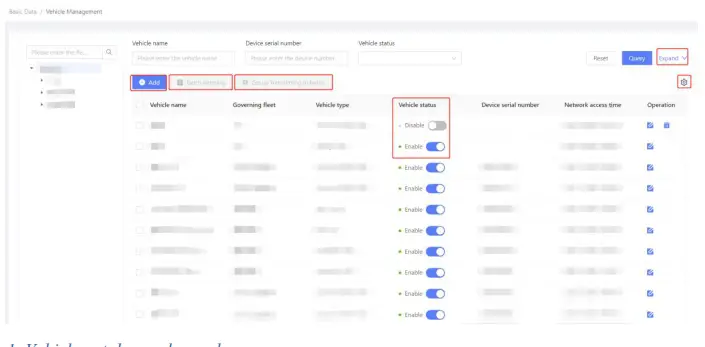
(2) Precise filtering: You can filter vehicles by multiple conditions, such as vehicle name, device serial number, vehicle status, and network access time. Click “Query” to filter, and click “Reset” to reset the filtering conditions. (3) Note: The search box on the left only enables the search of fleets.
The words for searching are not case-sensitive. Vehicle status: There are two statuses, i.e. Disable or Enable. You can change the vehicle status by editing the vehicle information.
Network access time: The last time when the vehicle is online. Vehicle status: There are two statuses, i.e. Disable or Enable.- Addition of vehicles
(1) You can edit the vehicle name, governing fleet, vehicle type, device serial number, Ohio., and vehicle status by clicking “Add” in the interface. The new vehicle information can be created by clicking “Save”. (2) Note: The number of channels in the vehicle information list is uploaded automatically, not requiring manual editing.
The vehicles of the superior fleet can be independent of any sub-fleet of the fleet; that is, you can add a vehicle belonging to the superior fleet but not to any sub-fleet. The setting is arranged only by selecting the superior fleet in the fleet list. - Modification of vehicle information
(1) You can edit the vehicle information by clicking the button in the vehicle list.
(2) You can modify such information as the vehicle name, governing fleet, vehicle type, device serial number, vehicle No., and vehicle status. The vehicle information is updated by clicking “Save”. (3) Note: The number of channels of a fleet cannot be modified.
 - Deletion of vehicles
(1) You can delete the vehicle information by directly clicking the garbage can button in the vehicle list.
(2) Deletion in batches: You can select several vehicles to be deleted and click “Delete” above the vehicle list. (3) Note: The “Delete” button is only available for vehicles that are in Disable status. Therefore, you need to manually adjust the vehicle status to Disable before deleting.
 - Transfer-out in batches
You can select the vehicles to be transferred to other fleets and click “File Transfer” above the vehicle list.
- The setting of vehicle list information
You can select the items in the “Column Setting” on the top right of the vehicle list to select the information items to be reviewed. All the following items are selected as default: Vehicle name, Governing fleet, Vehicle type, Vehicle status, Device serial number, Network access time, and Operation. Furthermore, you cannot deselect Vehicle name, Vehicle status, and Operation. - Driver management
This module enables the direct management of driver’s information to facilitate the routine maintenance, adjustment, and distribution of driver’s basic information.
 Vehicle catalog and search
 (3) Note: The search box on the left only enables the search of fleets.
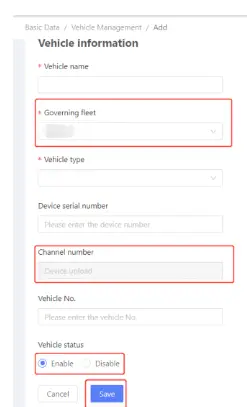 (2) Note: The number of channels in the vehicle information list is uploaded automatically, not requiring manual editing.
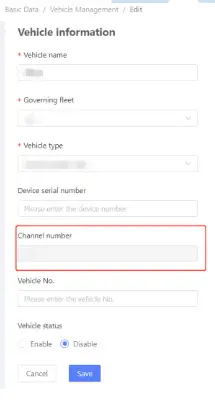 (3) Note: The number of channels of a fleet cannot be modified.
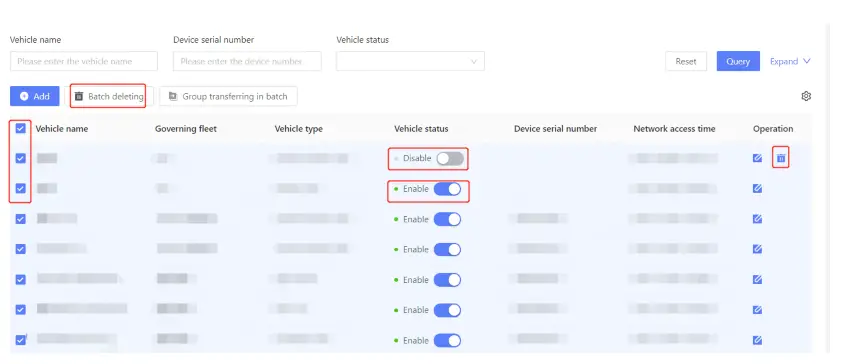 (3) Note: The “Delete” button is only available for vehicles that are in Disable status. Therefore, you need to manually adjust the vehicle status to Disable before deleting.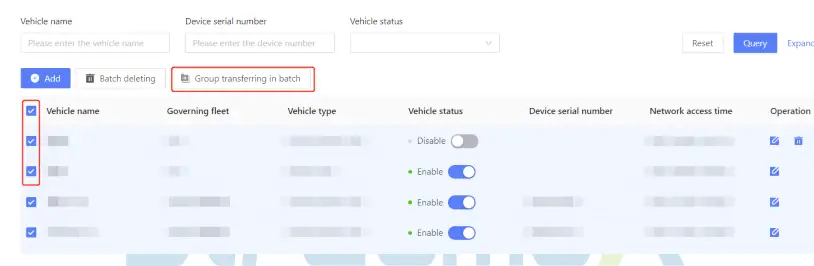
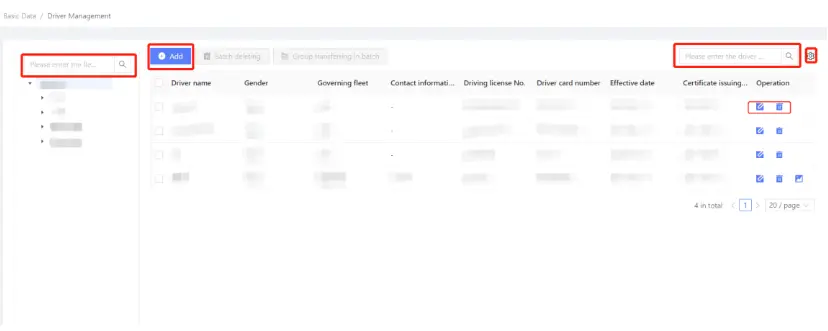
Driver catalog and search
- You can click the fleet catalog on the left to view the drivers in the fleet.
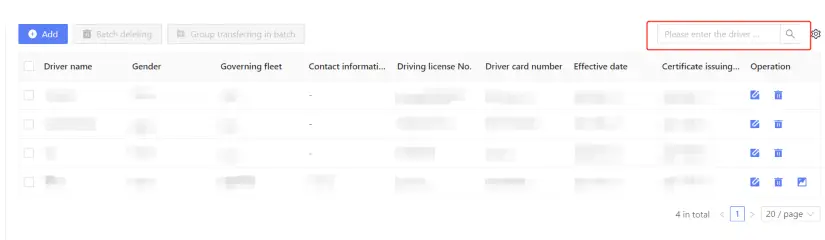
- Precise search: You can enter the driver’s full name or partial name, driving license number, or driver ID for precise searching.

- Note: The search box on the left only enables the search of fleets.
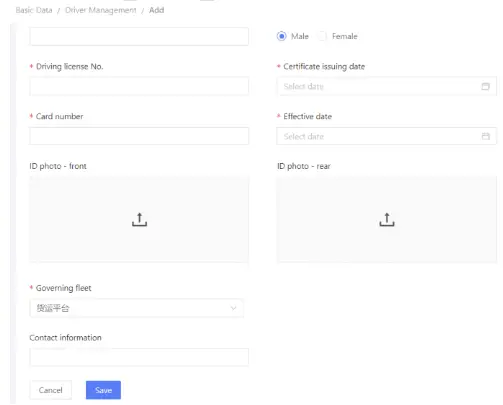
Addition of drivers
- You can edit the driver’s name, gender, driving license number, certificate issuing date, driver ID, expiration date, fleet, and contact information by clicking “Add” in the interface, which also enables uploading ID photos. The new vehicle information can be created by clicking “Save”.

- Note: The drivers of the superior fleet can be independent of any sub-fleet of the fleet; that is, you can add information of a driver belonging to the superior fleet but not to any sub-fleet. The setting is arranged only by selecting the superior fleet in the fleet list.
Modification of driver’s information
- You can edit the driver’s information by clicking the button in the driver list.
- The method of information modification is the same as that of information creation, and the driver’s information can be updated by clicking “Save”.
Deletion of driver’s information
- You can delete the driver’s information by directly clicking the garbage can button in the driver list.
- Deletion in batches: You can select several drivers to be deleted and click “Delete” above the driver list.

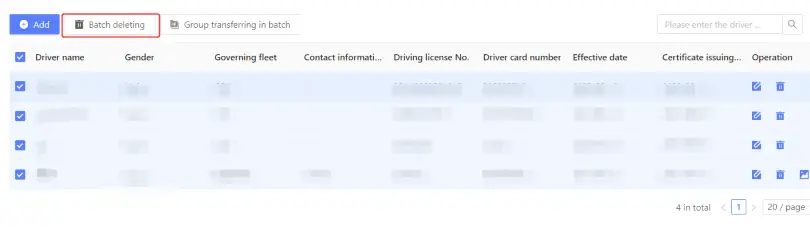
Transfer-out in batches
You can select the drivers to be transferred to other fleets and click “File Transfer” above the driver list.

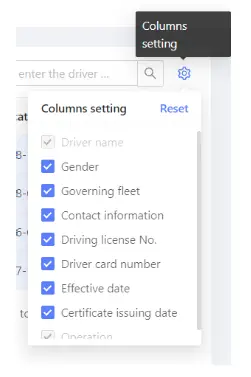
The setting of driver list information
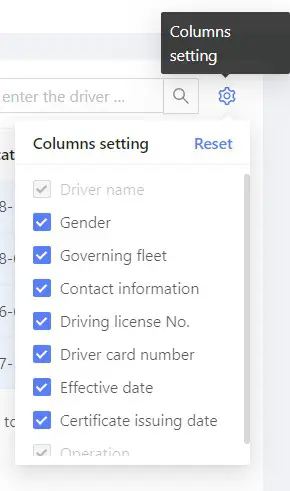
All the following items are selected as default: Driver name, Gender, Contact information, Driving license number, Driver ID, Certificate issuing date, Expiration date, and operation. Furthermore, you cannot deselect Driver’s name and Operation.
Fleet Tracking
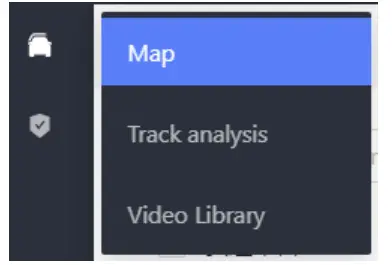
Through the Fleet Tracking module, the administrator can conduct communication and intervention with vehicles in case of abnormal situations and extract internal and external evidence of historical driving behaviors by playback, video edit, and other operations, so as to avoid traffic accidents misjudgment and improve the fleet management quality. This module is composed of three submodules, including Map, Track Analysis, and Video Library.
 Map
Map
You can select the target vehicle on the left side of the map to conduct such operations as real-time video, talkback, video playback, and track playback. The map on the right ide displays the selected vehicle. The gray color indicates offline status and the green color indicates online status.
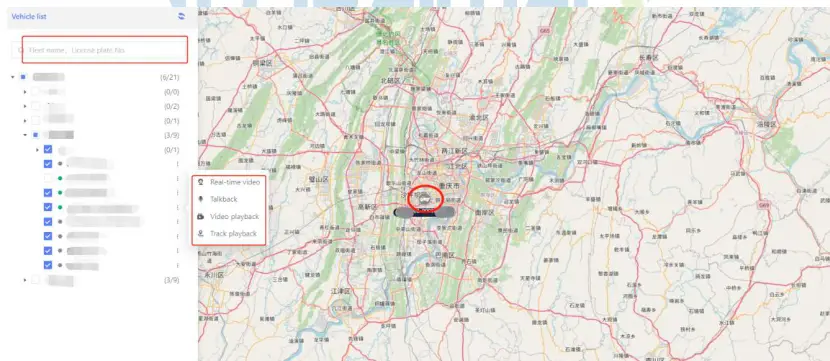 When the vehicle is online, you can also conduct real-time video, track playback, talkback, and video playback by clicking the map icon.
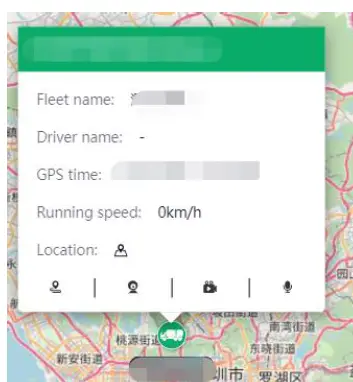
Real-time video: Click the icon to view the real-time video.
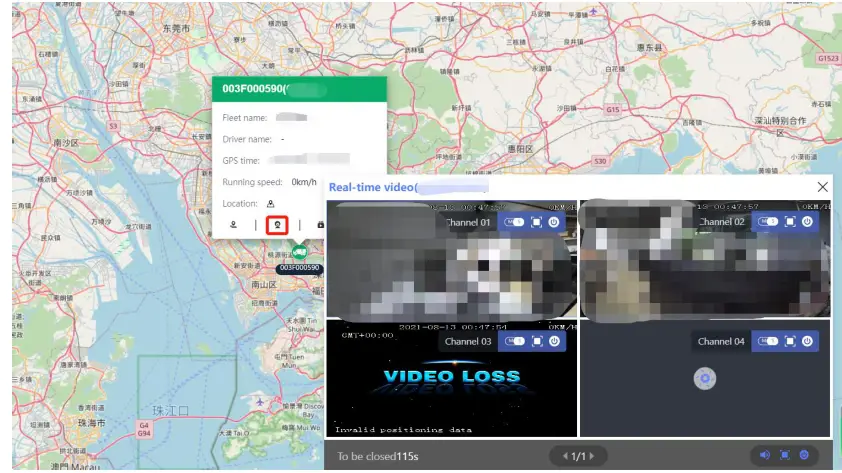
Note: For the offline vehicles, only the track playback is available.
The “Video Loss” prompt for the real-time video means the device is  poorly connected, and the camera data is lost during transmission. The video can be played by mainstream (HD) and substream (fluent).
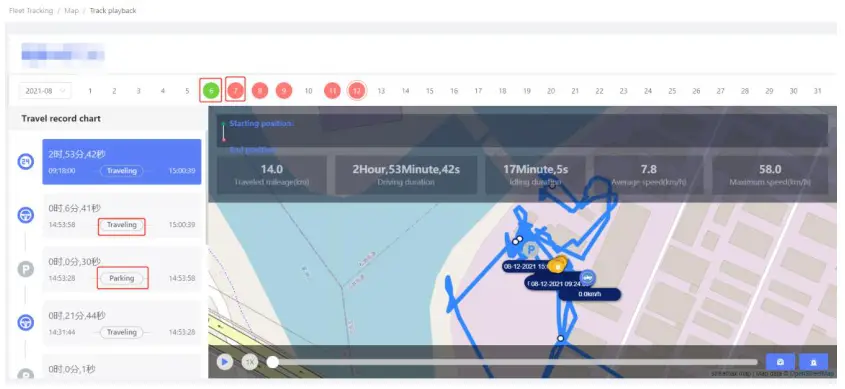
Track playback: Click the track playback icon to select the date of the track. The dates in green are online days without alarms, and the dates n red are online days with alarms. The records on the left side are made according to the ignition time and the flame-out time of the day. The track playback can indicate the beginning and end positioning, speed analysis, alarm statistics, etc.
Talkback: Click the talkback icon to conduct a voice talk back.
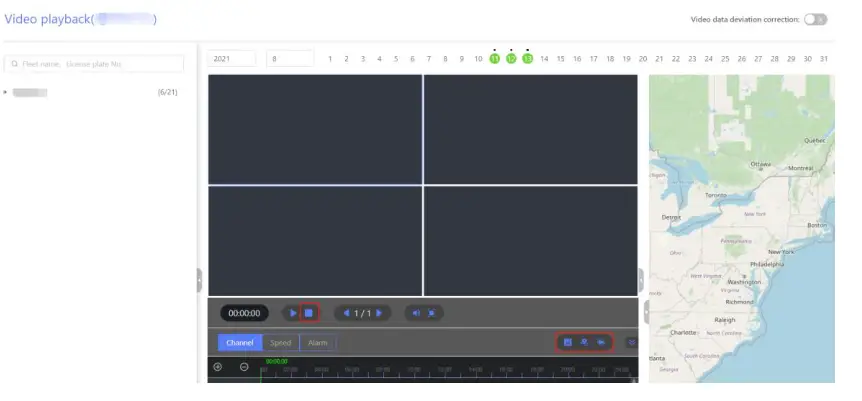
Video playback: Click the video playback icon, and select the video channel to view the video playback. The video playback function supports edit. You can edit the video by dragging the interval on the time axis below. The edited videos are reviewed in the Video Library under the Fleet Management module.
Track analysis
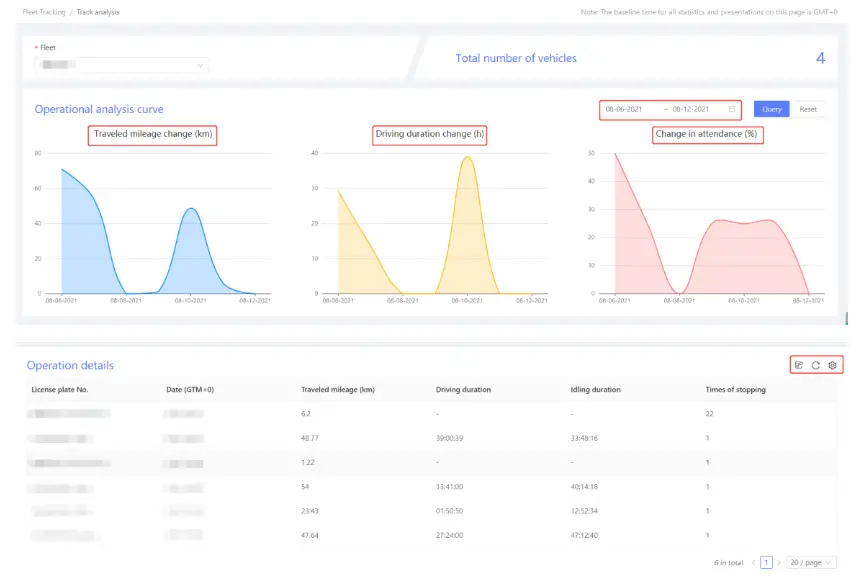
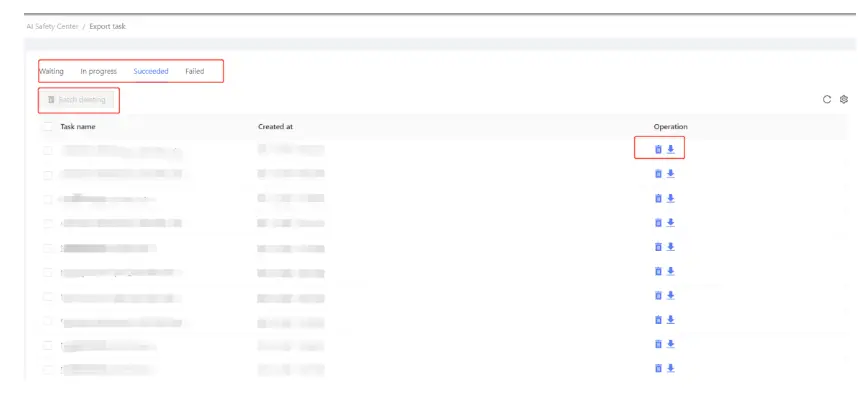
The Track Analysis module can visually and clearly indicate the vehicle use, operation, and other data of each fleet. It helps administrators to understand and compare operations f vehicle fleets more intuitively, so as to realize fleet management with higher efficiency. When a fleet is selected, line charts will be generated, indicating the mileage, duration, and sset utilization. Statistical charts enable time filtering. The chart below indicates the operation details of each vehicle, such as duration and idle time, which can be exported. The exported files can be viewed and downloaded in the Export Task under the AI Safety Center module.
Video Library
The Video Library module mainly stores the edited videos that are actively uploaded. The edited videos can be used as materials of video evidence for fleets and enterprises. You can filter the required videos, delete videos in batches, download videos, and view video details by operations at the upper side of the video library. The video library can display videos in such two forms as the graphic display and the list display.
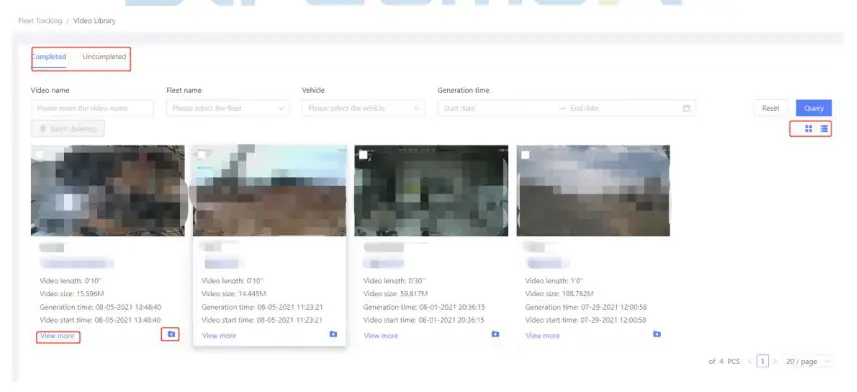
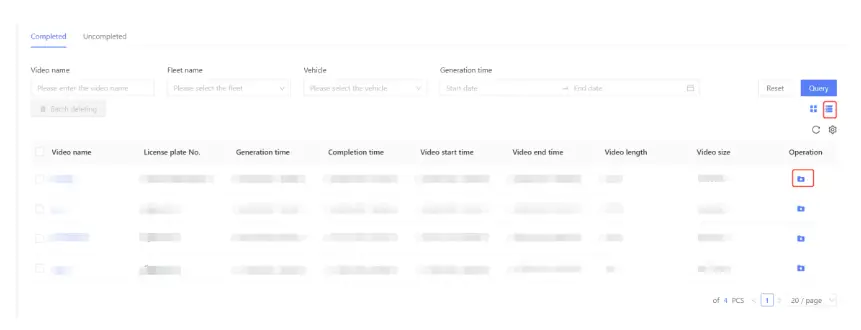
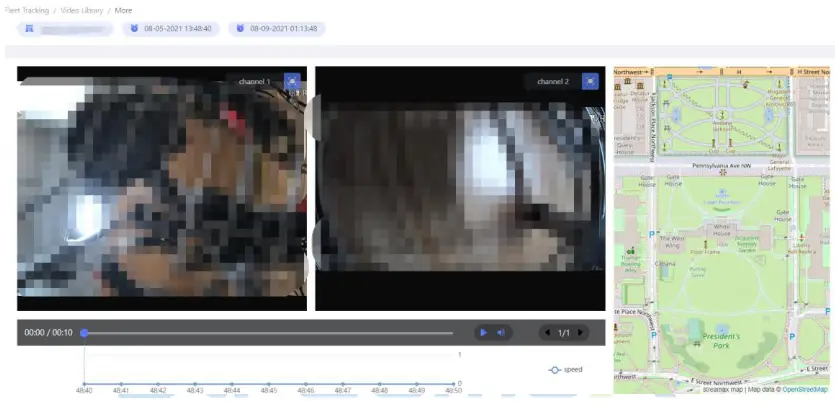
You can play a video or view the details by clicking it. The speed-time axis of the vehicle at that time is displayed below the video.
 AI Safety Center
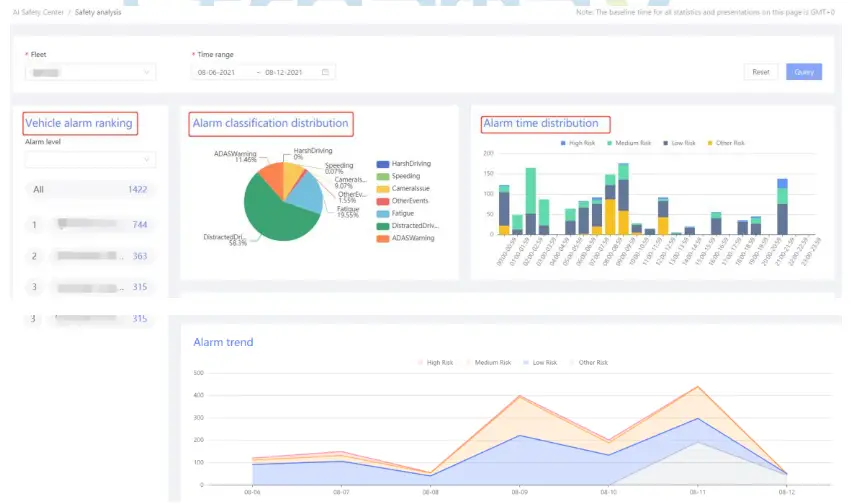
The AI Safety Center module provides the enterprises with an intuitive alarm data table for fleet management, and the enterprise can view the overall fleet alarm distribution from the macro dimension. It helps enterprises to quickly grasp the safety status of their subordinate fleets, providing clear statistical tables of safety data. The AI Safety Center module is composed of three submodules, including Safety Event List, Safety Analysis, and Export Task.
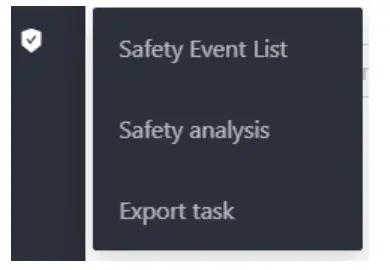
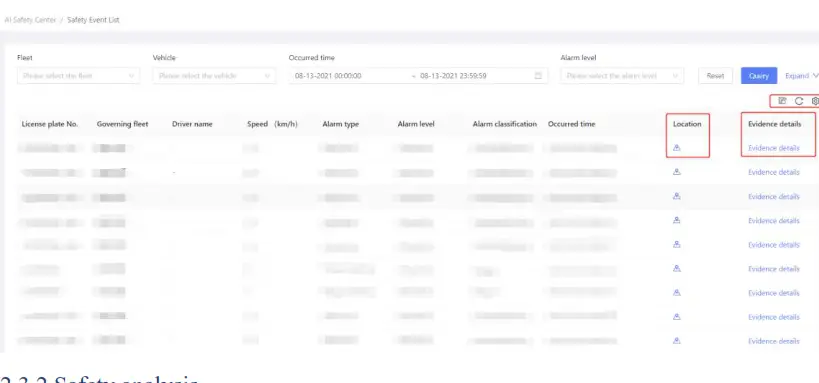
Safety Event List
The Safety Event List module mainly displays the alarms that happened before in a digitized form. You can click to locate the vehicle when an alarm event occurs, or click Details” to view captured alarm evidence.
Safety Analysis
Through this module, administrators and fleets can intuitively understand the differentiated risk situation of each fleet, and make clear quantitative statistics of violations. The safety Analysis module analyzes the alarm events of each vehicle mainly in such three dimensions as the pie chart of event type distribution, the column graph indicating relations between high, medium, and low risk and time, and the line chart indicating relations between high, medium, and low risk and dates. It also ranks the vehicles with frequent violations.
Export task
The Export Task module provides valid database support for the enterprises. This module enables the download of various materials, ranging from real-time video edit, captured alarm evidence, and safety events, to operation detail reports. It can effectively save local space.
Building a Brighter Future of Transportation with Technology
Streamax Technology Co., Ltd
Website: en.streamax.com
Address: Floor 20-23, Building B1, No.1001, Xueyuan Road, Xili,
Nanshan District, Shenzhen, Guangdong, China 518055
 Streamax Technology Co., Ltd. All Rights Reserved.