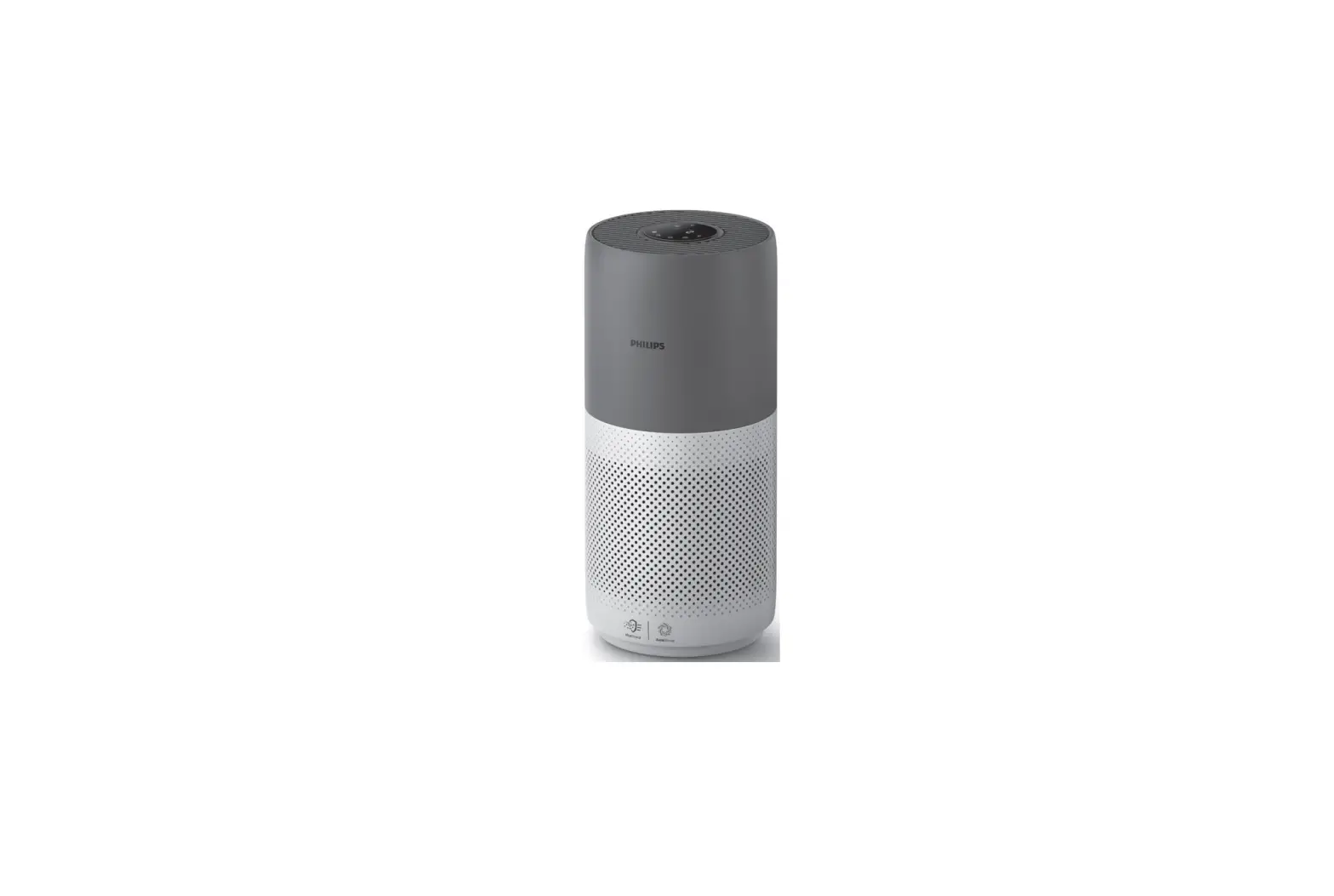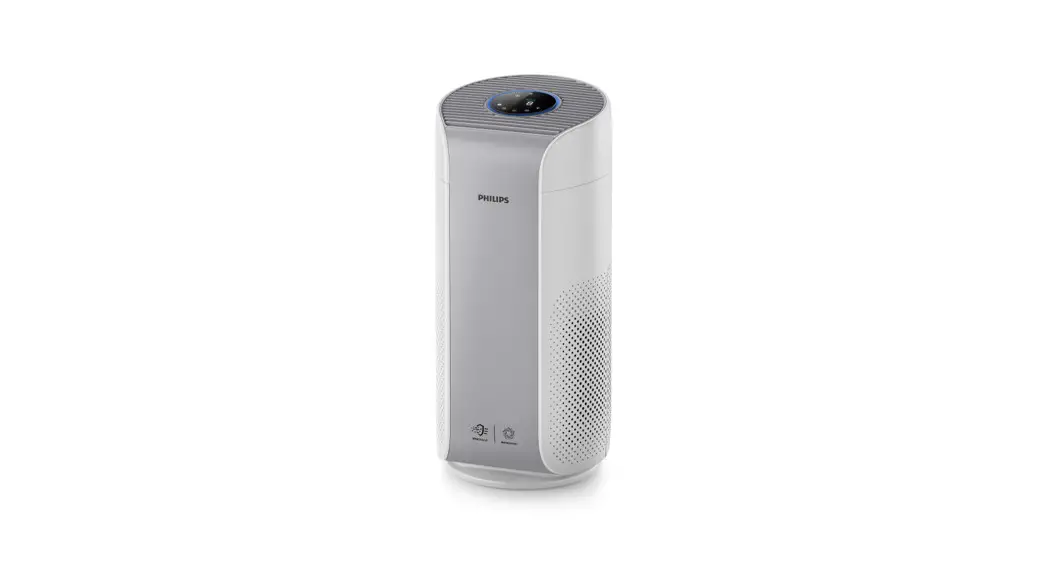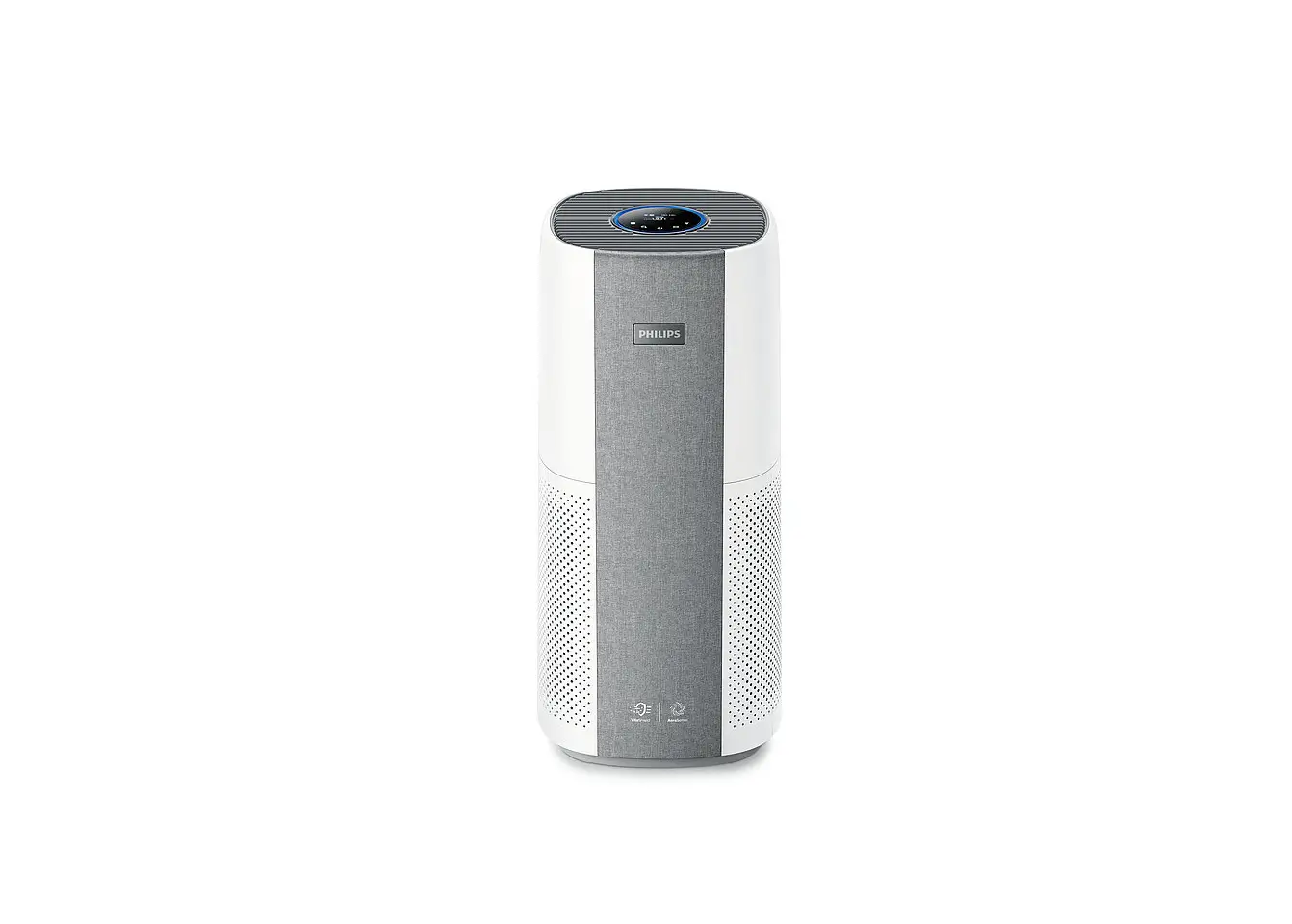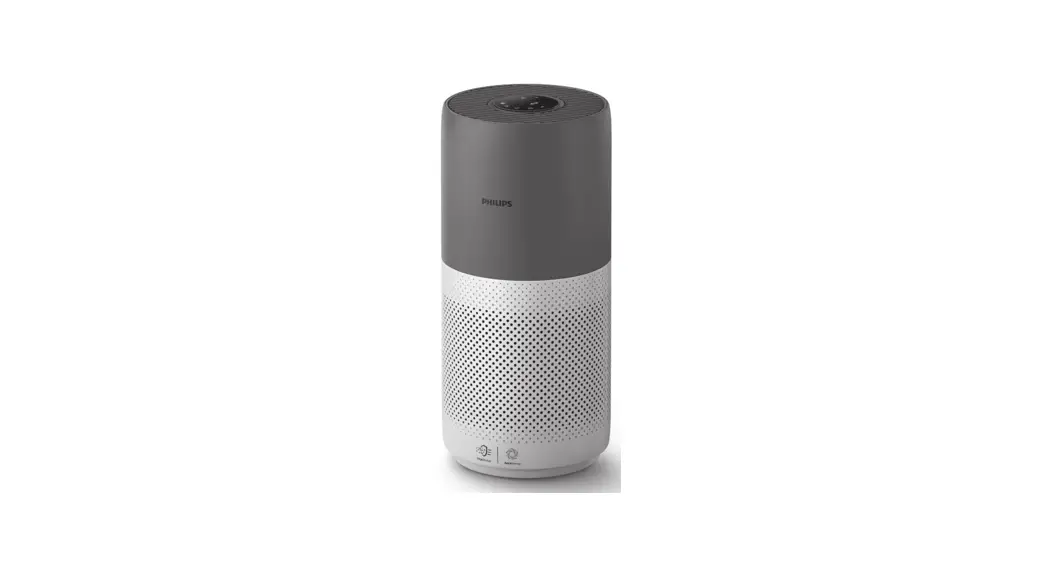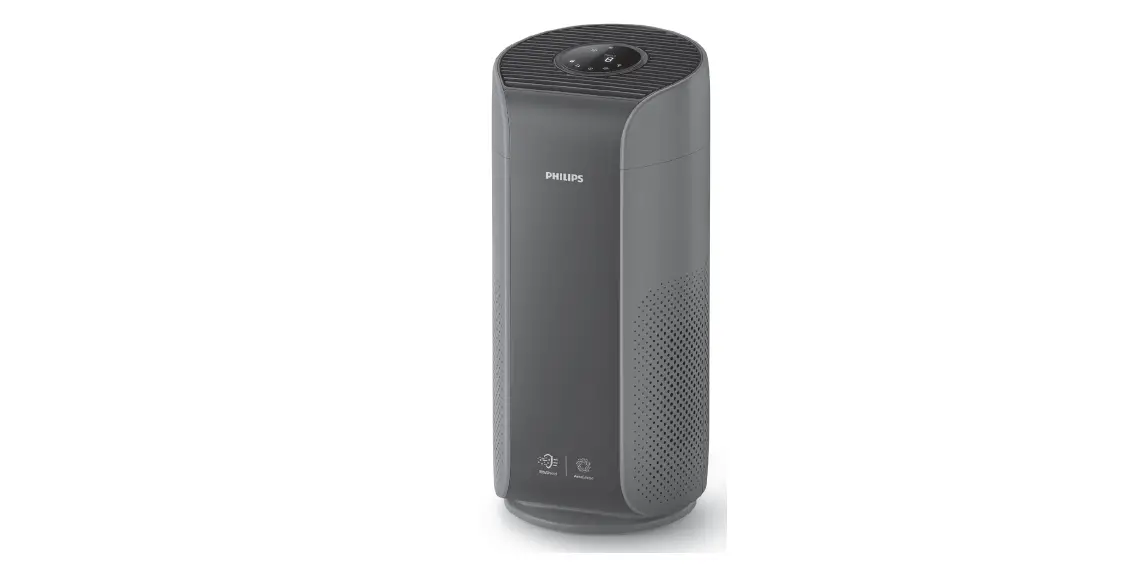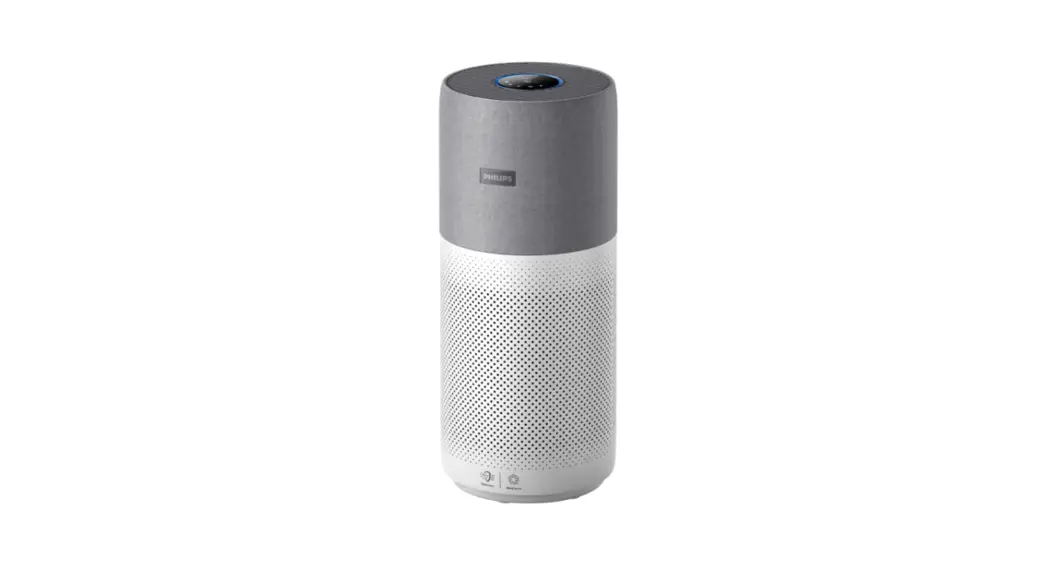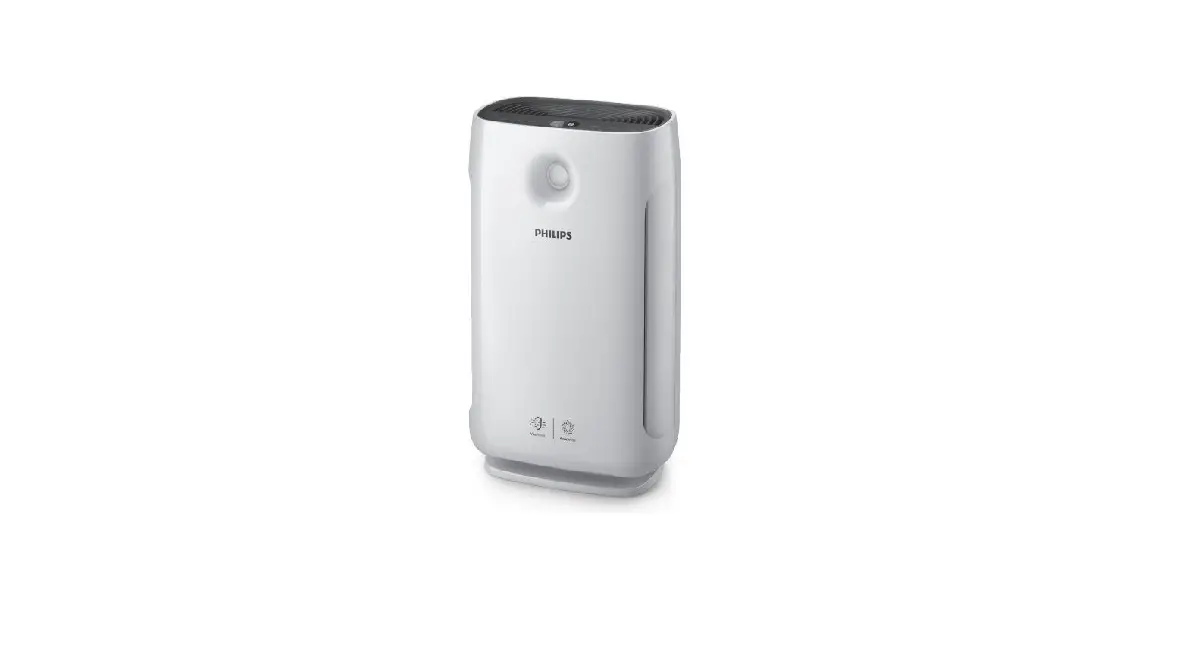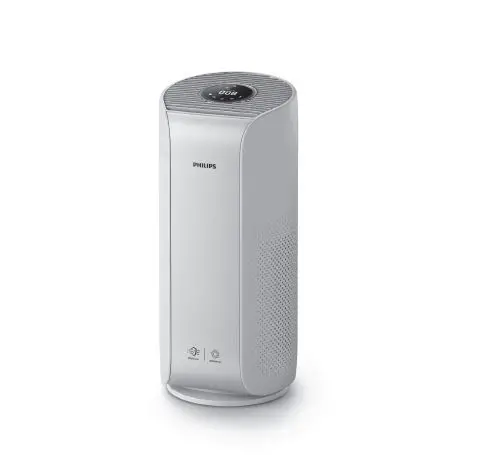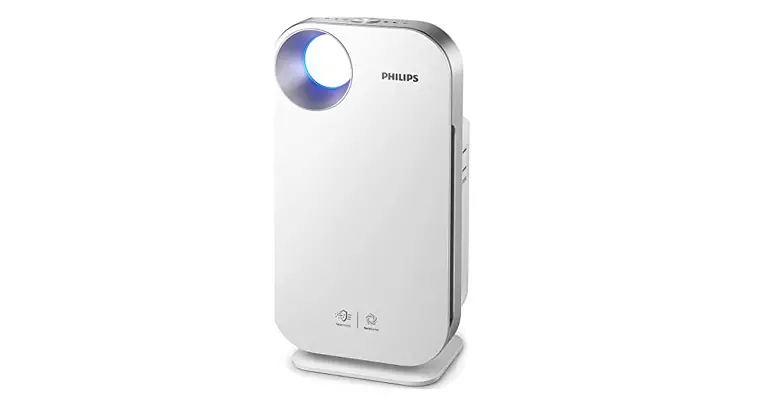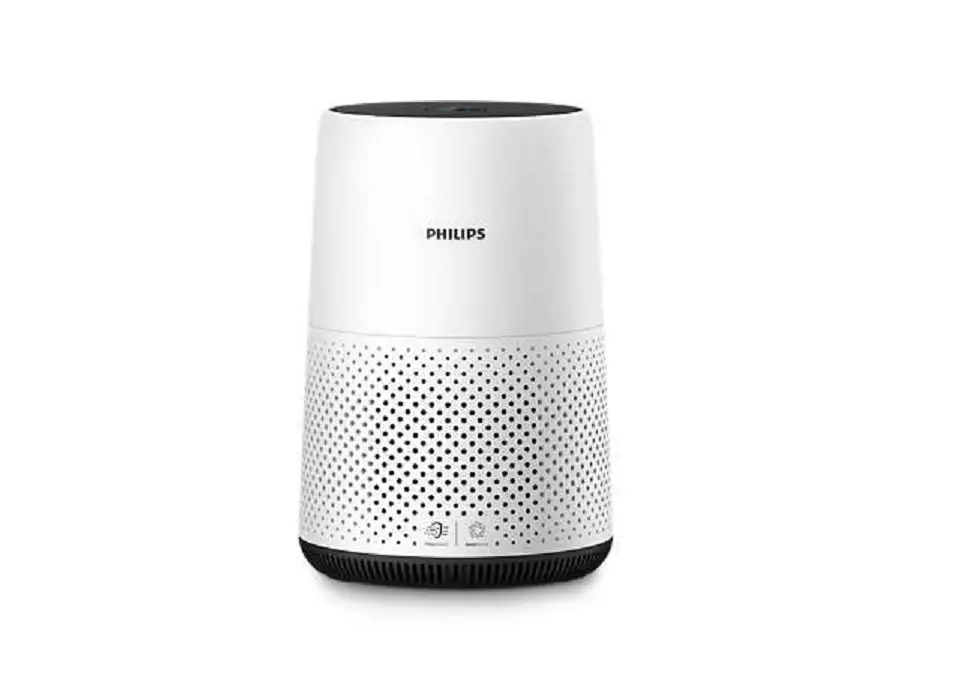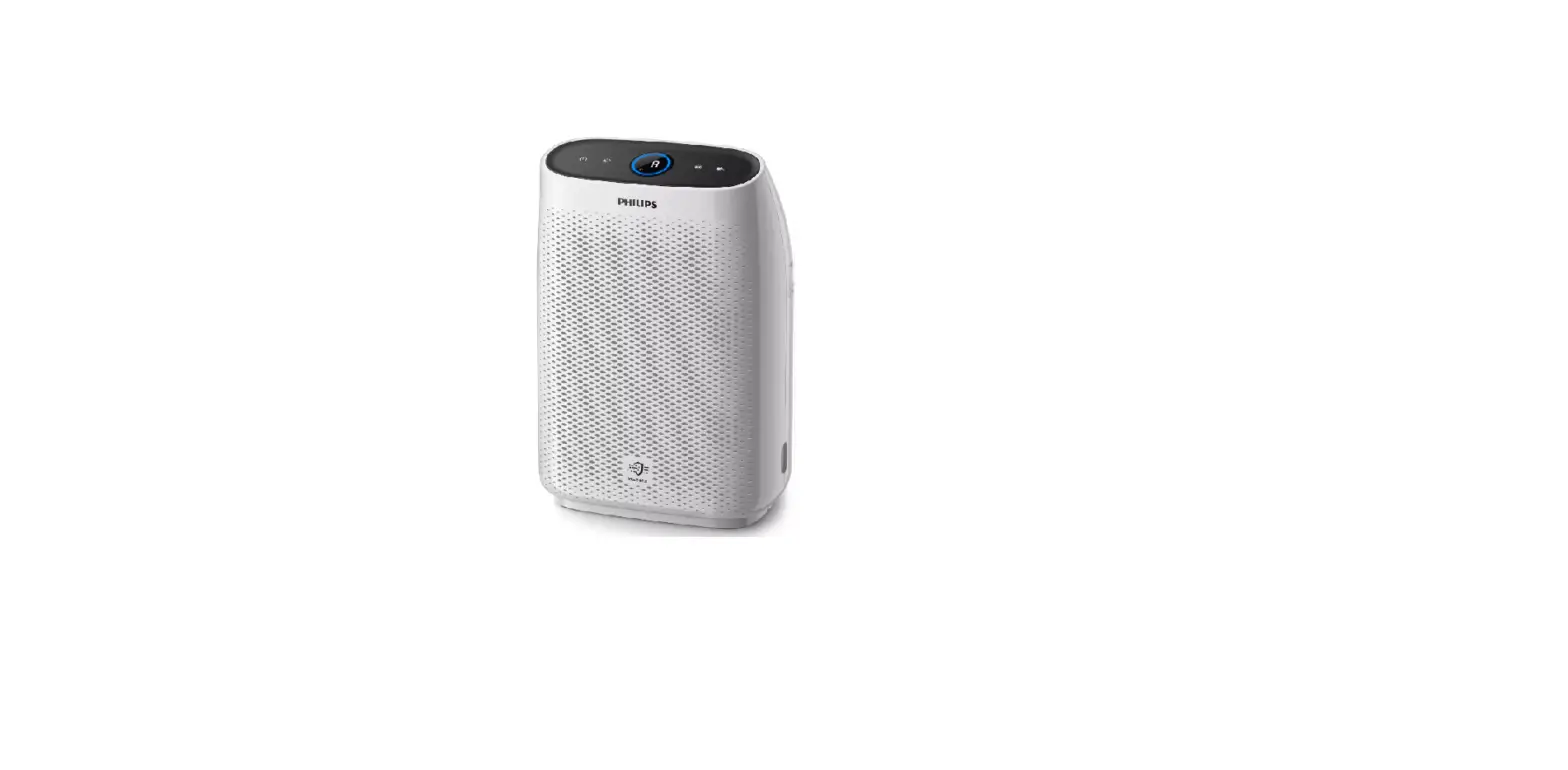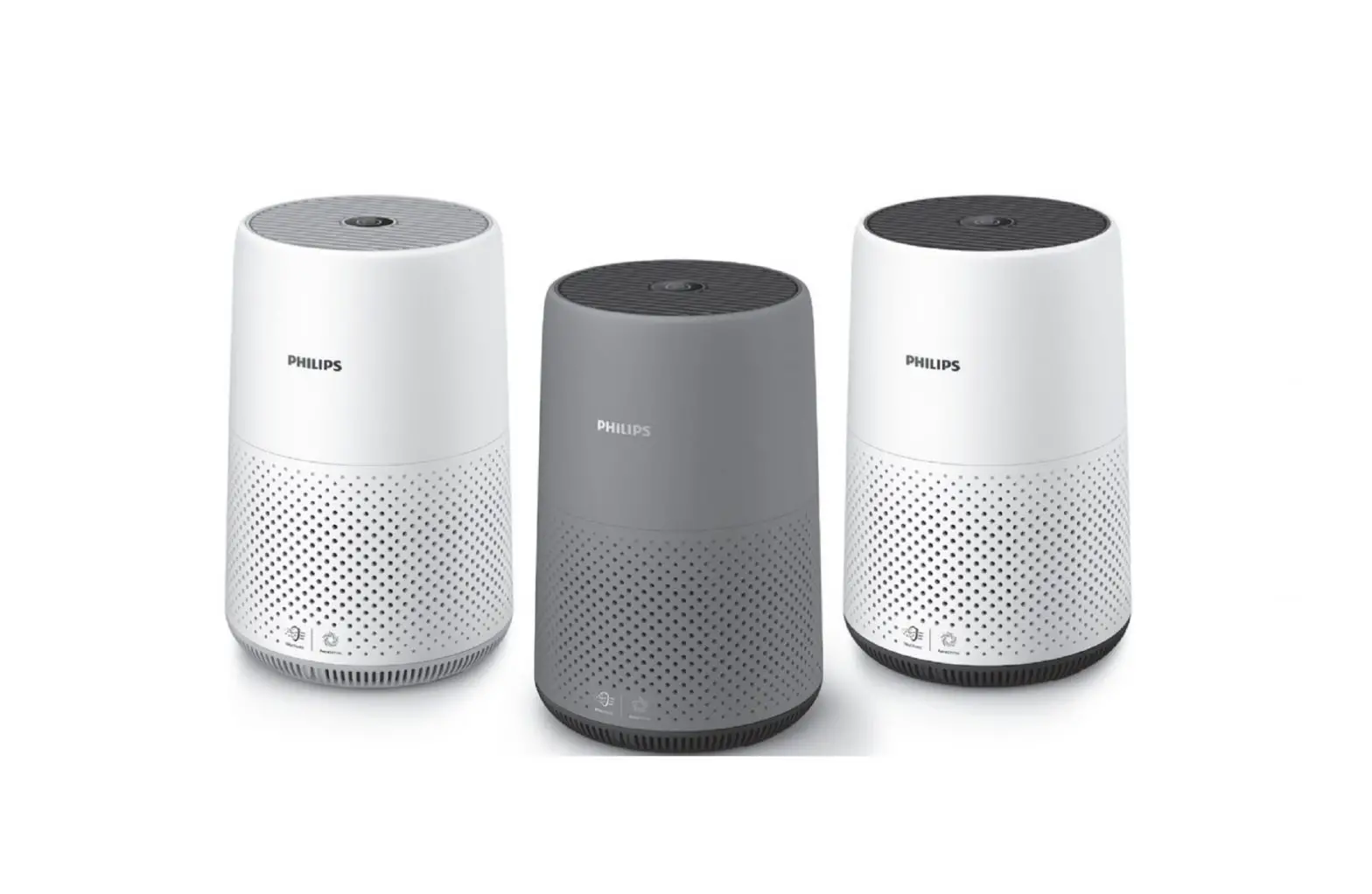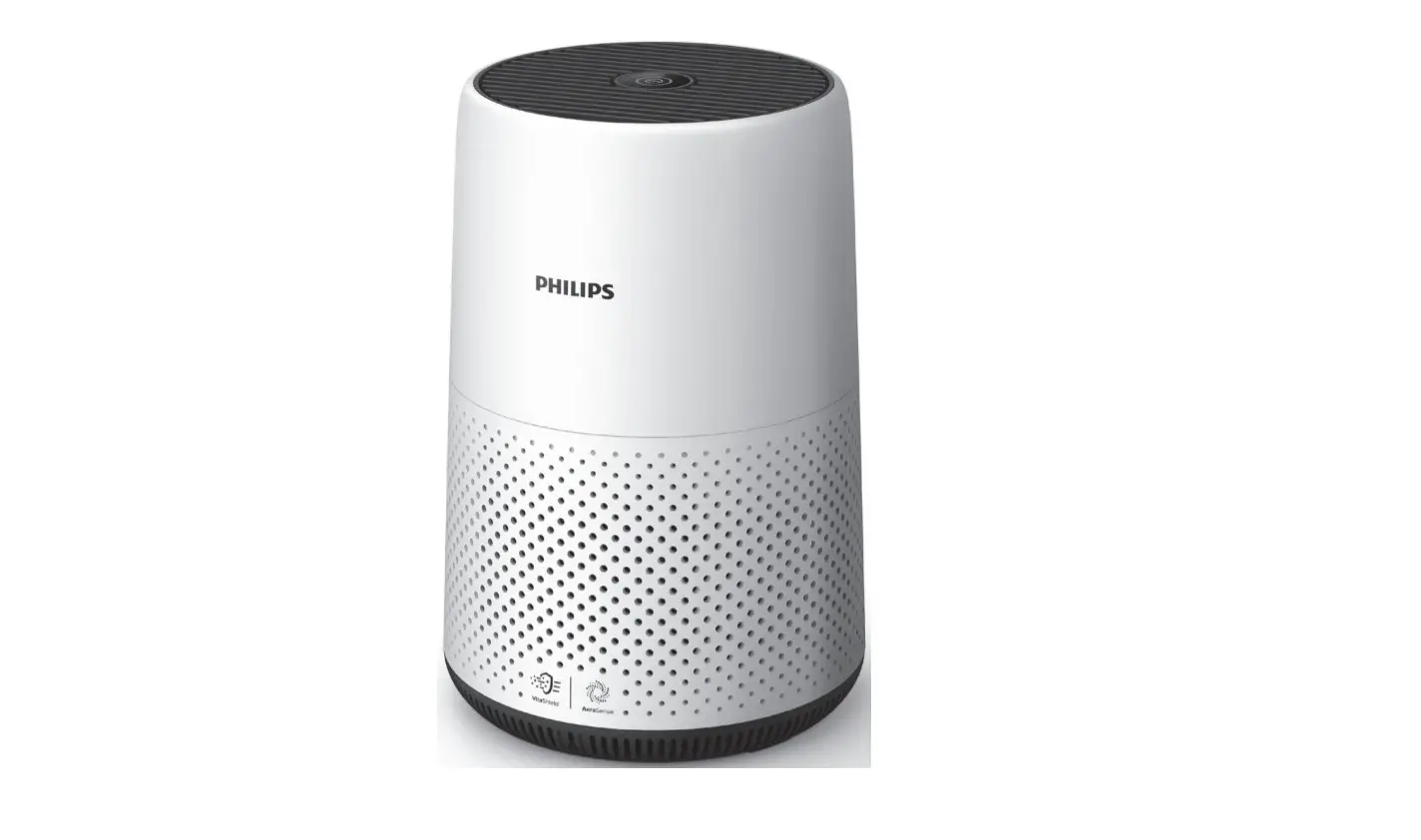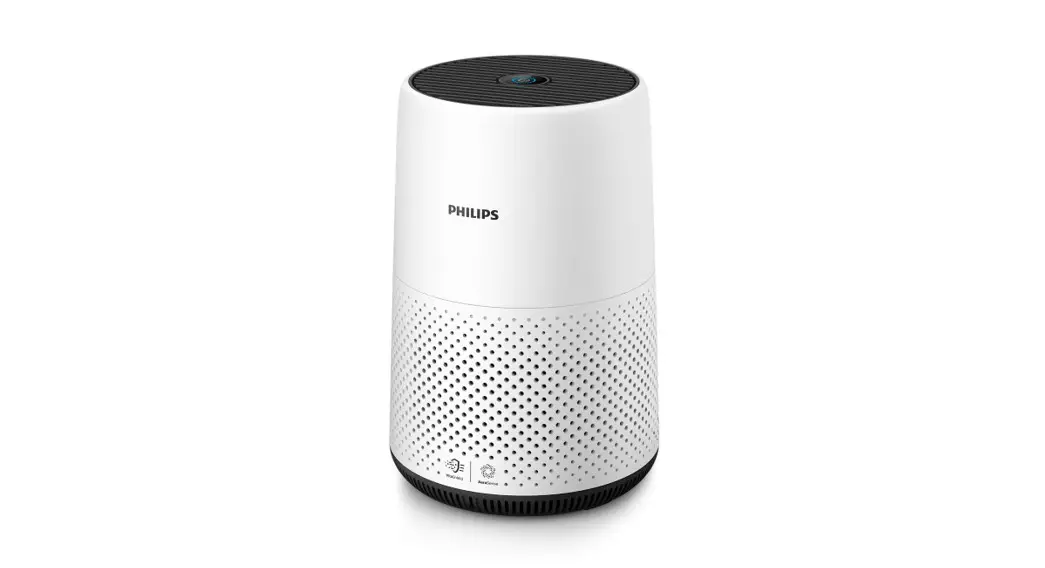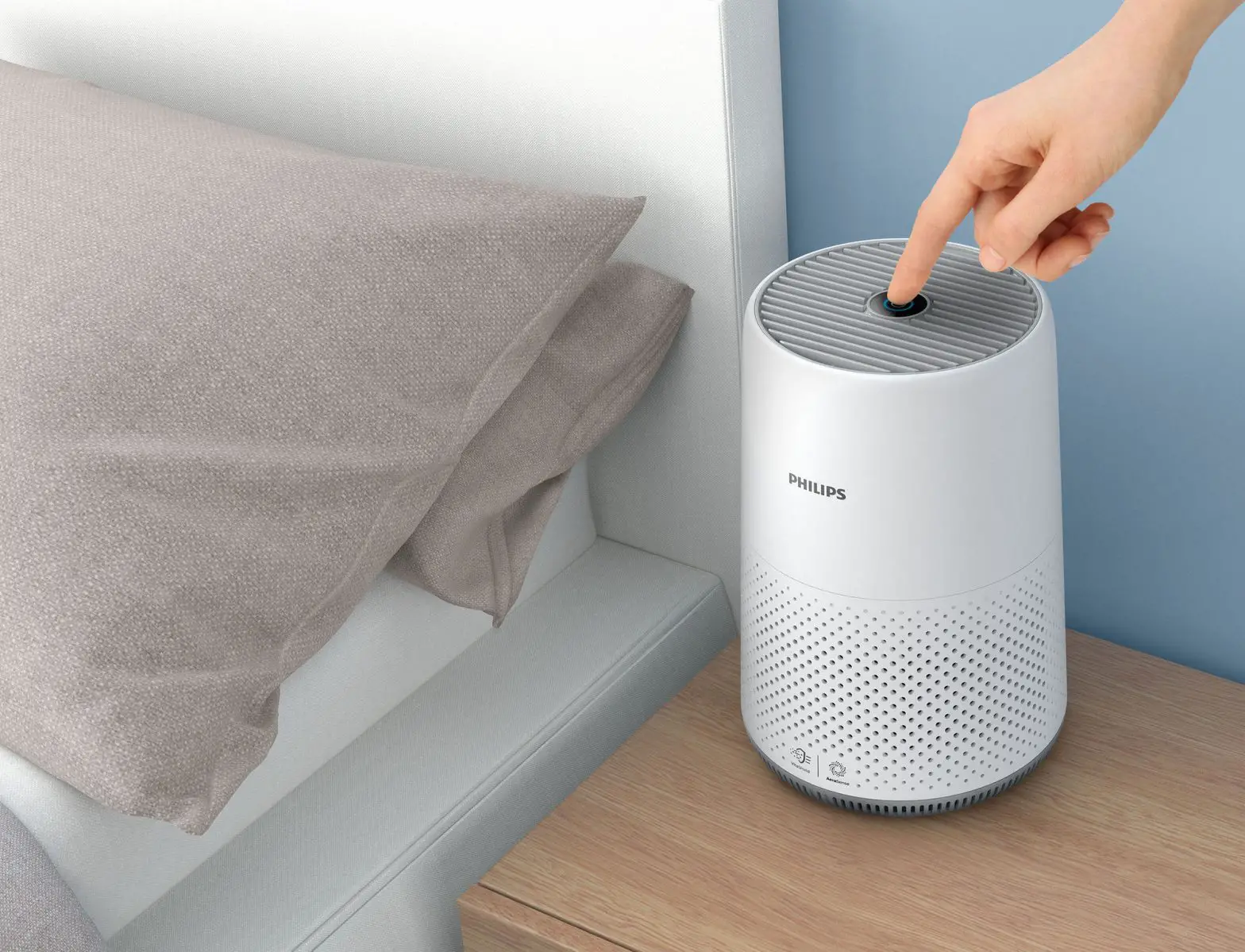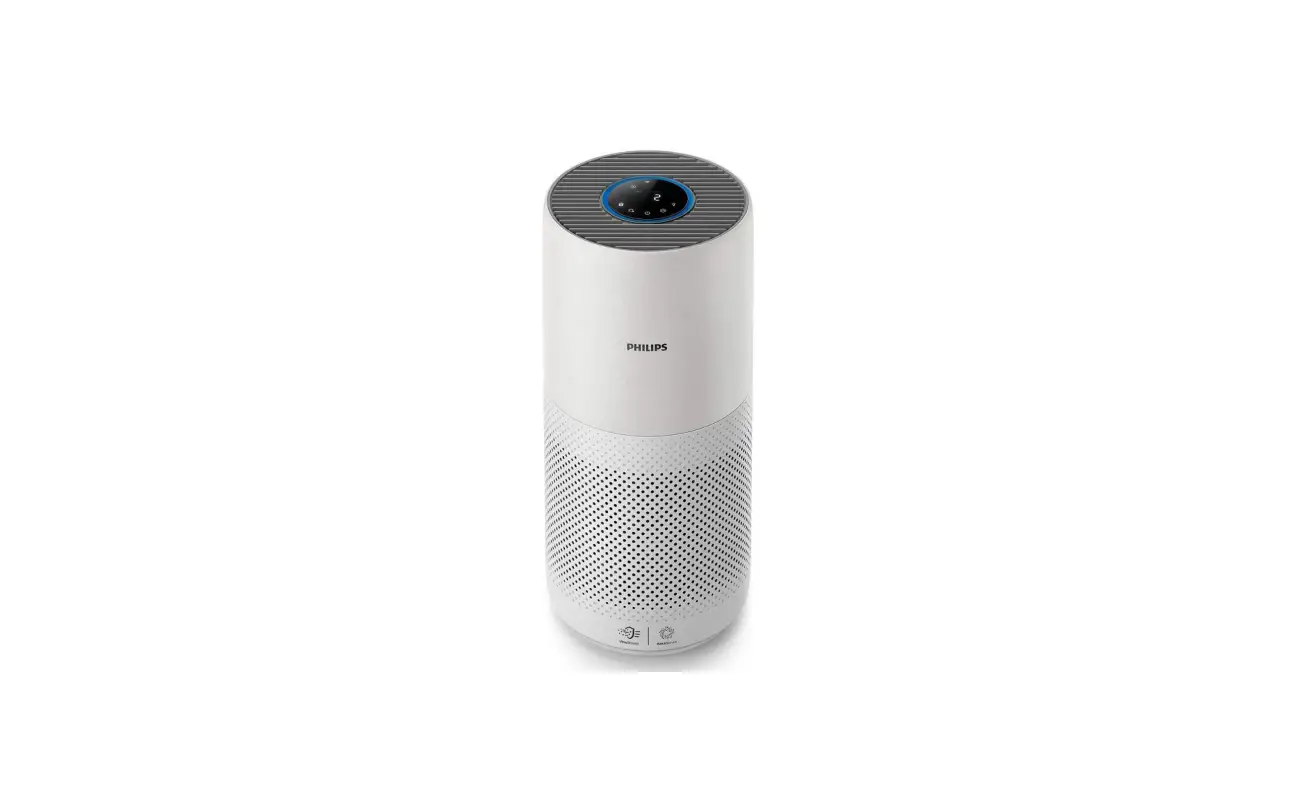
PHILIPS AC2939 Air Purifier Instruction Manual
Your air purifier
Congratulations on your purchase of air cleaner AC2939.
To fully benefit from the support that Philips offers, register your product at www.philips.com/welcome.
Product overview
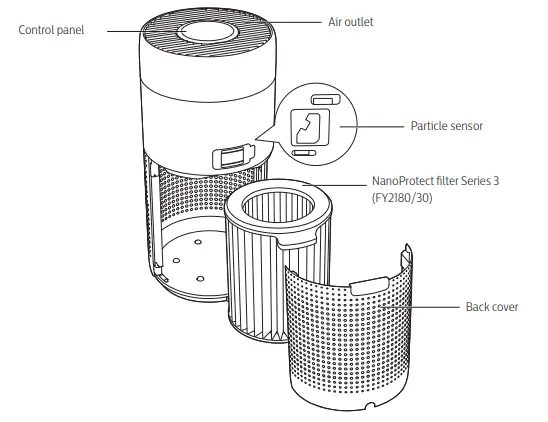
Controls overview
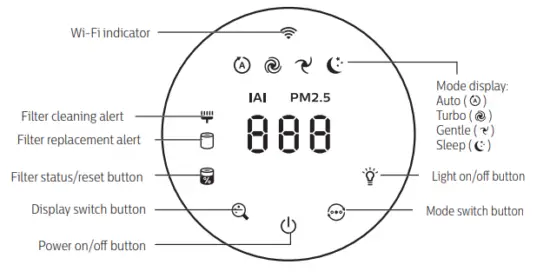
Getting started
Installing the filter
Note: Make sure the air purifier is unplugged from the electrical outlet before installing the filter.
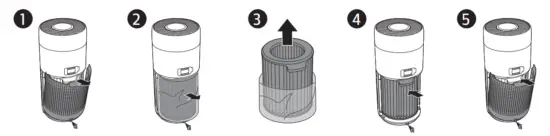
- Pull the back cover and remove it from the appliance.
- Pull the filter from the appliance.
- Remove all packaging materials of the air purification filter.
- Put the filter back into the appliance.
- Reattach the back cover.
Wi-Fi indicator
| Wi-Fi icon status | Wi-Fi connection status |
| Blink in orange | Connecting to the smartphone |
| Blink in white | Connecting to the router |
| Stable in white | Connected to the router |
| Off | Wi-Fi function disabled |
Wi-Fi connection
Note
- Corporate/Enterprise networks (e.g. certificates, network profiles) are not supported. We recommend setting up the Philips Air Purifiers on a dedicated network created for IoT devices or WPA2-Personal networks.
- Configuration details are provided in the Clean Home+ app (e.g. Mac address) to help set-up on managed networks.
First time connection
- Download and install the Philips “Clean Home+” app from the App Store or Google Play.
- Connect your smartphone or tablet to your Wi-Fi network.
- Launch the “Clean Home+” app and click on “Connect a New Device” or press the “+” button on the top of the screen. Follow the onscreen instructions to connect the air purifier to your network.

Reset the Wi-Fi connection
- Touch
 and
and  for 3 seconds until you hear a beep.
 The Wi-Fi indicator
  blinks orange.
 - Follow the steps 3 in “First time connection” section
 for 3 seconds until you hear a beep.
 The Wi-Fi indicator
  blinks orange.
Note
Enterprise/Additional webpage authentication networks are not supported.
Please check www.philips.com/cleanhome for the latest update of supported Operation System and devices.
Using the air purifier
Air quality light
After approximately 30 seconds, the particle sensor selects the color that corresponds to the surrounding air quality of airborne particles.
Note: The color of the air quality light is determined by the highest risk index among PM2.5, IAI and readings. PM2.5 refers to airborne particle pollutants smaller than 2.5 micrometers.
| PM2.5 level | Air quality light color | Air quality level |
| £35 | Blue | Good |
| 36-75 | Blue-purple | Fair |
| 76-115 | Purple-red | Poor |
| >115 | Red | Very poor |
IAI refers to the level of indoor air allergen.
| IAI level | Air quality light color | Air quality level |
| 1-3 | Blue | Good |
| 4-6 | Blue-purple | Fair |
| 7-9 | Purple-red | Poor |
| 10-12 | Red | Very poor |
Turning on and off
Note
Put the plug of the air purifier in the power socket.
If the purifier stays connected to the electrical outlet after turning OFF, the air purifier will operate under the previous settings when turned ON again.
- Touch
 to switch on the air purifier.
- The air purifier operates in the Auto mode with PM2.5 displayed on the screen

- The “
 ” displays on the screen during warming up. Then the air purifier shows the PM2.5/IAI level after measuring the air quality.
- Touch and hold the button for 3 seconds to switch off the air purifier.

 to switch on the air purifier.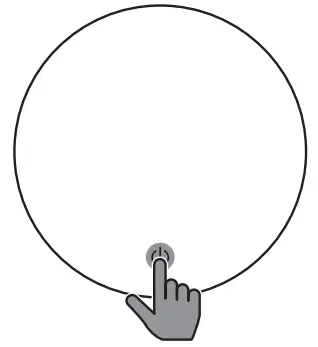
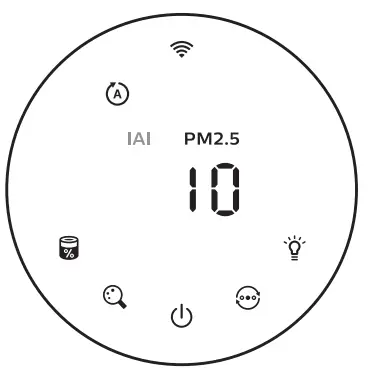
 ” displays on the screen during warming up. Then the air purifier shows the PM2.5/IAI level after measuring the air quality.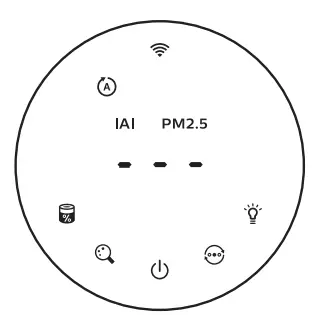
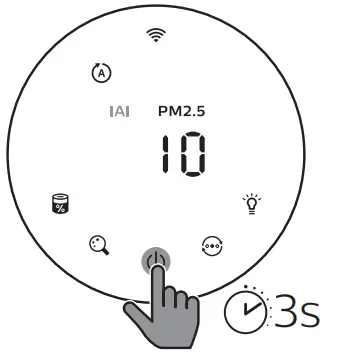
Changing the mode setting
You can choose Auto mode, Turbo mode, Gentle mode or the Sleep mode by touching the  button.
Auto mode ( ): The air purifier automatically adjusts the fan speed in accordance with the ambient air quality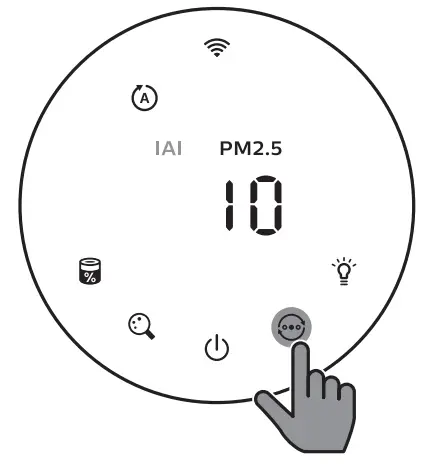
Gentle mode ( ): The air purifier operates at a low speed.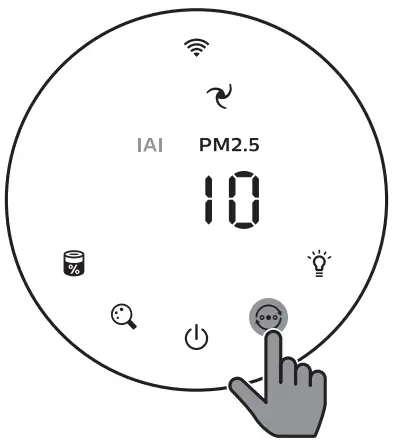
Turbo mode ( ): The air purifier operates on the highest speed.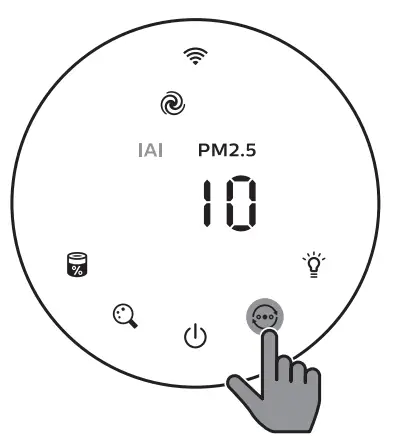
Sleep mode (  ): The air purifier operates quietly at a low speed. After 3 seconds, the screen lights off.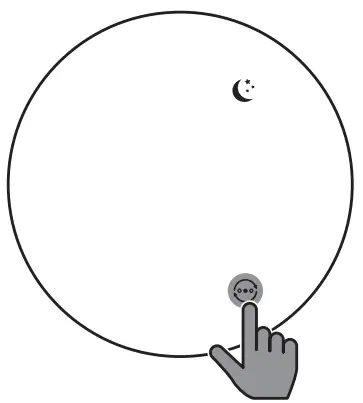
Switching the display indicator
Note
- The appliance display PM2.5 level by default.


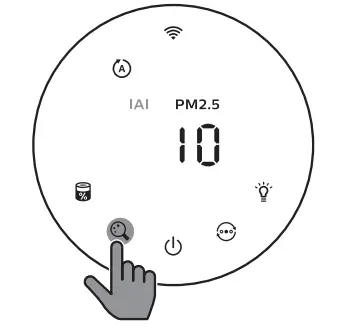
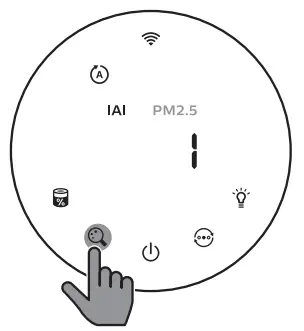
Using the light on/off function
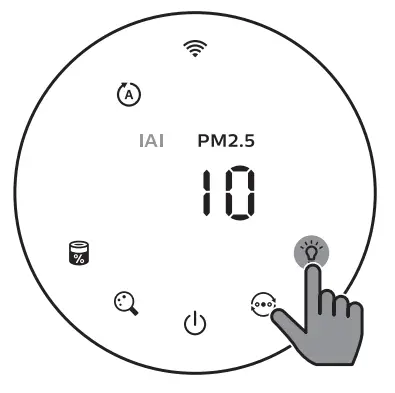
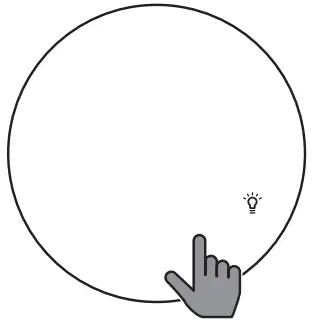
You can touch the light on/off button  manually to turn off all lights and the control panel. Touch any button to wake up all lights.
With the light sensor:
- The control panel can automatically turn on, turn off or dim according to the ambient light.
- The control panel will be off or dim when the ambient light is dark.
You can touch any button to wake up all lights. If no further operation, all lights will be off or dim again to match with the ambient light.
Setting the child lock
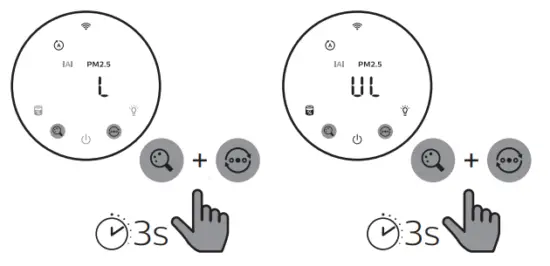
- Touch and hold
 and button for 3 seconds to activate child lock. displays on the screen, only and button light up. After 3 seconds, the screen goes back to normal display.
 - Touch and hold and button for 3 seconds again to deactivate child lock. » displays on the screen for 3 seconds and goes back to normal display. » All buttons light up.
 and
and Checking the filter status
Touch the filter status check/reset  button to check the filter service life status.
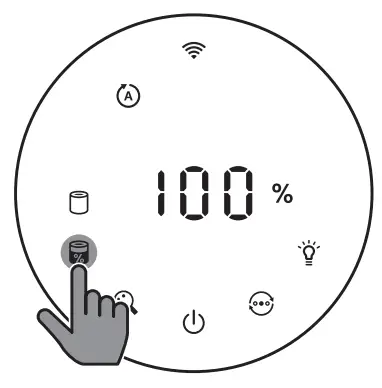
| Icon color | Display (%) |
| Blue | 16-100 |
| Blue-purple | 9-15 |
| Purple-red | 4-8 |
| Red | 0-3 |
Note: The appliance goes back to normal display if no operations after 3 seconds.
Cleaning and maintenance
Note:
- Do not attempt to clean the particle sensor with a vacuum cleaner.
- Switch off the air purifier and unplug from the power socket before following action
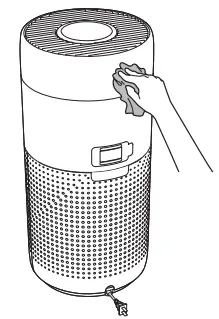
Cleaning the body of the air purifier
Use a soft, dry cloth to clean both the interior and exterior of the airpurifier and the air outlet.
Cleaning the particle sensor
Clean the particle sensor every 2 months for optimal functioning of the appliance.
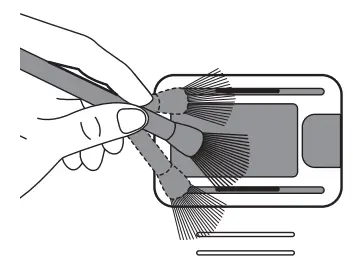
- Clean the particle sensor inlet and outlet with a soft brush.

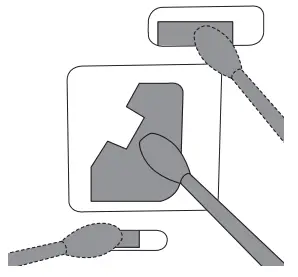
- Clean the particle sensor with a damp cotton swab. Dry all parts thoroughly with a dry cotton swab.

Cleaning the surface of the filter
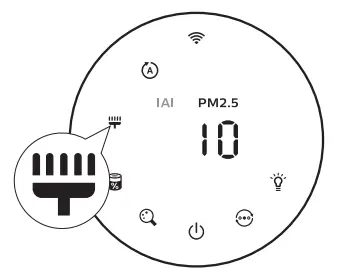
Clean the surface of filter with vacuum cleaner when the filter cleaning alert  display on the screen
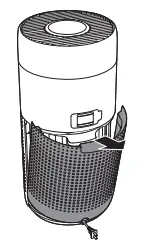
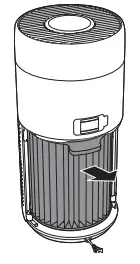
- Pull the back cover and remove it from the appliance.

- Pull the filter from the appliance.

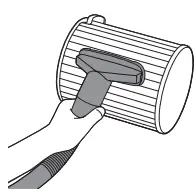
- Clean the surface of the filter with a vacuum cleaner.

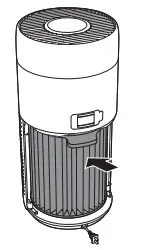
- Put the filter back into the appliance.

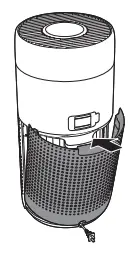
- Reattach the back cover. 3s

- Touch the button to switch on the appliance.
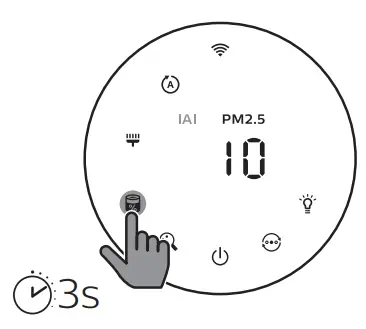
- Touch and hold the filter status check/reset button
 for 3 seconds to reset the filter cleaning time.
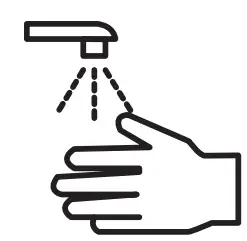
- Wash your hands thoroughly after cleaning the filter.

Replacing the filter
Note
- The filter is not washable or reusable.
- Do not smell the filter as it has collected pollutants from the air.
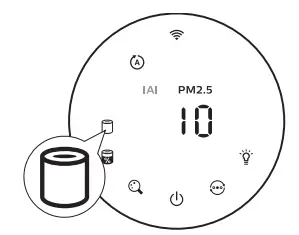
When the filter need to be replaced, the filter replacement alert  lights up red.
- Replace the filter with Philips NanoProtect filter Series 3 (FY2180/30) , Please follow the step of Chapter “Installing the filter”.

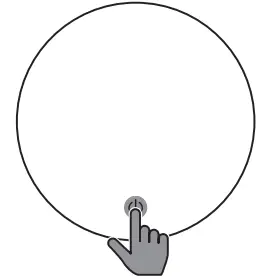
- Touch the button to switch on the appliance

- Touch and hold the filter status check/reset button for 3 seconds to resetthe filter replacement time.
- Wash your hands thoroughly after replacing the filter.
Filter reset
You can also replace the filter before filter replacement alert () displays on the screen. After replacing a filter, you need to reset the filter lifetime counter manual
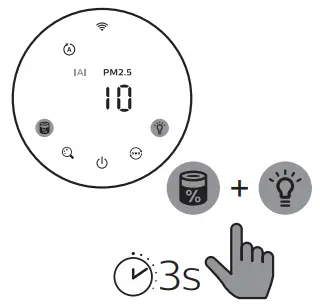
- Touch the power button for 3 seconds to turn off the appliance and unplug from power socket.
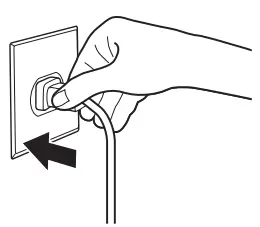
- Put the power plug in the power socket.

- Within 15 seconds after power on, touch and hold and
 button for 3 seconds to reset the filter lifetime counter.
Storage
- Turn off the air purifier and unplug from the power socket.
- Clean the air purifier, particle sensor and the surface of the filter (see chapter “Cleaning and maintenance”).
- Let all parts air dry thoroughly before storing.
- Wrap the filter in air tight plastic bags.
- Store the air purifier, filter in a cool, dry location.
- Always thoroughly wash hands after handling filters.
Troubleshooting
This chapter summarizes the most common problems you could encounter with the appliance. If you are unable to solve the problem with the information below, contact the Consumer Care Center in your country.
| Problem | Possible solution |
| The appliance does not work properly |
|
| The airflow that comes out of the air outlet is significantly weaker than before |
|
| The air quality does not improve, even though the appliance has been operating for a long time. |
|
| The color of the air quality light always stays the same. |
|
| The appliance produces a strange smell. |
|
| The appliance is extra loud. |
|
| The appliance still indicates that I need to replace a filter, but I already did. |
|
| Error code “E1” displays on the screen. |
|
| The Wi-Fi setup is not successful. |
|
 Philips - United States | Philips