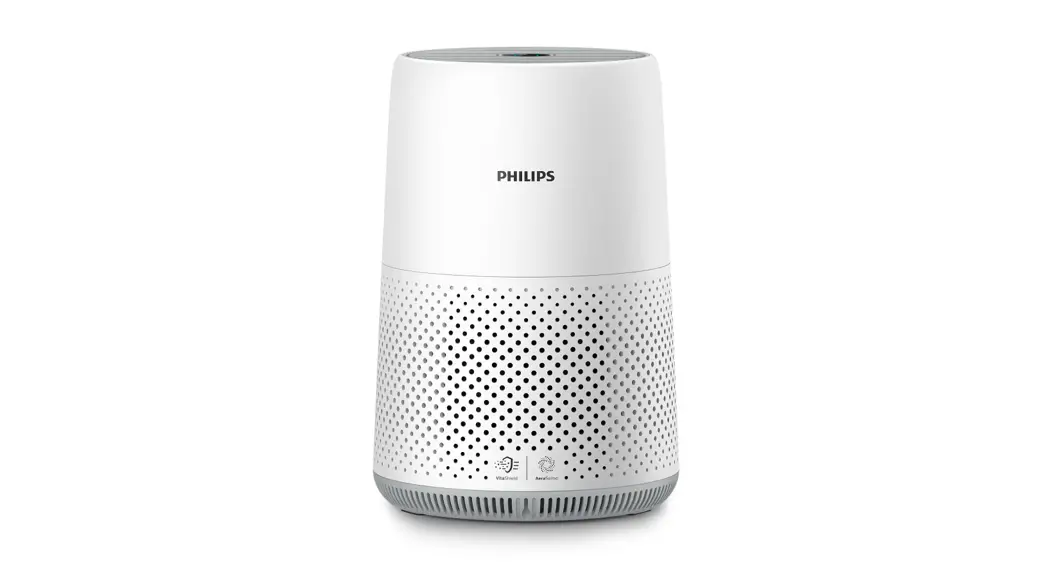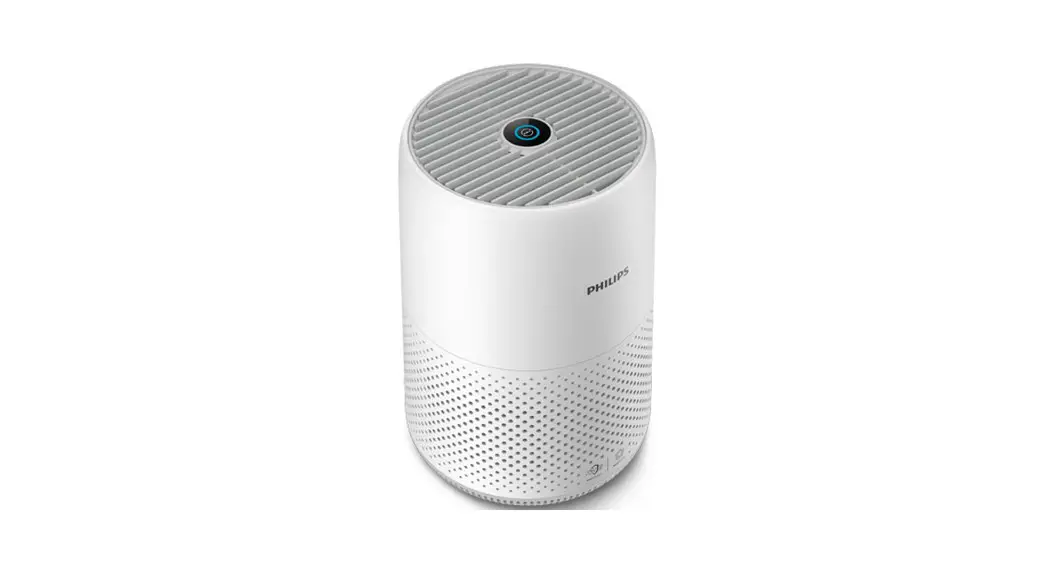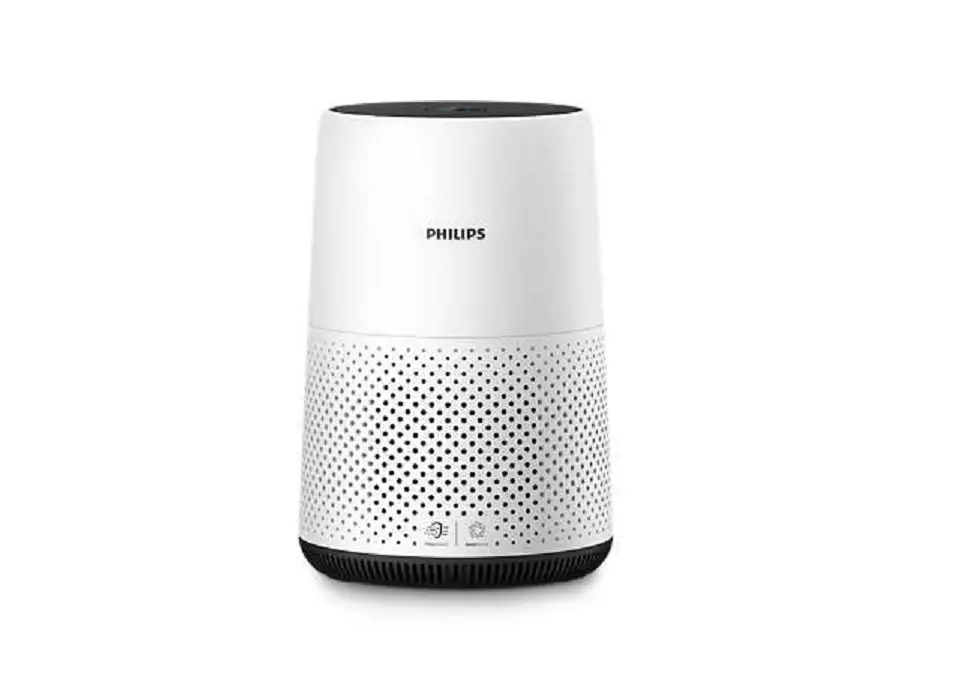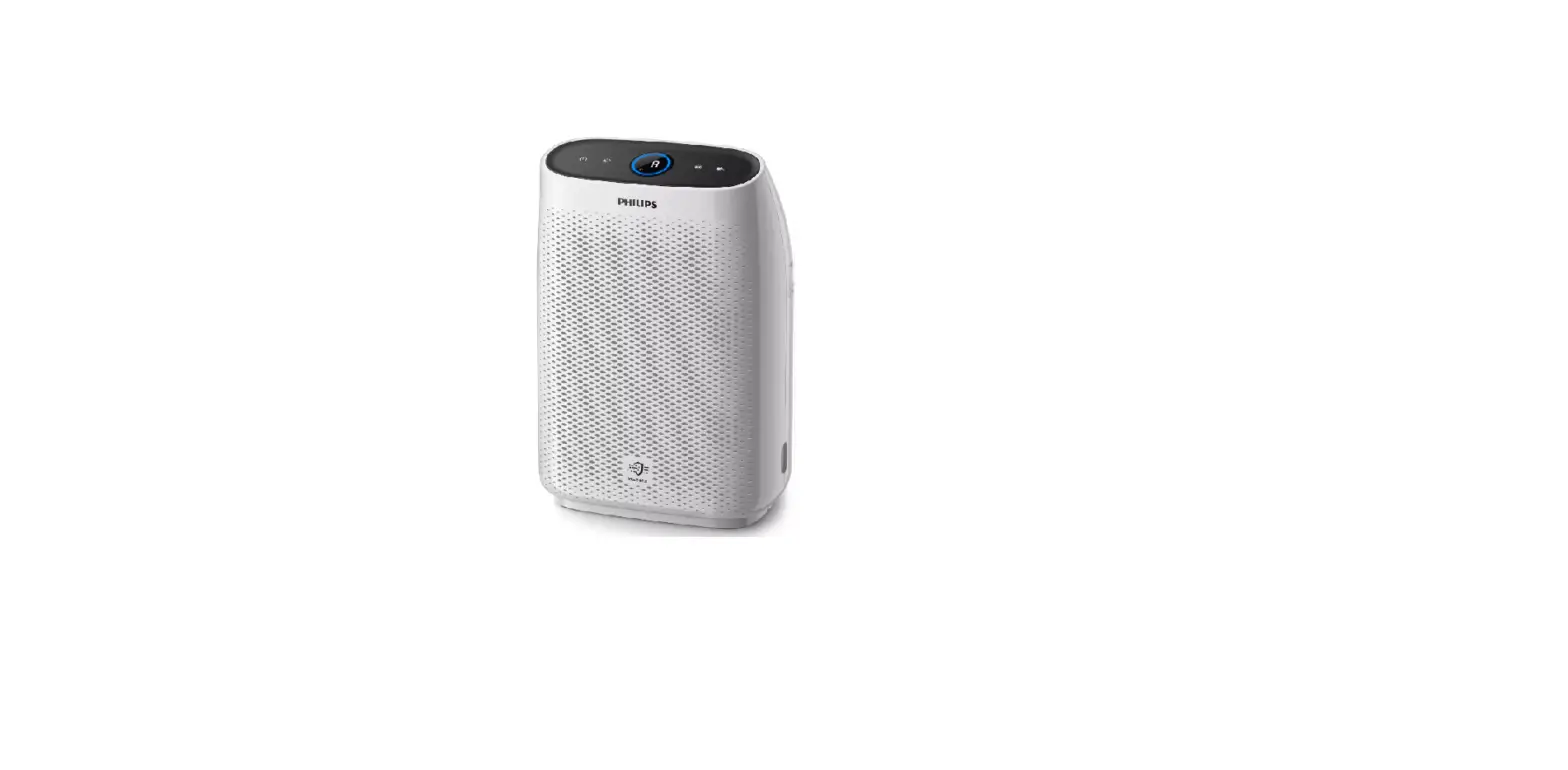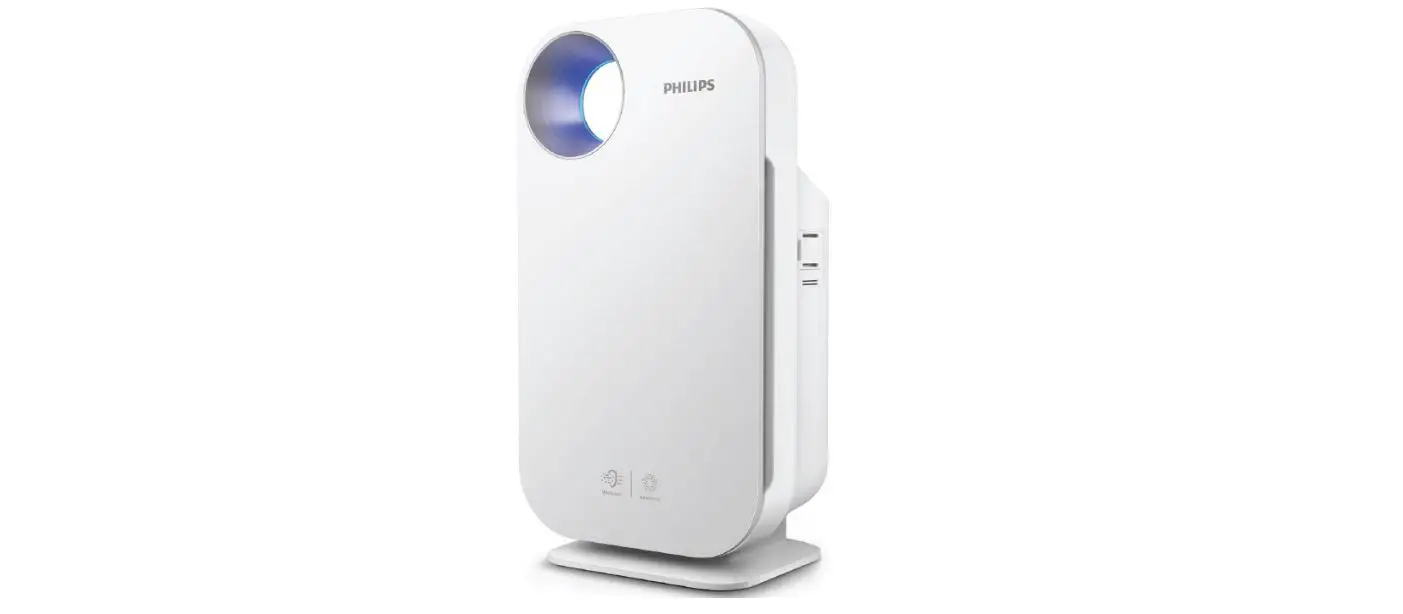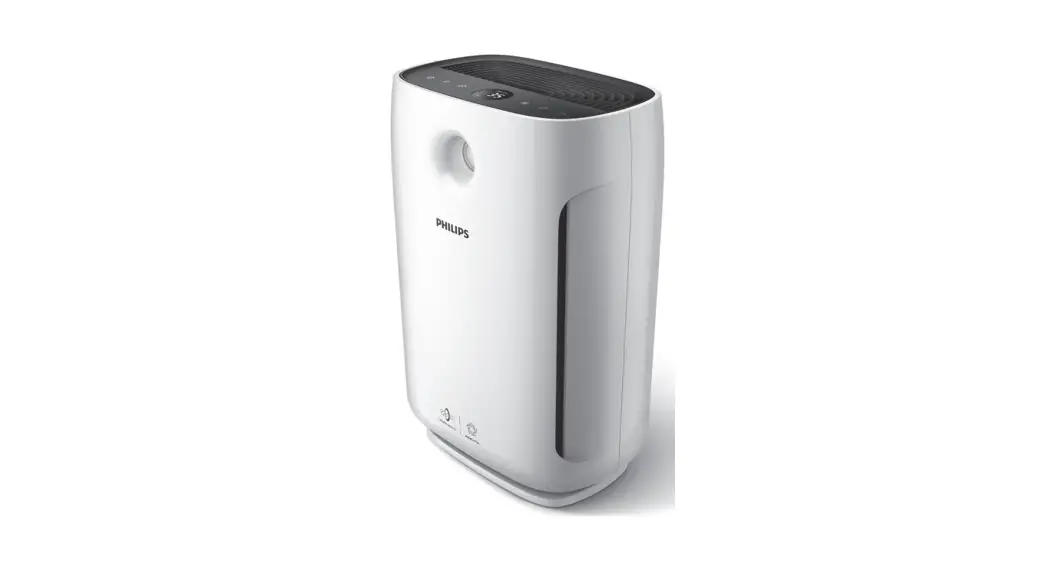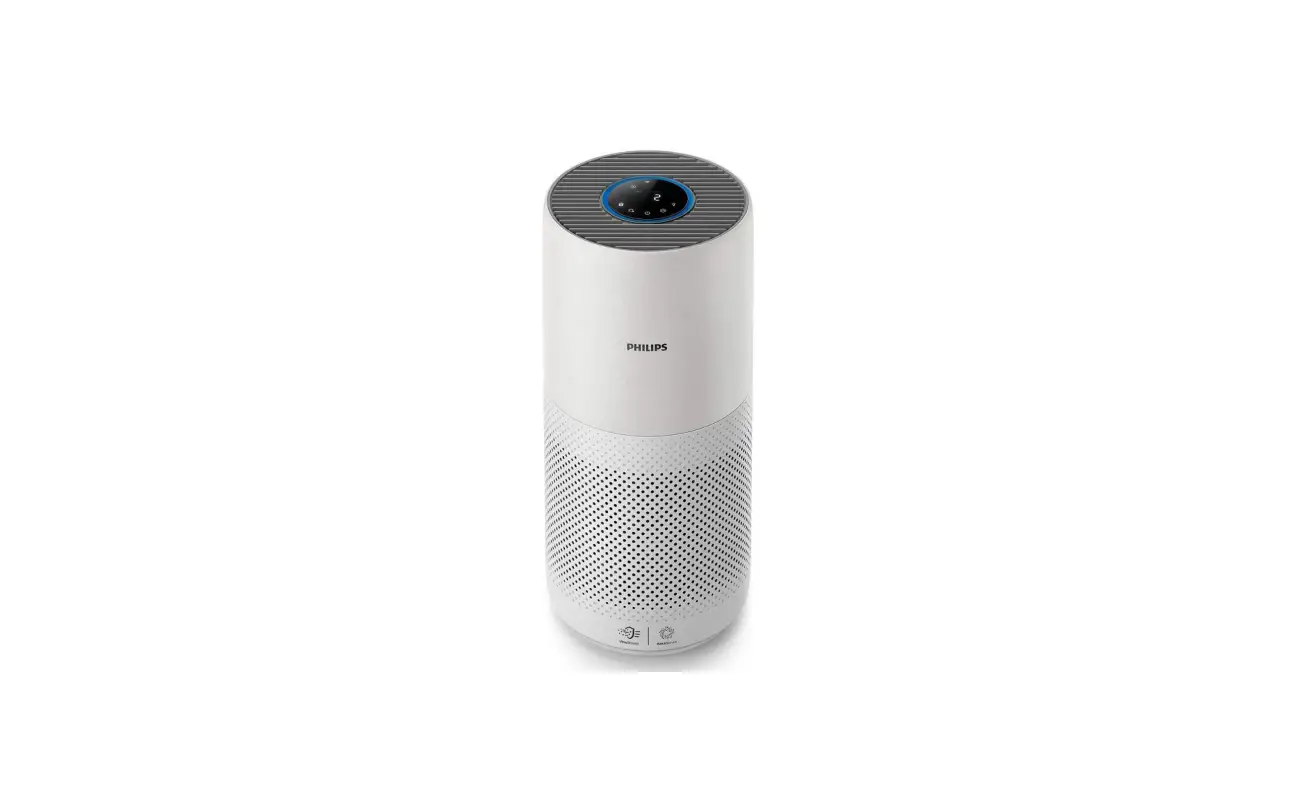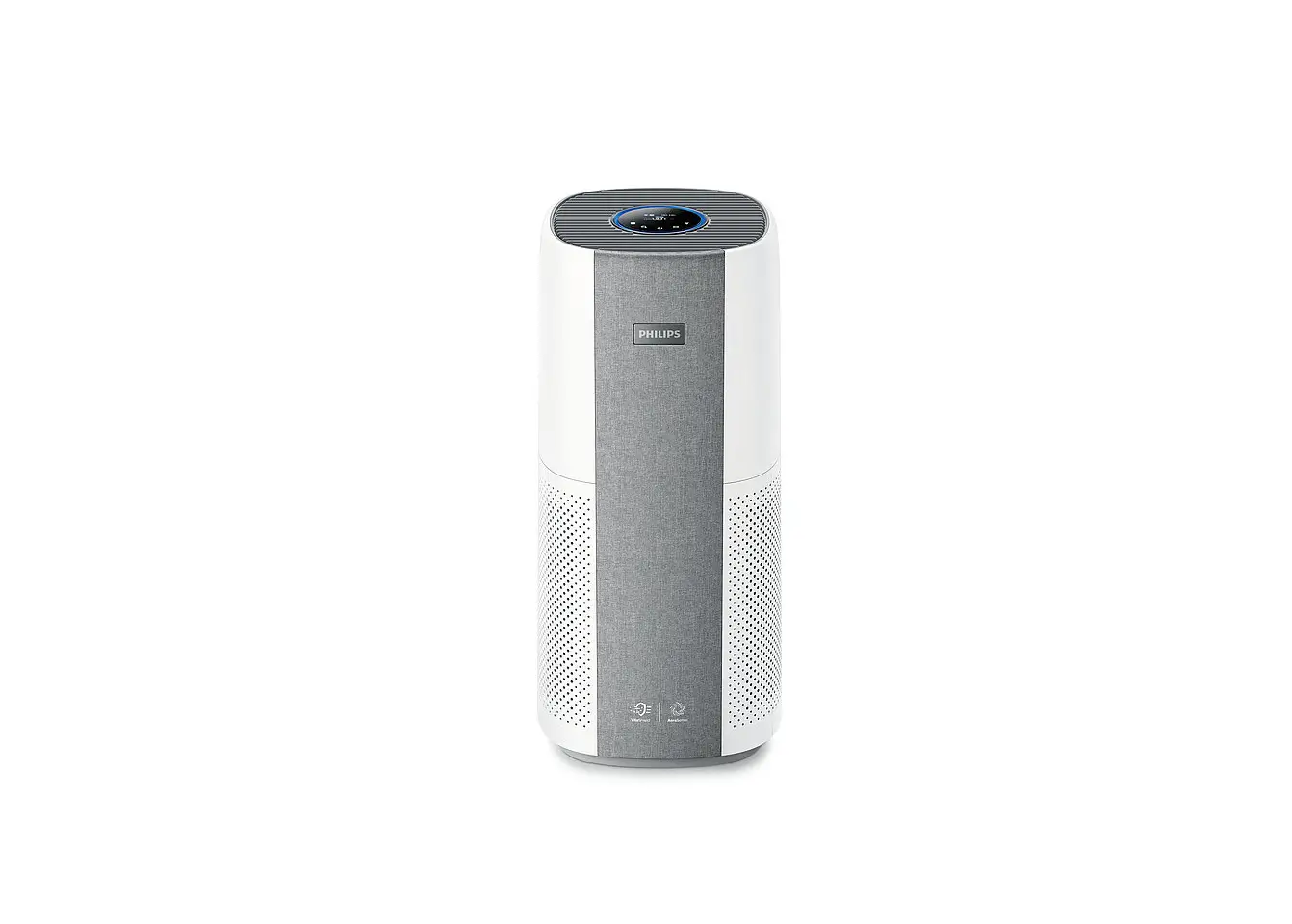
PHILIPS Air Purifier AC3998 User Manual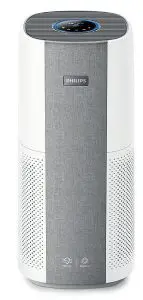
Your air purifier
Congratulations on your purchase, and welcome to Philips!
To fully benefit from the support that Philips offers, register your product at www.philips.com/welcome.
Product overview
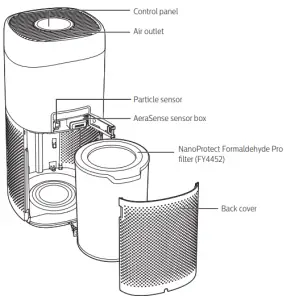
Controls overview
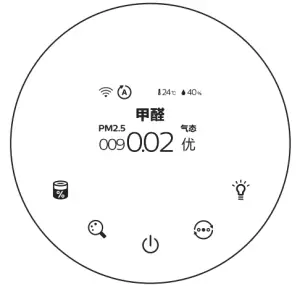
Control buttons
 | Filter status/reset button |  | Display switch button |
 | Power on/off button |  | Mode switch button |
 | Light on/off button |
Display panel
 | Wi-Fi indicator |  | Auto mode |
 | Turbo mode |  | Gentle mode |
 | Sleep mode |  | Formaldehyde display* |
 | Indoor Allergen Index (IAI) display |  | Gas pollution display* |
 | PM2.5 display |  | Filter cleaning alert |
 | Filter replacement alert | 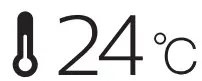 | Temperature indication* |
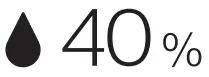 | Humidity indication* |
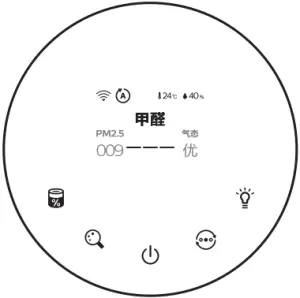
The indicator shows “—” if no AeraSense sensor box is installed or installed improperly.
Getting started
Installing the filter
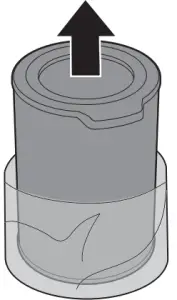
Remove all packaging of the filter before first use.
Note: Make sure the air purifier is unplugged from the electrical outlet before installing the filter.
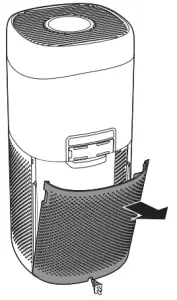
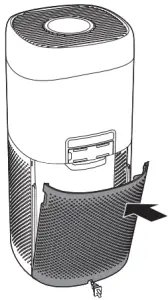
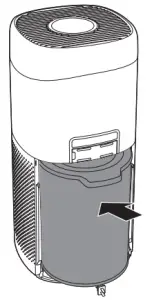
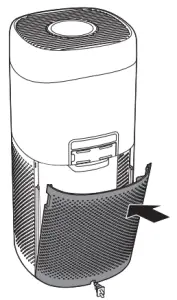
- Pull the back cover and remove it from the appliance.

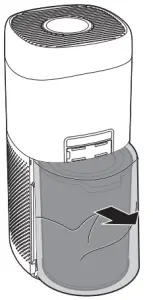
- Pull the filter from the appliance.

- Remove all packaging materials of the air purification filter.
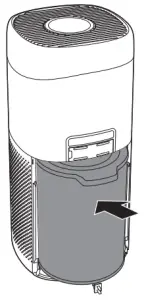
- Put the filter back into the appliance.

- Reattach the back cover.

Installing AeraSense sensor box
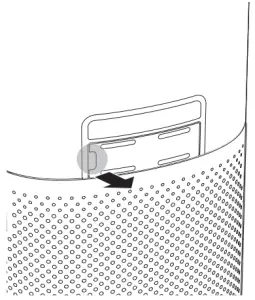
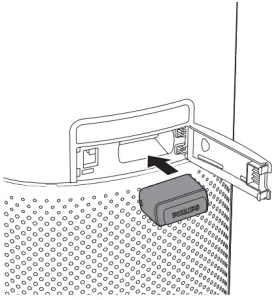
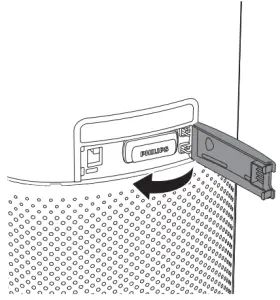
- Open the sensor cover on the back of the appliance.

- Put the AeraSense sensor box into the box.

- Close the sensor cover on the back of the appliance.
Note:
- The formaldehyde, gas and temperature/humidity readings show “—” if no AeraSense sensor box is installed or installed improperly.
- The accuracy of the AeraSense sensor box may decrease after about 2 years of usage. It is recommended to replace a new one for better experience.
- Please call customer service hotline 4008 800 008 for AeraSense sensor box purchase
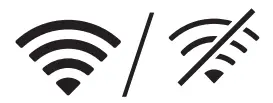
Understanding Wi-Fi indicator
| Wi-Fi icon status | Wi-Fi connection status |
| Blink in orange | Connecting to the smartphone |
| Stable in orange | Connected to the smartphone |
| Blink in white | Connecting to the server |
| Stable in white | Connected to the server |
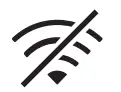 | Wi-Fi function disabled |
Wi-Fi connection
Note:
- If you want to connect more than one air purifier to your smart device, you have to do this one by one. Complete the set up of one appliance before you turn on the other appliance.
- Make sure the distance between your air purifier and Wi-Fi router is less than 10m without any obstruction.
- If the air purifier installed at room corner has a weak Wi-Fi signal, it’s recommended to set Wi-Fi booster for remote usage.
- Scan the QR code, or download the “JD Whale” App from App market, and then install the App in your smart device.

- Make sure your smart device is connected to your Wi-Fi network. Launch the App.
- Tap “+” , scan the QR code from the user manual or packing box.
- Make sure that the Wi-Fi indicator
 blinks orange. Tap Next.
Note: If the Wi-Fiindicator is not in orange, touch  and to enter
  pairing mode.
 - Fill the Wi-Fi information and tap Next to add a new device.
- After the successful pairing and connection, tap Finish.
 The Wi-Fi indicator will light up white.
 - If you want to add more smart device to connect with this air purifier, tap Settings on the top right of the App. Tap Share with family to scan the generated QR code.
- On the device which you want to connect to this appliance, download and install the “JD Whale” App, scan this QR code and follow step 1-6 to add more device.
- If the connection fails or Wi-Fi information is changed, follow step 1-6 to reconnect the Wi-Fi network.

 blinks orange. Tap Next.
 and to enter
  pairing mode.
 The Wi-Fi
Using the air purifier
Air quality light
After approximately 1 minute, the particle sensor and AeraSense sensor select the color that corresponds to the surrounding air quality.
Note: The color of the air quality light is determined by the highest risk index among formaldehyde, gas, PM2.5 and IAI readings.
Formaldehyde refers to the indoor formaldehyde concentration.
| Formaldehyde level | Air quality light color | Air quality level |
| £0�10mg/m3 | Blue | Good |
| 0�11-0�20mg/m3 | Blue-purple | Fair |
| 0�21-0�59mg/m3 | Purple-red | Poor |
| ³0�6mg/m3 | Red | Very poor |
Gas refers to the level of potential harmful gases (incl. VOC, odor, etc.).
| Gas level | Air quality light color | Air quality level |
| 优 | Blue | Good |
| 良 | Blue-purple | Fair |
| 中 | Purple-red | Poor |
| 差 | Red | Very poor |
PM2.5 refers to airborne particle pollutants smaller than 2.5 micrometers.
| PM2�5 level | Air quality light color | Air quality level |
| £35 | Blue | Good |
| 36-75 | Blue-purple | Fair |
| 76-115 | Purple-red | Poor |
| >115 | Red | Very poor |
IAI refers to the level of indoor air allergen.
| IAI level | Air quality light color | Air quality level |
| 1-3 | Blue | Good |
| 4-6 | Blue-purple | Fair |
| 7-9 | Purple-red | Poor |
| 10-12 | Red | Very poor |
Knowing the AeraSense sensor
The AeraSense sensor is consist of formaldehyde sensor, gas sensor, temperature and humidity sensor
Gas sensor:
The gas level indicated by this device refers to overall gas level indoor. The gas sensor used by the device does not monitor individual gases (for example, it can monitor multiple types of gases such as hydrogen, carbon monoxide, methane, alcohol and cooking fumes), therefore there will be a discrepancy in measurement accuracy for a particular type of gas. It is recommended to turn on the Turbo mode if there is quite a strong odor in the room.
Formaldehyde sensor:
Please avoid touching and damaging the surface of the formaldehyde sensor as it is a sensitive device. Do not spray or splash organic substances such as solvent, paint, cooking fumes or perfume onto the sensor. If such splashing occurs, please move the device to a well-ventilated place. The sensor will get back to normal after the organic substances have dissipated. As the device has been sealed in its packaging for a long time, the formaldehyde reading may be relatively high when the device is turned on for the first time, which is normal. To eliminate the effects of gas contained in packaging, the device can be left in a wellventilated place for 24 hours before use.
Note:
- Do not use the device in an environment where temperature and humidity levels are above normal. Otherwise, the detection accuracy of the PM2.5 sensor or formaldehyde sensor may be affected or the sensor may be damaged.
- The accuracy of the AeraSense sensor box may decrease after about 2 years of usage. It is recommended to replace a new one for better experience.
- Please call customer service hotline 4008 800 008 for AeraSense sensor box purchase.
Turning on and off
Note:
- Put the plug of the air purifier in the power socket.
- If the air purifier stays connected to the electrical outlet after turning OFF, the air purifier will operate under the previous settings when turned ON again.
- Touch
 to switch on the air purifier.
- The air purifier operates in the Auto mode by default.

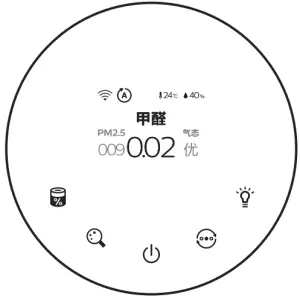
- The “—” displays on the screen during warming up. After one minute, the air purifier shows the formaldehyde, PM2.5 and gas level after measuring the air quality. If no formaldehyde, gas, temperature and humidity reading is displayed after one minute, please check if the AeraSense sensor box is installed.

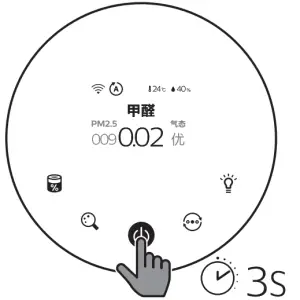
- Touch and hold the button for 3 seconds to switch off the air purifier.
 to switch on the air purifier.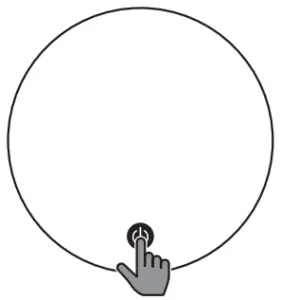
Changing the mode setting
You can choose Auto mode, Turbo mode, Gentle mode or the Sleep mode by touching the button . Touch the button once to display the current mode
Auto mode ( ): The air purifier automatically adjusts the fan speed in accordance with the ambient air quality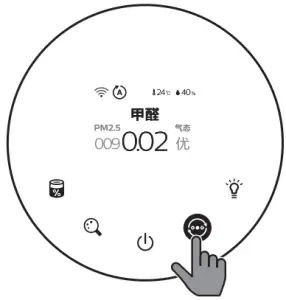
Gentle mode ( ): The air purifier operates at a low speed.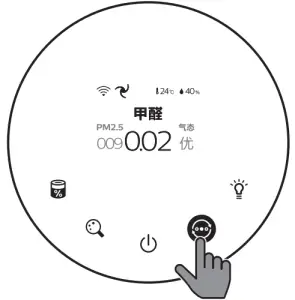
Turbo mode ( ):The air purifier operates on the highest speed.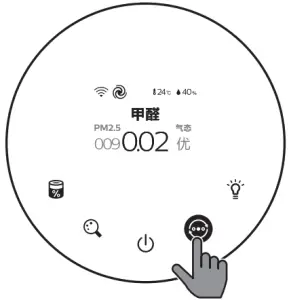
Sleep mode (  ): The air purifier operates quietly at a low speed. After 3 seconds, the screen lights off.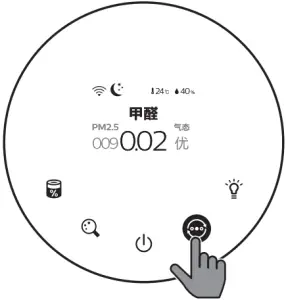
Note:
- In the Auto mode, the appliance intelligently monitors the air quality change all day.
- When the air purifier detects that the PM2.5 level is less than or equal to 24 and the duration time exceeds 1 minute, the air purifier will enter the silent detection mode.
- When the air purifier is in the silent detection mode, if the PM2.5 level is greater than 35 and the duration time exceeds 1 minute, the air purifier automatically turns on to protect your air quality
Switching the display indicator
Note: The appliance displays formaldehyde level by default.
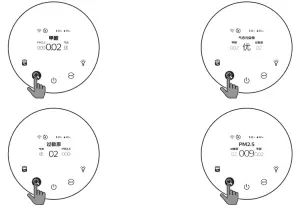
Checking the historical data
Touch and hold the  button for 2 seconds to check the historical data of formaldehyde/gas/IAI/ PM2.5 level.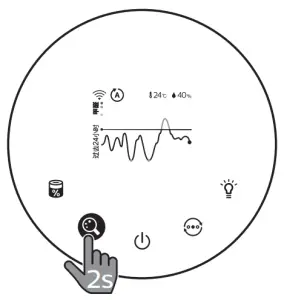
Using the light on/off function
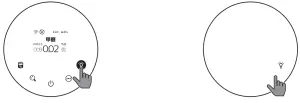
You can touch the light on/off button  manually to turn off all lights and the control panel. Touch any button to wake up all lights.
With the light sensor:
- The control panel can automatically turn on, turn off or dim according to the ambient light.
- The control panel will be off or dim when the ambient light is dark.
You can touch any button to wake up all lights. If no further operation, all lights will be off or dim again to match with the ambient light.
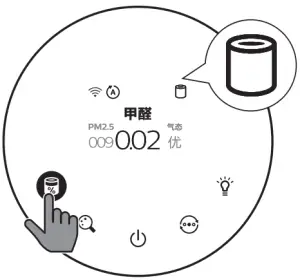
Checking the filter status
- Touch the filter status check/reset
 button to check the filter service life status.
- The percentage of remaining service life of the filter displays on the screen.
- The appliance goes back to normal display if no operations after 3 seconds
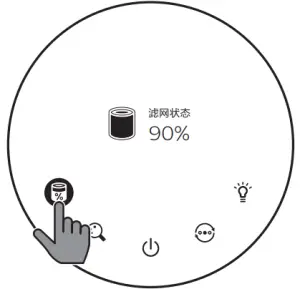
| Icon color | Filter life indication | Display (%) |
| Blue | Optimal service life | 61-100 |
| Blue-purple | Good service life | 31-60 |
| Purple-red | Service life almost reaches the end | 11-30 |
| Red | Service life ends, replace the filter | 0-10 |
Note: If the filter is not replaced in time, the air purifier will stop operating and automatically lock. Replace the filter as soon as possible.
Cleaning and maintenance
Note
- Do not attempt to clean the particle sensor with a vacuum cleaner.
- Switch off the air purifier and unplug from the power socket before following action
Cleaning the body of the air purifier
Regularly clean the inside and outside of the air purifier to prevent dust from collecting.
- Wipe the fabric surface gently with a damp cloth.
- Use a soft, dry cloth to clean both the interior and exterior of the air purifier and the air outlet.
Note:
- The fabric covered on the appliance can not be removed.
- Do not use hot water, alcohol, harsh cleaners to clean the fabric
Cleaning the sensor
Clean the sensor every 2 months for optimal functioning of the appliance.
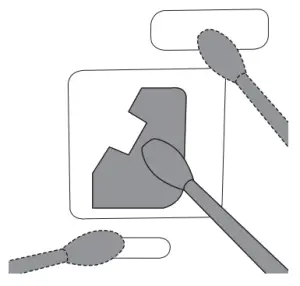
- Clean the particle sensor with a damp cotton swab. Dry all parts thoroughly with a dry cotton swab.
- Clean the AeraSense sensor box with dry cotton swab.
Cleaning the surface of the filter
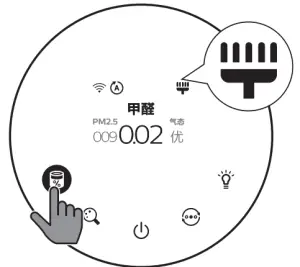
Clean the surface of filter with vacuum cleaner when the filter cleaning alert display on the screen.
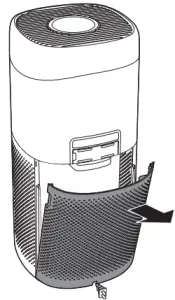
- Pull the back cover and remove it from the appliance.

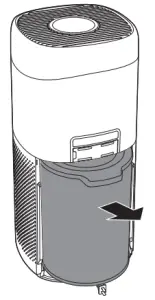
- Pull the filter from the appliance.

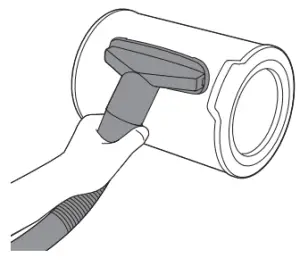
- Clean the surface of the filter with a vacuum cleaner.

- Put the filter back into the appliance.

- Reattach the back cover.
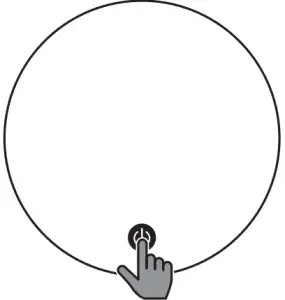
- Touch the button to switch on the appliance.

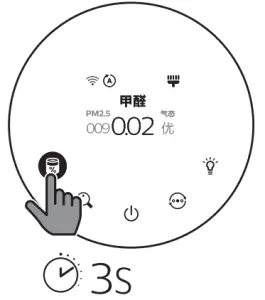
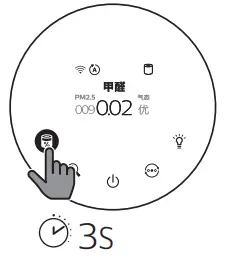
- Touch and hold the filter status check/reset button for 3 seconds to reset the filter cleaning time.

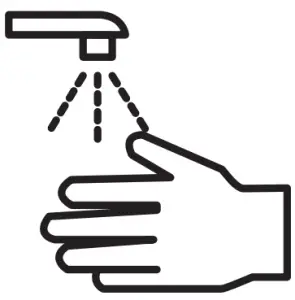
- Wash your hands thoroughly after cleaning the filter.

Replacing the filter
Note:
- The filter is not washable or reusable.
- Do not smell the filter as it has collected pollutants from the air.
When the filter need to be replaced, the filter replacement alert lights up red.
- Replace the filter with Nano Protect Formaldehyde Pro filter (FY4452) , Please follow the step of Chapter “Installing the filter”.
- Touch the button to switch on the appliance.
- Touch and hold the filter status check/reset button for 3 seconds to reset the filter cleaning time.

- Wash your hands thoroughly after cleaning the filter.
Filter reset
You can replace the filter even before filter replacement alert ( ) displays on the screen. After replacing a filter, you need to reset the filter lifetime counter manually.
- Touch button for 3 seconds to turn off the appliance and unplug from power socket.
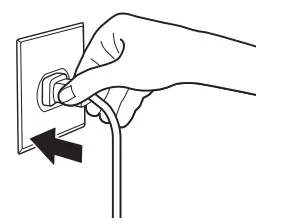
- Put the power plug in the power socket.

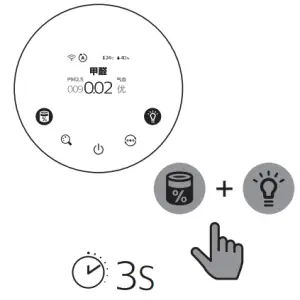
- Within 15 seconds after power on, touch and hold and button for 3 seconds to reset the filter lifetime counter.
Storage
- Turn off the air purifier and unplug from the power socket.
- Clean the air purifier, sensor and the surface of the filter (see the chapter “Cleaning and maintenance”).
- Let all parts air dry thoroughly before storing.
- Wrap the filter in air tight plastic bags.
- Store the air purifier, filter in a cool, dry location.
- Always thoroughly wash hands after handling the filter.
Troubleshooting
This chapter summarizes the most common problems you could encounter with the appliance. If you are unable to solve the problem with the information below, contact the Consumer Care Center in your country
| Problem | Possible solution |
| The appliance does not work even though it is plugged in |
|
| The airflow that comes out of the air outlet is significantly weaker than before |
|
| The air quality does not improve, even though the appliance has been operating for a long time |
For optimum purification performance, please close the doors and windows when operating the air purifier
|
| The color of the air quality light always stays the same |
|
| The appliance produces a strange smell |
|
| The appliance is extra loud |
|
| The screen displays that the back cover is opened |
|
| Formaldehyde reading suddenly rises sharply |
|
| In the Turbo mode, the formaldehyde reading fails to reach the minimum range after a long time |
Please open window(s) for ventilation and remove the source of interference
|
| Error code “E1” displays on the screen |
|
| The Wi-Fi setup is not successful |
|