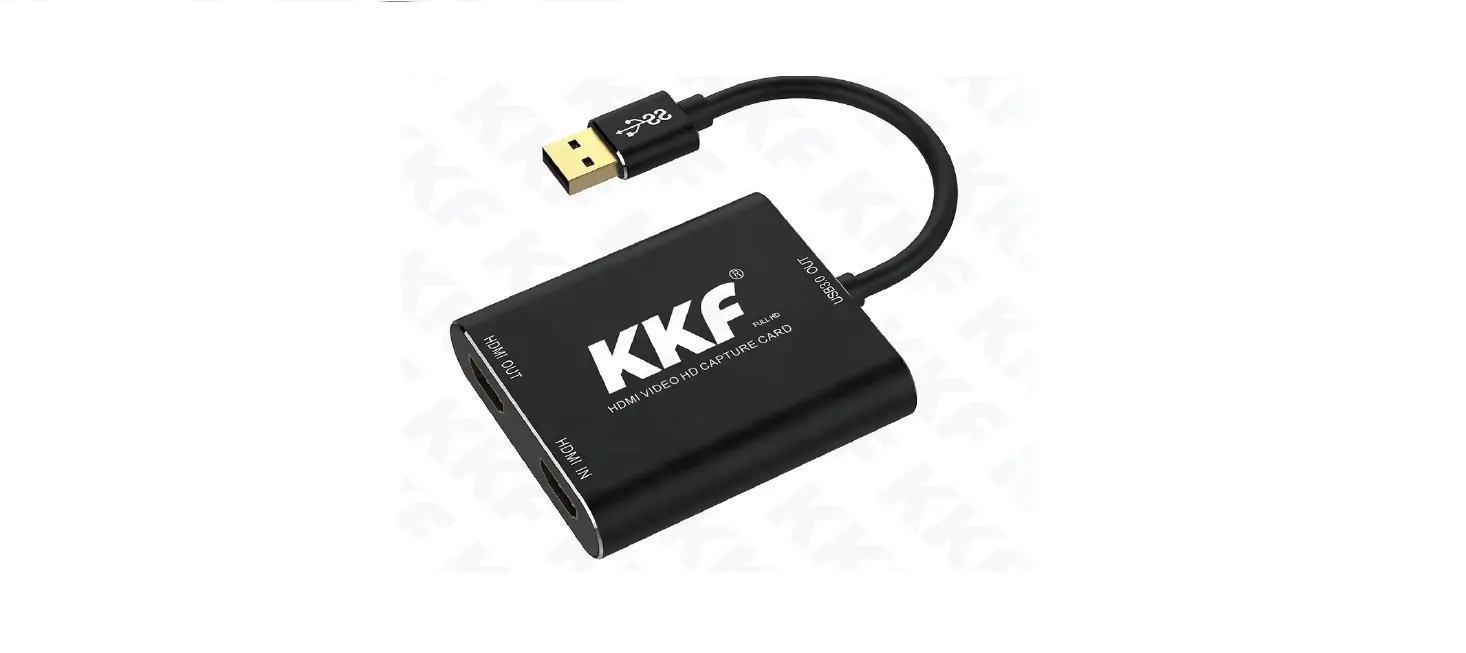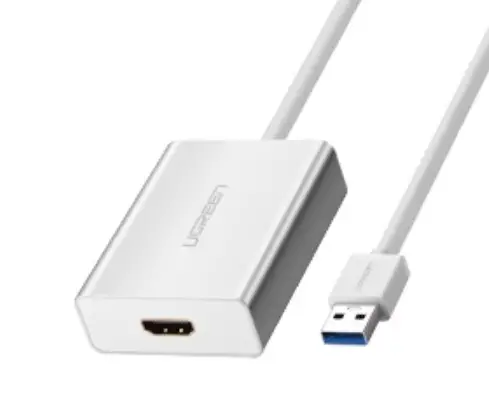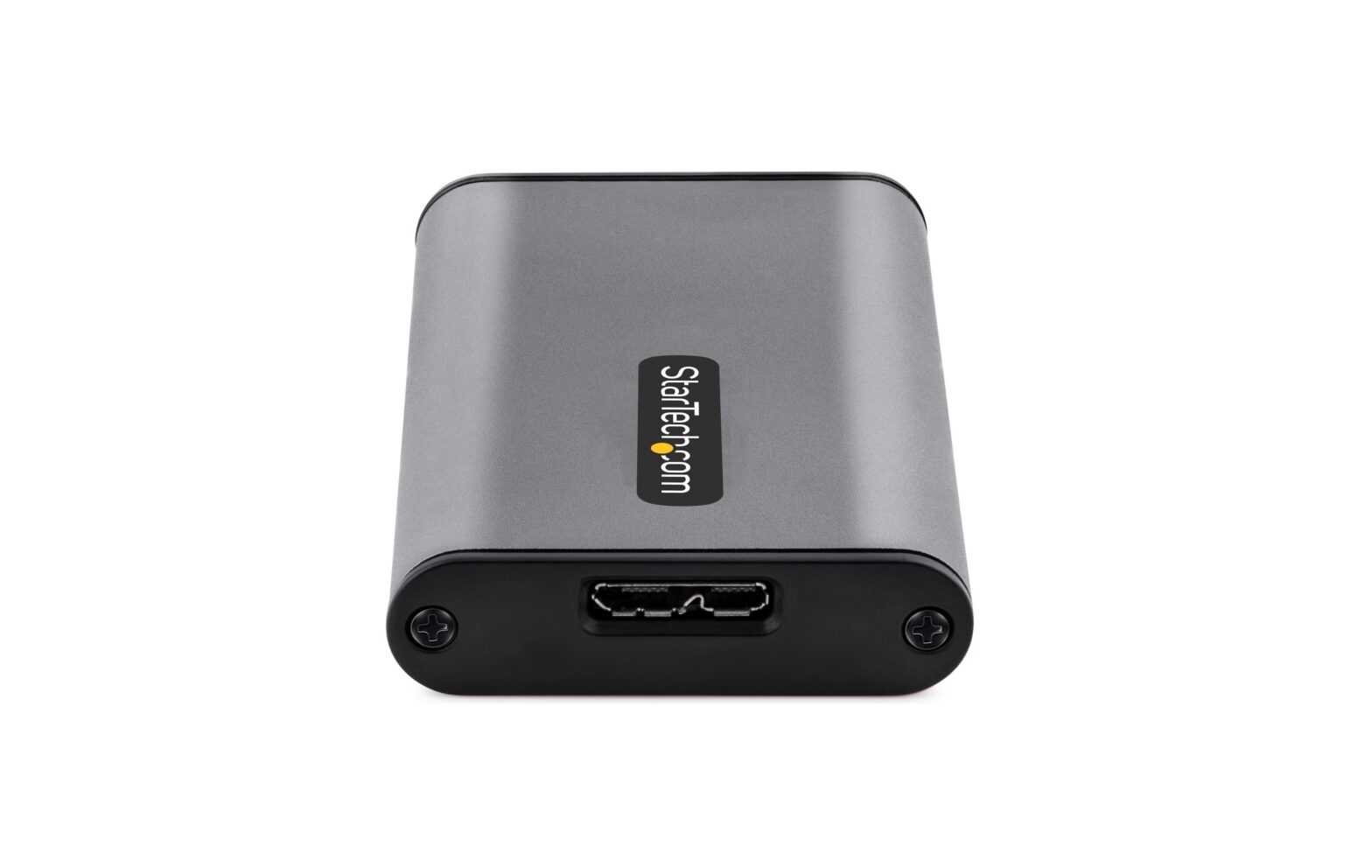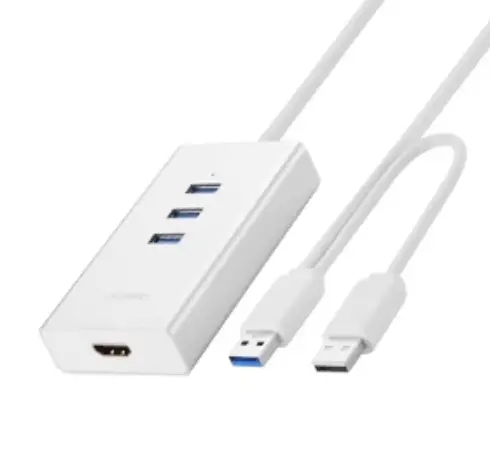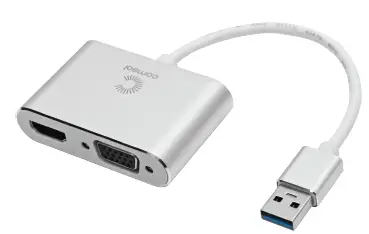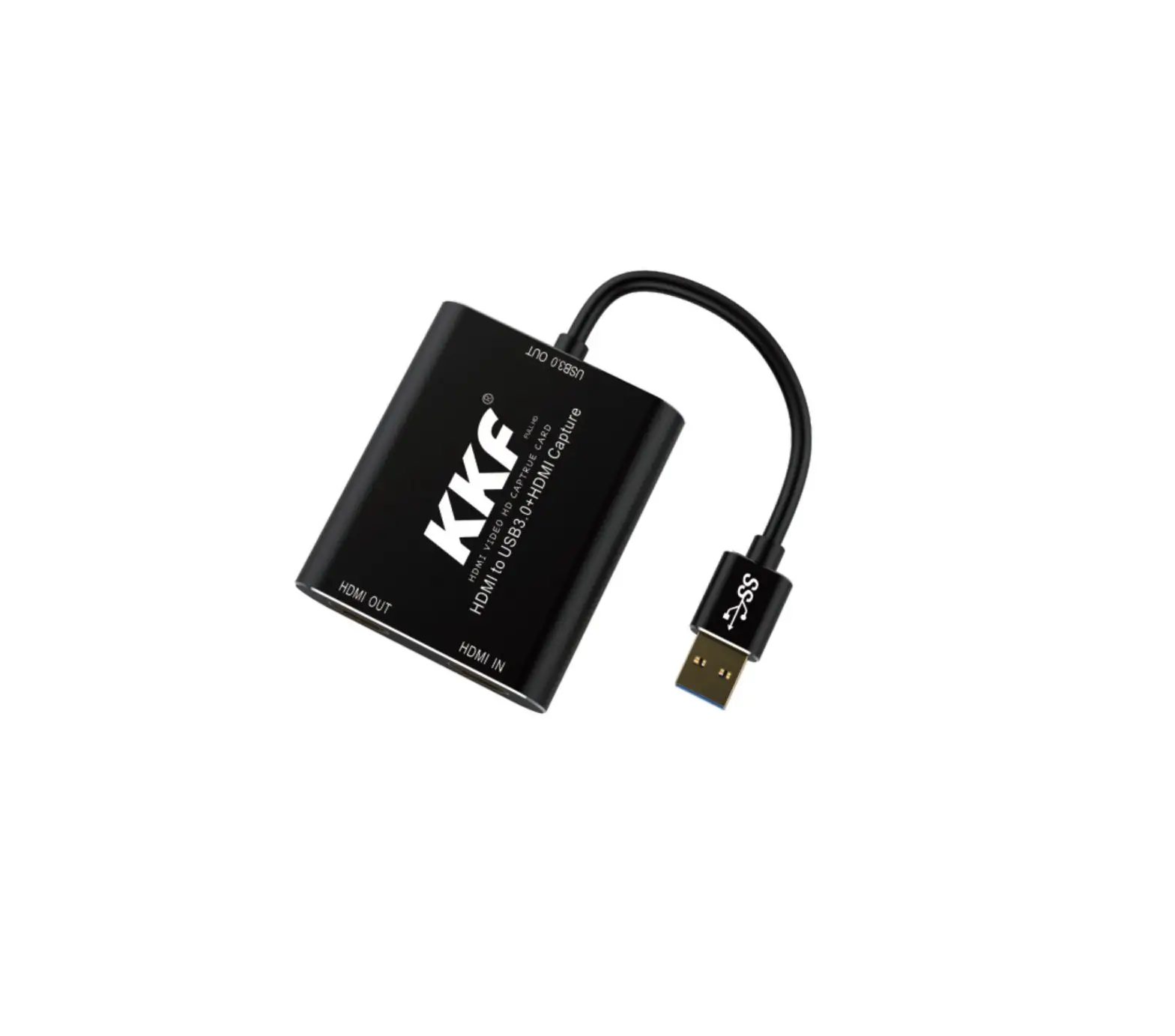
 KKF IU013A HDMI to USB3.0+HDMI Capture User Manual

 KKF IU013A HDMI to USB3.0+HDMI Capture User Manual
KKF IU013A HDMI to USB3.0+HDMI Capture User Manual
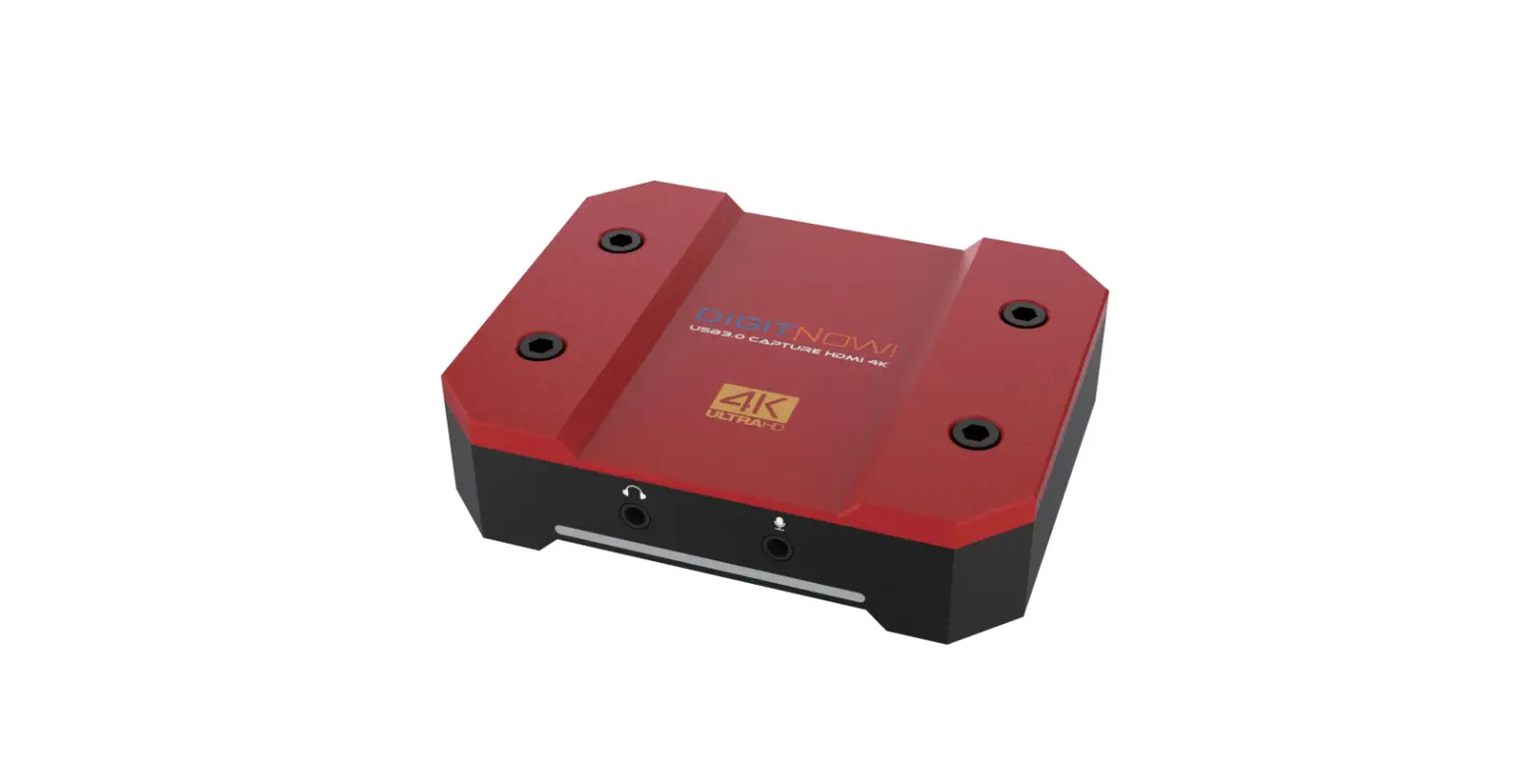
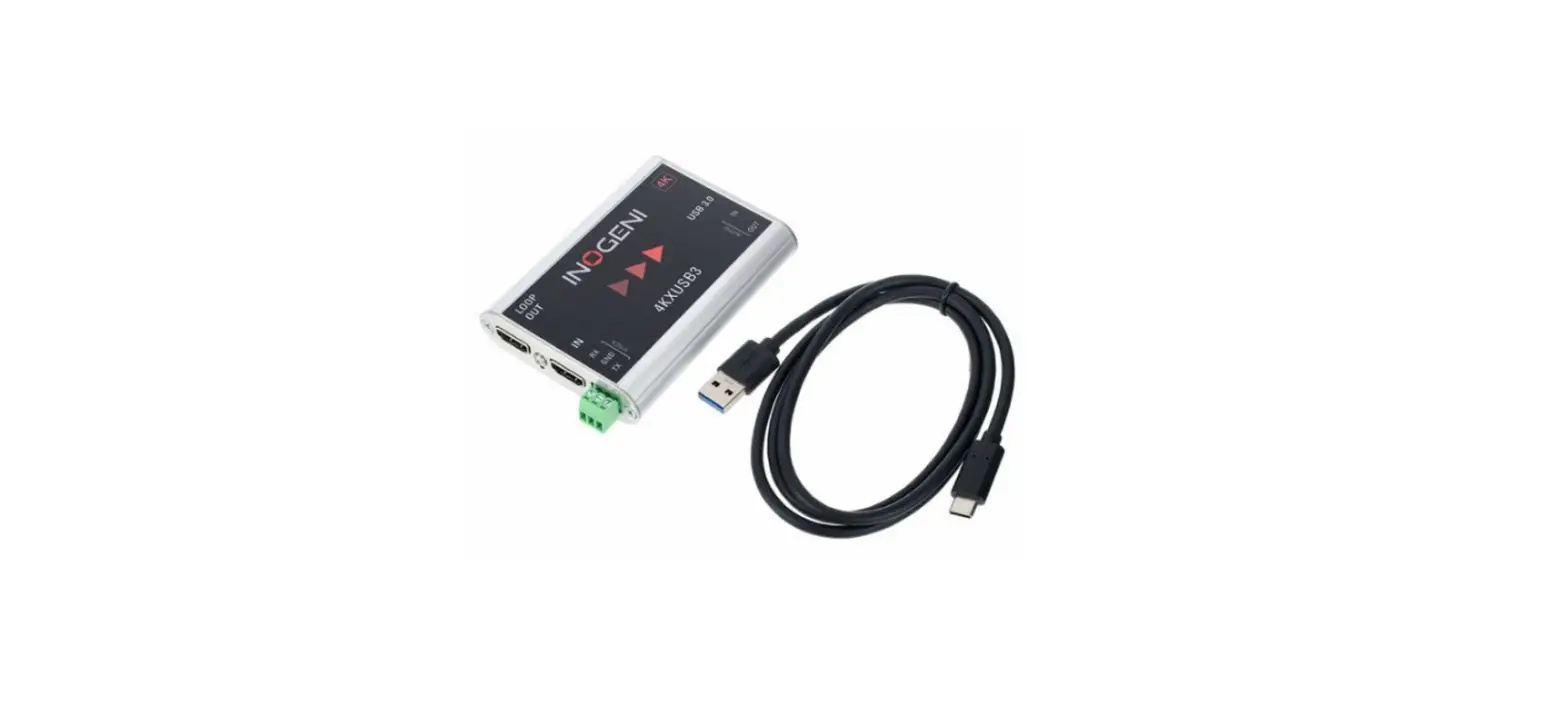
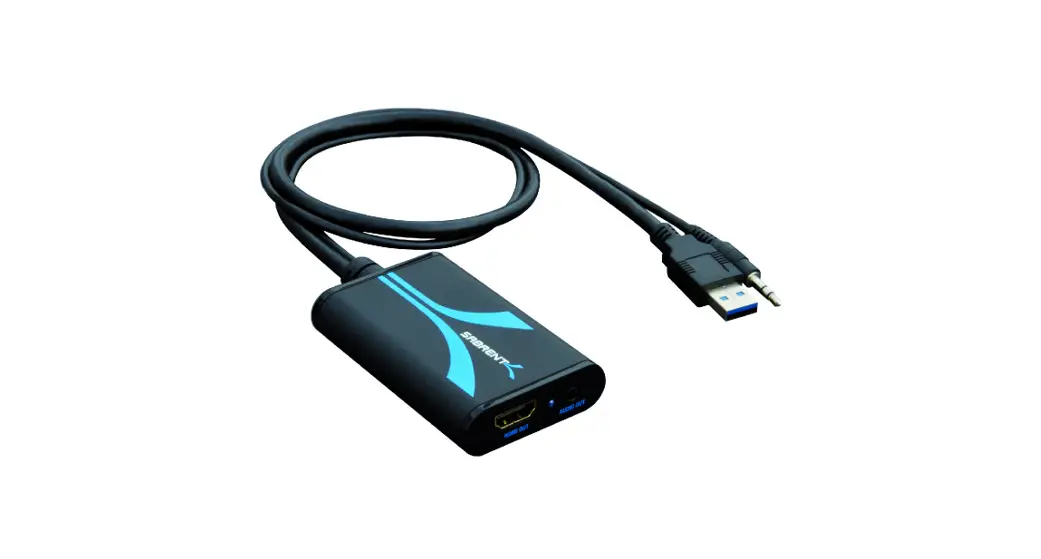
Product Name
HDMI to USB3.0+HDMI Capture
Product Model
IF-CH-UH-01
Thanking
Thanks for you purchase this HDMI to USB3.0+ HDMI Capture. We will provide our best service to you.We always focus on long-term good quality, value, provide perfect, safety products. Please read this manual carefully, in order that you can use it correctly. If you have any suggestion, please contact us. I appreciate your identification, understand and trust. Your satisfaction is our target.
Introduction
The USB3.0 Capture HDMI meets UVC and UAC standards without installing the driver, plug and play, USB access to the PC’s USB3.0 interface (USB3.0) It can display HDMI content, video recording, meeting recording, game recording and other functions on the computer. The highest resolution support is 1920*1080@60Hz HD video collection, which support Windows 7/8/10, MAC OS X, Linux operating system.
Pack Include
- 1PCS HDMI to USB3.0+HDMI Capture
- 1PCS User Manual
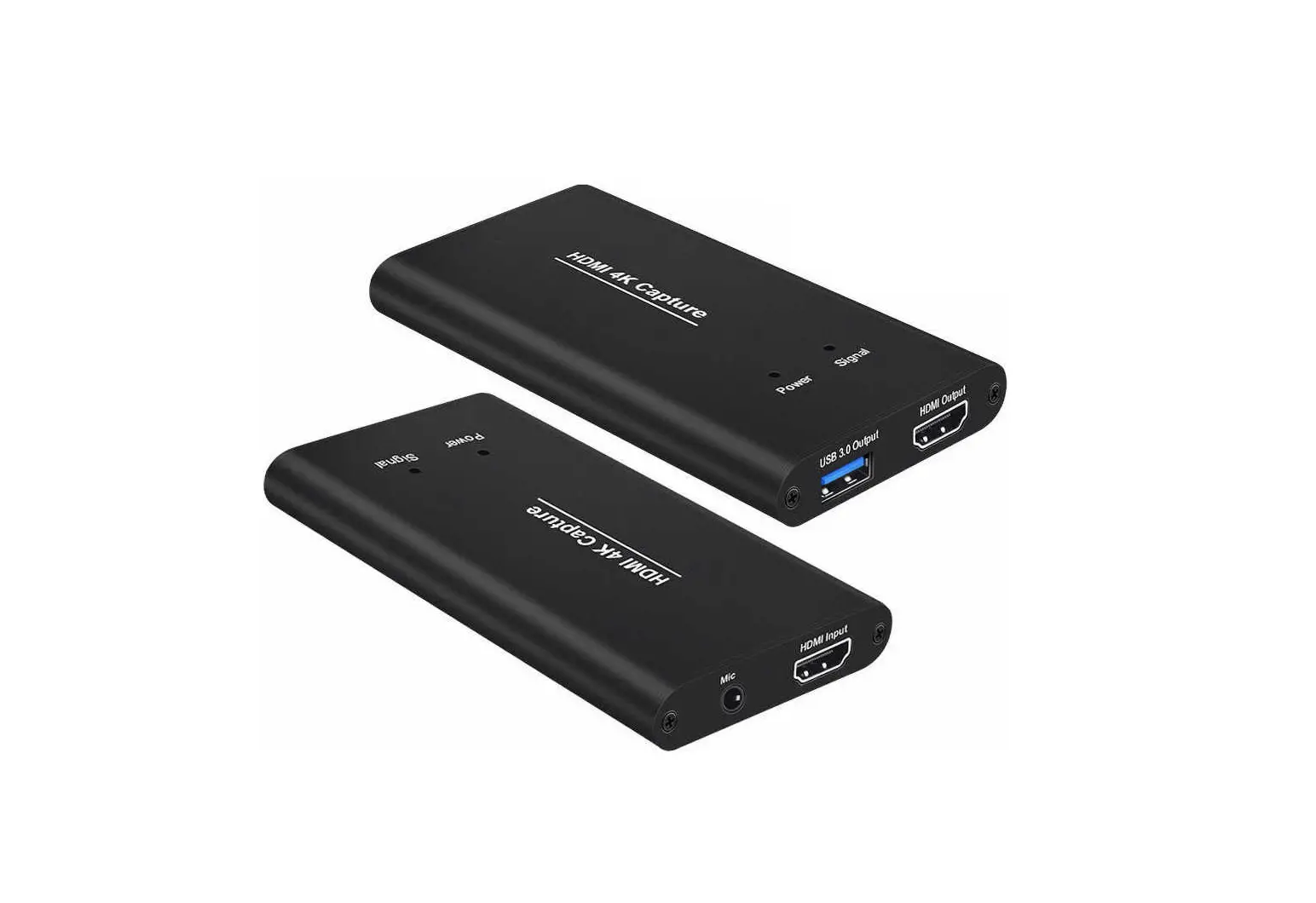
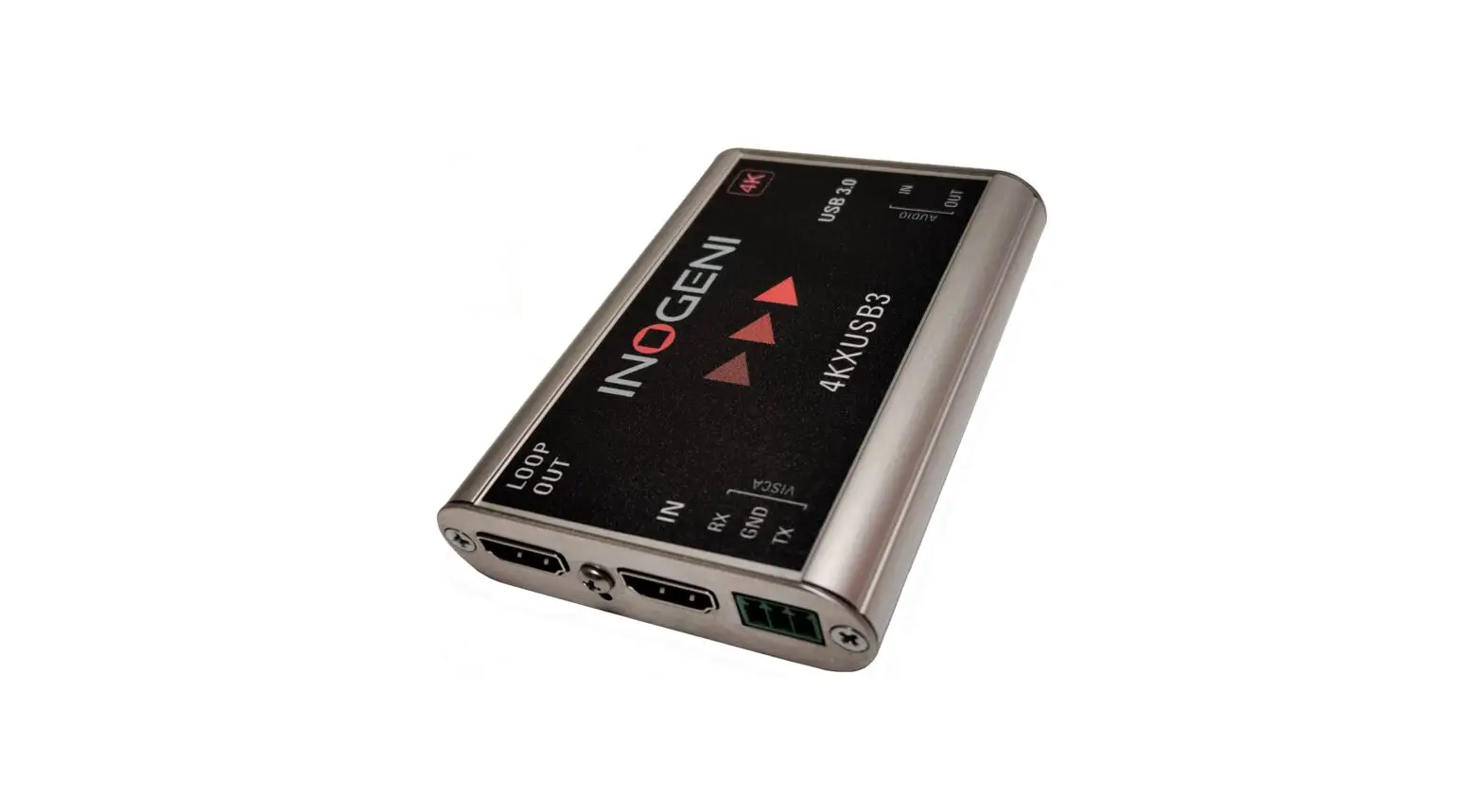
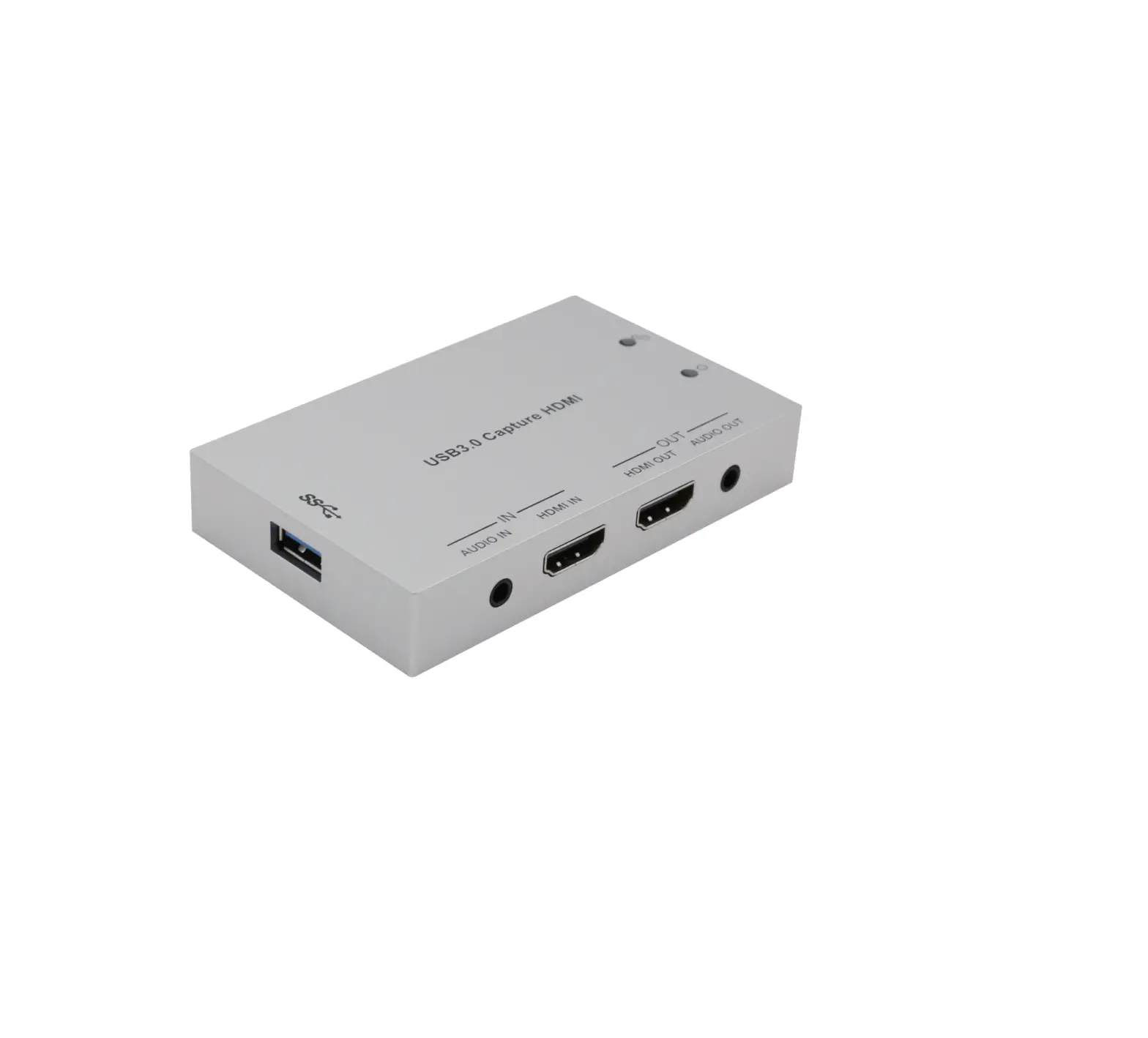
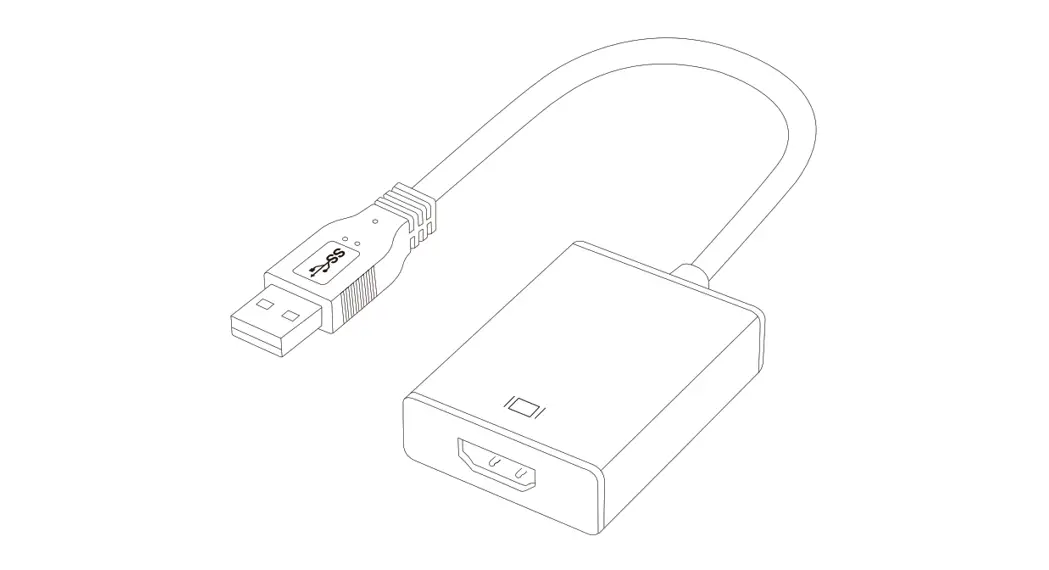
Diagram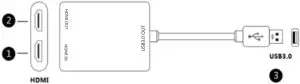
- HDMI input port: connect to HDMI video source via HDMI wire
- HDMI output port: connect to HDMI device via HDMI wire
- USB3.0 output port: connect to the computer USB3.0 interface
Operating Instructions
No driver installation required, plug and play
Specification
Product standard
- Inputsignal and resolution : 1920*1080@60Hz , downward compatibility
- Output signal and resolution : 1920*1080@60Hz , downward compatibility
- Support bandwidth : USB3.0 : 5Gbps, USB2.0:480Mbps, HDMI : 2.25Gbps
- Working Voltage : 5V
- Working Current : 290mA±20mA
- Size : 70.3x62x15.5mm
Application
Exhibition, meeting and play games
Use Guide
Operating instructions for OBS Studio under windows system.
- Go to obsproject.com/download to download OBS Studio according to your computer’s operating.
- First HDMI capture is connected to the PC’s USB3.0 interface, HDMI cable is connected to the HDMI source. If need watching video when copy, Please connect the “HDMI IN” slot to your HDMI devices.
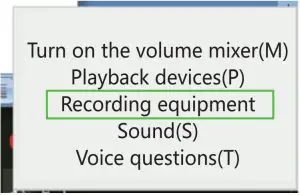
Recommends that the audio sampling rate be set at 48KHz, and the operation is as follow:- Right-click the speaker icon in the lower right corner and select “recording device(R)” in the pop-up mean “Figure 1“
- The `sound window “recorded TAB in the following table to choose “FHD CAPTURE”, and double-click, in the pop-up windows, select the “advanced” TAB, and choose in the dropdown box as shown in the figure 2 channel, 16, 48000Hz (DVD quality)
- If there is no audio input, or if you need to adjust the input audio range, click the “level” TAB, cancel the mute or set the volume.
Figure 1
- Use OBS Studio software to connect and record:
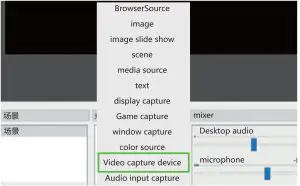
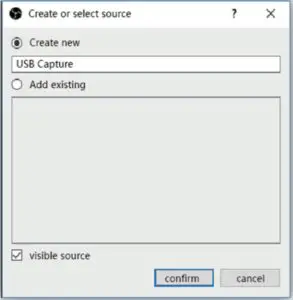
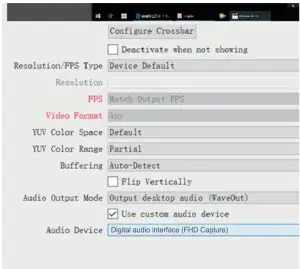
- Open the OBS Studio software, click on the “+” button under the “source” window, select “video capture device” in the pop-up menu, pop-up “create or select source” window, enter a name in the “new” column (this name is easy to distinguish between different video capture device, no specific requirements) and click “OK” button, the pop-up properties configuration dialog;
Figure 2
Figure 3
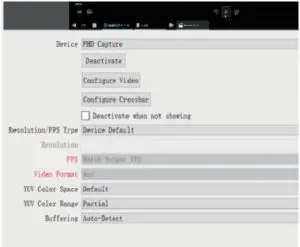
- Configure the configuration dialog as follow: On the right side “equipment” drop-down box to choose “FHD capture”, “Figure 4”.The “audio output mode” on the right side of a drop-down box to choose “desktop audio output (WaveOut)”, check the “use custom audio equipment” check box, on the right side “audio equipment” drop-down box to choose “digital audio interface (FHD Capture)”;
Figure 5

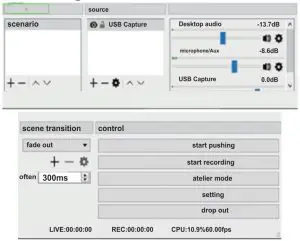
- Add another audio (eg. Comment this video on microphone), click “+” of “Sources”, and select ‘Audio Input Capture”. Then select “Realtek High Definition Audio (SST) of “Device”.
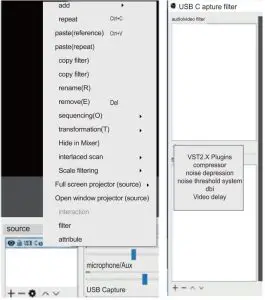
- Solve the delay. If video and audio are not synchronized during the video recording, the following operation can be solved: Right-click the video capture device, we add the selection “filter”, in the pop-up dialog box, Figure 6 click the “+”, and select “video delay (asynchronous)”, for this filter after the specified name, in the pop-up dialog input lag time (according to the time of your need to adjust it until the audio and video synchronization.

- Click the “start streaming” and “start recording” of the lower right part of the software to record the webcast and video;
Figure 7
- Open the OBS Studio software, click on the “+” button under the “source” window, select “video capture device” in the pop-up menu, pop-up “create or select source” window, enter a name in the “new” column (this name is easy to distinguish between different video capture device, no specific requirements) and click “OK” button, the pop-up properties configuration dialog;
Operating instructions for OBS Studio under MAC system.
- The MAC OS X system and the Linux system OBS Studio operation are the same as Windows, please refer to the windows OBS Studio operation instructions.
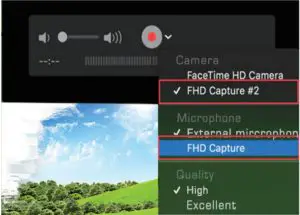
- Use QuickTime Player software to connect and record:
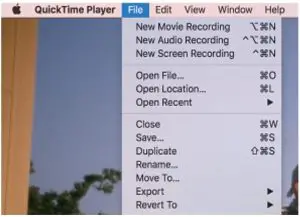
- Open QuickTime Player, click “New Movie Recording” of “File 8”

- Select “FHD Capture” to record.
Figure 9
- Open QuickTime Player, click “New Movie Recording” of “File 8”
Computer configuration suggestion
OS : Windows 10 , MAC OS Sierra ;
GPU : Intel HD , NVIDIA GeForce GTX600 or better ;
CPU : Intel IS-4xxx Quad-Core or better ;
DDR : 4GB DDR3 or more
Storage and Maintenance
- Please keep the product clean and dry.
- Please don’t put it at a very hot place. High temperature will shortens the capture life or plastic damaged.
- Please don’t throw and knock it, may be will damage the PCBA.
- Please stay it away from strong chemicals, detergent and corrodent. The stain can be wipe off by soft cloth. 5. Any question, please contact us.
Warranty
- Warranty time is 1 year, free repair during warranty period.
- We will repair for technical issues. 3. Artificial damage is not within the scope of warranty.
Support
Any problem, please contact KKF Customer Service though [email protected]. We will help you within 12 hours.
FAQS
Why USB3.0 devices’ video better than USB2.0 devices
USB2.0 is 480Mbps max, The 1080P image will be compressed to transfer. Some image information will be lost when compressing.
Why the image does not synchronize with sound?
Please solve as 3-d
Why the sound is not consistent?
Please solve as 2
How to download OBS?
Please download at http://www.obsapp.net/
Whether it support other capture software?
Support most capture software, such as AMCap, VLC.
Why it is splash screen or no image?
We suggest use standard HDMI cable. Connected by non-standard cable, HDMI devices may be splash screen or no image.
It doesn’t come with software disk. please download the studio software from website.
We suggest use OBS software.
As there is no any HDMI port on Nintendo switch lite, it requires a switch dock or a HUB with HDMI port to connect your switch with the HDMI input on capture card.
It can capture both MJPEG and YUV2 video format.
Think so. No to the recording directly, need computer in the middle. This is just a hdmi to usb convertor.
You would have to adjust it in your recording software.
No, the audio is heavily distorted. Search razer ripsaw.
This card is for going the other way from a HDMI source to a computer. You are going to need something that will take your HDMI source (Mini Mac) and convert to Composit video (RCA) and analog audio (RCA) outputs. Check out Black Magic Design or AJA products.
You connect this device to a usb port on your cpu. Connect the device (ps4 in your case) into one of the Hdmi ports on the HDMI CAPTURE then plug a monitor into the other hdmi port on the HDMI CAPTURE device. This will take up your entire screen and only display the device (ps4 or other). If you want to control anything from your computer you will need and additional monitor. Said monitor would be connected to an input on your computer.
That depends on whether your capture software has such a feature.
Any camera with HDMI output
Yes
If it has USB yes it will. The signal does not matter
Not 100% sure but it butchered my party audio on xbox
Go to lists and then edit.
This device can capture any HDMI signal.
Yes, as long as it has an hdmi output.
This device is junk doesn’t don’t buy
If it has HDMI out
THis device does not work.
Idk but Facevook Live is 720p.