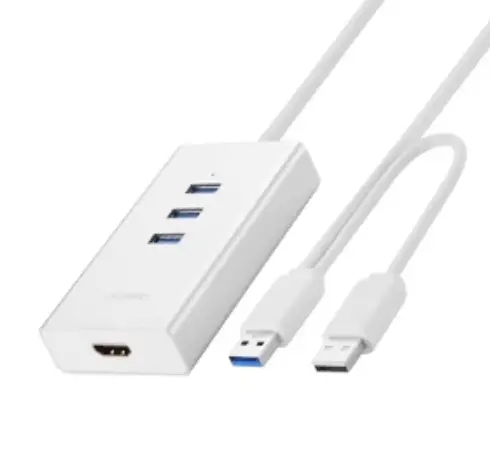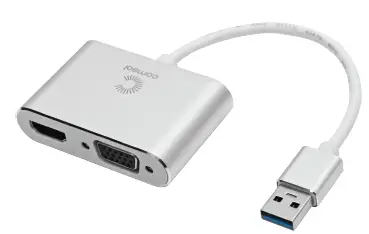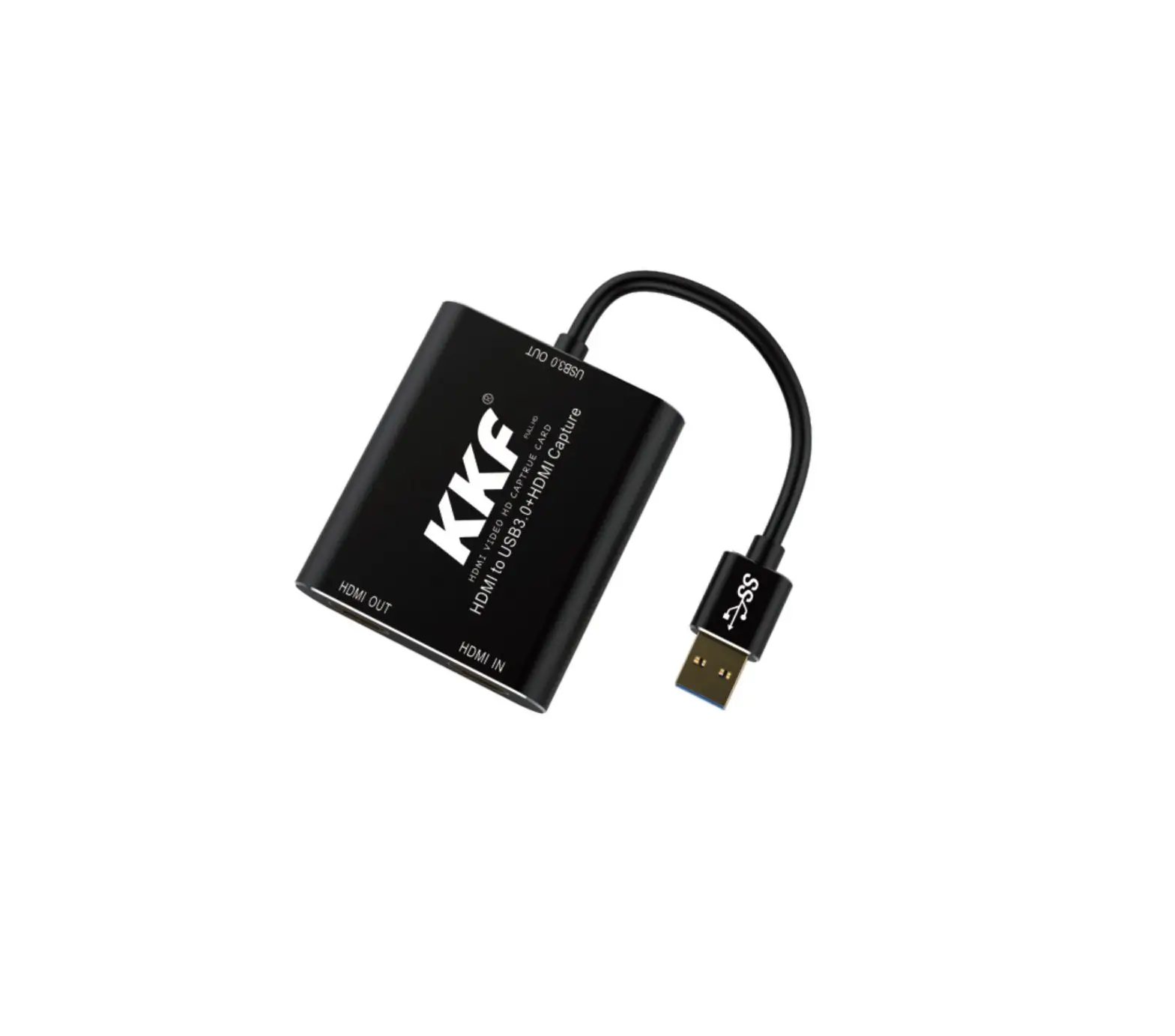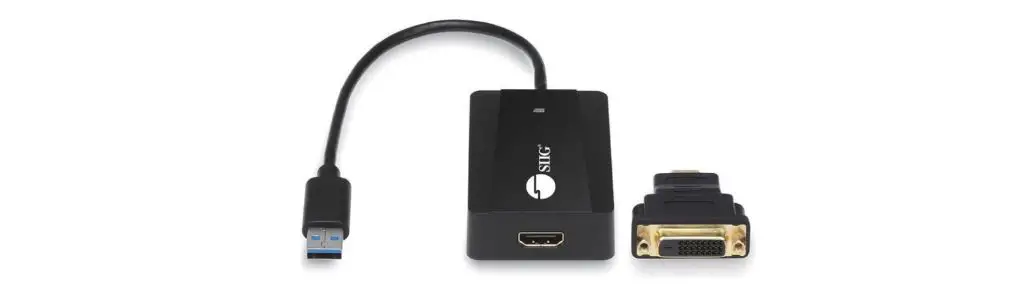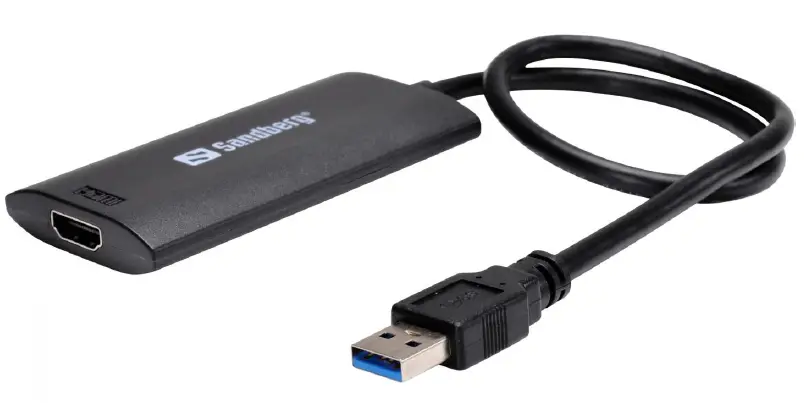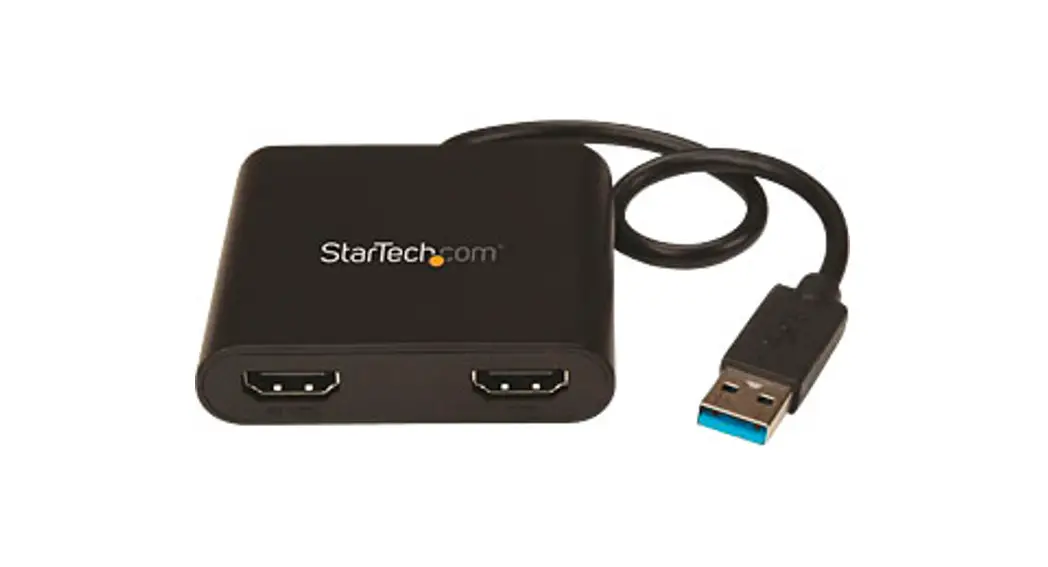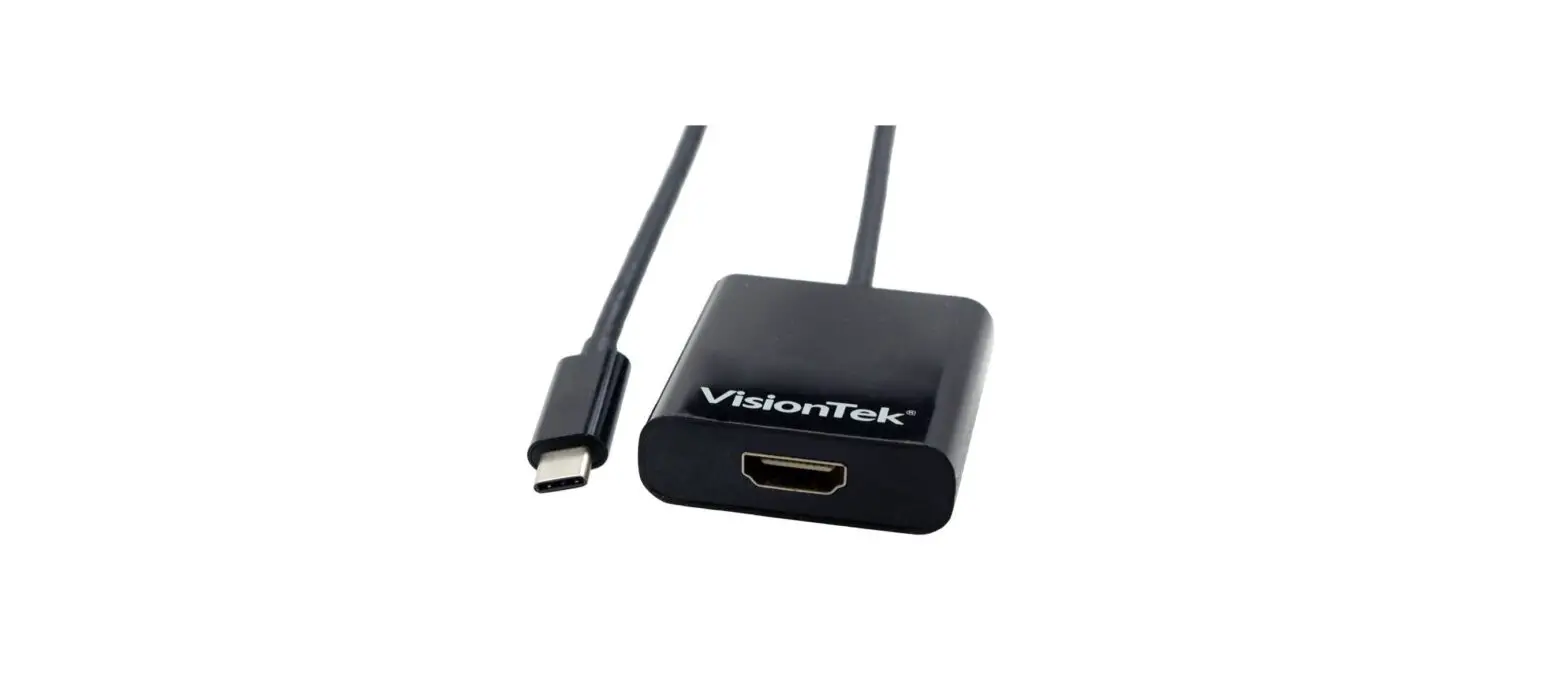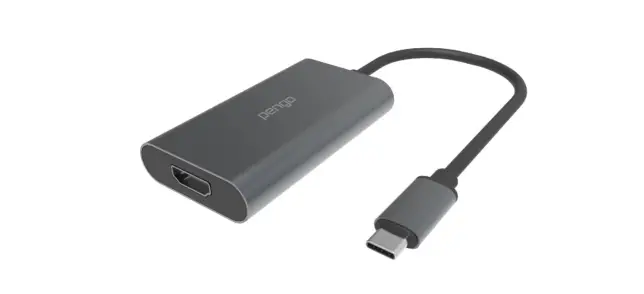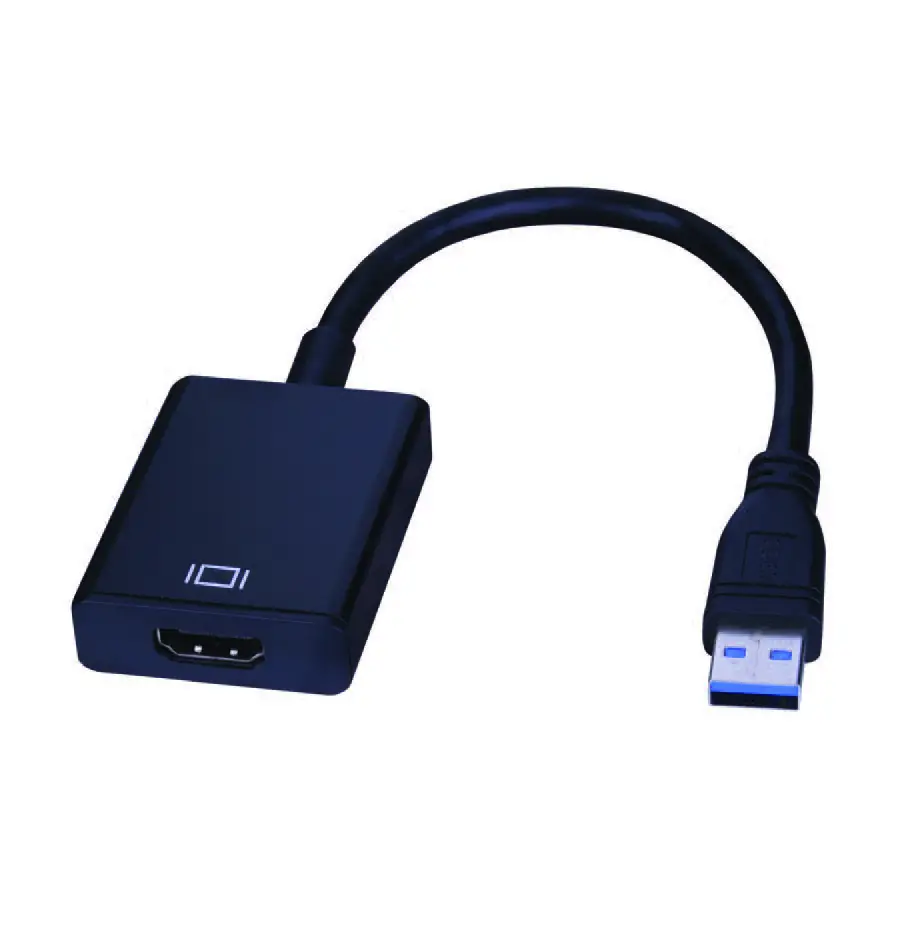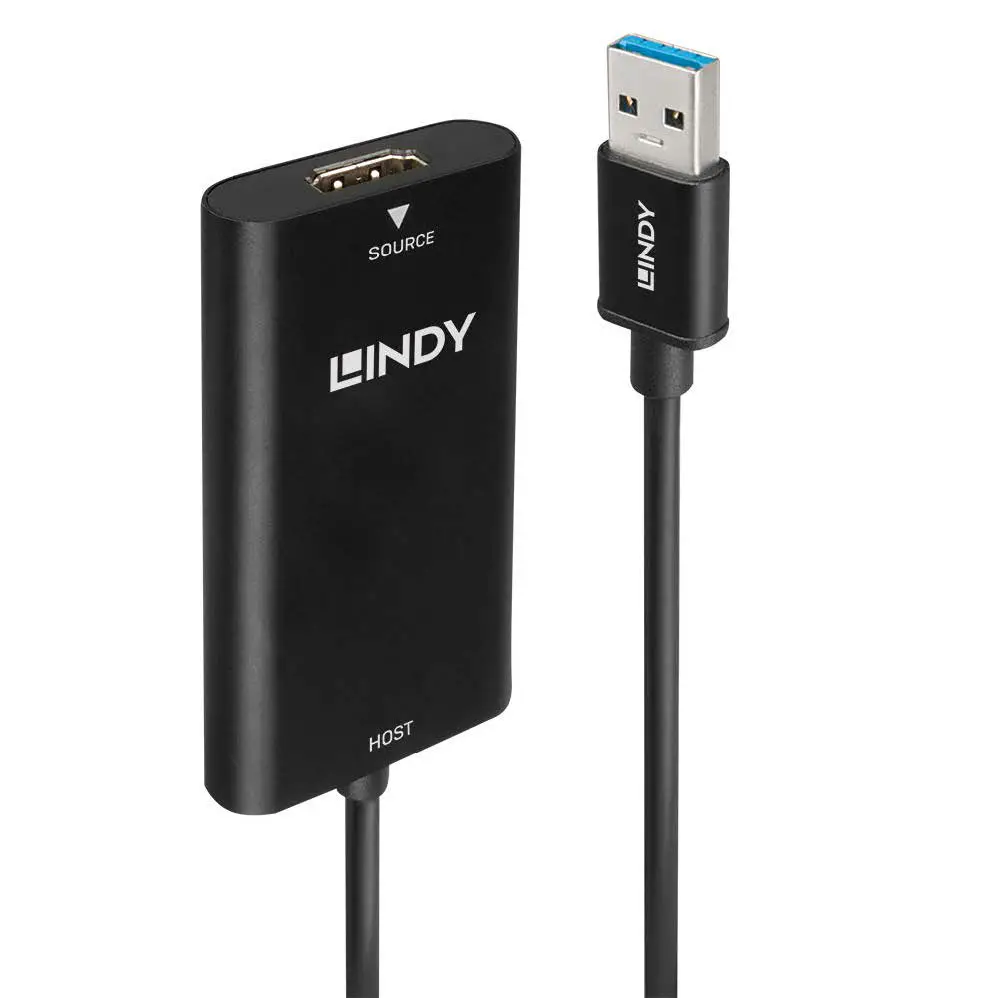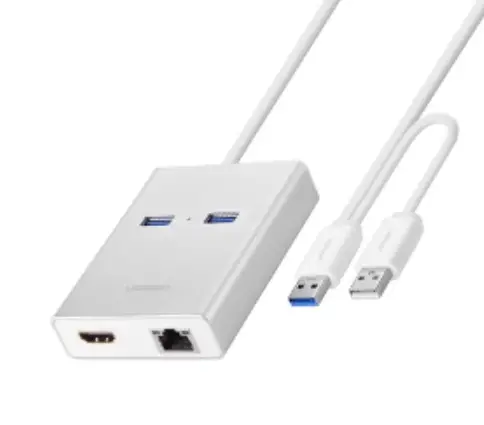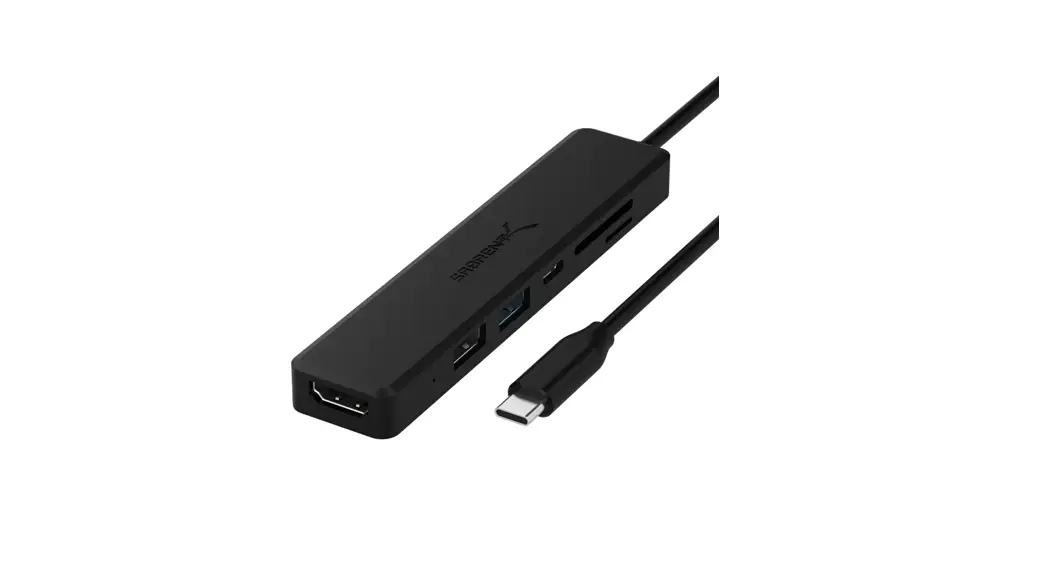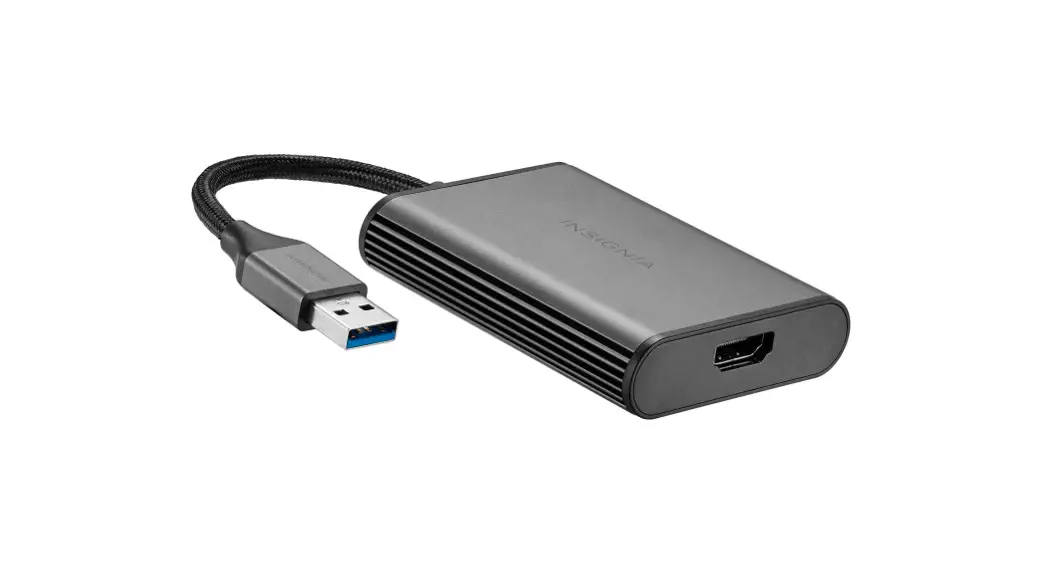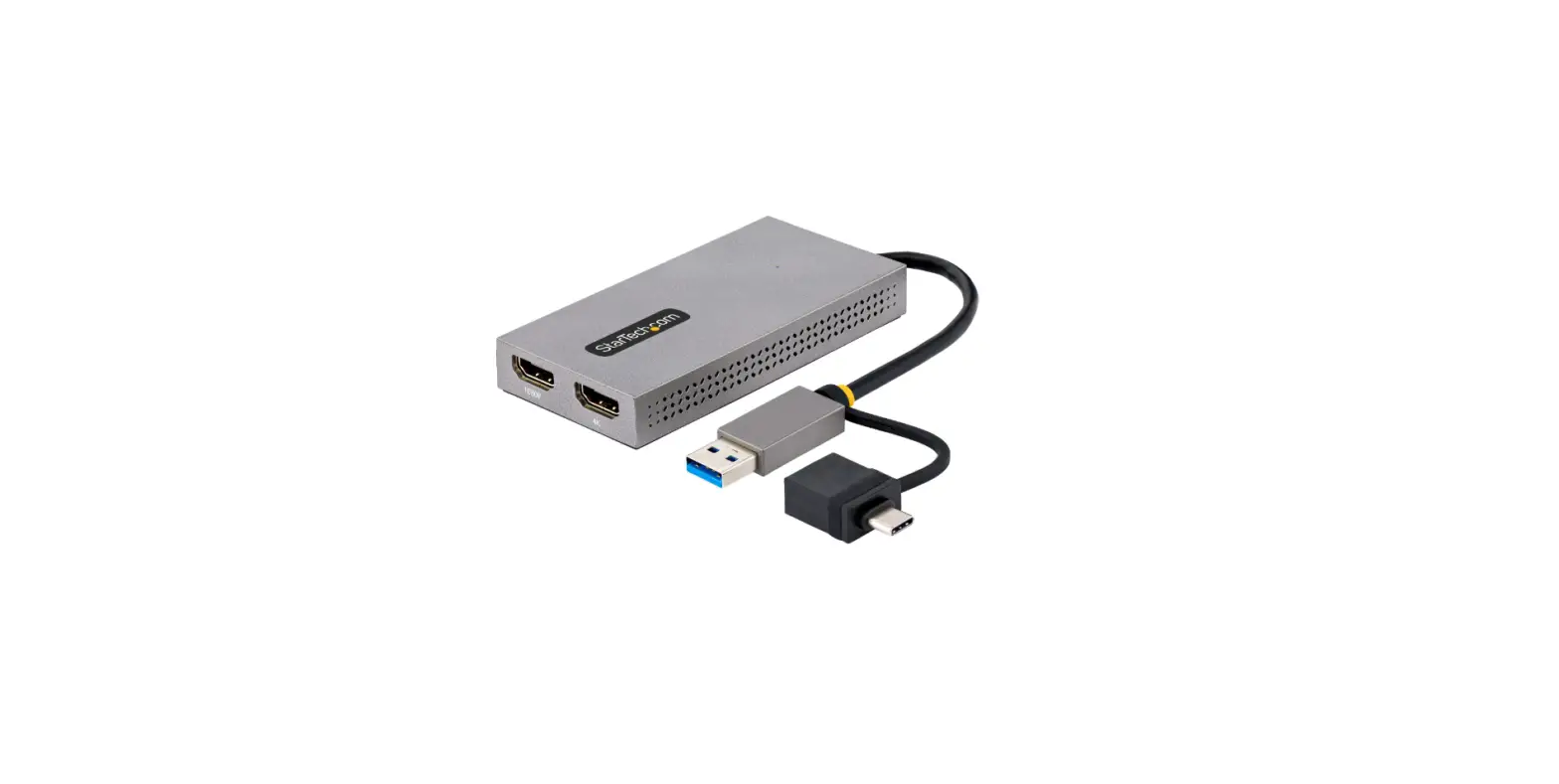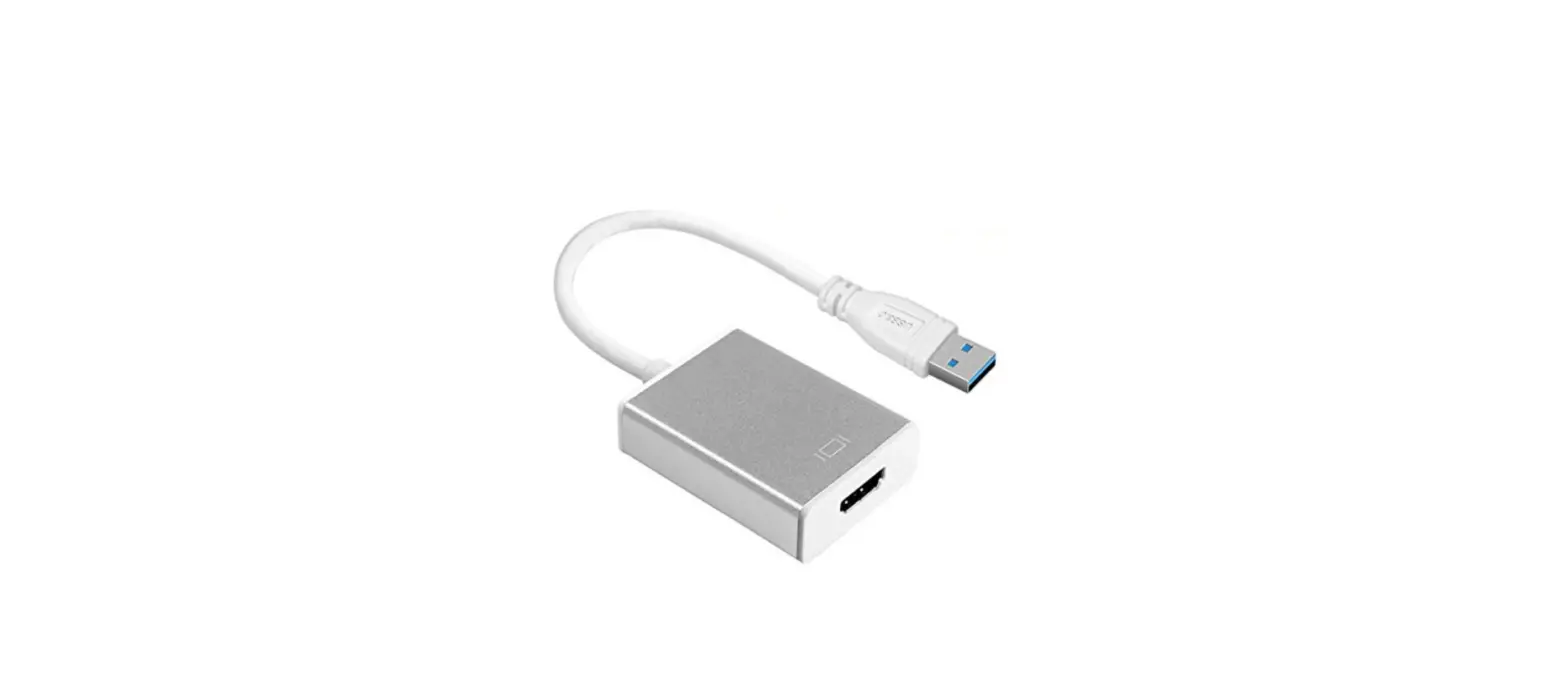

good way usb 3.0 to hdmi adapter
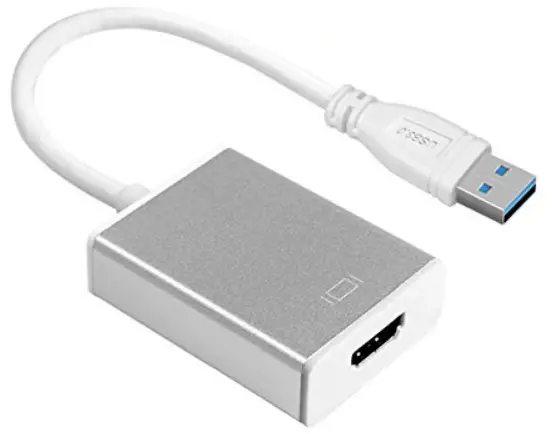
Thank you for choosing our products. We focus on producing professional, high-quality, cost-effective and high-tech products, so you can easily enjoy high-definition digital life brought by technology. For optimum performance and safety, please read these instructions carefully before connecting, operating or adjusting the product. And please keep this manual for future reference.
Introduction:
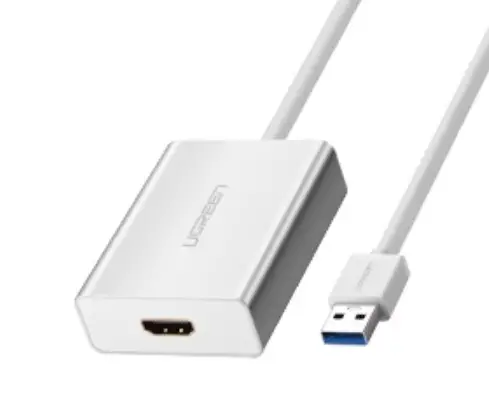
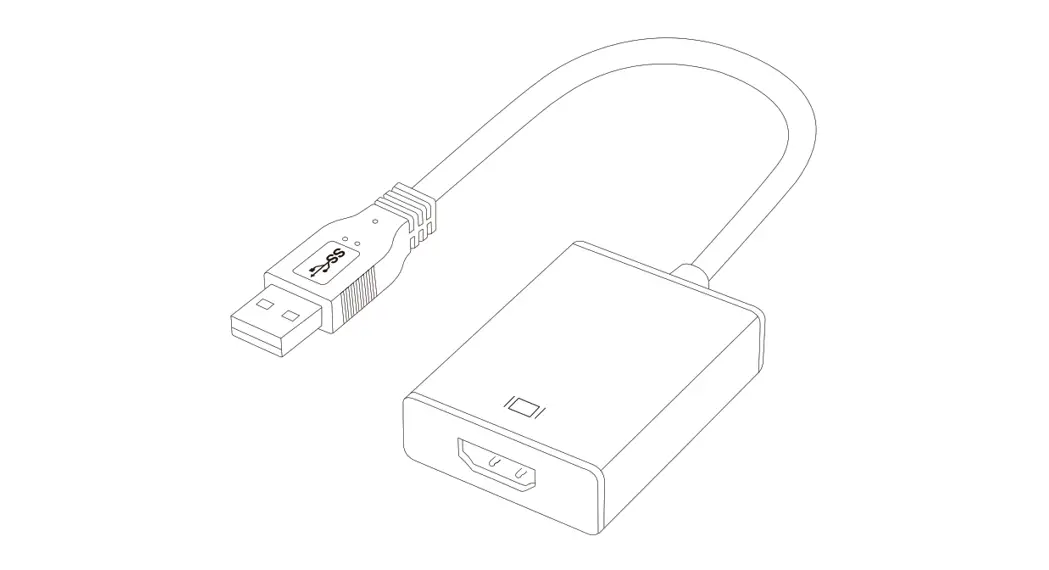
This USB to HDMI adapter can connect a computer via USB interface to an HDTV, monitor, or projector with HDMI interface. It will deliver
high-definition audio video sources in your computer to your HDTV or monitor, so the external video displaying problem of the computer will be solved easily.
Features:
- Supports USB2.0/USB3.0 interface of desktop or laptop.
- Supports video output: HDMI.
- Ultra-high-definition display, resolution up to 1920 * 1080.
- Supports HDMI 1.3b.
- Supports USB3.0 and is backward compatible with the earlier versions.
- Simple installation and easy to operate.
Specifications:
- Cable Length: 15cm
- Support Systems..Windows 7/Windows 8/Windows10
- (USB3.0 interface) Resolution: up to 1920×1080
- (USB2.0 interface) Resolution: up to 800×600
- Output Cable Distance..<=5m AWG26 standard cable HDMI
- Operating Temperature Range..(-15 to +55°C)
- Operating Humidity Range…5 to 90% RH(No Condensation)
- Weight...35g
Drive installation:
Connect the USB to HDMI adapter to the USB3.0 interface, at this time the computer system will automatically prompt and install the USB to HDMI adapter drive as follow:
adapter drive as follow:
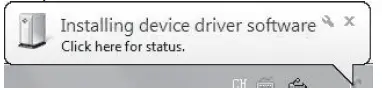
If automatic installation fails as follows: 
In this case, manual installation is required. Please open your “computer” ICON, you will find a disk :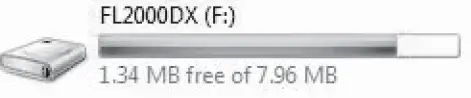
Open the disk and find the driver:
Double-click it and complete installation according to the prompt, then please restart your computer.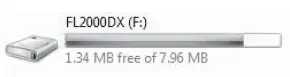
Note After you install the driver, the disk as the picture will automatically disappear. This disk will appear only when the
computer is connected to the adapter for the first time. If it does not appear at the first connection, this indicates that your computer already has the disk or the similar one installed previously. Please find and uninstall it, then restart the computer and install the driver according to the steps above.
Setting for Use:
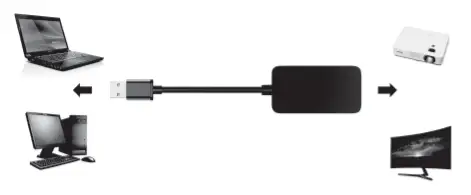
Connect the USB to HDMI adapter to the USB 3.0 interface of the computer and connect the HDMI interface of the adapter to the HDTV, monitor, or projector via an HDMI cable.
Hold down +P key at the same time or right-click the mouse on the computer desktop.
Select “screen resolution” in the dialog box, and the content of the pop-up menu shown as follow: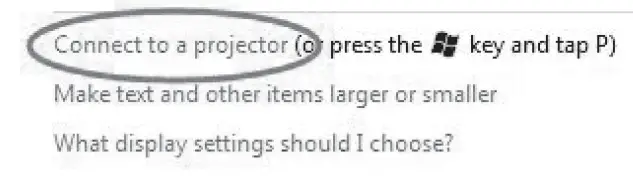
Click the portion of the circle, the settings box will be shown as follow(take Windows 7 for example):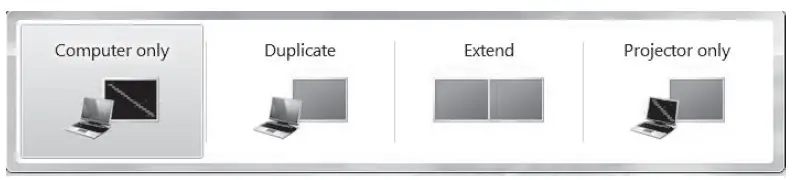
Select “Duplicate”, “Extend”, or “Projector only” mode according to the requirement. Then the pictures will appear on the extended display device.
Note:
If there is a pop-up menu of “No projector was founded ”after the above settings as follows: Please check whether the driver installation is successful and the USB to HDMI adapter is correctly connected to the computer and HDTV.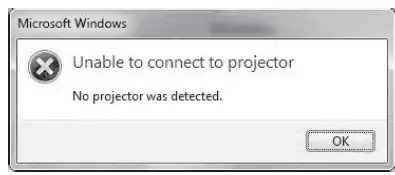
Note: 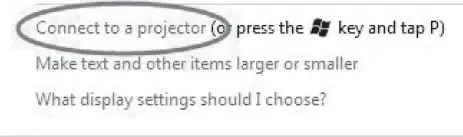
If the computer isn’t shown the option in the circle, this indicates the Windows system on the computer has flaws which will cause the USB to HDMI adapter not to work. Therefore, please install the complete system.
Audio Settings:
Note: Audio settings is no needed for the USB to HDMI Display adapter(UH1) which is without the function of audio output.
If the connected HDTV or monitor makes no sound, please confirm whether the computer is playing sound and the volume on the computer or TV is good. If all steps above have no problem, you need to set up the computer as follows:
Move the mouse to the lower-right corner of the Windows computer screen and
you can see the speaker icon , by right-clicking the mouse on it and selecting “Playback devices”, the pop-up menu is as follow:
Select the device “C-Media USB Headphone Set” in the circle as the default device. 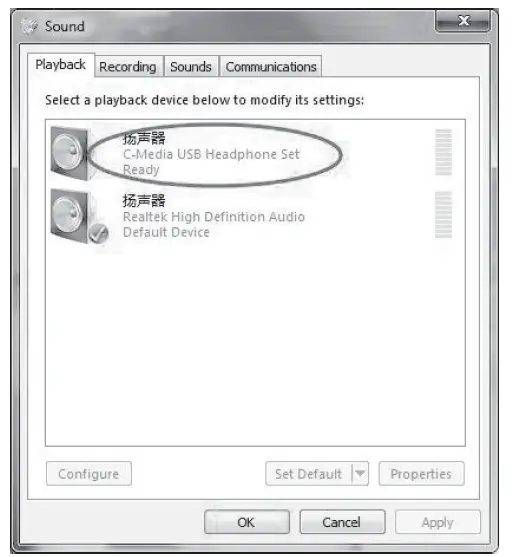
If there is still no sound by above settings, please setup as follows:
Right-clicking on the device in the circle above and selecting “properties”, you will see the pop-menu as follow: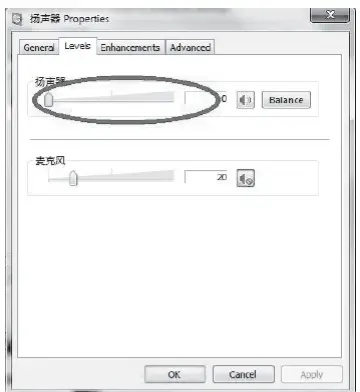
Then turned the volume up.
If the computer doesn’t show the device in the circle: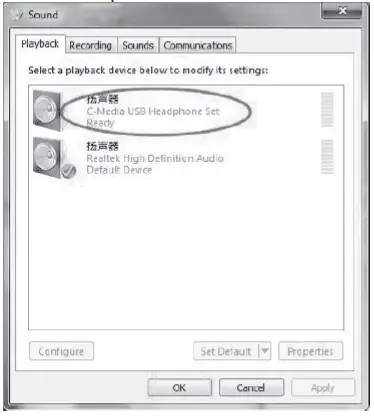
Please check whether the sound card driver of the Window device manager is installed correctly as follow: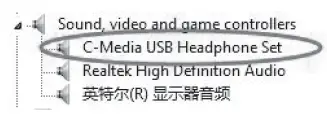
Note: The Windows comes with this driver, please properly install the full version Windows system.
Package Contents:
- USB3.0 to HDMI Adapter..1pcs
- UserManual…1pcs
Note:
- This adapter does not support Windows VISTA and MAC OSX systems.
- This adapter is without RAM, its output resolution all depends on the memory of the host computer. Non-display, stuck video, and sound that does not synchronize the picture may happen if the computer with relatively low equipment or there are too many processes using too much memory. At this time, please reduce resolution for optimal display effects.
Dear customer if you can’t get it work with the internal driver in the adapter, pls download & install the latest driver as the below link: https://support.frescologic.com/portal/home