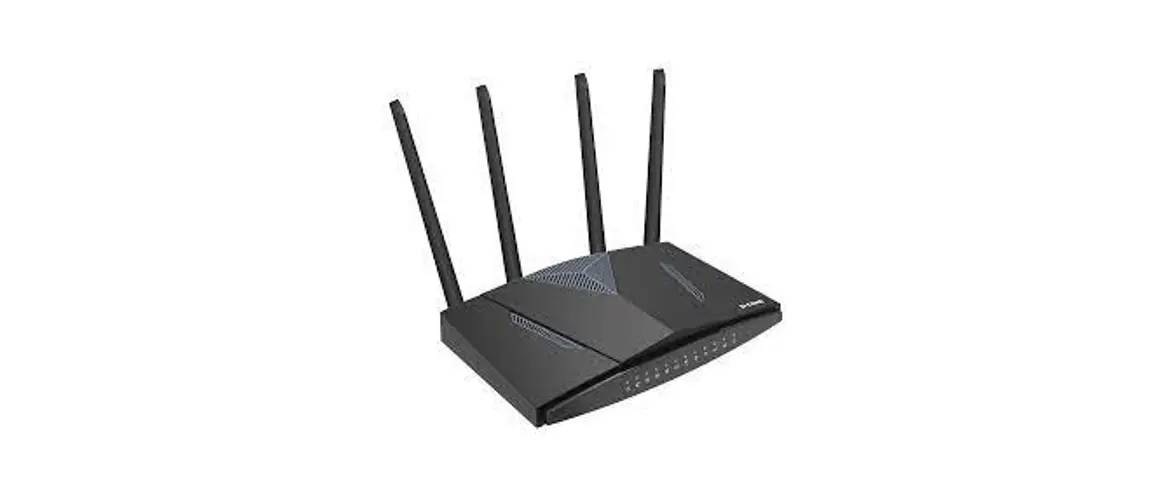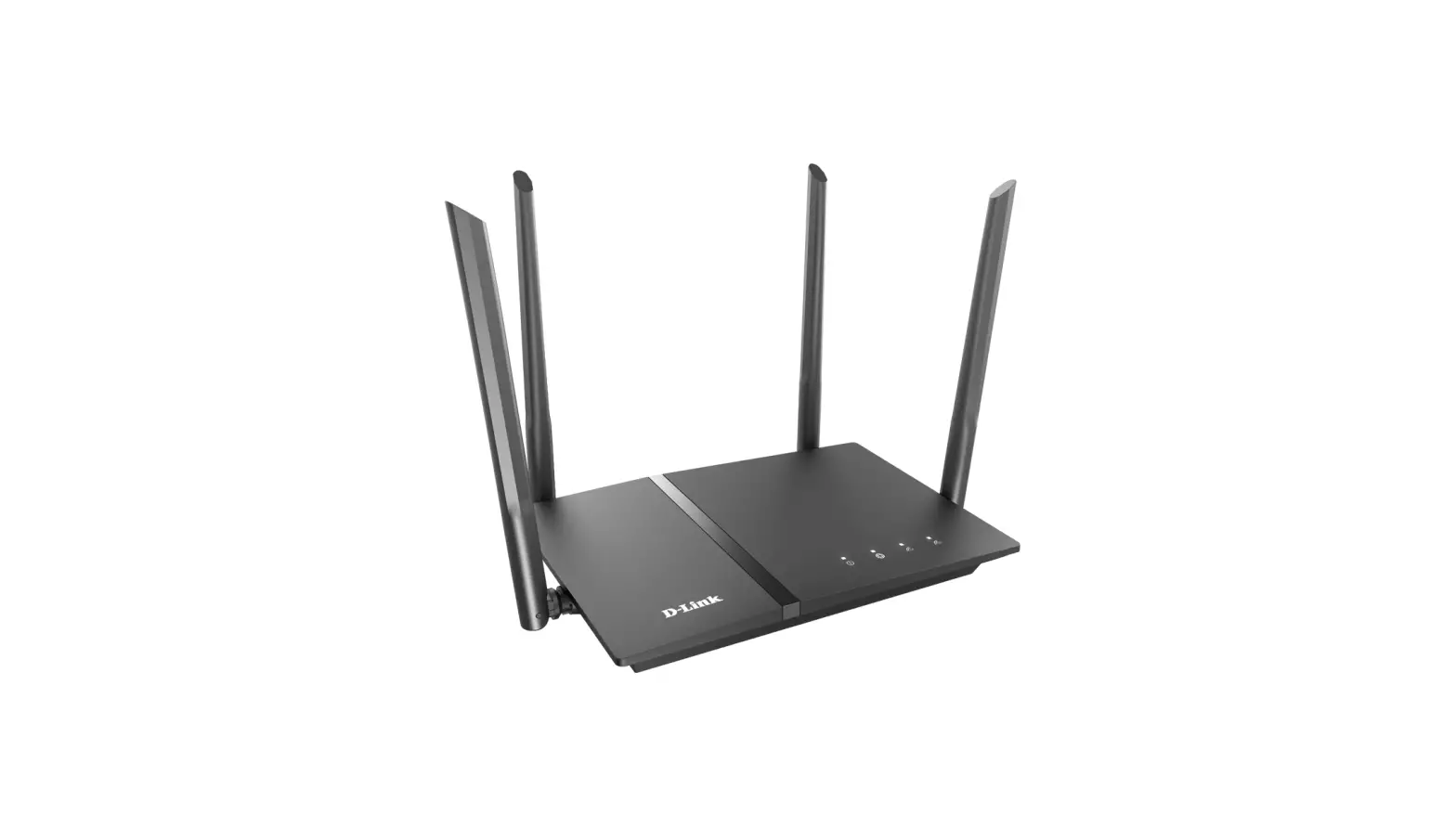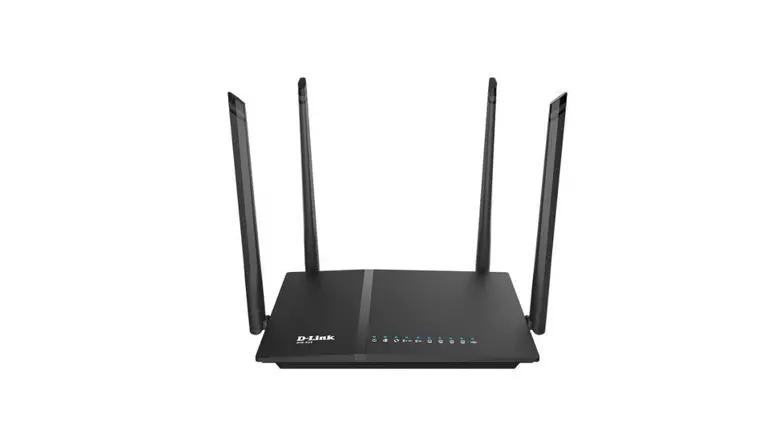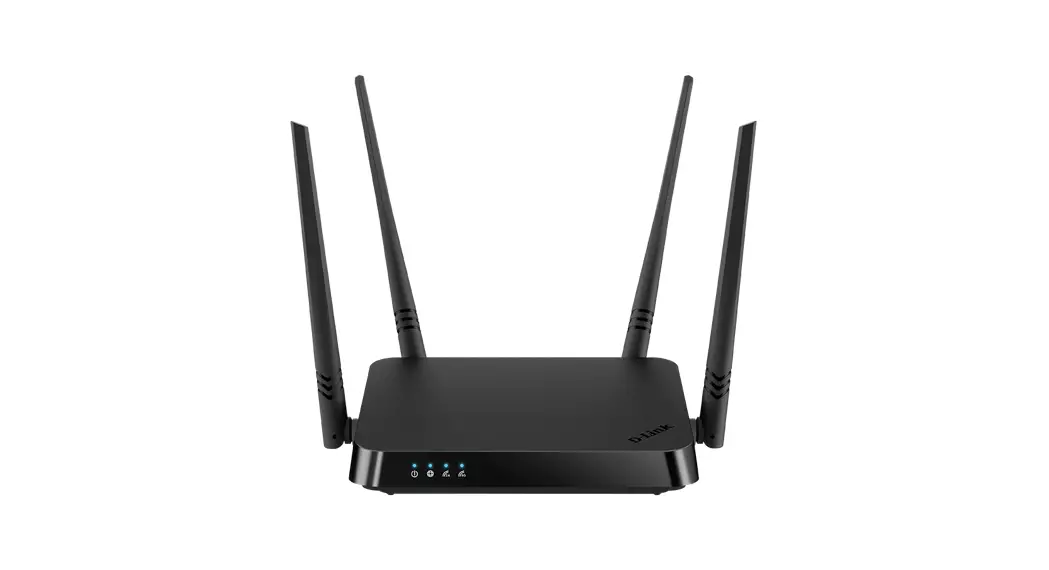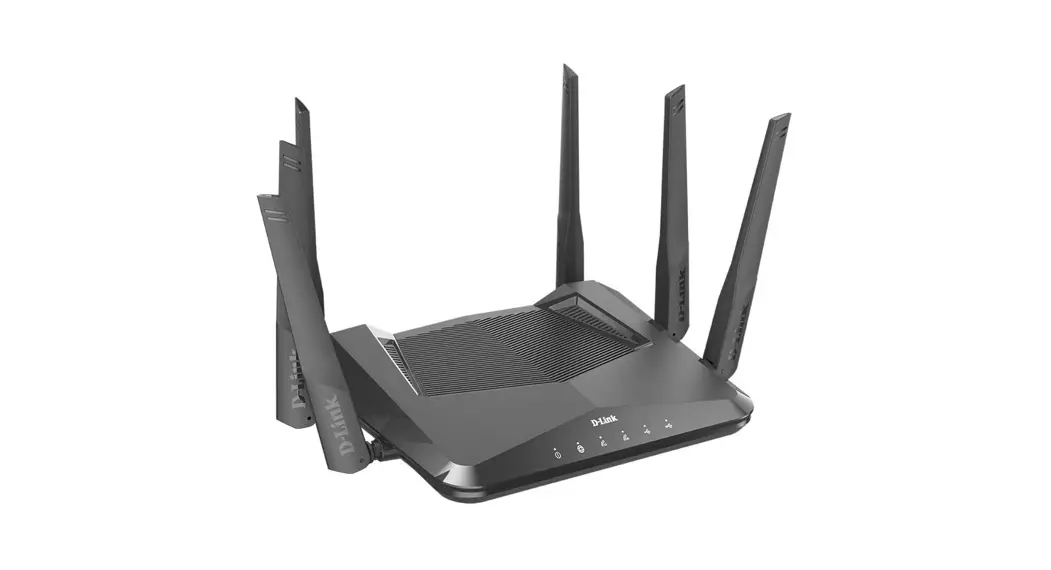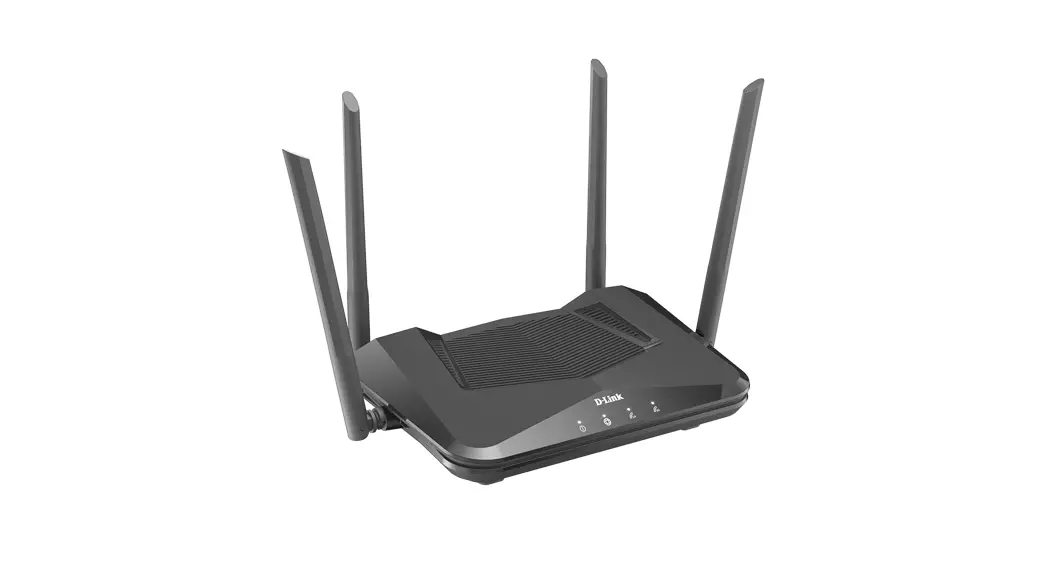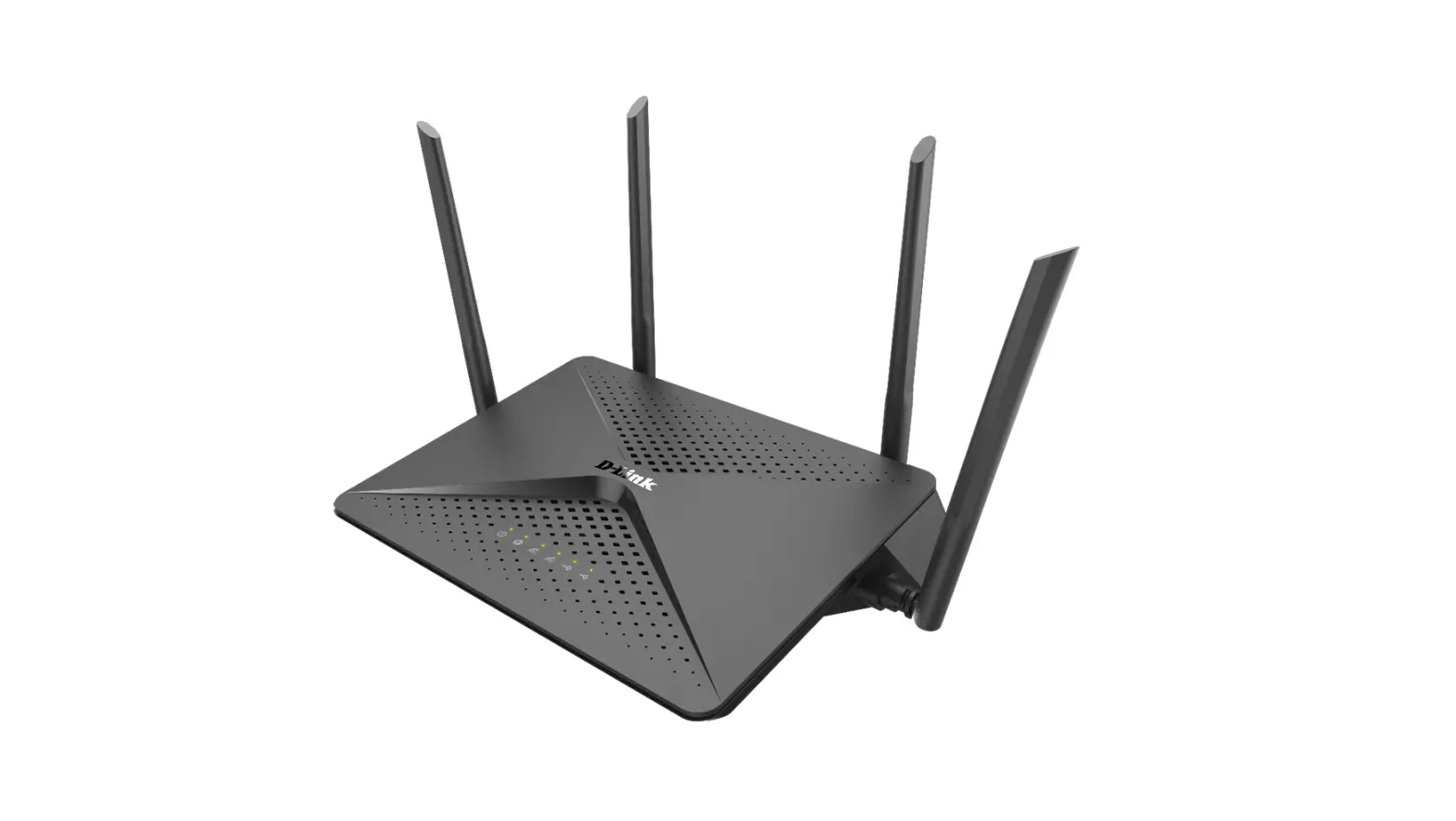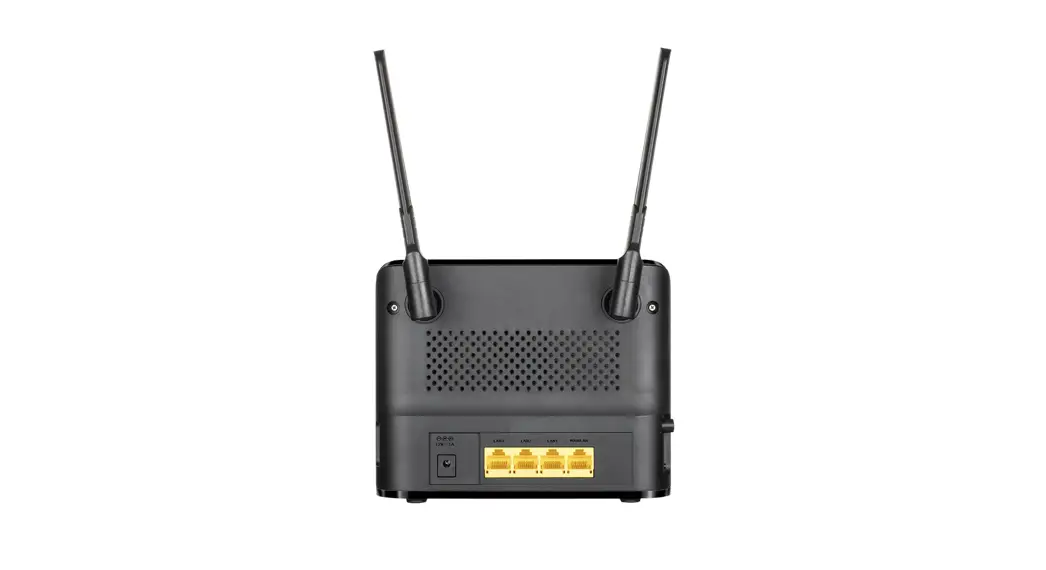

LTE CAT6 Wi-Fi AC1200 ROUTER DWR-961
QUICK INSTALLATION GUIDE
PACKAGE CONTENTS
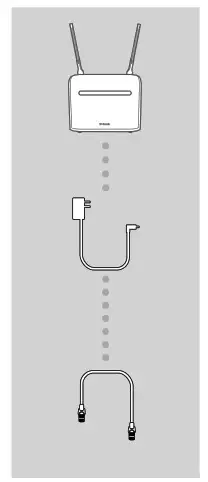
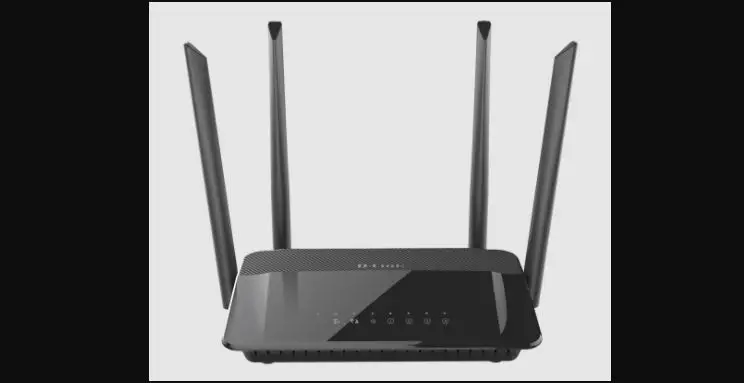
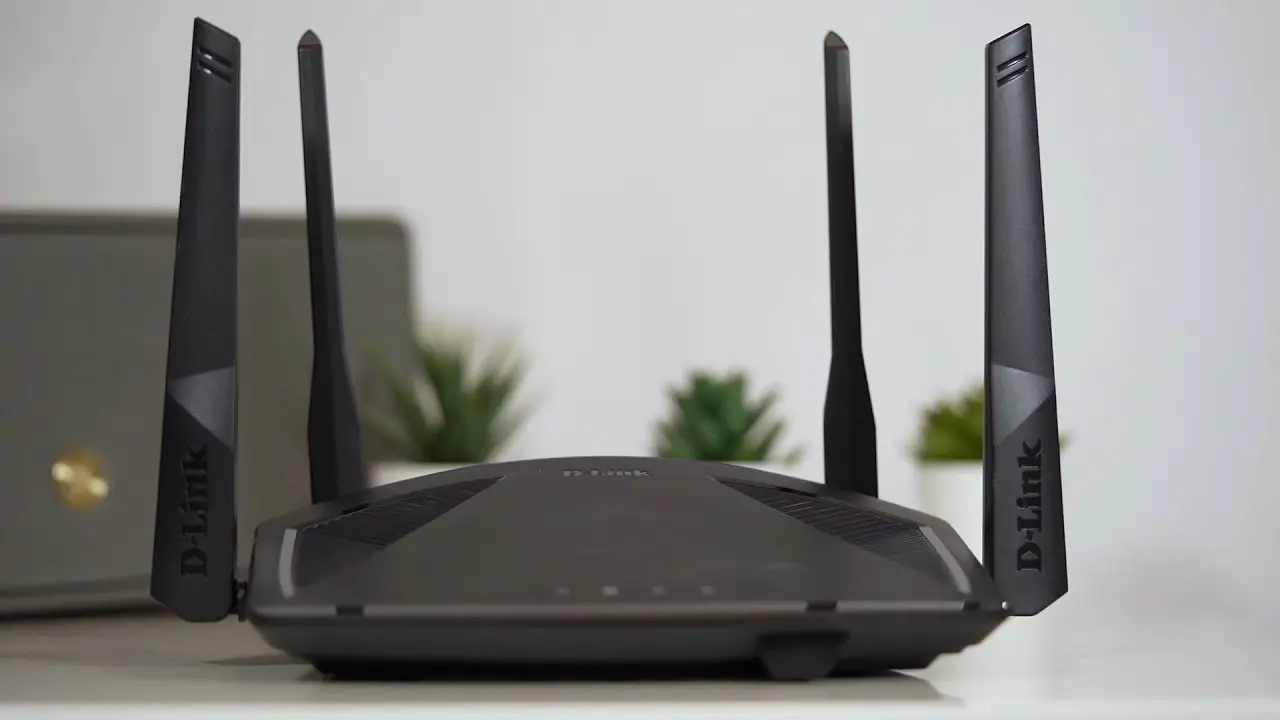
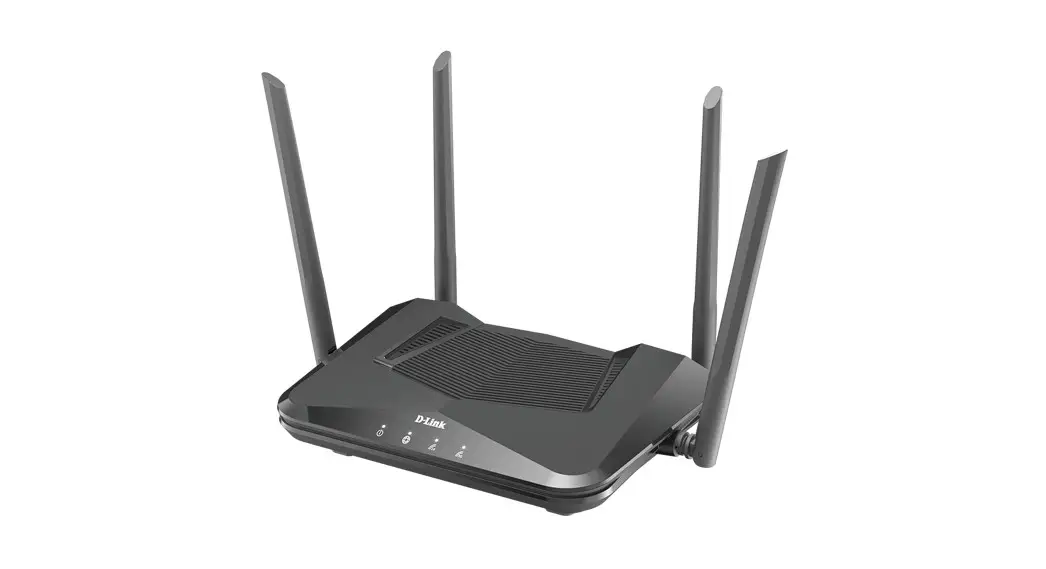
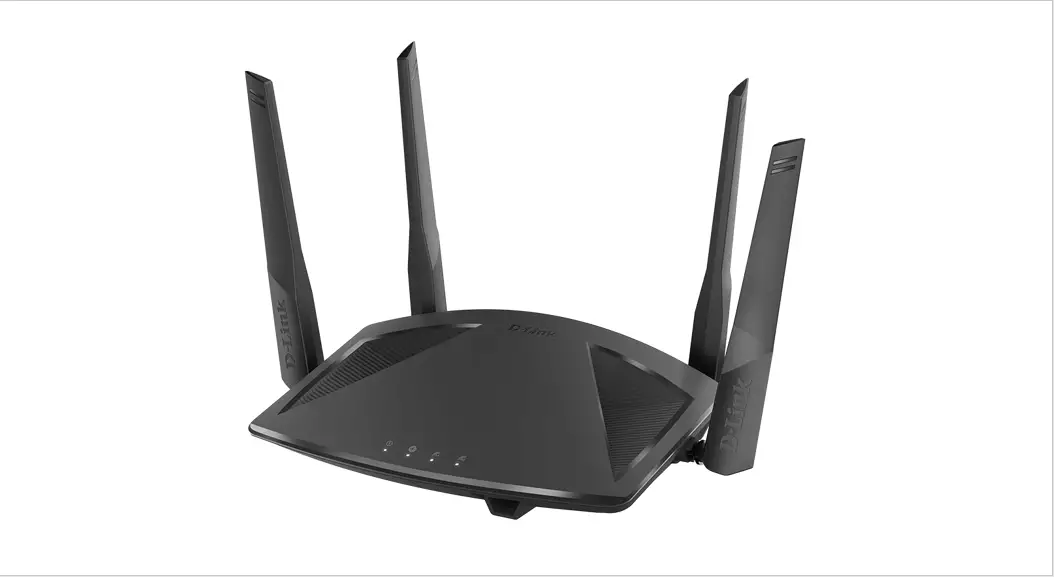
LTE CAT6 Wi-Fi AC1200 ROUTER DWR-961
12 V 1APOWER ADAPTER
CAT5 ETHERNET CABLE

If any of these items are missing from your packaging, contact your reseller.
SYSTEM REQUIREMENTS
- A broadband Internet connection
- Computer with:
- Microsoft Windows® 10/8/7/Vista/XP SP3, or Mac with OS X 10.5 or later
- 500 MHz processor or above and at least 128 MB RAM
- Internet Explorer® 10, Firefox® 36, Chrome™ 40, Safari 8 or later with Java installed and enabled
PRODUCT SETUP
Ensure that your DWR-961 LTE Cat6 Wi-Fi AC1200 Router is powered off before performing the steps below.
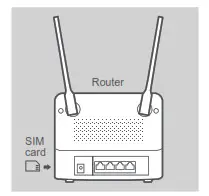
Step 1:
If you are connecting to an LTE connection, insert a standard USIM card into the SIM card slot on the side of the router.
Note: Do not attempt to insert a Nano SIM or Micro SIM into the SIM card slot.
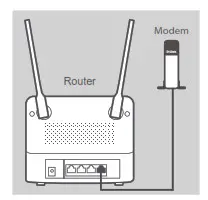
Step 2:
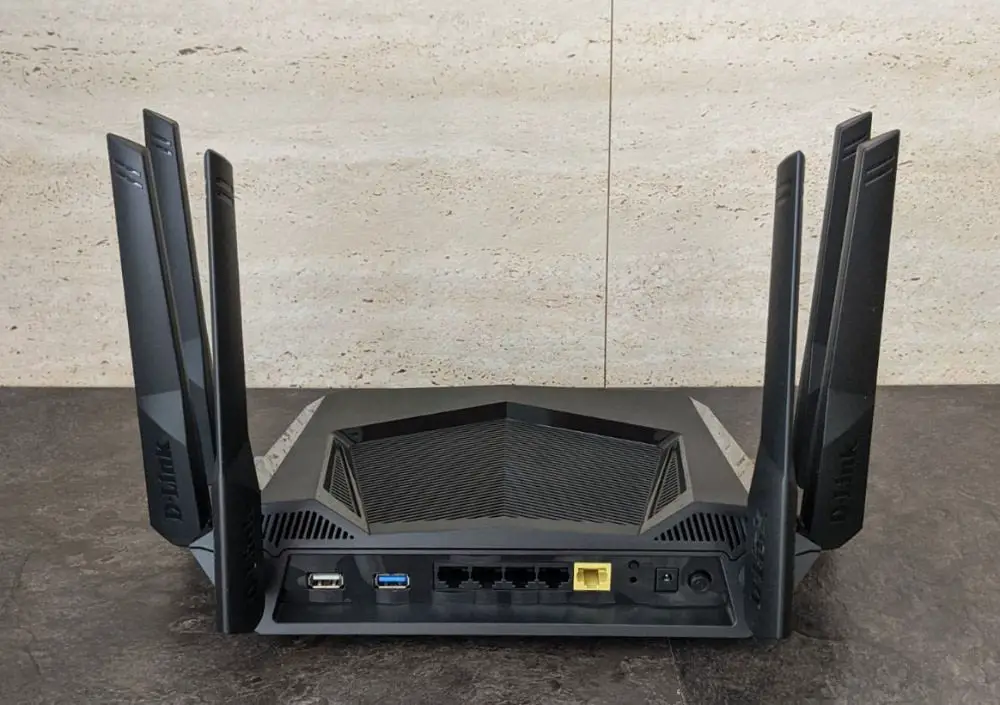
If you are connecting this router to a modem, insert one end of an Ethernet cable into the Gigabit WAN/LAN port on the back of the router and the other end into your wired Internet connection device.
Note: When connected to a modem, by default, the LTE connection will be used as the main WAN connection. The router will automatically use the wired connection if the LTE connection is not available.
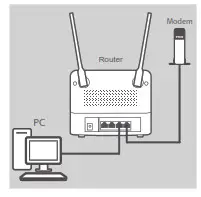
Step 3:
Insert the supplied Ethernet cable into a LAN port on the back panel of the DWR-961, and an available Ethernet port on the computer you will use to configure the unit.
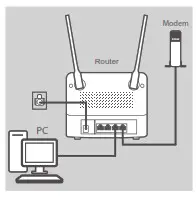
Step 4:
Connect the power adapter to the power input on the back panel of your DWR-961 LTE Cat6 Wi-Fi AC1200 Router. Plug the other end of the power adapter into a wall outlet or power strip and press the power button down.
The POWER LED on the router will light up to indicate that power is being supplied to the router.
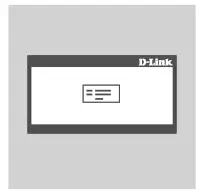
Step 5:
To configure the DWR-961 LTE Cat6 Wi-Fi AC1200 Router:
Open a web browser window and enter 192.168.0.1 into the address bar.
Enter admin for the username and leave the password area blank.
TROUBLESHOOTING
- HOW DO I CONFIGURE MY DWR-961 ROUTER OR CHECK MY WIRELESS NETWORK NAME (SSID) AND WIRELESS ENCRYPTION KEY?
• Connect your PC to the router using an Ethernet cable.
• Open a web browser and enter the router’s IP address: http://192.168.0.1
• Log into the router using the default username admin; leave the password area blank.
• Once logged in, you will be prompted to change the username and password from the default.
• Use the wizard located under Internet settings to configure the router, or make changes manually.
Note: If you have changed the password and cannot remember it, you will need to reset the router to factory defaults. - HOW DO I RESET MY DWR-961 ROUTER TO FACTORY DEFAULT SETTINGS?
• If you cannot remember your router’s administrator password, you may use a paperclip to press and hold the reset button on the router for about 10 seconds.
Note: Resetting the router to factory default will erase the current configuration. To reconfigure your router, log in as outlined in question 1, then run the Setup Wizard. - HOW DO I ADD A NEW WIRELESS DEVICE OR PC IF I HAVE FORGOTTEN MY WIRELESS NETWORK NAME (SSID) OR WIRELESS ENCRYPTION KEY?
• Every device that needs to connect to the router wirelessly will need to use the correct Wireless Network Name (SSID) and encryption key.
• Use the web-based user interface (as described in question 1 above) to check or choose your wireless settings.
• Make sure you write down these settings so that you can enter them into each wirelessly-connected PC. You will find a dedicated area on the back of this document to note this important information down for future use. - WHY AM I UNABLE TO ESTABLISH AN INTERNET CONNECTION?
• If connecting using a 4G mobile connection, make sure that you are within range of the mobile service provider, and that the service has been correctly configured.
• If connecting using WAN via an ADSUCable service, make sure the modem has been enabled/ connected and is operational, and that the service is correctly configured.
TECHNICAL SUPPORT
eu.dlink.com/support