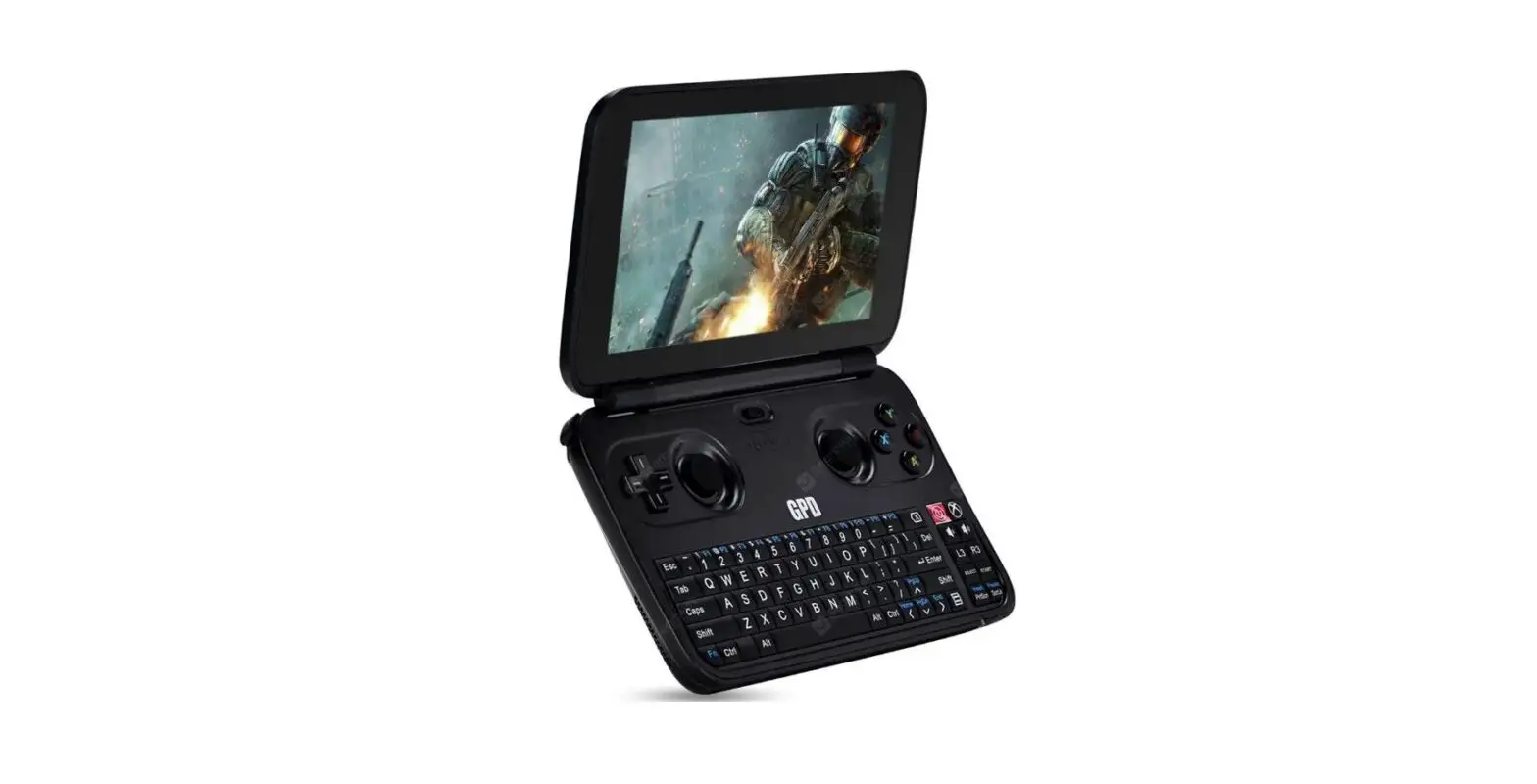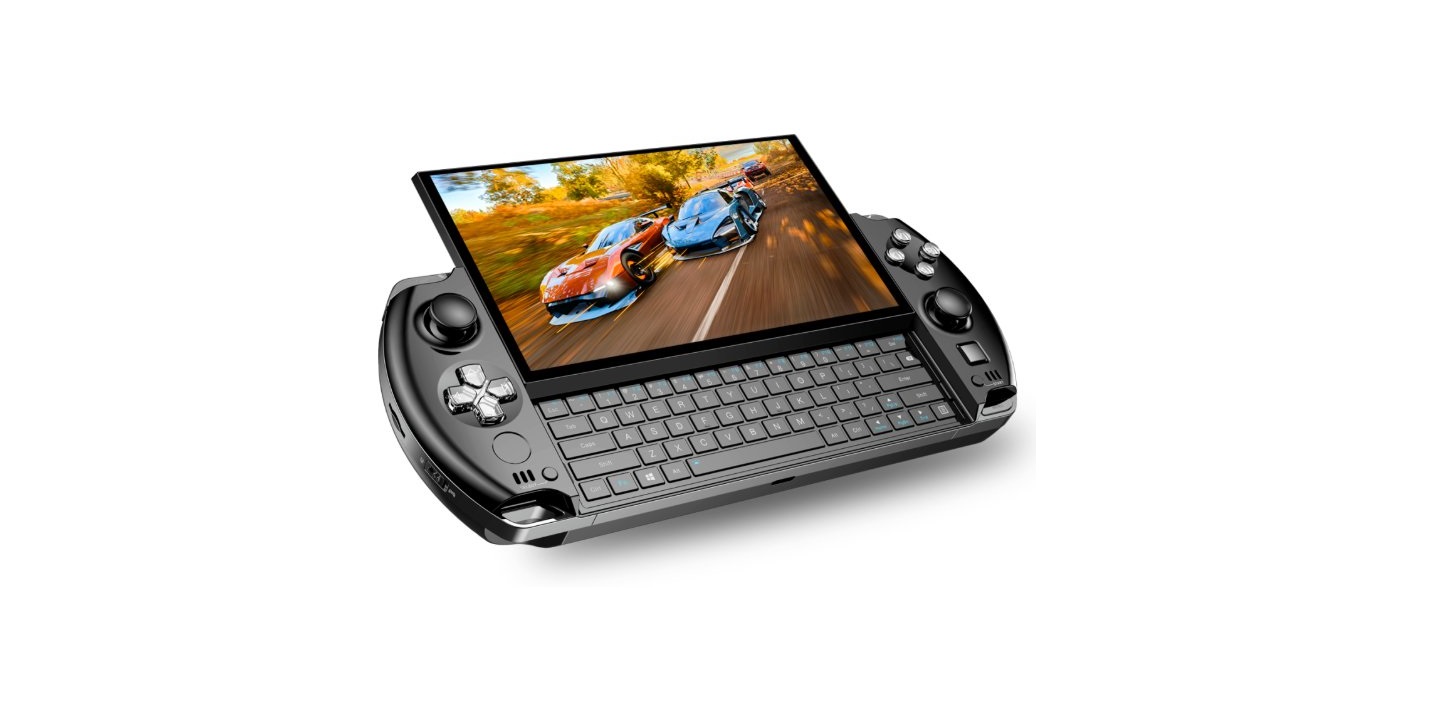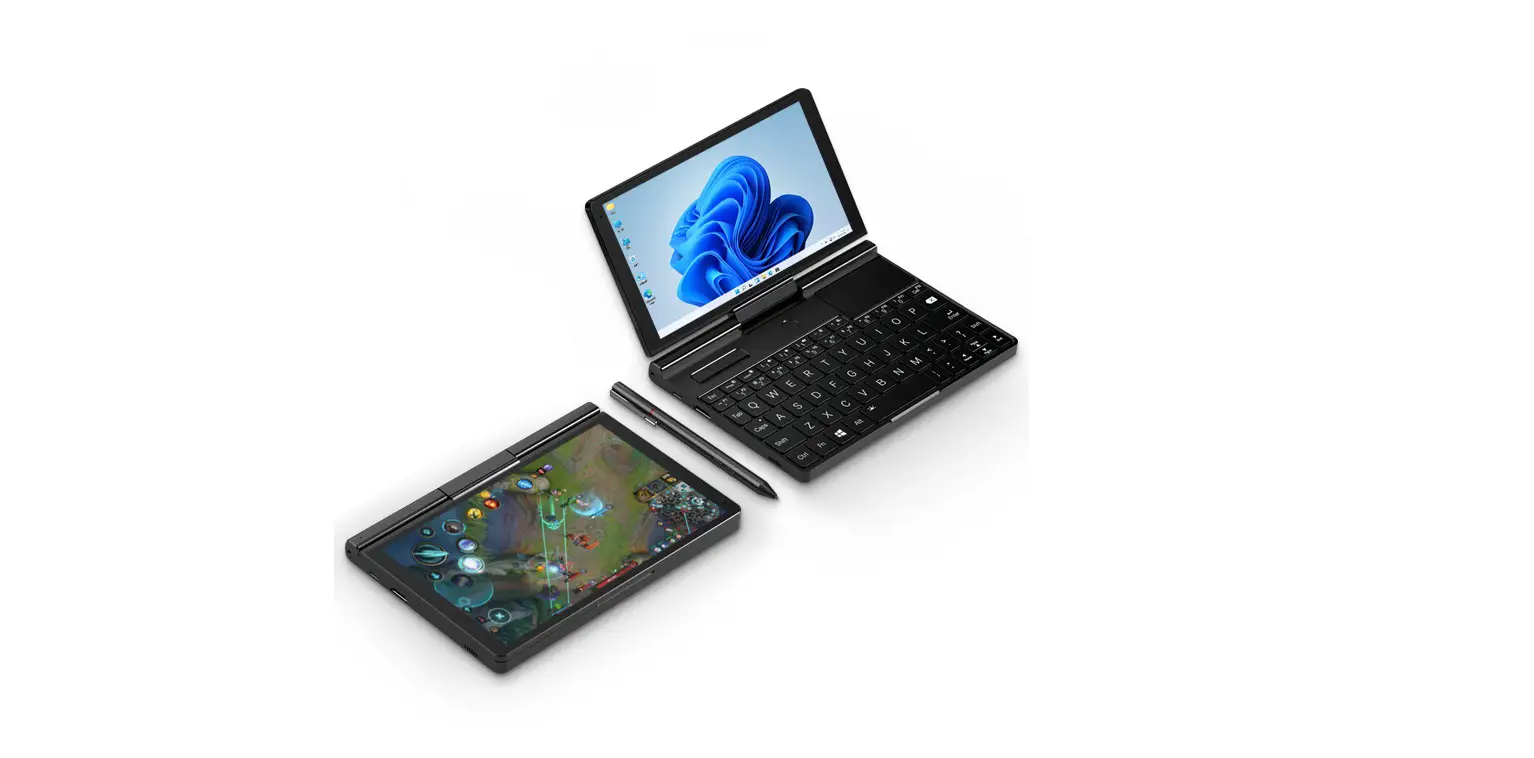

GPD Pocket 3 Mini Laptop
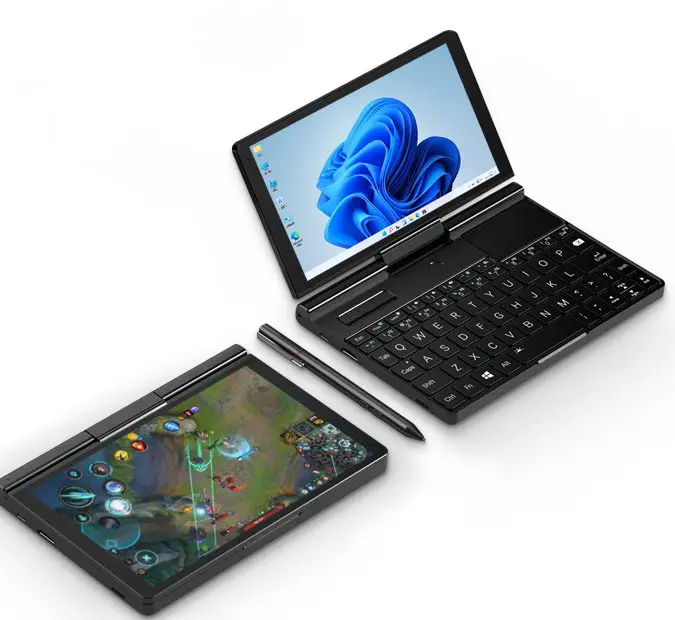
Interface Description
|
1 |
USB-A interface | Connect to external devices such as docking station and USB disk for data transmission. Connect to a mobile phone for charging or data transmission. Connect to an external portable Wi-Fi or USB network card for Internet access. You can charge the peripherals through this interface, but cannot charge this unit. This interface is detachable. You can replace this interface with a serial port extension module or KVM extension module, or should purchase this interface separately. |
|
2 |
Thunderbolt 4 interface (Type C) | Connect to external devices such as display and docking station for audio/video output or data transmission. Connect to laptops, mobile phones, tablet PCs, etc. for charging. Connect to the eGFX device and provide an external graphics card to enhance the game experience. This interface supports PD protocol power adapter and needs 12V/15V/ 20V output, and is used to charge mobile phones, mobile power and other devices. The low-profile version provides a full-featured Type C interface and does not support eGFX device. |
| 3 | Left loudspeaker | A built-in speaker for voice output. |
| 4 | Right loudspeaker | A built-in speaker for voice output. |
| 5 | Charging indicator | Red/green light Red/green (when the power adapter is plugged in, the red light is on. When the battery is full, the green light is on. When no battery is detected, red and green lights flash alternately.) |
| 6 |
Running light | White/blue light The white light is always on in normal use, and the blue light is on in sleep mode, in which case the breathing light is in the working state; the blue light is always on in silent mode, and the blue light is on in the sleep mode, in which case the breathing light is in the working state. |
| 7 | HDMI interface | It is an interface of sending videos and voice, and is used to send uncompressed audio and video signals. It supports HDMI A Type cable connection, and the target devices generally include TV, monitor or projector. |
| 8 | Lanyard hole | It can be used to attach mobile phone lanyards or ornaments to avoid being stolen. |
| 9 | Display screen | It can display pictures, and it supports 10-point touch. |
| 10 | Left mouse button | Command execution, single selection, box selection, double-click editing, etc. |
| 11 | Middle mouse button | It cannot scroll. In some applications, press and hold or use together with other keys to pan and zoom. |
| 12 | Right mouse button | Shortcut menu or enter function. |
| 13 | Caps lock indicator | When this indicator is on, it indicates the uppercase state. |
| 14 | Camera | Built-in camera, 2 million pixels, 1600×1200 resolution. |
| 15 |
USB A | Connect to external devices such as docking station and USB disk for data transmission. Connect to a mobile phone for charging or data transmission. Connect to an external portable Wi-Fi or USB network card for Internet access. You can charge the peripherals through this interface, but cannot charge this unit. |
| 16 |
USB A | Connect to external devices such as docking station and USB disk for data transmission. Connect to a mobile phone for charging or data transmission. Connect to an external portable Wi-Fi or USB network card for Internet access. You can charge the peripherals through this interface, but cannot charge this unit. |
| 17 |
RJ45 interface | It supports 10/100/1000/2500Mbps transmission rate. The transmission rate should be as high as 2500 Mbps in LAN, and super Category 6 or Category 7 network cable should be used. The target computer is also provided with a 2.5G network card and a SSD. The network speed should be as high as 2500Mbps in WAN. |
| 18 | Pre-drilled screw hole on left shaft | It is a 2.5mm screw hole. You can design any different types of brackets for fixation according to the use environment, or lift it by hanger |
| 19 | Pre-drilled screw hole on right shaft | It is a 2.5mm screw hole. You can design any different types of brackets for fixation according to the use environment, or lift it by hanger |
|
20 |
Power button/ fingerprint | It is used to turn on, turn off, sleep, and wake up. You can touch a key to unlock the system. When the desktop is locked, you can unlock the Windows desktop depending on existing fingerprint information. You can turn it on by pressing this key for 2~3 seconds. When it is turned on, press it quickly to put the machine to sleep, press it again quickly to wake up the machine, and press and hold for 7 ~8 seconds to shut it down. |
| 21 | Touchpad | It supports actions of up to 3 fingers. |
| 22 | Headphone/ microphone interface | 3.5mm headphone/microphone 2-in-1 interface. |
| 23 | Microphone interface | Independent microphone interface |
| 24 | Air inlet | Cold air enters. |
| 25 | Air outlet | Hot air is discharged. |
| 26 | Reset hole | Reset BIOS to the initial state with one click. |
| 27 | Keyboard | Input device. You can input characters or instructions by single key or combination of keys. |
| 28 | Serial port extension module | It is a standard EIA RS-232 serial communication interface that supports the connection of 9-pin serial devices. This module should be purchased separately. |
|
29 |
KVM control module | It is a single-port control module, and is used to access and control the underlying hardware for any network device and system without a keyboard, mouse, and display. This module is provided with one HDMI IN interface and one USB IN interface. After the HDMI cable is connected, the built-in screen of Pocket 3 can be used to display the process of startup, self-checking and login system boot of the target devices, and the built-in keyboard and mouse control target devices of Pocket 3 can be used. The USB IN interface can be connected to a keyboard or mouse and can also be used to control the target devices. This module should be purchased separately. |
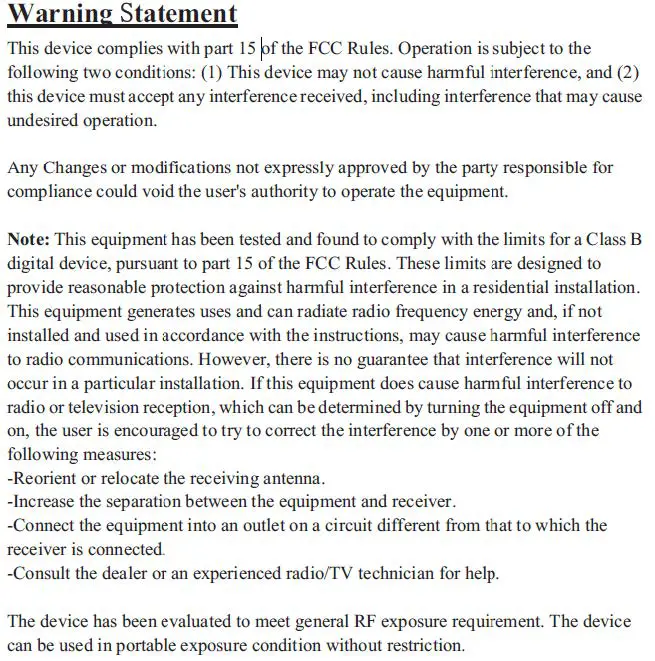
WARNING STATEMENT
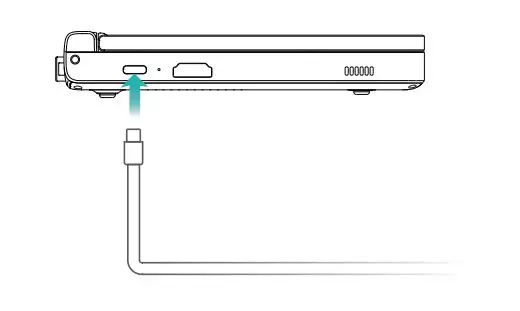
Charge the device
Charge the device with a power adapter
The device has a built-in (non-detachable) rechargeable battery. Please use the charging cable in the built-in power adapter and Thunderbolt 4 (full-featured Type C interface for low-profile version) interface to connect to the power socket. When the charging indicator lights red, it indicates that the battery is charging. When the battery is full, the light turns green. When the device is off or in sleep mode, the battery will charge faster.
Precautions for charging
Please use the charging cable in the built-in power adapter and the Thunderbolt 4 (full-featured Type C interface for low-profile version) interface for charging.
- The use of third-party accessories may cause low performance, and there may be safety hazards.
Please charge the device at suitable temperature and in a well-ventilated and cool area. - Charging at a high temperature may damage the device.
- The charging time of the device will vary with temperature and battery usage.
- When the device is working and charging for a long time, the surface may become hot, which is normal.
- When you feel hot, please disable some functions and stop charging.
Know the battery status
You can check the current battery status by the battery icon on the screen.
- When the device is powered on, the battery icon will indicate that the device has been connected.
- When the device is in use, move the cursor to the battery icon to view the remaining battery capacity and remaining service time.
- The battery is consumable. If it is found that the standby time is greatly reduced, please do not replace it by yourself. Please contact the customer service staff of the shop where you purchased it to replace it with the original battery.
Turn the device on and off
Please connect the charging cable in the power adapter and the Thunderbolt 4 (full-featured Type C interface for low-profile version) interface to charge the device during first startup.
When the device is off or in sleep, short press the power button until the screen lights up. At this time, you can turn on or wake up the device.
When the device is in normal use, click < o put the device into sleep, shutdown or restart state. Press and hold the power button for 10 seconds to forcibly shut down the device. In case of forced shutdown, unsaved data may be lost.
Keyboard function keys
The multi-character keys of the device keyboard default to the hotkey mode, and can be used in conjunction with the Fn key to easily execute common tasks.
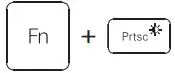 | Turn down screen brightness |
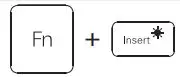 | Turn up screen brightness |
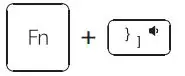 | Turn down the volume |
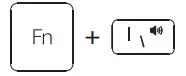 | Turn up the volume |
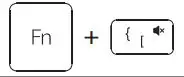 | Turn off the sound |
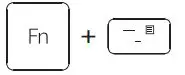 | The right-click function menu pops up in the text |
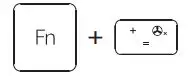
| Combination of keys to achieve mute and run fan at low speed |
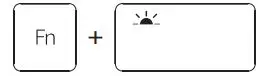 | Turn on or off the keyboard backlight |
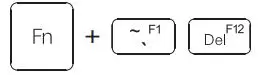 | F1~F12 |
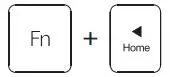 | Home key |
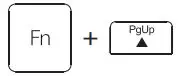 | PgUp key |
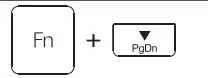 | PgDn key |
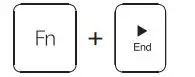 | End key |
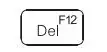 | Boot and hold to enter the BIOS |
 | When this indicator is on, it indicates the uppercase state. |
Specification
| Environmental Requirement | Temperature: 0℃~70℃ |
| Humidity: 20~80(%RH) | |
| Audio Output | 3.5mm |
| Video Output | 4K Video Output |
| 4K×2K Resolution Support | |
| Adapter | Input Voltage DC 20V — 2.25A |
| Power Consumption | 6~25W |
| Standby Power | 0.1W |
| Dimension | 198×137×20 mm |
| Net Weight | 750g approx |
| SN | Description | Unit(s) |
| 1 | GPD Pocket 3 | 1 |
| 2 | Type-C Data Cable | 1 |
| 3 | Power Adapter | 1 |
| 4 | User Manual | 1 |
Note: Please use the origin AC Adapter, as low input voltage can cause an insufficient power supply.
Tips: Accessories in kind prevail