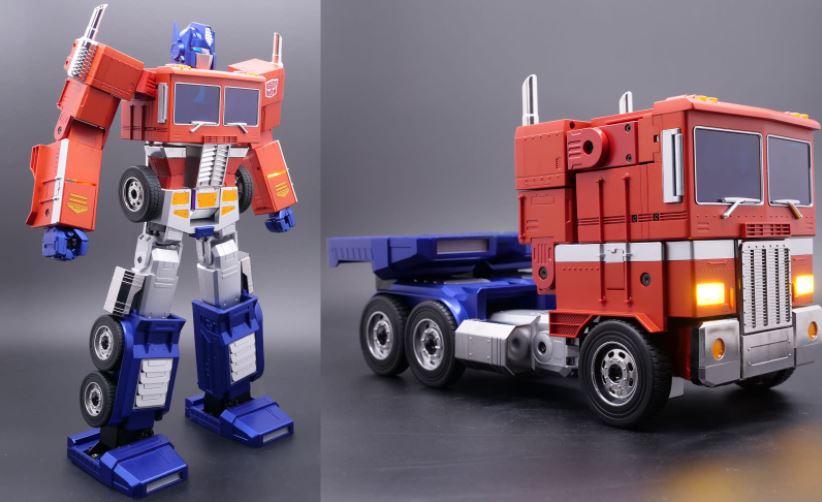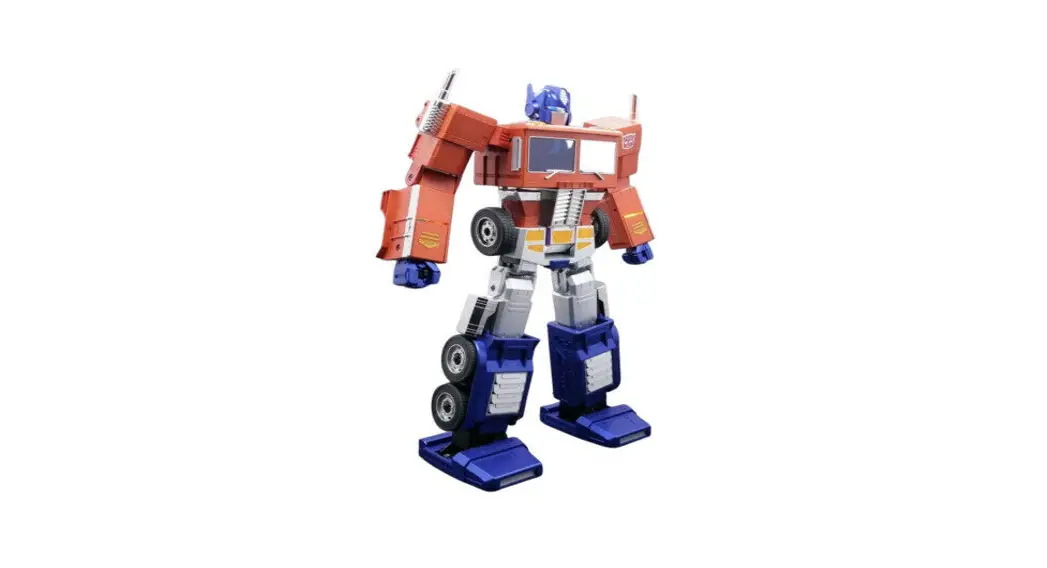
 OP40 Flagship Optimus Prime Robot
User Guide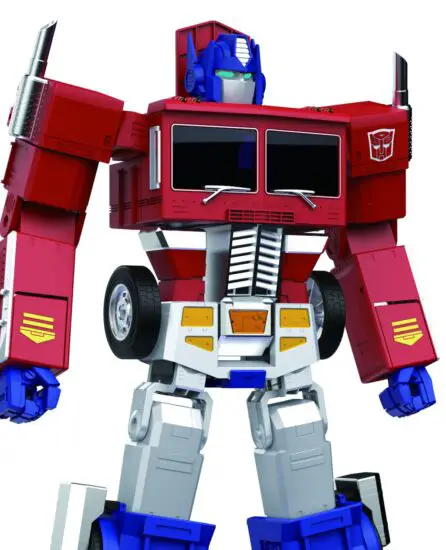 ROBOSEN.COM
 POWER ON
 POWER ON
Hold down for 5 seconds to start Optimus prime.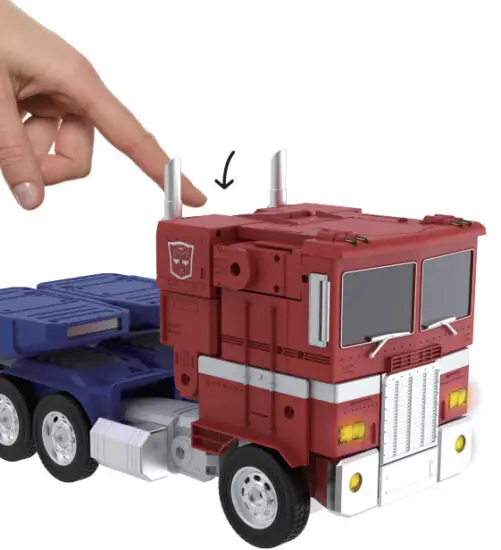
 TALK TO OPTIMUS PRIME
 TALK TO OPTIMUS PRIME
Try these commands.
Always start with,
- HEY. DPTlfflUS PRRITTIE.
And he will say, - GREETINGS”
Pause and then say, - CONVERT
Repeat the first two steps above and then try one of these phrases,
“WHO ARE YOU”
“MOVE FORWARD.”
“RELL OUT!”
With 25+ Voice Commands, the fun is endless!
 SWITCH TO APP MODE
 SWITCH TO APP MODE
On the Main Screen of the App Click “Connect”
 REMOTE
 REMOTE
Convert between robot and truck, move, punch, honk, walk, and much more.
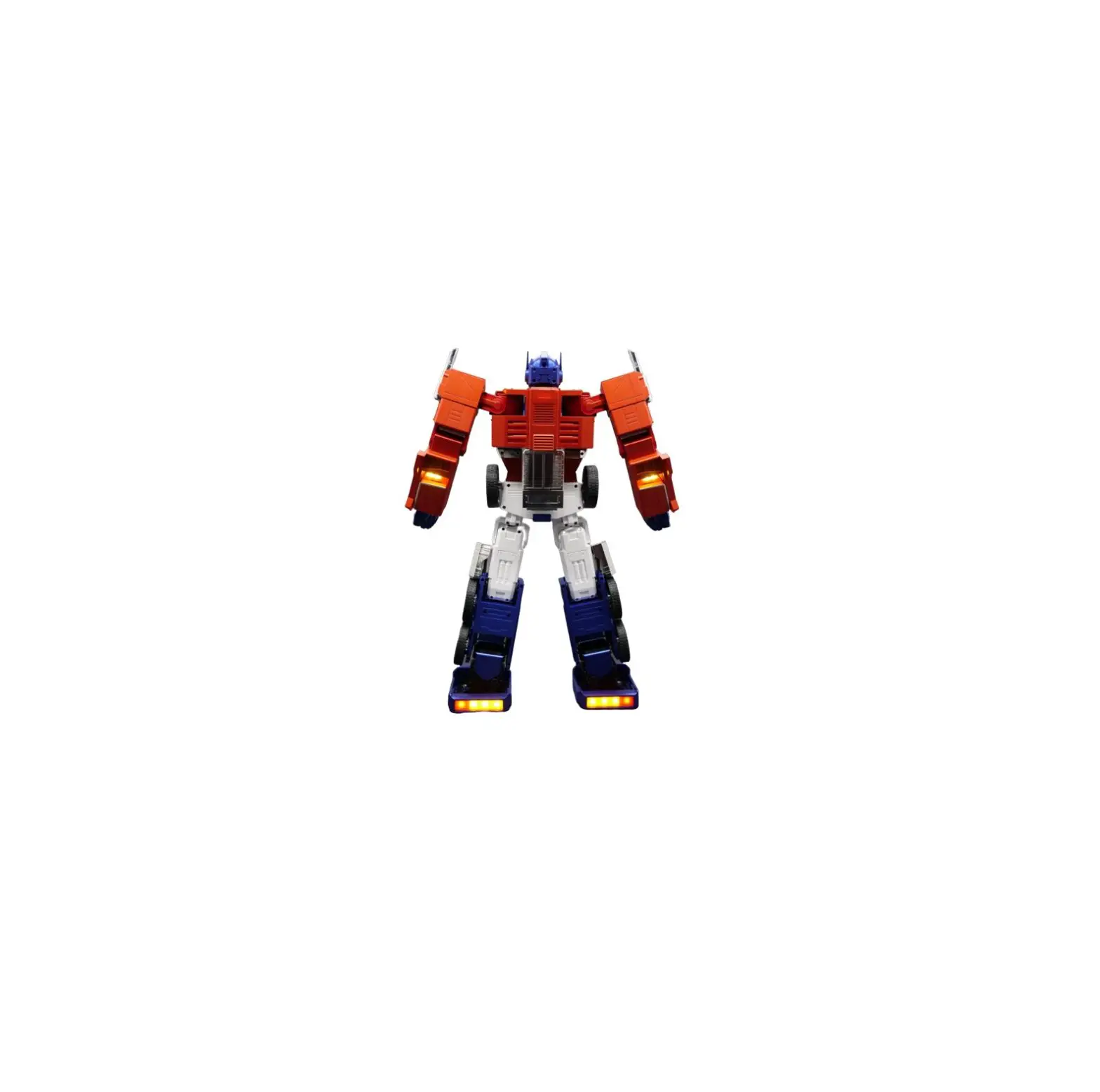
ROBOT ACTIONS

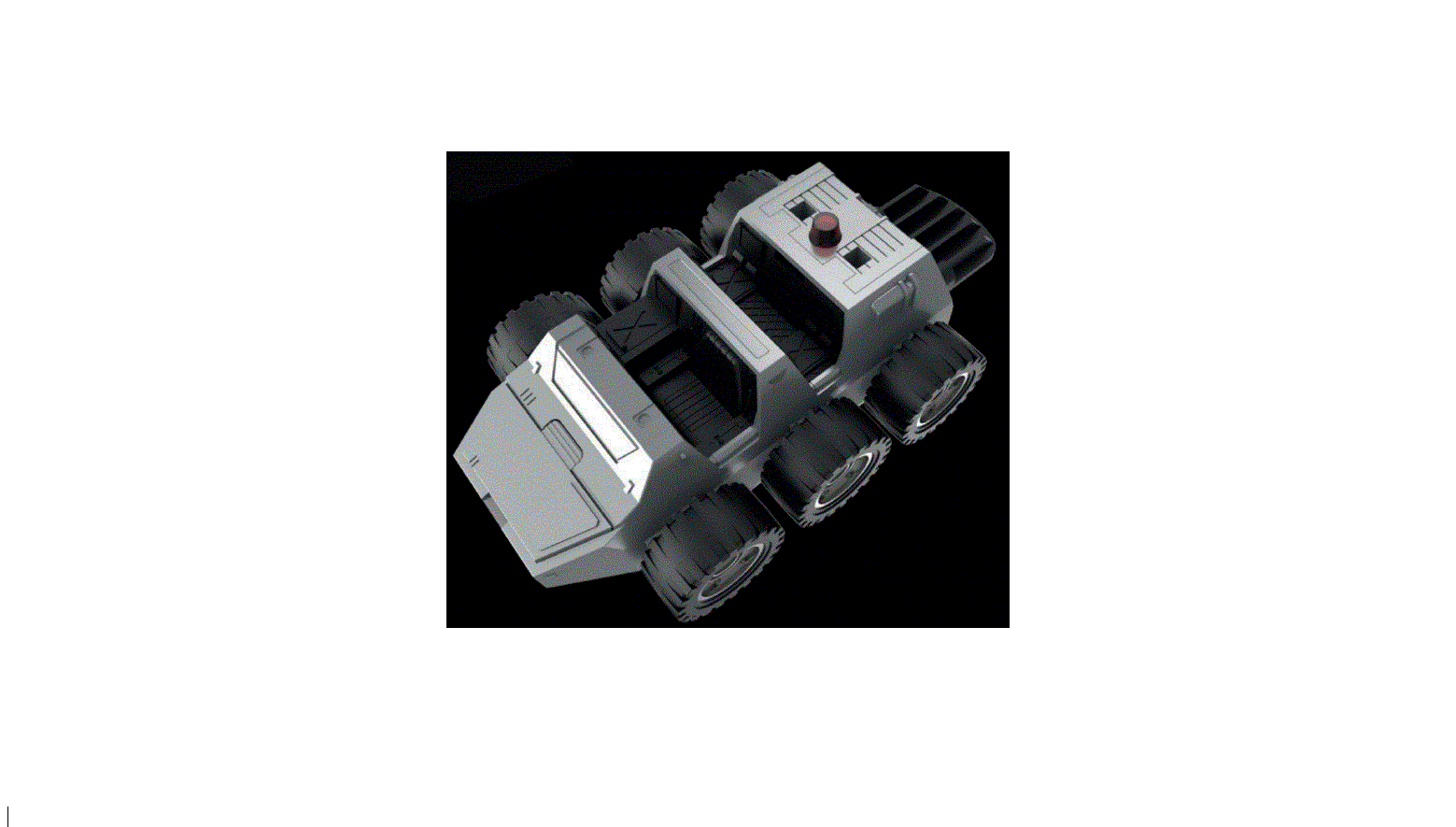
TRUCK ACTIONS

Please refer to the user manual for complete operational details and instructions.
 ACTIONS
Click any of the preset “Actions” to see and hear Optimus Prime go!
 MISSION
Learn all there is to know about Optimus Prime, all while having fun and interacting!
 CREATE
Program Optimus Prime using physical memory movements or block-based graphical programming.
 https://download.robosen.cn/OptimusPrime
© 2022 Robosen Robotics (Shenzhen) Co., Ltd All Rights Reserved.