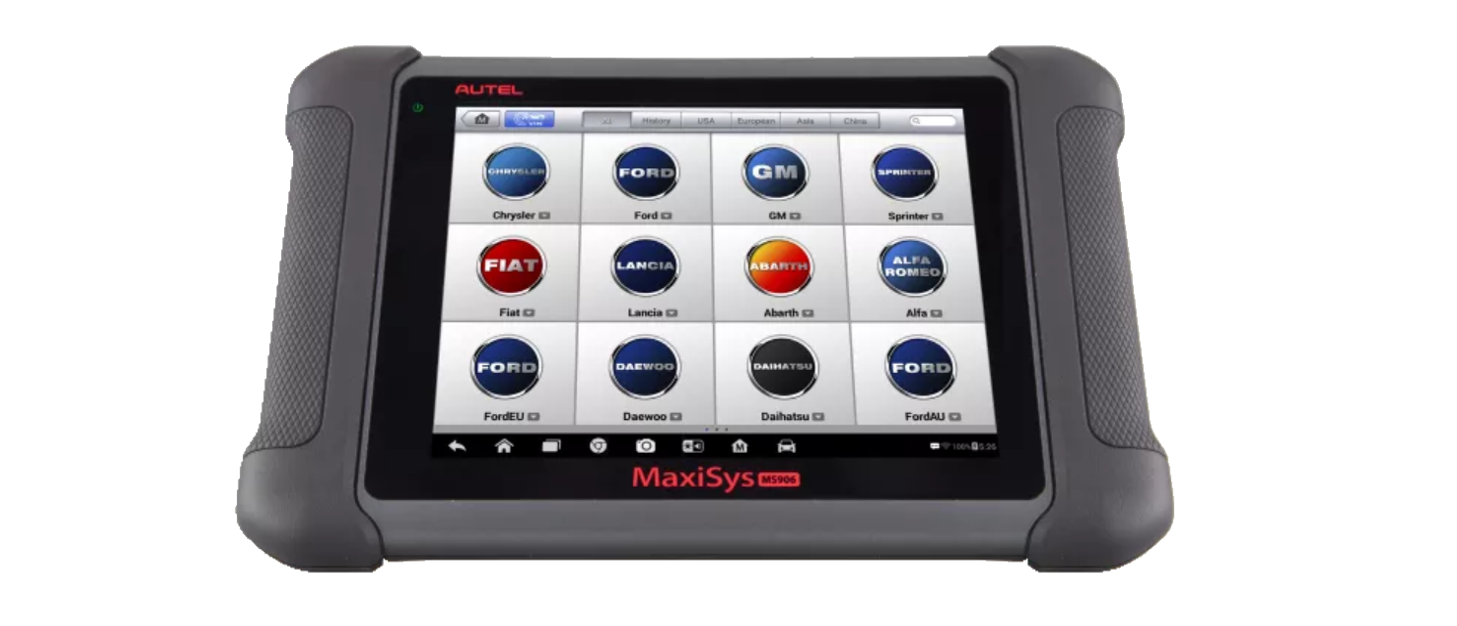

Quick Reference Guide
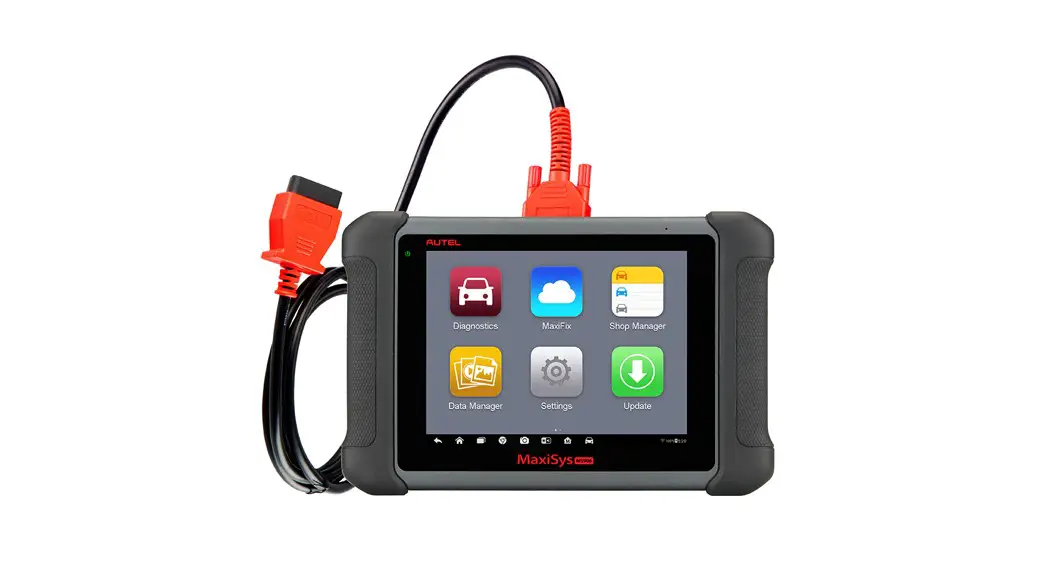
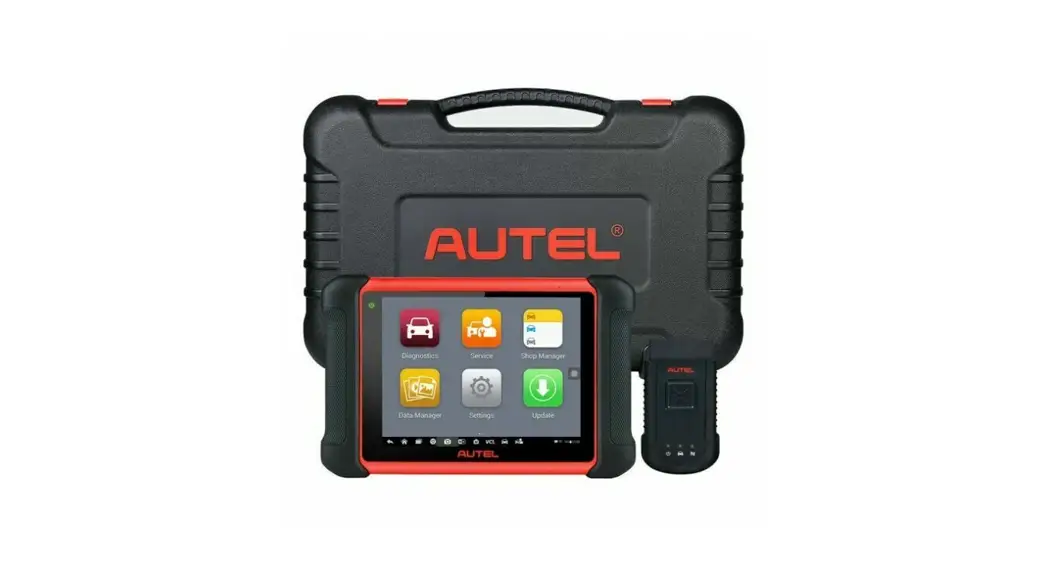
MaxiSys MS906 Pro
Email: [email protected]
Web: www.auteI.com
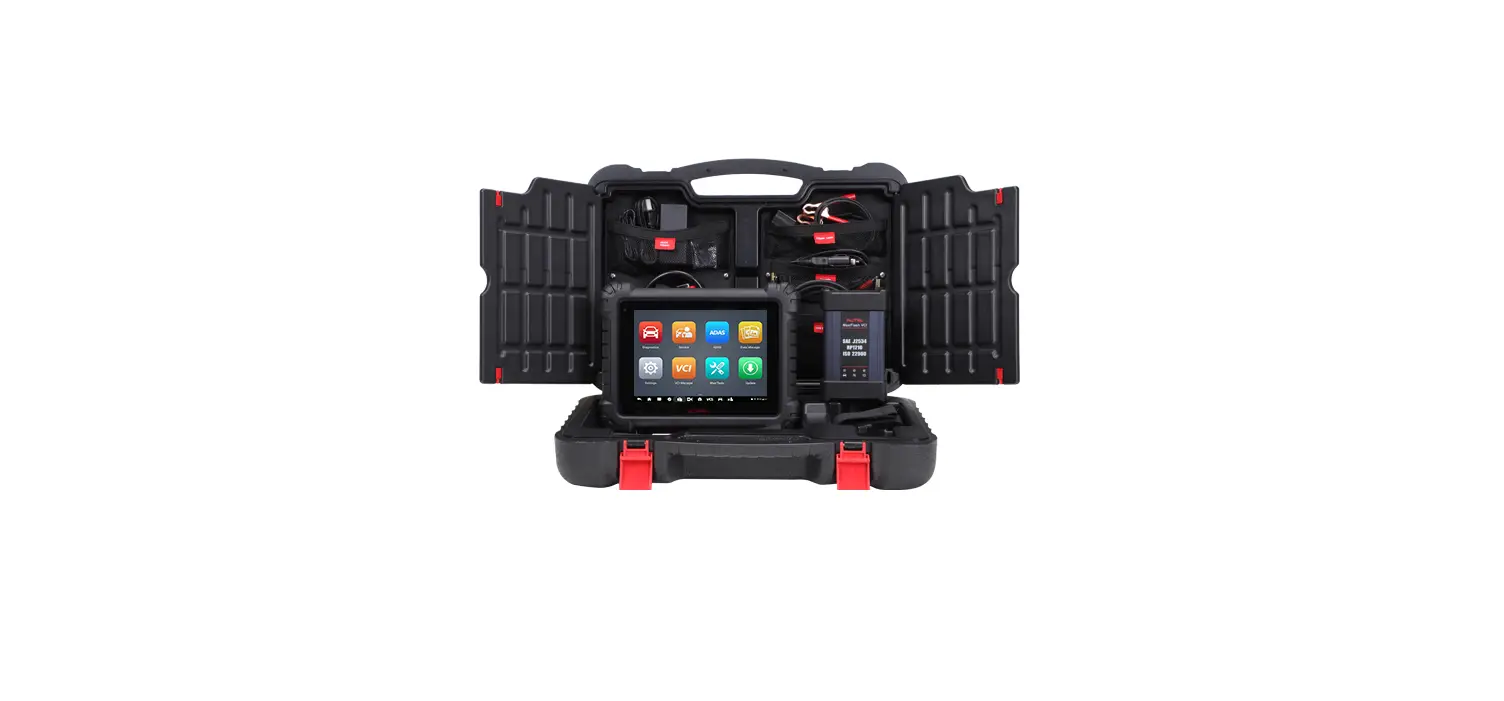
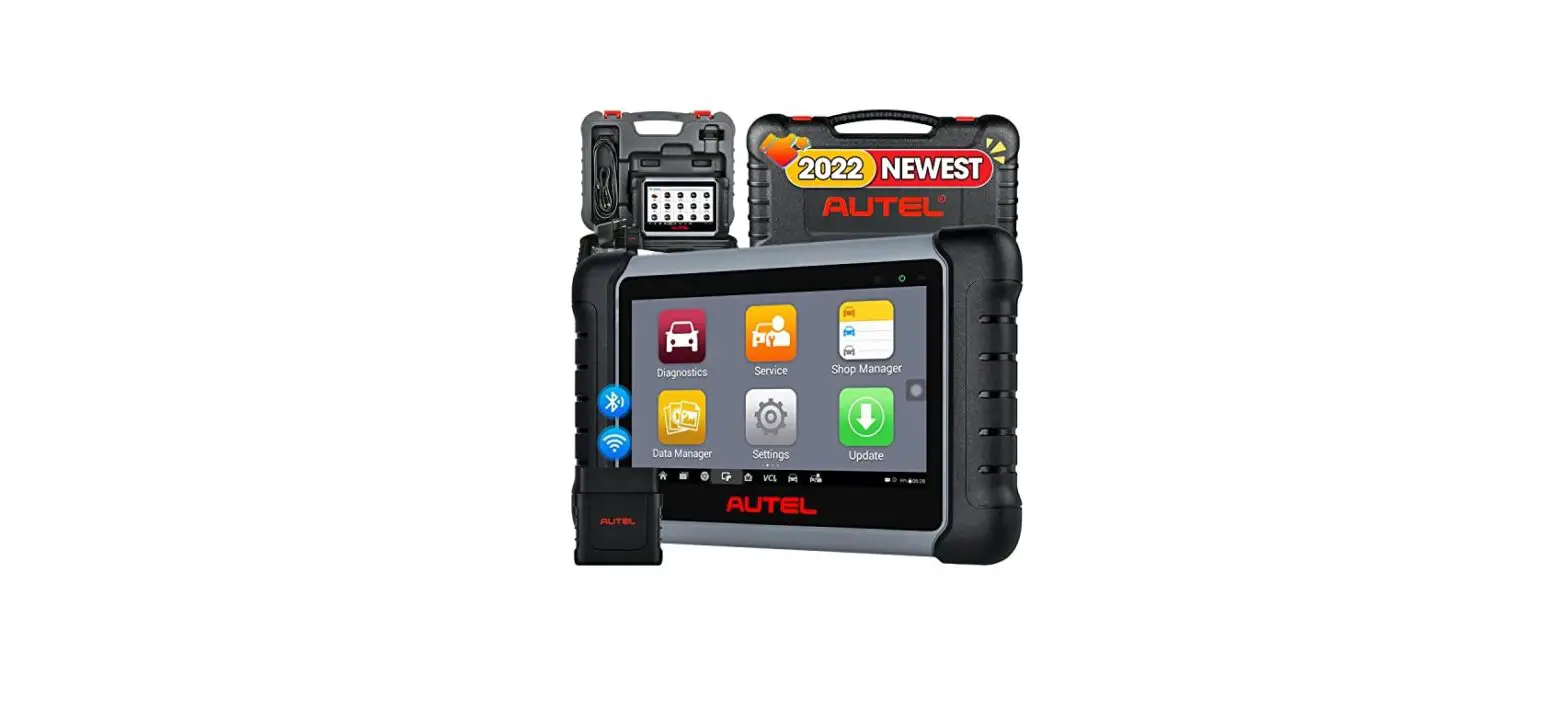
Thank you for purCh6SiFlQ this Autel MaxiSys MS906 Pro. Our tools are manufactured to a high standard and — when used according to these instructions and properly maintained — will provide years of trouble-free performance.
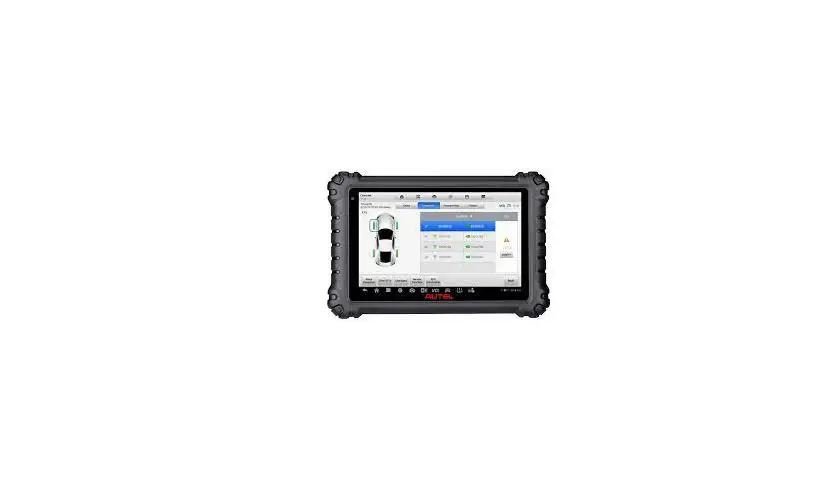
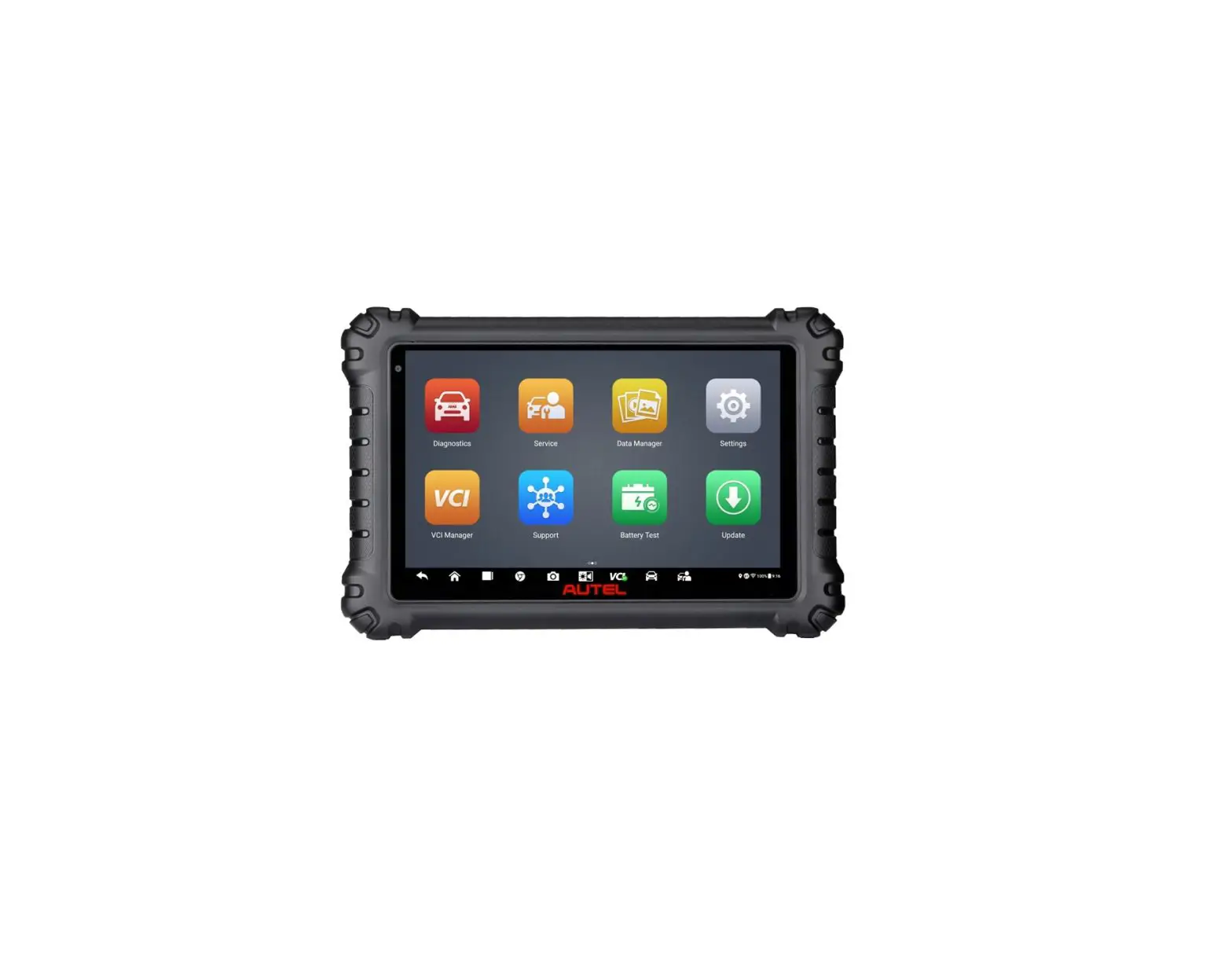
 MaxiSys MS906 Pro Display Tablet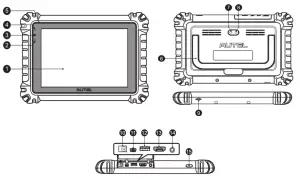
| 1. 8-inch LED Capacitive Touchscreen | 6. Collapsible Stand — extends from the back to allow hands-free viewing of the tablet | 11. Mini USB Port |
| 2. Ambient Light Sensor — detects ambient brightness | 7. Rear Camera | 12. USB Port (for VCI Connection) |
| 3. Power LED | 8. Camera Flash | 13. HDMI Port |
| 4. Front Camera | 9. TF Card Slot | 14. Headset Jack (3-band 3.5mm) |
| 5. Microphone | 10. DC Power Supply Input Port | 15. Lock/Power Button — press and hold to turn on/off the tablet, or tap to lock the screen |
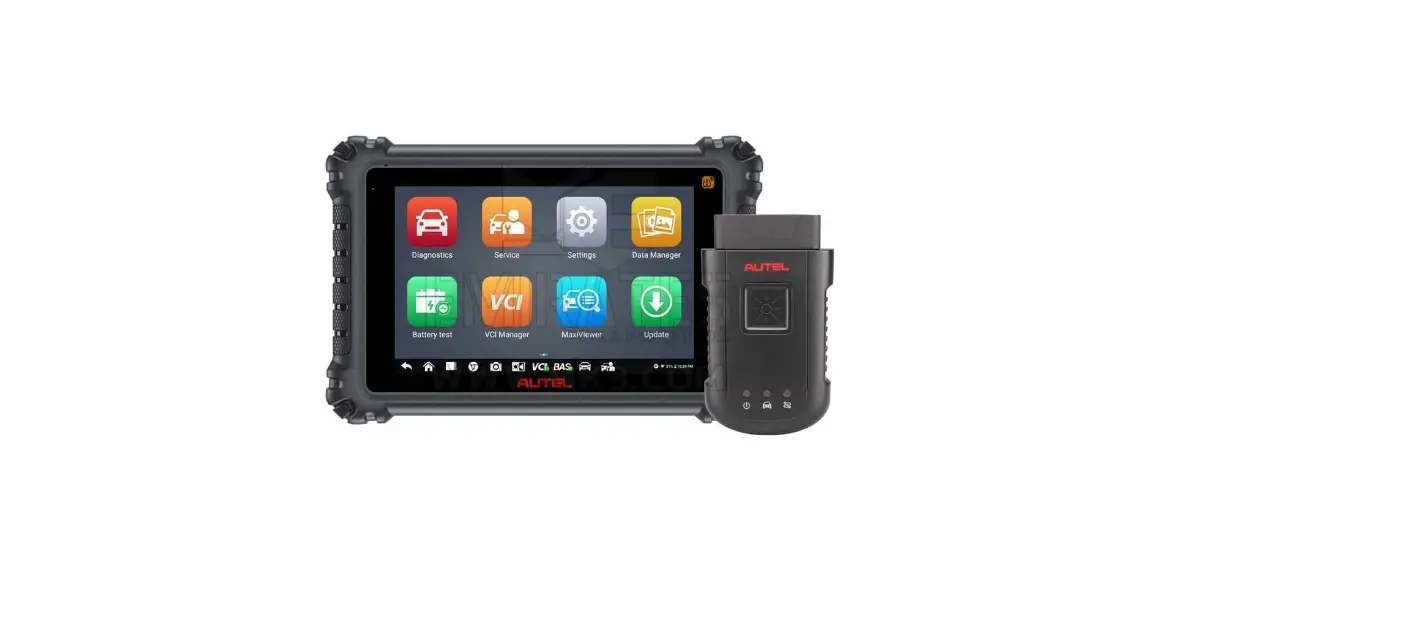
VCI (Vehicle Communication Interface) Device — MaxiVCI V200
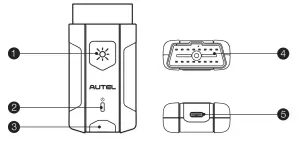
- Flashight Power Button
- Power LED
- Vehicle/Connection LED
- Vehicle Data connector (16-pin)
- USB Port
VCI LED Description
LED | Color | Description |
Power LED | Yellow | The VCI is powered on and performing self-check. |
Green | The VCI is ready for use. | |
Flashing Red | The firmware is updating. | |
| Vehicle /Connection LED | Green | • Solid Green: The VCI is connected via USB cable. • Flashing Green: The VCI is communicating via USB cable. |
Blue | • Solid Blue: The VCI is connected via Bluetooth. • Flashing Blue: The VCI is communicating via Bluetooth. |
 IMPORTANT: Before operating or maintaining this unit, please read these instructions carefully, paying extra attention to the safety warnings and precautions. Failure to use this product properly may cause damage and/or personal injury and will void the product warranty.
1.
 Insert the Vehicle Data Connector on the MaxiVCl V200 into the vehicle’s DLC, which is generally located under the vehicle dashboard.
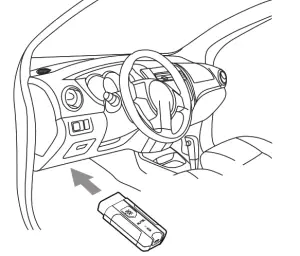 Insert the Vehicle Data Connector on the MaxiVCl V200 into the vehicle’s DLC, which is generally located under the vehicle dashboard.
2. 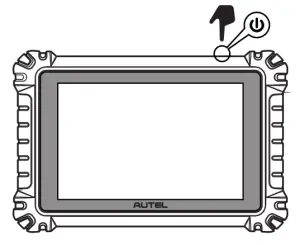
- Ensure the tablet is sufficiently charged or is connected to the supplied DC power supply.
- Power up the tablet.
3. 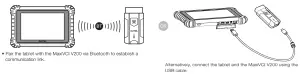
- NOTE: The tablet and the MaxiVCI V200 are configured to auto-matically synchronize with each other on first use, so there should be no need to pair up.
4. 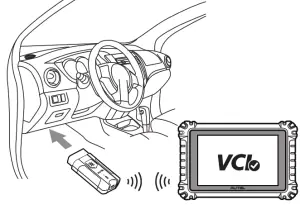
- When the MaxiVCl V200 is properly connected to the vehicle and the tablet, the VCI status button on the bottom bar of the screen will display a green badge with a check mark at the corner indicating the tablet is ready to start vehicle diagnosis.