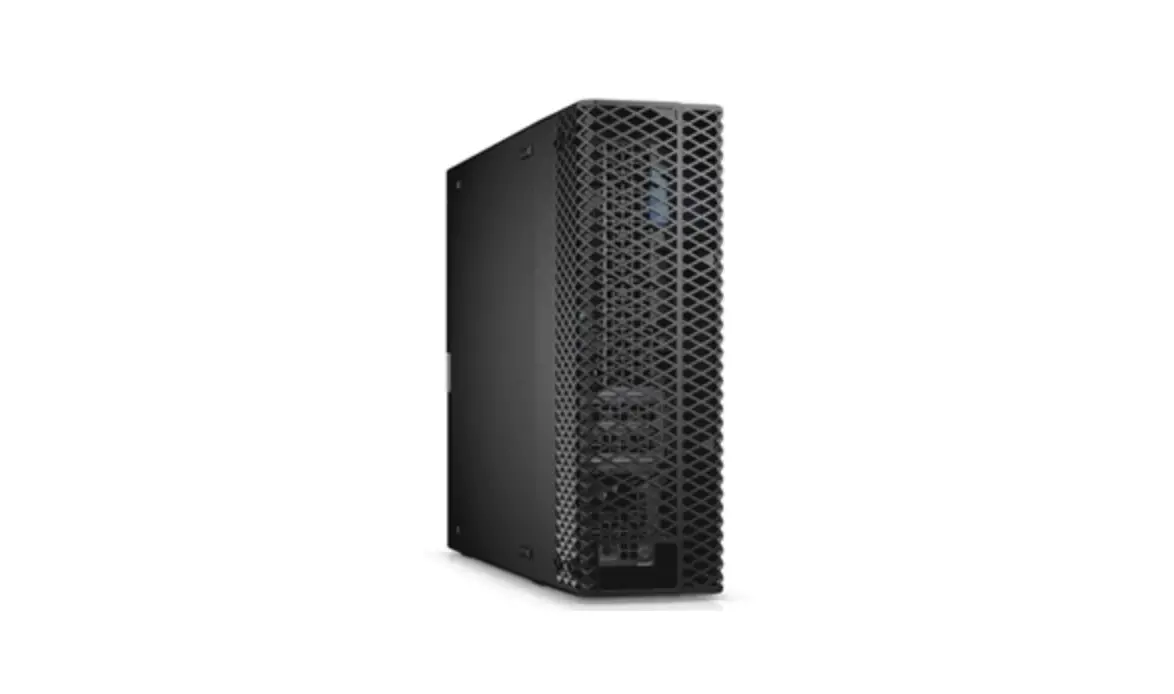
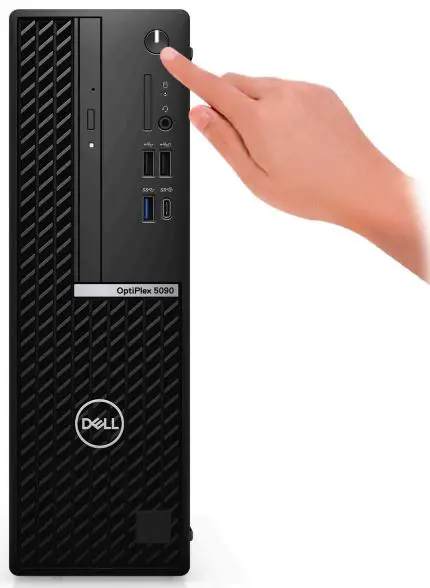
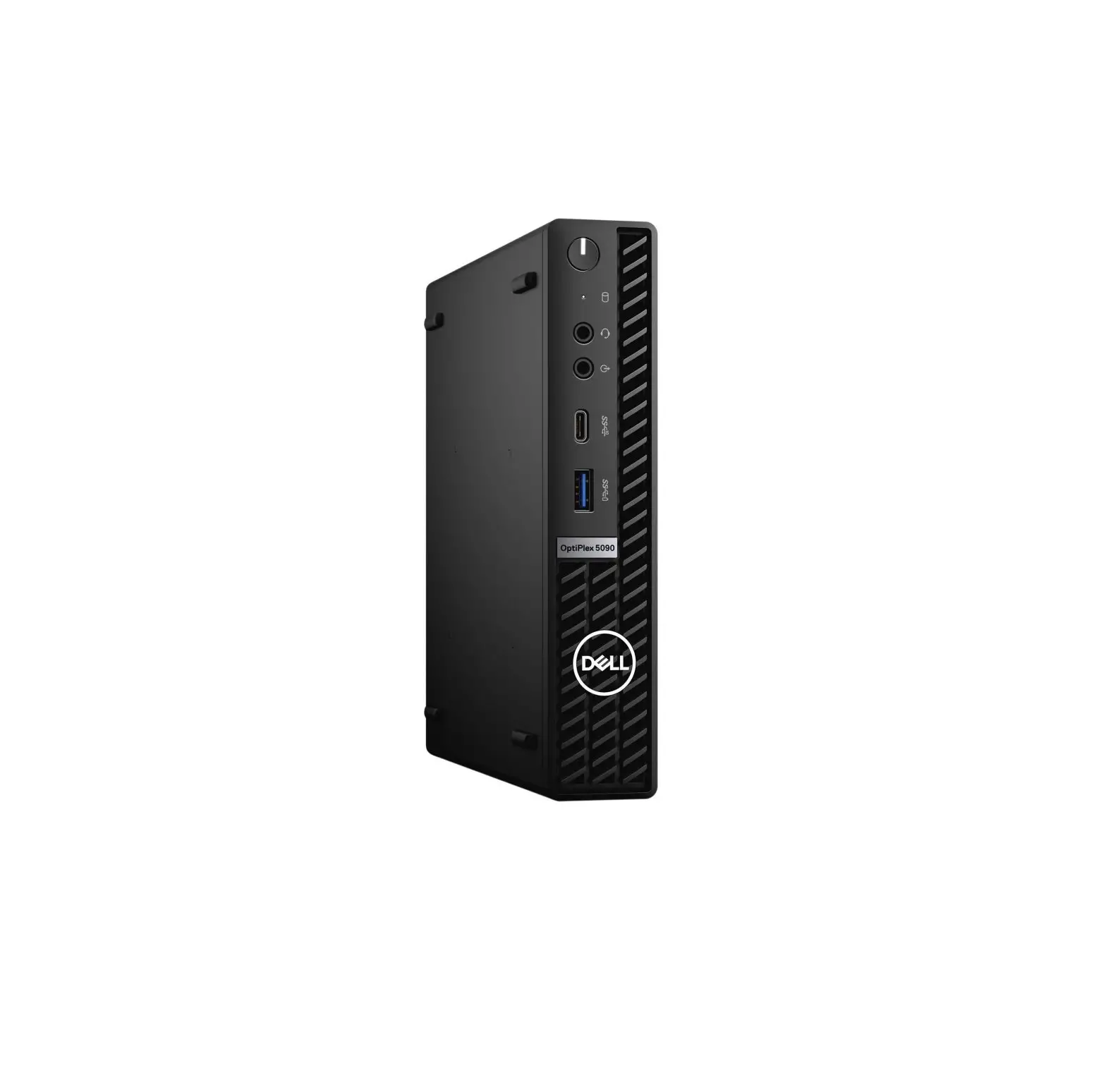
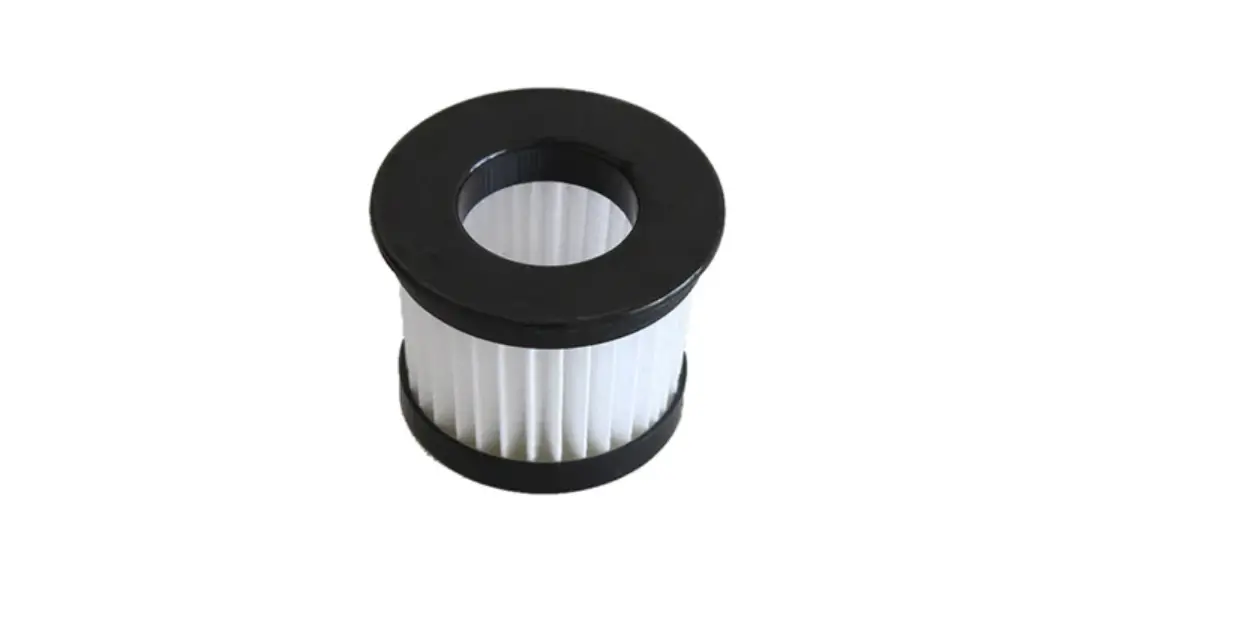
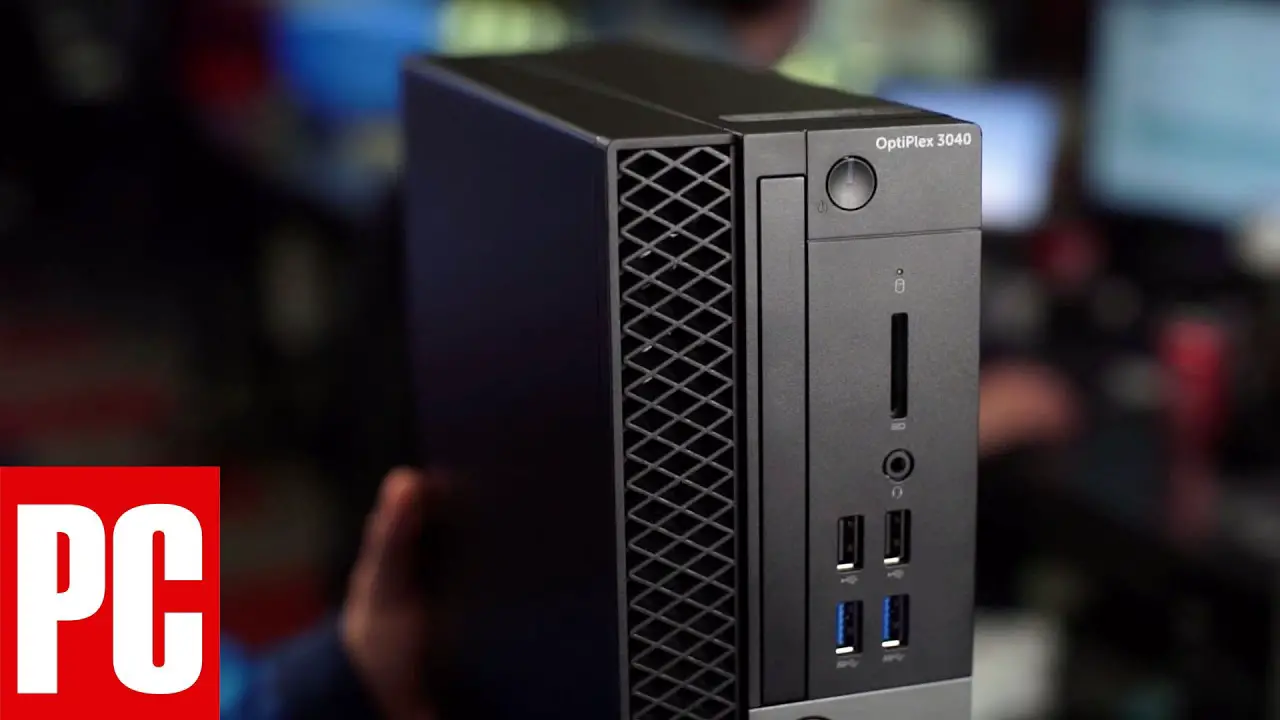
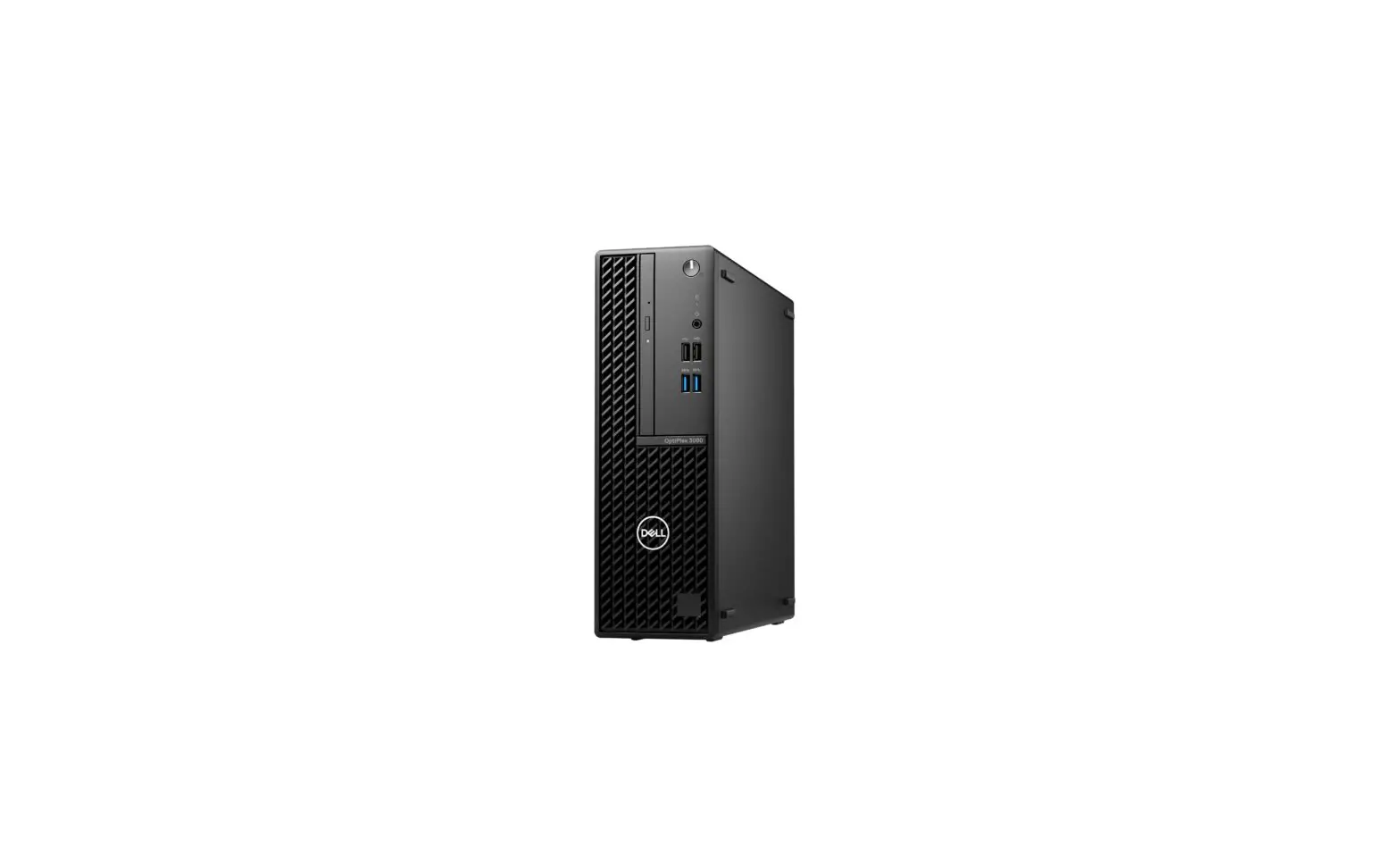
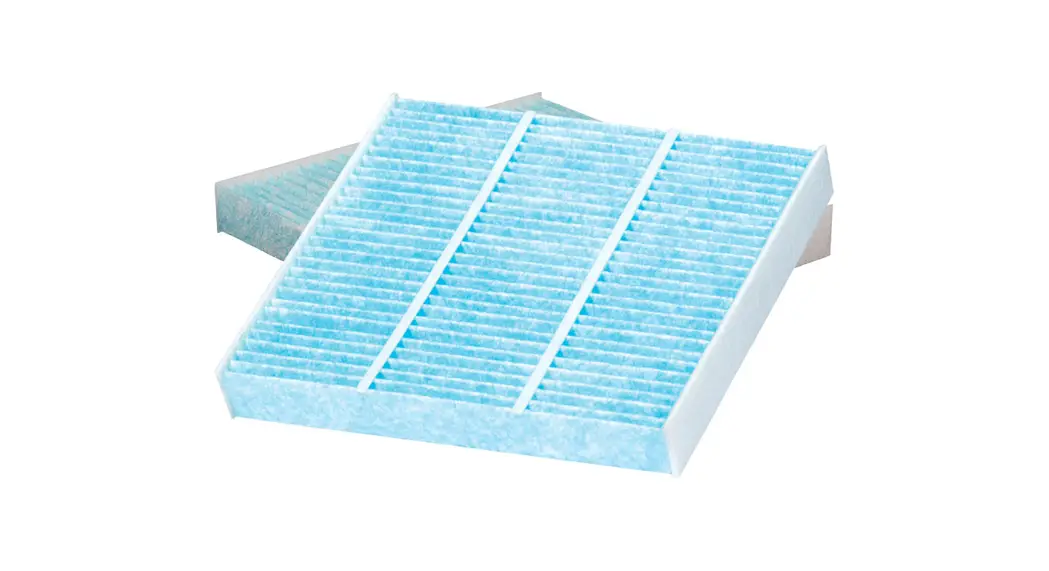
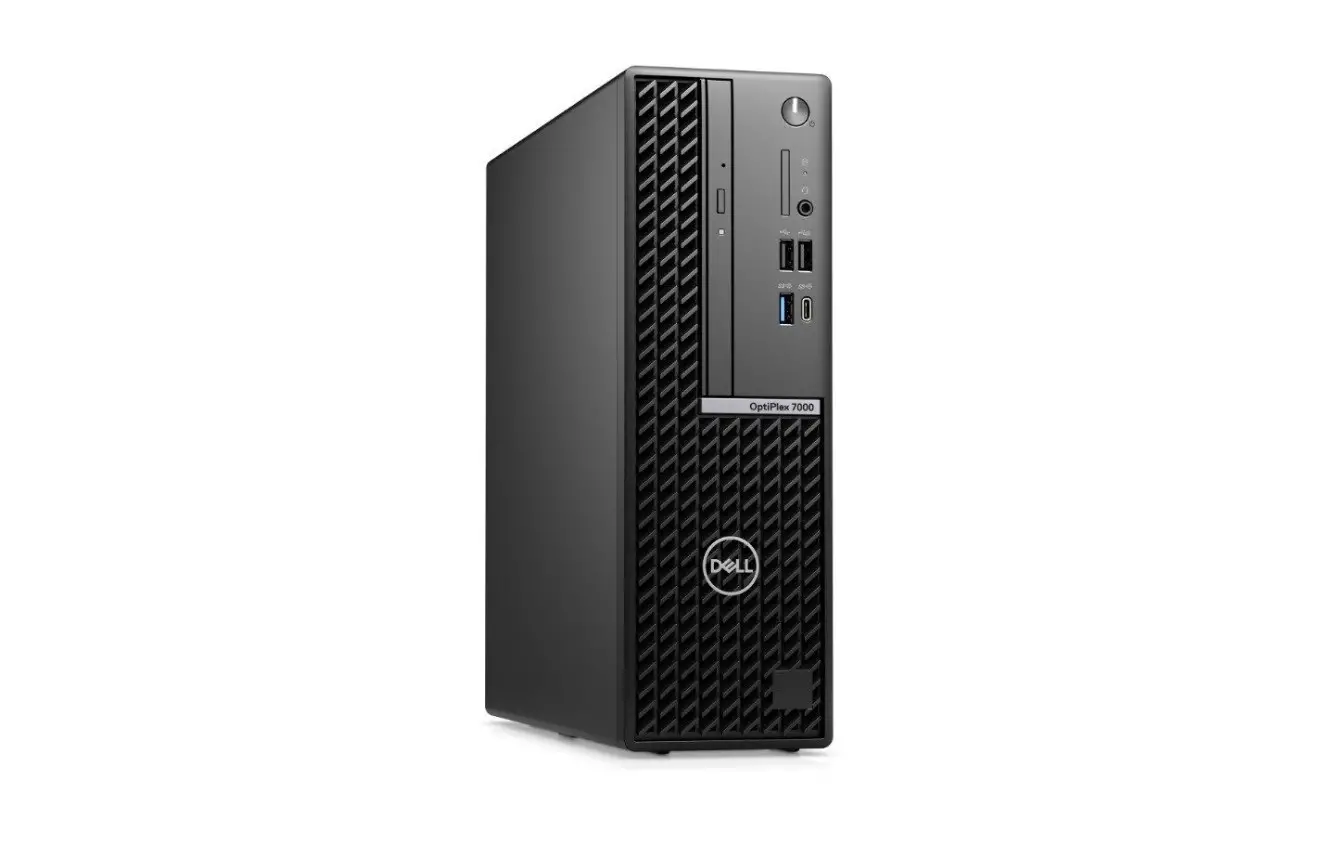
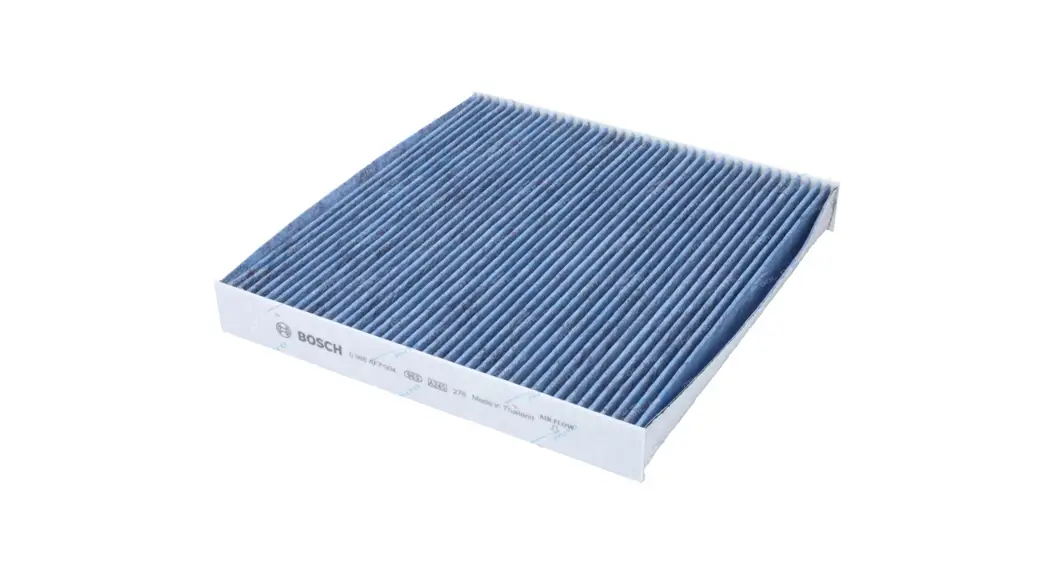
OptiPlex 5090 Small Form Factor Dust Filter
Install Guide
 April 2021
Rev. A00
Notes, cautions, and warnings

 NOTE: A NOTE indicates important information that helps you make better use of your product.
 CAUTION: A CAUTION indicates either potential damage to hardware or loss of data and tells you how to avoid the problem.
 WARNING:A WARNING indicates a potential for property damage, personal injury, or death.
© 2021 Dell Inc. or its subsidiaries. All rights reserved. Dell, EMC, and other trademarks are trademarks of Dell Inc. or its subsidiaries. Other trademarks may be trademarks of their respective owners.
1
Before you begin
Steps
1. Save and close all open files and exit all open applications.
2. Shut down your system: Click Start >  Power > Shut down. NOTE: If you are using a Linux operating system, see the documentation of your operating system for shut-down instructions.
3. Disconnect your system and all attached devices from their electrical outlets.
4. Disconnect all attached network devices and peripherals, such as keyboard, mouse, and monitor from your system.CAUTION: To disconnect a network cable, first unplug the cable from your system and then unplug the cable from the network device.
5. If the system unit or the adapter is being installed on the monitor:
a. Disconnect the power and all the display cables from the monitor.
b. Remove the stand from the monitor and place the monitor on a clean and soft surface.
2
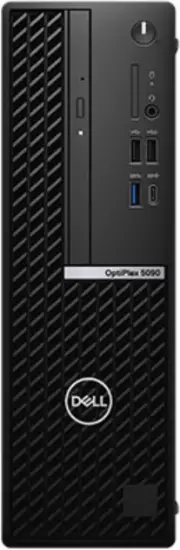
Dust Filter for OptiPlex Small Form Factor
The dust filter for the OptiPlex 5090 Small Form Factor helps protect the system from fine dust particles. After installation, you can set a pre-boot reminder in the BIOS to clean or replace the dust filter at customized time interval using the interval setting in the BIOS.
Steps
1. Follow the instructions in before you begin.
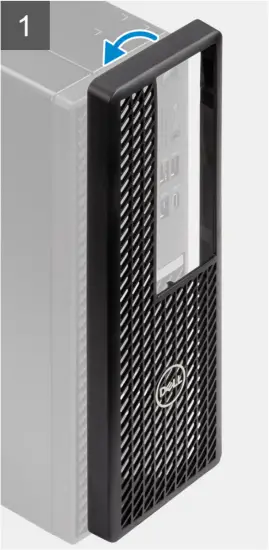
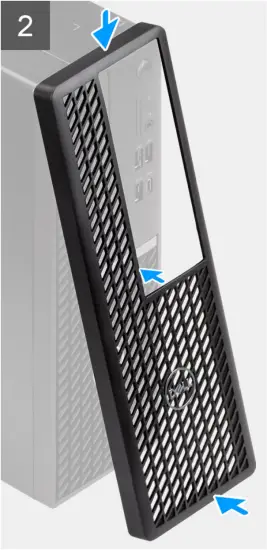
2. Align the top edge of the dust filter with the top edge of the system.
3. Press the lower edge of the dust filter to close over the system.
4. Gently press down to ensure that the filter fits snugly onto the system.
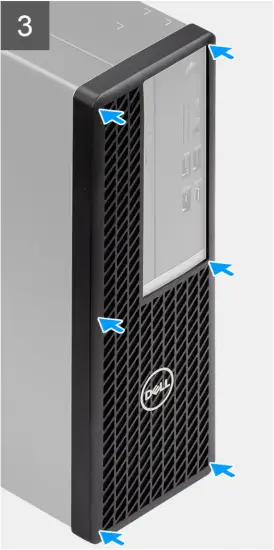
5. Follow the instructions in after installing the accessory.
6. Restart the system and press F2 at the Dell splash screen to enter the BIOS Setup menu.
7. In the BIOS Setup menu, go to System Configuration > Dust Filter Maintenance and select from any of the following intervals: 15, 30, 60, 90, 120, 150, or 180 days.NOTE: Default setting: Disabled.NOTE: Alerts are generated only during a system reboot and not during normal operating system operation.NOTE: To clean the dust filter, brush or gently vacuum and then wipe down the external surfaces with a moist cloth.
3
After installing the accessory
Steps
1. Replace all screws and ensure that no stray screws remain.
2. Connect any external devices, peripherals, or cables you removed before working on your system.
3. Connect your system and all attached devices to their electrical outlets.
4. Turn on your system.
4
Getting help and contacting Dell
Self-help resources
You can get information and help on Dell products and services using these self-help resources:
Table 1. Self-help resources
| Self-help resources | Resource location |
| Information about Dell products and services | www.dell.com |
| My Dell |  |
| Tips |  |
| Contact Support | In Windows search, type Contact Support, and press Enter. |
| Online help for operating system | www.dell.com/support/windows www.dell.com/support/linux |
| Access top solutions, diagnostics, drivers and downloads, and learn more about your computer through videos, manuals and documents. | Your Dell computer is uniquely identified by a Service Tag or Express Service Code. To view relevant support resources for your Dell computer, enter the Service Tag or Express Service Code at www.dell.com/support. For more information on how to find the Service Tag for your computer, see Locate the Service Tag on your computer. |
| Dell knowledge base articles for a variety of computer concerns | 1. Go to www.dell.com/support. 2. On the menu bar at the top of the Support page, select Support > Knowledge Base. 3. In the Search field on the Knowledge Base page, type the keyword, topic, or model number, and then click or tap the search icon to view the related articles. |
Contacting Dell
To contact Dell for sales, technical support, or customer service issues, see www.dell.com/contactdell.NOTE: Availability varies by country/region and product, and some services may not be available in your country/region.NOTE: If you do not have an active Internet connection, you can find contact information about your purchase invoice, packing slip, bill, or Dell product catalog.
Getting help and contacting Dell