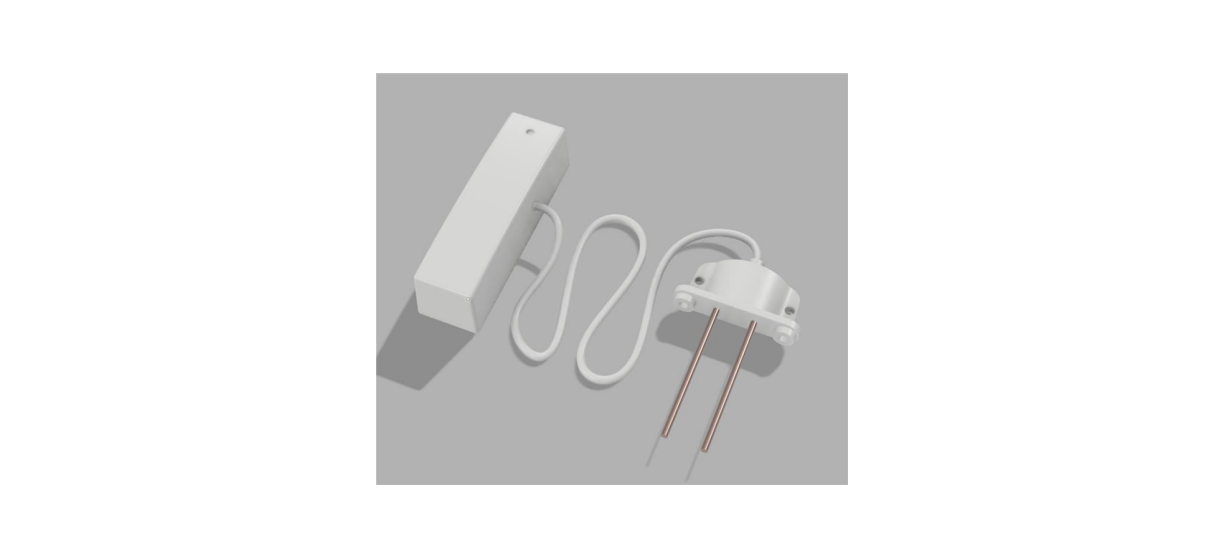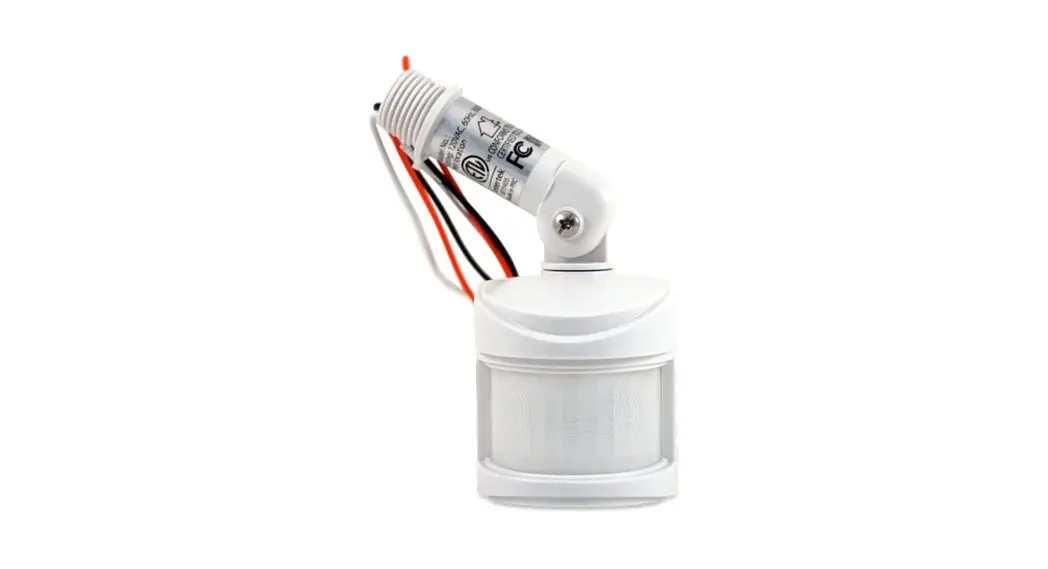
 HS-FLS100-G2 | Z-Wave Plus Floodlight Sensor
Be sure to visit our website for the most up-to-date information about this product: https://homeseer.com/support-home/
Overview
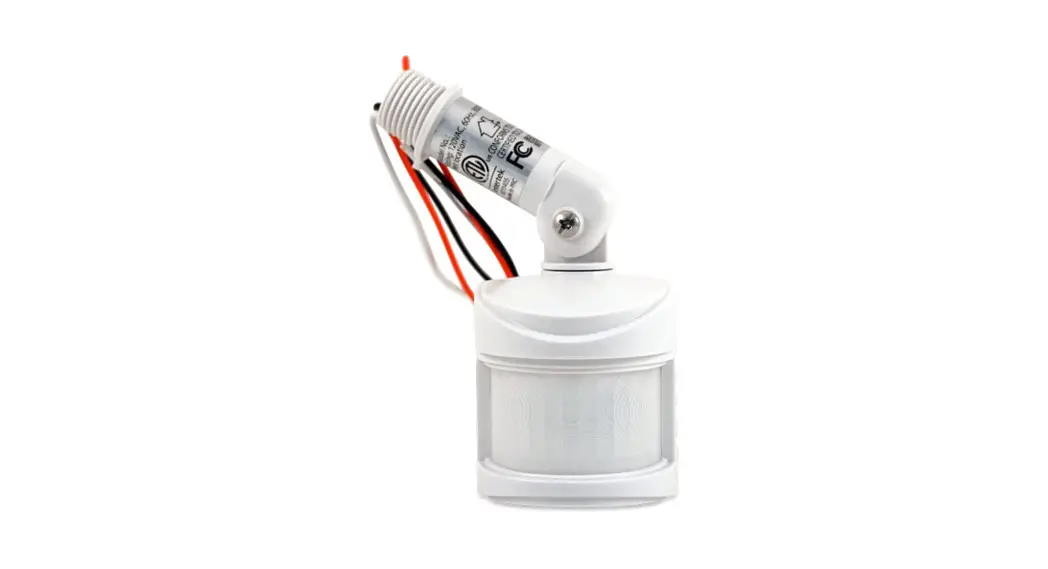
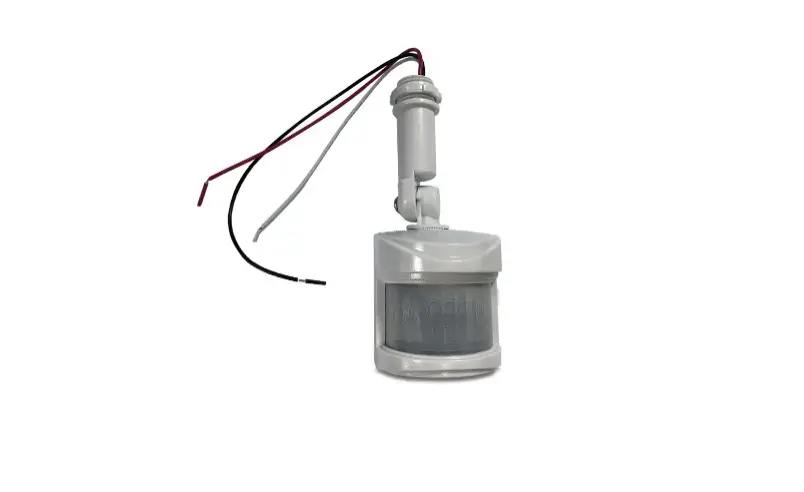
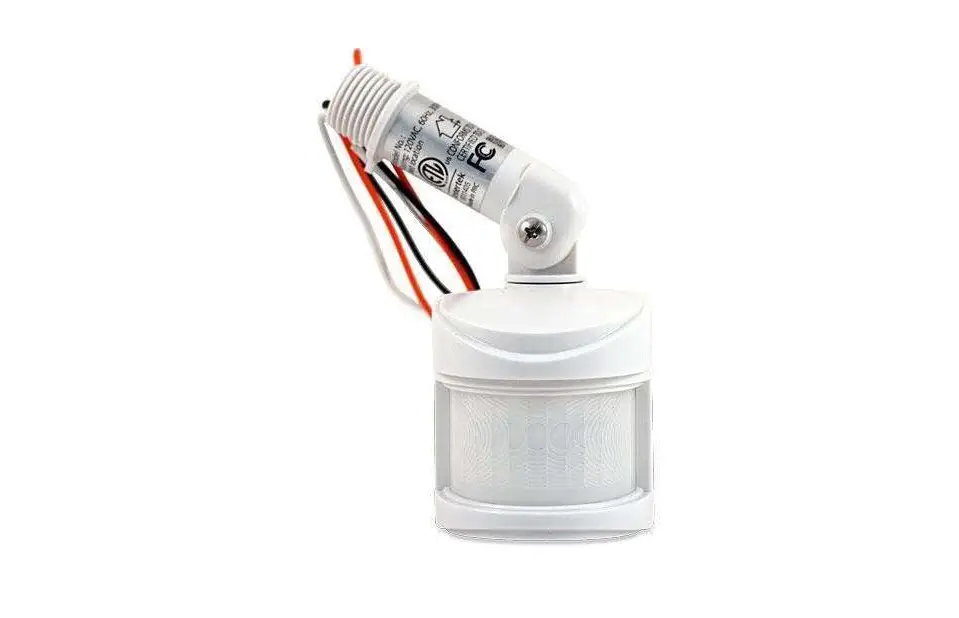
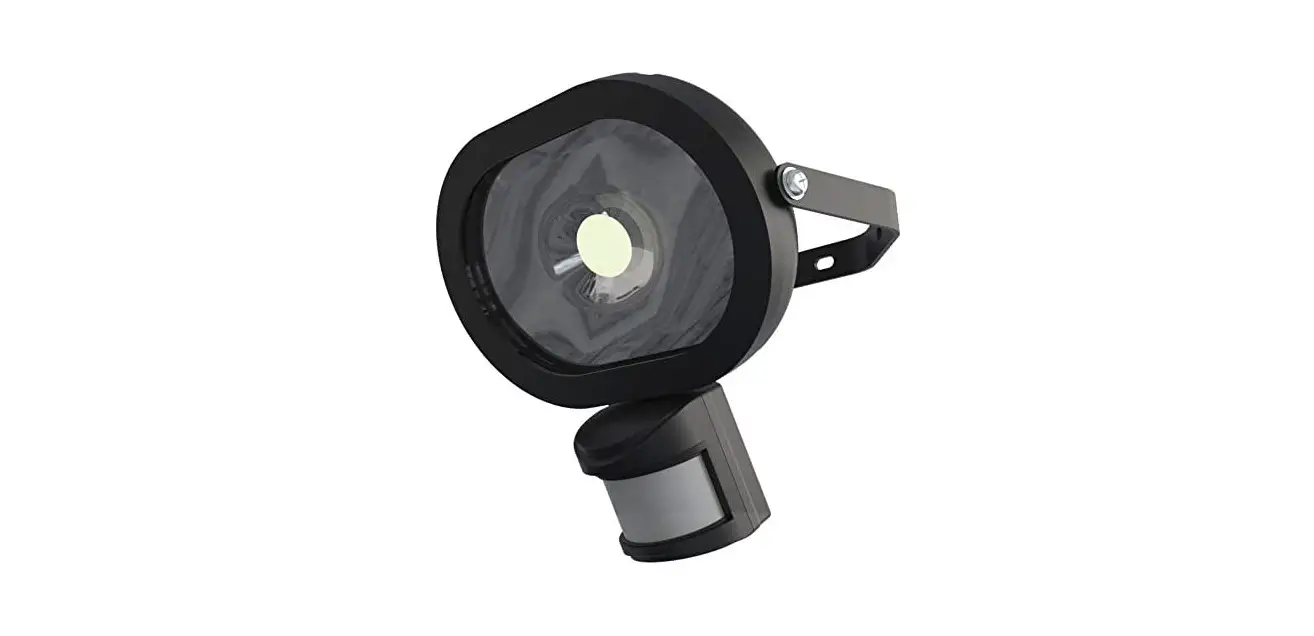
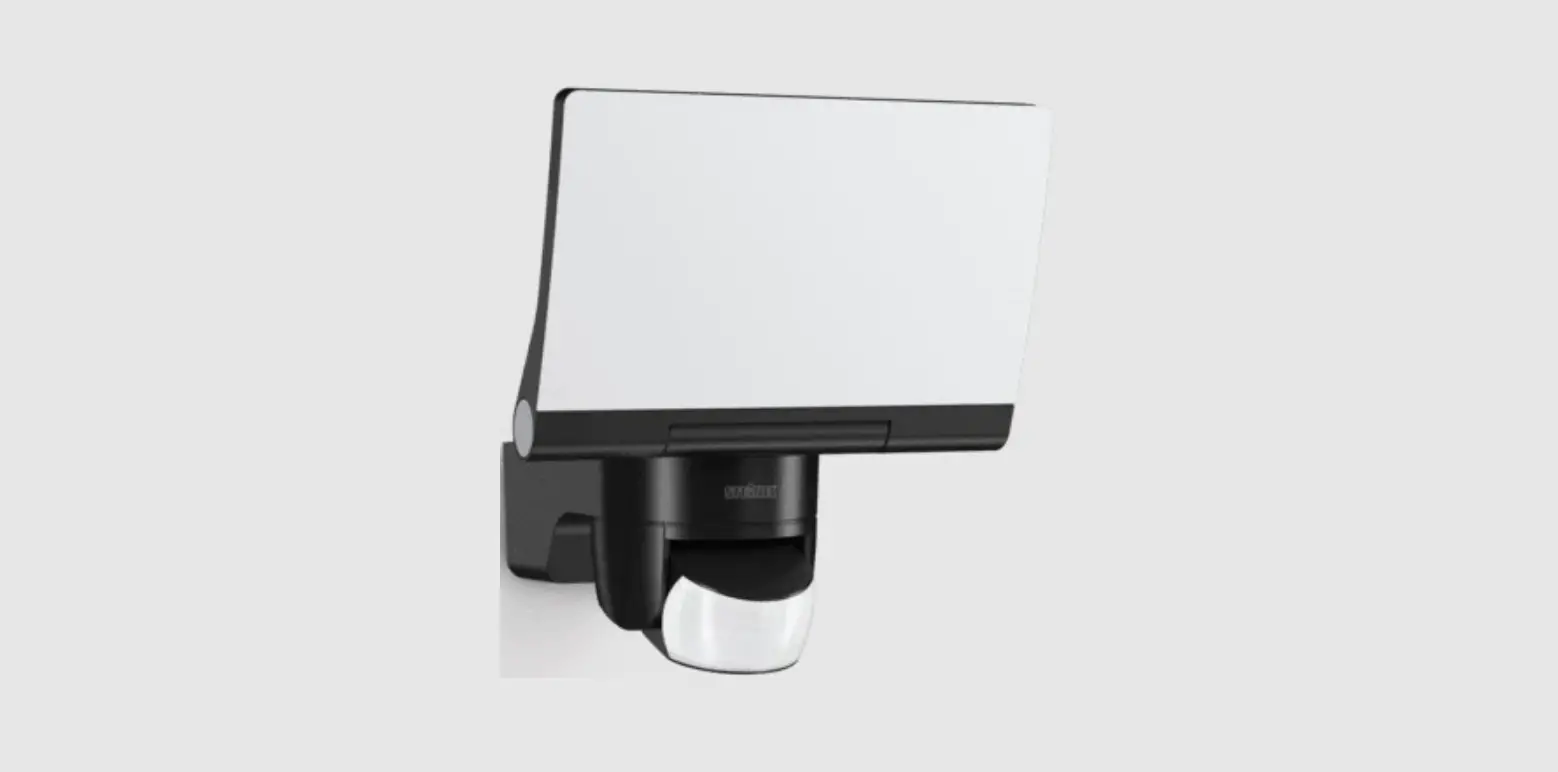
The HS-FLS100-G2 is a PIR module that’s designed to retrofit existing outdoor floodlights. It features a PIR sensor to detect motion through the movement of heat sources and a LUX sensor for determining the brightness of its surroundings. It is equipped with Z-Wave Plus wireless communication capability that will convert an ordinary motion-activated floodlight into a smart home device.
Conventional Floodlight Mode
HS-FLS100-G2 can be used as a conventional motion-activated floodlight sensor to power floodlights when motion is sensed during dark hours. Controls are provided for manual adjustment of LUX sensitivity and floodlight ON times.
Smart Floodlight Mode
When added to a smart home system, HS-FLS100-G2 will send Z-Wave commands to the smart hub or home controller when motion is sensed and when the LUX level changes. Likewise, the smart hub or home controller can send Z-Wave commands back to the HS-FLS100-G2 to turn floodlights ON and OFF. This added functionality provides a very high level of flexibility not typically available in conventional motion-activated floodlights.
Smart Sensor Mode
HS-FLS100-G2 can also be installed and used simply as an outdoor motion, LUX, and temperature sensor. Floodlight functionality is not required. This brings some interesting security and smart home possibilities!
S2 Security
This product supports the S2 security protocol that uses encrypted Z-Wave Plus messages to communicate to other security-enabled Z-Wave Plus products. A security-enabled Z-Wave Plus controller must be used in order to fully utilize the security features of this product.
Product Overview
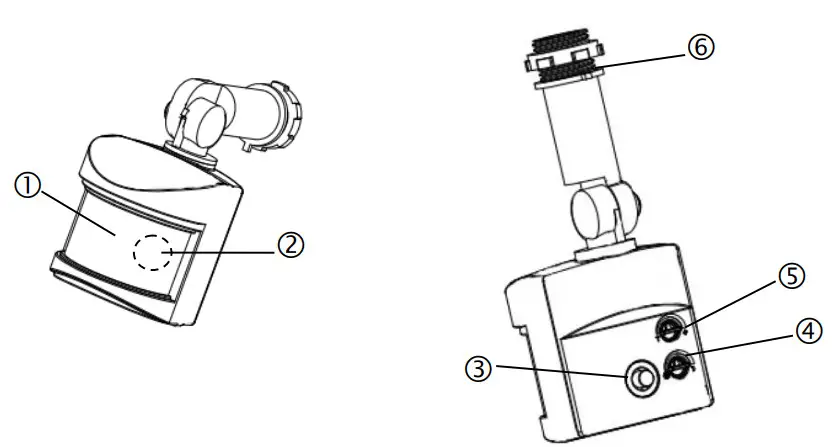
| 1. PIR Lens | 4. Lux knob |
| 2. LED indicator (hidden behind the lens) | 5. Timer Knob |
| 3. Link button | 6. Threaded arm |
The below diagram show a typical assembly of HS-FLS100-G2 on a floodlight fixture (not provided).
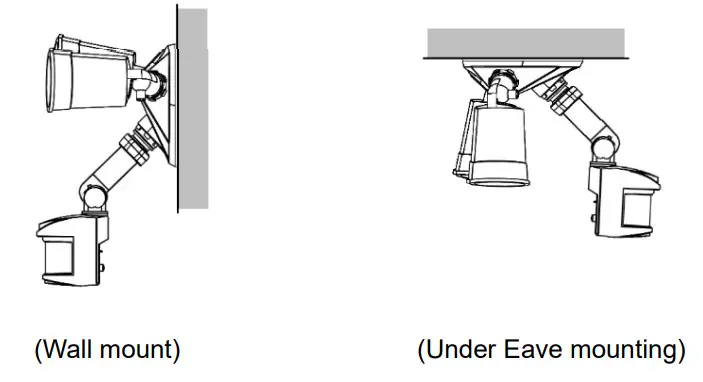
Note: Please read this entire instruction manual before you start the installation.
IMPORTANT
Installation must be performed by skilled technicians who are informed about the standards and technical requirements of the appliance and its proper installation.
Check your local codes as they apply to your situation. If the house wiring is of aluminum, consult with an electrician about proper wiring methods.
Before proceeding with the installation, TURN OFF THE POWER TO THE LIGHTING CIRCUIT AT THE CIRCUIT BREAKER OR FUSE BOX TO AVOID ELECTRICAL SHOCK.
SAFETY PRECAUTION
- DO NOT install when it is raining.
- Isolate the power supply before installation.
- Ensure that local Wiring and Building regulations are complied with.
- The unit is supplied with a pre-wired supply cable this must be used and must not be removed.
- Total lighting load to HS-FLS100-G2 not exceed:
– 300W incandescent @ AC120V
– 100W LED @ AC120V with 0.8 pF Driver
Installation & Wiring instructions
Note: As with any outdoor installation work it is always recommended to start early during the day.
WARNING: TURN OFF POWER BY REMOVING THE POWER FUSE OR TURNING OFF THE CIRCUIT BREAKER BEFORE INSTALLATION.
Taking down the existing floodlight
- With the mains supply turned off, if possible, remove the lamps from the bulb holders of the existing floodlight to avoid any damage during the installation.
- Carefully detach the floodlight from the wall by removing its mounting screws. Keep all parts for reuse later, including any rubber rings. Take note of the direction of the rubber gasket as it needs to be reassembled later in the same way.
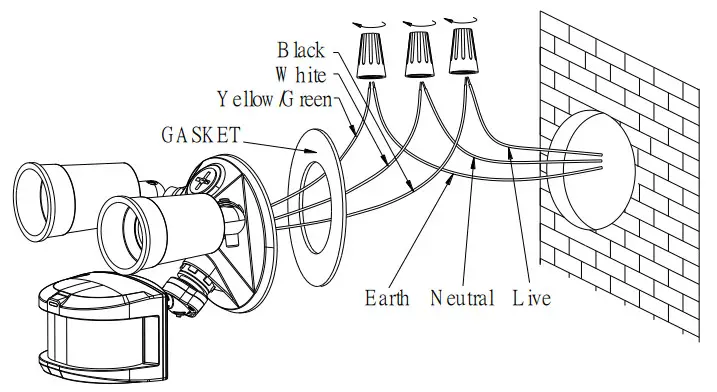
- Disconnect the mains wire from the floodlight by untwisting the wire nuts.
- When done, place the floodlight on a table to prepare for wiring the HS-FLS100-G2.
Removing old motion sensor
(Skip this section if the existing floodlight has no motion sensor) - Locate the wires coming from the old motion sensor, usually colored black, white and red.
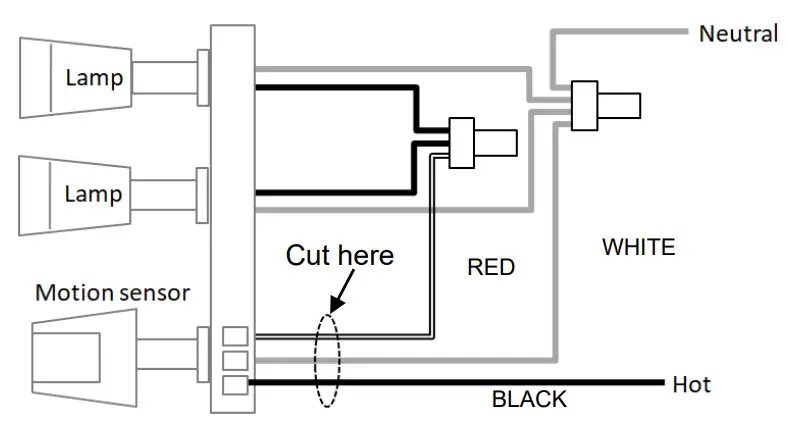
- Disconnect the wires of the motion sensor by cutting it if necessary.
- Remove the old motion sensor from the mounting base by twisting its threaded arm counterclockwise.
Wiring up HS-FLS100-G2 - Screw the threaded arm of HS-FLS100-G2 into the mounting base. For typical wall installation, HS-FLS100-G2 should be located at the bottom of the mounting base.
- Connect up the wiring as in the diagram below, using wire nuts to join the wires. If replacing an old motion sensor, simply follow the same wiring color as the old motion sensor.
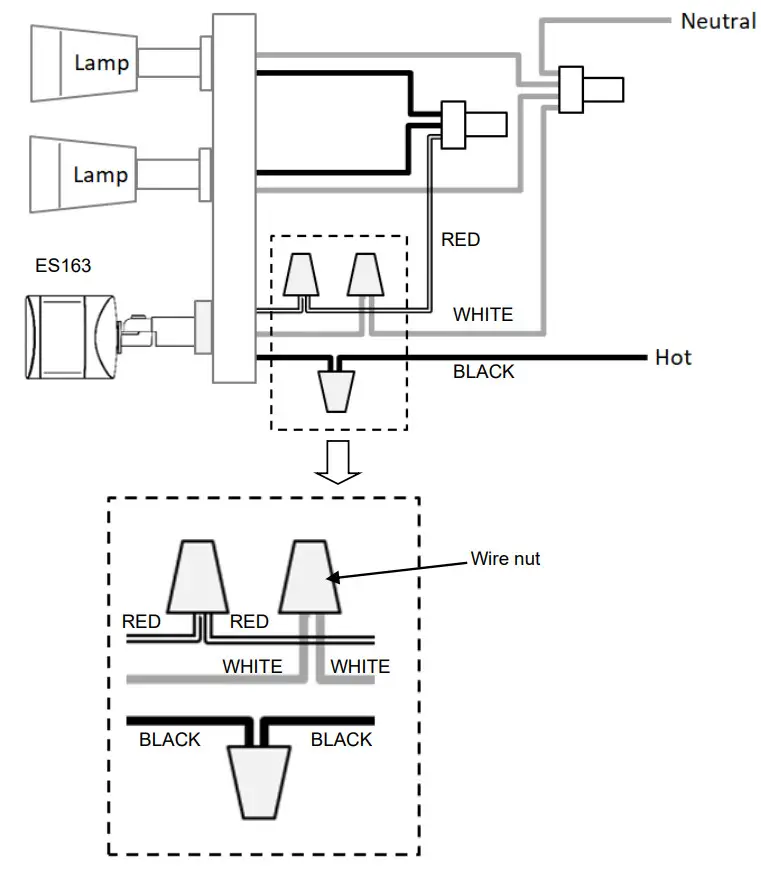
- Route the power leads Hot and Neutral through the rubber gasket to get ready for a wall mount. Ensure the rubber gasket is facing the same direction as it was before.
- When completed, turn the knob of Time-Off on the unit to the “T” mark, and turn the knob of Lux on the unit to the “
 ” mark
 Assembling back the floodlight
 - Connect back the mains wire as before. Tuck the wire nuts and excess cable neatly inside the junction box.
- Screw the lighting floodlight back into position using its mounting screws. Place the rubber rings back into their positions.
- Insert the lamps removed earlier back into the bulb holders, adjust the lamp direction if necessary.
- Reinstate the power supply to the floodlight and switch on the wall switch, if installed. The floodlight will turn on for around 60 seconds for a warm-up and then turn off. It is now in ‘Test Mode’.
 ” mark
 Assembling back the floodlight
Walk Test
The user can perform a walk test to ensure the PIR detector’s range falls within the desired area of coverage.
- Walk through its PIR Detector coverage area. The floodlight turns on when you move and turns off after approximately 5 seconds. Wait for the floodlight to turn off before the next test.
- When you are satisfied with the coverage area you can now set the desired Time period and Lux level.
Note: The sensitivity of the PIR can be adjusted after the Inclusion to a Z-wave controller, using Parameter 8 configuration (refer to Z-wave configuration settings in the Programming section).
Time and Lux adjustment
You can set desired Time period and Lux level through;
(i) the Z-Wave controller after connecting to a Z-wave network (see next section) or,
(ii) manually adjusting the knobs on the unit if not connected to a Z-wave network. The following section describes the steps for manual setting.
(1) Time adjustment
The time-off knob controls how long the floodlight will stay on after the motion is detected. Turning the knob towards the + mark increases the time (up to about 12 minutes) or towards the T mark decreases it (down to about 8 seconds). The recommended setting is around the midpoint of the scale giving approximately 5 minutes. 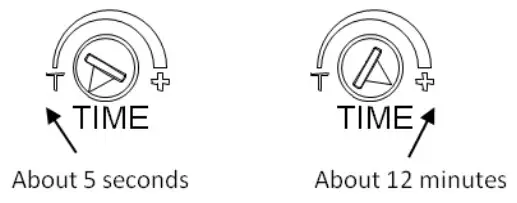 (2) Lux level adjustment
The LUX knob sets the threshold of ambient brightness level that will activate the motion sensor. The knob can be adjusted between “ ” mark (always trigger regardless of light level) and the moon symbol (trigger only when dark). The adjustable Lux range is about 10 – 900 Lux.
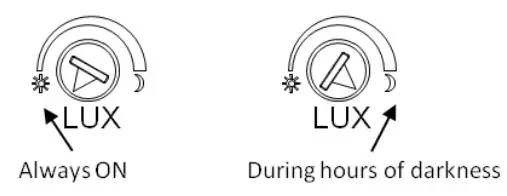
- To set the lux level, turn the Time-off knob to “T” for maximum response.
- Turn the LUX control knob to the “moon” (dusk) position.
- Wait until the ambient light reaches the level of darkness at which you wish the floodlight to activate.
- Slowly rotate the Lux knob anti-clockwise while keeping creating motion during the process until the floodlight turns on. At this position, the light will operate at approximately the same level of darkness each evening.
- Set the Time-off knob back to the desired preset time.
Note: When connected to a Z-wave controller, this manual setting will be overwritten by the settings through the Z-wave controller.
Z-wave Auto Inclusion
The unit supports the Auto Inclusion feature where it will automatically enter Inclusion mode when first powered up after a factory reset.
- Turn off power to the floodlight by turning off the wall switch.
- Try to relocate the Z-wave controller nearer to the floodlight, with at most one wall separation between them.
- Put the Z-Wave Controller into Inclusion mode.
- Turn on the wall switch of the floodlight. The floodlight will then turn on for 5 seconds and the Link LED will start to blink slowly.
- When the Link LED stops blinking the inclusion process is complete.
Note: If you are connecting this unit to a Z-wave controller that utilizes the S2 security protocol, you may be asked by your controller to enter a 5-digit Device Specific Key (DSK) that is unique to each unit. This can be found in one of two places:
– on the QR code label on the back of the unit
– on the insert card inside the packaging. - Turn on the floodlight using the Z-wave controller to check if the auto inclusion is working properly.
If Auto Inclusion fails, refer to the Troubleshooting section regarding Manual Inclusion.
Note: HS-FLS100-G2 also supports Z-wave SmartStart technology which allows the inclusion of devices with controllers through automatic means or through a quick scan of a QR code. The controller must support the Z-wave SmartStart feature for it to work.
Operation
The table below describes 4 main operation modes available. Refer to the Z-wave Configuration section for setting Parameters 1, 4~6.
| Control mode | When sensor triggers | Corresponding action | ||
| Lux sensor | PIR sensor | Floodlight behavior | Z-wave alert (if Par. 4 = 1) | |
| PIR control (default) Par.5=1 Par.6=0 | Night | Triggered | ON at night, when PIR triggers, (Par. 1 sets the ON period) OFF during Day | Sends alert whenever PIR triggers. |
| Lux control only Par.5=1 Par.6=1 | Night | Not relevant | ON at Night OFF during Day | Sends alert whenever PIR triggers. |
| Controller control Par.5=0 | Not relevant | Not relevant | ON/OFF controlled by controller directly | Sends alert whenever PIR triggers. |
| Walk Test Lux knob and Timer knob both set to “T | Not relevant | Triggered | On for 5 seconds Sends alert | whenever PIR triggers. |
Programming
Z-Wave Group
The unit supports either one of two Z-wave Association Groups:
Group 1: Association with 1 Controller node.
Group 2: Association with 4 nodes (i.e. end devices such as smart plugs and other lighting controllers). This allows the PIR detector on the unit to transfer commands directly to other Z-wave end devices without the participation of the controller. This has the effect that when its detector triggers, all devices associated with the unit will be operated.
Z-Wave Plus Information
| Role Type | Node Type | Installer Icon | User Icon |
| Slave Always ON | Z-Wave Plus node | Sensor Notification Device Type (Home Security) | Sensor Notification Device Type (Home Security) |
Association Command Class
| Group | Max Node |
| 1 | 1 |
| 2 | 4 |
Version
| Protocol Library | 3 (Slave_Enhance_232_Library) |
| Protocol Version | ZDK6.82.xx), Z-wave SmartStart supported |
| Firmware Version | xVy (x=1,y=0 means 1VO) |
| Hardware Version | 1 |
Manufacturer
| Manufacturer ID | Product Type | Product ID |
| Ox000C (HomeSeer) | 0x0201 | Ox000C |
AGI (Association Group Information) Table
| Group | Profile | Command Class & Command (List) N bytes | Group Name(UTF-8) |
| 1 | General | Device Reset Locally Notification Notification Report Binary Report Sensor Multilevel Report Basic Report | Lifeline |
| 2 | Control | Basic Set | PIR Control |
Notification
1. Notification Report
| Event | Type | Event | Event Parameters Length | Event Parameters |
| First power up | 0x08 | Ox01 | Ox00 | |
| PIR Trigger ON | 0x07 | 0x08 | Ox00 | |
| PIR Trigger OFF | 0x07 | Ox00 | Ox01 | 0x08 |
2. Switch Binary: Floodlight Status
| Switch Binary Report (value) | Description |
| 0x00 | Floodlight is off |
| OxFF | Floodlight is on |
3. Notification from other Events
| Events | Z-wave commands/notification |
| Device Factory reset | Device Reset Locally Notification: Group 1 |
Z-wave Configuration settings
1. PIR Trigger Off period: Period to send Trigger Off command after PIR being triggered. Before this period expires, the PIR will not be able to detect any subsequent motion.
| Parameter | Size | Range | Default |
| 1 | 2 | 8-720 secs | 180 |
2. Lux sensor threshold: Ambient Lux level to turn on the light. This setting overwrites the Lux level set by the Lux knob. When the lux level falls below this threshold and the PIR gets triggered, the unit emits a basic set command (value=0xFF) to turn on its floodlight.
| Parameter | Size | Range | Default |
| 2 | 2 | 10 – 900 | 50 |
Regardless of this setting, the PIR will always send a notification report to the controller when triggered.
3. Multilevel sensors auto report interval: set the interval of periodic lux level report and temperature report to the controller.
| Parameter | Size | Range | Default |
| 3 | 2 | 1-1440 (min.) | 10 |
4. PIR Trigger alert: Enable/Disables PIR alerts sent from the unit through Notification report or Basic Report commands
| Parameter | Size | Range | Default |
| 4 | 1 | 0 : Disable alert 1 : Enable alert | 1 (Enable) |
5. Floodlight Control Mode
| Parameter | Size | Range | Default |
| 5 | 1 | 1 floodlight is controlled by PIR trigger and LUX level, or by Z-wave controller | 1 |
| 0 floodlight is controlled by Z-wave controller directly, regardless of PIR trigger or LUX level |
6. Lux Sensor
| Parameter | Size | Range | Default |
| 6 | 1 | 0: floodlight is controlled by LUX Level and PIR trigger 1: lighting control via LUX level only, regardless of PIR trigger | 0 |
7. Measured Temperature Offset
| Parameter | Size | Range | Default |
| 7 | 1 | Ox9C -0x64 (offset range : -10.0°C – +10.0°C) | Ox00: 0.0°C |
8. PIR Sensitivity Level
| Parameter | Size | Range | Default |
| 8 | 1 | 0/1/2 0: low level, approx. 6m distance 1:mid level, approx. 10m distance 2:high level, approx. 20m distance The distance measured at ambient temperature 68°F | 2: High |
| Sensor Type | Precision | Scale | Size | Sensor value |
| Ox01 | 1 | 1 | 2 | -4 — +122°F |
Read back the LUX level measured
| Sensor Type | Precision | Scale | Size | Sensor value |
| 0x03 | 0 | 1 | 2 | < 900 |
Multilevel Sensors
Read back ambient temperature measured
Command Classes
The module supports Command Classes including
- COMMAND_CLASS_ZWAVEPLUS_INFO_V2
- COMMAND_CLASS_ASSOCIATION_V2
- COMMAND_CLASS_ASSOCIATION_GRP_INFO_V1
- COMMAND_CLASS_TRANSPORT_SERVICE_V2
- COMMAND_CLASS_VERSION_V3
- COMMAND_CLASS_MANUFACTURER_SPECIFIC_V2
- COMMAND_CLASS_DEVICE_RESET_LOCALLY_V1
- COMMAND_CLASS_POWERLEVEL_V1
- COMMAND_CLASS_SECURITY_2
- COMMAND_CLASS_SUPERVISION_V1
- COMMAND_CLASS_FIRMWARE_UPDATE_MD_V4
- COMMAND_CLASS_NOTIFICATION_V8
- COMMAND_CLASS_SWITCH_BINARY_V1
- COMMAND_CLASS_SENSOR_MULTILEVEL_V5
- COMMAND_CLASS_CONFIGURATION_V1
- COMMAND_CLASS_SENSOR_BINARY_V1
- COMMAND_CLASS_MULTI_CHANNEL_ASSOCIATION_V3
Troubleshooting
The table below lists typical problems encountered:
| Symptom | Possible Cause | Recommendation |
| Floodlight does not turn on for 5 seconds after power is connected. | The power is not connected properly. | Check if the wall switch is on. Confirm wiring is correct. Check supply breaker/fuse. |
| Cannot carry out inclusion and association | Floodlight already paired to another Z-Wave Controller. | Perform a factory reset. |
| Floodlight flashes on and off | The unit’s lux sensor is being triggered off by reflected light | Change the angle and direction of the lamps. |
| Z-wave controller cannot communicate with the unit | Out of range. | 1. Relocate the controller closer to the unit. 2. Install a Z-wave repeater such as smart plugs or other AC devices that can operate as a Repeater. |
| Floodlight remains on
| PIR detector triggered by an unknown heat source.
| 1. Check time setting 2. Cover the PIR Detector with black insulating tape. If after the timer expires and the floodlight turns off this indicates that the PIR Detector can see a moving heat source e.g. radiator, heater, boiler outlet, open window, open exterior door or moving branches or bushes retaining heat from the daytime period. |
Manual Inclusion/Exclusion
The table below lists the several steps involved when adding or removing the unit from the Z-wave network.
| Action/Status | Description | LED Indication |
| No node ID | The Z-Wave Controller does not allocate a node ID to the unit. | 2-second on, 2-second off for 2 minutes. |
| Auto Inclusion | The power is applied for the first time and no node ID has been stored in the module, or after executing reset. This process times out in 30 seconds. | LED blinks rapidly during Inclusion, LED stops blinking when Inclusion is complete. |
| Manual Inclusion | 1. Put the Z-Wave controller into inclusion mode. | LED blinks rapidly during Inclusion, LED stops blinking when Inclusion is complete |
| 2. Press the Link button 3 times within 1.5 seconds to put the unit into inclusion mode. | ||
| Exclusion | 1. Put the Z-Wave Controller into exclusion mode. | |
| 2. Press the Link button 3 times within 1.5 seconds to put the unit into exclusion mode. |
| Factory Reset (This procedure should only be used when the controller is inoperable ) | 1. Press the Link button 3 times within 1.5 seconds to put the unit into exclusion mode. | |
| 2. Within 1 second of step 1, press the Link button again and hold until LED is off (about 5 seconds). | ||
| 3. Node ID is excluded. The device reverts to the factory default state and will be in auto-inclusion mode for 4 minutes. | ||
| x Failure or success in Inclusion/Exclusion can be viewed on the Z-Wave Controller user interface. | ||
Specifications
| PIR Tilting Angle | 140° |
| Mounting Height | Recommended 2.0 – 3.0m height on normal brick wall |
| PIR Detection area | Max. distance 20m, max. the angle of 120° (@2.0m height, 68°F ambient temperature) |
| PIR Swivel Angle | Up to 90° Leftward, Up to 90° Rightward |
| PIR warm-up time | Approx. 60 seconds |
| Lux Adjustment | Approximately 10 – 900 Lux |
| Timer Adjustment | Approximately 8 seconds – 12 minutes |
| Working Temperature | -4°F – +104°F |
| Dimension (H x W x D) | 60mm x 55mm x 60mm |
| Protection Degree | IP44 – Weatherproof |
Specifications are subject to change without notice
 Federal Communication Commission Interference Statement
This equipment has been tested and found to comply with the limits for a Class B digital device, pursuant to Part 15 of the FCC Rules. These limits are designed to provide reasonable protection against harmful interference in a residential installation. This equipment generates, uses and can radiate radio frequency energy and, if not installed and used in accordance with the instructions, may cause harmful interference to radio communications. However, there is no guarantee that interference will not occur in a particular installation. If this equipment does cause harmful interference to radio or television reception, which can be determined by turning the equipment off and on, the user is encouraged to try to correct the interference by one of the following measures:
– Reorient or relocate the receiving antenna.
– Increase the separation between the equipment and receiver.
– Connect the equipment into an outlet on a circuit different from that to which the receiver is connected.
– Consult the dealer or an experienced radio/TV technician for help.
Un-license band: This device complies with Part 15 of the FCC Rules. Operation is subject to the following two conditions: (1) This device may not cause harmful interference, and (2) this device must accept any interference received, including interference that may cause undesired operation.
FCC Caution: Any changes or modifications not expressly approved by the party responsible for compliance could void the user’s authority to operate this equipment.
This transmitter must not be co-located or operating in conjunction with any other antenna or transmitter.
- To comply with FCC RF exposure compliance requirements, a separation distance of at least 20 cm must be maintained between the antenna of this device and all persons.
- This Transmitter must not be co-located or operating in conjunction with any other antenna or transmitter
WARNING:
Do not dispose of electrical appliances as unsorted municipal waste, use separate collection facilities.
Contact your local government for information regarding the collection systems available.
If electrical appliances are disposed of in landfills or dumps, hazardous substances can leak into the groundwater and get into the food chain, damaging your health and well-being.
When replacing old appliances with new ones, the retailer is legally obligated to take back your old appliance for disposal at least for free of charge.
Need help?
Be sure to visit our website for the most up-to-date information about this product: https://homeseer.com/support-home/
 Support Home Page | HomeSeer