
Software s Poly Trio Solutions Software
UC Software 7.1.0 Supported Products
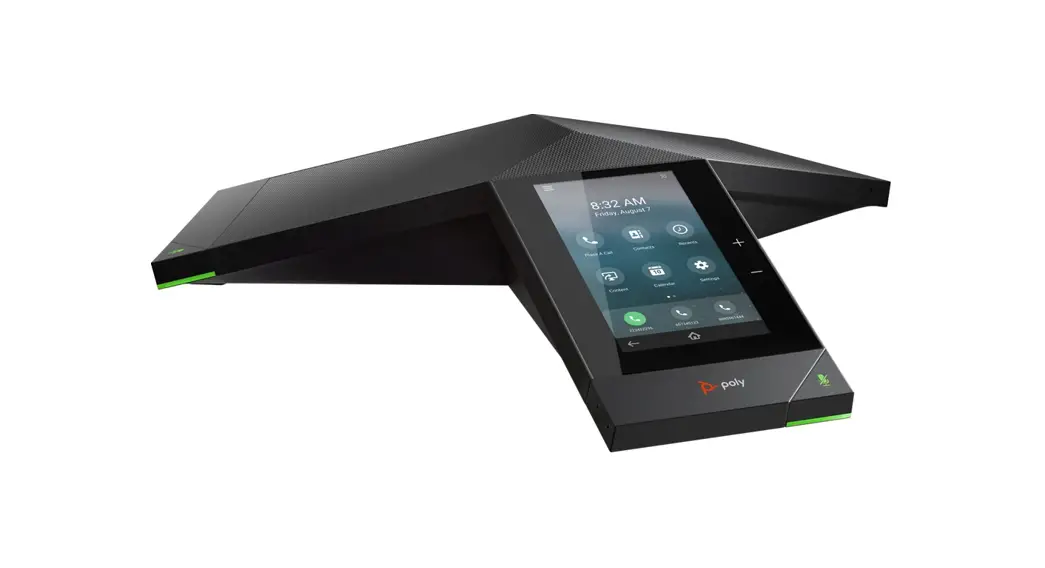
Poly UC Software 7.1.0 for the Poly Trio solution supports the following Poly products and peripherals.
Supported Poly Products and Peripherals
| Supported Poly Product | Supported Product Peripherals |
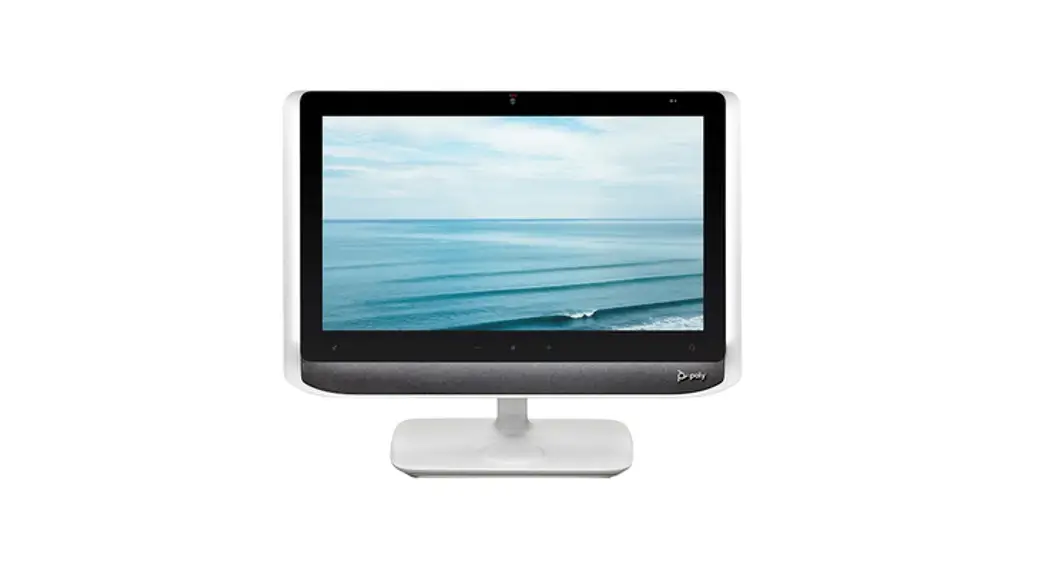
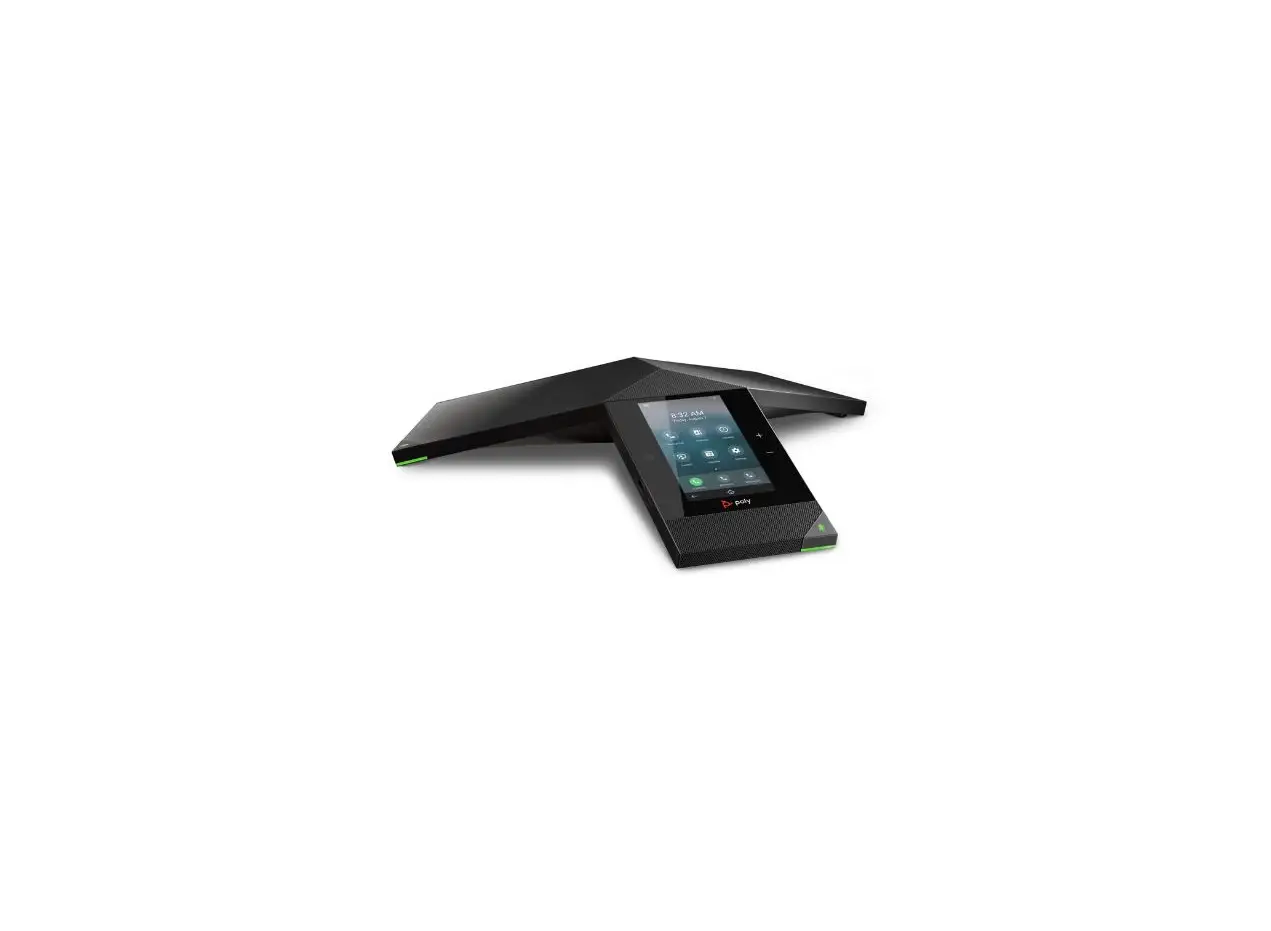
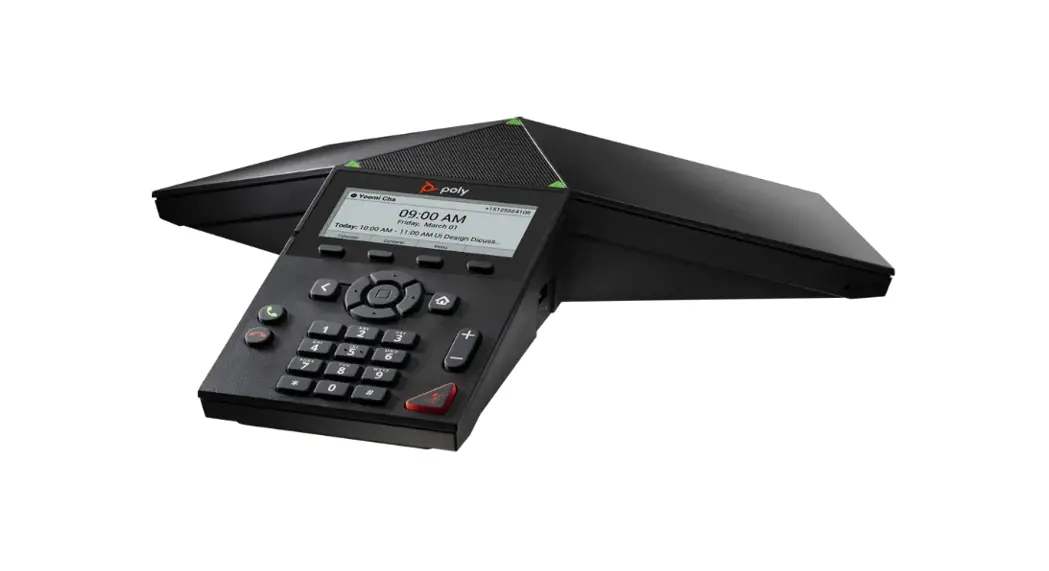
| Poly Trio 8800 and Poly Trio 8500 | Poly Trio Visual+ accessory Poly Trio VisualPro system Poly Trio Expansion Microphone accessory |
| Poly Trio 8300 and Poly Trio 8300 NR (No Radio) | Poly Trio Visual+ accessory Poly Trio Expansion Microphone accessory |
| Poly Trio Visual+ accessory | Polycom EagleEye IV USB camera (Poly Trio 8500 and 8800 only) Polycom EagleEye Mini USB camera Poly EagleEye Cube USB camera |
| Poly Trio VisualPro system (Poly Trio 8500 and Poly Trio 8800 only) | Polycom EagleEye IV 4x and 12x cameras Polycom EagleEye Director II camera system Polycom EagleEye Producer camera system Polycom EagleEye Acoustic camera Poly EagleEye Cube HDCI camera |
| Polycom RealPresence Group Series system (Poly Trio 8500 and Poly Trio 8800 only) | Polycom EagleEye IV 4x and 12x cameras Polycom EagleEye Director II camera system Polycom EagleEye Producer camera system Polycom EagleEye Acoustic camera Poly EagleEye Cube HDCI camera |
| Poly Trio 8500 and Poly Trio 8800 systems when connected by USB to Microsoft Teams Rooms, Skype Room Systems, or Microsoft Surface Hub | Polycom EagleEye Director II camera |
Note the following about hardware versions and compatibility.
- When using a Polycom RealPresence Group Series system with a Trio 8500 or Trio 8800 system:
- Use RealPresence Group 310 or Group 500 hardware models.
- Use RealPresence Group Series system software version 6.2.0 or later.
- Use RealPresence Group Series system hardware version 20 or later.
- Configure your RealPresence Group Series system to run in Trio Pairing mode.
- Some hardware revisions of the Poly Trio Visual+ accessory may not be compatible with earlier hardware revisions of the Poly EagleEye Cube USB camera.
What’s New for UC Software 7.1.0
This release of UC Software for the Poly Trio solution is for OpenSIP and Zoom Room deployments. It includes all the features of previous releases and important fixes.
Poly frequently provides software updates with new features and recommends that you regularly update the software on your Poly Trio devices for the best performance and experience.
Important: When you upgrade your Poly Trio system to UC Software version 7.1.0, you can no longer downgrade it to versions earlier than UC Software 5.8.0AA.
Poly Experimental Features
Poly sometimes releases experimental features that administrators can enable and evaluate in nonproduction environments.
Note: Experimental features are neither tested nor supported. These features might, or might not, become official features in a future release. For more information about experimental features or to provide feedback on your experience, visit the Poly Community.
Using Multiple Cameras with Trio Visual+
You can connect more than one camera to a Trio system paired with one or more Trio Visual+ accessories. Users can choose which camera to use during a call using the Camera Controls option. You can also save presets for each connected camera and use the presets to switch between cameras. However, selecting the Home preset option only resets the currently selected camera.
Configure Multi-Camera Support
Set the following parameter values to enable support for multiple cameras with Poly Trio Visual+.
- video.camera.multiCamera.enabled=”1″
- (Optional) mr.pair.maxDevices=<integer equal to 1 + (the number of Trio Visual+ and Trio VisualPro devices paired with the Poly Trio system)>
Switch Between Cameras
You can switch between two or more cameras connected to a Trio system with a paired Trio Visual+ accessory.
You can also save presets for each connected camera and use the presets to switch between cameras. However, selecting the Home preset option only resets the currently selected camera.
- Do one of the following:
- During a call, select Camera.
- Select Menu
 Camera.
- On the Camera Controls screen, do one of the following:
- Select Switch Camera

- Select a preset saved for the camera.
- Select Switch Camera
 Camera.
Support for Poly Studio USB Video Bar
This release provides experimental support for the Poly Studio USB video bar as a USB camera when connected to a Trio Visual+ accessory paired with a Trio 8500 or Trio 8800 system. However, the Trio system doesn’t use the microphones and speakers of the Poly Studio USB video bar for audio.
Version History
This following table shows the release history of the Poly Trio solution. Version History
| Release | Release Date | Features |
| 7.1.0 | May 2021 | Maintenance release for Poly Trio systems |
| 7.0.3 | April 2021 | Maintenance release for Poly Trio systems |
| 7.0.2 | April 2021 | Maintenance release for Poly Trio systems |
| 7.0.1 | March 2021 | OpenSIP-only maintenance release for Poly Trio systems |
| 7.0.0 | December 2020 | OpenSIP-only release. Includes the following features: · Zoom Room Controls |
Security Updates
Refer to the Poly Security Center for information about known and resolved security vulnerabilities.
UC Software Distributed Files
You can download the software package for Trio systems in ZIP file format and place the package on a provisioning server to provision your devices. Each software package contains configuration files and a sip.ld file for each Trio system. The sip.ld files are model-specific and are as follows:
- Trio 8300: 3111-66800-001.sip.ld
- Trio 8500: 3111-66700-001.sip.ld
- Trio 8800: 3111-65290-001.sip.ld
If you’re provisioning your phones centrally using configuration files, download the corresponding resource file and extract the configuration files to the provisioning server. Make sure to maintain the folder hierarchy in the ZIP file.
Installing UC Software
You can install UC Software for Trio systems using a provisioning server. You can also install UC Software on Trio 8500 and Trio 8800, using a USB flash drive.
You can configure features for the Trio system using configuration files on a provisioning server, using the system web interface (Web Configuration Utility), or on the phone’s local interface. See the Poly Trio Solution Administrator Guide for more information on configuring features.
Install Trio Visual+ Software for Trio 8500 and Trio 8800
The Trio Visual+ accessory provisions and updates automatically from the Trio 8500 or Trio 8800 it’s paired with—users typically don’t have to interact with the system for manual provisioning and software updates. The UC Software for the Trio 8500 and Trio 8800 download doesn’t include a dedicated executable file for the Trio Visual+.
Procedure
- Delete the part number from the Trio sip.ld file and do one of the following:
- Use the renamed sip.ld file to install software for both the Trio system and Trio Visual+ accessory.
- Copy the Trio file and rename it using the Trio Visual+ part number (3111-66420- 001. sip.ld).
Installing Trio Visual+ Software for Trio 8300
To use Trio Visual+ with Trio 8300, you MUST provision and update the Trio Visual+ accessory when it’s paired with the Trio 8300 system. You must configure the Trio 8300 and stage the software for the Trio Visual+ using a supported provisioning or boot server. The standard UC software for Trio 8300 download doesn’t include a dedicated executable file for the Trio Visual+. You can download the separate Trio 8300 software that includes Trio Visual+ from the Poly Online Support Center, then update the Trio 8300 software with the paired Trio Visual+. You can upgrade the software of the Trio Visual+ accessory when paired with a Trio 8300 system in the following ways:
- Manual update via a USB flash drive.
- Provisioning or boot server via Trio 8300 as a proxy.
Provision and Update Trio Visual+ Paired with Trio 8300 with a USB Flash Drive
You can store configuration files and settings on a USB flash drive and provision or update Trio Visual+ during normal functioning or in recovery mode. Recovery mode enables you to recover the Trio Visual+ to a normal provisioning state when other methods aren’t working or aren’t available. Trio Visual+ supports only File Allocation Table (FAT) file systems, and Poly recommends using FAT32. If other USB devices are attached to Trio Visual+ system, you must remove them and ensure that the Trio Visual+ system correctly recognizes the USB flash drive you want to install from. If you use a USB flash drive to provision while a centralized provisioning server is in use, the USB configuration files override server settings. When you remove the USB flash drive, the Trio 8300 system returns to settings you configured on the server. Note, however, that the original server settings are subject to device parameter changes initiated by the USB flash drive. The device parameter changes can alter parameters on the provisioning server and change basic provisioning settings.
Procedure
- Format a USB flash drive as FAT32. Poly recommends that you use a USB 2.0 flash drive. If you’re using a flash drive that is already formatted, ensure that previous files are deleted from the USB flash drive. The update may fail if the flash drive contains any files other than the update files.
- Download the latest Trio 8300 software download from the Trio 8300 support page. The file name format is:
Poly_UC_Software_<version ID>_Trio8300_with_Visual+_release.zip - Extract the ZIP file and move the contents to the USB flash drive’s root folder. The minimum required configuration files are:
- Primary configuration file: 000000000000.cfg
- Trio Visual+ sip.ld: 3111-66420-001.sip.ld
- Insert the USB flash drive into the Trio Visual+, follow the prompt for the Administrator password, and power cycle the device. Allow time for the devices to fully reboot.
Pairing the Trio Visual+ via Trio 8300 Configuration
You can pair a Trio Visual+ accessory to a Trio 8300 system by setting the mr.pair.uid parameter to the MAC address of the Trio Visual+ accessory.
Products Tested with This Release
Trio systems and Trio Visual+ accessories are tested with other products. The following list indicates only the products tested for compatibility with this release and isn’t a complete inventory of compatible equipment. Update all your Poly systems with the latest software before contacting Poly support to ensure the issue has not already been addressed by software updates. To view the latest software for your product, see the Current Poly Interoperability Matrix at Service Policies in the Poly Online Support Center.
Note: If you are using Trio systems with a Polycom RealPresence DMA system, Poly recommends setting the parameter voIPProt.SIP.supportFor100rel=”1″. For parameter details, see the Poly Trio Solution Administrator Guide at the Poly Online Support Center.
Products Tested with This Release
| Product | Tested Versions |
| Poly Trio VisualPro | 6.2.2.4 |
| Poly Studio X30 | 3.2.0 3.3.0 |
| Poly Studio X50 | 3.2.0 3.3.0 |
| Poly G7500 | 3.2.0 3.3.0 |
| Polycom Content App | 1.3.3 |
| Polycom RealPresence Collaboration Server (RMX) | 8.9.0 |
| Polycom RealPresence DMA 7000 | 10.0.0 |
| Polycom RealPresence Group Series | 6.2.2.4 |
Interoperability
This section includes information on Trio system server interoperability with partner solutions.
Trio Optimized for Zoom Rooms
Trio 8500 and Trio 8800 systems optimized for Zoom Rooms act as a controller for Zoom Rooms via the system’s touch user interface and provide audio for Zoom Room meetings through the built-in speakers and microphones. This software release runs Zoom Rooms Controller software 5.6.0 (496) as embedded software. For more information on this Zoom release, see the Zoom Help Center. For the latest setup instructions, see the Integrating Poly Trio Systems with Zoom Rooms Solution Guide at Poly Solutions for Zoom Environments.
Poly Partner Solution Support
The following table lists solution partners supported by Trio and the UC Software version required to support each partner solution. For more information about Poly partner environments, see Strategic Partner Solutions.
Recommended Third-Party USB Cable Extenders
Poly has successfully tested the following USB extender with Trio 8500 and Trio 8800 systems: Icron USB 2.0 Ranger 2301
Trio System Server Interoperability
The following tables list the server interoperability supported on Trio systems and the feature capabilities supported for each server.
Trio Solution Interoperability with Polycom RealPresence Platform
| Trio Feature | Polycom RealPresence Platform |
| Basic SIP telephony | SIP trunk to a supported call platform |
| Advanced telephony | SIP trunk to a supported call platform |
| Provisioning | Supported with Polycom RealPresence Resource Manager software version 9.0 or later (10.7 recommended) |
| Video (H.264 AVC) | Supported |
| Content | Supported |
Trio Solution Interoperability with Microsoft Skype for Business and Lync
| Trio Feature | Microsoft Skype for Business, Lync 2013 (Trio 8500 and Trio 8800 only) |
| Basic SIP telephony | Supported |
| Advanced telephony | Supported |
| Provisioning | Supported |
| Video (H.264 AVC) | Supported with limitations (SVC) |
| Trio Feature | Microsoft Skype for Business, Lync 2013 (Trio 8500 and Trio 8800 only) |
| Content | Supported |
Trio Solution Interoperability with BroadSoft
| Trio Feature | BroadSoft R20 and R21 |
| Basic SIP telephony | Supported |
| Advanced telephony | Supported with limitations |
| Provisioning | Supported |
| Video (H.264 AVC) | Supported |
| Content | Supported with limitations · Polycom RealPresence Platform is required · BroadSoft UC-One client and server are not supported |
Trio Solution Interoperability with Cisco Unified Communications Manager
| Trio Feature | Cisco Unified Communications Manager 12.0, 10.5 and 9.1 |
| Basic SIP telephony | Supported |
| Advanced telephony | Not supported |
| Provisioning | Supported with limitations Requires Polycom RealPresence Resource Manager software version 9.0 or later (10.7 recommended) |
| Video (H.264 AVC) | Supported with limitations Trio 8300, Trio 8500, Trio 8800, and TriC60 systems don’t support Cisco’s Telepresence Interoperability Protocol (TIP) 2 |
| Content | Supported with limitations |
Trio Solution Interoperability with Avaya Aura Communication Manager
| Trio Feature | Avaya Aura Communication Manager 8 and 7 |
| Basic SIP telephony | Supported |
| Advanced telephony | Not supported |
| Provisioning | Supported with limitations · Polycom RealPresence Platform is required · BroadSoft UC-One client and server are not supported |
| Video (H.264 AVC) | Supported with limitations |
| Content | Supported with limitations |
Note: Poly supports SIP telephony feature interoperability with Avaya Aura Communication Manager and Avaya Aura Session Manager following published standards, including IETF Requests for Comments (RFCs) and internet drafts last validated by Avaya in March 2019 contingent on Avaya allowing SIP-compliant third-party endpoints to register and interoperate with its call platforms.
Microsoft Support
Poly support for Microsoft features varies by product. Trio 8800 Collaboration Kits, Trio 8500 Collaboration Kits, the Trio VisualPro accessory, and the Trio Visual+ accessory are not supported or qualified by Microsoft. As determined by Microsoft and Poly, the only supported way to connect Trio 8800 Collaboration Kits, Trio 8500 Collaboration Kits, Trio Visual+ accessories, or Trio VisualPro systems with Microsoft Teams or Skype for Business is through Poly RealConnect.
Note: When you set a Trio system’s base profile to MSTeams, Microsoft controls the software experience and performance on the Trio system. Send all feedback and queries to Microsoft. For any issues regarding Microsoft Teams on your Trio system, go to the Microsoft Teams User Feedback Forum.
Microsoft Environment Interoperability
The following table lists Microsoft environments supported by Trio 8500 and Trio 8800 systems and the Trio 8500 or Trio 8800 Collaboration Kits that include the Poly Trio Visual+ system and a supported camera. This also applies to Trio 8500 and Trio 8800 systems when paired with a Trio VisualPro accessory and a supported camera.
Important: Poly doesn’t support Microsoft features in this release. The Microsoft Teams application loaded with this release is for testing purposes only.
Supported Microsoft Environments
| Microsoft Environment | Trio 8500, Trio 8800 | Trio 8500 and Trio 8800 Collaboration Kit |
| Teams | Microsoft qualified | N/A |
| Skype for Business on-premises | Microsoft qualified | Poly supported Not Microsoft qualified |
| Office 365 / Skype for Business online | Microsoft qualified | Poly supported (sustaining) Not Microsoft qualified |
| Office 365D | Microsoft qualified | Poly supported (sustaining) Not Microsoft qualified |
| Lync 2013 on-premises | Microsoft qualified | Poly supported Not Microsoft qualified |
| Lync 2010 on-premises | Microsoft qualified | N/A |
Microsoft Client Feature Support
The following table provides the features supported by Trio systems using the Microsoft client versions listed. Note the following:
- Trio 8500 and Trio 8800 systems don’t support presenting PowerPoint and whiteboard content sharing.
- Support for Lync 2010 is limited to testing of basic call scenarios. Microsoft documents support of Lync and Skype for Business on Microsoft’s website. See Microsoft Support for more information.
Microsoft Client Feature Support
| Feature / Capability | Audio | Video | Content Sharing | Instant Messaging |
| Skype for Business 2016 | Yes | Yes | Yes | No |
| Skype for Business 2016 on Mac | Yes | Yes | Yes | No |
| Skype for Business Mobile | Yes | Yes | Yes | No |
| Skype for Business 2015 | Yes | Yes | Yes | No |
| Feature / Capability | Audio | Video | Content Sharing | Instant Messaging |
| Microsoft Surface Hub | Yes | Yes | Yes | No |
| Microsoft Skype Room System v2 | Yes | Yes | Yes | No |
| Microsoft Teams Room System (requires Polycom RealConnect) | Yes | Yes | Yes | No |
| Skype for Business Web Application | Yes | Yes | Yes | No |
| Lync 2013 | Yes | Yes | Yes | No |
| Lync 2013 Mobile | Yes | Yes | No | No |
Microsoft Teams Support
Trio 8500 and Trio 8800 systems support Microsoft Teams, which provides a high-quality audio experience in the conference room for subscribers of Microsoft Teams. Trio systems act as a controller for Microsoft Teams Rooms via the system’s touch user interface and provide audio for Teams meetings through the built-in speakers and microphones.To check your software version, go to Settings > Device Settings > Status > Platform > Microsoft Components while in the Teams base profile.
The following tables list the supported Microsoft component versions included in this release.
Important: Poly doesn’t support Microsoft Teams in this release.
Microsoft Teams Component Versions in Trio 8500 and Trio 8800
| Microsoft Component | Version |
| Microsoft Teams App | 1449/1.0.94.202005601 |
| Microsoft Admin Agent | 1.0.0.202006290446.product (216) |
| Microsoft Intune Company Portal | 5.0.4801.0 |
Skype for Business Feature Support
Trio 8500 and Trio 8800 systems support all features documented in the Poly Trio Solution in Microsoft Environments Administrator Guide available at Poly Trio Support. All supported features are Microsoft qualified. For the latest qualification status, see Skype for Business and Teams Certified Phones and Devices.
Poly Trio with Skype for Business Online and On-Premises Feature Support
| Feature | On-Premises Support | Online Support (Sustaining) |
| Attendant console | Yes | No |
| BToE manual pairing | N/A | N/A |
| Call admission control | Yes | No |
| Call forward | Yes | Yes |
| Call handling | Yes | Yes |
| Call park | Yes | Yes |
| Call transfer | Yes | Yes |
| Common area phone (CAP) | N/A | N/A |
| Conference calls | Yes | Yes |
| Cross pool | Yes | No |
| Delegates | N/A | N/A |
| Device lock | Yes | Yes |
| Device update | Yes | Yes |
| Distribution lists | N/A | N/A |
| DTMF | Yes | Yes |
| Emergency 911 | Yes | Yes |
| Enhanced 911 (E.911) | Yes | Yes |
| Enhanced feature line key (EFLK) | N/A | N/A |
| Exchange calendar | Yes | Yes |
| Feature | On-Premises Support | Online Support (Sustaining) |
| Exchange call logs | Yes | Yes |
| Exchange integration | Yes | Yes |
| Extended presence | Yes | Yes |
| Federated calls | Yes | Yes |
| Hot-desking | N/A | N/A |
| In-band provisioning | Yes | Yes |
| Local call logs | Yes | Yes |
| Media bypass | Yes | No |
| Message waiting indicator | Yes | Yes |
| Monitoring (device inventory) | Yes | Yes |
| Multiple emergency number | Yes | Yes |
| Photo integration | Yes | Yes |
| PIN authentication | Yes | No |
| Private line | Yes | No |
| PSTN failover fail-back | Yes | Yes |
| Quality of Experience (QoE) | Yes | Yes |
| Quality of Service for audio calls | Yes | Yes |
| Resiliency – branch office | Yes | No |
| Resiliency – data center outage | Yes | No |
| Response groups | Yes | No |
| Reverse name lookup | Yes | Yes |
| Separate sign-in | Yes | Yes |
| Simultaneous ring | Yes | Yes |
| Team calls | Yes | Yes |
| Feature | On-Premises Support | Online Support (Sustaining) |
| User log upload | Yes | Yes |
| Visual voicemail | Yes | Yes |
| Web proxy auto discovery | Yes | Yes |
| Web sign in | Yes | Yes |
Skype for Business Video and Content Support
The following table indicates Skype for Business video and content features supported by Trio 8500 and Trio 8800 systems. Supported video and content features listed in this table are not Microsoft qualified.
Skype for Business Video and Content Support
| Video or Content Feature | Skype for Business On-Premises | Skype for Business Online / O365 / Cloud PBX (Sustaining) |
| Receive Video-based Screen Sharing (VbSS) format | Yes | Yes |
| Receive single-stream video | Yes | Yes |
| Point-to-point video calls | Yes | Yes |
| Multiparty video calls | Yes | Yes |
| Active-speaker-only video | Yes | Yes |
| Gallery view | Yes | Yes |
| Receive Remote Desktop Protocol (RDP) content | Yes | Yes |
| Present desktop | Yes | Yes |
| Present programs | Yes | Yes |
| Present PowerPoint files | No | No |
| Present whiteboard | No | No |
Resolved Issues
The following table lists resolved issues in this release for Poly Trio systems.
Note: These release notes do not provide a complete listing of all resolved issues that are included in the software. User experience updates, performance fixes, and enhancements may not be included. In addition, the information in these release notes is provided as-is at the time of release and is subject to change without notice.
Resolved Issues
| Category | Issue ID | Found in Release | Description |
| Network | EN-193001 | 7.0.0 | The Wi-Fi connection status always reports as not connected to the cloud server even when Wi-Fi is connected. |
| User Interface | EN-200482 | 7.0.0 | Trio 8800 phones in controller mode don’t display TLS settings in the system web-interface. |
| User Interface | EN-192722 | 5.9.4AB | When a remote call on a shared line is on hold, there is no button on the Trio 8300 that you can use to resume the call. |
Known Issues
The following table lists known issues and suggested workarounds included in this release for Poly Trio systems. Upgrade the Poly Trio system with the latest software before contacting Poly Support to ensure the issue has not already been addressed by software updates.
Note: These release notes do not provide a complete listing of all known issues that are included in the software. Issues not expected to significantly impact customers with standard voice and video conferencing environments may not be included. In addition, the information in these release notes is provided as-is at the time of release and is subject to change without notice. Microsoft controls the software experience and performance of Poly Trio systems configured for Microsoft Teams. For any issues regarding Microsoft Teams on your Poly Trio system, visit the Microsoft Teams User Feedback Forum.
Known Issues
| Category | Issue ID | Found in Release | Description | Workaround |
| Audio | EN-190335 | 5.9.5AC | A Trio system configured with in a Zoom Room PC Base base Profile profile and paired to a Zoom Room PC may not provide audio (speakers, or microphones) to a Zoom call that uses the Zoom Room PC 3rd third-partyParty Join feature to join a Microsoft Teams call. | Until a fix is available from Zoom, ensure the Zoom Room PC has the Trio system set as the default microphone and speaker at the Windows OS level. |
| Audio | EN-188223 | 5.9.5AB | When you daisy-chain Trio 8800 systems, meeting attendees that speak softly into the Modular Room device (secondary system) the may have trouble breaking in to the conversation when others on the far end are speaking. | Attendees can do one of the following: · Move closer to the Modular Room device. · Use the Modular Room Hub phone (primary system). · Speak louder. |
| Audio | EN-187412 | 5.9.5AB | On Poly Trio phones, the ringback tone may not play for the first several outgoing Teams calls placed immediately following a reboot, even when the calls place successfully. This doesn’t affect any other calling functions. | Hang up and redial until the tone plays. |
| Bluetooth | EN-203913 | 7.1.0 | Trio 8500 and Trio 8800 systems may restart when using a Bluetooth audio connection. | No workaround. |
| Calendar | EN-187816 | 5.9.5AB | When using OTD for calendaring and you schedule a BlueJeans Network meeting, sometimes meetings scheduled for All Day show the wrong meeting time.Sometimes when scheduling BJN All day meetings and the device is using OTD, the calendar shows wrong meeting time. | Manually set start and end times for the meeting.Manually set start and end time of meeting. |
| Category | Issue ID | Found in Release | Description | Workaround |
| Directories | EN-200644 | 7.1.0 | Pause characters programmed into saved contact information don’t display in Recent Calls, preventing users from calling the contacts back from the Recent Calls list. | Manually dial the contact number, including the pause characters. |
| Hardware | EN-188445 | 5.9.5AA, 5.9.5AB | If a user joins a Skype for Business conference call and quickly hangs up, the green LEDs on the Poly Trio phone may remain illuminated. | No workaround. |
| Logs | EN-203328 | 7.1.0 | Occasionally, the phone logs scheduled informational messages at the higher than intended log levels. For example, default or minorError messages log at event and debug levels. This error may interfere with the boot logs. | No workaround. |
| Network | EN-204102 | 7.1.0 | While using Wi-FI, the phone uses an IP address obtained from the DHCP server, even if you already configured a preferred static IP address. | Configure a static IP address using an Ethernet connection. |
| Network | EN-204101 | 7.1.0 | When you enable Wi-Fi and a static IP address is configured, the device fails to connect to the system web interface. | Configure a static IP address using an Ethernet connection. |
| Network | EN-203512 | 7.1.0 | The phone fails to obtain specific country IP addresses over Wi-Fi if the country code setting leads to a selection of a 2.4 GHz Wi-Fi band. | Select a country where 5 GHz is a default band. If the phone is on the 2.4 GHz Wi-Fi band, reboot the phone to reconnect. |
| Network | EN-188108 | 5.9.5AA | When you configure the phone to use a VLAN, the Trio system may also receive broadcast packets from the default VLAN. | No workaround. |
| User Interface | EN-189999 | 7.0.0 | The system web interface doesn’t display the correct time if you change the device time zone. | Log out and log in to the system web interface two times. |
Get Help
For more information about installing, configuring, and administering Poly/Polycom products or services, go to the Poly Online Support Center.
Related Poly and Partner Resources
See the following sites for information related to this product.
- The Poly Online Support Center is the entry point to online product, service, and solution support information including Video Tutorials, Documents & Software, Knowledge Base, Community Discussions, Poly University, and additional services.
- The Poly Document Library provides support documentation for active products, services, and solutions. The documentation displays in responsive HTML5 format so that you can easily access and view installation, configuration, or administration content from any online device.
- The Poly Community provides access to the latest developer and support information. Create an account to access Poly support personnel and participate in developer and support forums. You can find the latest information on hardware, software, and partner solutions topics, share ideas, and solve problems with your colleagues.
- The Poly Partner Network is a program where resellers, distributors, solutions providers, and unified communications providers deliver high-value business solutions that meet critical customer needs, making it easy for you to communicate face-to-face with the applications and devices you use every day.
- The Poly Services help your business succeed and get the most out of your investment through the benefits of collaboration.
Privacy Policy
Poly products and services process customer data in a manner consistent with the Poly Privacy Policy. Please direct comments or questions to [email protected].
Copyright and Trademark Information
© 2021 Plantronics, Inc. All rights reserved. No part of this document may be reproduced, translated into another language or format, or transmitted in any form or by any means, electronic or mechanical, for any purpose, without the express written permission of Plantronics, Inc. Plantronics, Inc. (Plantronics + Polycom, Now together as Poly) 345 Encinal Street Santa Cruz, California 95060 Poly and the propeller design are trademarks of Plantronics, Inc. All other trademarks are the property of their respective owners.