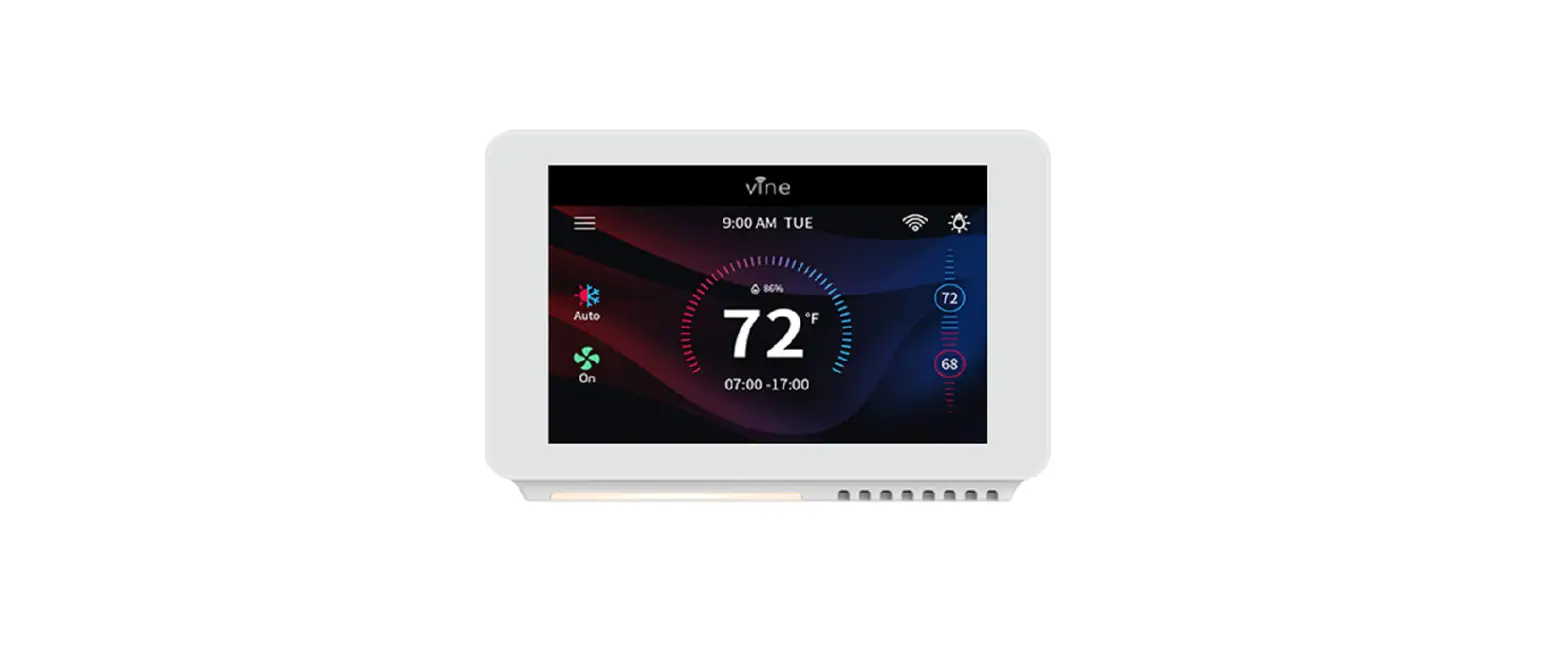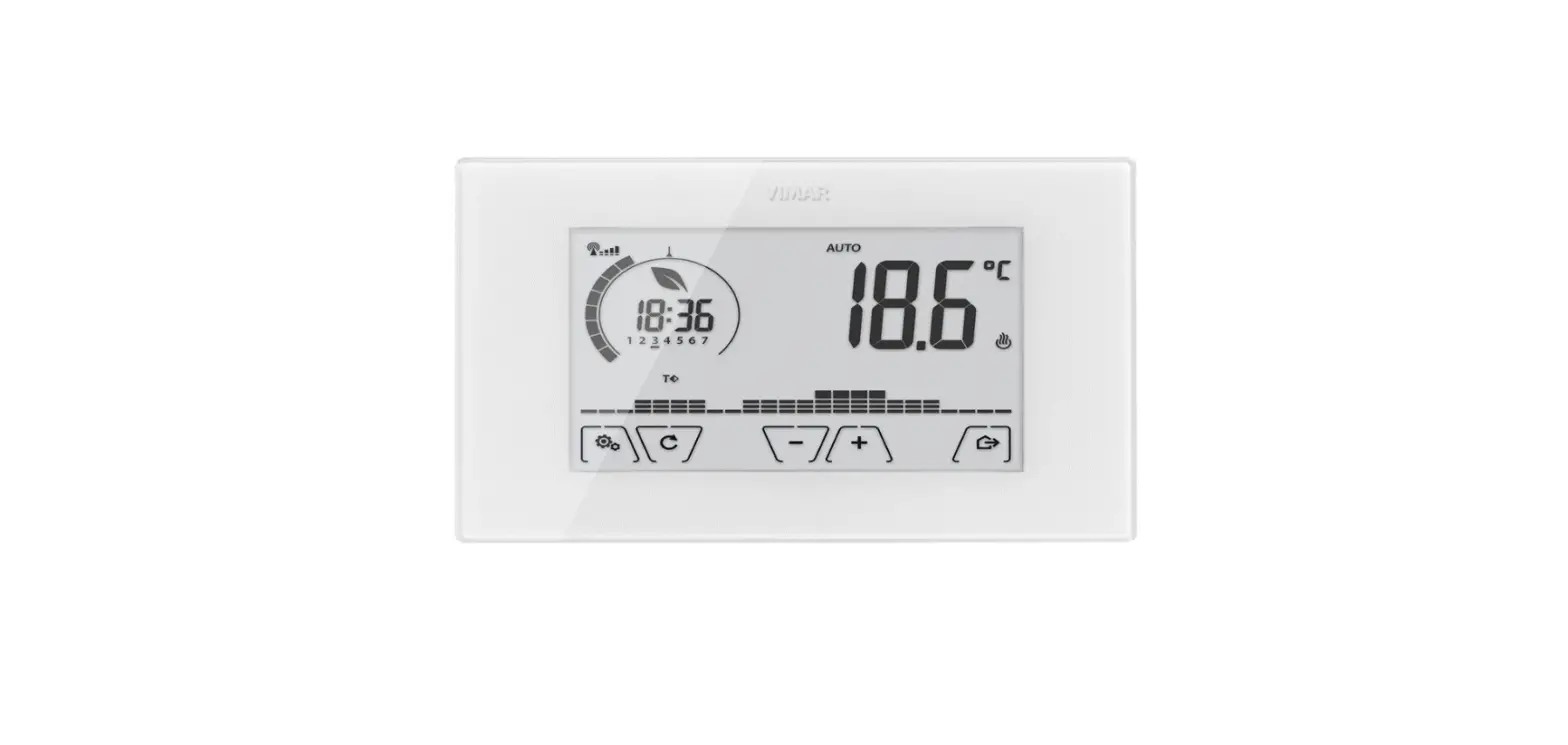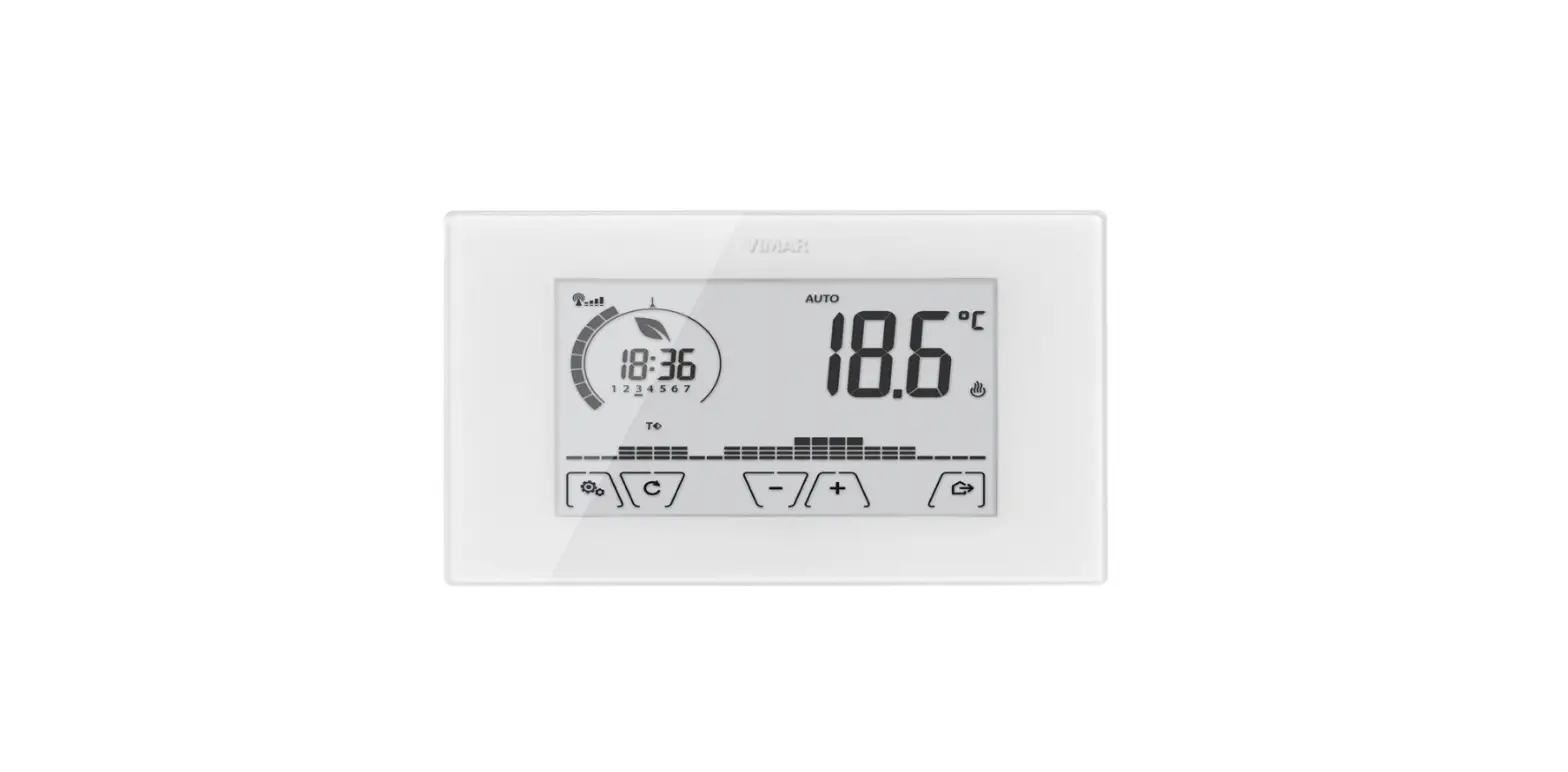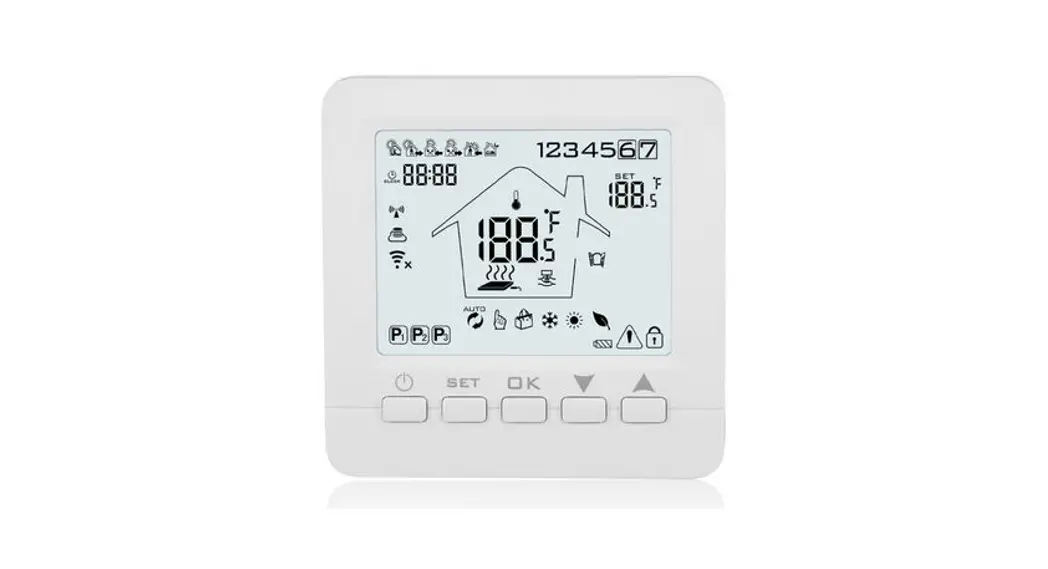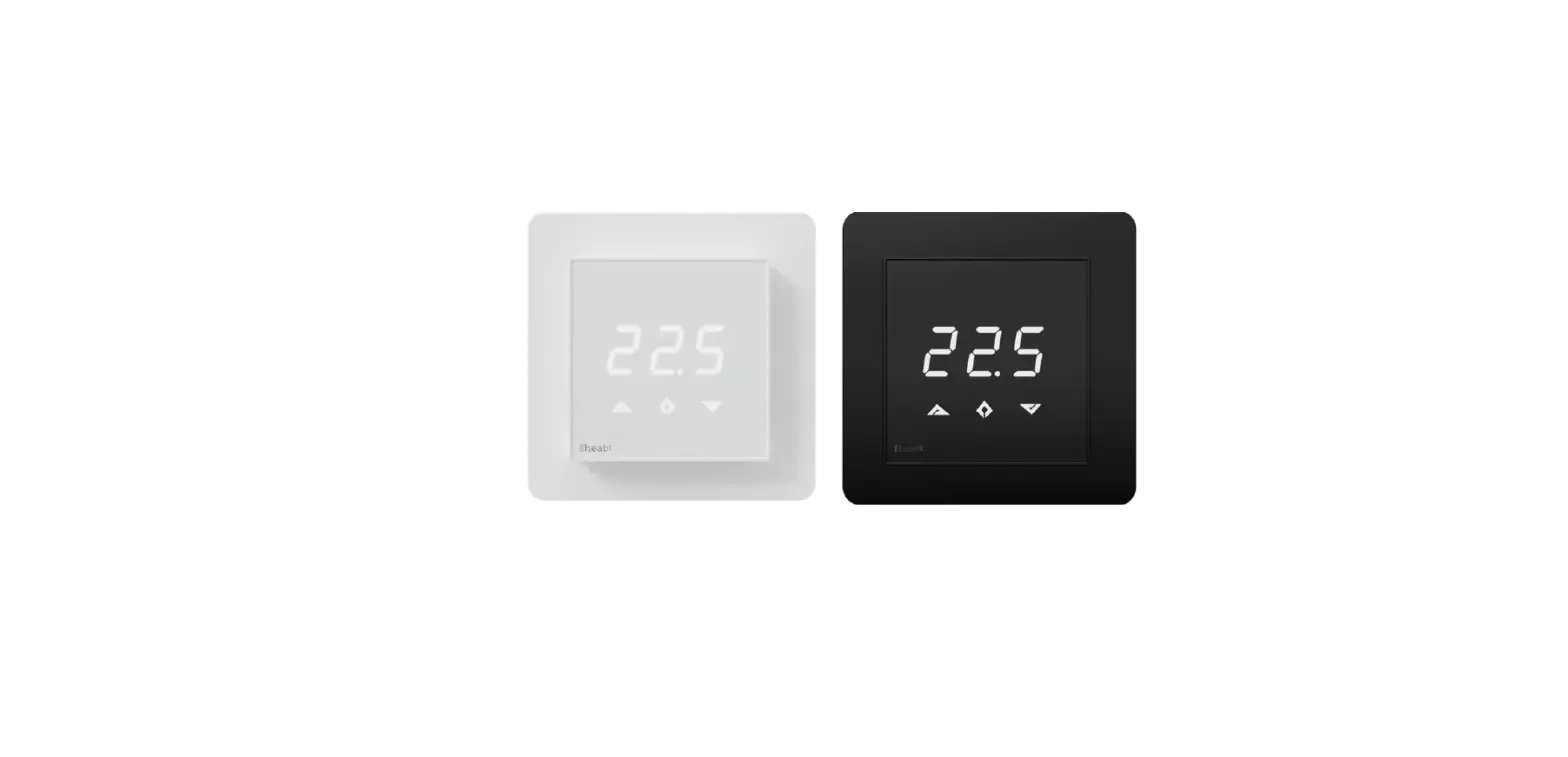
 RAYCHEM SENZ Wi-Fi Digital Timer Thermostat
User Guide
SETUP AND SYSTEM REQUIREMENTS
Before proceeding, ensure you have the following:
- The SENZ WIFI app downloaded and installed on your smartphone (download the SENZ WIFI app from App Store or Google Play)
- An account set up in the SENZ WIFI app with your own username and password
- At least one linked SENZ WIFI thermostat installed
- Confirmed that you can control the SENZ WIFI thermostat(s) via the SENZ WIFI app
- Downloaded the Google Home app on your smartphone
Once you have completed the above setup requirements, follow the steps below to enable the Google Assistant setup for the SENZ WIFI thermostat: (NOTE – screenshots of the app may differ depending on the smartphone being used)
HOW TO ENABLE THE GOOGLE ASSISTANT SETUP FOR THE SENZ WI-FI THERMOSTAT
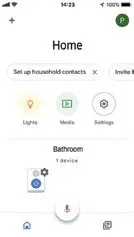
- Open the Google Home app on your smartphone
- Click the “+” sign to add

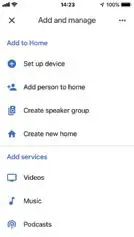
- Click on ‘Set up device’
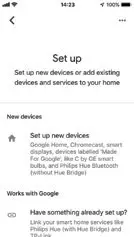
- Under the ‘Works with Google’ section, click on ‘Have something already set up?’
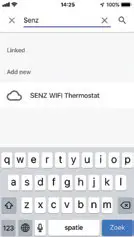
- Scroll/Search for ‘SENZ WIFI Thermostat’ and click on it
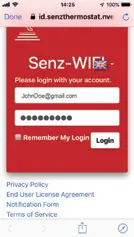
- Sign in to your id.senzthermostat.nVent.com account using your username and password for the SENZ WIFI app
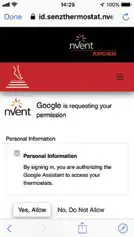
- When you see the permission request to link your Google account with the id.senzthermostat.nVent.com account, click ‘Yes, Allow’
- Click ‘Done’ on the top left and close the app page
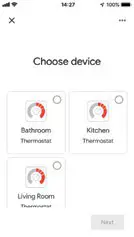
- You should now see the SENZ WIFI thermostat(s) that are available to be linked to Google Home
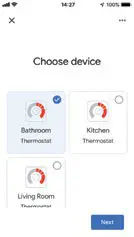
- Select one thermostat (if multiple) and click ‘Next’ on the bottom right
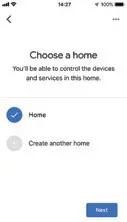
- Choose a location/home for that SENZ WIFI thermostat and click ‘Next’ on the bottom right

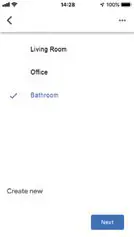
- Choose a room for that SENZ WIFI thermostat and click ‘Next’ on the bottom right
- Assign location and rooms for all SENZ WIFI thermostats (if there are multiple) in your account
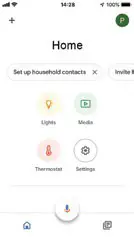
- You can now see your SENZ WIFI thermostats in the Google Home app
- Try some voice commands in the table below using the thermostat name that you assigned to the SENZ WIFI or room with your Google Assistant compatible smart speakers
EXAMPLES OF VOICE COMMANDS
| Desired Action | What Happens | Can be Applied to | Voice Command | Example Text |
| Set a specific temperature | Change the ‘Set to’ to the desired temperature. Note: In Weekly Schedule (Program 1,2 or 3) after 2 hours, the Schedule will resume. In Constant mode this action is permanent. | Individual thermostat or Group | “Hey Google, set [thermostat/group name] to [temperature].” | “Hey Google, set Bathroom to 22 degrees.” |
| Put thermostat to constant mode | Puts the thermostat in constant mode. | Individual thermostat or Group | “Hey Google, set [thermostat/group name] to HEAT.” | “Hey Google, set Kitchen to HEAT.” |
| Put thermostat to Weekly Schedule | Puts the thermostat in the last used Weekly Schedule (aka program mode = Program 1, Program 2 or Program 3). | Individual thermostat or Group | “Hey Google, set [thermostat/group name] to AUTOMATIC.” | “Hey Google, set Living Room to AUTOMATIC.” |
| Turn thermostat OFF (aka Away Mode) | Puts the thermostat to Constant Mode and changes the ‘Set to’ temperature to 5°C. This effectively turns your floor heating system off. | Individual thermostat or Group | “Hey Google, turn [thermostat/group name] OFF.” | “Hey Google, turn the Bathroom OFF.” |
| Find out the current temperature | No changes are made. The current temperature is announced. | Individual thermostat or Group | “Hey Google, what is [thermostat/group name] temperature?” | “Hey Google, what is the Kitchen temperature?” |
| Make the temperature slightly warmer | Raise the ‘Set to’ by 1,5°C. Note: In Weekly Schedule (Program 1,2 or 3) after 2 hours, the Schedule will resume. In Constant mode this action is permanent. | Individual thermostat or Group | “Hey Google, increase the temperature of [thermostat/group name].” | “Hey Google, increase the temperature of the Living Room.” |
| Make the temperature slightly cooler | Lower the ‘Set to’ by 1,5°C. Note: In Weekly Schedule (Program 1,2 or 3) after2 hours the Schedule will resume. In Constant mode this action is permanent. | Individual thermostat or Group | “Hey Google, decrease the temperature of [thermostat/group name].” | “Hey Google, decrease the temperature of the Bathroom.” |
United Kingdom
Tel 0800 969 013
Fax 0800 968 624
[email protected]
Ireland
Tel 1800 654 241
Fax 1800 654 240
[email protected]
 Senz
Senz Electrical Heat Tracing | Heat Tracing | nVent RAYCHEM