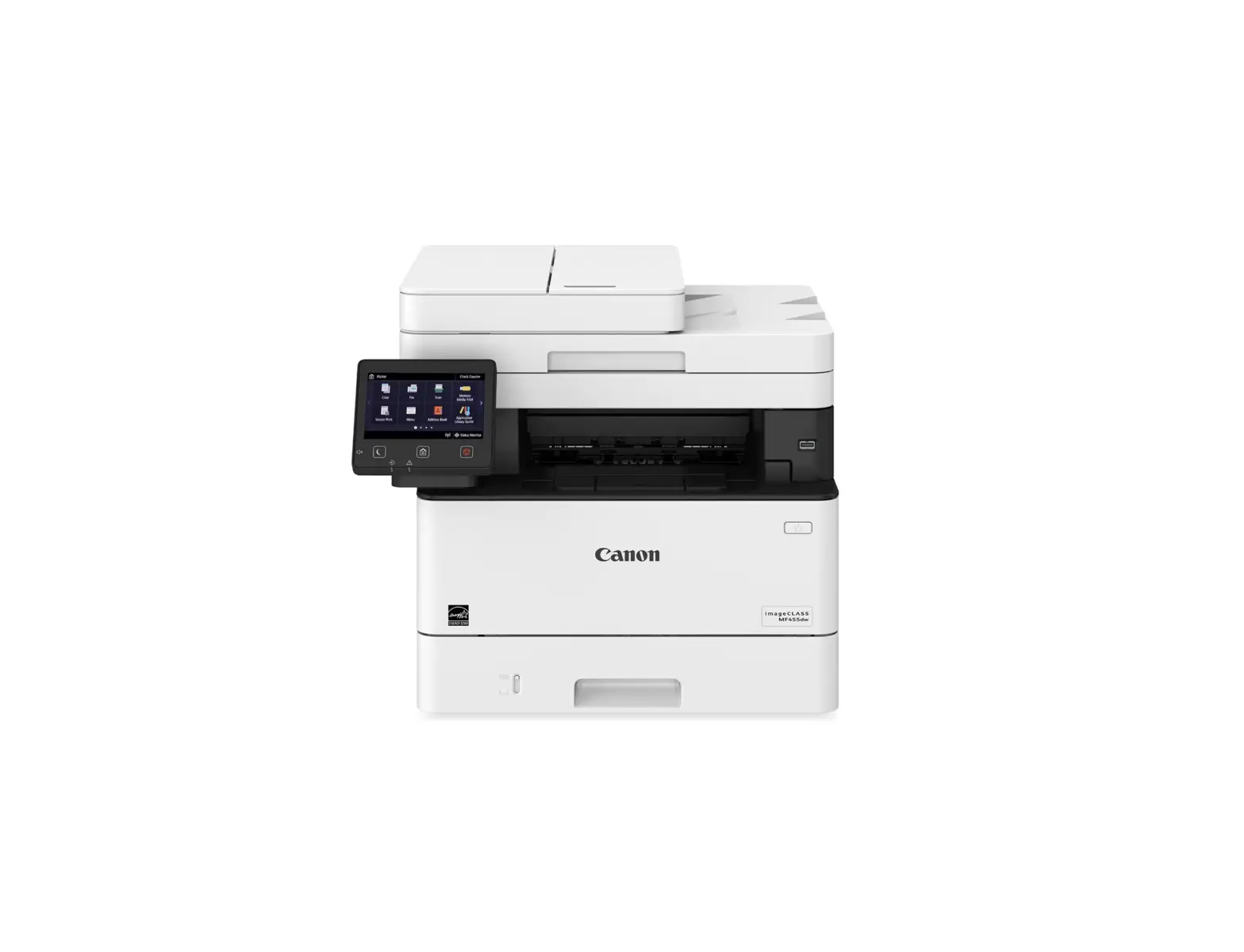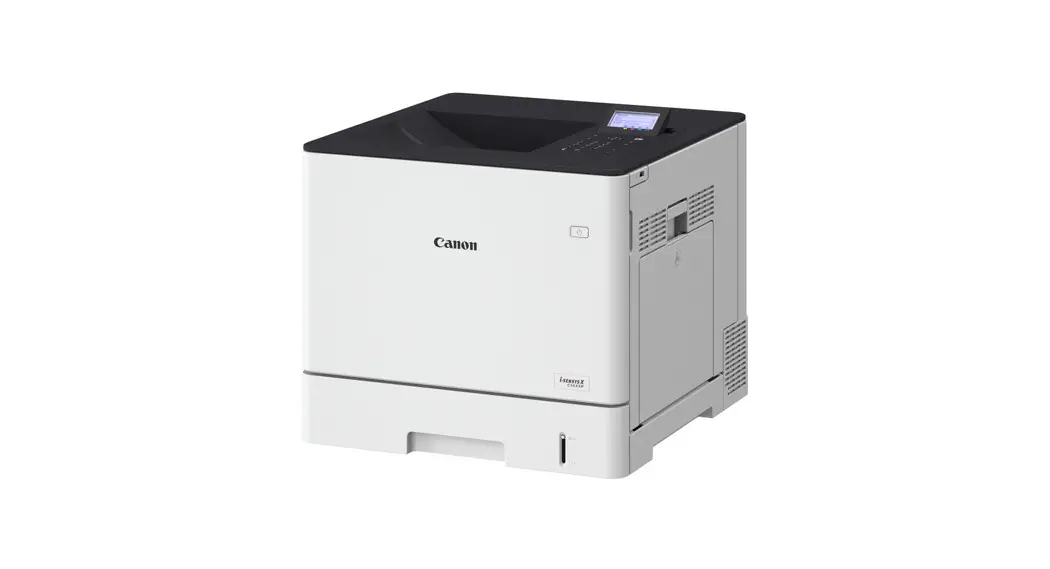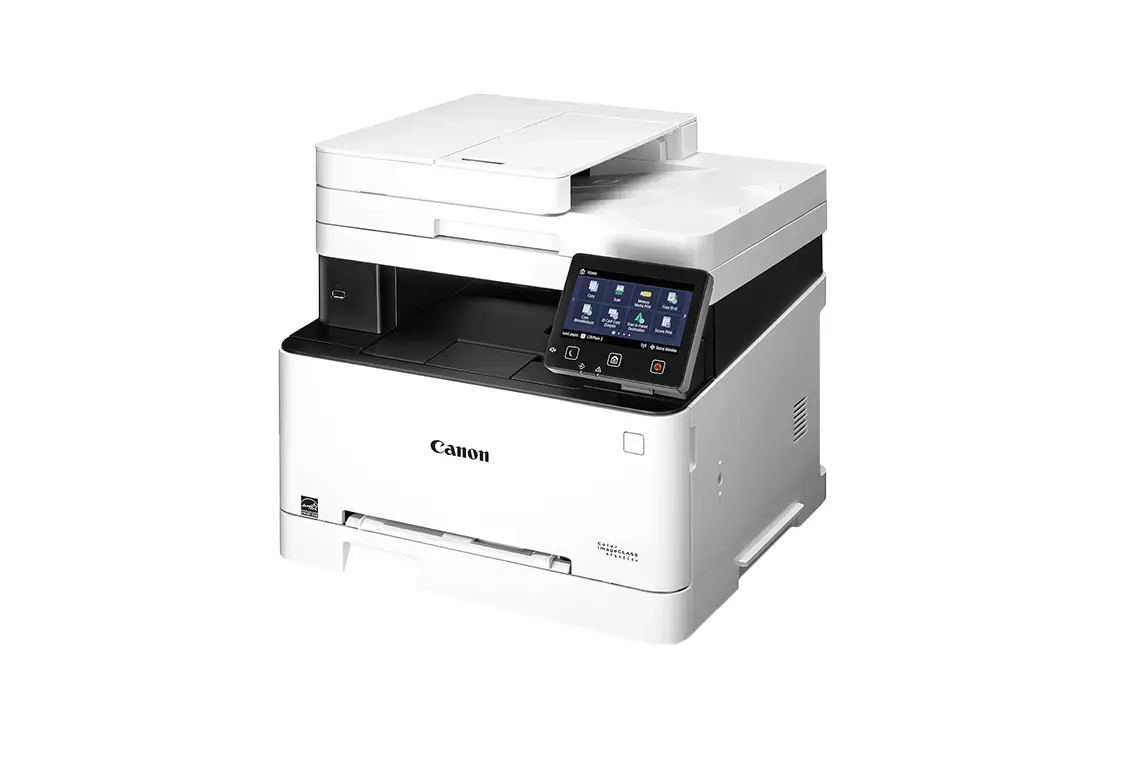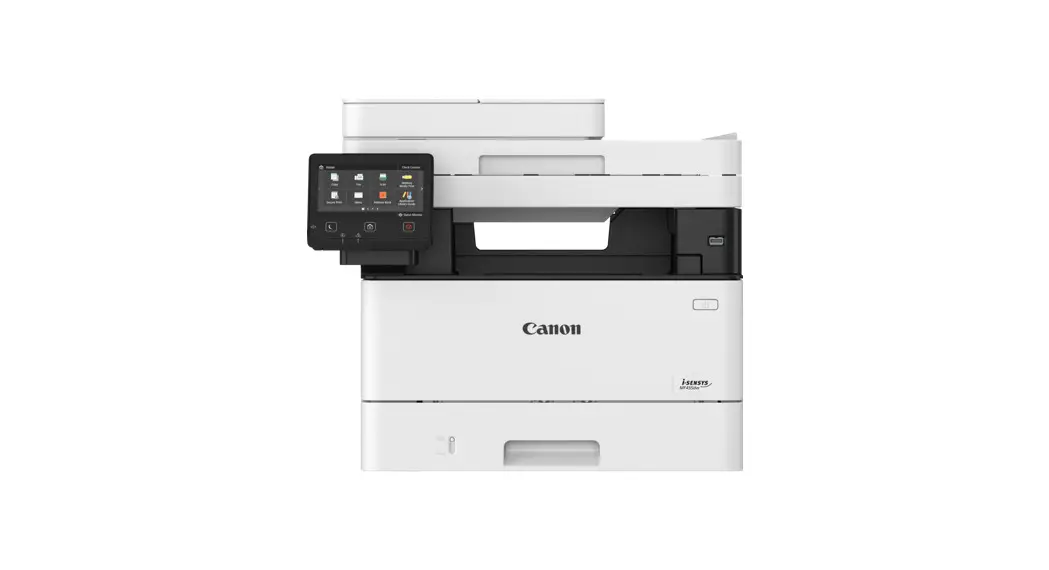

MF455dw
Setup Guide
- After you finish reading this guide, store it in a safe place for future reference.
- The information in this guide is subject to change without notice.
Important Safety Instructions
Be sure to read these instructions before using the machine.
2 Setup Guide (this document)
3 User’s Guide / FAQ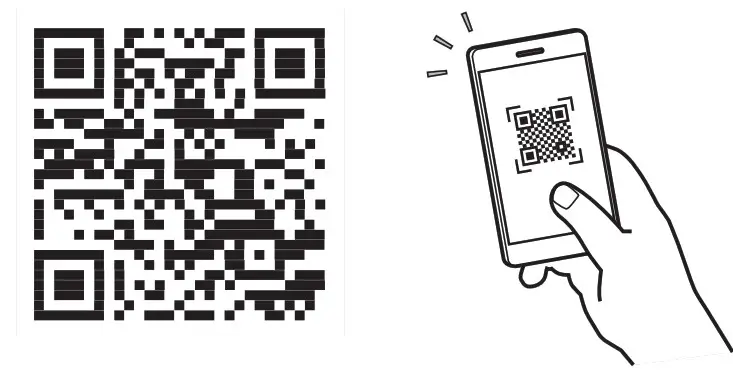
Unless otherwise stated, illustrations used in this document are for the MF455dw.
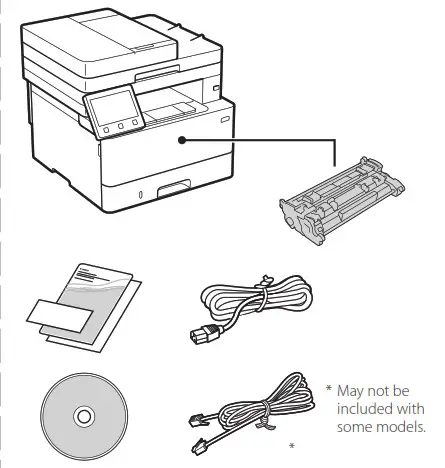
Checking the Items Included
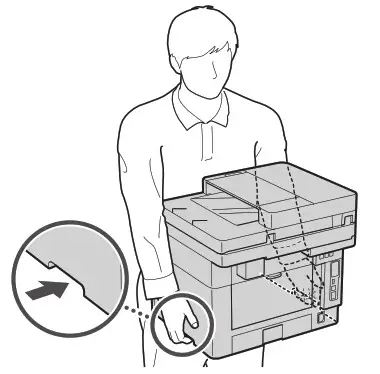
Removing the Packing Material
- Install the machine in the location where it will be used.

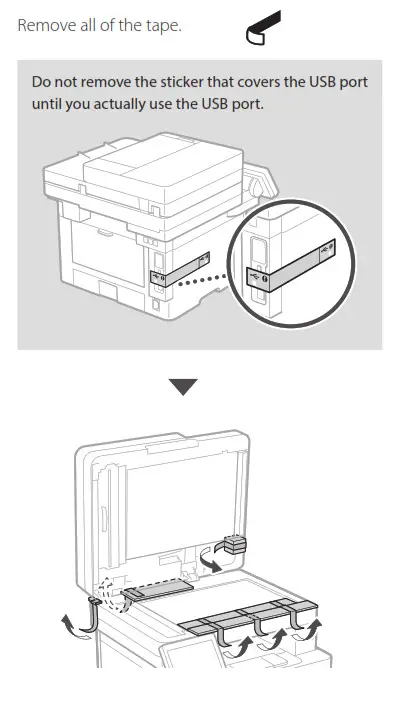
- Remove all packing material.

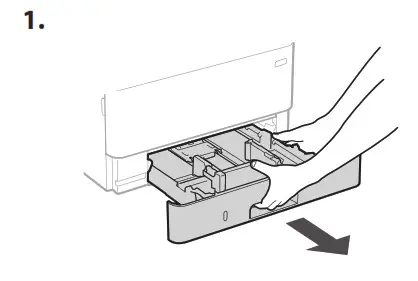
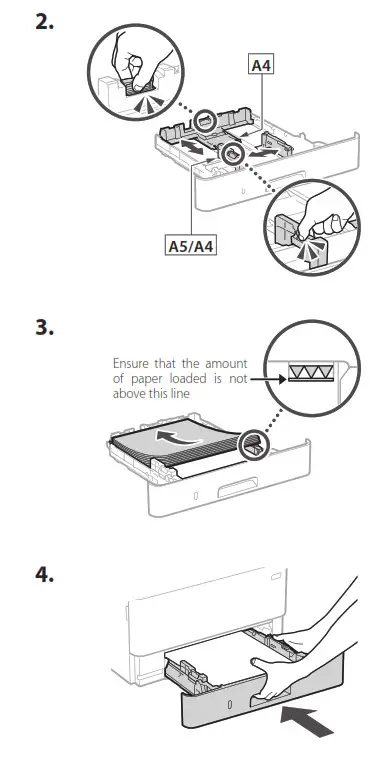
Loading Paper
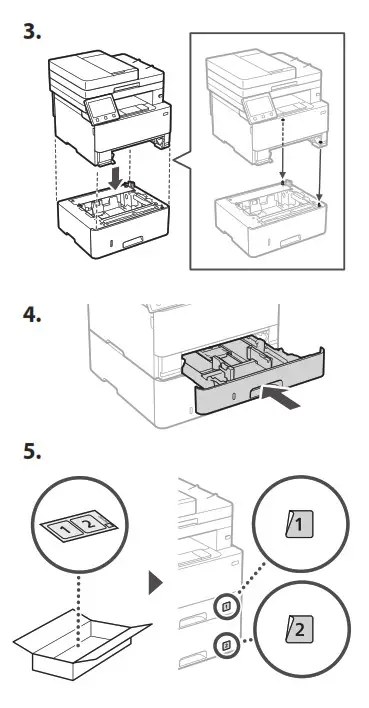
Installing the Optional Part
If you are not using optional part, proceed to step 5.
Before Installing the Optional Part
When installing the optional part after the machine has been installed, perform the following before starting work:
- Shut down the machine and your computer.
- Unplug the machine from the mains power outlet.
- Disconnect all cords and cables from the machine.
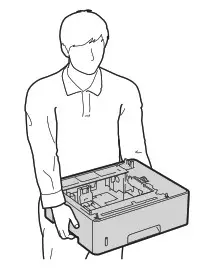
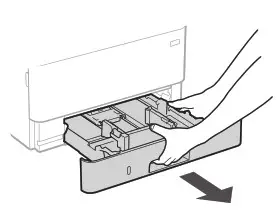
Cassette feeding module
- Install the cassette feeding module in the location where it will be used.
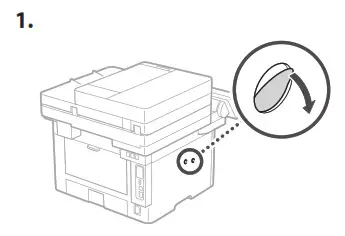
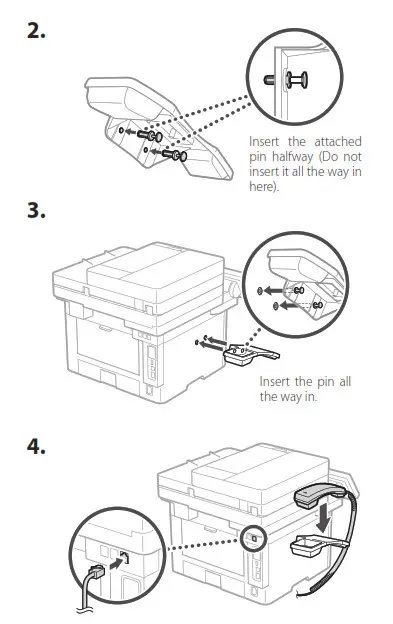
Handset
* The handset cannot be used with some models.
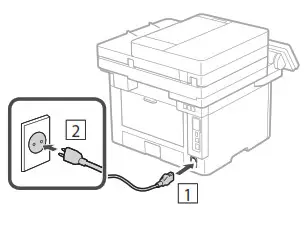
Connecting the Power Cord
Specifying the Basic Settings
When you turn on the machine for the first time, the Setup Guide appears on the operation panel. Perform the initial machine setup by following the on-screen instructions.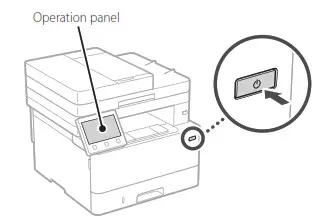
- Select the language, then the country/ region and finally the time zone.
- Set the current date/time.
Specifying the Security Settings
Specify the basic security settings to prevent unauthorized access to the machine.
- To use the Remote UI, select <Yes>.
To continue without using the Remote UI, select <No> and proceed to step 8 . - To use General User mode, select <Yes>.
• Set the PIN to be used by general users to access the Remote UI.
• To continue without using General User mode, select <No> and proceed to step 8 . - Set the Remote UI Access PIN.
• Enter any number and then select <Apply>.
• Re-enter the same PIN on the next screen as confirmation and select <Apply>.
Specifying the Network Settings
Specify the settings for connecting the machine to a network. Before proceeding, check that the computer and router are correctly connected to the network.
Wireless LAN
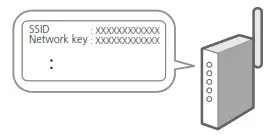
- Check the router’s “SSID” and “Network key.”

- To configure the settings, select <Yes> on the operation panel.
- Check the message and select <OK>.
- Select the network with a matching SSID.
- Enter the password (network key) and select <Apply>.
Wired LAN
Connect the router to the machine with a LAN cable and then select <No> in the screen for choosing how to connect to the network.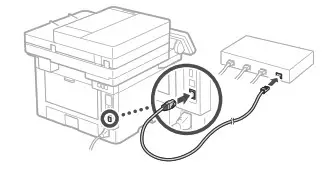
Ending the Setup Guide
Check the description in the Application Library and then select <End>.
Installing the Software/ Drivers
Install the software and drivers from the CD/DVD-ROM included, or visit the URL below and download them from the Canon website for your country/region.
https://global.canon/en/support/
Fax Setup
* These settings do not appear on models without a fax function.
The first time you select <Fax> on the Home screen, the Fax Setup Guide starts up.
Setup Procedure
- Select <Fax> on the Home screen.
- Select <Set Up Now>.
- Select <Next>.
- Enter the Unit Telephone Number and select <Apply>.
- Select <Next>.
- Enter the Unit Name (name and company name, etc.) and select <Apply>.
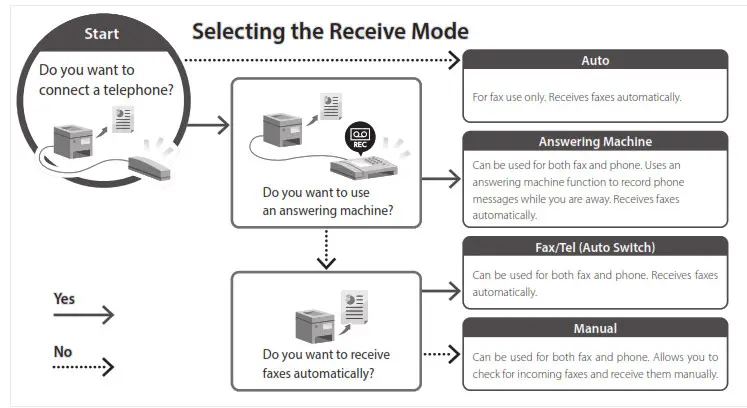
- Select the receive mode that best suits your telephone connection and the way you receive calls.
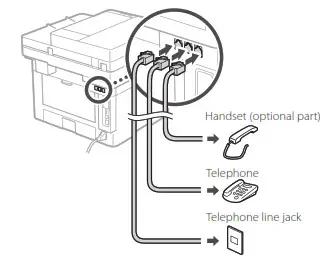
Refer to the illustration below and select <Yes> or <No>. Finally, select <Apply> to set the receive mode. - Connect the machine to a telephone line.

- When you have completed the connection, select <End>.
- Select <Yes>.

Memo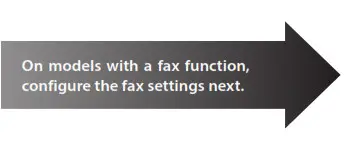
CANON INC.
30-2, Shimomaruko 3-chome, Ohta-ku, Tokyo 146-8501, Japan
CANON MARKETING JAPAN INC.
16-6, Konan 2-chome, Minato-ku, Tokyo 108-8011, Japan
CANON U.S.A., INC.
One Canon Park, Melville, NY 11747, U.S.A.
CANON EUROPA N.V.
Bovenkerkerweg 59, 1185 XB Amstelveen, The Netherlands
CANON SINGAPORE PTE LTD
1 Fusionopolis Place, #15-10, Galaxis, Singapore 138522
CANON AUSTRALIA PTY LTD
Building A, The Park Estate, 5 Talavera Road, Macquarie Park, NSW 2113, Australia
CANON GLOBAL WORLDWIDE SITES
https://global.canon/

 Canon Global
 Canon - User Manuals