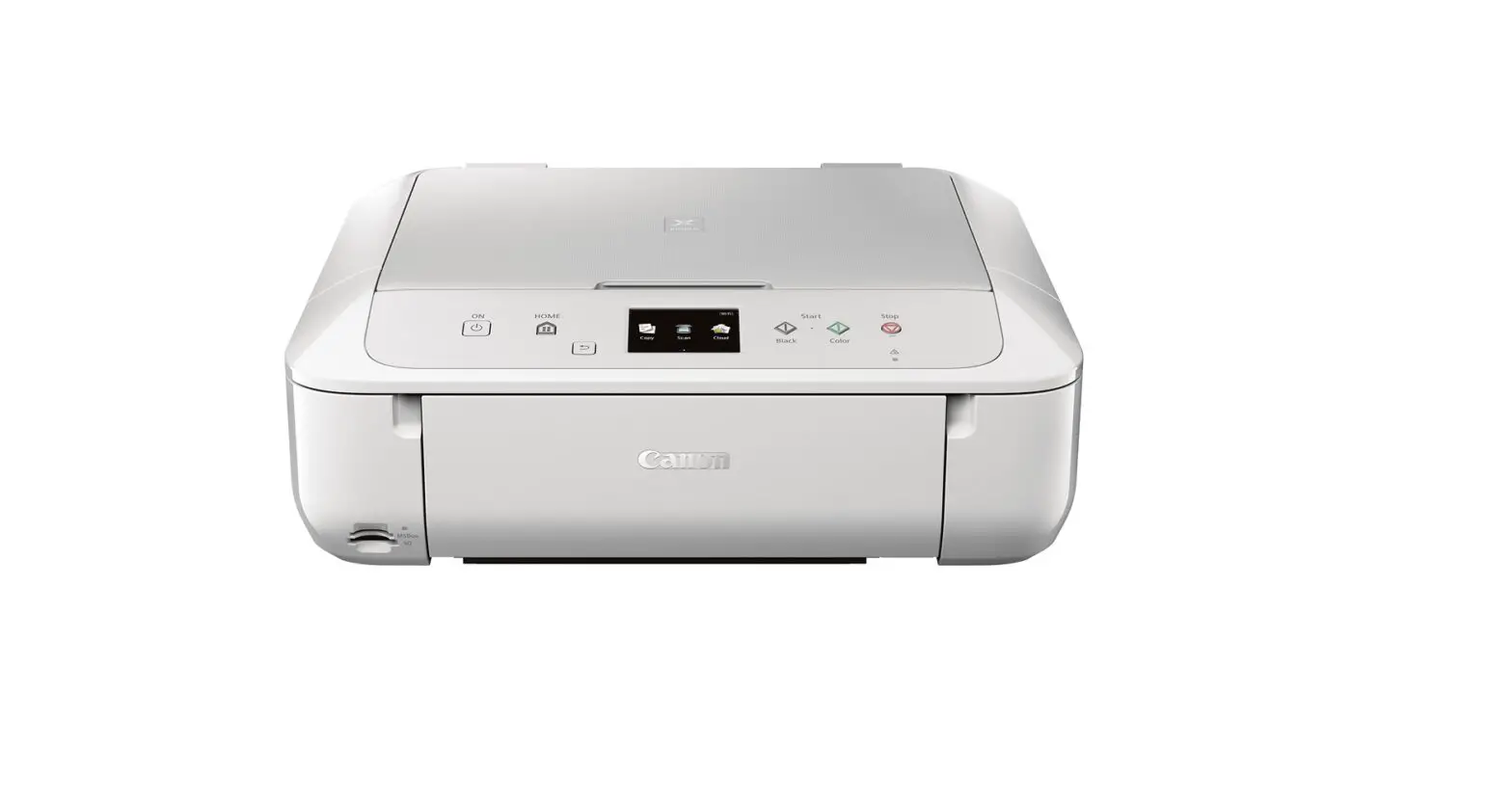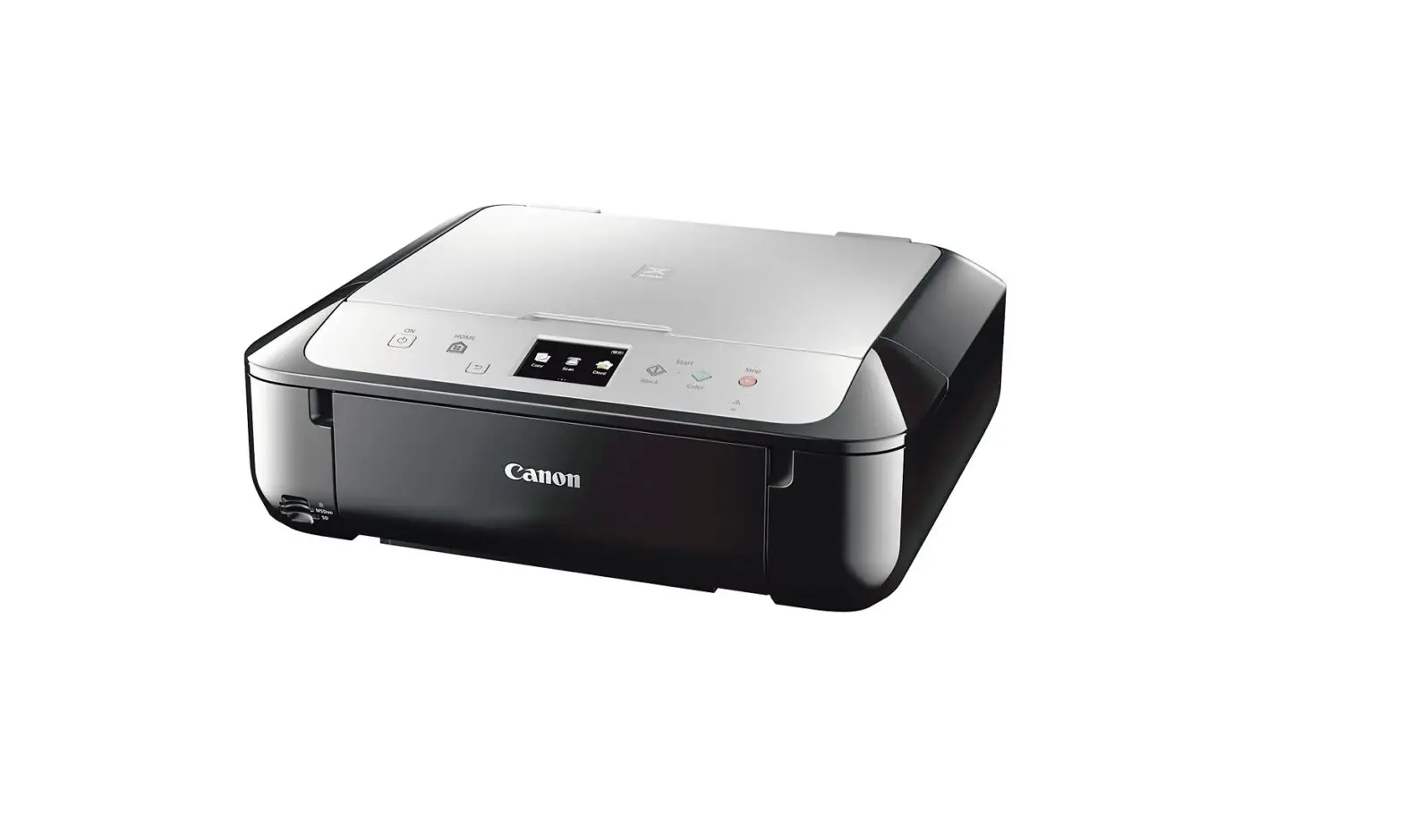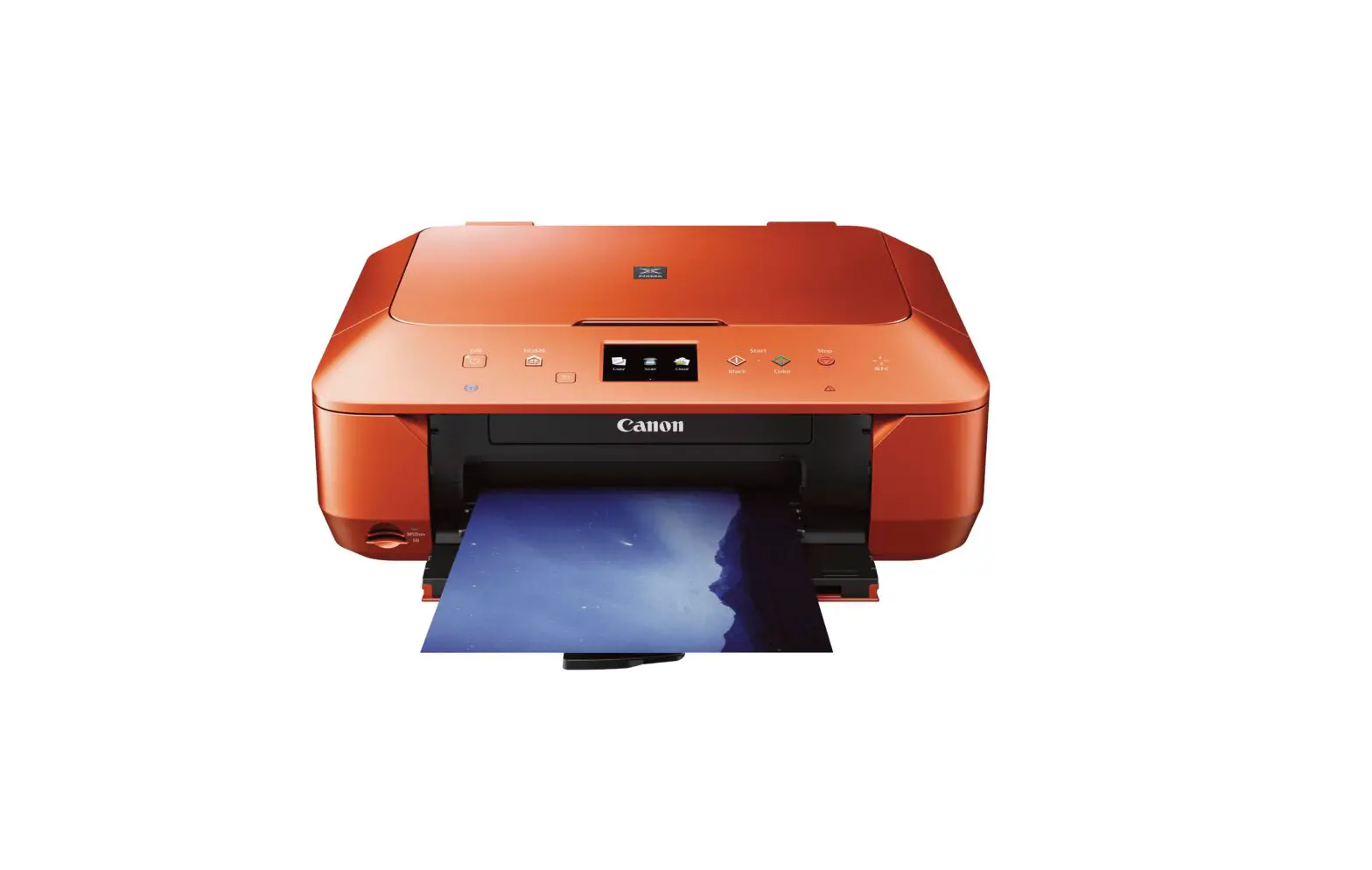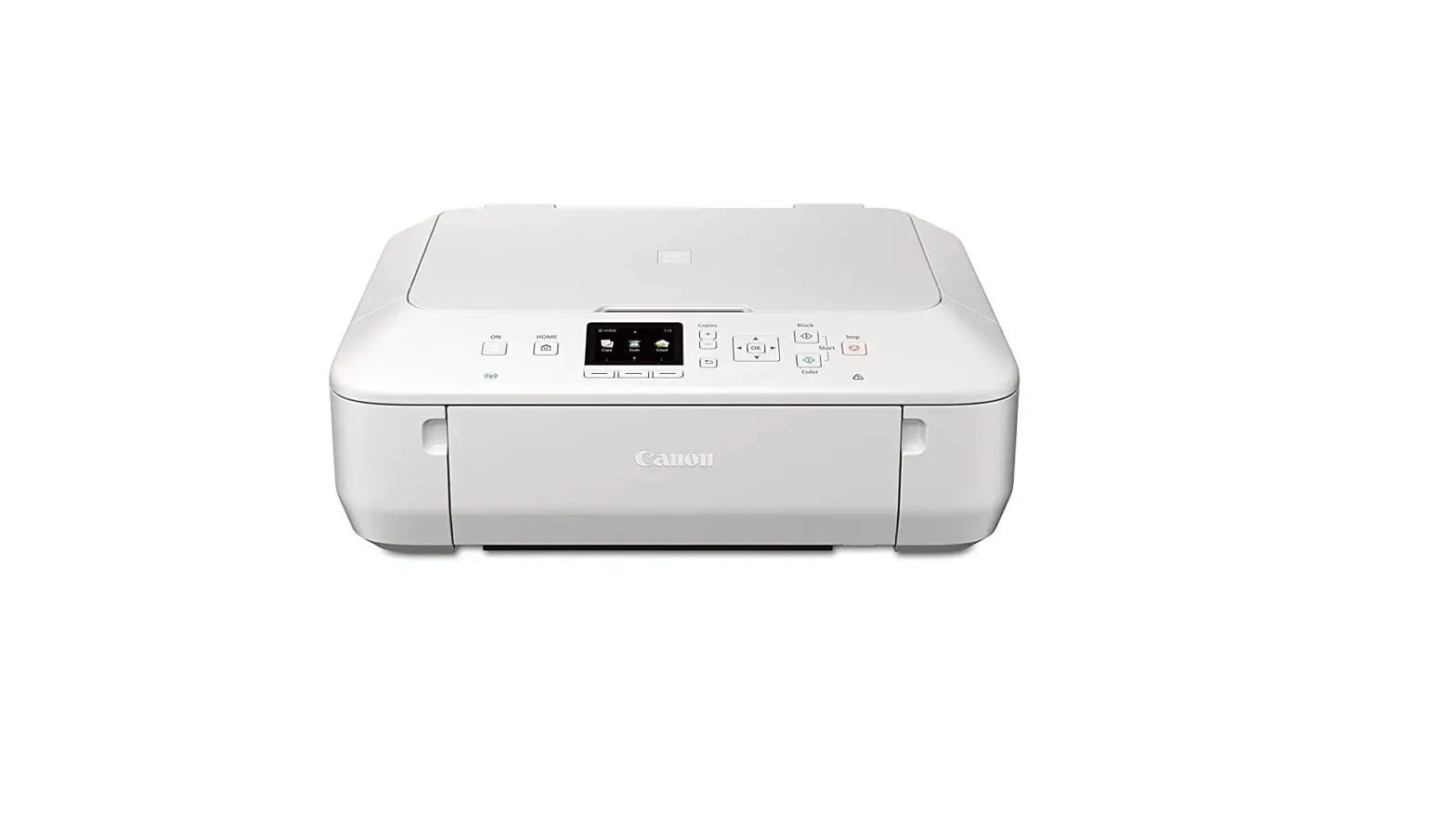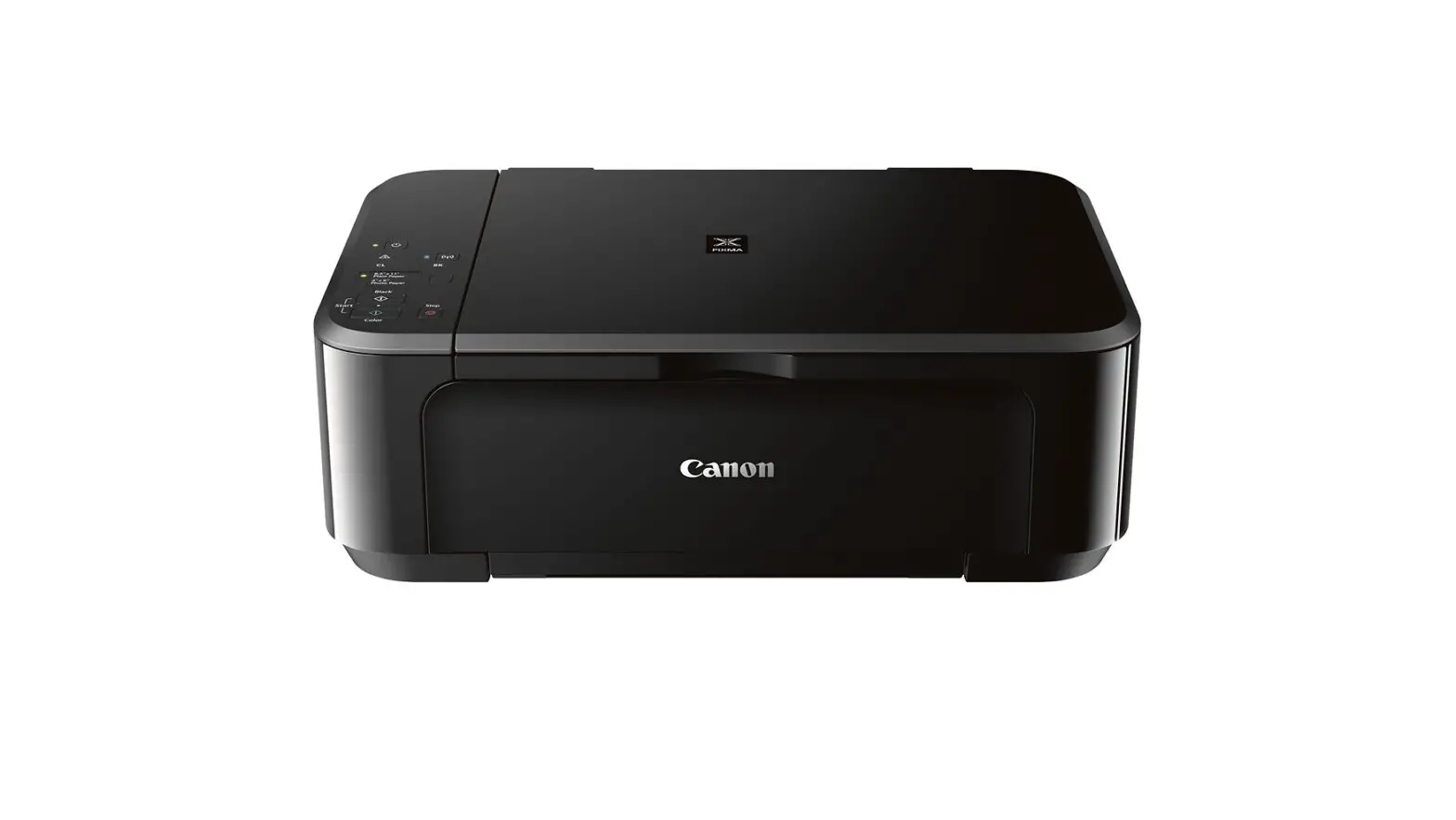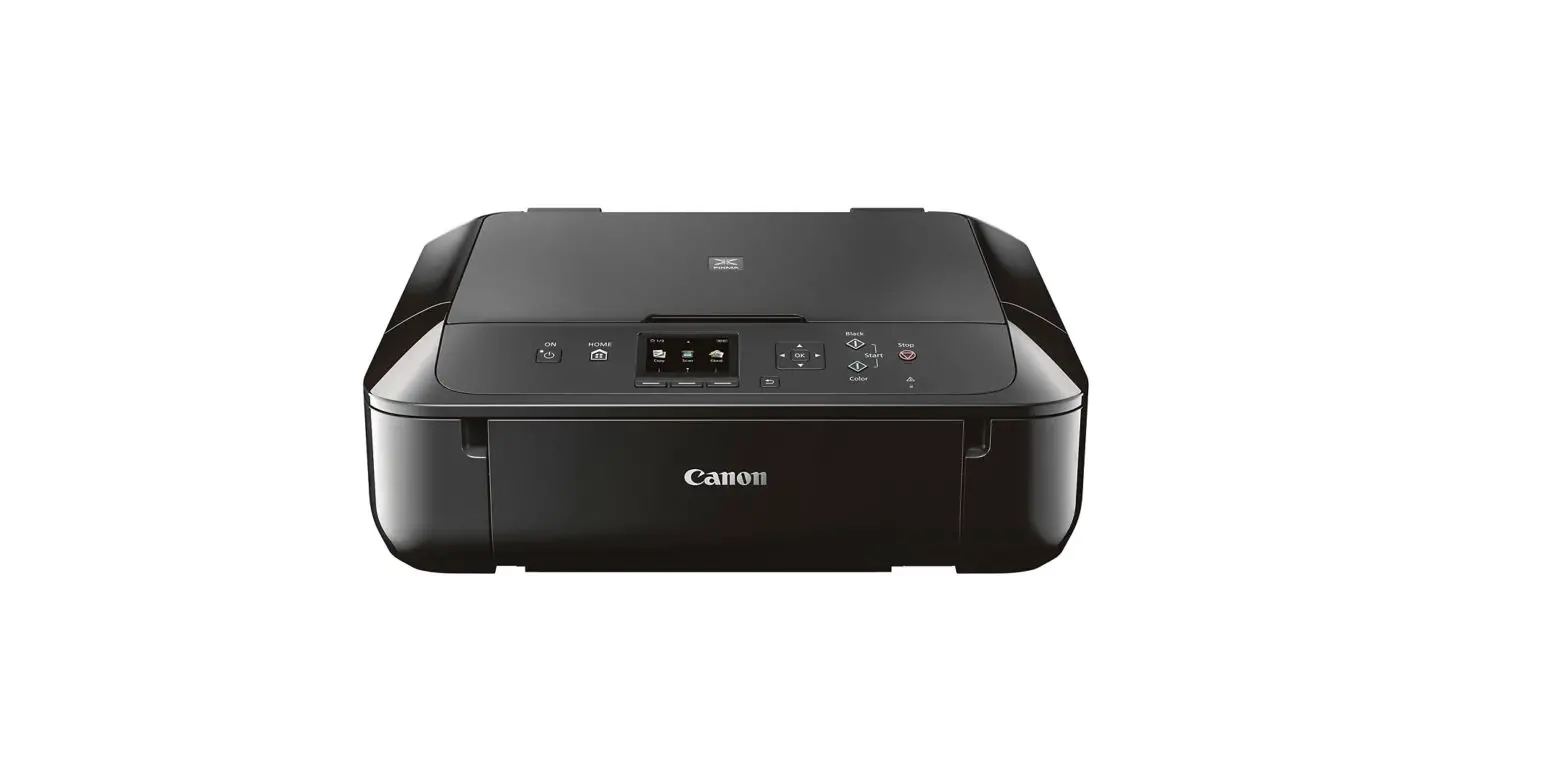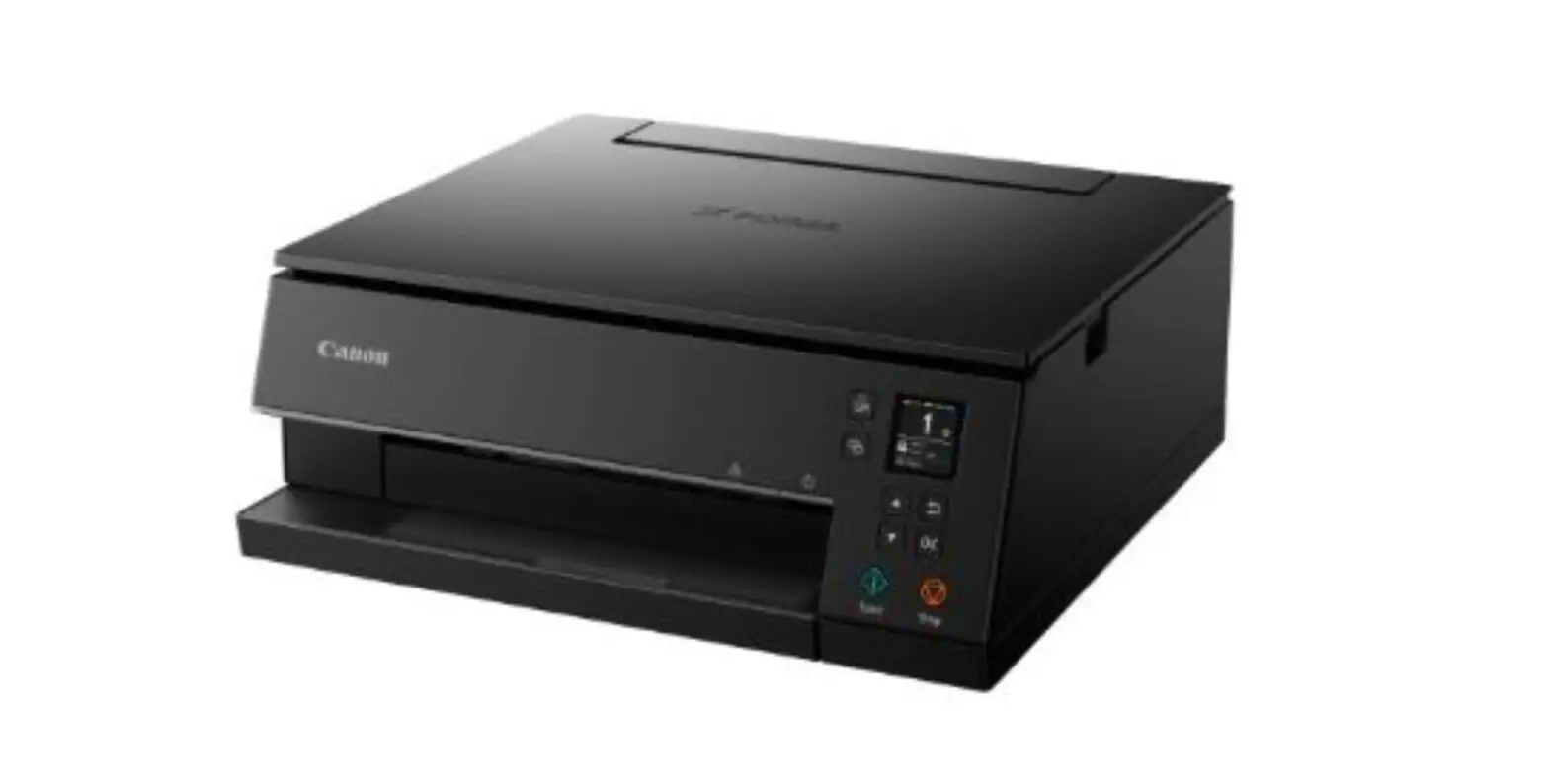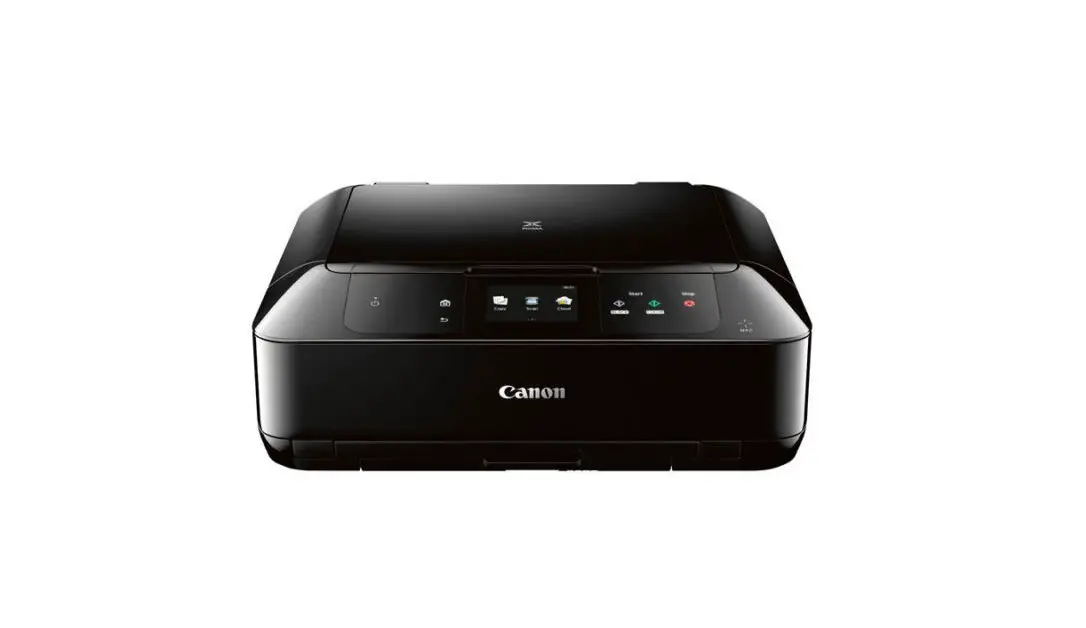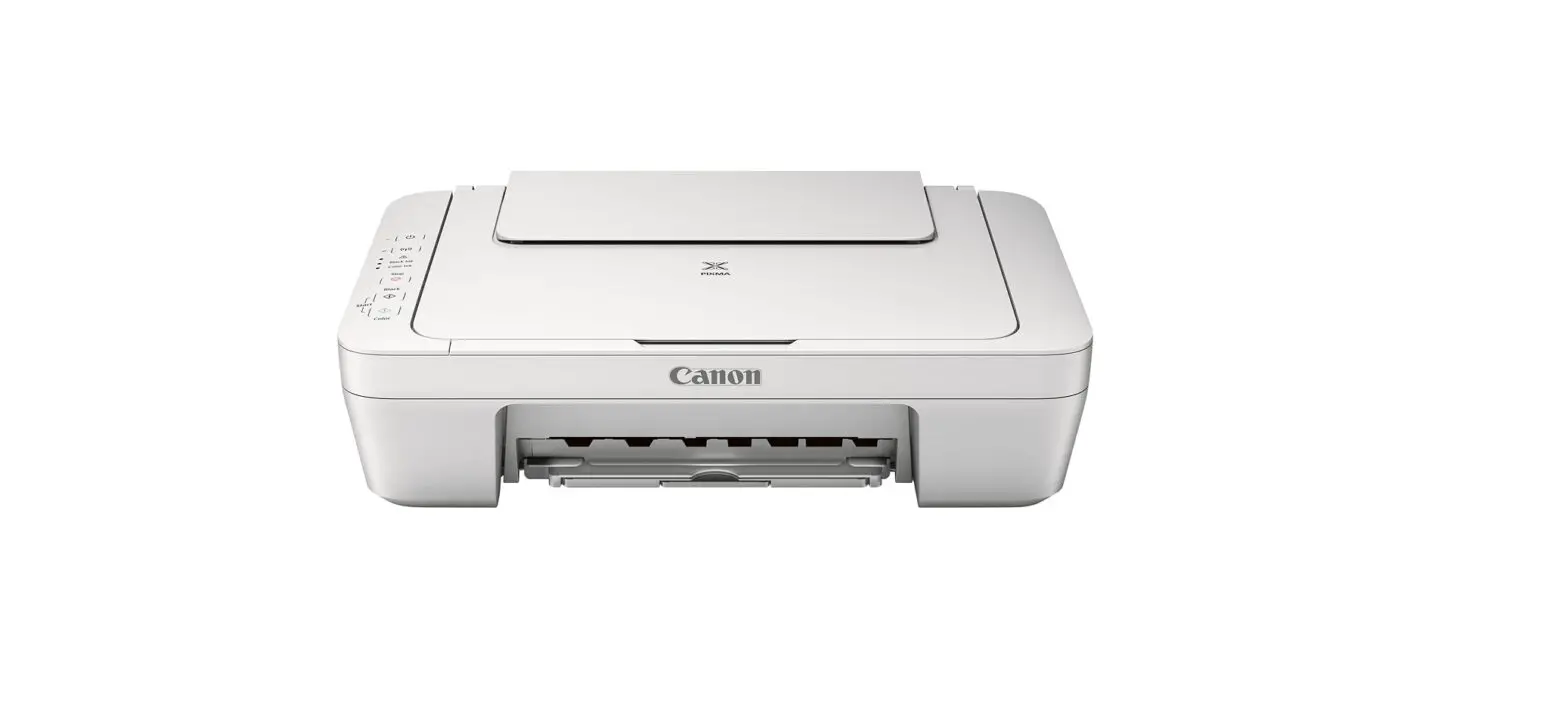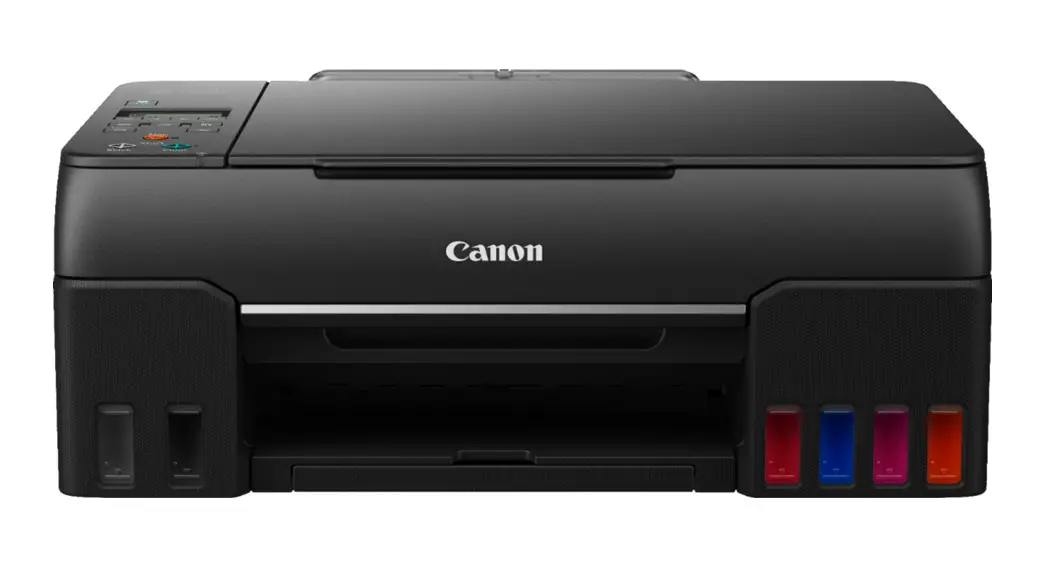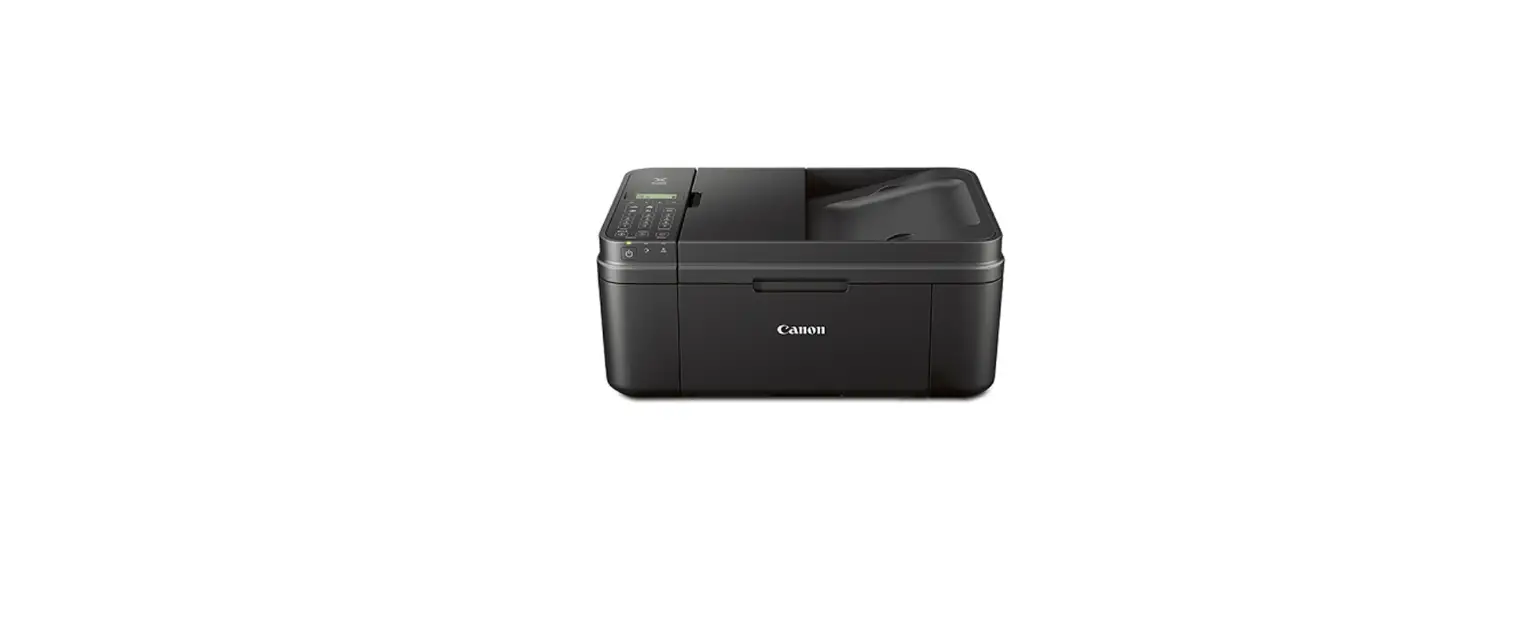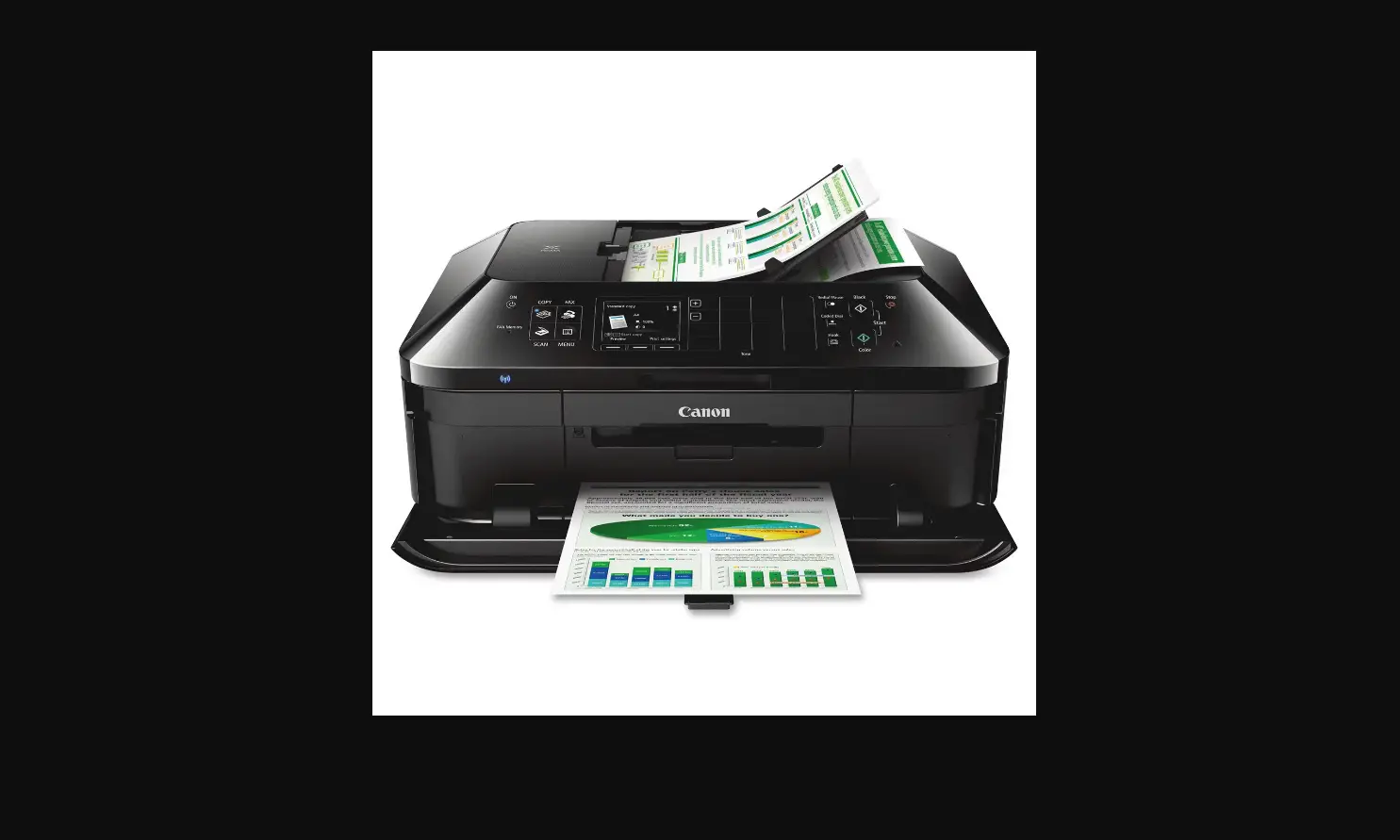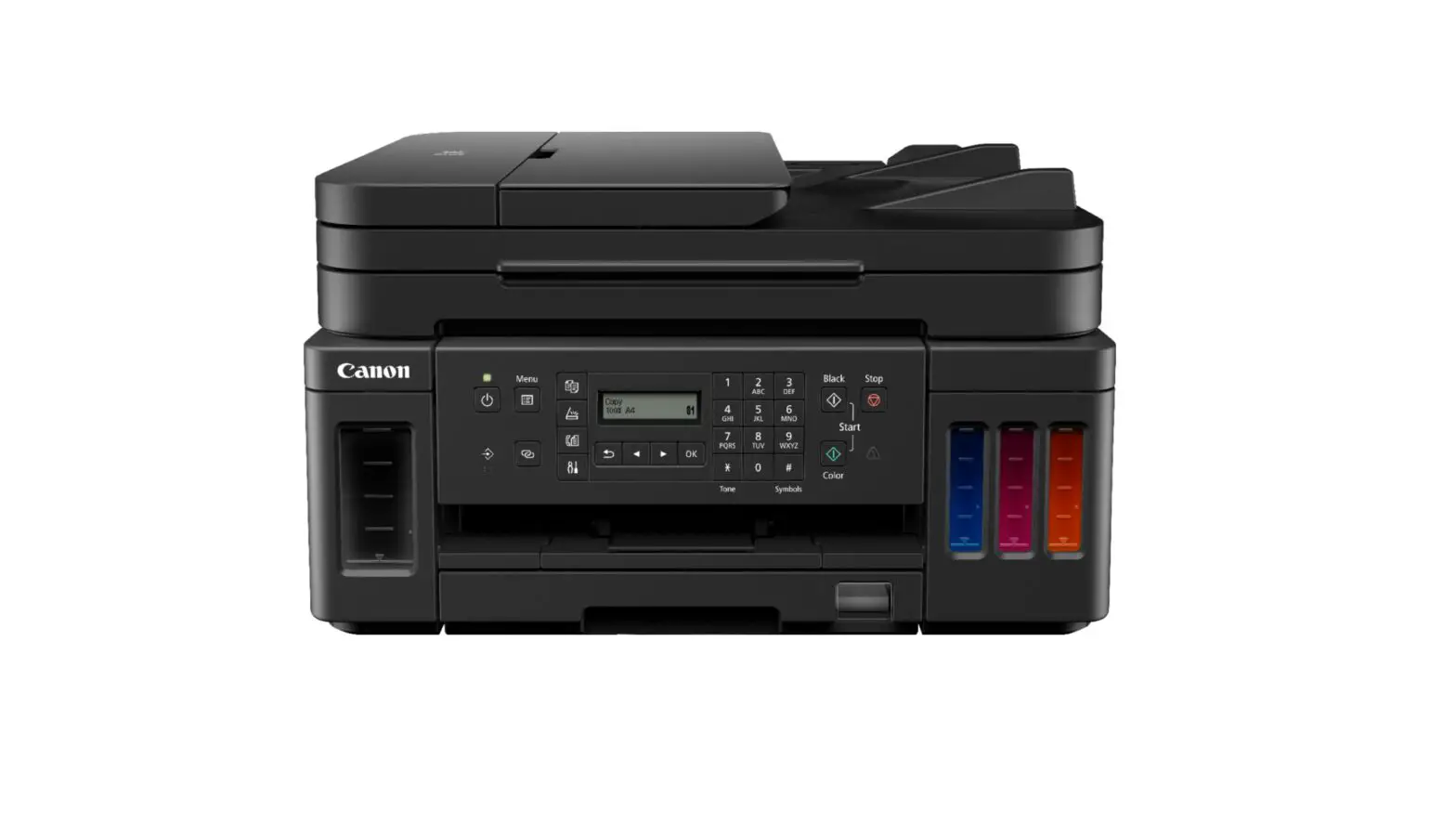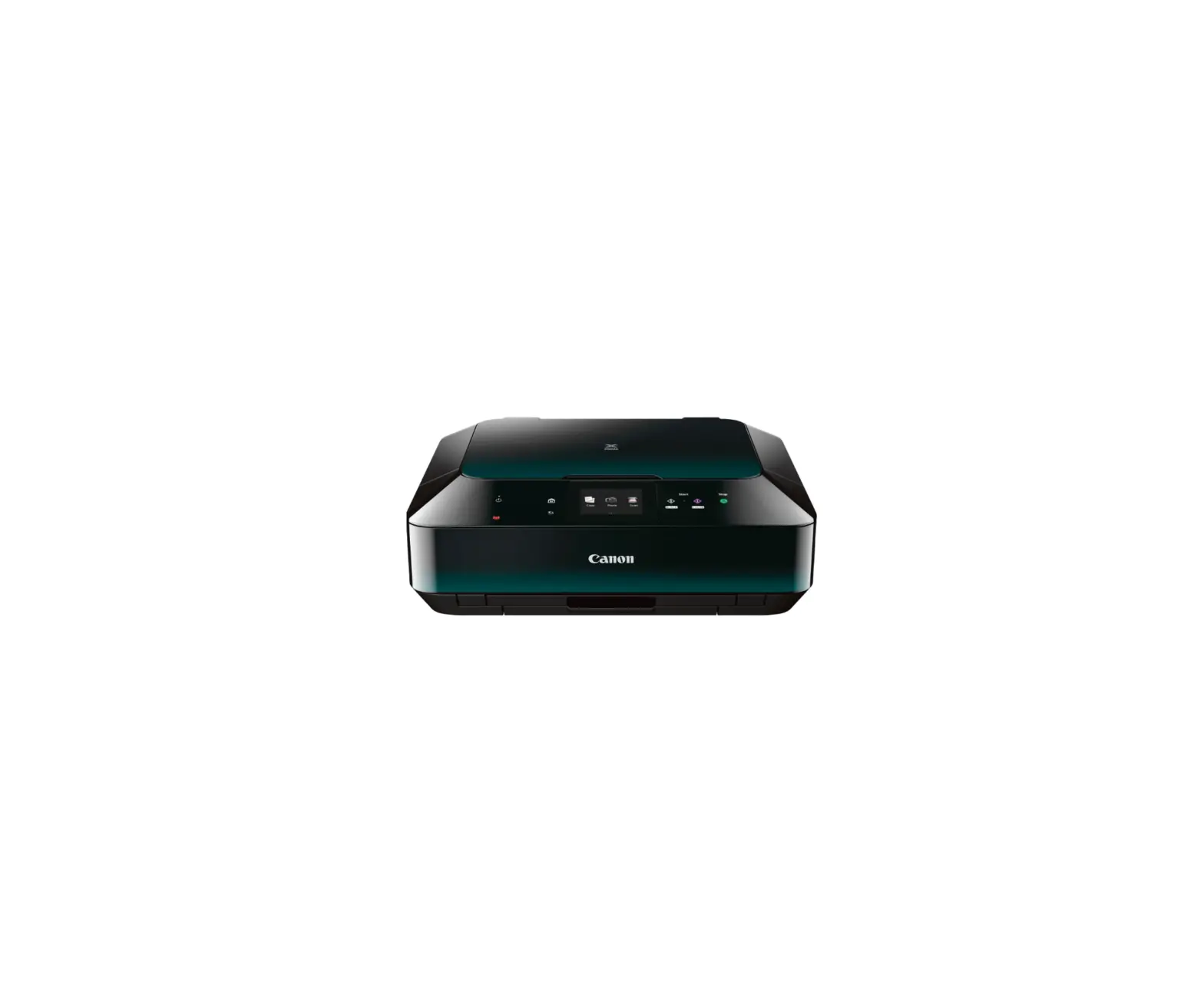

Canon Pixma MG6320 Multifunction Printer
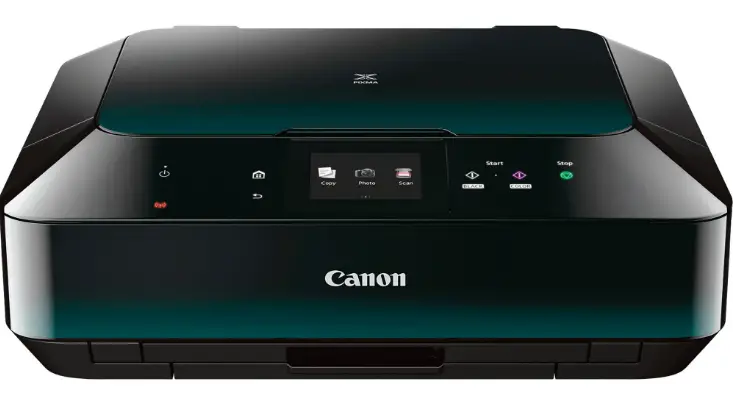
Getting Started
Getting Help from Canon
Email Tech Support — www.usa.canon.com/support
Toll-Free Tech Support— 1-800-OK-CANON
This option provides live telephone technical support, free of service charges, Monday-Friday (excluding holidays), during the warranty period.
Telephone Device for the Deaf (TDD) support is available at 1-866-251-3752.
- Windows is a trademark or registered trademark of Microsoft Corporation in the U.S. and/or other countries.
- Windows Vista is a trademark or registered trademark of Microsoft Corporation in the U.S. and/or other countries.
- Mac, Mac OS, AirPort and Bonjour are trademarks of Apple Inc., registered in the U.S. and other countries.
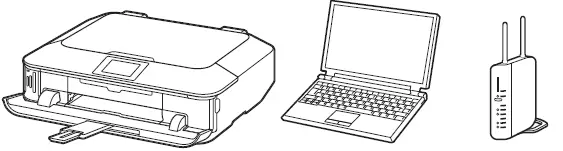
To perform setup, place the machine near the access point* and computer.
(* Required for wireless LAN)
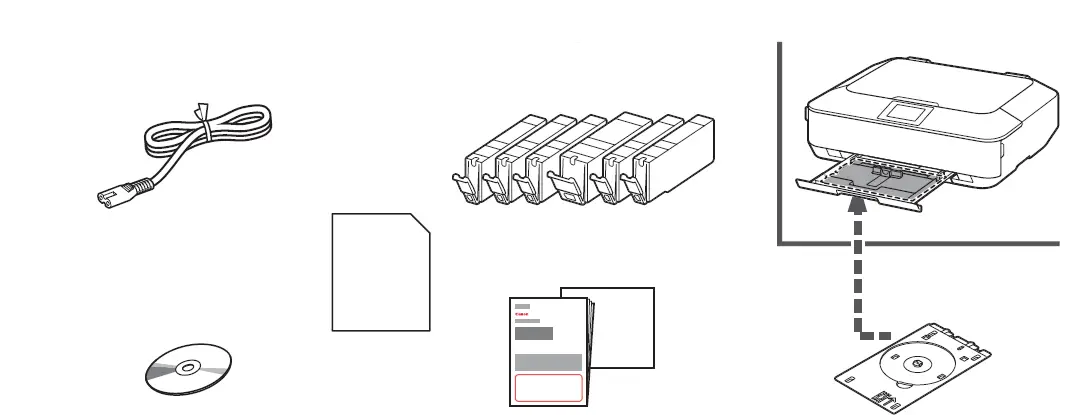
Included I tems
Check the included items.
Network connection:
Prepare the Ethernet cable or network devices such as a router or an access point as necessary.
USB connection:
A USB cable (not included) is required.
Preparation
Remove the protective sheets and tape.
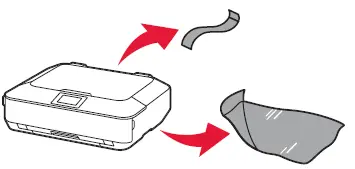
HOW TO USE
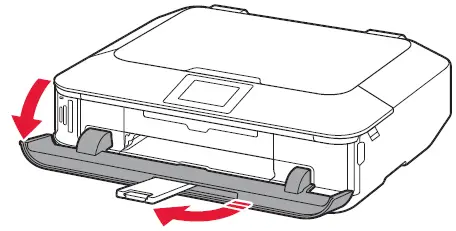
The Paper Output Tray opens automatically as printing starts. Keep the front of the machine clear of any obstacles.
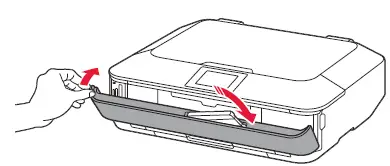
- Open the Paper Output Tray.
The Output Tray Extension opens automatically.
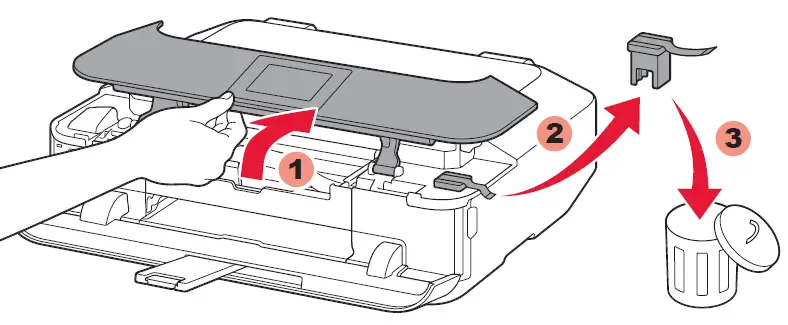
- Open the Operation Panel. Remove the orange tape and protective material.

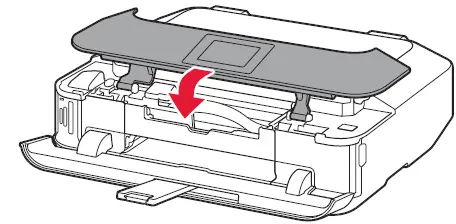
- Close the Operation Panel.

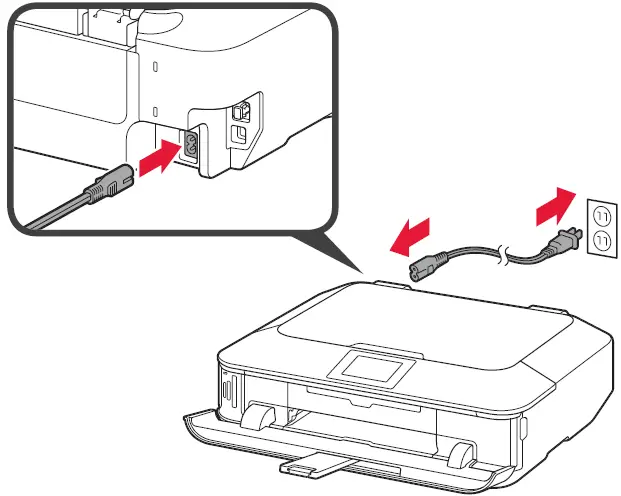
- Connect the power cord.
Do not connect the USB or Ethernet cable yet.
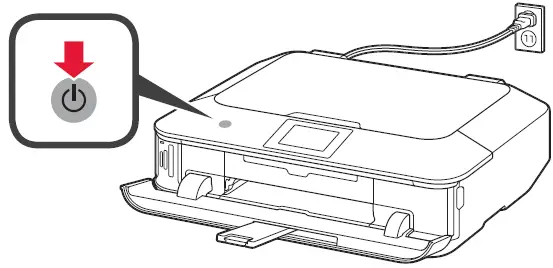
- Touch the ON button.

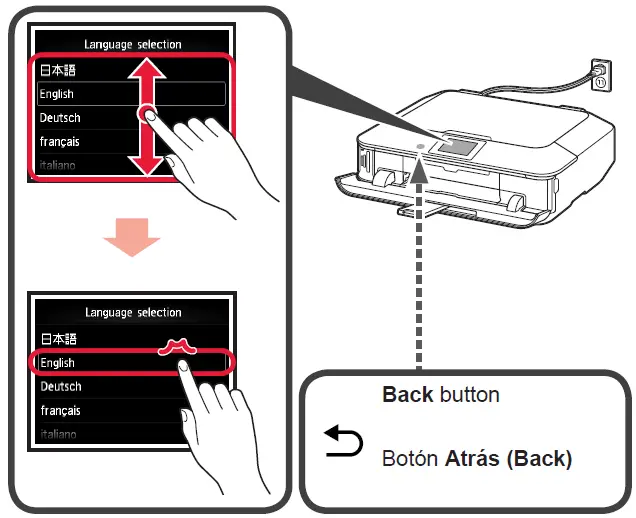
- To select a language, drag* the
Touch Screen vertically and tap** the language.- To drag means to touch and slide the screen.
- To tap means to lightly touch the screen.

To change the language setting, touch the Back button.
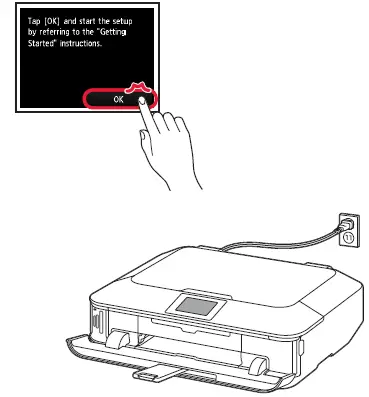
- When this screen is displayed, tap OK.

INSTRUCTIONS
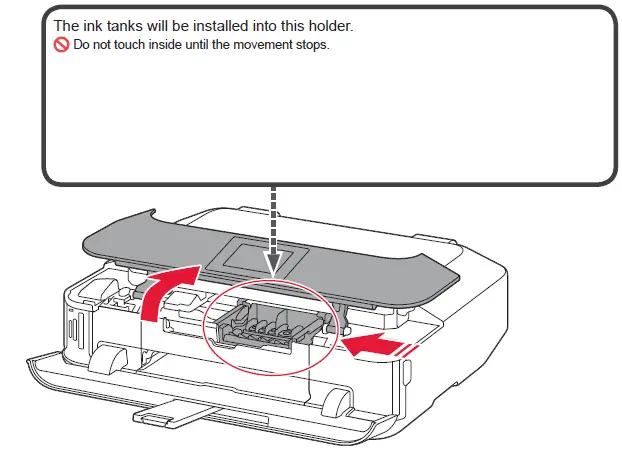
The ink tanks will be installed into this holder.
Do not touch inside until the movement stops.
- Open the Operation Panel.

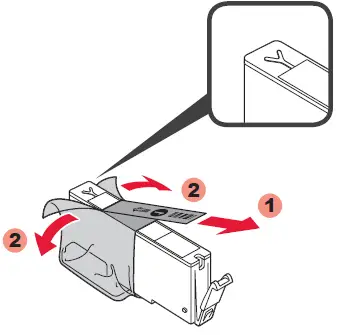
- Remove the protective wrap.

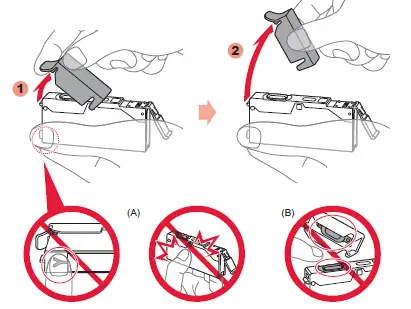
Remove the orange tape completely. - Hook your fingers under the orange cap and slowly pull it out.
(A) Do not press the sides when the Y-shaped groove is blocked.
(B) Do not touch!
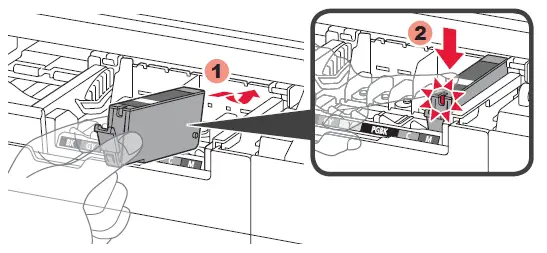
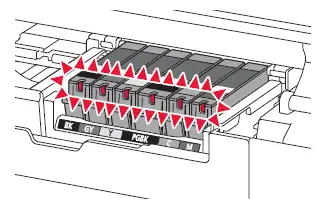
- Insert and push down the ink tank into the matching color slot.
Check that the ink lamp is lit, then install the next ink tank.
- Check that all lamps are lit.

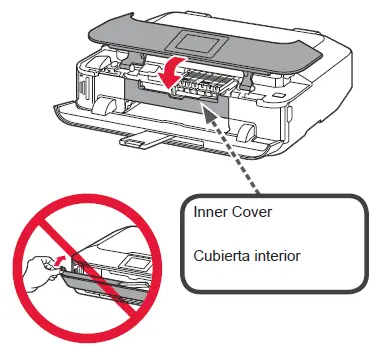
- Check that the Inner Cover is closed, then close the Operation
Panel.
Don’t close the Paper Output Tray yet!
- After about 3 to 4 minutes, check that the screen changes as shown in the figure.

If an error message appears, check that the ink tanks are installed correctly. - Close the Paper Output Tray.
The Output Tray Extension closes automatically.

INSTALLATION
Perform the Print Head Alignment.
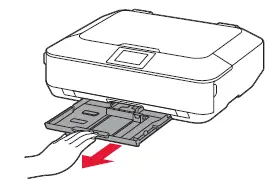
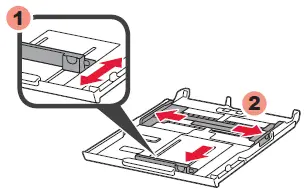
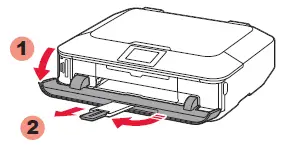
- Pull out the Cassette (Lower).

- Adjust the front Paper Guide to A4 size.
Slide the right Paper Guide to the side.
The left and right Paper Guide move together.
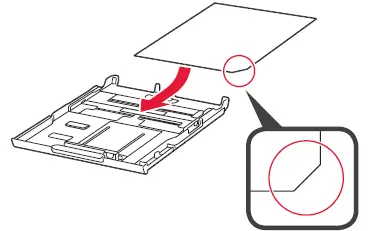
- Load the supplied MP-101 paper into the Cassette.

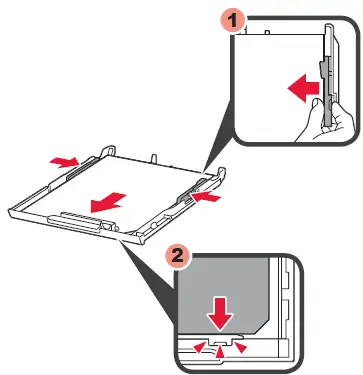
- Adjust the right guide to fit the paper size.
Slide the paper against the front guide.
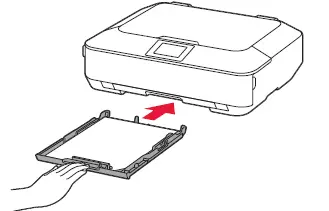
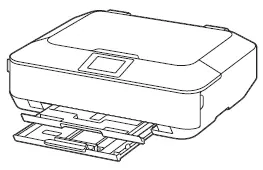
- Slide the Cassette (Lower) back.

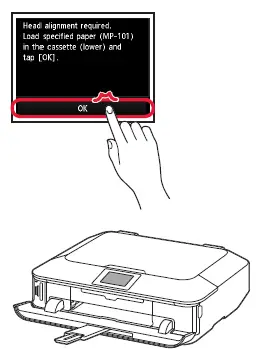
- Open the Paper Output Tray. Pull out the Paper Output Support.

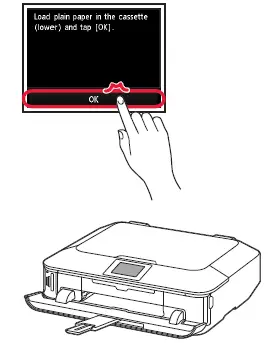
- When this screen is displayed, tap OK.

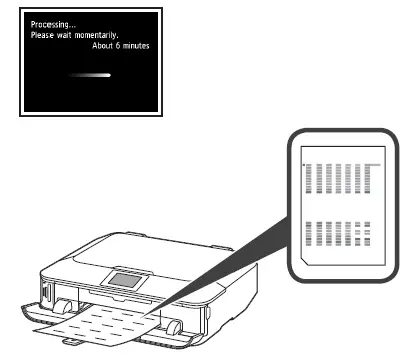
- In about 6 minutes, a blue-black pattern is printed. Print Head
Alignment is complete.
If an error message appears, tap OK, then proceed to . After installation is complete, refer to the On-screen
Manual to redo Print Head Alignment.
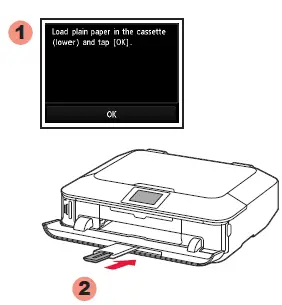
- When this screen is displayed,close the Paper Output Support.

- Load paper into the Cassette as described in 2-8 through 3 -6 .
Adjust the Paper Guides to fit the paper size. - Tap OK.

- For information about paper, refer to the Onscreen Manual which will be installed later.
- The screen turns off if the machine is not operated for about 5 minutes. To restore the display, tap the Touch Screen.
- Tap the screen to choose a color.


Paper Size and Pr int ing Side
Decide which Cassette to use according to the paper size.
Set the paper with the printable side down.
Before printing, change the machine settings for media type and size. For details, refer to the On-screen Manual which will be installed later.
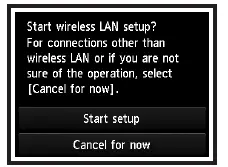
To connect to wireless LAN, select Start setup on the screen, then follow the on-screen instruction.
In the following conditions:
If you want to use wired LAN connection or USB connection
If you have difficulty with the procedure
Select Cancel for now, then proceed to 6.
You can perform network connection by following the instruction shown on the computer screen in 6 .
START
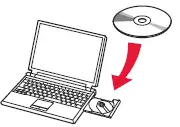
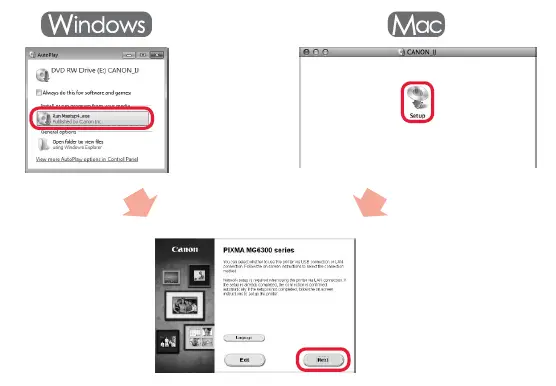
- Insert the CD-ROM into the computer.

If the USB cable is already connected, unplug it. If a message appears on the computer, click Cancel. - Follow the on-screen instructions to proceed.
To select a language, click Language.
If the CD-ROM does not autorun:
Window: Double-click (My) Computer > CD-ROM icon > MSETUP4.EXE.
Mac: Double-click the CD-ROM icon on the desktop.
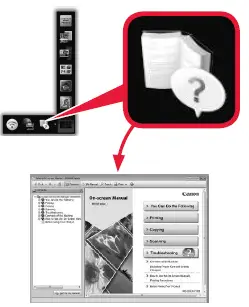
Read the On-screen Manual on the Computer
Ordering Informat ion
The following ink tanks are compatible with this machine.
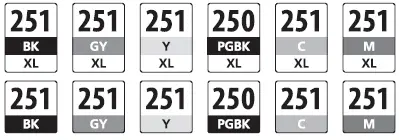
Order #
- BK: CLI-251XL<BK> 6448B001
- BK: CLI-251<BK> 6513B001
- GY: CLI-251XL<GY> 6452B001
- GY: CLI-251<GY> 6517B001
- Y: CLI-251XL<Y> 6451B001
- Y: CLI-251<Y> 6516B001
- PGBK: PGI-250XL<PGBK> 6432B001
- PGBK: PGI-250<PGBK> 6497B001
- C: CLI-251XL<C> 6449B001
- C: CLI-251<C> 6514B001
- M: CLI-251XL<M> 6450B001
- M: CLI-251<M> 6515B001
Call 1-800-OK-CANON to locate a dealer near you, or visit the Canon online store at www.shop.usa.canon.com
 Canon Support for | Canon U.S.A., Inc.