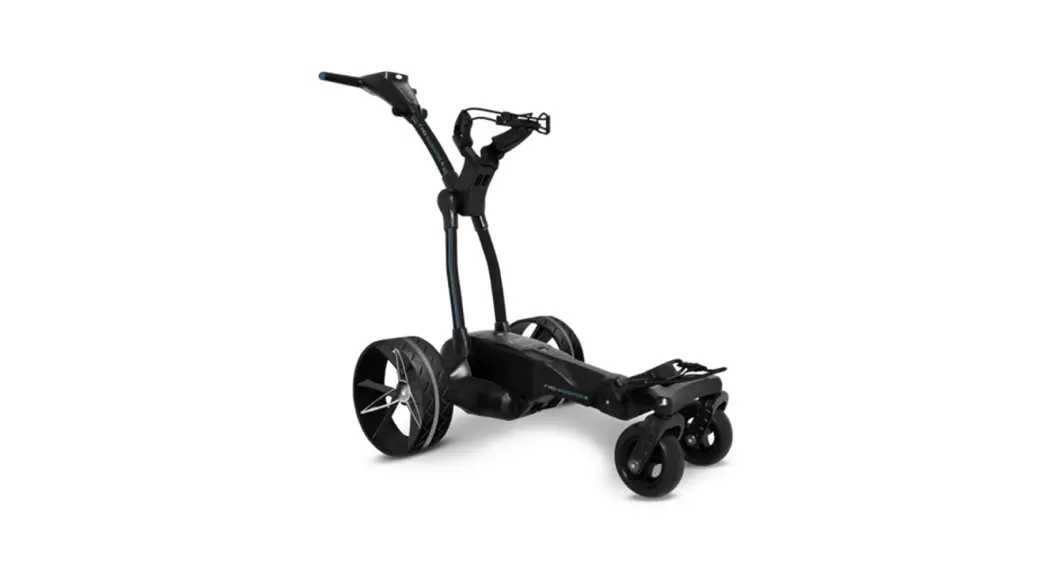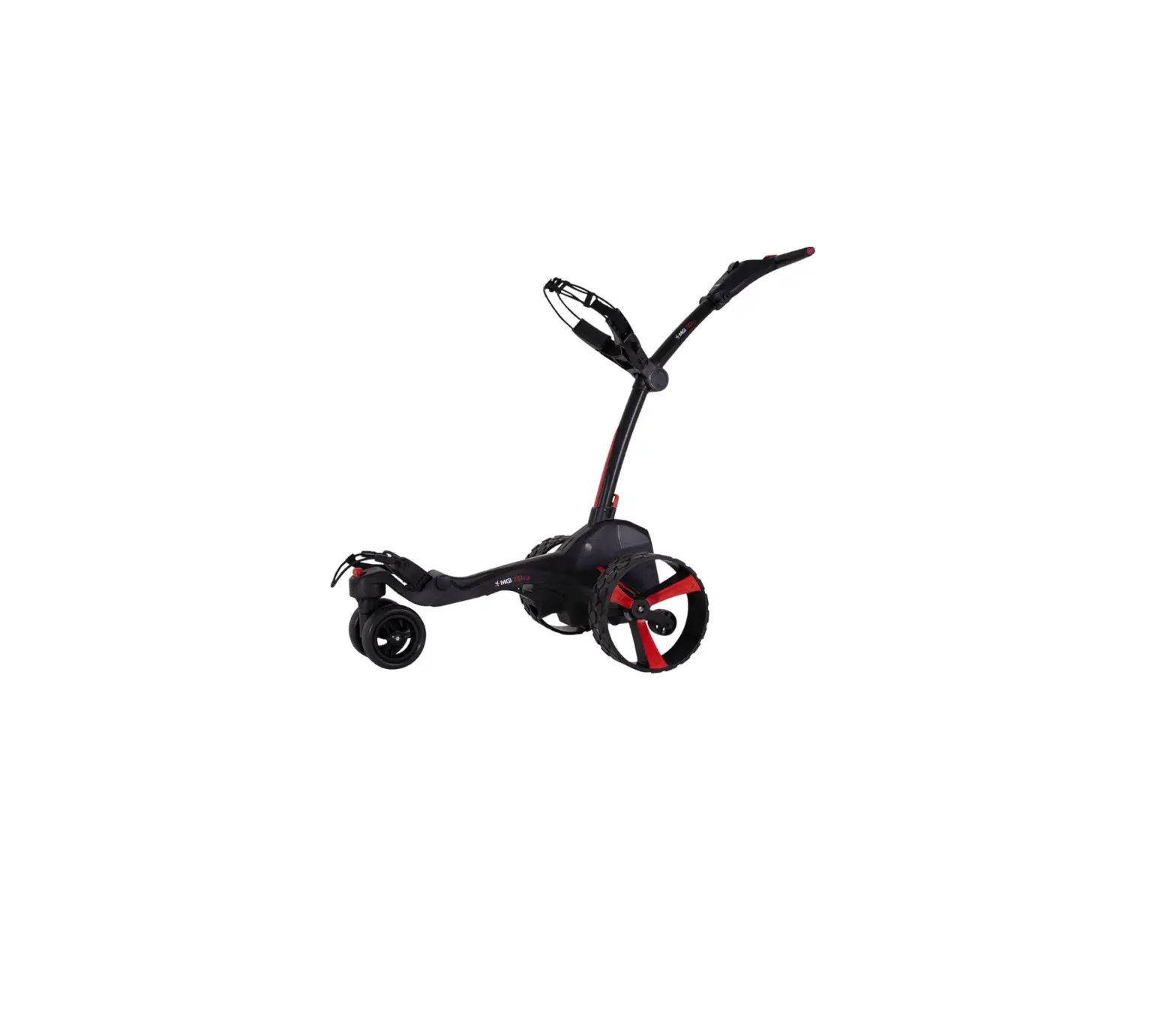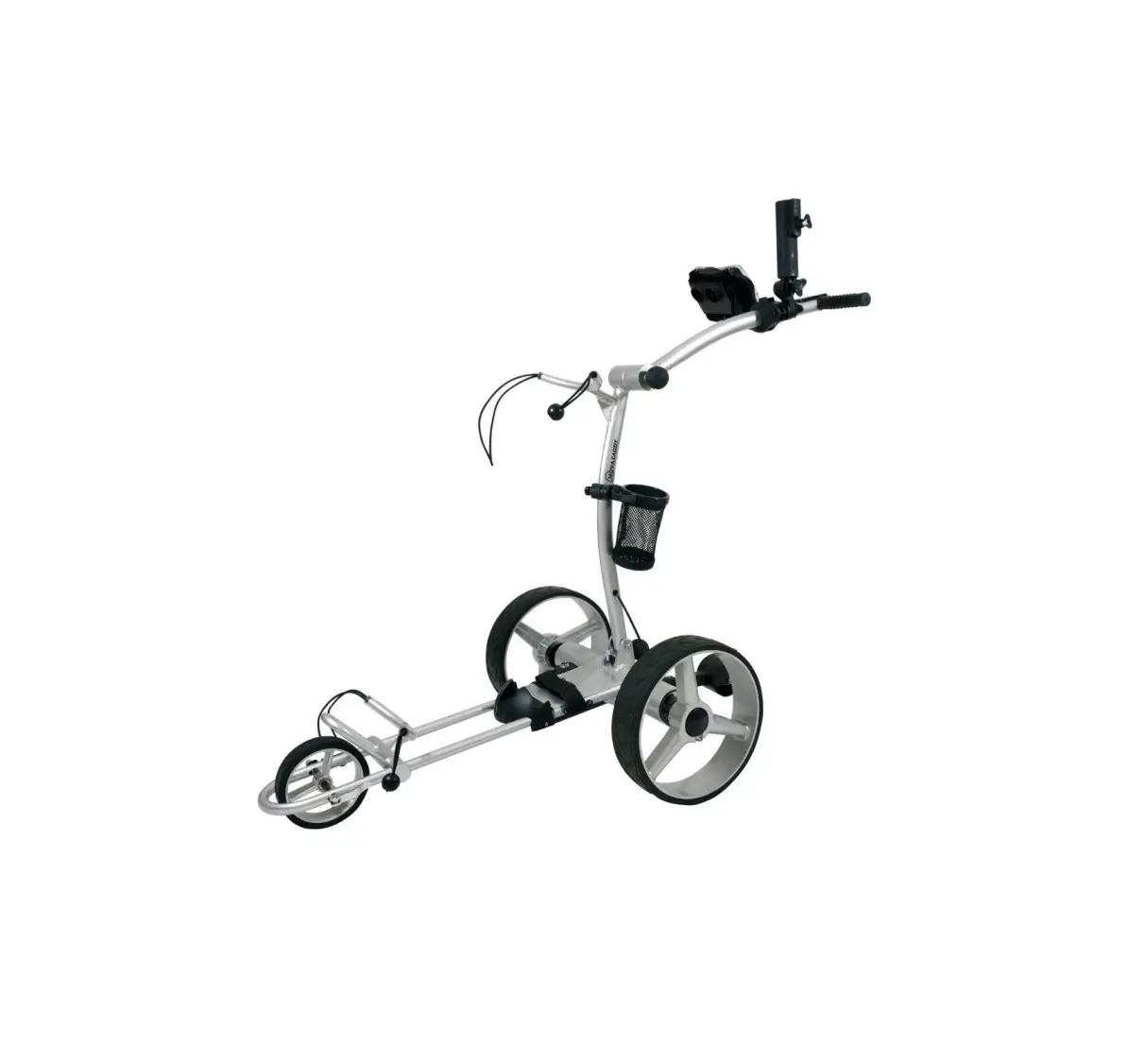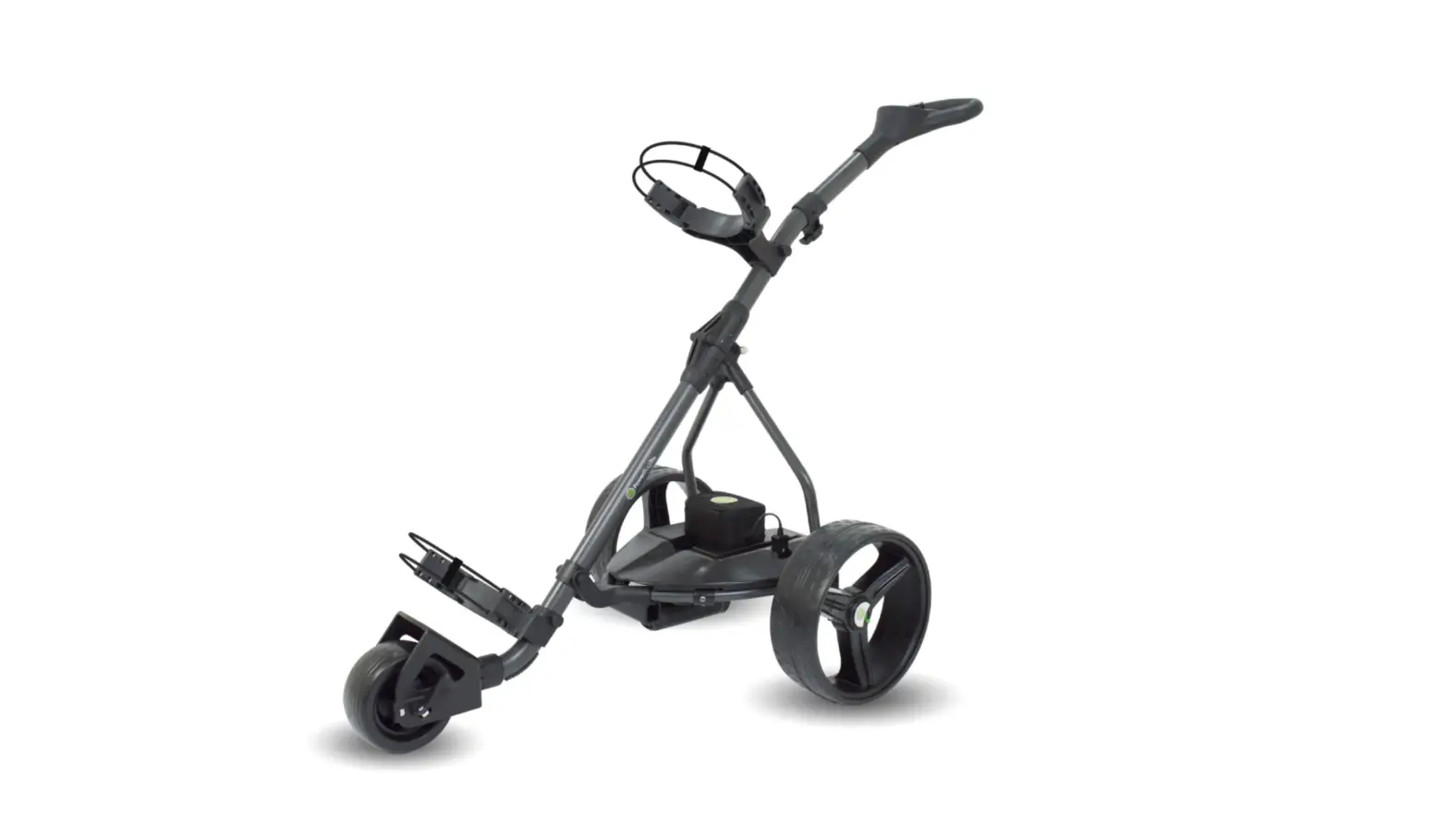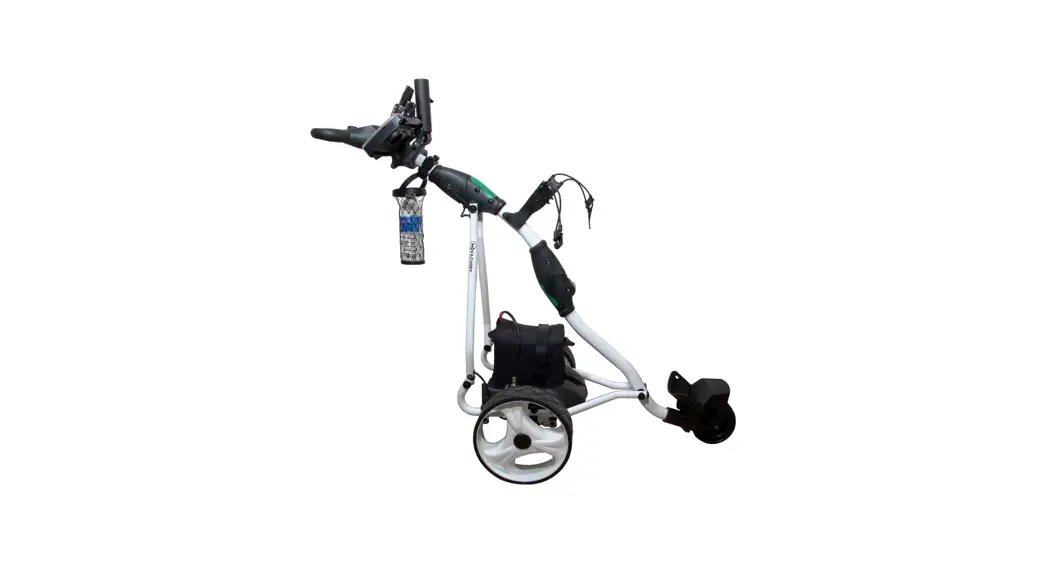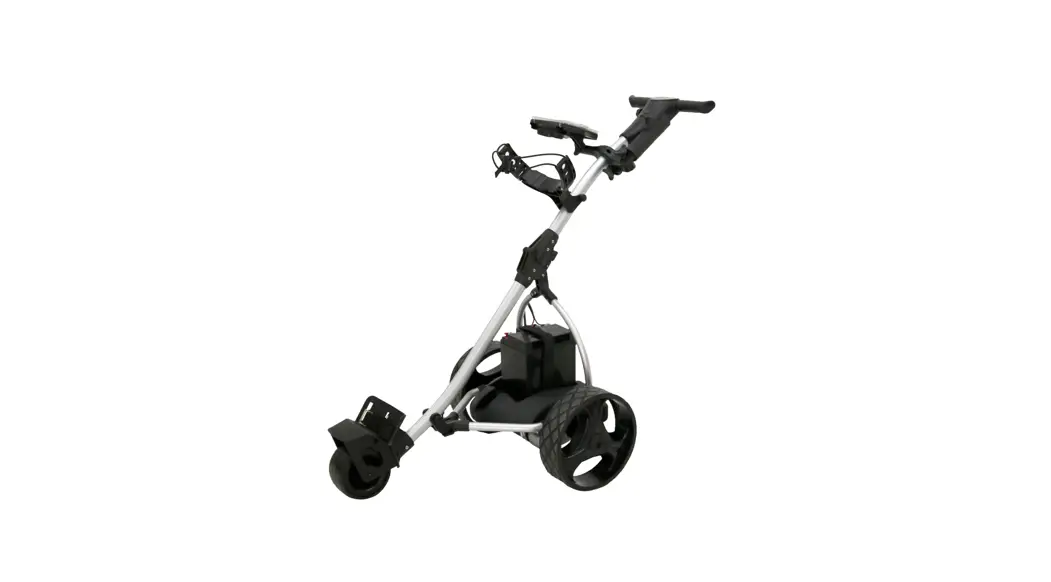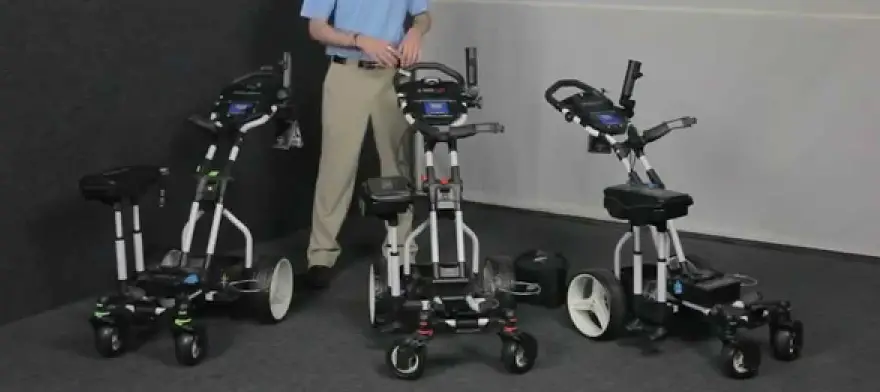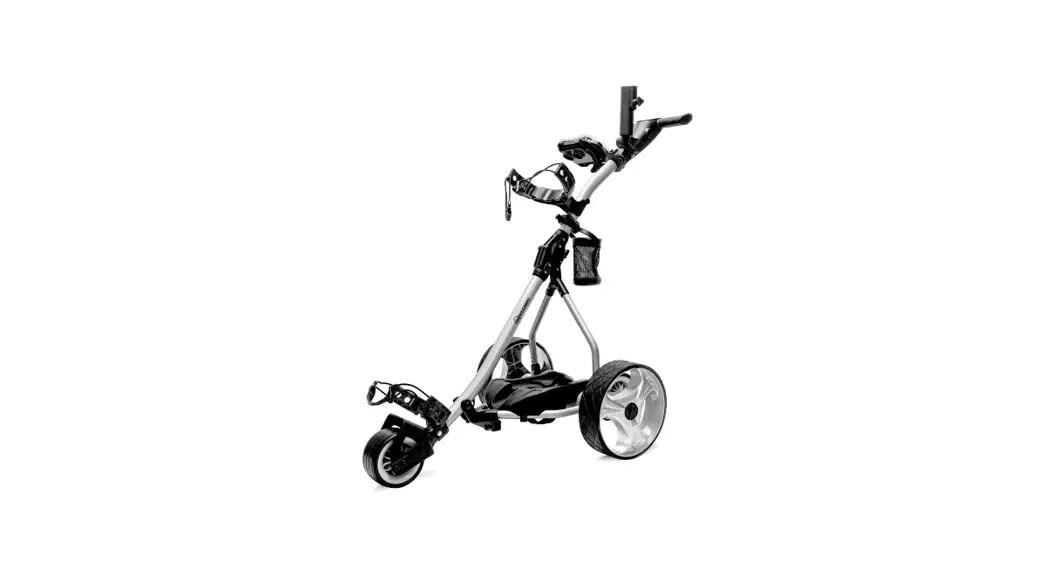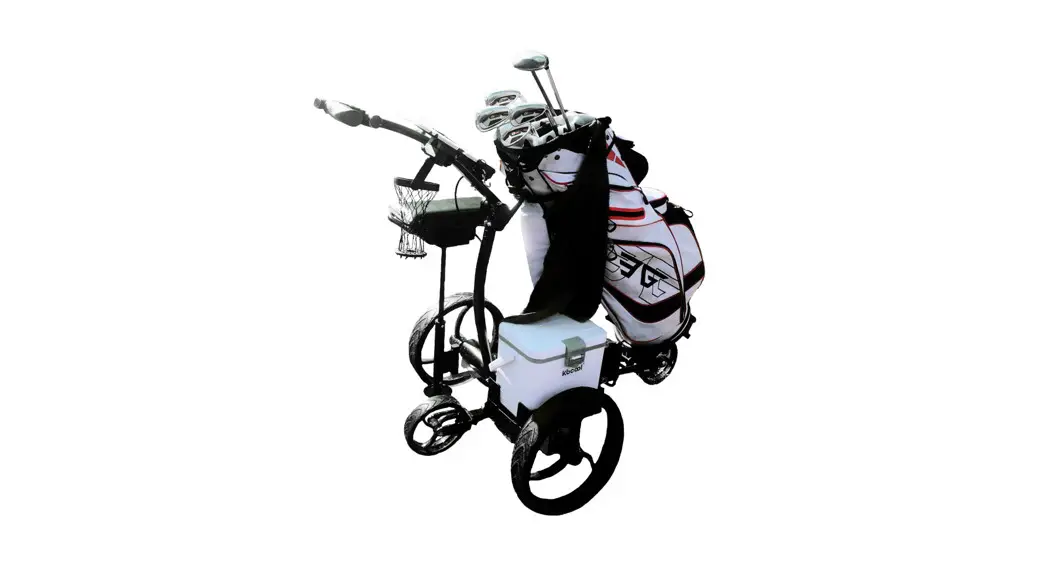

ZiiROBOT G2 Smart Electric Golf Cart with Accessories Bundle
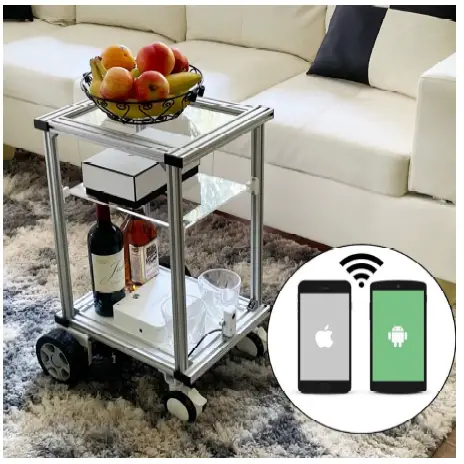
DOWNLOADING THE MOBILE APP
Android App
For Android phone users, download the App from the Google Play store by searching for ZiiROBOT.
IOS App
For IOS phone users, download the App from App Store by searching for ZiiROBOT Navigator.
USING THE SMARTPHONE APP
App Control Instruction 
Following these steps to connect to the robot:
- Go to “System Settings” and select WiFi setting to connect to the open WiFi network called ZiiROBOT xxxxxxxx.
- Go back to the App and toggle the “CONNECT” switch.
- If you successfully connect your smartphone to the robot, you will see a screen shown as in Fig. 6.


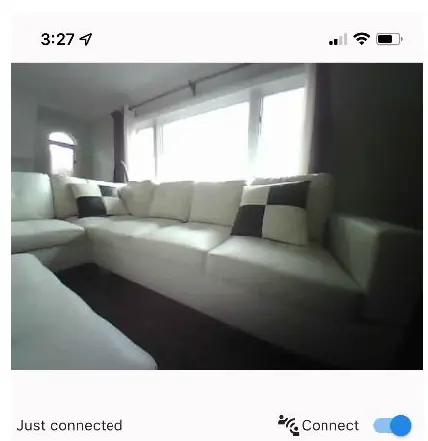
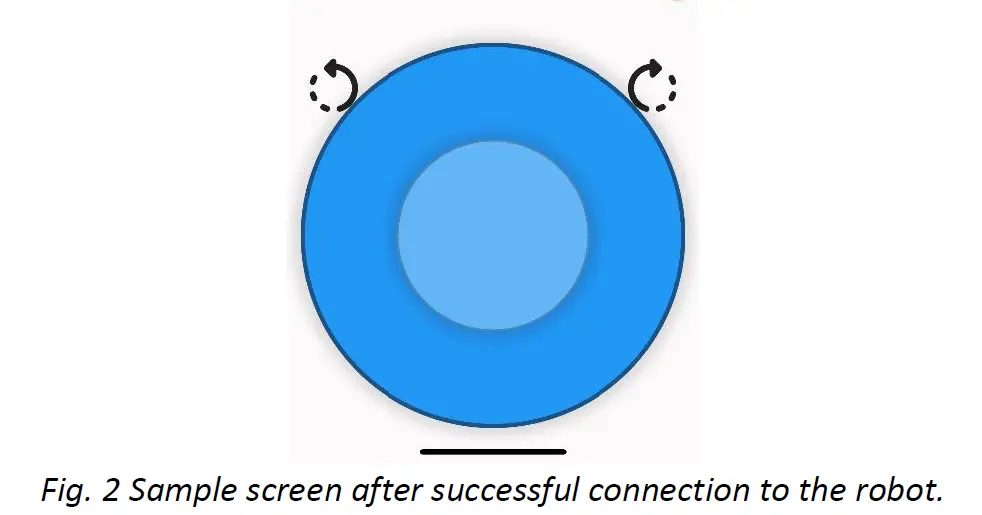
After you successfully connect your smartphone to the robot, the upper half shows the scene streamed from the camera module of the robot. The text block next to the “CONNECT” switch shows the states and feedbacks of the robot. Press the “DISCONNECT” button to disconnect the App to the robot.
Connection Mode
Connection mode selection is currently under development. Only direct connection is supported for now.
Joystick Controlling
The distance between the joystick knob to the center of the joystick determines the power provided to the motors of the robot. Pushing the joystick forward makes the robot move forward. Similarly, pulling joystick back makes the robot move back.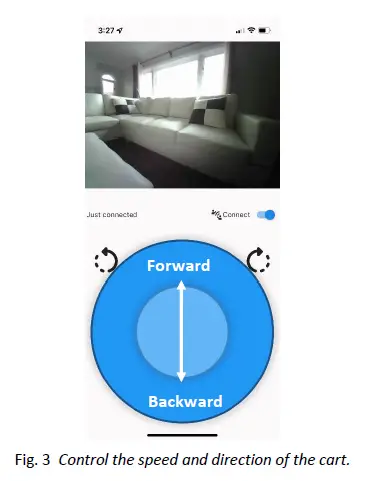
Moving the joystick knob to the left and right turns the robot to the left and right, respectively.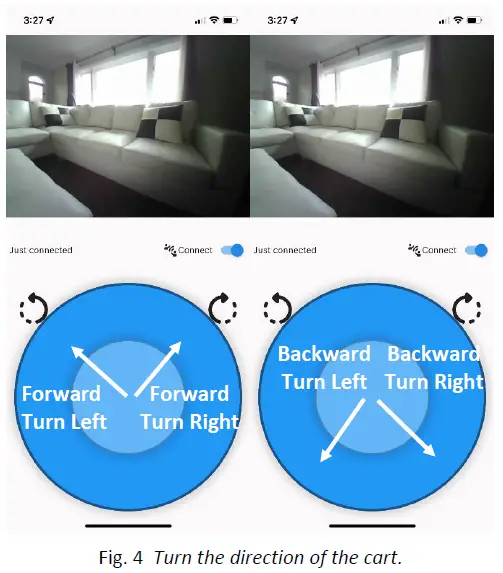
Rotating
Press and hold either of the buttons next to the joystick to rotate the robot in the desired direction as shown in Fig. 9.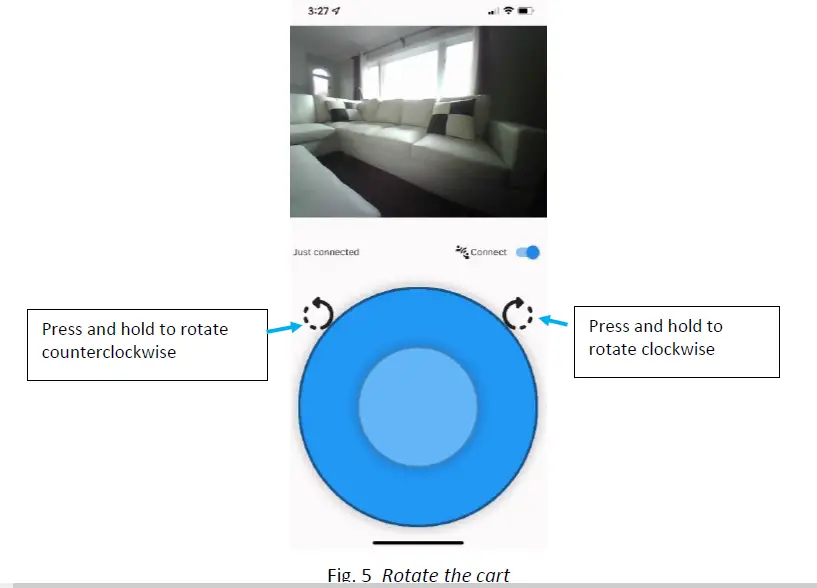
OPERATING THE ZiiROBOT CART
Turn on the Cart
Simply press the switch on the top of the Control Box. You will see LEDs in the control box to light up.
Control the Cart
Launch the App on your mobile device to control the cart. For the router connection mode make sure that your phone and the cart are in the same network server. Refer to “Using the Mobile App” section to learn more about how the App works with the controller.
Turn off the Cart
Simply press the switch on the top of the control box. You will see LEDs in the control box turned off.
Charge the Battery
Plug the provided charger one side to the wall adapter and the other side to the charging port on the control box. When the light on the charger becomes green, the battery is fully charged.
 New Mobile Tech | Mobility Scooter | Power Chair | Robotic Furniture – ZiiROBOT Mobility