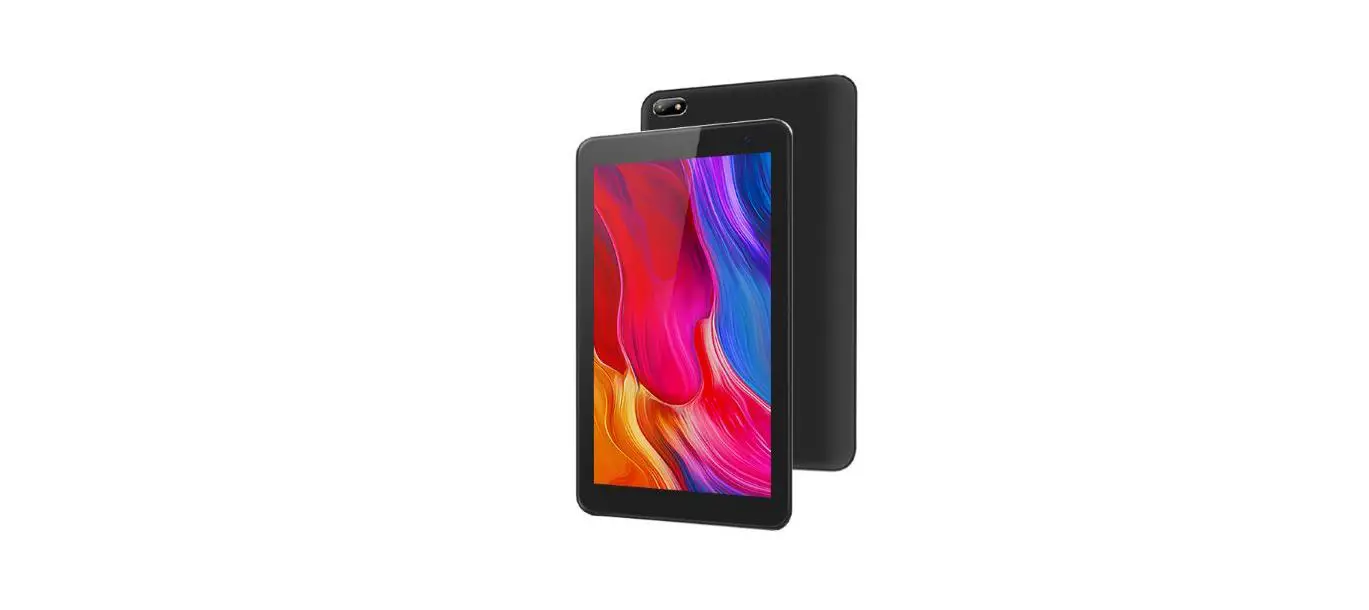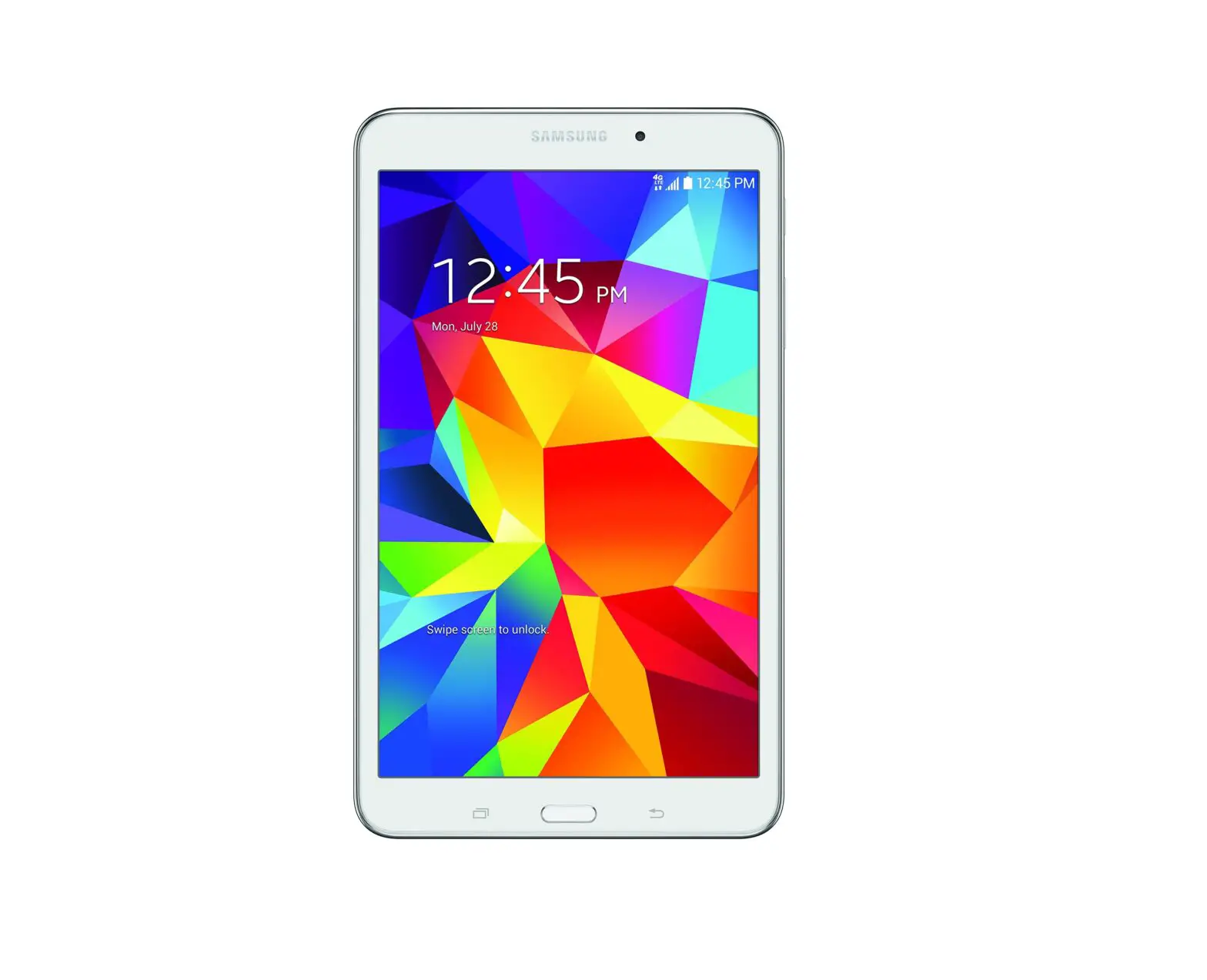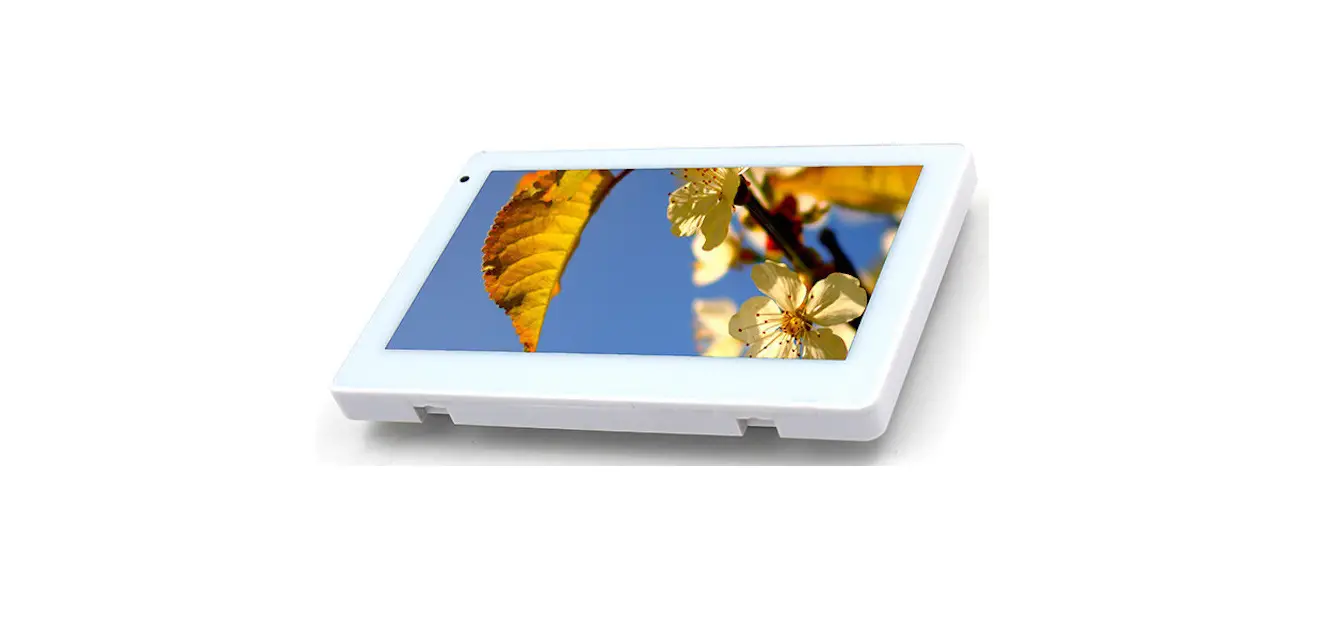

SiBo Q898X Android Tablet PC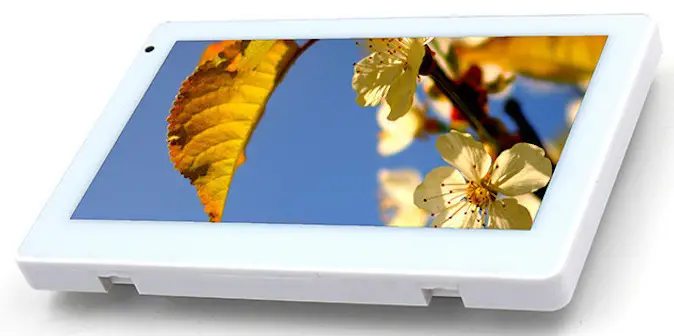
ACS software doesn’t need to install on a Windows server, just add the android monitor to your network and it is accessed through a web portal inside your network. If you want to develop your own software, please contact [email protected].cn for API documents.
Android Monitor Process
Connect WIFI
There is no touch on the screen, so you need to connect the monitor with a USB mouse. The right key of the mouse is the return function and you can exit from ACS software and go to Settings->WIFI and connect with your network. You can also connect with a port for an Ethernet network and a static network is suggested for a fixed IP address.
Set Time
Go to Settings-> Time & Date, you can choose your time zone and synchronize with the network.
Install App
If you want to update the app, you can go to Settings->Apps->ACS and choose Delete. The new version of the app has changed the database structure, before installation, you need to delete the whole file folder from File browser-> Local Storage -> ACS by long-press the ACS file folder and choosing delete.
Copy the latest apk file into a USB flash disk and insert the USB port of the monitor, and from File Browser-> USB, click the apk to install.
Web server connection
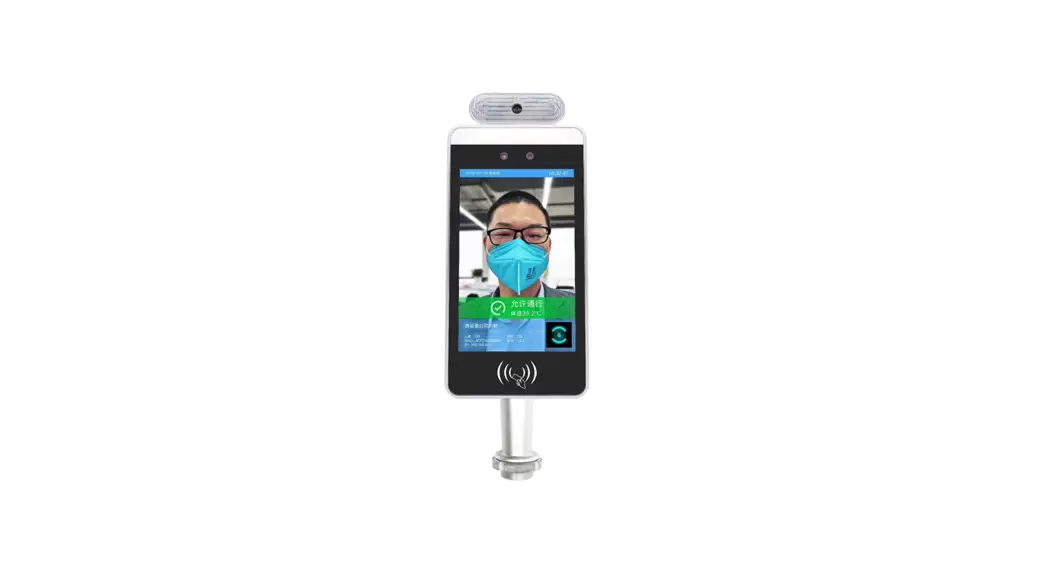
Power up SIBO android monitor Q898X with DC in or POE power, ACS software will automatically start, and when you hear a “du” sound, the camera starts to work. When the android monitor powers up or reboot, the temperature sensor needs 4 minutes to warm up. So we suggest you test the temperature after 4 minutes of boot up. To test the body temperature, your face should appear on the face frame in a white dash line, and the optimal distance is 0.5m away from the monitor. On the bottom left side of the access control software, you will see the MAC address and IP address of the android monitor. For example, MAC: 8CFCA003C597, IP address: 192.166.1.179
Then you go to a computer in the same intranet and open the web browser and input http://192.166.1.179:8080 And go to the web server page to make configuration or records check or camera monitor.
Please note that your devices’ MAC addresses and IP addresses are different.
- P.S.: 8080 is the port number of the server.
- Chrome browser is recommended to check the web server.

Like in the above photo, you only need to input the password. Please check the back sticker on the monitor, there is a password for each device. Input the password and log in to the server. 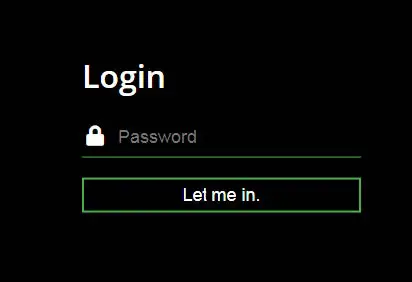
Please make sure the android monitor is working when you log in to the web server.
Configuration access control software
- When you make a configuration on the web server, you need to click on UPDATE TO Device, press Sure on the pop-up window which appears on the top of the screen, and then reboot the android monitor to make the configuration effects.
- When you reboot the android monitor, you need to re-login your web server.

App portfolio
You can set the temperature display in Celsius or Fahrenheit, appoint an email address when fever is detected on employees, temperature threshold/limits, and set temperature compensation according to the environment temperature. For example, when the environment temperature makes the temperature testing 0.3 degrees higher than the real value, you can input -0.3.
Pass rule: 
When you tick on Pass Rule, only registered persons with normal temperature allow entry, and strangers have no records on Scan Records. When you un-tick the Pass Rule, all persons with normal temperature will allow pass and as long as the temperature is normal, people’s temperature records will show on Scan Records.
Take Pictures: 
If you want to take photos when body temperature is tested, please tick on taking Picture, otherwise, there is no photo record in the Scan Records.
Banner Select:
Banner selection is for the bottom display, you can disable it, or choose from banner mode 1 and banner mode 2: Banner mode 1: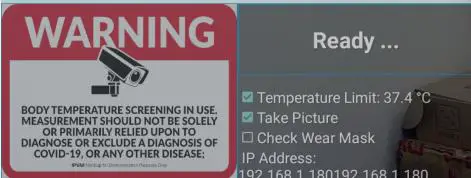
Banner mode 2: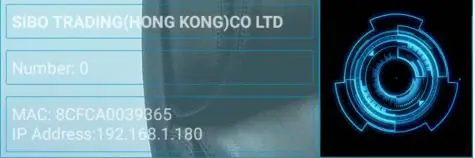
Note: Flow control and RS232 are under development now.
Staff Access Password:
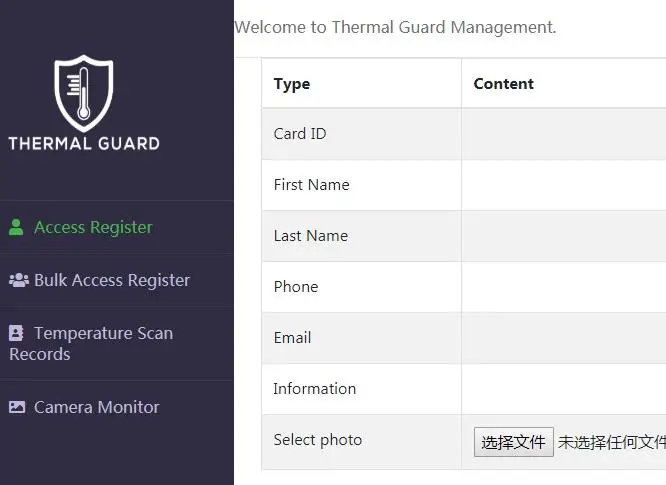
When you set a staff access password, you can use this password to re-login the server, and then you will only see 4 functions Access Register, Bulk access register, Temperature scan records, and Camera monitor.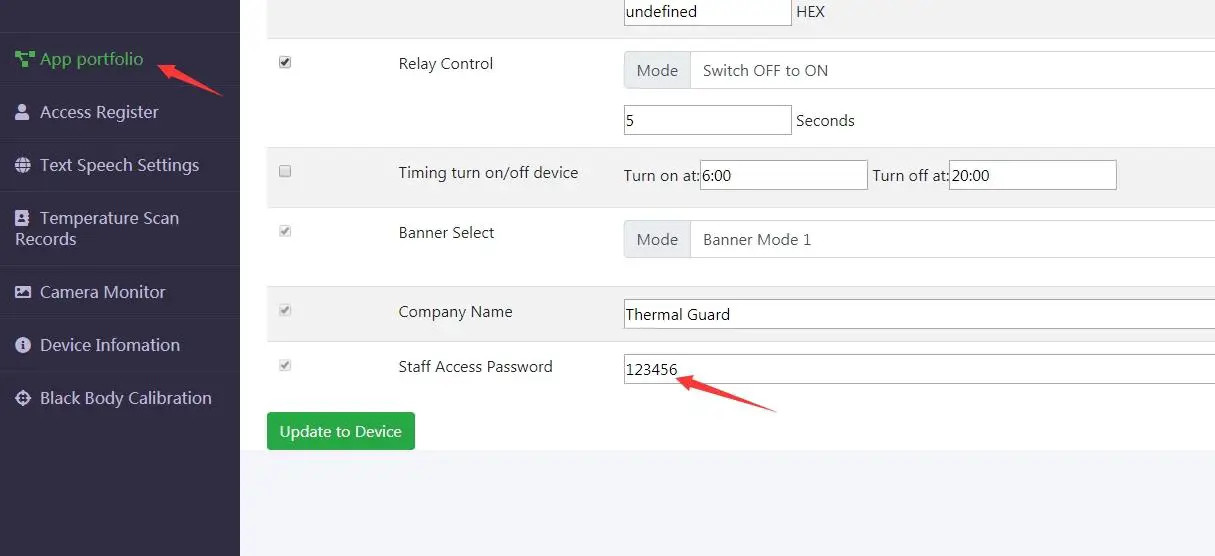
Access register
You can upload the employees’ ID numbers and photos. Please upload photo files in JPG or PNG format, and the resolution is around 500×600, size is less than 500kb, and the registered photo request a front face with no hair hiding the eyes. The ID card number is unique for each employee. You can not register the same ID card number twice.
The stranger’s ID number is Unknown
When you enable taking photos, the android monitor will make a screenshot for every allowed person. When you want to see the photo in full size, you can click on the right key for the selected picture and choose to see the photo on the new label page.
Add bulk upload function
When you want to bulk upload register information, you need to log in with Guest Account. The below video shows how to log in with Guest Account: https://youtu.be/Orev_5_iZYM. Ask your salesperson to provide an excel file named test.xls, you can input information under ID, first name, last name, phone, email, and information, and then click on Bulk Access Register and choose the file for IMPORT DATA FROM.
Please don’t change the item name inside the excel file. Photos still need to upload one by one, because the system needs to judge whether the file format is ok. When you click BULK UPLOAD after photos are chosen, some photos may still in READY status, in this time, you need to re-press BULK UPLOAD until all photos are in SUCESS mode. Please refer to this video for a better understanding. https://youtu.be/o06J66Ye5yg.
Text Speech Settings
There is three languages for voice notification, you can choose English, Spanish, Italian, and French. But the displayed words can be only in English. You can configure speech text as you want. Flow control and welcome after face recognition are disabled. When you tick on Check wear mask and input sentences, but you won’t hear the voice notice, please check whether you tick on MASK CHECK from APP Portfolio.
Scan Records
When you click on the picture file, you can view the photo on a new page. Because displaying the photo directly will consume many resources, they are not displayed directly. Click on Export to Excel, and you can open the record with Excel. 
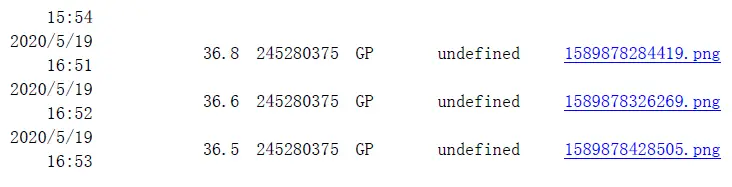
The photo needs to check from a web server, from the excel file you can not view photos. When you click on Delete All Record and Picture, all record information including the photos will be deleted both in the web server and in the android monitor. 
Camera Monitor
It is a live video stream. This function requires a stable network connection, we suggest you use lan network.
Device Information
You can see the device firmware version, API information, sensor information, and device information. There are two buttons for shutdown and reboot. If you press shutdown, you need to reconnect the power to boot the android monitor.
Black body calibration
There is a button for Black body calibration, it is for our tester and engineers to test and calibrate, normally it won’t be used by any clients.
FAQ
- Why webpage shows “authorization is required to obtain data”?
Please check whether your android monitor connects with the network. If you use a wifi network, after rebooting android monitors, it may take minutes to connect wifi, or you check whether your wifi connects automatically. And after rebooting the android monitor, when the monitor connects with the network, you need to refresh your web server page. - Why there are no records in Scan Records?
Scan Records only show records with normal temperature, if the temperature is higher than the temperature limit, there is no records. If you tick on PASS RULE, stranger’s records won’t display. - 3. Why there are no photos in Scan Records?
Please check whether you tick on taking Pictures from App Portfolio
4. When making registering, why my photo can not be uploaded?
Please check whether your file format is JPG or PNG, right now, JPEG file is not allowed.
Specification
| Model | Q898X | |
|
Camera | Resolution | 2 million pixels |
| Type | Binocular wide dynamic camera | |
| Aperture | F2.4 | |
| Focusing distance | 50-150cm | |
| White balance | auto | |
| Photo flood light | LED and IR dual photo flood light | |
| Screen | Size | 8.0 inch IPS LCD screen |
| Resolution | 800×1280 | |
| Touch | Not supported (optional support) | |
| Processor | CPU | RK3288 quad-core (optional RK3399 six-core, MSM8953 eight-core) |
| Storage | EMMC 8G | |
|
Interface | Network module | Ethernet and wireless (WIFI) |
| Audio | 2.5W / 4R speakers | |
| USB | 1 USB OTG, 1 USB HOST standard A port | |
| Serial communication | 1 RS232 serial port | |
| Relay output | 1 door open signal output | |
| Wiegand | One Wiegand 26/34 output, one Wiegand 26/34 input |
| Upgrade button | Support Uboot upgrade button | |
| Wired network | 1 RJ45 Ethernet socket | |
|
Function | Credit card reader | None (optional IC card reader, ID card, ID card) |
| Face Detection | Supports detection and tracking of multiple people at the same time | |
| Face library | Up to 30,000 | |
| 1: N face recognition | Support | |
| 1: 1 face comparison | Support | |
| Stranger detection | Support | |
| Identify distance configuration | Support | |
| UI interface configuration | Support | |
| Upgrade remotely | Support | |
| Interface | Interfaces include device management, personnel/photo management, record query, etc. | |
| Deployment method | Support public cloud deployment, privatized deployment, LAN use, stand-alone use | |
|
Infrared thermal imaging module | Temperature detection | Support |
| Temperature detection distance | 1 meter (optimal distance 0.5 meter) | |
| Temperature measurement accuracy | ≤ ±0.5℃ | |
| Temperature measurement range | 10℃~42℃ | |
| Thermal field of view | 32 X 32 |
| Visitors’ temperature is normal and released directly | Support | |
| Abnormal temperature alarm | Support (temperature alarm value can be set) | |
| Power | DC12V(±10%) | |
| Operating temperature | 0℃~60℃ | |
| General parameters | Storage temperature | -20℃~60℃ |
| Power consumption | 13.5W(Max) | |
| Installation method | Screwed by wall mount bracket | |
| Size | Standard:274.24*128*21.48(mm) IC card / ID card:296.18*132.88*25(mm) | |
| Packing list | Machine * 1, manual * 1, certificate of conformity * 1 | |
Fcc Statement Warning:
This device complies with Part 15 of the FCC Rules. Operation is subject to the following two conditions: (1) this device may not cause harmful interference, and (2) this device must accept any interference received, including interference that may cause undesired operation.
changes or modifications not expressly approved by the party responsible for compliance
could void the user’s authority to operate the equipment.
NOTE:
This equipment has been tested and found to comply with the limits for a Class B digital device, pursuant to Part 15 of the FCC Rules. These limits are designed to provide reasonable protection against harmful interference in a residential installation. This equipment generates, uses, and can radiate radio frequency energy and, if not installed and used in accordance with the instructions, may cause harmful interference to radio communications. However, there is no guarantee that interference will not occur in a particular installation. If this equipment does cause harmful interference to radio or television reception,which can be determined by turning the equipment off and on, the user is encouraged to try to correct the interference by one or more of the following measures.
- Reorient or relocate the receiving antenna.
- Increase the separation between the equipment and receiver.
- Connect the equipment into an outlet on a circuit different from that to which the receiver is connected.
- Consult the dealer or an experienced radio/TV technician for help.
NOTE: This device and its antenna(s) must not be co-located or operated in conjunction with any other antenna or transmitter.
RF Exposure Statement
To maintain compliance with FCC’s RF exposure guidelines, This equipment should be installed and operated with a minimum distance of 20cm from the radiator of your body. This device and its antenna(s) must not be co-located or operated in conjunction with any other antenna or transmitter.