
USER MANUAL
BBC SYMPHONY
ORCHESTRA
DISCOVER
INTRODUCTION
A whole orchestra of the highest quality at your fingertips. Designed to make orchestral scoring accessible to music creators of every level – from those just starting out, to professional composers. BBC Symphony Orchestra Discover is an inspiring gateway into orchestral composition, featuring the same professional recording quality as both the Core and Professional editions in an incredibly lightweight and accessible package (only 200mb).
We have selected 35 instruments and 47 techniques available with one mix signal, enabling you to write instantly great-sounding orchestral music
— presented in a beautifully designed, easy-to-use plugin, with simple controls and NKS compatibility. Owners of BBCSO Professional and Core will automatically receive Discover for free.
QUICK SPECS
MAC SYSTEM REQUIREMENTS
Mac OS X 10.10 – Mac OS 12, Intel Core 2
Duo, 4GB RAM.
Apple Silicon Supported (v.1.4.0 and above)
PC SYSTEM REQUIREMENTS
Windows 7 – 11 (latest
Service Pack, 64-bit), Intel Core 2 Duo, 4GB
RAM.
- Disk space required: ~200 MB
- 35 Instruments
- 47 Techniques
- Dedicated plugin (AU, VST2, VST3, AAX)
- 64bit only. 32bit DAWs not supported.
DOWNLOADING & INSTALLING
Thank you for buying or applying for the free version of BBC Symphony Orchestra – Discover.
If you are new to Spitfire Audio, click here to learn more information about our company and mission.
First, you will need to make sure you have a copy of the latest Spitfire Audio App before following the instructions below.
THE SPITFIRE AUDIO APP
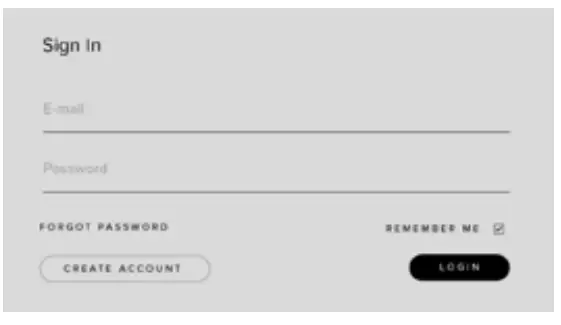
When you launch the app you will be prompted to log in using the same details you use at our site. Click here if you have forgotten your password.
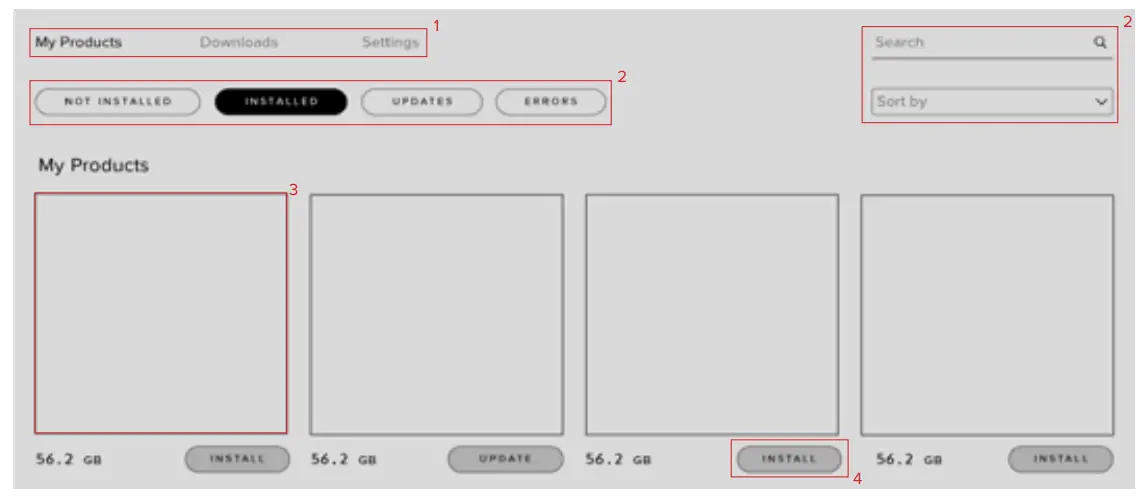
- TABS the default tab is My Products, which shows all of the libraries on your Spitfire Account. If you do not own any products, this will default to the LABS page.
Downloads show any installations currently downloading. Settings display all of the settings, preferences, and info contained within the App. - FILTERS Clicking these filters will quickly display products you have yet to install, those already installed, and any available updates. Clicking again will remove the filter.
- LIBRARY All libraries and plugins in your collection will appear with their artwork in the My Products tab. Clicking this artwork will open the product page. This is where you will find the options to install, locate, repair, and reset installations within the cog menu.
- INSTALL/UPDATE/ RED This button allows you to install a library or plugin from My Products or the product page. Updates will also be indicated on the same button. Click here for instructions on what to do if this button is red.
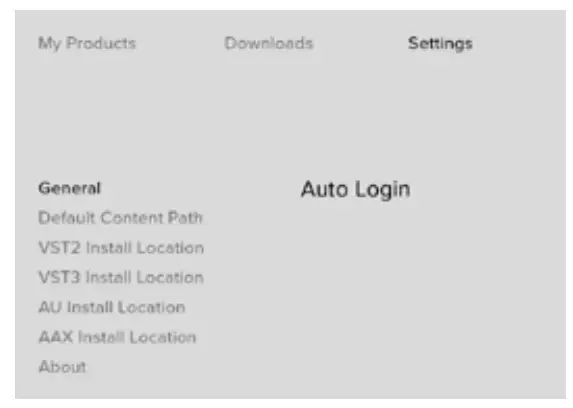
If this is your first time using the Spitfire Audio App you will have been requested to specify your Default Content Path for the library folders. This can be reset in the Settings Tab, and can be set to an external drive- more info here. You can also change the VST2 location if you use a custom VST location with your DAW. Otherwise, you should leave this at default. Auto Login can also be enabled in this location to save time when you next login.
Once you are happy with your preferences, simply click the Install button for the library to begin the download, either from My Products or the Product Page.
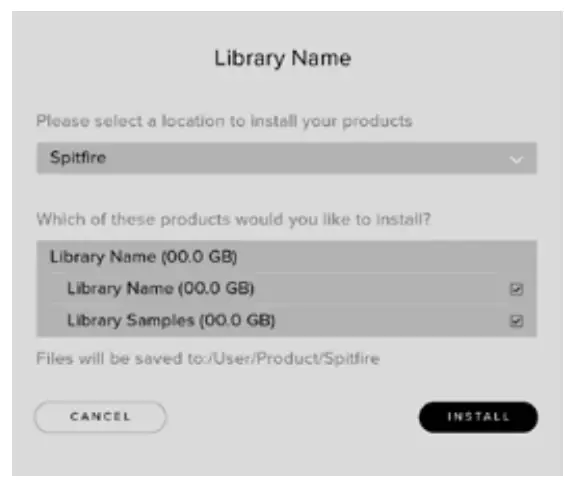
When Install or Update is selected, the default content path you have set will be indicated in the first box. This can be changed by clicking on the box if the path is not correct.
Once you are happy with the location click Install. For BBC SO, please ensure that all boxes are checked (if installing from My Products) or all elements of the library including the Plugin are installed in the same folder location.
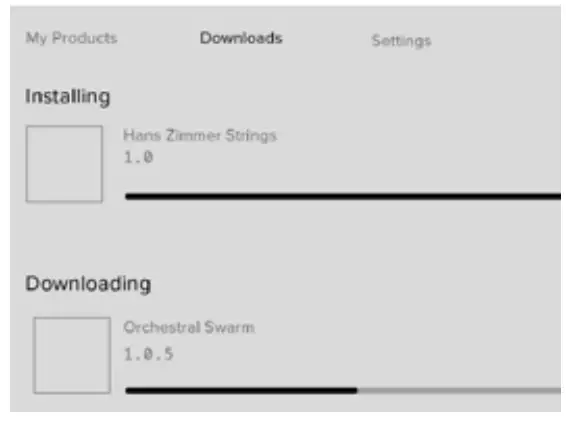
After clicking install you will be directed to the Downloads tab where you can watch the progress. On this page, you can also pause and restart the download from where it left
off.
You can leave the Downloads tab and start other downloads in the Spitfire App. If the App is closed whilst a download is taking place, as long as the same location is selected when beginning the install again, it will download from where it left off.
THE DEDICATED PLUGIN
BBC Symphony Orchestra is contained within its own dedicated plugin, available as AU, VST, VST3, and AAX. The library will not open in Kontakt but can be hosted in Komplete Kontrol.
LOGIC PRO X
- On a fresh project, a track dialogue box will automatically pop up
- Choose ‘Software Instrument’, and then look beneath the ‘Instrument’ dropdown
- Select AU Instruments > Spitfire Audio > BBC Symphony Orchestra.
CUBASE
- Right-click the track window and choose ‘Add Instrument Track’
- Underneath the ‘Instrument’ dropdown, choose BBC Symphony Orchestra
- Select ‘Add Track’
PRO TOOLS
- Go to the ‘Track’ menu at the top of the screen, and select ‘New’
- In the pop-up, select Stereo and Instrument Track, and press ‘Create’
- In the first Insert slot, select multichannel plug-in and ‘Instrument’
- You should see the BBC Symphony Orchestra available as an option
HAVE A LOOK AROUND
THE BBC SO INTERFACE
OPENING YOUR FIRST PRESETS
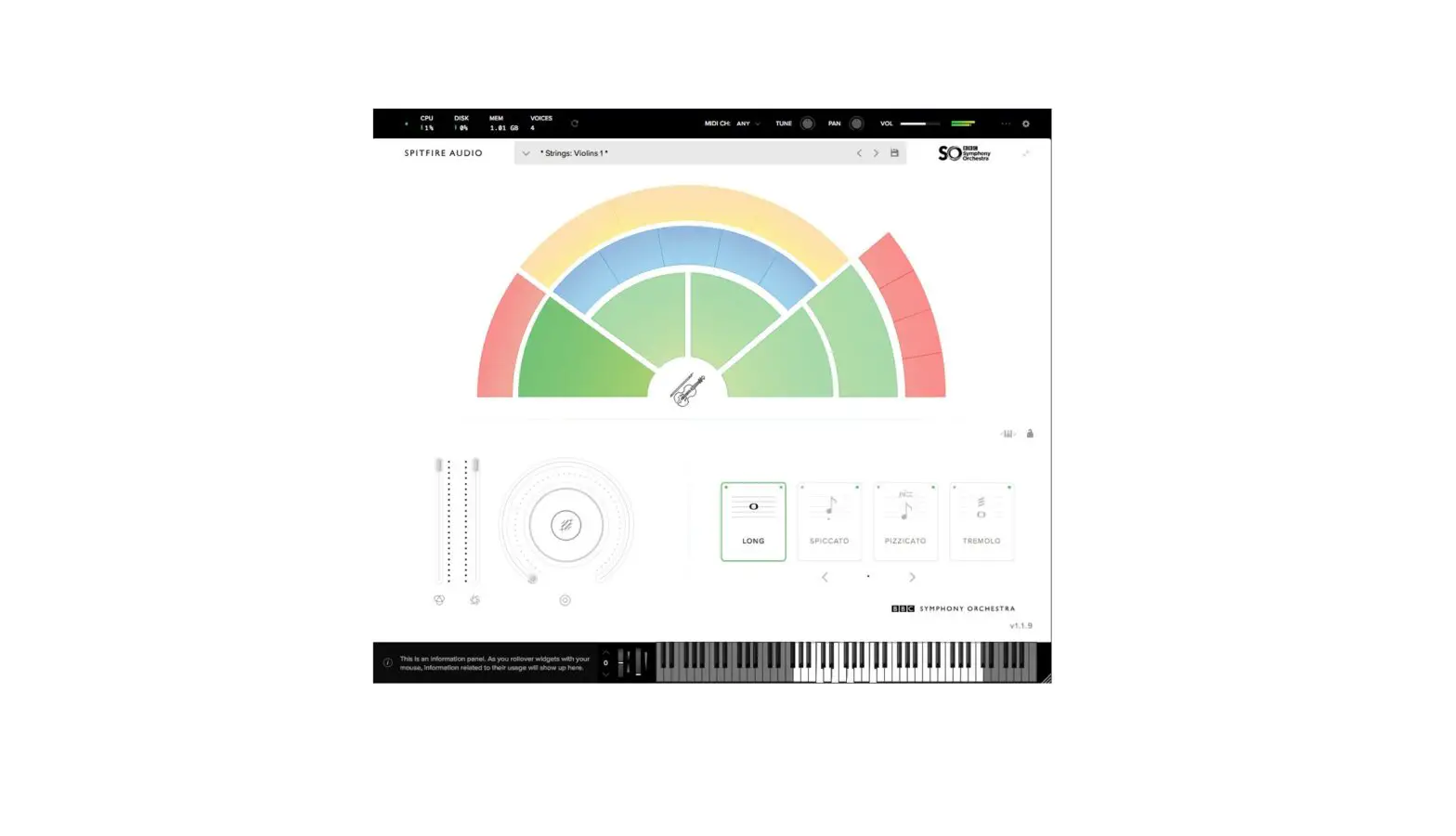
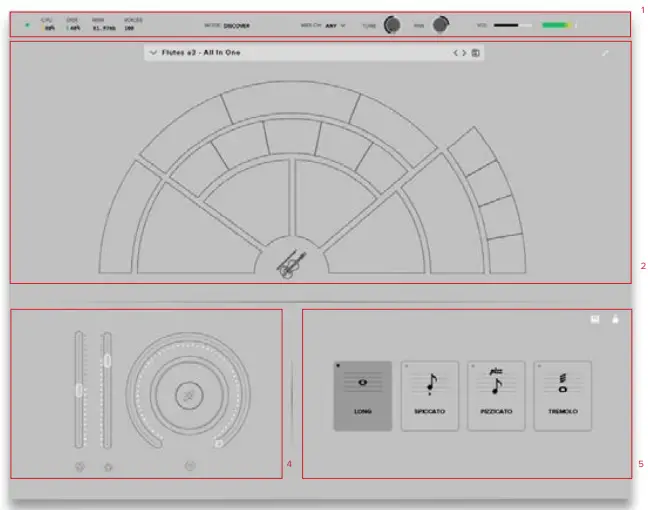
When you first open BBC Symphony Orchestra, this is what you will see. The preset that loads by default can be configured in your settings (see Pg. 14)
- TOP MENU
- PRESET SELECTOR
- CONTROLS
- TECHNIQUE SELECTOR
PRESET SELECTOR
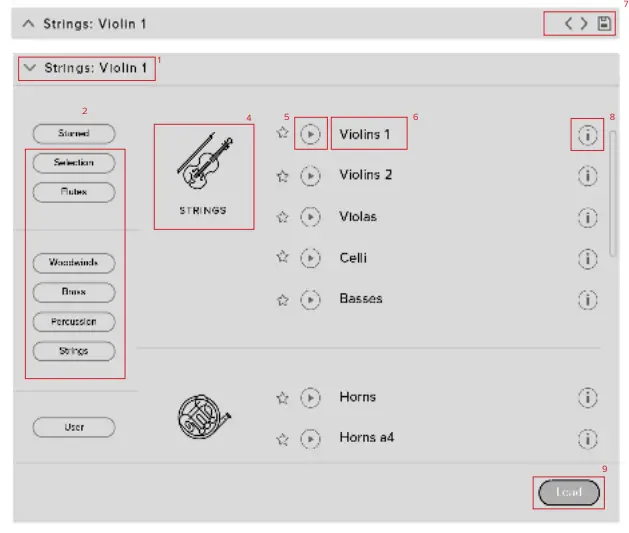
- PRESET NAME
Here you can see the currently selected preset. Please note filters vary depending on the version of BBC SO. - CLEAR FILTERS
Click here to remove all filters and show all instruments at once. - FILTERS
Click on the Filters to only show instruments you have starred or those within a specific section or group.
BBC SYMPHONY ORCHESTRA DISCOVER - INSTRUMENT GROUP
As you scroll through the available presets, the instrument group is displayed here. - PREVIEW
Play back a short example of the preset without having to load it. - PRESET LIST
Scroll through the list of presets here. Double-click to load a preset or click the ‘Load’ button.
MAIN CONTROLS
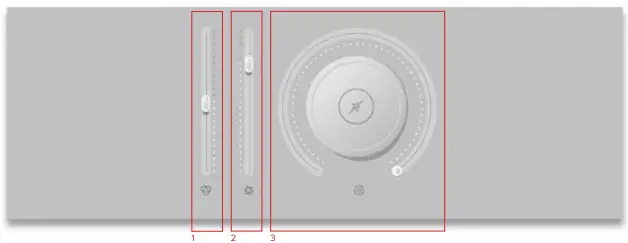
- EXPRESSION
This slider controls the overall volume of the instrument and is best used in combination with Dynamics. - DYNAMICS
This slider controls the dynamic layer that is heard. As BBC SO Discover only contains one dynamic layer, this controls acts as an additional Expression Slider that can be translated to Dynamics in Core and Professional. - REVERB
This knob will control the amount of additional convolution reverb added to the sound. This does not affect the mic position or the natural reverb already within the space.
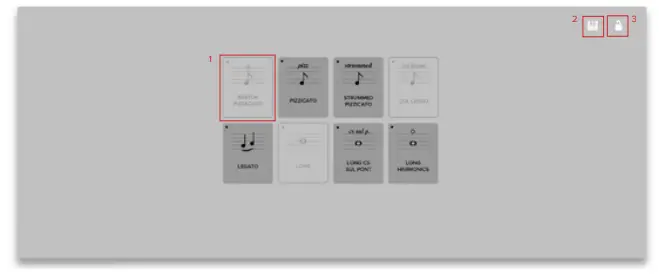
- TECHNIQUE SWITCHER
Click to select a technique. Shift + Click to select multiple techniques. - KEYSWITCH ADJUST
Click and drag (left or right) to move the key switches to the left or right on your keyboard. - LOCK
Click here to lock off the technique section and prevent any unwanted changes.
TOP MENU

- LED
Shows when an instrument is loaded by lighting solid green. If this is flashing, your sample set is not fully loaded yet. - CPU METER
An indication of how much your CPU is being taxed, the green flash next to the CPU meter will turn red when you are overloading it. - DISK METER
How hard are you taxing your hard drive? If this is close to, or going over 100% it’s time to consider a faster drive. See the next page settings that can help get the most out of a slower drive. - MEMORY
This shows how much RAM you are currentlyusing in this instance of BBC Symphony Orchestra. While the preset is loading, this will show the instrument loading into
memory. - VOICES
Shows how many voices are being used at any one time in the current plugin. - REFRESH
Refresh the instrument, and alt-click to refresh the whole plug-in. This can be useful if you have hanging MIDI notes or have moved samples in your file system. - MODE
Click here for more information on Switching between different versions of the BBC SO Plugin. - MIDI CH
Set the MIDI channel that will control the instrument here. If in doubt select “all” so that the instrument will react to any incoming MIDI messages. - TUNE
Move this knob to tune in semitone increments, and shift-click to move in increments of 0.01 of a semitone. Alt-click to reset to default. - PAN
Pan the whole plug-in left and right in the stereo field. Alt-click to reset to centre. - VOLUME
Control the master volume of the plugin. - LEVEL
A visual indication of the level of the instrument. - PRESET SETTINGS

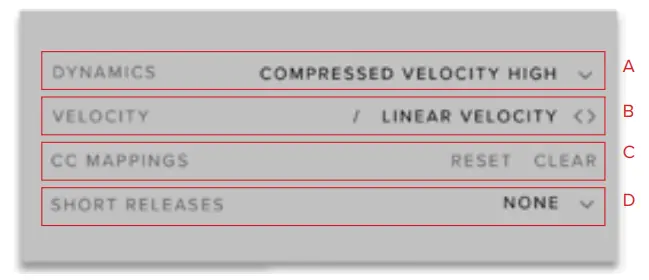
A. VELOCITY MAPPED TO DYNAMICS — Here you can choose from up to 4 different behaviors for the Dynamics fader. 1) Full Velocity Range. 2) Velocity Mapped to Dynamics. 3) Compressed Velocity High. 4) Compressed Velocity Low. These settings will change how hard you need to play the keyboard to trigger different layers. Velocity
mapped to dynamics will allow you to control short note velocity with the mod wheel.
B. VELOCITY RESPONSE — Pick 4 different velocity curves to suit your controller.
C. RESET CC MAPPINGS — Clicking on this will reset all of the CC mappings for this instrument to the defaults – useful if you’ve got yourself in a mess!
D. SHORT RELEASES — Only available on Core and Pro. - PLUGIN SETTINGS
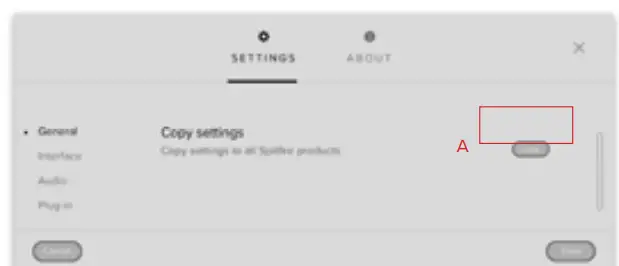
A. COPY SETTINGS — Common Controller values will transfer over to other Spitfire plugins.
B. HELP TEXT — Turn this on to display parameter information in the bottom left corner of the plug in.
C. DEFAULT SIZE — Set whether the instrument opens up collapsed or expanded by default.
D. DEFAULT SCALE — This determines how large the plugin is depending on the fraction used (e.g. 0.5 = half original size). Select Save in order for the plugin to remember
and retain the new size in all of your DAW sessions that use the plugin.
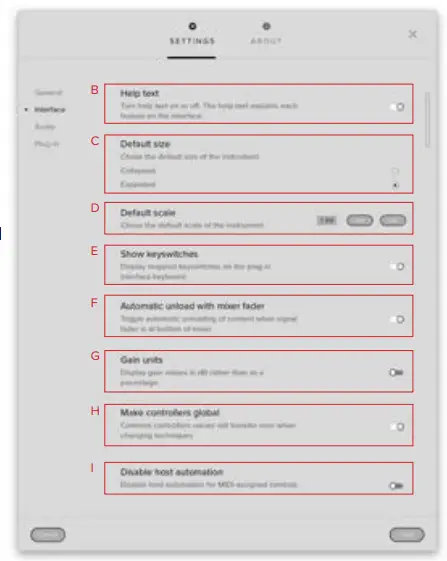
is on, presets that have multiple techniques will show available key switches in red and the currently selected technique(s) in yellow.
F. UNLOAD WITH MIXER FADER — Toggle this to unload data from RAM when the fader is pulled down to the bottom.
G. GAIN UNITS — Toggle this if you want your gain to be displayed in dB instead of as a percentage.
Controller values will remain when switching techniques.
I. DISABLE HOST AUTOMATION — Turn this on to enable the Host Automation from the DAW.
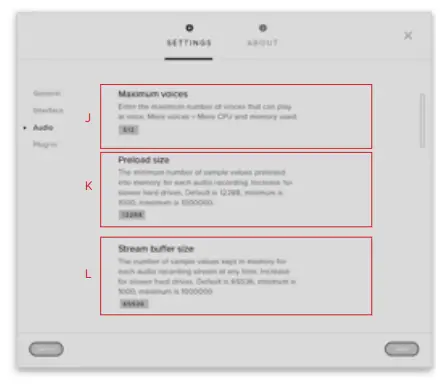
J. MAXIMUM VOICES — Enter the maximum number of voices that can play at once. More voices = more CPU and memory used.
K. PRELOAD SIZE — The minimum number of sample values preloaded into memory for each audio recording. Increase for slower hard drives. The default is 12888.
L. STREAM BUFFER SIZE — The number of sample values kept in memory for each audio recording stream at any time. Increase for slower hard drives. The default is 65536.
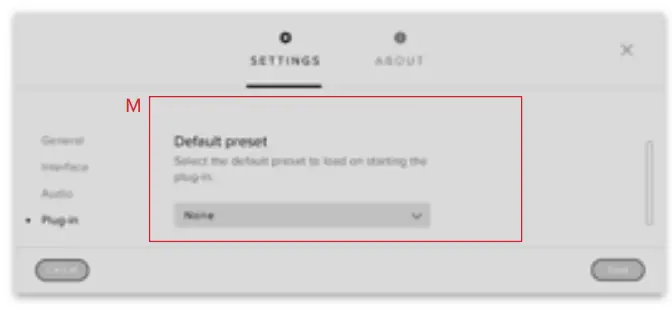
M. DEFAULT PRESET — Choose a preset that you wish the plug-in to load by default on launch. If “None” is selected, no preset will automatically load- which will save time
when loading up the plugin.
THE STRING SECTION
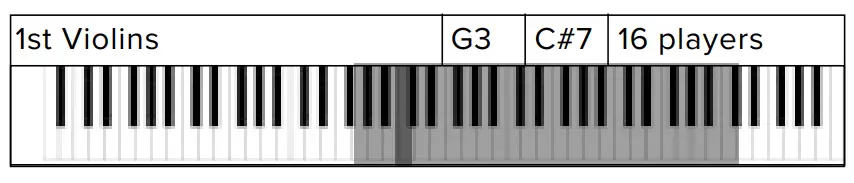
1ST VIOLIN SECTION
Usually the largest of the String sections, with the widest expected range. They sit to the left of the conductor and their principal player is referred to as the Orchestra’s leader’.
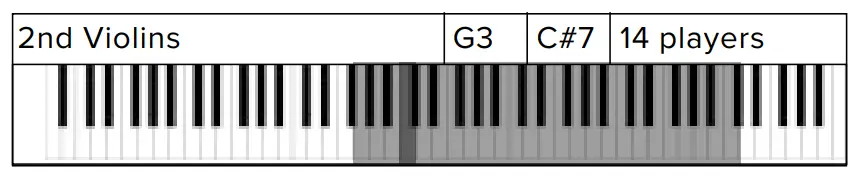
2 ND VIOLIN SECTION
Exactly the same instruments as the 1st Violins, but in a slightly more ‘supporting’ role. These players are situated to the right of the 1st Violins, and the left of the Violas.
VIOLA SECTION
Similar in shape, but much larger in size than a Violin. These sit straight ahead and slightly to the right of the conductor. They often play the simpler more ‘pedaling’ harmonic lines.

CELLO SECTION
Arguably the most versatile of the String instruments, with a huge range from very low to heartbreaking highs. They sit to the right of the conductor and in front of the Basses.

CONTRABASS SECTION
Huge and monstrous instruments sit to the right of the conductor and behind the Cellos. These all had the low C extension, hence the range.

THE BRASS SECTION
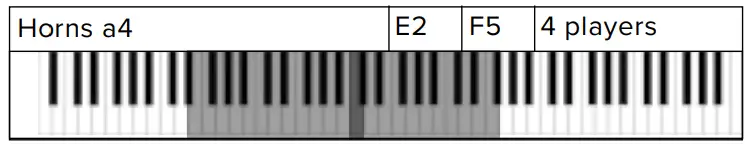
FRENCH HORNS
Available as a4, Horns are the most stately and noble of the brass family – similar in range and timbral diversity to the cello. Many would say that Horns are the principles of the
brass choir.
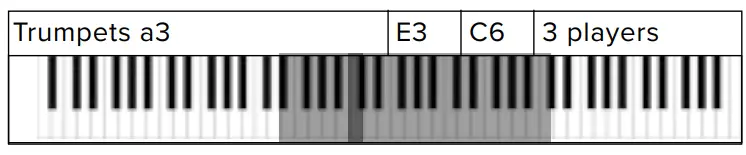
TRUMPETS
Available as a3, the Trumpets are the highest member of the Brass family. From plaintive and anthemic solo lines in it’s mid-range to blistering mariachi up at the top. Great in
octave unisons with the Horns!
TENOR TROMBONES
Available as a3, the Tenor Trombone is a deeply versatile Brass instrument. Providing plenty of warmth and depth when played in the lower dynamics, and rasping tones in the
higher.

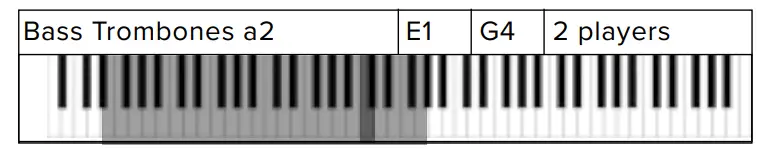
BASS TROMBONES
Because of it’s different bore size, the timbre of the Bass Trombone differs from the Tenor. Great for lower passages, but also in unison blend with the Tenor.
TUBA
It doesn’t get nobler than a Tuba. From super fat bottom end and chocolatey harmonic potential to a rasping lion from the depths of hell.

THE WOODWIND SECTION
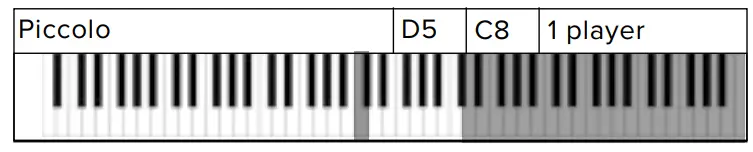
PICCOLO
The Piccolo is a half-sized Flute that plays an octave higher than written. The loudest and the highest instrument in the orchestra can cut through an entire orchestra with ease!
FLUTES
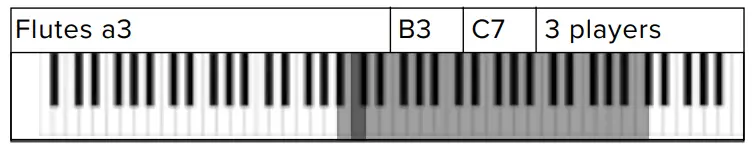
Available as a3, the C Flute is massively dynamic and versatile. Suitable for carrying sweet and lyrical melodies, or within section work. Try in unison with your 1st Violins!
OBOES
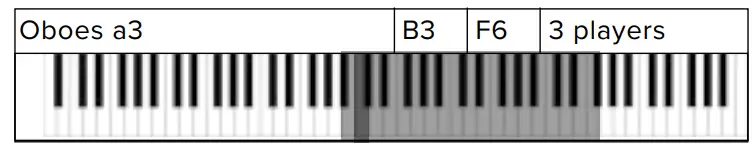
Available as a3, the Oboe is a double-reed instrument that is less dynamic than other Woodwind cousins. It’s a beautiful lyrical instrument with ‘period’ connotations, and also works great as a bright section texture.
CLARINETS
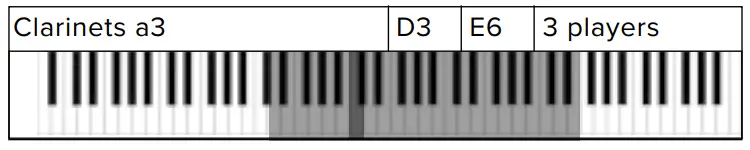
Available as a3, the Clarinet is a single reed instrument with a very regal tone. When used solo can have a very period drama sound to it.
BASSOONS
Available as a3, the Bassoon is yet another versatile instrument that is often painted into a staccato comedy corner. As Stravinsky proved with “The Rite of Spring”, it can be hauntingly melodic.

RECORDING THE BBC SO
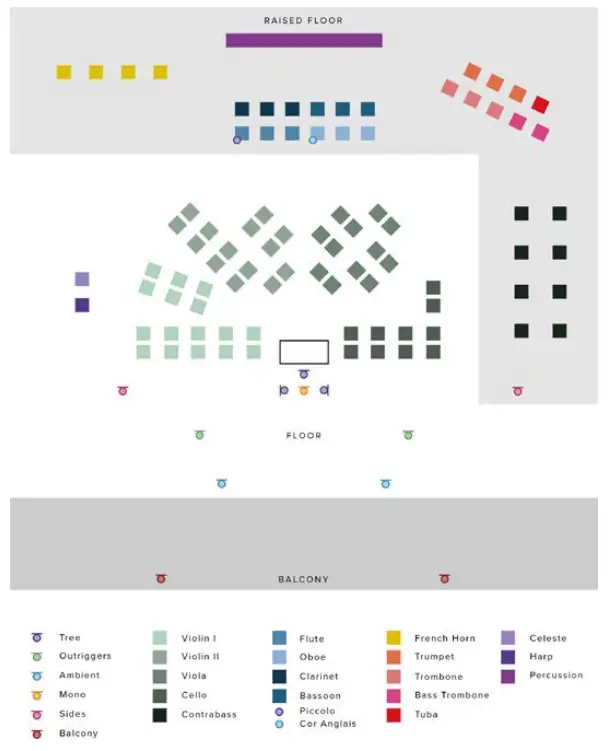
NOTE: MICROPHONES AND SOME INSTRUMENTS DISPLAYED HERE ARE ONLY AVAILABLE IN BBC SYMPHONY ORCHESTRA PROFESSIONAL. THIS CHART GIVES YOU AN IDEA OF HOW THE MIX FOR BBC SO DISCOVER IS CONSTRUCTED.
TECHNIQUES
LONG
The most vanilla of the long notes that we record, is a standard sustained note. This is the basic playing style, recorded both with and without vibrato.
SPICCATO/STACCATO
This technique can vary! For us, our Spiccato aims to capture a very nice ‘tight’ sound, with the bow bouncing off the string. This creates a sound that can be used either as a nice short staccatissimo, but also as a sequence of short fast notes or an ostinato. Of course, Spiccato only applies to a String instrument, and any Brass or Woodwinds will be using Staccato instead.
PIZZICATO
Plucking the strings with the finger.
TREMOLO
A tremolo is where a player rapidly moves the bow whilst keeping the left hand on the same notes. The effect is a shimmering one when played soft, and a very aggressive and
tense sound when played loud.
APPENDIX A — FAQS AND TROUBLESHOOTING
– MAC SYSTEM REQUIREMENTS Mac OS X 10.10 – Mac OS 12, Intel Core 2 Duo, 4GB RAM.
Apple Silicon Supported (v.1.4.0 and above) Digital Audio Workstation must be 64bit.
PC SYSTEM REQUIREMENTS
Windows 7 – 11 (latest Service Pack, 64-bit), Intel Core 2 Duo, 4GB RAM.
Digital Audio Workstation must be 64bit. Requirements for BBC Symphony Orchestra Core and Professional are higher.
– You can delete the BBC symphony orchestra. settings file to reset the settings to default. This is located at Users/username/Music/ Spitfire Audio/Settings on a Mac and C:\
Users\username\AppData\Roaming\Spitfire Audio\Settings on a PC.
– This can occur if you have not installed both the Library content and the plugin in the same location. Most likely, the install button in your Application will be red, and you can follow the advice linked here to fix it.
– Click on the red circle to see the Error Number you have activated. In the error message is a “Let’s Fix This” link- which will take you to our dedicated support page with
relevant instructions on how to fix it. If the instructions do not help, please click on the Show Log hyperlink, to be linked to the error log on your system. You should attach this to a support ticket, which can be created by clicking the “Help” button on our support website.
– With our products, you have two licenses. This means that you are allowed to download and install on two computers you own- for example, your main rig and your mobile rig.
If you have purchased the library on an SSD Drive, download the library onto the drive following the instructions in the video first, before copying that folder over to your
second hard drive.
Please note that the plugin currently cannot share a location between two devices. You will need a dedicated hard drive for each of the two machines you install the library on.
– This library does not run in Kontakt, it is a standalone plug-in that you can run in your chosen DAW. You can also run the library via Komplete Kontrol.
– No, we are currently only compatible with Mac OSX 10.10 – Mac OS 12
– Internet is required in order to authorize and install our libraries. Once installed, you do not need to be connected to the internet to use our plugins in your DAW.
– You can redownload a product in the Spitfire Audio App by using the Reset tool found in the cog menu on the product page. Once you select reset, you have a choice of resetting the library to the Latest Update to reinstall the last update available. Or select Entirely to reinstall the whole library again. Note that you can only reset a library once
after the initial installation before an error letting you know you have run out of resets will appear. Contact our support team for further resets.
– Customers may find that they have some difficulties in the downloading process. If you find that you are having some trouble, please check the list below for possible causes:
• If downloading onto an external drive, make sure you have formatted this drive correctly for your operating system.
• If the download appears to be slow or stuck, please see our article here for further advice.
• If the download fails, check your connection and make sure you are not using a Proxy Server or LAN that may be blocking the Application from installing the library. If that is not the case, contact our support team.
– We have no control over how fast a library is installed, as our downloads are hosted by 3rd party servers. Therefore, the number of active users of that server in your territory
can affect the overall download speed.
For this reason, we recommend installing overnight for the fastest download speeds. Switching servers can help with download speed. You can change servers in the Settings Tab, General- under Use Cloudfront CDN.
By toggling this off you will also cancel the current download, but if you select install again and select the correct location- the install will pick up from where it left off.
– It is not possible to trial our products. In the walkthroughs provided for each library, we typically do not add any additional effects or processing, so you can hear the library in its raw form.
– First, you should check you have not used the search bar or any of the other filters, which can block the library from appearing. If this is not the case, it is most likely the case that the order has not been processed yet or the order was placed on a different account.
Orders typically process after 20 minutes, but can take up to 24 hours in busy periods- and you should wait for this period of time before contacting our team.
If you have duplicate accounts you wish to merge, this is possible provided you can activate the merge request from both email accounts. Contact our support team to merge
requests.
– If an update is available this will show in the Application where the Install button was previously. When you update a library, ensure to select the correct parent location for the library folder in order to install the update correctly. Click here to see how to reinstall an update on a second install.
– If you have applied for the free version of BBC SO Discover, this will be delivered exactly 14 days after you complete your application. You will be alerted via email when your download is ready in the Application. Do not contact our support team unless the 14-day period has passed.
If you have ordered BBC SO Discover via the regular payment method, the order will typically process in 20 minutes. This can take up to 24 hours during busier sales periods, so please wait for that period of time before contacting our support team.
– Yes, you can copy the library folder and plugin files over to the second machine and then use the “Repair” and “Locate Library” features in the Spitfire Audio App. Please note that although the majority of the download can be done on a separate machine, you will always need an internet connection to finish the authorization process.
– Click here to reset your password.
If the password reset is not successful, please contact our support team.
– If you think you have found an issue with one of our products, please contact our support team and supply us with the following:
• A screenshot of the preset you are using
• An audio file that demonstrates the issue
• A MIDI file of the audio file, so that we can test this with the latest plugin
• A video file, should the issue not be demonstratable via audio.
– A HTML changelog listing all bug fixes and improvements can be found in the BBC Symphony Orchestra documents folder.
If you contact our support team within 14 days of placing your order and have not completed the library installation, you can apply for a refund.
If you have downloaded the product in full, or have contacted us after more than 14 days since you placed your order, we will not be able to consider a refund. This is outlined in our EULA. We do not offer any discounts or returns should you find any defects or issues with our products. Instead, we are committed to fixing and updating any products that are currently live on our site. Please report all issues directly to our support team as we may miss reports that are made elsewhere.
TECHNIQUES/MICS/MIXES
INSTRUMENTS:
STRINGS:
| 1ST VIOLINS • Long (vib) • Spiccato • Pizz • Trem 2ND VIOLINS • Long (vib) • Spiccato • Pizz • Trem VIOLAS • Long (vib) • Spiccato • Pizz • Trem CELLOS • Long (vib) • Spiccato • Pizz • Trem BASSES • Long (vib) • Spiccato • Pizz WOODWINDS: PICCOLO • Long • Stacmo FLUTES A3 • Long • Stacmo OBOES A3 • Long • Stacmo | CLARINETS A3 • Long • Stacmo BASSOONS A3 • Long • Stacmo BRASS: HORNS A4 • Long • Stacmo TRUMPETS A3 • Long • Stacmo TENOR TROMBONES A3 • Long • Stacmo BASS TROMBONES A3 • Long • Stacmo TUBA • Long • Stacmo PERCUSSION: • Harp • Celeste • Timpani • Marimba • Xylophone • Glockenspiel • Tubular Bells |
UNTUNED PERCUSSION: C2
D2
E2
F2
G2
A2
B2
C3
D3
E3
F3
G3
A3
B3
C4
D4BASS DRUM
TENOR DRUM
SNARE DRUM
SUSPENDED CYMBAL
SUS. CYMBAL ROLL
ANVIL
TAM TAM
TAMBOURINE
TENOR DRUM (SNARES OFF)
TRIANGLE
CASTANETS
COWBELL
STOPPED CYMBAL
PIATTI
VIBRA SLAP
WOODBLOCK
APPENDIX C — DEFAULT CC MAPPINGSDynamics 1 Global Gain 7 Global Pan 10 Expression 11 Reverb 19
USER MANUAL
BBC SYMPHONY ORCHESTRA DISCOVER