HUAWEI WLAN-FE SDongleA-05 Smart Dongle
Notice
The information in this document is subject to change without notice. Every effort has been made in the preparation of this document to ensure accuracy of the contents, but all statements, information, and recommendations in this document do not constitute a warranty of any kind, express or implied.
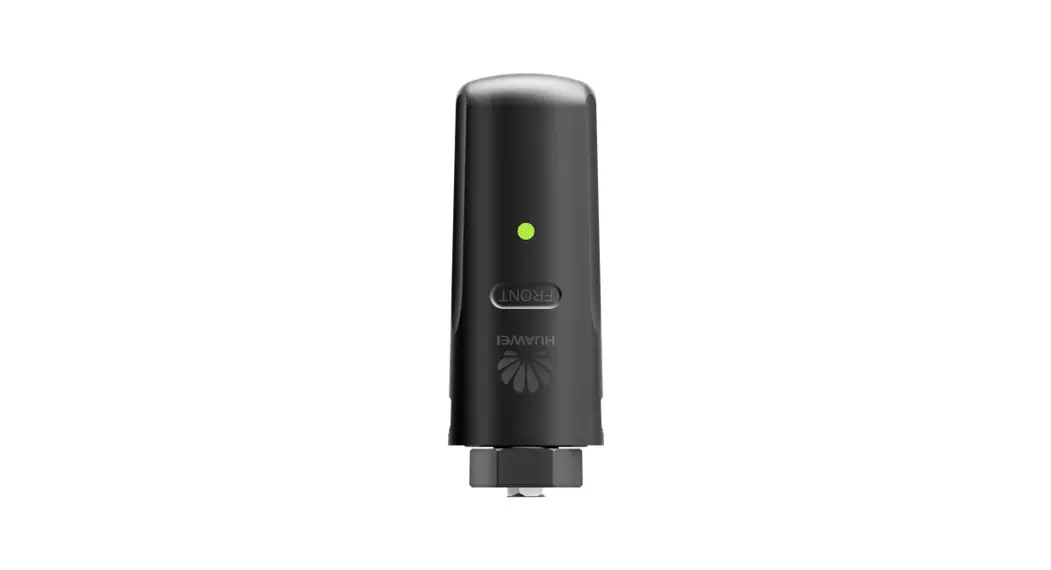
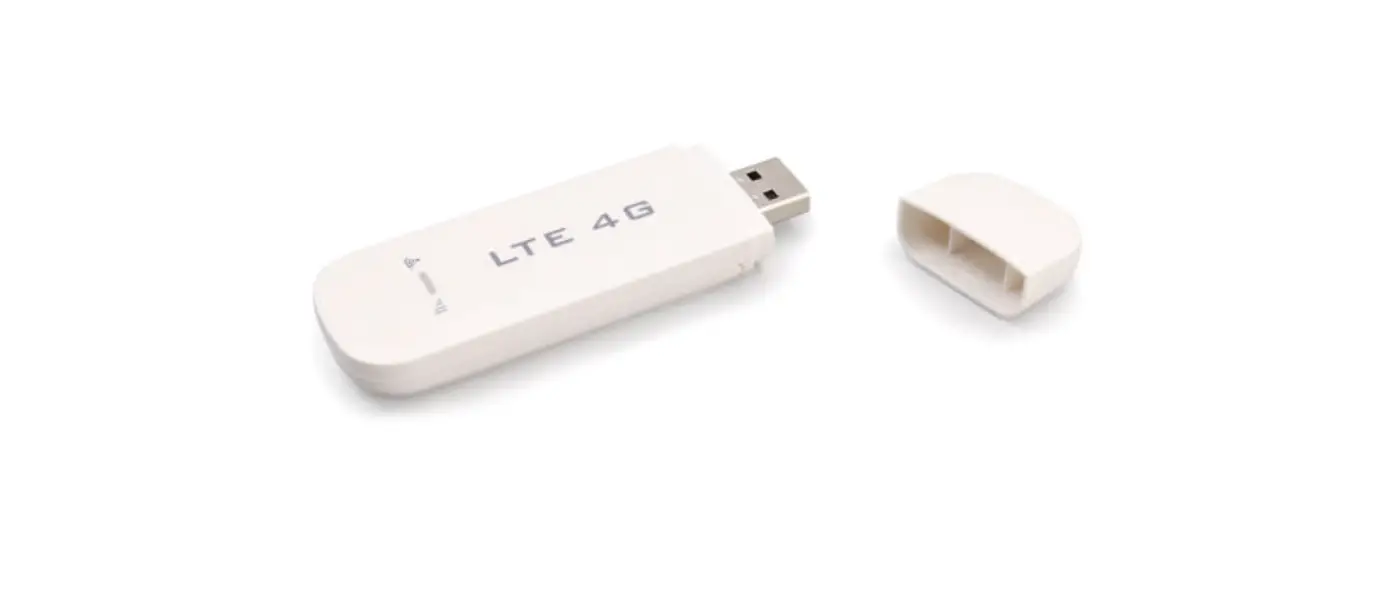
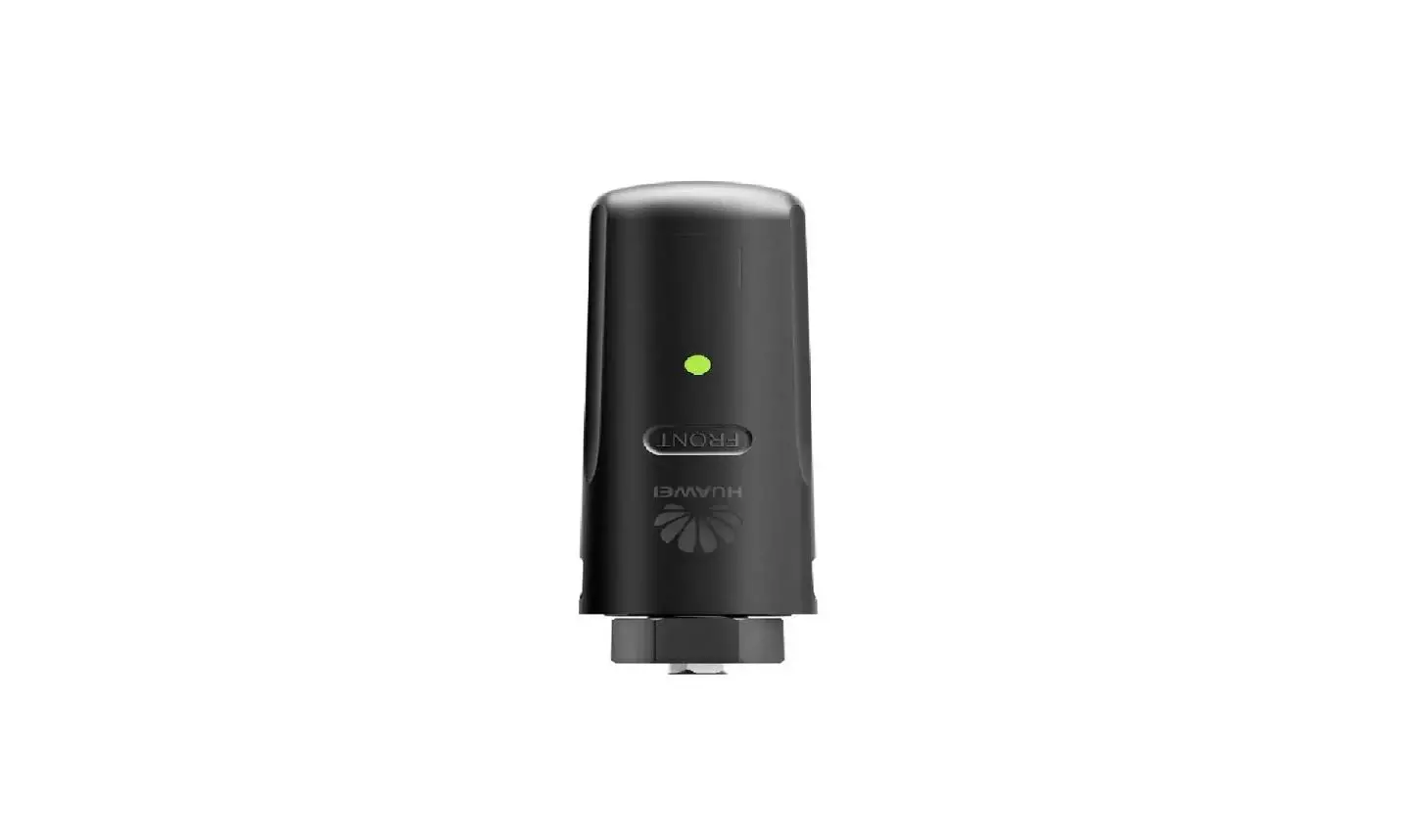
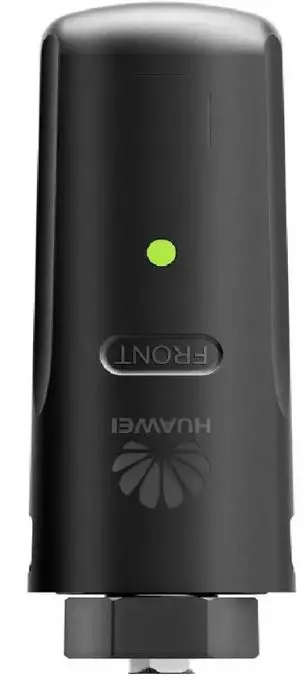
- SDongleA-05 (Dongle for short) is a smart communications expansion module that works with Huawei inverters to implement communication between inverters and the management system using WLAN or FE.
- A Dongle can be used for device cascading using RS485 communication (inverter cascaded or inverters cascaded with other devices). A maximum of 10 devices can be cascaded.
- If cascaded inverters include a single-phase inverter or are connected to batteries, a maximum of three inverters can be cascaded.
- When multiple inverters are cascaded, only one Smart Dongle or one SmartLogger is allowed.
Communication Scenario
Note
- Inverters with different appearances are used in the same communication scenario. The inverters in this document are used as an example.
- In the networking, the inverter where the Dongle is installed is the master inverter, and other inverters are slave inverters. Slave inverters can communicate with the Dongle through cascading.
- In the communications scenario, ensure that the wireless network of the inverter and router is not disturbed and that the signal is normal.
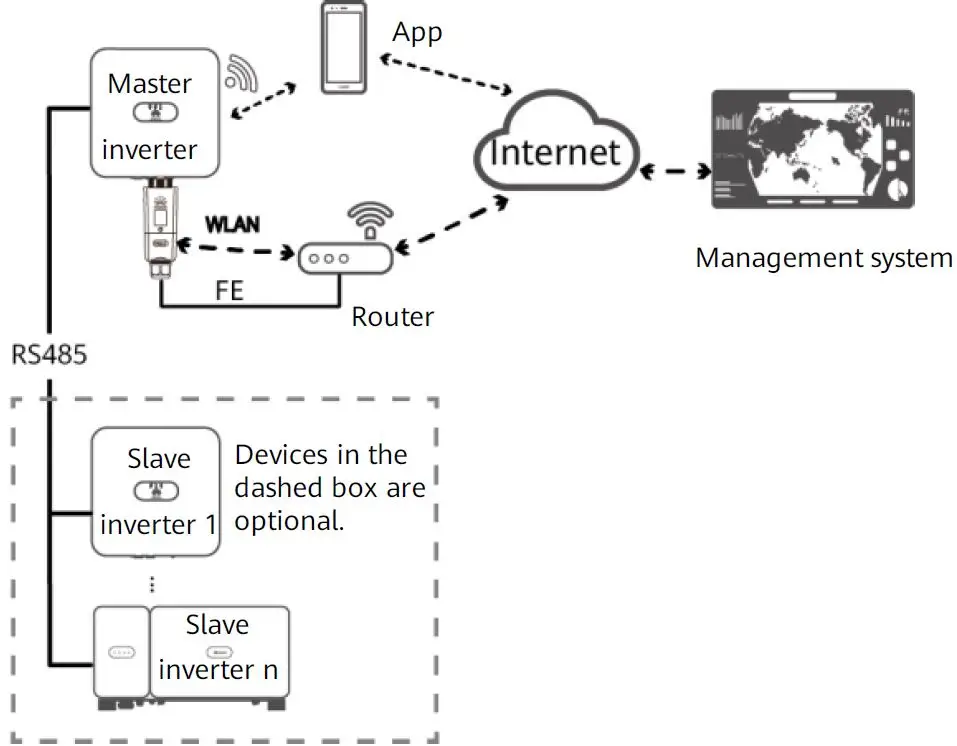
Number of devices in the RS485 communication scenario
| Limited Number | Actual Number | |
| Maximum number of devices that can be connected to the Dongle | Number of slave inverters | Number of other devices (such as Smart Power Sensors and energy storage devices) |
| 10 | n ≤ 9 | ≤ 9 – n |
If devices are connected to the 485B2 and 485A2 ports of the master inverter, the devices are not included as cascaded devices.
Inverter Model Requirements
| Master Inverter | Slave Inverter |
| SUN2000-(2KTL-6KTL)-L1 | |
| SUN2000-(2KTL-6KTL)-L1 SUN2000-(3KTL-20KTL)-M0 SUN2000-(3KTL-12KTL)-M1 SUN2000-(8KTL-20KTL)-M2 SUN2000-(20KTL -40KTL)-M3 | SUN2000-(3KTL-20KTL)-M0 SUN2000-(3KTL-12KTL)-M1 SUN2000-(8KTL-20KTL)-M2 SUN2000-(20KTL -40KTL)-M3 SUN2000-29.9KTL/36KTL SUN2000-33KTL-A |
| SUN2000-50KTL/60KTL-M0 |
Installation and Commissioning
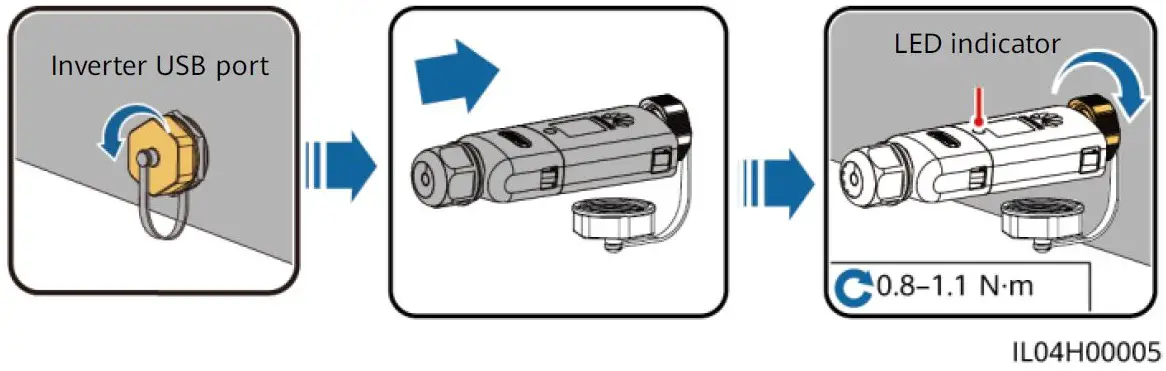
- Install the Dongle.
WLAN Communication
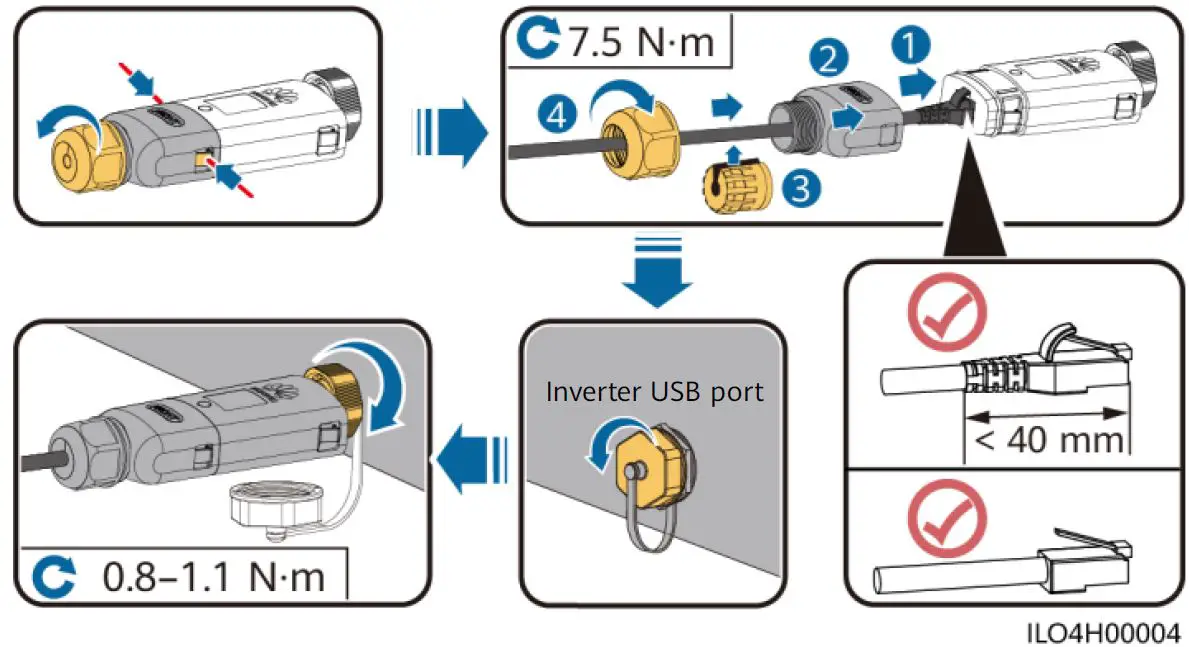
FE Communication
You are advised to use a CAT 5E outdoor shielded network cable (outer diameter < 9 mm; internal resistance ≤ 1.5 Ω/10 m) and shielded RJ45 connectors.
| Operation | LED | Remarks | Description | |
| Color | Status | |||
|
Installing the Dongle | N/A | Off |
Normal | The Dongle is not secured or is not powered on. |
| Yellow (blinking green and red simultaneously) | Steady on | The Dongle is secured and powered on. | ||
|
Red | Blinking at short intervals (on for 0.2s and then off for 0.2s) |
The parameters for connecting to the router are to be set. | ||
| Red | Steady on |
Abnormal | The Dongle is faulty. Replace the Dongle. | |
|
Blinking red and green alternatively | Blinking at long intervals (on for 1s and then off for 1s) | No communication with the inverter
| ||
Notice: Before setting parameters, ensure that the AC and DC side of the inverter has been powered on.
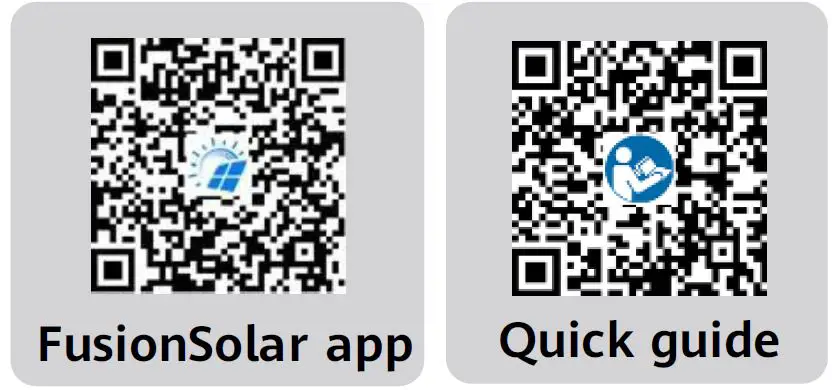
- Install the FusionSolar app. Perform the Setup wizard operations. If you have performed such operations, skip this step. If not, you can scan the QR code below to obtain the app quick guide which describes the Setup wizard operations.
| Operation | LED Indicator | Remarks | Description | |
| Color | Status | |||
|
Router connection settings | Green | Blinking at long intervals (on for 0.5s and then off for 0.5s) | Normal | Connecting to the router |
|
Red | Blinking at short intervals (on for 0.2s and then off for 0.2s) |
Abnormal | Failed to connect to the router. Check whether the parameters for connecting the Dongle to the router are properly set. If not, set the parameters correctly. | |
|
Management system settings | Green | Steady on | Normal | Successfully connected to the management system. |
|
Red | Blinking at long intervals (on for 1s and then off for 1s) |
Abnormal | Failed to connect to the management system. Check whether the parameters for connecting inverters to the management system are properly set. If not, set the parameters correctly. | |
| Green | Blinking at short intervals (on for 0.2s and then off for 0.2s) | Normal | The inverter is communicating with the management system through the Dongle. | |
Note
- In areas (such as the UK) where the FusionSolar app is not available, or when a third-party management system is used, only the SUN2000 app can be used for commissioning. This document uses the FusionSolar app as an example to describe the commissioning method. For the SUN2000 app, perform operations as required.
- To obtain the SUN2000 App, scan the QR code or search for “SUN2000” in Huawei AppGallery, download the latest installation package, and install the SUN2000 app by following the instructions. The SUN2000 app version should be 3.2.00.002 (Android) or later.
Performance Parameters
| Model on the Nameplate | SDongleA-05 |
| Maximum Number of Devices | 10 (Inverters are connected with each other over RS485.) |
| Network Port | 10/100M Ethernet port |
| Encryption Mode | Not encrypted, WPA, WPA2, WPA/WPA2 |
| Installation Mode | Plug-and-play (applicable to inverters only) |
| Indicator | LED |
| Dimensions (W x H x D) | 146 mm x 48 mm x 33 mm |
| Net Weight | 90 g |
| Ingress Protection Rating | IP65 |
| Typical Power Consumption | 2.5 W |
| Standard and Frequency Band | 802.11b, 802.11g, 802.11n 2.412 GHz to 2.484 GHz |
| Operating Temperature | –30ºC to +65ºC |
| Relative Humidity (Non- condensing) | 5%–95% RH |
| Storage Temperature | –40ºC to +70ºC |
| Highest Altitude | 4000 m |
Obtaining Documentation
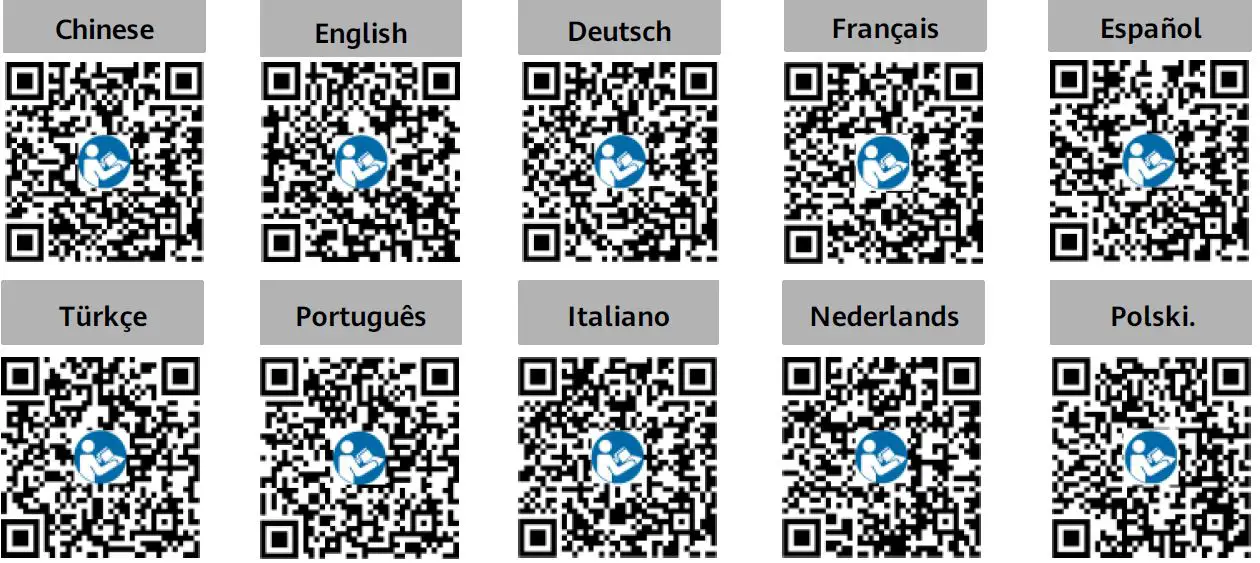
Note: You can obtain the latest version of this document by scanning the following QR codes.
Huawei Digital Power Technologies Co., Ltd.
- Huawei Digital Power Antuoshan Headquarters Futian, Shenzhen 518043
Document Issue: 10
Part Number: 31500HMN
Release Date: 2022-06-27
Copyright © Huawei Digital Power Technologies Co., Ltd. 2022. All rights reserved.