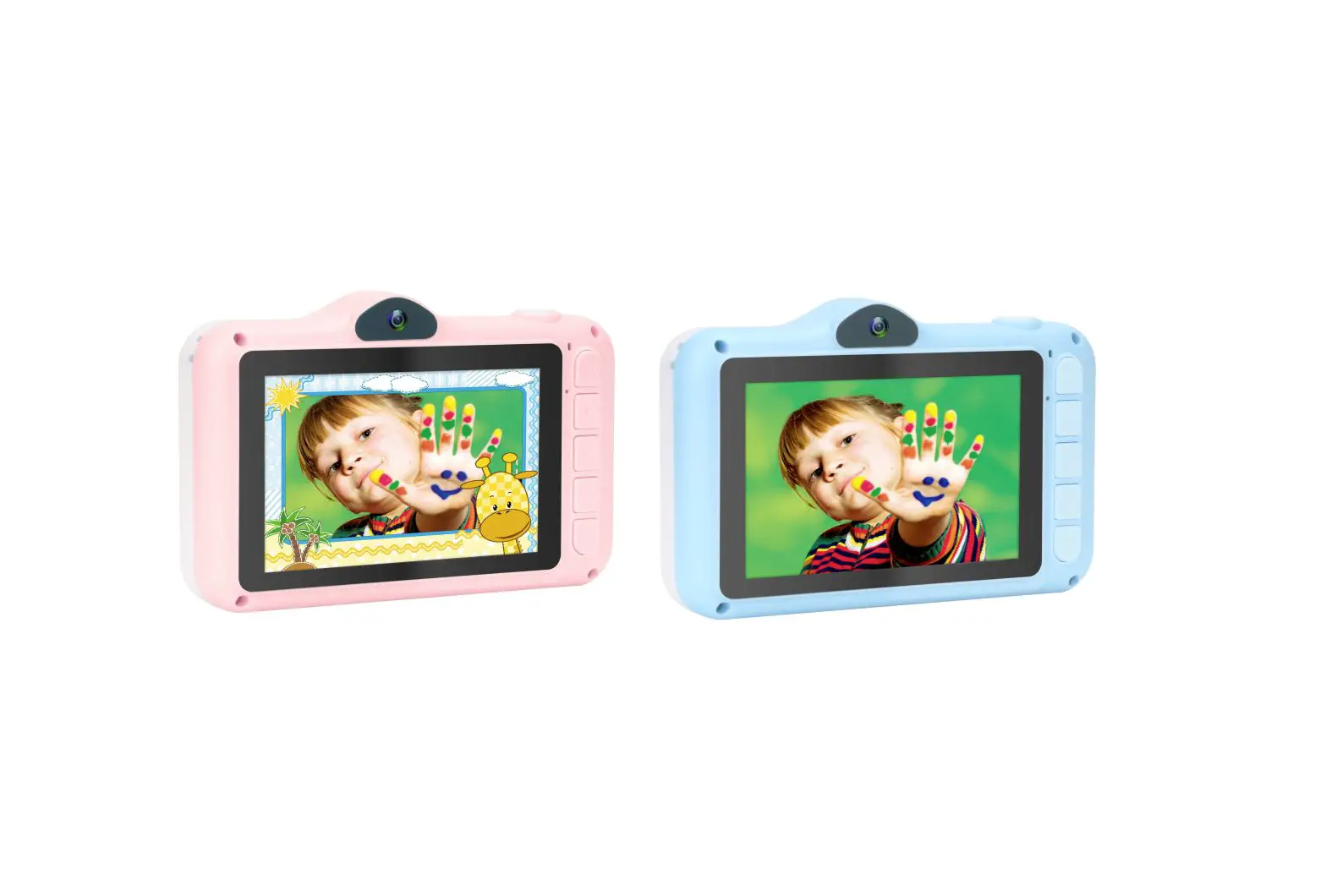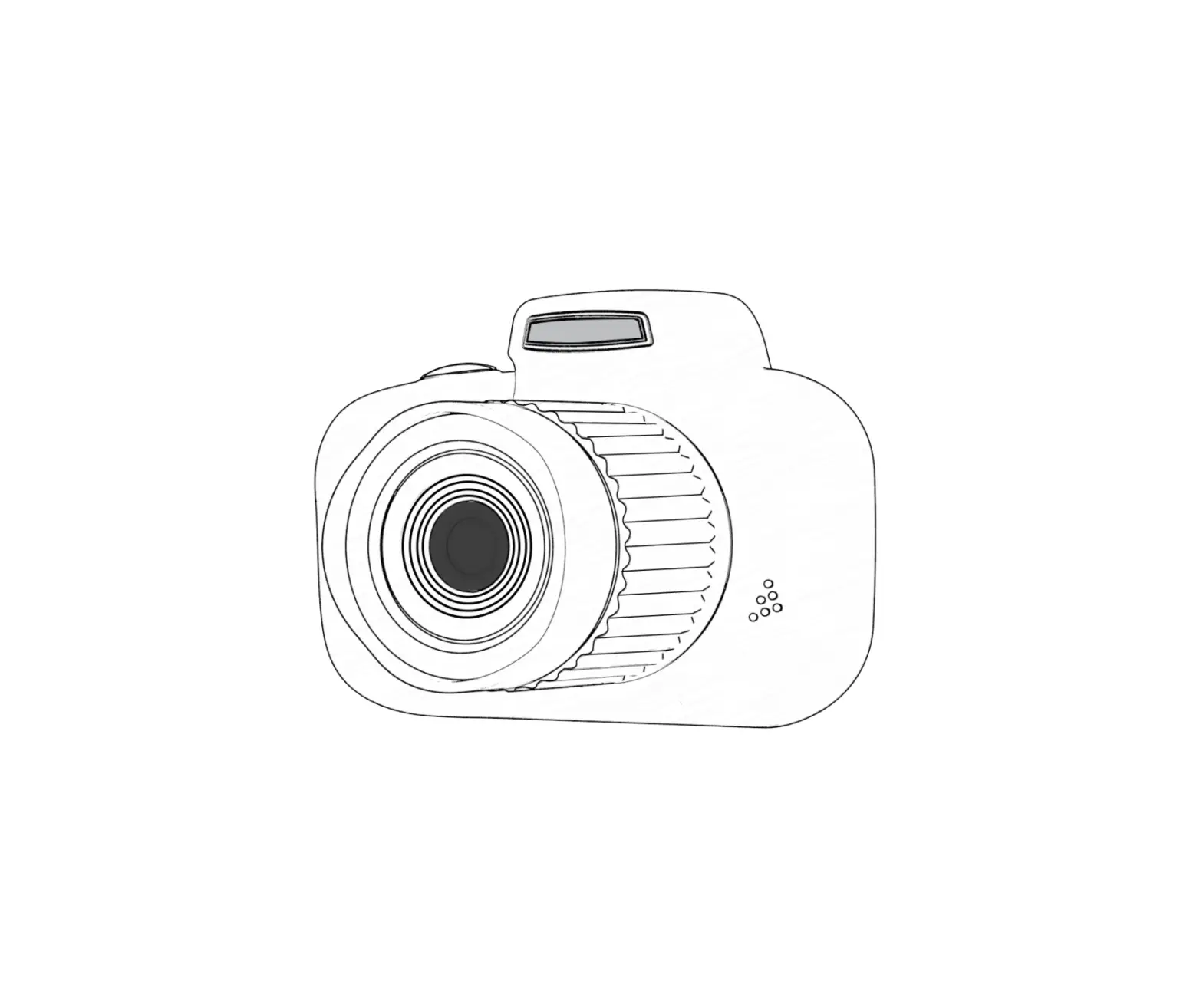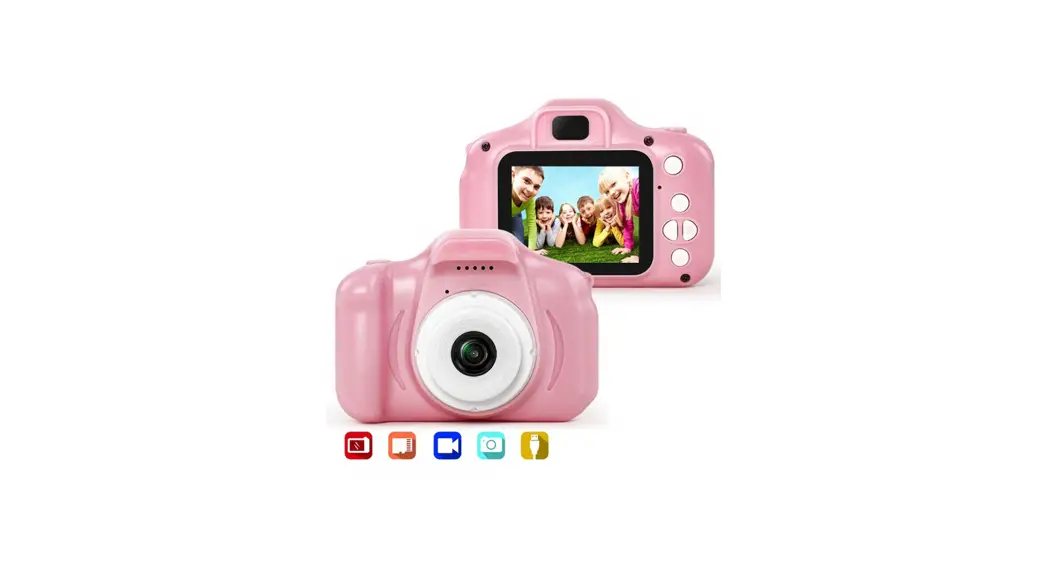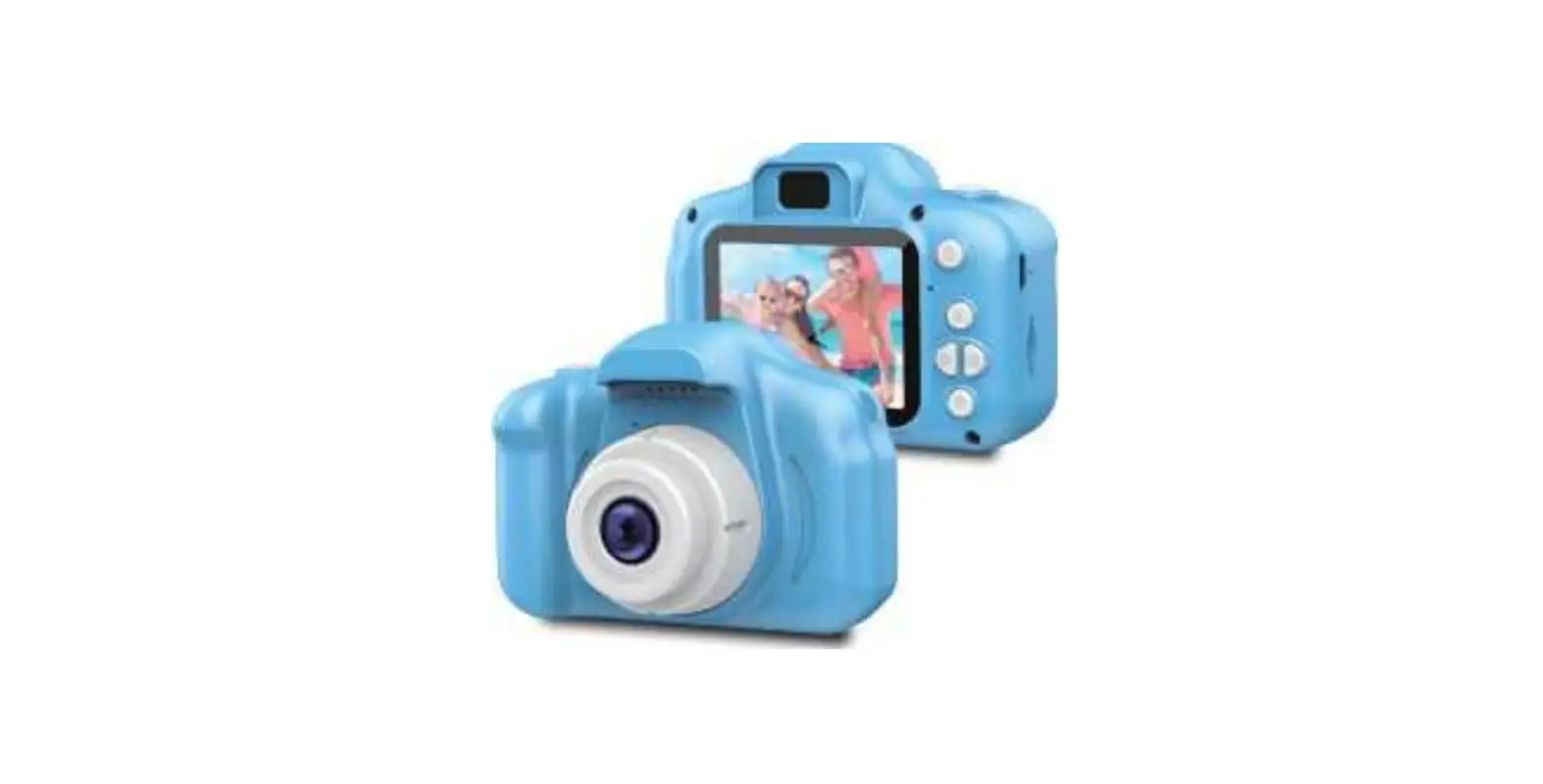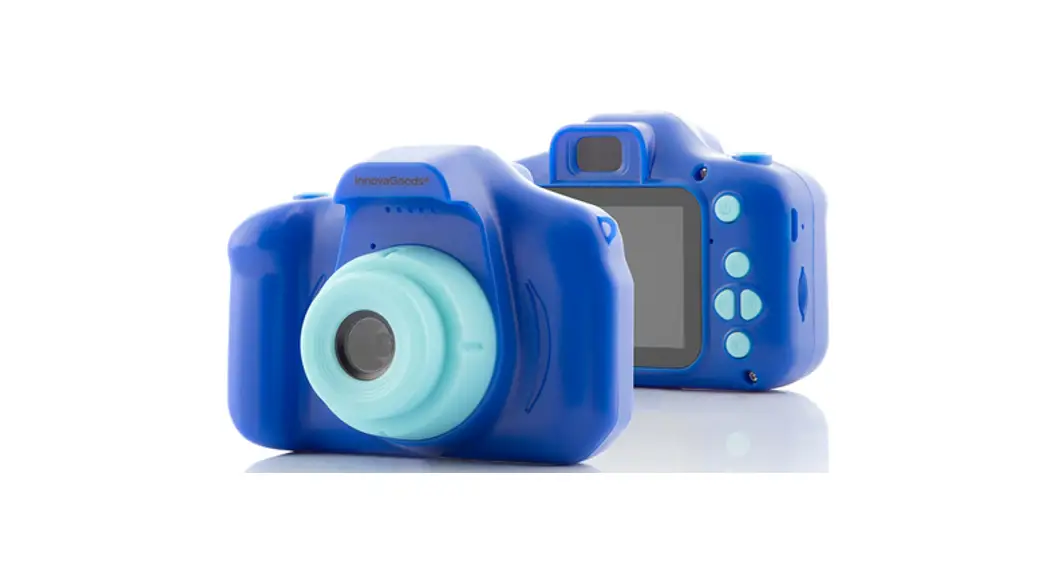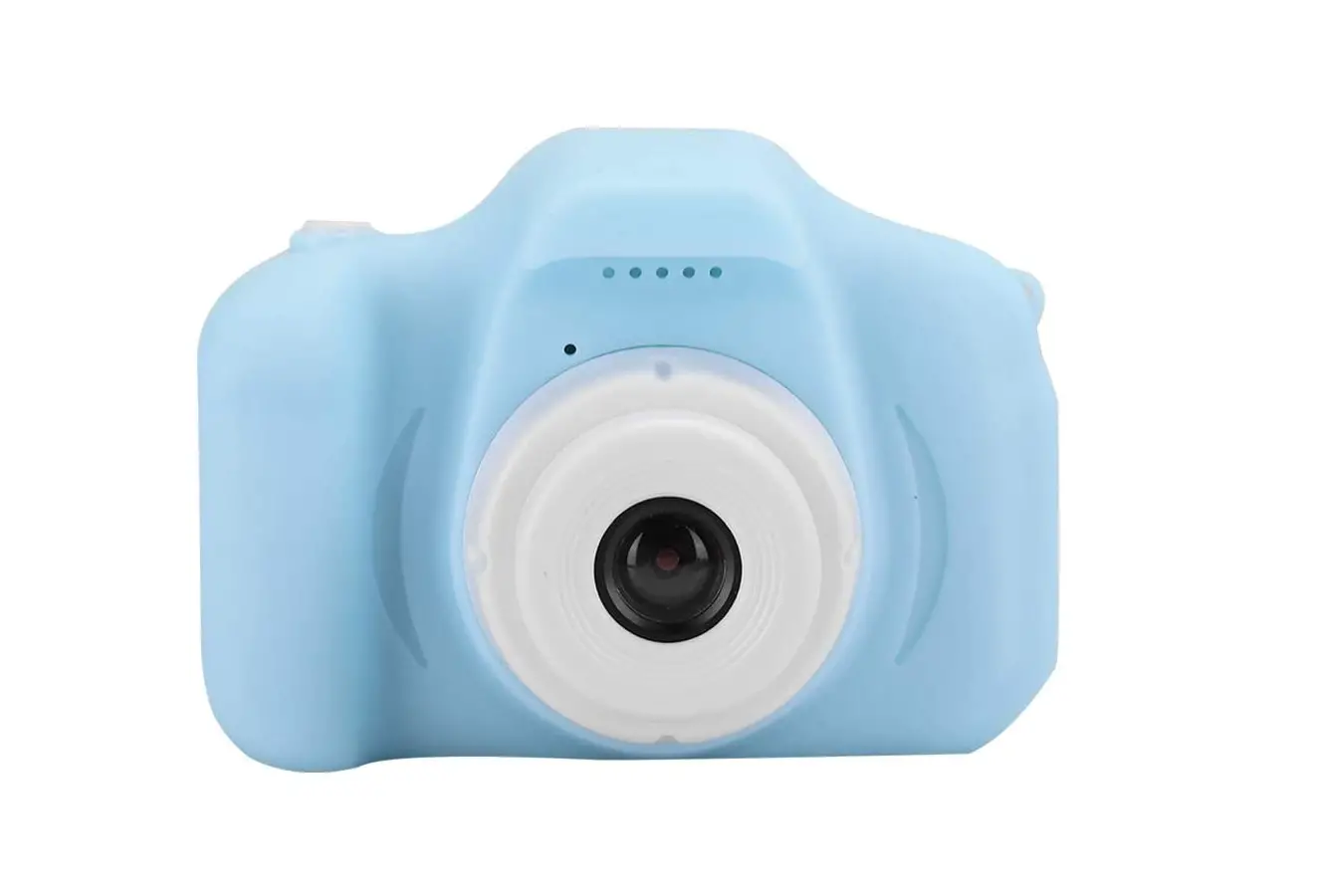
AyeKids D600-0164-3703 2 in 1 Kids Camera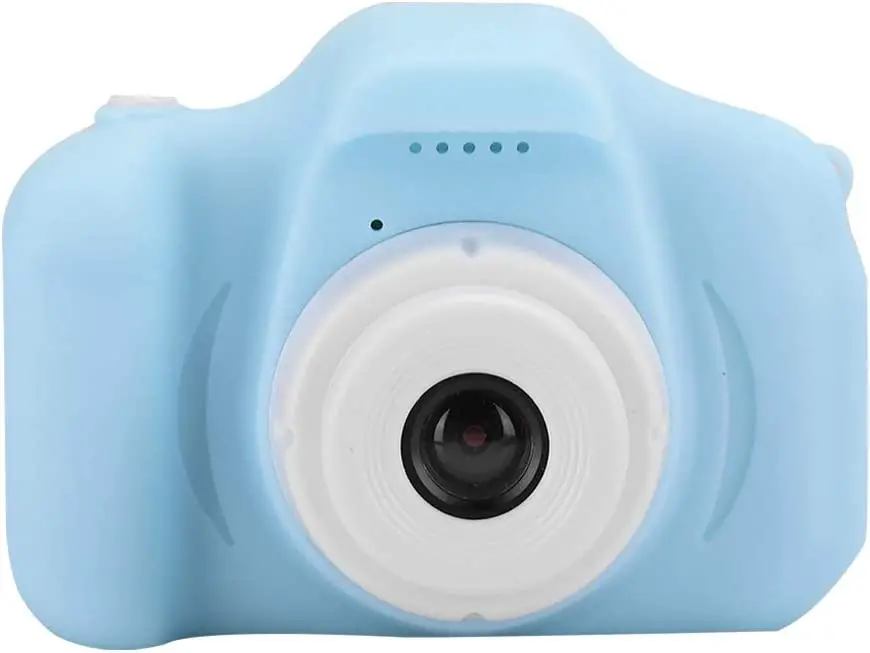
PRODUCT OVERVIEW
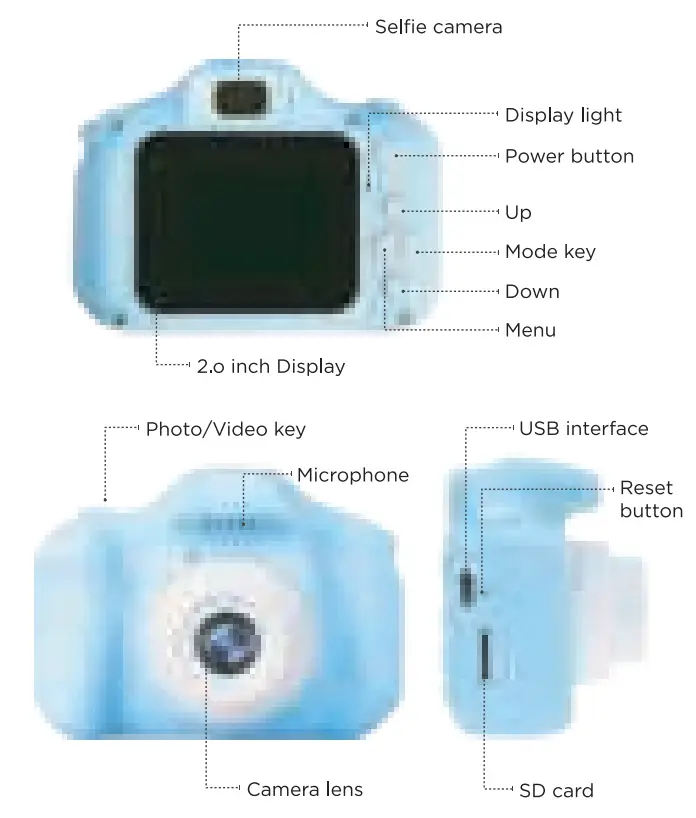
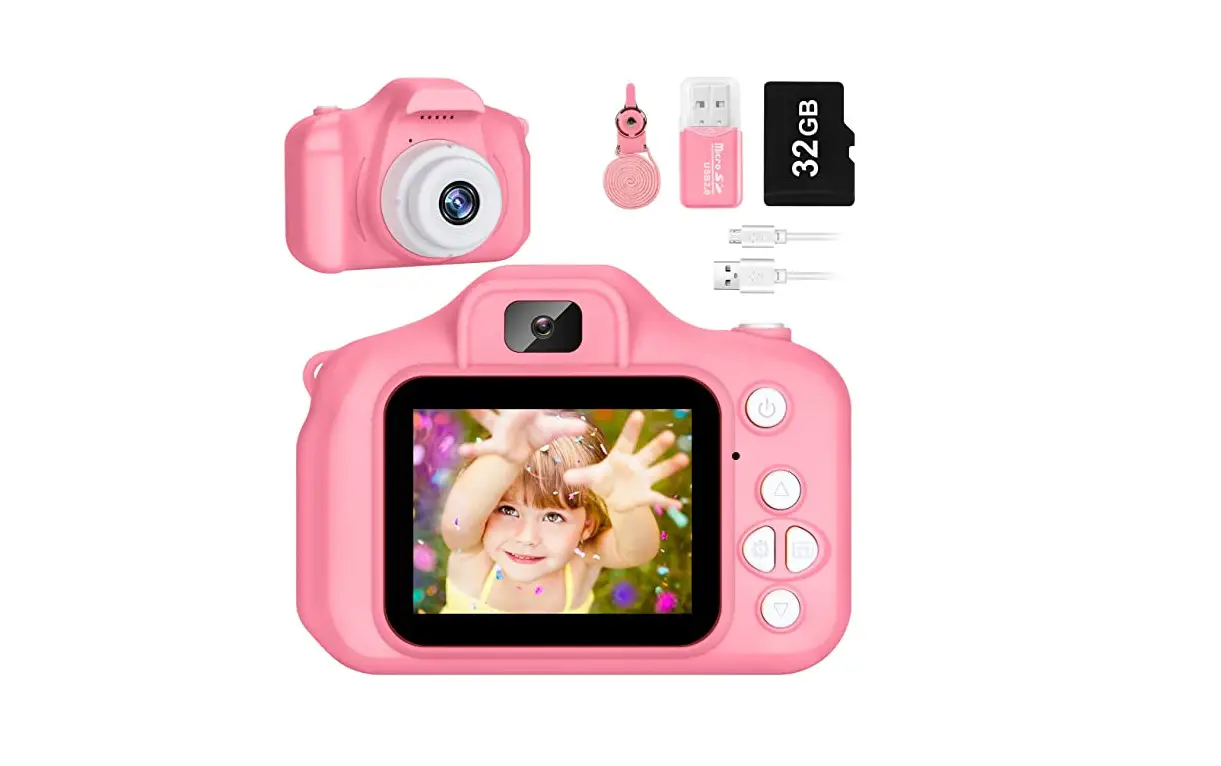
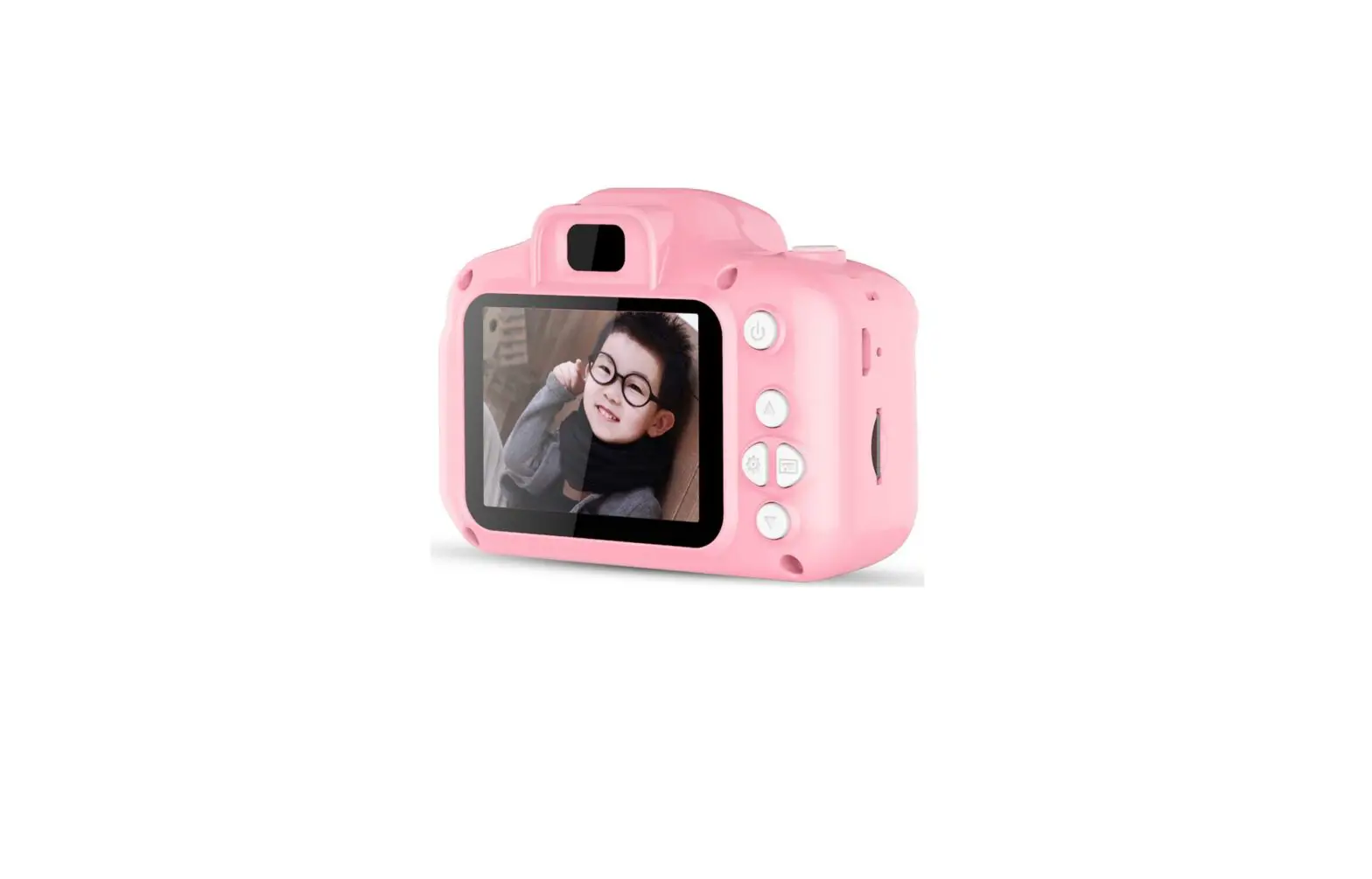
Power button
- Power on / off; 0 Exit button in menu mode.
Mode key
The following modes can be switched to standby mode:
- Recording mode
- Camera mode
- Video playback or photo browsing mode
Up and down button
Press to select the option upwards/downwards in the menu mode
Photo/Video key
- In the camera mode, short press this button to start recording, short press again to stop recording;
- Short press this button to take a photo in the camera mode;
- To switch to selfie mode, short press this button then press the down button;
- In the menu mode, it is the confirmation button
Microphone
Sound receiving port of video or an audio file
USB Interface
- Can be used to transfer data to a PC
- External power supply to charge the battery
SD card
Slot for installing the SD card
Menu button
Short press this button to call up the function setting menu; Press this button again to exit the function setting menu
Reset button
If the camera is not functioning, for example, if it crashes, take the fine needle into the hole to reset.
OPERATING INSTRUCTIONS
Power on and off
Press and hold  the power button to turn it on, the blue indicator will light up when it is turned on; Press and hold the power button again to turn it off, the blue indicator will be off
Camera mode
Short press the “Mode button” to switch to camera mode, camera resolution and camera icon are displayed in the upper right corner of the screen; Short press the “Video/Photo” button to start recording, the recording indicator will start flashing, indicating that the recording is in progress.
Selfie mode
Short press the “Mode button” to switch to camera mode, to switch to selfie mode, short press the  down button; then press the “Video/Photo” button to take a picture.
Photo mode
Short press the “Mode button” to switch to camera mode, camera resolution and camera icon are displayed in the upper the right corner of the screen; Short press the “Video/Photo” button to take a picture. When a picture is taken, the indicator flashes once, indicating that the photo is completed.
Video / Photo playback
Short press the “Mode key” button to switch to the playback mode and the playback icon will be displayed in the upper right corner of the screen. Short press the .  up button to select the file upwards; Short press the down button to select the file down;
Menu settings
Short press “Menu” to call up the setup menu; by pressing the up button or down button, you can cycle up and down in each setting item; Select the setting item that needs to be changed, and confirm the entry change by short pressing the “Photo/Video” button. Short press the “Menu” button to exit.
OPERATING INSTRUCTIONS
USB mode
Connect the kids camera to your computer via USB cable; In this mode, video and photo files can be viewed
Battery usage
For battery indicators, please refer to the illustration:
There are 3 ways to charge the battery and the blue charging indicator will light up during charging.
- Charging with the power adapter (Note the adapter is not included)
- Charging with a USB cable to the computer
- Charging with car power supply
Remark: When using this product, it may cause the phenomenon of crash due to improper operation. You can remove the battery or press the reset button and turn it on again to return to normal.
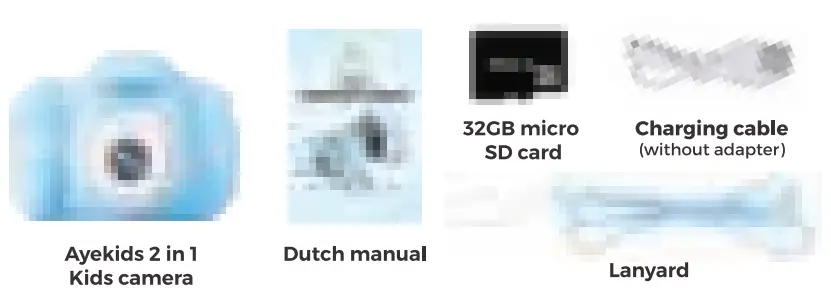
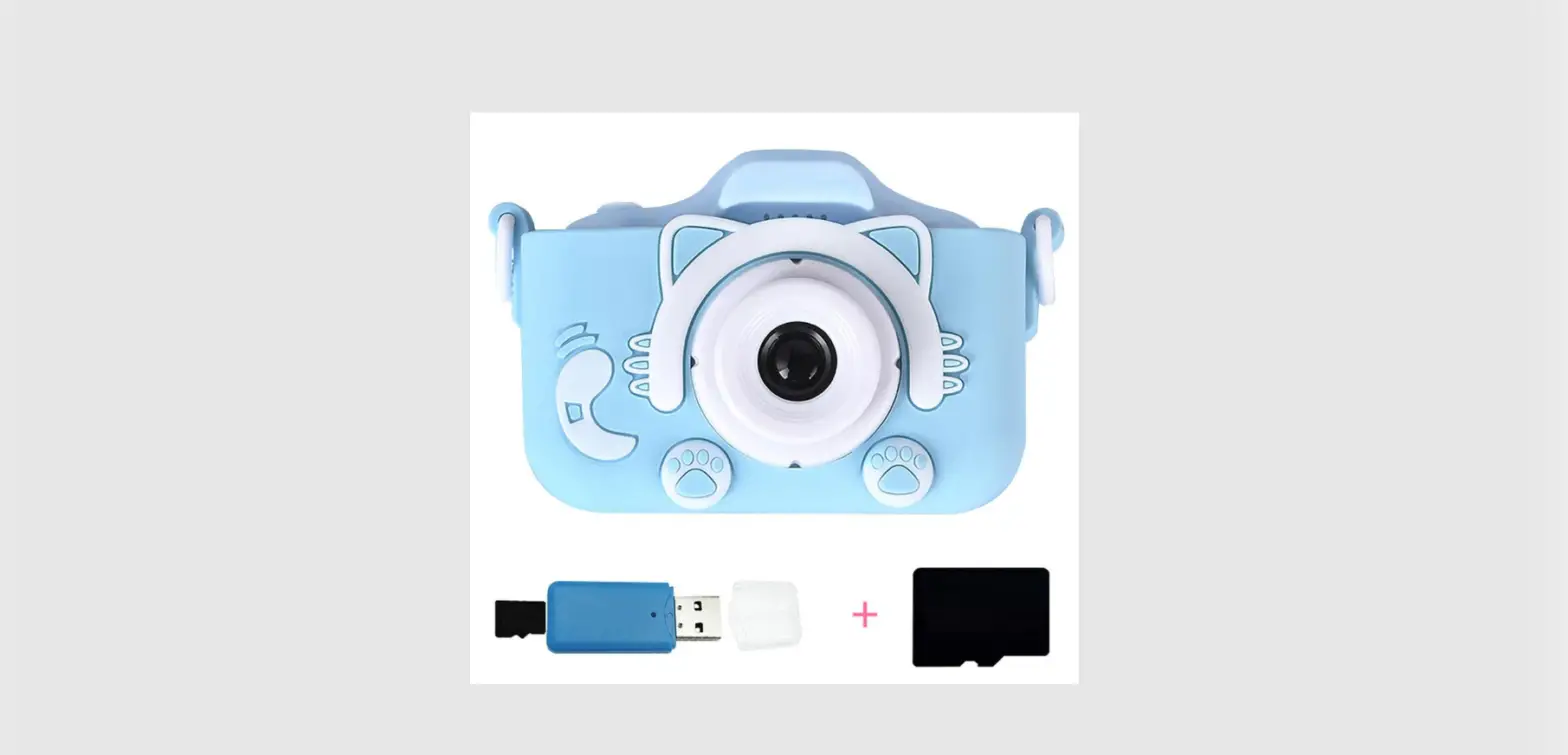
PACKAGE CONTENTS