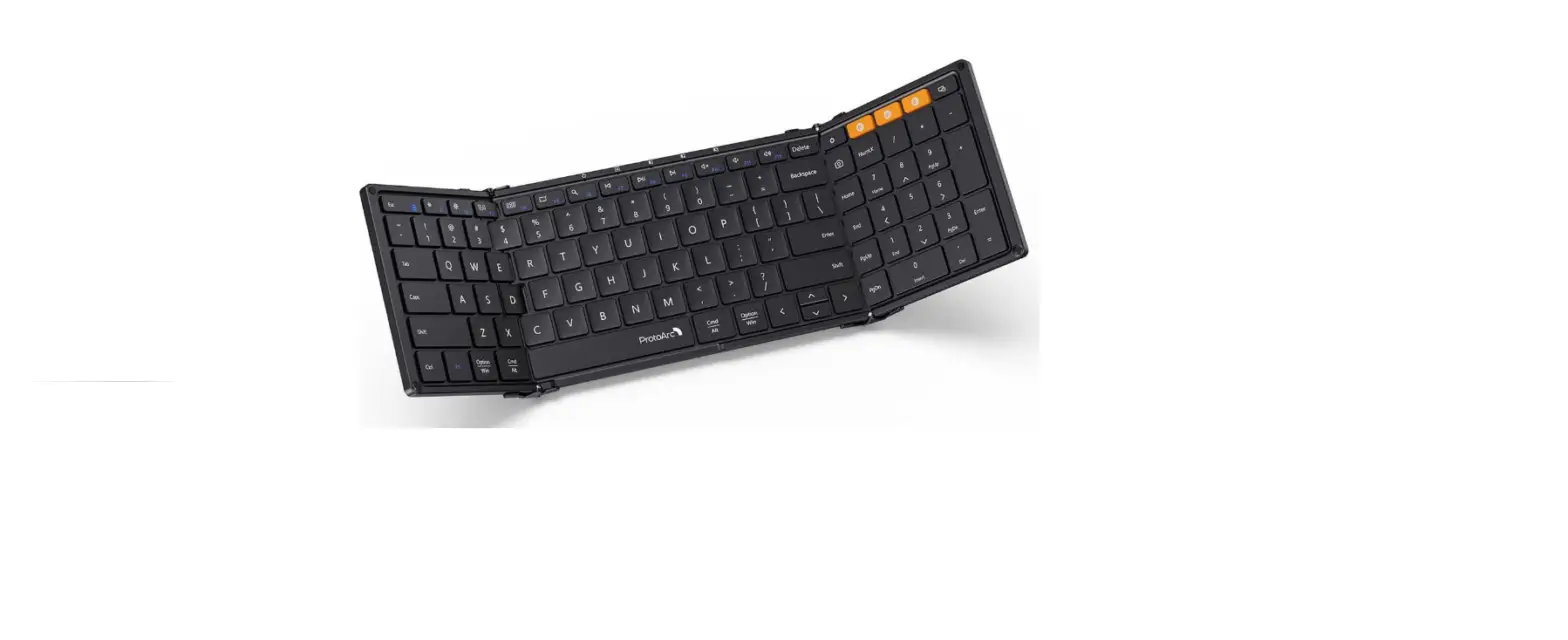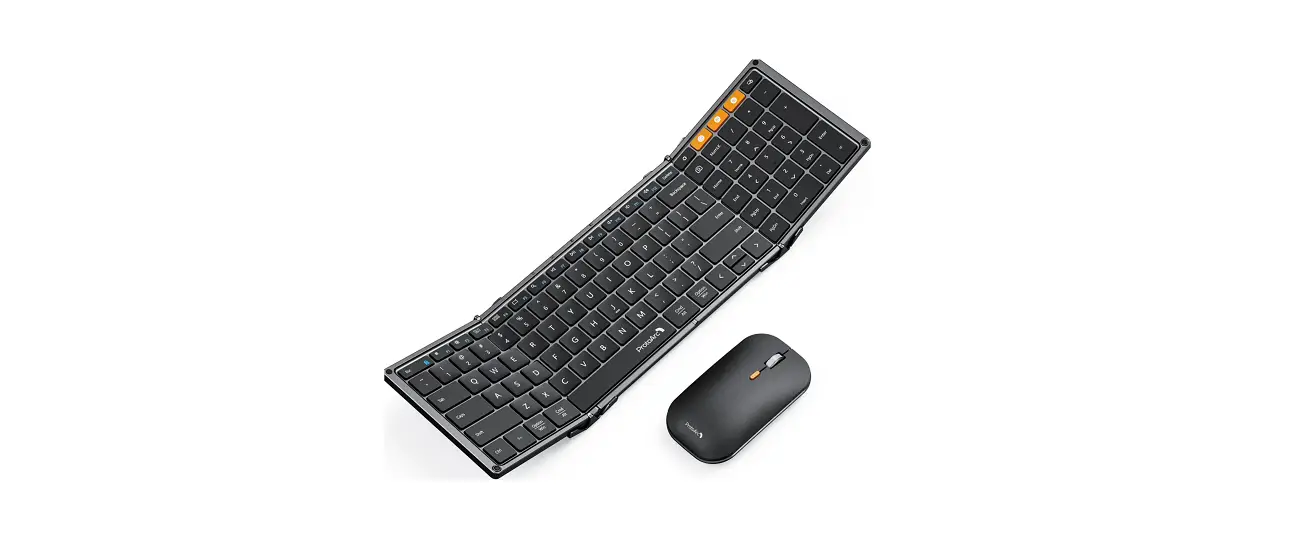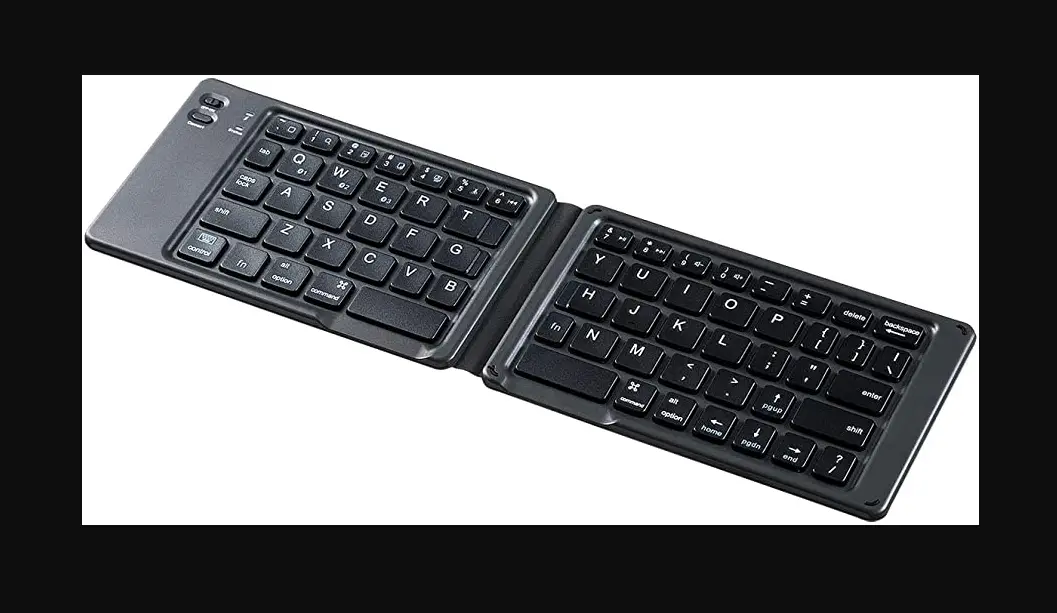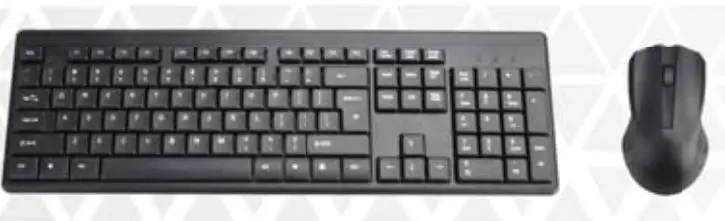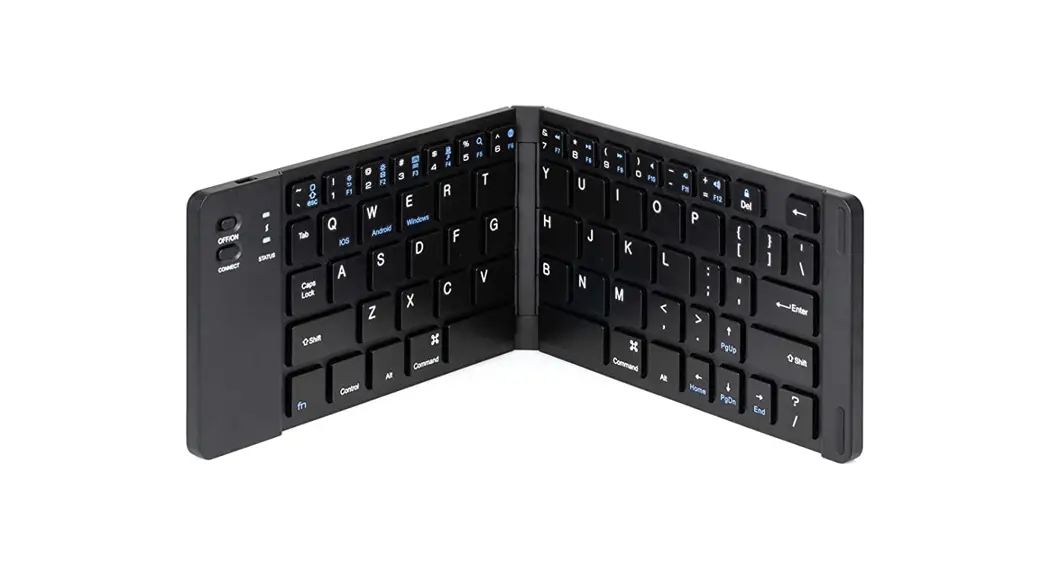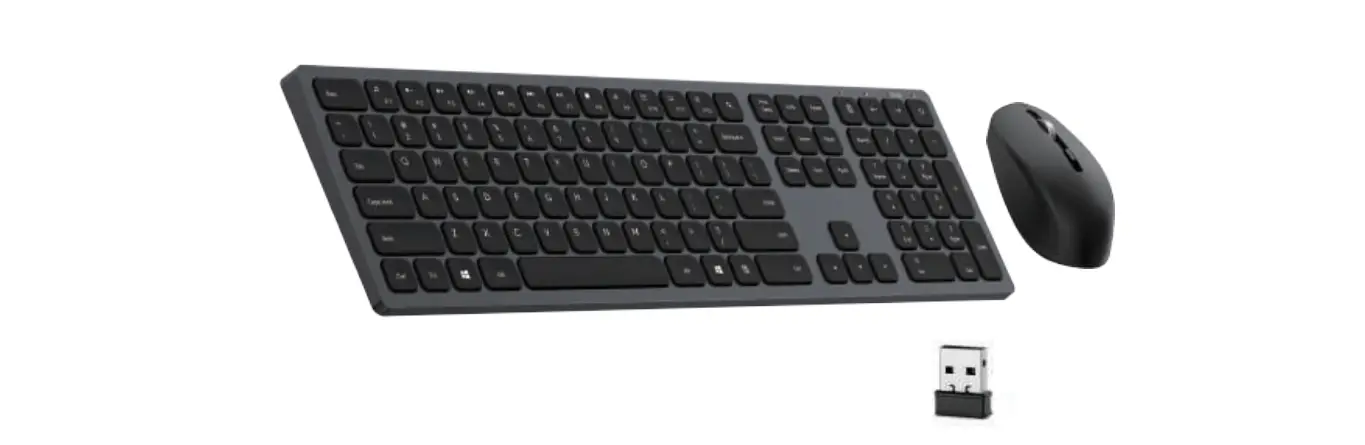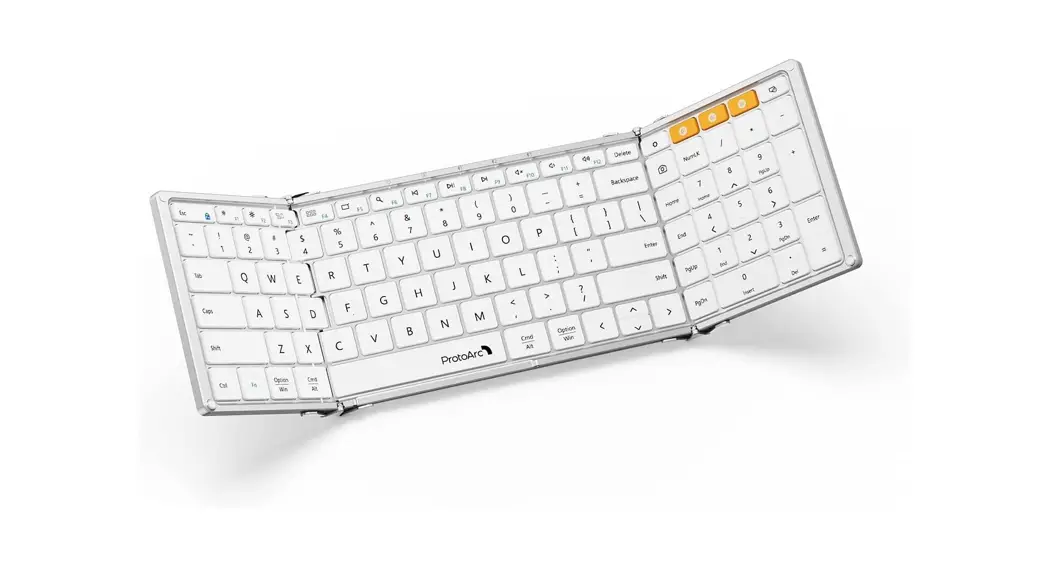
 XKM01
XKM01
User Manual
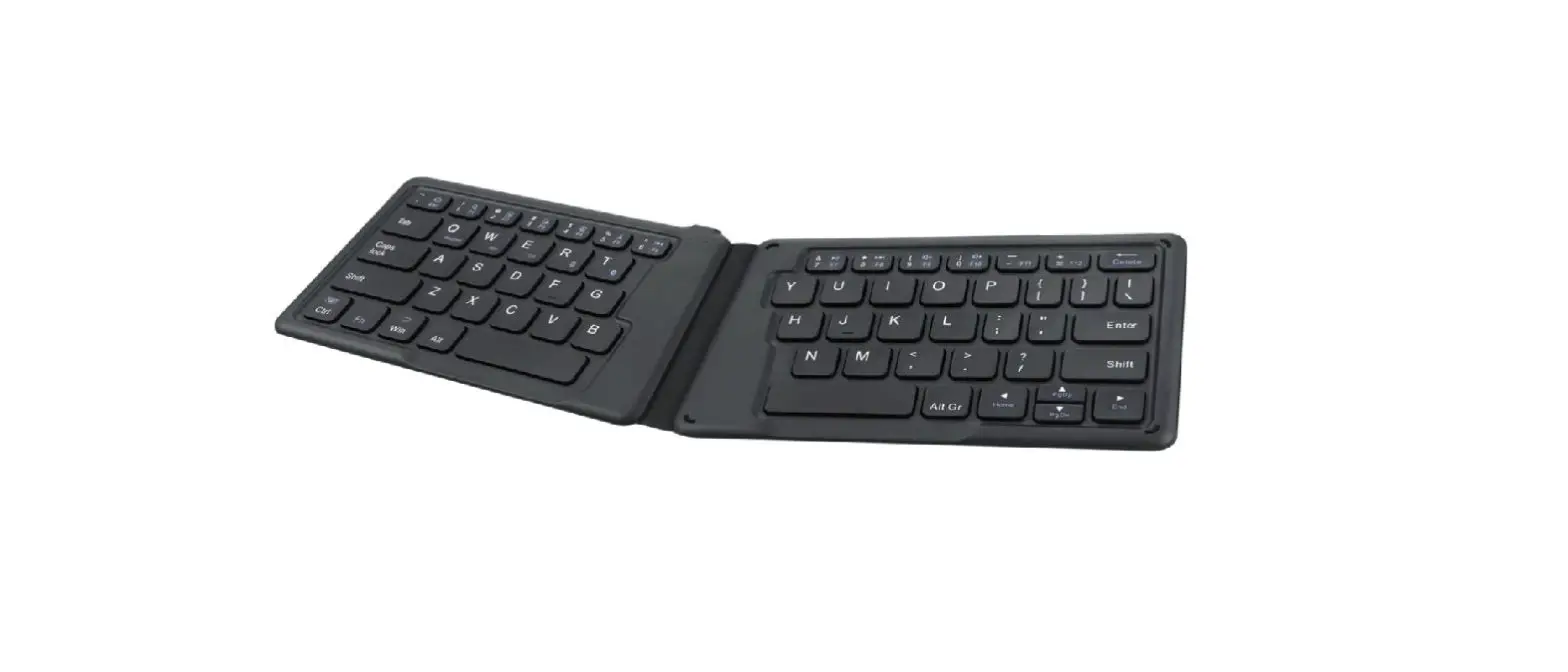
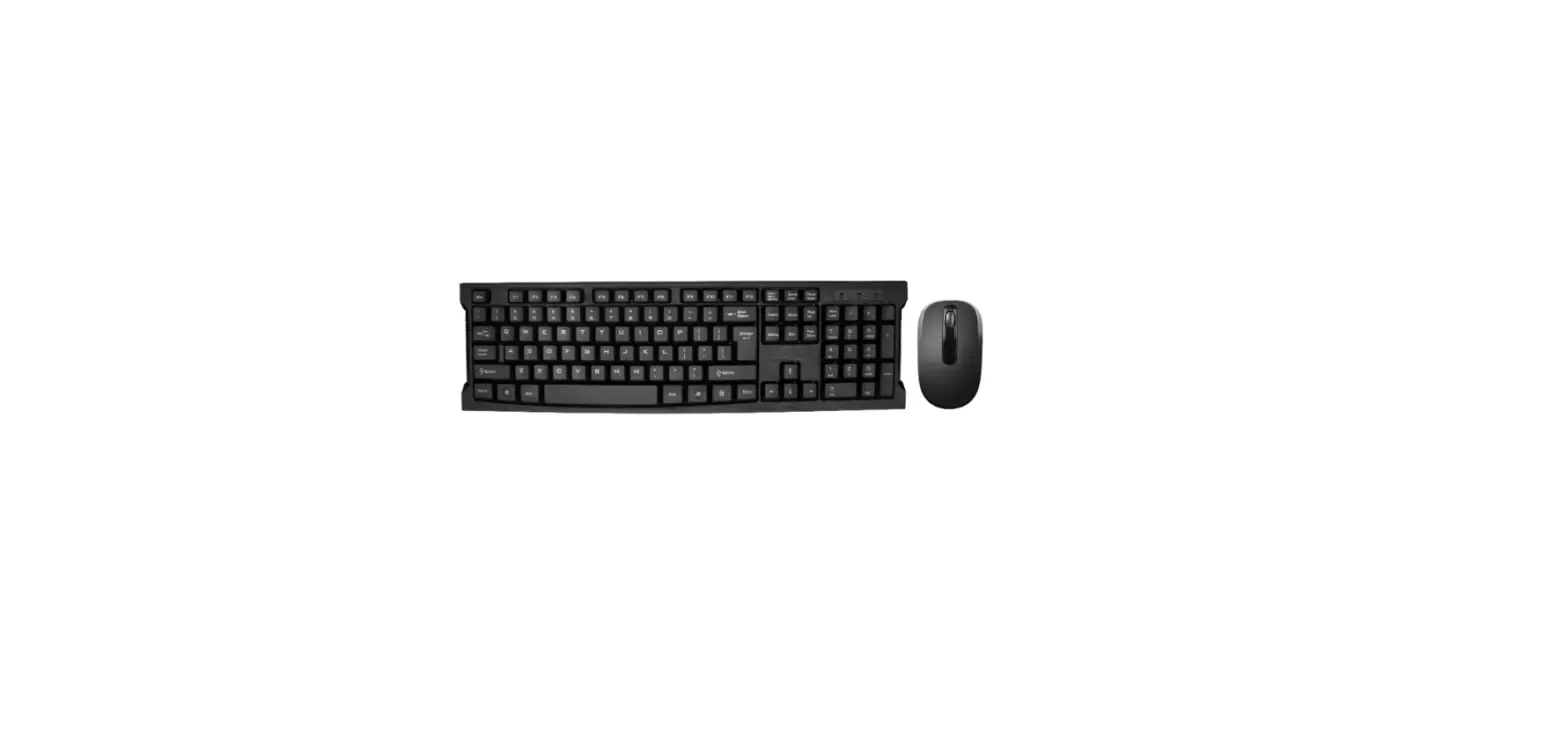
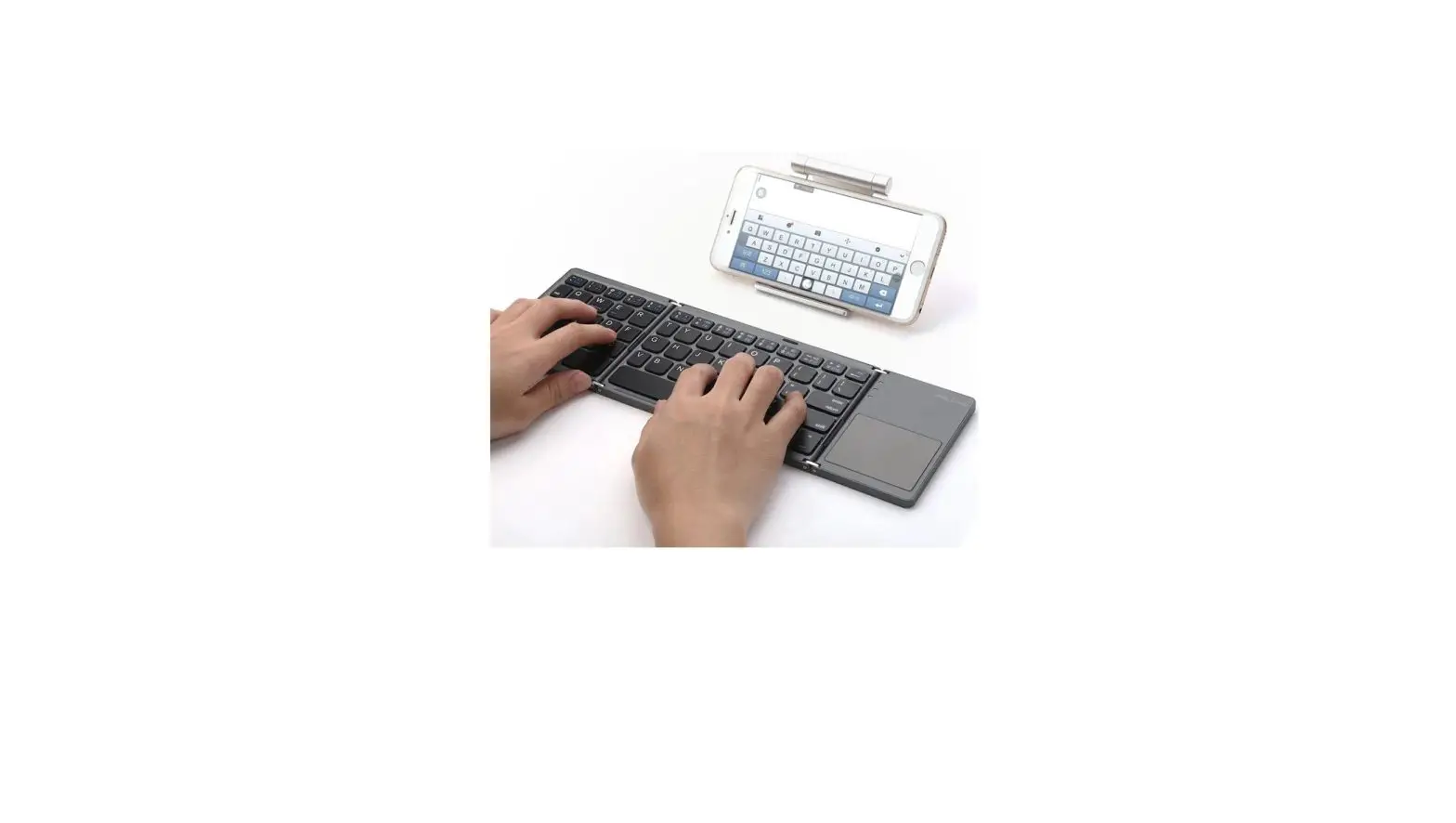
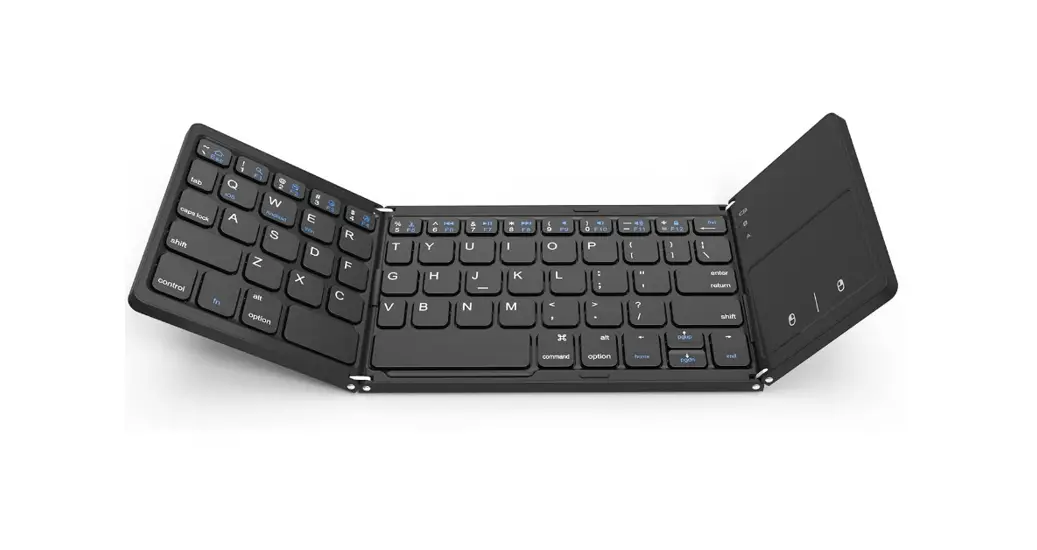
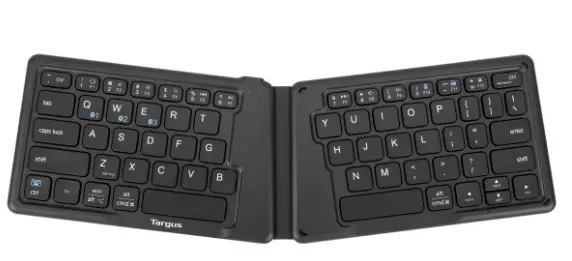
Foldable Full-Size Wireless
Keyboard Mouse Combo
Product Features
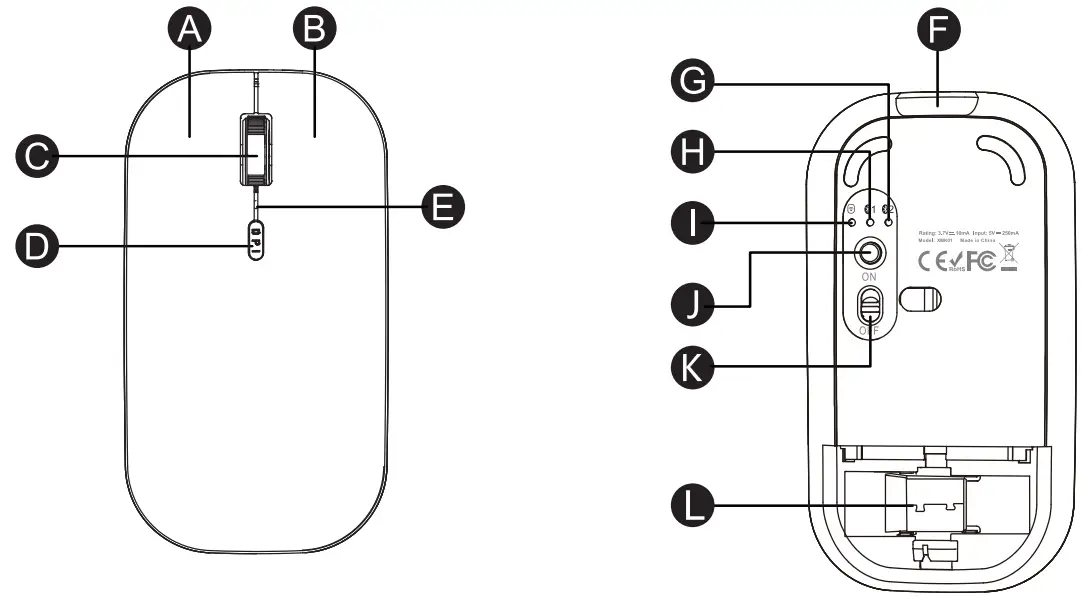
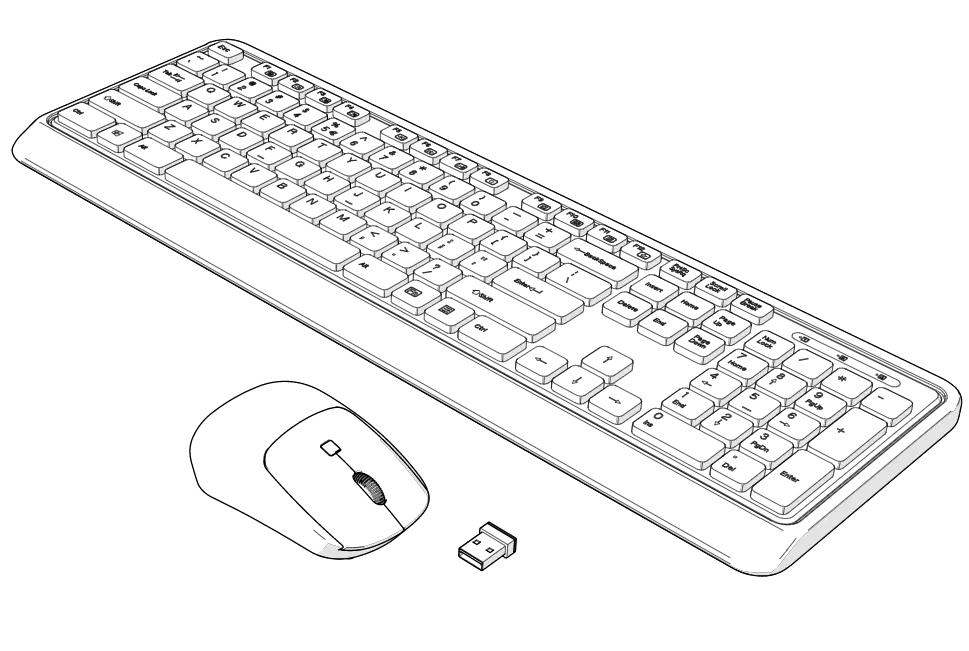
| A. Left Button B. Right Button C. Scroll Wheel Button D. DPI Switch Button E. Charging Indicator Light/ Low Battery In dicator Light F. Type-C Charging Port | G. Bluetooth 2 In dicator Light H. Bluetooth 1 Indicator Light I. USB Indicator Light J. Mode Switch Button K. Power Switch L. USB Receiver |
4G Connection
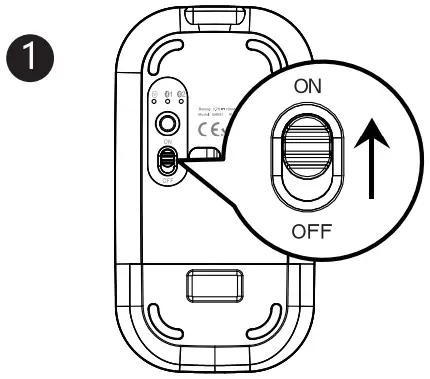 | 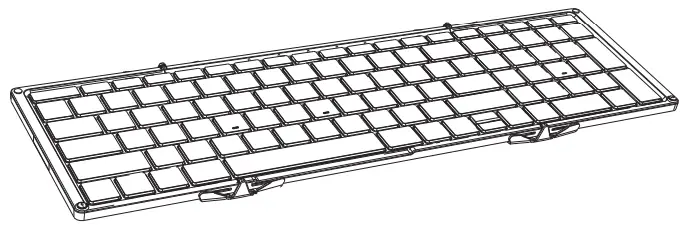 |
| 1. Switch the mouse Power Switch to ON. | 1. Unfold the Keyboard. |
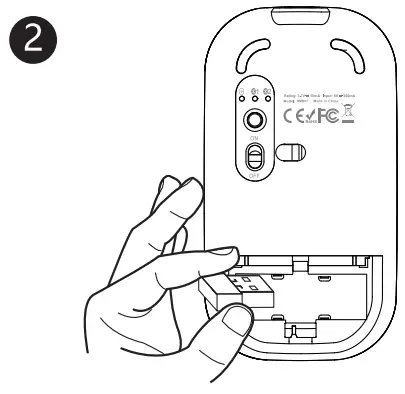 | 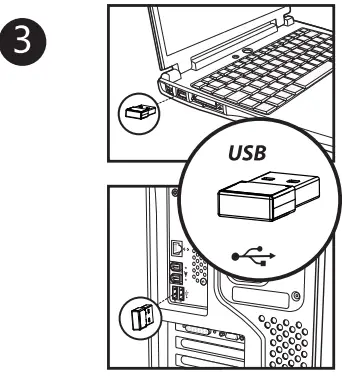 |
| 2. Take out the USB receiver. | 3. Plug into the computer USB port. |
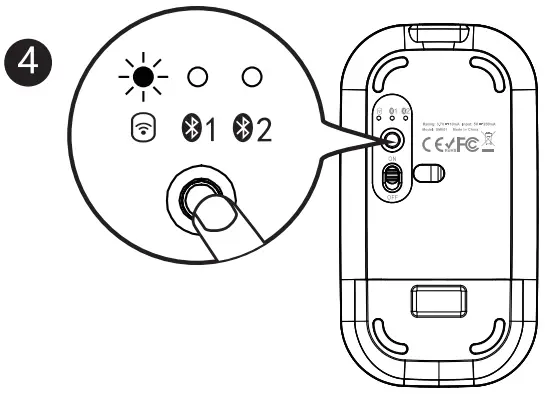 | 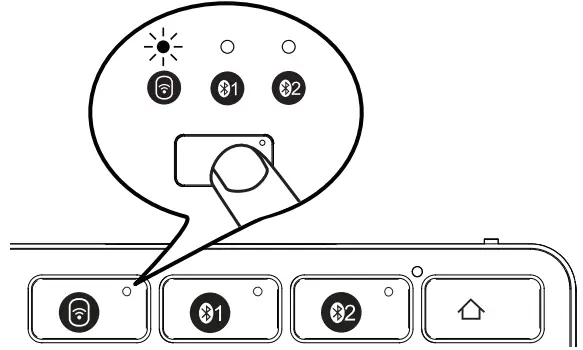 |
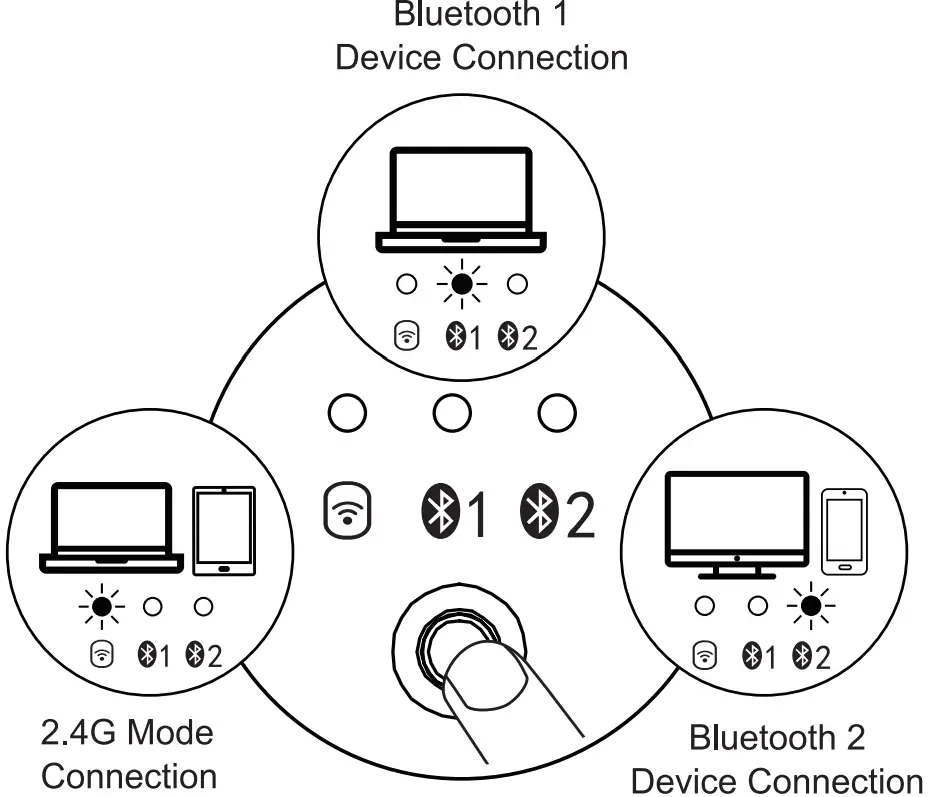
4. Press the Mode Switch Button on the bottom of the mouse until the light is on, the mouse enters into 2.4G mode mode. mouse enters into 2.4G mode mode. | 4, Single press  to switch to this channel, and the indicator light flashes slowly, enter into 2.4G to switch to this channel, and the indicator light flashes slowly, enter into 2.4G |
Mouse Bluetooth Connection
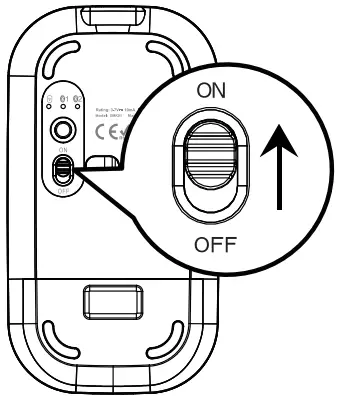
- Switch the mouse Power Switch to ON.

- Press the Mode Switch Button on the bottom of the mouse until the
 light is on, the mouse enters into Bluetooth mode.
- Long press the Mode Switch Button on the bottom o f mouse for 3-5 seconds again, until the light flashes quickly, at this time the mouse enters into the Bluetooth pairing mode.
- Click “Bluetooth Devices” on your computer

- Click “add or Delete bluetooth Devices”

- Bluetooth search for “ProtoArc XKM01”, click “ Pair”

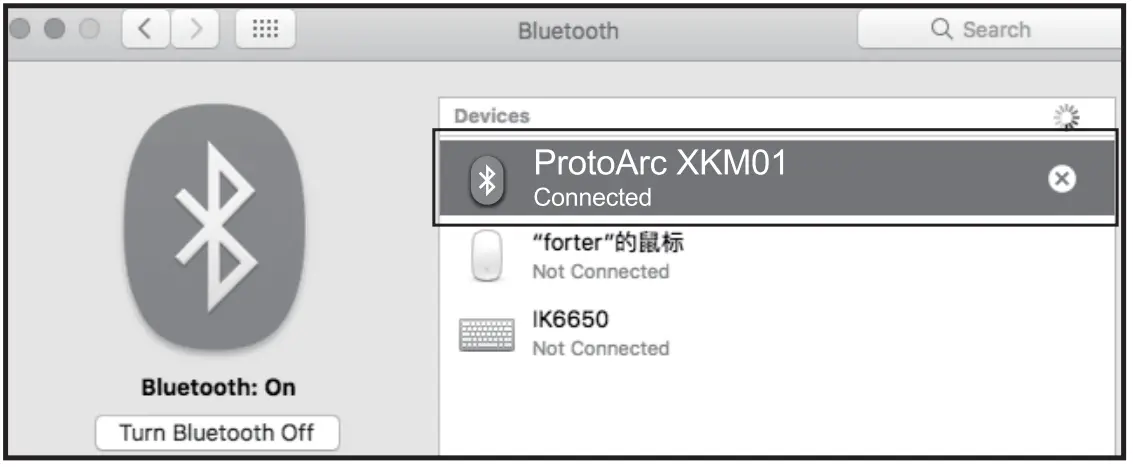
- “ProtoArc XKMO01” is “Connected”, the mouse can be used normally.

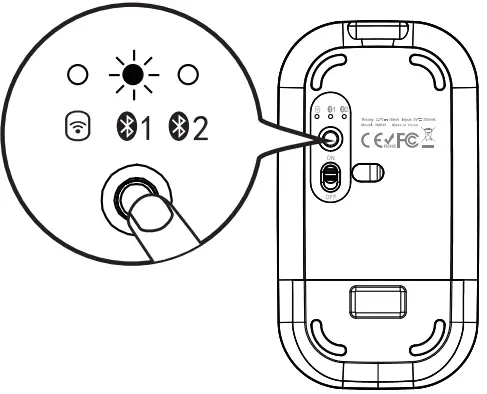
 light is on, the mouse enters into Bluetooth mode.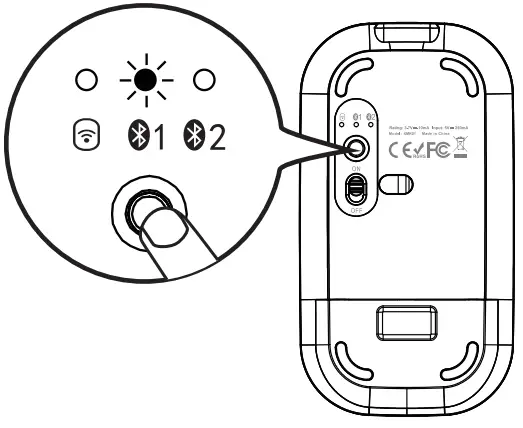
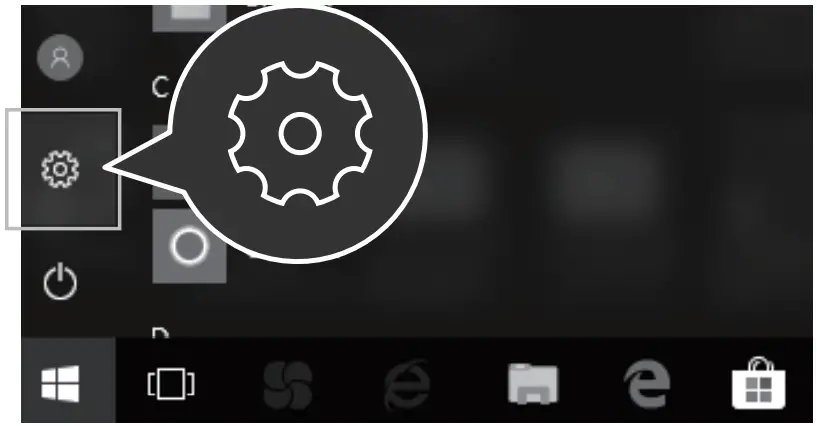
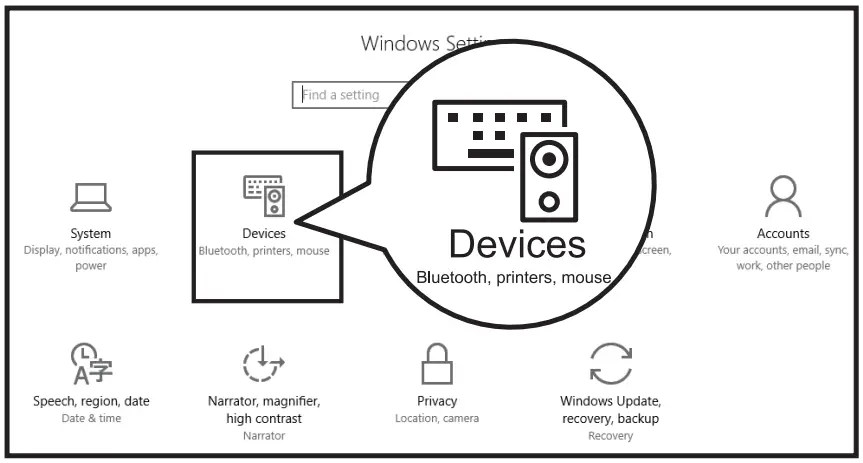
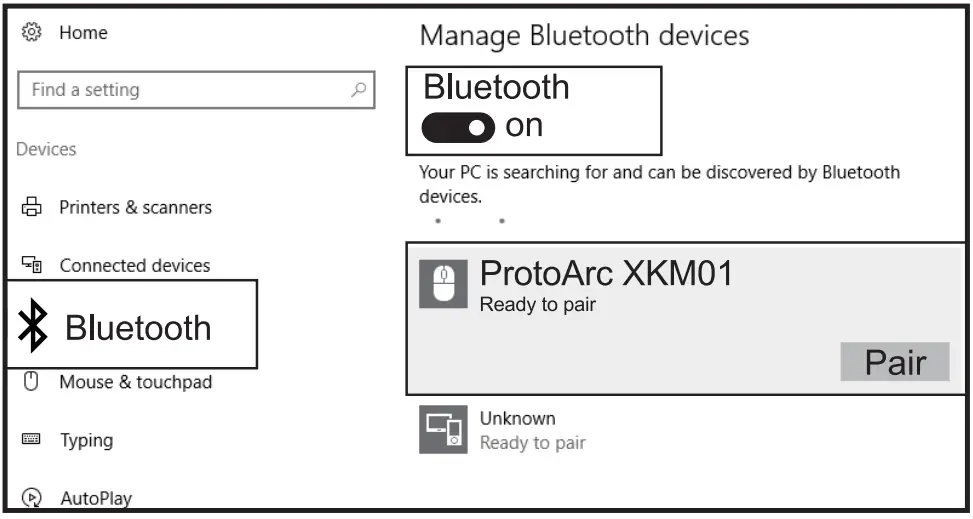
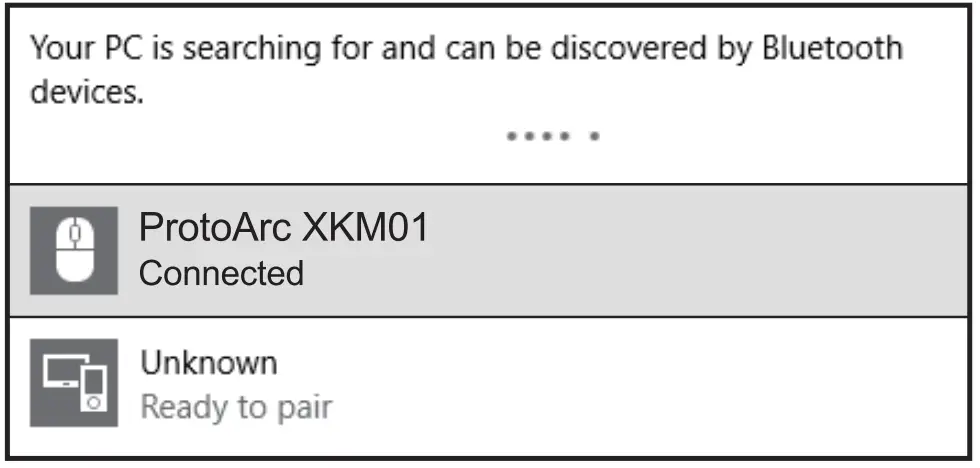
Mac OS System(Mouse)
Before pairing, please operate the Bluetooth mode installation procedures 1 2 3 .
4. Click “System Preferences” on Mac
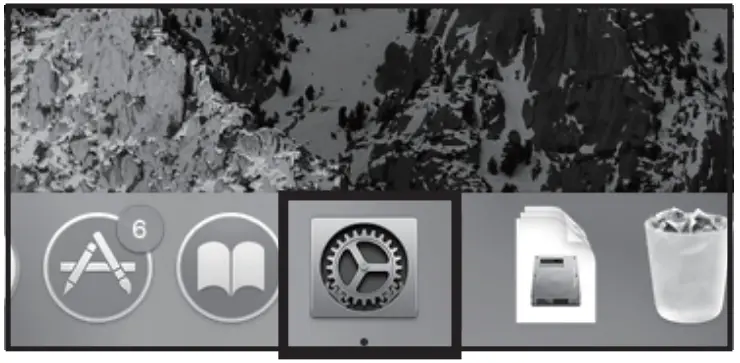
5. Click “Bluetooth” In”Symtem Oreferences”.
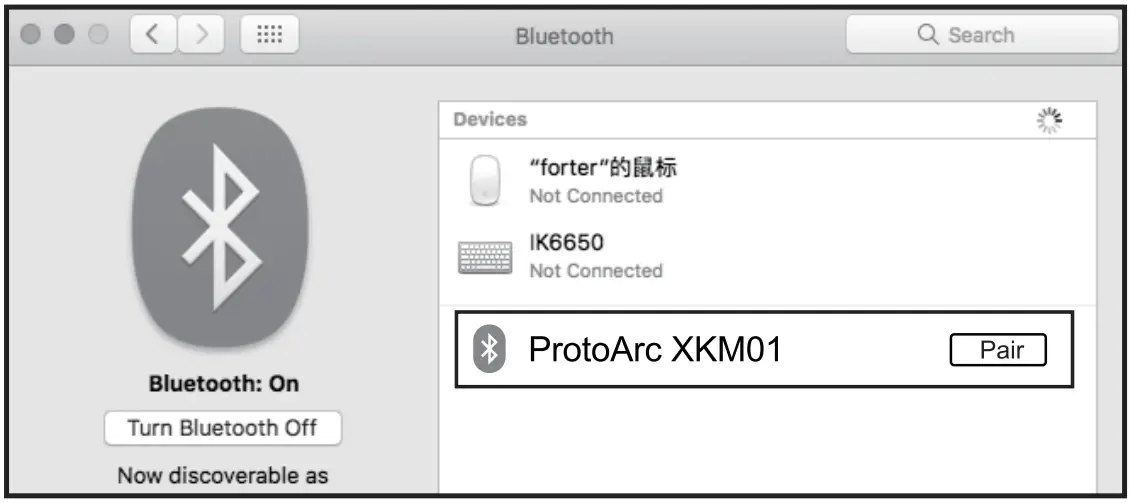
6. Bluetooth search for “ProtoArc XKMO1″and click ” Pair ” to complete the installation, the mouse can be used normally.
iOS System(Mouse)
* The mouse function is o n l y supported by systems above iPad OS 13/ iOS 13. Before pairing, please operate the Bluetooth mode installation procedures1 2 3 .
4. Click “Settings” on your device and click “Accessibility”.
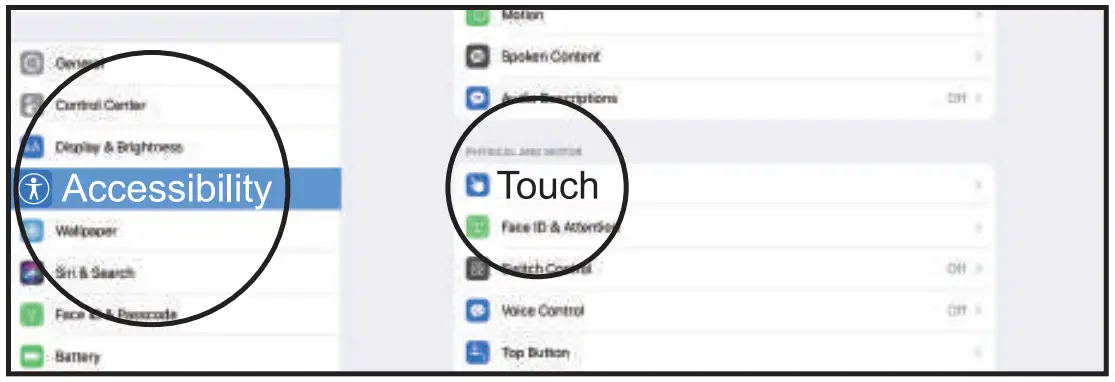 5. Click “Touch”.
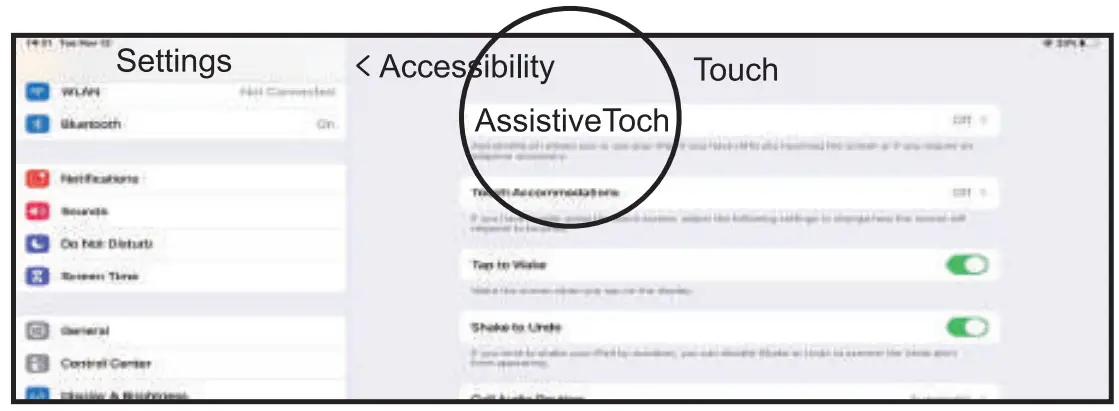
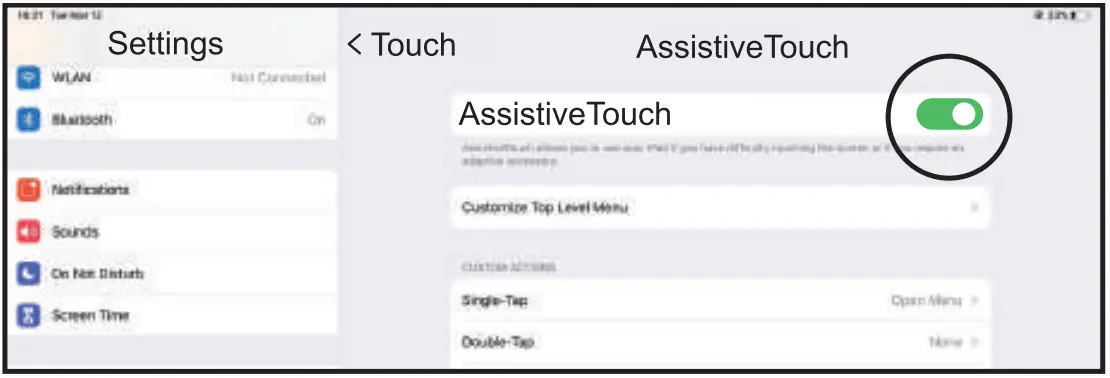
6. Turn on “Assistive Touch”.
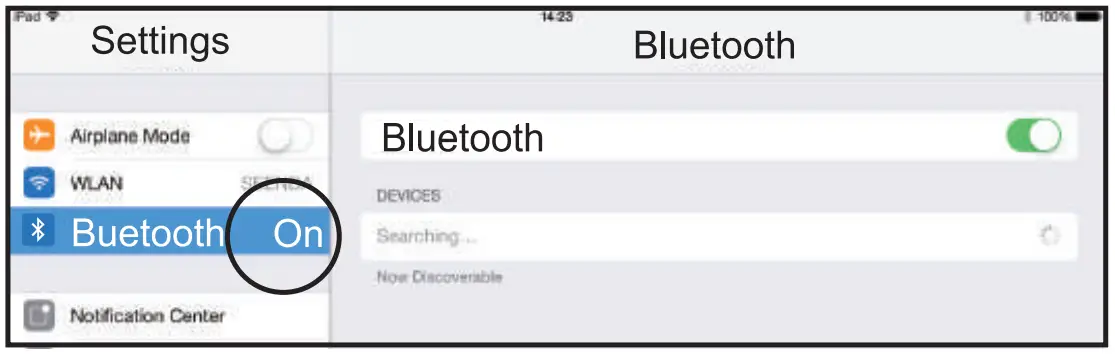
 7. Click “Settings” on your device and turn on “Bluetooth”.
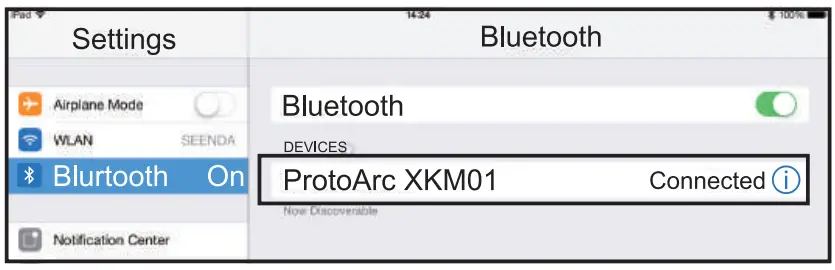
8. Bluetooth search for “ProtoArc XKMO1″and click ” Pair ” to complete the pairing process.
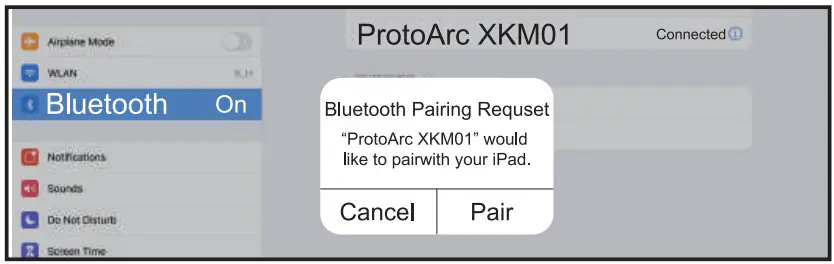
9. “ProtoArc XKMO1” is “Connected”, the mouse can be used normally.
Android System({Mouse)
Before pairing, please operate the Bluetooth mode installation procedures1 2 3.
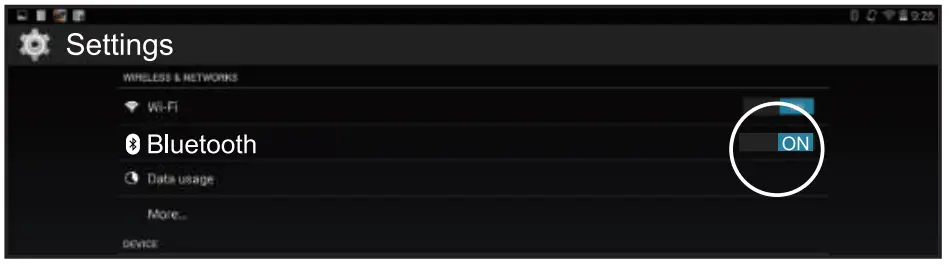
4. Click “Settings” on your device and t u r n on “Bluetooth”.
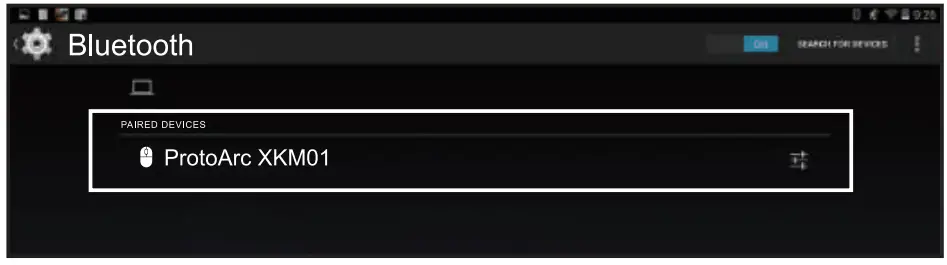
 5. Bluetooth search for “ProtoArc XKMO1″ and click ” Pair ” to complete the pairing process.
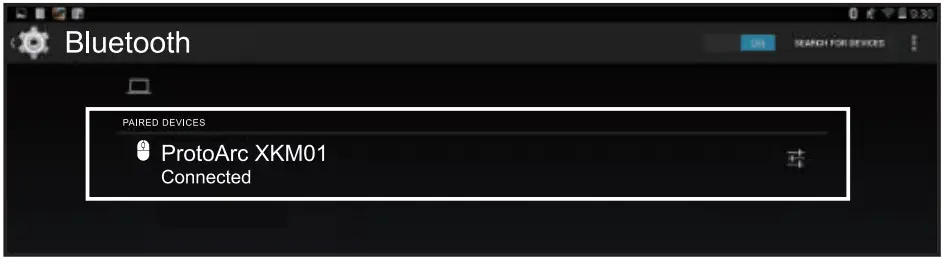
6. “ProtoArc XKM01” is “Connected”, the mouse can be used normally.
Keyboard Bluetooth Connection
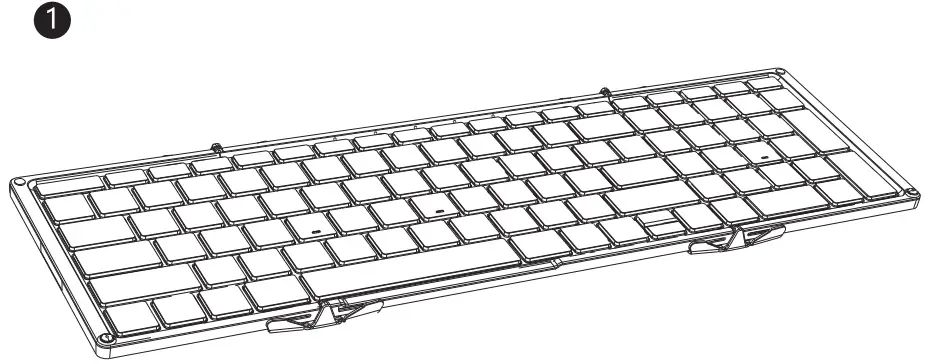
- Unfold the Keyboard

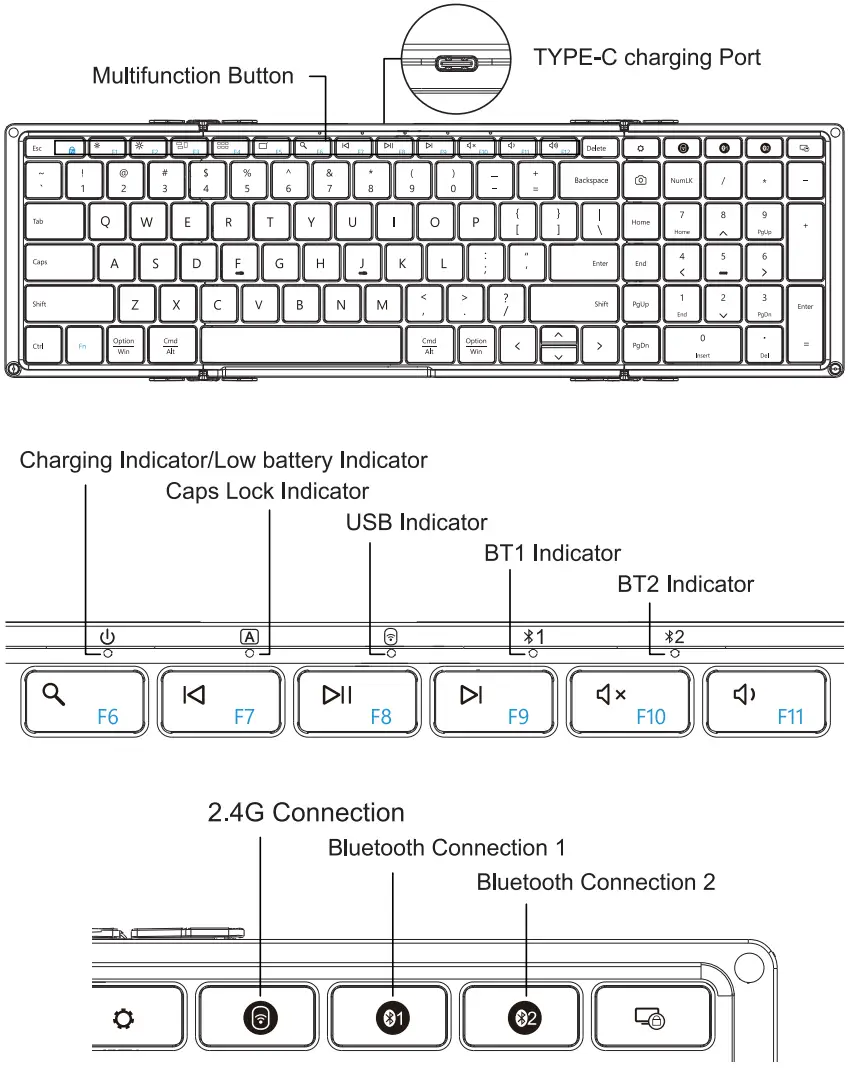
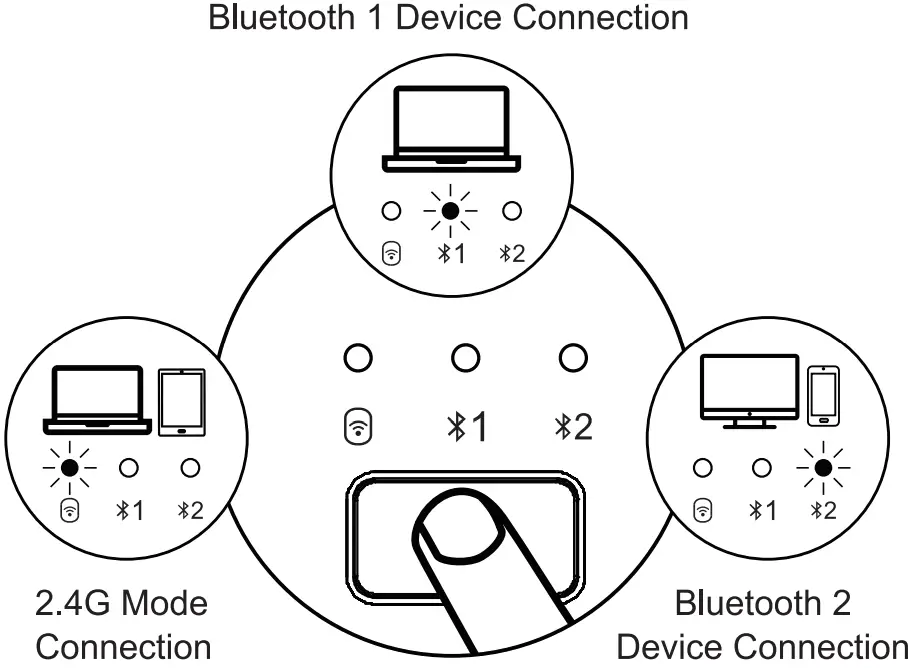
- Single press to choose any Bluetooth connection . the blue indicator light flashes once to enter Bluetooth mode. Then long press for 3-5s, when the blue indicator light flashing quickly, it enters Bluetooth pairing mode.
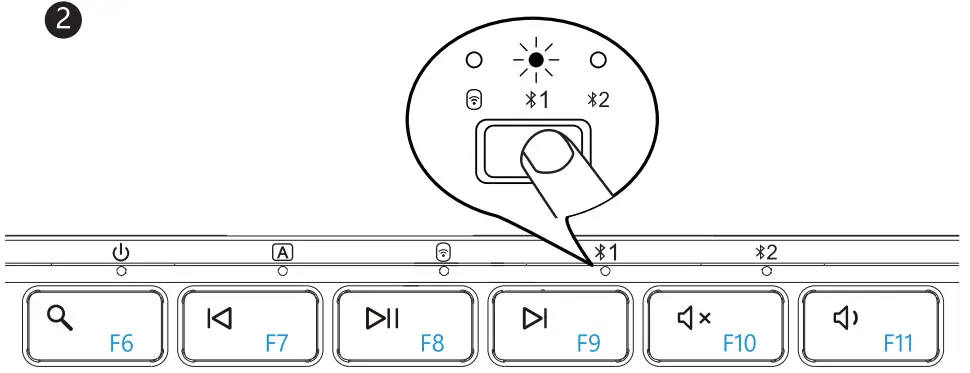
Windows 10 System(Keyboard)
4. Click “Bluetooth Devices” on your computer.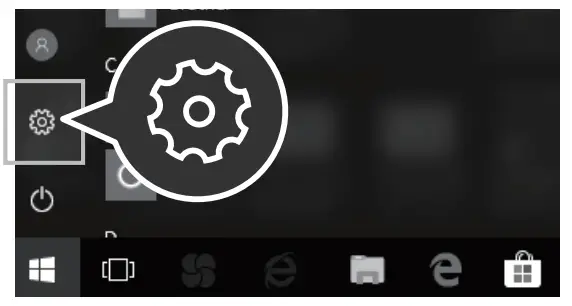
5. Click “Add or Delete Bluetooth Devices”.
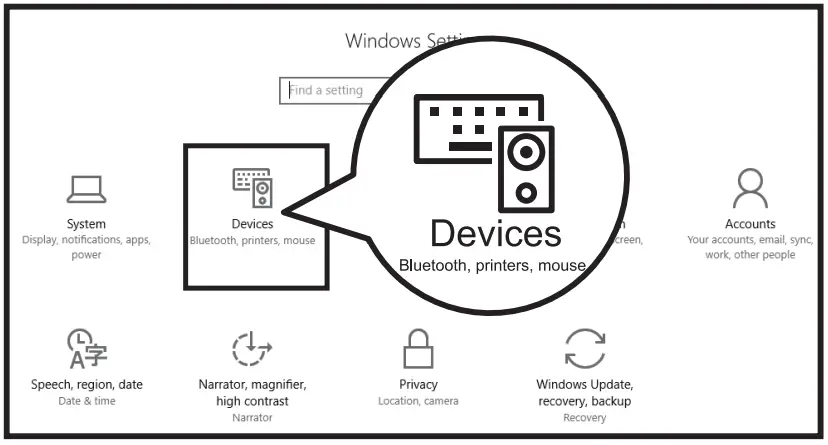 6. Bluetooth search for “ProtoArc XKM01”, click “Pair”.
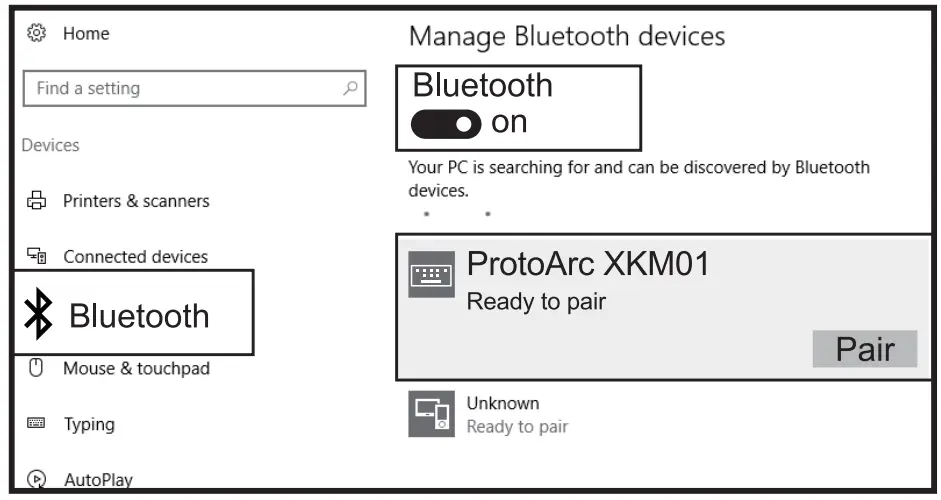
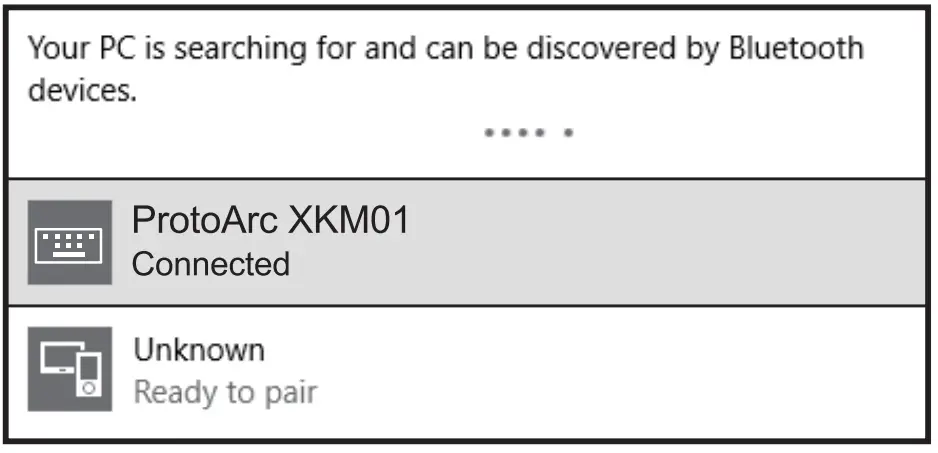
7. “ProtoArc XKM01″ is “Connected”, the keyboard can be used normally.
Mac OS System(Keyboard)
Before pairing, please operate the Bluetooth mode installation procedures 1.2.3.
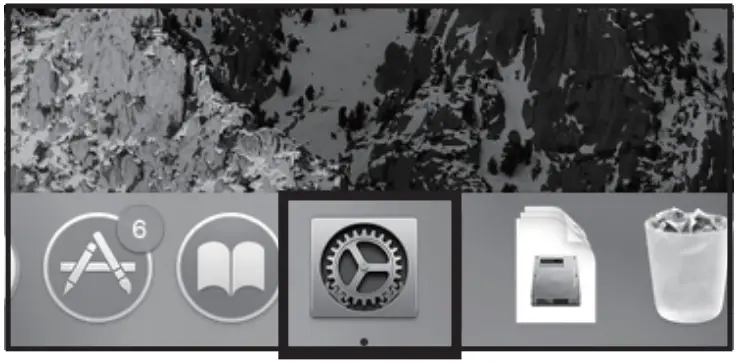
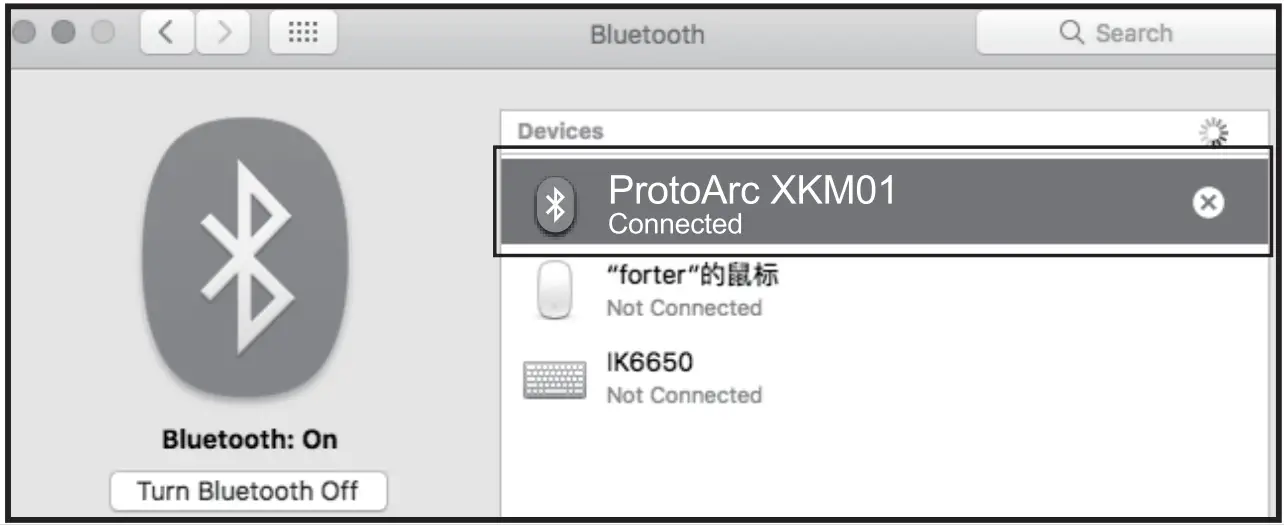
4. Click “System Preferences” on Mac.
 5. Click “Bluetooth” in “System Preferences”.
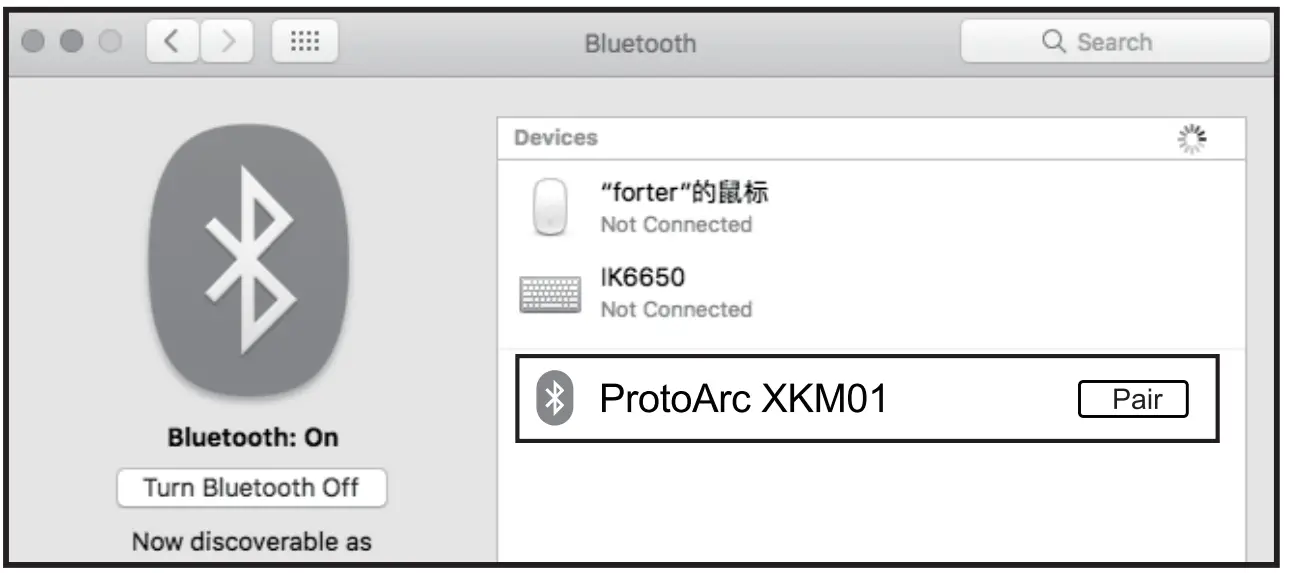
6. Bluetooth search for “”ProtoArc XKM01″ and click ” Pair ” to complete the installation, the keyboard can be used normally.
iOS System(Keyboard)
Before pairing, please operate the Bluetooth mode installation procedures 1 2.
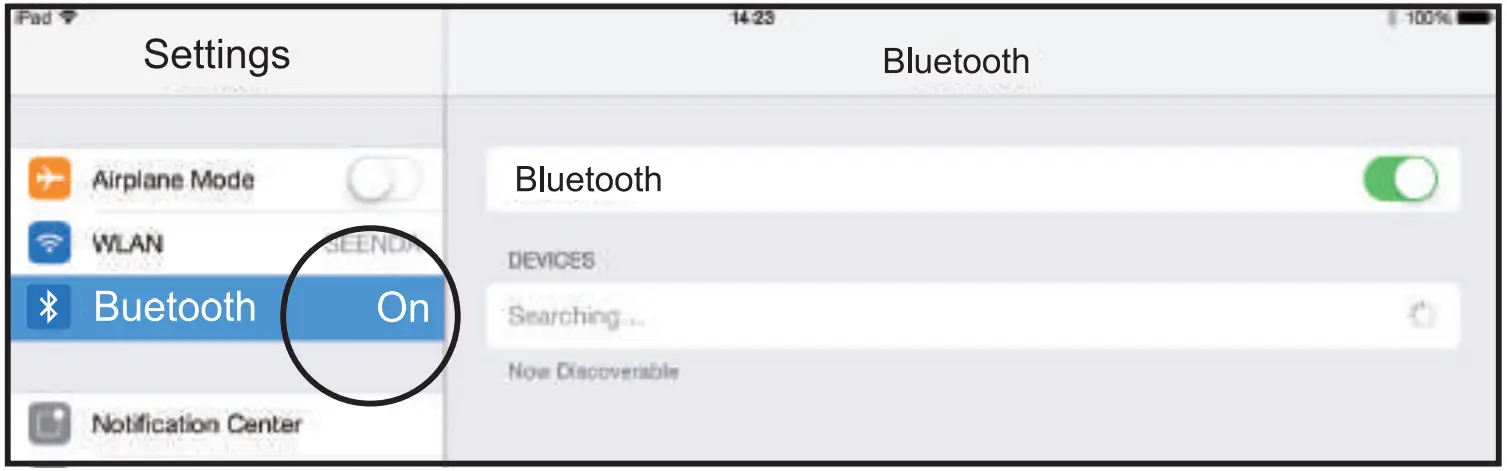
4. Click “Settings” on your device and turn on “Bluetooth’.
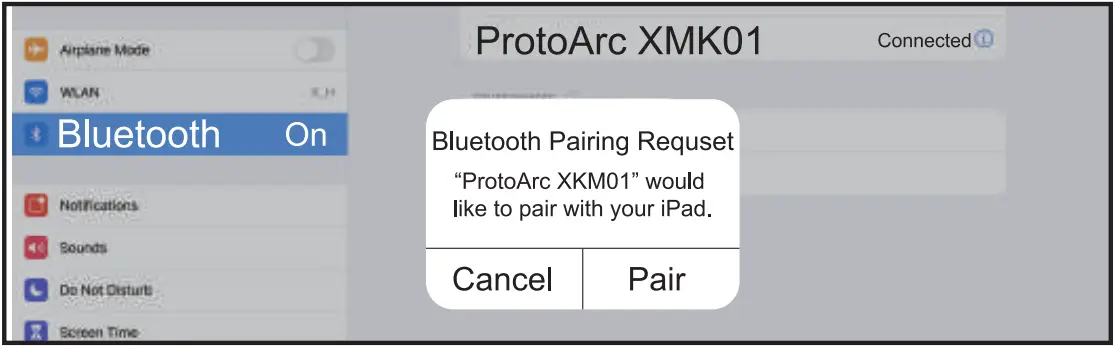
5. Bluetooth search for “ProtoArc XKM01” and click “Pair” to complete the pairing process.
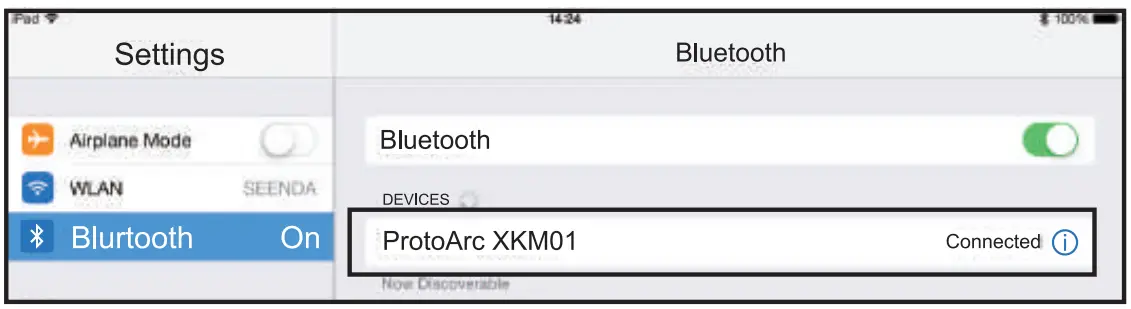
6. “ProtoArc XKM01” is “Connected”, the keyboard can be used normally.
Android System(Keyboard)
Before pairing, please operate the Bluetooth mode installation procedures 1 2 .
4. Click “Settings” on your device and tum on “Bluetooth”.
5. Bluetooth search for “ProtoArc XKM01″ and click ” Pair ” to complete the pairing process.
6. “ProtoArc XKM01” is “Connected”, the keyboard can be used normally.
Mouse Mode Switch Method
 After are connected, short press Mode Switch Button on the bottom of the mouse, easily switch between multiple devices.
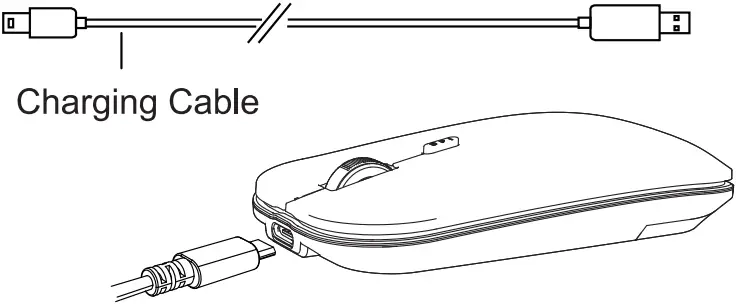
Mouse Charging
 After are connected, short press the channel key on the keyboard, easily switch between multiple devices.
keyboard Charging
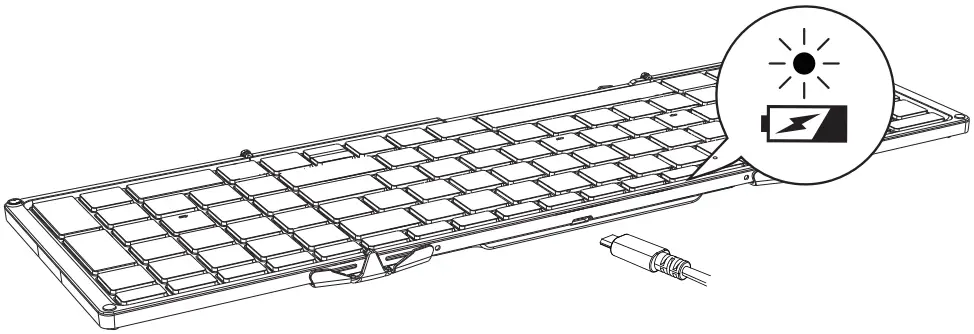
When the battery is too low, the low battery indicator will turn red and flash quickly. Please connect to the power supply to charge i n time to ensure that the keyboard has sufficient power to meet normal work.
If the battery of the keyboard is too low, there will be delays and freezes and other problems i n typing, which affect normal use.
Power indicator turns red while charging, then turn off after fully charged.
Multimedia Function Keys
| Keys | Windows OS | Android OS | iOS | Mac OS |
 | Light – | Light – | Light – | Light – |
 | Light + | Light + | Light + | Light + |
 | Window Switch | Window Switch | Window Switch | Window Switch |
 | Application Switch | Application Switch | Open latest Window | Open latest Window |
 | Display Desktop | Go Home | Go Home | Go Home |
 | Search | Search | Search | / |
 | Previous Track | Previous Track | Previous Track | Previous Track |
 | Play & Pause | Play & Pause | Play & Pause | Play & Pause |
 | Next Track | Next Track | Next Track | Next Track |
 | Mute | Mute | Mute | Mute |
 | Volume – | Volume – | Volume – | Volume – |
 | Volume + | Volume + | Volume + | Volume + |
 | Setup | Setup | Setup | Setup |
 | Lock Screen | Lock Screen | Lock Screen | / |
 | Screenshot | Screenshot | Screenshot | Screenshot |
 | FN+ESC (FN lock button to turn on or turn off the FN function | |||
Note: The FN function is a cyclic mode (F1-F12 and multimedia functions are cyclically used ) .
Product Parameters
Keyboard Parameters:
| Battery Capacity | 210 mAh |
| Working Current | ≤ 3.5mA |
| Sleep Current | 31 uA |
| Charging Current | 190 mA (±20mA) |
| Standby Current | ≤ 0.3 mA |
| Standby Time | ≥150 Days |
| Charging Time | < 2 Hours |
| Wake Up Way | Press any key |
| Weight | 297 g |
| Keyboard Dimension | 386.4×119.7×12.4mm(Unfolded) 215.5×119.7×20.9mm(Folded) |
Mouse Parameters:
| Engine | Optics |
| DPI | 1000/1600/2400 DPI |
| Mouse Button Life | More than 3 million times |
| Battery Capacity | 300mAh |
| Battery Life | 1000 times charge and discharge cycles |
| Standby Time | 200 Days |
| Continuous Working Time | 50 hours |
| Mouse Dimensions | 107.9*59.1*20.1mm |
2.4G Transmission Parameters:
| Transmission Distance | 10m |
| Working Voltage | 3.7V |
| Working Current | <5mA |
| Polling Rate | 250Hz |
| System Requirements | An available USB port Windows XP, Windows 7, Windows 8, Windows 10 or higher version Mac OS X 10.10 or higher version |
Bluetooth Transmission Parameters:
| Transmission Distance | 10m |
| Working Voltage | 3.7V |
| Working Current | <5mA |
| Polling Rate | 250Hz |
| System Requirements | Bluetooth receiving device Windows 8, Windows 10 o r higher version Mac OS X 10.10 or higher version Android 4.3 o r higher version |
Tips
- If it fails t o connect normally, i t is recommended to turn off the keyboard power, restart the Bluetooth of the device and connect again. Or delete the extra Bluetooth option name in the Bluetooth connection list of the device and reconnect.
- To switch to a channel that has been successfully connected, first press the channel button firstly, and then wait 3 seconds to keep working.
- The keyboard mouse has memory function, when the keyboard mouse is connected properly at one channel, turn off the keyboard mouse and tum on again, the Zeyboard mouse will be in the default channel, and the indicator of this channel is on.
Sleep Mode
- When the keyboard is not used for more than 30 minutes , it will automatically enter the sleep mode and the indicator light will be off.
- When you use the keyboard again, you only need to press any key , and the keyboard will wake up within 3 seconds. The indicator willlight up again and starts to work.
Packing List
 1* Wireless Bluetooth Keyboard1* Wireless Bluetooth Mouse 1* Type-C C h a r g i n g Cable 1* Hard Carrying Case1* Phone Holder 1* User Manual