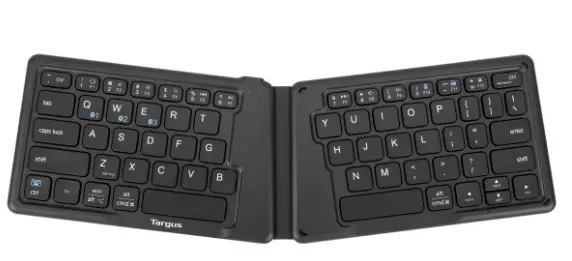
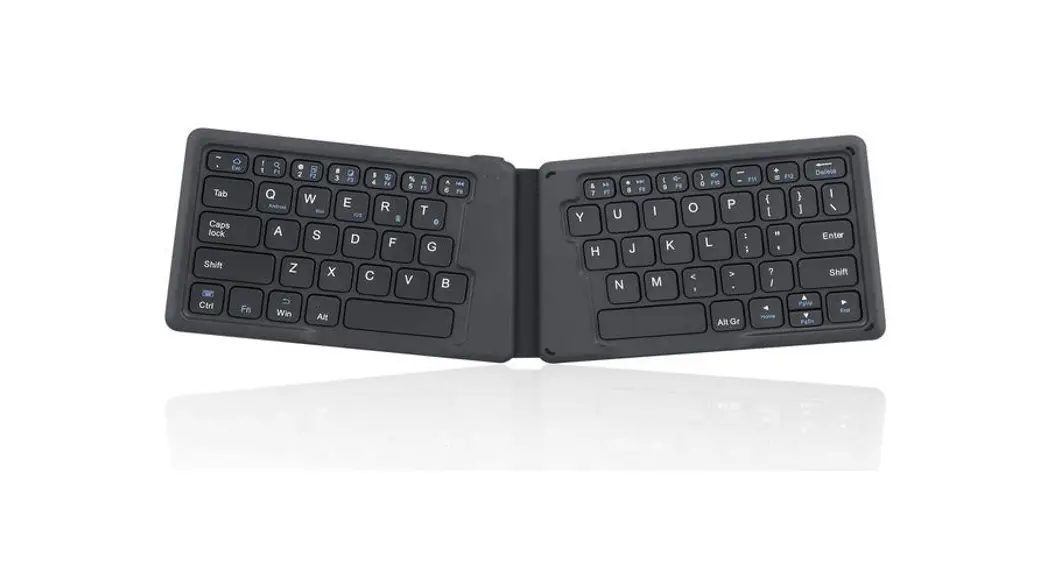
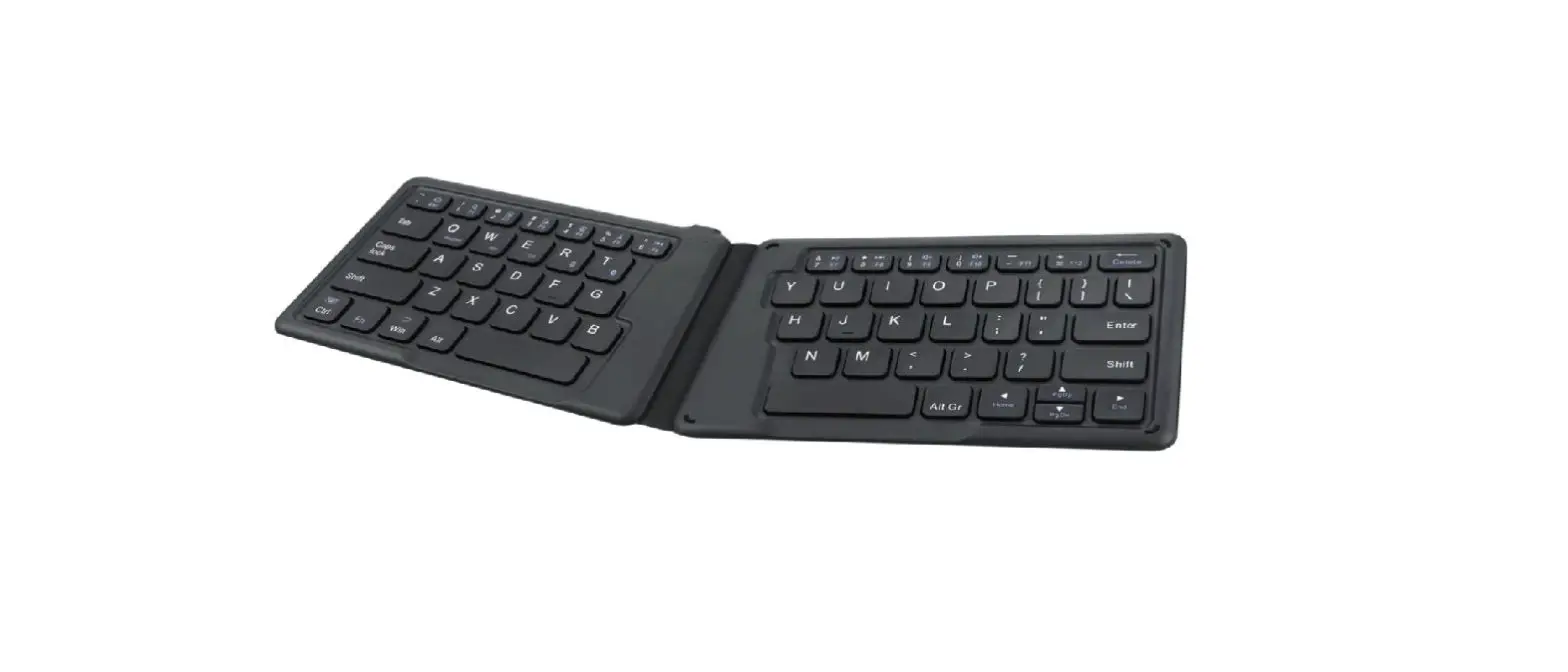
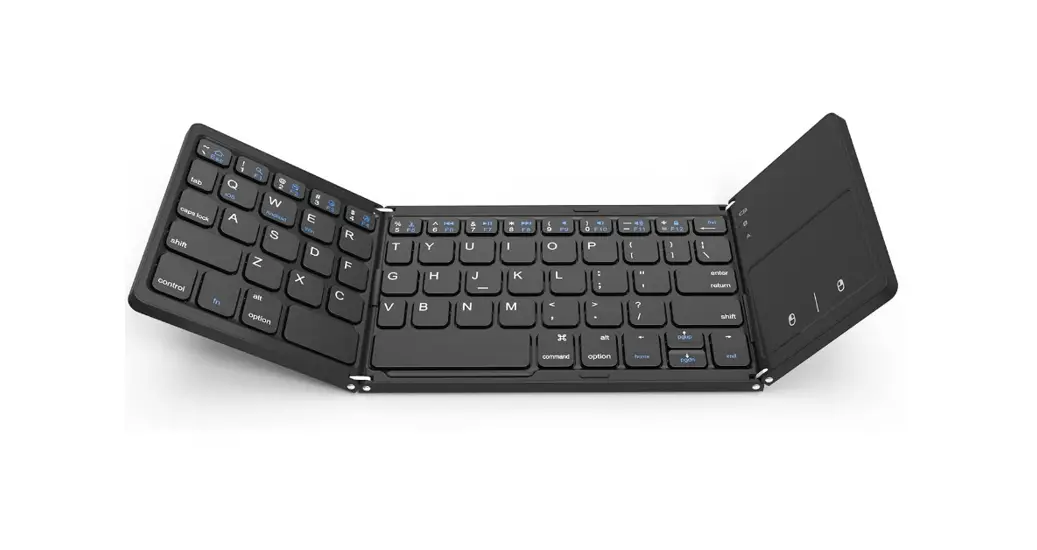
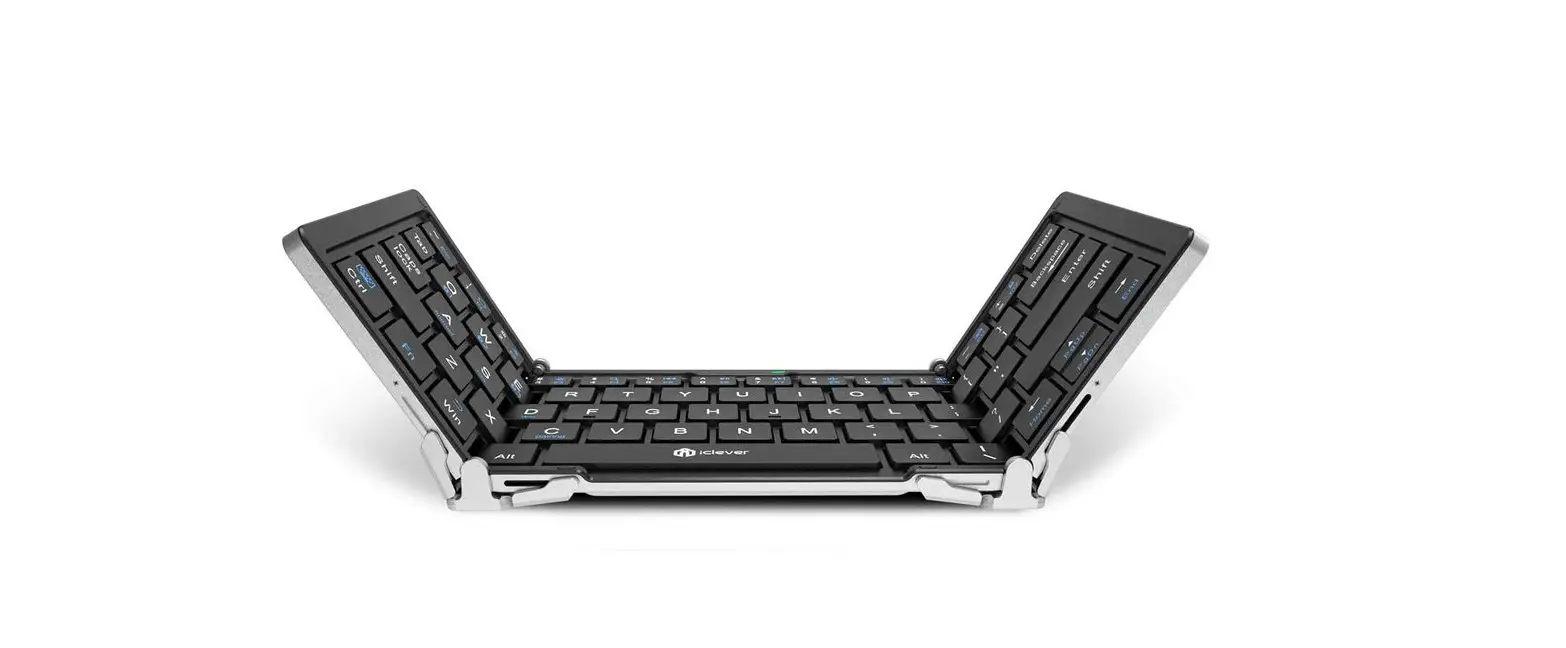
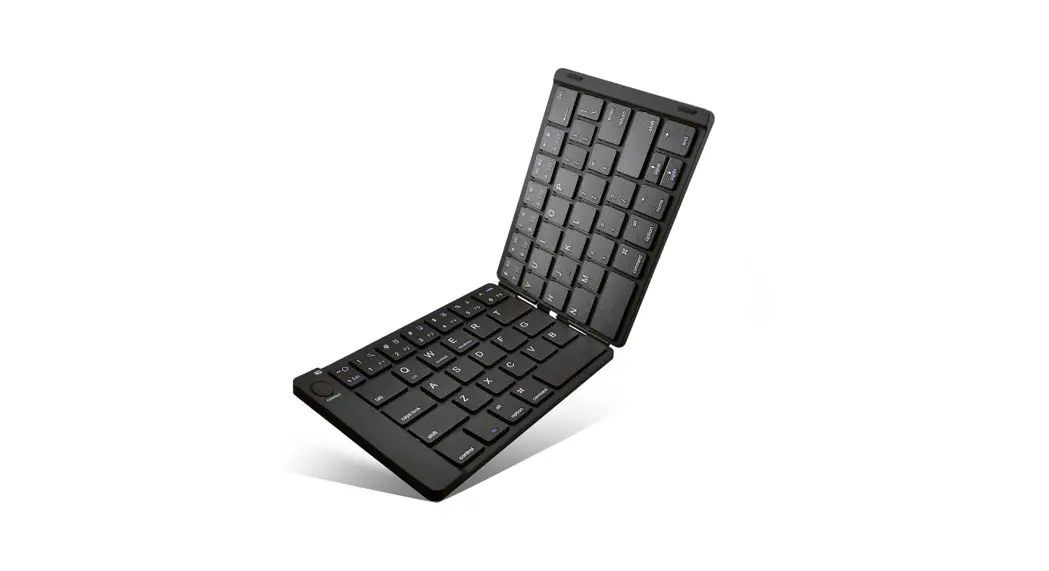
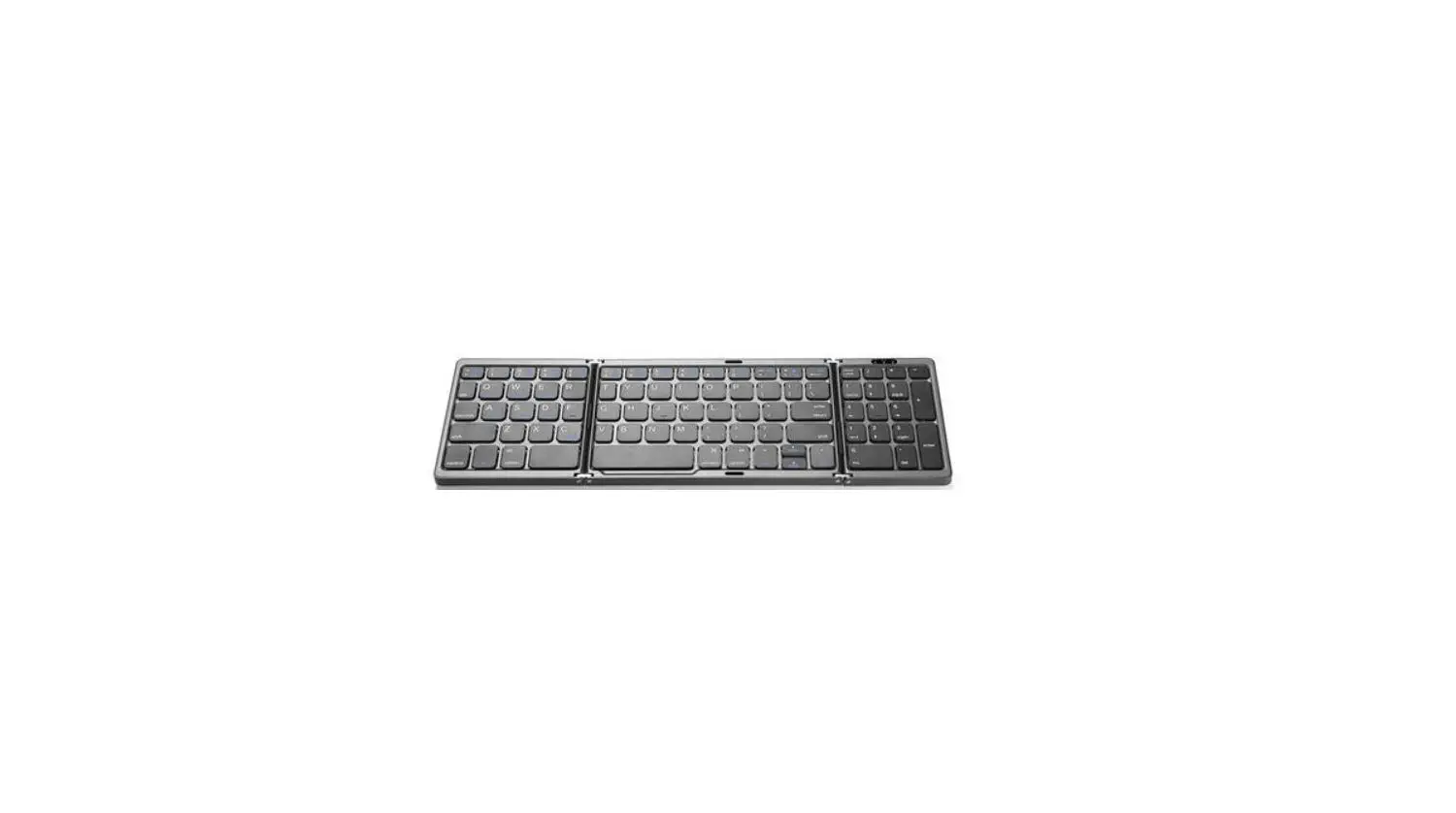
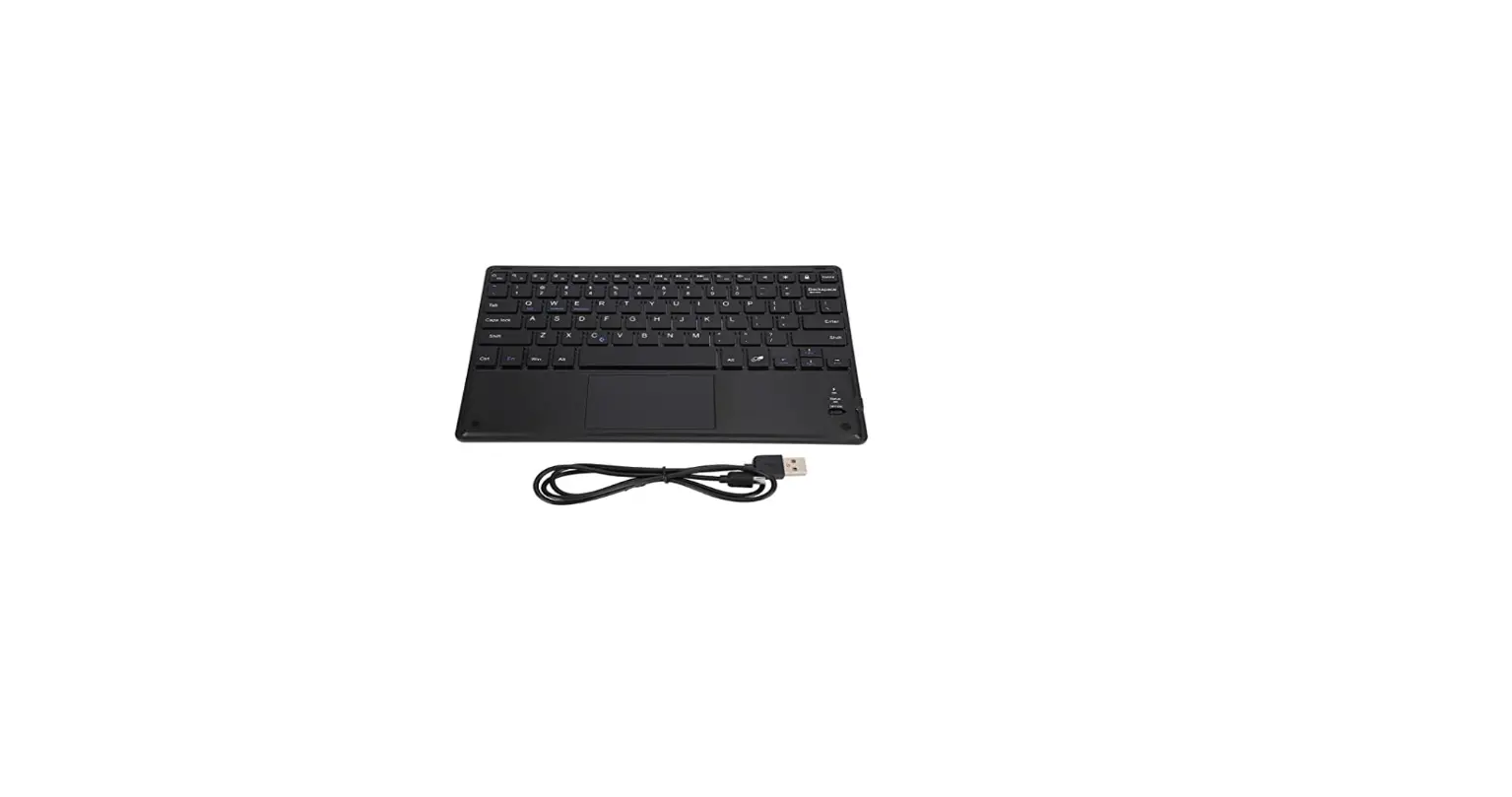
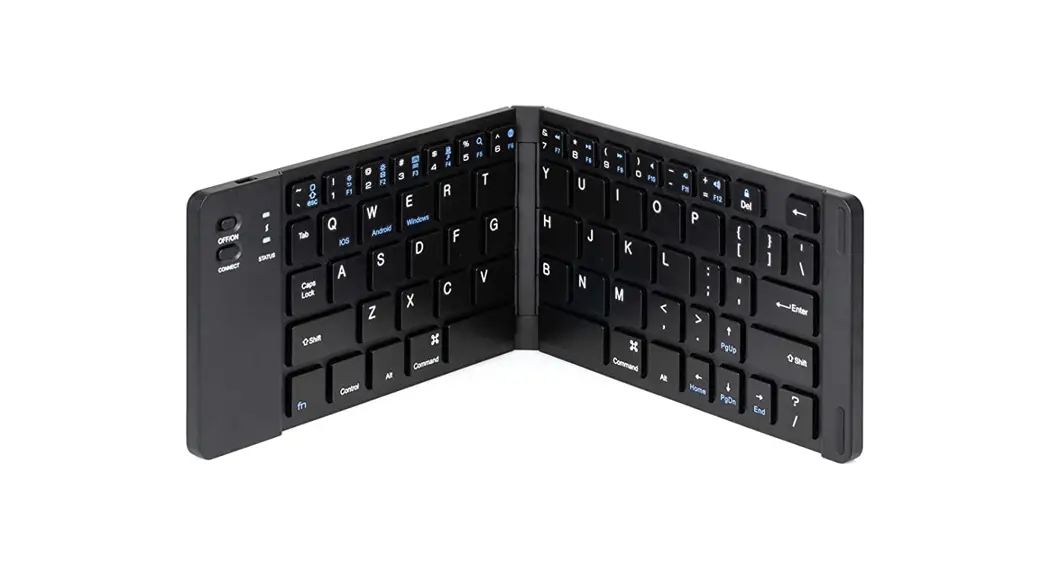
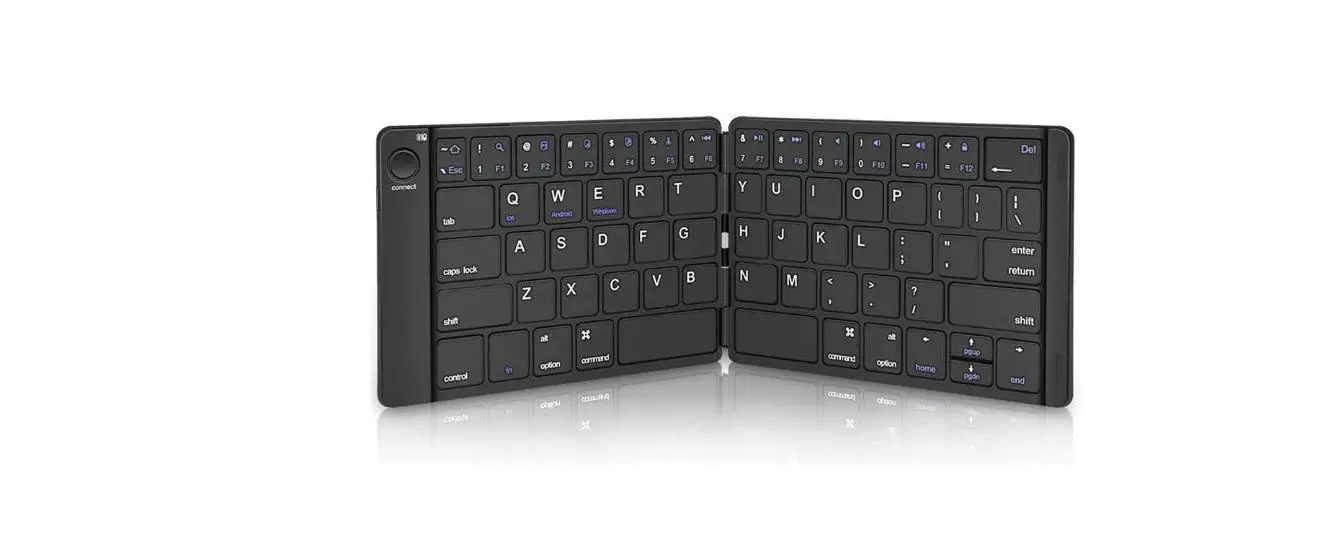
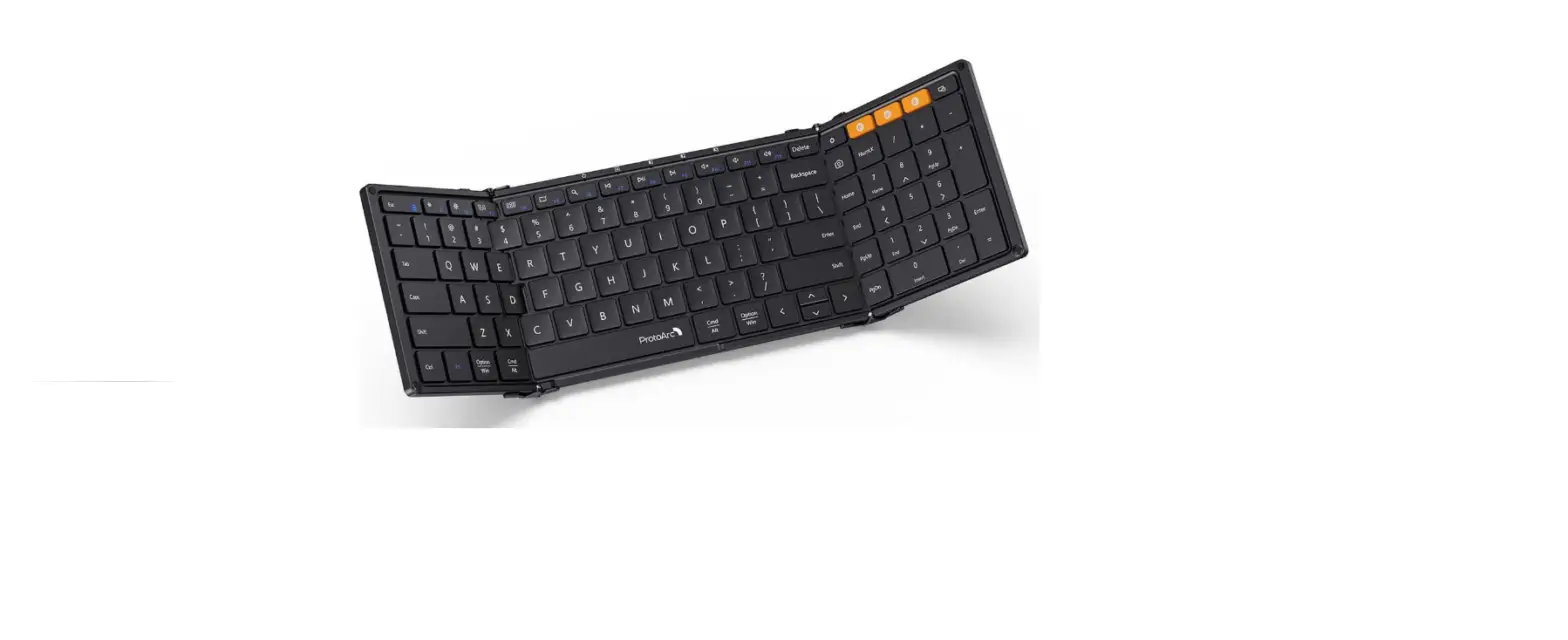
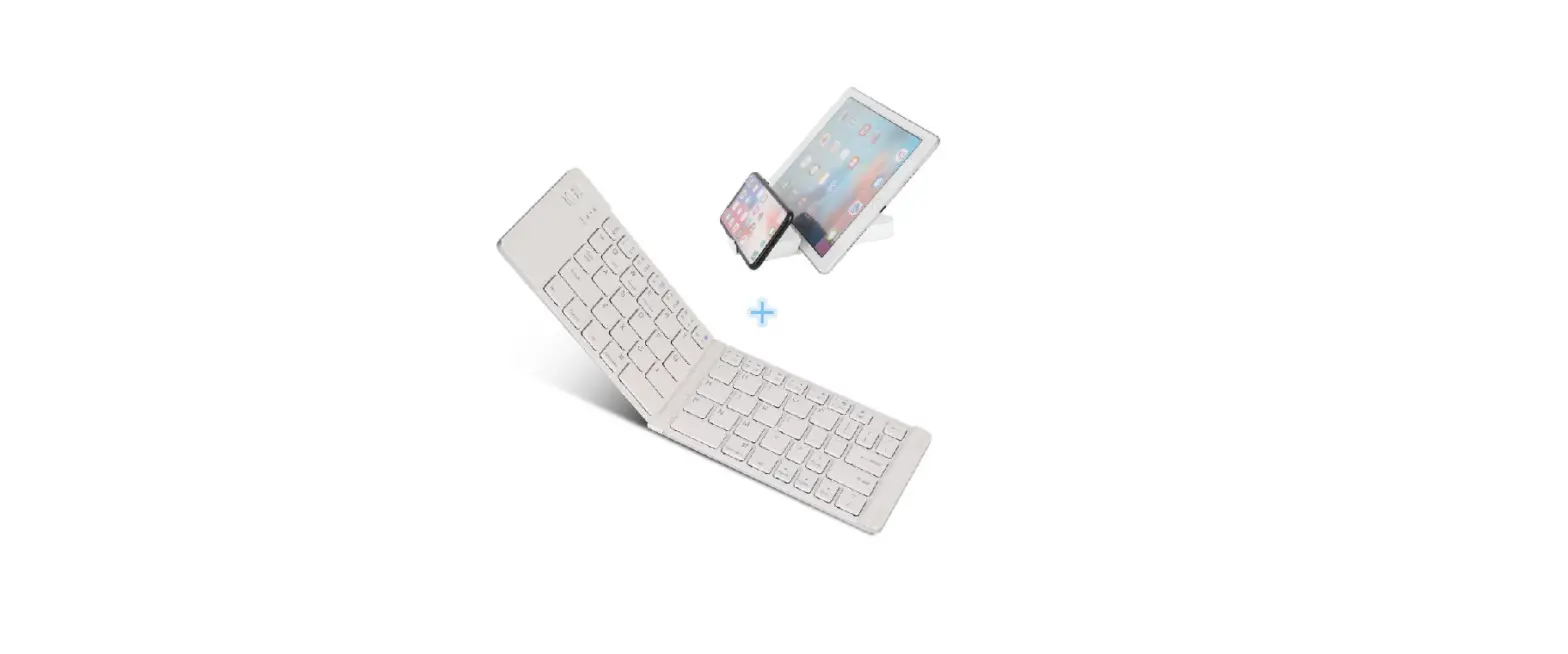
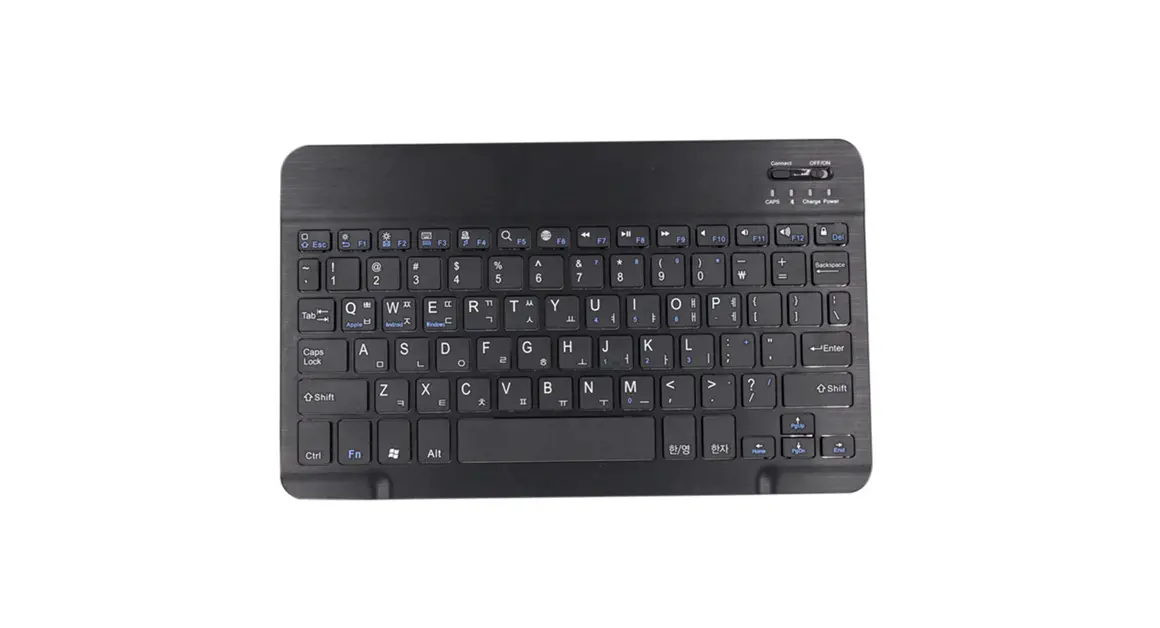
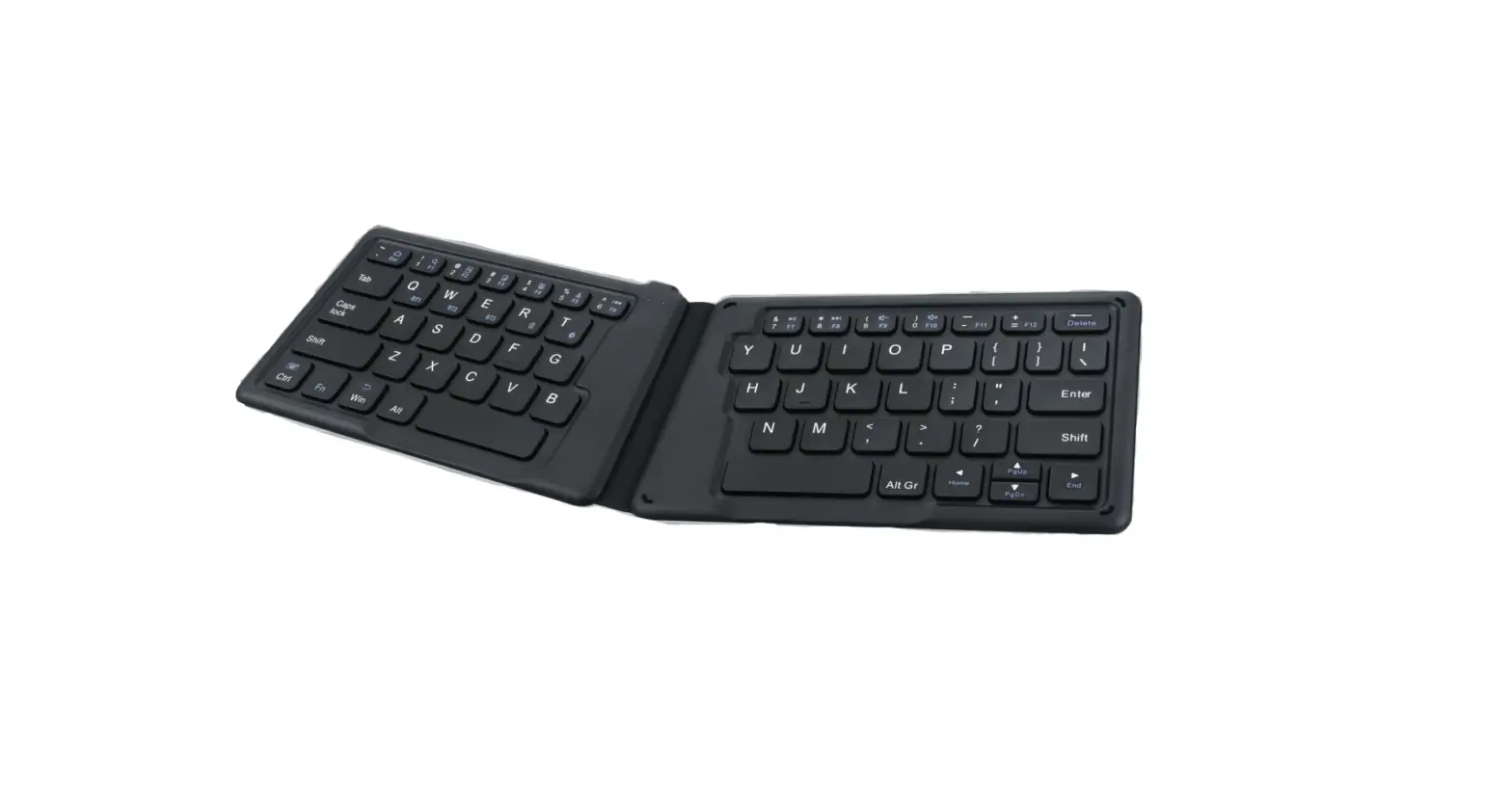
HB367 Ergonomics Folding Wireless Keyboard
Product Information: Ergonomics Folding Wireless Keyboard
The Ergonomics Folding Wireless Keyboard is a portable and
compact keyboard that can be easily folded and carried around. The
keyboard comes with a rechargeable lithium battery and Bluetooth
version 5.1. It is compatible with iOS and MAC OS devices and has
an operating distance of 8 meters or 26.2 feet. The keyboard has a
sleek design with dimensions of 392.62×142.95×6.4mm or
15.46×5.63×0.25 in.
Package Contents:
- 1 Wireless Keyboard
- 1 Charging Cable
- 1 User Manual
Specification:
- Bluetooth Version: BT 5.1
- Dimensions: 392.62×142.95×6.4mm / 15.46×5.63×0.25 in
- Operating Distance: 8 m / 26.2 ft
- Rechargeable Lithium Battery: 250mAh
- Uninterrupted Work Time: 100 hours
- Stand-by Time: 90 days
- Compatibility: iOS, MAC OS
Indicators & Definition:
- Power Indicator: Turns green for 3 seconds.
- Charging Indicator: Red while charging. Green when fully
charged. - Low Battery Indicator: Flashes red when charging is
required. - Caps Lock Indicator: Green light is on.
- Bluetooth Indicator:
- Press Fn+Q to BT1, green indicator flashes slowly.
- Press Fn+W to BT2, blue indicator flashes slowly.
- Press Fn+E to BT3, red indicator flashes slowly.
- Flashes blue, long press Fn+Q/W/E for 5s to enter into pairing
mode.
- Charging Port: Only used for charging.
Keys and Functions:
| Key | Fn on iOS | Fn on MAC | Function |
|---|---|---|---|
| esc | esc | esc | Exit/Close |
| Brightness/Brightness+ | Switch App | Mission Control | Adjust Brightness |
| Search for Screenshot | Search for Screenshot | Search for Screenshot | Capture Screenshot |
| Last track/Play/Pause/Next track | Last track/Play/Pause/Next track | Last track/Play/Pause/Next track | Media Control |
| Mute/Volume/Volume+ | Mute/Volume/Volume+ | Mute/Volume/Volume+ | Adjust Volume |
| Lock screen | Lock screen | Lock screen | Lock Screen |
Product Usage Instructions:
Power ON/OFF Keyboard:
- Power On: Unfold the keyboard, green indicators will flash 3s
then off. - Power Off: Fold the keyboard.
Pairing Steps:
Pairing with 1st device
- Unfold the keyboard, power indicators will flash blue for 3s,
then off. - Press Fn+Q to enter channel 1 mode.
- Long Press Fn+Q for 3 seconds to enter pairing mode, BT1
indicator will flash GREEN and start to search the available
Bluetooth device. - On your Bluetooth device, find the Bluetooth name Nulea RT06
and click to connect it. - The status indicator will be off after successfully
paired.
Pair with 2nd device
- Press Fn+W to enter channel 2 mode.
- Long press Fn+W for 3 seconds to enter pairing mode, BT2
indicator will flash BLUE and start to search the available
Bluetooth device. - Repeat the above pairing step 4 and step 5.
Pair with 3rd device
- Press Fn+E to enter channel 3 mode.
- Long press Fn+E for 3 seconds to enter pairing mode, BT3
indicator will flash RED and start to search the available
Bluetooth device. - Repeat the above pairing step 4 and step 5.
Sleep Mode:
The keyboard will enter sleep mode if idle for 30 minutes. Press
any key to exit sleep mode.
Charging:
- Connect one end of the included type-c cable to a USB charger,
and connect the opposite end to the charging slot on the keyboard.
(Note: Output: DC 5 V / 500mA; USB charger is not included). - The charging indicator will glow red while the keyboard is
charging. A full charge takes approximately 2 hours.
FCC Statement:
This device complies with part 15 of the FCC Rules. Operation is
subject to the following two conditions: (1) This device may not
cause harmful interference, and (2) this device must accept any
interference received, including interference that may cause
undesired operation.
Ergonomics Folding Wireless Keyboard
Model: HB367 User Manual
Package contents
1x Wireless Keyboard 1x Charging Cable 1x User Manual
Specification
Bluetooth Version Dimensions Operating distance Rechargeable lithium battery Uninterrupted Work Time Stand-by Time Compatibility
BT 5.1 392.62×142.95×6.4mm / 15.46×5.63×0.25 in 8 m / 26.2 ft 250mAh 100 hours 90 days iOS,MAC OS
Indicators & definition
1 Power indicator:
Turns green for 3 seconds.
Charging indicator: Red while charging.Green when fully charged.
Low battery indicator: Flashes red when charging is required.
Caps Lock indicator: Green light is on.
Bluetooth indicator:
Press Fn+Q to BT1, green indicator flashes slowly.
Press Fn+W to BT2, blue indicator flashes slowly.
Press Fn+E to BT3, red indicator flashes slowly.
Flashes blue, long press Fn+Q/W/E for 5s to enter into pairing mode.
Charging port:
Only used for charging.
Power ON/OFF Keyboard
Power On: Unfold the keyboard, green indicators will flash 3s then off. Power Off: Fold the keyboard.
Pairing Steps
Pairing with 1st device Step 1.Unfold the keyboard, power indicators will flash blue for 3s, then off. Step 2. Press Fn+Q to enter channel 1 mode. Step 3. Long Press Fn+Q for 3 seconds to enter pairing mode, BT1 indicator will flash GREEN and start to search the available Bluetooth device. Step 4. On your bluetooth device, find the Bluetooth name “Nulea RT06” and click to connect it. Step 5. The status indicator will be off after successfully paired.
Pair with 2nd device Step 1. Press “Fn+W” to enter channel 2 mode. Step 2. Long press “Fn+W” for 3 seconds to enter pairing mode, BT2 indicator will flash BLUE and start to search the available Bluetooth device. Step 3. Repeat the above pairing step 4 and step 5.
Pair with 3rd device Step 1. Press “Fn+E” to enter channel 3 mode. Step 2. Long press “Fn+E” for 3 seconds to enter pairing mode, BT3 indicator will flash RED and start to search the available Bluetooth device. Step 3. Repeat the above pairing step 4 and step 5.
Keys and Functions
Key Fn on iOS
icon
esc
esc
Fn on MAC esc
BrightnessBrightness+ Switch App Search for Screenshot Last track Play/Pause Next track Mute Volume Volume + Lock screen
BrightnessBrightness+ Mission Control Search for Screenshot Last track Play/Pause Next track Mute Volume Volume + Lock screen
Sleep Mode
The keyboard will enter sleep mode if idle for 30min. Press any key to exit sleep mode.
Charging
Step 1. Connect one end of the included type-c cable to a USB charger, and connect the opposite end to the charging slot on the keyboard. (Note: Output: DC 5 V / 500mA; USB charger is not included) Step 2. The charging indicator will glow red while the keyboard is charging. A full charge takes approximately 2 hours.
FCC Statement
Changes or modifications not expressly approved by the party responsible for compliance could void the user’s authority to operate the equipment. This equipment has been tested and found to comply with the limits for a Class B digital device, pursuant to Part 15 of the FCC Rules. These limits are designed to provide reasonable protection against harmful interference in a residential installation. This equipment generates, uses and can radiate radio frequency energy and, if not installed and used in accordance with the instructions, may cause harmful interference to radio communications. However, there is no guarantee that interference will not occur in a particular installation. If this equipment does cause harmful interference to radio or television reception, which can be determined by turning the equipment off and on, the user is encouraged to try to correct the interference by one or more of the following measures:
— Reorient or relocate the receiving antenna. — Increase the separation between the equipment and receiver. — Connect the equipment into an outlet on a circuit different from that to which the receiver is connected. — Consult the dealer or an experienced radio/TV technician for help. This device complies with Part 15 of the FCC Rules. Operation is subject to the following two conditions: (1) this device may not cause harmful interference, and (2) this device must accept any interference received, including interference that may cause undesired operation.