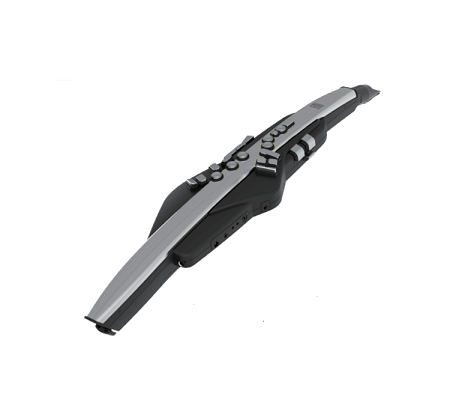
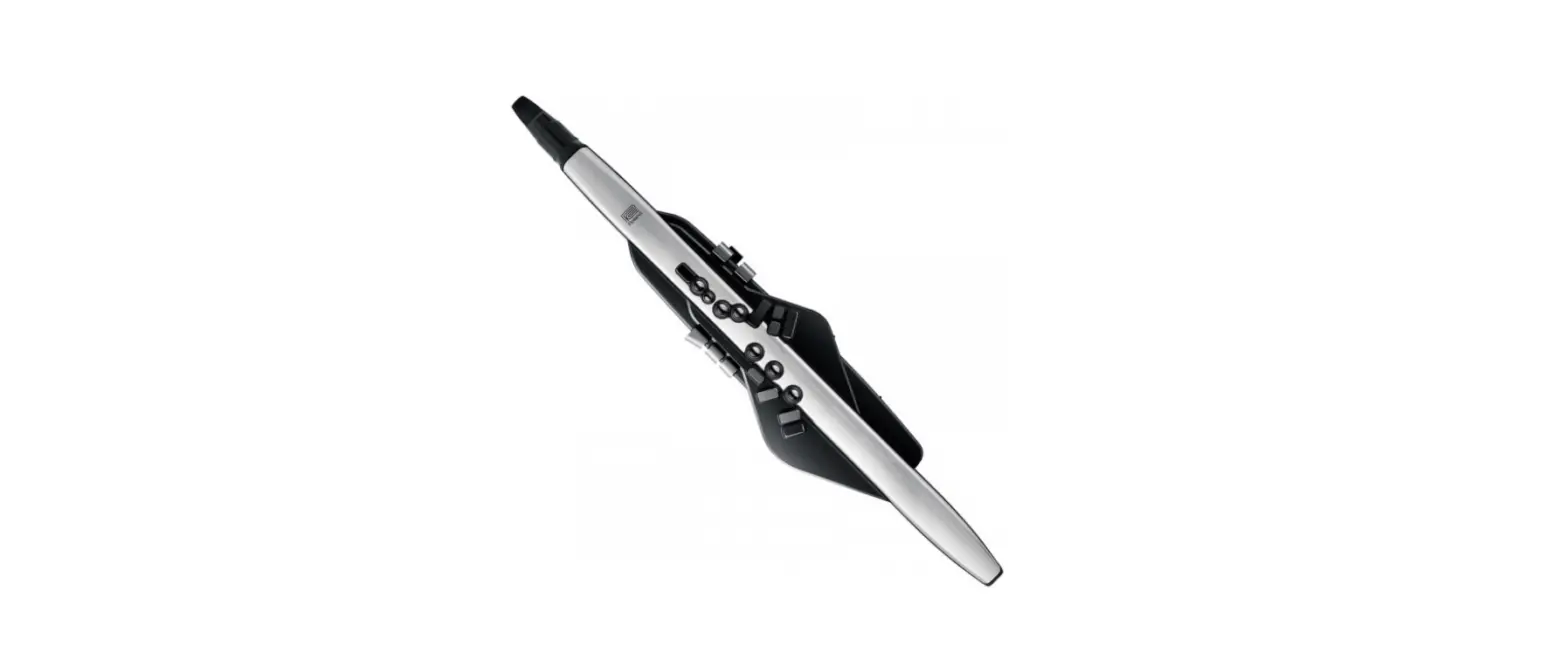
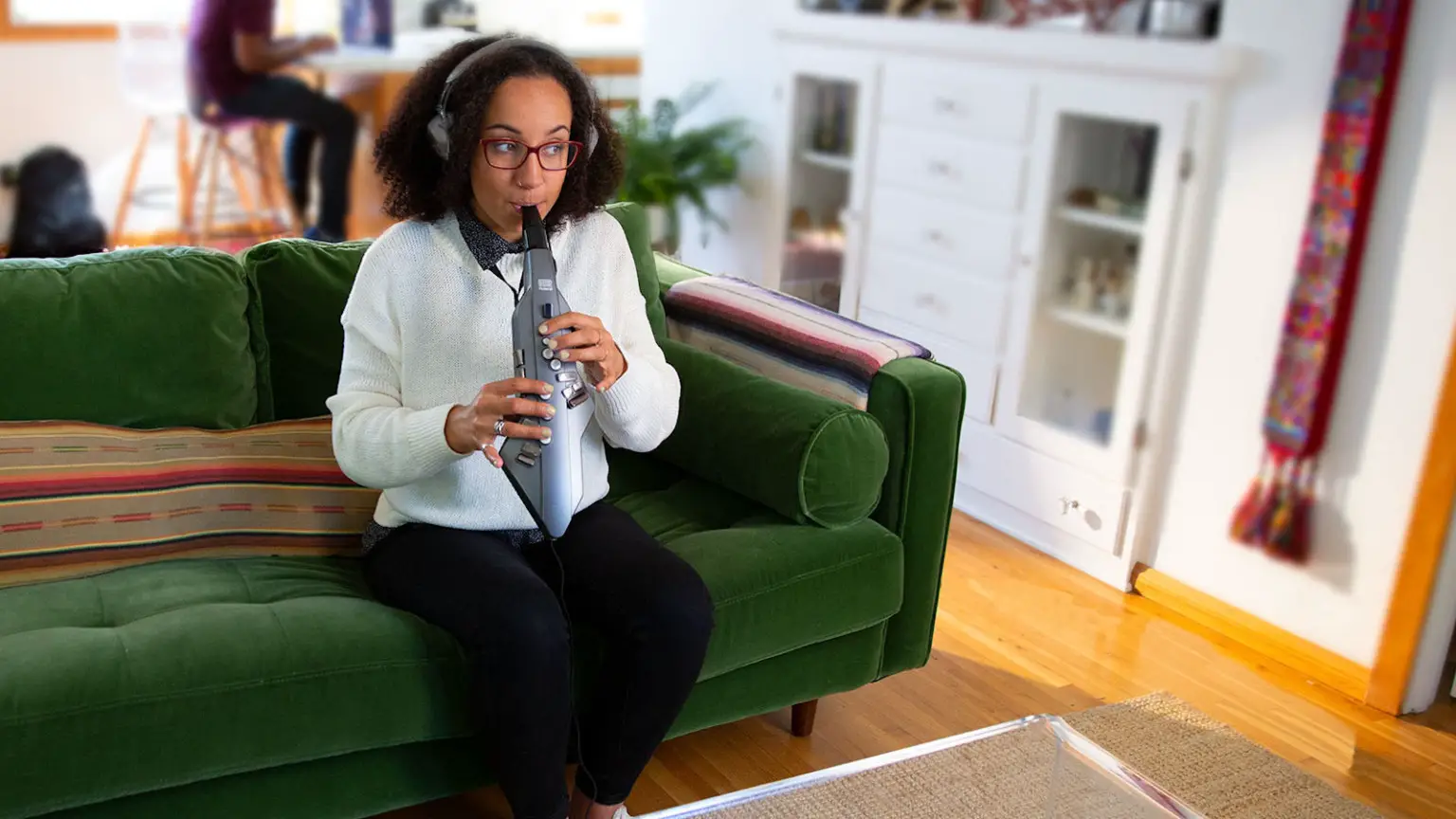
AE-20 Aerophone
Product Information: Owner’s Manual
The owner’s manual contains important information for using the product safely and effectively. It includes an introduction to the product, panel descriptions, instructions for getting ready to play, playing the instrument, caring for the mouthpiece, and other settings.
Important Notes:
- Read and follow all instructions carefully before using the product.
- Keep the owner’s manual in a safe place for future reference.
- Do not expose the product to extreme temperatures or moisture.
- Use only the recommended power source and accessories.
Product Usage Instructions:
- Check the accessories included with the product.
- Get ready to play by adjusting the posture when holding the instrument, attaching the band, selecting the power source, and connecting headphones or external speakers.
- Turn the power on/off and adjust the volume as needed.
- Play the internal sounds or select songs to play.
- Care for the mouthpiece to ensure proper functioning of the instrument.
- Adjust other settings using the menu screen as needed.
- Connect to a smartphone or computer for additional functionality.
- Store user scenes and favorite scenes for easy recall.
- Back up and restore settings as needed.
Owner’s Manual
Contents
USING THE UNIT SAFELY . . . . . . . . . . . . . . . . . . . . . . . . 2
IMPORTANT NOTES . . . . . . . . . . . . . . . . . . . . . . . . . . . . . 2
Introduction . . . . . . . . . . . . . . . . . . . . . . . . . . . . . . . . . . . . . 3
Checking the Accessories . . . . . . . . . . . . . . . . . . . . . . . . . . . . . . 3
Panel Descriptions . . . . . . . . . . . . . . . . . . . . . . . . . . . . . . 4
Getting Ready to Play . . . . . . . . . . . . . . . . . . . . . . . . . . . 6
Holding the AE-20 (Your Posture When Holding the Instrument) . . . . . . . . . . . . . . . . . . . . . . . . . . . . . . . . . . . . . . . . . . 6 Attaching the Band . . . . . . . . . . . . . . . . . . . . . . . . . . . . . . . . . . . 7 Selecting the Power Source . . . . . . . . . . . . . . . . . . . . . . . . . . . . 7 Connecting Headphones or External Speakers . . . . . . . . . . . . 7 Turning the Power On/Off . . . . . . . . . . . . . . . . . . . . . . . . . . . . . . 8 Adjusting the Volume . . . . . . . . . . . . . . . . . . . . . . . . . . . . . . . . . 8 Playing the Internal Sounds . . . . . . . . . . . . . . . . . . . . . . . . . . . . 9
Playing the Instrument . . . . . . . . . . . . . . . . . . . . . . . . . 10
How to Make Sound . . . . . . . . . . . . . . . . . . . . . . . . . . . . . . . . . . . 10 Playing Songs . . . . . . . . . . . . . . . . . . . . . . . . . . . . . . . . . . . . . . . . 10
Caring for the Mouthpiece . . . . . . . . . . . . . . . . . . . . . 12
Other Settings . . . . . . . . . . . . . . . . . . . . . . . . . . . . . . . . . . . 13
Editing the Settings of the AE-20 (Menu Screen) . . . . . . . . . . 13 Using the AE-20 with a Smartphone . . . . . . . . . . . . . . . . . . . . . 15 Connecting to Your Computer . . . . . . . . . . . . . . . . . . . . . . . . . . 17 Restoring the Factory Settings . . . . . . . . . . . . . . . . . . . . . . . . . . 17 Storing a User Scene . . . . . . . . . . . . . . . . . . . . . . . . . . . . . . . . . . 17 Selecting a User Scene . . . . . . . . . . . . . . . . . . . . . . . . . . . . . . . . . 18 Clearing All User Scenes . . . . . . . . . . . . . . . . . . . . . . . . . . . . . . . 18 Arranging and Recalling Scenes in Order (Favorite Scene) . . 18 Backing Up/Restoring the Settings . . . . . . . . . . . . . . . . . . . . . . 18
Troubleshooting . . . . . . . . . . . . . . . . . . . . . . . . . . . . . . . . . 19
Main Specifications . . . . . . . . . . . . . . . . . . . . . . . . . . . . . . 20
To obtain the PDF manual
In addition to the Owner’s Manual (this document), the following PDF manuals are available for this product.
Scene List
This is detailed information regarding the Aerophone’s scene list.
Parameter Guide
This explains all parameters of the AE-20.
MIDI Implementation
This is detailed information about MIDI implementation messages you can use when connecting this instrument to other MIDI devices.
1 . Visit the following website on your computer.
https://www .roland .com/manuals/ á
2 . Choose “AE-20” as the product
name.
Before using this unit, carefully read “USING THE UNIT SAFELY” and “IMPORTANT NOTES” (the leaflet “USING THE UNIT SAFELY” and the Owner’s Manual (p. 2)). After reading, keep the document(s) where it will be available for immediate reference.
© 2021 Roland Corporation
USING THE UNIT SAFELY
WARNING
Concerning the Auto Off function
The power to this unit will be turned off automatically after a predetermined amount of time has passed since it was last used for playing music, or its buttons or controls were operated (Auto Off function). If you do not want the power to be turned off automatically, disengage the Auto Off function (p. 14).
WARNING
Use only the supplied AC adaptor and the correct voltage
Be sure to use only the AC adaptor supplied with the unit. Also, make sure the line voltage at the installation matches the input voltage specified on the AC adaptor’s body. Other AC adaptors may use a different polarity, or be designed for a different voltage, so their use could result in damage, malfunction, or electric shock.
CAUTION
Keep small items out of the reach of children
To prevent accidental ingestion of the parts listed below, always keep them out of the reach of small children. ¹ Included Parts/Removable Parts
Thumb hook cover (p. 3)
IMPORTANT NOTES
Power Supply: Use of Batteries
¹ If the batteries run extremely low, the sound may distort / interruptions in the sound may occur at high volume levels, but this does not indicate a malfunction. If this occurs, please replace the batteries / use the included AC adaptor.
¹ If operating this unit on batteries, please use Ni-MH batteries.
¹ Even if batteries are installed, the unit will turn off if you connect or disconnect the power cord from the AC outlet while the unit is turned on, or if you connect or disconnect the AC adaptor from the unit. When this occurs, unsaved data may be lost. You must turn off the power before you connect or disconnect the power cord or AC adaptor.
Repairs and Data
¹ Before sending the unit away for repairs, be sure to make a backup of the data stored within it; or you may prefer to write down the needed information. Although we will do our utmost to preserve the data stored in your unit when we carry out repairs, in some cases, such as when the memory section is physically damaged, restoration of the stored content may be impossible. Roland assumes no liability concerning the restoration of any stored content that has been lost.
Additional Precautions
¹ Any data stored within the unit can be lost as the result of equipment failure, incorrect operation, etc. To protect yourself against the irretrievable loss of data, try to make a habit of creating regular backups of the data you’ve stored in the unit.
¹ Roland assumes no liability concerning the restoration of any stored content that has been lost.
¹ Never strike or apply strong pressure to the display.
¹ Use caution not to scratch the surface of a desk or table on which you place this instrument.
Using External Memories
¹ Please observe the following precautions when handling external memory devices. Also, make sure to carefully observe all the precautions that were supplied with the external memory device.
¹ Do not remove the device while reading/ writing is in progress.
¹ To prevent damage from static electricity, discharge all static electricity from your person before handling the device.
Caution Regarding Radio Frequency Emissions
¹ The following actions may subject you to penalty of law.
¹ Disassembling or modifying this device.
¹ Removing the certification label affixed to the back of this device.
¹ Using this device in a country other than where it was purchased
¹ Do not use this product closer than 22 cm (8 11/16 inches) from where a cardiac pacemaker is implanted. Doing so may affect the operation of the cardiac pacemaker.
Intellectual Property Right
¹ The copyright of content in this product (the sound waveform data, style data, accompaniment patterns, phrase data, audio loops and image data) is reserved by Roland Corporation.
¹ Purchasers of this product are permitted to utilize said content (except song data such as Demo Songs) for the creating, performing, recording and distributing original musical works.
¹ Purchasers of this product are NOT permitted to extract said content in original or modified form, for the purpose of distributing recorded medium of said content or making them available on a computer network.
¹ This product contains eParts integrated software platform of eSOL Co.,Ltd. eParts is a trademark of eSOL Co., Ltd. in Japan.
¹ The Bluetooth® word mark and logos are registered trademarks owned by Bluetooth SIG, Inc. and any use of such marks by Roland is under license.
¹ This Product uses the Source Code of T-Kernel under T-License 2.0 granted by the T-Engine Forum (www.tron.org).
¹ This product includes third party open source software.
Copyright © 2009-2018 Arm Limited. All rights reserved. Licensed under the Apache License, Version 2.0 (the “License”); You may obtain a copy of the License at http://www.apache.org/licenses/LICENSE-2.0
Copyright © 2018 STMicroelectronics. All rights reserved. This software component is licensed by ST under BSD 3-Clause license, the “License”; You may obtain a copy of the License at https://opensource.org/licenses/BSD-3-Clause
¹ The “Chinese language font MORISAWA SONG GB2312BMP12” used by this product is provided by Morisawa Corporation, and copyright to the font data is the property of that corporation.
¹ Roland, SuperNATURAL are either registered trademarks or trademarks of Roland Corporation in the United States and/or other countries.
¹ Company names and product names appearing in this document are registered trademarks or trademarks of their respective owners.
2
01 Introduction
Checking the Accessories
Owner’s Manual (this document)
Leaflet “USING THE UNIT SAFELY”
AC adaptor (*1)
Connect the adaptor to the DC-IN jack on the AE-20. Using the AC adaptor lets you play for long periods of time without worrying about running out of battery power.
Band
Prevents saliva from reaching the unit during performance, and entering the interior from around the buttons, switches, or performance keys.
Water basin (*1)
This cover receives water droplets that come out of the water drain. This prevents the water droplets from falling to the floor. After use, remove the cover and discard the water that has accumulated.
USB cable (USB Type-C®Type A)
Use this cable to connect the AE-20 with your computer for exchanging MIDI messages and audio data.
Neck strap
Attach the neck strap to the strap ring to hang the instrument around your neck when playing.
* Fit the rounded protrusion of the water basin into the depression at the lower part of AE-20.
Dedicated handheld carry bag
This is a carry bag made specially for the AE-20.
Mouthpiece cap
Protects the mouthpiece. When you’re not playing, leave the mouthpiece cap attached. Press it on until you hear it click into place.
Thumb hook cover (2 types)
Attach the included thumb hook cover onto the thumb hook. Two types of covers are included, so you can use the one you like.
The thumb hook cover serves as a cushion to help relieve the weight of the instrument on your right thumb, and serves as an adjuster for finely adjusting the position of your thumb.
* Line up the protrusion on the reed with the protrusion on the cap.
* When removing or attaching the mouthpiece cap, take care not to touch the reed.
*1 The AC adaptor and water basin are boxed separately and packaged with this instrument.
3
02 Panel Descriptions
2
1
3
Attach the band to this position.
4
19
5
Attach the thumb hook cover to this
7
6 position.
8
9
10
20
11
12
21
22
13
A
14
23
24
25
D
15
B
C
18
Attach the water
16
basin to this
position. 17
1 Mouthpiece Cap
Protects the mouthpiece. When you’re not playing, leave the mouthpiece cap attached. Press it on until you hear it click into place. * When removing or attaching the mouthpiece cap, take care not to touch the reed.
2 Mouthpiece
A dedicated mouthpiece for the Aerophone that is constructed as a single unit with the reed. Ø “Embouchure” (p. 6) * When attaching the mouthpiece, take care not to pinch your finger between the movable part and the body of the instrument.
3 Band
Prevents saliva from reaching the unit during performance, and entering the interior from around the buttons, switches, or performance keys.
4 Performance keys
These keys are used for performance. They allow performance using the same fingering as a saxophone. Some keys, such as the side keys, allow you to assign various functions or parameters. Ø “Pressing the Performance Keys” (p. 6) Ø “Fingering Chart” (at end of manual)
5 [S1] / [S2] button
You can assign a variety of functions or parameters to these buttons. Ø “Parameter Guide” (PDF)
6 Octave keys
These buttons switch octaves. You can assign them to switch ±2 or ±3 octaves, or to sax compatible mode. Operate them using the lefthand thumb. Ø “Parameter Guide” (PDF)
7 Thumb rest
Place your left thumb here. Ø “Holding the AE-20 (Your Posture When Holding the
Instrument)” (p. 6)
8 Display
This indicates the scene (sound) name and various parameters. * The display of this unit automatically turns off when a certain length of
time has elapsed since the unit was last operated.
Ø “Setting the Time for the Display to Turn Off (Display Off Time)” (p. 15)
9 [SCENE] ( à / á ) buttons
Use these buttons to select scenes (sounds). Ø “Playing the Internal Sounds” (p. 9)
4
10 [-] [+] ( ã / â ) buttons
Use these buttons to select menu items or edit values.
11 [MENU] button
Use this button to specify the details of the system, scene, assign, and MIDI control settings. By long-pressing the [MENU] button you can access a screen where you can register user scenes and favorite scenes. Ø “Parameter Guide” (PDF) Ø “Editing the Settings of the AE-20 (Menu Screen)” (p. 13)
12 Thumb lever
This raises or lowers the pitch. You can assign a variety of functions or parameters to this lever. Operate it using the right-hand thumb. Ø “Parameter Guide” (PDF)
13 [SCENE CATEGORY] knob
Operation
Explanation
Turn
Switch preset scene categories.
Turn while holding down the [SCENE] (á) button
Switch user scene banks.
Turn while holding down the [SCENE] (à) button
Switch favorite scenes.
14 [VOLUME] knob
Adjusts the volume that is output from the OUTPUT and PHONES jacks.
15 Battery case
If you are using this unit on batteries, insert six Ni-MH batteries (AA). Turn the screw to open or close the cover of the battery compartment. When performing, make sure that the cover of the battery compartment is firmly fastened with the screw. Ø “Selecting the Power Source” (p. 7)
16 Cord hook
If cords are attached to the unit while in use, secure them to the cord hook. This prevents the cord from being inadvertently unplugged if it is pulled, and prevents the connector from being stressed.
17 Water drain
Drops of water will exit here.
18 Water basin
This cover receives water droplets that come out of the water drain. This prevents the water droplets from falling to the floor. After use, remove the cover and discard the water that has accumulated. * Fit the rounded protrusion of the water basin into the depression at the lower part of this unit.
19 Built-in speakers
A speaker is located at each side of this unit, left and right. These speakers allow the performer to hear the sound for monitoring purposes.
20 Strap ring
Attach the included neck strap here.
21 Thumb hook
Place your right thumb under the hook. Attach the included thumb hook cover as desired. Ø “Holding the AE-20 (Your Posture When Holding the
Instrument)” (p. 6)
22 [MIDI CONTROL] switch
This switch turns MIDI control mode on/off. If you are using this unit as a MIDI controller, turn this switch on. Ø “Parameter Guide” (PDF)
23 Bluetooth LED (blue)
The LED indication shows the Bluetooth function’s on/off status.
Status Lit Blinking Unlit
Explanation Bluetooth function on Waiting to connect via Bluetooth audio Bluetooth function off
Ø “Using the AE-20 with a Smartphone” (p. 15)
24 Power LED (orange)
The LED indicates whether the power is on/off and the amount remaining in the batteries.
Status Lit Blinking Unlit
Explanation Power on Batteries are low Power off
25 [] switch
Turns the power on/off. Ø “Turning the Power On/Off” (p. 8)
Connectors
* To prevent malfunction and equipment failure, always turn down the volume, and turn off all the units before making any connections.
A PHONES jack (stereo mini)
You can connect a set of headphones here. Ø “Connecting Headphones or External Speakers” (p. 7)
B DC IN jack
Connect the included AC adaptor here. Ø “Selecting the Power Source” (p. 7)
C OUTPUT jack (stereo 1/4″ phone type)
This is an output jack for audio signals. Connect it to your amplified speakers etc. Ø “Connecting Headphones or External Speakers” (p. 7)
D USB port (USB Type-C)
Use the included USB cable (USB Type-CType A) to connect this unit to your computer so that MIDI and audio can be transmitted or received. You can also connect a USB flash drive to update this unit if a new version of the system program becomes available. Ø “Connecting to Your Computer” (p. 17) * This unit will not operate on USB power. Do not connect a power supply to the USB port. * Do not use a USB cable that is designed only for charging a device. Charge-only cables cannot transmit data. * Never turn off the power or remove the USB flash drives while the screen indicates “Writing…”
5
03 Getting Ready to Play
Holding the AE-20 (Your Posture When Holding the Instrument)
When playing the Aerophone, the instrument is held upright at three points: the mouthpiece, the neck strap and the thumb hook (for your right thumb). With your left thumb close to the thumb rest, rest your other fingers (both left and right hands) on top of the performance keys. Adjust the length of the neck strap so that the mouthpiece is positioned at your mouth when you hold the instrument.
Mouthpiece Neck strap Thumb hook
Adjust the neck strap length.
Thumb rest
Place your left thumb on the thumb rest (in the middle of the octave keys).
Thumb hook
Place your right thumb alongside the thumb hook.
Attach the thumb hook cover.
Attach the neck strap to the strap ring.
Attach the included thumb hook cover onto the thumb hook. Two types of covers are included, so you can use the one you like.
The thumb hook cover serves as a cushion to help relieve the weight of the instrument on your right thumb, and serves as an adjuster for finely adjusting the position of your thumb.
Embouchure
Touch the mouthpiece with your upper front teeth at a point about 1 cm from the tip. Let the back of your lower lip touch your lower front teeth. Close your mouth so that your breath does not leak out of the gaps between your mouth and the mouthpiece.
upper teeth
tongue
lower lip
lower teeth
* Putting the mouthpiece further into your mouth causes the bite effect (bite control) to be less responsive.
MEMO The mouthpiece is a type of controller, and you use the speed of your breathing, the strength of your bite and your tonguing when playing the AE-20.
Pressing the Performance Keys
Use the performance keys to control the pitch of the sounds you play.
right index finger
X
C2
1
C1
P
C4
C3
2
3
Tc
G´
Ta
C´
4
B B³
C5 5
Tf
6 E³
C
left index finger
Octave keys
+2 octaves +1 octave
-1 octave -2 octaves
Ø For more on fingering, refer to the “Fingering Chart” at the end of this manual.
* When you lay down this unit, attach the mouthpiece cap and lay the unit down with the performance keys upward. Laying down the unit with the performance keys downward might cause problems such as the buttons failing to return.
* Use the inside of your hand to press the side keys (C1C4, Tc, Ta).
6
Attaching the Band
When playing this instrument for long periods of time, the saliva in your mouth may drip out of the mouthpiece and get into the gaps of this instrument such as the performance keys, switches and so on. To prevent malfunction due to this, attach the included band so that saliva does not drip down.
Selecting the Power Source
The AE-20 can operate on batteries or on the included AC adaptor.
When using batteries
This allows approximately 6 hours of playing.
1 . Insert six Ni-MH batteries (AA).
* Battery life can vary depending on the specifications of the batteries, capacity of the batteries, and the conditions of use.
* When the batteries run low, the power LED (orange) blinks. Replace the battery as soon as possible.
* When turning the unit over, be careful so as to protect the buttons and knobs from damage. Also, handle the unit carefully; do not drop it.
* If you handle batteries improperly, you risk explosion and fluid leakage. Make sure that you carefully observe all of the items related to batteries that are listed in “USING THE UNIT SAFELY” and “IMPORTANT NOTES” (leaflet “USING THE UNIT SAFELY” and Owner’s Manual (p. 2)).
When using AC adaptor
You can play without being concerned about how much battery power you have left.
1 . Connect the included AC adaptor as shown in the
illustration.
* Use the cord hook to secure the cord of the AC adaptor as shown in the illustration.
AC Adaptor
cord hook
Pull the cord hook down and run the cable through it.
to outlet
NOTE
This unit cannot charge batteries that are installed in it, even if it is connected by an AC adaptor that’s plugged into an AC outlet. Use a commercially available charger to charge the batteries.
Connecting Headphones or External Speakers
* To prevent malfunction and equipment failure, always turn down the volume, and turn off all the units before making any connections.
PHONES jack
Headphones
OUTPUT jack
Mono output
Set the Output Mode to “Mono”
Stereo output
Set the Output Mode to “Stereo”
external speakers
(amplified speakers)
Ø For details about Output Mode, refer to “Parameter Guide” (PDF).
7
Turning the Power On/Off
Turning on the Power
Turning off the Power
1 . Turn the volume of this unit all the way down.
Ø “Adjusting the Volume” (p. 8)
* Also completely turn down the volume of any connected external devices.
2 . Turn the unit’s [] switch “ON.”
The power LED is lit, and the display shows the scene screen.
1 . If an external device is connected to this unit, turn off
the power of the connected external devices.
2 . Turn the unit’s [] switch “OFF.”
3 . If an external device is connected to this unit, power-
on the external device, and then adjust the volume.
* The power to this unit will be turned off automatically after a predetermined amount of time has passed since it was last used for playing music, or its buttons or controls were operated (Auto off function). If you do not want the power to be turned off automatically, disengage the Auto Off function (p. 14).
Unsaved data is lost when the power turns off. Before turning the power off, save the data that you want to keep.
To restore power, turn the power on again.
* You might hear some sound when switching the unit on/off. However, this is normal and does not indicate a malfunction.
Adjusting the Volume
1 . Turn the [VOLUME] knob to adjust the volume.
Use your breath for fine control over the volume when playing.
[VOLUME] knob
Adjusts the overall volume .
* The [VOLUME] knob changes both the speaker’s volume and the volume of sound coming from the headphone jack at the same time by factory default.
* To adjust the speaker and headphone volumes separately, edit the Speaker Volume, Output Volume settings in the settings menu.
8
Playing the Internal Sounds
MEMO The sounds on this instrument are called “scenes.”
Category name Transpose
(P: Preset, U: User)
Battery indicator
(shown only when using batteries)
Scene number
Scene name
[SCENE] ( à / á ) buttons
Switches between scenes (sounds) .
[SCENE CATEGORY] knob
Switches between preset scene categories, user scene banks and favorite scenes .
Internal sounds (PRESET SCENE)
This unit contains sounds of 12 categories including synthesizer, wind instruments, and ethnic instruments.
1 . Turn the [SCENE CATEGORY] knob to select the category of
sound.
Number Category
1
Synth Hard Lead
2
Synth Soft Lead
3
Synth Pad/Strings
4
Synth Brass/Bass
5
Woodwinds
6
Brasswinds
7
Strings
8
Ethnic
9
Keyboard
10
Guitar/Bass
11
Vox/Choir
12
Percussion
2 . Use the [SCENE] ( à / á ) buttons to select a scene.
MEMO
If you longpress a [SCENE] ( à / á ) button, the scene switches consecutively, and stops at the beginning of the category.
9
04 Playing the Instrument
How to Make Sound
Hold the mouthpiece lightly in your mouth and blow into it. Blowing harder produces a louder sound, and blowing softer produces a softer sound. Biting down hard on the mouthpiece raises the pitch, and loosening your bite lowers the pitch.
MEMO
¹ Your mouth may get tired and air or saliva may tend to leak out of your mouth more easily after you play the instrument for a while, until you get used to playing. Be sure to take a break every so often.
¹ The Aerophone makes sound without the reed vibrating.
Different ways you can play the Aerophone
Operation
Breath strength (speed)
Tonguing (how your tongue is applied)/ legato (the way you breathe)
Bite strength
Performance keys/ octave keys
Effect
Volume or strength of sound
How quickly the sound rises (the difference between saying “too” or “whoo”) Speed of attack and release Pitch, tonal brightness, vibrato depth Scale/octave
Embouchure
Touch the mouthpiece with your upper front teeth at a point about 1 cm from the tip. Let the back of your lower lip touch your lower front teeth. Close your mouth so that your breath does not leak out of the gaps between your mouth and the mouthpiece.
upper teeth
tongue
lower lip
lower teeth
* Putting the mouthpiece further into your mouth causes the bite effect (bite control) to be less responsive.
MEMO The mouthpiece is a type of controller, and you use the speed of your breathing, the strength of your bite and your tonguing when playing the AE-20.
Playing Songs
From Dvorak’s “New World” Symphony, Op. 95, No. 9 in E minor, 2nd movement Learning the notes C-D-E-F-G (measures 18)
¹ Play in a style that matches the relaxed mood of the music.
¹ Being aware of the long slurred phrases, play without interruptions in the sound. Take deep breaths.
¹ Move the keys quickly even when playing slower songs. Moving the keys in a sluggish way may cause unintended notes to play.
¹
Try
pla&ying44thiÏs & 44 Ï
with
.
.
anÏojboúe Ïj ú
tone
(P05
WÏo.odwindÏsj). Ï . Ïj
ú ú
C4
D4
E4
F4
G4
Ï . Ïj Ï . Ïj w Ï . Ïj Ï . Ïj w
E
& Ï. & ÏE .
GG
Ïj ú ÏGj úG
E
DC
Ï . Ïj ú
ÏE .
ÏDj úC
D
EG
Ï Ï Ï. ÏD ÏE ÏD .
ED
Ïj w ÏCj wC
& Ï . JÏ ú
10
& Ï . JÏ ú
ÏÏú
Ï
Ï
ú
A
ÏÏÏÏ w ÏÏÏÏ w
Playing
G-&&A-B4444-C
Ï .(measures Ï.
9ÏÏjj16)
ú ú
Ï. Ï.
ÏÏjj
ú ú
¹ If the sound you make isn’t stable or if you can’t breathe long enough, take a deep abdominal breath
U¹sinFCIfsaafiguonbnhtgrddghtahgmoreetteerhm”foss&&&&&&&&&&&&&&&&&&&&&&&&&&&&&&ieoanrteinetencgntdtsoce.aht)444444ornÏÏÏÏÏÏÏÏÏÏÏÏÏÏÏÏÏÏÏÏÏÏÏÏúúEAAEev.einnaes……………………..etdgukrÏÏÏnobe(sd…wlesyttoeshhitmfe(euttÏÏÏÏÏJJJJJJJJJJÏÏÏÏÏÏÏÏÏCCÏÏÏÏÏnÏÏÏÏÏGhGsthfjjjjjjjjjjrjjjjjelmihoosÏÏÏfuawiumjjjúúúúúgCúúúúúúúúúnCúúúúúúúúúúrGGldhgota,itefnpúúúthrarulÏÏeieyinarefuglnbi.ns,dyisg)netegiegrishtnÏÏÏÏÏÏÏÏÏÏBÏÏÏÏuhBÏÏÏÏÏÏÏÏÏÏECtgeúúbe……….snÏÏÏs”atFin…iritnegugÏÏÏÏÏGÏÏÏÏÏGtÏÏÏÏÏDyeeoÏÏÏÏÏrÏÏÏJÏÏJJJJDuijjjjjnrÏÏÏgjjjúúúúúúúúúúAAAAAúúúúúEúúúúúAAAAAúúúúúCúúúúú
& ú.
Ïú
ú
& ú.
Ïú
ú
& úD .
C
Ï
úD
A
ú
Ï. ÏG4 .
Ïj Ï . ÏjA4 Ï .
Ïj B4Ïj
w w
C5
ÏÏ Ï Ï. Ï
Ï.
ÏÏjjÏÏ
Ï. Ï.
. .
ÏÏjjÏÏjj
w ww w
Ï. Ï
Ï
Ïj Ï . Ï
Ïj Ï
w w
ÏÏ ÏÏ ÏÏ. ÏÏj ww
Ï Ï Ï . Ïj w
A
Ï Ï ÏÏ AÏ
C
ÏÏ ÏÏ CÏ
B
ÏÏ. ÏÏ BÏ
G Ïj Ï
A
ww
ÏÏ ww
GÏ
Aw
ÏÏÏÏ w
ÏÏ . ÏÏ .
Ï Ï
CÏ5 j Ïj
ÏÏÏ
. .
Ï
Ï ÏÏjj Ï
Dww5 ww
E5
ÏÏÏ
Ï. ÏÏ..
Ï.
ÏÏJJÏÏjj
Ï ÏÏ Ï
. .
Ï .w Ïj Ï .
ÏD. w Ï. Ï.
D
ÏJE JÏ
ÏG Ï
ÏJC
Ï
D
Ïw
Ï Ï
Ïj
Ïj
w ww w
Ïj w w
Ï E w wD
Ïw
Ïw
A
C
w
w
w
w
C
w
w
11
05 Caring for the Mouthpiece
Remove and wash the mouthpiece with water after use.
1 . Pull the mouthpiece straight out while holding
the top part of this instrument as shown in the illustration. You might need to pull rather hard. Pull slowly while being careful not to hurt yourself or others around you.
5 . When attaching the mouthpiece, insert it so that
there is no gap between it and the body of the main unit.
2 . Wipe any dirt on the outside with a soft cloth or with
the ball of your finger when rinsing. Use a cotton swab or the likes to carefully wash off the inside, being careful not to scratch the mouthpiece.
* Applying commercially-available recorder cream to the joint makes it easier to attach and remove the mouthpiece.
NOTE
¹ Take care that the front and back of the mouthpiece are oriented correctly. If you insert it in the wrong orientation, it might become impossible to remove.
¹ Take care not to hurt your hand on the projection of the screw that’s inside the mouthpiece.
Projection of the screw
¹ When removing or attaching the mouthpiece, take care not to bend the bite bar.
Bite bar
3 . Thoroughly wipe off any drops of water with a soft
cloth after rinsing.
4 . Dry thoroughly.
6 . Lean the AE-20 against a wall or other vertical
surface, so that any drops inside the instrument can drain out.
When you lean the instrument against a wall or other vertical surface with the mouthpiece upward, any internal moisture inside will exit from the water drain. Wipe it off with a soft cloth.
NOTE To remove internal moisture, place the AE-20 upright so that it exits the water drain. Placing the instrument in the wrong way, such as with the mouthpiece facing downward may cause a malfunction.
12
Other Settings
Editing the Settings of the AE-20 (Menu Screen)
1 . On the scene screen, press the [MENU] button.
The settings menu appears.
Parameter category
5 . After you’ve finished making the settings, press the
[SCENE] button or turn the [SCENE CATEGORY] knob to return to the scene screen.
NOTE
If you edit the scene settings and then select a different scene without saving the edited settings, the following message screen appears.
Parameter name
Value
The settings menu is divided into four parameter categories. System: overall instrument settings Scene: sound settings Assign: settings for assigning functions to each controller MIDI: settings for assigning MIDI functions to each controller
2 . Use the [-] [+] ( ã / â ) buttons to switch between the
parameters that show the settings.
* This Owner’s Manual explains only the main parameters. For details on all of the parameters, refer to the “Parameter Guide” (PDF).
3 . Press the [MENU] button to move the cursor down, and
use the [-] [+] ( ã / â ) buttons to edit the value.
4 . After you’ve edited the value, press the [MENU] button
to move the cursor back up. To configure other parameters, repeat steps 23.
Ø For details, refer to “Parameter Guide” (PDF).
Use the [-] [+] ( ã / â ) buttons to select the parameter .
If you want to switch scenes without saving, press the [-] (ã) button. If you want to save the settings, press the [+] (â) button. If you decide to cancel, press the [MENU] button.
* When you press the [+] (â) button, the display switches to the user scene registration screen. Ø “Storing a User Scene” (p. 17)
Adjusting the Breath Resistance (Breath Settings)
You may notice resistance to your breathing when you play the AE-20, as the tube that blows your air out of the instrument is narrow. If you find it hard to breathe while you’re playing, edit the breath settings to make the instrument easier to play.
1 . On the menu screen, use the [-] [+] ( ã / â ) buttons to select
from the parameters listed below, and press the [MENU] button. The cursor position moves to the lower line.
2 . Use the [-] [+] ( ã / â ) buttons to change the value.
The cursor moves each time you press the [MENU] button .
Use the [-] [+] ( ã / â ) buttons to change the value .
Indication
Breath Curve
Value
Explanation
Specifies how the sound responds to the force of your breath (breath sensitivity).
L5L1 M H1H5
We recommend these settings if you’re a beginning wind instrument player.
Fortissimo (ff ) can be produced even by blowing relatively softly.
This is the usual setting.
We recommend these settings for experienced wind instrument players.
Fortissimo (ff ) is produced only when you blow quite strongly.
Level
L5 L1 M H1
H5
Breath force
Adjusts the strength of breath at which sound starts being heard.
Level
Breath Adjust
150
The larger the value, the stronger you must blow to make a sound.
Breath force Breath Adjust
13
Other Settings
Adjusting the Mouthpiece Bite Strength (Bite Settings)
The AE-20 is played while biting down on the reed. You can apply different effects to the sound like pitch bend or vibrato according to how hard you bite (by relaxing your bite or by biting even harder).
1 . On the menu screen, use the [-] [+] ( ã / â ) buttons to select
from the parameters listed below, and press the [MENU] button. The cursor position moves to the lower line.
2 . Use the [-] [+] ( ã / â ) buttons to change the value.
Indication Value
Explanation
These parameters set how the bite sensor controls the sound.
Off Bite Ctrl
Mode
Sax
Turns off the bite sensor control.
Reducing the strength of your bite on the reed makes the pitch control.
E-Wind
Cyclically varying the strength of your bite on the reed applies vibrato.
This sets how much bite is applied to the reed (bite center) when playing normally.
This should normally be set to “Auto.” The setting is made automatically.
Bite Center (Sax)
Auto, 170
If the pitch is unstable when using the “Auto” setting, try setting this to a fixed value.
* To set the fixed value, press the +2 octave and -2 octave keys at the same time while the mouthpiece is in your mouth, as when you’re usually playing. This sets the “bite center.”
Bite Sense (E-Wind)
110
Sets the sensitivity when Bite Ctrl Mode is set to “E-Wind.”
Increase this value if you want to make the effect easier to apply; lower this value if the effect is too strong.
Adjusting (Calibrating) the Bite Sensor
If the bite sensor is not responding as intended, use the method shown below to adjust (calibrate) the bite sensor.
1 . On the menu screen, use the [-] [+] ( ã / â ) buttons to
select “Bite Calibration,” and press the [MENU] button.
2 . Use your fingers to hold the reed while “ã NO YES â” is
shown.
* Hold down the tip of the reed until it touches the tip of the mouthpiece, as seen from the side.
* Don’t press too hard on the reed or mouthpiece. Doing so might misalign the mouthpiece, making it difficult to adjust correctly.
3 . While holding the reed, press the [+] (â) button and
select “YES.”
“Adjusting now…” appears, and calibration begins automatically.
4 . Press the [MENU] button when “Press MENU to save”
appears.
“Saving…” Ó “Complete” appears, and the calibration value is saved.
5 . Take your fingers off the reed.
Changing the Fingering Settings (Fingering Mode)
You can change the fingering mode settings to play this instrument using other fingerings besides sax fingering.
1 . On the menu screen, use the [-] [+] ( ã / â ) buttons to
select “Fingering Mode,” and press the [MENU] button.
The cursor position moves to the lower line.
2 . Use the [-] [+] ( ã / â ) buttons to change the value.
Indication Value
Explanation
Sax
Recorder
E-Wind
Fingering Trumpet For more on the keys to press, see the
Mode
Left Hand “Fingering Chart” at the end of this manual.
Right Hand
Flute
Clarinet
Disabling the Auto-Off Function (Auto Off)
The AE-20 automatically powers-off after a certain length of time has elapsed since you stopped playing or operating it. You can specify that the power does not turn off automatically, or you can change the time until the power turns off automatically.
1 . On the menu screen, use the [-] [+] ( ã / â ) buttons to
select “Auto Off,” and press the [MENU] button.
The cursor position moves to the lower line.
2 . Use the [-] [+] ( ã / â ) buttons to change the value.
Indication Value
Explanation
30min
The power automatically turns off 30 minutes after you stopped playing or operating the unit.
Auto Off 5min
The power automatically turns off 5 minutes after you stopped playing or operating the unit.
Always On The power does not turn off automatically.
14
Other Settings
Setting the Time for the Display to Turn Off (Display Off Time)
This sets the time it takes for the display to turn off when the instrument is not being used.
1 . On the menu screen, use the [-] [+] ( ã / â ) buttons to
select “Display Off Time,” and press the [MENU] button.
The cursor position moves to the lower line.
2 . Use the [-] [+] ( ã / â ) buttons to change the value.
Indication Value
Explanation
Display Off Time
Always On, 3sec, 10sec, 30sec, 13min
When set to “Always On,” the display is always on. When you press the [SCENE] or [MENU] button while the display is off, the display turns back on.
Assigning Other Functions to the [VOLUME] Knob
(Volume Knob Mode)
1 . On the menu screen, use the [-] [+] ( ã / â ) buttons
to select “Volume Knob Mode,” and press the [MENU] button. The cursor position moves to the lower line.
2 . Use the [-] [+] ( ã / â ) buttons to change the value.
Indication
Volume Knob Mode
Value
Explanation
These parameters configure the functions for the [VOLUME] knob.
System Transpose
Specifies that the [VOLUME] knob is used for the transpose function.
Speaker Volume
Specifies that the [VOLUME] knob is used for adjusting the volume of the built-in speakers.
Output Volume
Specifies that the [VOLUME] knob is used for adjusting the volume for headphones connected to the PHONES jack, or of the signal output from the OUTPUT jack.
Speaker & Output
Specifies that the [VOLUME] knob is used for simultaneously adjusting the volume of the built-in speakers and of headphones connected to the PHONES jack, as well as the signal output from the OUTPUT jack.
Setting the Display Language (Language)
You can change the language in which the scene names and the settings of this instrument (system) are displayed.
Using the AE-20 with a Smartphone
Use Bluetooth to connect the AE-20 to a mobile device such as a smartphone or tablet (subsequently referred to as “smartphone”). This lets you do the following.
Playing along with a song from your smartphone
You can play this instrument along with a song that’s playing back on your smartphone, with the sound being routed through the AE-20’s built-in speakers (or headphones).
Using the smartphone app
You can use the dedicated app (Aerophone Pro Editor) on your smartphone to edit the scenes.
Pairing
In order to wirelessly connect the AE-20 to the smartphone via Bluetooth, you need to “pair” the unit with the smartphone so that the two devices can authenticate with each other.
The pairing process
Separate pairing is required for “Performing Along with a Song from Your Smartphone” and for “Using the AE-20 with an App.” Note that these processes are different.
Performing Along with a Song from Your
Smartphone
Using the AE-20 with an App
Settings on the AE-20
Settings on the smartphone
Settings on the smartphone
App Settings on the App
Enabling Bluetooth® Functionality
1 . On the menu screen, use the [-] [+] ( ã / â ) buttons to
select “Bluetooth.”
2 . If “Off” is shown, press the [MENU] button and then
press the [+] (â) to set it to “On.”
1 . On the menu screen, use the [-] [+] ( ã / â ) buttons to
select “Language,” and press the [MENU] button.
The cursor position moves to the lower line.
2 . Use the [-] [+] ( ã / â ) buttons to change the value.
Indication Value
Language
English, (Japanese),
(Chinese)
Performing Along with a Song from Your Smartphone
* Bluetooth audio supports only input. Audio cannot be output to Bluetooth speakers or headphones.
* Once a smartphone has been paired with AE-20, there is no need to perform pairing again. Refer to “Connecting an already-paired smartphone” (p. 16).
Here’s an example of how to make the settings to play back music on your iPhone.
15
Other Settings
Pairing with the smartphone
1 . Place the smartphone that you want to connect near
AE-20.
2 . Press the AE-20’s [MENU] button.
The menu screen appears.
3 . Use the [-] [+] ( ã / â ) buttons to select “BT Audio
Pairing,” and press the [MENU] button.
The cursor moves to the lower line, and the display indicates “ã NO YES â.”
MEMO If the AE-20’s Bluetooth function is off, use MENU to turn “Bluetooth” to “On.” Ø “Enabling Bluetooth® Functionality” (p. 15)
4 . Use the [+] (â) button to select “Yes.”
The Bluetooth LED blinks, and the AE-20 waits for pairing.
5 . Turn on the Bluetooth function of your smartphone.
Connecting an already-paired smartphone
1 . Turn on the Bluetooth function of your smartphone.
AE-20 and the smartphone are connected wirelessly.
* If the above step does not establish a connection, tap “AE-20 AUDIO” that are shown in the “DEVICES” field of the smartphone.
Using the AE-20 with an App
You can connect the AE-20 with the “Aerophone Pro Editor” app, and edit scenes (sounds) or perform remote control operations from the smartphone.
* Apps can be downloaded from the App Store (iOS) or from Google Play (Android).
As an example, we explain the settings when using “Aerophone Pro Editor” with an iPhone.
Pairing with the app
MEMO If the AE-20’s Bluetooth function is off, use MENU to turn “Bluetooth” to “On.” Ø “Enabling Bluetooth® Functionality” (p. 15)
1 . Turn on the Bluetooth function of your smartphone.
6 . Tap “AE-20 AUDIO” that appears in the smartphone’s
Bluetooth “DEVICES” field.
AE-20 and smartphone are paired. When pairing is completed, a display like the following appears.
Device to pair Smartphone
Information shown on the display
“AE-20 AUDIO” is added to the “My devices” area, and shown as “Connected.” The screen indicates “Connected.”
AE-20
NOTE Even if the “DEVICES” area shows the name of the product that you’re using (e.g., AE-20), do not tap it. If you tapped this, temporarily cancel the device registration, and perform the procedure again from step 1.
2 . Start the app “Aerophone Pro Editor” on your
smartphone.
3 . From your smartphone app “Aerophone Pro Editor,”
initiate pairing.
The AE-20 is paired with the app. When pairing is completed, the app indicates “Connected to Aerophone.”
Playing back songs from your smartphone
When you play back a song on the smartphone, the sound is heard from the AE-20’s built-in speakers (or from headphones).
MEMO Use your smartphone to adjust the volume of the song.
16
Other Settings
Connecting to Your Computer
You can connect the AE-20 to a computer via the included USB cable, and record your performance as audio or MIDI using a DAW or other software on the computer, or play software synthesizers in a DAW from the AE-20. * Do not use a USB cable that is designed only for charging a device.
Charge-only cables cannot transmit data.
In order to connect the AE-20 to a computer and send/receive MIDI or audio, you’ll need to install the USB driver. The USB driver is software that transfers data between the AE-20 and the software such as DAW on your computer. MEMO
For details on downloading and installing the USB driver, refer to the Roland website. https://www .roland .com/support/
Restoring the Factory Settings
The “Factory Reset” operation returns all settings stored in the AE-20 to their factory-set condition. MEMO
Performing this operation does not erase the scenes that are stored in the user scenes. If you want to erase all scenes that are stored in the user scenes, refer to “Clearing All User Scenes” (p. 18).
1 . On the menu screen, use the [-] [+] ( ã / â ) buttons to
select “Factory Reset,” and press the [MENU] button.
A confirmation message appears.
2 . To execute factory reset, press the [+](â) button. If you
decide to cancel, press the [-](ã) button.
A confirmation message appears again.
4 . Once the message “Turn off the power” appears on the
display, turn this instrument off and then on again.
Storing a User Scene
You can edit a preset scene (internal sound) and save it as a “user scene.” * Scene editing is done via the “Aerophone Pro Editor” app.
Ø “Using the AE-20 with a Smartphone” (p. 15) Ø “Parameter Guide” (PDF)
There are 12 banks, each of which can store 50 scenes for a total of up to 600 user scenes that you can register. Use [SCENE CATEGORY] to switch between banks.
[SCENE CATEGORY] knob
Switches between preset scene categories, user scene banks and favorite scenes .
User bank 112
User scene 150
1 . Long-press the [MENU] button.
“Write Scene” blinks.
If you decide to cancel, press the [MENU] button.
2 . Use the [-] (ã) button to select “User.”
* Press the [+] (â) button to register a favorite. Ø For details, refer to “Parameter Guide” (PDF).
3 . Use the [SCENE CATEGORY] knob to select a user bank.
4 . Use the [-] [+] ( ã / â ) buttons to specify the user
scene number in which you want to save the currently selected scene.
5 . Press the [MENU] button.
A confirmation message is shown, asking if you want to rename the scene.
3 . To execute, press the [MENU] button. If you decide to
cancel, press the [-](ã) button.
The display indicates “Executing…,” and the factory reset operation will
be executed.
17
Other Settings
6 . To edit the scene name, press the [+] [â] button. If you don’t
want to edit the scene name, press the [-] (ã) button. If you pressed the [-] (ã) button, go to step 9. If you pressed the [+] [â] button, a screen appears where you can edit the scene name.
* If you press the [+] [â] button and select “YES,” only English scene names are saved, and Japanese or Chinese names are unavailable.
Clearing All User Scenes
If you want to clear all of the user scenes that you saved, proceed as follows. When you clear the scenes, they return to the factory-set user scenes.
1 . On the menu screen, use the [-] [+] ( ã / â ) buttons to
select “User Scene Clear,” and press the [MENU] button.
A confirmation message appears.
7 . Edit the scene name.
[-] [+] ( ã / â ) buttons [SCENE] ( à / á ) button [S1] button [S2] button
Moves cursor Changes the character Insert one character Delete one character
2 . To clear the user scene, press the [+](â) button. If you
decide to cancel, press the [-](ã) button.
A confirmation message appears again.
8 . Press the [MENU] button.
A confirmation message appears.
9 . To write the scene, press the [+] (â) button. If you
decide not to write, press the [-] (ã) button.
After writing is completed, the user scene that you wrote is shown.
Selecting a User Scene
1 . While holding down the [SCENE](á) button, turn the
[SCENE CATEGORY] knob to select a user bank.
The User Scene screen appears.
3 . To execute, press the [MENU] button. If you decide to
cancel, press the [-](ã) button.
The display indicates “Executing…,” and all user scenes are cleared.
4 . Once the message “Completed!” appears on screen,
press the [MENU] button to return to the menu screen.
Arranging and Recalling Scenes in Order (Favorite Scene)
You can register up to 12 of your favorite scenes (preset scenes or user scenes) for instant recall. These are called “favorite scenes.” It is convenient to register scenes in the order in which you use them during your live performance, so that you can instantly recall the next scene when needed.
Favorite scene (example)
1
Preset Scene
7-1
2
User Scene
1-3
3
User Scene
2-4
12
Preset Scene
5-5
2 . Use the [SCENE] ( à / á ) buttons to select a user scene.
Ø For more on how to register a favorite scene, refer to the “Parameter Guide” (PDF).
Backing Up/Restoring the Settings
You can back up or restore the settings of this instrument as well as the scene settings. Ø For details, refer to “Parameter Guide” (PDF).
18
Troubleshooting
If you suspect a malfunction, please check the following points. If this does not resolve the problem, contact a nearby Roland Service Center.
Troubles
Items to check
Action
Page
Troubles with sound
If using batteries, are the batteries oriented correctly? Install the batteries in the correct orientation.
p. 7
No sound / Insufficient volume
Is the AE-20 correctly connected to the amplified speaker or headphones?
Connect amplified speakers to the AE-20’s OUTPUT jack or headphones to the AE-20’s PHONES jack.
p. 7
If you’re connecting an amplified speaker, connect to the amplified speaker’s input jack.
Could an audio cable of headphones or amplified speaker be broken?
Try using a different cable.
If sound is not output from the amplified speaker that’s connected, is sound output when you connect headphones?
If sound is being output, either the connection cable of the amplified speaker is broken, or there is a malfunction in the amplified speaker that’s connected. Check the connected device and cable.
Could the AE-20’s volume be lowered?
Adjust the volume to an appropriate level.
p. 8
Could the volume of the connected amplified speaker be lowered?
Adjust the volume to an appropriate level.
Could the volume be lowered on the smartphone etc. that’s connected via Bluetooth?
Raise the volume of your smartphone.
Noise is heard in the sound
Could you be using alkaline batteries or carbon-zinc batteries?
Use Ni-MH batteries.
If multiple keys are pressed or released simultaneously, Set the key delay.
Unintended sound is heard inconsistent fingering might cause unintended sounds Ø See the “Key Delay” parameter in the “Parameter
to be produced.
Guide” (PDF).
Can’t use bite control successfully
Is the mouthpiece inserted all the way?
If the mouthpiece is not inserted all the way, bite control might not work. Insert the mouthpiece so that there is no gap between it and the body of the main unit.
Can’t use breath control successfully
Could water droplets have accumulated inside the AE-20?
If water droplets accumulate inside the unit, breath control might not work.
Lean this unit against a wall so that any internal moisture can drain out.
Troubles with USB
Can’t communicate with a computer
Is the USB cable connected correctly?
Check the connections.
Troubles with MIDI
No sound from an external MIDI device
Is the MIDI channel set correctly?
Set the MIDI channels of the AE-20 and external MIDI device to the same setting.
Ø See the “Tx Channel” parameter in the “Parameter Guide” (PDF).
p. 12
p. 17
No sound when connected via MIDI to an external device
Are breath control and expression messages being transmitted?
If these messages are not transmitted, you may not hear any sound even if the instrument sends note messages.
Other troubles
Can’t charge the batteries
Could the AC adaptor be connected with batteries installed in the AE-20?
The AE-20 cannot charge rechargeable batteries. Use a commercially available charger to charge the batteries.
19
Troubleshooting
Troubles with Bluetooth functionality
Troubles
Items to check
Action Turn this unit’s Bluetooth function “On.” [MENU] Ó [-] [+] “Bluetooth” Ó [MENU] Ó [-] [+] “On”
Page
“AE-20” is not shown on your smartphone
Could this unit’s Bluetooth function be “Off”?
Bluetooth audio function:
When you initiate pairing ([MENU] Ó [-] [+] “BT Audio Pairing” Ó [MENU] Ó [-] [+] “Yes”), the device name “AE-20 AUDIO” appears on your smartphone.
p. 15 p. 16
Can’t connect to Bluetooth audio
Can’t connect to Bluetooth MIDI
A paired smartphone does not connect
Bluetooth MIDI function: Initiate pairing from the settings of the app “Aerophone Pro Editor.”
If your smartphone’s Bluetooth device list shows “AE-20 AUDIO”
In your smartphone’s settings, temporarily remove the registration of the “AE-20 AUDIO” Bluetooth device, turn the Bluetooth function off and then on again, and execute pairing once again.
If your smartphone’s Bluetooth device list does not show “AE-20 AUDIO”
In your smartphone’s settings, turn the Bluetooth function off and then on again, and then initiate pairing from the AE-20 to pair it once again.
For the Bluetooth MIDI function, you’ll execute pairing not via the Bluetooth settings of your smartphone, but by using the settings within the app “Aerophone Pro Editor.” Even if your smartphone’s Bluetooth device list shows “AE-20,” do not tap it. If you tapped it by mistake, cancel “AE-20,” turn the Bluetooth function off and then on again, and make the connection again.
If connection occurs but is immediately broken, turning the smartphone’s Bluetooth function off and then on again might make connection succeed.
p. 15 p. 15 p. 16 p. 15
Main Specifications
Power Supply
AC adaptor (DC 5.7 V) Ni-MH battery (AA, HR6) (sold separately) x 6
Current Draw 900 mA
approximately 6 hours (When using batteries having a
Expected battery capacity of 1,900 mAh.)
life under continuous use
* Differs depending on the conditions of use.
* Carbon-zinc or alkaline batteries cannot be used.
ZEN-Core Sound Generator
SuperNATURAL acoustic
Parts
4 Parts (Drum:1 Part)
Preset Memory Preset Scenes: more than 260
User Memory
User Scenes: 600 Favorite Scenes: 12
Multi-effects
Effects
Chorus Delay
Reverb
Ver 4.2
Bluetooth
Profile Support: A2DP (Audio), GATT (MIDI over Bluetooth Low Energy)
Codec: SBC (Support to the content protection of the SCMS-T method)
Dimensions
133 (W) x 84 (D) x 632 (H) mm 5-1/4 (W) x 3-5/16 (D) x 24-7/8 (H) inches
Weight (including batteries)
1,100 g 2 lbs 7 oz
Accessories
Options (sold separately)
Owner’s Manual Leaflet “USING THE UNIT SAFELY” AC adaptor USB cable (USB Type-CType A) Mouthpiece cap Band Neck strap Thumb hook cover (2 types) Water basin Dedicated hand carry bag
Replacement Mouthpiece (OP-AE05MPH)
* This document explains the specifications of the product at the time that the document was issued. For the latest information, refer to the Roland website.
* Please be aware that in some countries or regions, it might not be possible to use Roland Cloud at this time.
20
Fingering Chart /
Fingering Chart /
Sax /
A#/B²3
B3
C4
C#/D²4
D4
D#/E²4
E4
F4
F#/G²4
G4
G#/A²4
A4
A#/B²4
B4
C5
C#/D²5
D5
D#/E²5
E5
F5
F#/G²5
Fingering Chart /
Recorder /
The side keys are disabled so that the note does not change even if you inadvertently press the left or right side key.
A#/B²3
B3
C4
C#/D²4
D4
D#/E²4
E4
F4
F#/G²4
G4
G#/A²4
A4
A#/B²4
B4
C5
C#/D²5
D5
Fingering Chart /
Electronic Wind /
1, 2, 3, 4, 5, 6, C Tc, G#, C# Ta, Tf, Eb, B Bb
The same “C D E F G A B C” fingering as a standard sax or recorder / Raise by a semitone / Lower by a semitone / Lower by a whole tone / 1
A3
A#/B²3
B3
C4
C#/D²4
D4
D#/E²4
E4
F4
F#/G²4
G4
G#/A²4
A4
A#/B²4
B4
C5
C#/D²5
D5
D#/E²5
E5
F5
F#/G²5
G5
Trumpet /
Right-hand keys 4, 5, and 6 correspond to pistons 1, 2, and 3 of a trumpet.
456 123
F#/G²3
G3
G#/A²3
A3
A#/B²3
B3
Fingering Chart /
C4
C#/D²4
D4
D#/E²4
E4
F4
F#/G²4
G4
G#/A²4
A4
A#/B²4
B4
C5
C#/D²5
D5
D#/E²5
E5
F5
F#/G²5
G5
Fingering Chart /
Left Hand /
Fingering that lets you perform using only the left hand.
C4
C#/D²4
D4
D#/E²4
E4
F4
F#/G²4
G4
G#/A²4
A4
A´/B³4
B4
C5
C#/D²5
D5
D#/E²5
E5
F5
Right Hand /
Fingering that lets you perform using only the right hand.
C4
C#/D²4
D4
D#/E²4
E4
F4
Fingering Chart /
F#/G²4
G4
G#/A²4
A4
A#/B²4
B4
C5
C#/D²5
D5
D#/E²5
E5
F5
Fingering Chart /
Flute /
Flute fingering.
x, C1, C2, C3 p, B, C4, Tc, Ta Bb
Raise by a semitone / Lower by a semitone / Lower by a whole tone / 1
C4
C´4/D³4
D4
D´4/E³4
E4
F4
F´4/G³4
G4
G´4/A³4
A4
A´4/B³4
B4
C5
C´5/D³5
D5
D´5/E³5
E5
F5
Fingering Chart /
F´5/G³5
G5
G´5/A³5
A5
A´5/B³5
B5
C6
Fingering Chart /
Clarinet /
Clarinet fingering.
C1 p, C5
Raise by a semitone / Lower by a semitone /
E3
F3
F´3/G³3
G3
G´3/A³3
A3
A´3/B³3
B3
C4
C´4/D³4
D4
D´4/E³4
E4
F4
F´4/G³4
G4
G´4/A³4
A4
A´4/B³4
Fingering Chart /
B4
C5
C´5/D³5
D5
D´5/E³5
E5
F5
F´5/G³5
G5
G´5/A³5
A5
A´5/B³5
B5
C6
C´6/D³6
D6
D´6/E³6
E6
F6
F´6/G³6
G6
G´6/A³6
A6