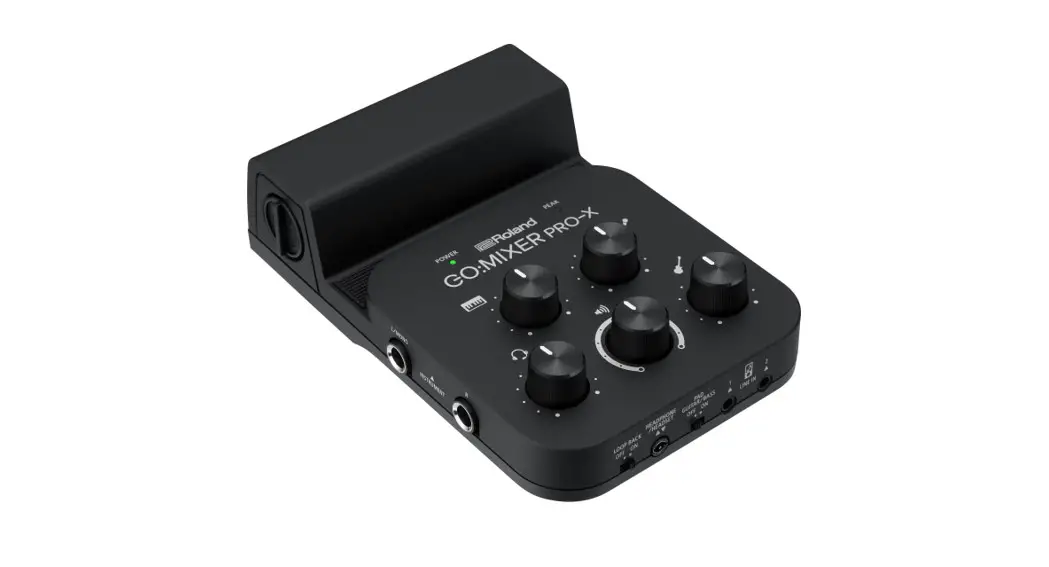

GO: MIXER PRO
Owner’s Manual
GO Mixer Pro
Before using this unit, carefully read the leaflet “USING THE UNIT SAFELY” and “IMPORTANT NOTES.” After reading, keep the document(s) where it will be available for immediate reference.
© 2018 Roland Corporation
to beginning
Connecting Devices
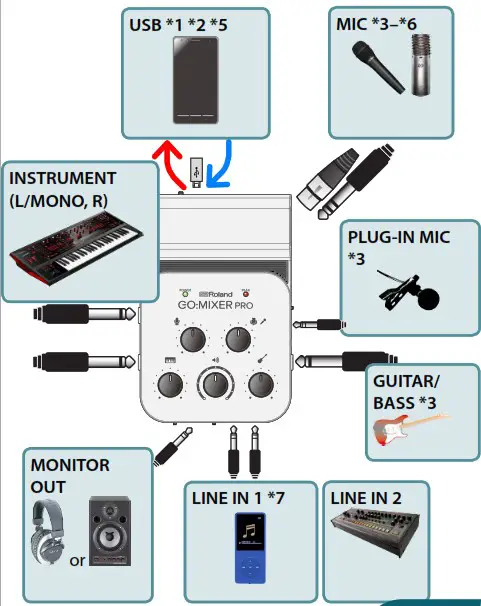
- To the GO:MIXER PRO, connect the instrument, mic, or audio player etc. that you want to record.
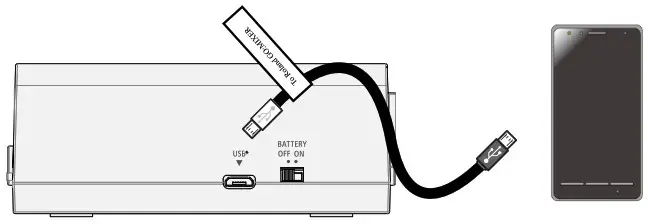
- Connect the included USB cable first to the GO:MIXER PRO and then to your smartphone (p. 6).
• If you are unable to record on your smartphone, slowly repeat step 2 once again.
• To prevent malfunction and equipment failure, always turn down the volume, and turn off all the units before making any connections.
• Before turning the unit on/off, always be sure to turn the volume down. Even with the volume turned down, you might hear some sound when switching the unit on/off. However, this is normal and does not indicate a malfunction.
• If operating on batteries, the POWER indicator blinks when the batteries run low. If you continue using the unit in this state, the power automatically turns off after approximately one minute. Replace the battery as soon as possible.
• In some cases, noise might be heard when you connect a smartphone, or when you start up or operate an app.
(*1) Connect only the included cable to this unit’s USB portAlso, do not connect the included cable to any device other than this unit (p. 6).
(*2) If connecting an Android smartphone to this unit, connect the tagged plug to this unit.
(*3) You must connect your guitar, bass, or mic to this jack.
If a mic and/or guitar are not connected, turn the [GUITAR/BASS] knob and/or [MIC] knob all the way to the left (the minimum setting). If the knob is not at the minimum setting, noise might enter the signal.
(*4) Pin assignment of MIC connector (XLR, TRS).
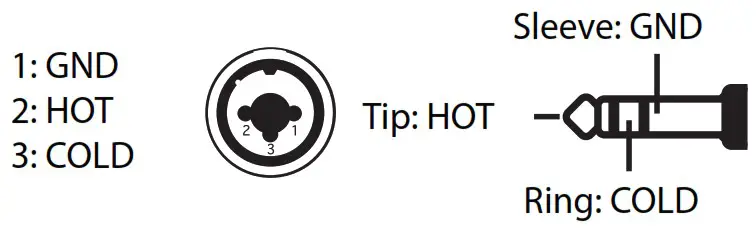
(*5) If you’re using a condenser mic that requires an external power supply, set the [PHANTOM POWER] switch to “48V.”
(*6) If you need to supply phantom power when using an iPhone or iPad, install batteries in this unit. (If batteries are not installed, phantom power cannot be supplied even if the [PHANTOM POWER] switch is set to “48V.” In this case, the POWER indicator blinks.)
If you’re using an Android smartphone, phantom power can be supplied both when you’re using batteries and when power is supplied from the smartphone.
| Phantom power supply conditions | Android | iPhone, iPad |
| Using batteries | √ | √ |
| Supplying power from the smartphone (USB) | √ | – |
(*7) Sound from a device connected to the LINE IN 1 jack can be used for karaoke (p. 19).
Connecting a Smartphone
Three USB cables for connection to a smartphone are included with this device.
By using these USB cables, you can supply power from a connected smartphone to this device.
Connecting an iPhone or iPad
This is a Lightning–USB cable for connecting this device to an iPhone or iPad.
* If you’re using an iPhone or iPad, this unit’s POWER indicator will light when the app starts.

Connecting an Android Smartphone
This is a USB cable for connecting this device to a smartphone equipped with a USB micro B-type connector. Connect the plug with the tag to the USB port of this device.
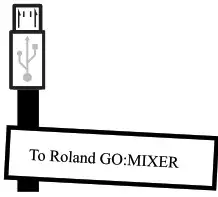
This is a USB cable for connecting this device to a smartphone equipped with a USB Type-C™ connector.
* When power is supplied to this device from a smartphone, the smartphone’s battery is consumed more heavily than usual.

MEMO
For information about smartphone compatibility, access the following link. http://roland.cm/gomixerprocp
to beginning
Adjusting the Volume
Adjust the knob so that the PEAK indicator lights briefly when your performance is loudest.
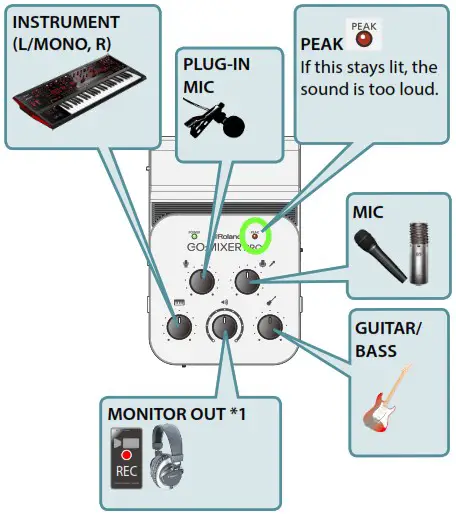
(*1) The [MONITOR OUT] knob adjusts the overall volume that is recorded.
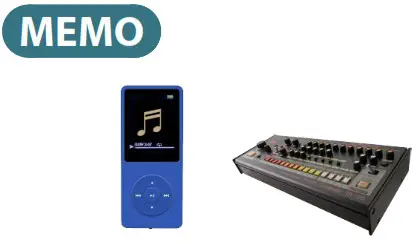
To adjust the volume of the devices connected to LINE IN 1 and LINE IN 2, use the volume controls of those devices.
Record
Recording with a Camera App
When you’re ready, use an app (such as a video camera) on your smartphone to record.
Recording with the Camcorder for GO: MIXER App
“Camcorder for GO: MIXER” is an app that lets you record video on your Android smartphone.
Recording with the 4XCAMERA App
“4XCAMERA” is an app that lets you record video on your iPhone or iPad.

Connection Examples
Here are some examples of connecting mics or instruments to this device.
Make connections and settings as appropriate for the equipment that you’re using.
Connecting a Mic
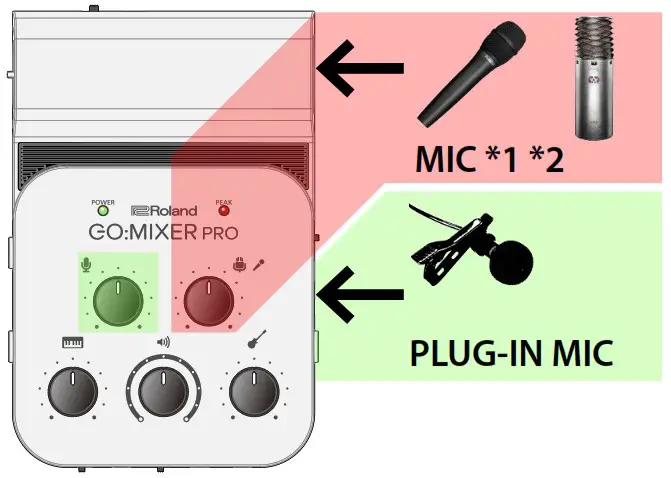
(*1) If you’re using a condenser mic that requires an external power supply, set the [PHANTOM POWER] switch to “48V.”
(*2) If you need to supply phantom power when using an iPhone or iPad, install batteries in this unit. (If batteries are not installed, phantom power cannot be supplied even if the [PHANTOM POWER] switch is set to “48V.” In this case, the POWER indicator blinks.) If you’re using an Android smartphone, phantom power can be supplied both when you’re using batteries and when power is supplied from the smartphone.
| Phantom power supply conditions | Android | iPhone, iPad |
| Using batteries | √ | √ |
| Supplying power from the smartphone (USB) | √ | – |
Connecting a Guitar or Bass
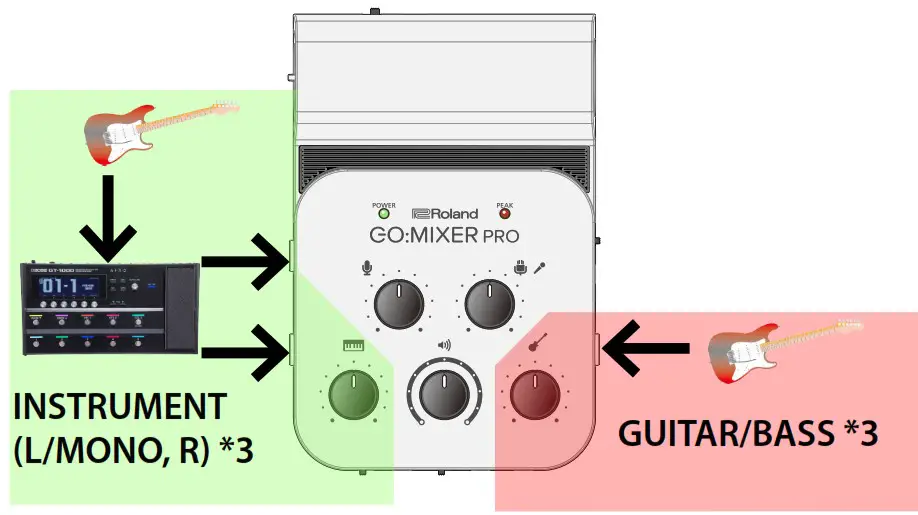
(*3) If you’re routing your guitar (or bass) through an effect device, connect it to the INSTRUMENT jacks.
Connecting to the Headphone Jack of an Audio Player or Computer
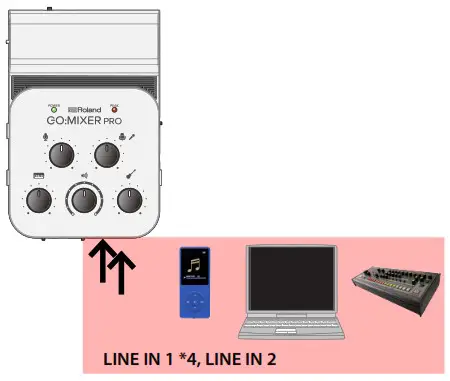
(*4) Sound from a device connected to the LINE IN 1 jack can be used for karaoke (p. 19).
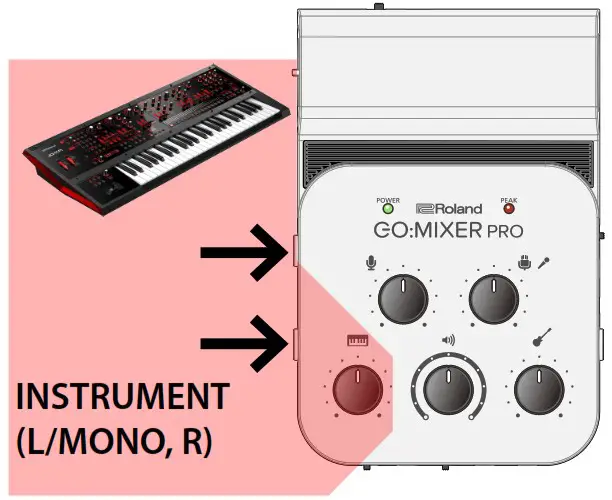
Connecting a Keyboard
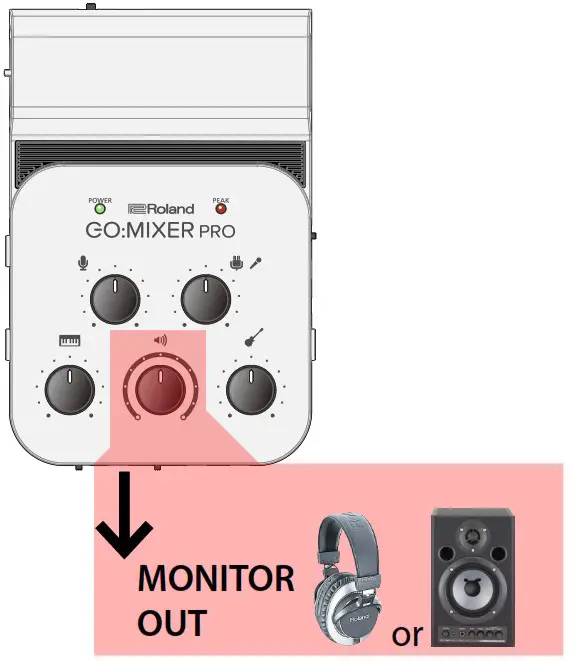
Connecting Monitor Speakers or Headphones
Recording a Mix of Instrumental Performance and Smartphone Music
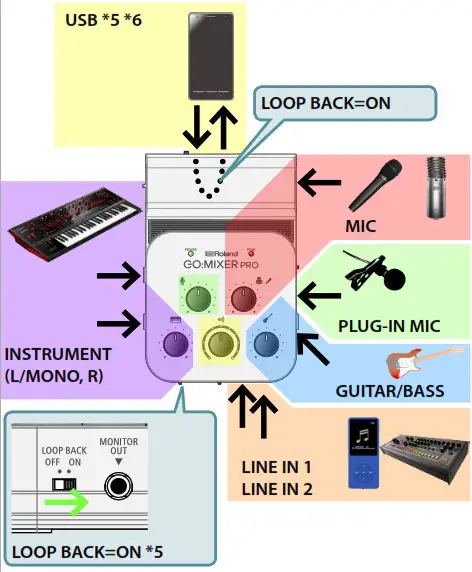
(*5) If you want to record video using your camera app or 4XCAMERA while playing back music from your smartphone, turn the [LOOP BACK] switch “ON.”
(*6) Audio is output to the smartphone as two channels (stereo).
Multitrack Recording with a DAW
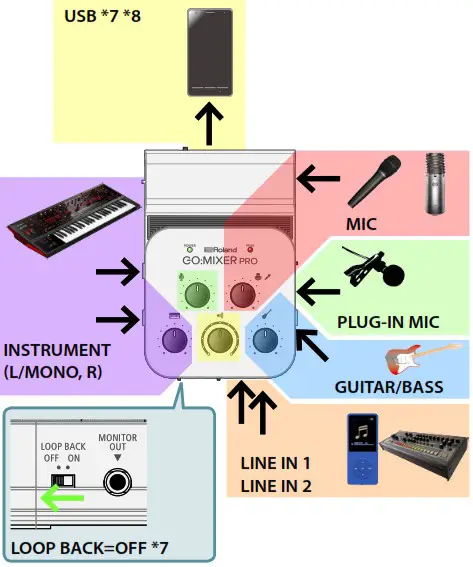
(*7) If you want to use a DAW app to record your performance, set the [LOOP BACK] switch to the “OFF” position. In this case, you can’t use the [MONITOR OUT] knob to control the volume of the smartphone that’s connected to the USB port (p. 22).
(*8) Audio is output to the smartphone as two channels (stereo).
Using a Backing Track for Karaoke (CENTER CANCEL)
The sound from the device connected to LINE IN 1 can be used for karaoke (*1).
- Set [CENTER CANCEL] to the “ON” position.
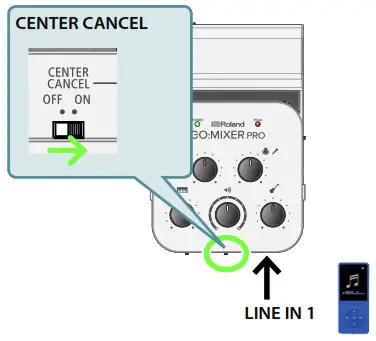
(*1) Depending on the sound, the instruments or vocals that are not in the center might not be canceled completely.
Using Batteries
If you’re not supplying power from the smartphone, install batteries in this unit.
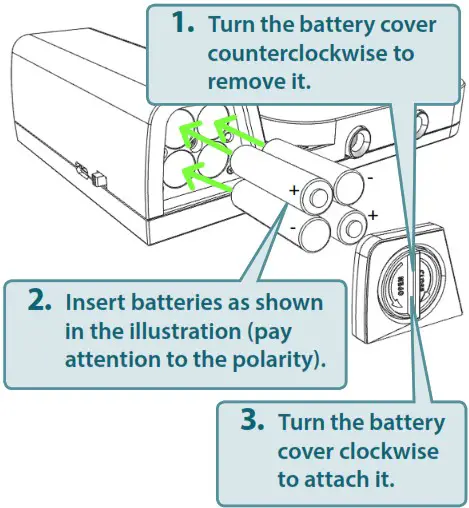
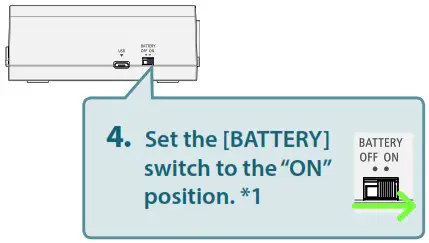
(*1) Don’t operate the [BATTERY] switch while a smartphone is connected. Doing so might destabilize the smartphone’s operation.
* If operating on batteries, the POWER indicator blinks when the batteries run low. If you continue using the unit in this state, the power automatically turns off after approximately one minute. Replace the battery as soon as possible.
* If you handle batteries improperly, you risk explosion and fluid leakage. Make sure that you carefully observe all of the items related to batteries that are listed in leaflet “USING THE UNIT SAFELY” and “IMPORTANT NOTES.”
MEMO
- If you’re supplying power from the smartphone to this unit, set the [BATTERY] switch to the “OFF” position. In this case, use the included USB cable.
- The smartphone cannot be recharged from this unit.
Block Diagram
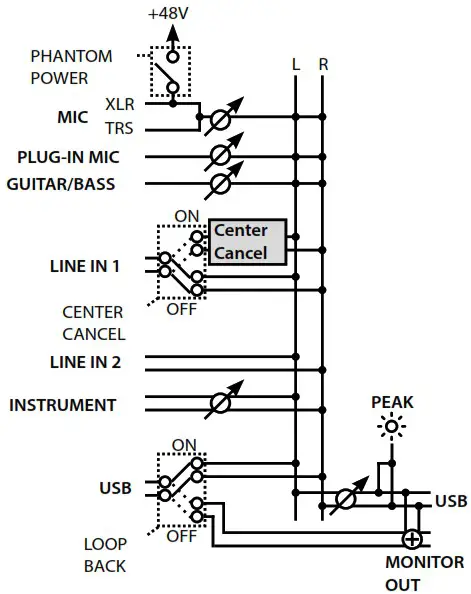
Main Specification
Roland GO: MIXER PRO: Audio Mixer for Smartphone
| Number of Audio Channels | Input | 9 channels |
| Output | 2 channels | |
| Connectors | INSTRUMENT (UMONO, R) jacks | 1/4-inch phone type |
| LINE IN 1 jack | Stereo miniature phone type | |
| LINE IN 2 jack | Stereo miniature phone type | |
| GUITAR/BASS jack | 1/4-inch phone type (supports high impedance) | |
| PLUG-IN MIC jack | Miniature phone type (supports pluq-in power) | |
| MIC jack | Combo type (XLR, 1/4-inch TRS phone, phantom power DC 48 V, 6 mA max.) | |
| MONITOR OUT jack | Stereo miniature phone type | |
| USB port | USB Micro-B type | |
| Power Supply | USB Bus Power Alkaline battery (AAA, LR03) x 4 Rechargeable Ni-MH battery (AAA, HR03) x 4 | |
| Battery life for continuous use | Approximately 4 hours 30 minutes * When setting the [BATTERY] switch to the “ON” position. * Differs depending on the conditions of use * Alkaline battery | |
| Current Draw | 170 mA | |
| Dimensions | 104 (W) x 155 (D) x 41 (H) mm 4-1/8 (W) x 6-1/8 (D) x 1-5/8 (H) inches | |
| Weight (excluding batteries and cables) | 2 20 g 8 oz | |
| Accessories | Leaflet “Downloading the Owner’s Manual” | |
| Leaflet”USING THE UNIT SAFELY” | ||
| Lightning to USB micro-B type cable | ||
| USB OTG micro-B type to USB micro-B type cable | ||
| USB Type-Cm to USB micro-B type cable | ||
| Registration Card (valid only in the US) | ||
* This document explains the specifications of the product at the time that the document was issued. For the latest information, refer to the Roland website.