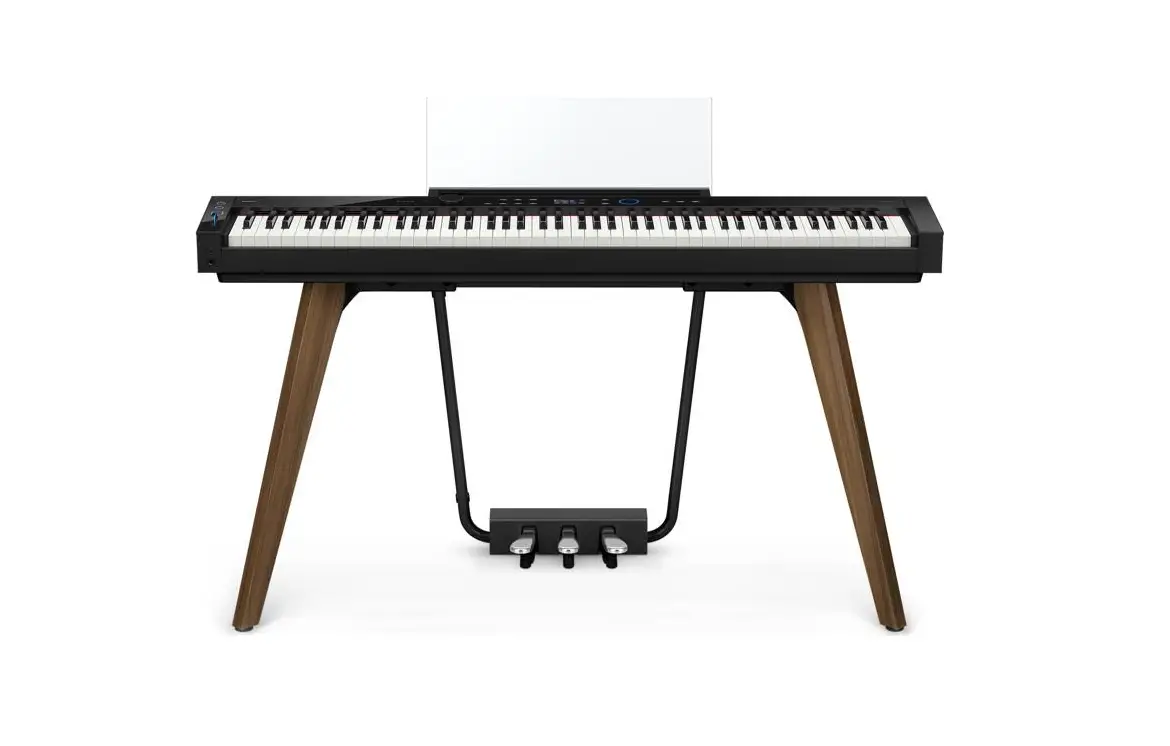

Electronic Musical Instrument
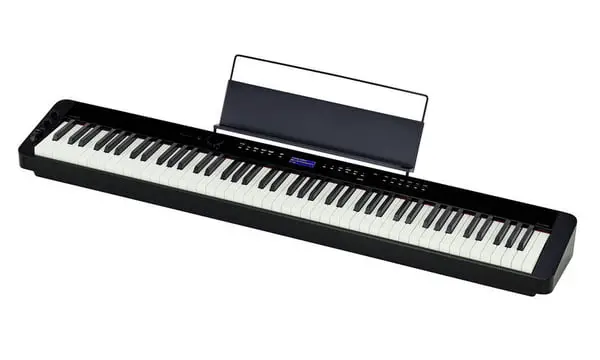
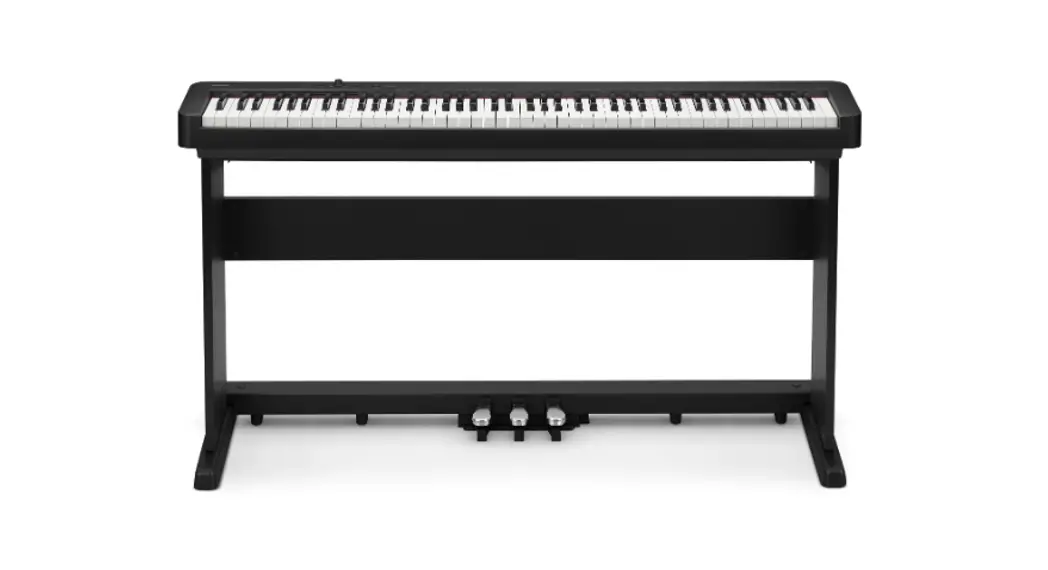
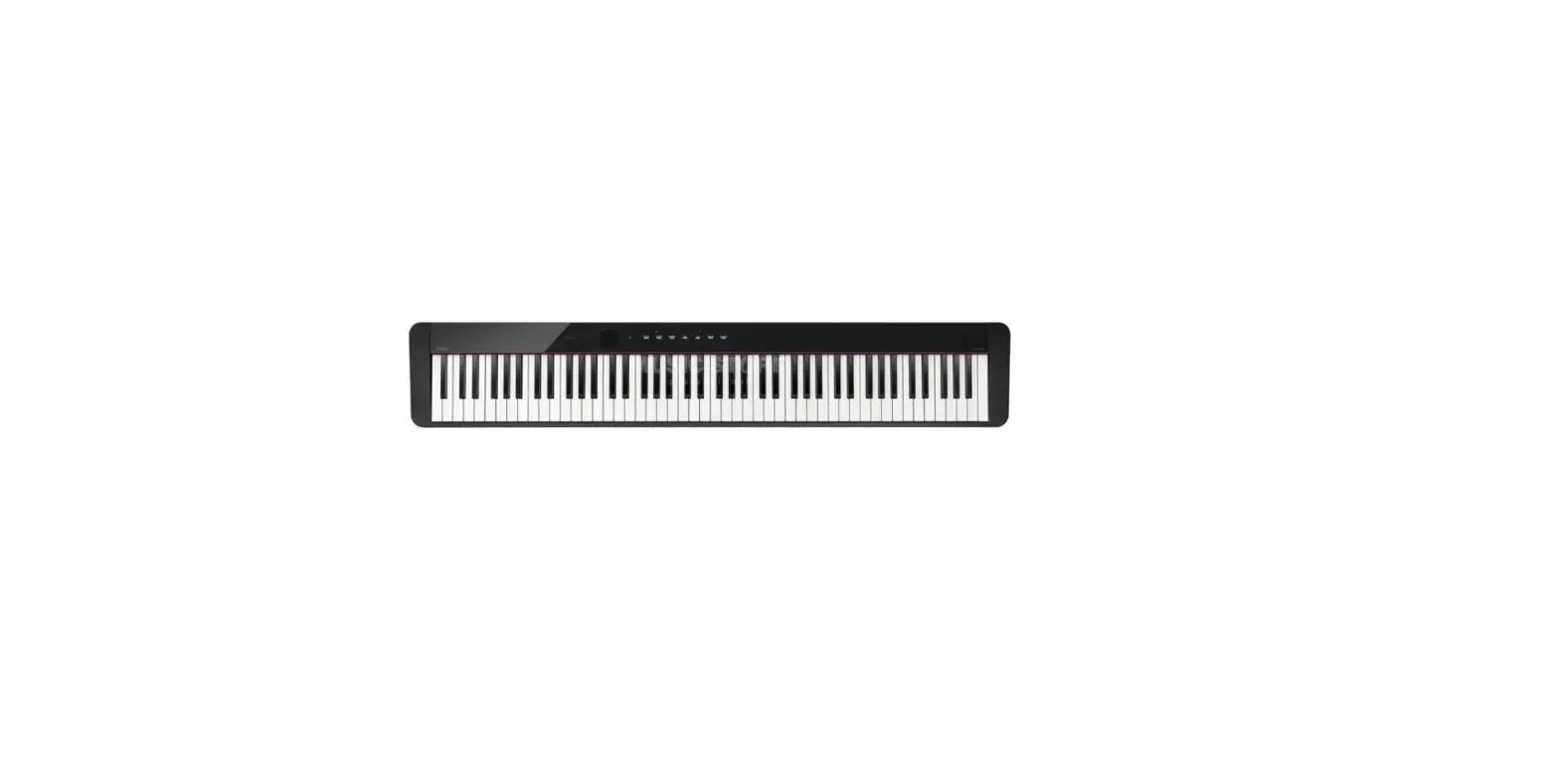
PX-S1000
Please keep all information for future reference.
Be sure to read the separate “Safety Precautions” and use the Digital Piano correctly.
USER’S GUIDE (Basics)
These instructions provide general information about Digital Piano operations. For more detailed information, refer to the
User’s Guide available on the CASIO website, which you can access using the nearby QR code or the URL below. https://support.casio.com/global/en/emi/manual/PX-S1000/
• When the Digital Piano is being operated on battery power only, notes may sound distorted when performing or playing back a song at maximum volume. This is due to the difference between AC adaptor power and battery power and does not indicate Digital Piano malfunction. If you notice distortion, switch to AC adaptor power or lower the volume level.
Supported Operations
✔18 tones for keyboard play
☞ THESE INSTRUCTIONS: “Selecting a Tone”
✔ Adjustable Touch Response
☞ THESE INSTRUCTIONS: “Changing Keyboard Response to Touch Pressure (Touch Response)”
✔ Hall simulator and surround effects
☞ THESE INSTRUCTIONS: “Using the Sound Mode”
✔ Metronome to guide practice
☞ THESE INSTRUCTIONS: “Using the Metronome”
✔ Duet Mode
☞ THESE INSTRUCTIONS: “Splitting the Keyboard for Duet Play”
✔ Built-in tune playback and practice
☞ THESE INSTRUCTIONS: “Listening to Demo Play”, “Listening to Songs (Music Library)”
✔ Keyboard play recording
☞ THESE INSTRUCTIONS: “Recording and Playing Back Performances (MIDI Recorder)”
✔ Smart device linking for enhanced function
☞ THESE INSTRUCTIONS: “Linking with a Smart Device (APP Function)”
✔ Bluetooth connectivity for playing external device audio through Digital Piano speakers
☞ THESE INSTRUCTIONS: “Using the Digital Piano as a Bluetooth Speaker System”
✔ Other useful features
• Keyboard pitch adjustment (Transpose, Tuning, Octave Shift)
• Effects (Chorus, Brilliance)
• Acoustic piano sound characteristic adjustment (Acoustic Simulator)
• 17 scales including equal temperament (Scale Tuning)
• Connection to a computer for performance information (MIDI data) exchange
☞ CASIO WEBSITE: “User’s Guide”, “Keyboard Function List”, “Bluetooth, Audio Device, and Computer Connection Guide”
✔ Troubleshooting
☞ CASIO WEBSITE: User’s Guide
General Guide
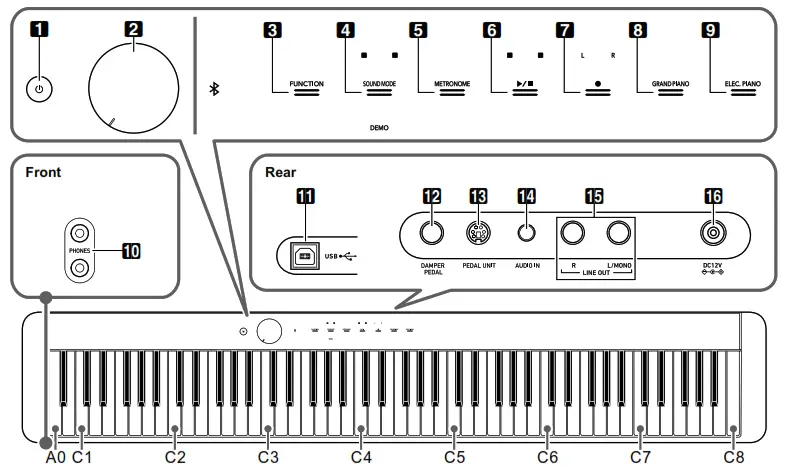
| 1.P (Power) button | 9. ELEC. PIANO button |
| 2.Volume knob | 10. PHONES jacks |
| 3.FUNCTION button | 11. USB port |
| 4.SOUND MODE button | 12. DAMPER PEDAL jack |
| 5.METRONOME button | 13. PEDAL UNIT jack |
6. button button | 14. AUDIO IN jack |
| 7. ● (REC) button | 15. LINE OUT R, L/MONO jacks |
| 8.GRAND PIANO button | 16. DC 12V terminal |
■ Preparing the Music Stand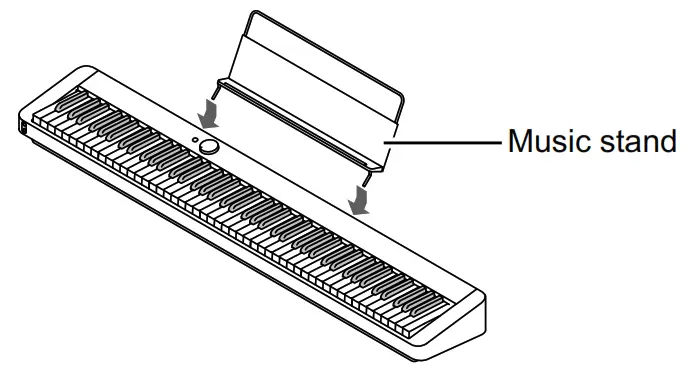
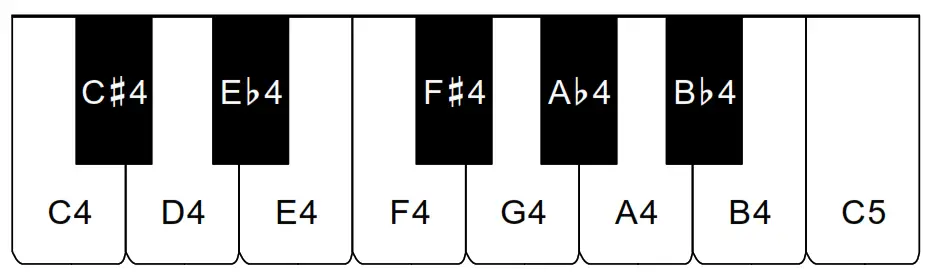
■ Keyboard note names and pitches The keyboard note names and pitches used in these instructions follow the international standard. Middle C is C4, the lowest C is C1, and the highest C is C8. The illustration below shows keyboard key note names from C4 through C5.
Keyboard Function List
Function settings can be configured by holding down a touch button as you press a keyboard key. For more information refer to the Keyboard Function List available from the CASIO website.
■ GRAND PIANO Button + Keyboard Key *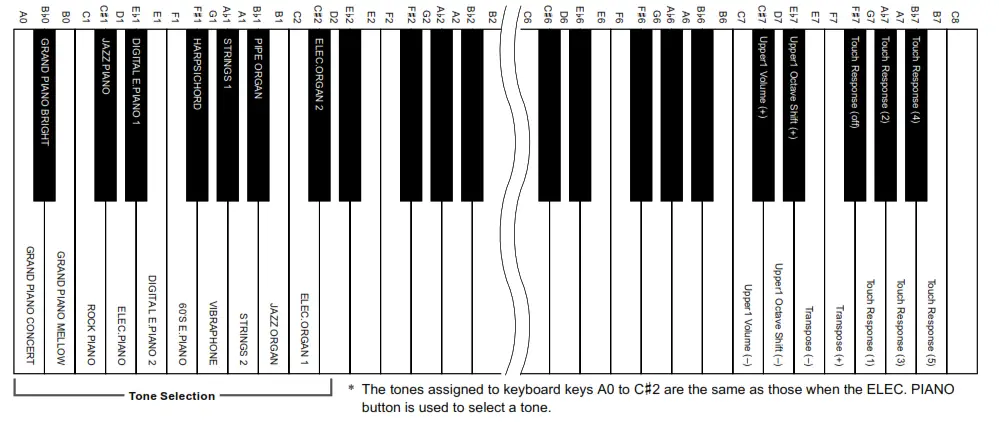
■ METRONOME Button + Keyboard Key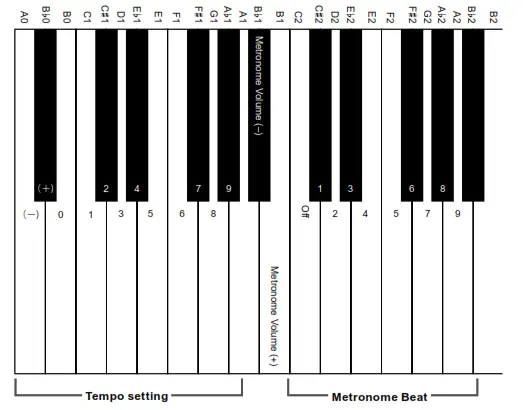
■ FUNCTION Button + Keyboard Key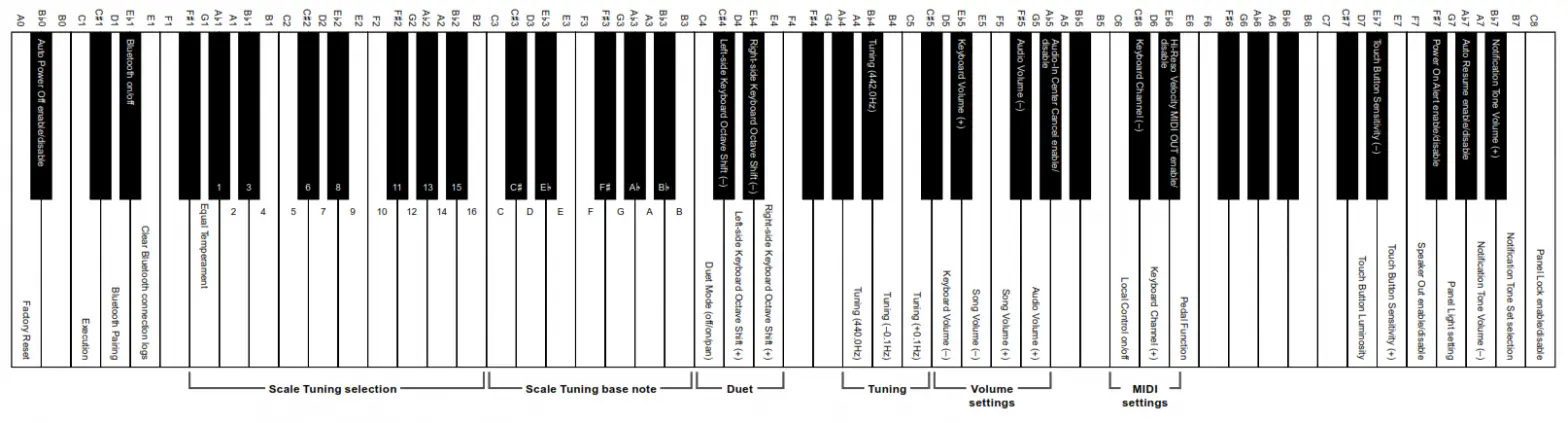
About Music Score data
You can download music score data as a PDF file from the CASIO website, which you can access using the URL or QR code below. You will then be able to view music scores on your smart device. You can jump from the PDF file table of contents directly to the music score you want, and you can print out scores as needed. https://support.casio.com/global/en/emi/manual/PX-S1000/
Included Accessories
● Music Stand
● AC adaptor
● Power cord
● Pedal
● Leaflets
• Safety Precautions
• Other (Warranty, etc.)
Items included as accessories are subject to change without notice.
Separately Available Accessories You can get information about accessories that are separately available for this product from the CASIO catalog available from your retailer, and from the CASIO website at the URL or QR code below. https://support.casio.com/global/en/emi/manual/PX-S1000/
Getting Ready
■ Using the AC Adaptor
Make sure that you use only the AC adaptor specified for this Digital Piano. Use of a different type of AC adaptor can cause malfunction.
Specified AC Adaptor: AD-A12150LW (JEITA Standard plug)
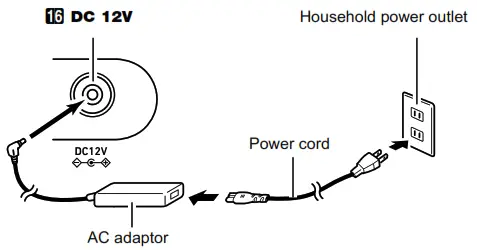
IMPORTANT!
- Never connect the AC adaptor (JEITA Standard, with unified polarity plug) that comes with this Digital Piano to any other device besides this Digital Piano.
Doing so creates the risk of malfunction. - Be sure to turn off Digital Piano power before connecting or disconnecting the AC adaptor.
- The AC adaptor will become warm to the touch after very long use. This is normal and does not indicate malfunction.
■ Using Batteries
IMPORTANT!
- Be sure to turn off power before loading batteries.
- It is up to you to prepare six commercially available alkaline batteries.
- Note the following precautions while the Digital Piano is turned upside down to load batteries.
− Take care to avoid injury due to pinching your fingers under the Digital Piano.
− Do not allow the Digital Piano to tip over or otherwise be subjected to strong impact. Impact can damage the volume knob and keyboard keys.
1. Open the battery cover on the bottom of the Digital Piano.
2. Load six AA-size batteries into the battery compartment.
Make sure the positive + and negative – ends of the batteries are facing as marked on the Digital Piano.
3. Insert the tabs of the battery cover into the holes on the side of the battery compartment, and close the cover.
■ Low Battery Indicator
Low power is indicated when the lights of all the touch buttons, except for the 3 FUNCTION, start to flash. When this happens, try lowering the volume level. If this does not stop the flashing, replace the batteries with new ones.
IMPORTANT!
• Continued use with low batteries will cause Digital Piano power to turn off automatically. This can cause data stored in Digital Piano memory to be corrupted or lost.
Turning Power On or Off
1. Before turning on power, rotate the 2 volume knob as far as it will go in the direction shown in the illustration below.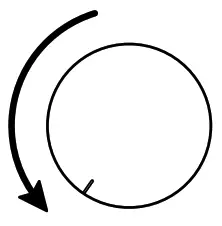 2. Press the
 1 (Power) button to turn on power.
Turning on power will cause the lights of the front panel touch button to light in sequence from left to right (3 FUNCTION to 9 ELEC. PIANO ). The Digital
Piano is ready to play when all touch button lights are lit.
3. Use the 2 volume knob to adjust volume.
4. To turn off power, hold down the 1 (Power) button until all lit touch button lights turn off.

- Power may not turn on if you press the 1
 (Power) button too lightly. This does not indicate malfunction. If this happens, apply more pressure when you press the 1 (Power) button.
 - Pressing the 1 (Power) button to turn off power actually puts the Digital Piano into a standby state. Minute amounts of current continue to flow within the Digital Piano in the standby state. If you do not plan to use the Digital Piano for a long time or if there is a lightning storm in your area, be sure to unplug the AC adaptor from the power outlet.
Using a Pedal
■ DAMPER PEDAL Jack
Connect the supplied pedal (SP-3) to the bm DAMPER PEDAL jack. This pedal functions as a damper pedal under initial Digital Piano default settings. For details about how to assign functions to this pedal, refer to the User’s Guide that is available on the CASIO website.
■ PEDAL UNIT Jack
You can connect the optionally available 3-Pedal Unit (SP34) to the 13 PEDAL UNIT jack on the back of the Digital Piano. You can then use the pedals for expression that is similar to that available on an acoustic piano.
☞ CASIO WEBSITE: User’s Guide
Using Headphones
Using headphones cuts off output from the built-in speakers, which means you can practice playing even late at night without disturbing others.
• Be sure to turn down the volume level before connecting headphones.
• Headphones do not come with the Digital Piano.
• Use commercially available headphones. See
“Separately Available Accessories” for information about options.
• Do not listen to very high volume output over headphones for long period. Doing so creates the risk of hearing damage.
• If you are using headphones that require an adaptor plug, make sure you do not leave the adaptor plugged in when you unplug the headphones. If you do, nothing will sound from the speakers when you play.
• When operating a touch button, touch it firmly with a bare finger. Touch buttons will not respond if you touch them while wearing gloves.
■ Touch Button Only Operations
Touching a touch button firmly and immediately releasing it will perform the operation assigned to the button. For example, touching 9 ELEC. PIANO selects the ELEC.PIANO tone, while touching 5 METRONOME starts (or stops) the metronome.
■ Touch Button + Keyboard Key Combinations
A number of different Digital Piano settings can be configured by using a touch button (except for the 70 (REC) button) in combination with a keyboard key. As an example, the procedure below shows how to select the JAZZ ORGAN tone.
1. Hold down 8 GRAND PIANO
• Until you release 8 GRAND PIANO in step 3 below, you can use keyboard keys to select tones and to configure other settings. For information about what operations you can perform while 8 GRAND PIANO is depressed, see the “Keyboard Function List”.
2. Press the B1 keyboard key.
This selects the JAZZ ORGAN tone and causes the confirmation tone to sound using the JAZZ ORGAN tone.
3. Release 8 GRAND PIANO
• Now you can play on the keyboard with the JAZZ ORGAN tone.
■ Touch Button Light Auto-Off (Panel Light Setting)
To save power, you can configure a setting that will turn off all button lights, except for 3 FUNCTION, after a certain period of non-operation.
☞ CASIO WEBSITE: User’s Guide
Selecting a Tone
Your Digital Piano comes with 17 tones that are assigned to the entire keyboard range, plus one bass tone that can be assigned to lower range only.
Selecting a Single Tone
■ To select a tone using keyboard keys
1. While holding down 8 GRAND PIANO, press a keyboard key from A0 through C{2.
• For example, pressing the F#1 keyboard key will select the HARPSICHORD tone and will sound the confirmation tone using the HARPSICHORD tone.
• For information about the tone assigned to each keyboard key, see the “GRAND PIANO Button + Keyboard Key” entry in the “Keyboard Function List”.
2. Release 8 GRAND PIANO
■ To select a tone with the touch buttons
| To select this tone: | Touch: |
| GRAND PIANO CONCERT | 8 GRAND PIANO |
| ELEC.PIANO | 9 ELEC. PIANO |
Layer and Split
You can configure the keyboard to play two different tones at the same time across its entire range (Layer), or to play different tones in the left and right ranges (Split).
■ To layer two tones
1. Use the procedure under “Selecting a Single Tone” to select the Upper1 tone.
2. Keep 9 ELEC. PIANO depressed until step 5, below.
3. Press the C7 keyboard key to enable layering.
• Each press of C7 toggles layering between enabled and disabled.
4. Press a keyboard key within the range of A0 through C#2 to sound both tones at the same time.
• For information about the tone assigned to each keyboard key, see the “GRAND PIANO Button + Keyboard Key” entry in the “Keyboard Function List”.
5. Release 9 ELEC. PIANO.
• Now when you press a keyboard key to play, the two tones you selected will sound at the same time.
■ To use split to play bass notes in the lower range
1. Use the procedure under “Selecting a Single Tone” to select the upper range tone.
2. While holding down 9 ELEC. PIANO , press the D2 keyboard key. This assigns the bass tone to the lower range. 3. Release 9 ELEC. PIANO .
• Touching 8 GRAND PIANO or 9 ELEC. PIANO selects the tone assigned to the touch button, and unlayers and unsplits the keyboard.
Listening to Demo Play
1. Hold down 3 FUNCTION.
This causes the 3 FUNCTION and DEMO lights to flash, and the 4 SOUND MODE light to turn light.
2. Touch 4 SOUND MODE.
This will cause the 6 and DEMO lights to light, and starts playback of the one demo song (and the lights of touch buttons except for 6 to turn off). After demo song playback is complete, it will continue with playback of Music Library songs.
• The operations below are supported during demo play.
| To do this: | Perform this operation: |
| Skip forward to thenext song | While holding down 6, press the B0 keyboard key. |
| Skip back to the previous song | While holding down 6, press the B}0 keyboard key. |
| Jump to a specific song | While holding down 6, press a keyboard key from C1 through B5. * |
| Stop demo song playback | Touch 6. |
* For details about built-in songs, see the “Music Library List”.
Changing Keyboard Response to Touch Pressure (Touch Response) Touch Response alters tone volume in accordance with keyboard pressure (speed). This provides you some of the same expressivity you get on an acoustic piano.
■ To change touch response sensitivity
1. While holding down8 GRAND PIANO, press a keyboard key from F#7 through B7.
| Pressing this key: | Selects this setting: | Which does this: |
| F#7 | Off | Disables Touch Response. Sound volume is fixed, regardless of key press speed. |
| G7 | 1: Light | Makes production of a louder sound easier, so touch feels lighter than “Normal”. |
A 7 7 | 2: Medium Light | |
| A7 | 3: Normal | Specifies normal sensitivity. |
| B7 | 7 4: Medium-Heavy | Makes production of a louder sound more difficult, so touch feels heavier than “Normal”. |
| B7 | 5: Heavy |
2. Release 8 GRAND PIANO.
Using the Metronome
The metronome sounds a regular tone to mark time. Use the metronome when you want to practice playing at a regular tempo.
■ To start or stop the metronome
1. Touch 5 METRONOME
This starts the metronome.
• LEDs above 6a button flash yellow (first beatand red (remaining beats) in time with the metronome beats.
2. To turn off the metronome, touch the 5 METRONOME again.
■ To change the metronome beat
1. While holding down5 METRONOME, press a keyboard key from C2 through A2.
| Pressing this key: | Selects this setting: | Which does this: |
| C2 | Off | Sounds a click for all beats. |
| C#2 | 1 | Sounds a bell for all beats. |
| D2 | 2 | These keys specify a beat setting of 2 to 9. The first beat of each measure is a bell sound, while the The remaining beats are clicks. |
| E2 | 2 3 | |
| E2 | 4 | |
| F2 | 5 | |
| F#2 | 2 6 | |
| G2 | 7 | |
| A2 | 2 8 | |
| A2 | 9 |
• For the location of each metronome setting keyboard key, see the “METRONOME Button + Keyboard Key” entry of the “Keyboard Function List”.
2. Release 5 METRONOME.
Specifying the Tempo
When using the metronome or when playing back a Music Library song, you can specify a tempo setting within the range of 20 to 255 beats per minute. For the location of each tempo setting keyboard key, see the “METRONOME Button + Keyboard Key” entry of the “Keyboard Function List”.
1. While holding down 5 METRONOME, use keyboard keys B0 to A}1 to input a tempo value.
• Input three digits for the tempo value. To specify a value that has fewer than three digits, input zero (0) for the unused leading digit. For example, to specify a tempo of 80 bpm, press keyboard keys in the following sequence: B0 (0) → G1 (8) → B0 (0). The end tone will sound when you input the third digit.
• Here, you could use the A0 (–) or B0 (+) keyboard key to raise or lower the tempo by 1 with each press.
2. After the setting is the way you want, release 5 METRONOME.
Using the Sound Mode
You can use 4 SOUND MODE to enable and disable the effects described below.
● Hall Simulator
The hall simulator effect simulates the rich clarity, unconstrained brilliance, and other distinctive acoustic characteristics of world-famous concert halls and structures. You can also adjust the depth of the hall simulator effect.
● Surround
The Surround effect creates acoustics that makes the sound from the speakers seem like it is coming from multiple directions (virtual surround).
• The Surround effect is not applied to the output from the Digital Piano’s bk PHONES jack or bp LINE OUT R, L/MONO jacks.
■ To enable or disable the Hall Simulator and Surround effects
1. Touch 4 SOUND MODE.
• Each touch will cycle between the settings, and the current setting is indicated by the LED lights as shown below.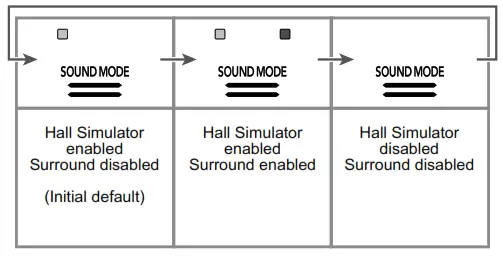
■ To specify the Hall Simulator type
1. While holding down 4 SOUND MODE, press a keyboard key from A0 through C1.
| Pressing this key: | Selects this setting: | Description |
| A0 | 1: STANDARD HALL | Standard concert hall |
| B0 | 2: OPERA HALL | Uniquely shaped Sydney Concert Hall |
| B0 | 3: BERLIN HALL | Berlin arena type classic concert hall |
| C1 | 4: BRITISH STADIUM | Large outdoor stadium in the London suburbs |
2. Release 4 SOUND MODE.
■ To specify the Surround type
1. While holding down 4 SOUND MODE, press the F1 (Surround Type 1) or F{1 (Surround Type 2) keyboard key.
2. Release 4 SOUND MODE.
Splitting the Keyboard for Duet Play
You can split the keyboard in the center for duet play so the left and right sides have the same ranges. The Duet Mode is the perfect way to conduct lessons, with the teacher playing on the left side as the student plays the same song on the right side.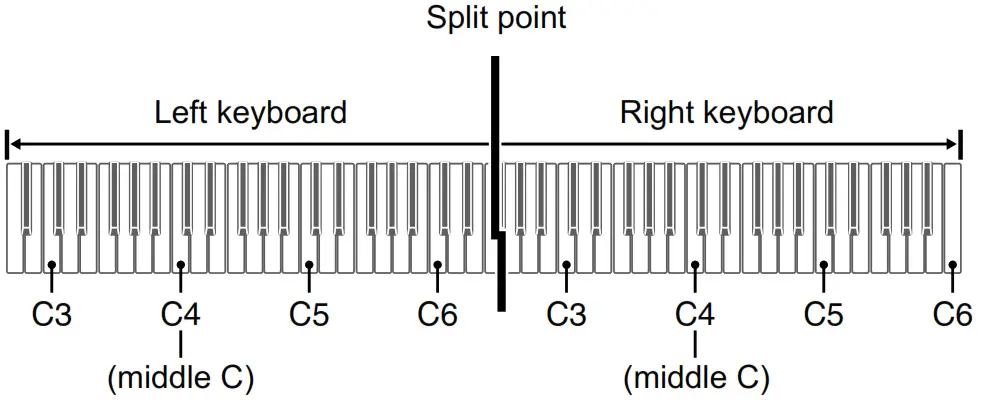
■ Pedal Operation when Playing a Duet
• If you are using the separately available SP-34 Pedal Unit, the left outer pedal is the left keyboard damper pedal, while the right outer pedal is the right keyboard damper pedal. Only the damper pedal for the right keyboard supports half-pedal operations.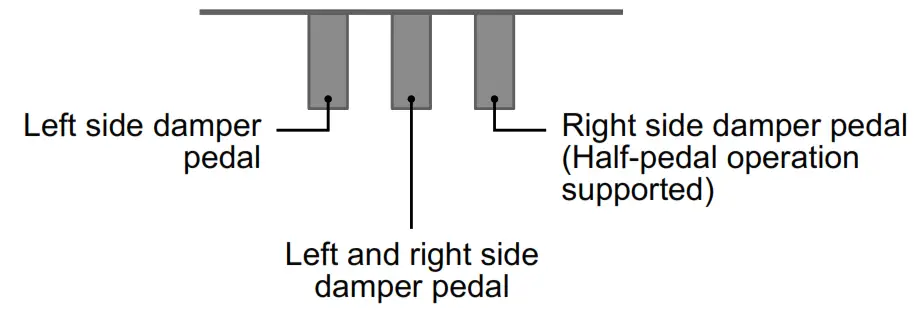
• To use the supplied SP-3 Pedal as a damper pedal that affects both the left keyboard and right keyboard, connect it to the bm DAMPER PEDAL jack. Half-pedal operation is not supported in this case.
■ To use the Duet Mode
• For the location of the keyboard key used to configure the setting below, see the “FUNCTION Button + Keyboard Key” entry of the “Keyboard Function List”.
1. While holding down 3 FUNCTION, press the C4 keyboard key.
Each time the C4 keyboard key is pressed to change this setting, a notification tone sounds to indicate the newly selected setting.
| Notification Tone | Setting | Description |
| Off tone | Off | Duet Mode exited. |
| Option tone× 1 | On | Duet Mode entered. |
| Option tone × 2 | Pan | Left-side keyboard notes output from the left speaker, right-side keyboard notes output from the right speaker while in the Duet Mode. |
2. After the setting is the way you want, release 3 FUNCTION.
Listening to Songs (Music Library)
The Digital Piano comes with a Music Library of well-known piano pieces you can playback for your listening enjoyment. You can also turn off the left-hand part or right-hand part of a built-in song and play along on the keyboard.
■ To listen to Music Library songs
1. While holding down 6a, press one of the keyboard keys below to select the song you want.
| Pressing this key: | Does this: |
| C1 to B5 | Selects the built-in song (Song numbers 1 to 60) that corresponds to the pressed keyboard key. |
| B0 | Selects the next song number. |
| B0 | Selects the previous song number. |
• For information about the relationship between keyboard keys, song numbers, and song titles, see the “Music Library List”.
2. After selecting a song, release 6.
3. To start song playback, touch 6.
• Playback will stop automatically when the end of the song is reached. To stop song playback, touch 6.
■ To select a playback part and play a song
1. Perform steps 1 and 2 under “To listen to Music Library songs” to select the song you want to practice.
2. As required, perform the procedure under
“Specifying the Tempo” to specify the tempo of the song.
3. Select the playback part (left-hand or right-hand part).
(1) While holding down 6a, press keyboard key A0 (leftmost white key).
Each press of the A0 keyboard key cycles through the settings shown below.
L only lit: Left-hand part played, right-hand part muted.
R only lit: Right-hand part played, left-hand part muted.
LR both lit: Both left- and right-hand parts played.
(2) Release 6.
4. To start song playback, touch 6.
• Play the muted part along with the playback.
Recording and Playing Back Performances (MIDI Recorder)
Your Digital Piano can record what you play on the keyboard and play it back when you want.
• CASIO COMPUTER CO., LTD. takes no responsibility for any damages, lost profits, or claims by third parties arising from the deletion of recorded data due to malfunction, repair, or for any other reason.
• Should power fail during recording, all of the data in the track you are recording will be deleted.
• The Digital Piano’s MIDI recorder can record the left-hand track and right-hand track individually, and then the two tracks can be combined into a single song. Here we will present a simple operation that records the left-hand part track only. For details about the recording operation, refer to the User’s Guide that is available on the CASIO website. • Up to approximately 10,000 notes (total of two tracks) can be recorded for a single song.
To record keyboard play
1. Touch 7 ● (REC) so it lights white. This enters record standby, which is indicated by flashing 7 ● (REC) (red) and 6 (white) lights.
2. To start recording, play something on the keyboard. This causes the 7 ● (REC) (red) light to change from flashing to lit, which indicates that recording is in progress.
• If, during a recording operation, the number of remaining recordable notes is 100 or fewer, the L indicator will start to flash more quickly. Recording stops automatically when the number of remaining recordable notes becomes 0.
3. When you are finished recording, touch 7 ● (REC) or 6. This makes 7 ● (REC) light white again.
4. To replay the recording, touch 6.
To perform playback
1. While holding down 6, press the C7 keyboard key.
2. Release 6.
3. To start playback, touch 6.
• Playback will stop automatically when the end of the recording is reached. To stop playback manually, touch 6.
Using the Digital Piano as a Bluetooth Speaker System
This Digital Piano can be used as a Bluetooth speaker system. After you pair the Digital Piano with an external device that is Bluetooth audio capable, you can output playback from the external device through the Digital Piano’s speakers.
• Before performing the pairing operation, turn down the volume levels of the Digital Piano and the external device.
• If the external device notes that sound through the Digital Piano speakers are distorted, lower the external device’s volume level setting.
■ To pair the Digital Piano with a Bluetooth audio device
• For the location of the keyboard key used to configure the setting below, see the “FUNCTION Button + Keyboard Key” entry of the “Keyboard Function List”.
• The Digital Piano can store pairing information for up to eight Bluetooth audio devices. Note, however, that only one device can be connected to the Digital Piano at a time.
1. On the Bluetooth setting screen that appears on the external device, turn on Bluetooth if it is off.
2. On the Digital Piano, hold down 3 FUNCTION as you press the D1 keyboard key.
This causes the Digital Piano’s Bluetooth icon ( ) to flash, which indicates pairing standby.
• If Digital Piano’s Bluetooth is turned off, it will turn on automatically at this point.
3. Release 3 FUNCTION
4. On the Bluetooth setting screen on the external device, select “CASIO Privia” (this Digital Piano).
• This completes pairing, which causes the Digital Piano’s Bluetooth icon ( ) to change from flashing to lit.
• Now output from the external device will sound from the Digital Piano’s speakers.
Linking with a Smart Device (APP Function)
You can use the APP Function to connect the Digital Piano with a phone, tablet or other smart device and perform the operations described below.
• Control the Digital Piano from a phone (Piano Remote Controller)
• Transfer music data from a smart device
■ To download the smart device app
Download the Chordana Play for Piano app from the CASIO website and install it on the smart device. https://support.casio.com/global/en/emi/manual/PX-S1000/

■ To link to a smart device
After installing the Chordana Play for Piano app on a smart device, use a commercially available USB cable to connect the smart device’s USB port with the Digital Piano’s USB port. After connecting the smart device to the Digital Piano, use the smart device app to perform operations. For details about operations, refer to the user documentation of the app.
Product Specifications
Model: PX-S1000BK/PX-S1000WE/PX-S1000RD
Keyboard: 88-key piano keyboard; Duet: Adjustable tone range (–2 to +2 octaves); Transpose: –12 to 0 to +12 semitones; Octave shift: –2 to 0 to +2 octaves
Sound Source: Number of Tones: 18 (17 full-keyboard tones + 1 low-range bass tone); Layer (excluding bass tone); Split (bass tone only in low range); Maximum polyphony: 192 notes; Touch Response (5 sensitivity levels, Off); Tuning: 415.5Hz to 440.0Hz to 465.9Hz (0.1Hz units); Temperament: Equal temperaments plus 16 other types
Acoustic Simulator: Hammer response, Key off response, String resonance, Damper resonance, Damper noise, Key on action noise, Key off action noise
Sound Mode: Hall simulator (4 types), Surround (2 types)
Other Effects: Chorus (4 types), DSP, Brilliance (–3 to 0 to 3)
Demo Song: 1
Music Library: Built-in Songs: 60, User Songs: 10 (Up to approximately 90KB per song, approximately 900KB for 10 songs)*; Song volume: Adjustable (Setting also affects MIDI recorder song playback.); Part On/Off: L, R
* Based on 1KB = 1024 bytes, 1MB = 1024 2 bytes
MIDI Recorder: Functions: Real-time recording, playback; Number of Song: 1; Number of Tracks: 2; Capacity: Approximately 10,000 notes total; Recorded Data Protection: Built-in flash memory; MIDI recorder volume: Adjustable (Setting also affects Music Library song playback.)
Metronome: Beat bell: Off, 1 to 9 (beats); Tempo Range: 20 to 255; Metronome Volume Level: Adjustable
Pedals: Included SP-3 pedal assignable functions: Damper (off, on), sostenuto (off, on), soft (off, on), metronome (start, stop), tempo setting; Separately available SP-34 pedal unit: Damper (off, half, on), sostenuto (off, on), soft (off, on)
Other Functions: Auto Resume; Operation Lock; Notification tones (Selectable sets 1, 2, 3; Adjustable volume) Bluetooth Connection: Bluetooth Version: 5.0; Supported Profile: A2DP; Supported Codecs: SBC; Wireless Output: Bluetooth Class 2; Transmission Frequency Range: 2402 to 2480 MHz; Maximum Wireless Output: 4 dBm
MIDI: 16-channel multi-timbre receive
USER’S GUIDE (Basics)
Inputs/Outputs: PHONES jacks: Stereo mini jacks (3.5mm) × 2; Power: 12V DC; AUDIO IN jack: Stereo mini jack (3.5mm) (Input impedance: 10kΩ, Input voltage: 200mV); LINE OUT R, L/MONO jacks: Standard jacks (6.3mm) × 2 (Output impedance: 2.3kΩ, Output voltage: 1.3V (RMS) MAX); USB port: Type B; DAMPER PEDAL jack: Standard jack (6.3mm); PEDAL UNIT jack: Proprietary jack
Acoustics: Amp output: 8W + 8W; Speakers: 16cm × 8cm (oval) × 2
Power Supply: 2-way Batteries: 6 AA-size alkaline batteries Continuous Operation: Approximately 4 hours Playback of built-in demo tunes on alkaline batteries Actual continuous operation time may be shorter due to battery type and performance type. AC Adaptor: AD-A12150LW Auto Power Off: Approximately four hours (under AC adaptor power) or six minutes (under battery power) after last operation, can be disabled.
Power Consumption: 12V = 10W
Dimensions: 132.2 (W) × 23.2 (D) × 10.2 (H) cm (52 1/16 × 9 1/8 × 4 inch)
Weight: Approximately 11.2kg (24.7 lbs) (without batteries)
• Specifications and designs are subject to change without notice.
| No | *1 | Title |
| 1 | C1 | Nocturne Op.9-2 |
| 2 | C{1 | Fantaisie-Impromptu Op.66 |
| 3 | D1 | Étude Op.10-3 “Chanson de l’adieu” |
| 4 | E}1 | Étude Op.10-5 “Black Keys” |
| 5 | E1 | Étude Op.10-12 “Revolutionary” |
| 6 | F17 | Étude Op.25-9 “Butterflies” |
| 7 | F{1 | Prélude Op.28-7 |
| 8 | G1 9 | Valse Op.64-1 “Petit Chien” |
| 9 | A}1 | Valse Op.64-2 |
| 10 | A1 | Moments Musicaux 3 |
| 11 | B}1 | Impromptu Op.90-2 |
| 12 | B1 | Marche Militaire 1 (Duet) |
| 13 | C2 | Frühlingslied [Lieder Ohne Worte Heft 5] |
| 14 | C{2 | Fröhlicher Landmann [Album für die Jugend] |
| 15 | D2 | Von fremden Ländern und Menschen [Kinderszenen] |
| 16 | E}2 | Träumerei [Kinderszenen] |
| 17 | E2 | Tambourin |
| 18 | F2 | Menuet BWV Anh.114 [Clavierbüchlein der Anna Magdalena Bach] |
| 19 | F{2 | Inventio 1 BWV 772 |
| 20 | G2 | Inventio 8 BWV 779 |
| 21 | A}2 | Inventio 13 BWV 784 |
| 22 | A2 | Praeludium 1 BWV 846 [Das Wohltemperierte Klavier 1] |
| 23 | B}2 | Le Coucou |
| 24 | B2 | Gavotte |
| 25 | C3 | Sonatina Op.36-1 1st Mov. |
| 26 | C{3 | Sonatine Op.20-1 1st Mov. |
| 27 | D3 | Sonate K.545 1st Mov. |
| 28 | E}3 | Sonate K.331 3rd Mov. “Turkish March” |
| 29 | E3 | Rondo K.485 |
| 30 | F3 | Für Elise |
| 31 | F{3 | Marcia alla Turca |
| 32 | G3 | Sonate Op.13 “Pathétique” 1st Mov. |
| 33 | A}3 | Sonate Op.13 “Pathétique” 2nd Mov. |
| 34 | A3 | Sonate Op.13 “Pathétique” 3rd Mov. |
| 35 | B}3 | Sonate Op.27-2 “Moonlight” 1st Mov. |
| 36 | B3 | Rhapsodie 2 |
| 37 | C4 | Waltz Op.39-15 (Duet) |
| 38 | C{4 | Liebesträume 3 |
| 39 | D4 | Blumenlied |
| 40 | E}4 | La Prière d’une Vierge |
| 41 | E4 | Csikos Post |
| 42 | F4 | Humoresque Op.101-7 |
| 43 | F{4 | Melodie [Lyrische Stücke Heft 2] |
| 44 | G4 | Sicilienne Op.78 |
| 45 | A}4 | Berceuse [Dolly] (Duet) |
| 46 | A4 | Arabesque 1 |
| 47 | B}4 | La Fille aux Cheveux de Lin [Préludes] |
| 48 | B4 | Passepied [Suite bergamasque] |
| 49 | C5 | Gymnopédie 1 |
| 50 | C{5 | Je Te Veux |
| 51 | D5 | Salut d’Amour |
| 52 | E}5 | The Entertainer |
| 53 | E5 | Maple Leaf Rag |
| 54 | F5 | L’arabesque [25 Etüden Op.100] |
| 55 | F{5 | La Styrienne [25 Etüden Op.100] |
| 56 | G5 | Ave Maria [25 Etüden Op.100] |
| 57 | A}5 | Le retour [25 Etüden Op.100] |
| 58 | A5 | La chevaleresque [25 Etüden Op.100] |
| 59 | B}5 | No.13 [Études de Mécanisme Op.849] |
| 60 | B5 | No.26 [Études de Mécanisme Op.849] |
*1 Keyboard Key Note Name
Operating Precautions
Be sure to read and observe the following operating precautions.
Location
Avoid the following locations for this product.
• Areas exposed to direct sunlight and high humidity
• Areas subjected to temperature extremes
• Near a radio, TV, video deck, or tuner
The above devices will not cause malfunction of the product, but the product can cause interference in the audio or video of a nearby device.
User Maintenance
• Never use benzine, alcohol, thinner, or other chemical agents to clean the product.
• To clean the product or its keyboard, wipe with a soft cloth moistened in a weak solution of water and a mild neutral detergent. Wring all excess moisture from the cloth before wiping.
Included and Optional Accessories
Use only accessories that are specified for use with this product. Use of unauthorized accessories creates the risk of fire, electric shock, and personal injury.
Weld Lines
Lines may be visible on the exterior of the product. These are “weld lines” that result from the plastic molding process. They are not cracks or scratches.
Musical Instrument Etiquette
Always be aware of others around you whenever using this product. Be especially careful when playing late at night to keep the volume at levels that do not disturb others. Other steps you can take when playing late at night are closing the window and using headphones.
AC Adaptor Handling Precautions
• Never insert metal, pencils, or any other objects into the product’s DC12V terminal. Doing so creates the risk of accident.
• Do not try to use the power cord that comes with the product with another device.
• Use a power outlet that is easily accessible so you can unplug the AC adaptor when a malfunction occurs or whenever else you need to do so.
• The AC adaptor is intended for indoor use only. Do not use it where it might be exposed to splashing or moisture.
Do not place any container, such as a flower vase, that contains liquid on the AC adaptor.
• Never cover the AC adaptor with newspaper, a table cloth, a curtain, or any other similar item.
• Unplug the AC adaptor from the power outlet if you do not plan to use the Digital Piano for a long time.
• The AC adaptor cannot be repaired. If your AC adaptor malfunctions or becomes damaged, you need to purchase a new one.
• AC adaptor operating environment Temperature: 0 to 40°C Humidity: 10% to 90% RH
• Output polarity:&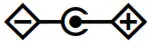
NOTICE
This equipment has been tested and found to comply with the limits for a Class B digital device, pursuant to Part 15 of the FCC Rules. These limits are designed to provide reasonable protection against harmful interference in a residential installation. This equipment generates, uses and can radiate radio frequency energy and, if not installed and used in accordance with the instructions, may cause harmful interference to radio communications. However, there is no guarantee that interference will not occur in a particular installation. If this equipment does cause harmful interference to radio or television reception, which can be determined by turning the equipment off and on, the user is encouraged to try to correct the interference by one or more of the following measures:
• Reorient or relocate the receiving antenna.
• Increase the separation between the equipment and receiver.
• Connect the equipment into an outlet on a circuit different from that to which the receiver is connected.
• Consult the dealer or an experienced radio/TV technician for help.
FCC CAUTION
Changes or modifications not expressly approved by the party responsible for compliance could void the user’s authority to operate the equipment.
Declaration of Conformity
Model Number: PX-S1000
Trade Name: CASIO COMPUTER CO., LTD.
Responsible party: CASIO AMERICA, INC.
Address: 570 MT. PLEASANT AVENUE, DOVER, NEW JERSEY 07801
Telephone number: 973-361-5400
This device complies with Part 15 of the FCC Rules, Operation is subject to the following two conditions: (1) This device may not cause harmful interference, and (2) this device must accept any interference received, including interference that may cause undesired operation.
Important!
Please note the following important information before using this product.
• Before using the AD-A12150LW Adaptor to power the unit, be sure to check the AC Adaptor for any damage first. Carefully check the power cord for breakage, cuts, exposed wire, and other serious damage. Never let children use an
AC adaptor that is seriously damaged.
• The product is not intended for children under 3 years.
• Use only CASIO AD-A12150LW adaptor.
• The AC adaptor is not a toy.
• Be sure to disconnect the AC adaptor before cleaning the product.
Declaration of Conformity According to EU Directive
Manufacturer:
CASIO COMPUTER CO., LTD.
6-2, Hon-machi 1-chome, Shibuya-ku, Tokyo 151-8543, Japan
Responsible within the European Union:
Casio Europe GmbH
Casio-Platz 1, 22848 Norderstedt, Germany
www.casio-europe.com
Company and product names used in this manual may be registered trademarks of others.

This recycle mark indicates that the packaging conforms to the environmental protection legislation in Germany.
■ About the AC adaptor that comes with the Digital Piano
Note the following important precautions to avoid damage to the AC adaptor and power cord.
• Never pull on the cord with excessive force.
• Never repeatedly pull on the cord.
• Never twist the cord at the base of the plug or connector.
• Before moving the Digital Piano, be sure to unplug the AC adaptor from the power outlet.
• Loop and bundle the power cord, but never wind it around the AC adaptor.
• Any reproduction of the contents of this manual, either in part or its entirety, is prohibited. Except for your own, personal use, any other use of the contents of this manual without the consent of CASIO is prohibited under copyright laws.
• IN NO EVENT SHALL CASIO BE LIABLE FOR ANY DAMAGES WHATSOEVER (INCLUDING, WITHOUT LIMITATION, DAMAGES FOR LOSS OF PROFITS, BUSINESS INTERRUPTION, LOSS OF INFORMATION) ARISING OUT OF THE USE OF OR INABILITY TO USE THIS MANUAL OR PRODUCT, EVEN IF CASIO HAS BEEN ADVISED OF THE POSSIBILITY OF SUCH DAMAGES.
• The contents of this manual are subject to change without notice.
A labels rating is affixed to the bottom of the product.
CASIO COMPUTER CO., LTD.
6-2, Hon-machi 1-chome
Shibuya-ku, Tokyo 151-8543, Japan MA1907-D Printed in China
© 2019 CASIO COMPUTER CO, LTD.
 Offizielle CASIO Website - Deutschland | CASIO
 PX-S1000 - CASIO