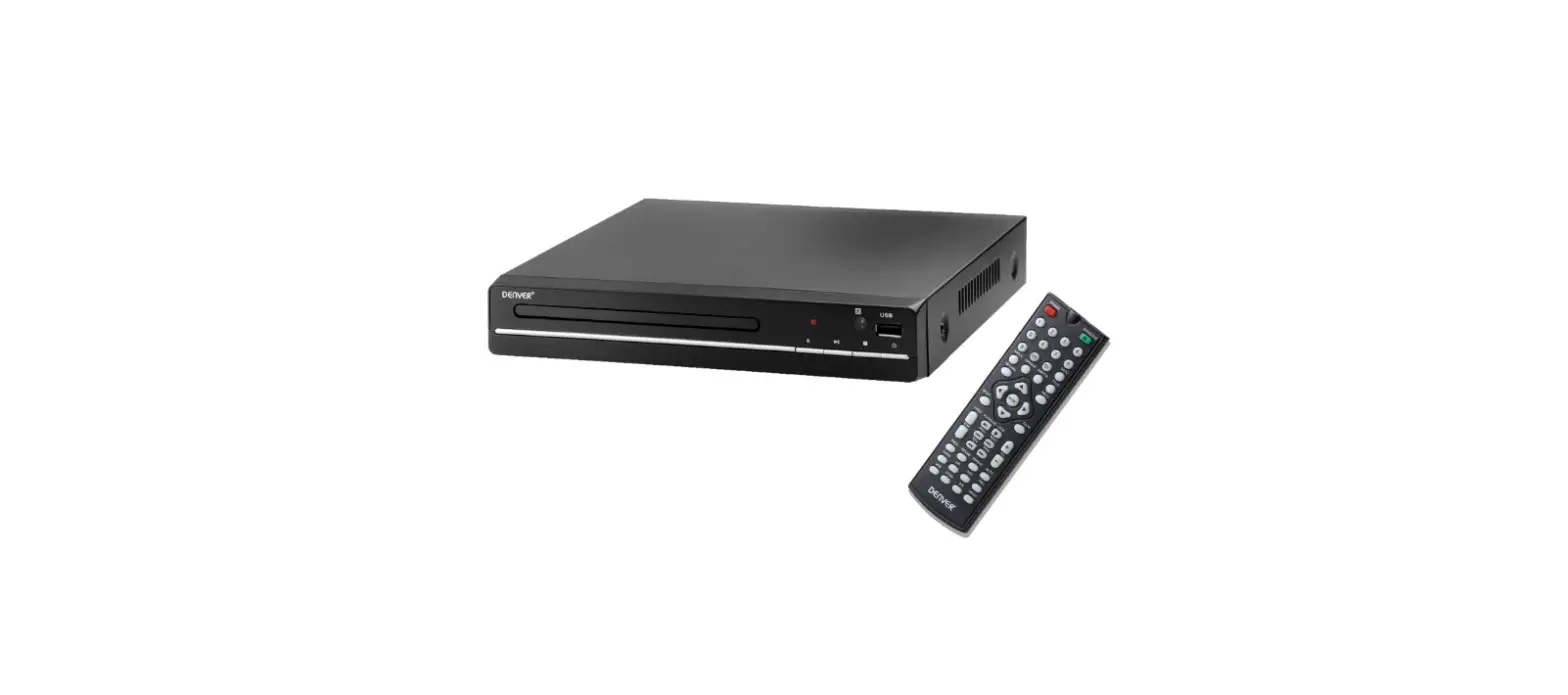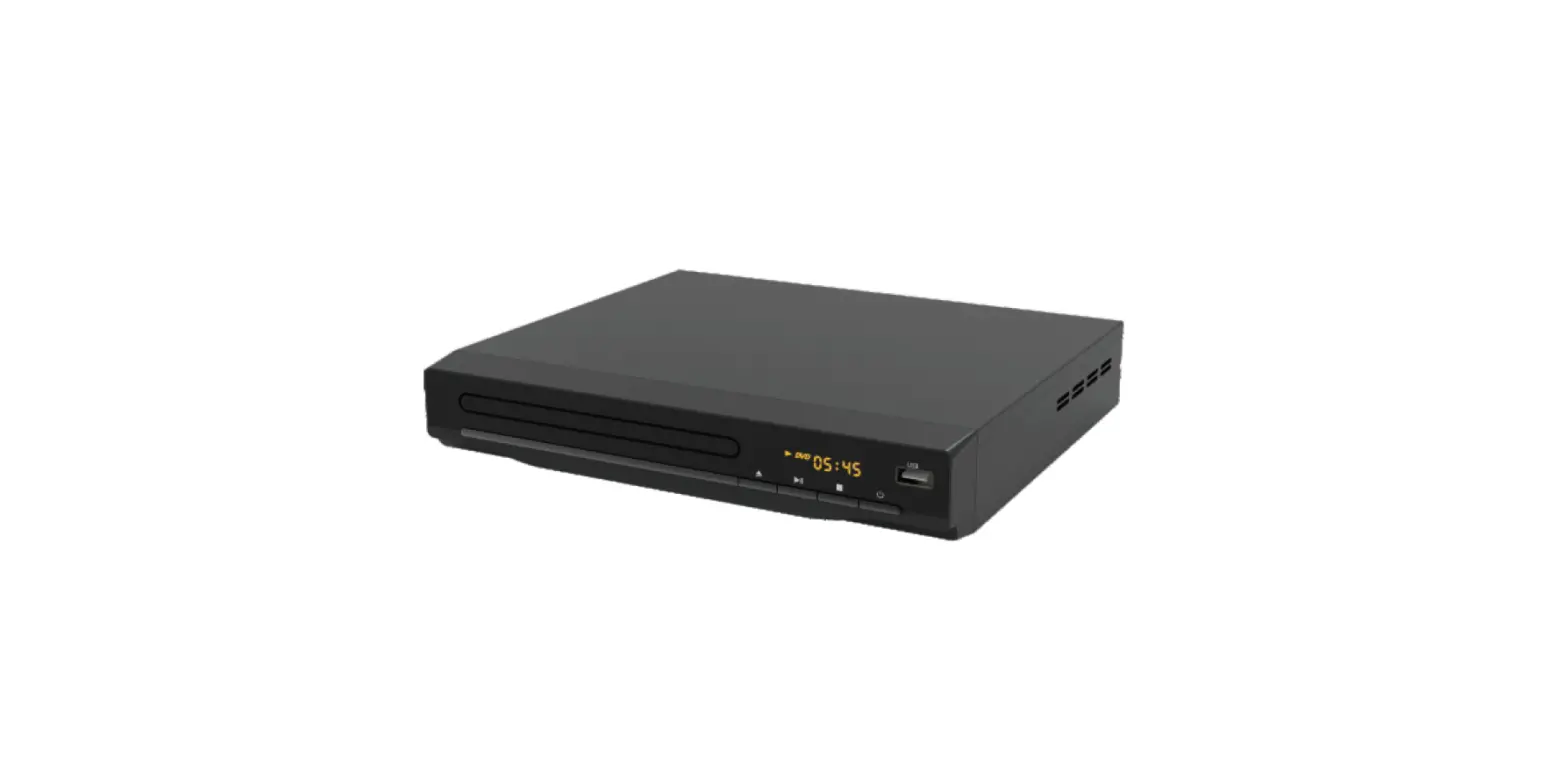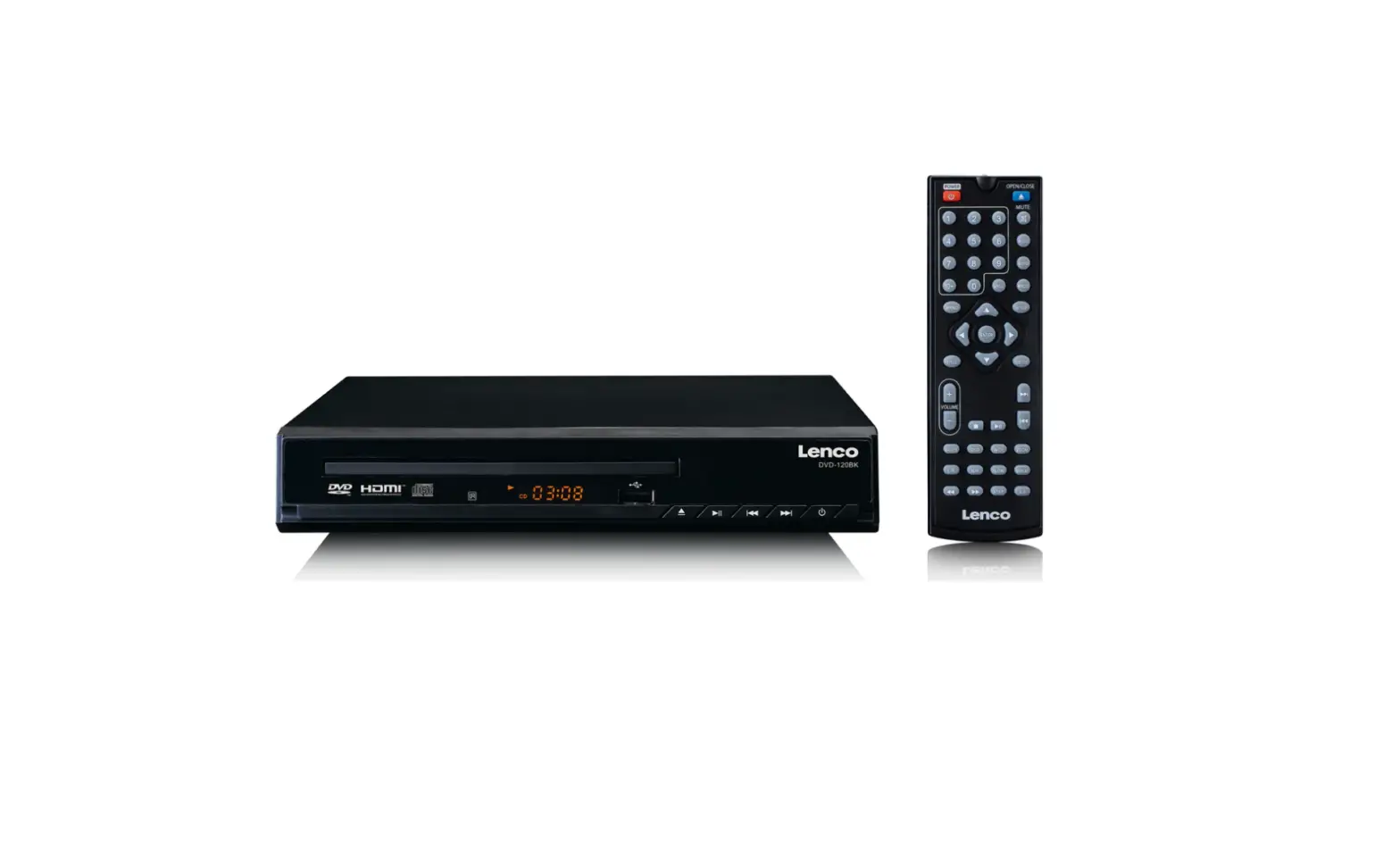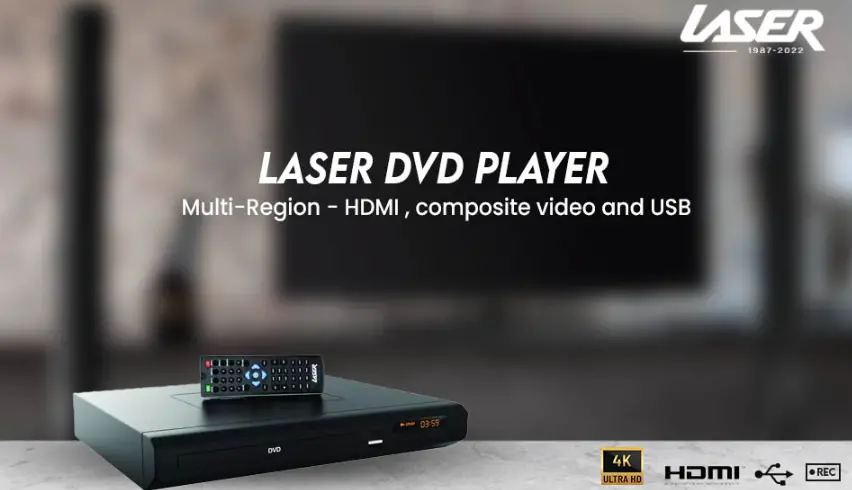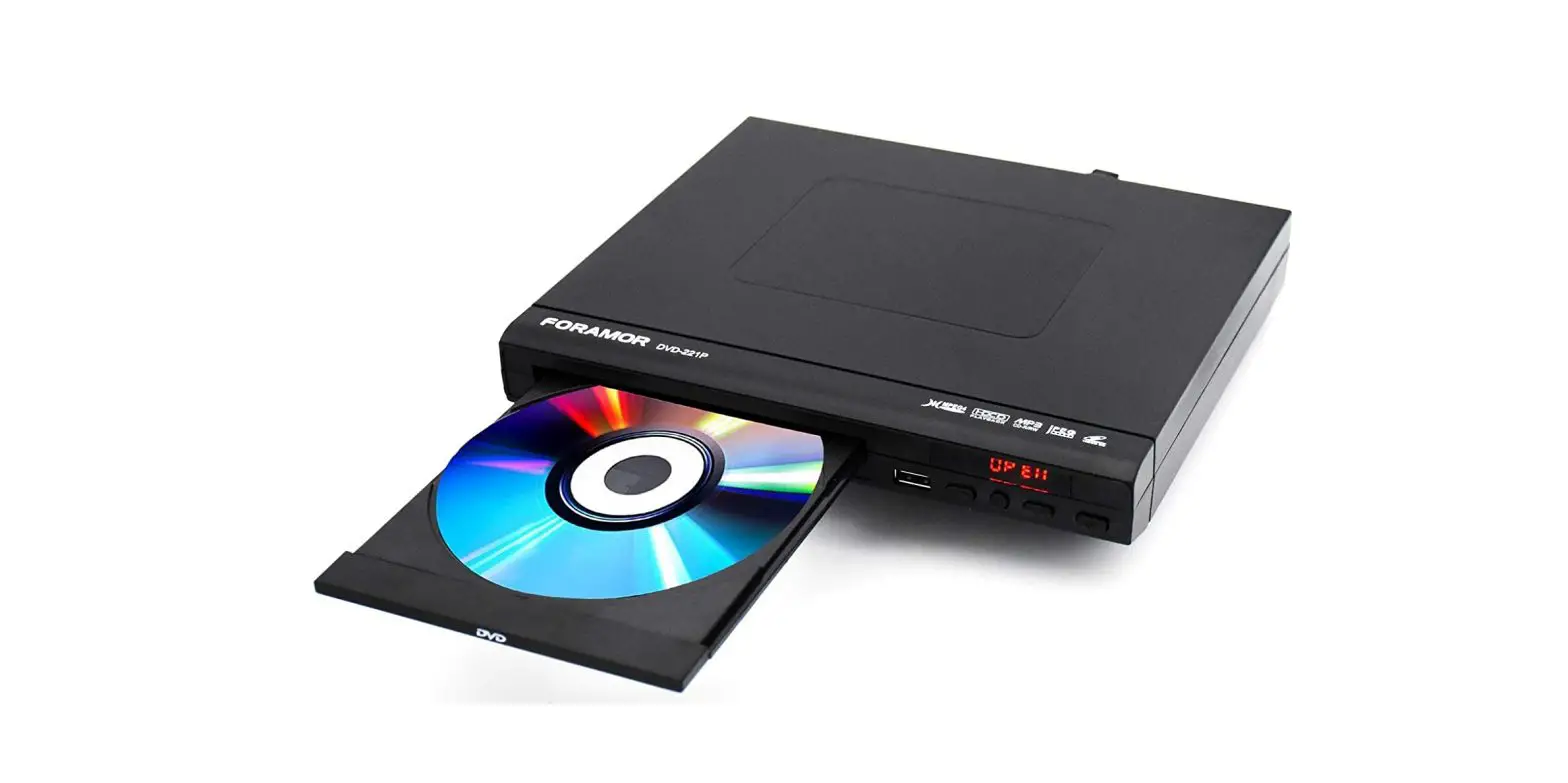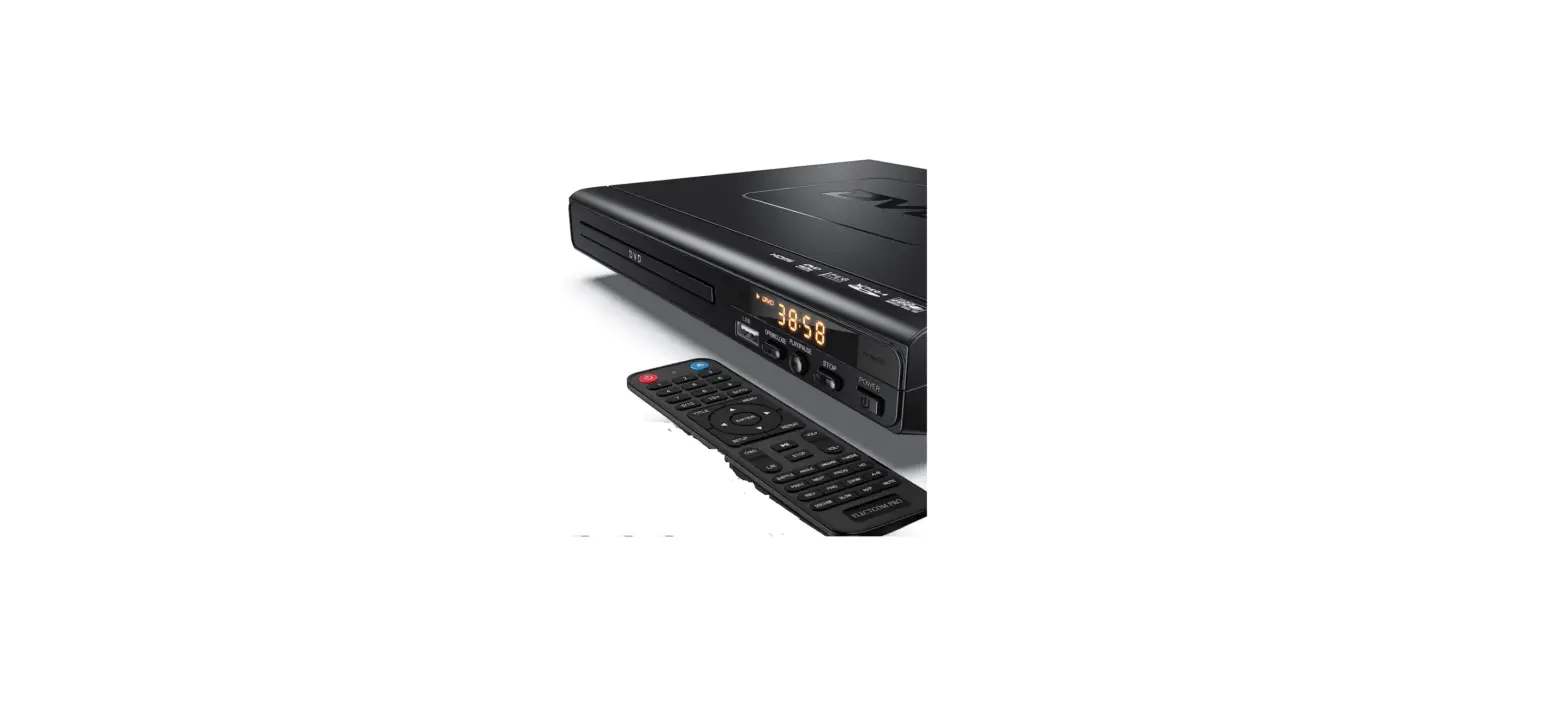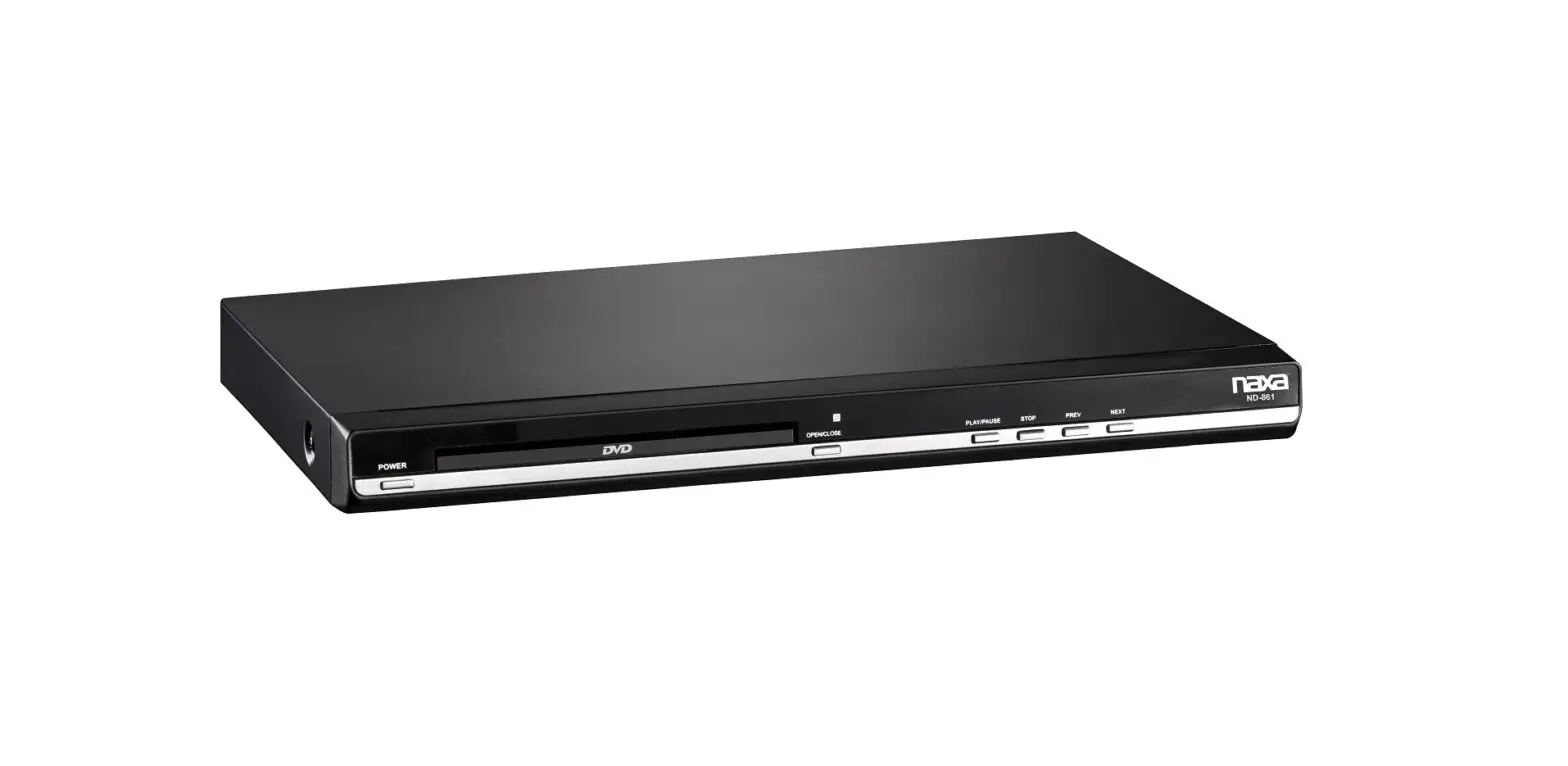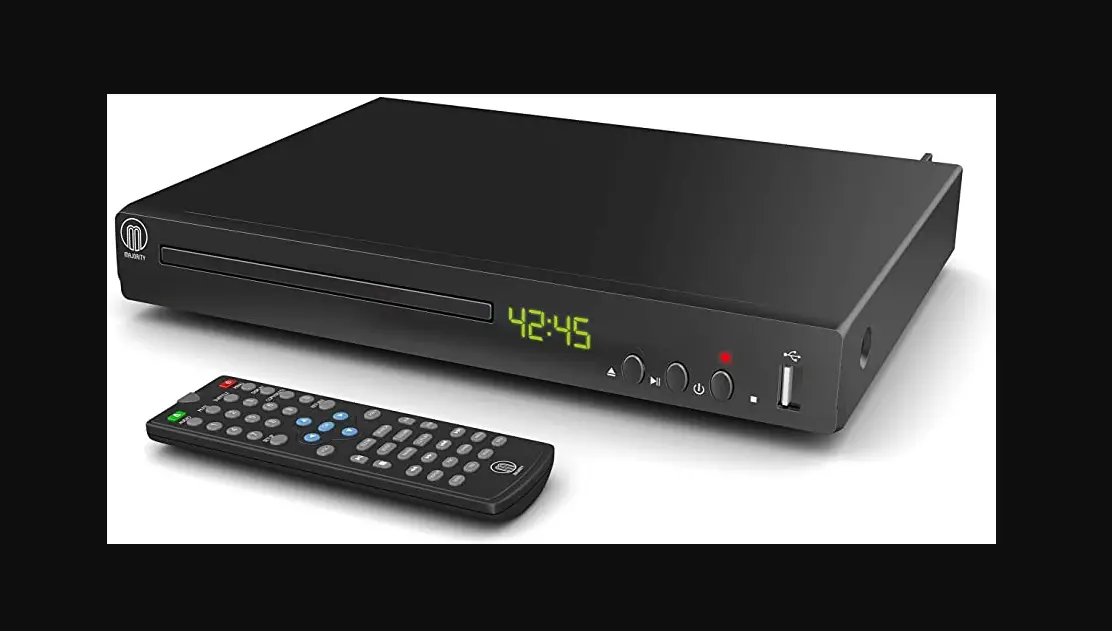

MAJORITY TOWERS DVD PLAYER
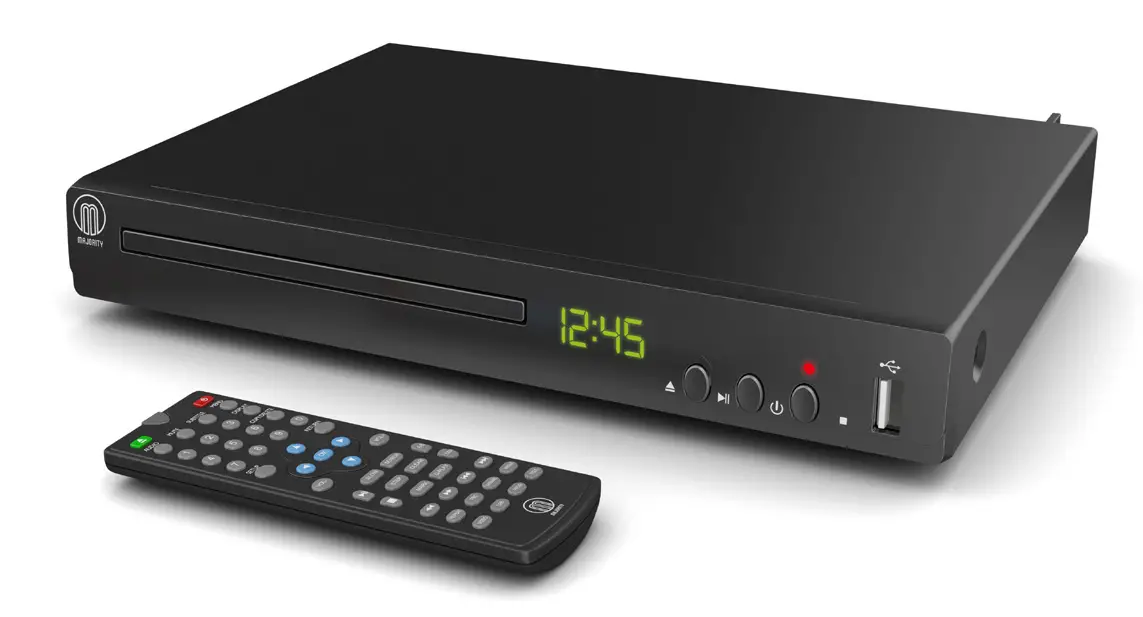
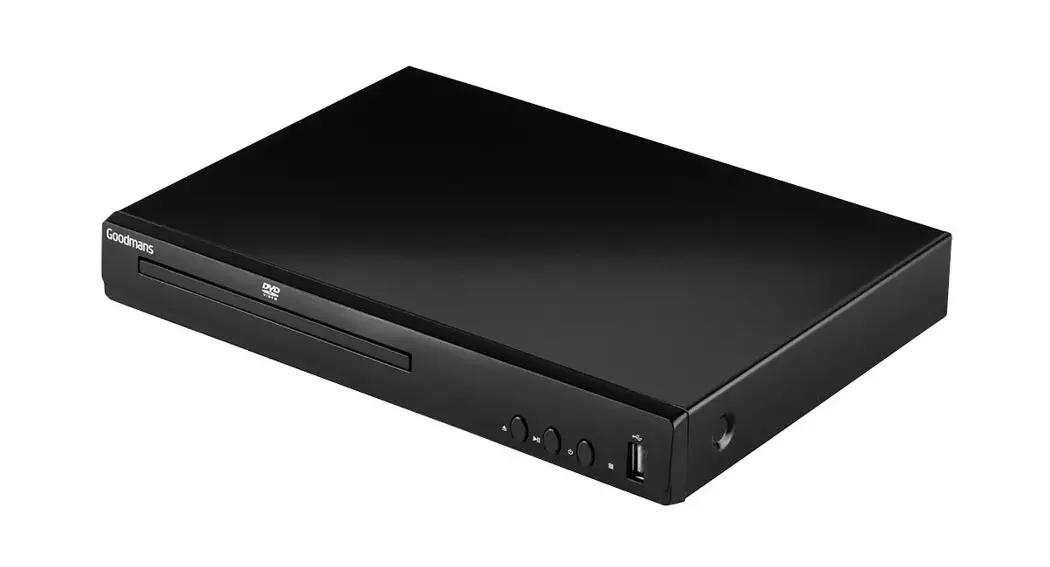
Controls And Functions
Front Panel
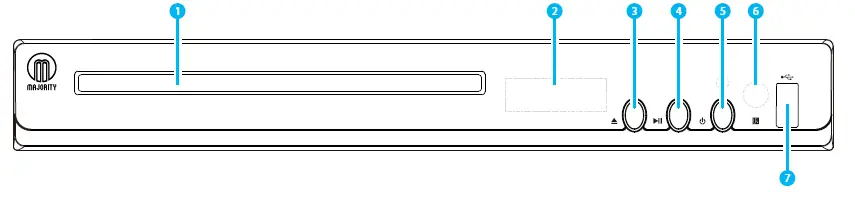
1. Disk Tray
2. LED
3. Open/Close
4. Play/Pause
5. Power
6. Reciever Window
7. USB
Rear Panel
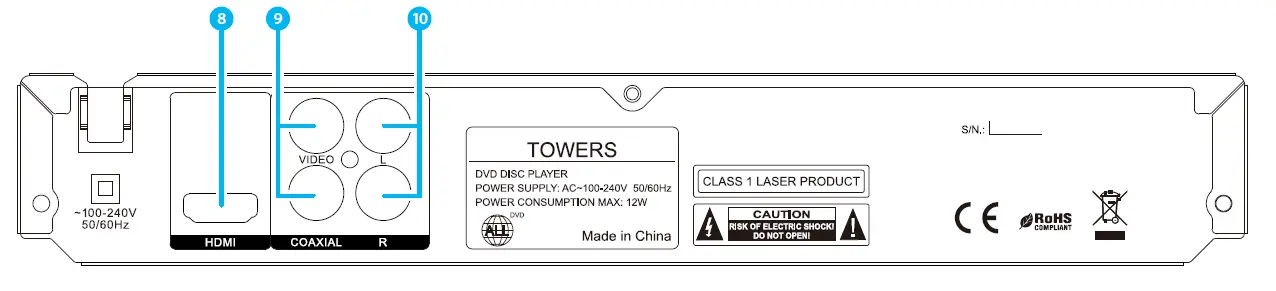
8. HDMI Output
9. Coaxial Output
10. Right/Left Output
Remote Control
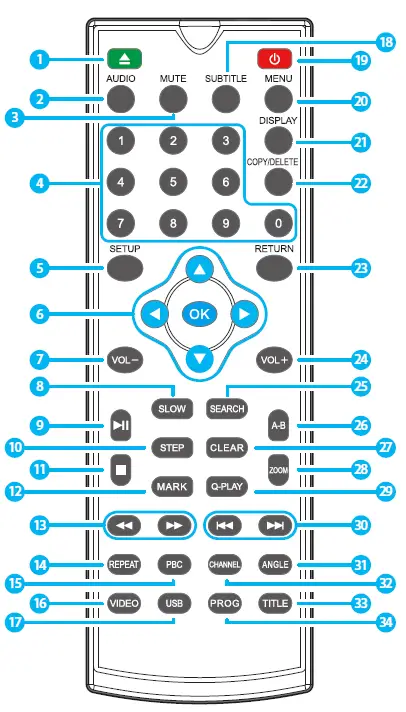
- Open Disc Tray
Open/close the disc tray - Audio
Choose an audio language of the DVD disc - Mute
- Number select (0-9)
- Setup
- Navigation (Select/OK) Navigation arrows/Confirmation button
- Volume down ( – )
Decrease the volume of the playback - Slow
Set the playback in slow motion - Play/Pause
Play or pause the playback - Step
Go through the playback, frame by frame - Stop
- Mark
- Fast Forward / Rewind
- Repeat
Reperat chapter playback - PBC
Open/Close the PBC playback return to the menu of the DVD disc - Video
- USB
- Subtitles
- Power On/Off
- Menu
Open the menu of the DVD - Display
Modify display settings - Copy/Delete
- Return
Return to previous menu screen - Volume up ( + )
- Search
- A-B
Set a segment of the playback on repeat - Clear
- Zoom
Increase/decrease the playback - Q-Play
- Skip (Previous / Next) Skip backward/forward between chapters
- Angle
- Channel
- Title
- Program
Remote Control Operation
Insert the batteries into the battery compartment.
Point the remote at the remote sensor in front of the player and make sure there are no obstacles in the way between the remote and the player. The distance between the remote and the sensor must not exceed 3m.
To prevent damage to the remote control, please remove the batteries when not in use for long periods of time.
What’s In The Box?
Box Contents
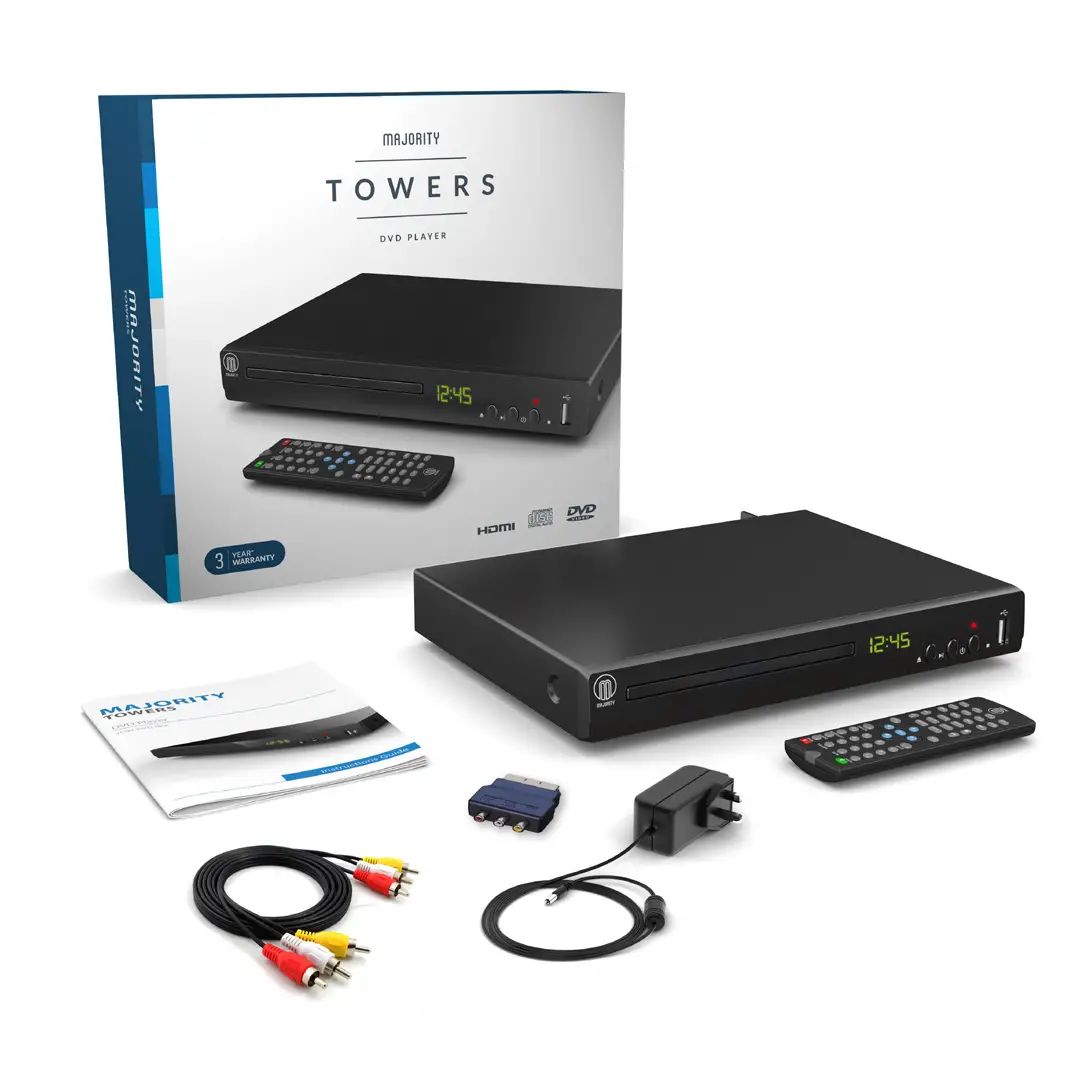
1. Majority Towers DVD Player
2. Remote Control
3. RCA AV cable
4. Instruction Manual
Support
Thank you for your purchase of the Majority Towers DVD player.
Please follow the guidance of the manual to set up your new purchase and begin enjoying its features.
If you require further assistance with your new DVD player, please contact our support team on the Majority website: https://www.majorityradios.co.uk/support
Instructions Guide
Getting Started
Setting Up
Connect the power plug of the DVD player to a wall outlet. The power indicator on the front panel will illuminate red.
Press the On/Off on the front panel or the Remote Control to start the DVD player. The power indicator on the front panel will illuminate green.
Follow the below guidance for cable connections to get your DVD player set up:
Cable Connections
- Connect a RCA cable between the Video, Left and Right Output on the back panel of the DVD player to the RCA input on your TV.
- Connect a HDMI cable between the HDMI Output on the back panel of the DVD player to the HDMI input on your TV.
- If you have a stereo amplifier, connect a coaxial cable between the Coaxial Ouput on the back panel of the DVD player to the coaxial input on your stereo.
- Control the playback via the buttons of the Remote Control.
Operations
DVD Operation
Press the Open/Close button on the front panel or on the Remote Control and place a DVD disc on the Disc Tray.
Press the Open/Close button again to close.
The DVD will read the DVD disc and begin the playback.
Control the playback via the buttons of the Remote Control.
USB Operation
Insert a USB unit into the USB Port on the front panel of the DVD player.
Press the USB button on the Remote Control to enter the USB source. The DVD Player will read and display the file list of the USB unit.
Browse the file list by pressing the buttons on the Remote Control. Select a file by pressing the OK button of the Remote Control.
Set-up Options: System
System Setup
Press the Setup button on the Remote Control to open up the setup of the DVD Player.
There are four different menus in the setup: General, Audio, Video and Preference. Follow the instructions in the individual paragraphs for a choice of setup options:
Please note:
Press the button to leave/enter a sub-menu.
To leave the opened menu, press the < button twice.
To close the setup of the DVD player, press the Setup on the Remote Control.
Set-up Options: Audio
- Press the buttons on the Remote Control to open the “Audio” menu.
- Two different submenus will appear on the menu. Press the buttons on the Remote Control to circle between the sub-menus:
- a) Speaker Setup – Select the stereo output.
LT/RT: Switch between left/right audio channels. Stereo: Select to play the audio via the two front speakers of the TV. - b) Digital Audio Setup – Select the audio output
- a) Speaker Setup – Select the stereo output.
- When you enter a sub-menu, a number of options will appear for the entered sub-menu.
Set-up Options: Video
- Press the buttons on the Remote Control to open the “Video” menu.
- Six different submenus will appear on the sub-menus. Press the buttons on the Remote Control to circle between the sub-menus:
a) Sharpness – Set the sharpness of the video picture
b) Brightness – Set the brightness of the video picture
c) Contrast – Set the contrast of the video picture
d) Gamma – Set the gamma of the video picture
e) Hue – Set the hue of the video picture
f) Saturation – Set the saturation of the video picture - When you enter a sub-menu, a number of options will appear for the entered sub-menu.
Set-up Options: Preference
- Press the buttons on the remote control to open the “Preference” menu.
- Eight different submenus will appear on the menu. Press the buttons on the remote control to scroll to browse between the sub-menus:
a) TV Type – Select the color system (PAL/NTSC/AUTO) of your TV.
b) PBC – select if the playback of the disc starts directly or to enter the disc menu when playing the VCD disc.
c) Audio – Select a language of the audio (if available)
d) Subtitle – Select a subtitle language (if available)
e) Disc Menu – Set the language for the menu of the DVD disc (if available)
f) Parental – Set the parental level of the DVD disc (if available)
g) Password – Open the sub menu for the password settings. Note: The default password is 8806
h) Default – Reset the settings to the factory settings - When you enter a sub-menu, a number of options will appear for the entered sub-menu.
Troubleshooting
| Malfunction | Possible causes/measures |
| No power / function | Check whether the power is switched on or off at the wall. Check whether the power adaptor is properly connected to power outlet or not. |
|
No video | Make sure that the video cables are connected correctly. Reset the setups of the DVD player. Check that the input selection on the TV is correct. |
|
No audio | Make sure that the audio cables are connected correctly. Make sure that the coaxial connected stereo is powered on. Reset the setups of the DVD player. |
| Distorted video | Clean DVD disc from dust/dirt The playback is fast winding backward/forward. |
|
Unable to play | Place a DVD disc in the disc tray. Place the disc in on the correct side up Clean DVD disc from dust/dirt Close the setup of the DVD player. Check that the file is compatible with the unit. |
| Remote Control does not work | Aim the Remote Control towards the front panel of the DVD player. Use the Remote Control closer to the DVD player. Check the battery level of the batteries |
Specifications
| Power Supply | AC 110-240V 0.5A |
| Frequency Response | ~ 50/60Hz |
| Power Consumption | <15W |
| Compatible Formats | Files: MP3/JPEG/MPEG-4/DVD DVD: CD/CD-R/CD-RW/DVD+R/DVD+RW |
| Dimension (WxHxD) | 26 x 19 x 4.3 cm 0,9 kg |
Warranty
All products come with a standard 12 month warranty. All items must be registered on www.majorityradios.co.uk for the warranty to be valid. Once on the web page, use the menu to find “Register Your Product”. You will also be given the chance to extend your warranty for an additional 24 months, free of charge.
Safety Information
- Read these instructions.
- Keep these instructions. Instructions are also available for download at www.majorityradios.co.uk
- Heed all Warnings
- Follow all instructions
- Do no clean the apparatus near or with water
- Do not block any ventilation openings. Install in accordance with the manufacturer’s instructions
- Do not install near any heat sources such as radiators, heat registers, stoves, or other apparatus (including amplifiers) that produce heat.
- Protect the power from being walked on or pinched particularly at plugs, convenience receptacles, and the point where they exit from the apparatus.
- Only use attachments/accessories specified by the manufacturer.
- Unplug this apparatus during light storms or when unused for long periods of time.
- Refer all servicing to qualified service personnel. Servicing is required when the apparatus has been damaged in a way, such as power-supply cord or plug is damaged, liquid has been spilled or objects have fallen into the apparatus, the apparatus has been exposed to the rain or moisture, does not operate normally or has been dropped.
- No naked flame sources, such as lit candles, should be placed on the apparatus.
- Dispose of used electrical products and batteries safely according to your local authority and regulations.
ADDITIONAL WARNINGS
The apparatus shall not be exposed to dripping or splashing and no objects filled with liquid, such as vases, shall be places on the apparatus.
Main plug is used to disconnect device and it should remain readily operable during intended use. In order to disconnect the apparatus from the main mains completely, the mains plug should be disconnected from the main socket outlet completely.
Battery shall not be exposed to excessive heat such as sunshine, fire or the like.
RECYCLING ELECTRICAL PRODUCTS
You should now recycle your waste electrical goods and in doing so help the environment.
This symbol means an electrical product should not be disposed of with normal household waste. Please ensure it is taken to a suitable facility for disposal when finished with.
IMPORTANT: Please read all instructions carefully before use and keep for future reference.