 DREVO™
 DREVO™
QUICK START GUIDE
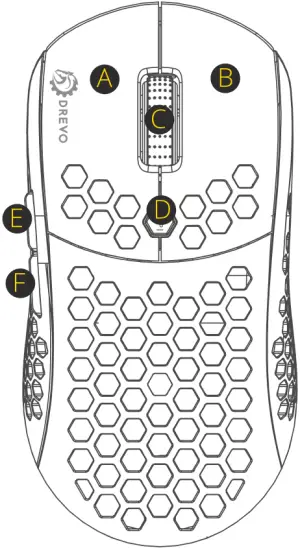
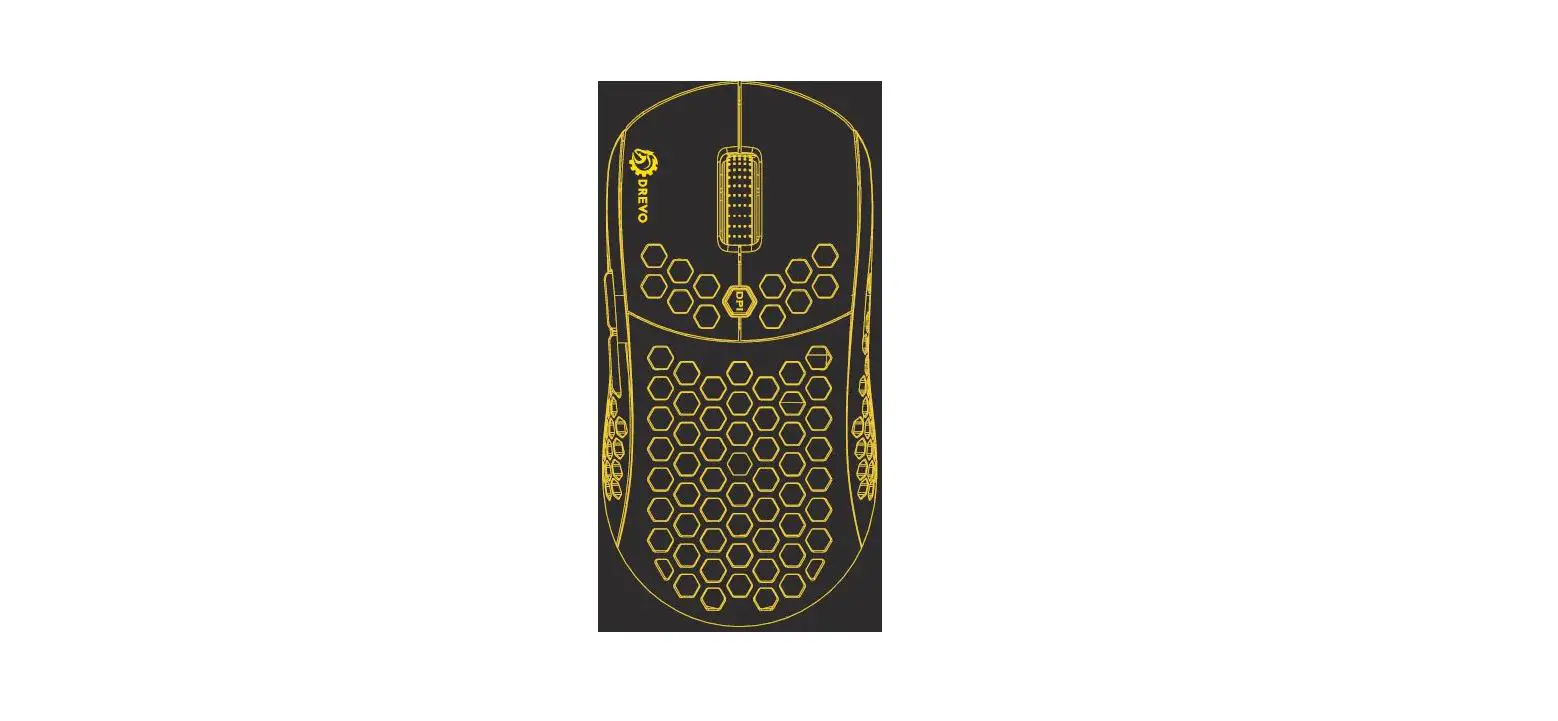
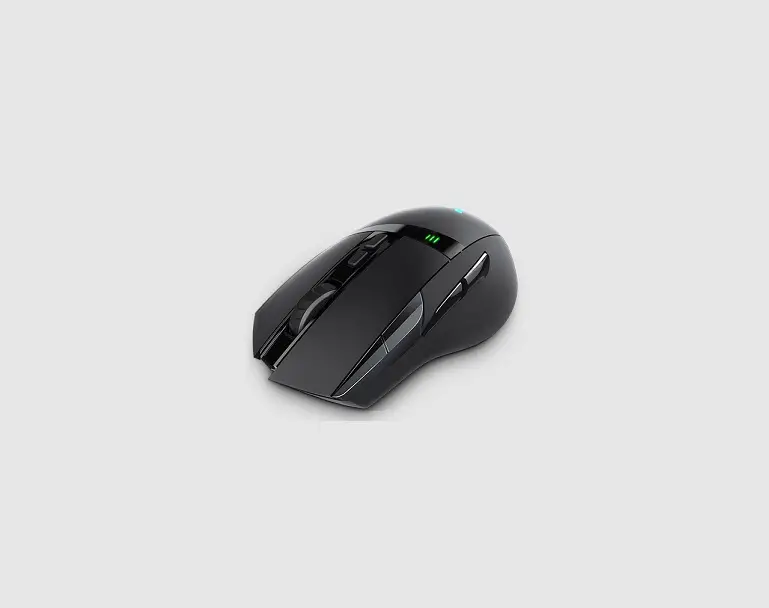
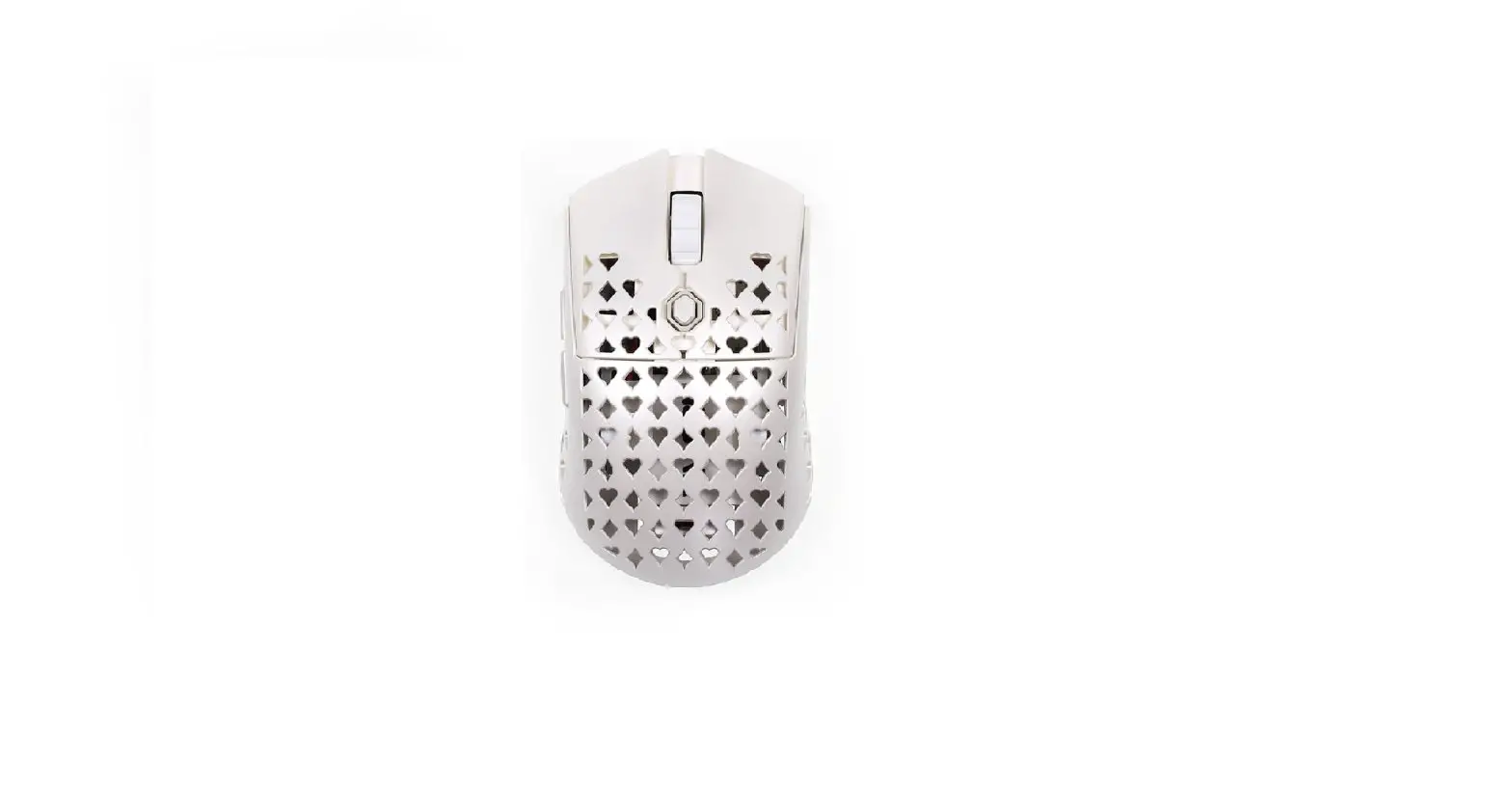
A :Left Mouse Button
B :Right Mouse Button
C :Scroll Wheel
D: DPI Shift
E :Mouse Button 5
F :Mouse Button 6
DPI STAGES
Press Mouse Button D (DPI Shift)
**For full use and customizations of the product, please refer www.drevo. net/dpc to download the latest version of DREVO POWER CONSOLE(DPC) software.
RGB ILLUMINATIONS
PRESS Mouse Button C+ F
**For full use and customizations of the product, please refer www.drevo.net/dpc to download the latest version of DREVO POWER CONSOLE(DPC) software.
HOW TO USE
Wired Mode
1 Plug in the type-c cable.
2 Make sure the switch is on wired mode.
OFF 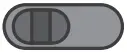 ON
ON
2.4G Mode
1 Slide the switch to the wireless on position.
OFF 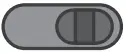 ON
ON
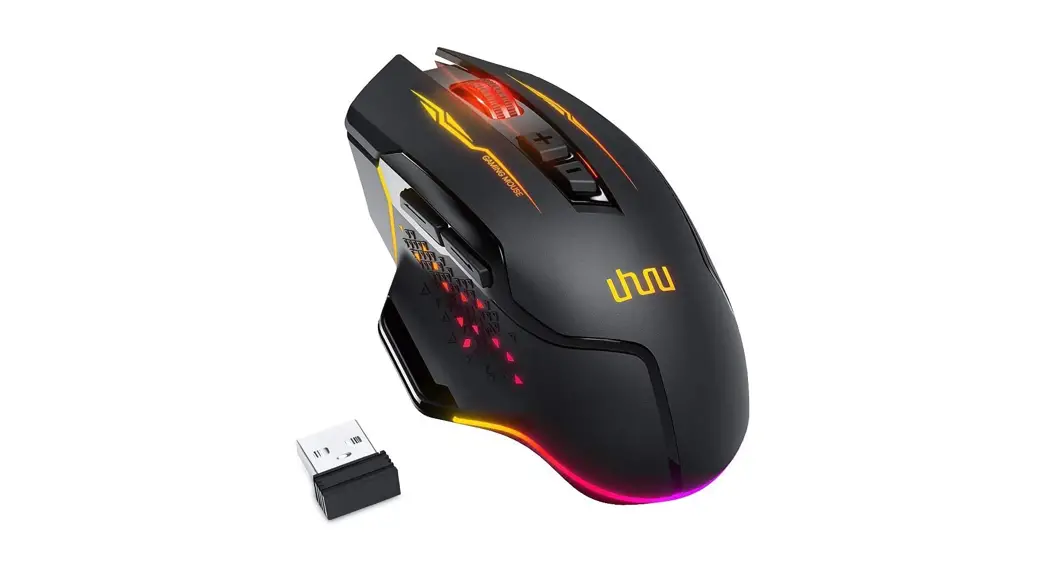
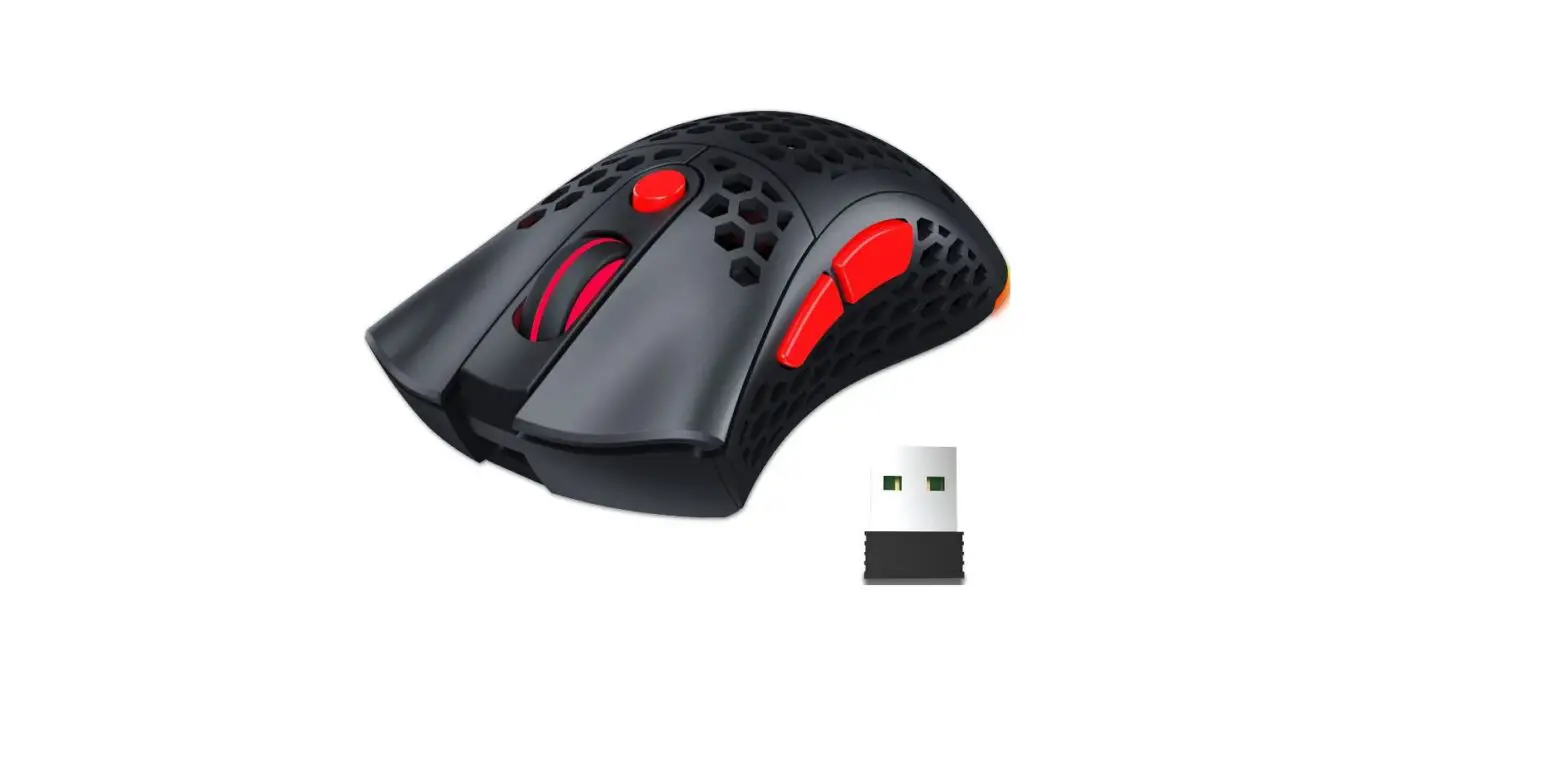
2 Plug the 2.4G receiver into your computer.
NOTE
For best results, please fully charge your FALCON WIRELESS before using it for the first time; A depleted battery will be fully charged in about 6 hours.
If the FALCON WIRELESS hasn’t been used for an extended period or doesn’t respond in wireless mode, you may need to recharge it before use.
In wireless mode, the mouse will automatically switch to wired mode when the USB-C cable is plugged in.
WARRANTY
12-Month Limited Warranty
Unauthorized modifications or repairs done to the product will void the warranty.
For more information about the warranty please check: www.drevo.net/page/warranty.