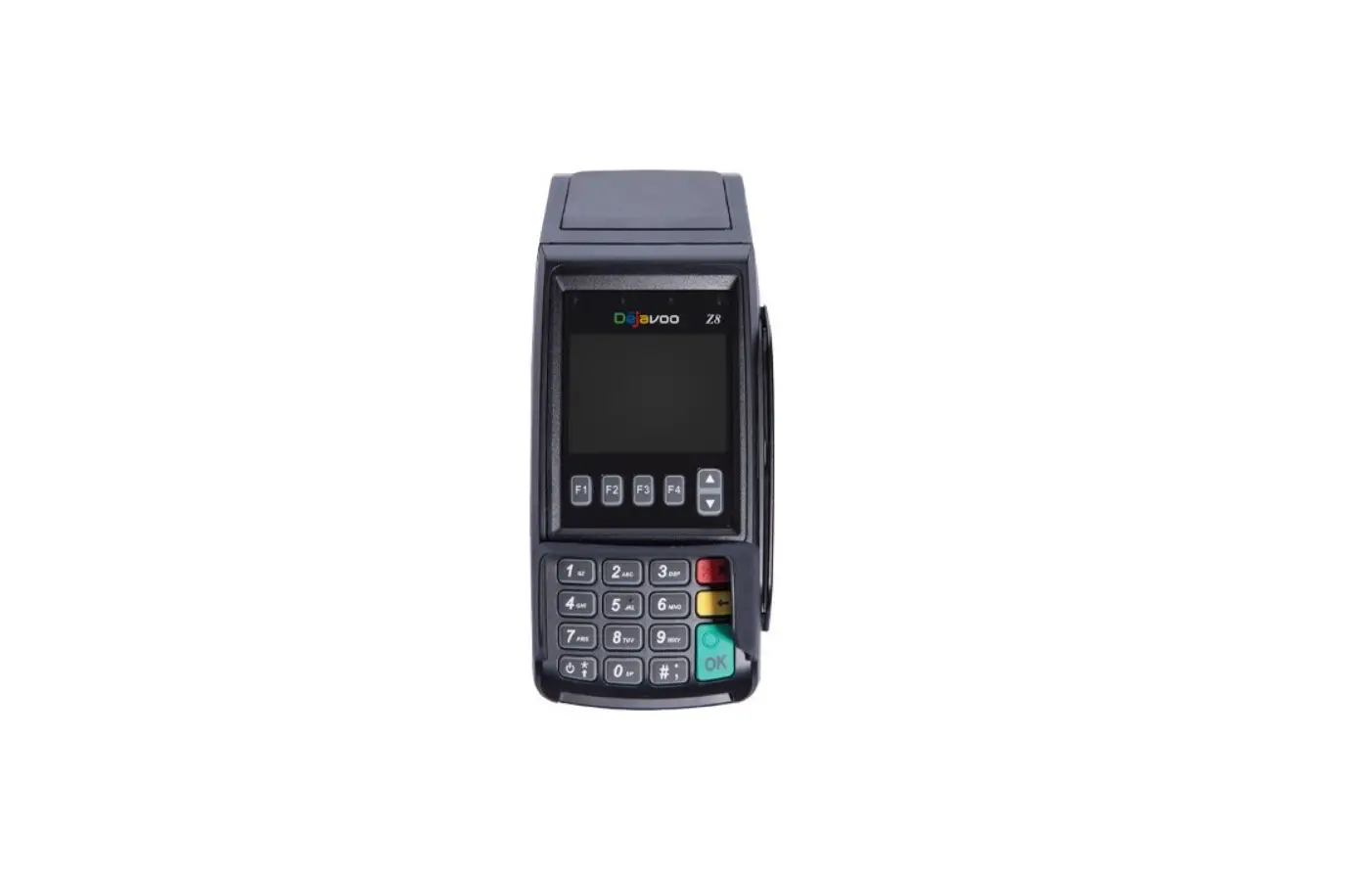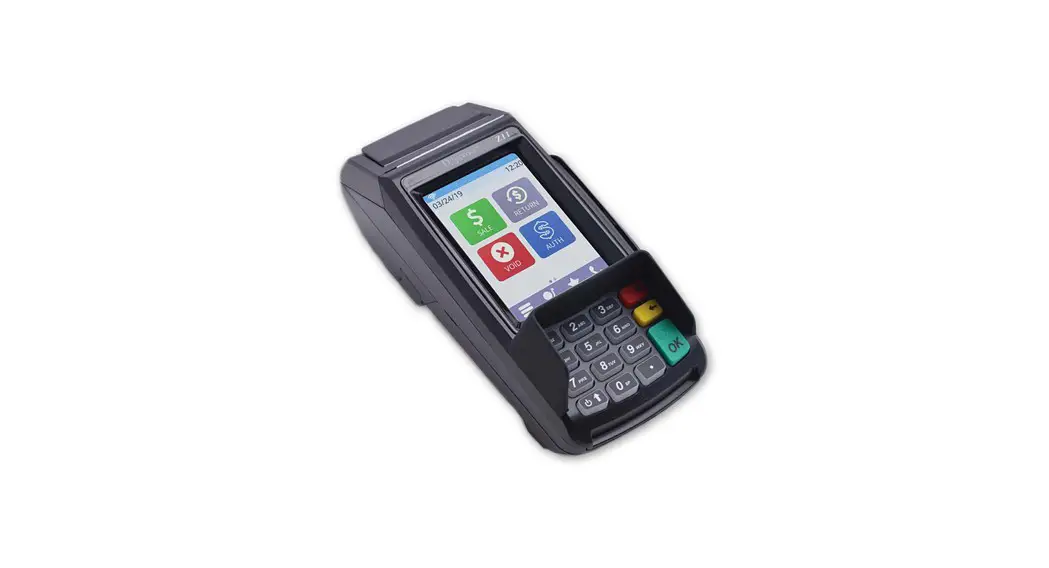

Z Line Download Guide
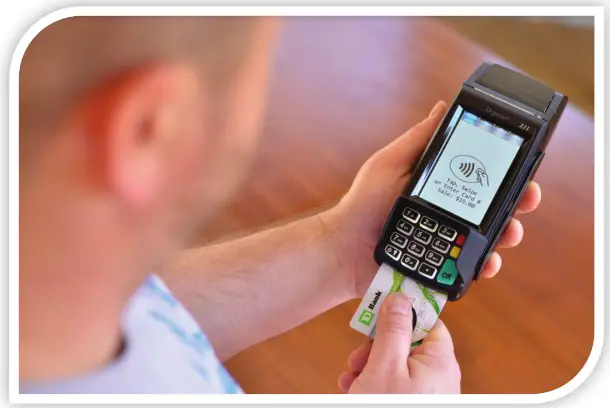
DOWNLOAD VIA MODEM
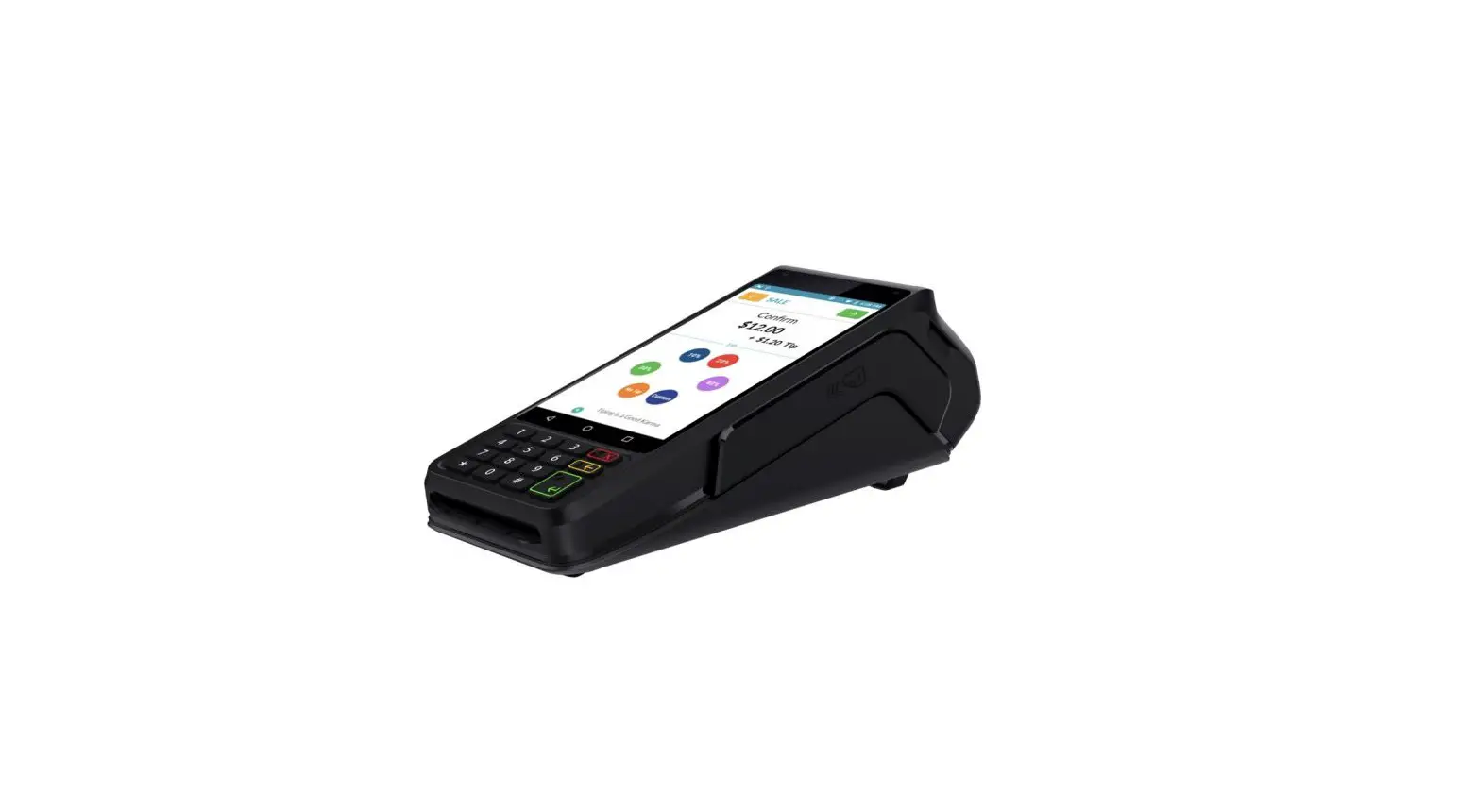
 Follow the steps below for a terminal software download via Modem (Dial) when you are beginning from the idle prompt. Be sure there is an active Phone line connected to the terminal’s Modem port on the underneath of the terminal.
** Important ** – Always close any open batch prior to downloading a device.
* Note: FULL DL = Updating Application Software
PARTIAL DL = Updating parameters only
| Step | Action | Display | |
| 1 | Now that you have created/edited the TPN in the STEAM system you must download the software into the terminal. From the idle prompt press the Green key to access the Core Menu. | 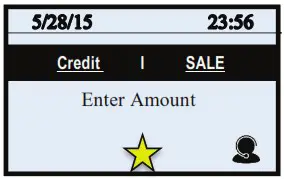 | |
| 2 | NON TOUCH SCREEN Press #4 for UTILITY * If prompted input password, default is 1234 | TOUCH SCREEN Using your fingertip TAP the word UTILITY * If prompted input password, default is 1234 | 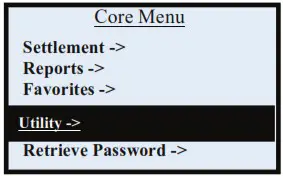 |
| 3 | NON TOUCH SCREEN Press #2 for SOFTWARE DOWNLOAD | TOUCH SCREEN Using your fingertip TAP the word SOFTWARE DOWNLOAD | 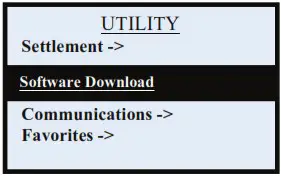 |
| 4 | NON TOUCH SCREEN Press #1 for CONNECT | TOUCH SCREEN Using your fingertip TAP the word CONNECT | 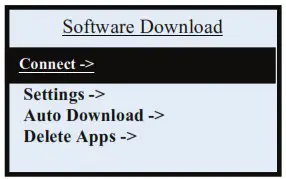 |
| 5 | NON TOUCH SCREEN Press #2 for DIAL PPP | TOUCH SCREEN Using your fingertip TAP DIAL PPP communication method | 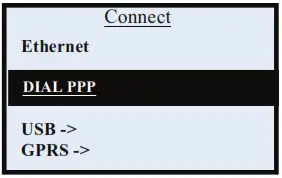 |
| 6 | NON TOUCH SCREEN Press #1 for Full Press #2 for Partial | TOUCH SCREEN Using your fingertip TAP the desired download type either FULL or PARTIAL | 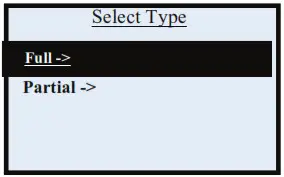 |
| 7 | Input the unique 10-12 digit alphanumeric TPN you created in the STEAM system and press the Green Key *Note when inputting a repeated digit pause between entries to avoid scrolling to letters as this entry is alpha numeric capable. | 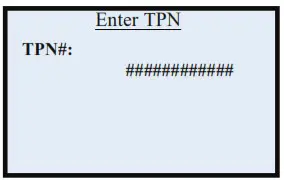 | |
| 8 | NON TOUCH SCREEN Terminal will display Apply Updates? Press F2 for YES | TOUCH SCREEN Terminal will display Apply Updates? Using your Finger Tip TAP the word YES | 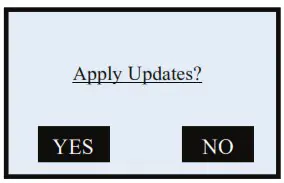 |
| 9 | The termininal will now download and install your software, reboot and prompt you to confirn the date/time. (this is set in 24 hour clock format only) Once the terminal returns to the idle prompt it will automatically commincate to process a “Key Exchange”. | ||
DOWNLOAD VIA ETHERNET
Follow the steps below for a terminal software download via ETHERNET (IP) when you are beginning from the idle prompt. Be sure there is an active LAN cable connected to the terminal’s LAN port on the underneath of the terminal.
** Important ** – Always close any open batch prior to downloading a device.
* Note: FULL DL = Updating Application Software
PARTIAL DL = Updating parameters only
| Step | Action | Display | |
| 1 | Now that you have created/edited the TPN in the STEAM system you must download the software into the terminal. From the idle prompt press the Green key to access the Core Menu. | 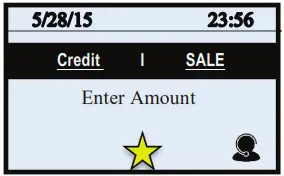 | |
| 2 | NON TOUCH SCREEN Press #4 for UTILITY * If prompted input password, default is 1234 | TOUCH SCREEN Using your fingertip TAP the word UTILITY * If prompted input password, default is 1234 | 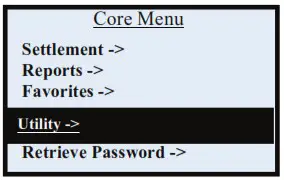 |
| 3 | NON TOUCH SCREEN Press #2 for SOFTWARE DOWNLOAD | TOUCH SCREEN Using your fingertip TAP the word SOFTWARE DOWNLOAD | 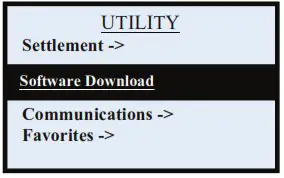 |
| 4 | NON TOUCH SCREEN Press #1 for CONNECT | TOUCH SCREEN Using your fingertip TAP the word CONNECT | 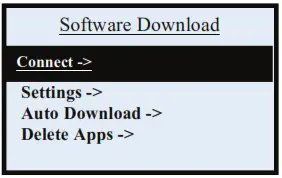 |
| 5 | NON TOUCH SCREEN Press the Green Button for ETHERNET | TOUCH SCREEN Using your fingertip TAP ETHERNET communication method | 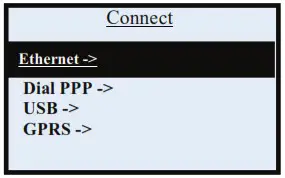 |
| 6 | NON TOUCH SCREEN Press 1 for FULL Or Press 2 for Partial | TOUCH SCREEN Using your fingertip TAP the desired download type either FULL or PARTIAL | 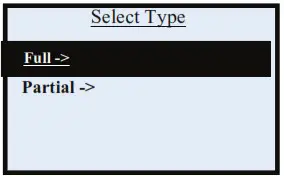 |
| 7 | Input the unique 10-12 digit alphanumeric TPN you created in the STEAM system and press the Green Key *Note when inputting a repeated digit pause between entries to avoid scrolling to letters as this entry is alpha numeric capable. | 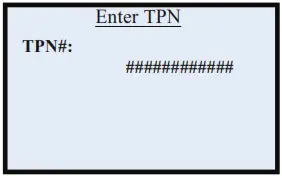 | |
| 8 | NON TOUCH SCREEN Terminal will display Apply Updates? Press F2 for YES | TOUCH SCREEN Terminal will display Apply Updates? Using your Finger Tip TAP the word YES | 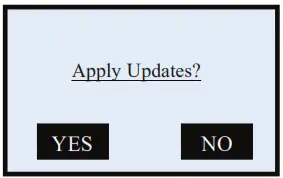 |
| 9 | The termininal will now download and install your software, reboot and prompt you to confirn the date/time. (this is set in 24 hour clock format only) Once the terminal returns to the idle prompt it will automatically commincate to process a “Key Exchange”. | ||
DOWNLOAD VIA GPRS
Follow the steps below for a terminal software download via GPRS when you are beginning from the idle prompt. It is IMPORTANT to note that downloading over GPRS will use SIM Data, a USB download or download through a Docking station is alternatively recommended. You will first need to change the SIM APN access in the terminal, additionally be sure the correct APN is updated in the STEAM system TPN.
** Important ** – Always close any open batch prior to downloading a device.
* Note: FULL DL = Updating Application Software
PARTIAL DL = Updating parameters only
| Step | Action | Display |
| 1 | Now that you have created/edited the TPN in the STEAM system you must download the software into the terminal. From the idle prompt press the Green key to access the Core Menu. | 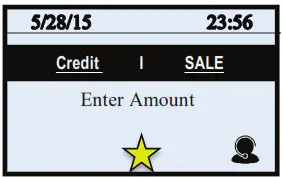 |
| 2 | Using your fingertip TAP the word UTILITY * If prompted input password, default is 1234 | 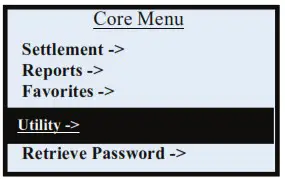 |
| 3 | Using your fingertip TAP the word SOFTWARE DOWNLOAD | 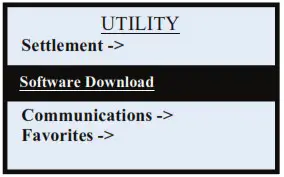 |
| 4 | Using your fingertip TAP the word CONNECT | 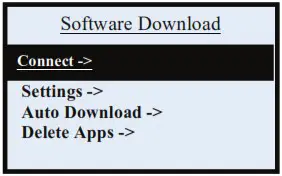 |
| 5 | Using your fingertip TAP GPRS communication method | 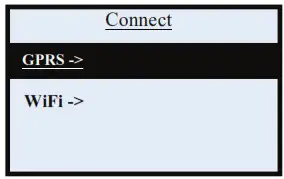 |
| 6 | Using your fingertip TAP the desired download type either FULL or PARTIAL | 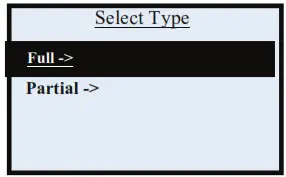 |
| 7 | Input the unique 10-12 digit alphanumeric TPN you created in the STEAM system and press the Green Key *Note when inputting a repeated digit pause between entries to avoid scrolling to letters as this entry is alpha numeric capable. | 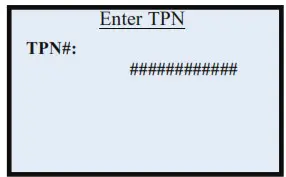 |
| 8 | Terminal will display Apply Updates? Using your Finger Tip TAP the word YES | 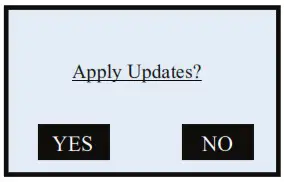 |
| 9 | The termininal will now download and install your software, reboot and prompt you to confirn the date/time. (this is set in 24 hour clock format only) Once the terminal returns to the idle prompt it will automatically commincate to process a “Key Exchange”. | |
DOWNLOADING VIA WIFI
Follow the steps below for a terminal software download via ETHERNET (IP) when you are beginning from the idle prompt. Be sure there is an active LAN cable connected to the terminal’s LAN port on the underneath of the terminal. ** Important
** – Always close any open batch prior to downloading a device.
** Note: FULL DL = Updating Application Software
PARTIAL DL = Updating parameters only
| Step | Action | Display | |
| 1 | Now that you have created/edited the TPN in the STEAM system you must download the software into the terminal. From the idle prompt press the Green key to access the Core Menu. | | |
| 2 | NON TOUCH SCREEN Press #4 for UTILITY * If prompted input password, default is 1234 | TOUCH SCREEN Using your fingertip TAP the word UTILITY * If prompted input password, default is 1234 | |
| 3 | NON TOUCH SCREEN Press #3 for SOFTWARE DOWNLOAD | TOUCH SCREEN Using your fingertip TAP the word SOFTWARE DOWNLOAD | |
| 4 | NON TOUCH SCREEN Press #1 for CONNECT | TOUCH SCREEN Using your fingertip TAP the word CONNECT | |
| 5 | NON TOUCH SCREEN Press #3 for WiFi | TOUCH SCREEN Using your fingertip TAP WiFi communication method | 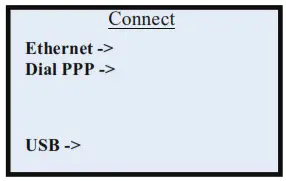 |
| 6 | NON TOUCH SCREEN Press 1 for FULL Or Press 2 for Partial | TOUCH SCREEN Using your fingertip TAP the desired download type either FULL or PARTIAL | |
| 7 | Input the unique 10-12 digit alphanumeric TPN you created in the STEAM system and press the Green Key *Note when inputting a repeated digit pause between entries to avoid scrolling to letters as this entry is alpha numeric capable. | | |
| 8 | NON TOUCH SCREEN Terminal will display Apply Updates? Press F2 for YES | TOUCH SCREEN Terminal will display Apply Updates? Using your Finger Tip TAP the word YES | |
| 9 | The termininal will now download and install your software, reboot and prompt you to confirn the date/time. (this is set in 24 hour clock format only) Once the terminal returns to the idle prompt it will automatically commincate to process a “Key Exchange”. | ||
DOWNLOAD VIA USB
The versatility of Dejavoo terminals enables software installation quickly and easily with a USB key using the Mini USB port and the Mini USB to USB adaptor cable included in your terminal package. The .TAR software file to be installed must be placed on the USB key in a folder named “download” on the root directory.
*Note: The .TAR file does not need to be uncompressed and the download folder needs to be named “download” without any spaces.
| Step | Action | Display | |
| 1 | • Insert the USB key into your computer, find the USB key (removable disk) on your list of drives, click on it to access the USB drive. • Create a new folder on your USB root directory and call it “download”. • Place the .TAR File (Terminal Profile) you downloaded from the STEAM system into a folder you just created named download on the root directory of your USB Key. *Note: The .TAR file does not need to be uncompressed and the download folder needs to be named “download” without any spaces. | 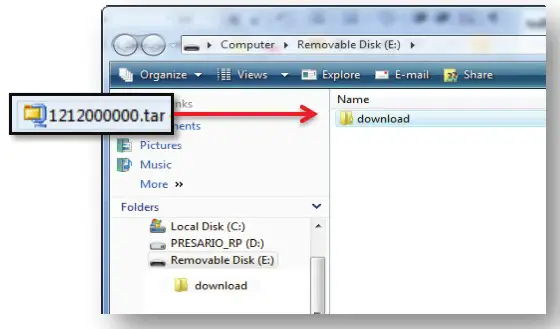 | |
| 2 | In Your Z Series Terminal Packaging find the Mini B Male USB to Female A USB adaptor. (See Image on right) |  | |
| 3 | Plug the smaller male USB end into the Mini USB 1 port found on the underside of the terminal. (turn the terminal over) | 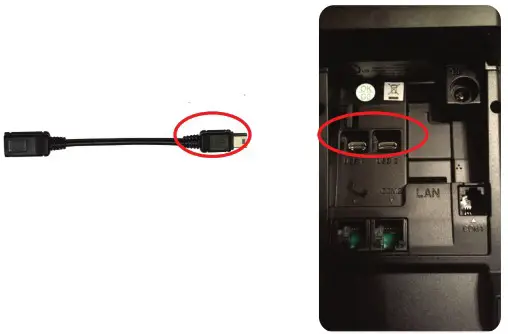 | |
| 4 | • Turn the over the Dejavoo terminal so it is right side up, make sure it is powered ON. • Eject your USB key from your Computer and insert the USB key into the larger Female end of the adaptor you connected to the terminal in step 3. (See image at right) | 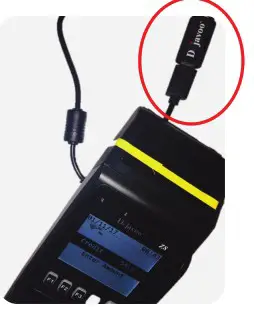 | |
| 5 | • The terminal will display “Reading USB Directory” • The TPN file(s) you placed in the download folder will appear on the terminal display. | 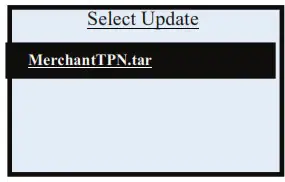 | |
| 6 | NON TOUCH SCREEN Press the Green button to select the TPN on the terminal display Terminal will display Apply Updates? Press F2 for YES | TOUCH SCREEN Use your finger to Tap the TPN on the terminal display Terminal will display Apply Updates? Using your Finger Tip TAP the word YES | |
| 7 | The termininal will now download and install your software, reboot and prompt you to confirn the date/time. (this is set in 24 hour clock format only) Once the terminal returns to the idle prompt it will automatically commincate to process a “Key Exchange”. | ||
DOWNLOAD VIA Z9 DOCKING STATION
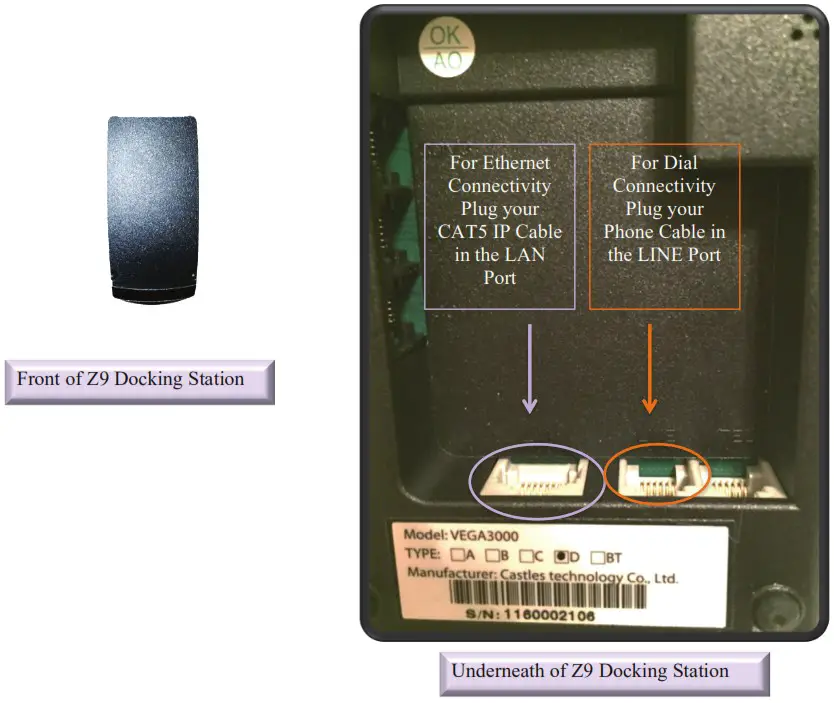
The Z9 Docking station provides alternative communication of Ethernet (IP) and Modem (Dial) to the Dejavoo Z9 Mobile terminal. Simply connect the desired communication option to the appropriate port and place the Z9 onto the docking station . See image below:
| Download Type | Action |
| Ethernet Download Using Docking Station | • Plug CAT5 IP Cable into LAN Port • Place Z9 on Dock • Follow Instructions on Page X to download via Ethernet |
| Modem Download Using Docking Station | • Plug Phone Cable into LINE Port • Place Z9 on Dock • Follow Instructions on Page X to download via Modem |