 Quick Reference Guide
EMV RESTAURANT For touch screen Z-Line models
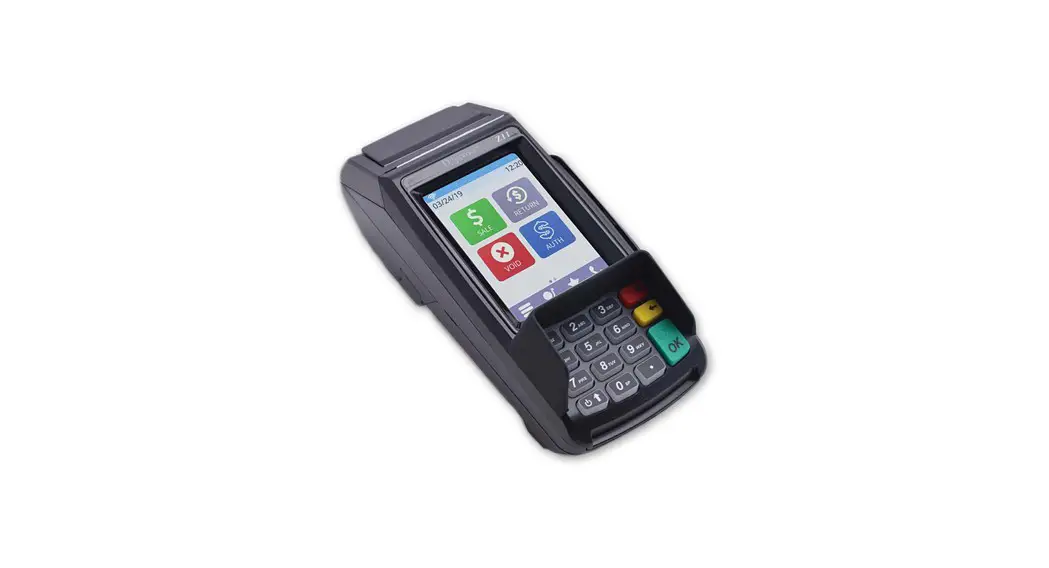
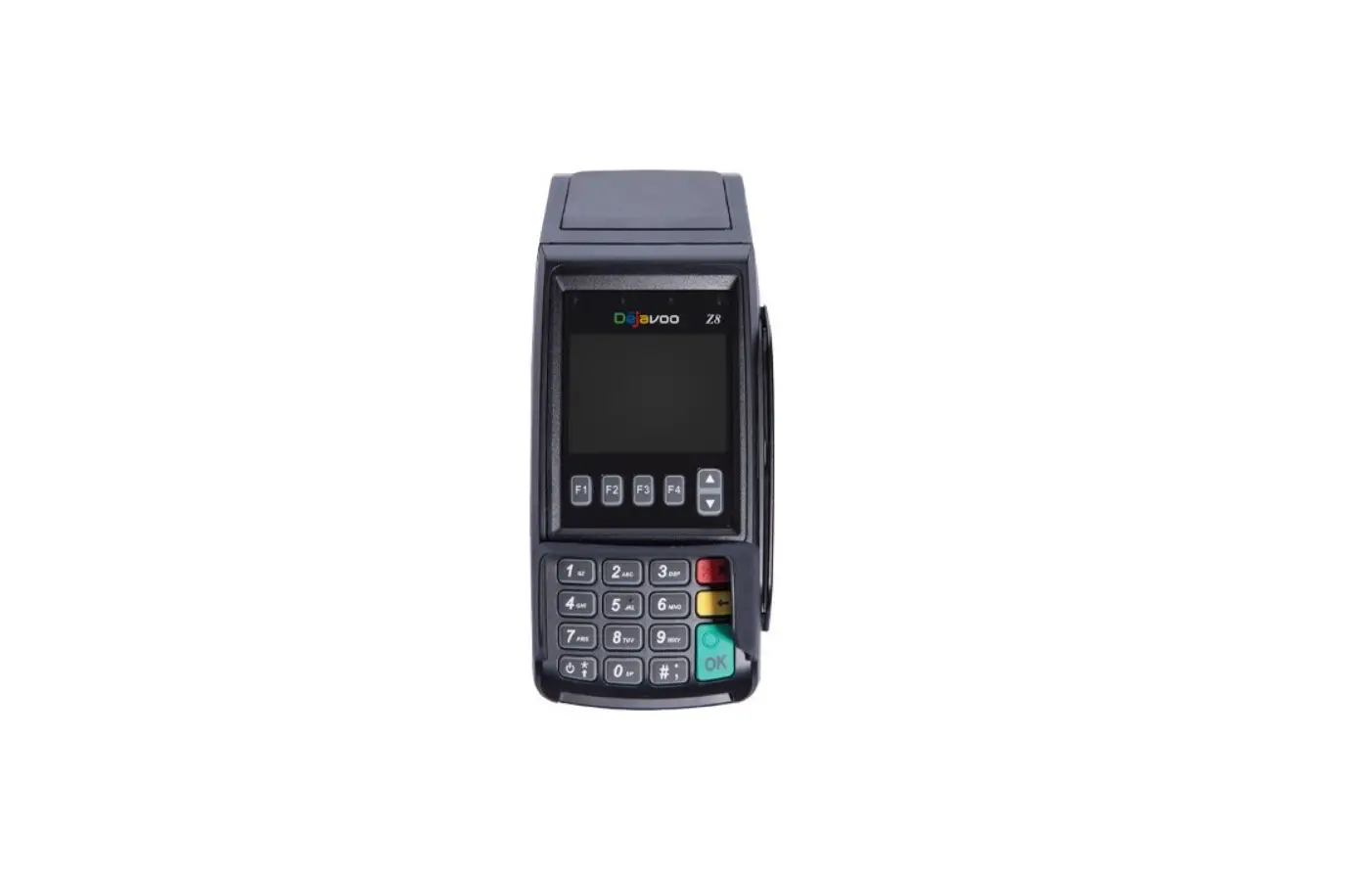
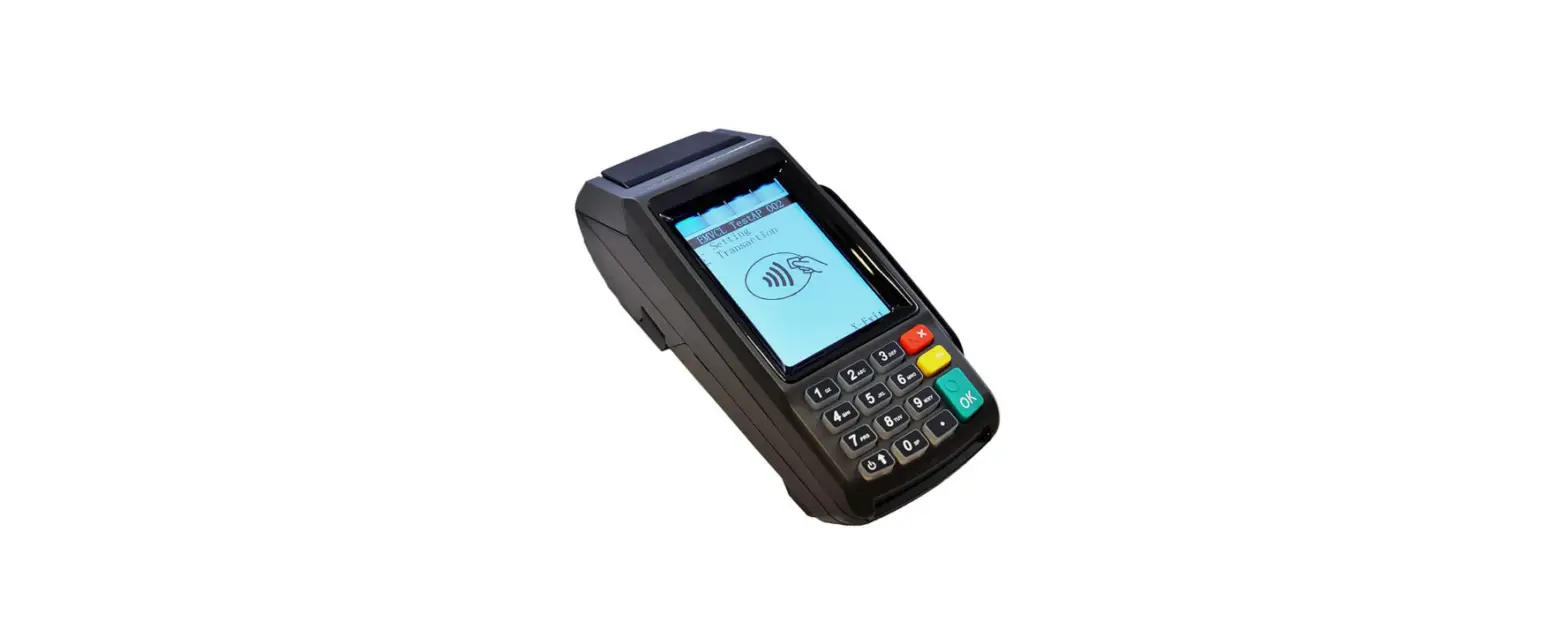
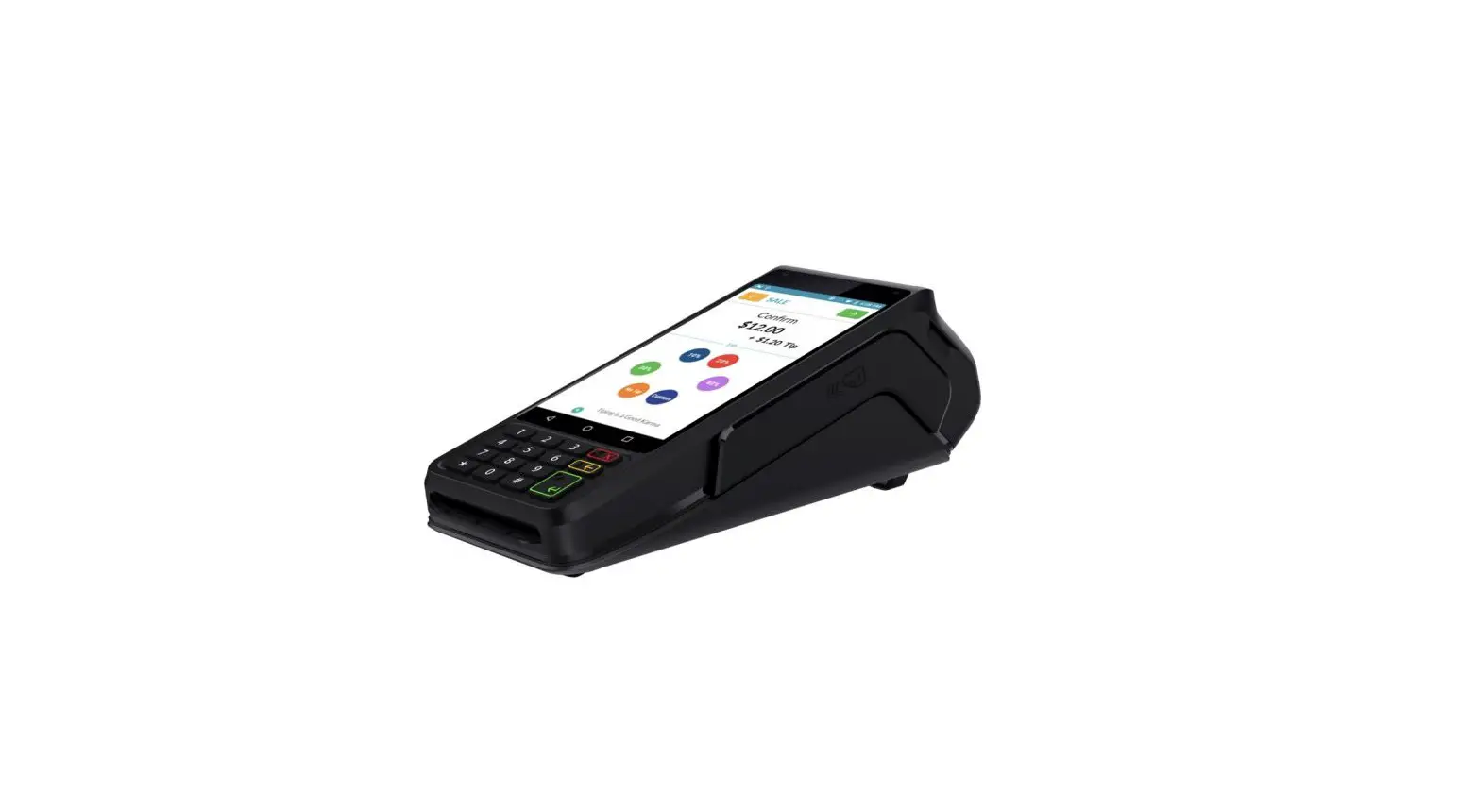
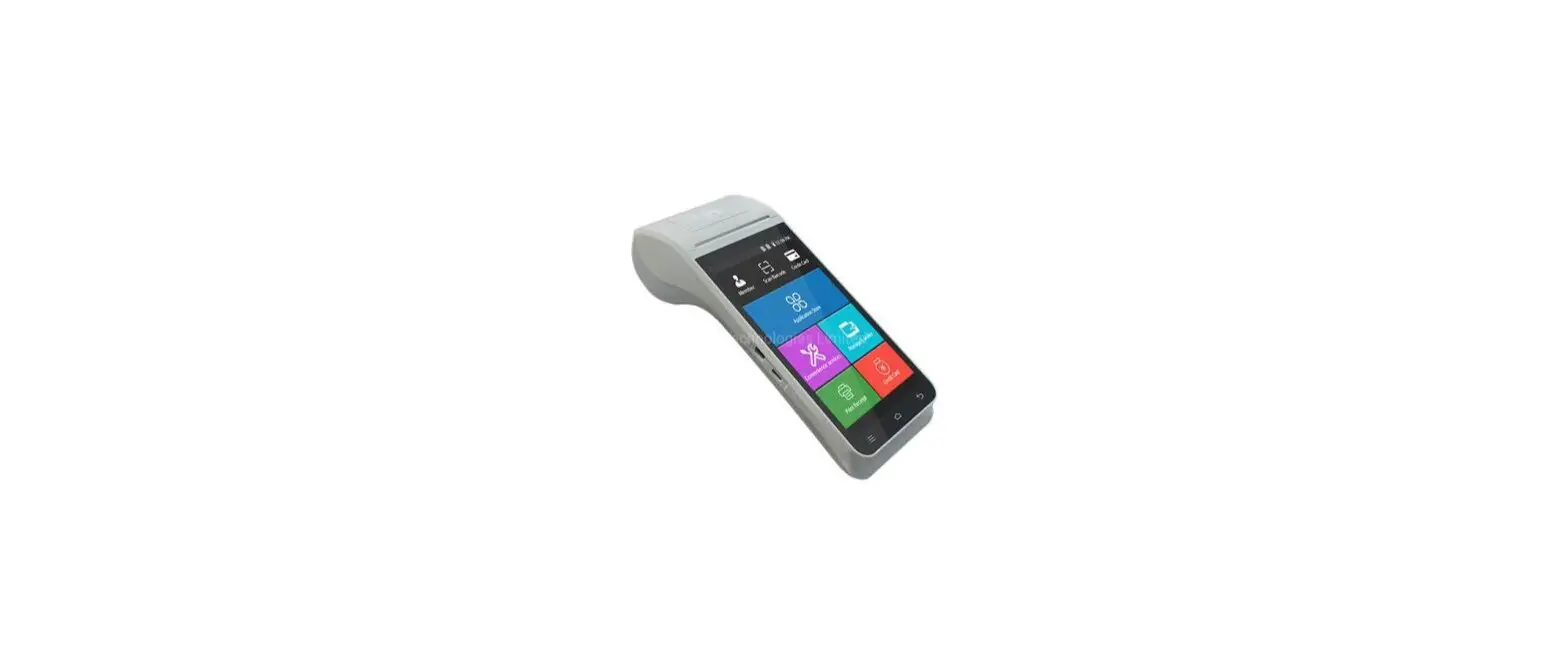
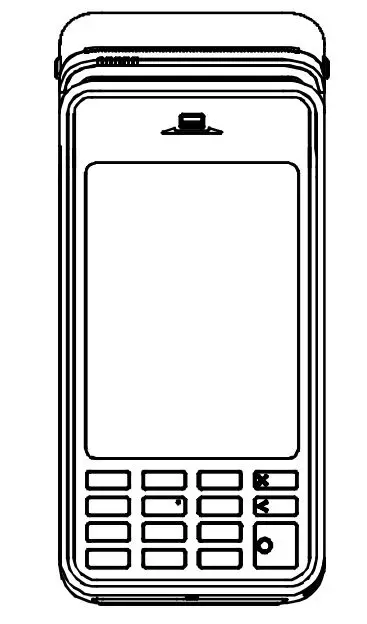
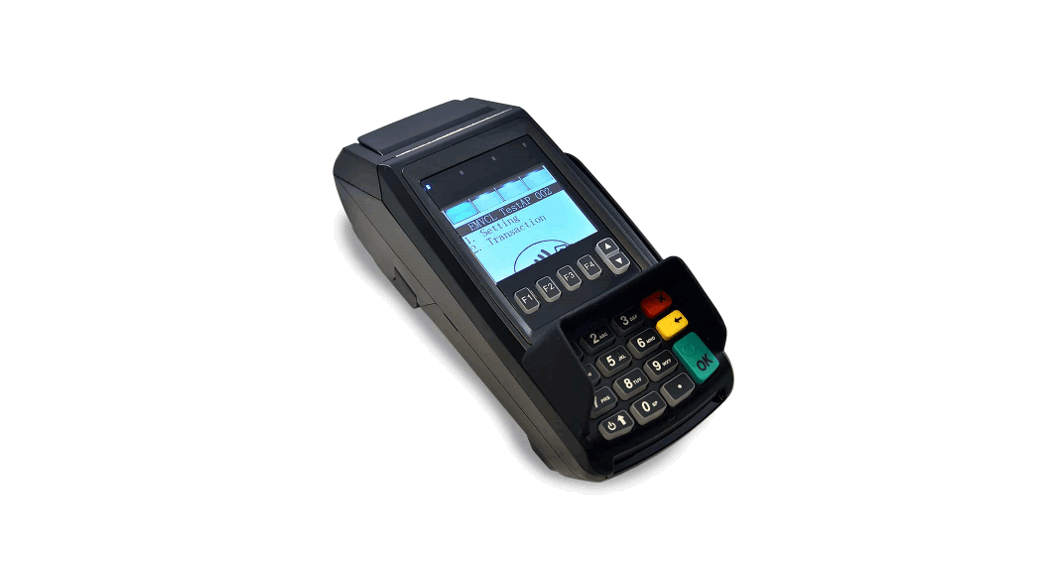
Dejavoo Z9 & Z11 with AURA icons
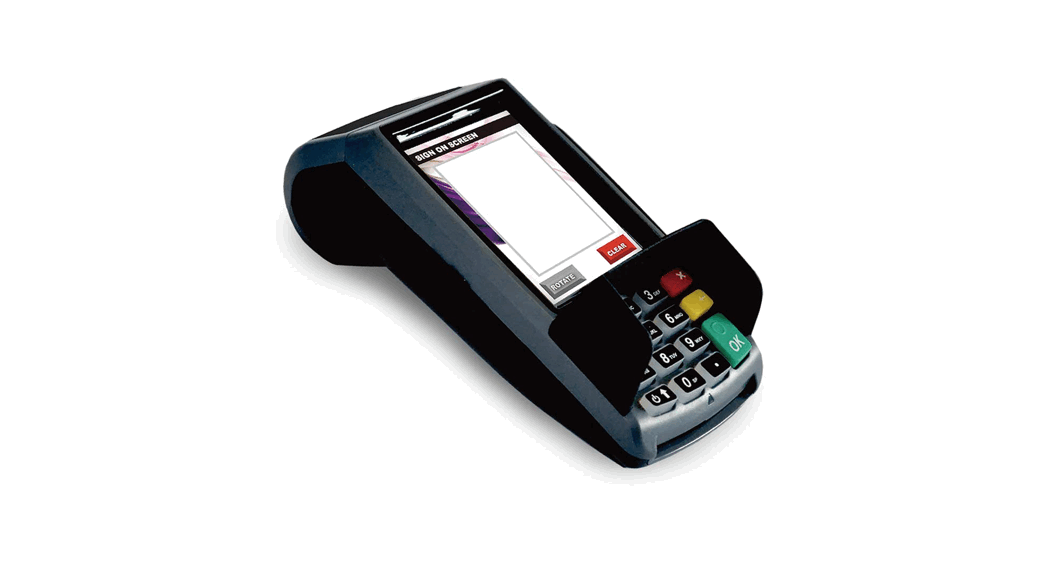
Z9 Wireless Terminal
These steps have been provided as a guide for assistance with your Dejavoo touch screen payment device with AURA software.
IMPORTANT: The terminal’s idle prompt displays a selection of payment type icons. The icon will take you to your FAVORITES menu, the
  icon will take you to the terminal’s SERVICES menu and when configured, use the
 icon for a CALL ME request.
CHIP CREDIT SALE
- Tap on the CREDIT icon on your terminal home screen.
- Tap on the SALE icon.
- Input SERVER # and press OK. Conditional on the terminal’s configuration.
- Input the SALE AMOUNT and press OK.
- Tap (contactless only) or insert chip card.
- If prompted, confirm the sale amount by tapping YES or NO.
Conditional on the terminal’s configuration. - The transaction is processed. Sales receipts will print with details of the transaction.
DEBIT SALE
- Tap on the DEBIT icon on your terminal home screen.
- Tap on the SALE icon.
- Input SERVER # and press OK. Conditional on the terminal’s configuration.
- Input the SALE AMOUNT and press OK.
- Tap (contactless only), swipe or insert chip card.
- If prompted, confirm the sale amount by tapping YES or NO.
Conditional on the terminal’s configuration. - Cardholder inputs PIN on terminal PIN Pad or external PIN Pad and presses OK.
- The transaction is processed. Sales receipts will print with details of the transaction.
CREDIT CARD RETURN
- Tap on the CREDIT icon on your terminal home screen.
- Tap on the RETURN icon.
- Input SERVER # and press OK. Conditional on the terminal’s configuration.
- Input the RETURN AMOUNT and press OK.
- Tap (contactless only), swipe, insert chip card or manually enter card #.
- If prompted, confirm the sale amount by tapping YES or NO.
Conditional on the terminal’s configuration. - The transaction is processed. Sales receipts will print with details of the transaction.
MANUALLY ENTERED CREDIT SALE
- Tap on the CREDIT icon on your terminal home screen.
- Tap on the SALE icon.
- Input SERVER # and press OK. Conditional on the terminal’s configuration.
- Input the SALE AMOUNT and press OK.
- Manually input card #.
- Follow the CNP prompts (input exp. date, ZIP code etc).
Conditional on the terminal’s configuration. - The transaction is processed. Sales receipts will print with details of the transaction.
VOID CREDIT TRANSACTION (CARD PRESENT)
- Tap on the CREDIT icon on your terminal home screen.
- Tap on the VOID icon.
- Input SERVER # and press OK. Conditional on the terminal’s configuration.
- Input the VOID AMOUNT and press OK.
- If prompted, confirm the void amount by tapping OK or
CANCEL. Conditional on the terminal’s configuration. - If prompted, input Manager Password (1234 default).
- Tap (contactless only) or insert chip card.
- The transaction is processed. Void receipts will print with details of the transaction.
VOID BY TRANSACTION # (CARD NOT PRESENT)
- From the idle prompt, tap the icon to access the FAVORITES menu.
- Tap VOID TRANSACTION.
- If prompted, input Manager Password (1234 default).
- Tap BY TRANSACTION #.
- Input TRANSACTION # to be voided and press OK.
- Confirm the void transaction by tapping SELECT.
- If prompted, confirm the void amount by tapping OK or CANCEL.
Conditional on the terminal’s configuration. - If prompted, input Manager Password (1234 default).
- The void is processed. Void receipts will print with details of the transaction.
REPRINT RECEIPT
- From the idle prompt, tap the
 icon to access the FAVORITES menu.
 - Tap REPRINT RECEIPT.
- If prompted, input Manager Password (1234 default).
- Tap desired option (LAST, BY TRANSACTION # or BY CARD NUMBER).
- Follow prompts and transaction receipt prints.
CALL ME FEATURE (MUST BE ENABLED)
- From the terminal main screen tap the
 icon.
icon. - If prompted, input Manager Password (1234 default).
- Tap CALL ME.
- The terminal sends notification to the help desk and you will receive a call back from a representative with assistance.
EDIT TIPS BY TRANSACTION #
- From the idle prompt, tap the icon to access the FAVORITES menu.
- Tap EDIT TIP.
- If prompted, input Manager Password (1234 default).
- Tap ALL.
- Tap TRANSACTION #.
- Transaction amount appears, input TIP AMOUNT and press OK.
- If prompted, confirm the tip amount by tapping YES or NO.
Conditional on the terminal’s configuration. - Repeat steps 5 and 6 as needed.
- Press the
 key after all desired tips have been adjusted.
 key after all desired tips have been adjusted.
TERMINAL POWER OPTIONS
Powering on (Z9 only)
- Press
 key to turn on terminal.
Powering off (Z9 only)- Tap the icon to access the FAVORITES menu.
- Tap on POWER OFF to turn off terminal.
 key to turn on terminal.
To power cycle all terminals
- Press and hold the key on the keyboard and release once terminal starts to reboot.
SETTLE DAILY BATCH
- From the idle prompt, tap the icon to access the FAVORITES menu.
- Tap SETTLE DAILY BATCH.
- If prompted, input Manager Password (1234 default).
- Terminal communicates with the host.
- Settlement Report prints.
PRINTING REPORTS
- From the idle prompt, tap the icon to access the FAVORITES menu.
- Tap desired report type (DAILY REPORT or SUMMARY REPORT).
- If prompted, input Manager Password (1234 default).
- REPORT prints.
TURN SERVER PROMPT ON/OFF
- From the idle prompt, tap the icon to access the SERVICES menu.
- Tap CORE.
- Tap APPLICATIONS.
- Tap CREDIT/DEBIT/EBT.
- Tap SETUP.
- If prompted, input Manager Password (1234 default).
- Tap TRANS PROMPTS.
- Tap CLERKS.
- Tap PROMPT.
- Tap to select desired option and press OK.
- To return to the home screen press the key 2 times.
WIRELESS ICON INDICATORS (MOBILE UNITS ONLY)
 GPRS signal strength indicator (the more bars, the better your signal GPRS).
 Battery strength indicator.
 Indicates issue with SIM card (GPRS).
WI-FI ICON INDICATOR (FOR WI-FI ENABLED UNITS) Wi-Fi icon will blink when not connected.
It will remain static when connected successfully.
 1000 Avenida Juan Ponce de Leon
Suite 2-A, San Juan, PR 00907
Dejavoo Systems
393 Jericho Turnpike, Suite #203
Mineola NY 11501
T: 1-877-358-6797
E: [email protected]
Dejavoo Canada
7290 Torbram Road, Unit 1
Mississauga, ON L4T 3Y8
T: 647-430-0905
E: [email protected]
DeNovo Systems
1000 Avenida Juan Ponce de Leon
Suite 2-A, San Juan, PR 00907
T: 1-877-358-6797
E: [email protected]