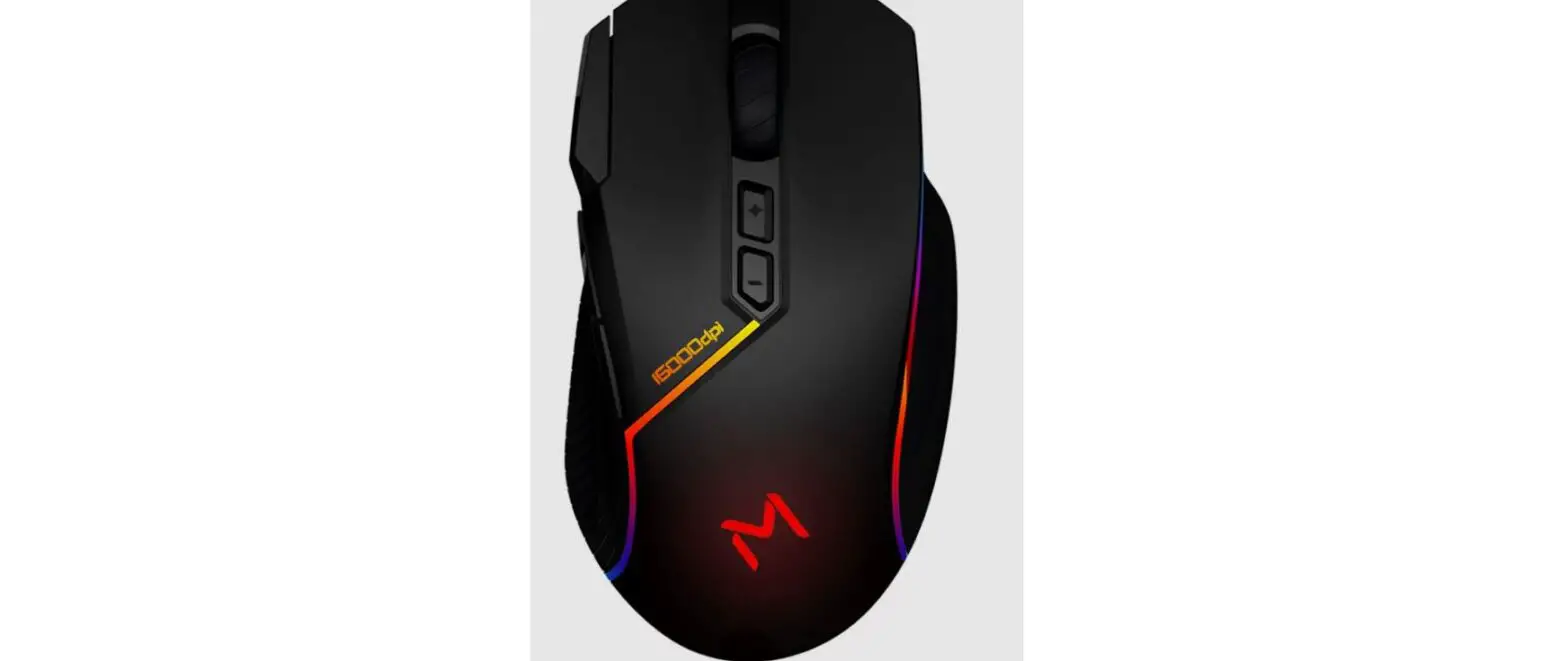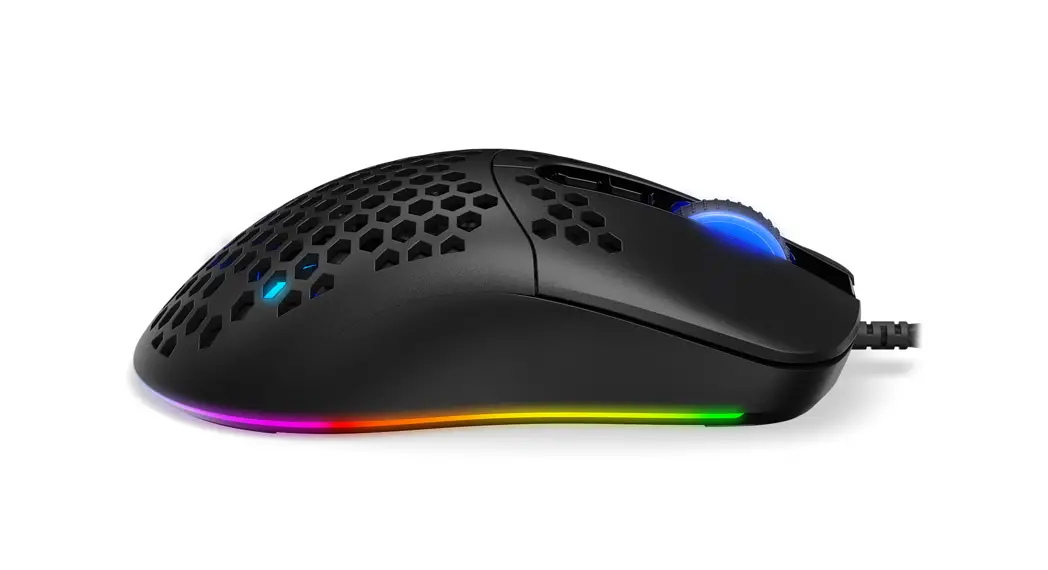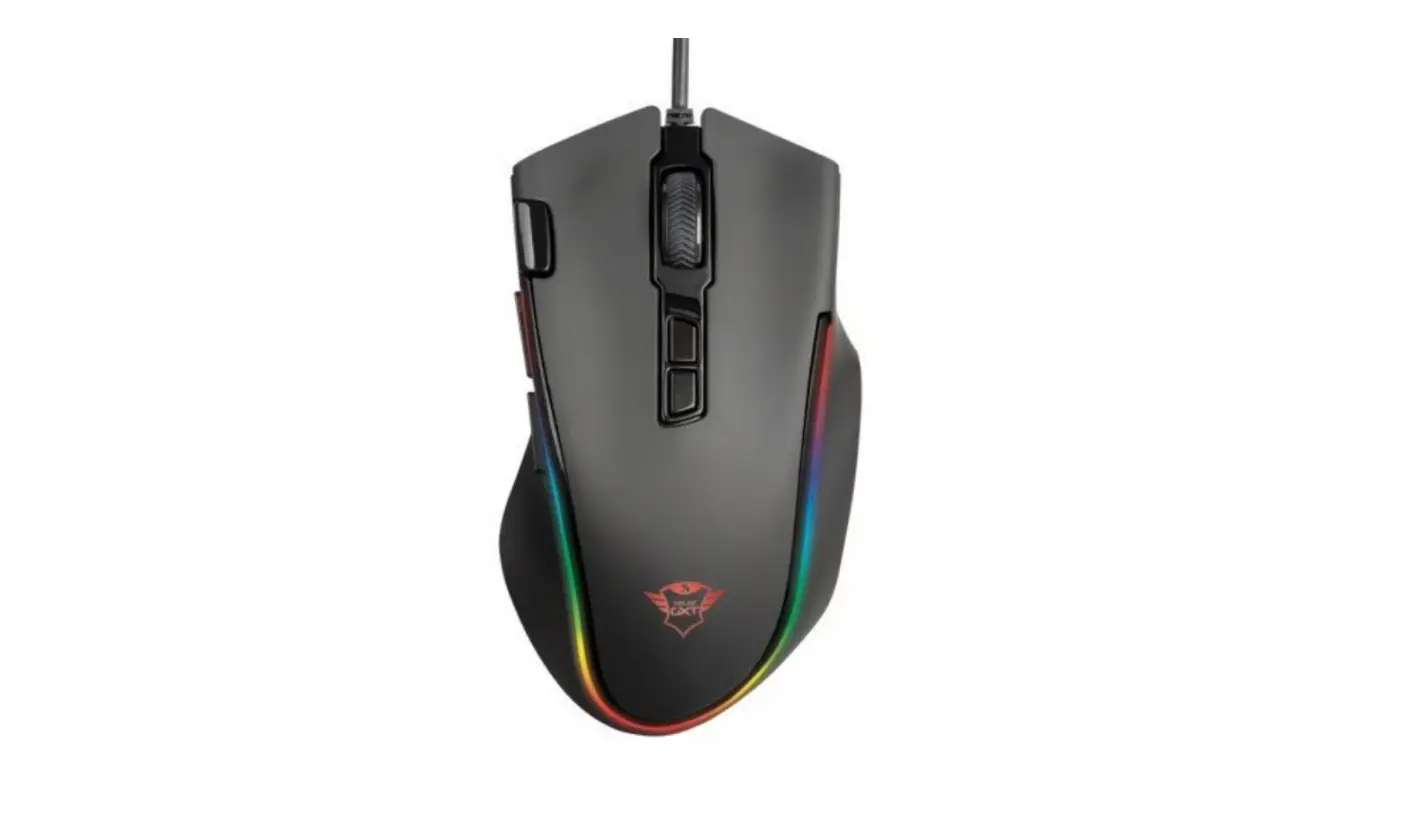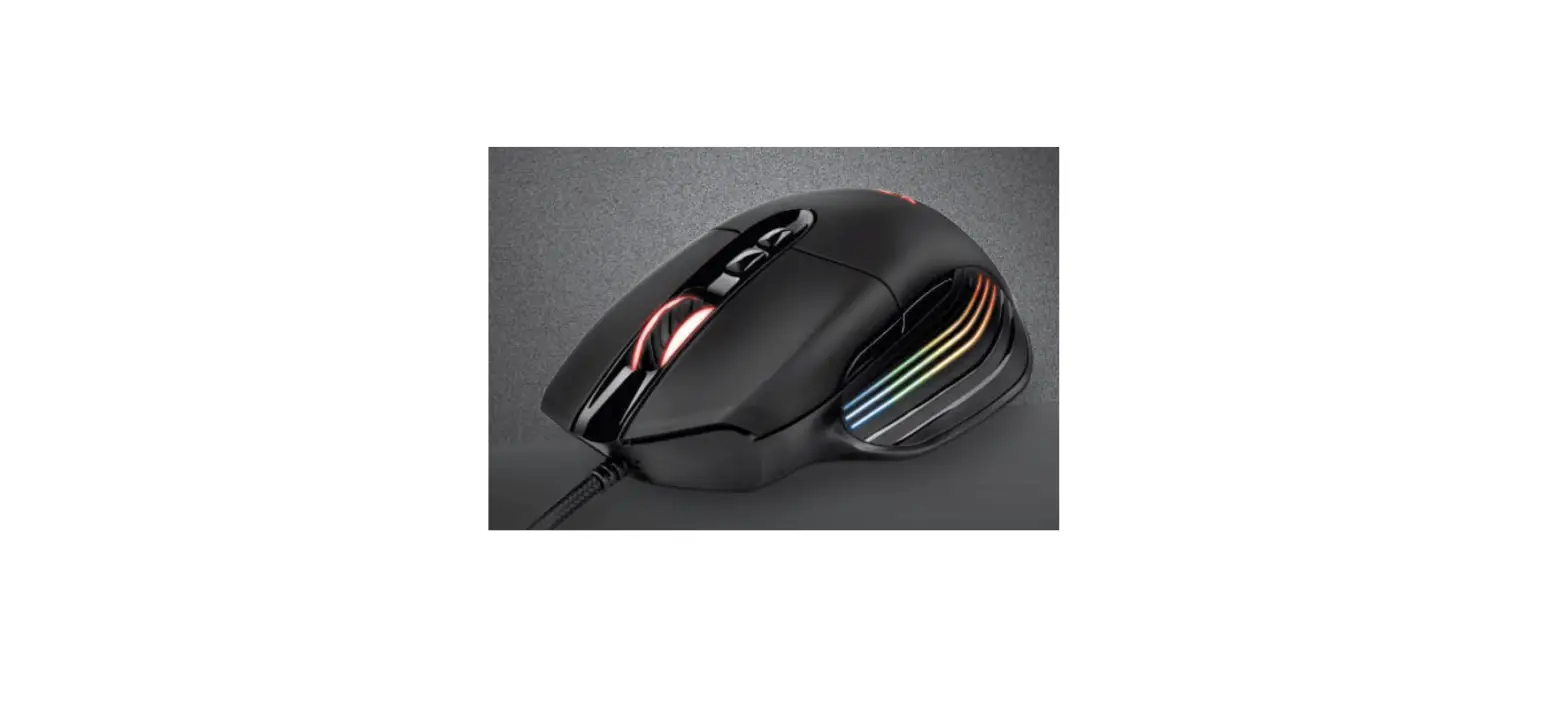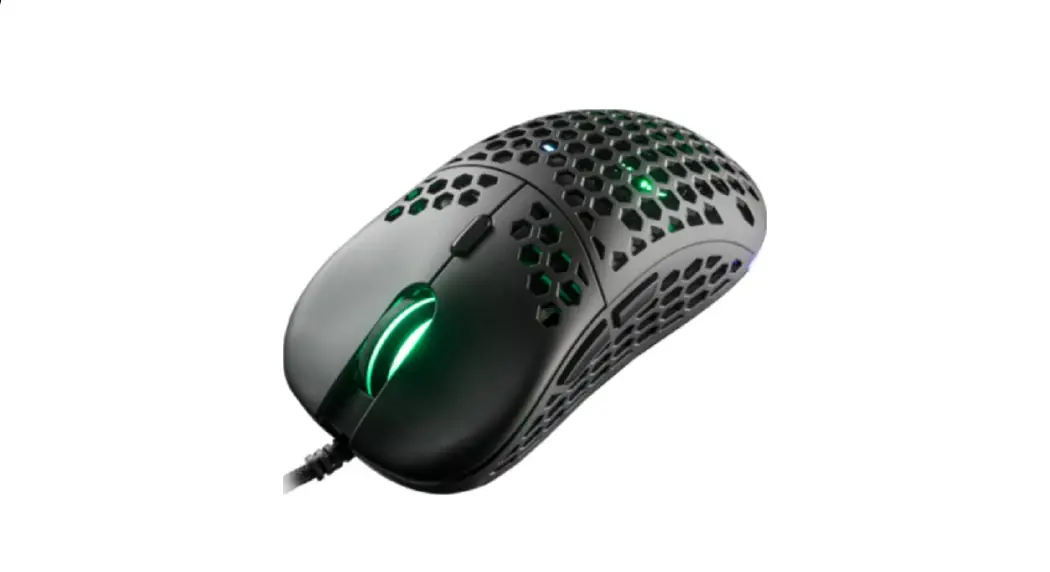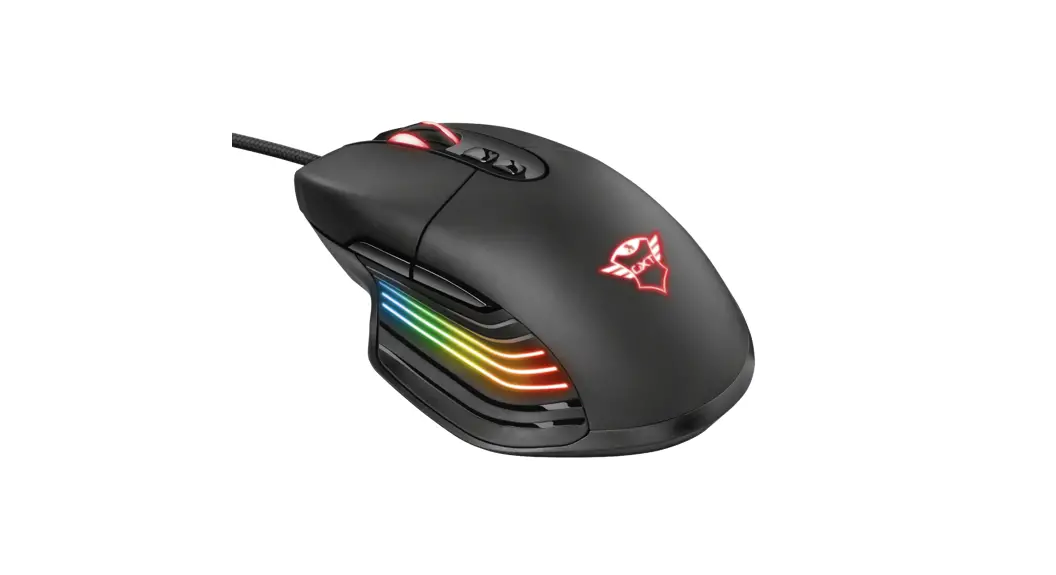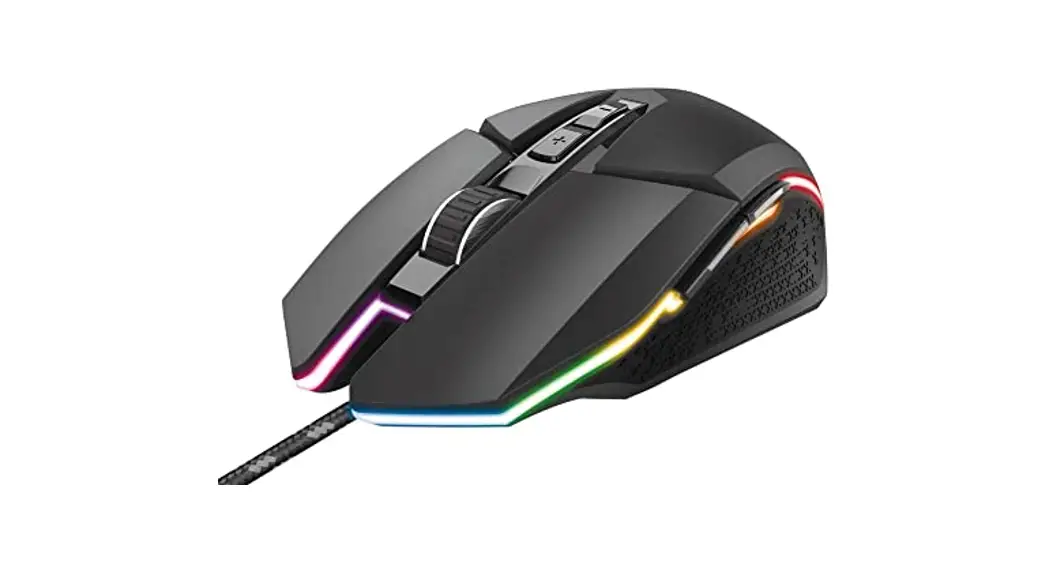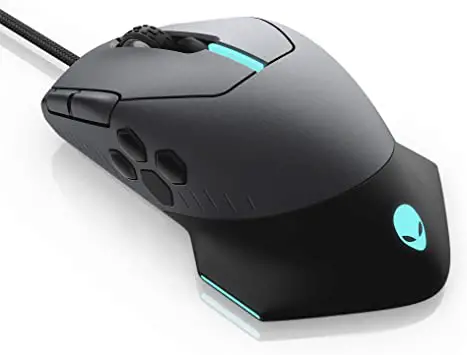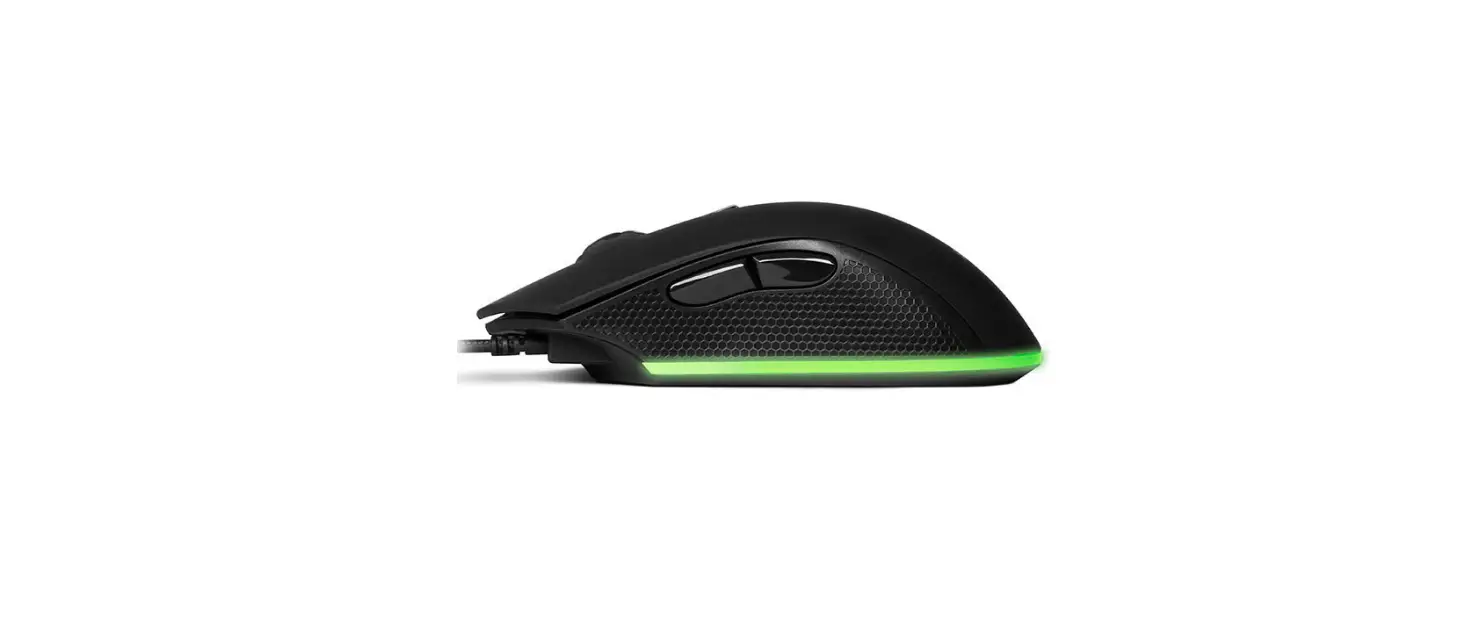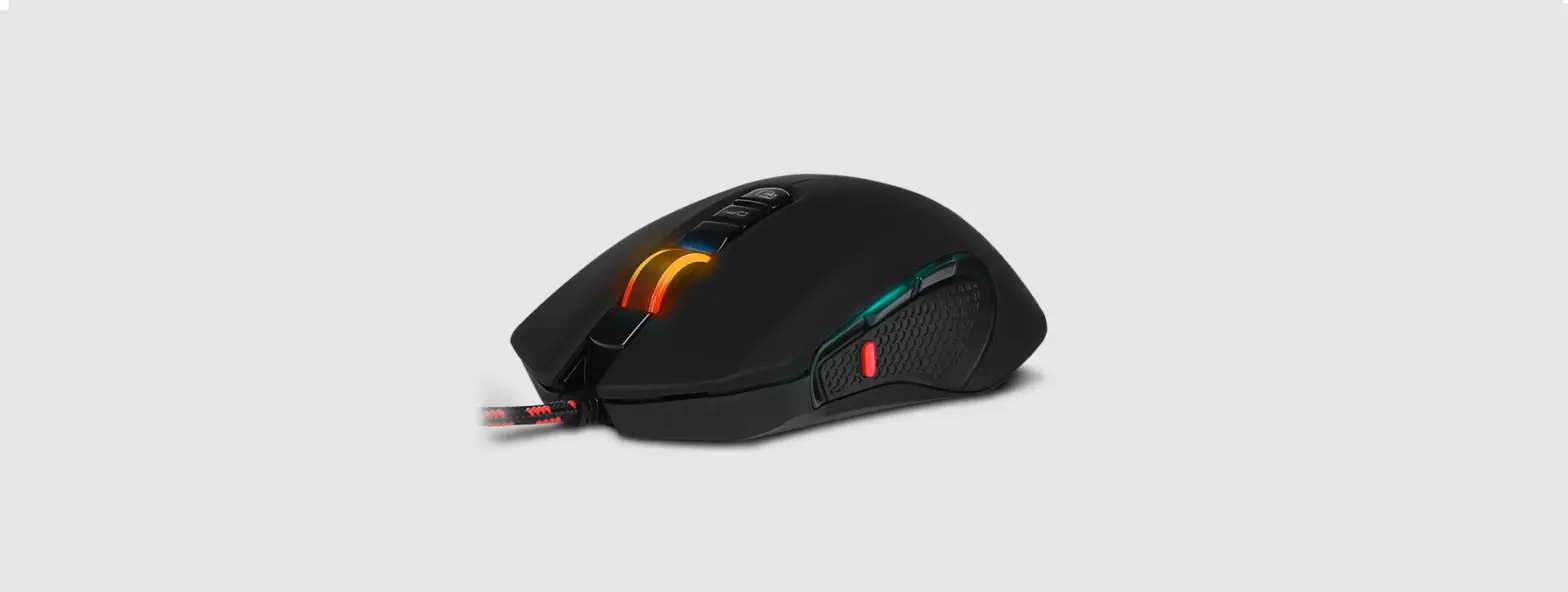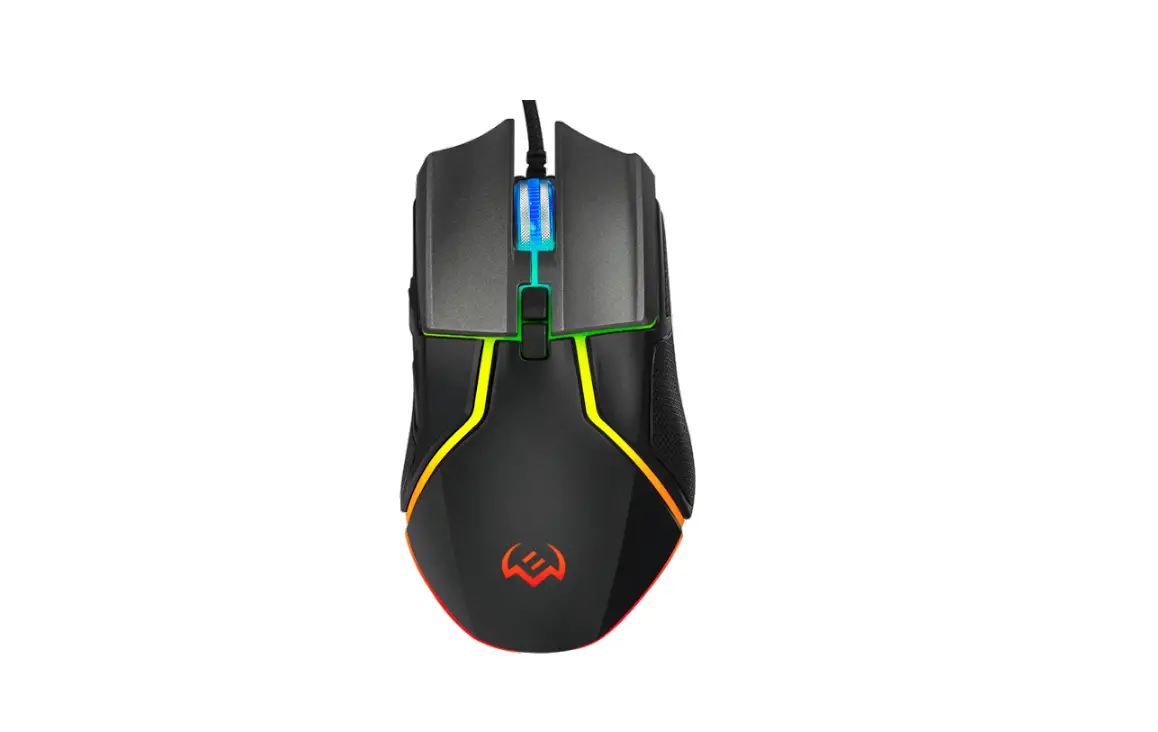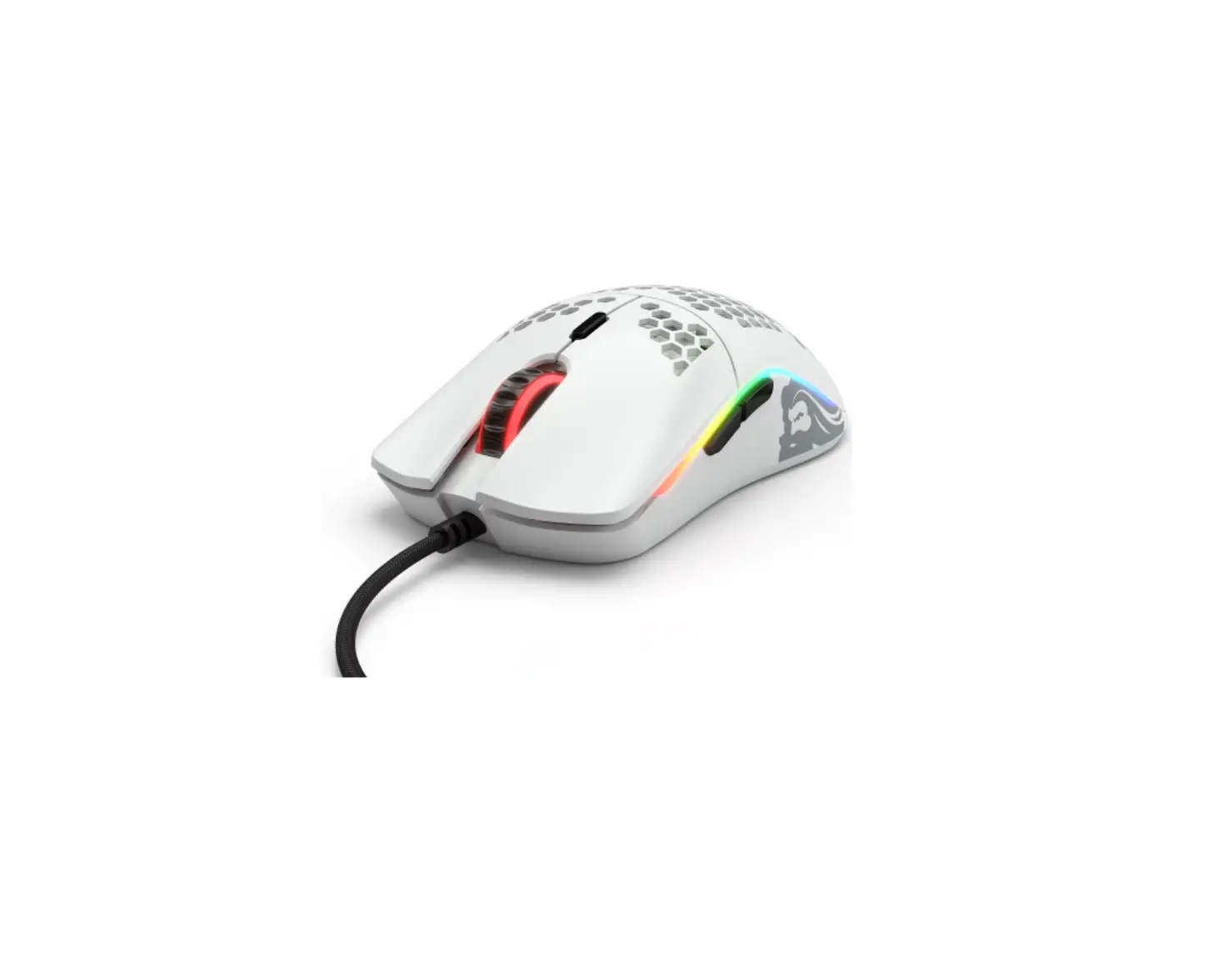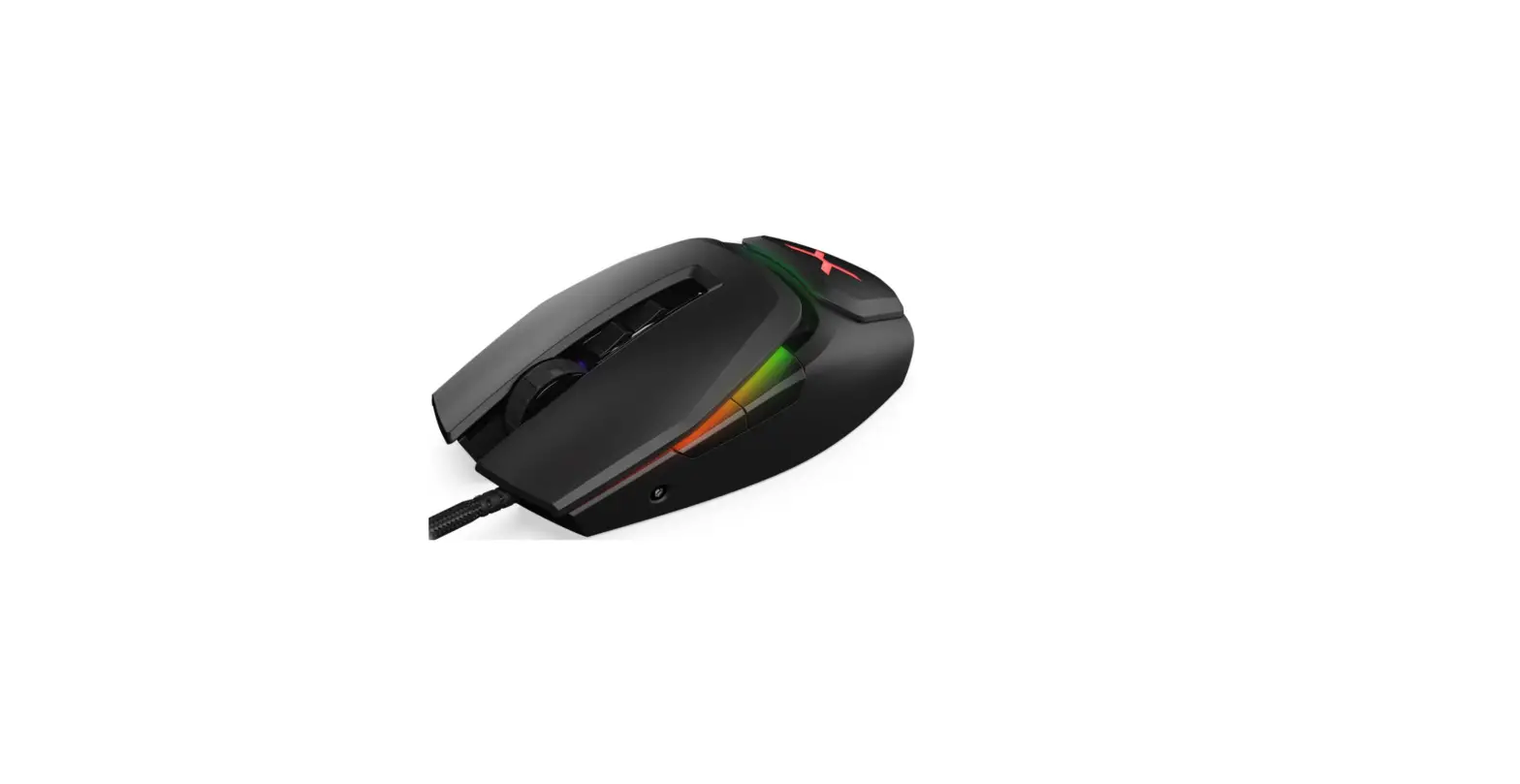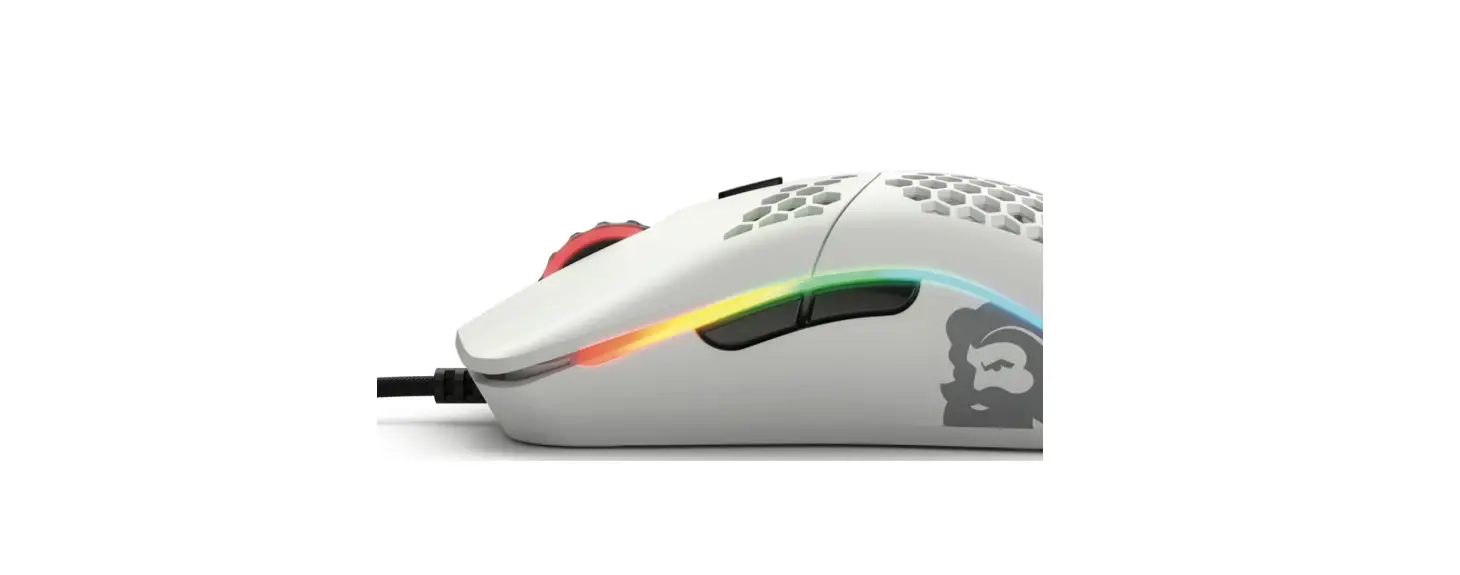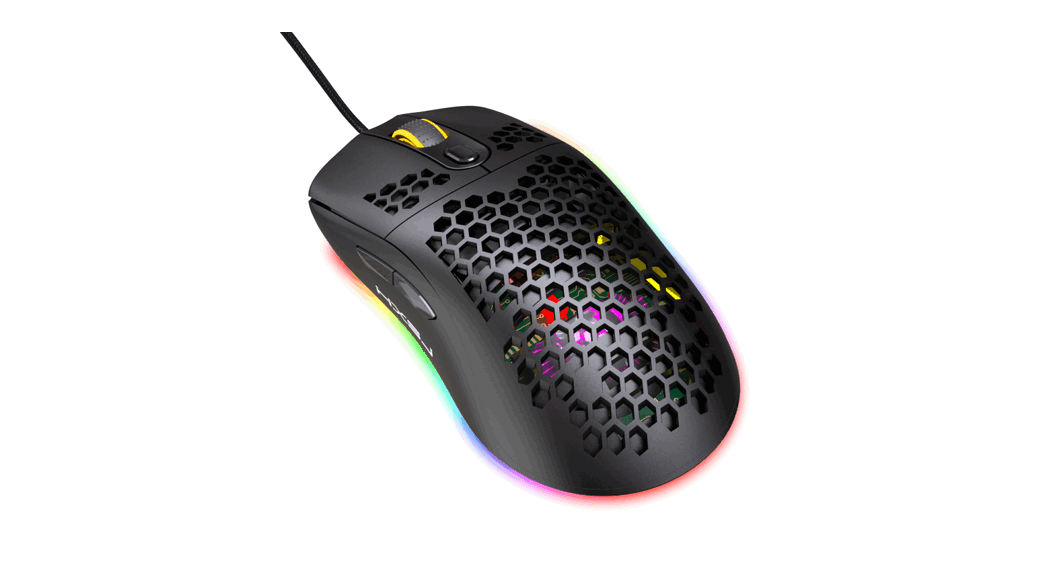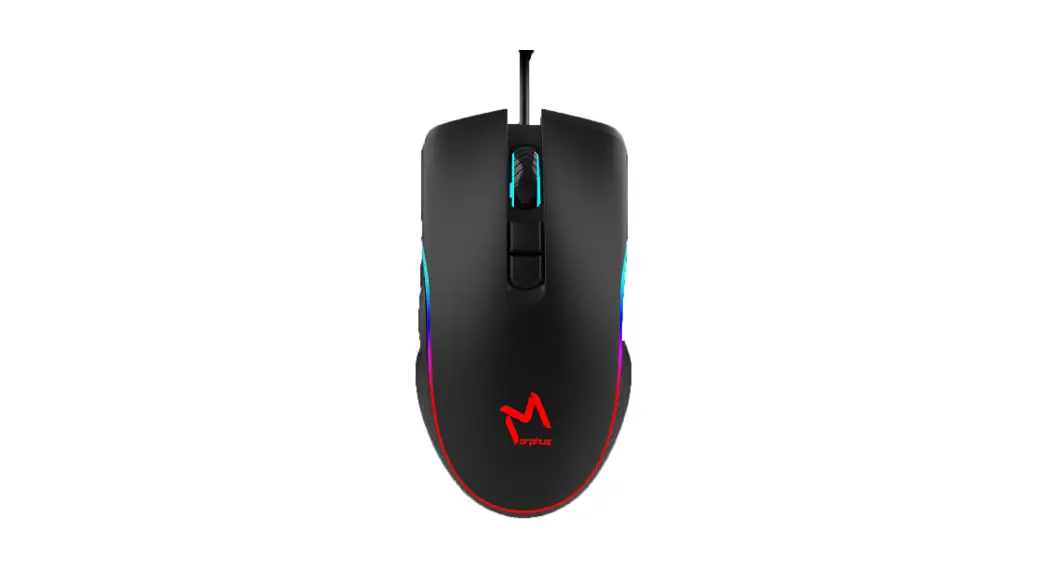

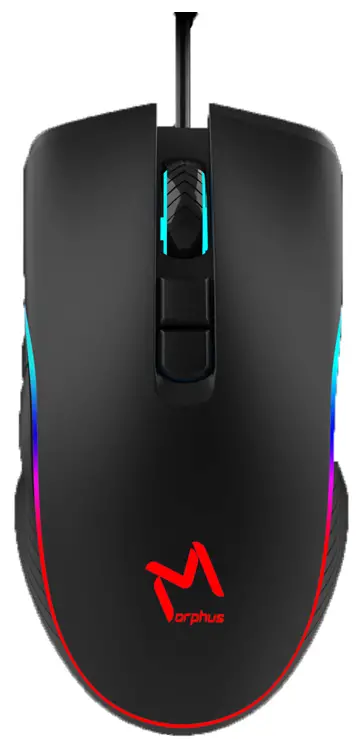
 AIKUN RGB GAMING MOUSE-MORPHUS GX66PRO
MASTER GUIDE
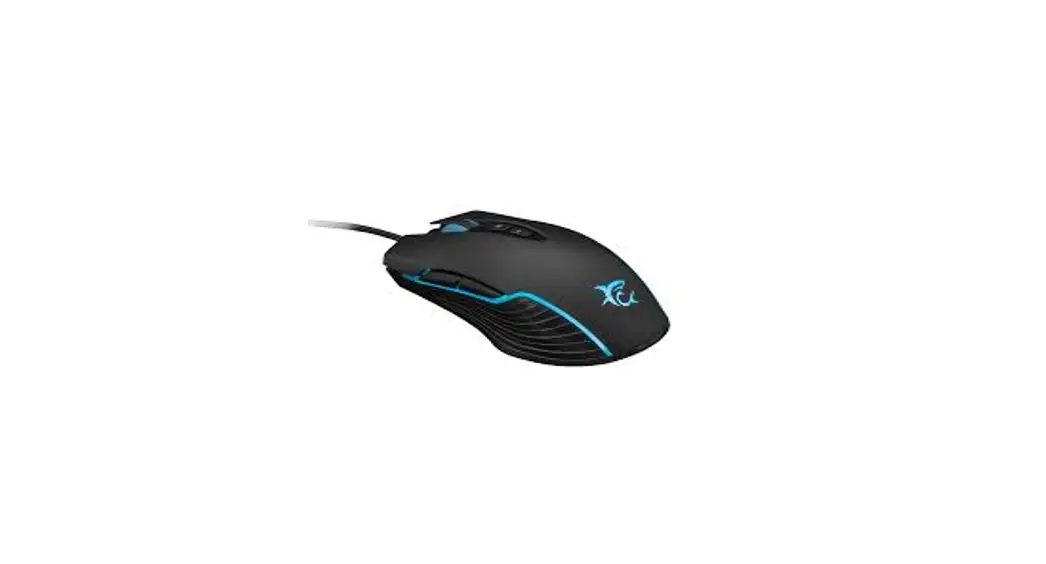
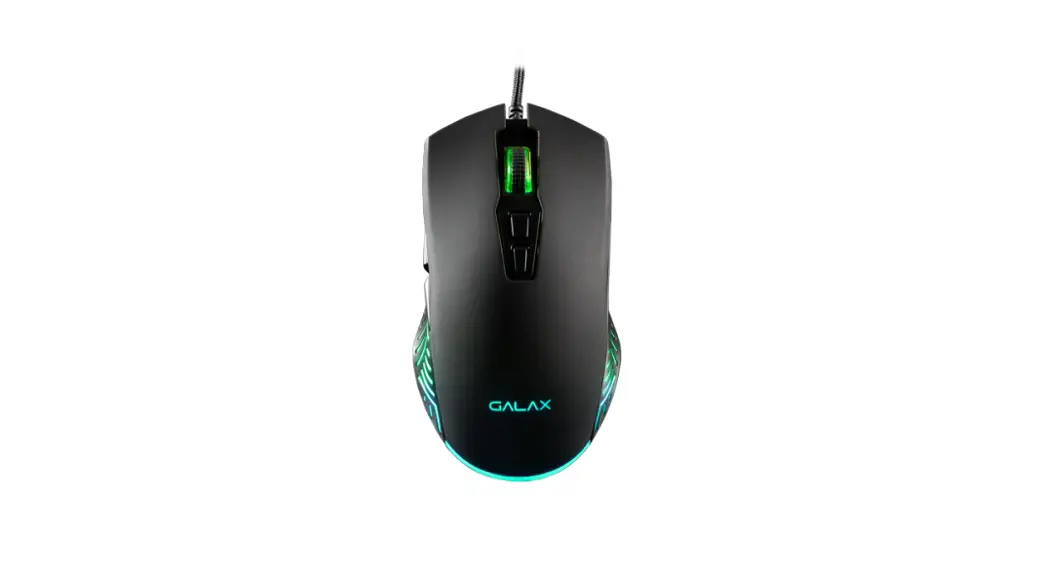
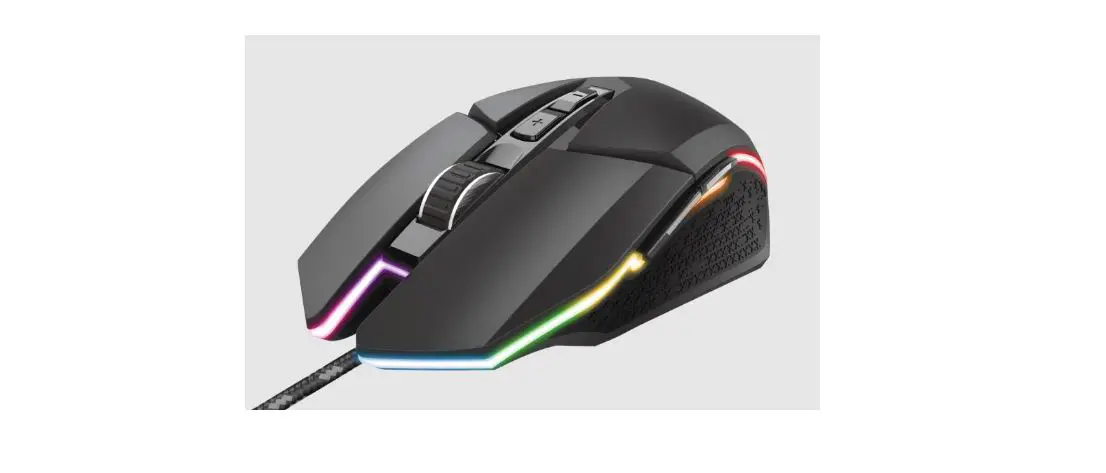
With an all-new ambidextrous form factor, the Morphus GX66Pro is designed for both left- and right-handed gamers. Featuring the world’s most advanced optical gaming sensor and Mechanical Mouse Switches, you get performance and durability like never before. Together with Memory Storage powered by AIKUN, you will always shave access to your favorite profiles.
PACKAGE CONTENTS/ SYSTEM REQUIREMENTS
- gaming mouse
- important Product Information Guide
SYSTEM REQUIREMENTS
PRODUCT REQUIREMENTS
- PC or Mac with a free USB port
GX66PRO GAMING DRIVER REQUIREMENTS
- WindowsR 7 (or higher)
- lnternet connection
- 500 MB of free hard disk space
TECHNICAL SPECIFICATIONS
| Item | Specification | Its. | Specification |
| Mouse Type | Wired | Keys | 7 Keys |
| Interface | USB | Dimension(L*W*H) | 126.3*69.8*41mm |
| Working Type | Optical (red light) | Weight | 145±10g |
| Working Voltage | DC 5V | Working Current | MAX150mA |
| DPI Button | 2 | USB Cable | 03.2s1.8m |
| Default DPI | Memory | Interface Compatibility | USB1.1/2.0/3.0 |
| DPI Levels | 1200-1600-2400-3200-4800-7200 | System Requirement | Windows XP/Vista/Win7/Win8/WIN10 |
| DPI indicator | Customizable driver | Breathing Light | Customizable driver |
| Backlight Color | RGB | Click times | 10 million |
| Customizable driver | Yes | Sensor acceleration | 20G |
| Date Report Rate | 125HZ | Sensor Speed | 60INCH/S |
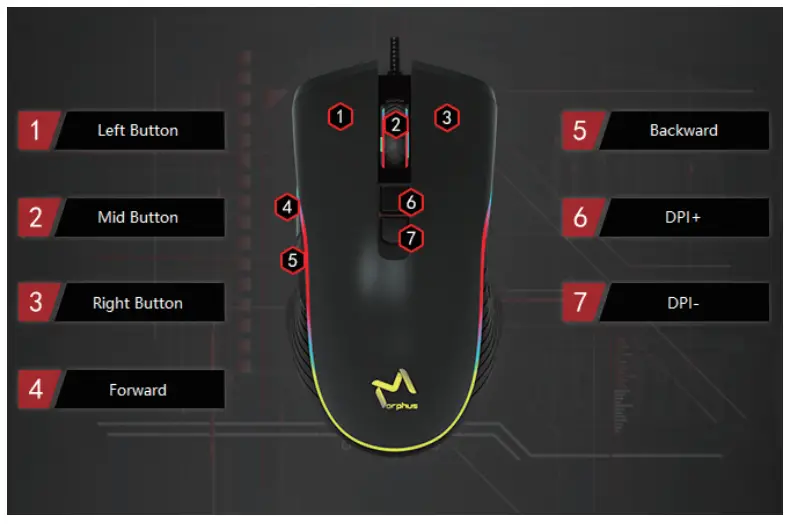
Device Layout
Backlight Control :
Change the backlight mode :
‘Forward’ or ‘Backward’ + ‘DPI+’or ‘DPI-’,13 selectable mode loops
Turn off Backlight:
Press ‘DPI+’ or ‘DPI-’ for 3 Seconds.
TIP: when you change DPI, the backlight will change to DPI indicating color temporarily, then get back soon. (Customizable)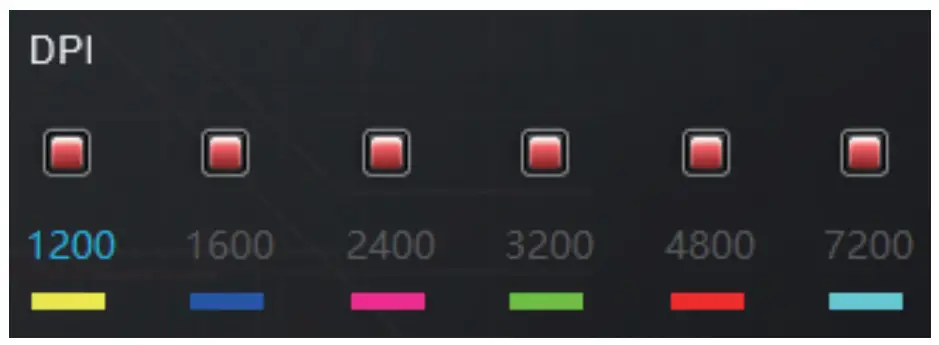
How to Use AIKUN GX66PRO Gaming Software
- Scan the QR code to get the download link
 https://drive.google.com/file/d/1_DH7SZhdrWuRz39MIthtZgVekZT_mBZX/viewusp=sharing
 - Click and install the driver

- Run the Driver


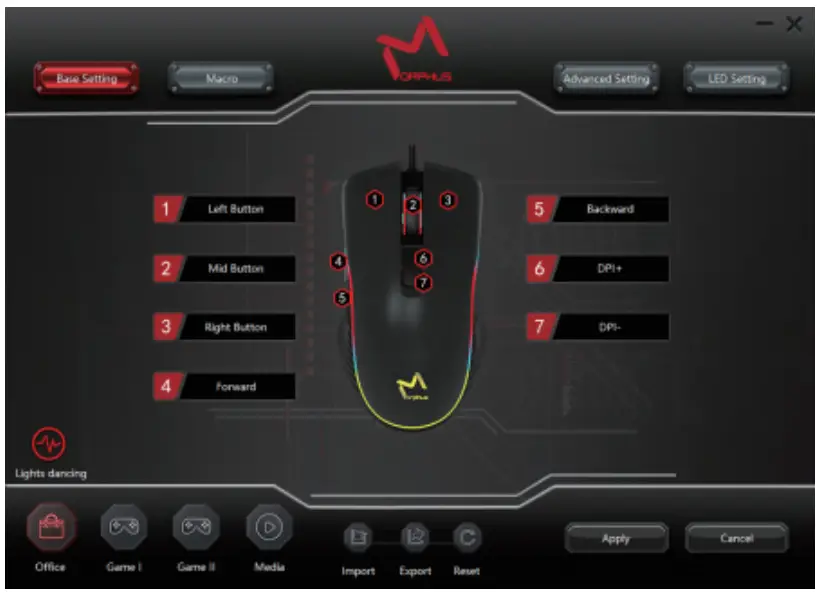
Software description
This custom program is divided into four parts: the basic setting, macro setting, advanced setting, and LED sets
1- Basic Setting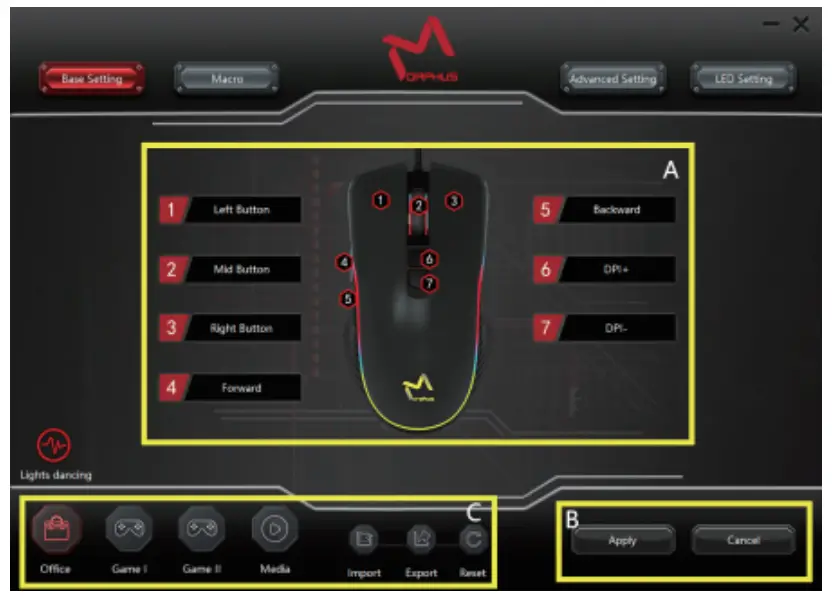
Area A is the button function area, There are 7 buttons in total, and all can be customized! In addition to the basic button functions, there are many commonly used function buttons for independent definition. Click any button and the following drop-down menu will appear: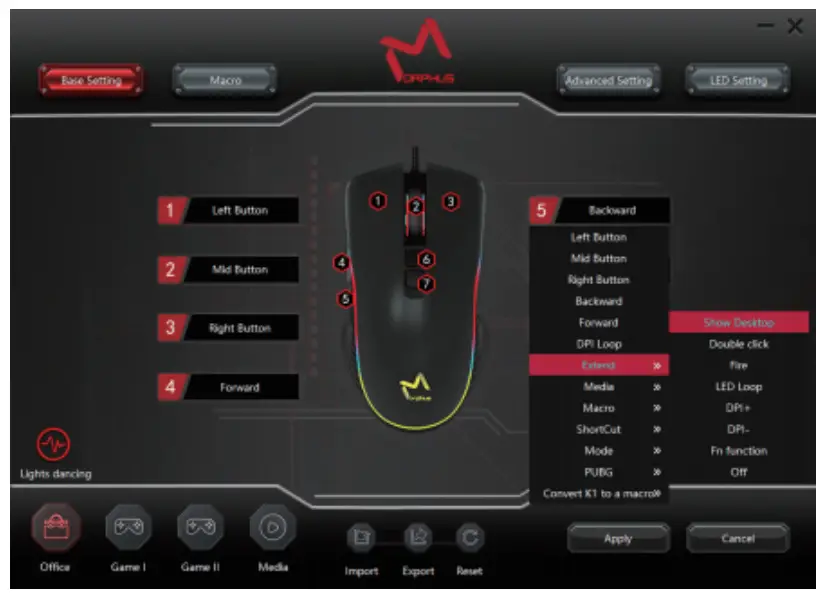
The last few items have sub-menu function keys for selection, all of which are commonly used function keys and macro functions for daily computer operations. Each key can be independently defined. After selecting, click Apply to complete the setting! It is recommended that the first and third buttons do not set other function keys to prevent misoperation. After setting the function, click Apply in area B to confirm the function, or click Cancel to give up.
Area C is the quick-setting area:
This software could save 4 profiles. Gamer can save frequently used custom settings. Next time you open the software, you can directly select the desired configuration and click Apply instead of step-by-step settings. Designed for the convenience of consumers’ memory, can be set independently! The configuration can be exported and stored, imported and used when needed, or restored to the initial configuration.
MACRO SETTING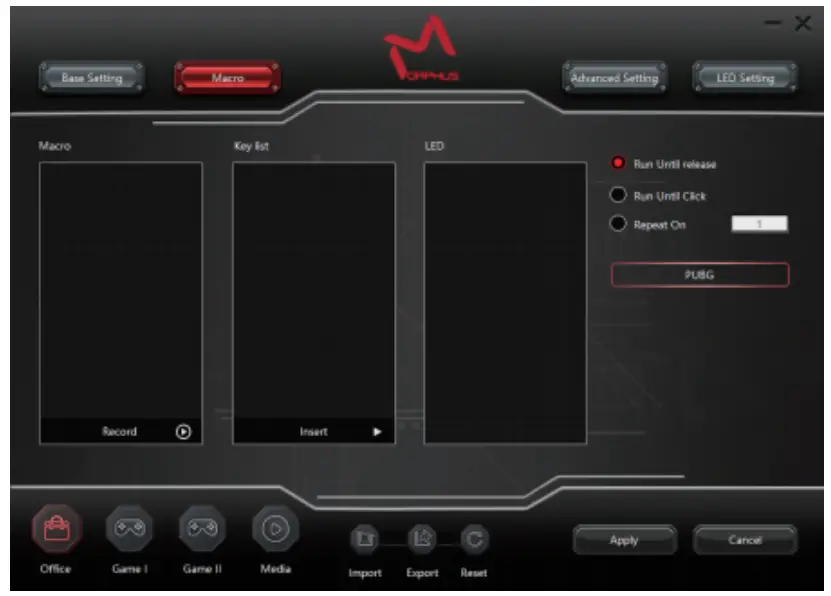
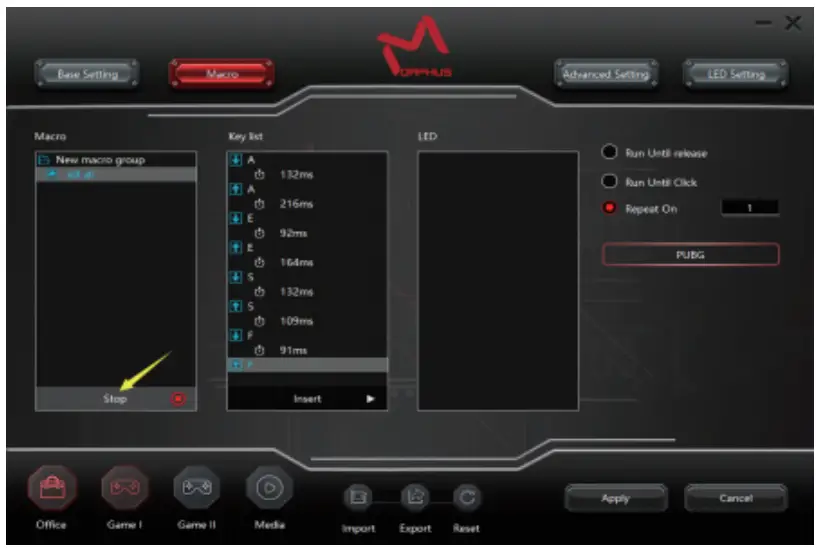
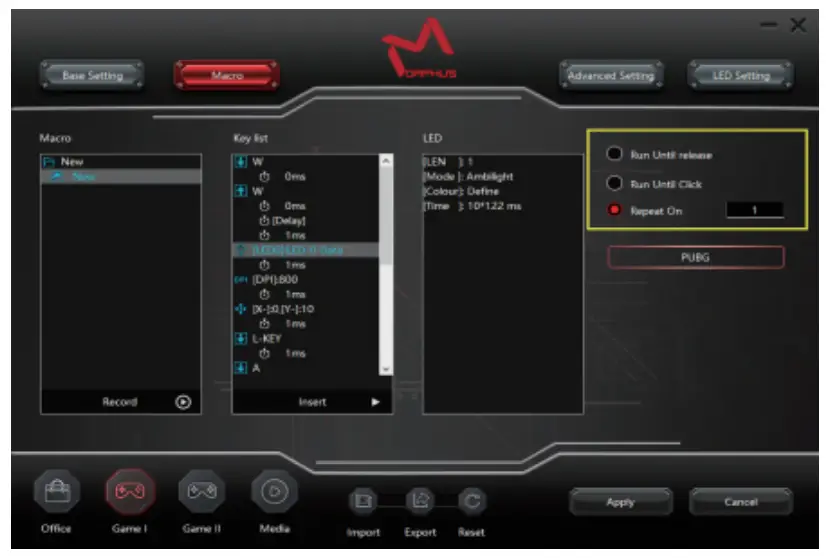
Users can edit macros according to personal preferences and actual applications. This is a combination of mouse and keyboard functions. The setting steps are as follows:
- After right-clicking in the macro list box to call up the menu, create a new macro group

- Click the macro group, right-click to create a new macro, and you can also right-click this macro to rename it

- Click the record button below to start recording your command.

- Type the keys of your command on the keyboard, then click the stop to complete the recording.(The arrow pointing down means pressing the key, and upward means the key pops up.)

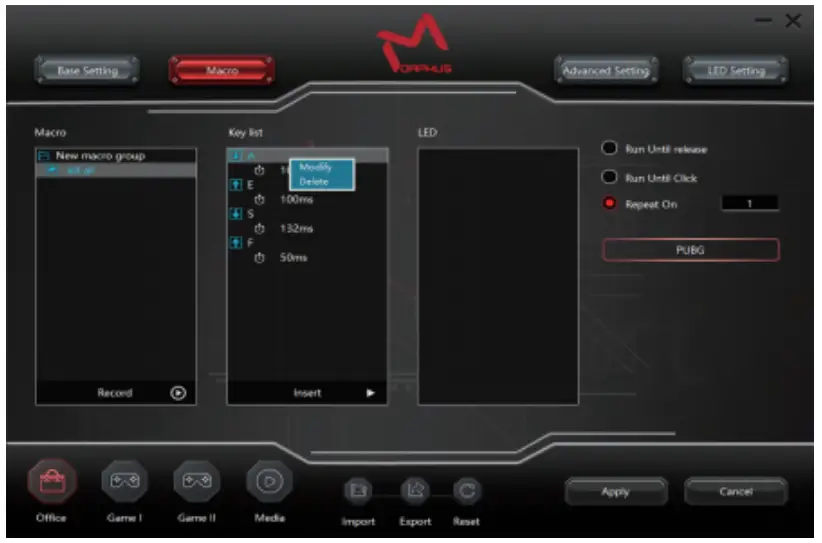
- Correct the command in the Key list. Right-click the key or delay time, and you can modify or delete those wrong commands.

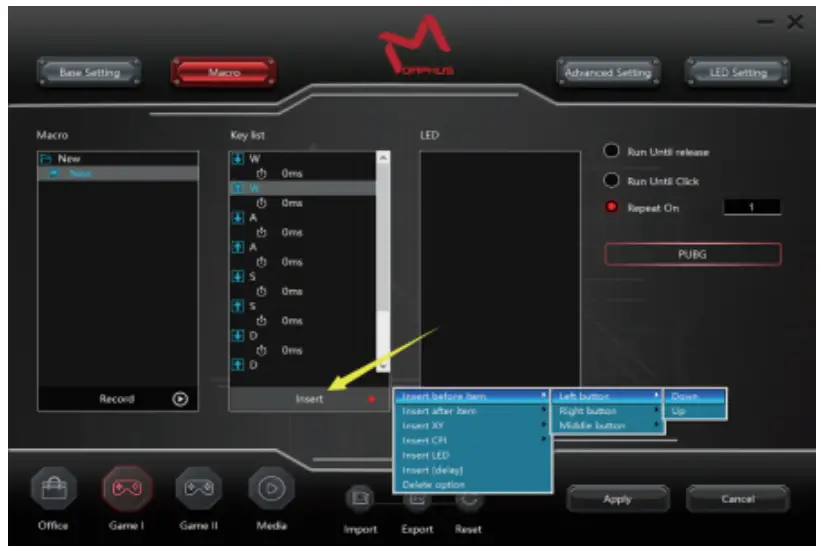
- Insert mouse, LED, and another command. Click any key in the key list, then click insert to open the menu, and choose the command you want to insert.
 All inserted commands can be modified by right click it, LED could be edited in the LED List.
- Next, select the cycle option

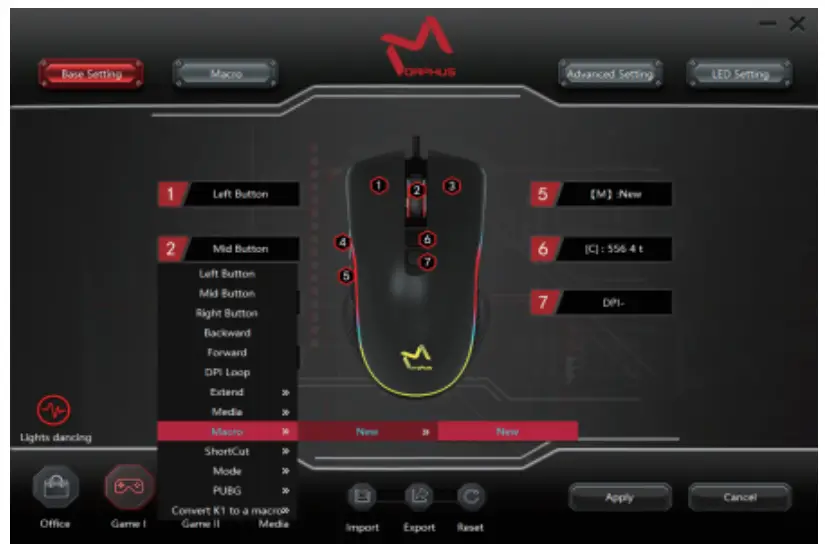
- After editing the macro, you can go to the basic settings for function configuration. Click the button you want to set the macro function → select the macro in the drop-down box →Select the macro just now → click the apply button → the function of the button becomes a macro, click the button to use it.

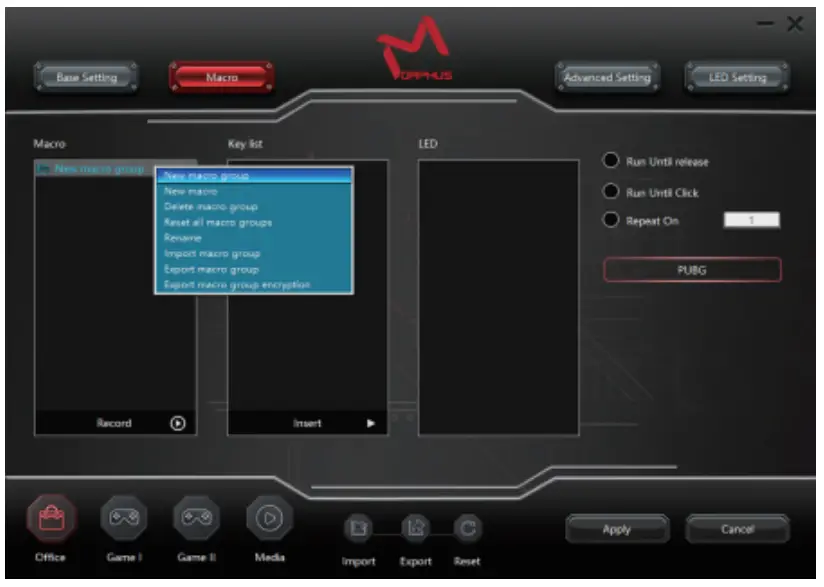
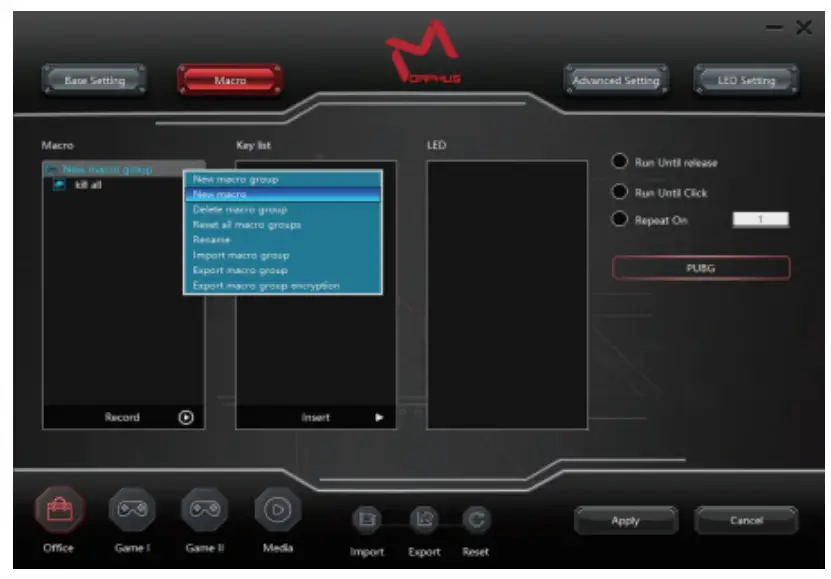
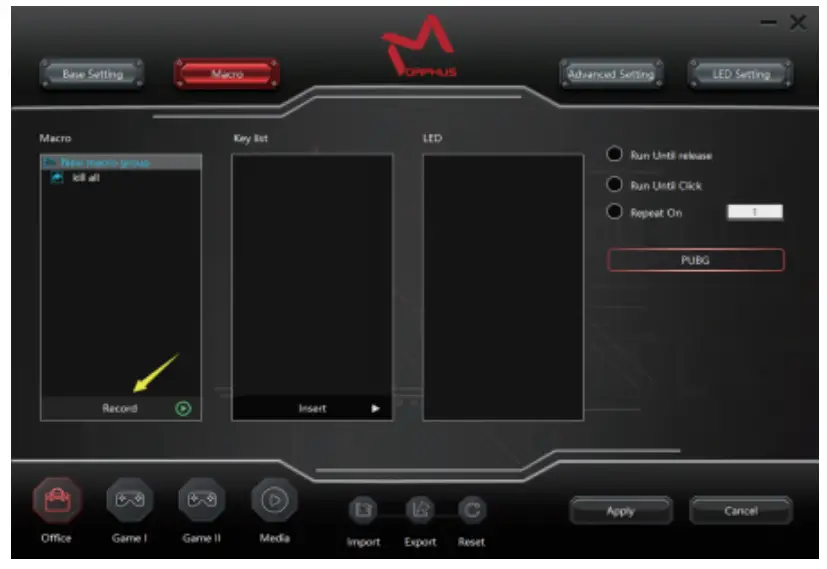
 All inserted commands can be modified by right click it, LED could be edited in the LED List.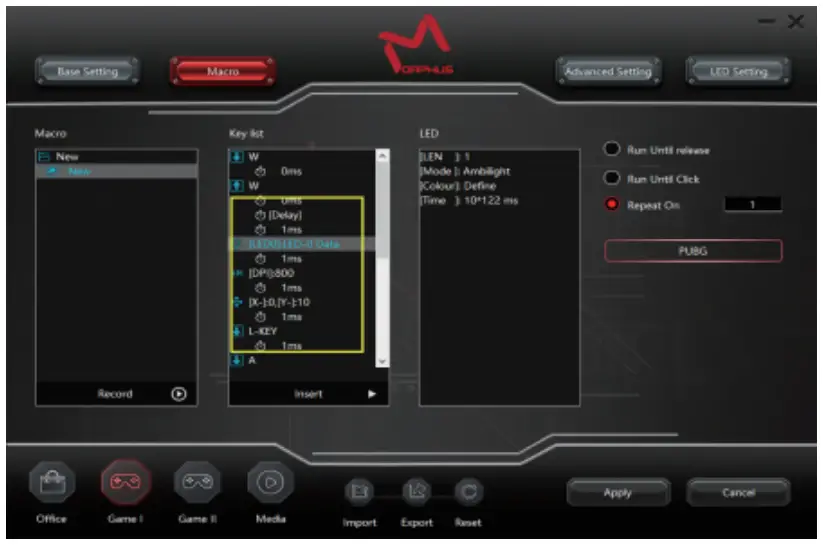
WHAT IS PUBG
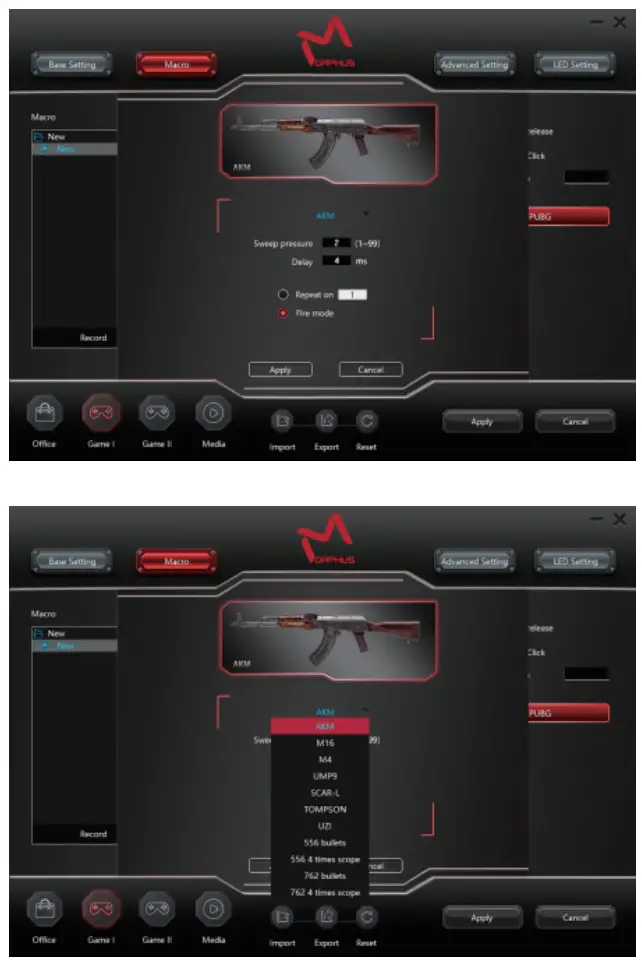
The pubg function is specially customized for the game PUBG.
You can set the firing data for 11 different game guns according to your own usage habits
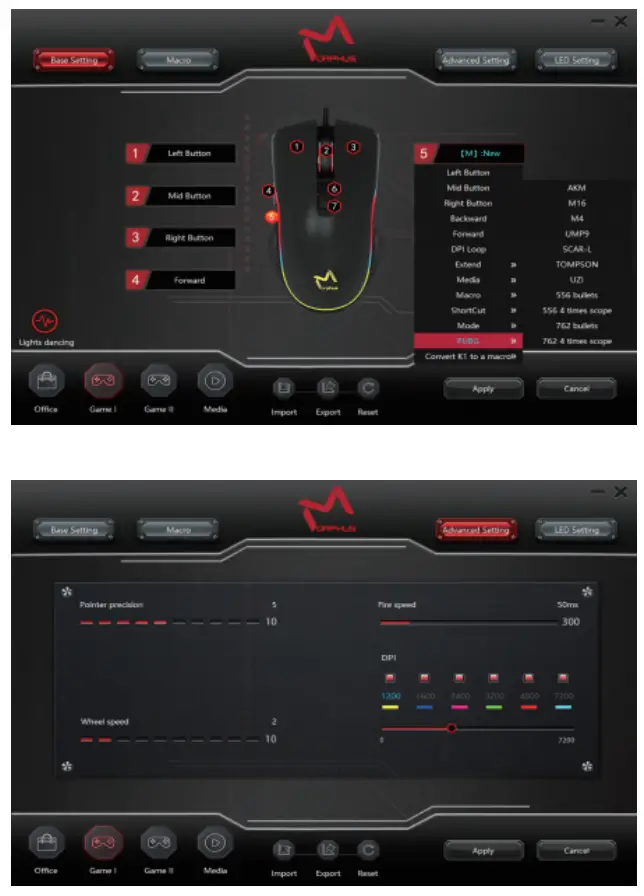
- Pointer precision
Adjust the speed of the mouse pointer - Wheel speed
Adjust the scrolling speed of the browse page when the scroll wheel rotates - Fire Speed
Adjust the speed of the left click in the shortcut key (firepower key) - DPI
1. The DPI selection bar corresponds to 6 cool lighting effects: the color of the light can be adjusted through the color bar (16.8 million colors in total);
2. Each DPI selection bar has DPI value selection, only one can be selected;
3. Click the DPI option, you can set the corresponding DPI value and light color, or click the mouse DPI button, and the DPI selection bar will automatically switch to the next one;
4. Check the active state, it means that the current selection bar is valid, otherwise, it cannot be used!
Backlight Setting
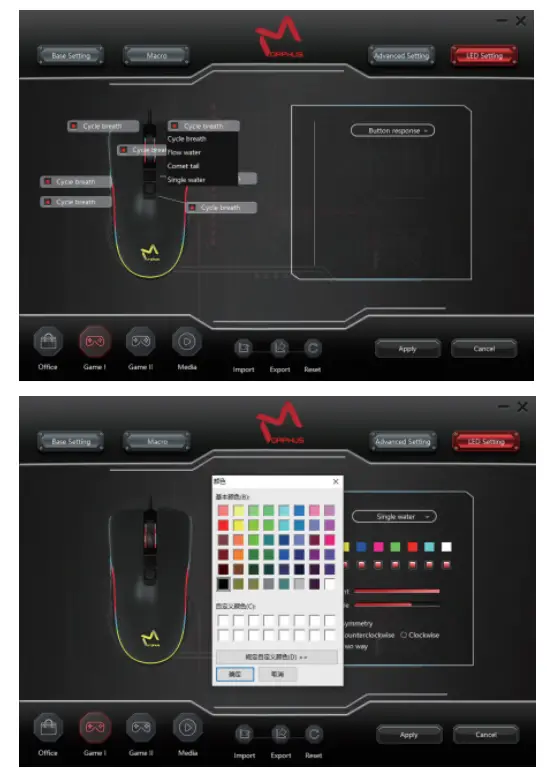
Click on the drop-down box on the right to choose from 14 lighting modes, cool and quiet, whatever you want.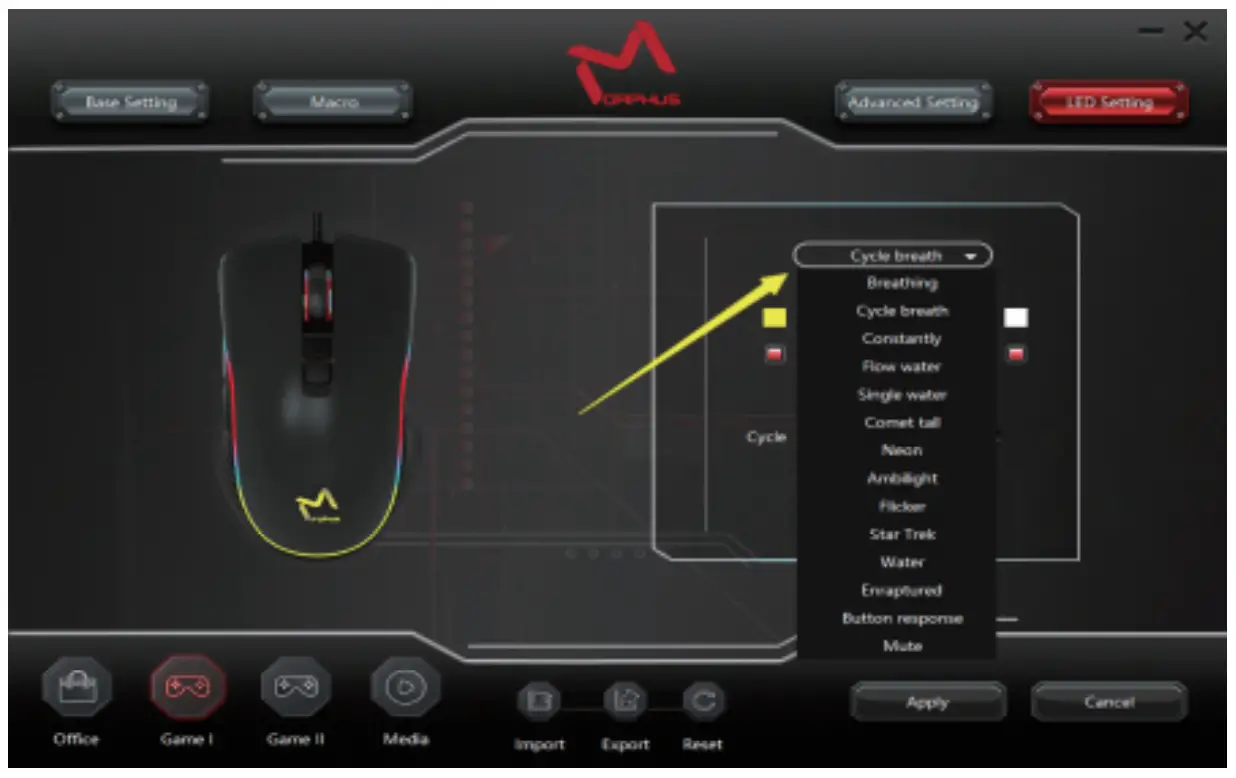
Morphus

https://drive.google.com/file/d/1_DH7SZhdrWuRz39MIthtZgVekZT_mBZX/viewusp=sharing