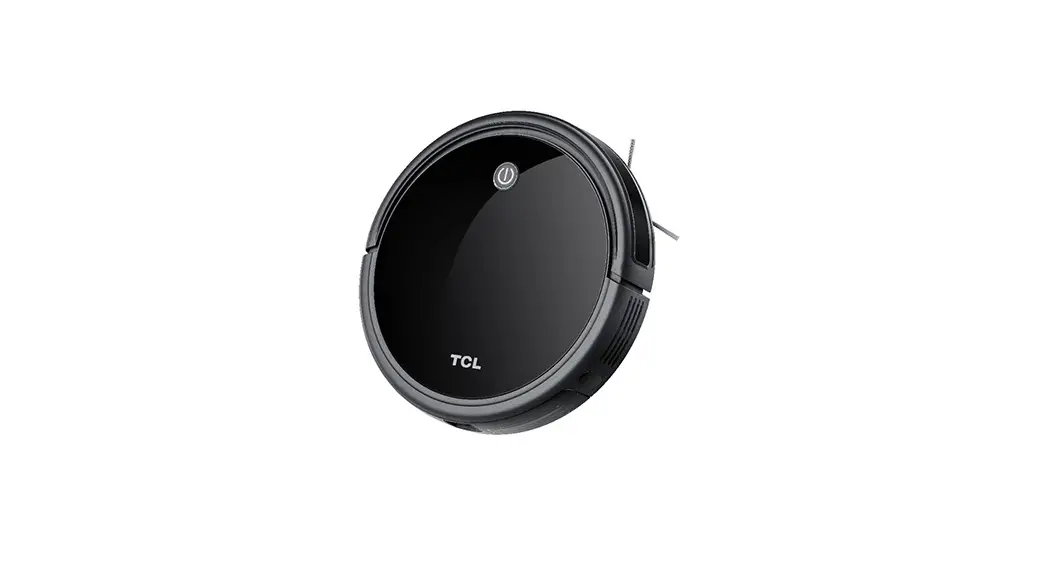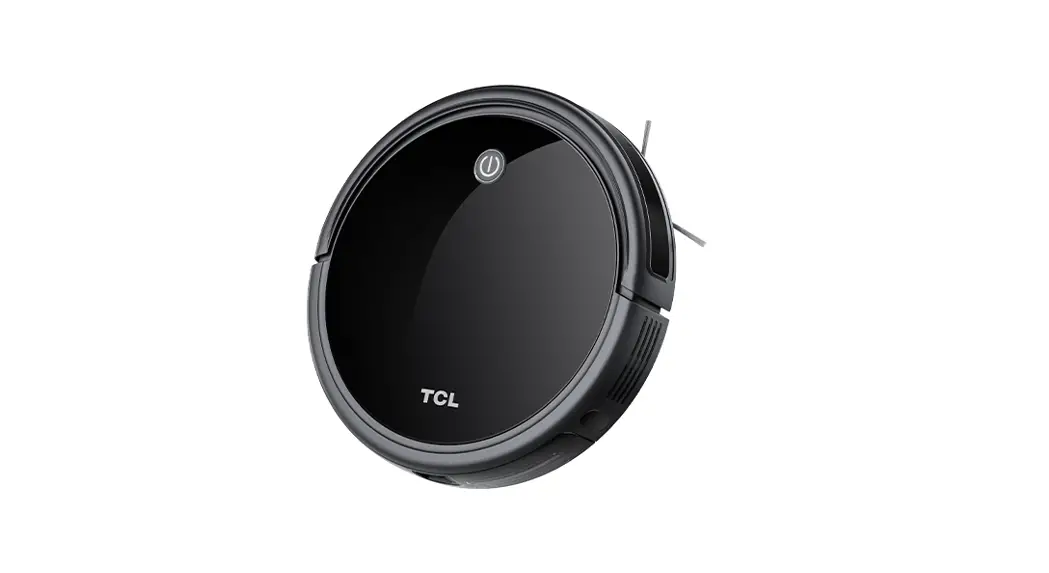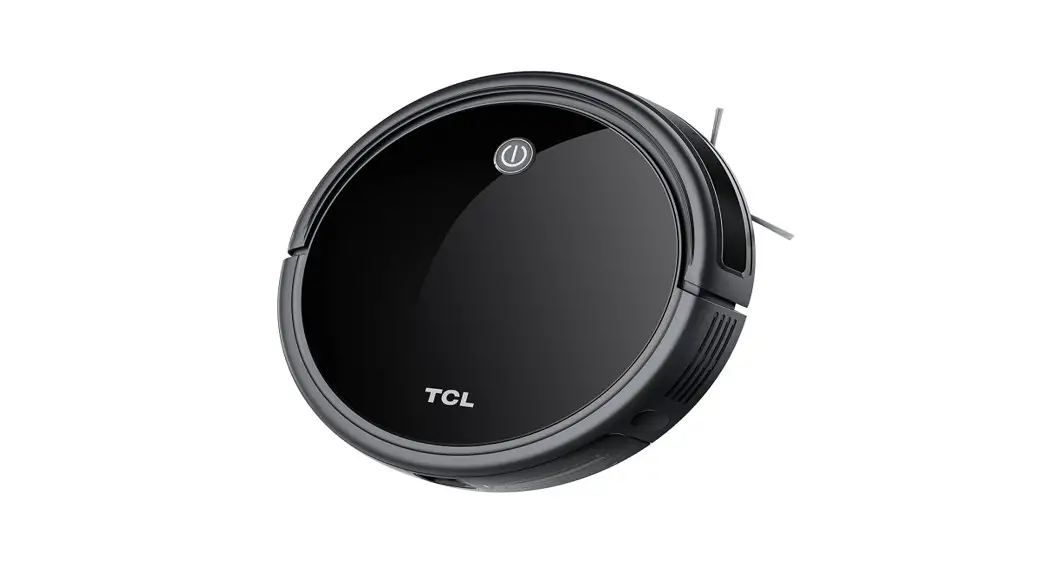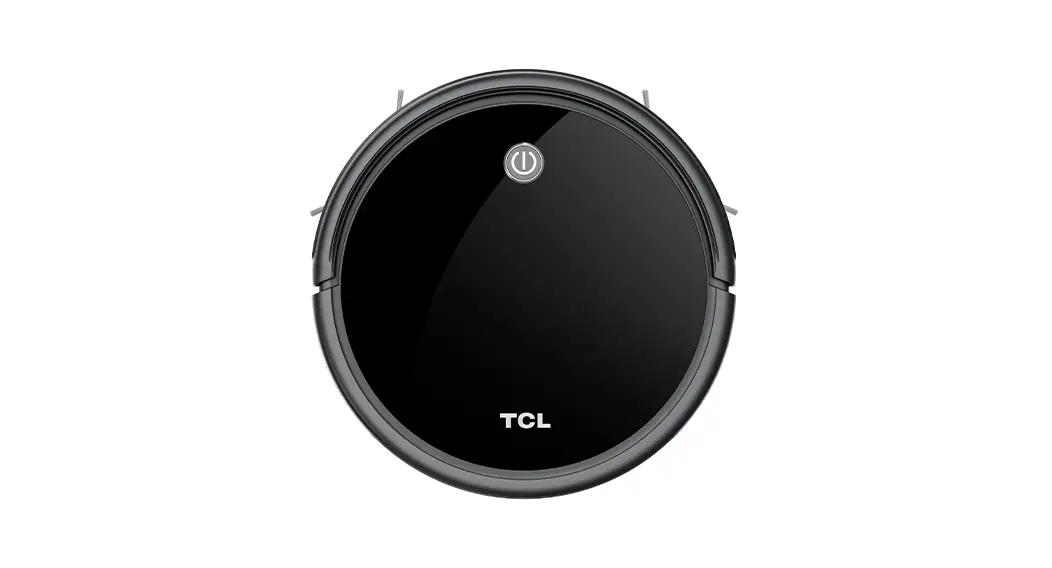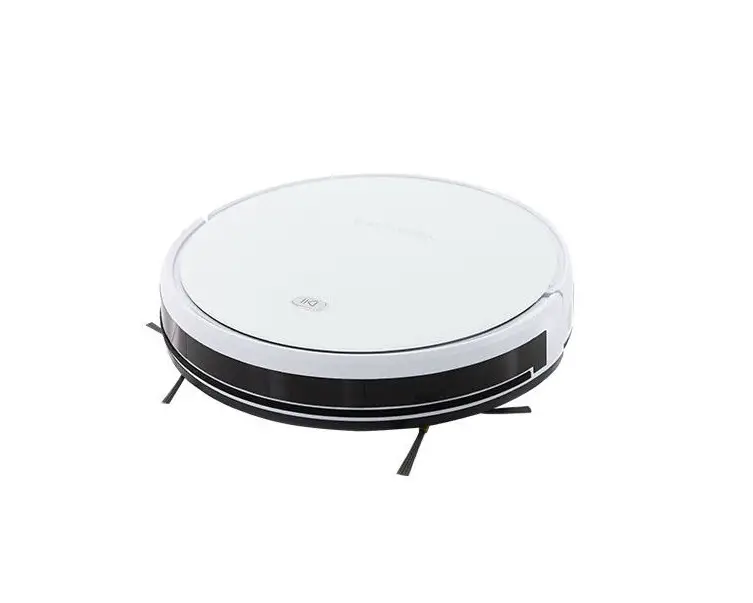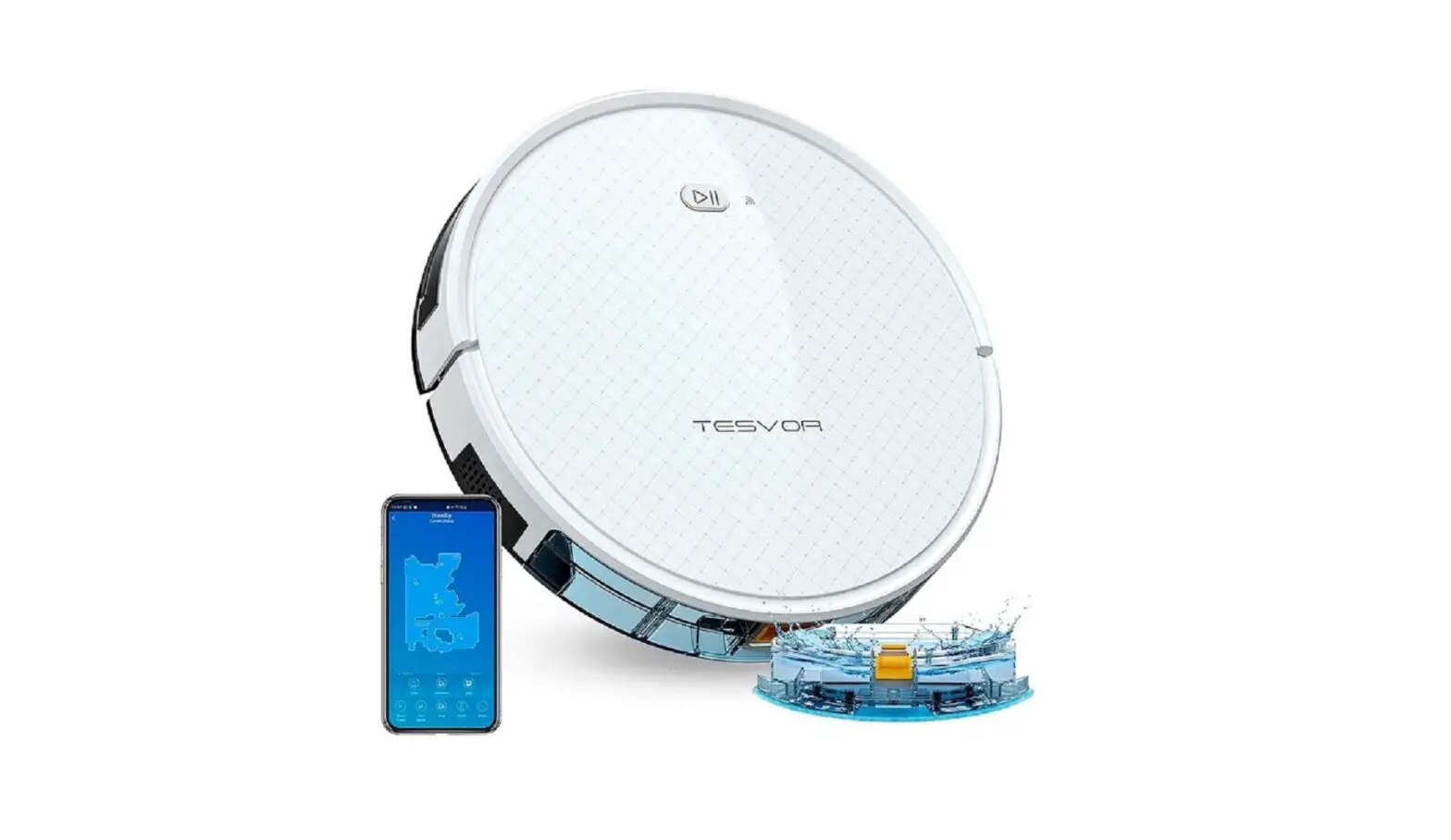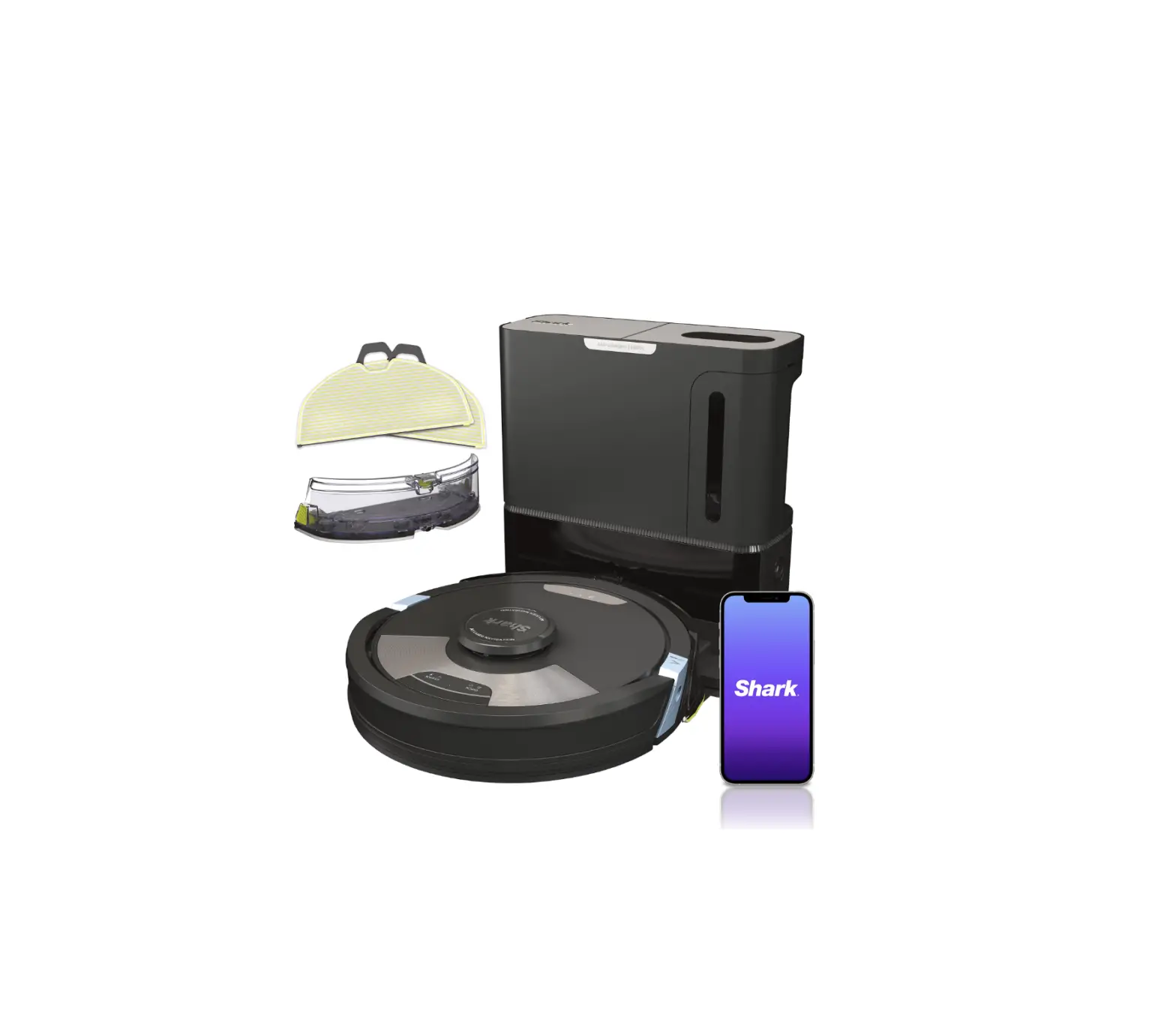
 Sweeva 6000/6500 Robot Vacuum
User Guide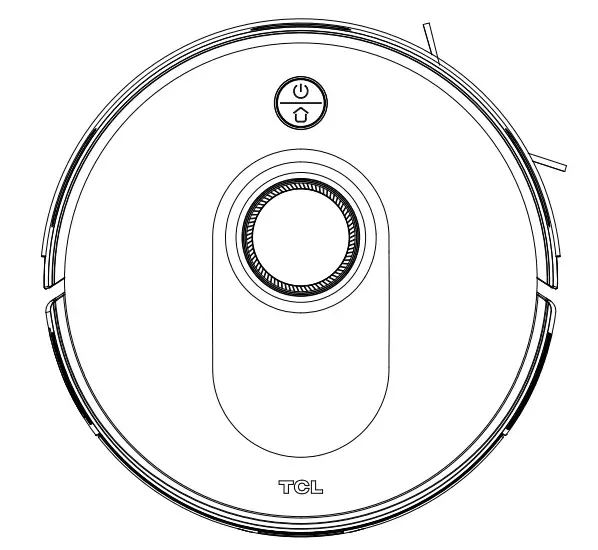
Please read this quick start guide before using this product and keep it for later use
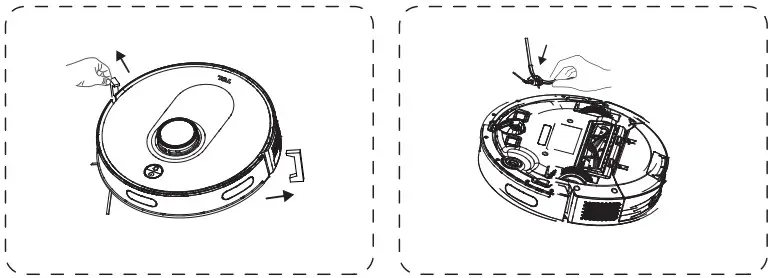
Remove the protective material
- Before use, remove the protective strip.
- Install the side brush, and tear off the protective film.

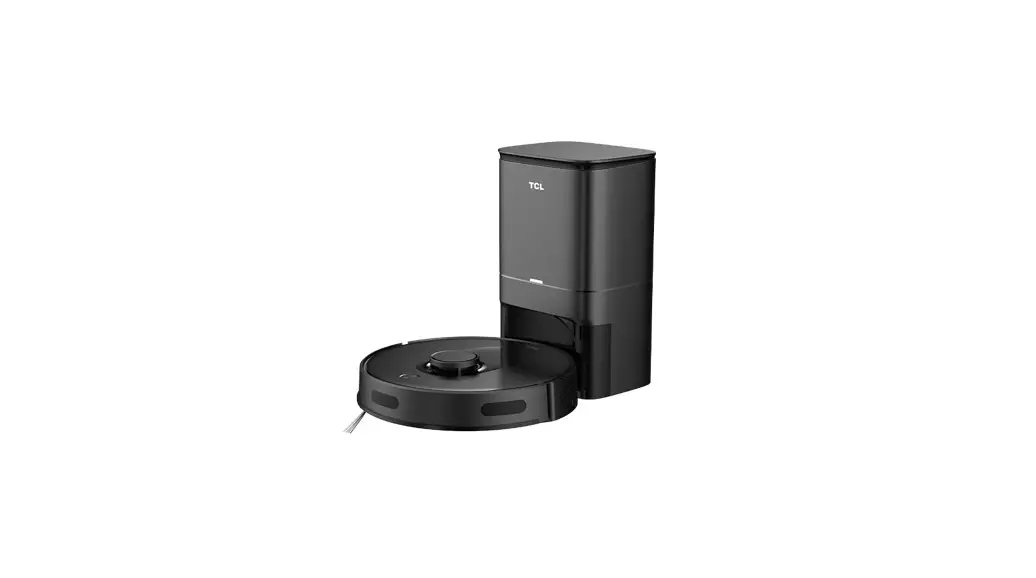
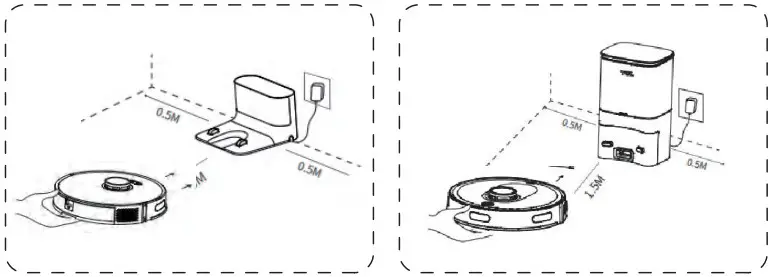
Place the charging dock/self-emptying dustbin
- Ensure that there are no obstacles within 1.5m in front and 0.5m on the left and right.
- For Sweeva 6000, the bottom of its front faces the charging dock; for Sweeva 6500, its rear end faces the dust collecting tower.
 For more information and user manual, please visit: www.tcl.com
 For more information and user manual, please visit:
 Use of the machine
- Press and hold the “
 ” button for 3s to turn on the machine.
 - Please fully charge the battery for the first use. The charging time is 4 hours.

 ” button for 3s to turn on the machine.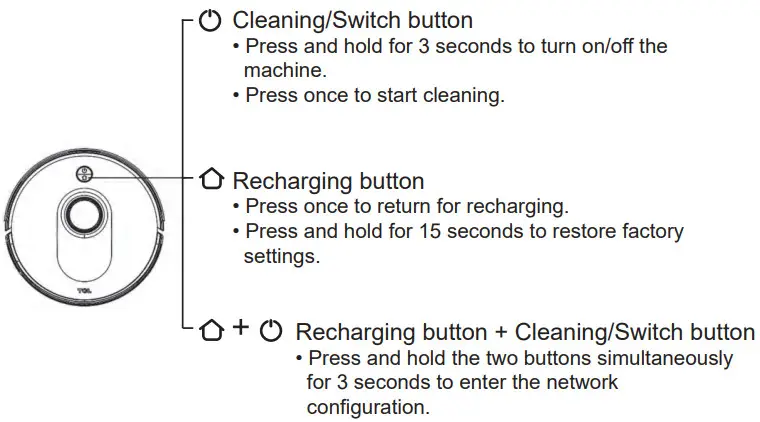
Light Status
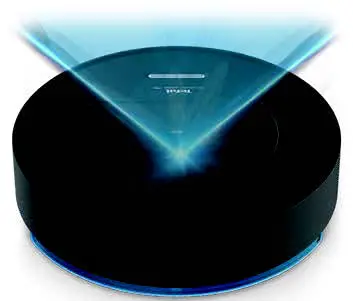
- Solid blue light: standby/running (normal battery level).
- Solid orange light: standby (low battery).
- Blue light breathing: return for charging.
- Orange light breathing: charging/startup at low battery.
- Blue light flashing: connect to Wi-Fi.
- Red light flashing: error or fault mode.
Download the APP
- Search for “TCL HOME” in the mobile application store.
- Or scan the QR code below to download the APP.
 07107237
 https://www.tcl.com/content/TCLHome/v3/ScanCodeJump.html?source=f&sence=01&pdcode=a&mode=6000
Connect to the APP
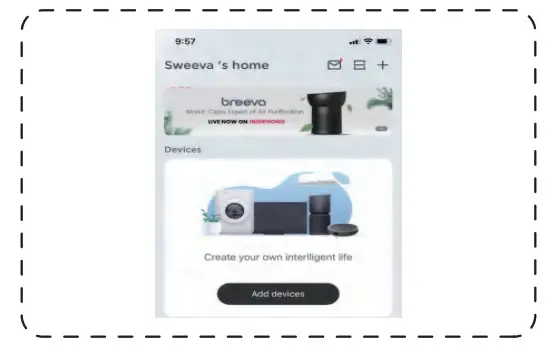
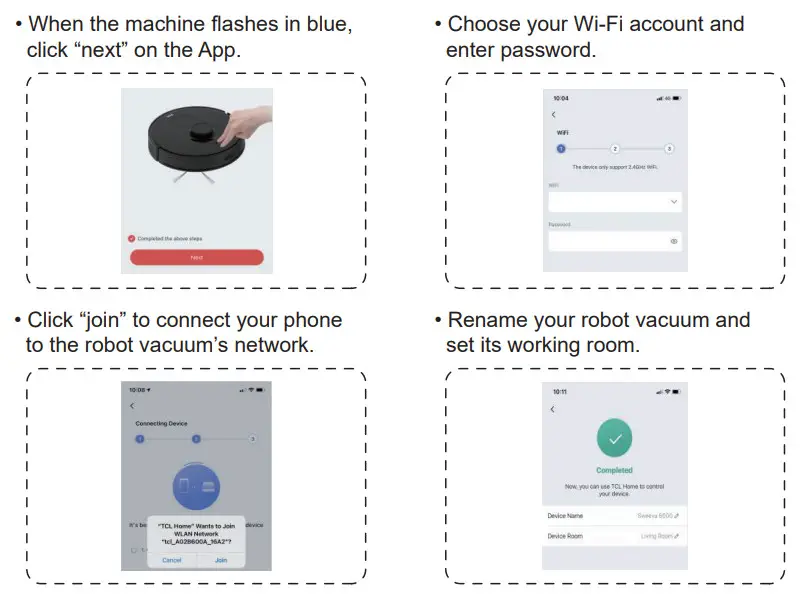
- Press “Add devices”.

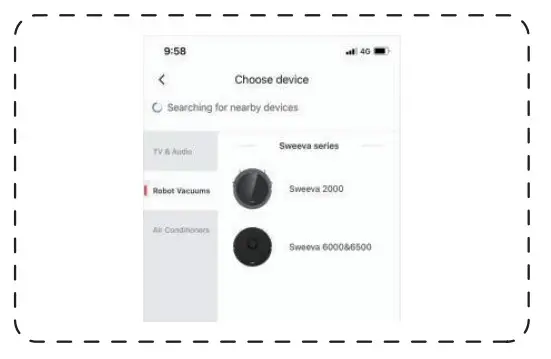
- Choose “Sweeva 6000/6500”.

- Press and hold the “ ”and “
 ”buttons simultaneously for 3s, then the machine enters the network configuration, and the indicator light flashes in blue.
 ”buttons simultaneously for 3s, then the machine enters the network configuration, and the indicator light flashes in blue.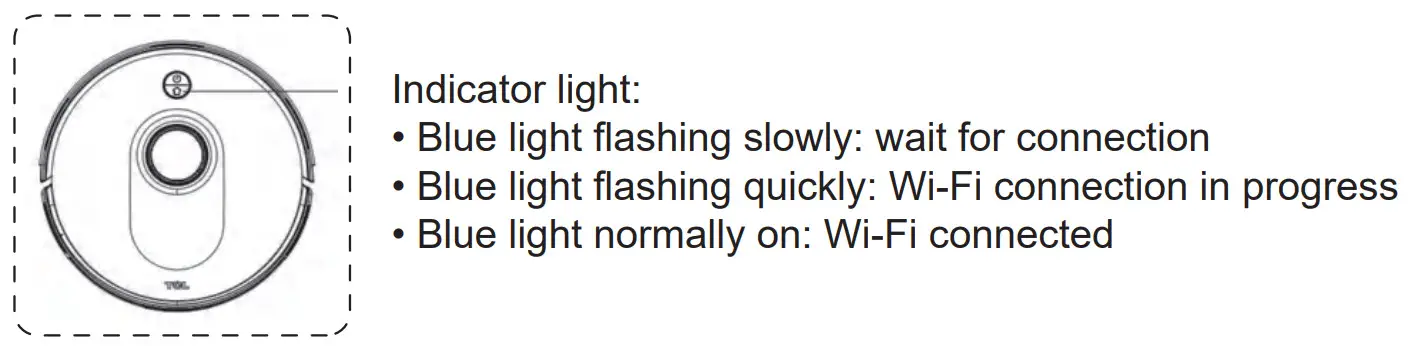
* Note: Currently, the machine does not support 5G Hz Wi-Fi.
Start cleaning
- When the machine is powered on with normal battery level, press the “ ”button to start cleaning.
- Or, after the network configuration is successful, click “Clean” button on the APP interface to start cleaning.

 TCL USA | Enjoy More