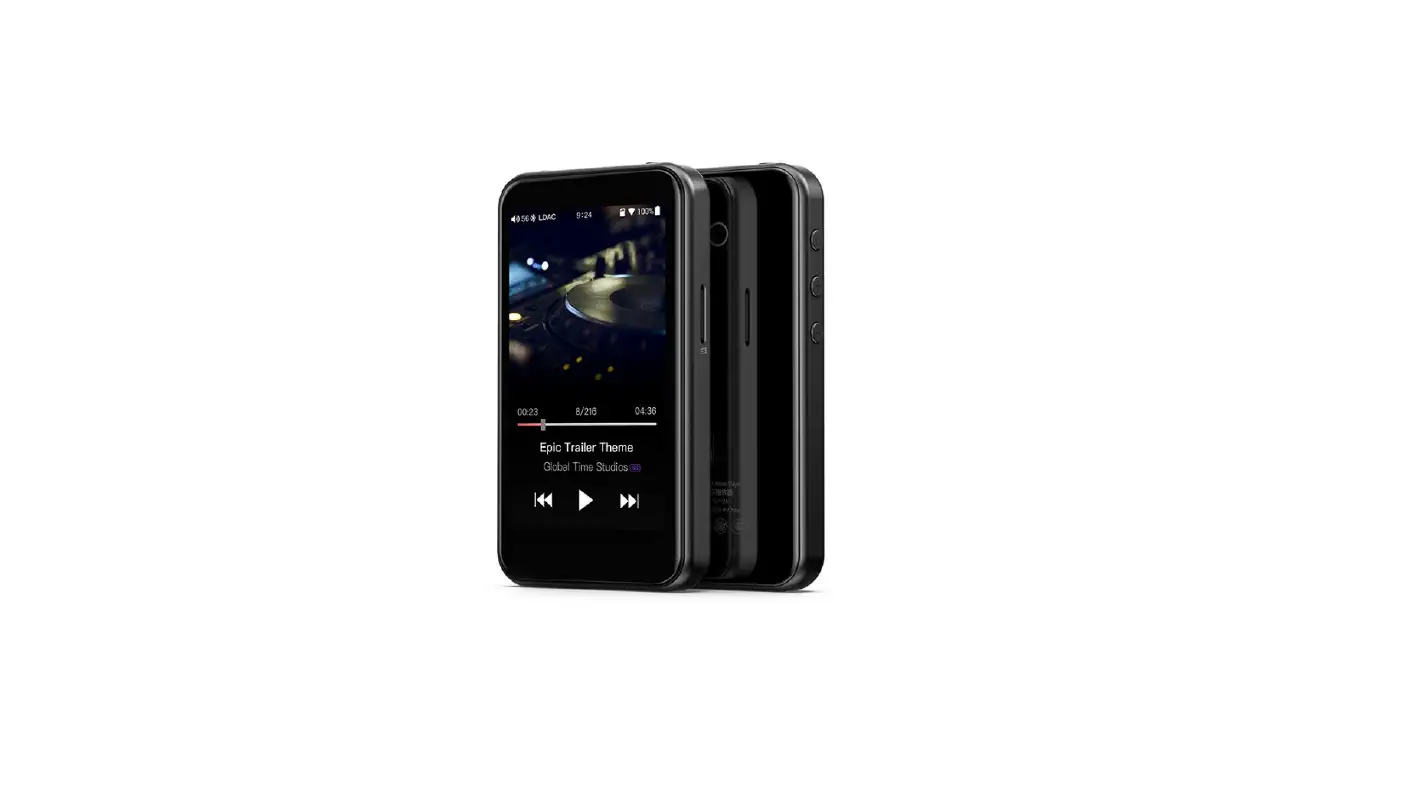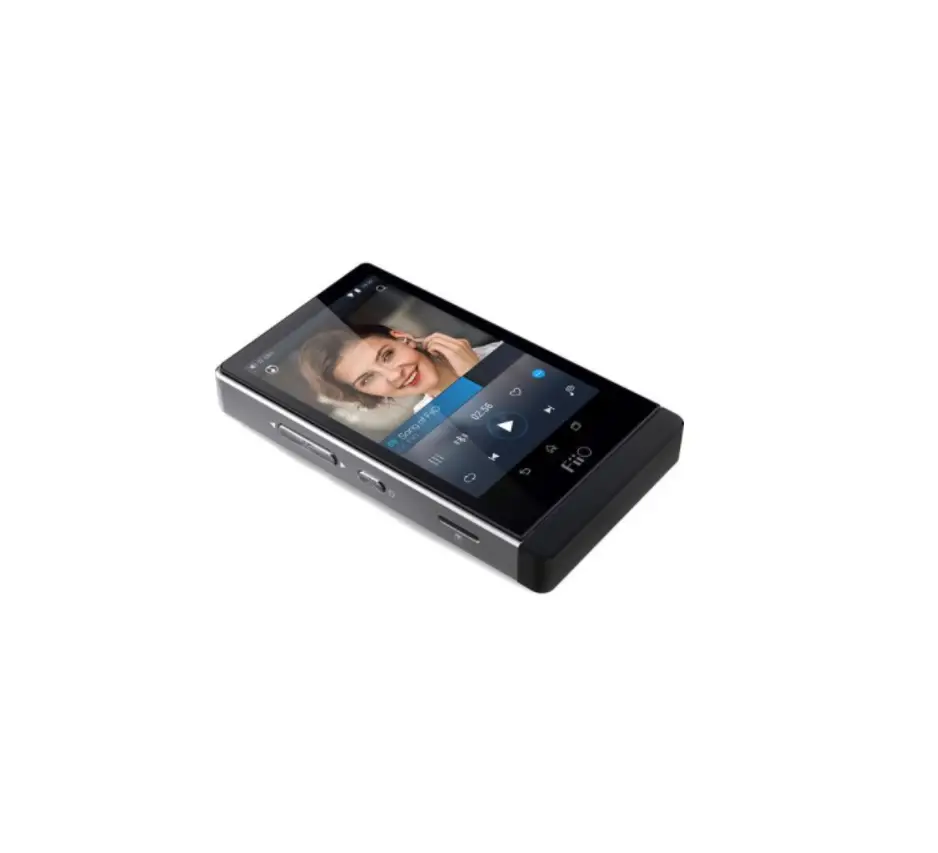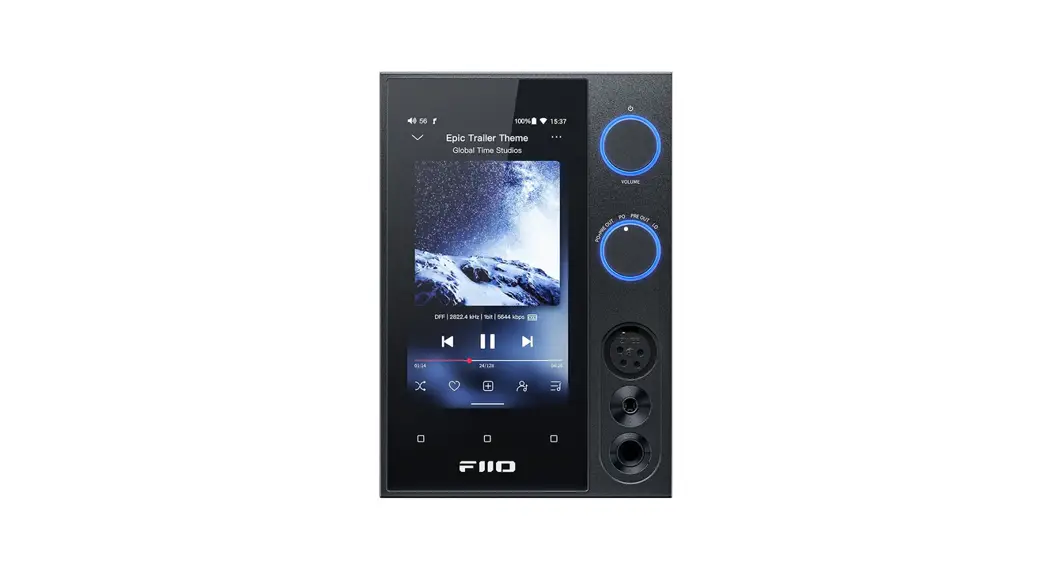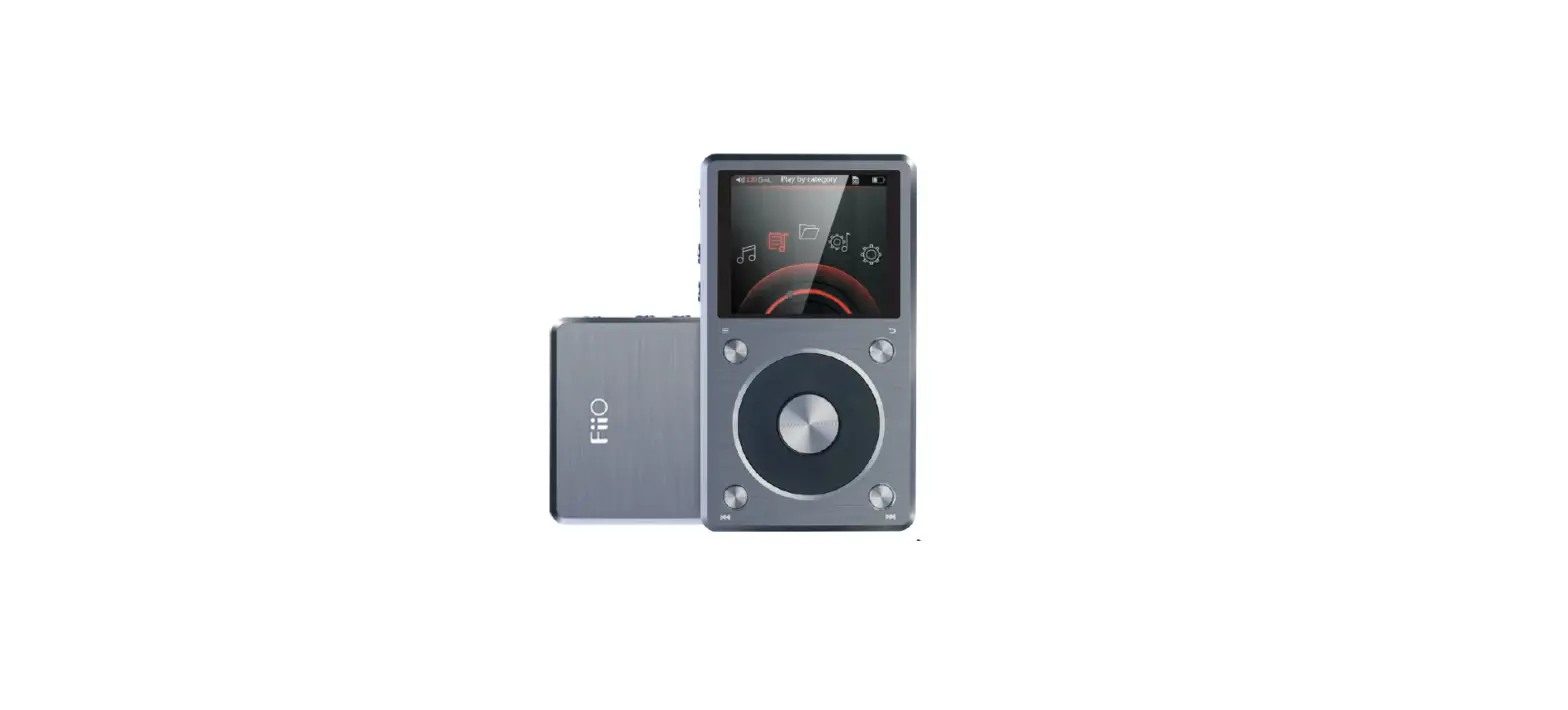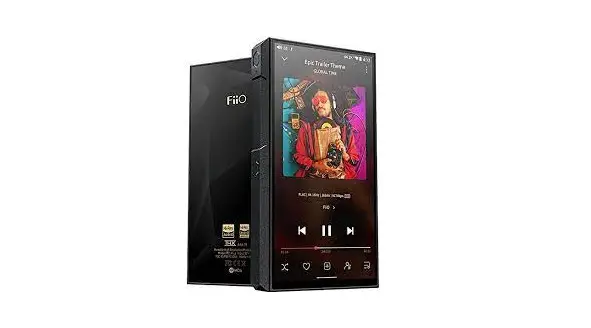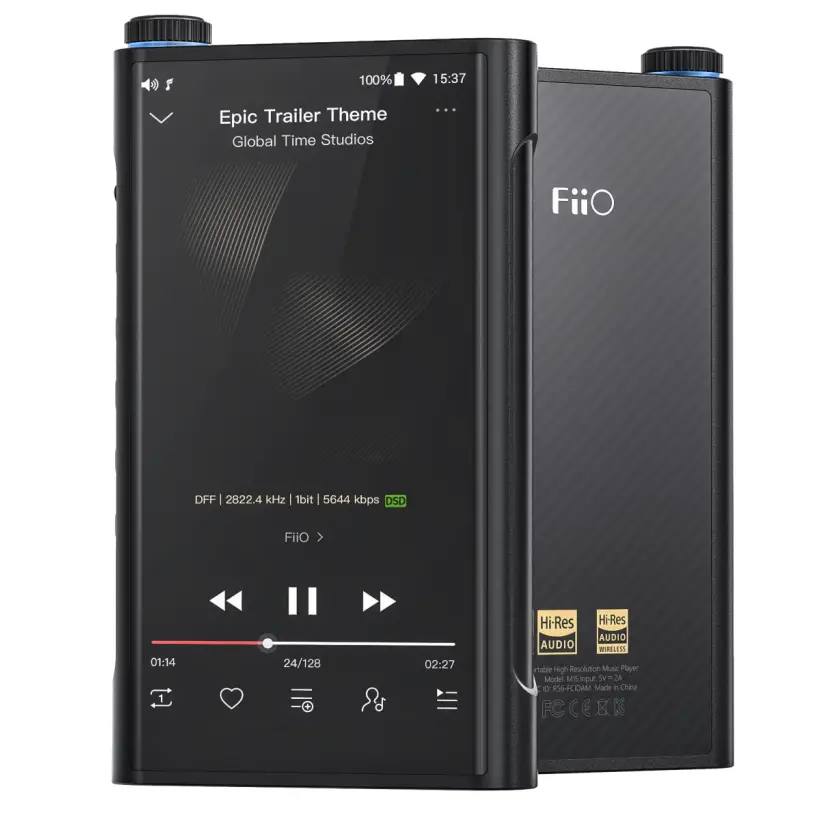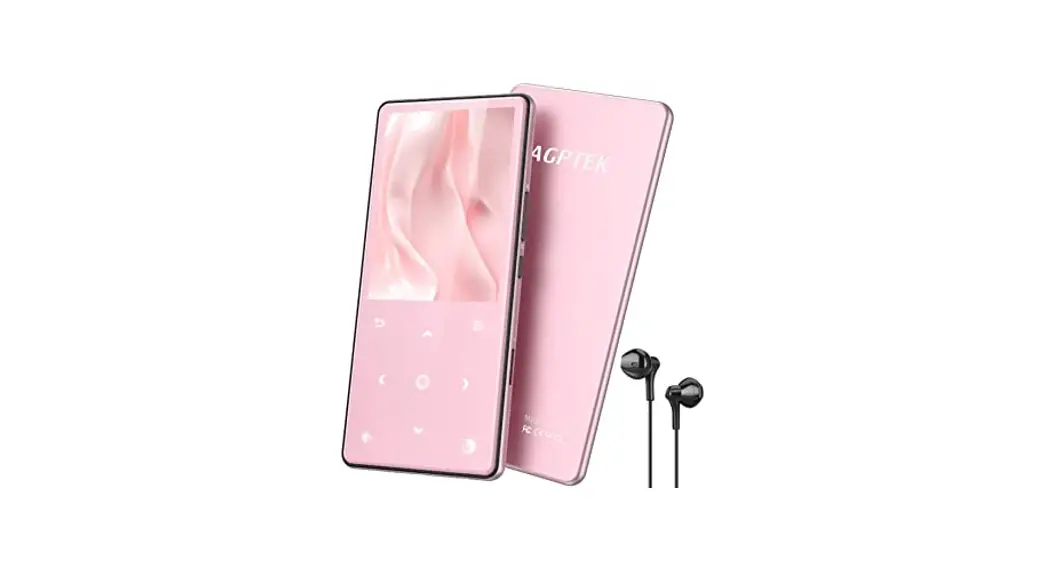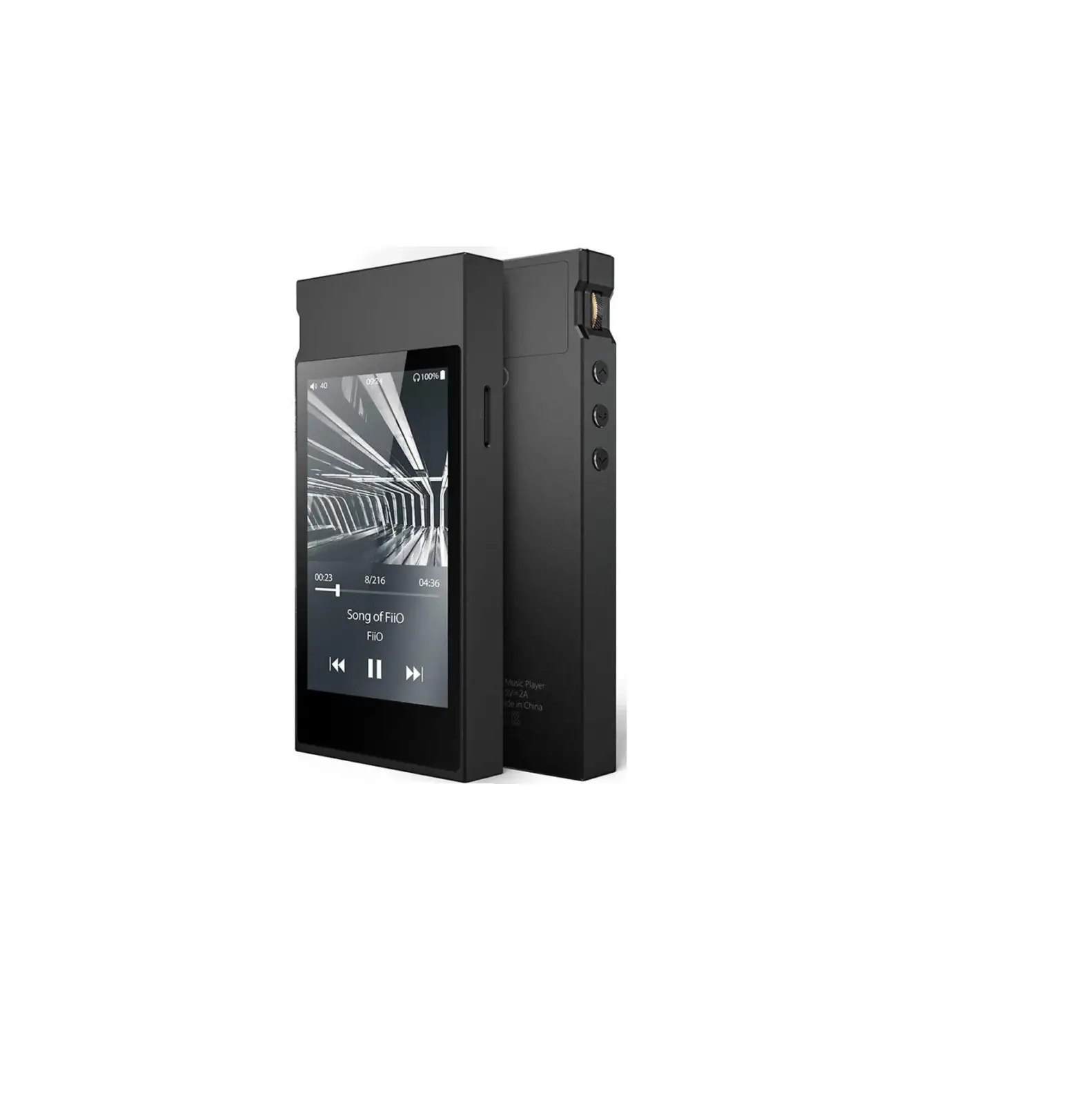
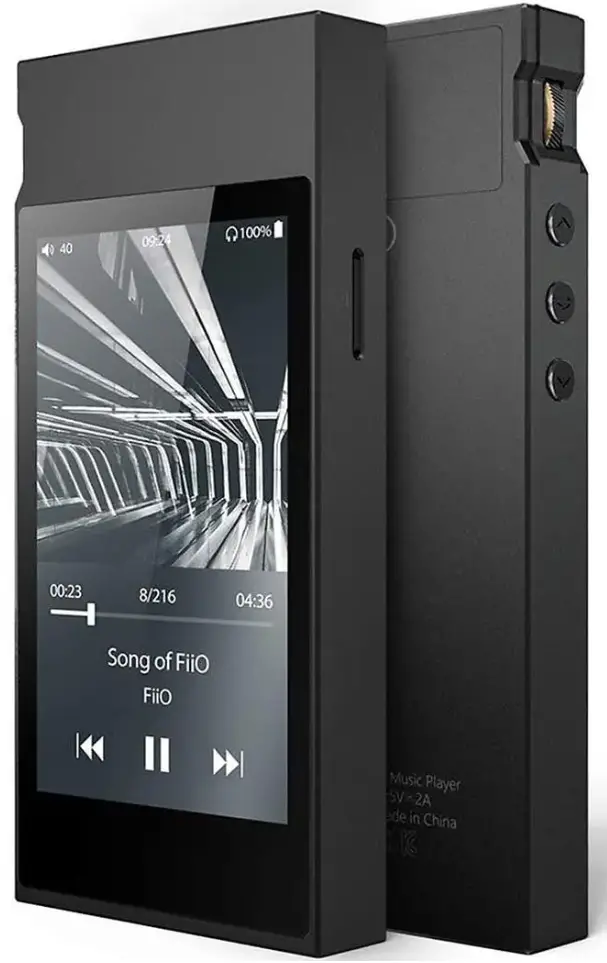
FiiO M7 Digital Audio Player
Introduction
Thank you for choosing our products. We wish you a great music experience and encourage you to write to us at Seller Central regarding any questions, suggestions or comments you may have.
Getting Started
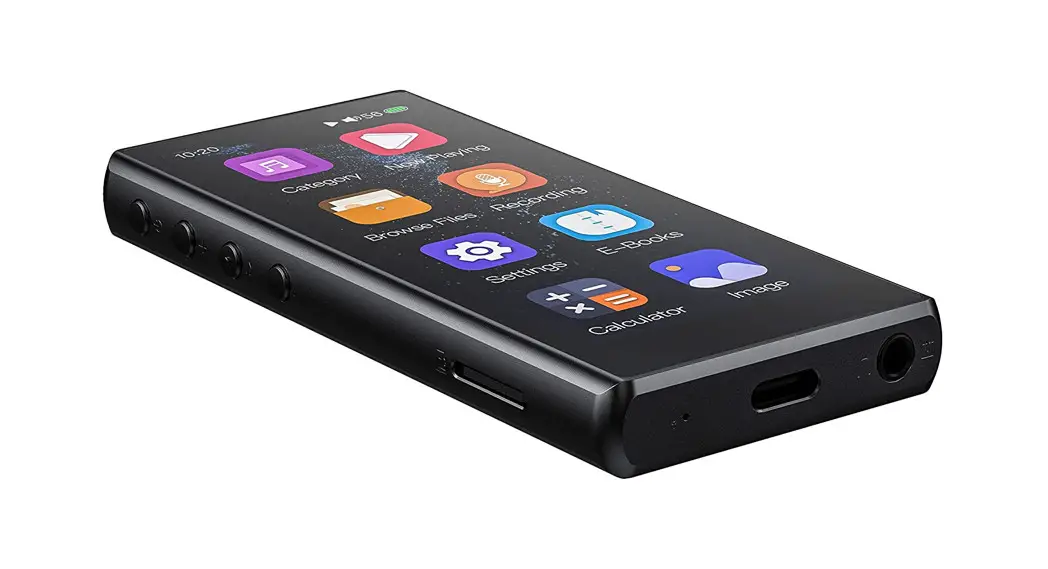
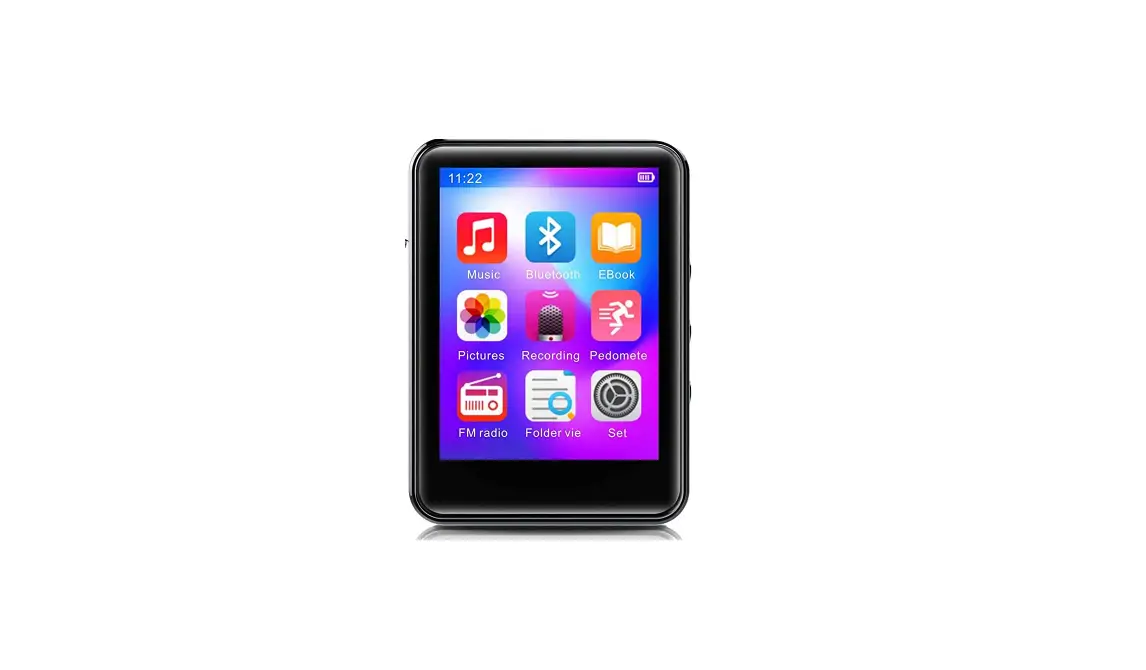
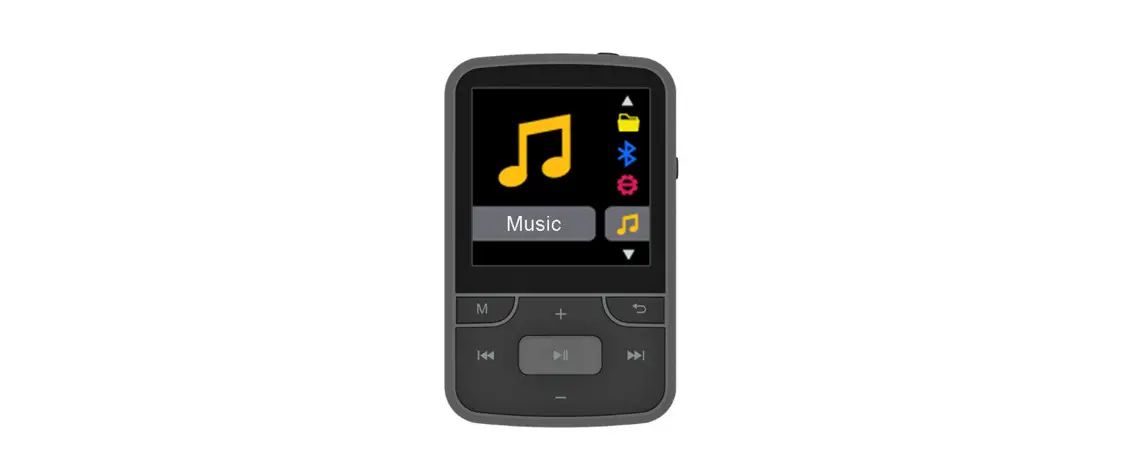
- Getting to Know the player

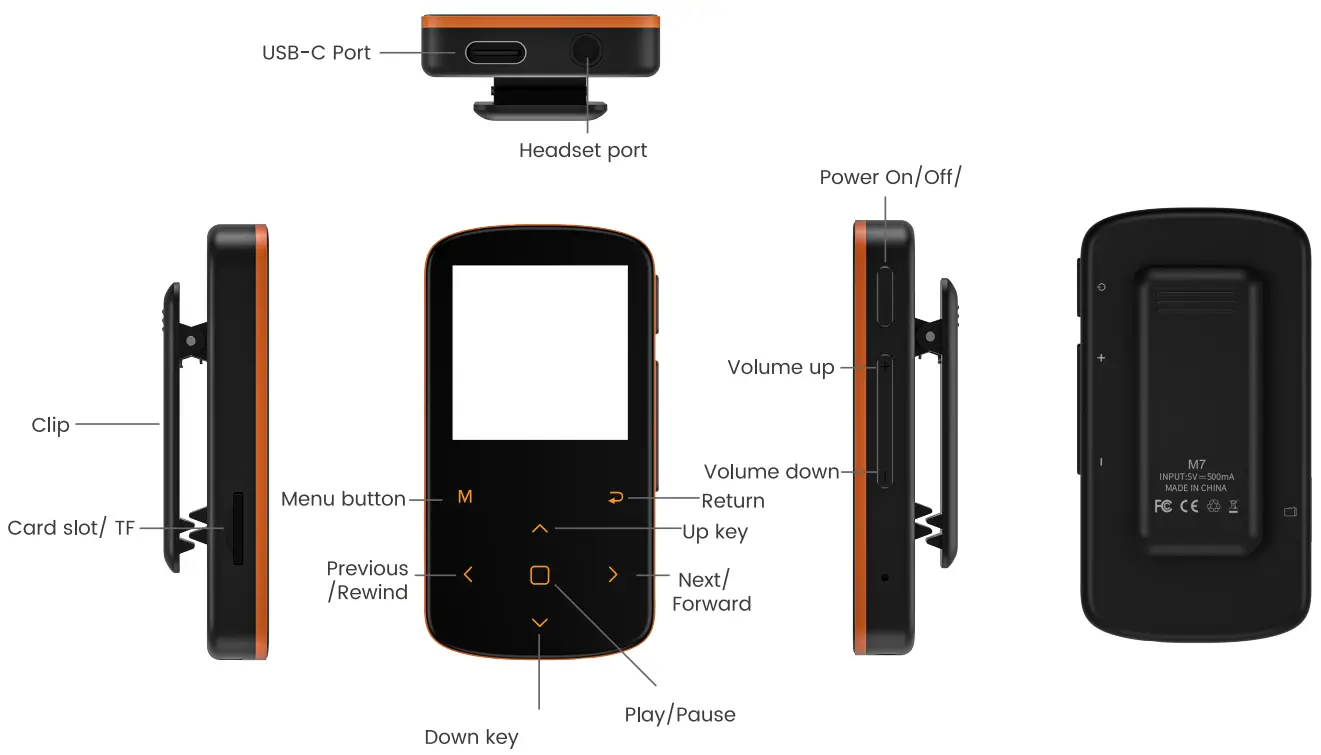
Charge
- Using the supplied USB cable, connect your computer or wall charger to the USB port on the unit.

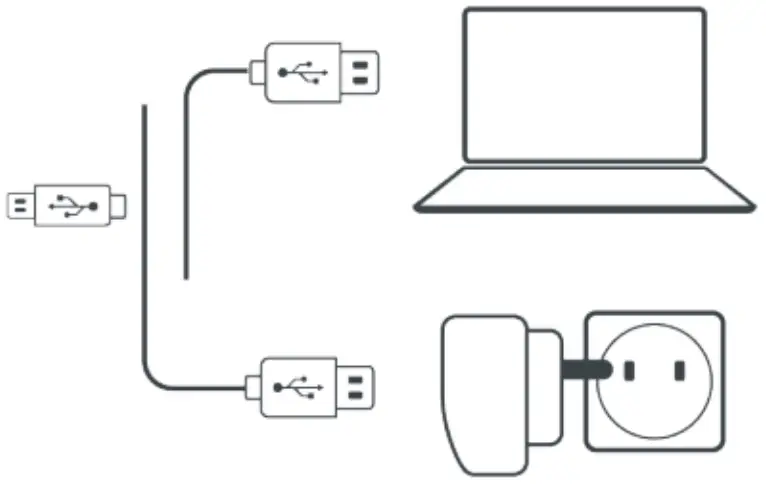
While charging, check the battery icon on the top right corner of the unit indicates as follows:
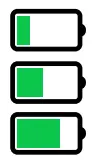 The power bar moves from left to right: charging
 Full power and stop moving: fully charged
Attention: Use only the 5V /500mA charger for charging or it may lead to product failure.
Switch the Unit On/Off
To switch on: Tap on the Power button for 3s.
To switch off: Tap on the Power button for 3s,the screen shows “Power Off” confirming that your unit is switching off.
Basic Audio Functions
Volume up: Tap on the button +
Volume down: Tap on the button –
Data Transfer
Using the supplied USB cable, connect your computer and copy over media tiles as if it was a flash driver or use music management software such as Windows Media unit to transfer the files (not work for iTune).
Attention:
If your computer cannot detect the MP3 Player, pis update your USB driver or try another cable. If it doesn’t help, pis email to Seller Central to get help.
Back
While the music is being played, Tap on the button  10 exit.
Main Functions
The player makes it easy for you to listen to music in a convenient and joyful manner.
Music
- Select the icon of Music from the main menu, then you’ll find the related lists:

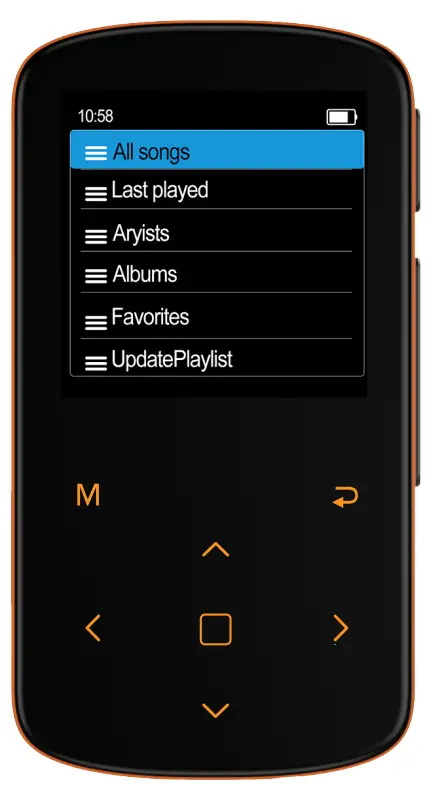
Music Control
| Icon | Operation | Function |
| Tap on the button | Exit |
 | Tap on the button | Play/Pause the Music |
 | Tap on the button | Play the Previous Song |
 | Tap on the button | Play the Next Song |
| Hold the button | Rewind the currently playing song |
| Hold the button | Fast forward the currently playing song |
 | Tap on the MENU button | Change the play speed from -9-+9 |
 | Tap on the MENU button | Add the song to the list of your favorite song |
 | Tap on the button | Enter the settings menu of the song |
Playback Mode
- Single Cycle

- All Repeat
- Shuffle

Music Formats
| Music Format | Bitrate | Sampling Rate |
| MP3 | 8Kbps-320Kbps | 8MHz-48MHz |
| WMA | 5Kbps-384Kbps | 8MHz-48MHz |
| APE | 800Kbps-l000Kbps | 8MHz-48MHz |
| WAV | 32Kbps-384Kbps | 8MHz-48MHz |
| FLAG | l000Kbps-l200Kbps | 8MHz-48MHz |
Bluetooth
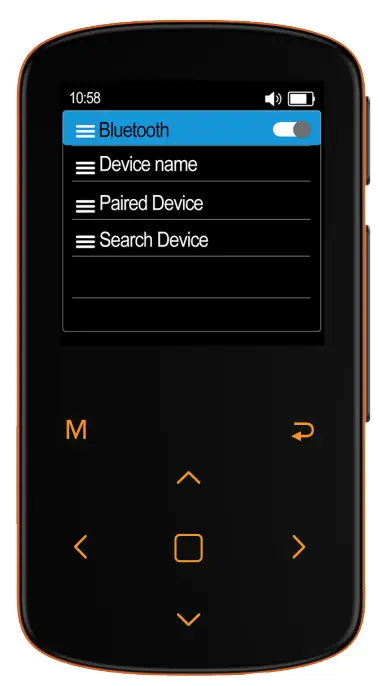
How to pair the player with Bluetooth speaker or Bluetooth headset?
- Turn on the Bluetooth speaker or Bluetooth headset and open the Bluetooth mode.
- Turn on the Bluetooth mode of the device, and start to search for the Bluetooth device around.
- After successful search, choose the Bluetooth device to start to pair with Bluetooth speaker or Bluetooth headset.

Attention:
- It cannot pair with Smart Phones.
Recorder
- Select the icon of Recorder from the main menu. And a related list will show as follows:

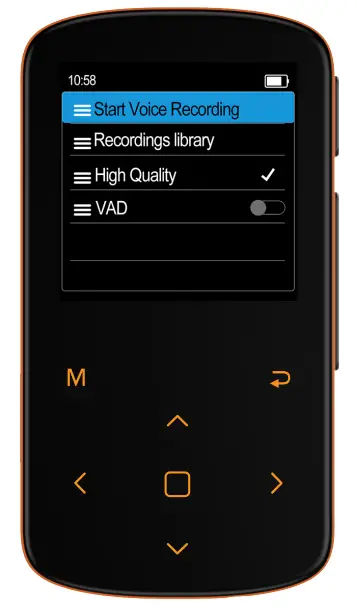
Start Voice Recording: Select “Start Voice Recording” and click to start your recording.
Recording library: View/Play saved recording files.
High Quality
Normal Record
VAD: Voice Activated Recording. In the recording state, when the surrounding sound reaches about 65 decibels, it will automatically record. (Not recommended to use this function in important environments.)
E-Book
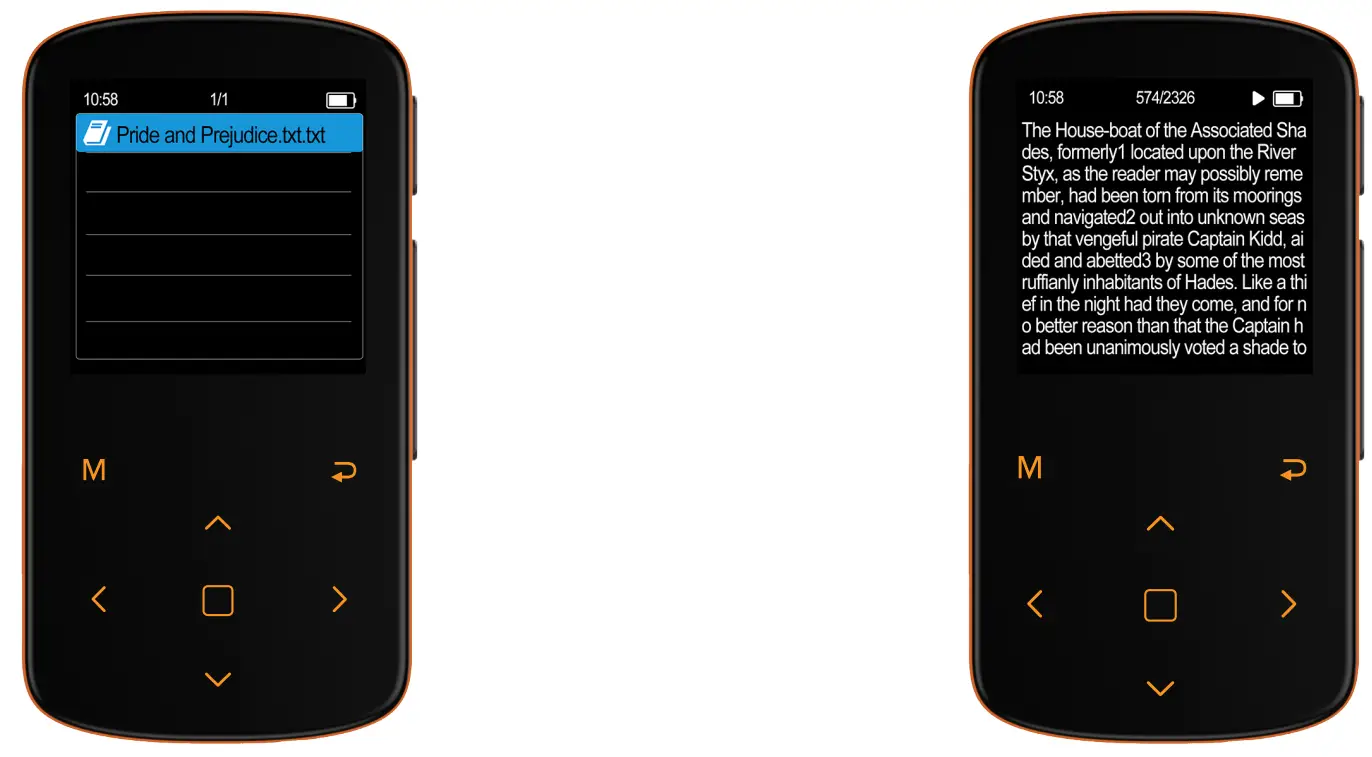
- Tap on the icon and all thee-book tiles will be listed in the menu.

- on the reading interface, tap on the button
 to get into the setting interface.
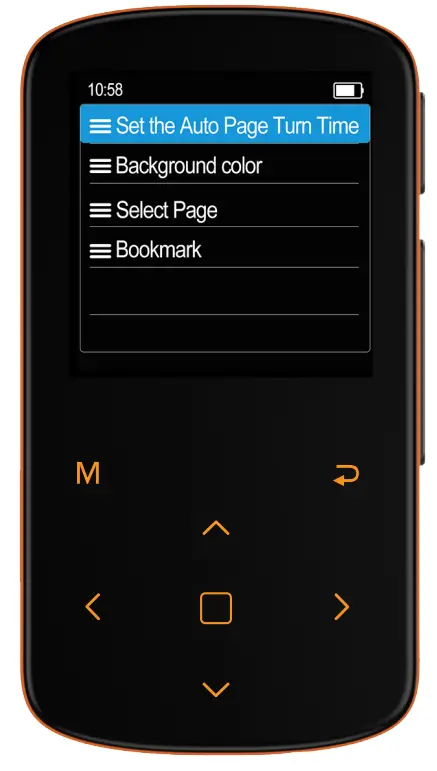
Set the Auto Page Turn Time: Set the time, and click the button to save. When it reaches the set time, it will turn to the next page automatically.
Select page: Choose “Select Page” to get into the setting menu, tap on the button to choose the number and press the button to confirm. After it’s done, press the button and move to the “Enter” position, and press to confirm. Now it will turn to the page that you just selected.
Attention: ONLY TXT tiles are supported.
- Folder

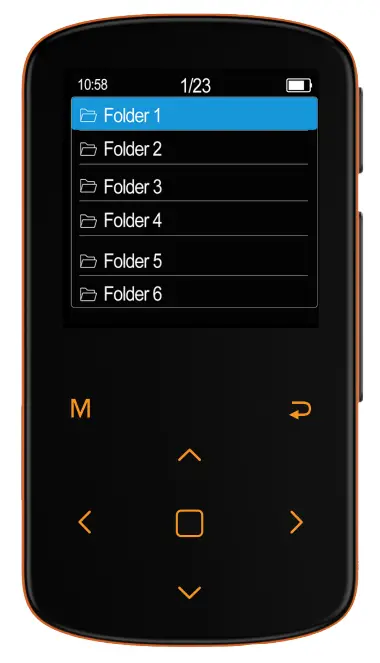
Attention:
- Mp3 and Micro SD card’s memory will be sorted by edit time, the first tile be dropped in will be listed at the top.
- If you renamed the tile or do some other modifications, the tile goes to the bottom of the list. This trick only works for “Folder”, not “Music”.
Pedometer:
- Select the icon of Pedometer from the main menu, then you’ll find the related lists

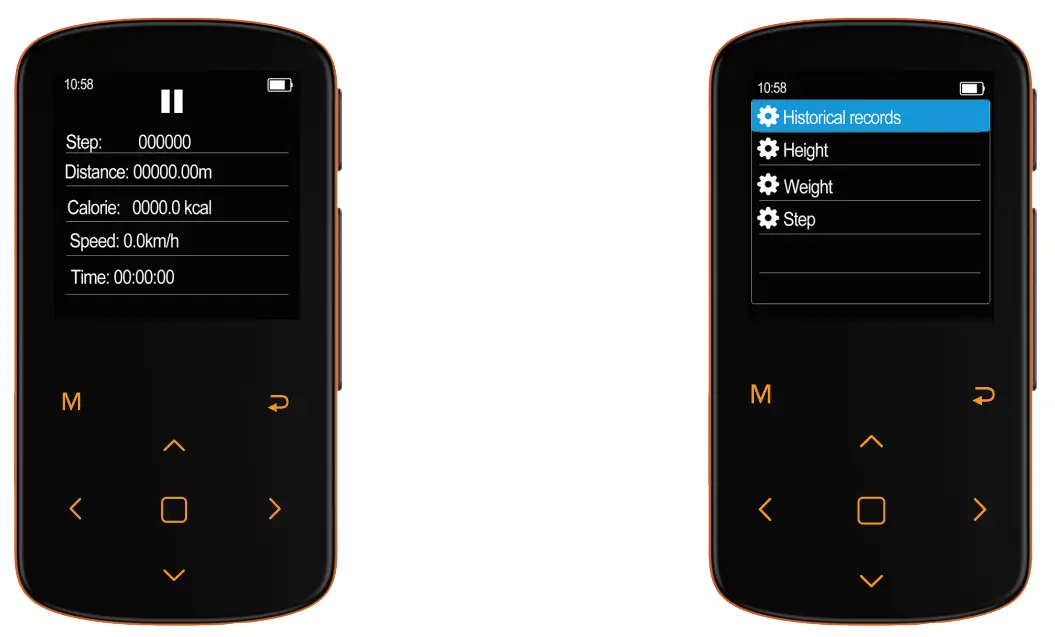
Tap on the button to get into the setting interface (right). Set the information and press the button to confirm.
Settings:
- Tap on the icon and a related list will show:

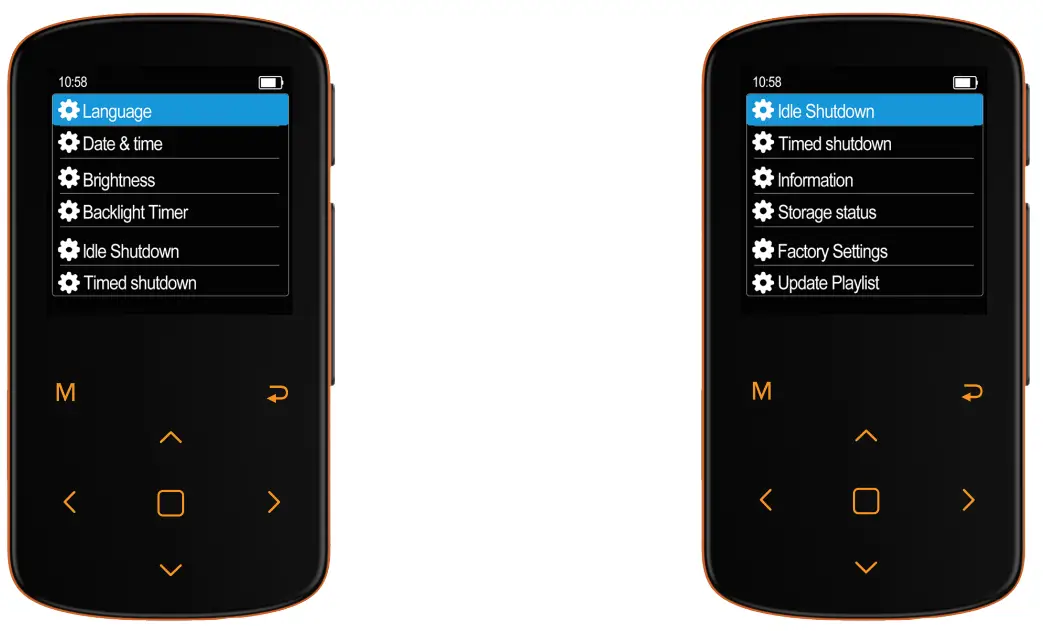
Language: Choose the language as you wish.
Date&Time: Set the date&time, Tap OK to confirm.
Brightness: Set the brightness from 10 – 100. Tap OK to confirm.
Backlight Timer: Set Screensaver, backlight time. etc.
Idle shutdown: Turn on/off, or Set shutdown time, Tap OK to confirm.
(It means if there is no operation, the music player will shutoff automatically.)
Information: Show information about system of the device.
Factory Setting: Reset to Factory Default. (Please backup all files before you reset it)
Update Playlist: Update the playlist you just edited.
Time Shutdown: Turn on/off, or Set shutdown time, Tap OK to confirm.
Storage: Show information about disk space.
Specifications
| Screen Size | 1.54 Inch TFT Screen |
| Screen Resolution | 240 X 240 |
| Weight | 1.06oz (30g) |
| Dimension | 2.68’1.41’0.35 Inch (68’36’9 mm) |
| Bluetooth Version | 5.2 AVRCP/A2DP |
| Audio format | MP3/WAV / APE/WMA/FLAC |
| Recording format | WAV |
| E-Book | TXT |
| Battery | 3.7 V/260 mAh |
| Charging time | 1-3 hours |
| Lyric Format | LRC |