
User Manual
2.4G+Bluetooth+Bluetooth Wireless
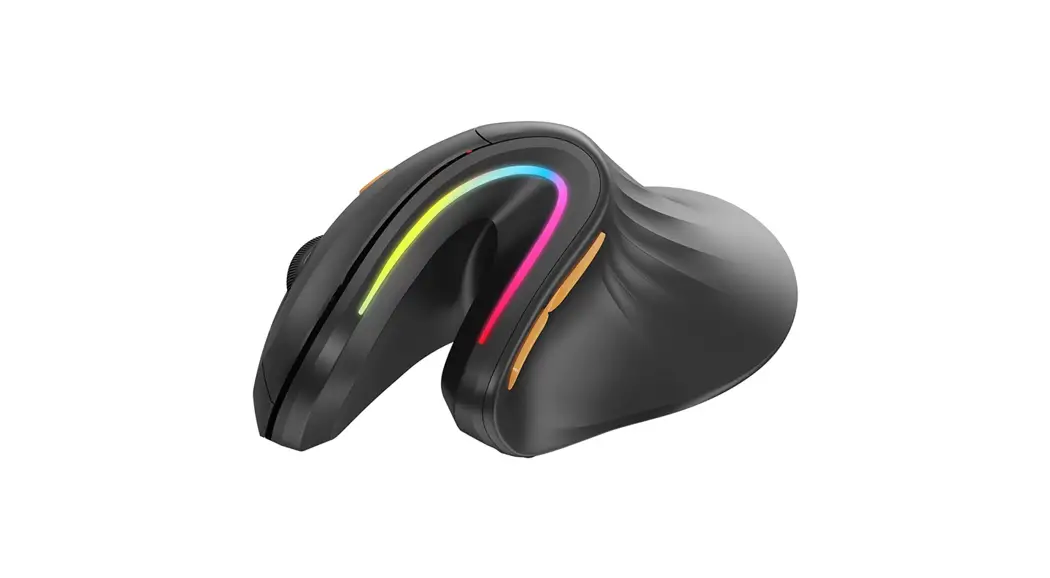
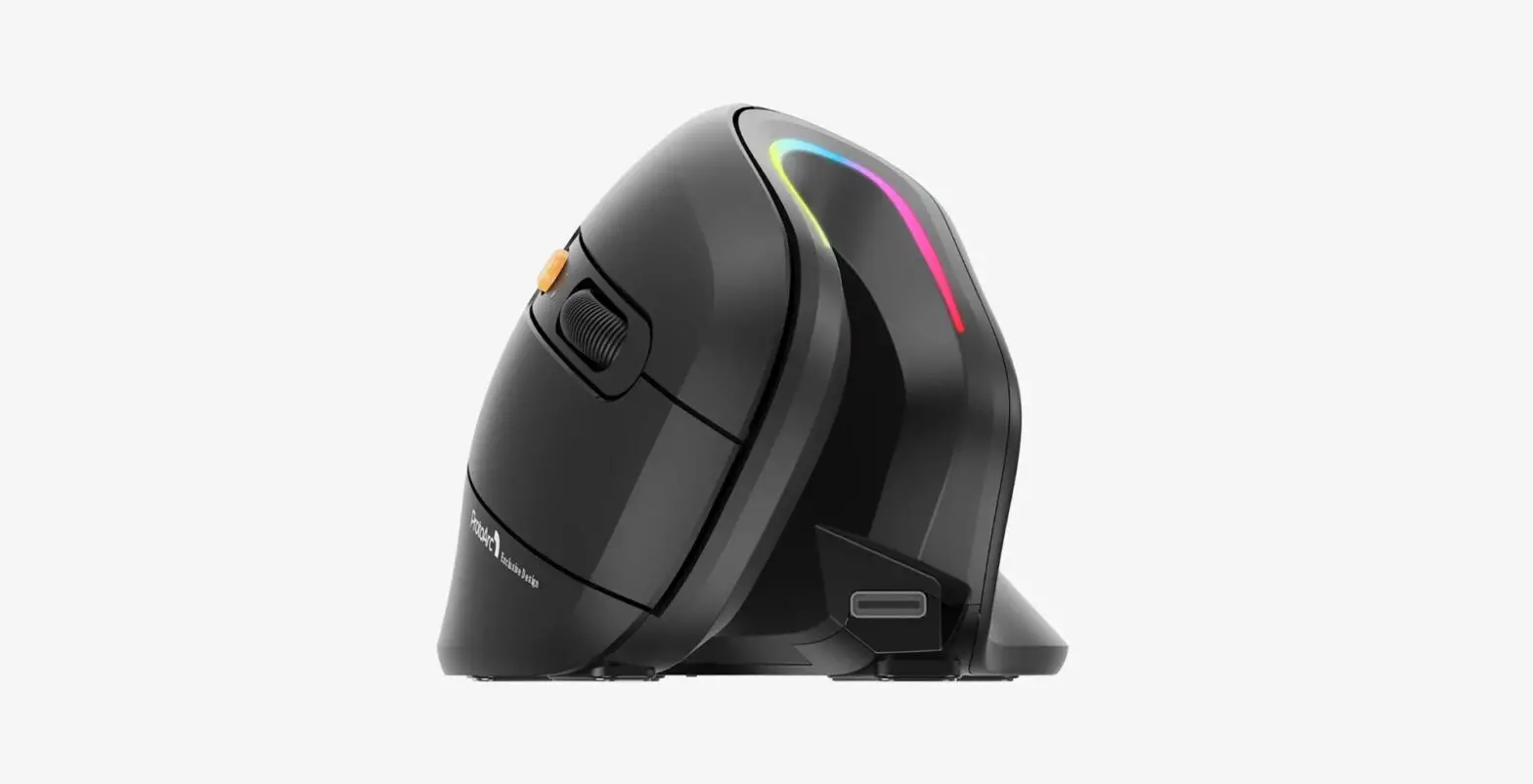
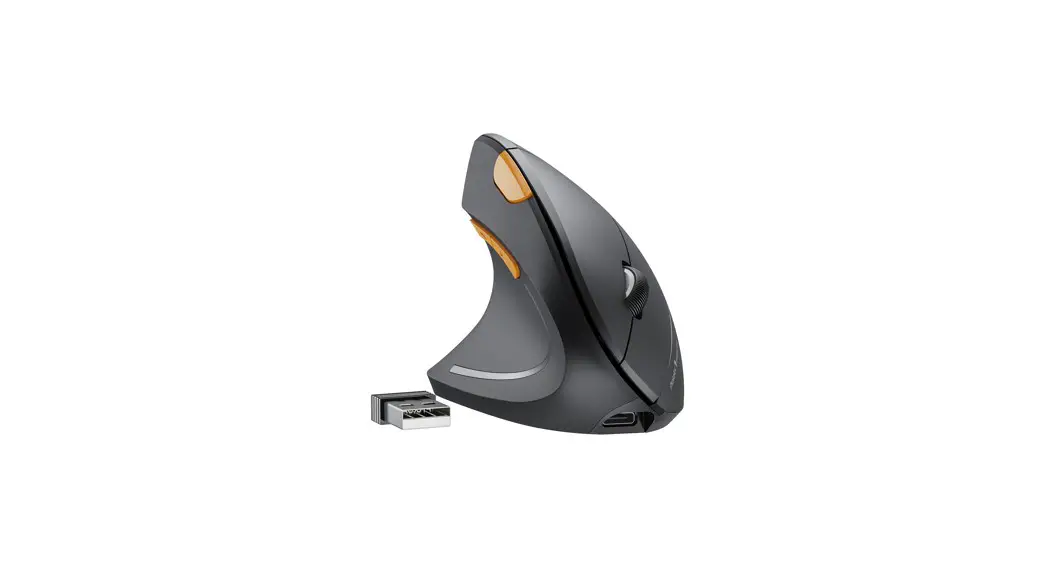
Rechargeable Left-Handed Vertical Mouse
[email protected] | www.protoarc.com
Product Features
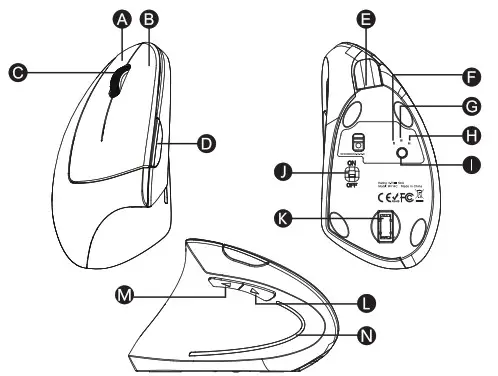
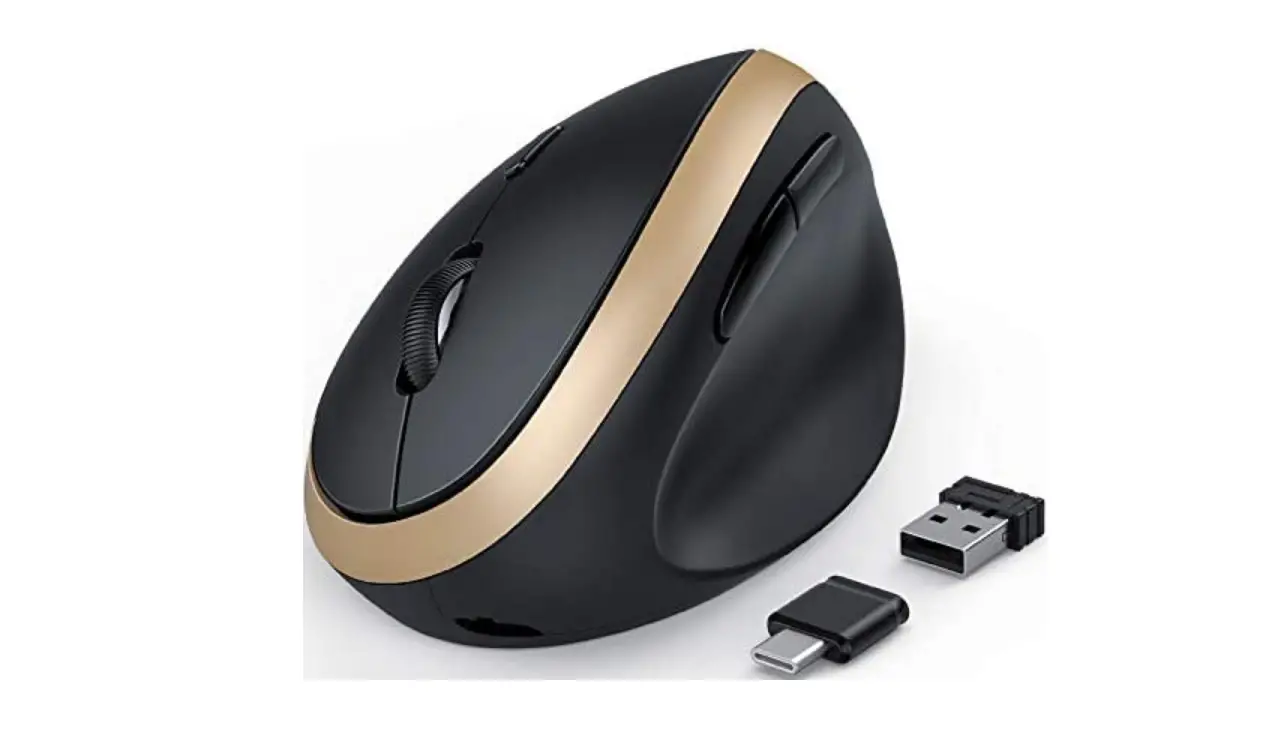
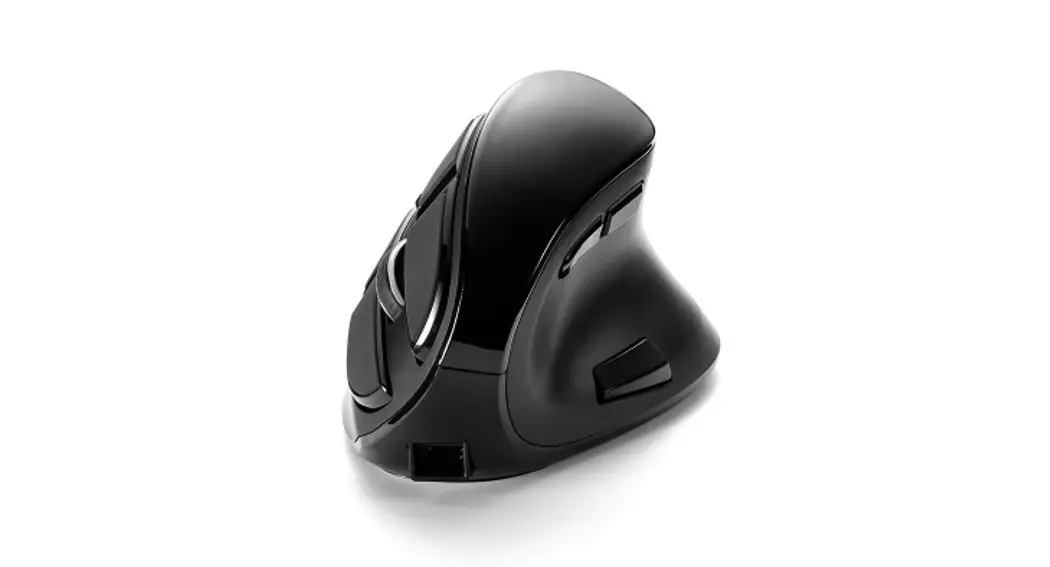
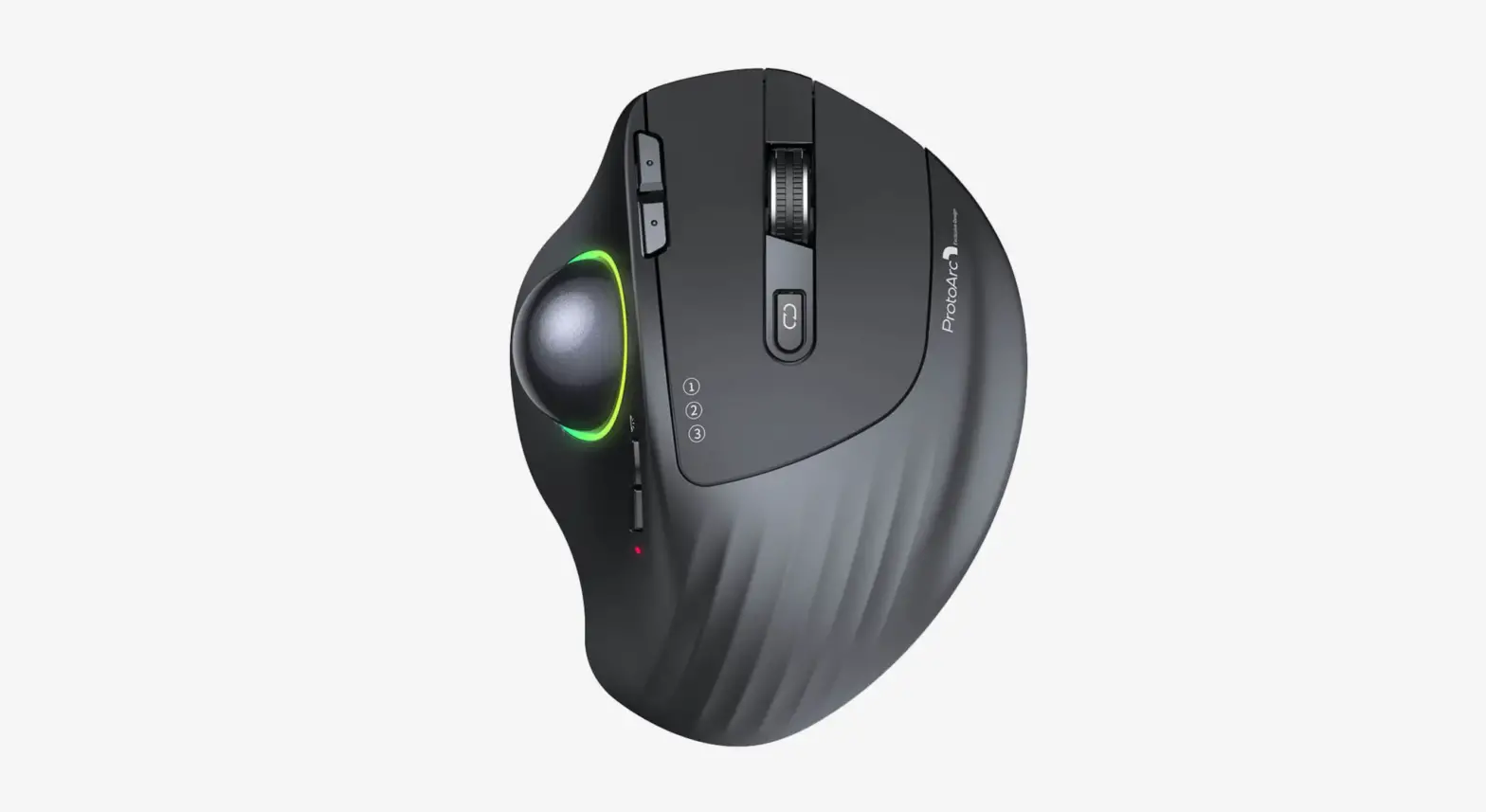
| A. Right Button B. Left Button C. Scroll Wheel Button D. DPI Switch Button E. Type-C Charging Port F. 2.4G Indicator G. Bluetooth 1 Indicator | H. Bluetooth 2 Indicator I. Mode Switch Button J. Power Switch K. USB Receiver L. Forward Button M. Backward Button N. Low-Power Indicator Light / DPI Indicator Light |
2.4G USB Connection
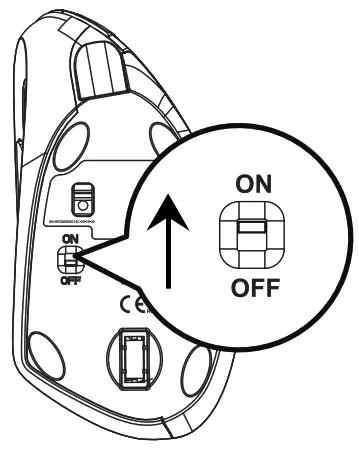 1. Turn on the power switch to ON 1. Turn on the power switch to ON | 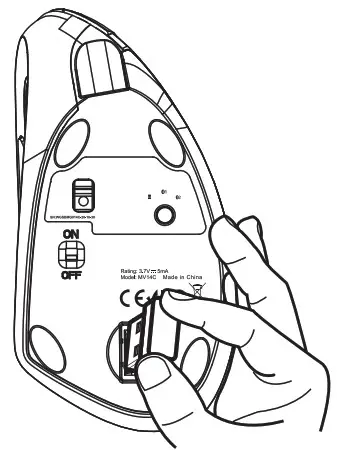 2. Take out the USB receiver 2. Take out the USB receiver |
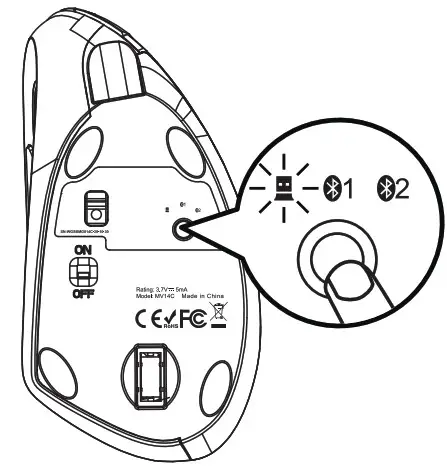 3. Press the Mode Switch Button until white light is on, enter 2.4G USB mode 3. Press the Mode Switch Button until white light is on, enter 2.4G USB mode | 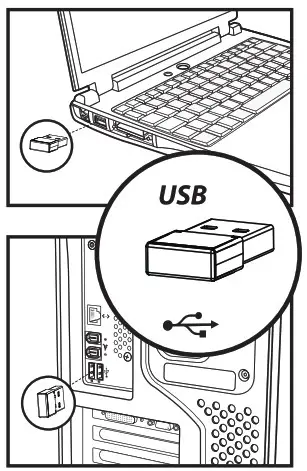 4. Plug USB receiver into the USB port of the computer 4. Plug USB receiver into the USB port of the computer |
Bluetooth Connection
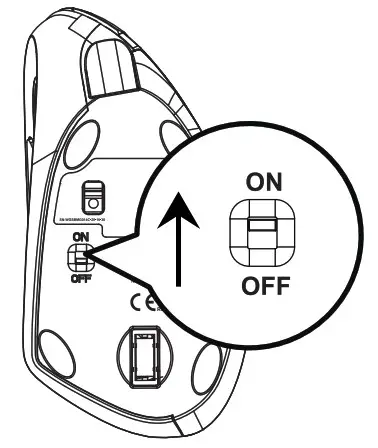 | 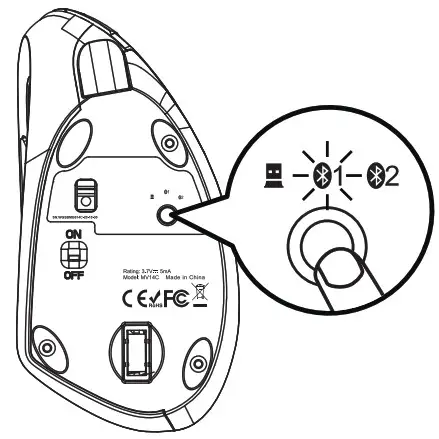 | 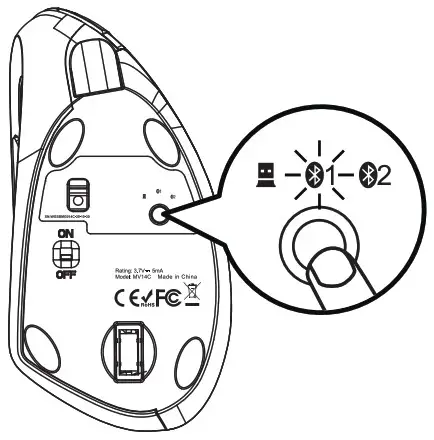 |
| 1. Turn on the power switch to ON | 2. Press the Mode Switch Button to Switch  1 or 2, at this time the white ight flashes slowly. 1 or 2, at this time the white ight flashes slowly. | 3. Long press the Mode Switch Button for 3 to 5 seconds, until the white light flashes quickly, enter the Bluetooth pairing mode. |
Windows 10 System
4. Click “Bluetooth Device” on your computer
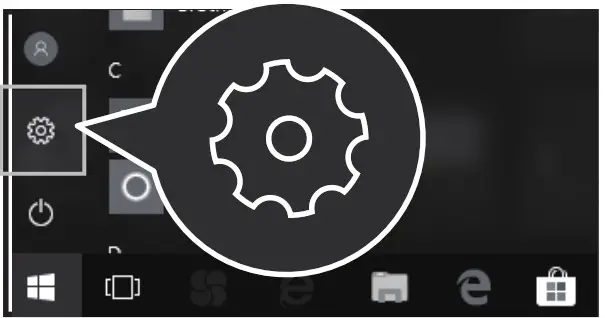
5. Click “Add or Delete Bluetooth Devices”
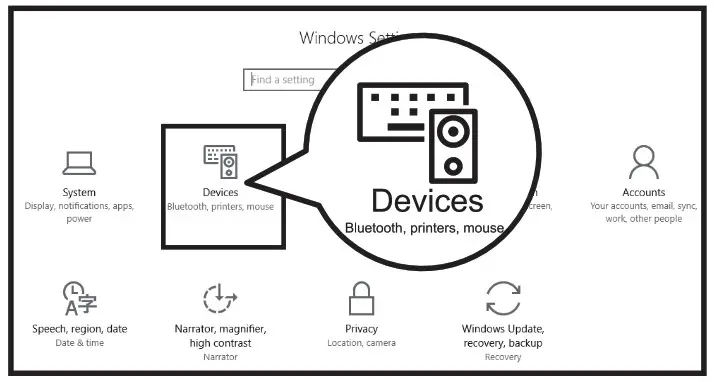
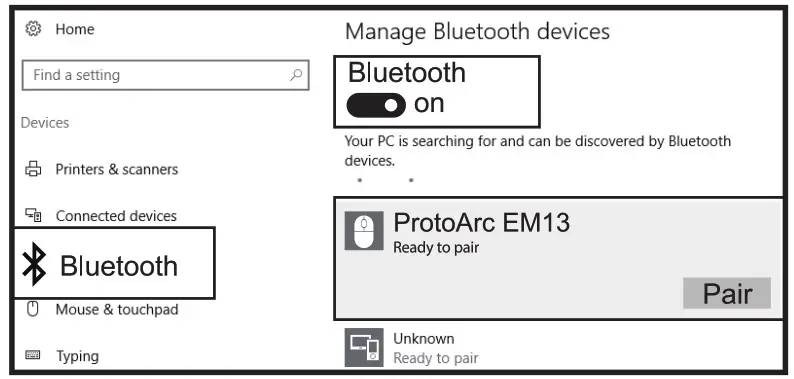
6. Bluetooth search for “ProtoArc EM13”, click “Pair”
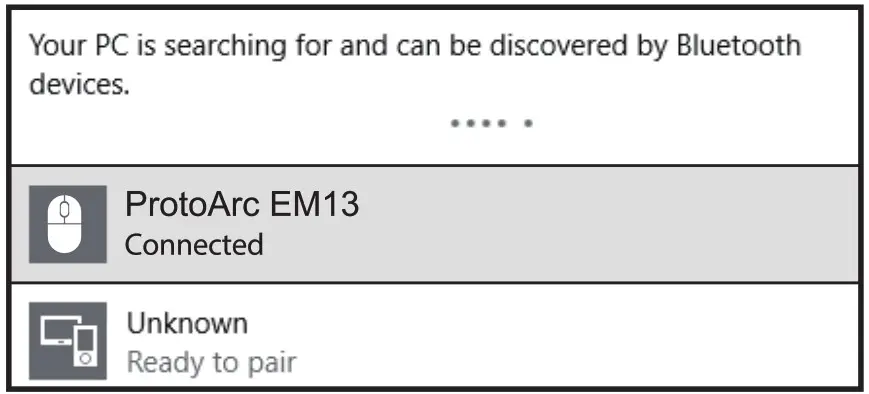
7. “ProtoArc EM13” is “Connected”, can be used normally
Mac OS System
Please complete step 1, 2 and 3 in’ Bluetooth Connection
Before pairing.
4. Click “System Preferences” on Mac
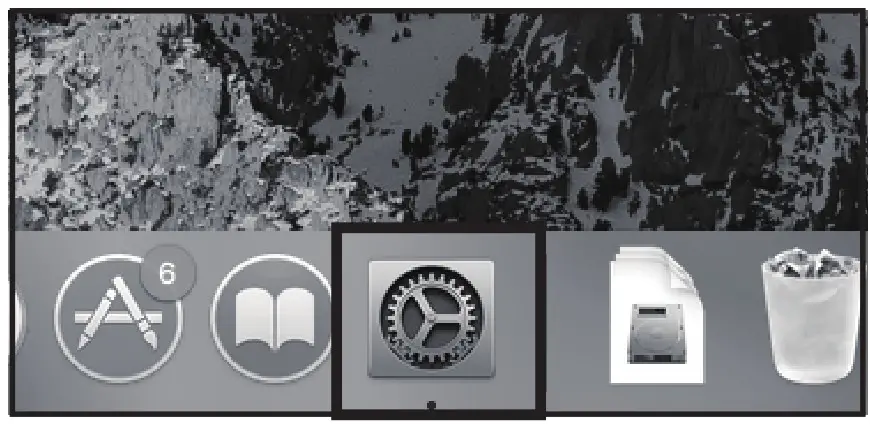
5. Click “Bluetooth” in “System Preferences”
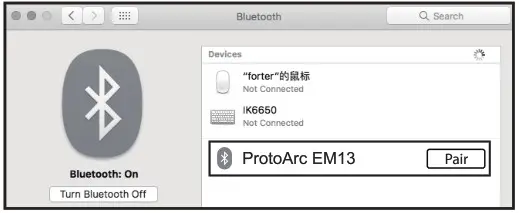
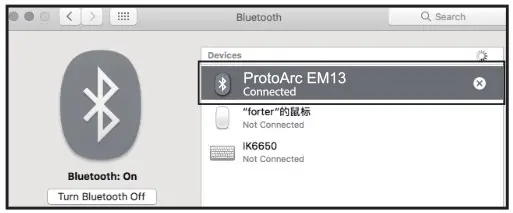
6. Bluetooth search for “ProtoArc EM13″and click “Pair” to complete the installation, the mouse can be used normally
iOS System
“The mouse function is only supported by systems above iOS 13
Please complete step 1, 2 and 3 in’ Bluetooth Connection
Before pairing.
4. Click “Settings” on your device and turn on “Accessibility”
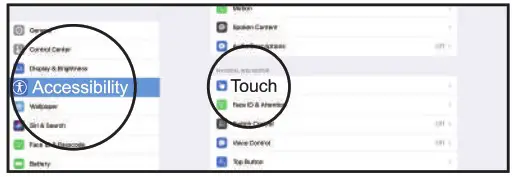
5. Click “Touch”
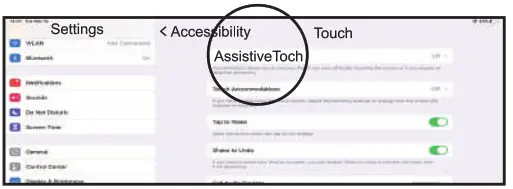
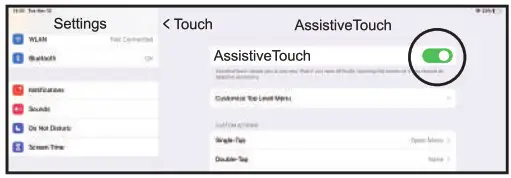
6. Turn on “Assistive Touch”
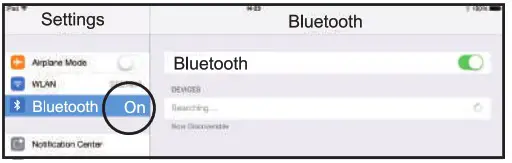
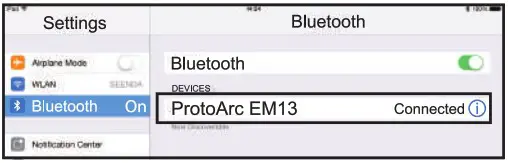
7. Click “Settings” on your device and turn on “Bluetooth”
8. Bluetooth search for “ProtoArc EM13″and click “Pair” to complete the pairing process
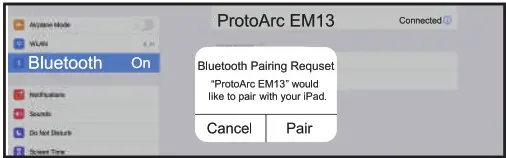
9. “ProtoArc EM13” is “Connected” , the mouse can be used normally
Android System
Please complete step 1, 2 and 3 in’ Bluetooth Connection Before pairing.
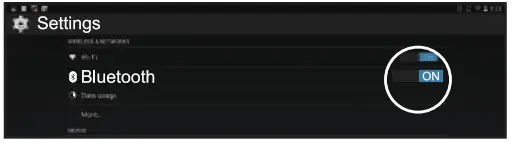
4. Click “Settings” on your device and turn on “Bluetooth”
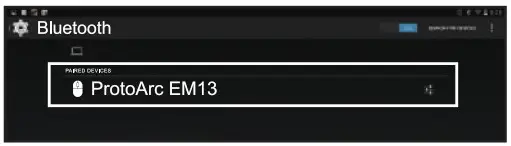
5. Bluetooth search for “ProtoArc EM13″and click “Pair” to complete the pairing process
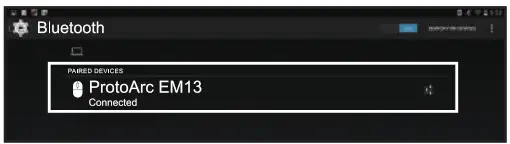
6. “ProtoArc EM13” is “Connected”, the mouse can be used normally
How to Switch Connection Mode
After Bluetooth and USB wireless mode is connected, press USB / Bluetooth mode switch button to switch between different devices. One press can only switch mode once. You may need to press it twice to get the mode you want.
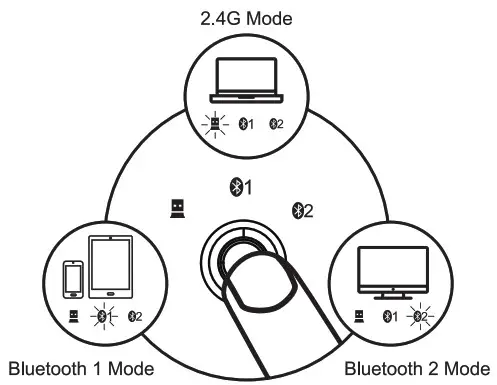
Press USB / Bluetooth mode switch button
How to Charge the Mouse ;
- When the battery power is low, please charge the mouse with the included USB charging cable(by inserting the Cl USB charging cable into USB port of the computer).

- While charging, power indicator turns blue. A full charge cycle takes about 1-2 hours and the indicator light will automatically shuts off when charging is complete. Also, when the battery power is too low(around3.4V), the BIred indicator will flash.
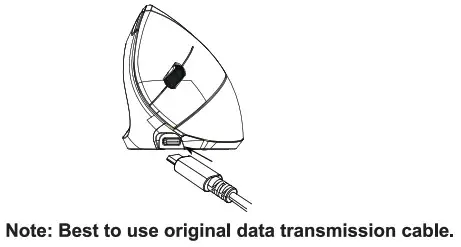
Press DPI Switch Button first level indicator light flashes once, Second level indicator light flashes twice, Third level indicator light flashes three times.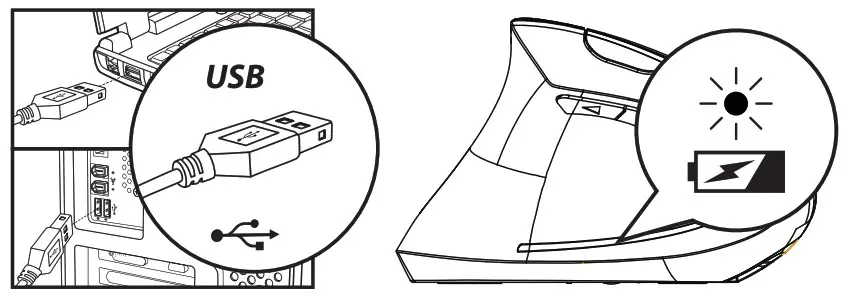
Specifications
Basic Parameter: 2
Chip: Nordic NRF51802
Engine: optics
Li-ion Battery: 300mAh
DPI level: 1000-1600-2400DPI
Click life: more than 3 million times
Dimension: 120.5 x 63.4 x 76mm
Weight: 125g
Bluetooth Connection Parameter:
Bluetooth version: 4.0
Working distance: 10m
Voltage: 3.7V
Current: 4mA
Report rate: 90Hz
System requirement:
Bluetooth-enable device
Windows 8, Windows 10
Mac Os X 10.12 or higher version
Android 4.3 or higher version
2.4G Wireless Connection Parameter:
Working distance: 10m
Voltage: 3.7V
Current: 5.5mA
Frequency: 125Hz
System requirement:
Device with USB port
Windows XP, Window 7,
Windows 8, Windows 10;
Mac OS X 10.12 or higher
version
Package List
► 1x Wireless Mouse
► 1x Type-C Charging Cable
► 1x USB Receiver
► 1x User Manual