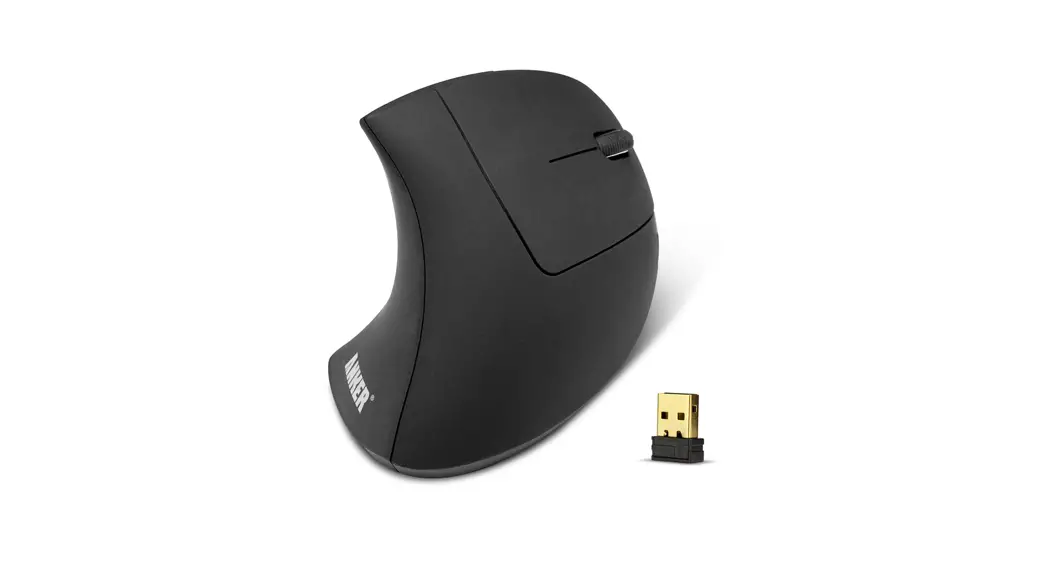
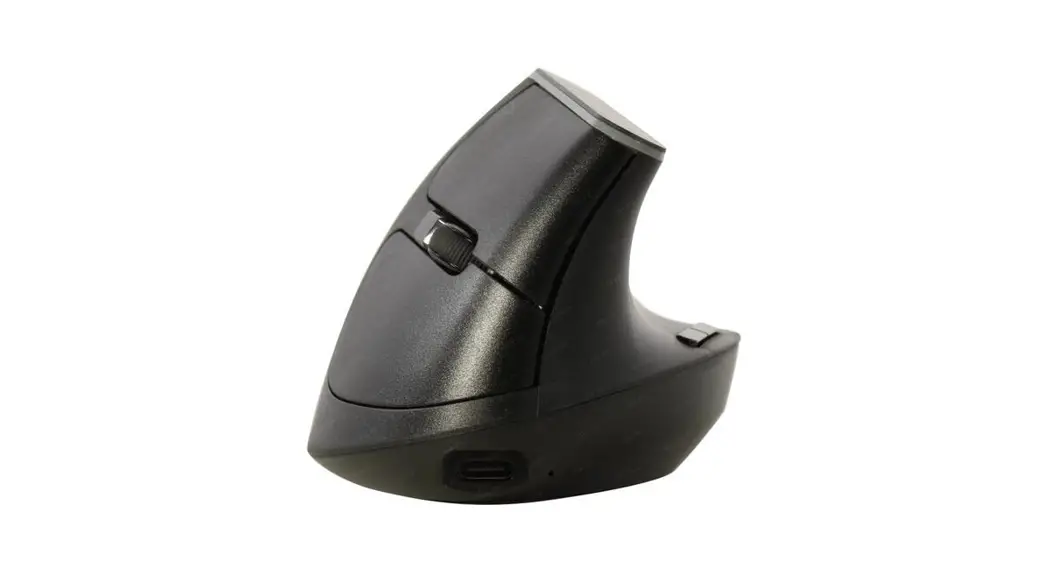
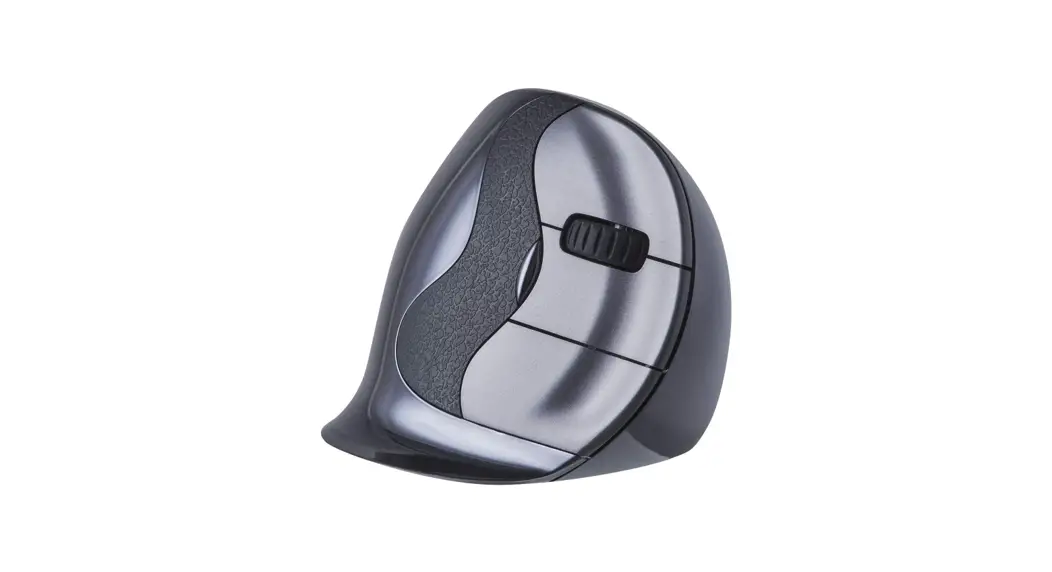
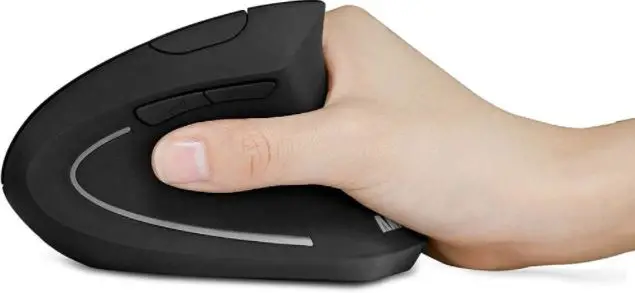
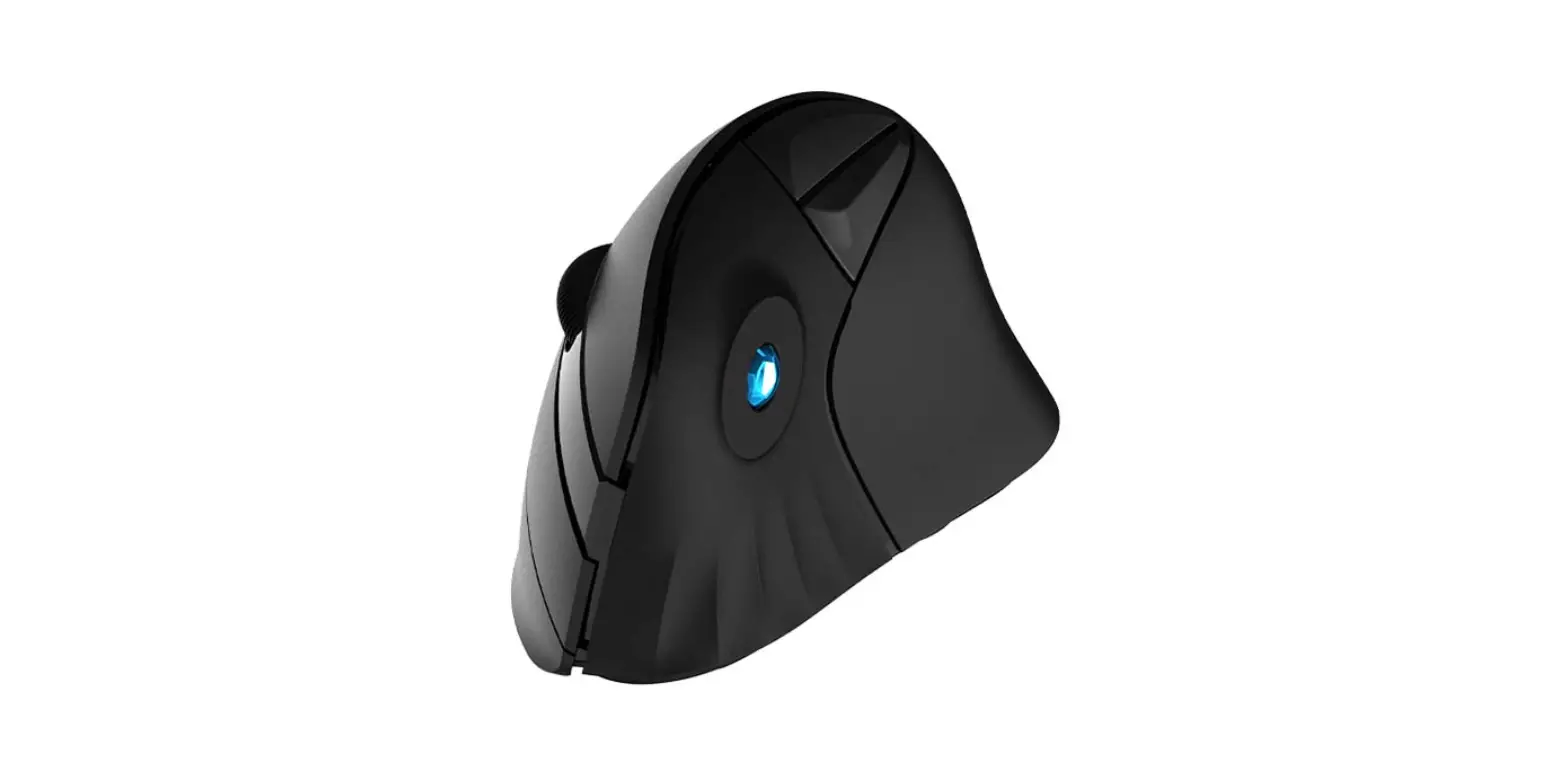
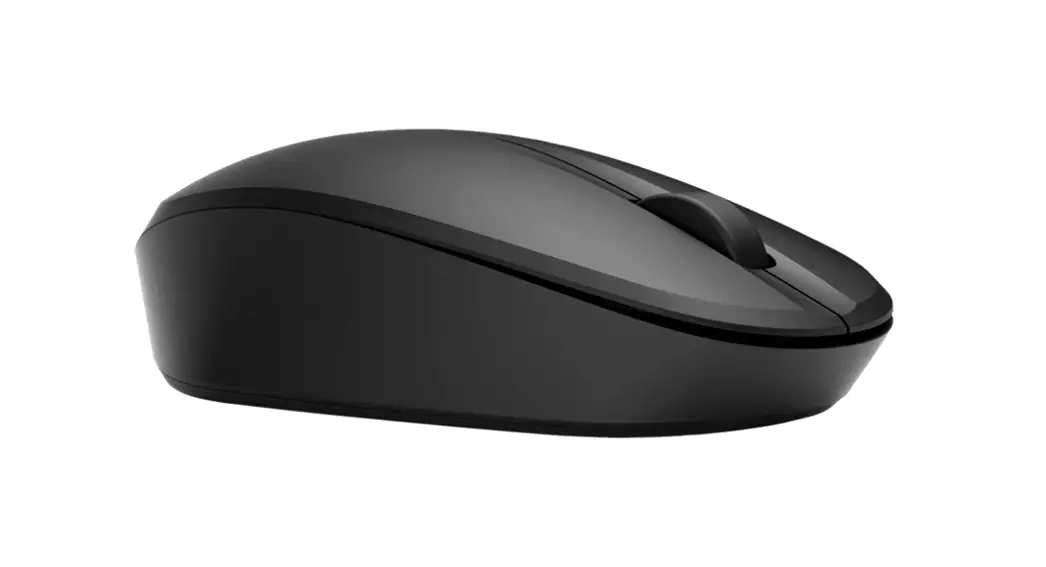
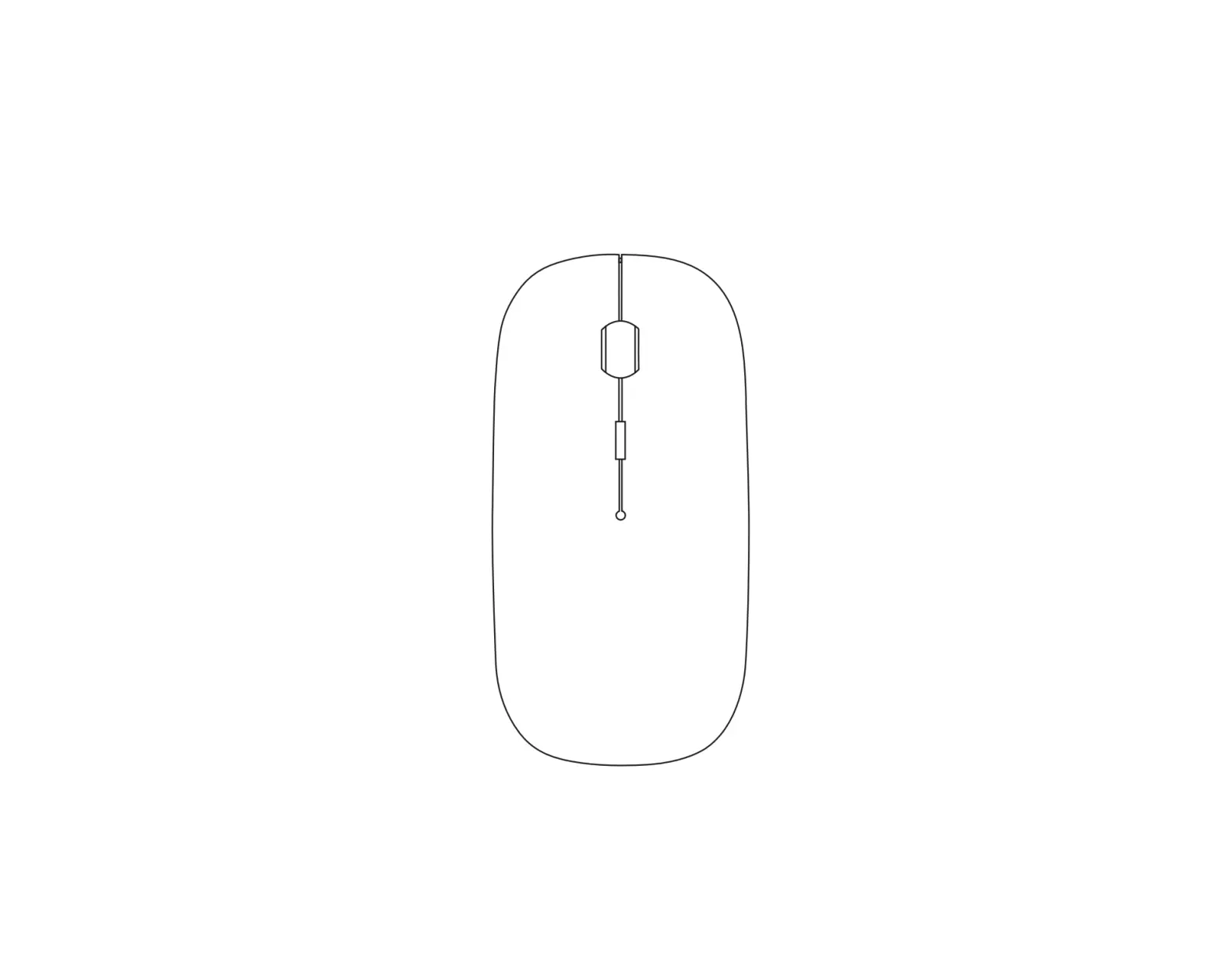
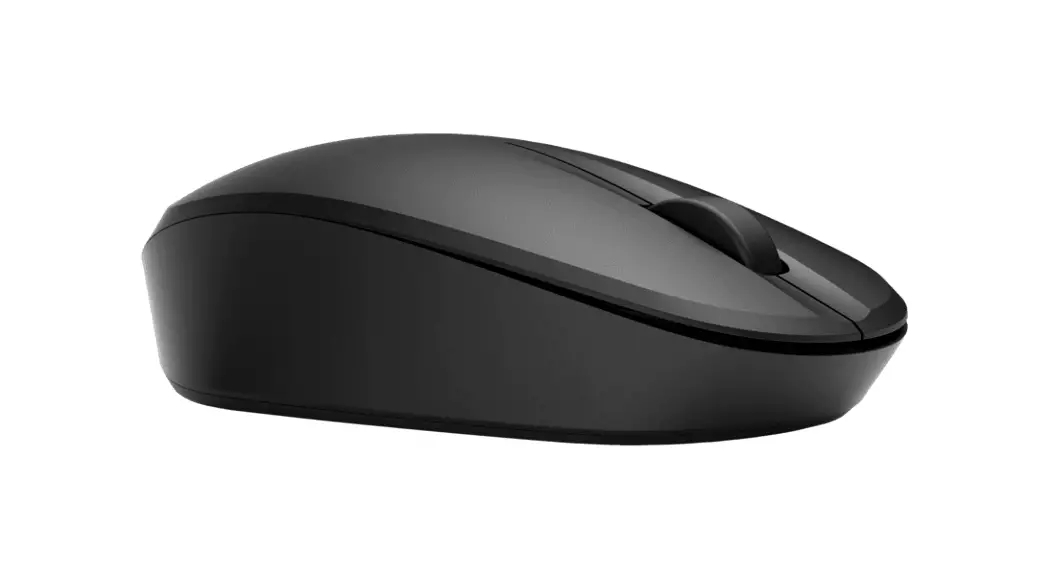
D1027C8 Wireless Vertical Mouse
Product Information
Product Name: Wireless Vertical Mouse
Product Function:
- Left Button
- Right Button
- Scroll Wheel
- DPI Button
- Desktop Button
- DPI/Channel Indicator
- Forward Button
- Back Button
- Charging Port
- On/Off Button
- Mode Switch Button
- 2.4G Indicator
- Equipment 1 Indicator
- Equipment 2 Indicator
- USB Receiver
Basic Parameters:
- Chipset: Yichip 1066
- Engine: Optics
- Mouse Resolution: 1000/1600/2400 dpi
- Mouse Button Life: Over 3 million clicks
- Mouse Size: 112.08*79.92*77.86mm
- Mouse Weight: 121g
- 2.4G Transmission Parameters:
- Transmission Distance: 10m
- Work Voltage: 3.7V
- Work Current: Not specified
- Rate of Return: 125Hz
- Bluetooth Transmission Parameters:
- Transmission Distance: 10m
- Work Voltage: 3.7V
- Work Current: Not specified
- Rate of Return: 125Hz
- System Needs:
- Bluetooth receiver device
- USB interface
Product Usage Instructions
2.4G Connection (US/UK/CA)
- Turn on the mouse.
- Take out the USB receiver.
- Insert the USB receiver into the computer’s USB port.
- Click the mode switch button to switch to 2.4G mode. The first
red LED will flash slowly.
Bluetooth Connection (Windows System)
(Instructions for Windows 10)
- Turn on the mouse.
- Press the switch button to switch to the second channel. The
blue LED will flash slowly. - Long press the switch button for 3-5 seconds until the blue LED
flashes quickly. The mouse will enter Bluetooth pairing mode. - Click the Bluetooth devices button on the computer.
- Click the Add or remove Bluetooth devices button.
- Search for the “Bluetooth BT5.2 Mouse” and click the Pairing
button. - Once the Bluetooth BT5.2 Mouse is connected, the mouse is ready
to use.
Bluetooth Connection (Mac OS System)
(Perform Bluetooth installation steps 1-3 before
pairing)
- Click the system preferences button on the Mac.
- Click the Bluetooth button in the system preference
folder. - Search for the “Bluetooth BT5.2 Mouse” and click the Pairing
button. If installed completely, the mouse can be used
normally.
Mode Switch
When 2.4G or Bluetooth connection is successful, shortly press
the switch button at the bottom of the mouse to easily switch
between modes.
- 2.4G Mode: Red LED on
- Equipment 1: Blue LED on
- Equipment 2: Green LED on
How to Wake up the Nulea Vertical Mouse
The Nulea Vertical Mouse has an intelligent sleep mode to
conserve battery:
- In USB receiver and Bluetooth connection mode, the mouse goes
into hibernation after 10 minutes of inactivity. To wake it up,
press the button (moving the mouse will not wake it up). - In Bluetooth connection mode, the mouse goes into deep sleep
after 109 minutes of inactivity. Press the button to wake it up and
allow the mouse to find Bluetooth to reestablish the connection (it
takes 3 to 5 seconds to check if Bluetooth is enabled on the
device).
Package Includes
- 1x Wireless Mouse
- 1x USB-C Cable
- 1x User Manual
Note: Please refer to the user manual for FCC ID and
compliance information.
D10 2 7C8
WIRELESS VERTICAL MOUSE
User Manual
Product Function
1 324
7 6 8 5
13 14 10 9 12
11 15
US/UK/CA
1 Left Button 2 Right Button 3 Scroll Wheel 4 DPI Button 5 Desktop Button 6 DPI/Channel Indicator 7 Forward Button 8 Back Button
9 Charging Port 10 On/Off 11 Mode Switch Button 12 2.4G Indicator 13 Equipment 1 Indicator 14 Equipment 2 Indicator 15 USB Receiver
Note: Bluetooth indicator/USB indicator flashes quickly on low battery. – 01 –
US/UK/CA 2.4G Connection
12 34
– 04 –
1 Turn on the mouse. 2 Take out the USB receiver. 3 Insert the USB receiver into the computer USB port. 4 Click the mode switch button to 2.4G mode then the first red LED will flash slowly.
Bluetooth Connection
Windows System(Take Windows 10 as an example)
1
2
3
1 Turn on the mouse.
2 Press the switch button to switch to the second channel, then the blue LED will flash slowly.
3 Long press the switch button for 3~5 seconds until the blue LED flashes quickly. The mouse will be in Bluetooth pairing mode. – 05 –
4 Click the “Bluetooth devices” button on the computer. 5 Click the “Add or remove Bluetooth devices” button. 6 Search the Bluetooth “BT5.2 Mouse”, and click the Pairing button. 7 When the Bluetooth “BT5.2 Mouse” is connected, the mouse is ready to use.
– 06 –
Mac OS System Please operate the Bluetooth installation steps(1~3) before pairing. 1 Click the “system preferences” button on the Mac.
6
2 Click the Bluetooth button on the system preference folder.
3 Search the Bluetooth “BT5.2 Mouse”, and click the Pairing button. If installed completely, the mouse could be used normally.
– 07 –
Mode Switch
When 2.4G or Bluetooth connect successfully, shortly press the switch button at the bottom of the mouse, and you could switch the modes easily.
2.4G Mode red LED on
Equipment 1 blue LED on
Equipment 2 green LED on
– 08 –
How Do You Wake up the Nulea Vertical Mouse?
The Nulea Vertical Mouse employs an intelligent sleep mode to safeguard the battery for extended use: 1. In USB receiver and Bluetooth connection mode, Nulea Vertical mouse goes into hibernation after 10 minutes of your last mouse use; If you need to use the mouse, you must push the button to wake it up (moving the mouse will not wake it up);
2. The Nulea Vertical mouse goes into deep Bluetooth sleep 109 minutes after you last used it in Bluetooth connection mode; at this point, you must press the button to wake it up while also allowing the mouse to find Bluetooth in order to reestablish the connection (it takes 3 to 5 seconds to check whether the Bluetooth of the terminal device is on).
Package Include
1x Wireless Mouse 1x USB-C Cable 1x User Manual
– 09 –
Basic Parameters
Chipset
Yichip 1066
Engine
Optics
Mouse Resolution
1000/1600/2400 dpi
Mouse Button Life
Over 3 million
Mouse Size
112.08*79.92*77.86mm
Mouse Weight
121g
2.4G Transmission Parameters
Transmission distance
10m
Work voltage
3.7V
Work currency
8.0±0.5mA
Rate of return
125Hz
Bluetooth Transmission Parameters
Transmission distance
10m
Work voltage
3.7V
Work currency
6.0±0.5mA
Rate of return
125Hz
System needs
Bluetooth receiver device
USB interface
Window® 8,Windows® 10 or higher versions Mac OS X 10.10 or higher versions Android 4.3 or higher versions
– 10 –
FCC ID
Any Changes or modifications not expressly approved by the party responsible for compliance could void the user’s authority to operate the equipment. This device complies with part 15 of the FCC Rules. Operation is subject to the following two conditions: (1) This device may not cause harmful interference, and (2) this device must accept any interference received, including interference that may cause undesired operation.
FCC Radiation Exposure Statement This equipment complies with FCC radiation exposure limits set forth for an uncontrolled environment.
Correct Disposal of This Product
(Waste Electrical& Electronic Equipment) This Marking shown on the product or its literature, indicate that it should not be disposed with other household wastes at the end of its working life. To prevent possible harm to the environment or human health from uncontrolled waste disposal, please separate this from other types of wastes and recycle it responsibly to promote the sustainable reuse of material resources Household user should contact either the retailer where they purchased this product or their local government office, for details of where and hew they can take this item for environmentally safe recycling. Business users should contact their supplier and check the terms and conditions of the purchase contact This product should not be mixed with other commercial wastes for disposal.
– 39 –
FCC Warning This device complies with Part 15 of the FCC Rules. Operation is subject to the following two conditions: (1) This device may not cause harmful interference, and (2) this device must accept any interference received, including interference that may cause undesired operation. NOTE 1: This equipment has been tested and found to comply with the limits for a Class B digital device, pursuant to part 15 of the FCC Rules. These limits are desig ned to provide reasonable protection against harmful interference in a residential in stallation. This equipment generates, uses and can radiate radio frequency energy and, if not installed and used in accordance with the instructions, may cause harmf ul interference to radio communications. However, there is no guarantee that interf erence will not occur in a particular installation. If this equipment does cause harmf ul interference to radio or television reception, which can be determined by turning t he equipment off and on, the user is encouraged to try to correct the interference b y one or more of the following measures: – Reorient or relocate the receiving antenna. – Increase the separation between the equipment and receiver. – Connect the equipment into an outlet on a circuit different from that to which the receiver is connected. – Consult the dealer or an experienced radio/TV technician for help. NOTE 2: Any changes or modifications to this unit not expressly approved by the party responsible for compliance could void the user’s authority to operate the equipment. The device has been evaluated to meet general RF exposure requirement. The device can be used in portable exposure condition without restriction.
This device complies with Industry Canada s license-exempt RSSs. Operation is subject to the following two conditions:
(1) This device may not cause interference; and (2) This device must accept any interference, including interference that may cause undesired operation of the device.
« Le présent appareil est conforme aux CNR d’Industrie Canada applicables aux appareils radio exempts de licence. L’exploitation est autorisée aux deux conditions suivantes : (1) l’appareil ne doit pas produire de brouillage, et (2) l’utilisateur de l’appareil doit accepter tout brouillage radioelectrique subi, meme sile brouillage est susceptible d’en compromettre le fonctionnement. »
MADE IN CHINA FCC ID:2AAVD-D1027C8