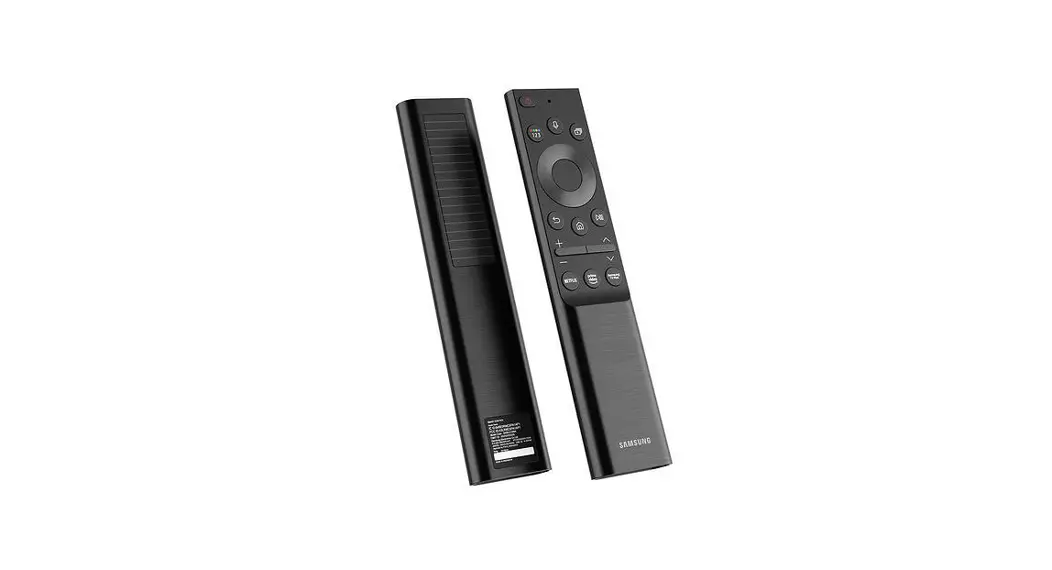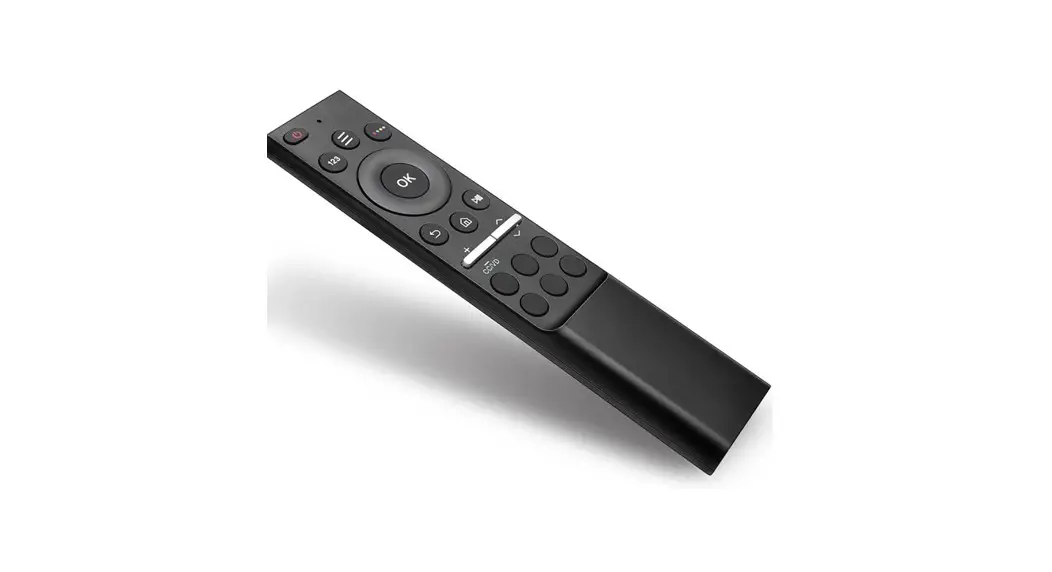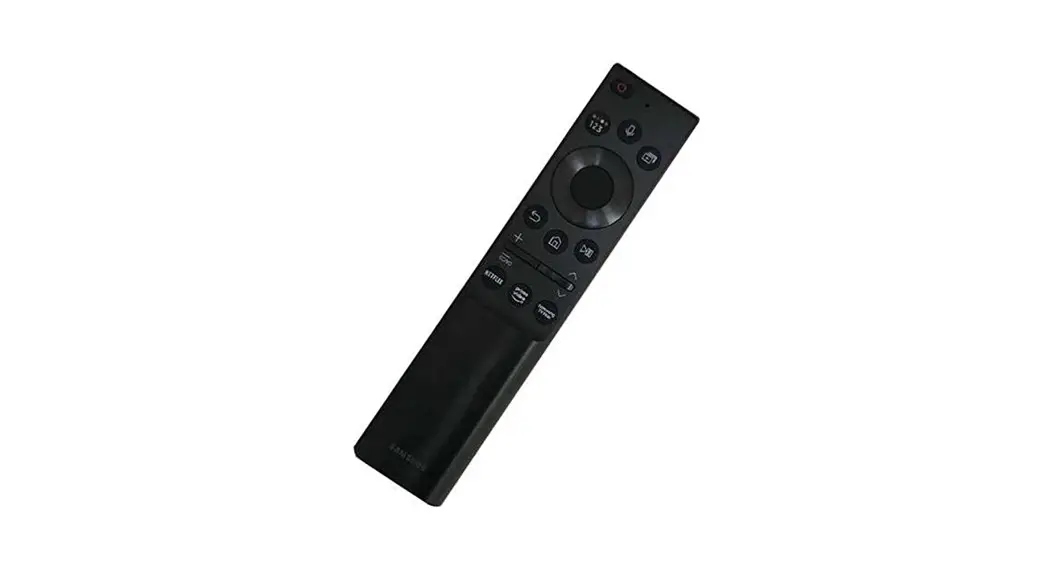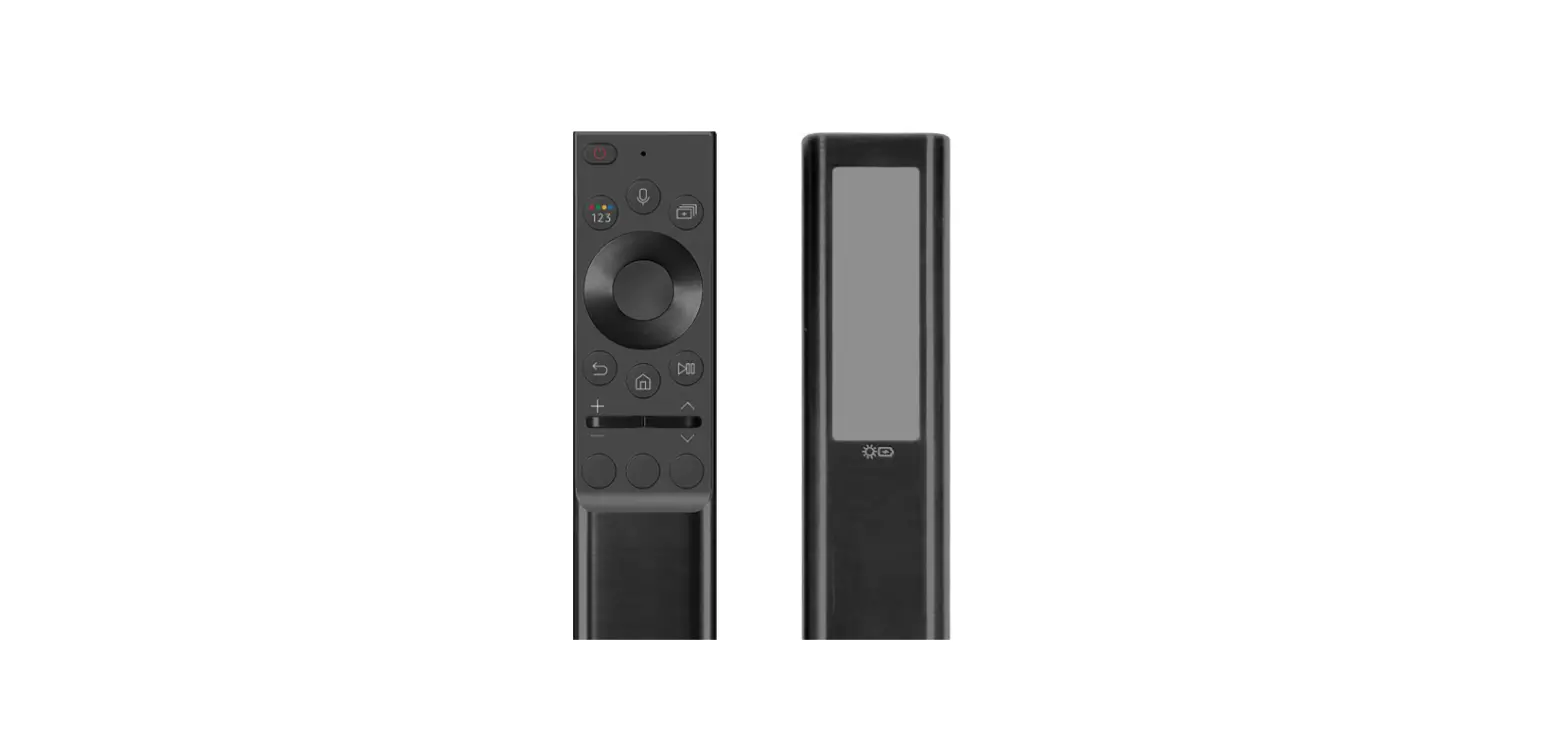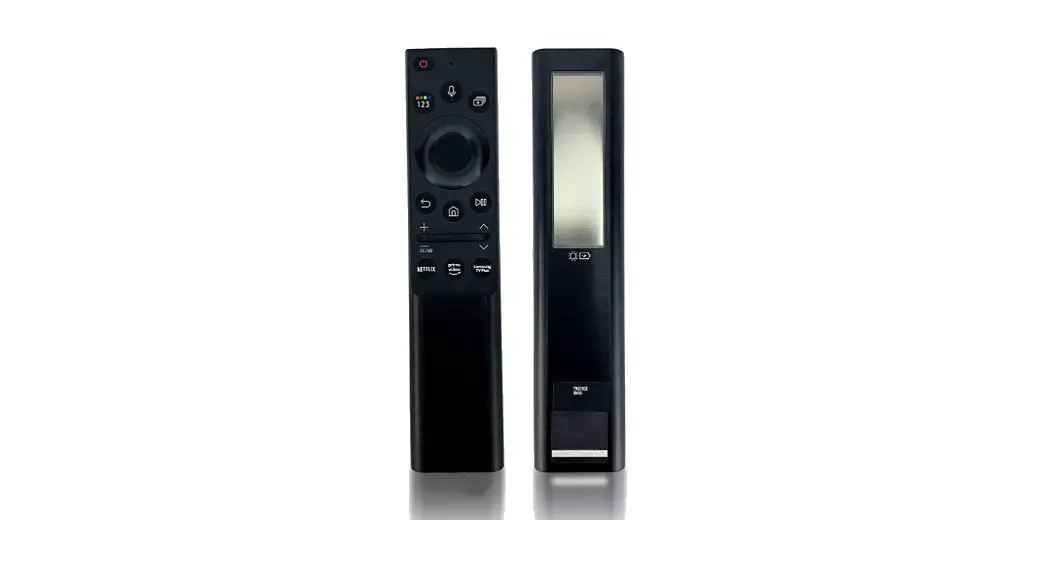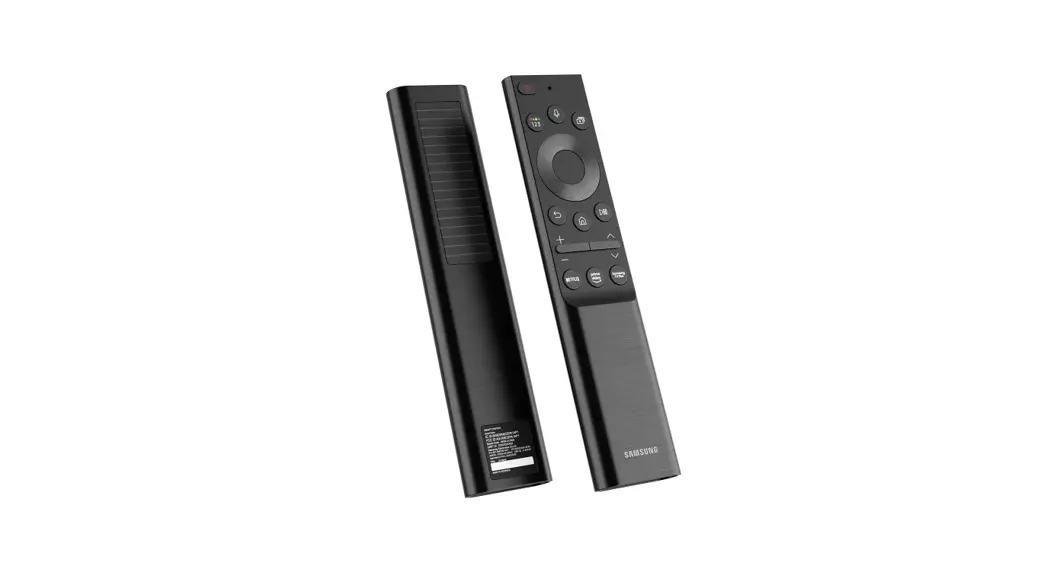

SAMSUNG UE50BU8500K SolarCell Remote
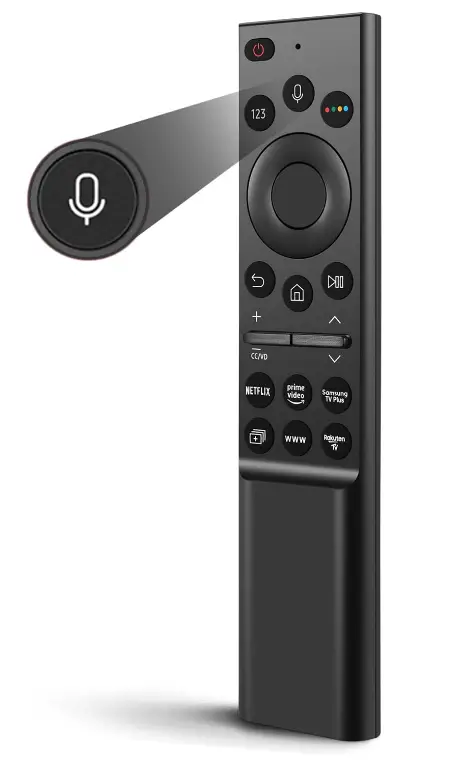
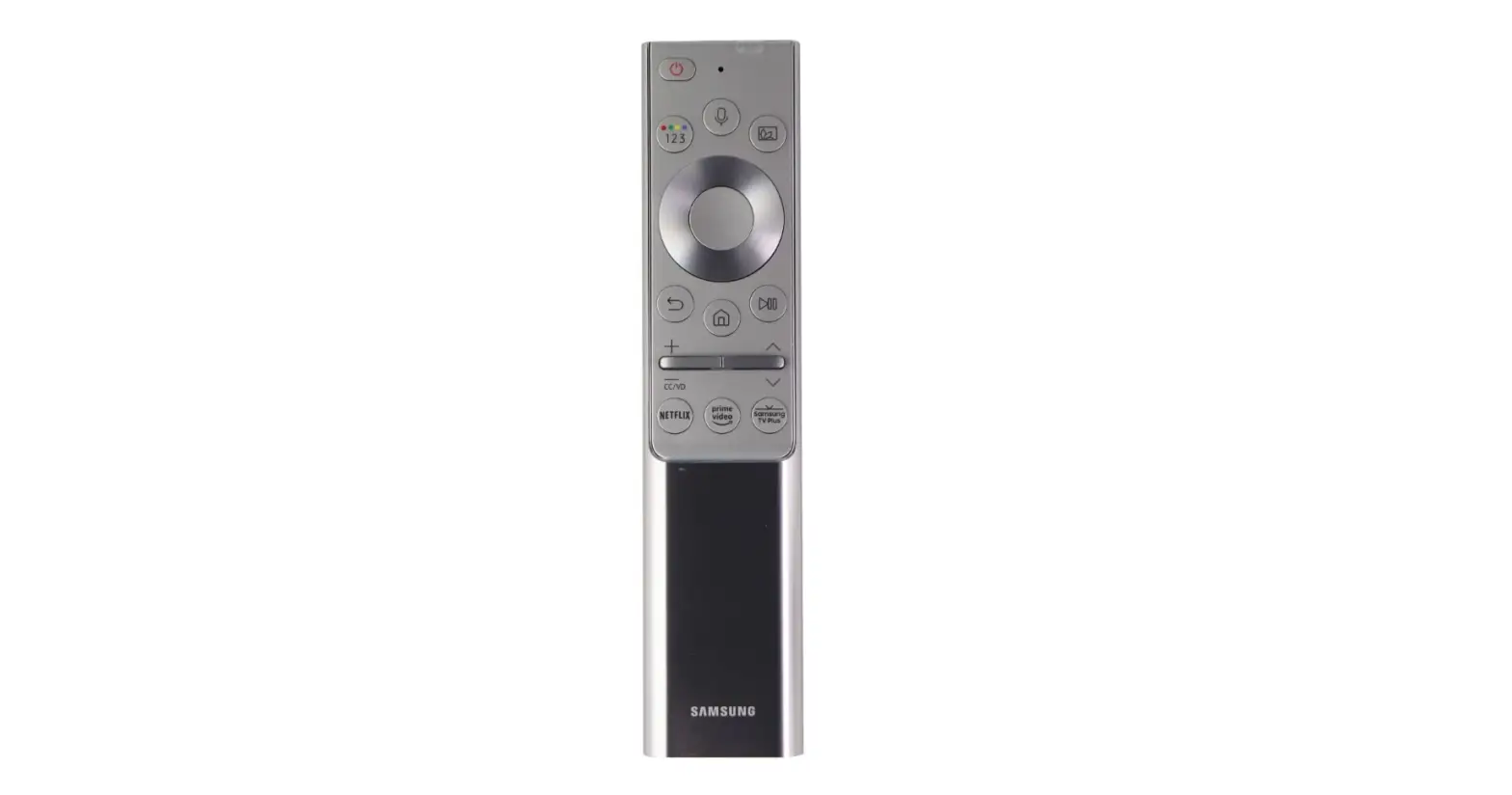
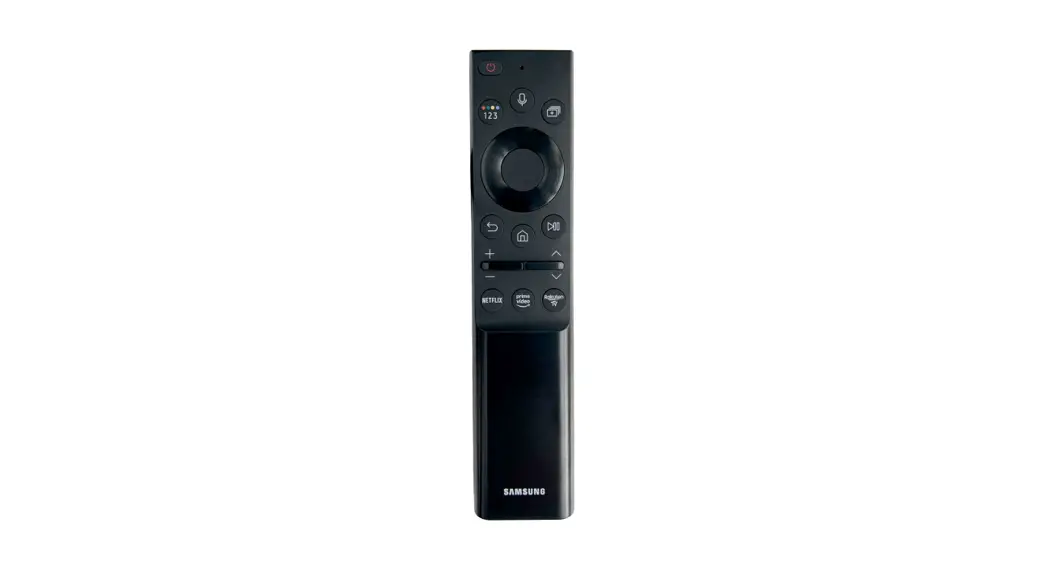
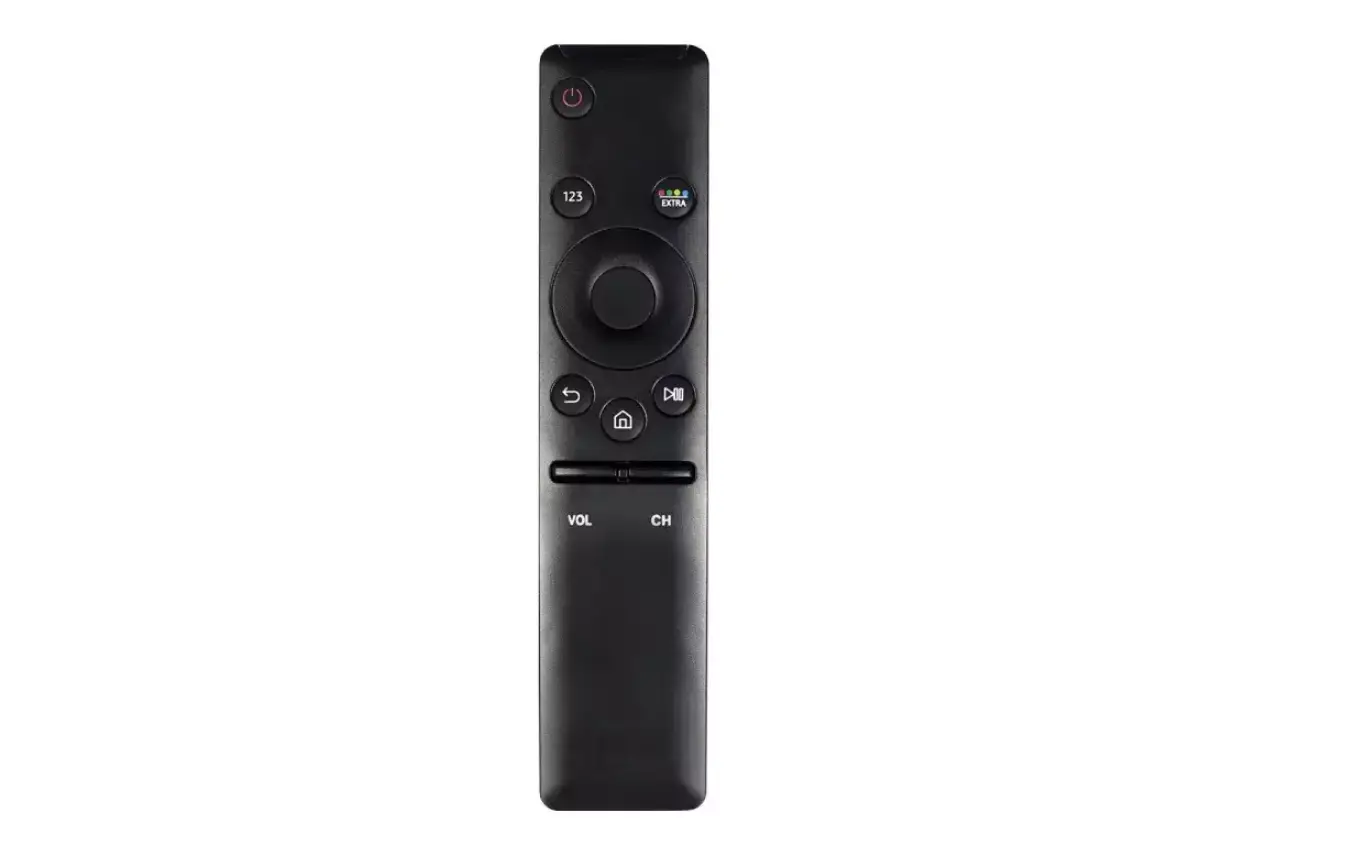
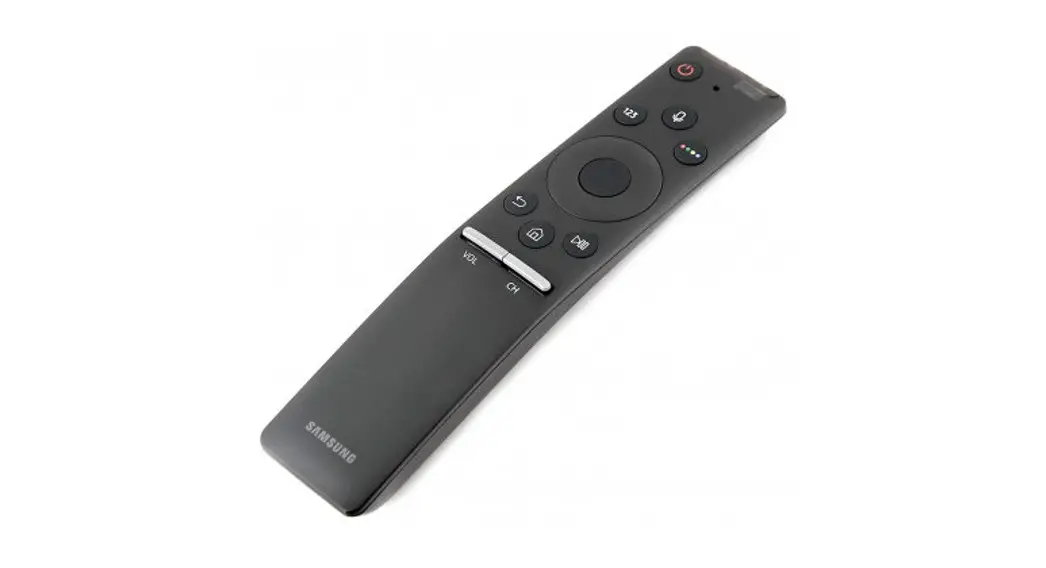
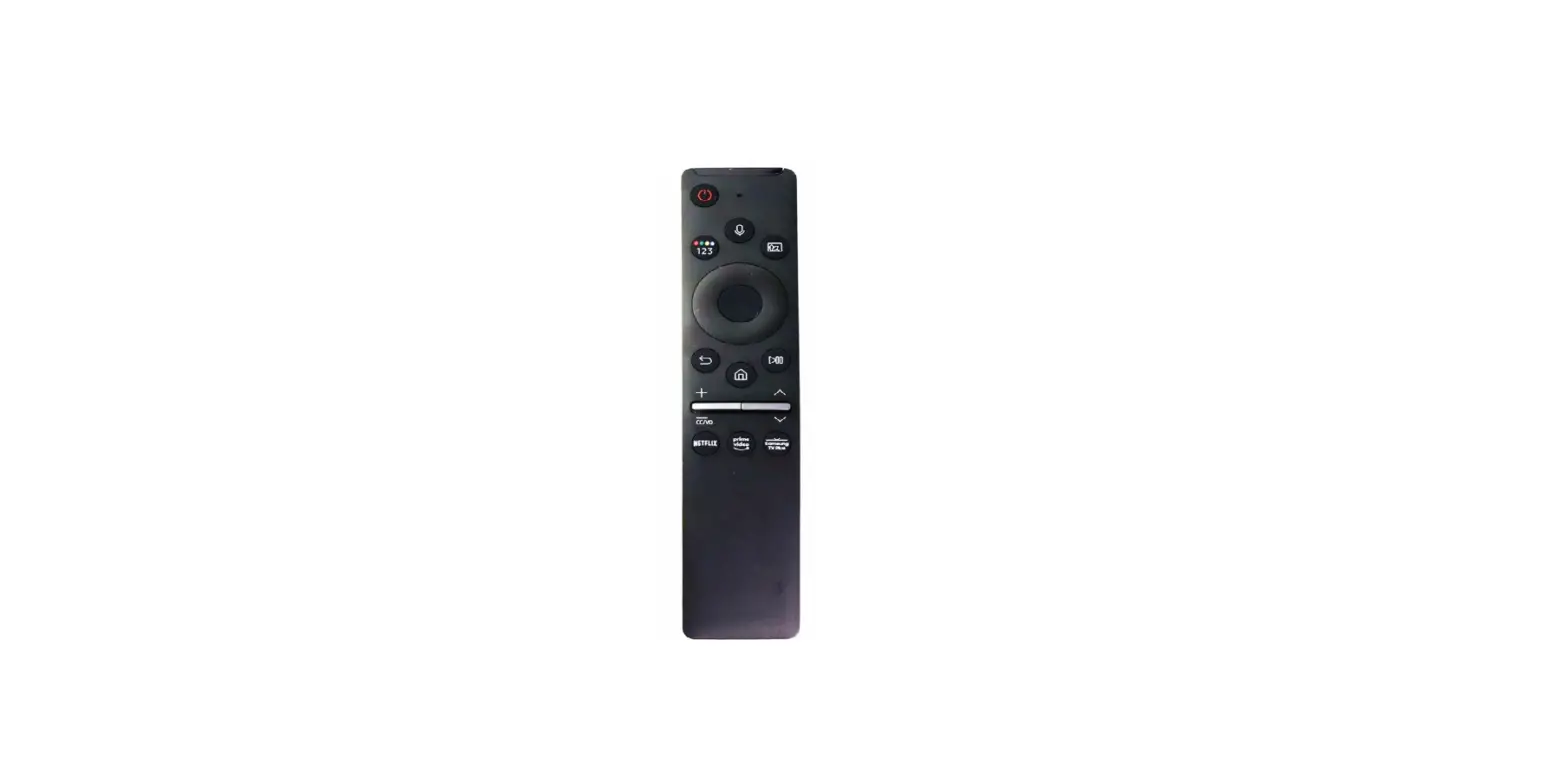
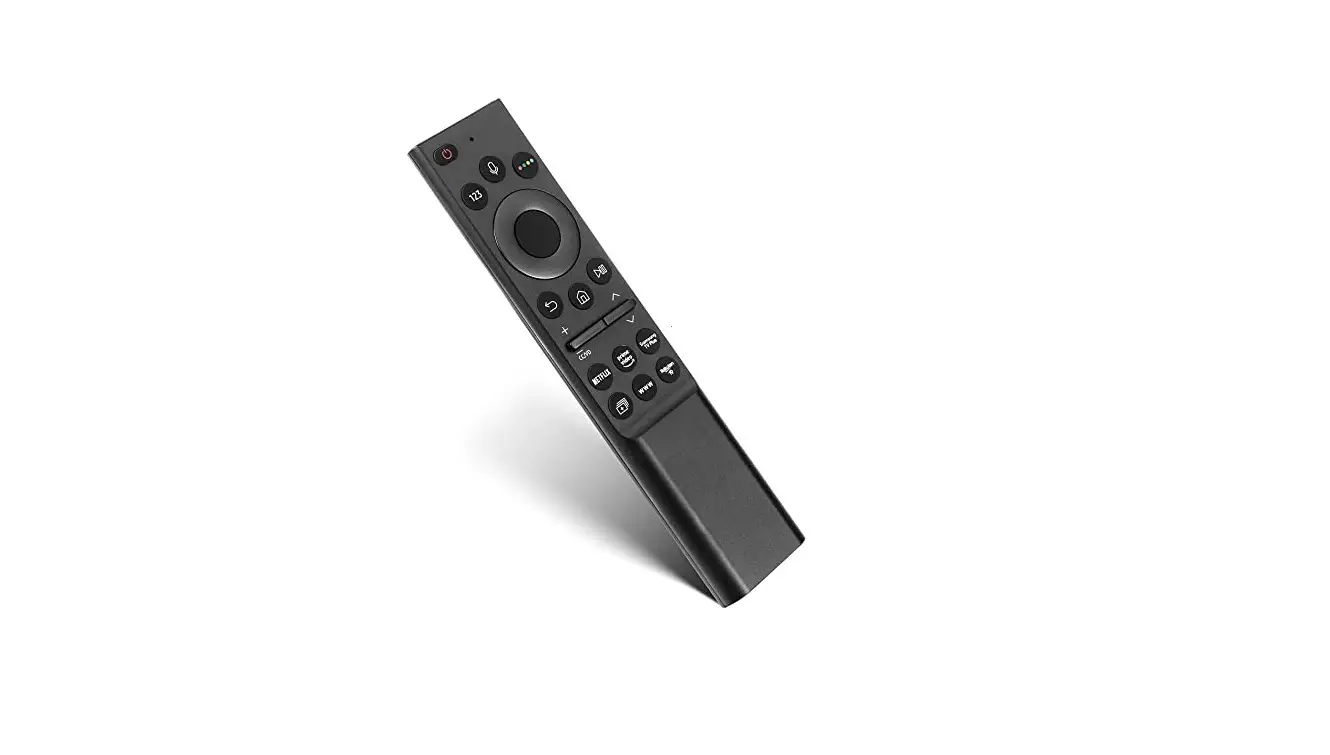
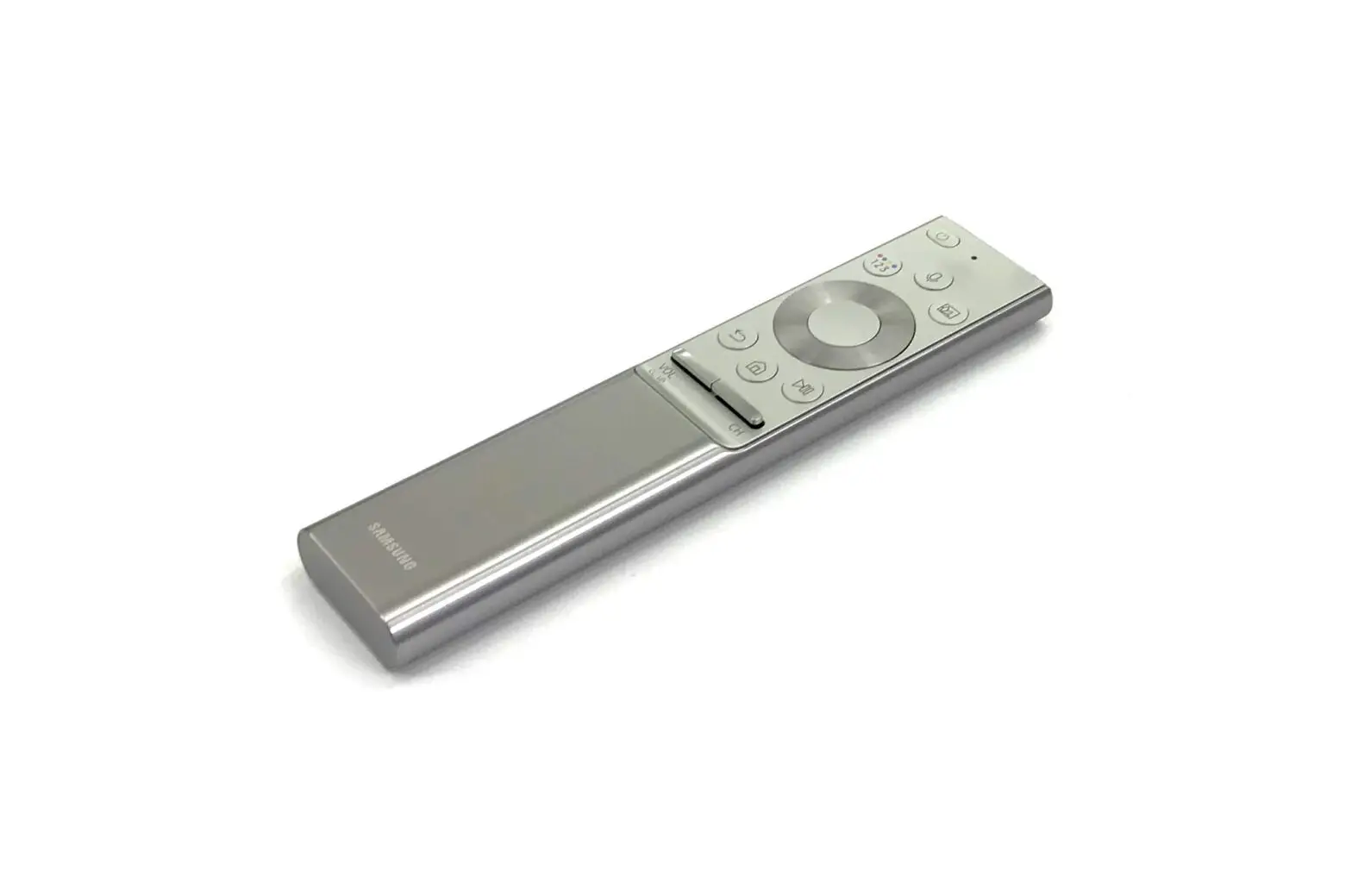
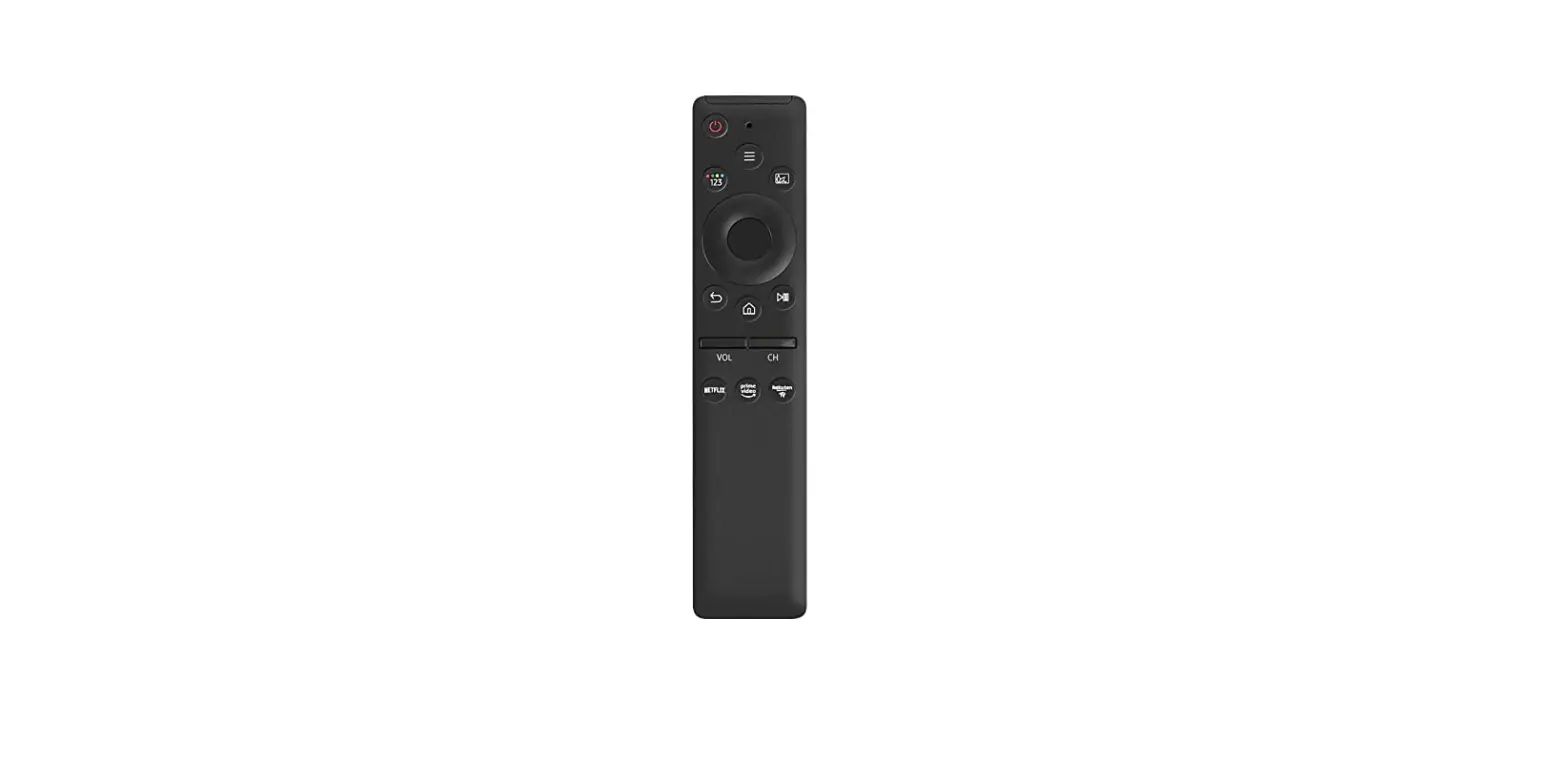
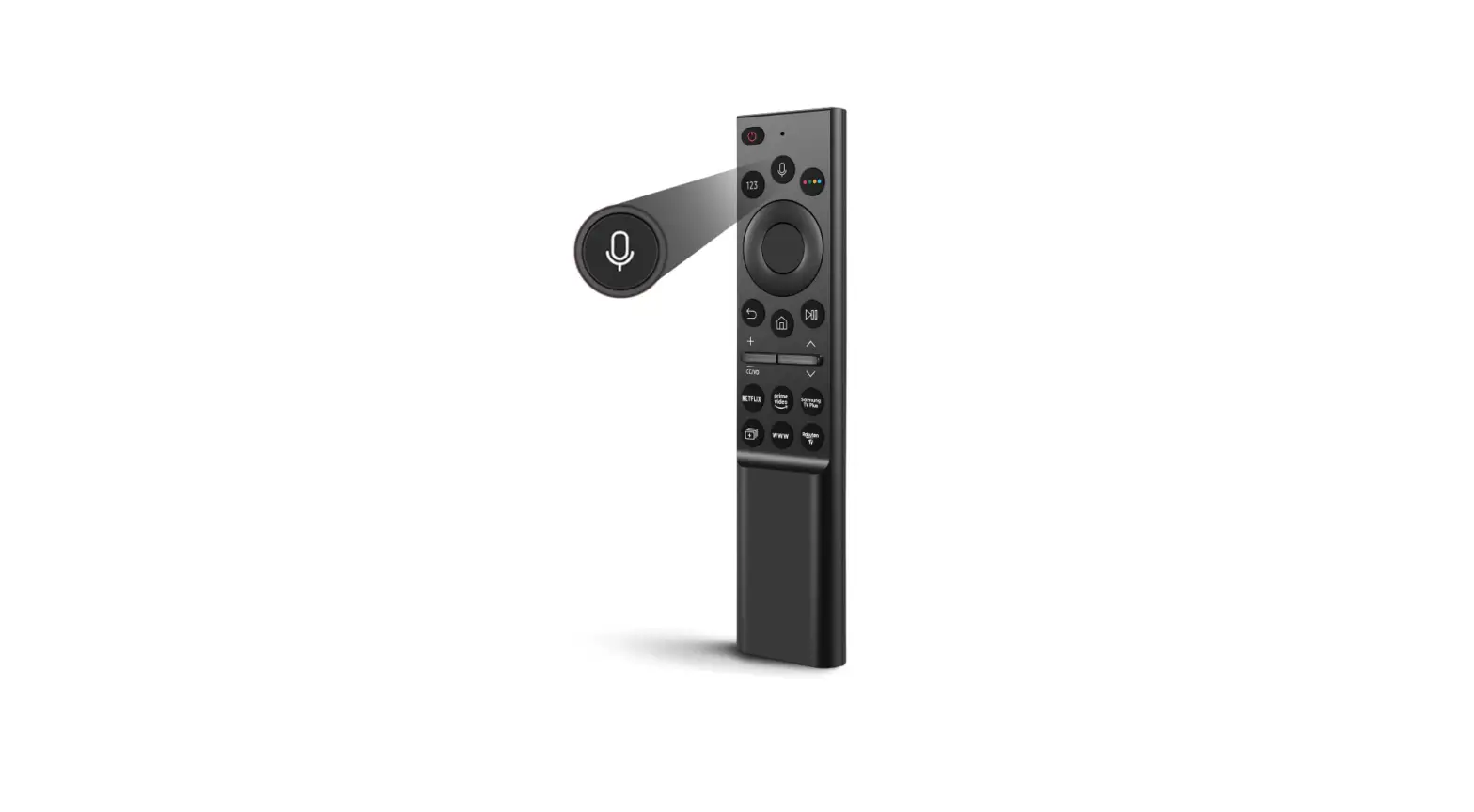
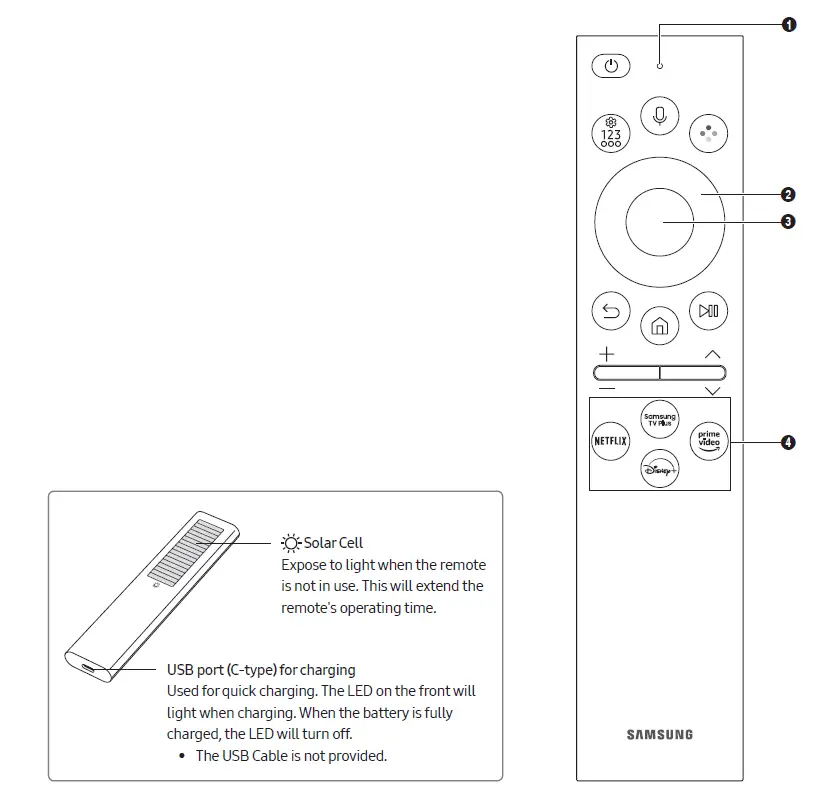
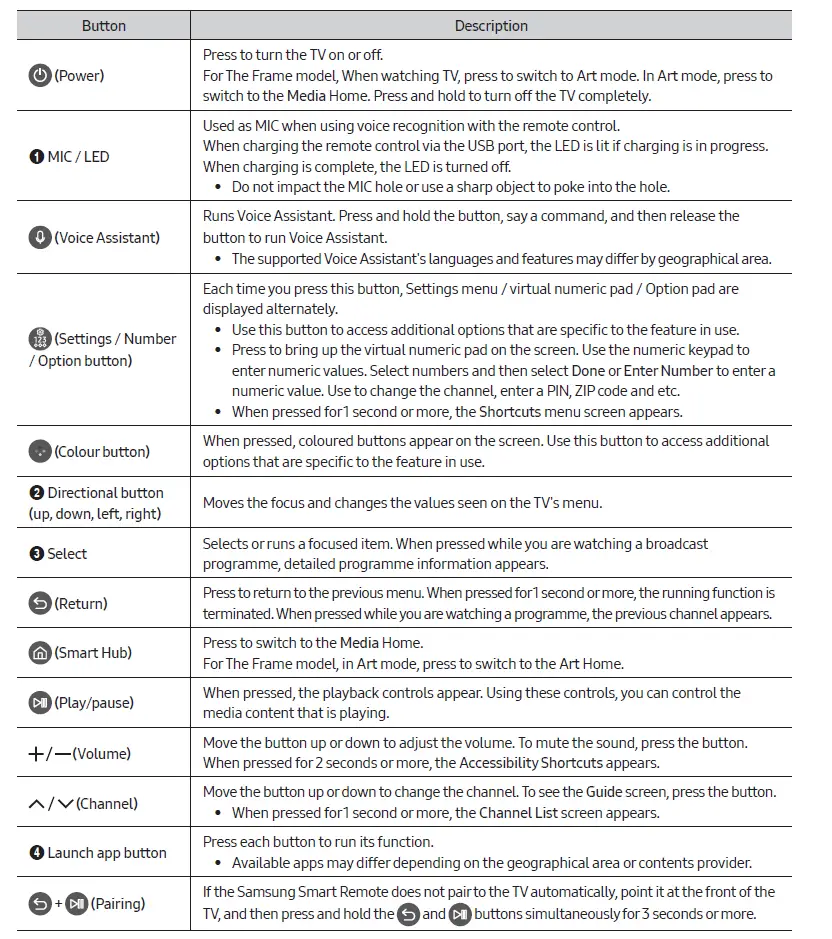
About the Samsung SolarCell Remote (Samsung Smart Remote)
Fire or explosion may occur, resulting in damage to the remote control or personal injury.
- Do not apply shock to the remote control.
- Be careful not to let foreign substances such as metal, liquid, or dust come in contact with the charging terminal of the remote control.
- When the remote control is damaged or you smell smoke or burning fumes, immediately stop operation and then repair it at the Samsung service centre.
- Do not arbitrarily disassemble the remote control.
- Be careful not to let infants or pets suck or bite the remote control. Fire or explosion may occur, resulting in damage to the remote control or personal injury.
- Use the Samsung Smart Remote less than 6 m from the TV. The usable distance may vary with the wireless environmental conditions.
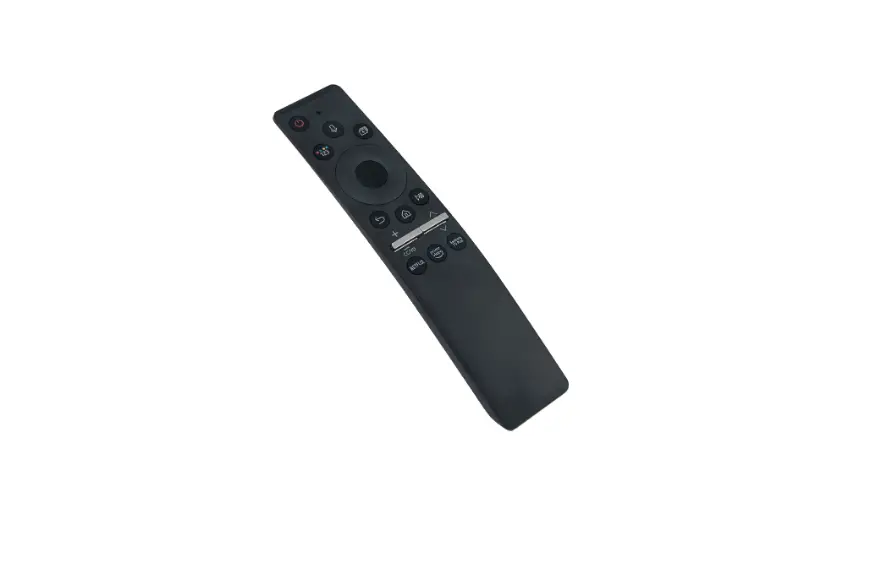
- The images, buttons, and functions of the Samsung Smart Remote may differ with the model or geographical area.
- The Universal Remote function operates normally only when you use the Samsung Smart Remote that comes with the TV. (This function may not be supported depending on the model.)
- It is recommended to use an original Samsung charger. Otherwise, it may cause performance degradation or failure of the product. In this case, the warranty service is not applicable.
- When the remote control does not work due to low battery, charge it by using the USB-C type port.

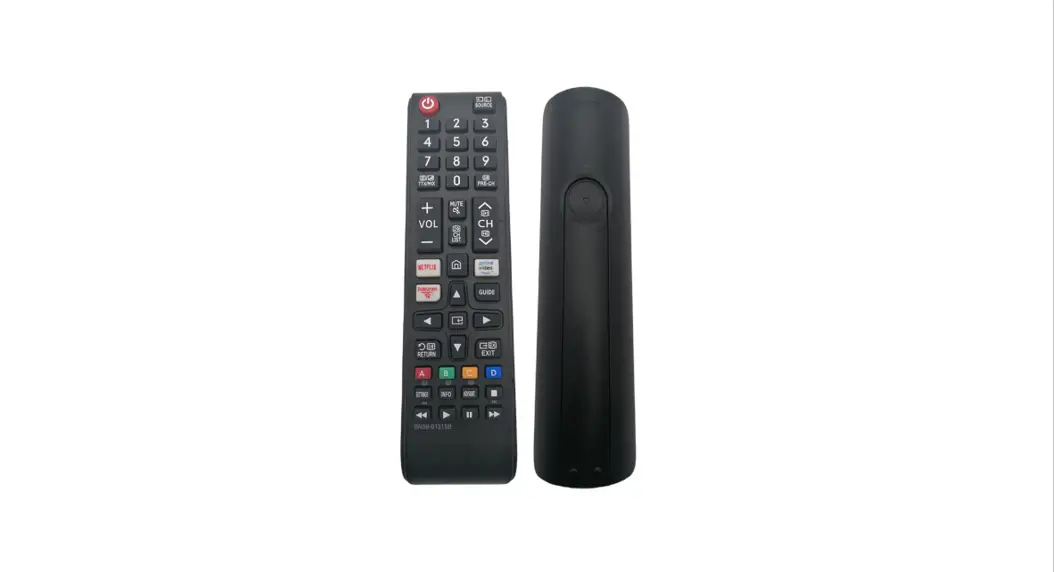
About the Buttons on the Standard Remote Control
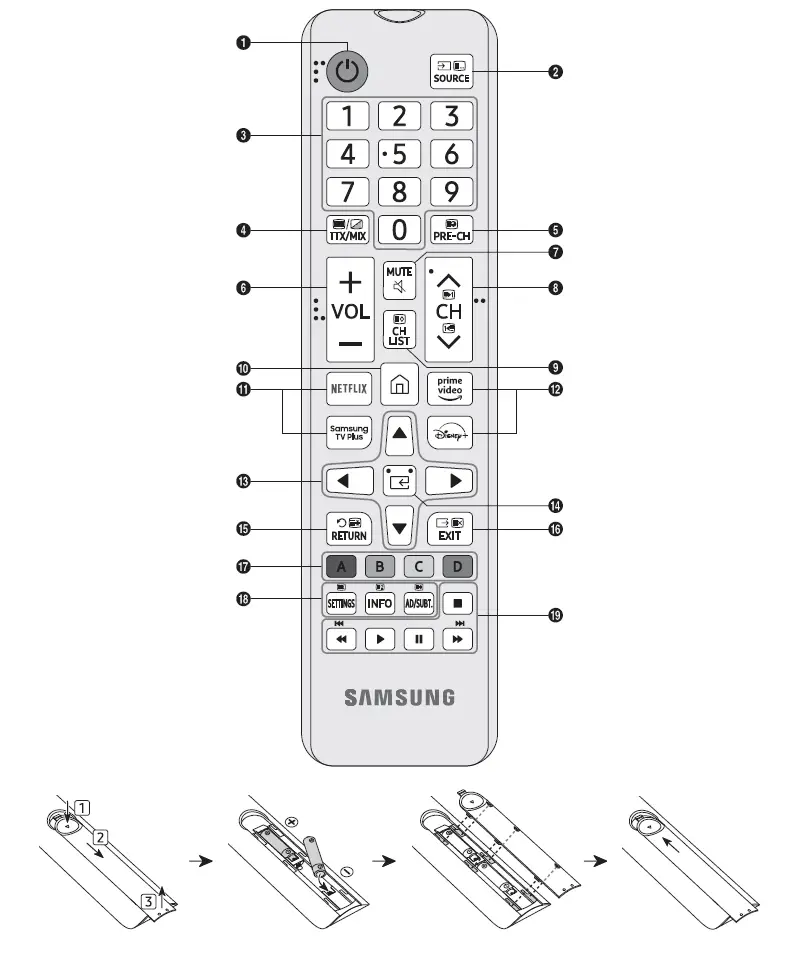
DESCRIPTION
- The images, buttons, and functions of the remote control may differ depending on the model.
- This remote control has Braille points on the Power, Channel, Volume, and Select buttons and can be used by visually impaired persons.
- If you use the remote control that comes with your TV to control another TV, some functions may not operate normally.
Number Description 1
P (Power) Turns the TV on and off.
2 Displays and selects available video sources. 3 Gives direct access to channels. 4 Alternately selects Teletext mode, Full TTX / Double TTX / Mix / Live TV. 5 Returns to the previous channel. 6 Adjusts the volume. 7 Turns the sound on/off. 8 Changes the current channel. 9 Launches the Channel List. 0 Press to switch to the Media Home. !, @
Press each button to run its function. • Available apps may differ depending on the geographical area or contents provider.
# Moves the cursor, selects the on-screen menu items, and changes the values seen on the TV’s menu. $
E (Select) Selects or runs a focused item.
% Returns to the previous menu or channel. ^ Exits the menu. & Use these buttons according to the directions on the TV screen. *
SETTINGS Displays the main on-screen menu.
INFO
Displays information about the current programme or content.
AD/SUBT.
Displays the Accessibility Shortcuts.
( Use these buttons with specific features. Use these buttons according to the directions on the TV screen.