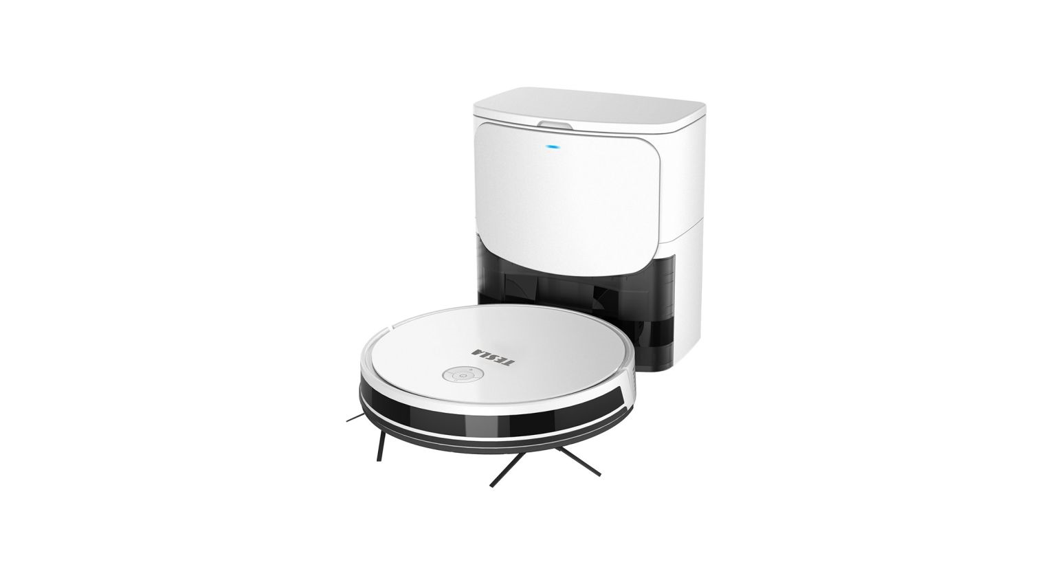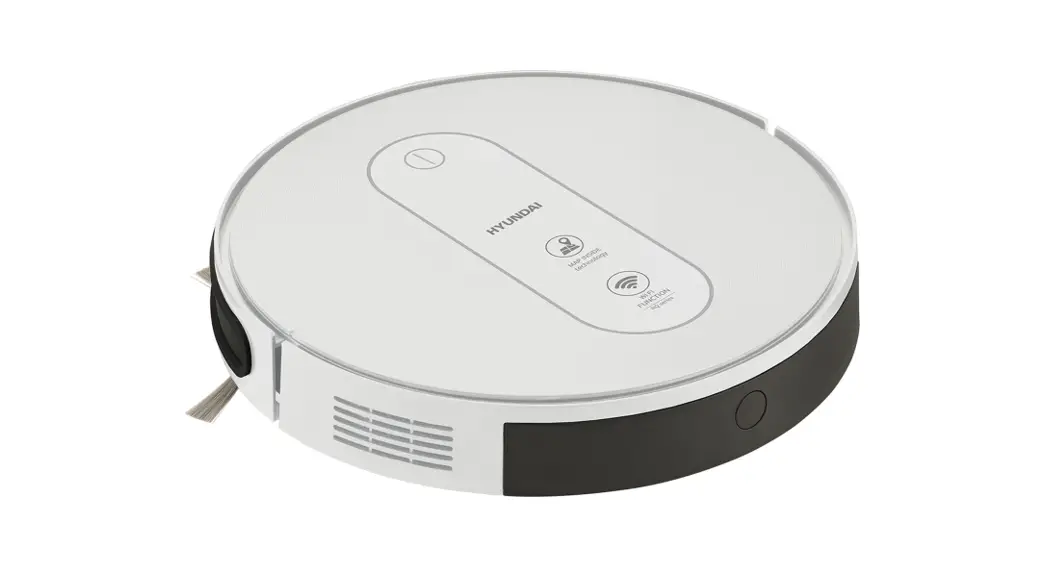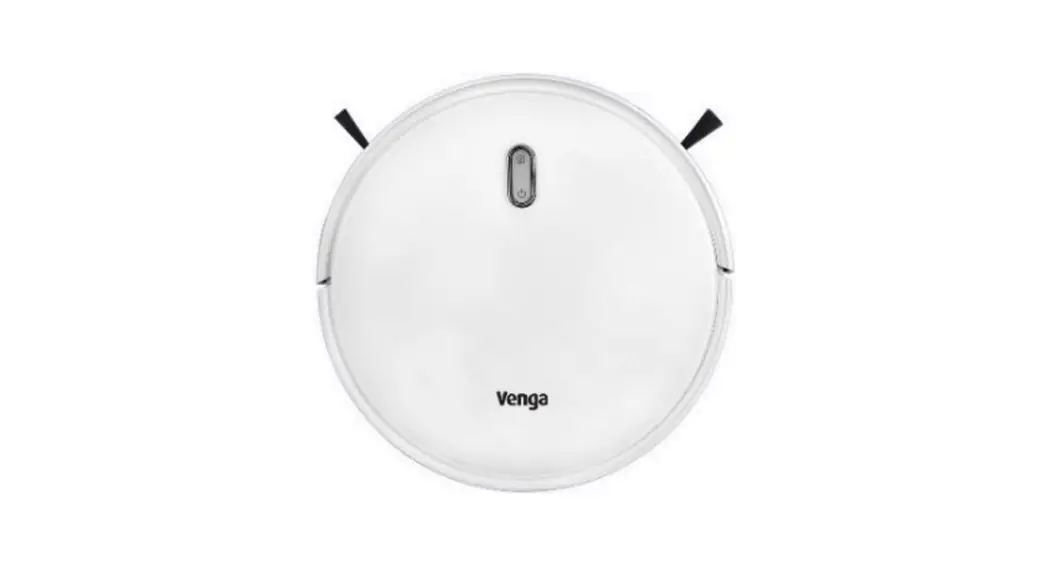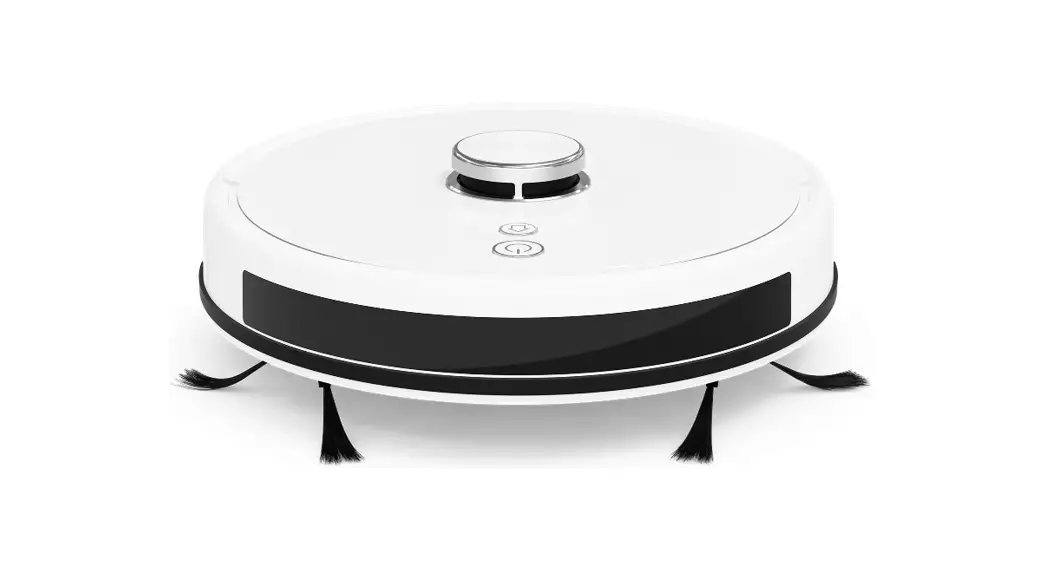

VCR600W
ROBOT VACUUM CLEANER
WI-FI FUNCTION
USER MANUAL
WI-FI MODULE SPECIFICATION AND
OPERATION GUIDELINE
- Minimum specifications on a smartphone: Android 5.0 version or higher IOS 9.0 version or higher
- Basic parameters for Wi-Fi module
Parameters Details Network frequency 2.400 – 2.4835 GHz Standards of WLAN IEEE 802.11 b/g/n (channels 1-14, channels 1-13 for EU/AU, channels 1-11
for US/CA)Protocol stack support IPv4/TCP/UDP/HTTPS/TLS/DNS Security support WEP/WPA/WPA2/AES128 Network type support STA/AP/STA+AP Max. RF Power 18.5 dbm Blue tooth frequency 2.402 – 2.480 GHz Blue tooth RF Power 9 dbm - Operation guideline. Please use the simple guideline instructions below as a reference.
| Operation Steps | Operation Items | New Account | Re-install APP (registered before) |
| Step 1 | Download and Install APP | YES | YES |
| Step 2 | Activate APP | YES | YES |
| Step 3 | Account Registration | YES | NO |
| Step 4 | Login | YES | YES |
| Step 5 | Add Device to control | YES | Registered Device will remain |
DOWNLOAD AND INSTALL THE APP
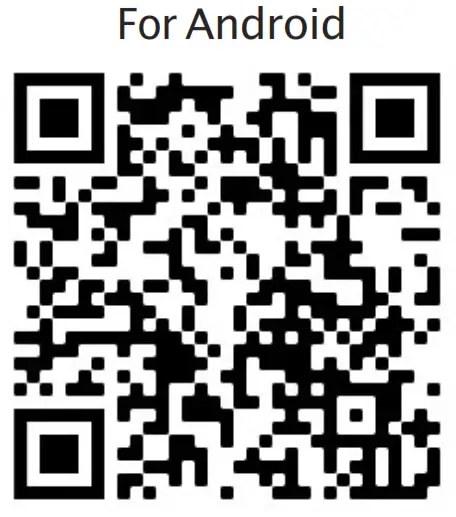 | 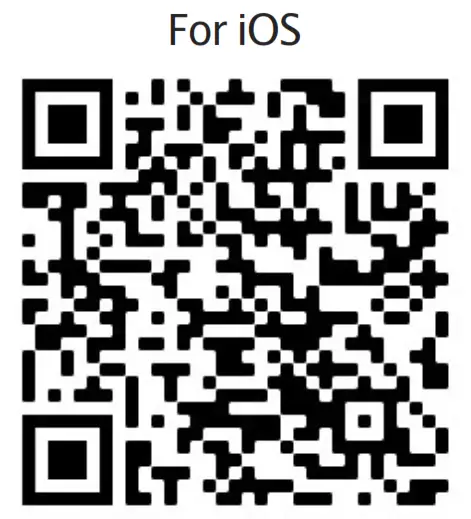 |
| https://play.google.com/store/apps/details?id=com.smart.tesla | https://apps.apple.com/us/app/tesla-smart-things/id1567096522 |
 For Android smartphones
Method 1: Please scan the QR code with a browser scanner, and download and install the APP.
Method 2: Open the Google “Play Store” on your smartphone and search “Tesla Smart”, download and install the APP.
For IOS smartphones
Method 1: Please scan the QR code and follow the tips to get into “AppStore”, download and install the APP.
Method 2: Open the Apple “AppStore” on your smartphone and search “Tesla Smart Things”, download and install the APP. Note: Please enable the Storage/Location/Camera permissions for this APP during the installation. Otherwise, it will have some problems when operating.
REGISTRATION
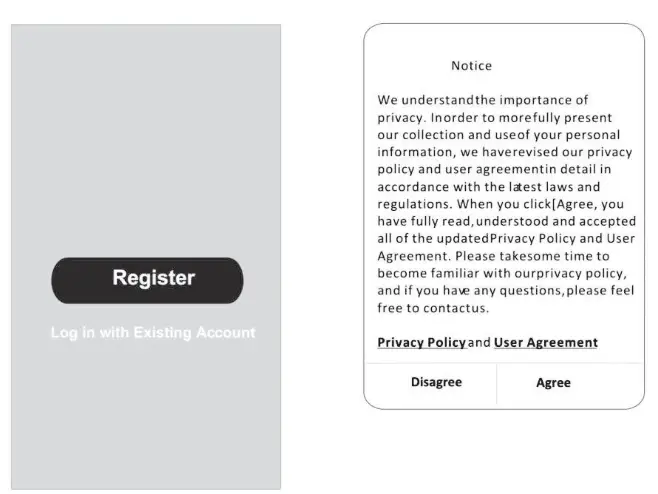
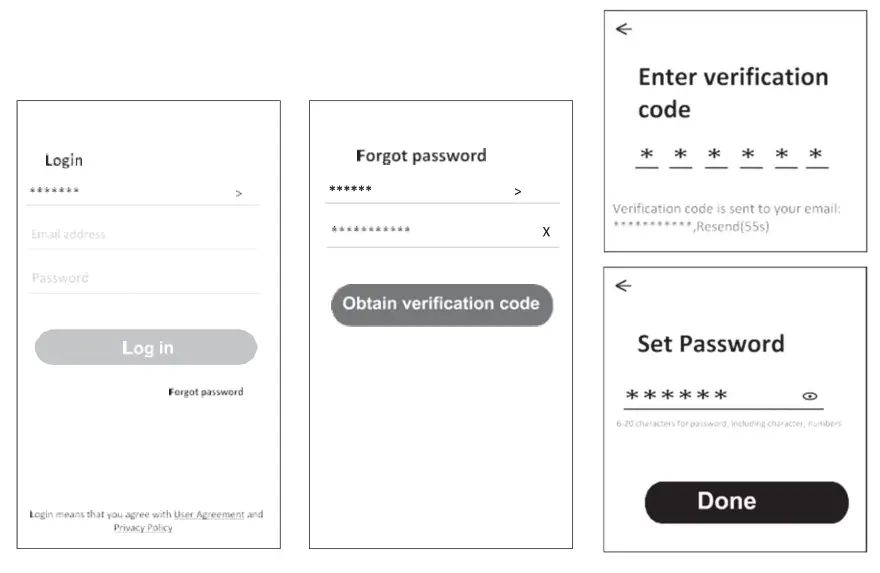
- If you don’t have an account please tap the “Register” button.
- Read the Privacy Policy and tap “Agree”.
LOGIN
- Tap “Sign in with an existing account”.
- Enter your registered account username and password.
- Tap the “Sign in” button.
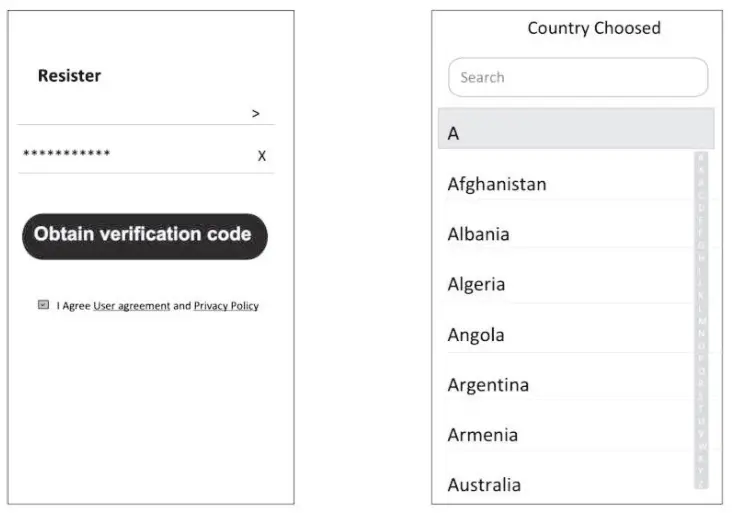
REGISTRATION
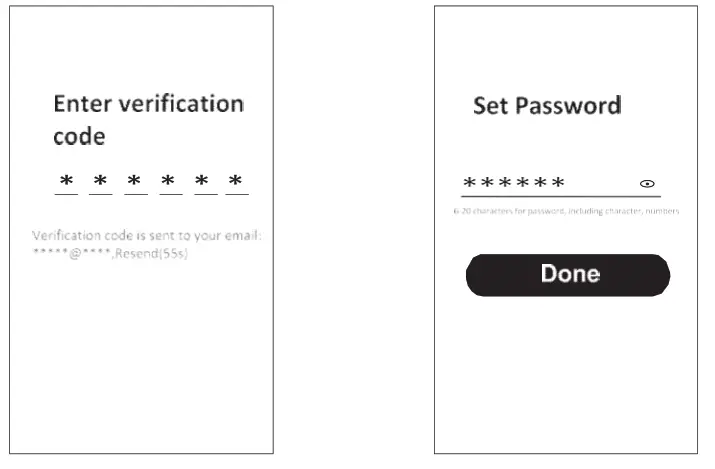
- Enter the verification code you received via e-mail.
- Set the Password with 6-20 characters, including characters and numbers.
- Tap “Done”.
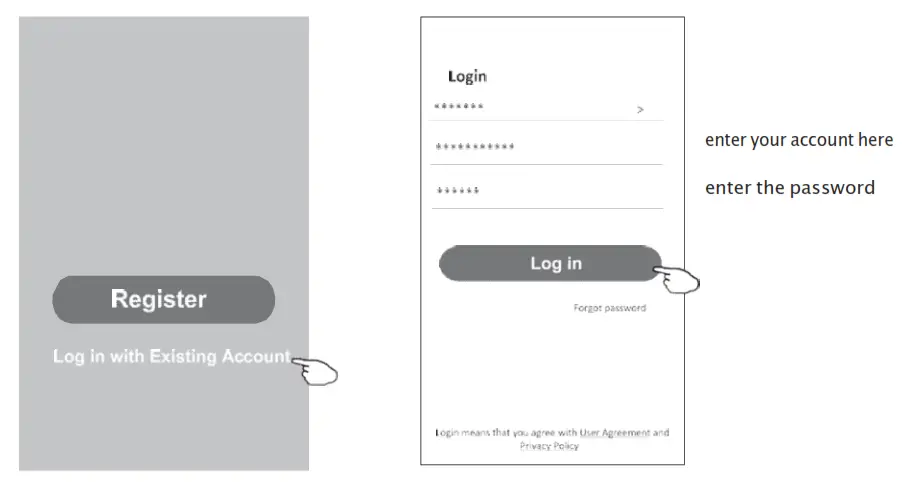
LOGIN
- Tap “Log in with existing account”.
- Enter your registered account username and password.
- Tap “Log in” button.
Forgot the password
If you forgot the password or you want to reset the password, follow these steps:
- Tap “Forgot password”.
- Enter your account username (e-mail address) and tap the “Obtain verification code” button.
- Enter the verification code received via e-mail.
- Set the new password and tap the “Done” button.
ADDING DEVICES
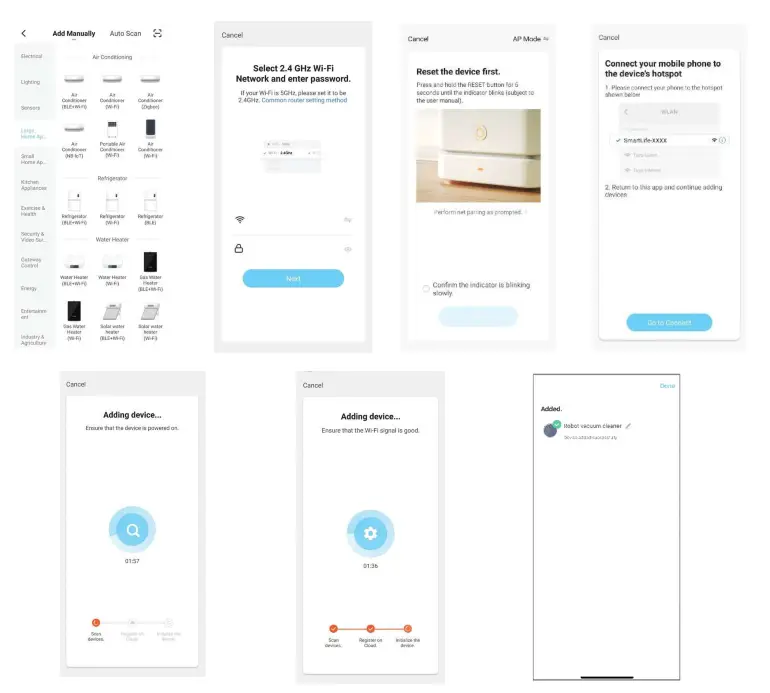
AP mode
- Power on the robot
- Press both the HOME and the ON button for more than 3 seconds, until the robot starts flashing and voice prompts “Wi-Fi lost, please follow the APP instructions”
- Ensure your phone is connected to the same network you wish to connect the robot
- Select “Small Home Appliance”
- Tap the “Robot vacuum (Wi-Fi)” logo
- Input the password of the Wi-Fi to which your smartphone is connected, then tap “Next”
- Tap + in the upper right corner and choose “AP Mode”, follow the comments on the screen to reset the Wi-Fi module modem is reset by pressing HOME and the ON button for more than 3 seconds, check “Confirm the device is reset” and tap “Next”
- Read the instruction carefully and tap “Connect now”
- Connect your mobile phone to the device’s hotspot
- You can see the percent rate of the connection process, in real-time.
 Tesla.info | Technology for all