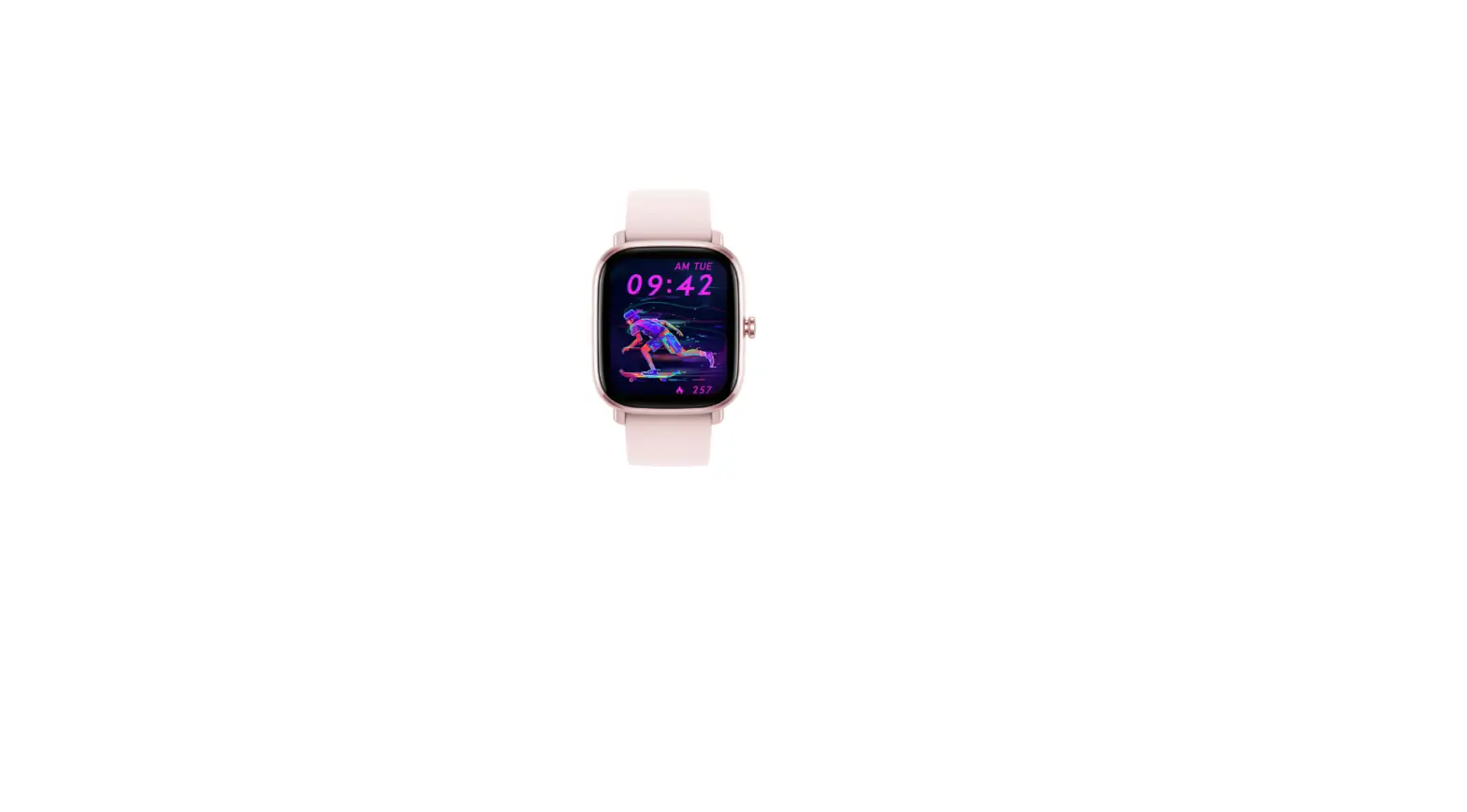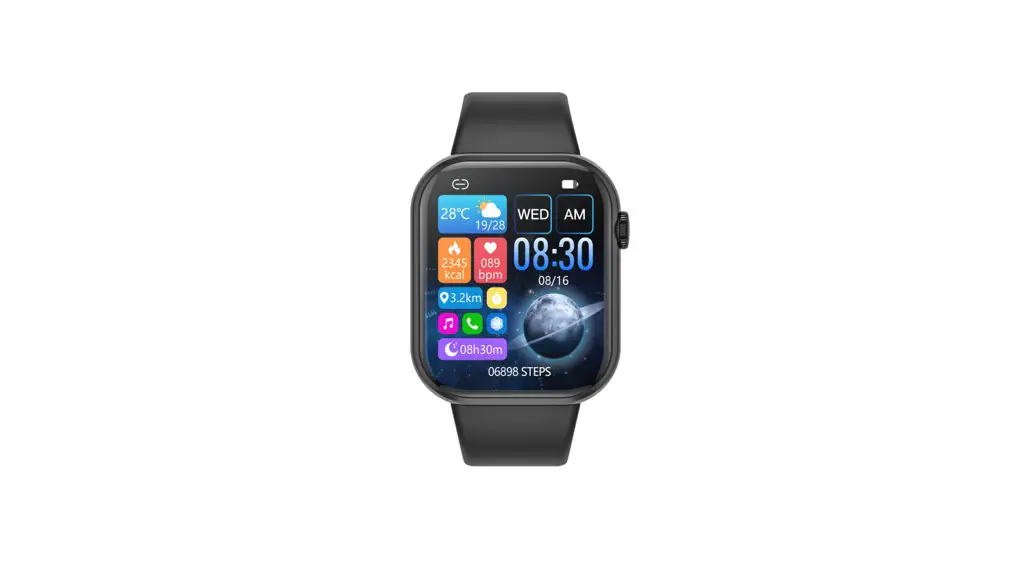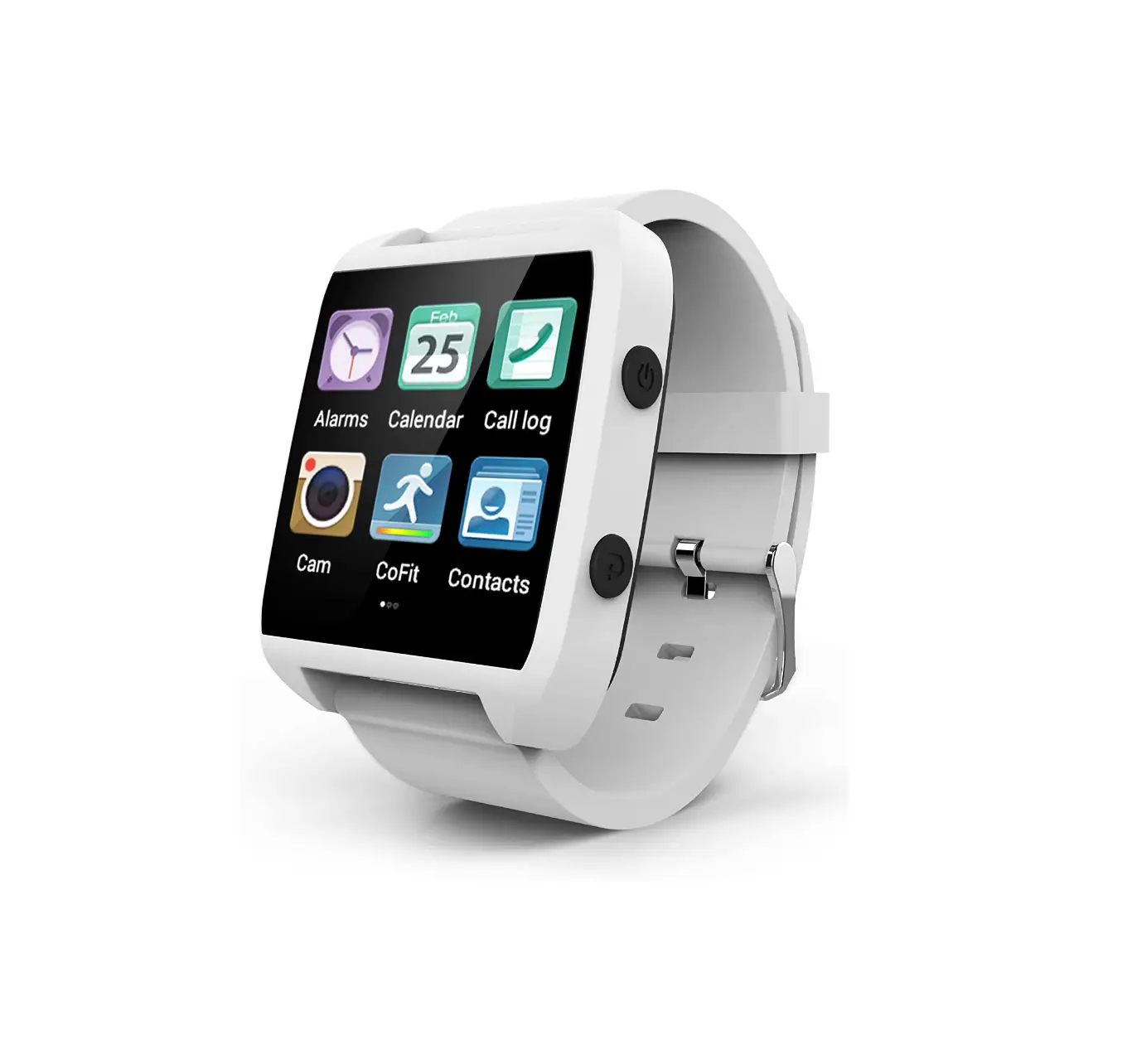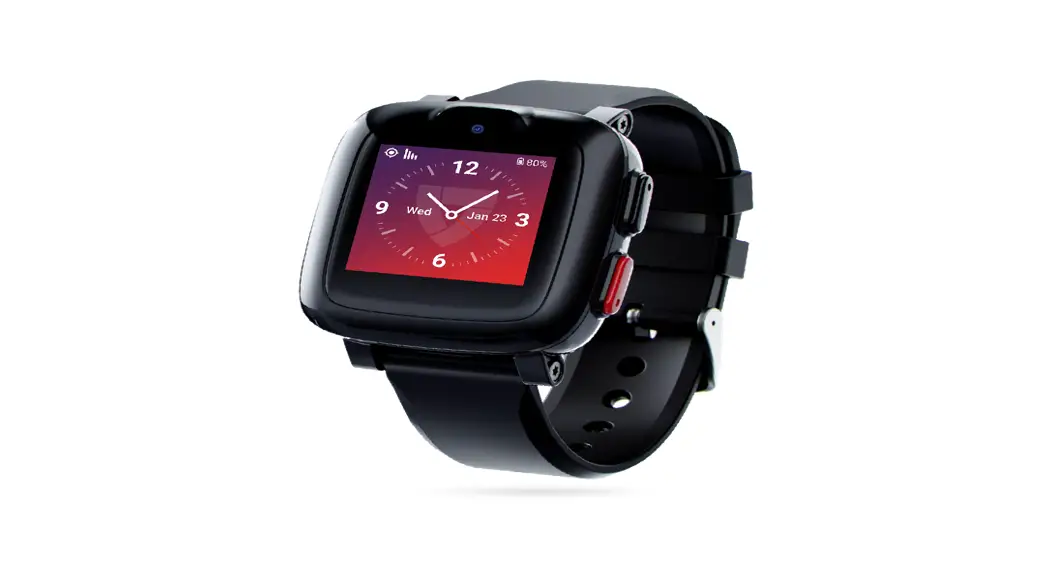


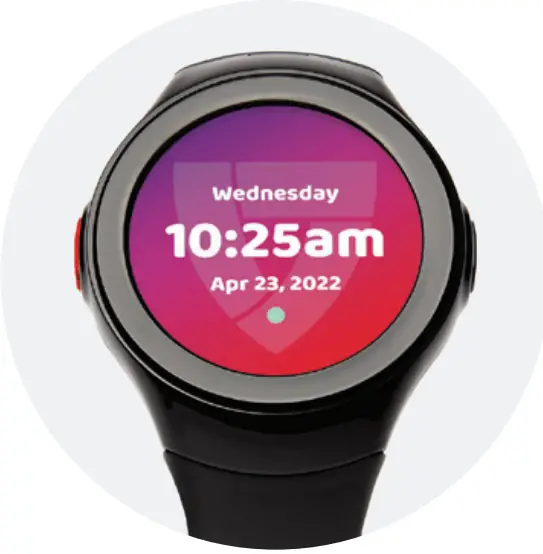
The Ultimate Smartwatch with Built-in Life Safety Capabilities.
Powered by 4G LTE
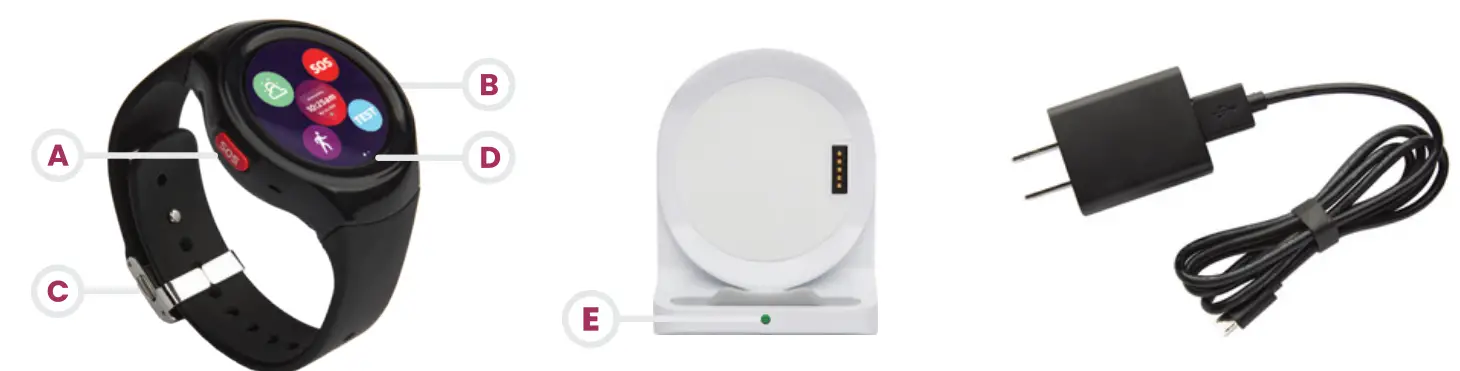
Product Details
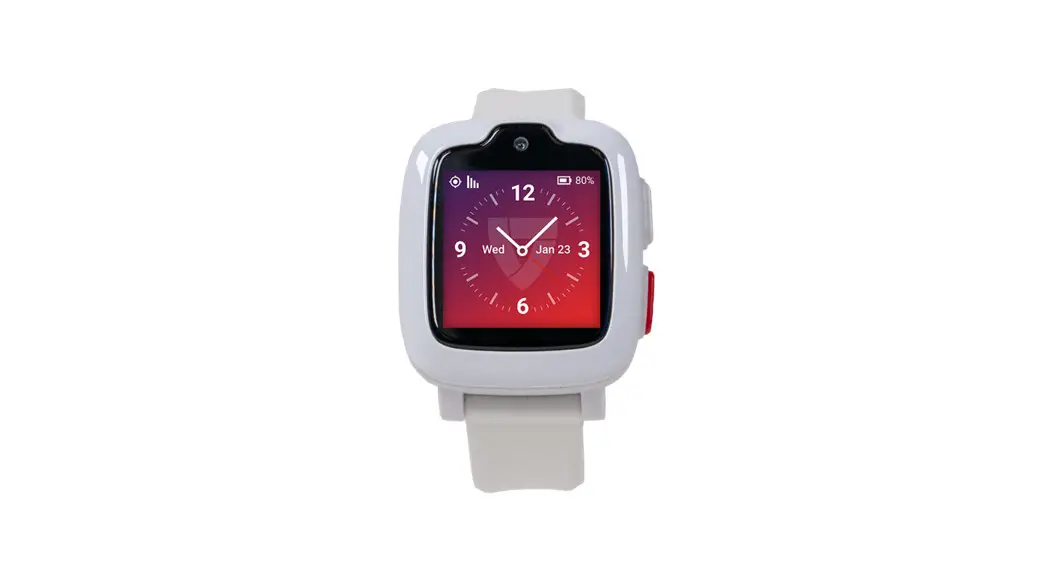
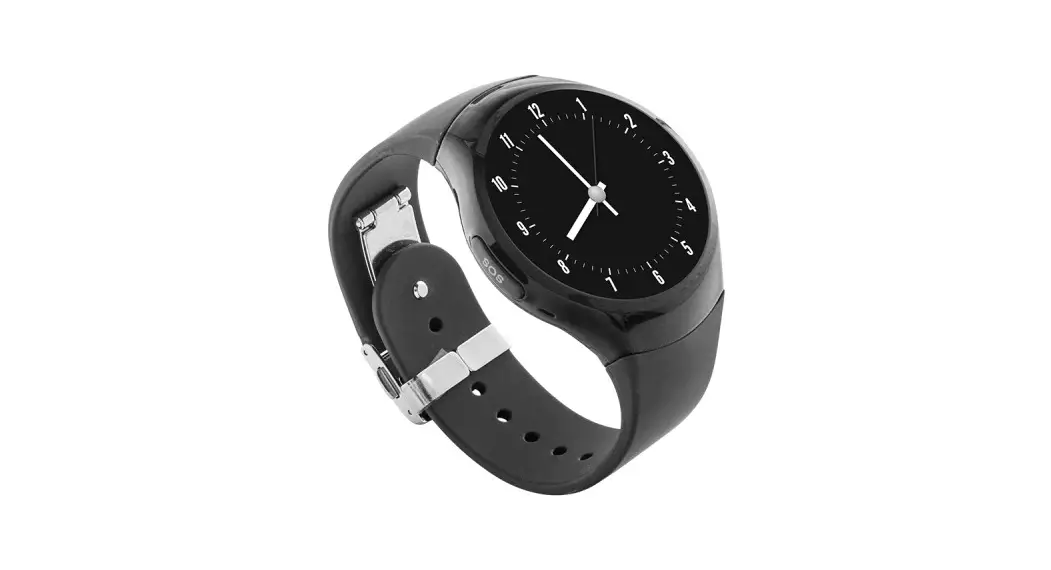
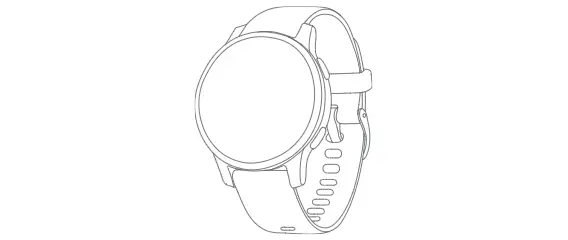
SOS Button (Red)
Press and hold for 5 seconds to make an emergency call. This can also be used to take you back to your previous screen.
Sleep/Wake Button (Black)
Press and hold for 20 seconds to reboot the system if needed. When the device is out of battery and placed on the Charging Cradle, it requires a 20-second press on this button to boot up.
Adjustable Wristband
Metal clasp and rubber wristbands work together to provide the perfect fit.
Touch Screen
Access all Smartwatch Apps, including the touch screen SOS App Icon. On the clock screen, there will be a dot that is either green, yellow, or red. This represents your signal strength. These colors are explained in the signal strength chart.
Battery Light Status
When you place your smartwatch on the Charging Cradle, the light will show your charge status.
What’s in the Box
Battery Life & Signal Strength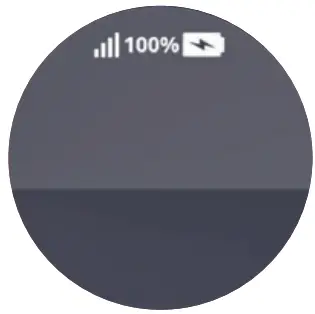 NOTE: To view your battery percentage, slide your thumb from the top of the clock screen down to the bottom of the screen (shown to the right). The expected battery life lasts up to 24 hours.
| Lights | Battery Light Status (On Cradle) | Signal Strength (On Watch Face) |
| Green | Full Charge | Excellent |
| Yellow | Not Charging/Adjust Cradle | Good |
| Red | Under 97% Charge | Poor/None |
Core Features
Your MGMove is full of useful features that you can access with the swipe of your finger. To access your apps, tap the watch face.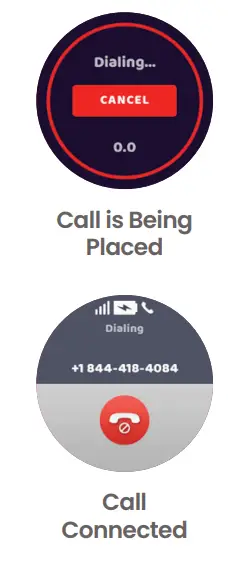
Reporting an Emergency sos
The SOS App is one of two ways to activate the device to get help from our Monitoring Center. Tap the SOS icon to initiate help. You can also press and hold the physical red SOS Button on the side of the smartwatch for 5 seconds. In the event of a false alarm, you can cancel the alarm when in the 5-second window.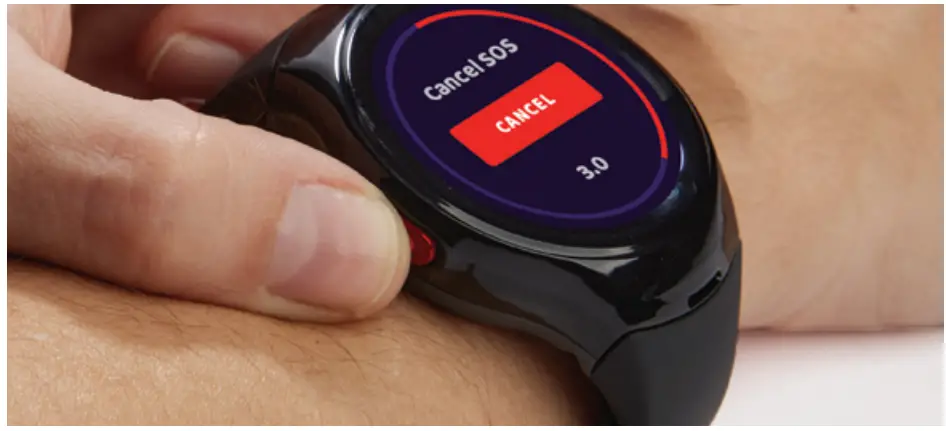
Test
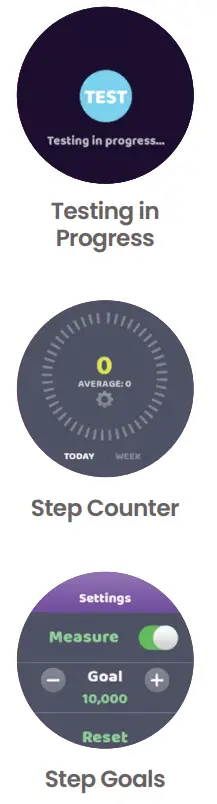
The Test App should be pressed at least once a month to ensure that your device is operating correctly in the event of an emergency. You can test your device with an automated recording rather than sending an actual alarm to an agent. Your device will indicate that the test call was successful.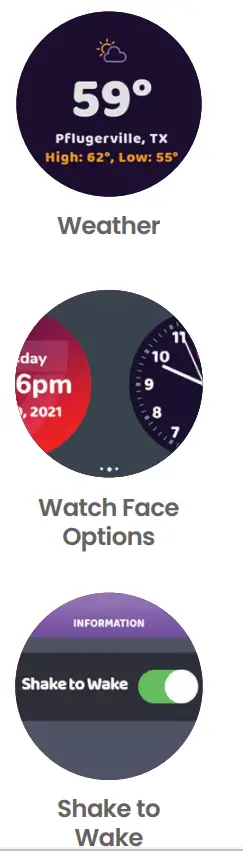
Steps
The Steps app tracks the number of steps taken daily and weekly. The measure toggle needs to be on to collect your step data. To set your goal, click on the gear icon and tap + or -. The Reset option can be used to set your goal back to 0. Once the goal has been adjusted, press the back button to get back to the main screen.
Weather
The Weather App will use the current location of your device to display the current conditions.
Settings
To access your settings click on the setting icon from your home screen. Next, tap the words More Info. From there, scroll to the bottom of the screen and tap User Settings. Enter code 1234.
Here you can change your watch face style or update your Shake to Wake preference. To change your clock face, tap the name watch face. Then, swipe to the watch face of your choice and tap it. The tap will save the choice, click the SOS Button to go back. Shake to Wake is turned on by default. Turning Shake to Wake off may extend your battery charge.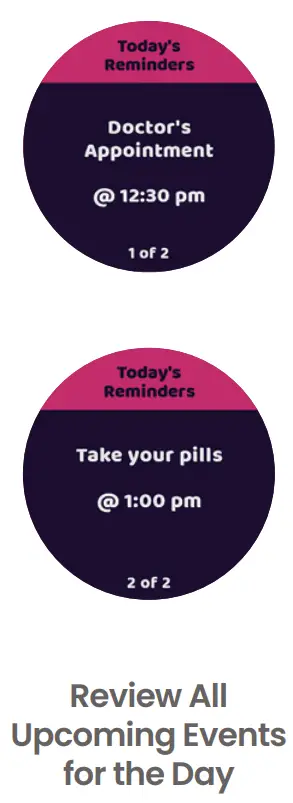
Support Circle Apps
If you would like to purchase these additional features call 1 (800) 313-1191.
Reminders
Reminders created in the MyGuardian Web Portal & App can be sent and reviewed by the Care Recipient. The wearer will get an alert that the event was sent. Reminders are sent 15 minutes before the event unless otherwise specified.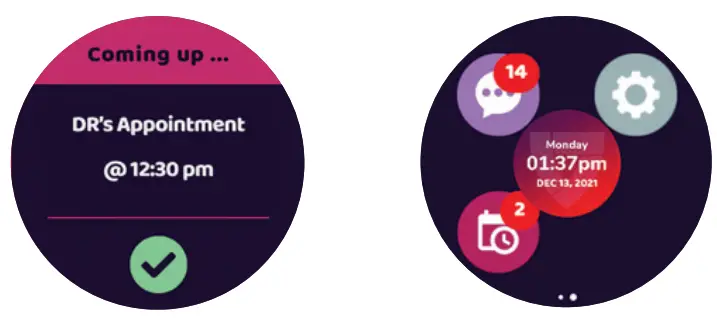
They can be reviewed at any time of the day by tapping the reminders icon. The number badge displays the number of upcoming reminders for the day. Events in the past will not be shown but you can scroll through your future events for the day and will reset the next day.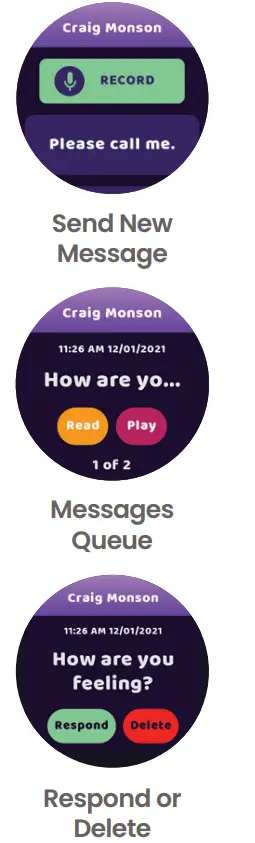 Messages
The Messages App gives Caregivers the ability to communicate with the wearer via the MyGuardian Web Portal & App. The Messages App icon displays the number of queued messages. Tap the Messages icon from the home screen to start.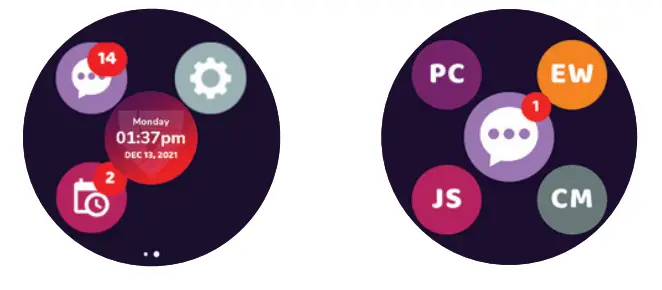
SENDING A NEW MESSAGE
Care Circle members must be set up through the portal to be able to receive messages from the wearer. To send a new message, the wearer will tap the initials of the portal member that they want to send a message to. The wearer will be given the option to record a message or use a pre-scripted statement.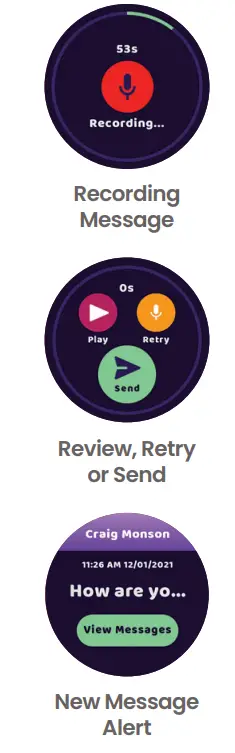
REVIEWING MESSAGE QUEUE
To view queued messages, (messages that have not been deleted or responded to) tap the center Messages Icon. Swipe back and forth to preview messages.
MESSAGE RESPONSES
When viewing incoming messages the wearer can Read or Play their message, and then, Respond or Delete it. Responses from the wearer can be returned to the sender as a yes, no, or the option to leave an audio recording of 60 secs or less. In the event of a recording, they will have the option to Review, Re-record, Send, or Cancel the message.
NEW MESSAGE ALERTS
When a message is first received, it will make an alert sound and display a message preview screen. The wearer can tap on the View Messages icon to read the message in full.
Add Support Circle Members
The Support Circle Apps allow you to stay connected to the people who support you the most.
- Send the Caregiver to this link: mymedicalguardian.com/create-account.
- The Caregiver fills out the registration page with their own name and email. They will create a username and password, and then verify the account using text or email verification.
- The verification email takes them directly to the next step of the registration process, asking for the Care Recipient’s name, zip code, and the System UDI number. The
UDI is a 9 digit number that can be found on the back of the watch face and on the box. - At that point, the Account Owner will be notified that the Caregiver has applied to be a guardian user. They will receive an email that will allow them to review and approve the application.
- An approval confirmation email will be sent and at this point, the Caregiver will be able to log in and use MyGuardian.

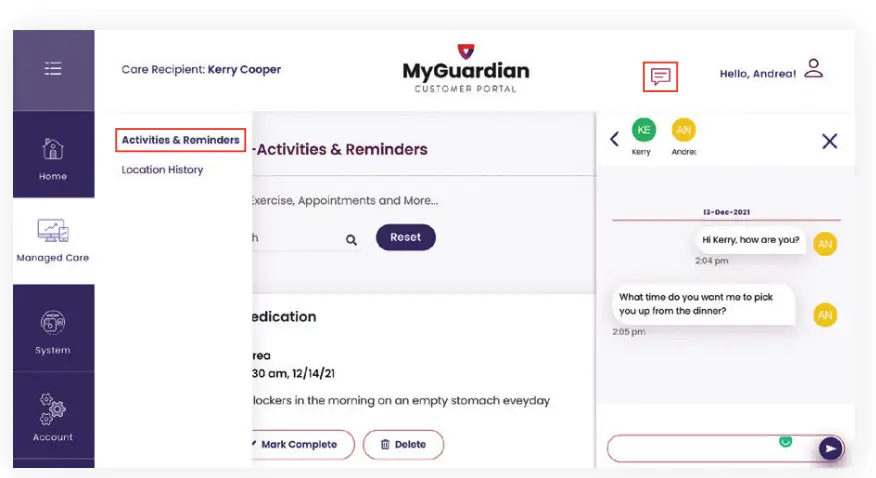
NOTE: In order to use the MyGuardian Portal & App to send messages and chat with the rest of the Support Circle, click on the chat icon in the upper right of the screen.
To access Reminders click on the Managed Care tab from the left side navigation and then select Activities & Reminders from the expanded left-hand sub-navigation.
Customer Service
Monday – Friday
9:00am – 8:00pm (Eastern Standard)
Saturday 9:00am – 5:00pm (Eastern Standard)
Our team is standing by to provide you with the help and support you need.
1.800.313.1191
Support is also available online: medicalguardian.com/support/mgmove
[email protected]
Legal documentation can be found at: medicalguardian.com/legal
MGDOC-10490
 Legal Information About Medical Guardian Services
 MyGuardian - Medical Guardian's Customer Care Portal